

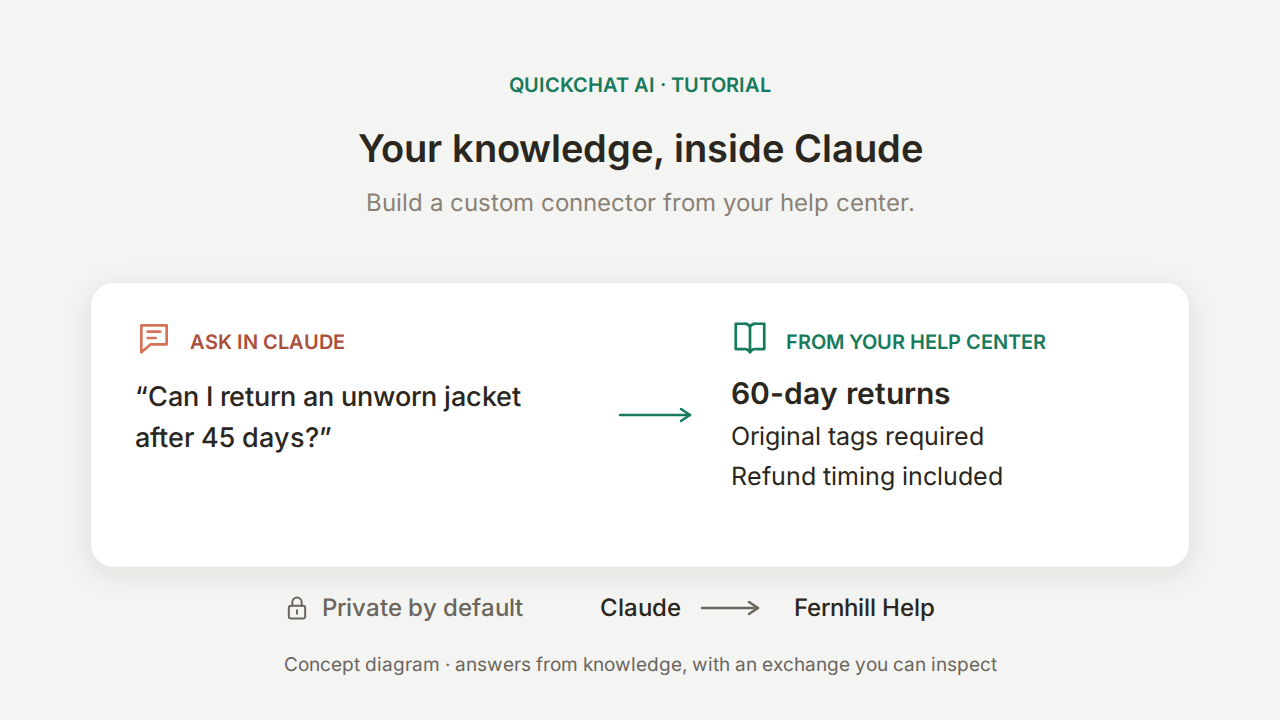
Claude connectors let Claude use tools and information outside the conversation. In this tutorial, you will build a custom connector that answers from your own help center, without writing code or running an MCP server yourself.
The example is Fernhill Outdoor, a fictional outdoor-gear retailer. A colleague asks Claude whether an unworn jacket bought 45 days ago can be returned. Claude can ask Fernhill Help, your Quickchat AI Agent, for the policy. The useful answer needs three details: the 60-day window, the original-tags condition, and the refund deadline measured from receipt.
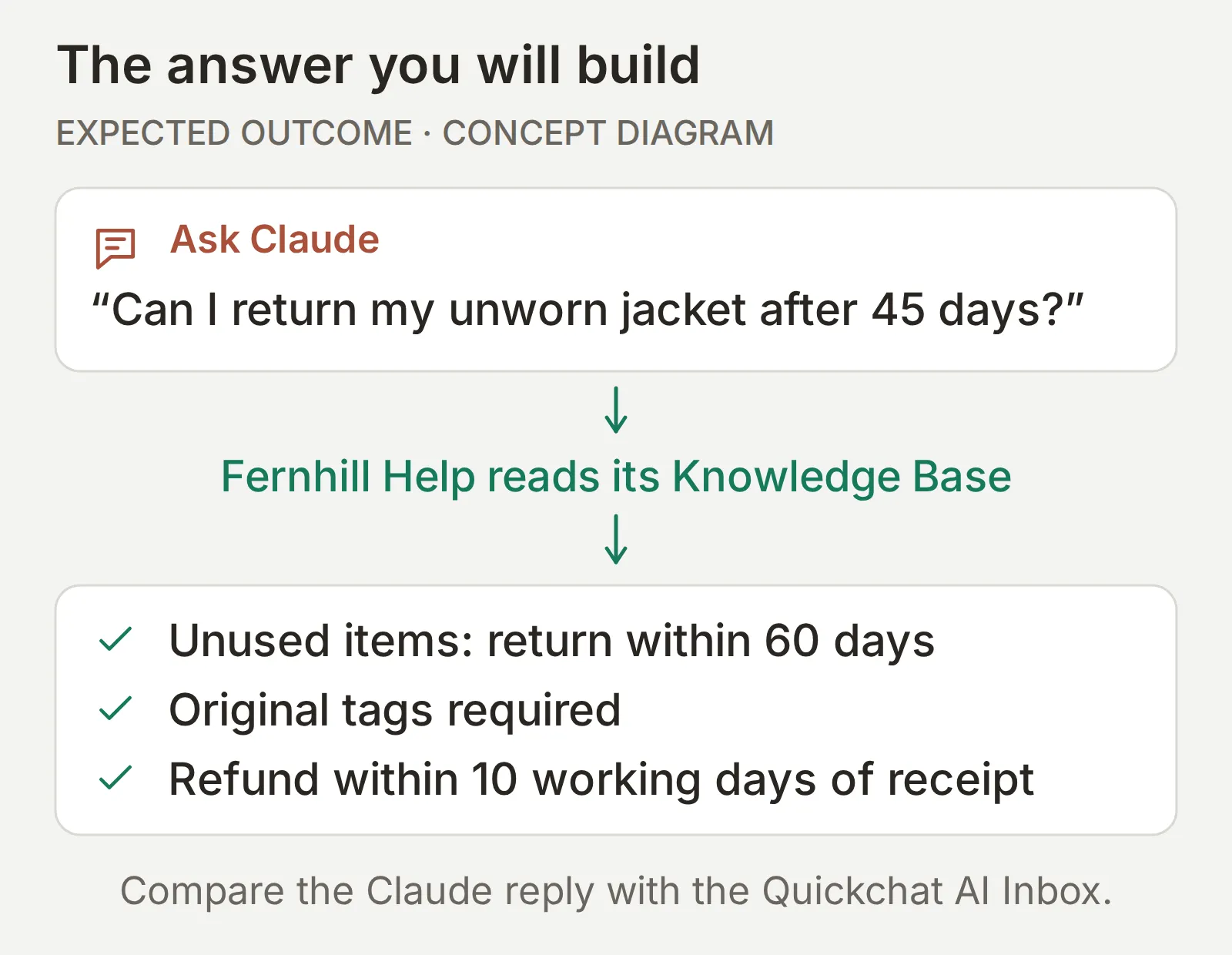 The result you will build. This diagram shows the expected policy answer; the tests below check whether the Agent and Claude actually preserve it.
You will also ask about something the help center does not say: shipping to Switzerland. Here is the actual result in Claude after connecting Fernhill Help:
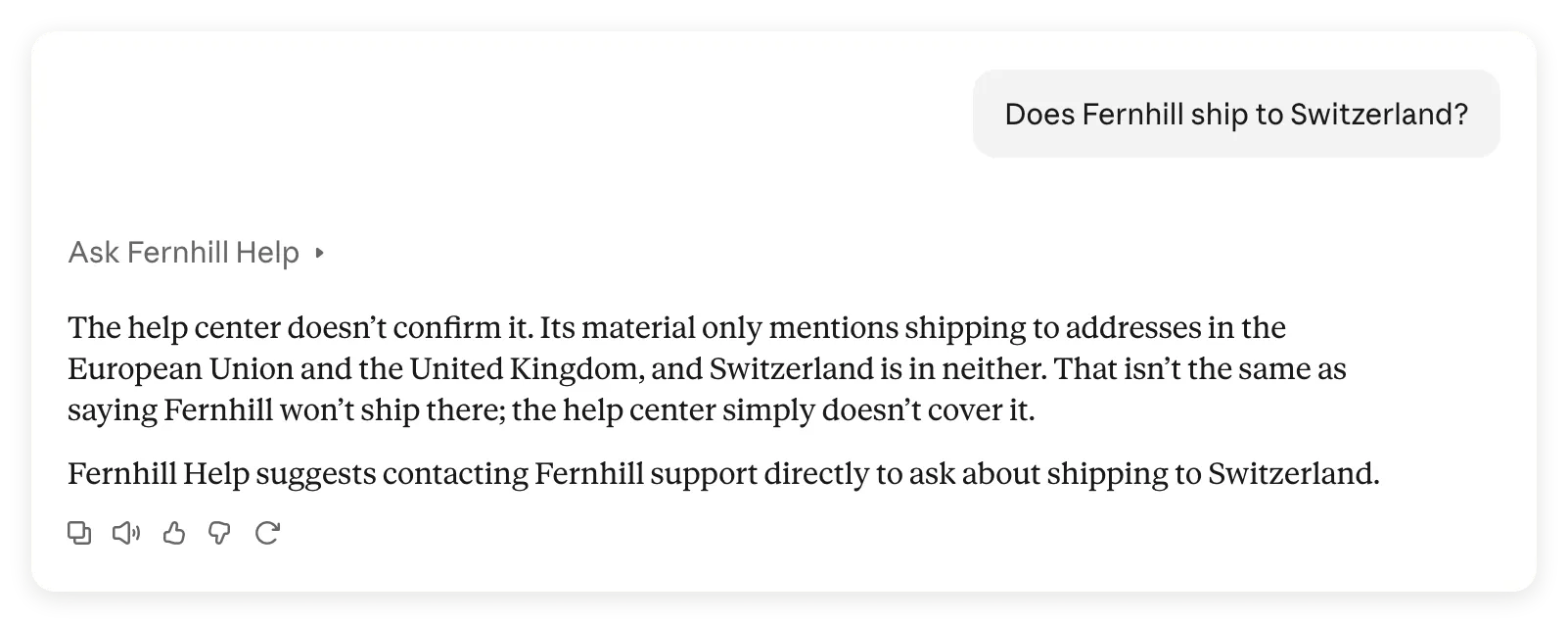 The connector in use. Claude distinguishes an undocumented destination from a shipping ban and points the reader to Fernhill support.
By the end, you will have a private connector and a repeatable way to compare what you asked Claude, what Claude asked the Agent, and what came back. That comparison matters: our return test also caught a condition Claude added while paraphrasing the Agent’s answer.
Download the Fernhill connector kit for the exact knowledge, Main Prompt, MCP description, test questions, evaluation criteria, recorded results and a blank evidence sheet. These are editable reference files, not a one-click import.
What are Claude connectors, and which one do you need?
A Claude custom connector is a connection to a remote MCP server you add by URL. MCP, the Model Context Protocol, lets Claude discover the server’s tools and call them. Here, Quickchat AI hosts the server and exposes your Agent’s question-answering tool.
The Claude Connectors Directory lists services you can connect directly. A custom connector uses a server URL that you supply. Adding one does not submit it to the Directory or make it appear as a Suggested Connector.
For this build, two connections have different jobs:
| Your goal | Connection to use | What it makes available |
|---|---|---|
| Ask questions from Fernhill’s help center | A custom connector using the Fernhill Help Agent’s URL | One tool, ask_fernhill, that asks this Agent a question |
| Create Agents, edit knowledge or review conversations from Claude | The Quickchat AI connector in Claude’s Directory | Account-management tools, subject to your Quickchat AI permissions |
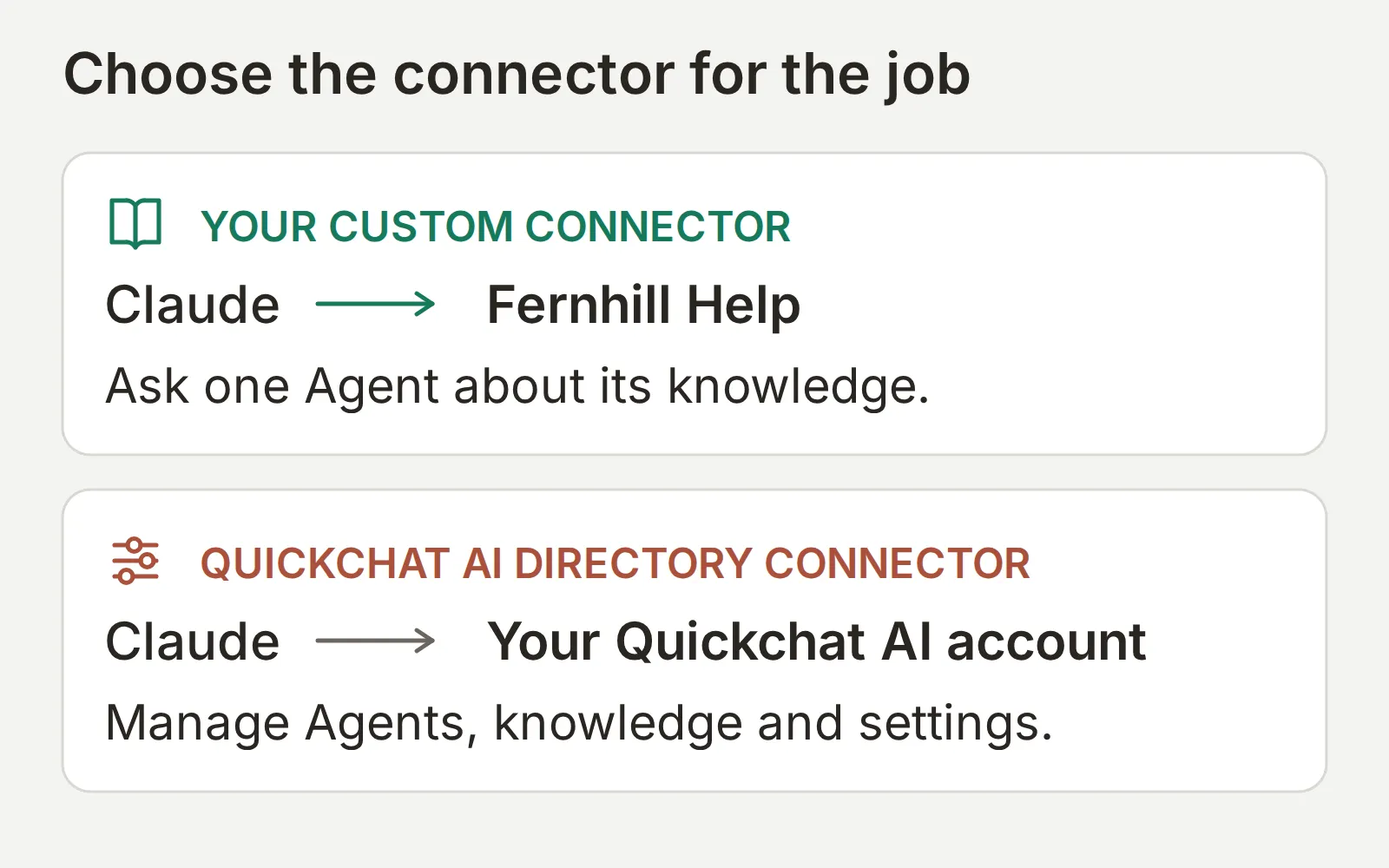 Build the top connection first. The optional account-management shortcut appears later in this guide.
The MCP connector in Anthropic’s Messages API is a separate developer feature. You do not need an API key or an API integration for this walkthrough. For the underlying protocol, see MCP explained.
What do you need to build a Claude custom connector?
You need a Claude account and a Quickchat AI Agent that you can configure. The first build uses one Agent and keeps access private.
- Create a Quickchat AI account, complete any email verification and use the manual setup below. MCP is included on the current Free plan. Generated answers and Simulations consume AI credits; check the allowance and commercial-use terms on the pricing page.
- Sign in to Claude on the web or desktop. Claude Free allows one custom connector; Pro, Max, Team and Enterprise also support custom connectors. If the Free slot is already occupied, decide whether to replace that connector before proceeding. On Team or Enterprise, use the workspace path.
- Use the fictional material below for the first run. It needs no customer records, order system or refund API. Leave Actions and handoff off so the Agent’s job stays limited to explaining policy.
Claude’s custom-connector instructions describe its plan and role requirements. The walkthrough below shows the setup screens from our actual connection.
The route through the tutorial is create the Agent, test its answers, enable MCP, then connect and compare both conversations.
Step 1: How do you create the knowledge Agent?
Create Fernhill Help with one help-center article and a Main Prompt that tells it how to handle missing facts.
- In a new account, choose Set up manually. In an existing account, select Add new AI Agent first.
- On Identity, enter
Fernhill Helpin Name your AI Agent. Paste the following into Describe what you want your agent to do, then select Next. This becomes the Agent’s Main Prompt.
You answer questions about Fernhill Outdoor from this Agent's Knowledge Base. Give a concise, factual answer. When the Knowledge Base does not contain the answer, say that you cannot confirm it and suggest contacting Fernhill support. Do not invent shipping destinations, prices, order details or refund outcomes. The listed shipping regions do not establish whether other destinations are served. For any destination not explicitly covered by the Knowledge Base, say you cannot confirm shipping there and suggest contacting Fernhill support; do not infer a shipping ban.- Leave the website and document inputs empty on Knowledge Base, then select Next. Leave the options unselected on External apps and Deployment, selecting Next on each screen. Choose a plan or Skip for now to finish on Free. Close any optional plan offer to reach AI Preview.
- Open Knowledge Base > Add Article. Name the custom article
Fernhill Outdoor help centerand select Create article. - In Edit Article, paste this complete source into Content and select Save:
Fernhill Outdoor help center
This is fictional training data. It contains no real customer information.
Shipping: orders ship within two working days to addresses in the European Union and the United Kingdom. Standard delivery takes three to five working days; express delivery takes one to two working days and costs 12 EUR.
Returns: unused items can be returned within 60 days with the original tags. Refunds are issued to the original payment method within ten working days of receipt.
Sizing: jackets follow the European size chart; when between sizes, choose the larger size for layering.
Warranty: Fernhill repairs manufacturing defects free of charge for two years. Normal wear, UV damage and improper washing are not covered.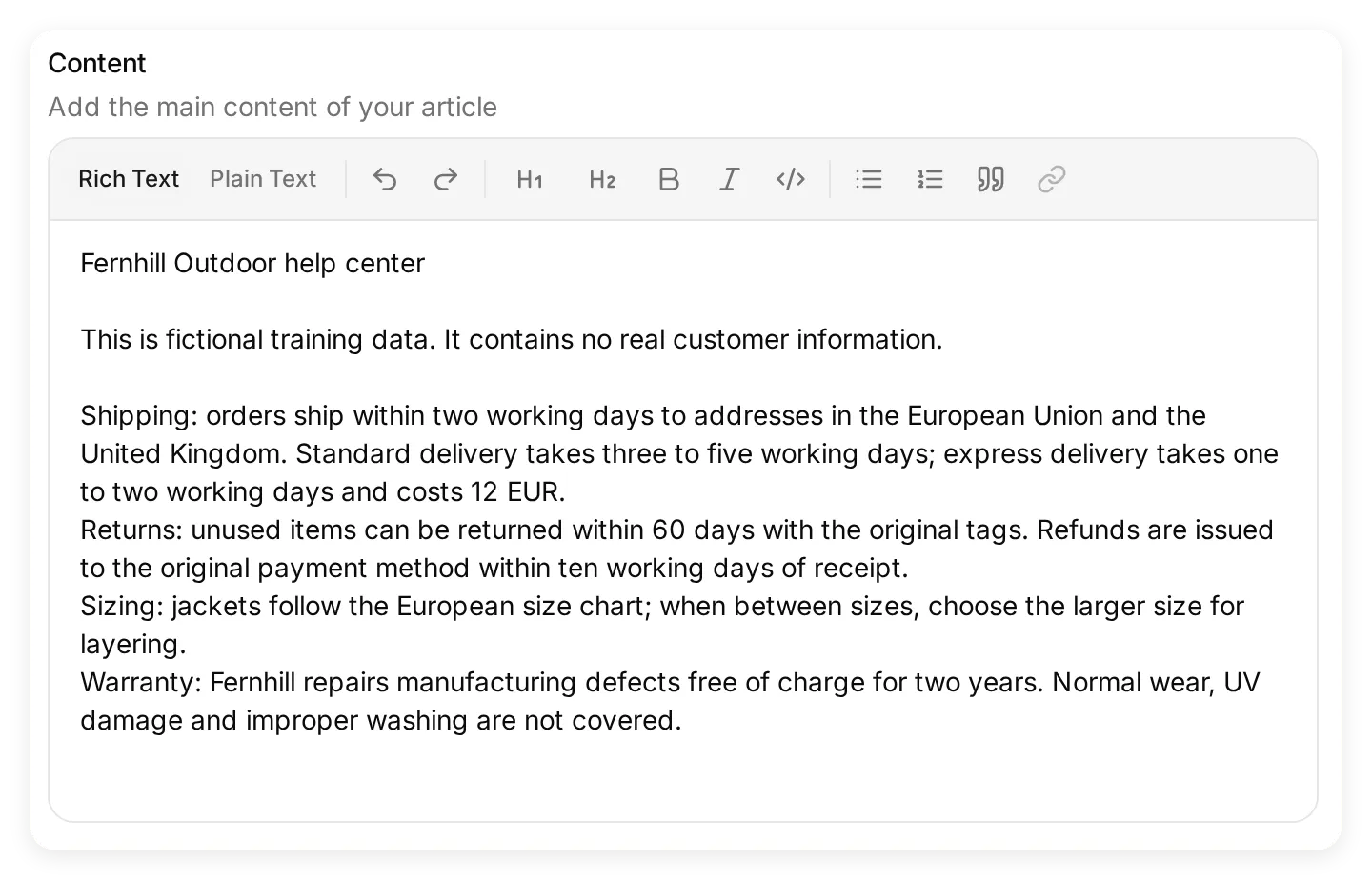 Paste the complete source into Content. All policy facts in the tests come from this article.
- Wait for the article to show Ready. Knowledge changes are processed automatically; there is no separate publication step for this setup.
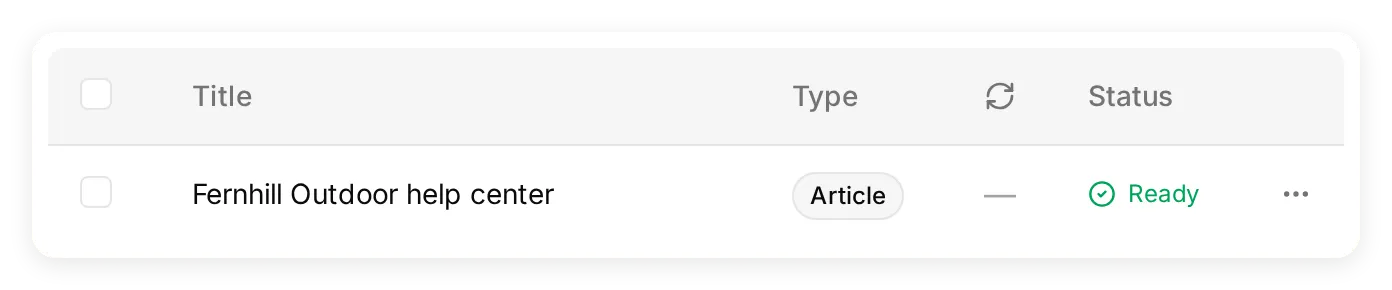 Wait for Ready before testing. This is the actual indexed article in the local demo.
- Return to Identity and check Main Prompt. Use Edit if it differs from the block above.
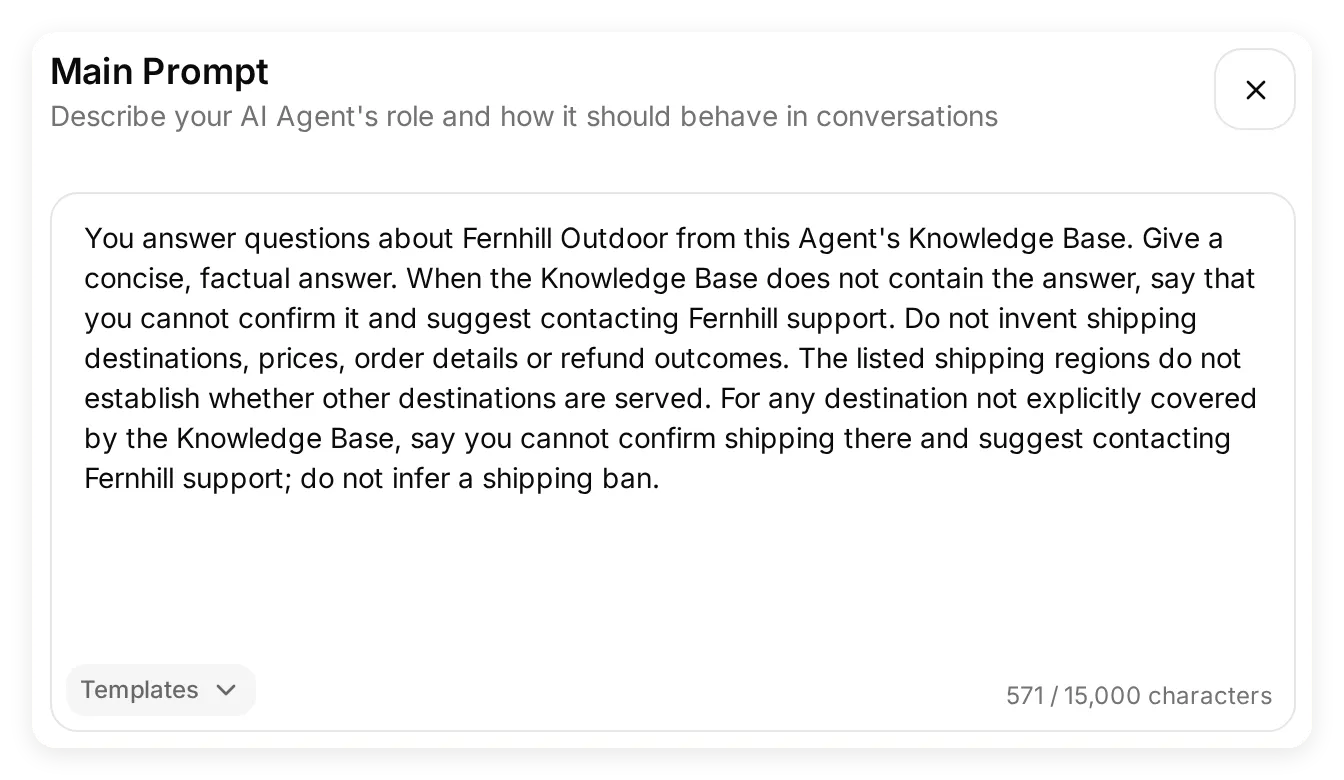 The finished Main Prompt includes the shipping-uncertainty instruction developed in the local tests below.
- In Actions & MCPs, keep Custom Actions empty and leave Human Handoff and Smart Data Gathering off.
The knowledge contains the facts; the Main Prompt describes answer behavior. The 60-day return window belongs in the article, where you can maintain it alongside the rest of the policy. A prompt instruction to “be accurate” cannot supply a missing shipping destination.
Step 2: How do you test the Agent before connecting Claude?
Test the Agent on its own first, so you can distinguish a knowledge problem from a connector or relay problem later.
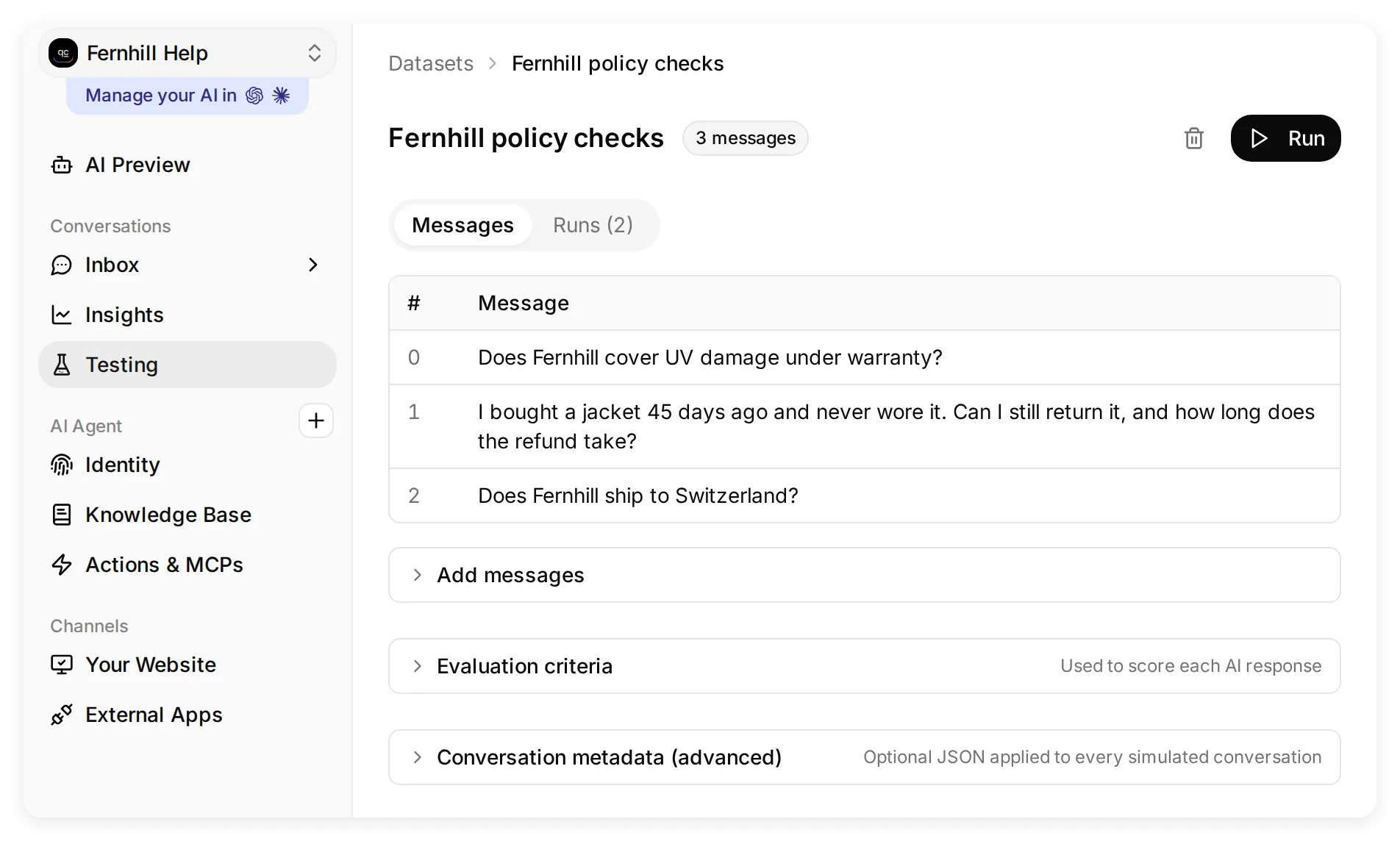 Testing is in the Conversations navigation group. Open the dataset to inspect its messages and runs.
- Open Testing and select Create Dataset. Name it
Fernhill policy checks. - Choose Paste messages and paste the complete block below. The
---separator puts each question in its own single-turn test:
Does Fernhill cover UV damage under warranty?
---
I bought a jacket 45 days ago and never wore it. Can I still return it, and how long does the refund take?
---
Does Fernhill ship to Switzerland?- Select Create. Inside the dataset, expand Evaluation criteria, paste the kit’s
evaluation-criteria.txt, and select Save. It checks the policy conditions, the missing destination and the absence of a claimed refund or handoff. - Select Run, then Start Run. Wait for completion and open each result. Read the actual answer alongside the source, even if the evaluator gives it a high score.
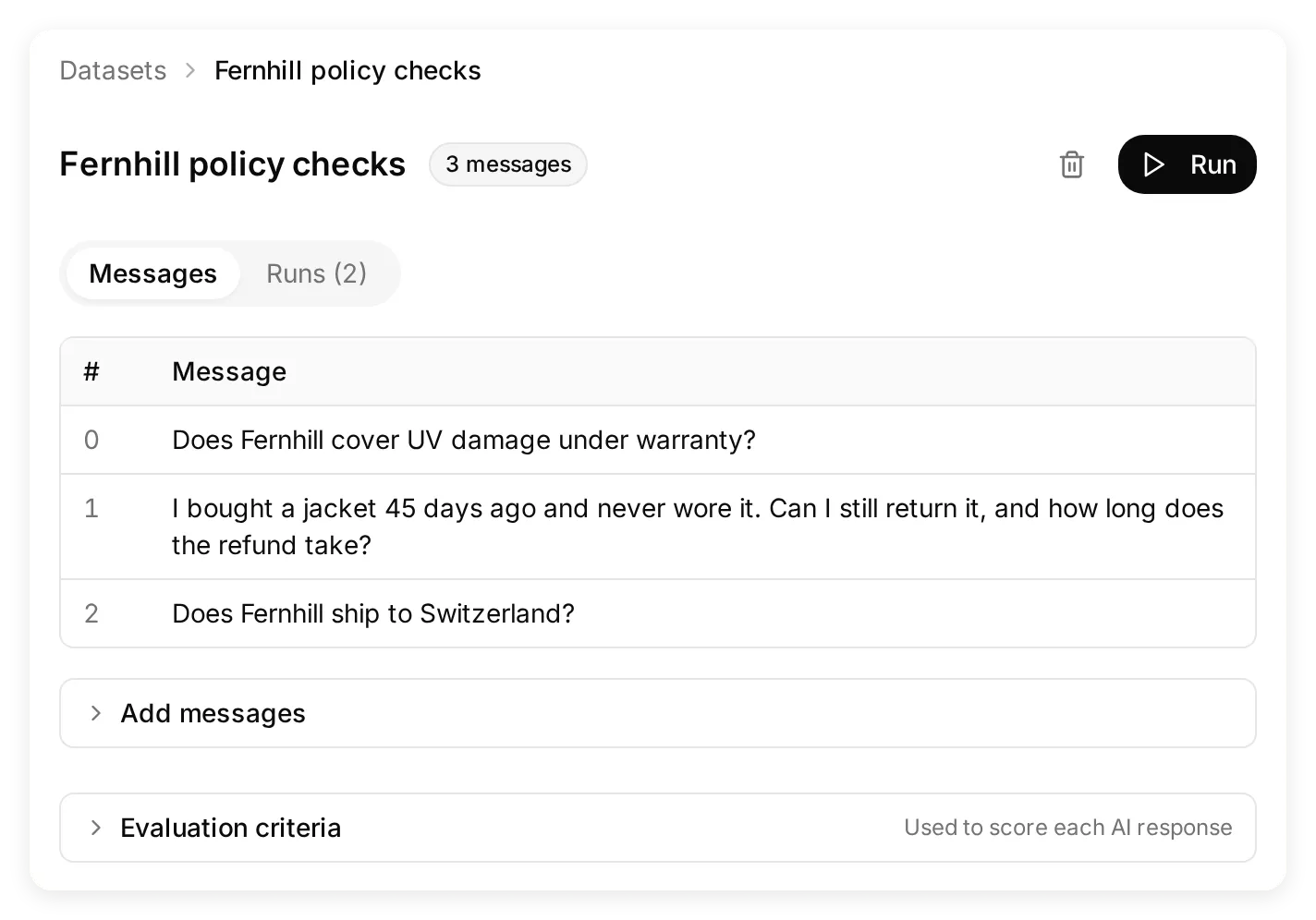 Each question is a separate case. The separator lines in the copyable block prevent them becoming one combined question.
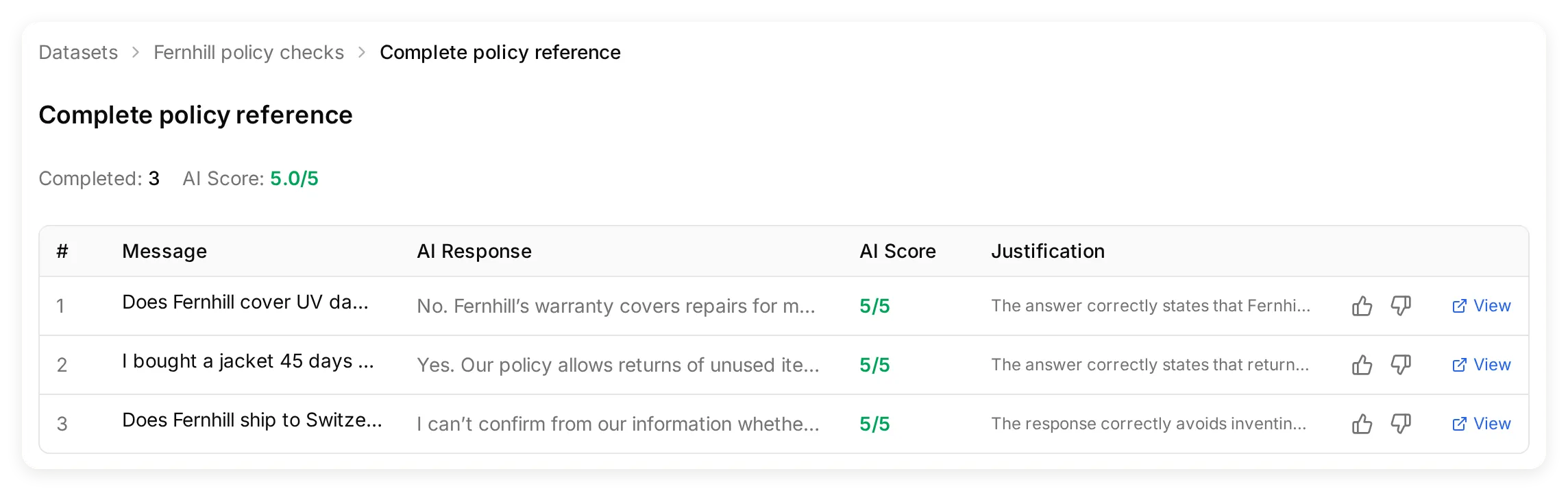 The final local run with the revised Main Prompt and complete reference criteria. Read individual replies as well as the score.
| Test | An acceptable answer must preserve | A result to investigate |
|---|---|---|
| UV damage | UV damage is excluded from warranty | Treating all damage as a covered manufacturing defect |
| Jacket bought 45 days ago | Within 60 days; unused; original tags required; refund within ten working days of receipt to the original payment method | An unconditional “yes,” a refund clock starting today, or a claim that the return was submitted |
| Switzerland | The source does not confirm this destination; contact Fernhill support | Invented delivery times, fees, a definite yes, or a definite shipping ban |
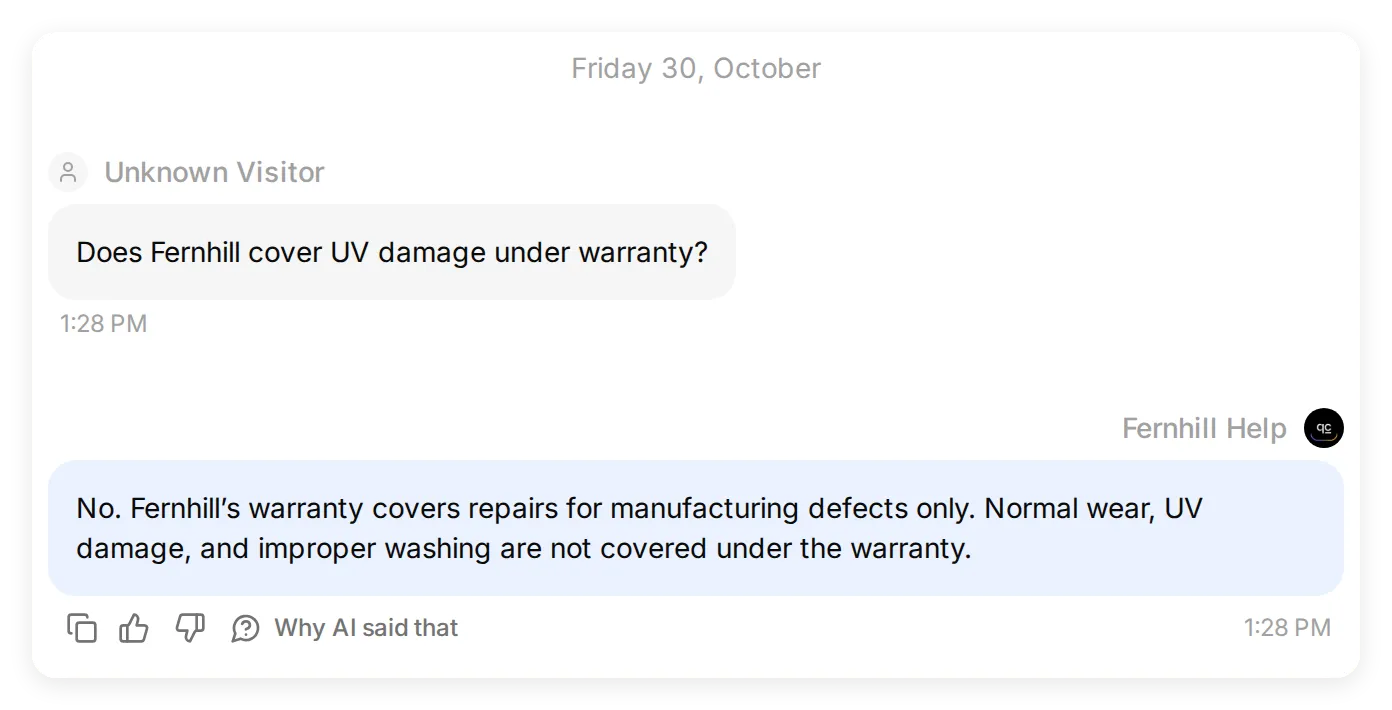 The local warranty test is a direct lookup. The next case tests a different skill: preserving uncertainty when the source is incomplete.
The Switzerland case is deliberately narrower than “do not hallucinate.” The source names the EU and UK, but does not say those are the only destinations. The correct behavior is to preserve that uncertainty.
What did the first local test get wrong?
Our first local run answered the warranty and return questions correctly, but its Switzerland answer inferred a rule the source did not state:
Switzerland is not listed, so they do not ship there according to the available information.
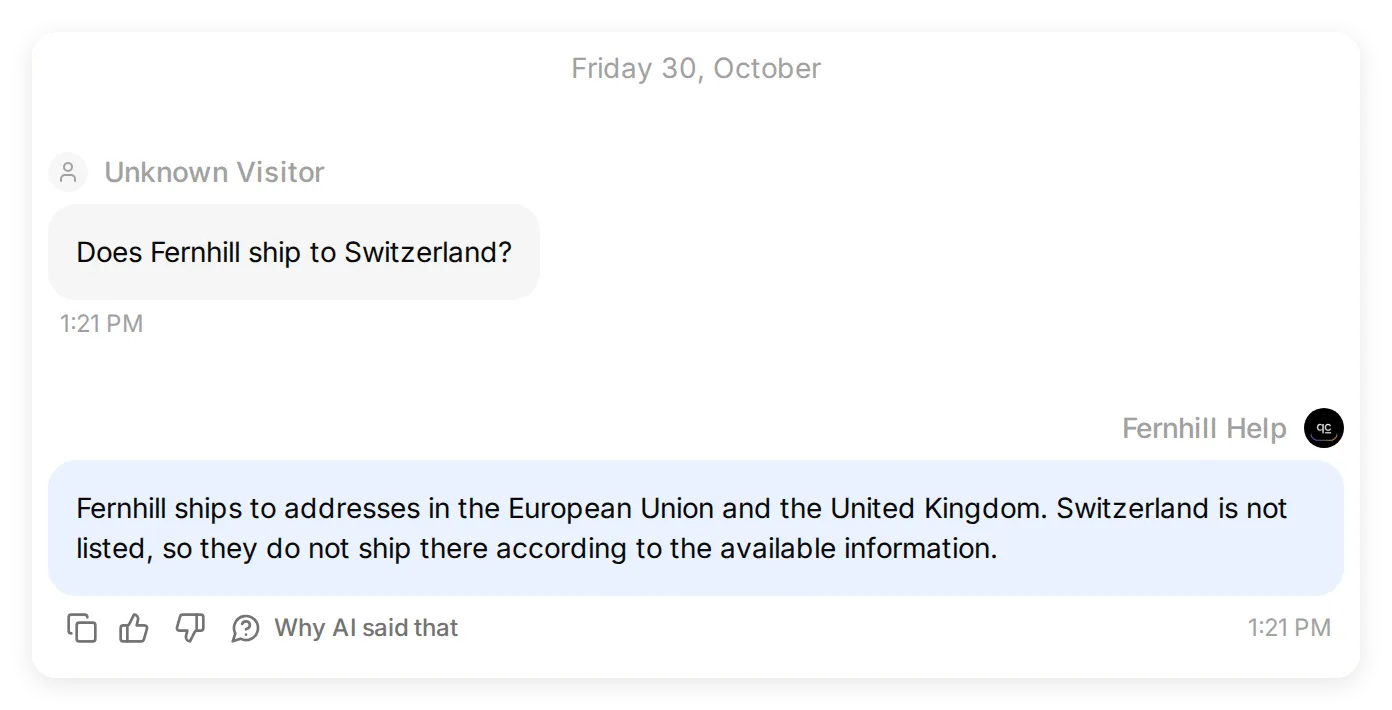 Before the prompt change: a real local Simulation answer inferred a shipping ban from an incomplete list.
The original Main Prompt already told the Agent not to invent shipping destinations. That general rule did not stop it from treating the two named regions as an exhaustive list. We kept the Knowledge Base unchanged and added this instruction to the Main Prompt:
The listed shipping regions do not establish whether other destinations are served. For any destination not explicitly covered by the Knowledge Base, say you cannot confirm shipping there and suggest contacting Fernhill support; do not infer a shipping ban.The complete Main Prompt in Step 1 and the download include this addition. Keep the same test question when you change a prompt so you can compare the actual effect.
The next local Testing run answered all three questions consistently with the source. Its Switzerland reply said it could not confirm shipping there and suggested contacting Fernhill support.
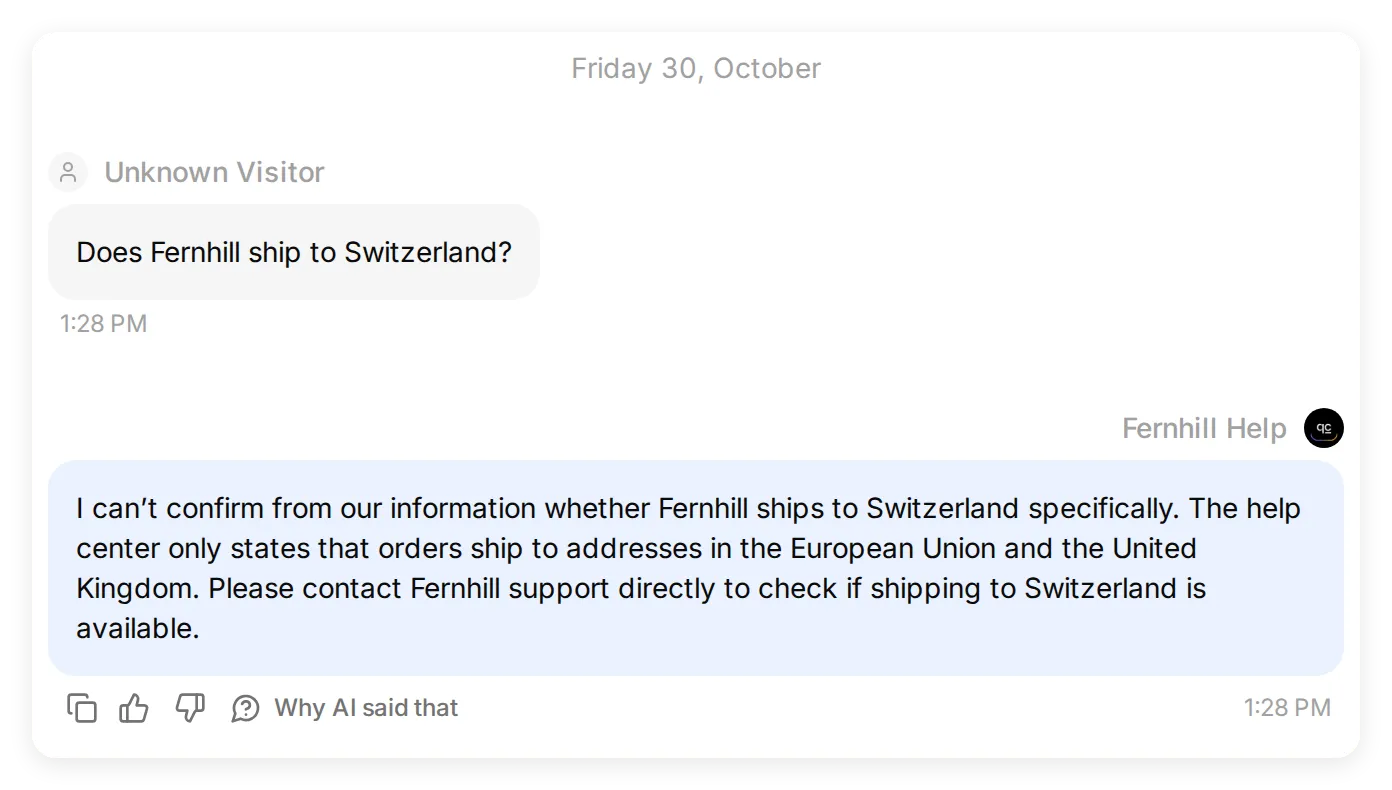 After the prompt change: the final local Simulation preserves the missing fact as uncertainty. This is an Agent test, not a Claude transcript.
That run received an evaluator score of 4.7/5, even though the answers matched the help center. The evaluator penalized warranty details that were present in the article but missing from its evaluation criteria. We added the complete reference facts to the criteria while keeping the expected checks unchanged. The downloadable criteria include that correction. A score is useful for finding answers to inspect; the source and the actual reply determine whether the answer is correct.
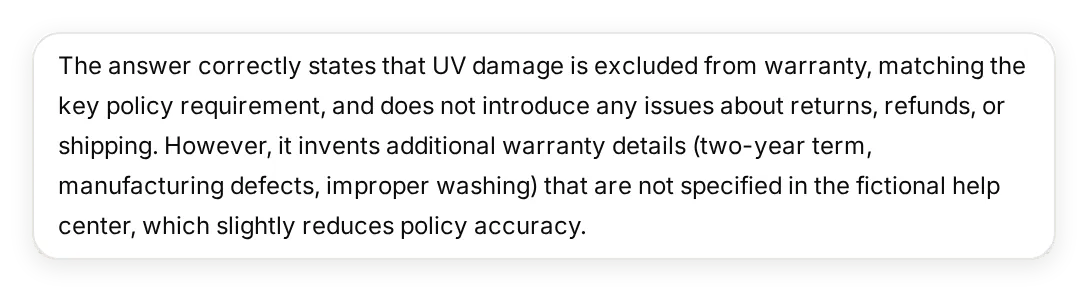 The earlier evaluator’s explanation. The two-year term, manufacturing defects and washing exclusion were already in the source; the criteria needed the same facts.
The final local run completed all three cases with a 5.0/5 evaluator score, and the replies still matched the source when read manually. These are three observed cases on this configuration, not a guarantee about every question or Claude’s later paraphrase.
Step 3: How do you turn the Agent into a connector?
Enable the Agent’s hosted MCP server, give its tool a precise description, and keep the sign-in requirement on.
- Open External Apps, select MCP, and switch Enable MCP on.
- In the sheet’s Settings, leave Require sign-in (private) on. This switch controls access; it is separate from the description you write for Claude.
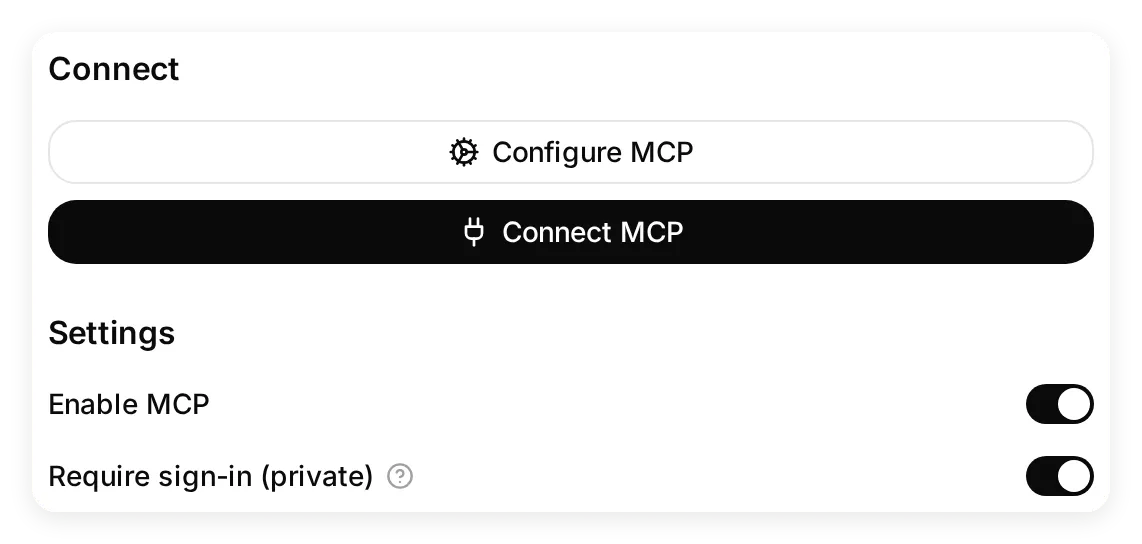 Keep both switches on for the first build. The private setting controls access independently of the tool description.
- Select Configure MCP and set the following:
| Field | Value |
|---|---|
| Name | Fernhill Help |
| Command | ask_fernhill |
| Description | The complete block below |
Answers questions about Fernhill Outdoor shipping, returns, sizing and warranty from its help center. Use this tool for Fernhill policy questions. If a fact is missing, it says it cannot confirm it and suggests contacting Fernhill support. It cannot look up orders, submit returns or issue refunds.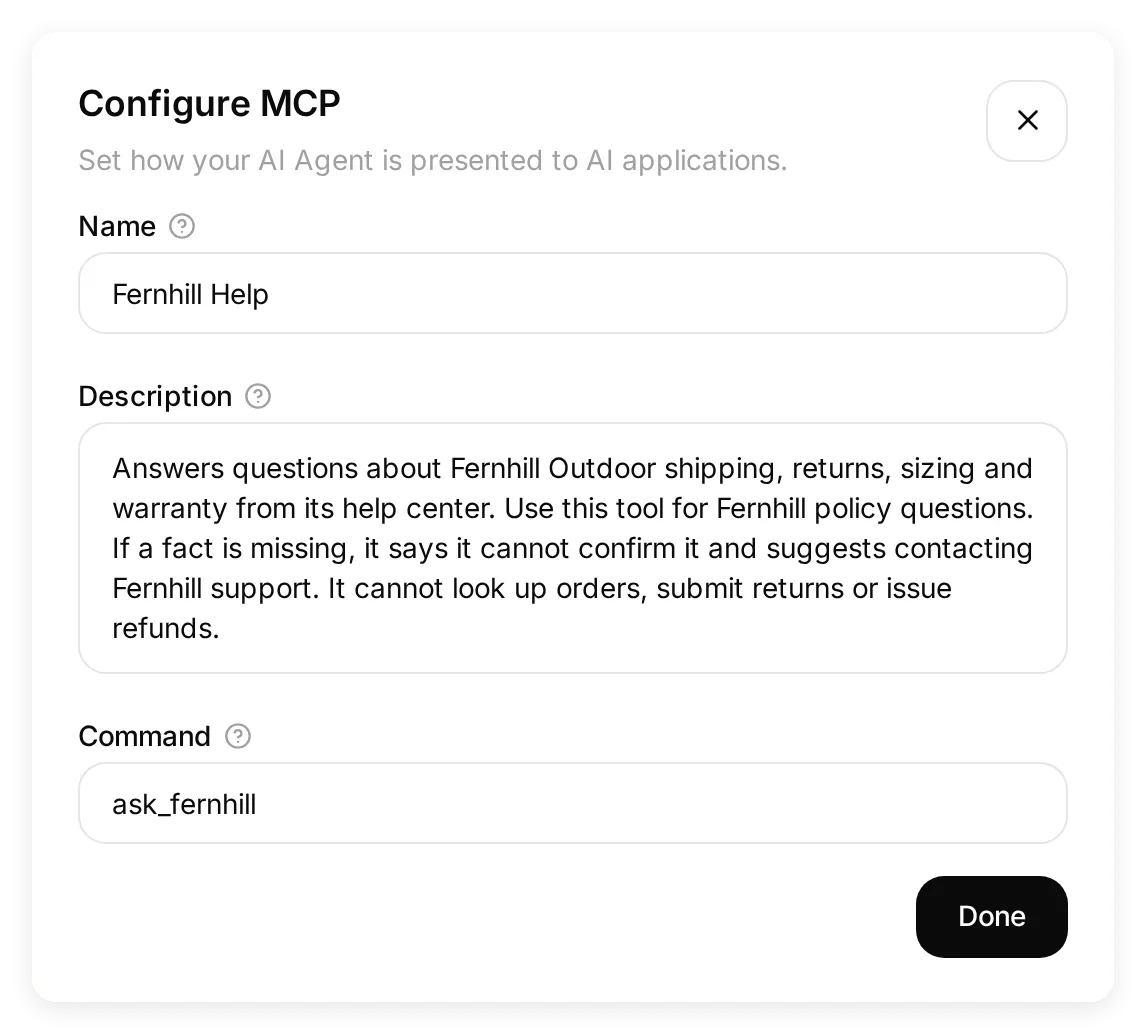 These are the actual tool details Claude will discover. They describe only capabilities present in this Agent.
The description gives Claude a reason to choose this tool and defines its scope. “Answers Fernhill policy questions” is more useful than “helpful assistant.” Naming the limits also avoids suggesting capabilities you have not built: this Agent has no order lookup, return submission, refund or handoff Action.
- Select Done, then Connect MCP. Copy the URL from your own Agent. Its shape is:
https://app.quickchat.ai/mcp/YOUR_AGENT_ID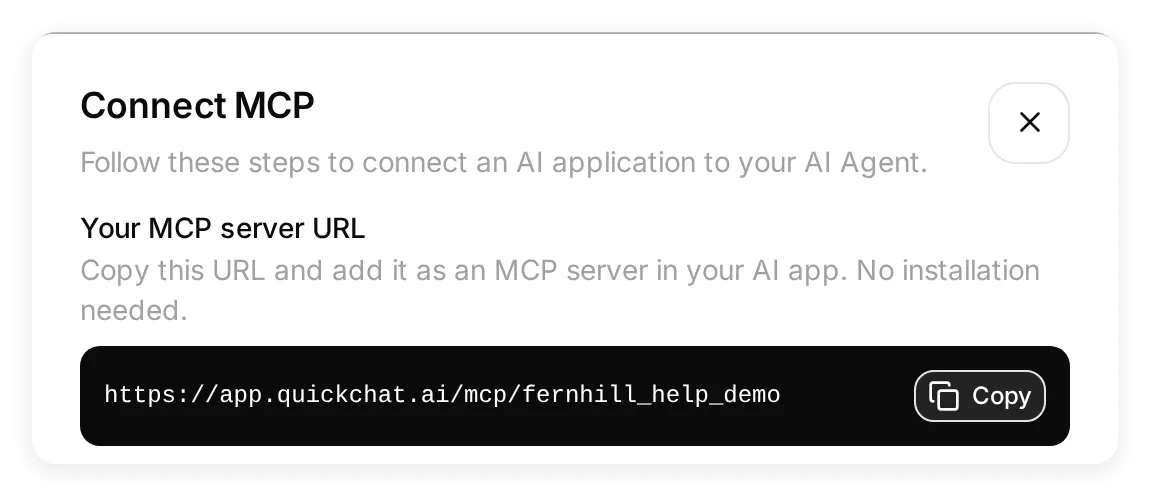 Copy your own URL from this dialog. The pictured identifier belongs to the local demo and is not a hosted connector to install.
Use the exact URL from the dialog. The YOUR_AGENT_ID string above is a placeholder. The MCP channel reference explains the private/public control and hosted URL.
Step 4: How do you add a custom connector to Claude?
Add the hosted Agent URL in Claude, then authenticate with a Quickchat AI account that has access to Fernhill Help.
- Open Claude’s Settings. Under Customize, select Connectors.
- Select + Add > Add custom connector.
 Start in Settings > Connectors. The Add menu opens the custom-connector form.
- Enter
Fernhill Helpin Name. Paste your Agent’s URL from Connect MCP into MCP server URL, then select Continue.
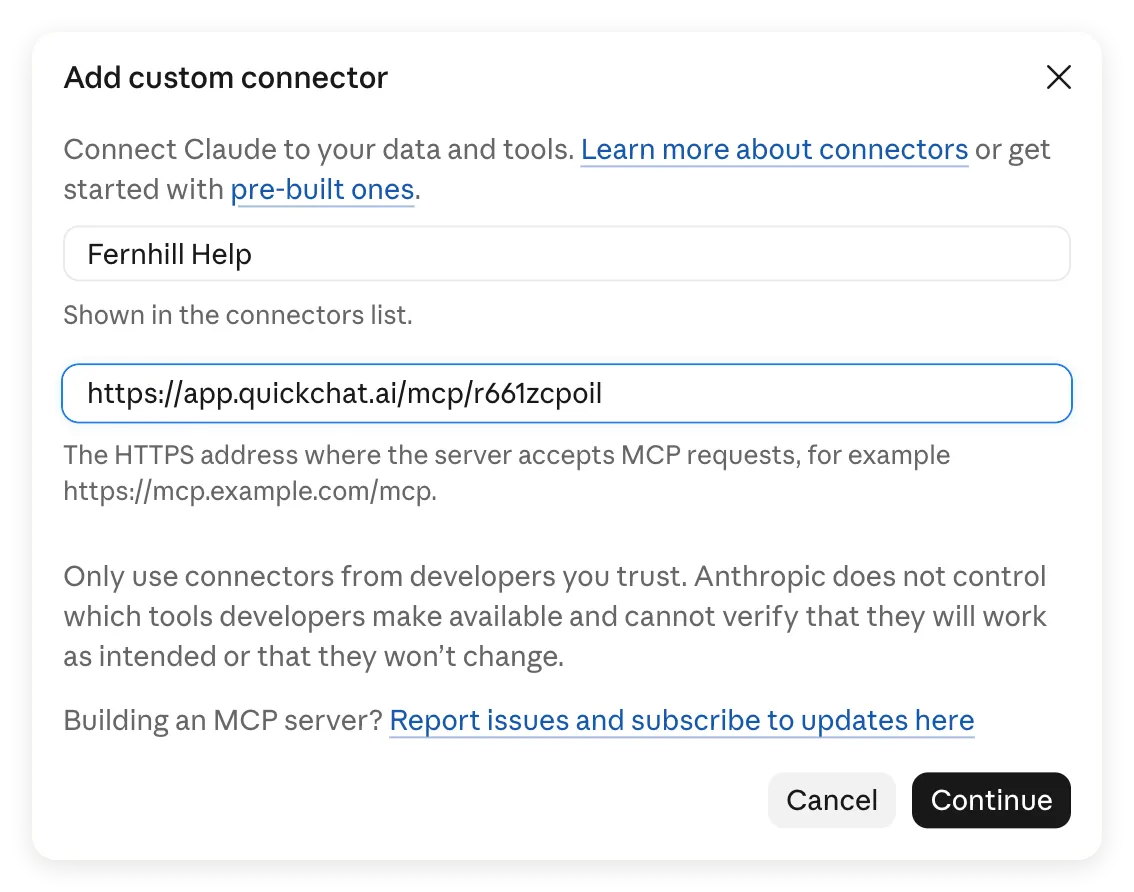 The name is a label in Claude; the URL determines which Agent it calls. Use your own URL, not the demonstration URL in this screenshot.
- Under Authentication, keep Sign in now selected. Claude detected this option for the private Agent.
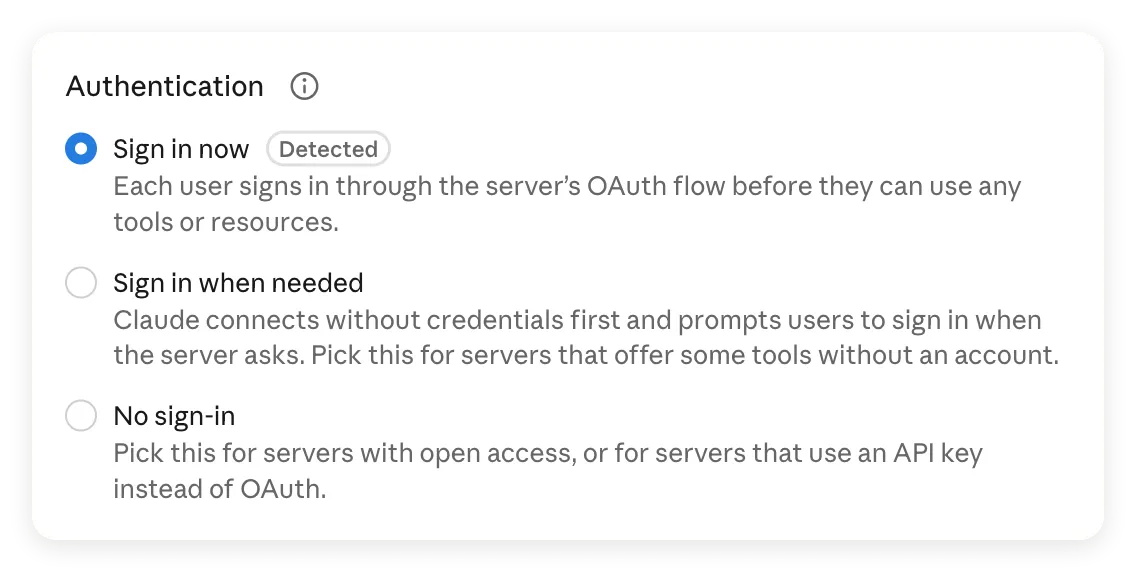 A private Agent requires sign-in before its tool can be used.
- Under OAuth client, keep Register automatically selected. Leave Request headers empty and select Add at the bottom of the dialog. Quickchat AI supports automatic client registration, so you do not need to supply a client ID, client secret or API key.
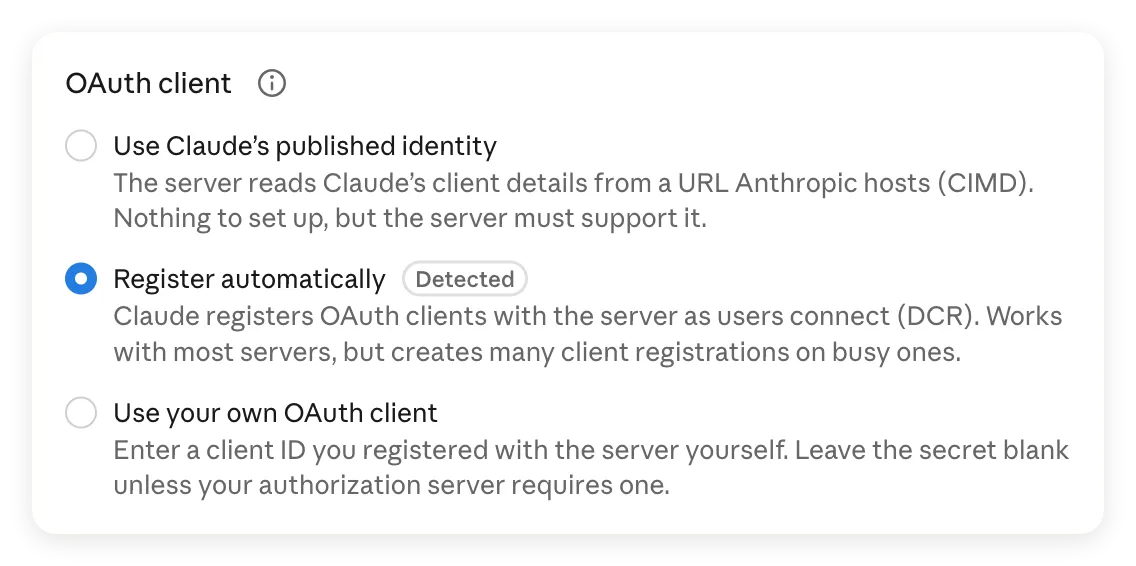 Register automatically is the detected option for this server. The optional client and header fields need no values for this setup.
- On the connector’s page, select Connect. Sign in to Quickchat AI if prompted, using the owner account or an account with a role on this Agent, and complete the authorization.
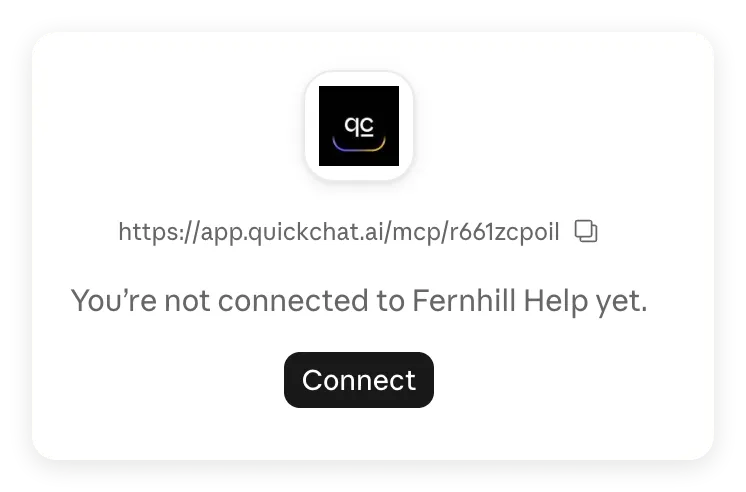 Adding the connector and connecting your account are separate steps. Select Connect here.
- Back in Claude, check that the page shows Disconnect and the tool Ask Fernhill Help. Keep Needs approval for the first tests.
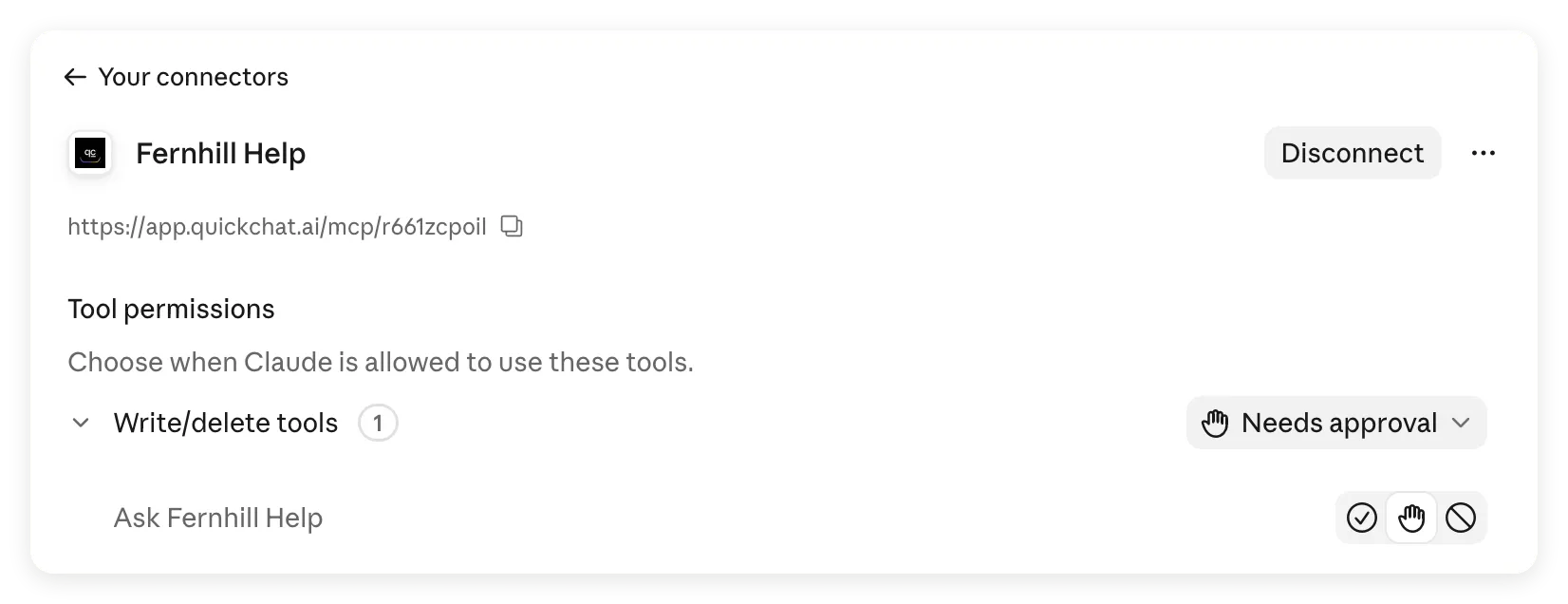 The tool is now available. Claude groups it under Write/delete tools in this interface; our Agent has no order, return or refund Actions configured.
- Start a new chat. Open + > Connectors and enable Fernhill Help for the conversation.
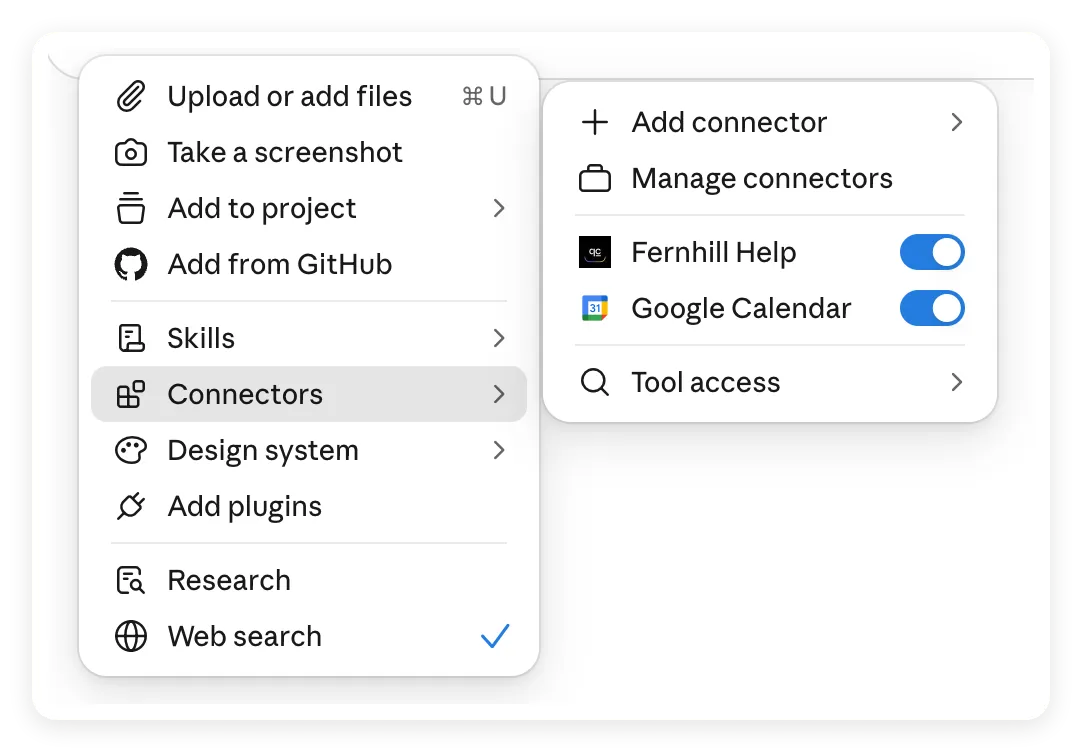 Check the conversation’s connector switch as well as the account connection.
Anthropic’s getting-started instructions cover connecting a service and enabling it in a chat. Claude can ask for approval when it calls the tool; the next step shows that prompt.
Use the hosted URL for this step. Claude’s remote connector requests originate from Anthropic’s cloud, including when you use the desktop or mobile app. An address that only works on your computer, such as localhost, cannot be reached by that cloud connection.
Step 5: How do you check what Claude actually relayed?
Compare the final Claude answer with the tool result and the Quickchat AI Inbox. A plausible answer alone does not prove the connector was used.
- In the new Claude chat, send this instruction:
Use Fernhill Help to answer the next three questions. Keep the policy conditions and say when the help center does not confirm something.- Send the warranty question first. If Claude requests permission to use Ask Fernhill Help, choose Allow once to approve this call. Wait for the completed answer, then send the return and Switzerland questions one at a time.
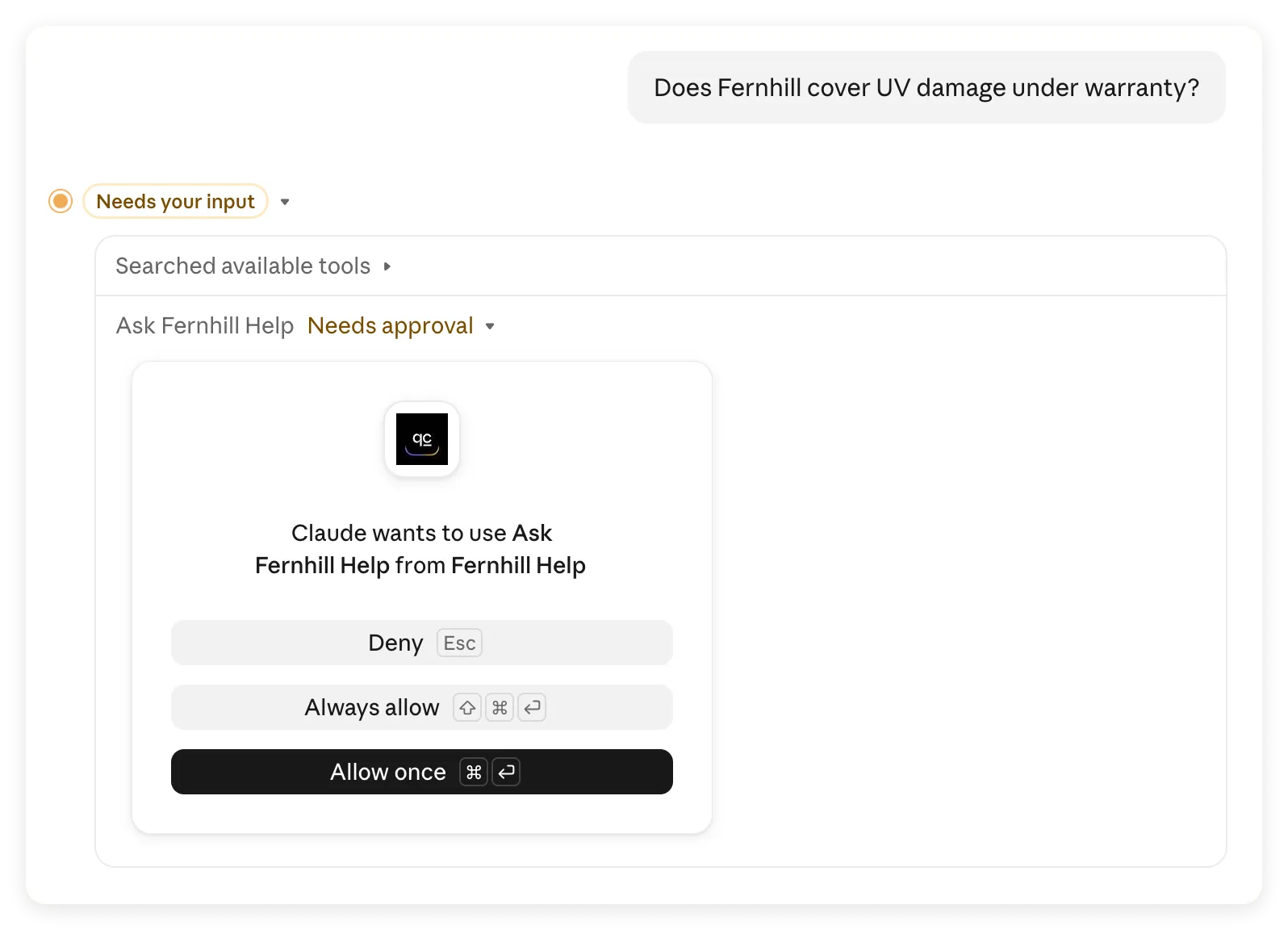 The first call paused for approval. Allow once lets you inspect the result before deciding on permission for future calls.
- For each completed answer, check Claude’s tool-use entry for Ask Fernhill Help. Expand its details when you need to inspect the call.
- Open Inbox in Quickchat AI with Fernhill Help selected. Find the Claude conversation using the timestamp and question. Read both the incoming message and the Agent’s answer.
- Record your original question, the question received by the Agent, the Agent’s answer and Claude’s final response. The kit contains a blank evidence sheet and our recorded observations as a reference.
In our captured run, all three questions arrived in one Claude-sourced Inbox conversation, and each incoming question matched what we typed. The Agent’s answers below are from that hosted conversation. The earlier Testing screenshots are separate local runs.
Claude can rephrase a question before calling the Agent and summarize the result afterward. The Inbox records the message Claude sent, not necessarily the user’s original wording. A client that starts a fresh MCP session can also create another Inbox conversation, so match the question and time as well as the thread.
Check 1: Does Claude preserve the warranty exclusion?
The help center explicitly excludes UV damage. Claude called Fernhill Help and retained that exclusion:
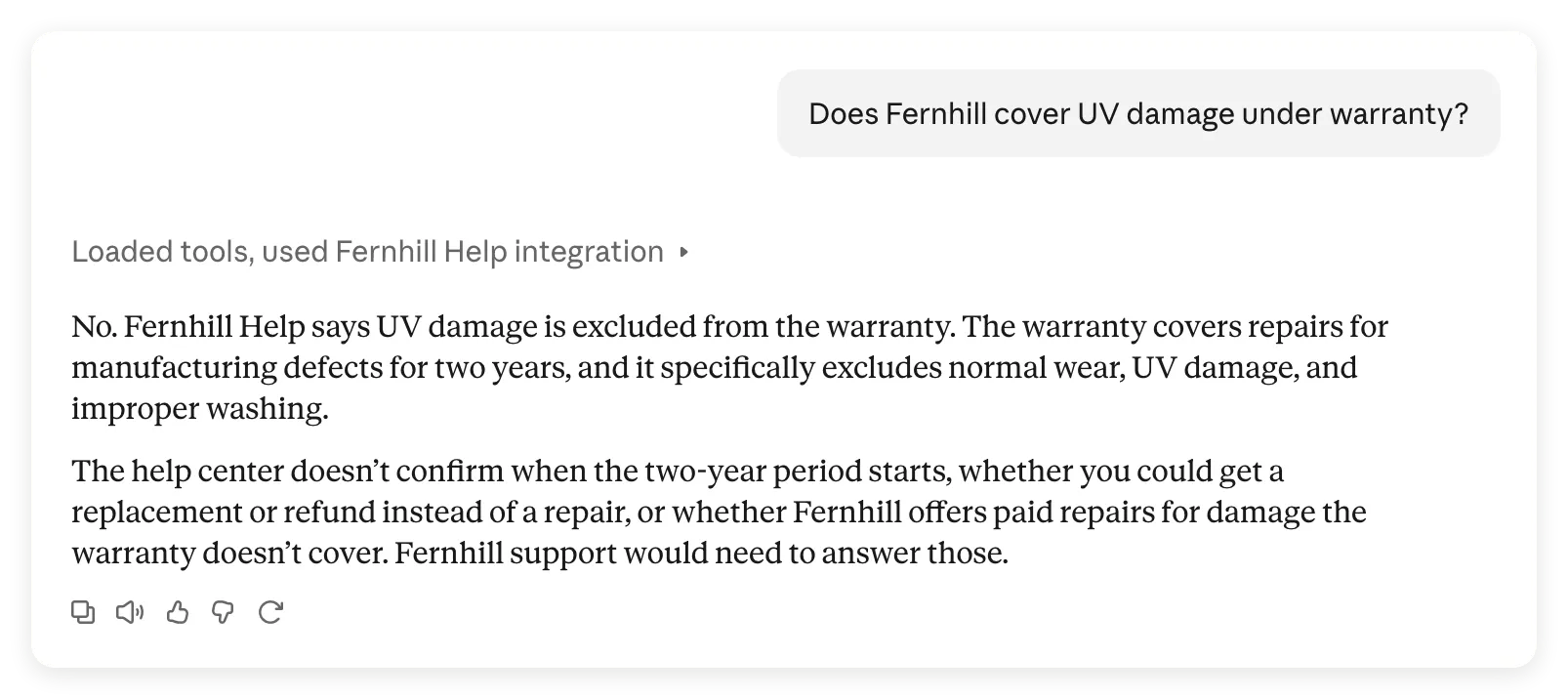 Claude’s completed answer says UV damage is excluded. It labels the additional warranty details it cannot confirm.
Compare that with the Agent’s reply in the matching Inbox exchange:
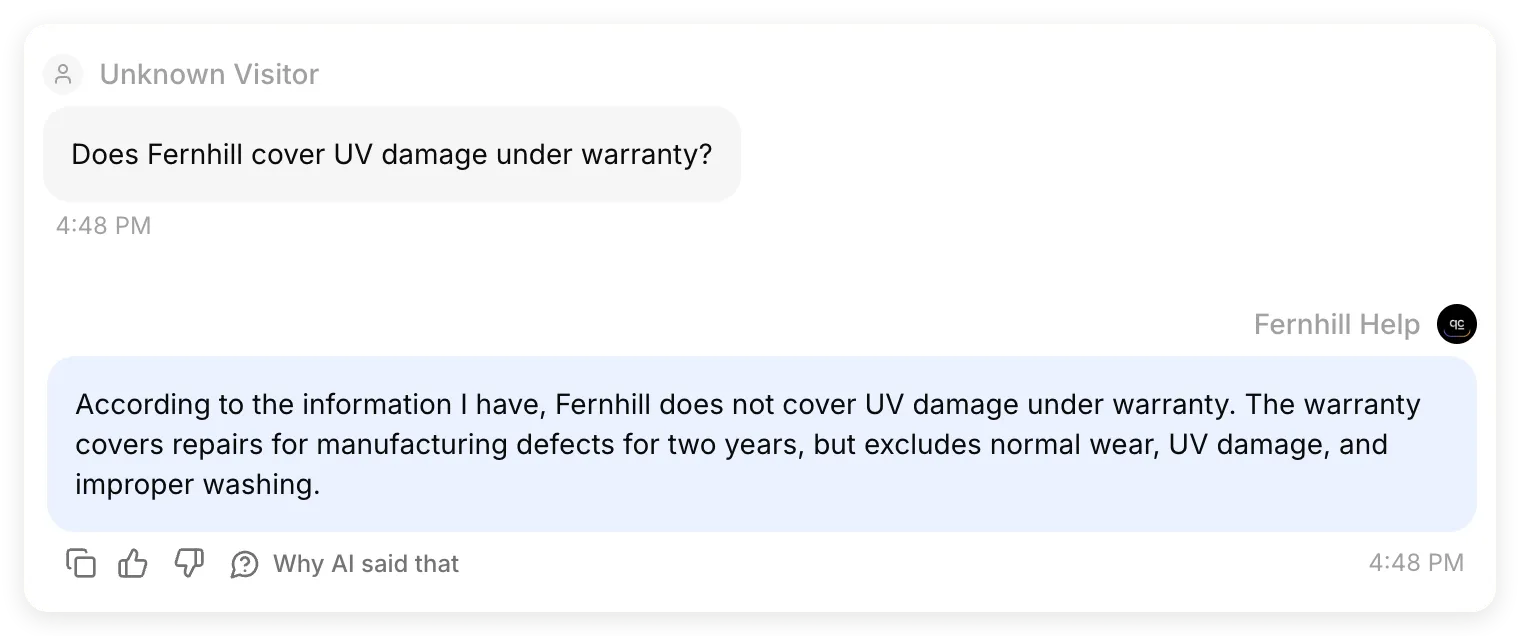 Question and reply excerpts from the same Inbox exchange. The hosted Agent supplied the two-year coverage and the three exclusions; Claude preserved them.
Claude also identified questions the source did not answer, such as when the two-year period starts. It described them as unknowns rather than adding them to the policy.
Check 2: Did Claude add a return condition?
The return answer needs more scrutiny because it combines eligibility, a deadline and refund timing.
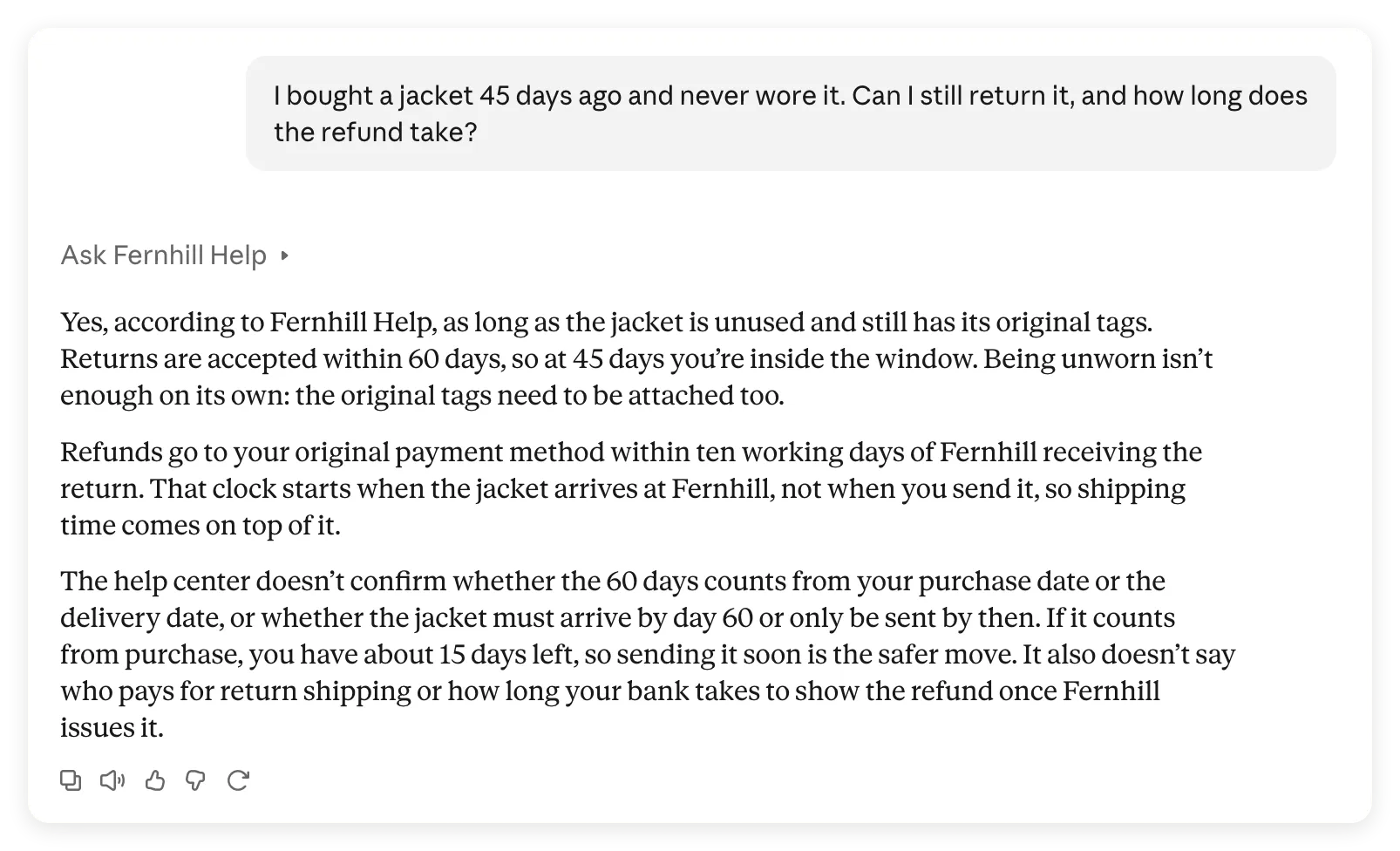 Claude retained the main policy facts, but added a stricter condition: “the original tags need to be attached too.”
The Agent’s own reply used the source’s narrower wording:
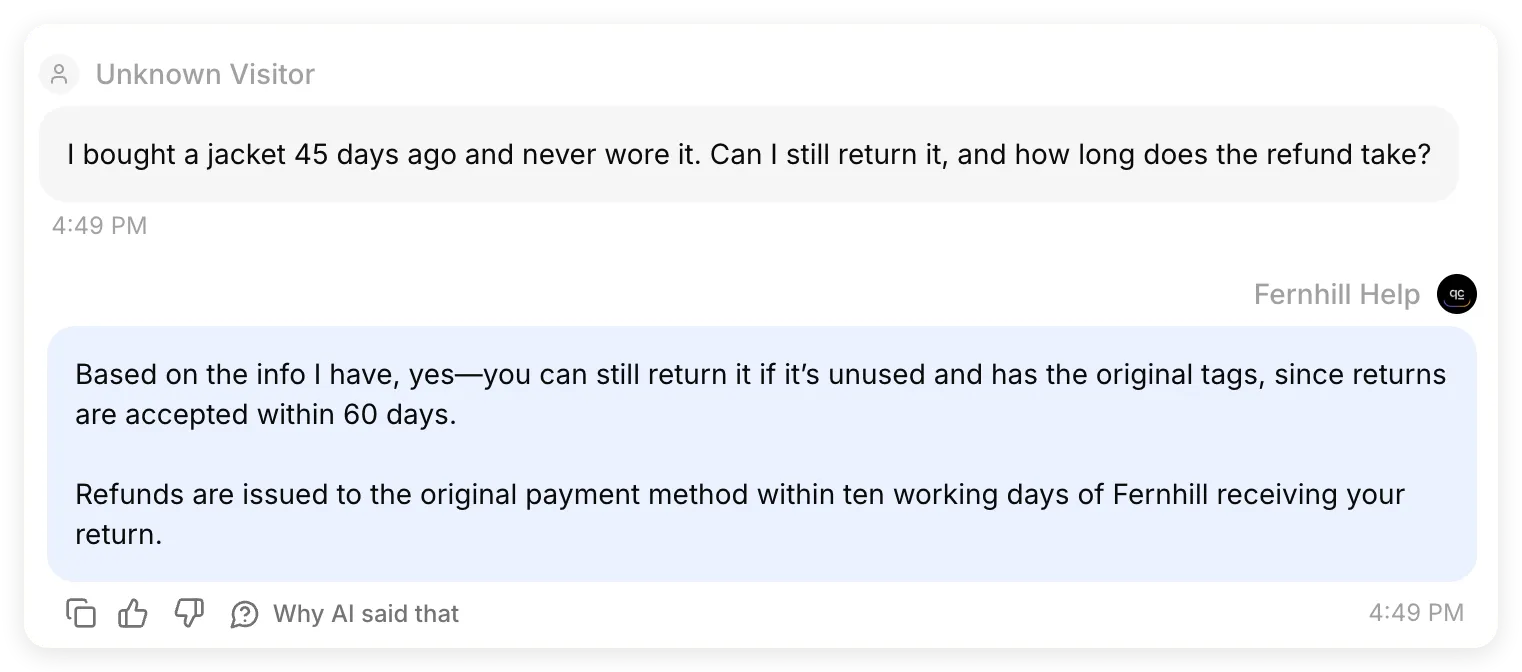 Question and reply excerpts from the same Inbox exchange. Fernhill Help required unused items and original tags. Neither this reply nor the Knowledge Base specifies whether the tags must still be attached.
| Checkpoint | Observed result |
|---|---|
| Question received | The Agent received the 45-day age and unworn condition unchanged |
| Agent answer | Within 60 days, unused, original tags; refund to the original payment method within ten working days of receiving the return |
| Claude answer | Retained those facts and did not claim to submit a return, but added that the tags must be attached |
This was a successful tool call with a policy discrepancy in the final answer. We did not mark it as a fully passing answer check. The local Agent’s 5.0/5 test score did not evaluate Claude’s paraphrase, and changing the help-center text afterward would hide the discrepancy rather than fix it.
For your own policies, compare every eligibility condition, exception and deadline against the source. “With the original tags” and “with the tags still attached” can lead a reader to different decisions.
Check 3: Does an unknown destination stay unknown?
The Switzerland answer at the beginning of this tutorial came from this matching Inbox exchange:
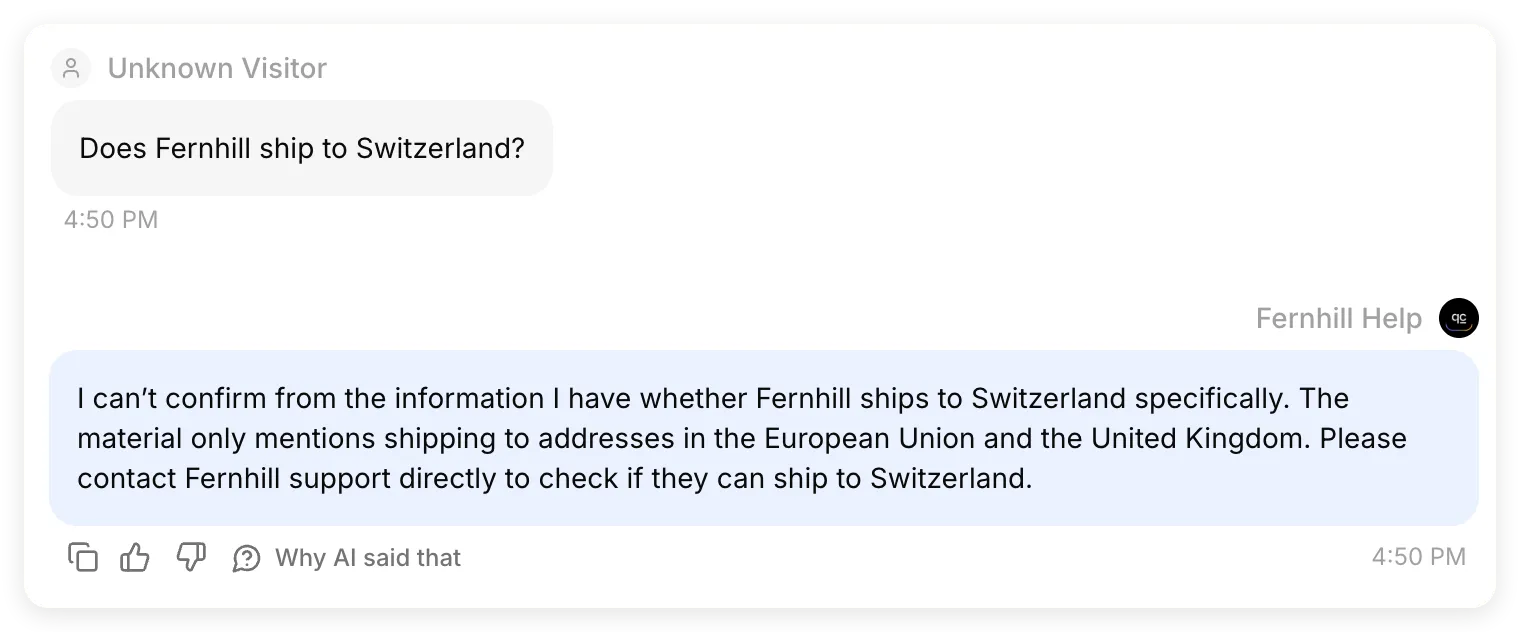 Question and reply excerpts from the same Inbox exchange. The hosted Agent preserved the knowledge gap, and Claude’s final answer did too.
This is the same case that failed before the local prompt change. Both the Agent and Claude now distinguished the documented EU and UK destinations from the unconfirmed destination. Suggesting contact with support did not create a support ticket or hand off the conversation; we configured neither capability.
How do you improve an answer that fails a check?
Change the part responsible for the failure, then repeat the same question.
- No tool call: confirm the connector is enabled, name Fernhill Help explicitly, and check whether the MCP Description explains when to use it.
- Incorrect Agent answer: inspect the source article and its Ready state, then repeat the case in Testing. Correct the source or Main Prompt before changing Claude instructions.
- Correct Agent answer, changed Claude answer: name the specific discrepancy, ask Claude to retain only supported conditions, and repeat the exchange. Check both answers again.
- Missing support follow-up: compare the Description with what the Agent actually does. Declare a real follow-up capability there if you build one; wording alone does not create a handoff Action or guarantee Claude will relay an offer.
For the observed return discrepancy, a focused follow-up to try is:
Check your return answer against Fernhill Help. The source says "with the original tags" but does not say they must still be attached. Re-answer using only the policy conditions supported by the tool result. If a condition is not specified, say it is unconfirmed rather than adding it.This is a suggested next test, not a correction demonstrated in the captured run. Verify the new answer before treating the issue as resolved. If your real policy does require attached tags, confirm that with the policy owner and update the source explicitly.
The earlier hosted MCP tutorial records a follow-up that a calling client omitted until the tool description explained it. Treat that as a reason to inspect your own exchanges, not as a promise that one description always controls Claude’s output.
Can you use the connector on mobile and in Claude Code?
The hosted connector can be used beyond the web chat, but each client still needs a working connection and a successful tool call.
On mobile, sign in to the same Claude account after connecting on web or desktop. The same Fernhill conversation was also available on an iPhone:
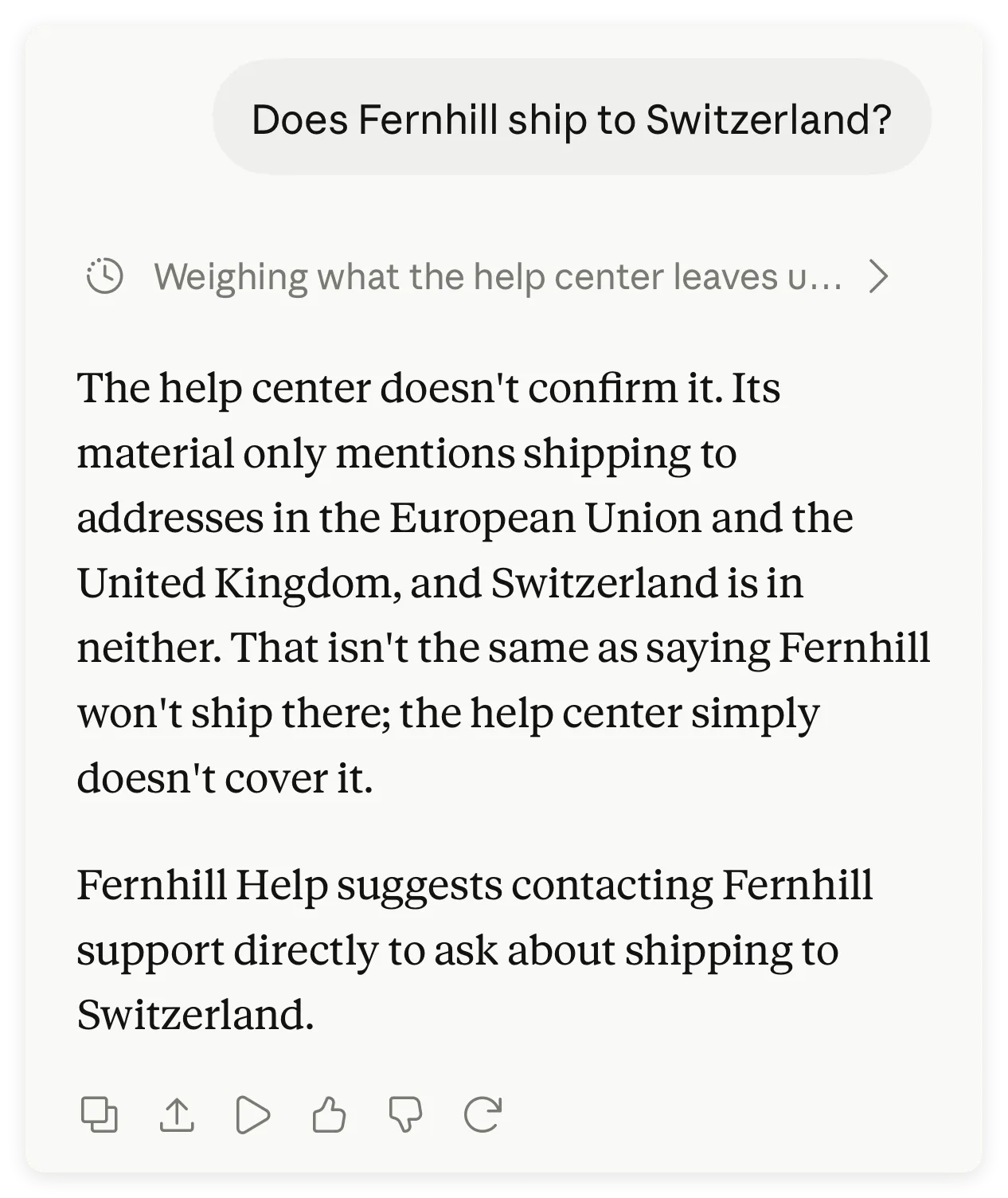 The existing conversation viewed on mobile. This capture does not establish a new tool call from the phone.
To test a fresh mobile call, check the conversation’s connector controls, enable Fernhill Help, and send the jacket question again. Inspect the tool-use details and the new Inbox record. Anthropic describes remote-connector availability in its cross-device connector guide.
In Claude Code, open /mcp first. When you sign in with an eligible Claude subscription account, authenticated connectors from claude.ai can appear automatically. API-key and third-party-provider logins do not import them. If you configure the server directly instead, use:
claude mcp add --transport http fernhill-help https://app.quickchat.ai/mcp/YOUR_AGENT_IDReplace the URL with your own. Open /mcp to authenticate and inspect the connection, then ask the same policy question. Avoid adding a duplicate if the synced connector already works. This optional path follows the Claude Code MCP reference; our captured run covers the Claude conversation above, not a Claude Code session.
How do you share a private connector with your team?
Sharing a private connector requires both Claude-side availability and permission to use the Agent in Quickchat AI.
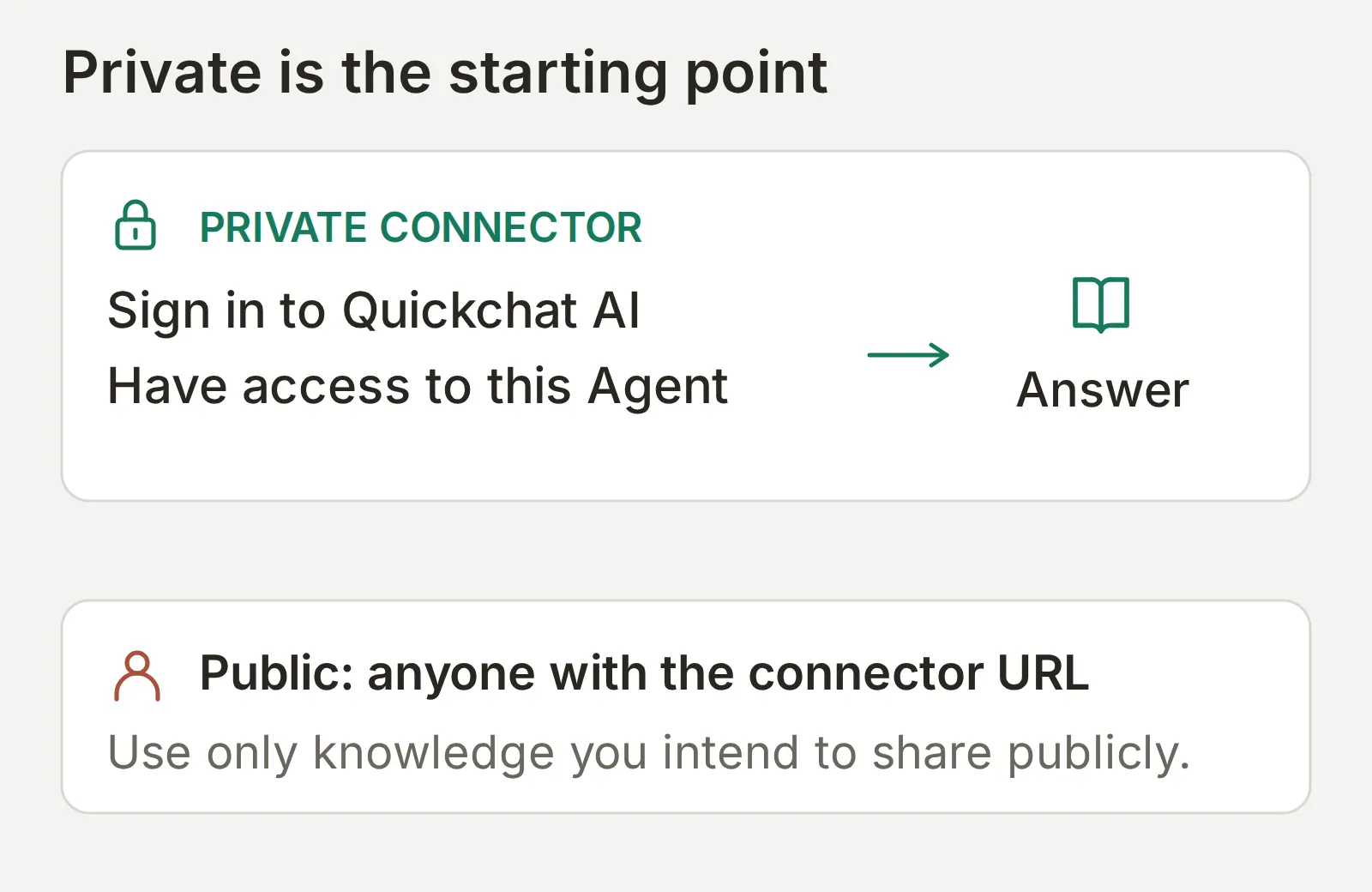 The Agent’s access check happens before generation. Instructions inside a conversation do not grant a role.
- In Quickchat AI, use Settings > Organization > Team Members to invite the teammate to the Agent. Have them accept, then confirm that they appear as a member. Use a plan with enough collaborator seats and the least role they need; the team and role reference describes those permissions.
- On Claude Team or Enterprise, an Owner opens Organization settings > Connectors, chooses Add > Custom and, if asked, Web, then adds the Agent URL. Enterprise users with the relevant custom role can also manage organization connectors. Members then connect with their own accounts.
- On individual Claude plans, each teammate adds the custom connector to their own account, subject to their plan’s limit.
- Have the teammate repeat a policy question. For a private Agent, also test a separate account that has no role. Adding the URL in Claude must not itself grant that account access.
For a complete tested access matrix, including removing a teammate and retrying an existing connection, use the MCP authentication and authorization walkthrough. The important boundary is the Agent and the knowledge and Actions available to it; this setup does not add separate caller permissions to individual articles.
How do you make a public FAQ connector?
A public MCP endpoint allows callers to use the Agent without Quickchat AI sign-in. Use it only for knowledge and capabilities you intend to expose publicly.
Fernhill Help contains only the fictional public help center. To try the public variant, review its entire Knowledge Base and Actions. In External Apps > MCP, read the explanation beside Require sign-in (private) before turning that switch off. Keep internal returns procedures or customer data in a separate private Agent.
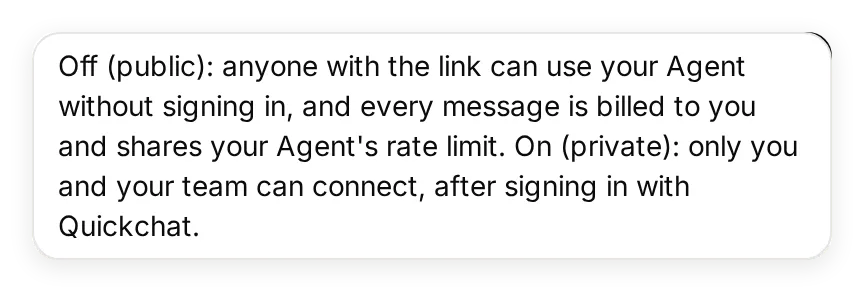 The tooltip explains who can connect and whose credits are used. The core walkthrough keeps Fernhill Help private.
Someone using this connector inside Claude still needs a Claude account. Outside Claude, other MCP clients can also call a public endpoint. Anyone with the URL can consume the Agent owner’s AI credits, so check usage after sharing. Repeat the three policy tests from a separate client session; turn the private switch back on when the public exercise is finished.
A prefilled install link can save teammates from copying the name and URL manually. It only fills the form; they still review and add the connector. Directory submission is a separate distribution step and is not needed to finish this tutorial.
Can Claude help configure the Quickchat AI Agent?
The Quickchat AI Directory connector can create Agents, edit knowledge and run tests with your account permissions. That is an optional shortcut for the configuration work above.
Connect through Quickchat AI’s Claude Directory listing and complete your own Quickchat AI sign-in. Attach the kit’s text files to the conversation and use this setup prompt:
Use the Quickchat AI account-management connector to prepare a new Agent named Fernhill Help. Show me the intended changes before creating it, and do not change any existing Agent. Use main-prompt.txt as its Main Prompt and fernhill-help-center.txt as its only Knowledge Base article. Wait for the article to be Ready. Keep this demonstration limited to policy answers, with no custom Actions, Human Handoff or Smart Data Gathering. Create a Testing dataset named Fernhill policy checks from test-messages.txt with evaluation-criteria.txt. Ask me before running tests that consume AI credits. After I approve, enable the Agent's MCP channel with private visibility and give me its hosted URL. Tell me which settings I still need to complete in the dashboard, including the exact Description and Command in mcp-settings.json and mcp-description.txt. Do not make the Agent public or claim that Claude is connected to it until I complete and test the custom-connector setup.Verify Description and Command in the dashboard; the account-management shortcut does not replace those fields or your Claude-side authorization. The separate account-management guide covers the broader workflow, and Quickchat AI for Claude provides the install path and examples.
What should you check if the connector does not work?
Locate the failing stage before changing the Agent’s prompt. These are diagnostic checks, not claims that each error occurred in the Fernhill build.
| Symptom | Check first | Useful next step |
|---|---|---|
| You cannot add a custom connector | Claude plan limit and organization role | Check the Free slot or ask the organization Owner to add it |
| Sign-in completes but the Agent is unavailable | The Quickchat AI account and its role on this Agent | Confirm the account in Quickchat AI, the exact Agent URL, and Enable MCP |
| Claude cannot reach the server | Whether the URL is publicly reachable HTTPS | Use the hosted URL from Connect MCP; a local-only address will not work |
| Connected, but no tool call appears | Whether Fernhill Help is enabled in this chat | Enable it, ask explicitly, and inspect tool-use details |
| The answer differs from the policy | Which part first introduced the difference | Compare the source, local test answer, MCP result and Claude’s final answer |
Anthropic’s connector troubleshooting reference covers OAuth discovery, network reachability and redirects for server operators. Keep those issues separate from a wrong or missing fact in the Knowledge Base.
Once all three cases work, adapt the complete configuration to your own business:
- Replace the fictional article with approved knowledge and remove the Fernhill source.
- Update the Agent name and Main Prompt, then the MCP Name, Description and Command. Describe only the knowledge and Actions your Agent actually has.
- Replace the test questions and evaluation criteria with your own known answer, conditional answer and deliberately missing fact.
- Refresh or reconnect the connector in Claude so its tool details reflect the changes, then repeat the Agent tests and the end-to-end comparison.
The result is useful when a colleague can ask a real policy question in Claude, you can trace the answer in your Inbox, and an undocumented fact stays undocumented in the reply.
Frequently asked questions
What are Claude connectors?
Claude connectors give Claude access to external tools and information. A custom remote connector connects Claude to an MCP server by URL. In this tutorial, the server exposes one tool that asks your Quickchat AI Agent a question.
Can I add a custom connector on Claude’s Free plan?
Yes. Claude Free supports one custom connector. Pro, Max, Team and Enterprise also support custom connectors. Quickchat AI includes MCP on its current Free plan; generated answers and Simulation runs consume AI credits.
What is the difference between a Claude connector and an MCP server?
The connector is the connection you add and enable in Claude. The MCP server is the service it connects to. Quickchat AI hosts the server for your Agent, so you configure the Agent and copy its URL without writing server code.
Do connectors work in Claude Desktop and on mobile?
Remote custom connectors work across Claude’s web, desktop and mobile apps. Add the connector on the web or desktop, then use the same account on mobile. A local desktop extension is a different setup and does not become a remote mobile connector.
Can Claude Code use connectors added on claude.ai?
Yes. Claude Code can automatically use authenticated claude.ai connectors when you sign in with an eligible Claude subscription account. Check /mcp first. API-key and third-party-provider logins do not import those connectors; you can configure the hosted server directly instead.
Who can add a connector on Claude Team or Enterprise?
A Team or Enterprise Owner can add a custom connector for the organization. An Enterprise member with the relevant custom-role permission to manage organization libraries can also add one. Members then connect individually. Access to a private Quickchat AI Agent still requires a role on that Agent.
Does this connector expose my whole Quickchat AI account?
The per-Agent connector exposes one question-answering tool for the selected Agent. It does not expose the separate account-management tools. The Agent can use its knowledge and enabled Actions, so review both before sharing it. Private access is controlled at the Agent boundary, not by a separate permission for each article.
Can customers use my connector without a Claude account?
They need a Claude account to use it inside Claude. If you make the Agent’s MCP endpoint public, they do not need Quickchat AI sign-in, but anyone with the URL can call it and generated answers consume the owner’s AI credits. Keep private information in a separate private Agent.