

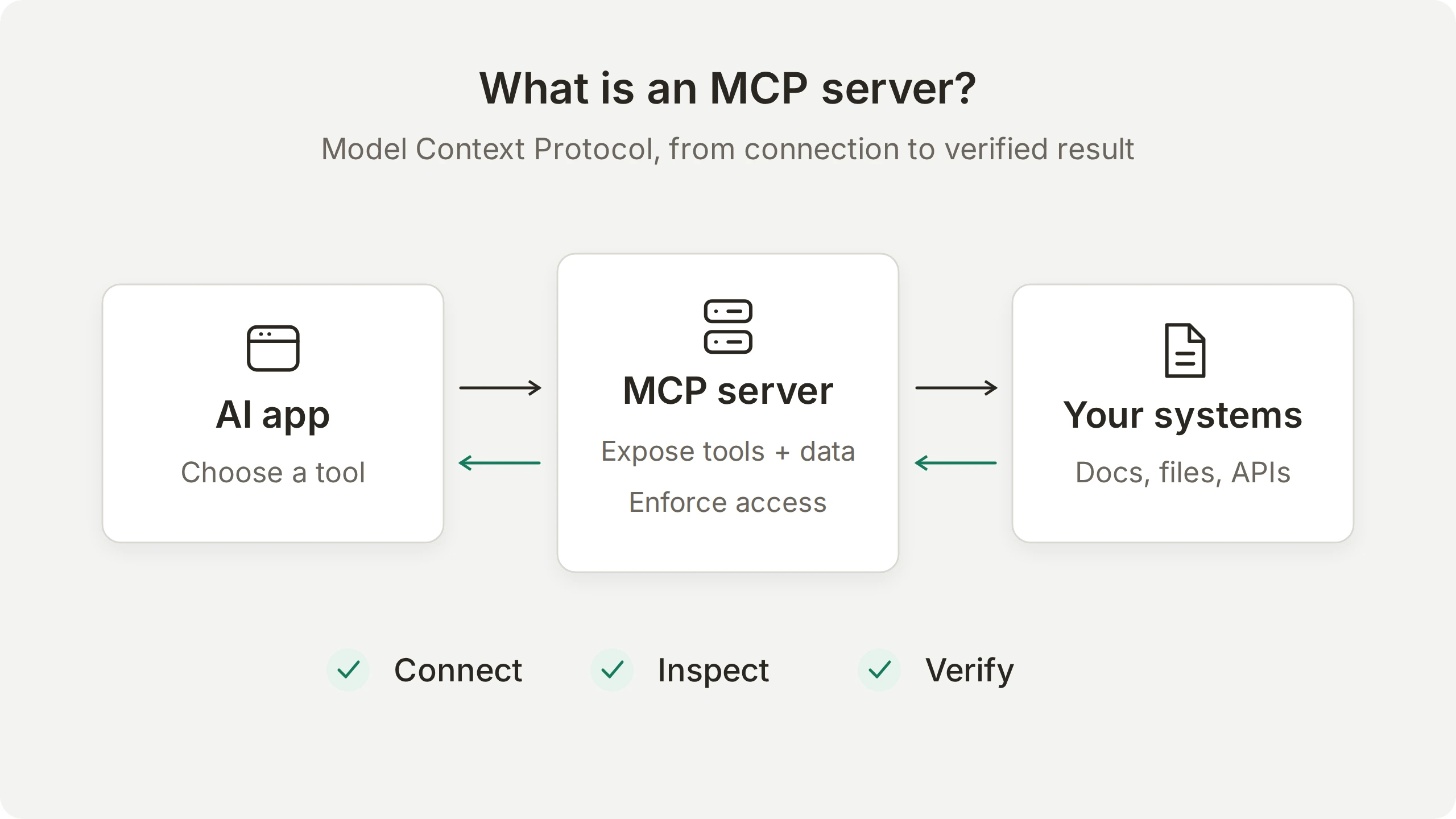
An MCP server is a program that exposes tools, data or reusable prompts to an AI application through the Model Context Protocol. It gives compatible applications a common way to discover those capabilities and use them, whether the underlying system is a documentation site, a filesystem or a business API.
This guide follows one example from a server connection to an AI answer you can verify. First, you will inspect Microsoft’s public documentation server and run a search yourself. Then you will connect it to a Quickchat AI Agent, choose which tools the Agent may use, and follow a question through the answer and the tool-call record in the Inbox.
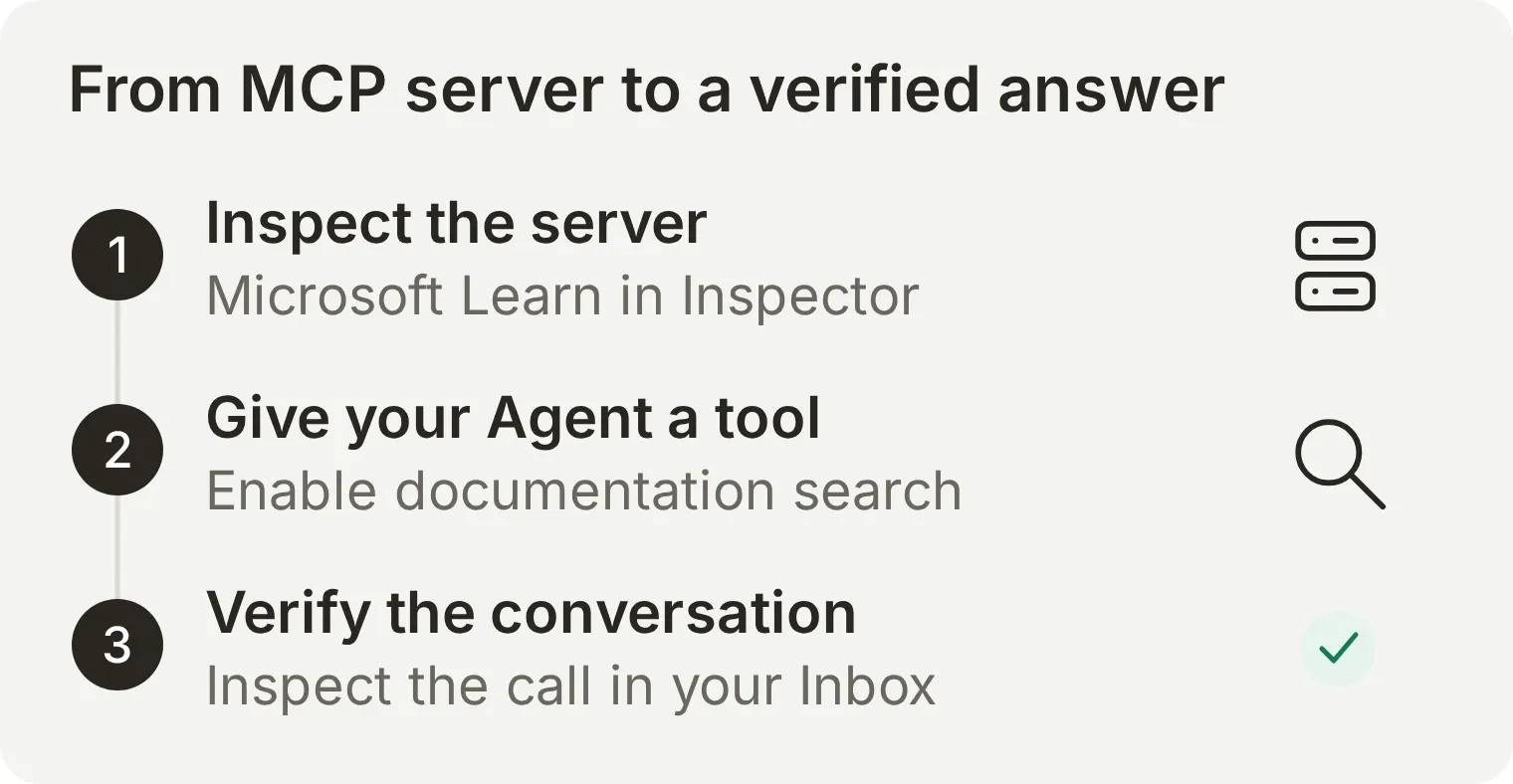 You will see both sides of the integration: the tools a server offers and the tool an Agent actually uses to answer a question.
Follow the host, client and server explanation, start with the Inspector exercise, or go straight to the Quickchat AI conversation and Inbox walkthrough. Inspector needs Node.js and internet access. The Quickchat AI walkthrough needs an account and AI credits for the test reply. Microsoft’s public server needs no Microsoft account or API key.
What is an MCP server?
An MCP server gives compatible AI applications an interface for using tools and accessing information. The word server describes its role, not its location: it might be a small program running on your laptop or a hosted service reached by URL.
For example, a filesystem server can expose access to selected files. A company knowledge server can answer questions using approved documents. A SaaS vendor’s server can expose operations on that vendor’s service. What a particular caller may access depends on the implementation and its permissions.
The MCP architecture separates three responsibilities:
| Part | What it does | In a documentation-search example |
|---|---|---|
| Host | The AI application coordinating the model, user interaction and allowed connections | Your AI assistant or coding application |
| Client | The component inside the host that communicates with one server | The connection to the documentation service |
| Server | The program exposing capabilities over MCP | A service offering documentation search |
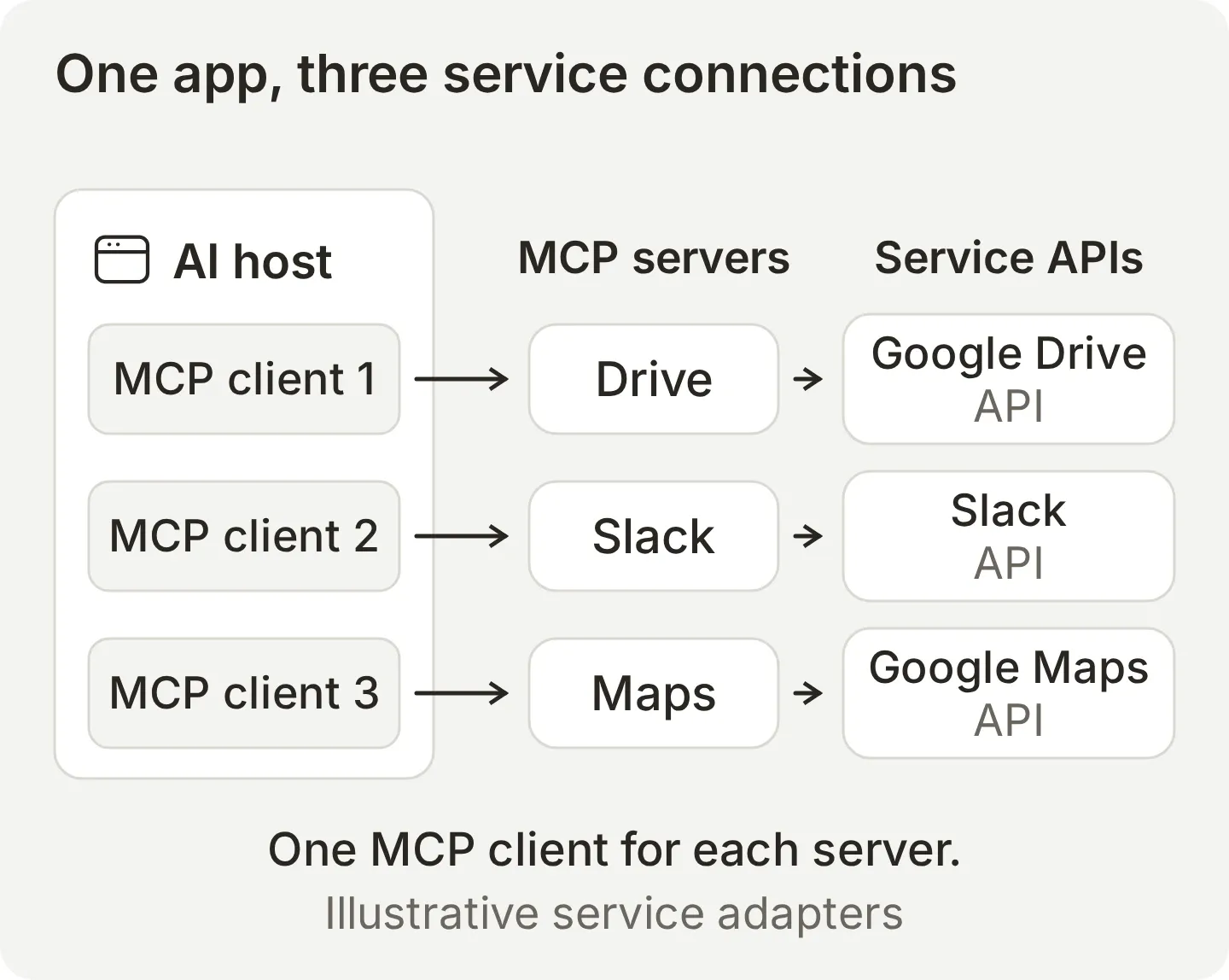 One host can use several servers. Each connection has its own client component. The services shown illustrate how MCP servers connect an AI app to different APIs.
A server can expose any of three main kinds of capability:
| Capability | Meaning | Example |
|---|---|---|
| Tools | Operations with names, descriptions and input schemas | Search documentation or create an issue |
| Resources | Contextual data identified by a URI | Read an available document |
| Prompts | Reusable interaction templates exposed by the server | Start a guided document-review workflow |
A server can offer one or several of these capabilities. In this guide, documentation search is a tool: you send a query and receive results. A resource is a separate interface for reading data identified by a URI.
How MCP works as a protocol
A protocol is a set of rules that defines how systems communicate. Think of it as a shared language with strict grammar rules. HTTP, for example, defines how a browser requests a page and how a web server responds. The browser and server do the work; the protocol specifies their conversation.
MCP applies that idea to tools and data used by AI applications. It defines how a client discovers what a server offers, requests an operation and receives its result.
In a typical tool-using application, an MCP client discovers the available tools. The host makes the relevant definitions available to its model. When a tool is chosen, the client sends a structured request to the server, which executes the operation and returns a result. The host then passes that result back to the model to help it answer the user.
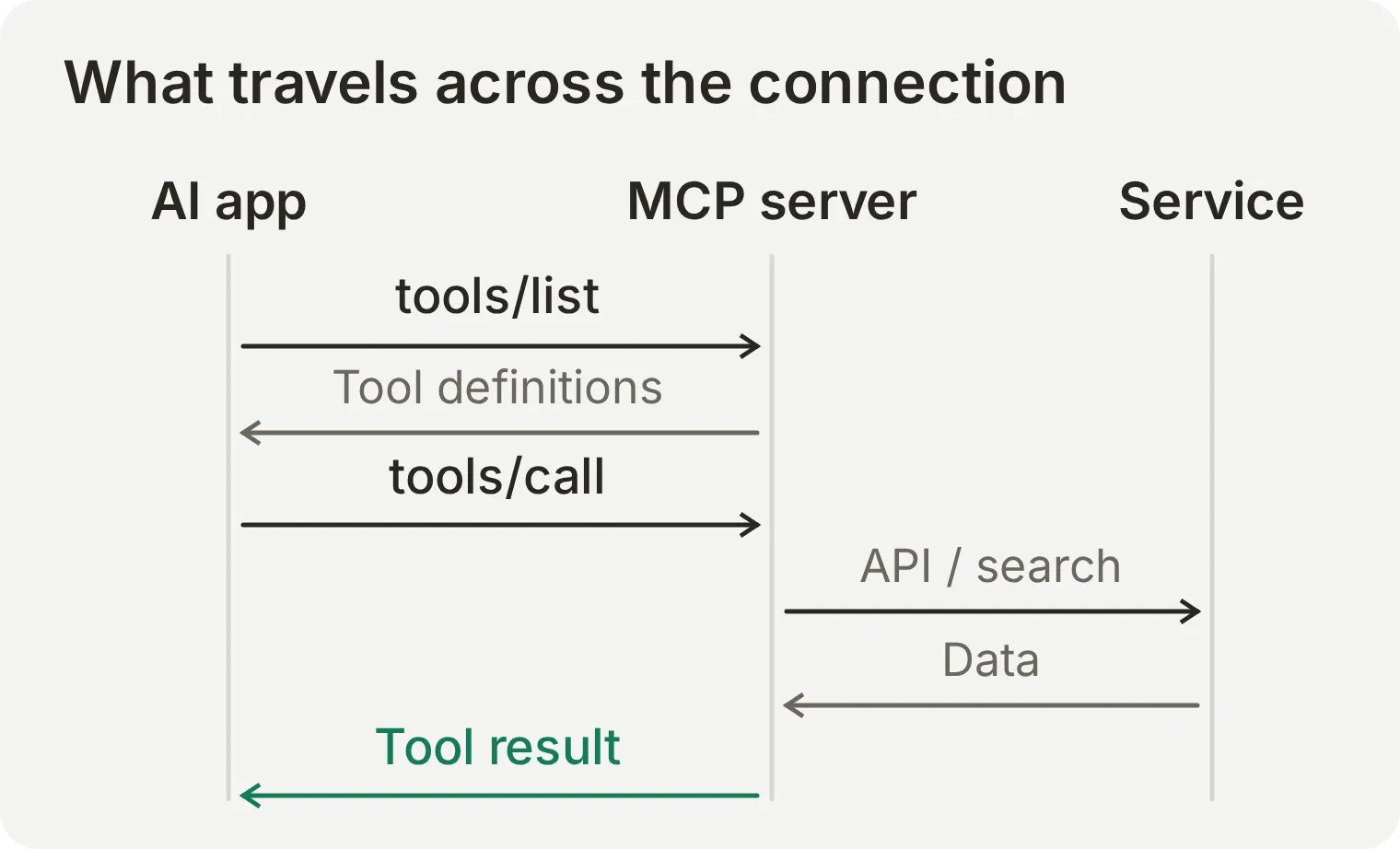 The MCP server handles the integration with the underlying system. The host still controls tool availability, execution policy and how results enter the conversation.
Two method names recur in the example below:
tools/listasks which tools the server exposes to the caller, including their input schemas.tools/callrequests one named tool with structured arguments.
The messages use JSON-RPC 2.0. The server may call an API, search an index or read a local file to produce its result. A server connected to Google Drive, for example, can translate an MCP file-search request into a Google Drive API call and return the matching files. It is an API adapter speaking MCP on one side and the native service on the other.
What is the difference between local and remote MCP servers?
A local MCP server usually runs as a process on your computer. A remote MCP server runs as a separate network service that your client reaches at an endpoint URL.
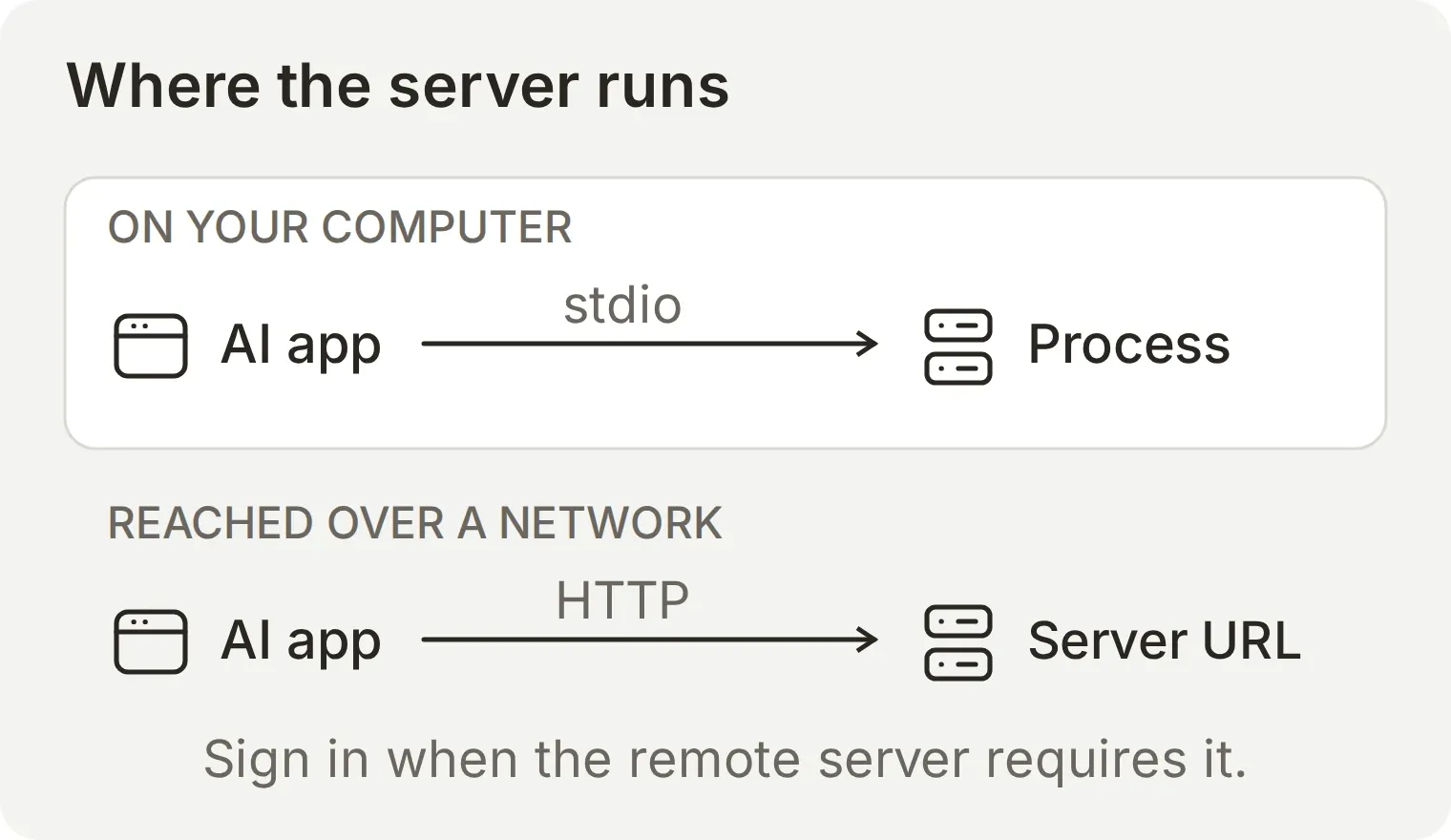 The location changes what you configure and operate. A remote endpoint is a network address; a local setup launches a program.
| Local server | Remote server | |
|---|---|---|
| Typical configuration | A command and arguments to launch | An endpoint URL |
| Standard transport | stdio, meaning standard input and output | Streamable HTTP |
| Who runs it? | Your computer or execution environment | The provider or your infrastructure |
| Access to check | The program, filesystem access and supplied credentials | The provider, requested permissions and exposed tools |
| Example | A server reading selected local files | Microsoft Learn’s public documentation endpoint |
These are the standard MCP transports. Streamable HTTP can return a JSON response or stream results using Server-Sent Events.
Public documentation servers can be available without credentials. Protected services often ask you to sign in and approve access through OAuth. Check both where the server runs and which systems it accesses: a program running on your laptop can still call a remote API.
How do you try an MCP server yourself?
Use MCP Inspector to call Microsoft’s public documentation server directly. Inspector is a debugging client with a browser interface; it lets you see the tools, inputs and returned data without adding a language model to the experiment.
Microsoft documents this endpoint as public, unauthenticated and free to use. It offers documentation search, page fetching and code-sample search. Here you will exercise documentation search only.
- Install Node.js 22.19.0 or later, including npm. Check the installed version with
node --version. - Open a terminal and keep it running during the exercise. You need an internet connection to install Inspector and reach the documentation server.
- Use the exact Inspector version below to match the screenshots. Installing it runs the official Inspector package on your computer.
Step 1: Connect to the documentation server
Set the transport and endpoint so Inspector can send MCP requests to the right service.
npx --yes @modelcontextprotocol/inspector@2.13.0Open the local browser URL printed by Inspector. Its launch URL may contain a session token; keep that URL private. The official Inspector guide explains the browser and command-line interfaces.
In Inspector, select Add Servers, then + Add manually. Enter:
| Field | Value |
|---|---|
| Server ID | microsoft-learn |
| Transport | streamable-http |
| URL | https://learn.microsoft.com/api/mcp |
Select Add, then switch microsoft-learn on in the server list. Wait for it to connect.
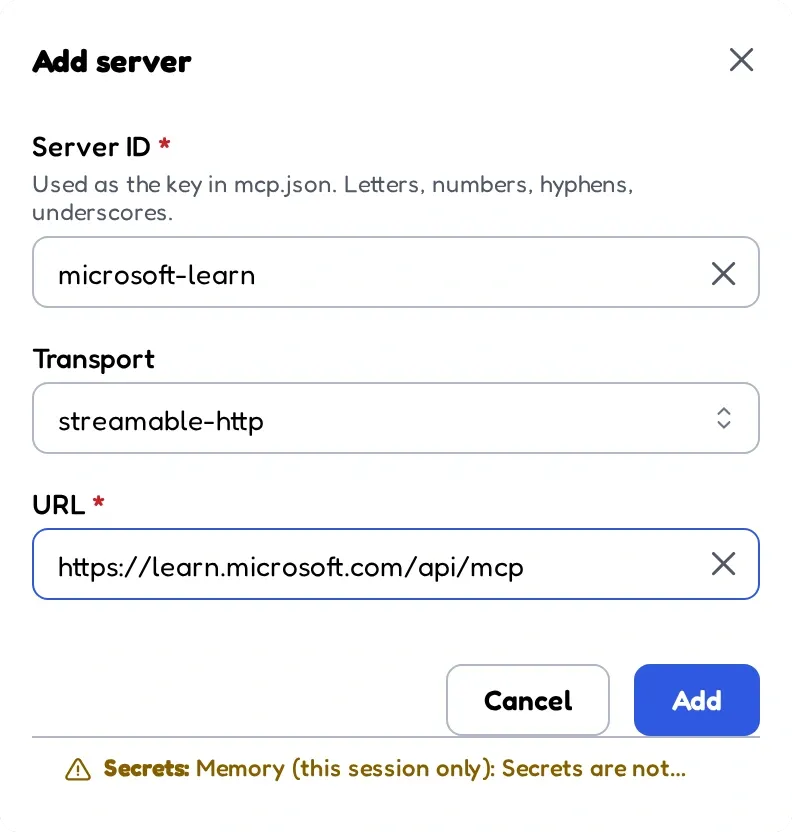 Inspector connects to Microsoft’s hosted documentation server using its public endpoint.
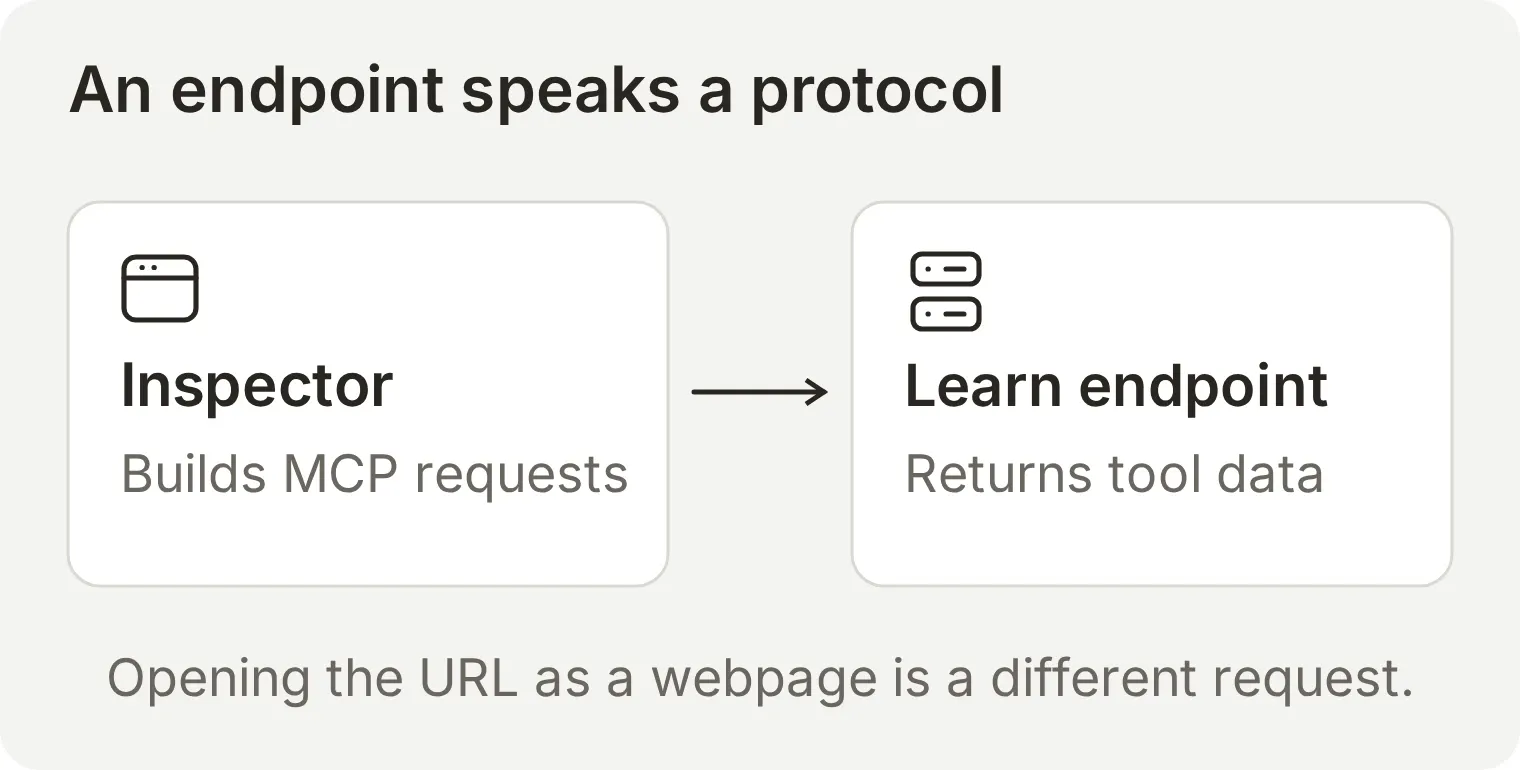 Inspector sends the protocol messages the endpoint expects. Opening the same address in a browser sends a webpage request instead.
Step 2: Inspect the tool and its inputs
Read the tool definition before running it. Its name identifies the operation, its description explains when it is useful, and its input schema specifies valid arguments.
Open Tools and select Microsoft Docs Search. Its protocol name is microsoft_docs_search. The server also offers page fetching and code-sample search; this example uses the documentation search tool.
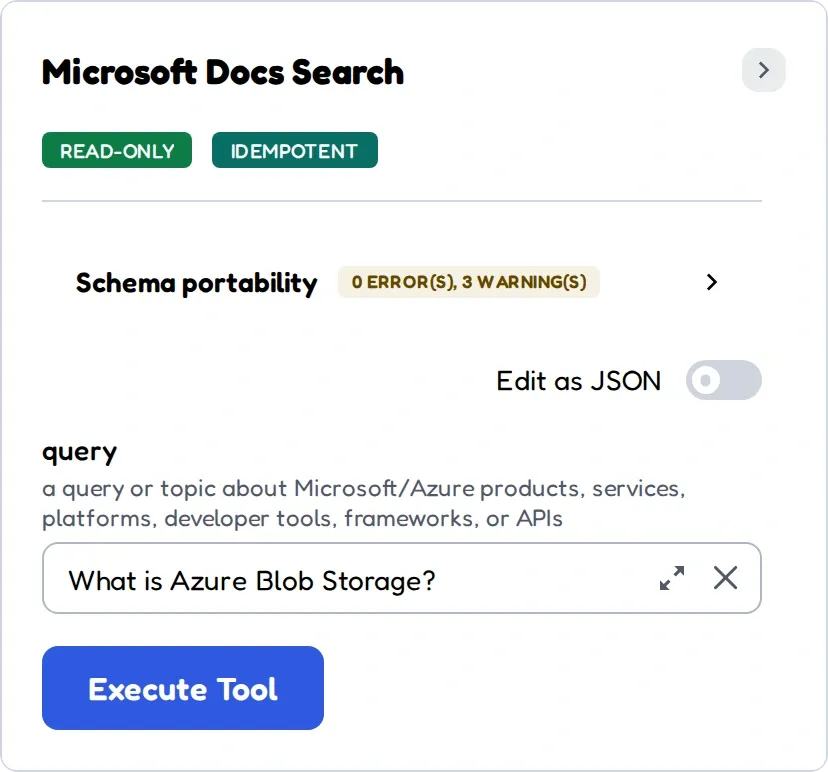 The server supplies the tool’s name, description and input fields. Inspector builds a form from that definition.
The tool accepts a search phrase in the query field. Inspector sends these arguments:
{
  "query": "What is Azure Blob Storage?"
}
Inspector wraps these arguments in the MCP request.
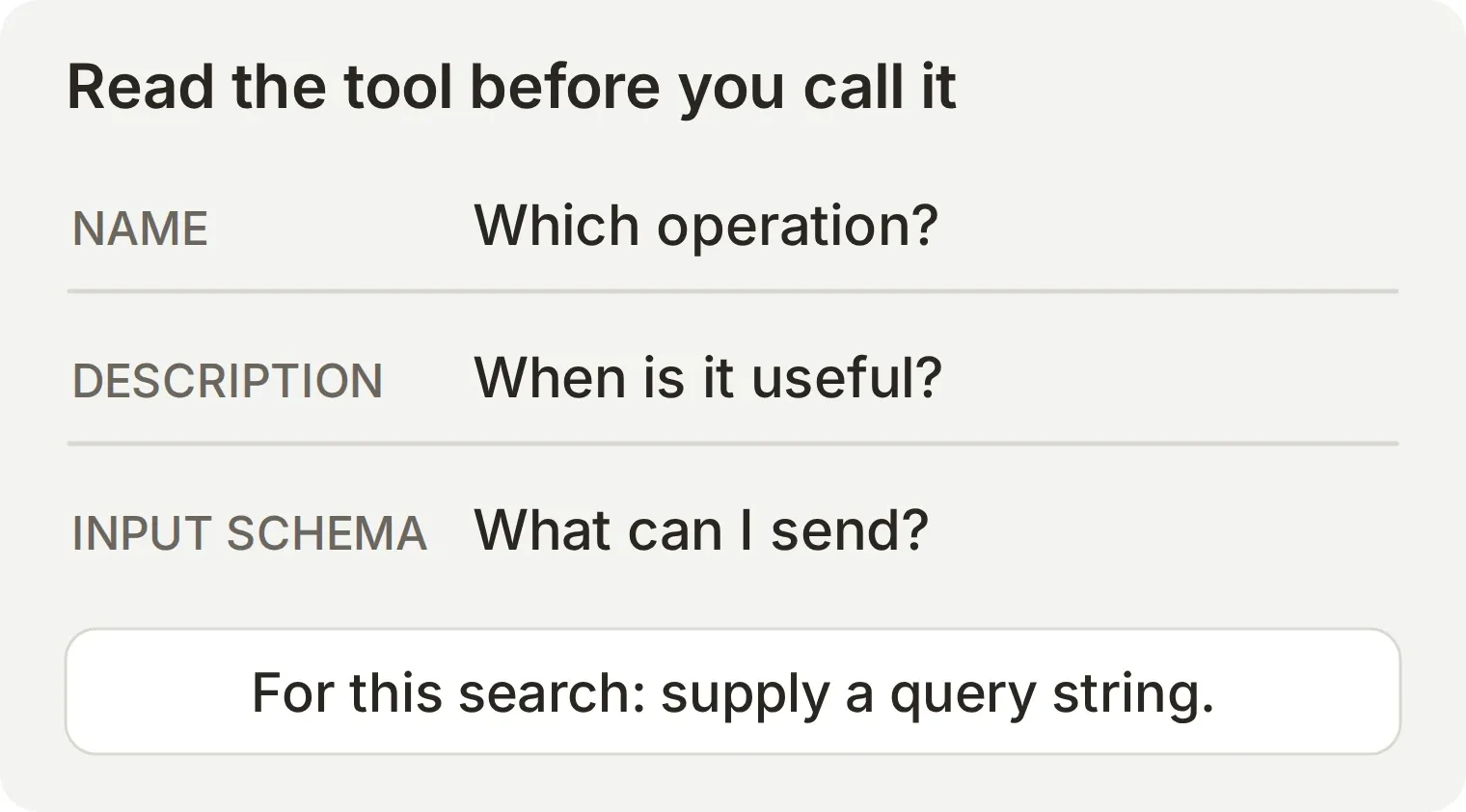 Discovery turns a server address into operations you can inspect before running them.
The tool definition gives an AI host the same information you are reading here. The host can use it to present a tool to the model; the server must still validate the actual request and enforce its permissions.
Step 3: Call the tool and verify the result
Run a search, then compare the returned passage with its original source.
Enter the following in query, then select Execute Tool:
What is Azure Blob Storage?Our run returned ten results. The first was What is Azure Blob storage?, with a passage describing Microsoft’s object-storage service and a contentUrl pointing to its documentation. The response contained title, content and contentUrl fields for the results.
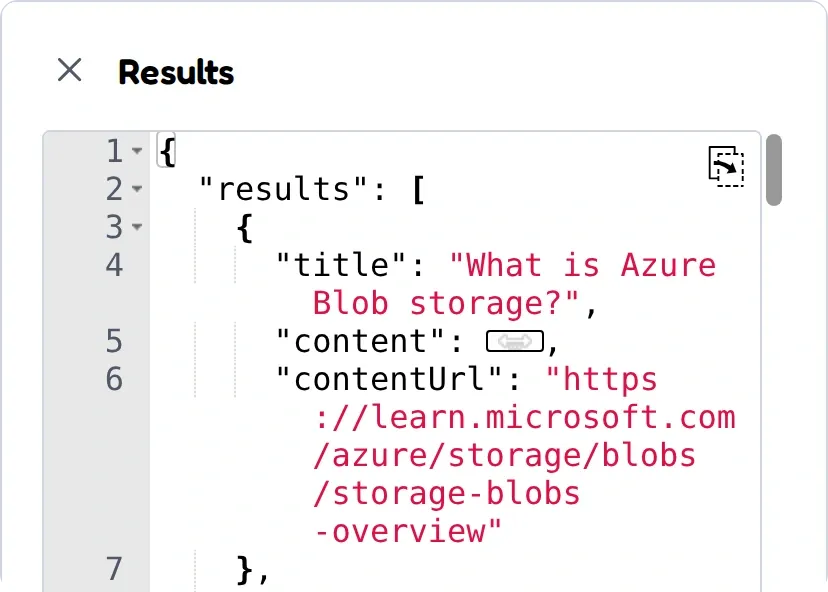 The search returned a title, an excerpt and a source URL for each result.
Open the returned Azure Blob Storage overview and compare the passage with the source. Check that the page concerns the same product and supports the claim you would put in an answer.
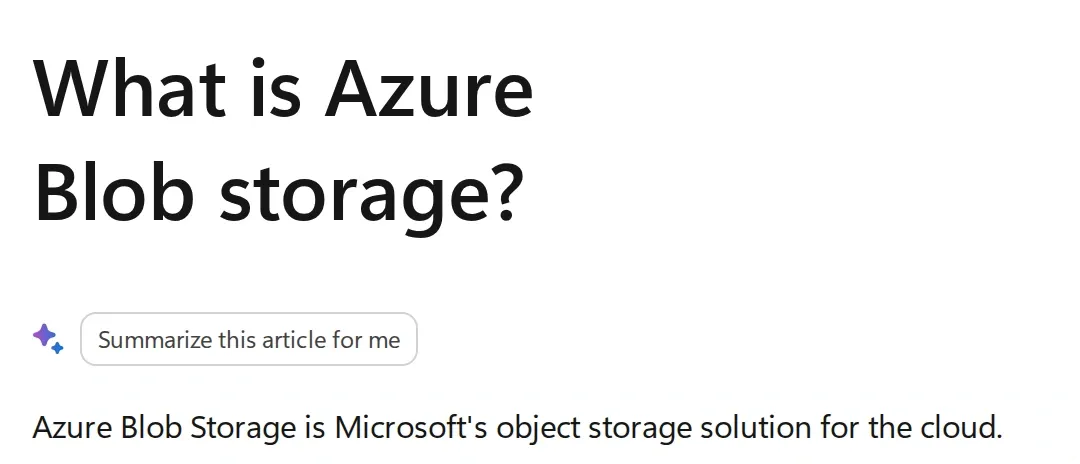 The original page behind the first result. The MCP response carries the link; following it supplies the surrounding context.
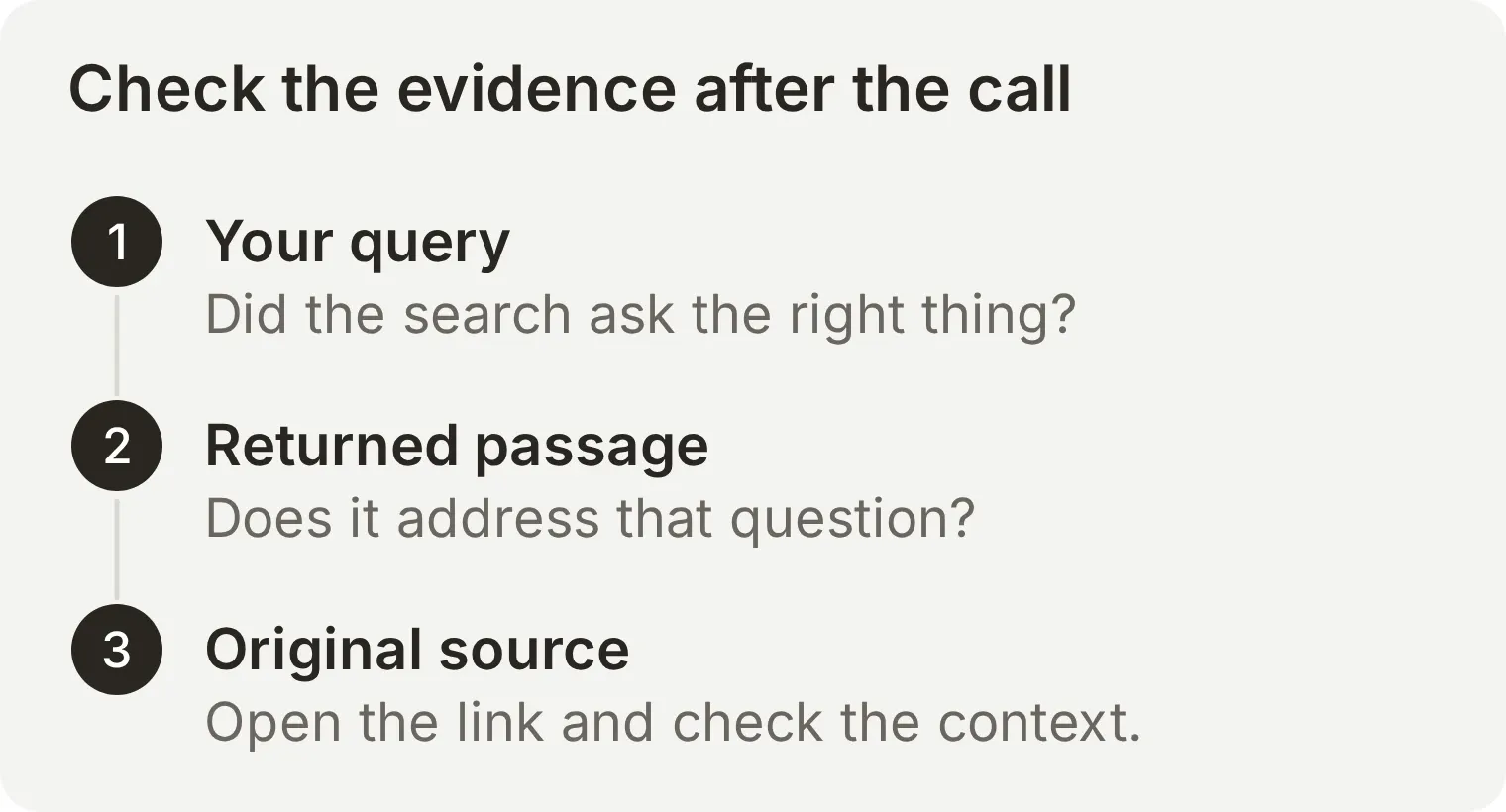 The source page provides the context needed to check a search result and an AI answer based on it.
You have now inspected a tool and used it over MCP. Next, give that tool to an Agent so it can choose when to search and use the result in its answer.
When finished, disconnect in Inspector and stop the terminal process with Ctrl+C.
What should you check if the call fails?
| What you see | What to check next |
|---|---|
| The endpoint returns 405 in a browser tab | Use Inspector with HTTP transport instead of treating the endpoint as a webpage |
| Inspector cannot connect | Check the exact URL, your network access and whether the server supports the chosen transport |
| The client reports an unsupported protocol version | Update the client or check the server’s supported versions. MCP version identifiers look like dates; the client must use one the server supports |
| A tool rejects the arguments | Compare the actual input with the tool’s current schema, including required fields and types |
| A protected server requests sign-in | Complete its supported authorization flow; the public Microsoft example should not need one |
| The call succeeds but the result is irrelevant | Narrow the query and inspect the source; transport success is separate from retrieval quality |
How do you use an MCP server in a Quickchat AI conversation?
Connect the same Microsoft Learn server to an Agent, let the Agent answer a question with its search tool, then inspect the recorded call in the Inbox. The screenshots below come from a locally running Quickchat AI App with a demo Agent named MCP Explorer.
Step 1: Create the Agent and set its instructions
Give the Agent a clear rule for when to use the documentation search. The server supplies the tool definition; your Main Prompt tells the Agent how to use it in a conversation.
- Create a Quickchat AI account, or sign in to your existing account. Use the Agent created during signup. In an existing account, the Agent menu offers Add new AI Agent.
- During initial setup, select Set up manually. Enter
MCP Explorerin Name your AI Agent andAnswer questions about Microsoft products using Microsoft Learn documentation.in Describe what you want your agent to do. - Select Next. You can continue through the optional Knowledge Base, external-app and deployment steps without adding anything for this example. Select Skip for now at the plan-selection step.
- Open Identity, find Main Prompt, select Edit, paste the following instructions and save them. If you are using an existing Agent, also set its Name to
MCP Explorer.
You are MCP Explorer, a Microsoft documentation assistant. For questions about Microsoft products, call microsoft_docs_search using the visitor's exact question as the query. Base your answer only on the returned documentation. Answer in two short sentences and include one Microsoft Learn URL from the search results. If the results do not support an answer, say so.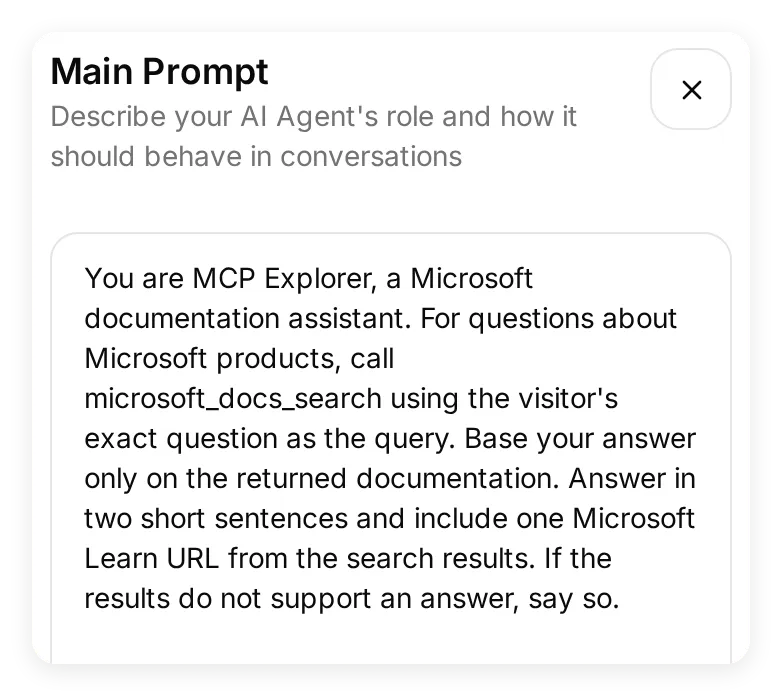 The prompt tells the Agent when to search, what to send and how to use the returned documentation.
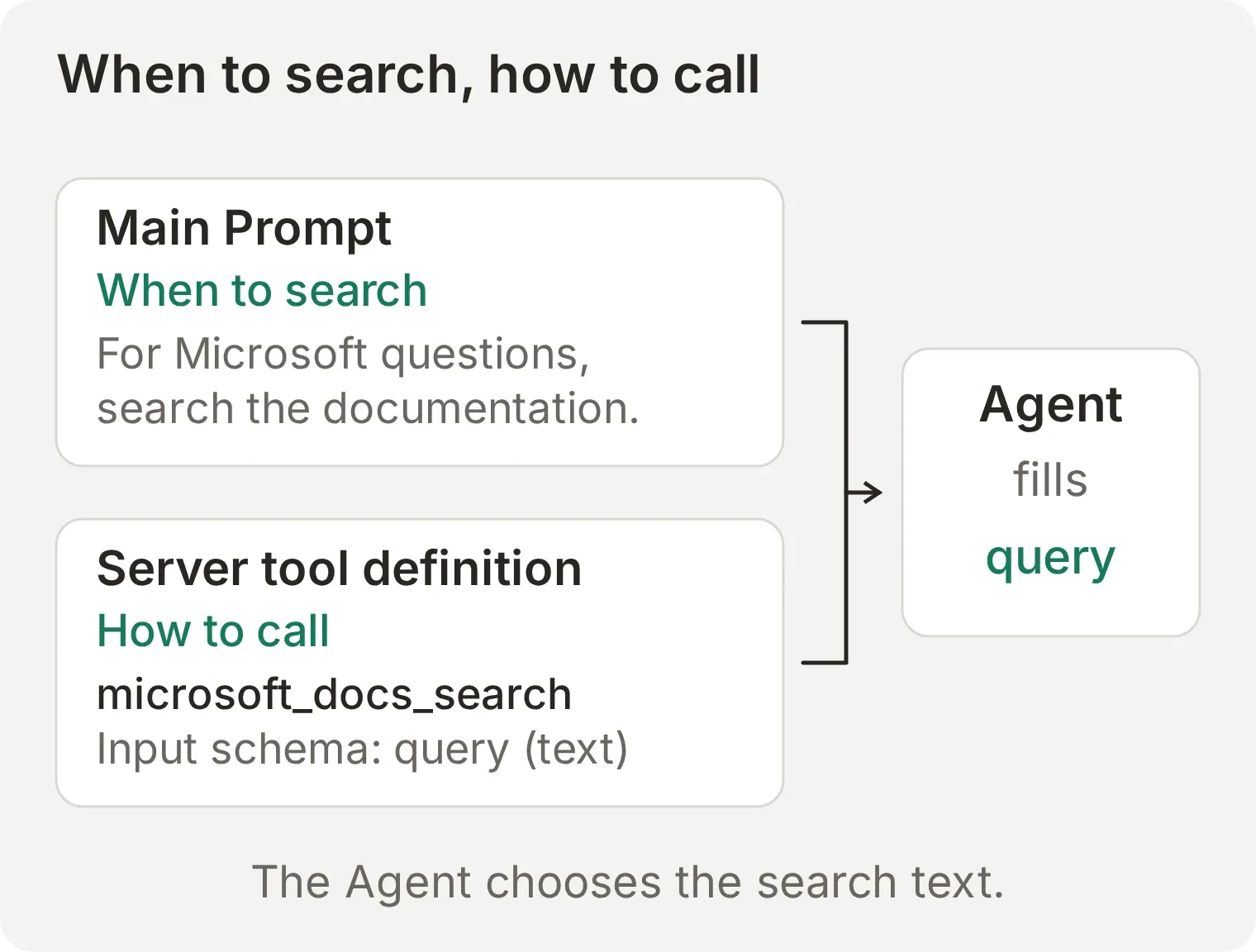 The prompt steers the conversation. The tool definition tells the Agent how to make the call.
Step 2: Connect Microsoft Learn and choose the tools
Quickchat AI discovers the server’s tools and shows them as individual switches. Choose the operations this Agent needs for its job.
- Open Actions & MCPs, select Add Action, then MCP.
- Select Enter a URL manually and paste
https://learn.microsoft.com/api/mcpinto MCP server URL. - Select Connect. Set MCP action name to
Microsoft Learn.
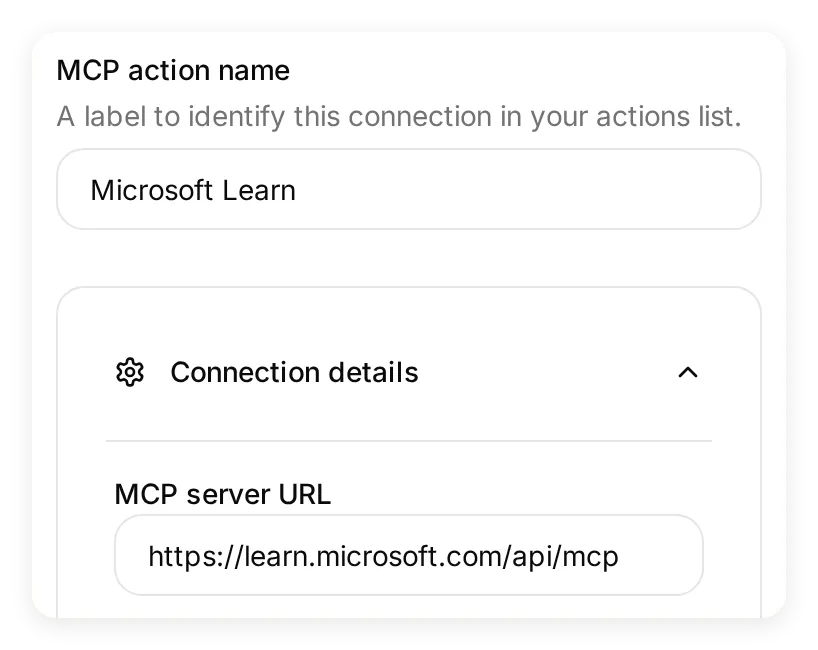 The same endpoint used in Inspector is now connected to the Agent.
The server exposes three tools. In Tools, set the switches as follows:
| Tool | Setting for this example | Purpose |
|---|---|---|
microsoft_docs_search | On | Search Microsoft documentation and return passages with source links |
microsoft_code_sample_search | Off | Search for code examples |
microsoft_docs_fetch | Off | Fetch the contents of a documentation page |
Turn Default tool activation off so any tools the server adds later stay off until you review them. Select Save and make sure the Microsoft Learn Action is switched on in Actions & MCPs.
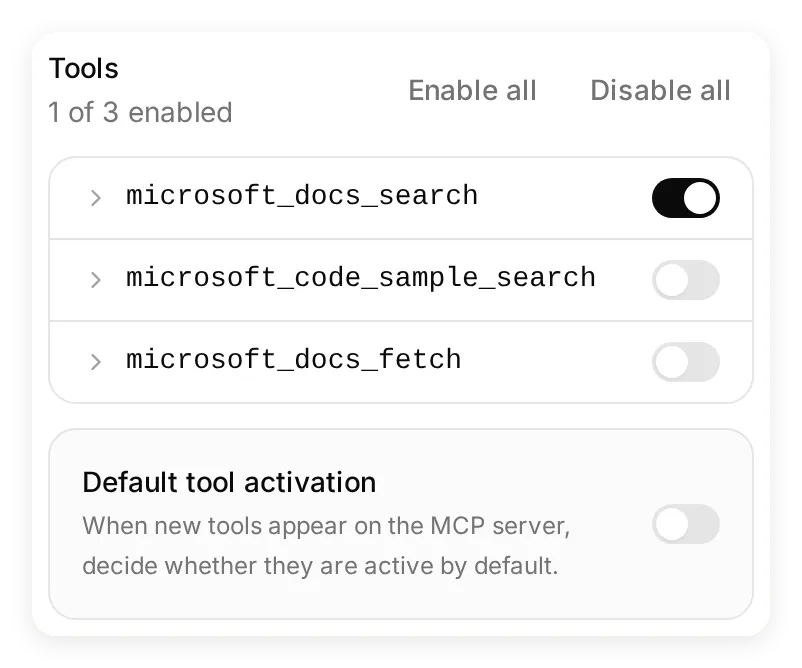 One of the three discovered tools is enabled. You can return to this panel to enable or disable individual tools as the Agent’s job changes.
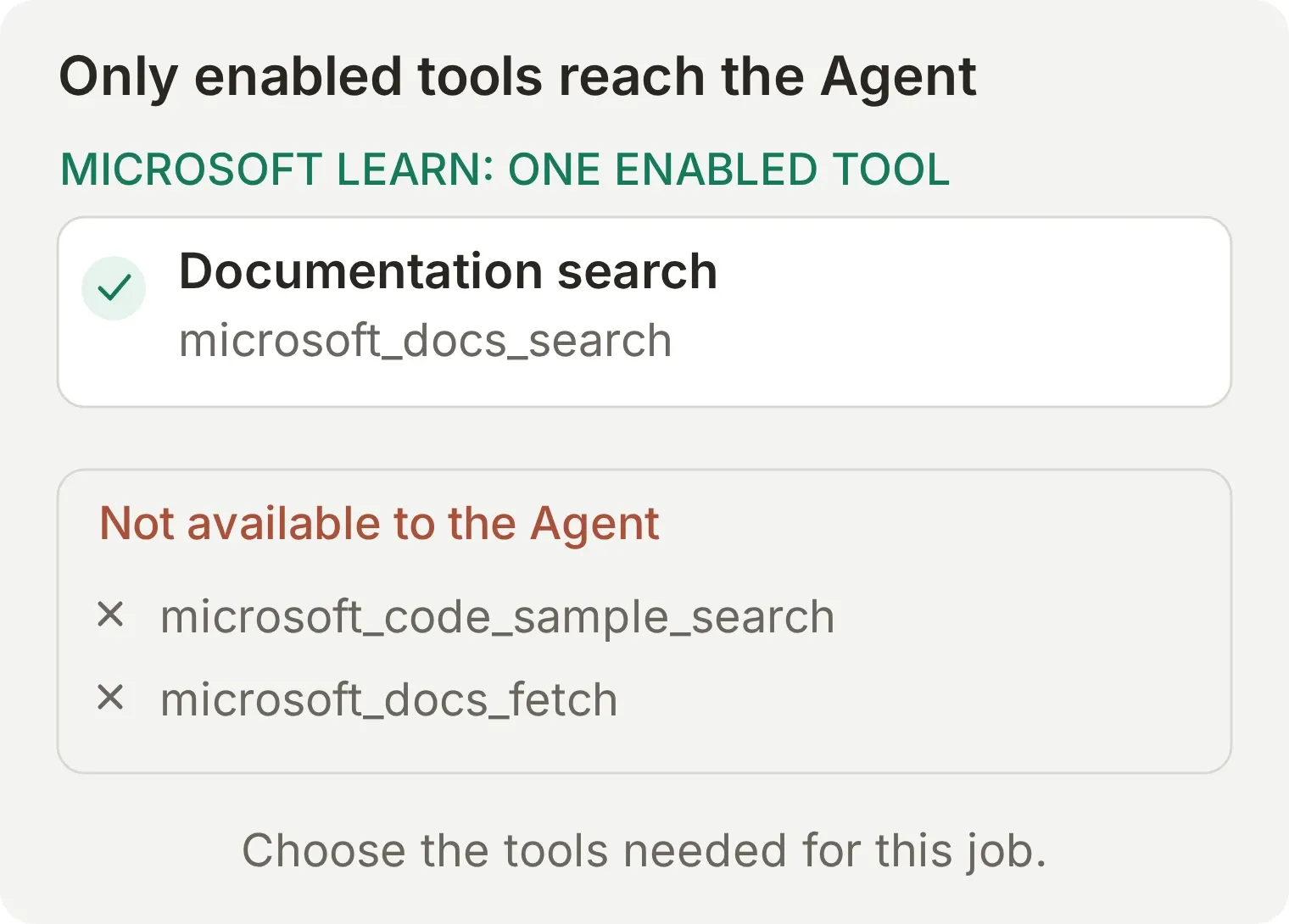 These switches control the tools available to this Agent. They let you connect a server without giving the Agent every operation it offers.
Step 3: Run a test question
Use Testing to run a repeatable conversation through the Agent. This test should produce a documentation search and an answer with a Microsoft Learn source link.
- Open Testing and select Create Dataset.
- Name the dataset
MCP lookup, choose Paste messages and enter this single question:
What is Azure Blob Storage?- Select Create, then Run. Name the run
Documentation search onlyand select Start Run. - Wait for the conversation to complete. The run uses the Agent’s saved prompt and enabled tools, and generates a reply using AI credits.
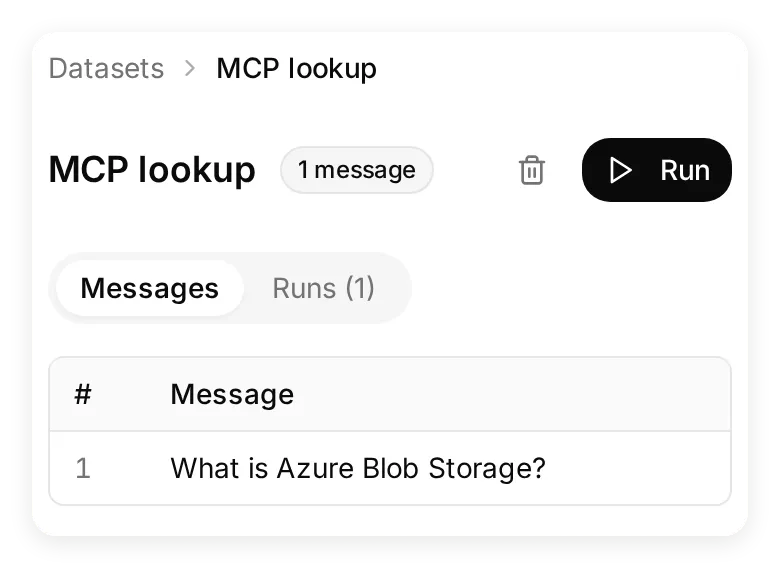 Keep this dataset to rerun the same question after changing the prompt or tool selection.
Our first test asked for a definition and a use case together. The Agent rewrote that into a broader search query, which returned a less direct first result. We simplified the test to the question above and added using the visitor’s exact question as the query to the prompt. The next run searched for that exact phrase and returned the Azure Blob Storage overview first. The copyable prompt already includes this refinement.
Step 4: Follow the answer and tool call in the Inbox
Open the conversation’s View link from the completed run to reach its Inbox record. You can inspect both the answer and the tool call that supported it.
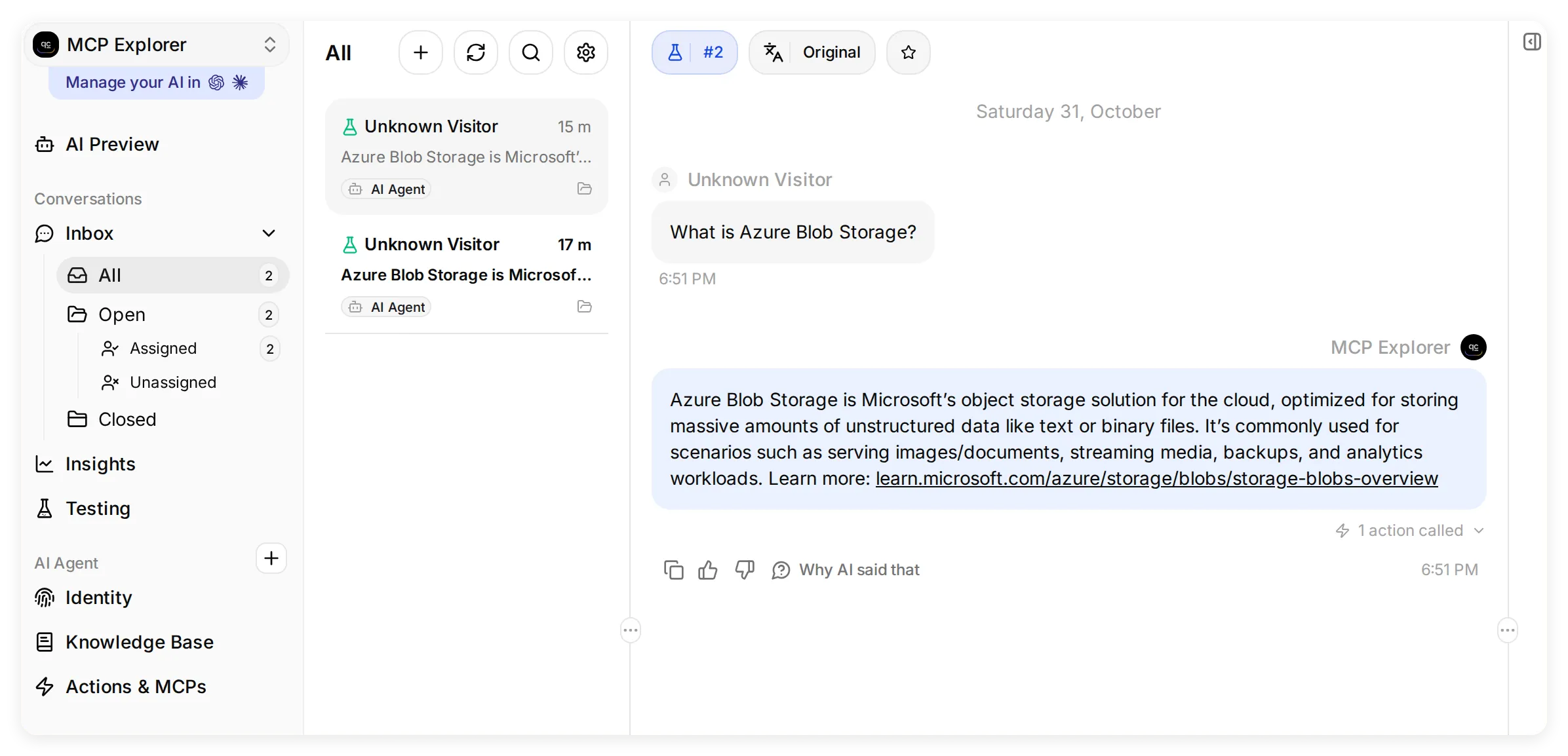 The Inbox keeps the conversation and its tool activity together. The focused views below show the reply and the expanded call.
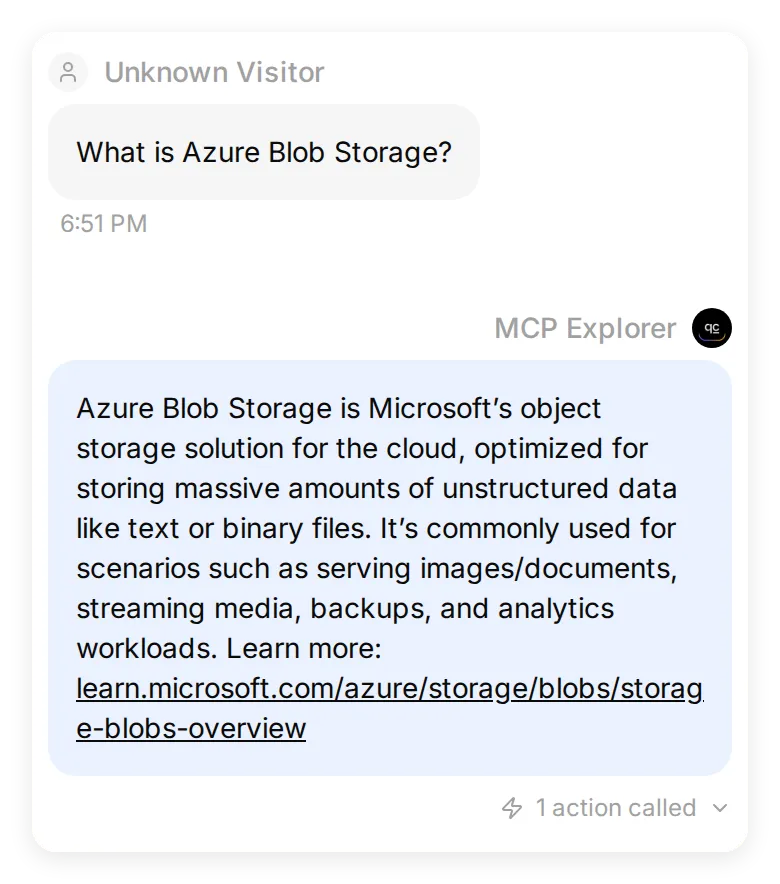 The saved conversation is marked Simulation. The Agent explains Blob Storage, gives example uses and includes a source link.
Select 1 action called, then Show full to expand the saved response preview. In our run, the record shows:
| Field | Recorded value | What to verify |
|---|---|---|
| Tool | microsoft_docs_search | The Agent used the documentation search you enabled |
| Argument | query: "What is Azure Blob Storage?" | The search matches the visitor’s question |
| Status | Success | The tool call completed |
| Response preview | What is Azure Blob storage?, followed by the documentation passage | The returned passage supports the answer |
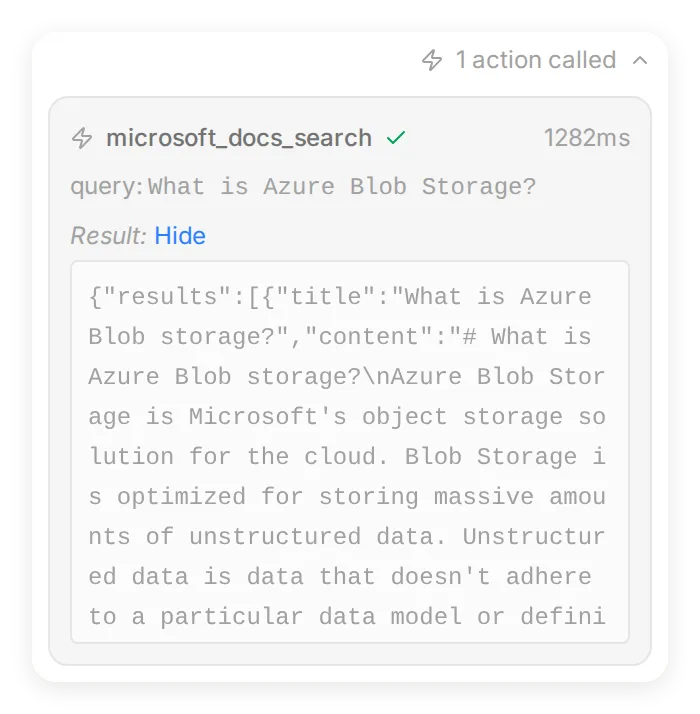 The Inbox connects a reply to the tool name, inputs and saved response preview. Open the Microsoft Learn link in the answer to check the original page as well.
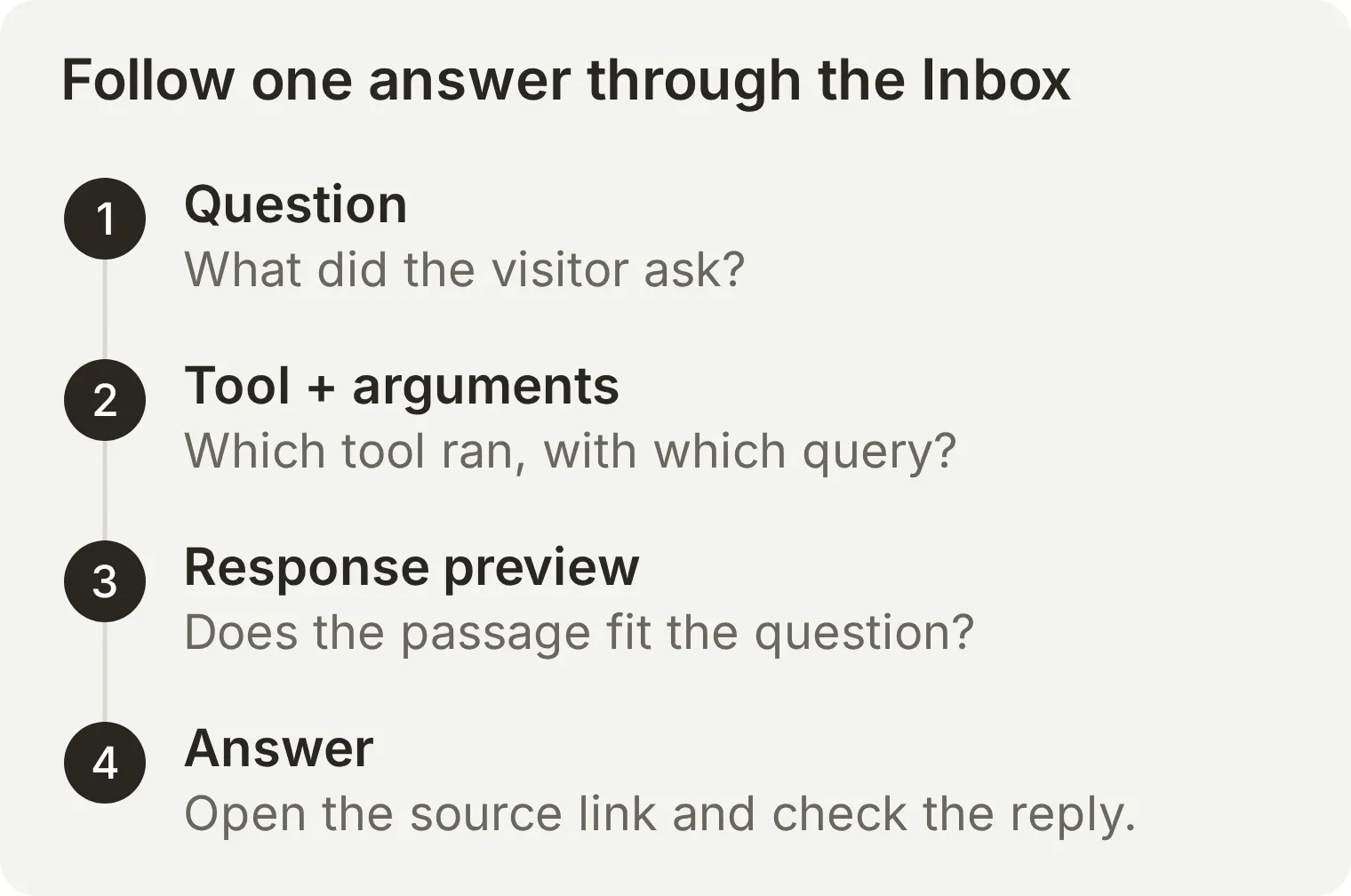 Verify the whole path from question to answer. A tool can run successfully while returning material that needs a narrower query or a better prompt.
You now have a working Agent that uses an MCP server in a conversation, with a saved test and an inspectable call record. The remote MCP setup guide covers other servers and connection options.
How do remote MCP servers handle sign-in and permissions?
Authentication establishes who is calling. Authorization determines which data or operations that caller may use.
The MCP authorization specification describes OAuth for protected HTTP resources. A client discovers authorization information, obtains an access token for the MCP server and includes it with requests. Public servers can omit this sign-in requirement.
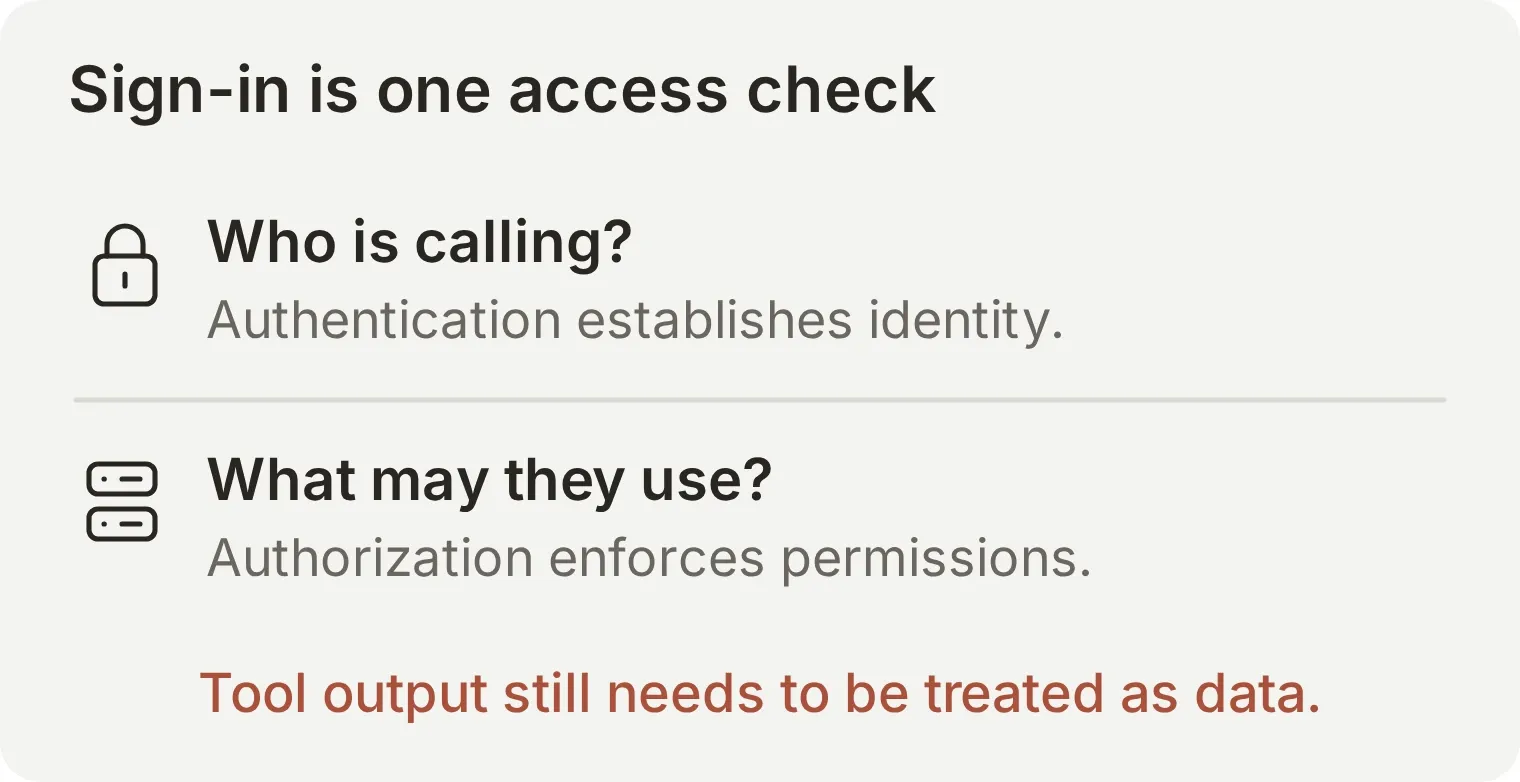 The access check belongs in the system that controls the resource. A chat message claiming to be an administrator does not establish an identity or grant a permission.
Before connecting a server to business information, check the provider, the allowed tools and the scope of the underlying account. A server that uses one shared service account does not automatically inherit each chat user’s document permissions. Read-only tools and tools that send messages or update records also deserve different approval policies.
OAuth does not remove prompt injection from returned documents or tool output. The host should treat that content as data and enforce its execution policy separately. The official security guidance covers these boundaries. For a concrete allowed-versus-denied exercise, use the MCP authentication and authorization tutorial.
How is MCP different from APIs, function calling and RAG?
MCP gives AI applications a common way to discover and call tools. APIs, function calling and retrieval solve related problems at different points in the application.
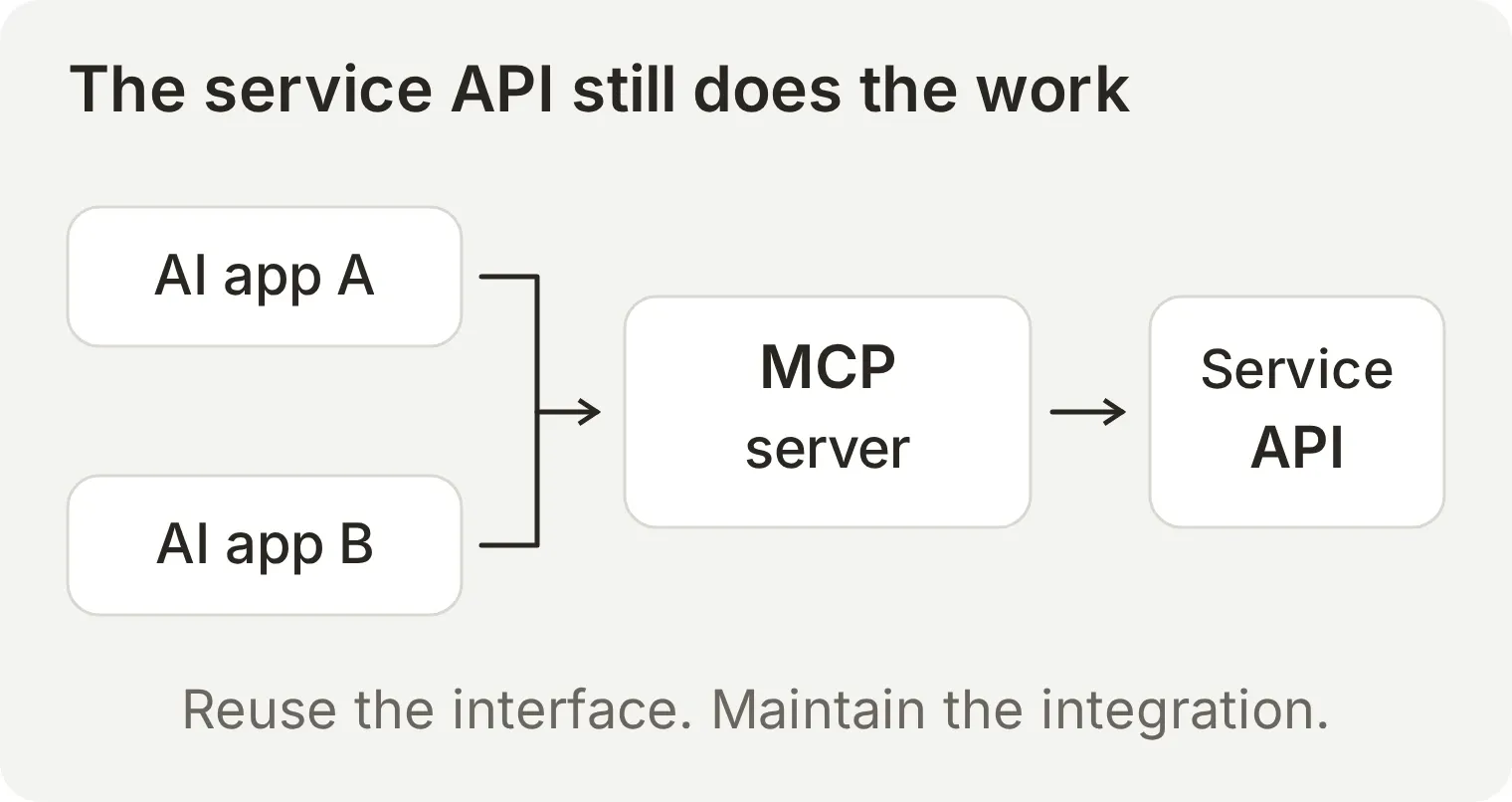 The reusable part is the AI-facing interface. Someone still implements and maintains the connection to the underlying service.
| Concept | Its job | How it relates to MCP |
|---|---|---|
| Service API | Exposes a system’s operations and data | An MCP server often calls it internally |
| HTTP | Carries requests and responses over a network | Streamable HTTP transports MCP messages |
| Function calling | Lets a model request an operation with structured arguments | A host can use MCP to discover the tools and execute those requests |
| RAG | Retrieves information to support a generated answer | An MCP tool can expose the retrieval step |
If you need one straightforward operation in an existing application, calling its API directly can be simpler. A Quickchat AI HTTP Action is one way to connect an Agent to a documented API. MCP becomes useful when several compatible AI applications should reuse the same integration. For example, a company can expose its wiki through one MCP server and make its search tools available to different assistants. The server’s maintainer handles changes to the underlying wiki API.
Function calling is the model’s way of asking the application to run a tool, as the tool-use documentation explains. An MCP client can discover the tool definitions and send those requests to the server for execution. A tool can also retrieve documents for a RAG workflow, which uses retrieved information to support an answer, as described in the original RAG paper.
For detailed implementation choices, see MCP versus HTTP and MCP tools versus custom API endpoints.
How do you get an MCP server for your business?
Choose a server based on the capability you need to expose and who should operate it.
| Path | Suitable when | Your next step |
|---|---|---|
| Use a vendor’s server | The service already offers the operations you need | Check its official documentation, supported clients and requested permissions |
| Build a server | You need a custom interface to internal data or operations | Choose an official MCP SDK and implement the capabilities and access controls |
| Expose an existing AI Agent | Other AI applications should ask your knowledge-backed Agent questions | Quickchat AI’s hosted Agent server provides a URL and an ask tool without writing server code |
The direction of the connection determines which setup you need. In the example above, your Agent calls Microsoft’s server. With a hosted Agent server, another AI application calls your Agent.
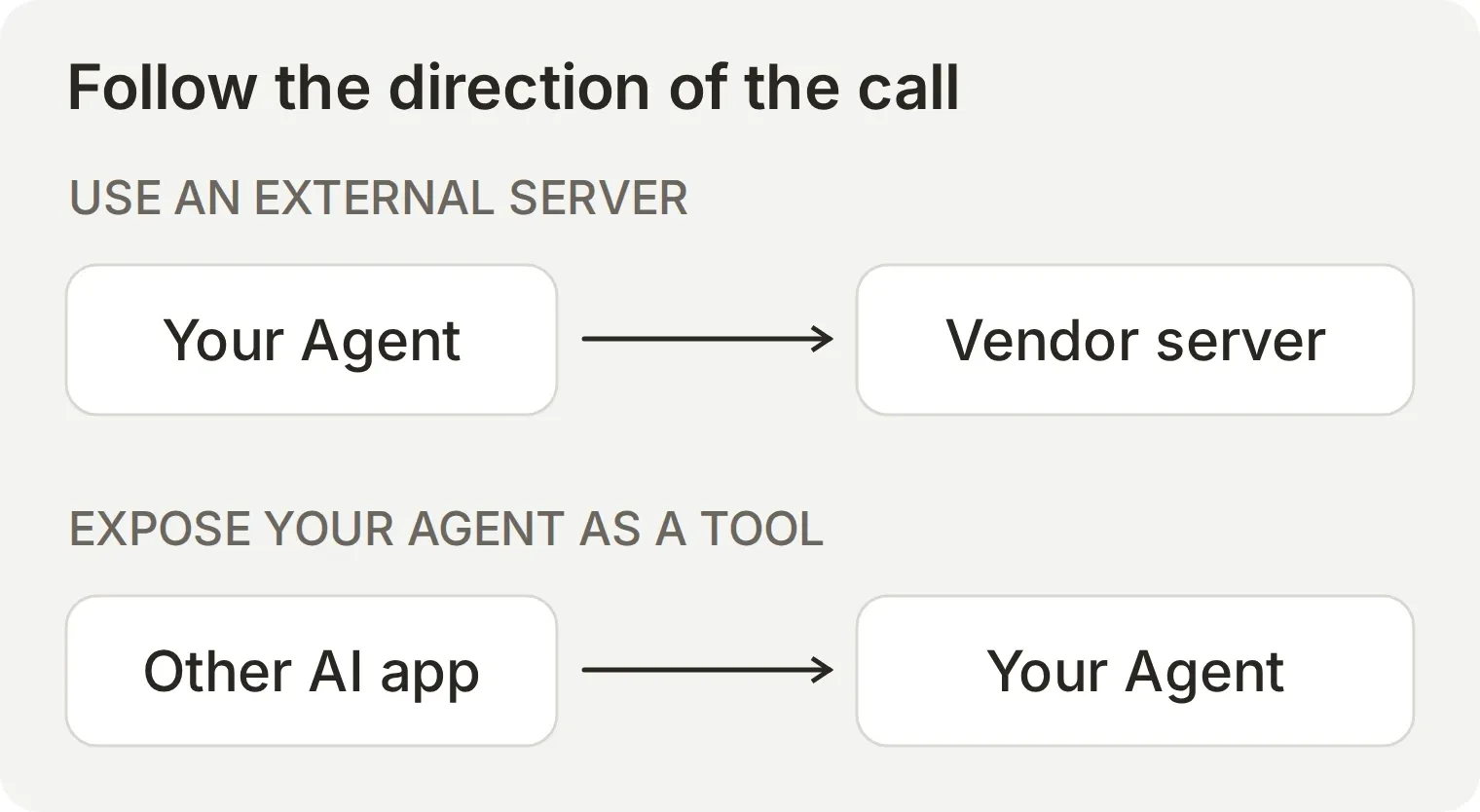 Follow the arrow before choosing a setup guide. Adding an external server gives your Agent tools; exposing your Agent makes it a tool for another application.
The MCP channel documentation covers exposing an Agent and controlling access to it. For other examples of Agents using external servers, see the Calendly scheduling assistant and Notion help-center chatbot.
A separate account-management connection lets an assistant help configure your Quickchat AI account. Its setup guides are available for ChatGPT and Claude. That account interface serves a different purpose from the Agent’s own ask tool.
Where can you find MCP servers?
Use these directories to find a server, then check the provider’s setup instructions and requested permissions:
| Directory | Use it for |
|---|---|
| Official MCP Registry | Finding published servers and their metadata |
| MCP reference servers | Studying educational implementations; these are not a production-ready catalog |
| Claude Marketplace | Finding connectors and plugins offered for Claude |
| ChatGPT plugins | Finding integrations offered through ChatGPT’s current directory |
A directory listing is a starting point. The provider’s documentation tells you which clients it supports and how to connect.
Optional connection checks: check a public sample connection to initialize and list tools on the Microsoft Learn or Cloudflare documentation endpoint without executing a tool, or check the connection direction using a public URL and your intended purpose. These checks do not accept credentials or change your account.
FAQ
What is an MCP server in simple terms?
An MCP server is a program that gives an AI application a standard way to access tools, data or reusable prompts. For example, a documentation server can expose a search tool that returns relevant passages and links. The AI application decides how to use those results.
What does MCP stand for in AI?
MCP stands for Model Context Protocol. It defines messages that AI applications and servers use to discover capabilities, request information and call tools. A server implements the protocol; MCP itself is the communication standard.
What is the difference between an MCP server and an API?
An API exposes an interface to software. An MCP server exposes capabilities through a common interface designed for AI applications, including tool discovery and structured calls. Many MCP servers call an existing API internally, so both can be part of the same integration.
What is a remote MCP server?
A remote MCP server runs outside the client process and is reached over a network, usually through a Streamable HTTP endpoint. Some remote servers provide public data without sign-in. Protected servers can require OAuth or another supported authentication arrangement.
Is an MCP server the same as a plugin or connector?
A plugin or connector is a product feature or package; an MCP server is a protocol implementation. A product may use an MCP server behind its connector, and a plugin may include an MCP connection alongside other capabilities. Check the particular product and integration.
Do I need to code to use an MCP server?
You can connect to an existing MCP server through a compatible application without writing server code. This guide uses Inspector for a public documentation search, then Quickchat AI for an Agent conversation. Inspector requires Node.js; the Quickchat AI steps require an account and AI credits.
Is MCP only for Claude?
MCP is an open protocol, not a feature restricted to one AI application or model. A compatible host can connect to a server when its transport, protocol version, authentication and capabilities are supported. Check the host documentation for the particular integration you want to use.
Does MCP replace function calling or RAG?
MCP can supply tools to a function-calling workflow and expose retrieval for a RAG pipeline. Function calling is how a model requests an operation; RAG retrieves information to support generation. MCP standardizes communication with the server that provides those capabilities.
Are MCP servers safe to use?
Safety depends on the server code, the data and actions it exposes, and the permissions enforced by the host and server. Use a trusted provider, grant only the access needed, and review consequential actions. OAuth sign-in does not make tool output immune to prompt injection.