

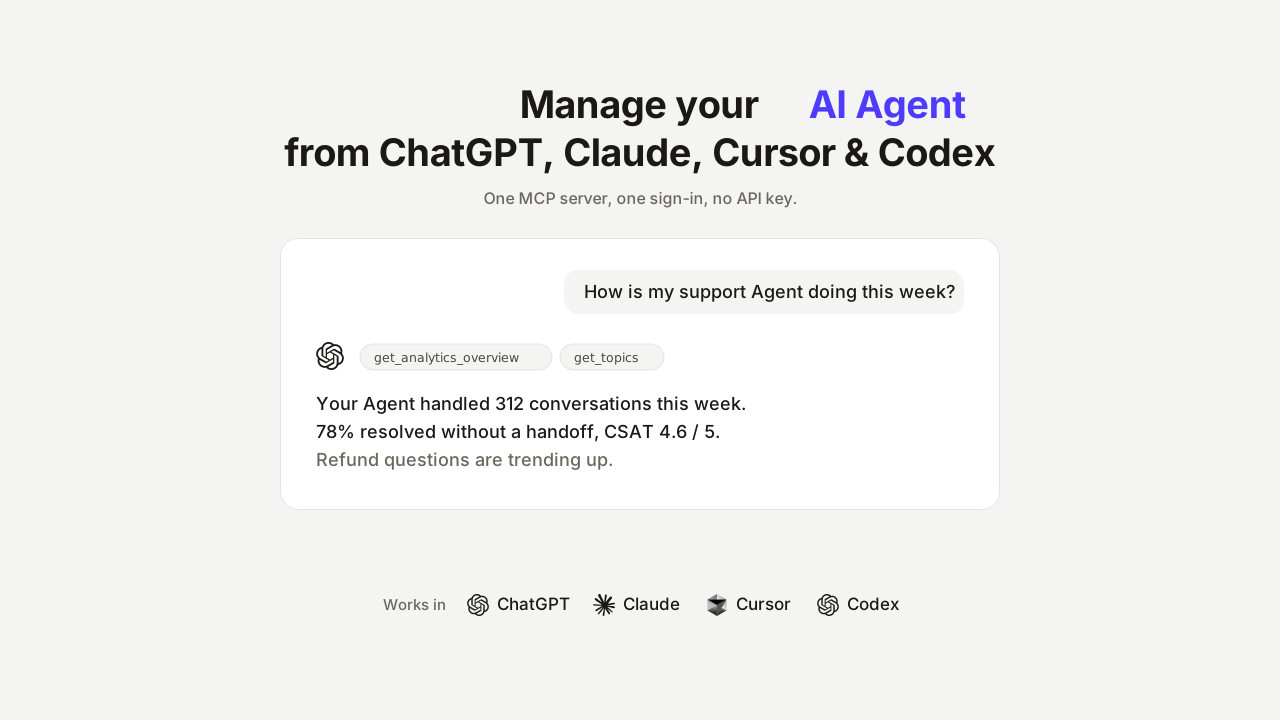
You can now manage your Quickchat AI account from ChatGPT, Claude, Cursor, and Codex.
The platform-specific overviews for Quickchat AI for ChatGPT and Quickchat AI for Claude include the install link and example workflows for each.
Quickchat AI is a platform for building AI Agents for Support, eCommerce, and Sales. You give an Agent a knowledge base and a persona, deploy it where your customers are (your website, WhatsApp, Messenger, Discord, or a help desk like Intercom or Zendesk), and it resolves customer conversations, handing off to a human when it should. Until now, running those Agents day to day meant one place: the Quickchat AI dashboard.
Your account is now also a remote MCP server. Connect it to the AI app you already have open, sign in once, and ask for what you need: how an Agent performed this week, the transcript of a tricky conversation, a knowledge base update, a retrain, or a brand-new Agent built from a website URL. No API key, no configuration, no code. If MCP itself is new to you, MCP Explained covers the protocol; this post is about what the connector does and how to switch it on.
What you can ask
Once connected, your AI app can call 20 tools scoped to your account. You never invoke them by name. You ask for outcomes, and the app picks the right calls:
“How did my support Agent do over the last 7 days?”
“Compare this week to last week: conversations, resolution rate, and CSAT.”
“Find conversations where someone asked about refunds and the AI was unsure.”
“Add a knowledge base article about our new return policy, then retrain.”
“Build me an Agent from https://example.com and give it a friendly tone.”
Three situations where this beats opening the dashboard:
- Ad-hoc questions. “How did last week compare to the week before, and what drove the difference?” is one sentence in ChatGPT. In a dashboard it is several pages, date pickers, and a comparison you assemble yourself.
- Your support data next to everything else. AI apps combine connectors in one conversation. Pull the week’s numbers from Quickchat AI and draft the summary for your team in the same chat, without copying anything between tabs.
- The same account everywhere. One server URL works in ChatGPT on your phone, Claude on the desktop, and Codex in a terminal.
The server also publishes five ready-made prompts (weekly performance review, conversation triage, topic investigation, launch an Agent from a website, export a conversations report). In Claude they show up in the connector menu; in other apps you ask for them by name. The dashboard stays better at open-ended browsing, like paging through many transcripts side by side. For questions with an answer, asking is faster.
See it in action
Here is the connector at work: running a support AI from ChatGPT instead of a dashboard.
The screenshots below come from a demo account running a support Agent for Nimbus, a fictional online store for home and lifestyle goods. The store is invented so the example stays neutral, but the account is real: the knowledge base articles exist, the conversations went through the live reply pipeline, and every number shown was computed by the production analytics tools.
A single question is usually enough to set off several tools in sequence. Asked for a health check on the Agent, ChatGPT calls list_scenarios to find it, then get_assistant_settings, list_knowledge_base_articles, and get_analytics_overview, and folds the four results into one summary. You see each tool call happen in the chat, labeled with the connector name.
Analytics questions work the same way. Asked what customers contacted the store about and how the week compares to the previous one, ChatGPT combines get_topics and compare_periods and reports the distribution with the deltas:
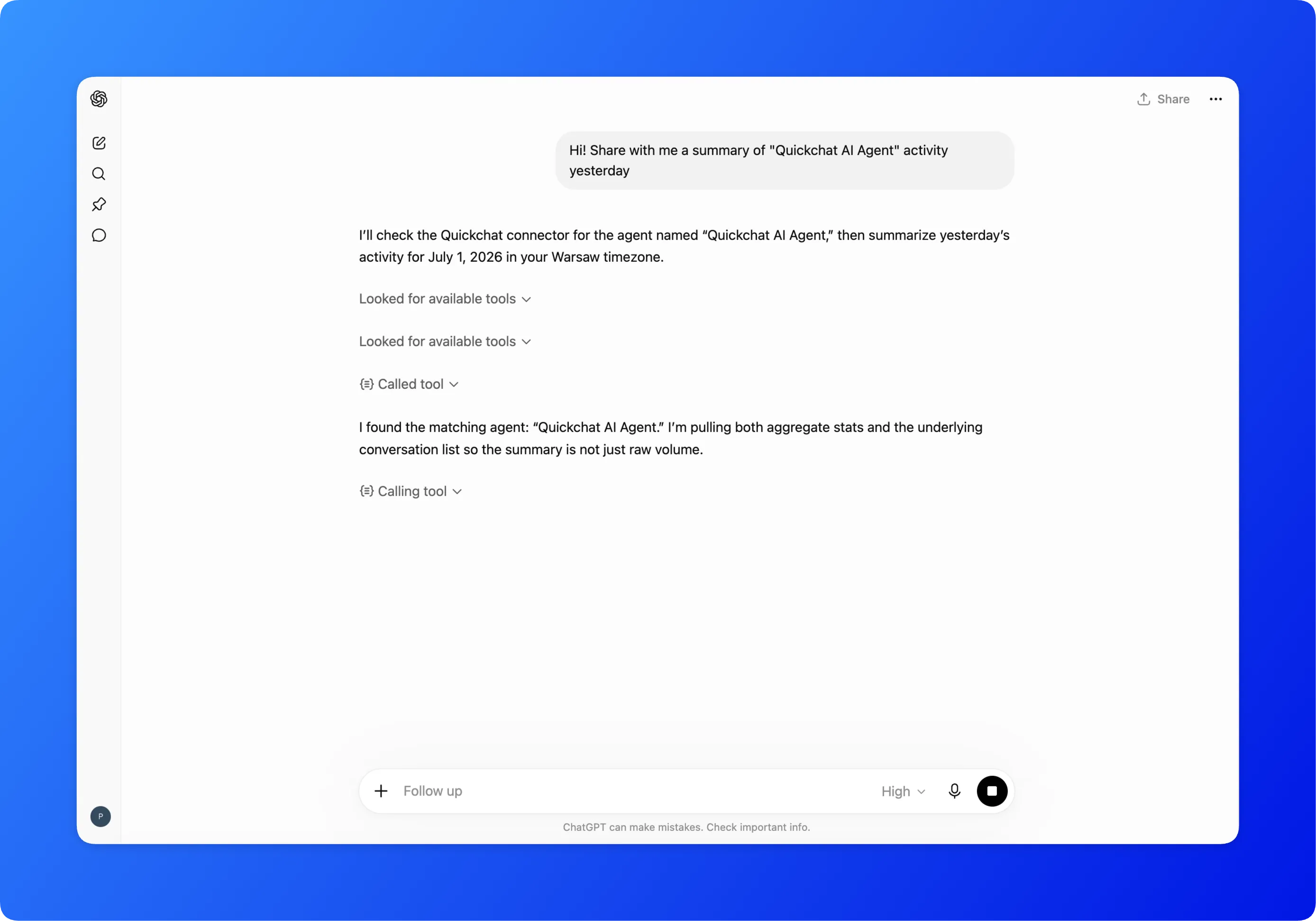 The question and the tool calls it triggers, live against the demo account.
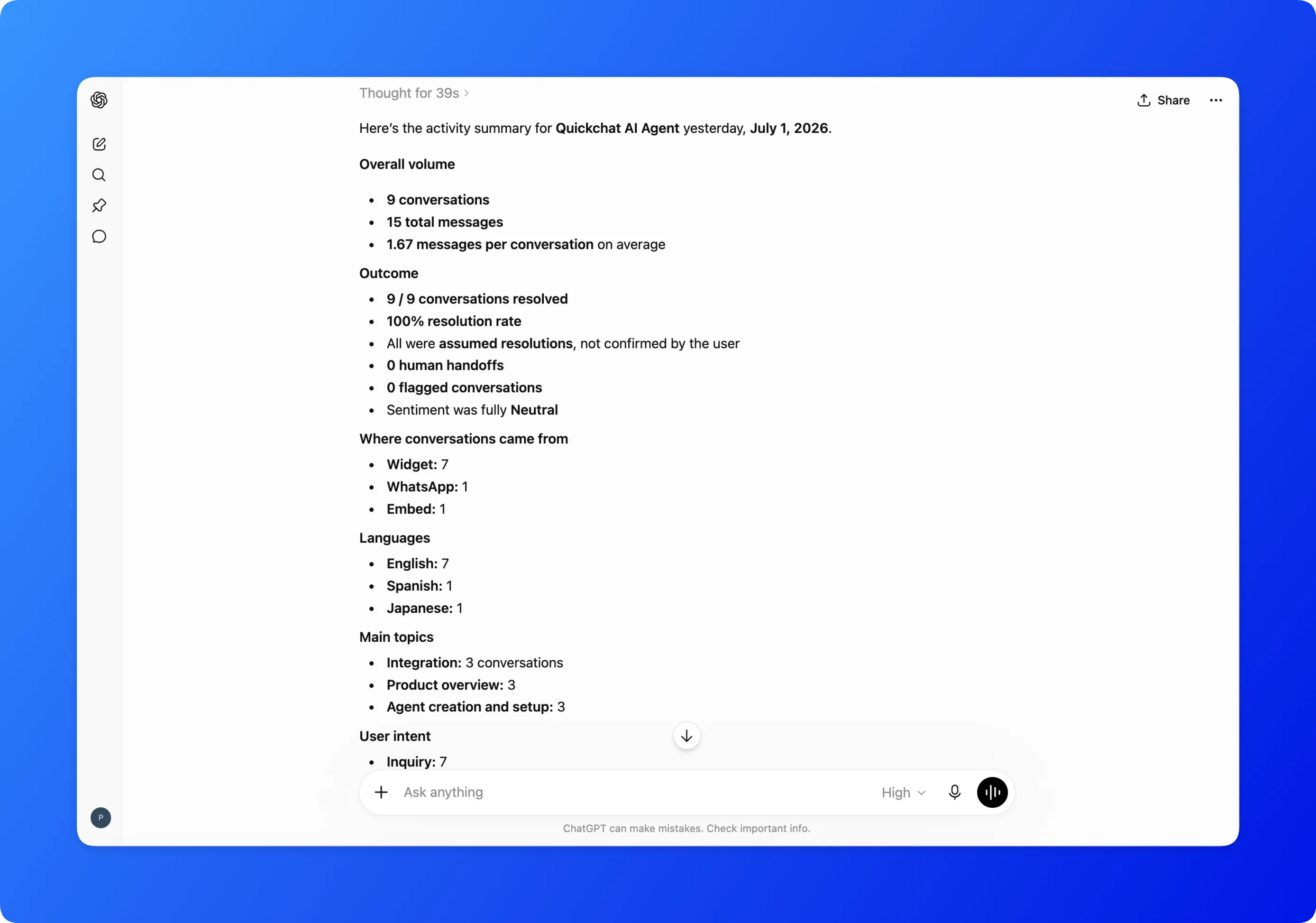 The answer continues: topic distribution and the week-over-week deltas, in plain language.
The write path asks first. Requesting a knowledge base article about a new return policy produces a confirmation prompt in the AI app before add_knowledge_base_article runs, and the change only reaches your visitors after retrain_assistant.
The full tool list
These are the tool names exactly as your AI app lists them. Read tools return information and change nothing. Write tools change your account and are gated (more on that below).
| Group | Tool | What it does | Access |
|---|---|---|---|
| Account | whoami | Your account, plan, and accessible Agents | Read |
| Account | list_scenarios | Your Agents with your role on each | Read |
| Analytics | get_analytics_overview | Conversations, messages, resolution rate for a date range | Read |
| Analytics | compare_periods | Two date ranges with deltas | Read |
| Analytics | get_topics | What customers ask about, as an intent distribution | Read |
| Analytics | get_ratings | In-chat thumbs feedback | Read |
| Analytics | get_csat | Post-conversation 1 to 5 satisfaction scores | Read |
| Analytics | get_ttfr | How fast humans reply after a handoff | Read |
| Analytics | get_insights | Flagged conversations and market insights | Read |
| Conversations | list_conversations | Search and filter conversations | Read |
| Conversations | get_conversation_detail | Full transcript with per-message feedback and analysis | Read |
| Conversations | export_conversations | CSV or XLSX export via a short-lived download link | Read |
| Configuration | get_assistant_settings | The Agent’s persona and setup | Read |
| Configuration | update_assistant_settings | Change persona and setup fields | Write |
| Configuration | list_knowledge_base_articles | Knowledge base contents | Read |
| Configuration | add_knowledge_base_article | Add an article or paragraph | Write |
| Configuration | retrain_assistant | Apply knowledge base changes | Write |
| Build | create_assistant | Create a new AI Agent (free tier) | Write |
| Build | onboard_assistant_from_url | Configure an Agent from a website | Write, overwrites |
| Feedback | submit_mcp_feedback | Send feedback about the connector to the Quickchat AI team | Write |
How it works under the hood
Everything runs through one URL:
https://app.quickchat.ai/v1/api/mcp/rpcIt is a remote MCP server over Streamable HTTP, so it works in any MCP client that supports remote servers. There is nothing to install and nothing to host.
Sign-in is OAuth, not an API key. The server implements OAuth 2.1 with the authorization code flow, PKCE, and dynamic client registration. In practice that means your AI app registers itself with the server, opens a browser window where you sign in to Quickchat AI once, and receives a token scoped to your account. Nothing gets pasted into a config field, and disconnecting from the AI app’s settings revokes access.
Tools are annotated, and clients use the annotations. Each tool declares whether it is read-only, whether it writes, and whether it is destructive. AI apps use these hints to decide when to ask you before running a call. One tool carries the destructive flag: onboard_assistant_from_url overwrites the Agent’s existing configuration, so a well-behaved client warns you first.
Authorization happens on the server, not in the prompt. Every call resolves your account and your role on the target Agent before touching anything. Write tools require an editor role or above on that specific Agent. A prompt cannot talk the connector past this check, because the check does not live in the prompt.
One distinction worth knowing: this connector manages your own account from your AI app. Quickchat AI also offers MCP as a channel, which is the reverse direction: it exposes your AI Agent as a tool that other people add to their AI apps. That feature uses a Scenario ID and API key. The one in this post needs neither.
Connect in two minutes
The fastest route is from the Quickchat AI dashboard itself: in the left sidebar, under the AI Agent switcher, click Manage your AI in ChatGPT / Claude. It opens the steps for every client with the URL pre-filled:
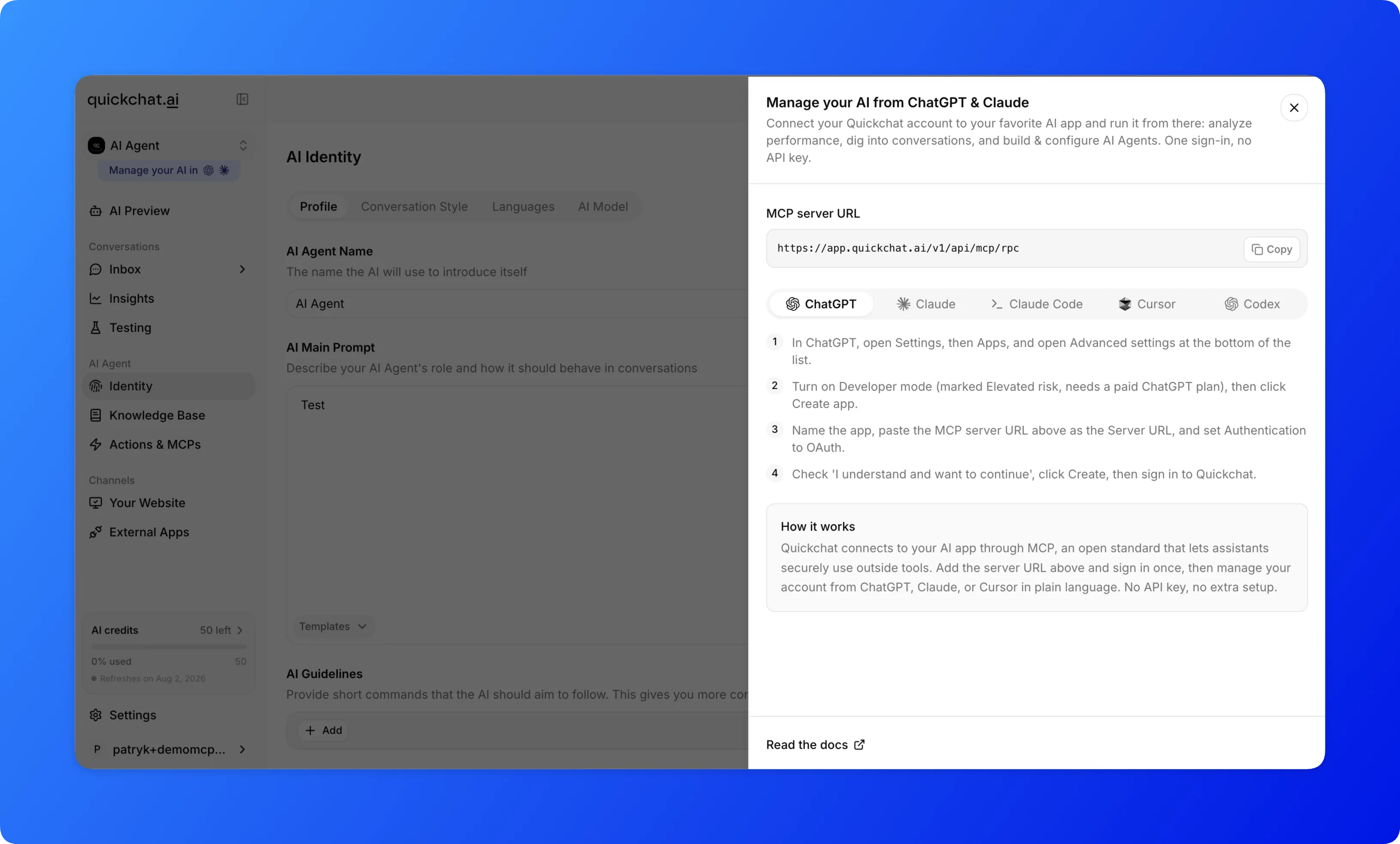 The connect sheet in the dashboard: the same steps as below, with the server URL ready to copy.
ChatGPT
Quickchat AI is a published app in the ChatGPT app directory, so there is no Developer mode to turn on and no server URL to paste.
- Open Quickchat AI’s app in the ChatGPT directory.
- Click Connect and sign in to Quickchat AI when prompted.
- All done: start managing your AI Agents right from ChatGPT.
Claude
Quickchat AI is listed in the Claude Directory, so there is no server URL to paste.
- Open Quickchat AI’s connector in the Claude Directory.
- Click Connect to Claude and sign in to Quickchat AI when prompted.
- All done: start managing your AI Agents right from Claude.
To add it by URL instead, open Settings, then Connectors, click Add custom connector, and paste the MCP server URL. On paid Claude plans, the Quickchat AI plugin under Customize > Plugins adds ready-made skills and commands on top of the same connector.
Claude Code
Run this in your terminal, then refresh your tools:
claude mcp add --transport http quickchat https://app.quickchat.ai/v1/api/mcp/rpcClaude Code opens the sign-in in your browser the first time a tool is used.
Cursor
Add this to your Cursor MCP config (or use the one-click Add to Cursor button in the dashboard):
{
  "mcpServers": {
    "quickchat": {
      "url": "https://app.quickchat.ai/v1/api/mcp/rpc"
    }
  }
}
Codex
From the terminal:
codex mcp add quickchat --url https://app.quickchat.ai/v1/api/mcp/rpcOr in the Codex app: open Settings, then MCP servers, click Add server, switch to Streamable HTTP, paste the URL, and click Save. Sign in to Quickchat AI when prompted.
If the tools do not show up
- Mention the connector by name in your message (“check my Quickchat AI analytics”). AI apps are more likely to pick a tool when the request names its source.
- In ChatGPT, confirm the app appears under Settings, then Apps, and that it is enabled for the chat you are in.
- After the server’s tool list changes, refresh: reopen the connector settings in your AI app, or remove and re-add the server.
Is it safe to connect?
- Sign-in, not a key. Access is a scoped OAuth token issued after you sign in. Your AI app never holds a Quickchat AI API key, and disconnecting from the app’s settings revokes access.
- The first tool call asks for approval. AI apps ask before using a new connector, and again before write tools, guided by the tool annotations.
- Reads and writes are separated. 14 of the 20 tools are read-only. The 6 write tools require an editor role or above on the target Agent, checked on the server for every call.
- You only see your own data. The connector resolves your account on every call and can only reach Agents where you have a role. There is no cross-account access path.
FAQ
Do I need an API key to connect ChatGPT or Claude to Quickchat AI?
No. The connector uses OAuth. Your AI app registers itself with the server, you sign in to your Quickchat AI account once in the browser, and the app receives a token scoped to your account. There is no key to create, paste, or rotate.
Which AI apps can I connect to my Quickchat AI account?
Any MCP client that supports remote servers over Streamable HTTP. This post has walkthroughs for ChatGPT, Claude, Claude Code, Cursor, and Codex. Other MCP clients work with the same server URL.
Do I need Developer mode or a paid plan to connect ChatGPT?
No. Quickchat AI is now a published app in the ChatGPT app directory, so you open it and click Connect instead of turning on Developer mode or creating a custom app. Claude, Claude Code, Cursor, and Codex connect over the same MCP server, and the Quickchat AI side works on the free tier.
Can the AI app change my account without asking?
Write tools are separated from read tools and annotated, so your AI app asks for confirmation before running them. Writes also require an editor role or above on the specific Agent, enforced on the server. Read tools only return information.
What data can the connected AI app access?
Exactly what your Quickchat AI account can access: the Agents where you have a role, plus their analytics, conversations, settings, and knowledge base. Every call re-checks your role on the target Agent on the server.
Is this the same as the MCP channel for publishing my Agent?
No. This connector manages your own account from your AI app. MCP as a channel does the opposite: it exposes your AI Agent as a tool that other people can add to their AI apps. The two are separate features with separate authentication.
The connector is live for every account, on every plan, today. Create a free Quickchat AI account, build your first Agent, and connect it to the AI app you already use; the whole setup is the two minutes it takes to connect and sign in. The canonical reference, kept current as the connector evolves, lives in the docs: Manage your AI from ChatGPT & Claude.