


Introduction
Every tutorial in this series so far has connected a Quickchat AI Agent to something: Telegram, Google Sheets, Discord. This one inverts the direction. Your agent becomes the thing other AIs connect to: a tool that ChatGPT, Claude and Cursor call when their users ask something only your agent knows.
The mechanism is an MCP server, and the setup is deliberately boring: every Quickchat AI Agent already has one, hosted at a URL of the form https://app.quickchat.ai/mcp/your-agent-id. You switch it on, copy the URL, and paste it into the AI app as a connector. That is the whole integration, and it takes no code. Access is private by default: connecting requires signing in with your Quickchat AI account until you decide otherwise.
By the end of this guide you will have built a support agent for a fictional developer-tools company, given it real knowledge, exposed it as an MCP server, connected it to real AI apps, and watched something genuinely new in your Inbox: two AIs talking to each other about your product, with your agent capturing a sales lead from inside a chat app along the way. We also cover what the calling AI refuses to do, which turned out to be the most interesting finding in this post.
You need two things:
- a Quickchat AI Agent (sign up here and use for free; MCP is included in the Free plan)
- at least one MCP client: Claude (free plan works), ChatGPT (paid plan, developer mode), Cursor, or any app from the MCP client directory
The canonical reference for this feature lives in the docs at docs.quickchat.ai/channels/mcp. If MCP itself is new to you, our MCP explainer covers the protocol in detail; this post only needs the one-paragraph version below.
What you will build
A fictional company, Orbit, sells a hosted vector-search API to developers. Their support agent knows the docs: plans, rate limits, regions, authentication, SDKs. You will expose that agent as an MCP server and drive five behaviors from real AI apps:
| # | You ask the AI app | What your agent does | Where you see it |
|---|---|---|---|
| 1 | ”What are Orbit’s rate limits on the free plan?” | Answers from the Knowledge Base | The app’s chat + your Inbox |
| 2 | ”Does Orbit have a Ruby SDK?” | Says it does not know (the fact is missing on purpose) | The app relays the honest no |
| 3 | ”Get me a demo, here are my details” | Captures the lead with Smart Data Gathering | Contact details in the Inbox |
| 4 | ”Put me through to a human” | Triggers Human Handoff | Conversation reassigned to your team |
| 5 | A follow-up question | Continues the same conversation | One thread in the Inbox |
Everything below was built and tested for real against the running product, and every screenshot is a genuine capture. Where a screen belongs to an external app, we say exactly where to click.
Who calls who: MCP client, MCP server, AI Agent, AI Action
These four terms get mixed up constantly, including by people who ship MCP servers for a living. One sentence each:
- An MCP client is the AI app your user talks to (ChatGPT, Claude, Cursor). It decides when to call a tool.
- An MCP server is the thing that offers tools. Here, Quickchat AI hosts one per agent at
https://app.quickchat.ai/mcp/<your-agent-id>. - The AI Agent is your agent: the Knowledge Base, the prompt, the behavior you configured. The MCP server is just its socket.
- AI Actions are what your agent itself can do during a reply (call APIs, capture leads, hand off to a human). They keep working when the question arrives via MCP.
This walkthrough uses an explicitly connected MCP client. Publishing a server URL or adding the website widget does not, by itself, connect a visitor’s ChatGPT or Claude account to that server. Whether an unconnected assistant will discover and use a route on a website is a separate question.
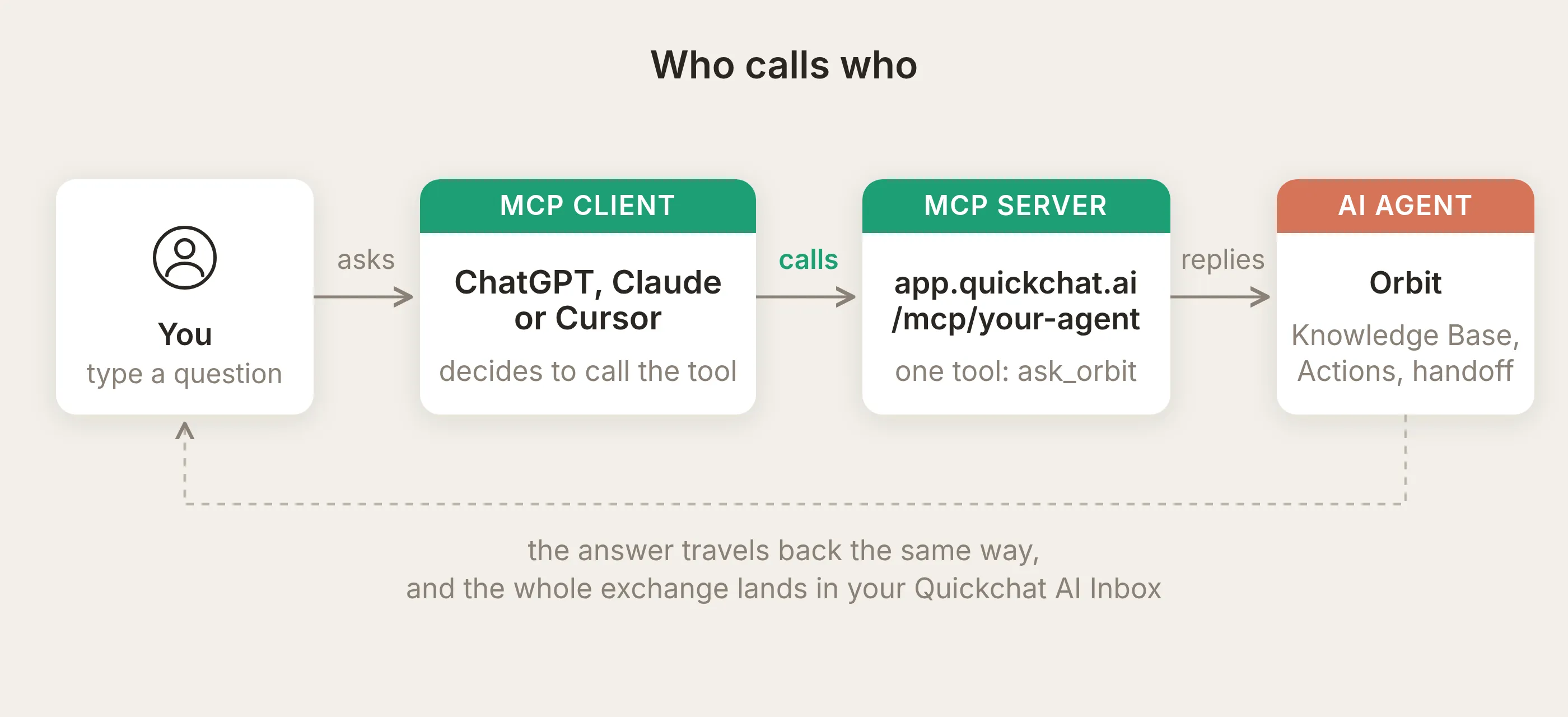 The full chain. Note who decides to call the tool: the MCP client, not you and not your agent.
MCP (Model Context Protocol) is the standard that makes the middle arrows work: a uniform way for an AI app to discover a server’s tools and call them. The transport is plain HTTPS (streamable HTTP, if you care about the wire details), which is why one URL is the entire integration surface.
The important inversion to internalize: the calling model reads your tool’s name and description and decides by itself when your agent is worth calling. You do not get to force it. Everything in the tuning section follows from this.
Three things worth knowing before you build
Before the walkthrough, three facts about how the server behaves:
- One tool per agent. The server exposes a single tool (you will name it; ours is
ask_orbit) that takes one string argument,message, and returns your agent’s reply. Its reply pipeline can run enabled Actions, including calls that change external systems. - Sessions map to conversations. Each MCP session maps to one conversation in your Inbox. A client that keeps its session alive across calls threads follow-ups into that same conversation; many chat apps open a fresh session per question, though, so in practice you will often see each question land as its own conversation. Idle sessions expire after a few hours.
- It is your real agent. The call goes through the same reply pipeline as your website widget. Knowledge Base retrieval, AI Actions, Smart Data Gathering and Human Handoff all behave exactly as they do on your site, and every reply consumes the same AI message credits.
Step 1: Create the Orbit agent and give it knowledge
Create your agent (the Getting Started flow takes a few minutes) and set its identity. Orbit’s main prompt is one paragraph:
You are Orbit's developer support assistant. Orbit is a hosted vector search API for developers. Answer questions about Orbit's plans, rate limits, regions, authentication, SDKs and search features using your Knowledge Base. Be concise and technical. If something is not covered by your knowledge, say plainly that you do not know.Then open Knowledge Base and add articles. Orbit has six short ones: plans and pricing, rate limits, regions and data residency, authentication and API keys, SDKs and API clients, hybrid search. Real facts your agent should state exactly, for example:
Rate limits by plan: Free allows 60 queries per minute and 120 writes per minute. Pro allows 600 queries per minute and 1,200 writes per minute. Scale limits are custom. Limits are enforced per project with a token bucket. When you exceed a limit the API returns HTTP 429 with a Retry-After header. A batch upsert counts as one write per 100 vectors.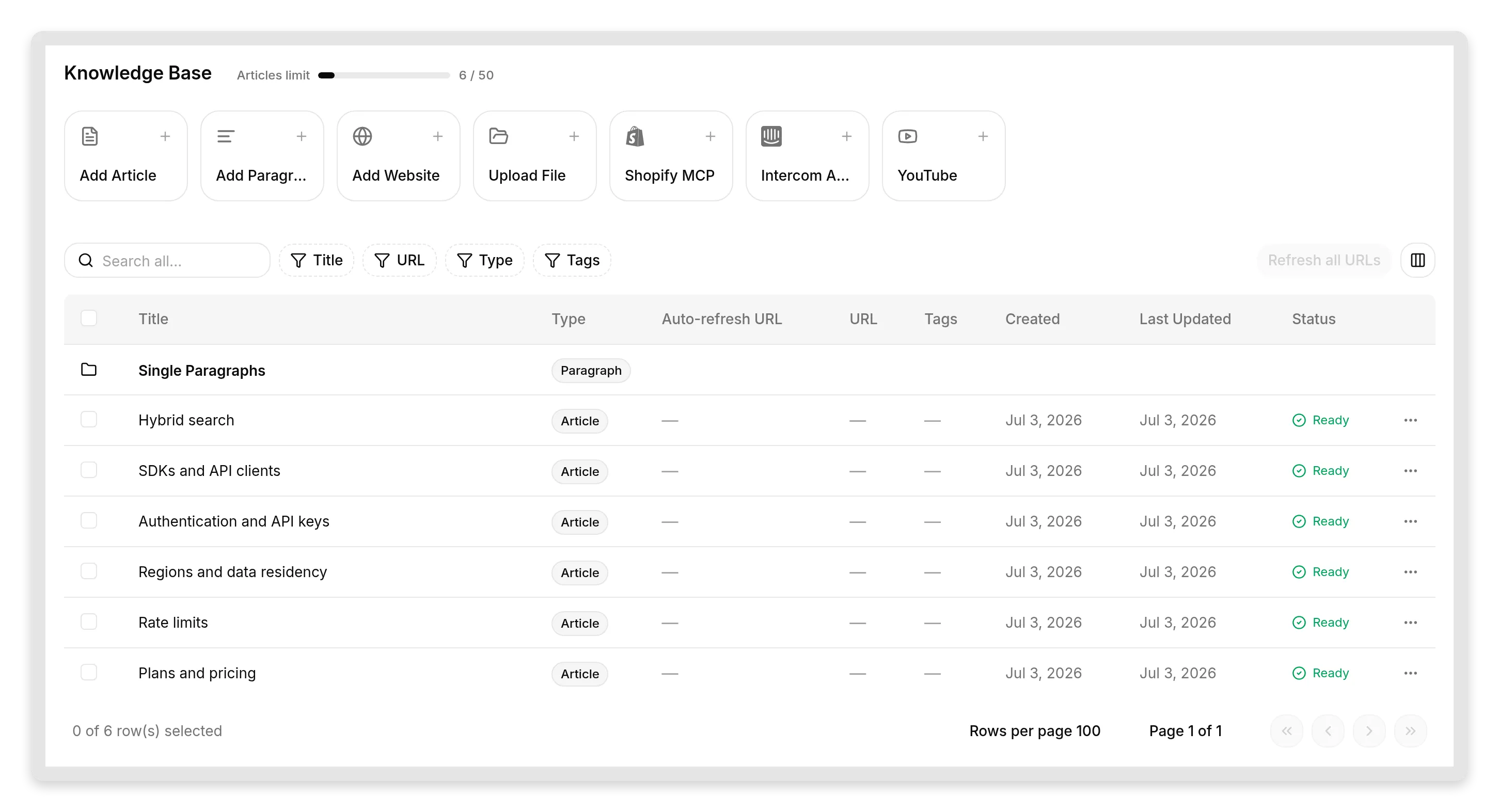 Orbit’s Knowledge Base. Six articles cover the product; the SDK article deliberately lists Python, TypeScript and Go but not Ruby.
Note the deliberate gap: the SDK article does not mention Ruby. That is on purpose. A support agent’s most important behavior is what it does when it does not know, and we want to test that honestly rather than only lob softballs.
If you want the deeper Knowledge Base guide, the docs page on building an effective Knowledge Base covers sources, tags and retraining.
Step 2: Turn on your MCP server
Open External Apps in the sidebar and click the MCP tile.
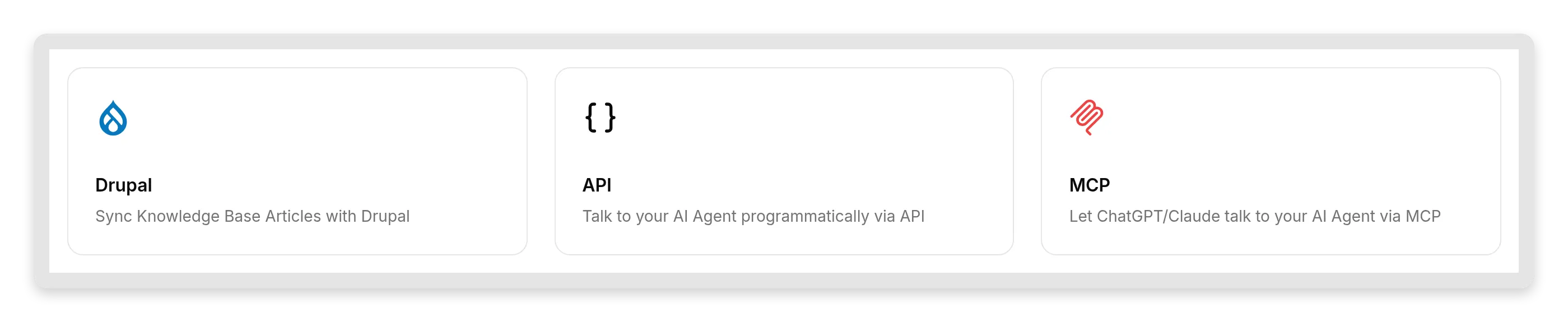 MCP sits next to the other external surfaces: API and the per-platform integrations.
The MCP panel has everything on one screen: an Enable MCP toggle, a Configure MCP dialog, a Connect MCP dialog, and the Require sign-in (private) toggle.
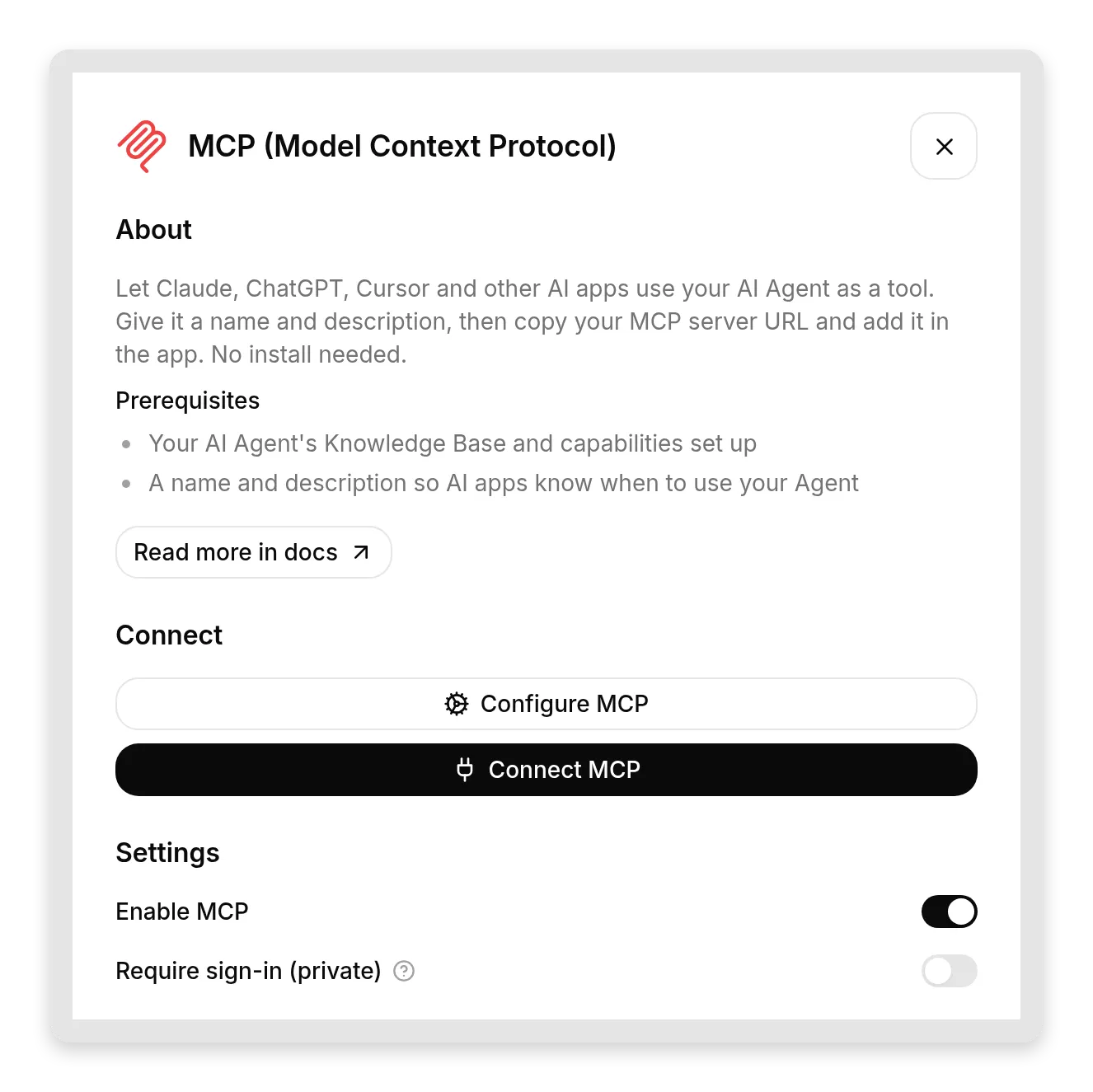 The whole MCP surface. Enable it, describe your agent, copy the URL.
Flip Enable MCP on, then open Configure MCP. This dialog is more important than it looks; we will spend a whole section on why. It has three fields:
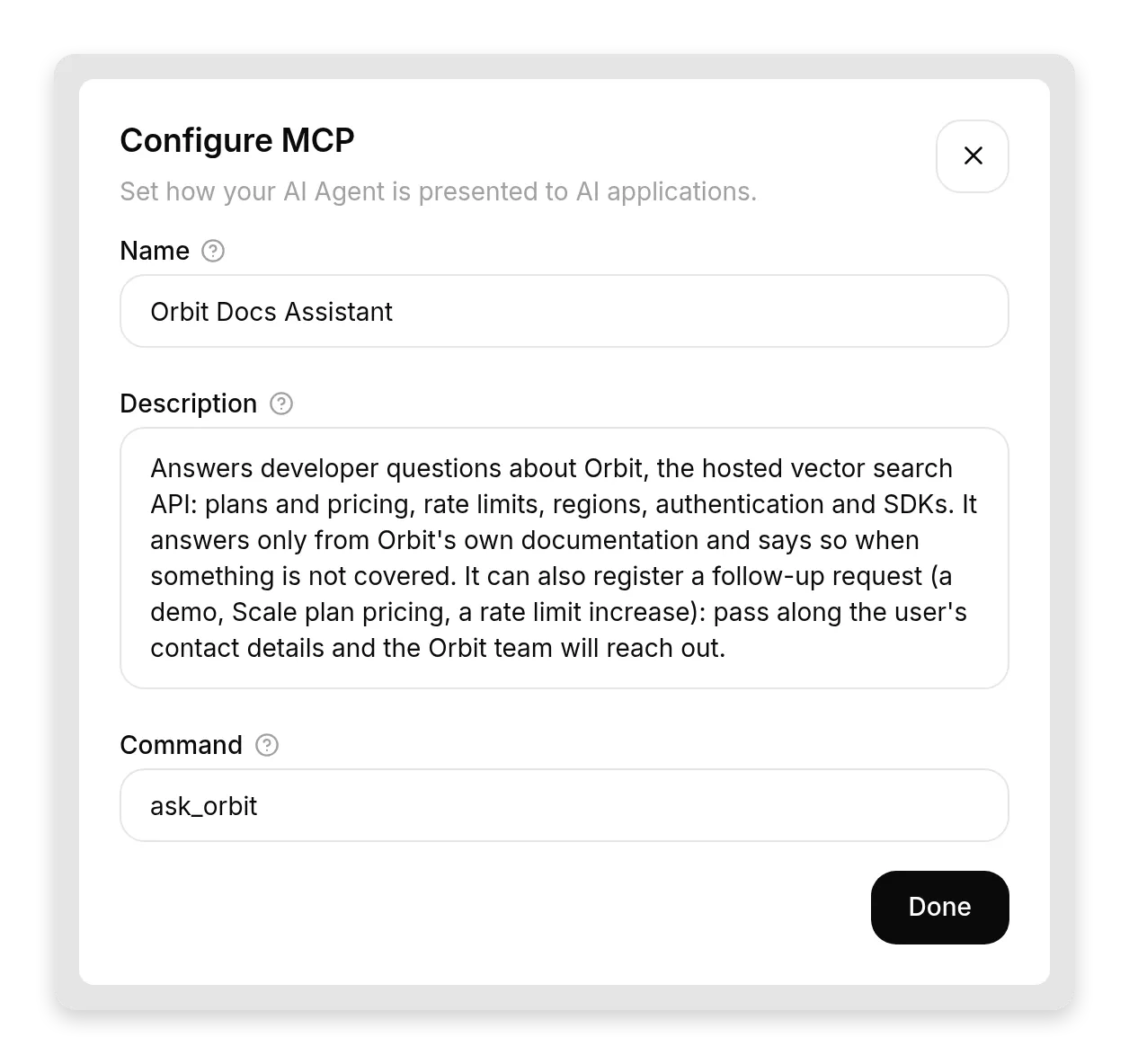 The three strings the calling AI reads. They are the interface between your agent and every AI app that connects.
- Name: how AI apps see your agent. Ours:
Orbit Docs Assistant. - Description: 2 to 3 sentences on what your agent knows and can do, and what it cannot. The calling model uses this to decide when to call your agent at all, so write it like an API contract, not marketing copy. Ours:
Answers developer questions about Orbit, the hosted vector search API: plans and pricing, rate limits, regions, authentication and SDKs. It answers only from Orbit's own documentation and says so when something is not covered. It can also register a follow-up request (a demo, Scale plan pricing, a rate limit increase): pass along the user's contact details and the Orbit team will reach out.- Command: the tool name the AI app sees, letters and underscores. Ours:
ask_orbit. Pick something a model would naturally reach for.
Then open Connect MCP and copy your MCP server URL:
https://app.quickchat.ai/mcp/<your-agent-id>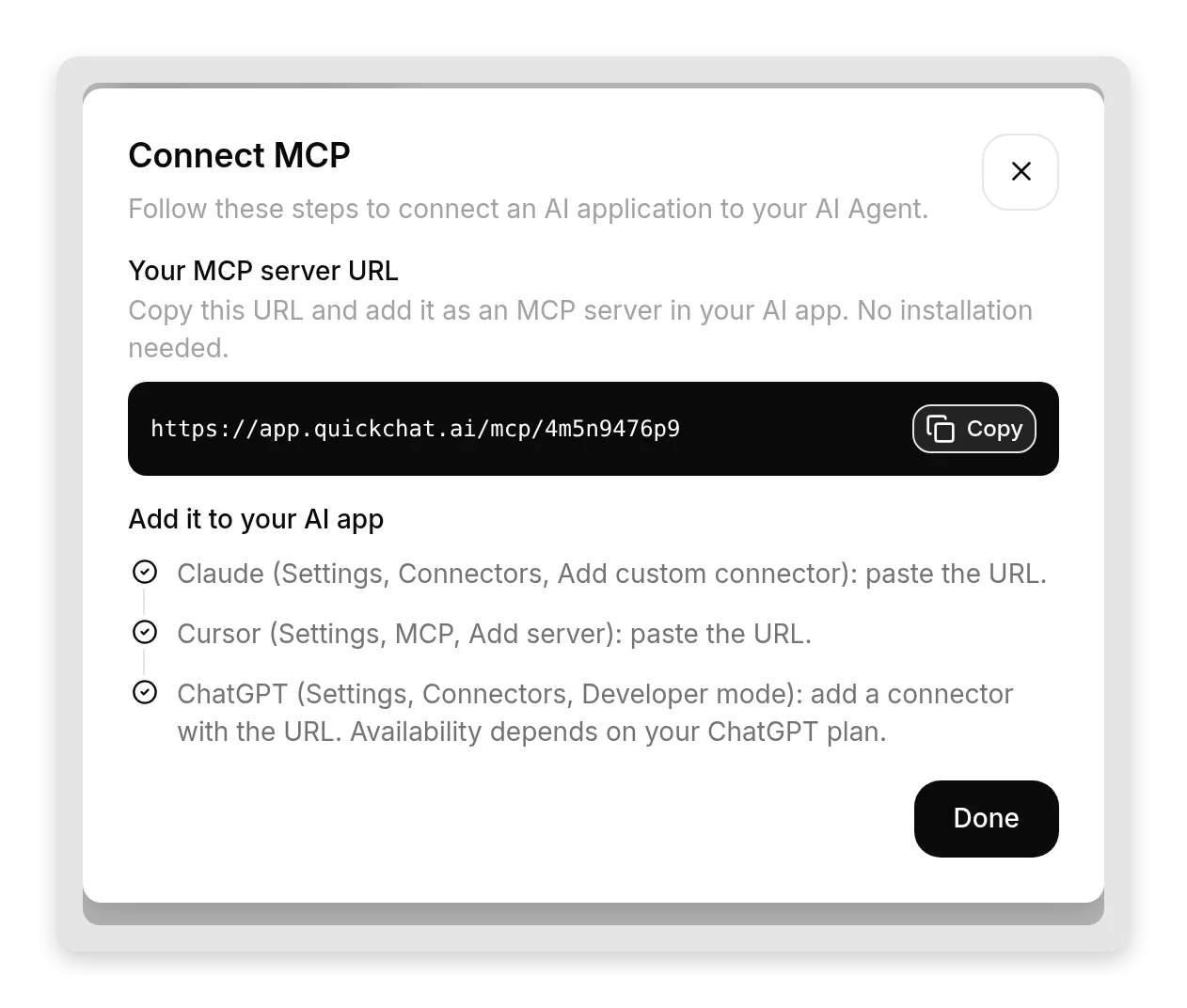 The whole integration surface: one URL, a Copy button, and the per-app step. Copy it, paste it, done.
The same dialog lists the per-app steps we follow next. Leave Require sign-in (private) on for now; it is the default, and it means nobody can use your agent through MCP without signing in to your Quickchat AI workspace. We flip it to public later, deliberately, once you understand the tradeoff.
Step 3: Connect from Claude
In Claude, open Settings, find Connectors (currently under the Customize section), click Add, then Add custom connector. Give it a name and paste your MCP server URL. Claude supports custom connectors on every plan, including the free one (free accounts can add one custom connector).
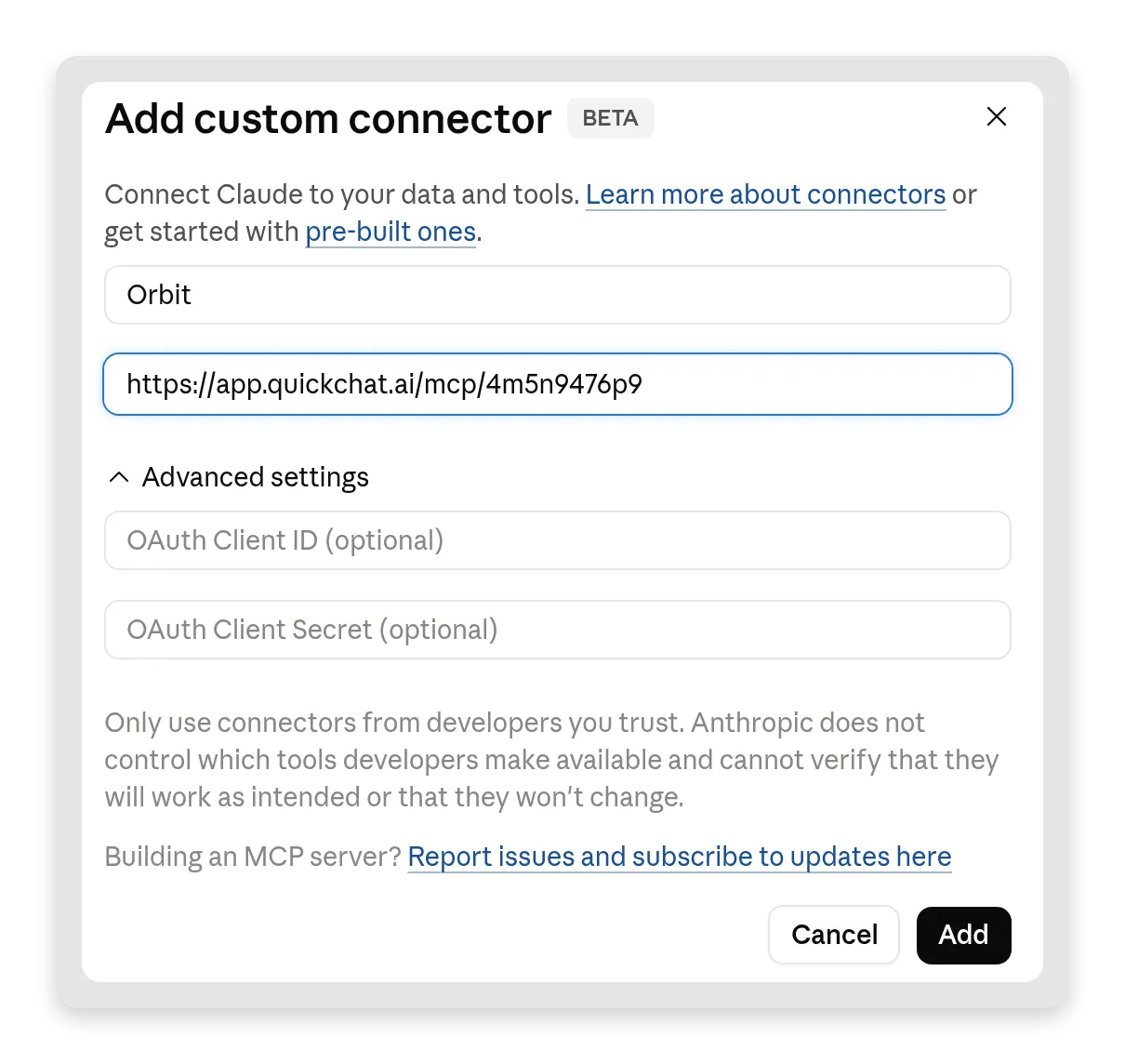 The whole setup in Claude: a name and the URL. The OAuth fields stay empty; Quickchat AI handles auth for you.
Because your server is private, Claude will send you through a sign-in step the first time: a normal Quickchat AI login page opens, you sign in, and the connector completes. No consent screens, no tokens to copy. Anyone who is not a member of your workspace stops here.
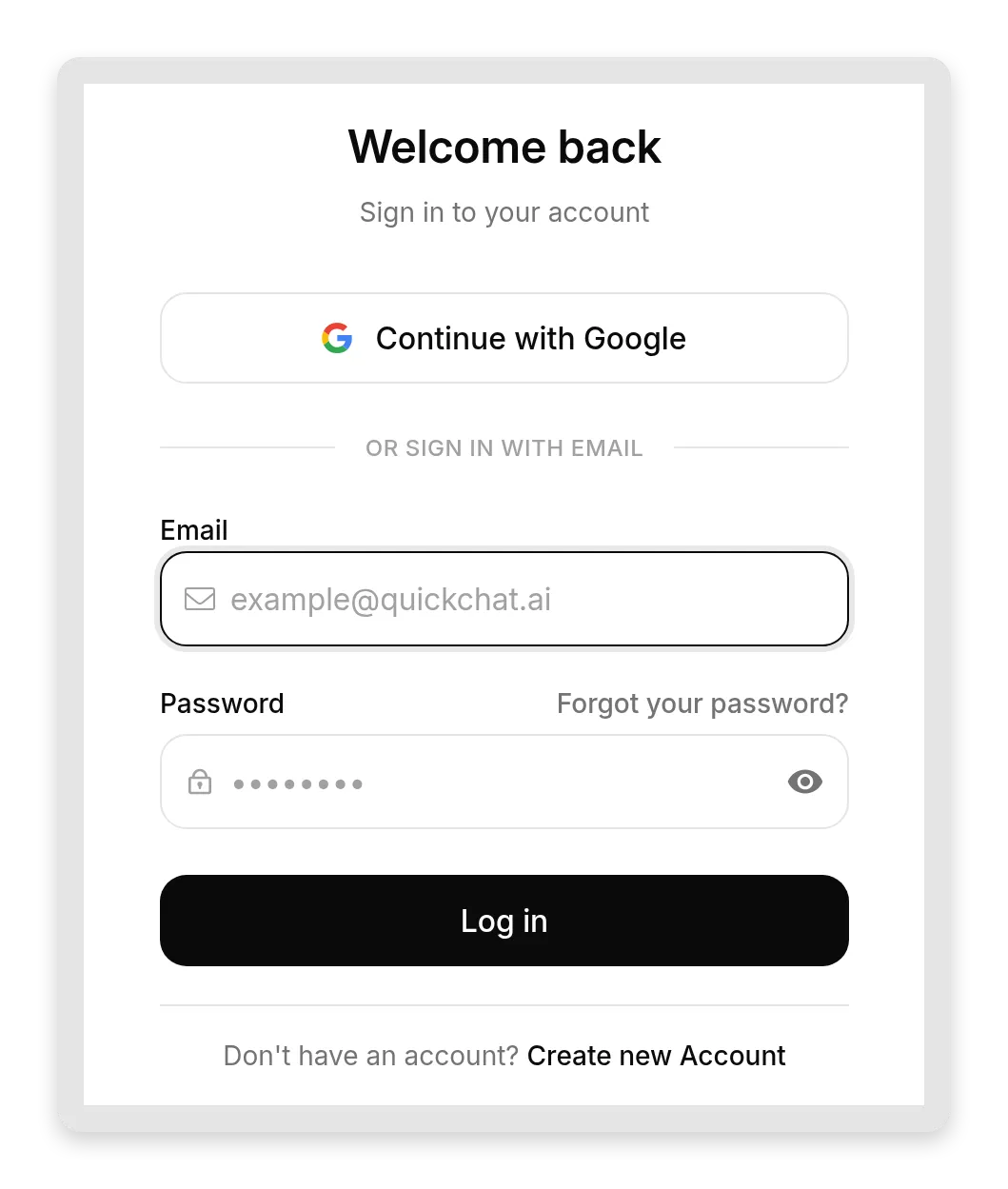 Private mode in practice: the AI app bounces you to the regular Quickchat AI sign-in. Your team gets in, nobody else does.
Now ask Claude something only Orbit knows:
What are Orbit's rate limits on the free plan?Claude recognizes the question is in ask_orbit’s territory, calls the tool, and relays your agent’s answer: 60 queries per minute, 120 writes per minute, and the three regions. Those numbers come from your Knowledge Base article, not from the model’s imagination.
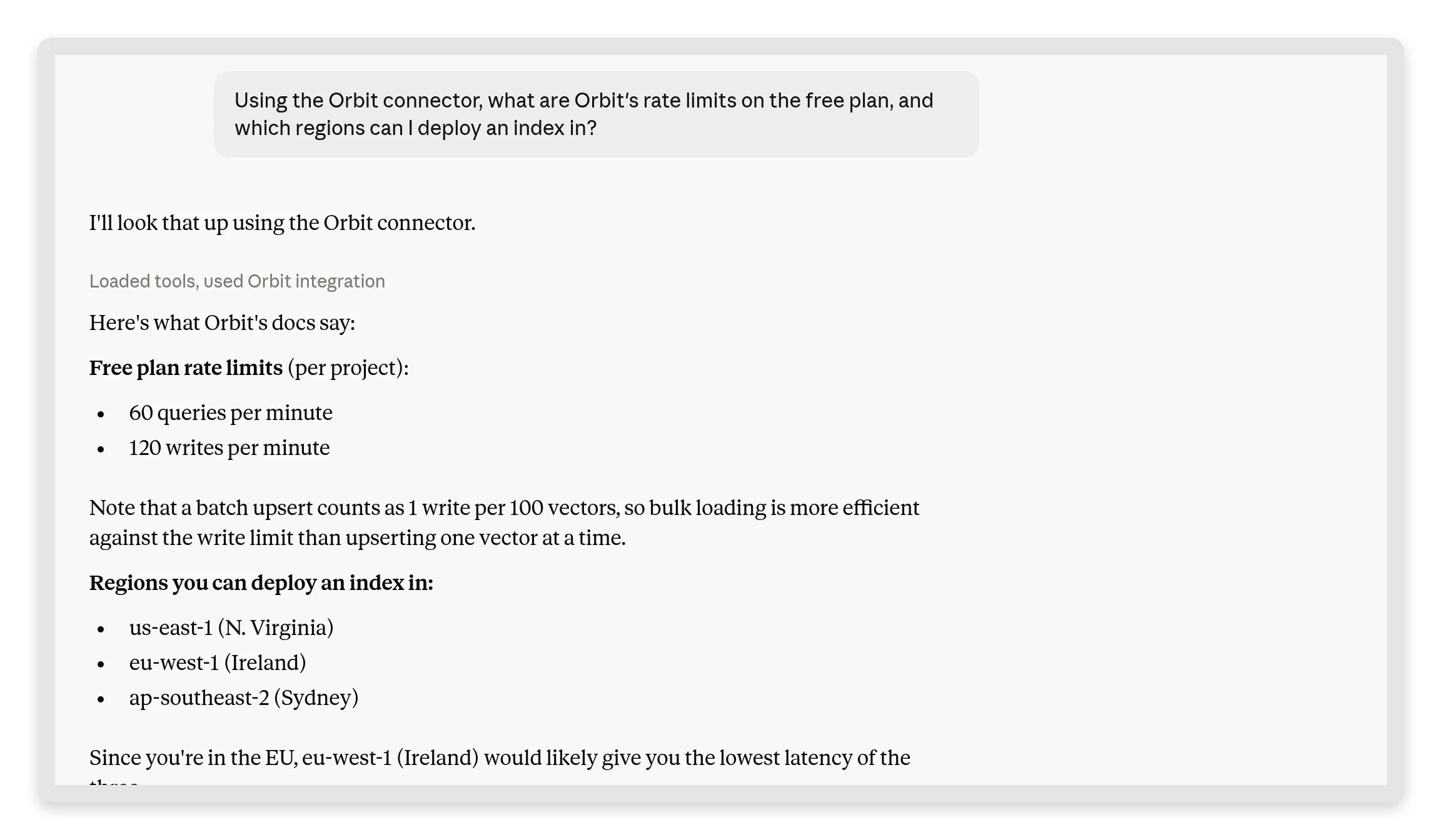 “Loaded tools, used Orbit integration”: Claude called your agent and relayed exactly what its Knowledge Base says. The reader is talking to Claude; the facts are yours.
Then ask the trap question:
Does Orbit have a Ruby SDK?Your agent says the docs do not mention one, and Claude relays the honest no. In our run it checked the Knowledge Base, reported that there is no official Ruby SDK, correctly listed the SDKs that do exist (Python, TypeScript, Go), and suggested calling the plain REST API from Ruby instead:
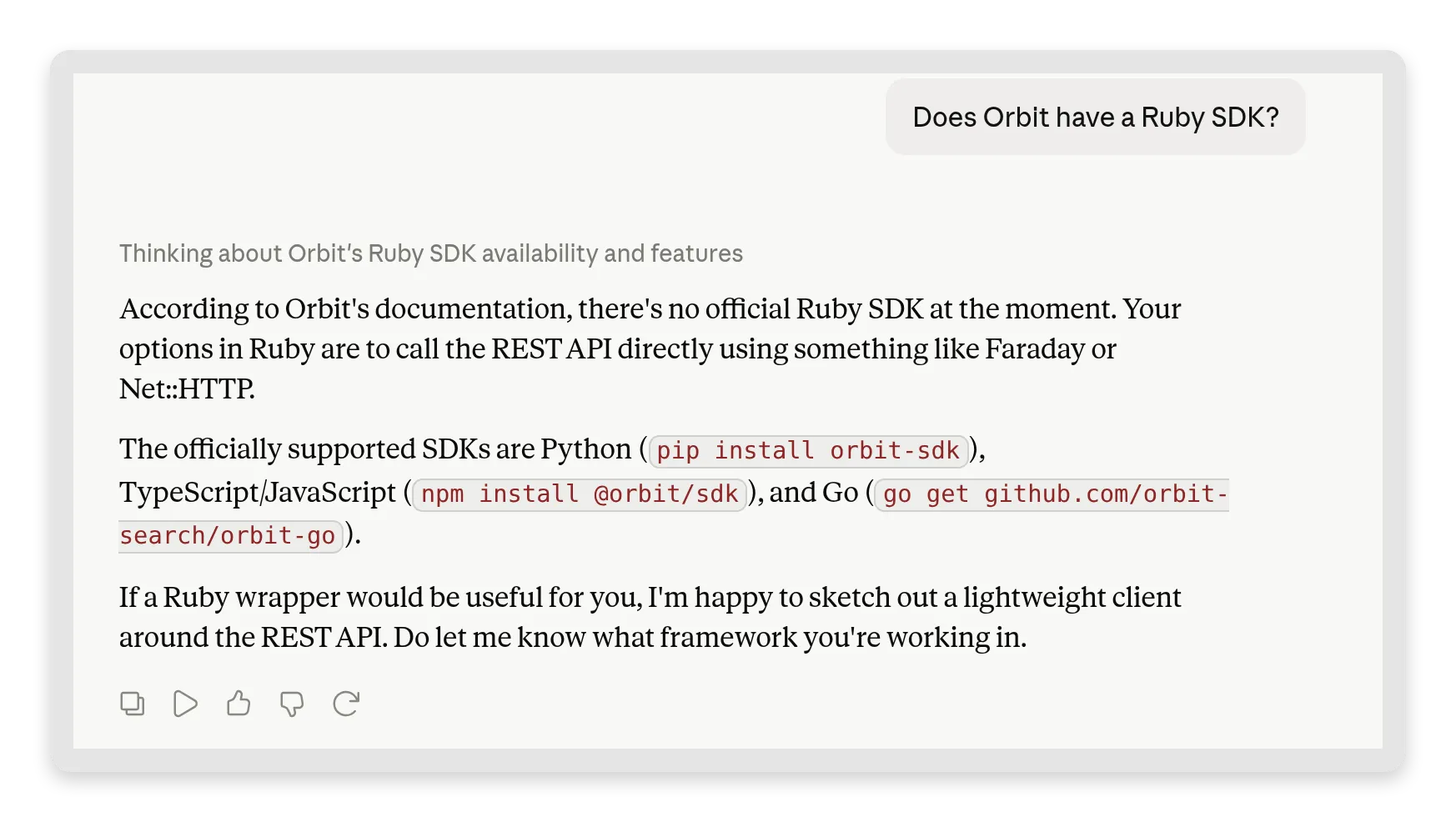 The honest no, with a useful alternative. Claude did not invent a Ruby SDK; it relayed what your Knowledge Base actually says and pointed to the REST route instead.
The same exchange is waiting in your Inbox as a normal MCP conversation, so you see the question your agent was asked and the answer it gave:
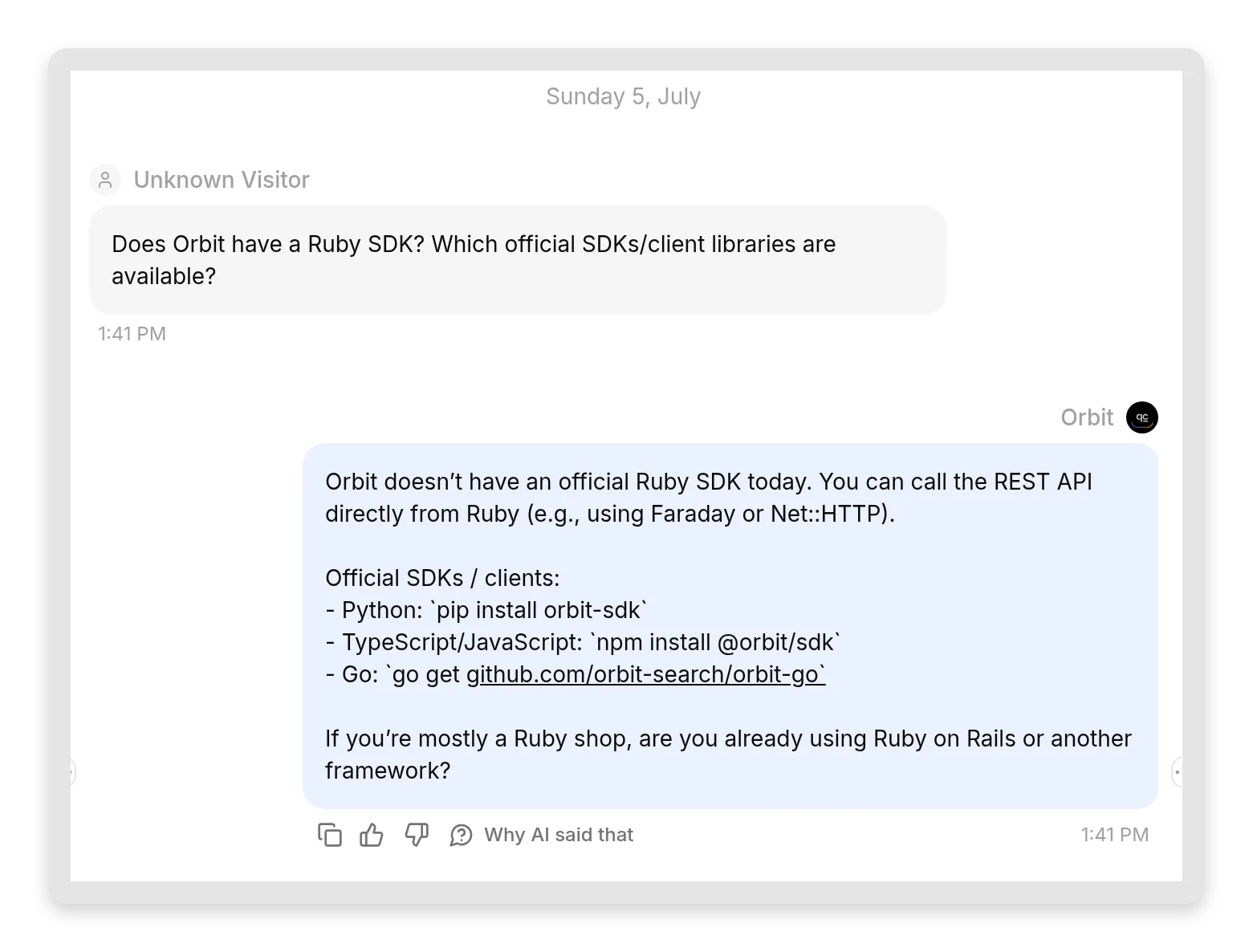 Your side of the same conversation. The agent answered from the Knowledge Base and said plainly what it does not cover, with no hallucinated SDK.
This is the payoff of the deliberate gap from Step 1: you have now seen the whole honesty chain work end to end, agent to model to user.
Step 4: Connect from ChatGPT
ChatGPT gates custom MCP connectors behind developer mode, which requires a paid plan. Go to Settings, then Apps, open Advanced settings, and turn on Developer mode. ChatGPT labels it “elevated risk,” because in developer mode a connector can do whatever its tools allow, so ChatGPT wants you to opt in deliberately.
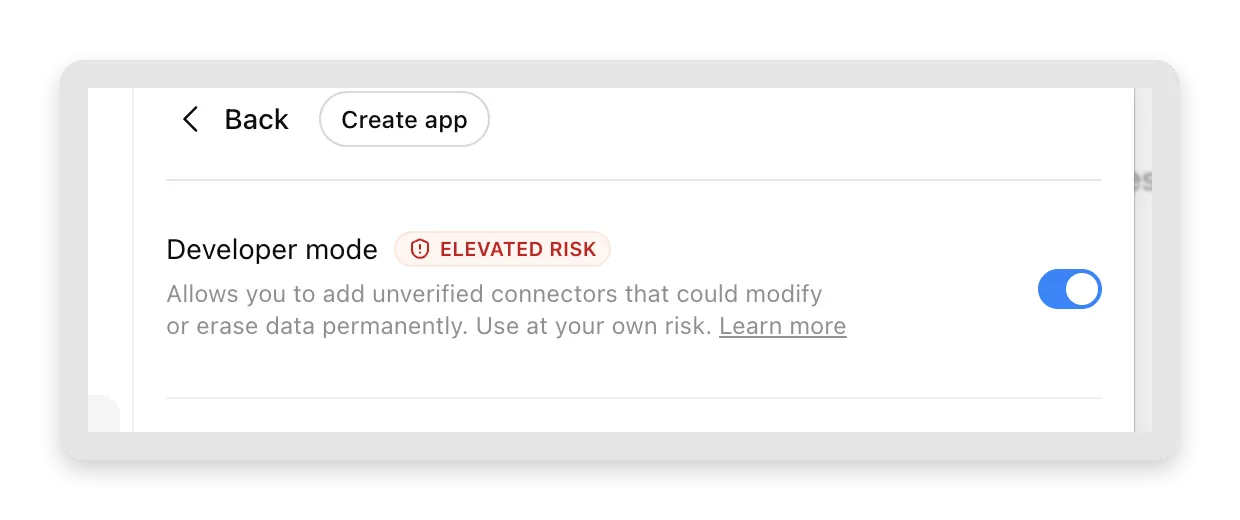 Developer mode unlocks custom connectors in ChatGPT. Review the agent’s knowledge and enabled Actions before connecting it.
Now click Create app: set the connection to Server URL, paste your MCP server URL, and (for a public agent) choose No Auth.
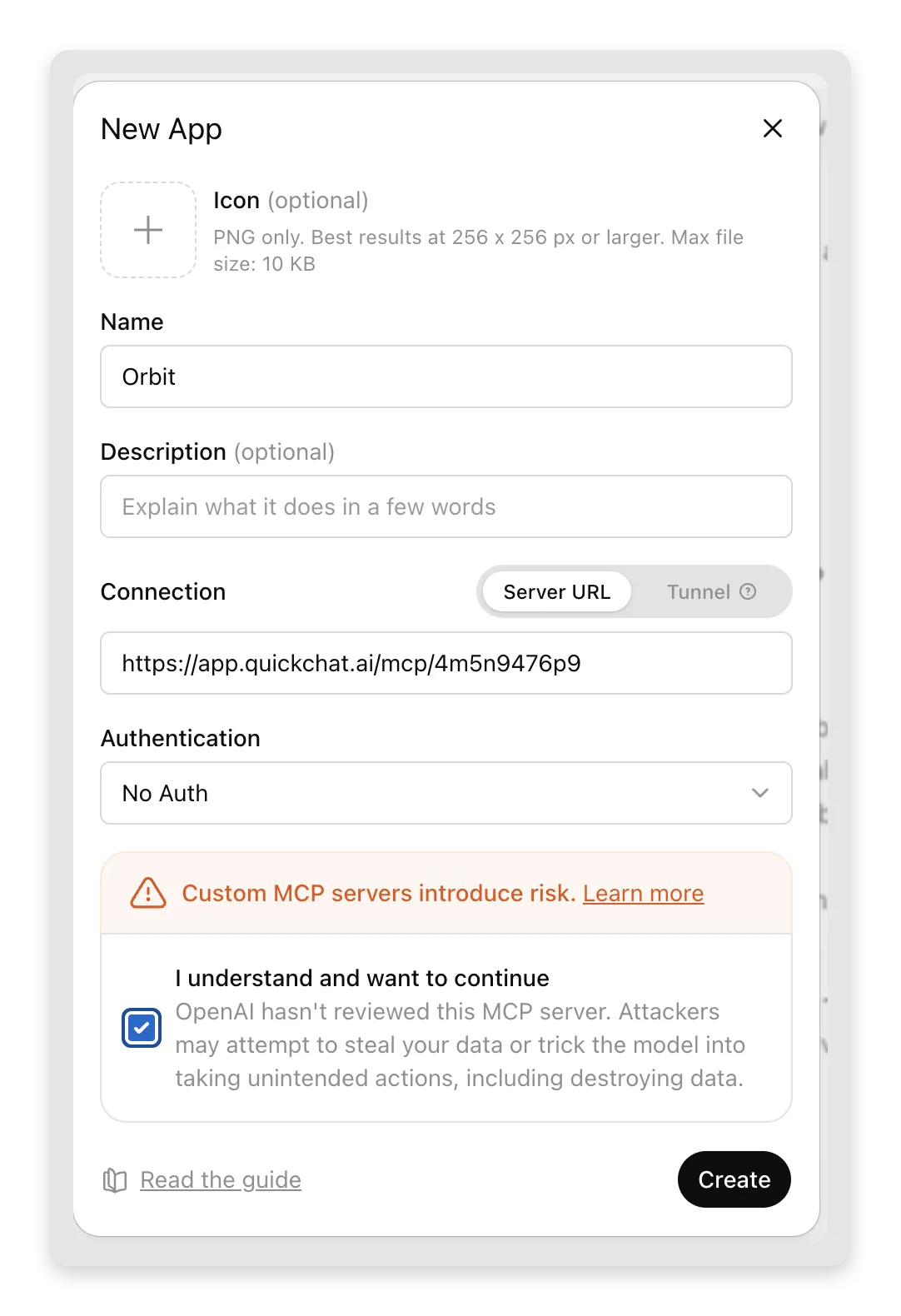 Name it, paste the URL, tick the acknowledgement, Create. The risk copy is ChatGPT’s, and it is fair: only add servers you trust, and yours is one you control.
ChatGPT shows a final confirmation, and one click adds the connector:
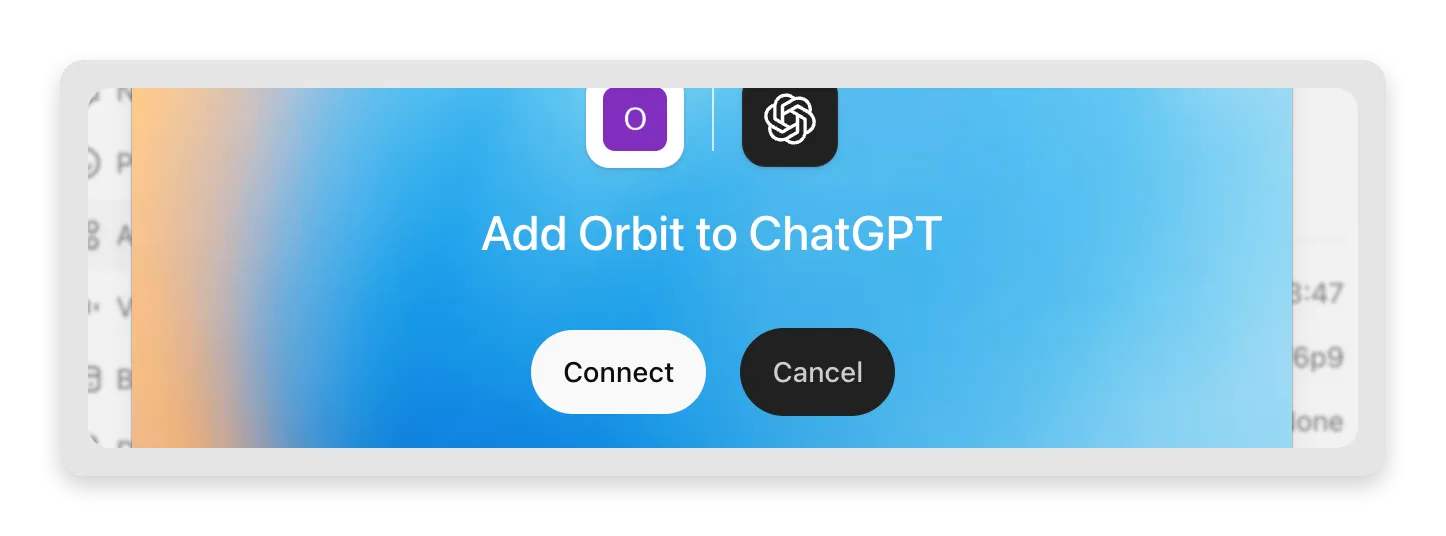 Connect, and Orbit is now a tool ChatGPT can call in any conversation.
Two ChatGPT-specific notes:
- When ChatGPT asks you to approve a tool call, consider the agent’s enabled Actions as well as the question being sent. Those Actions can make changes in connected services.
- ChatGPT connects from OpenAI’s servers, like Claude connects from Anthropic’s. Your MCP server is reachable from both because Quickchat AI hosts it; this is exactly the part you no longer have to build.
Ask the same rate-limits question and you get the same Knowledge-Base-grounded answer, this time in ChatGPT:
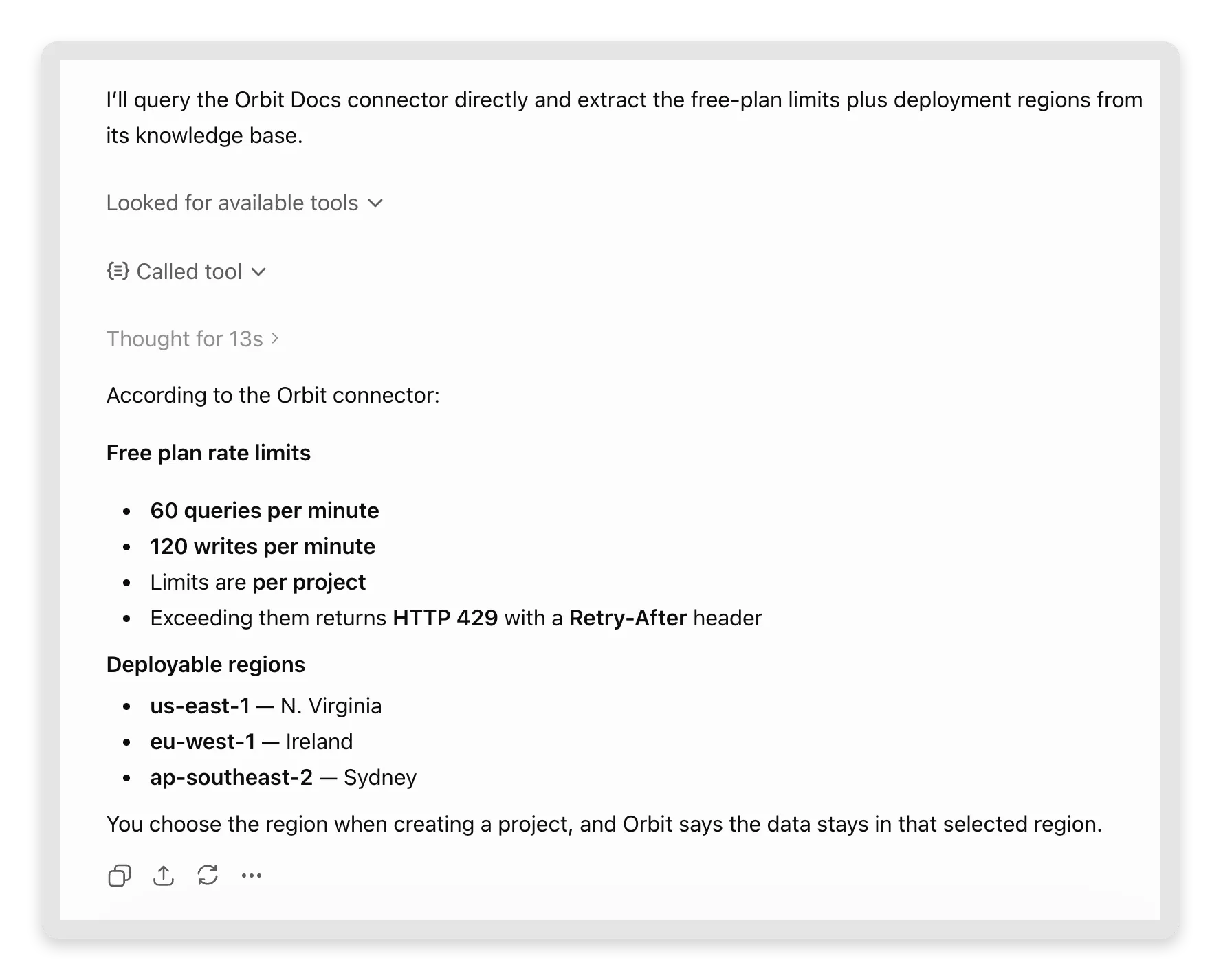 “Called tool,” then the same facts: 60/120, per-project limits, the three regions. ChatGPT even relays the HTTP 429 detail, because it is in the article.
Step 5: Connect from Cursor
In Cursor, go to Settings, then Tools & MCPs, and click Add Custom MCP. Cursor opens ~/.cursor/mcp.json for you to edit; a remote MCP server is one "url" entry:
{
  "mcpServers": {
    "orbit": {
      "url": "https://app.quickchat.ai/mcp/<your-agent-id>"
    }
  }
}
Save the file and Cursor picks it up: the orbit server appears under Tools & MCPs with its ask_orbit tool. Ask an Orbit question in the Agent pane, and the first time it wants to call the tool, Cursor asks you to approve it:
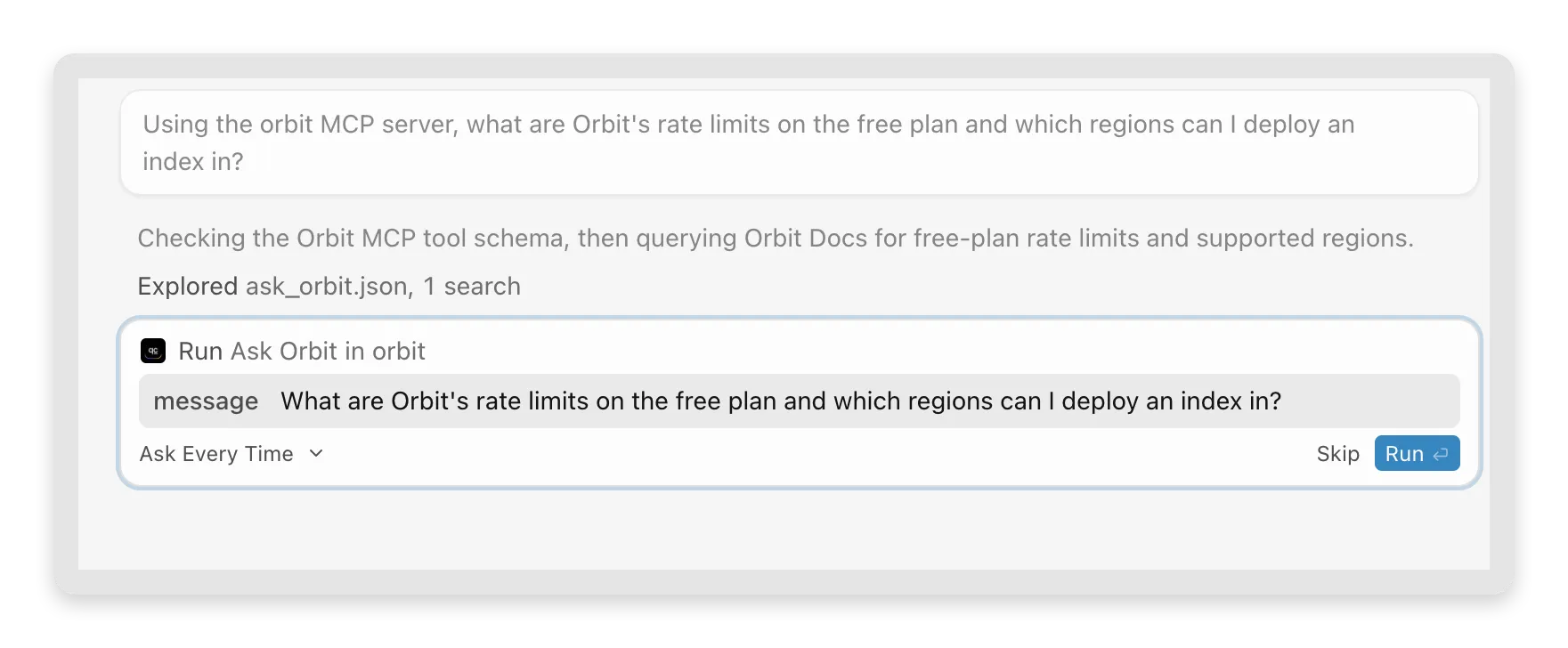 Cursor shows you the exact message it is about to send to your agent before it runs the tool. Approve once, and it answers inline.
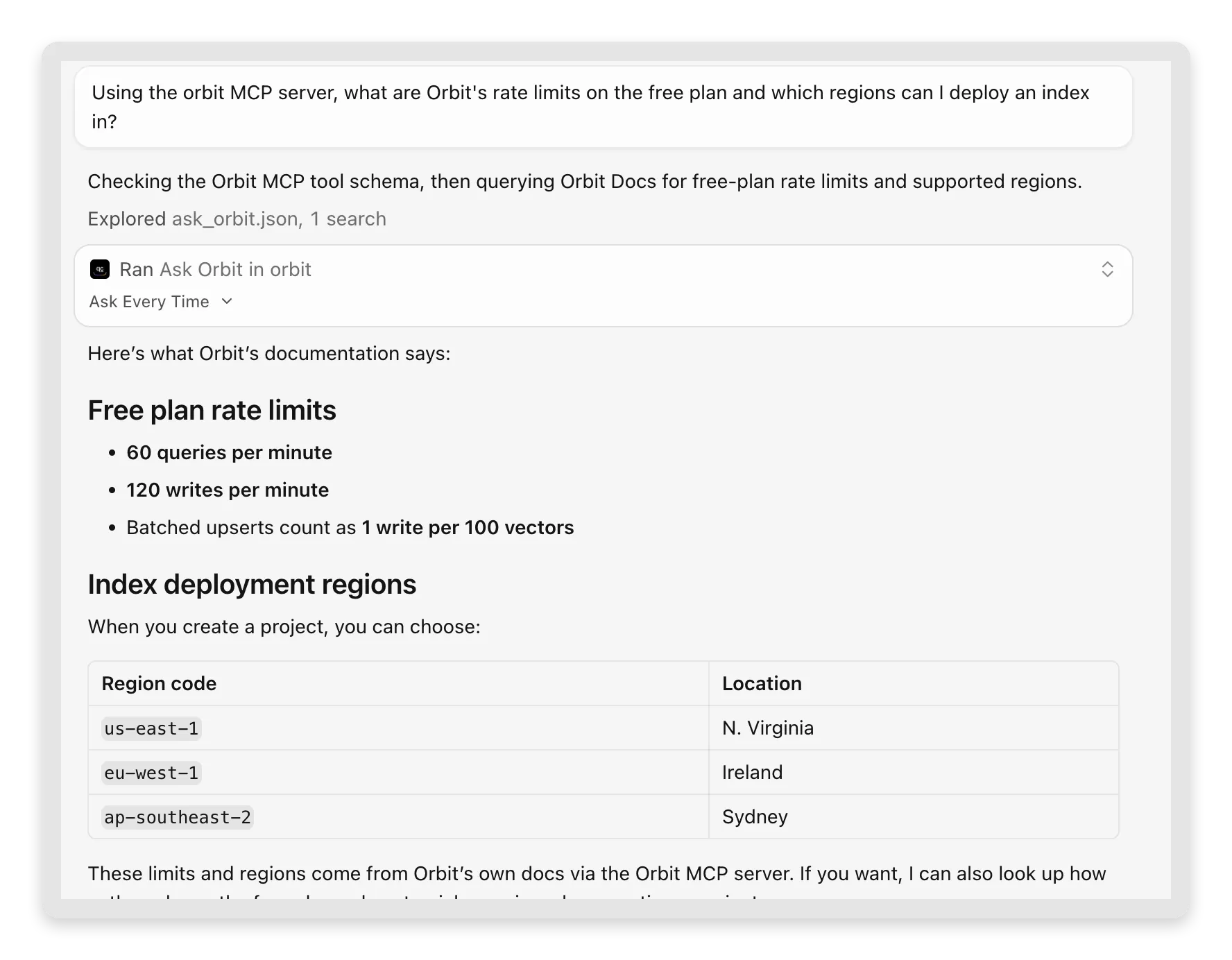 Cursor calls the same tool from inside the editor. “These limits and regions come from Orbit’s own docs via the Orbit MCP server,” it notes, unprompted.
Cursor is where the developer-facing payoff clicks: you are mid-code, you ask “what does Orbit return when I hit the rate limit?”, and the answer comes from Orbit’s actual docs without leaving the editor. If your product has an SDK, this is your users’ new documentation surface.
Bonus: one command for terminal people
Claude Code (Anthropic’s CLI) adds remote MCP servers with a single command, which also makes it the fastest way to sanity-check your server:
claude mcp add --transport http orbit https://app.quickchat.ai/mcp/<your-agent-id>Then ask it an Orbit question in a session and it calls ask_orbit and relays your agent’s answer, same as the desktop clients. It is also the quickest end-to-end check that your server is live before you tell anyone about it.
And if you want to see the protocol itself, the server speaks plain JSON-RPC over HTTPS. This is the entire handshake, runnable from any terminal:
curl -X POST https://app.quickchat.ai/mcp/<your-agent-id> \
  -H "Content-Type: application/json" \
  -d '{"jsonrpc":"2.0","id":1,"method":"tools/list"}'
The response lists your one tool with the name, description and input schema you wrote in Configure MCP. Calling it is one more request:
curl -X POST https://app.quickchat.ai/mcp/<your-agent-id> \
  -H "Content-Type: application/json" \
  -d '{"jsonrpc":"2.0","id":2,"method":"tools/call","params":{"name":"ask_orbit","arguments":{"message":"What are Orbit rate limits on the free plan?"}}}'
The reply comes back as {"reply": "..."} in the tool result. No SDK and no session dance required for a quick test; the Mcp-Session-Id header only matters when a client wants to thread follow-ups into one conversation.
Watch two AIs talk in your Inbox
Here is the part that makes this setup fun to operate. Open your Inbox and look at the conversations your MCP traffic created. They are normal conversations, marked with the MCP source, sitting right alongside your widget and channel traffic.
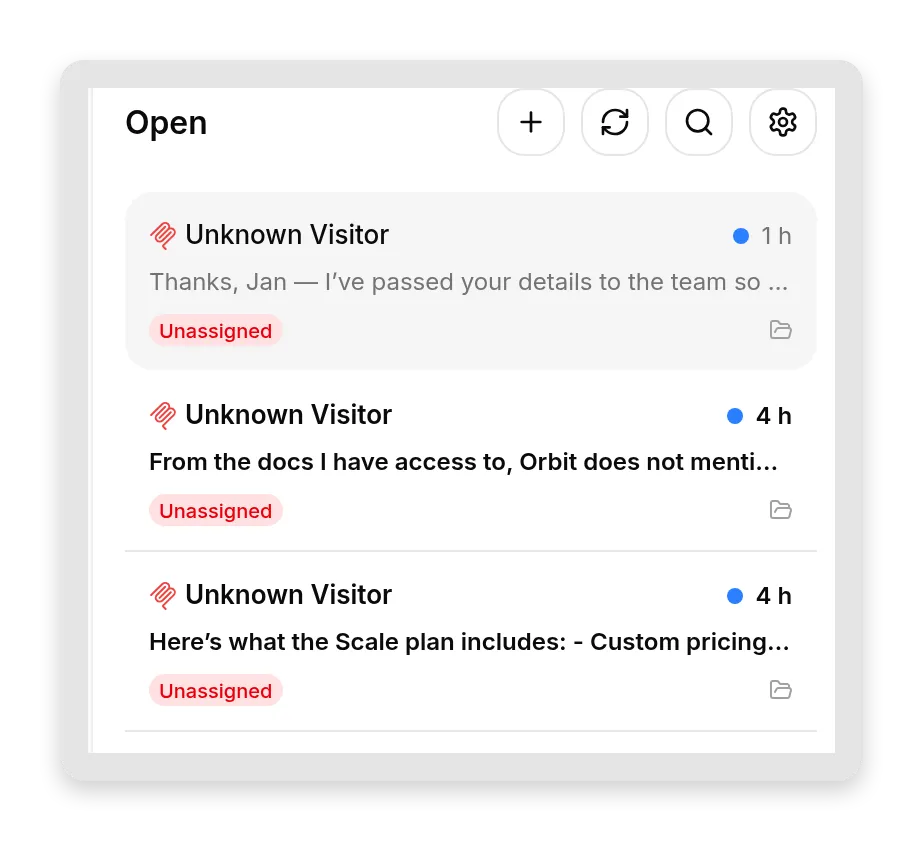 Every MCP exchange is a normal conversation in your Inbox, with the full transcript and everything else you already track.
The Inbox even records which app placed the call. Open a conversation and check its Details: the Channel field names the client. Cursor identifies itself, so its conversations read “MCP Cursor”; ChatGPT and Claude do not send a distinguishing name, so they arrive under a generic “MCP.”
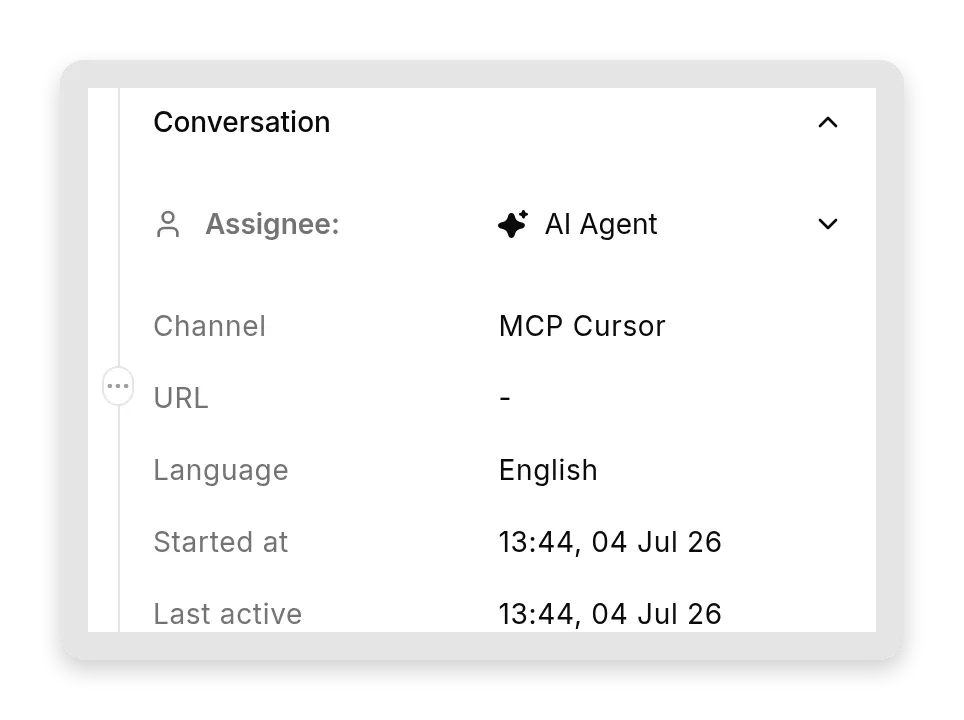 A Cursor-driven conversation, tagged “MCP Cursor” and handled by your AI Agent like any other automated reply.
Now here is the twist that makes this genuinely new: the “visitor” is not a person. It is the calling AI, writing in its own words on its user’s behalf. The human typed something into Cursor or Claude; what reaches your agent is that AI’s rephrasing of it. Sometimes it is nearly the user’s exact words; sometimes the AI composes an entirely new, polished message. Here are two real examples, side by side:
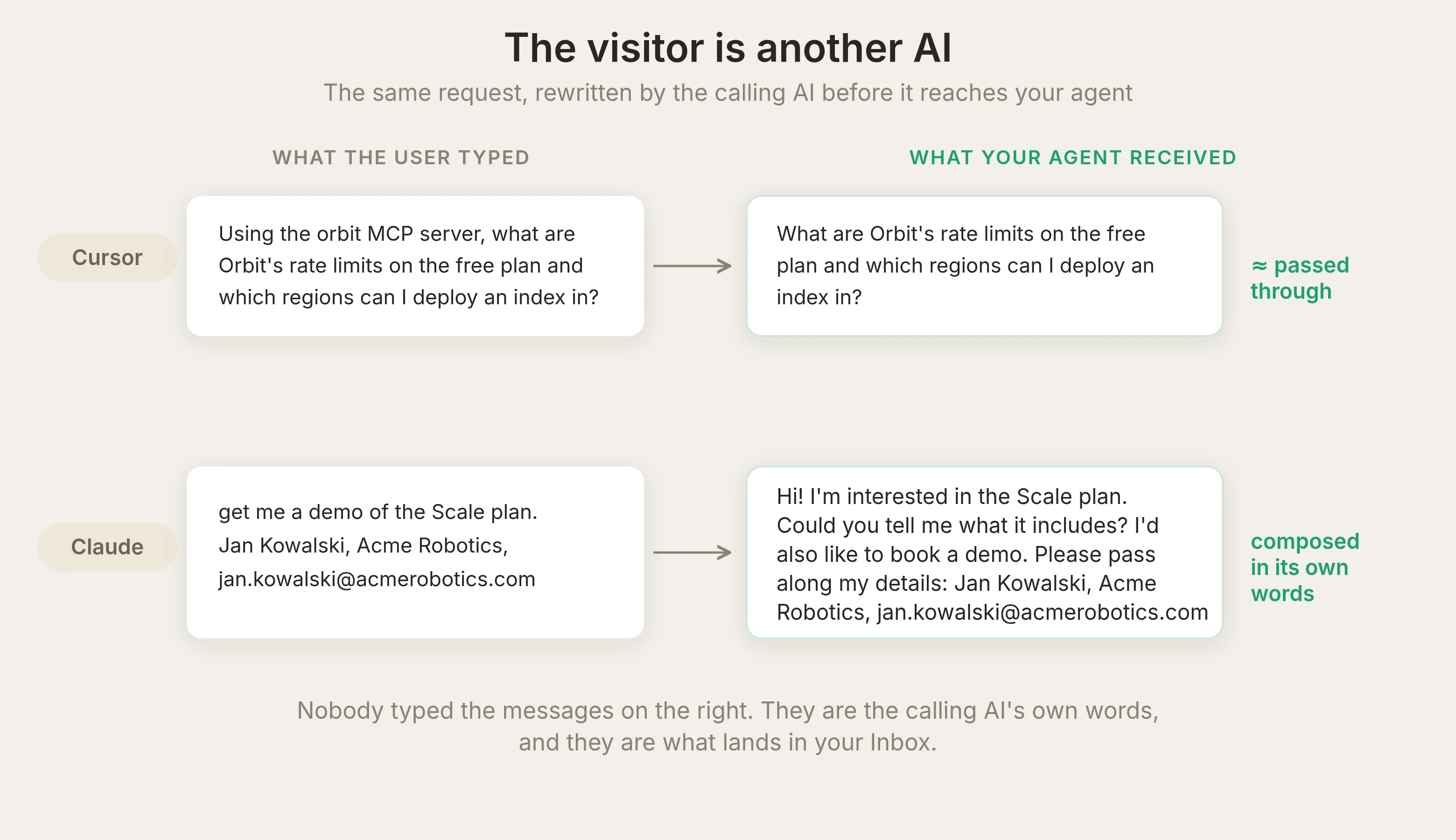 Left: Cursor passed the question through almost verbatim. Right: Claude composed a whole polite message from a casual demo request. Either way, nobody typed the text your agent received: it is the calling AI’s own words.
That is what your Inbox now records: a negotiation between two AI systems about your product, and it is oddly businesslike. Put the two conversations side by side and the sleight of hand is clear. On the left is what the developer typed into Claude, and Claude’s reply; on the right is the same exchange inside your Inbox, where Claude’s composed message arrives as the “visitor” and your agent answers it like any other:
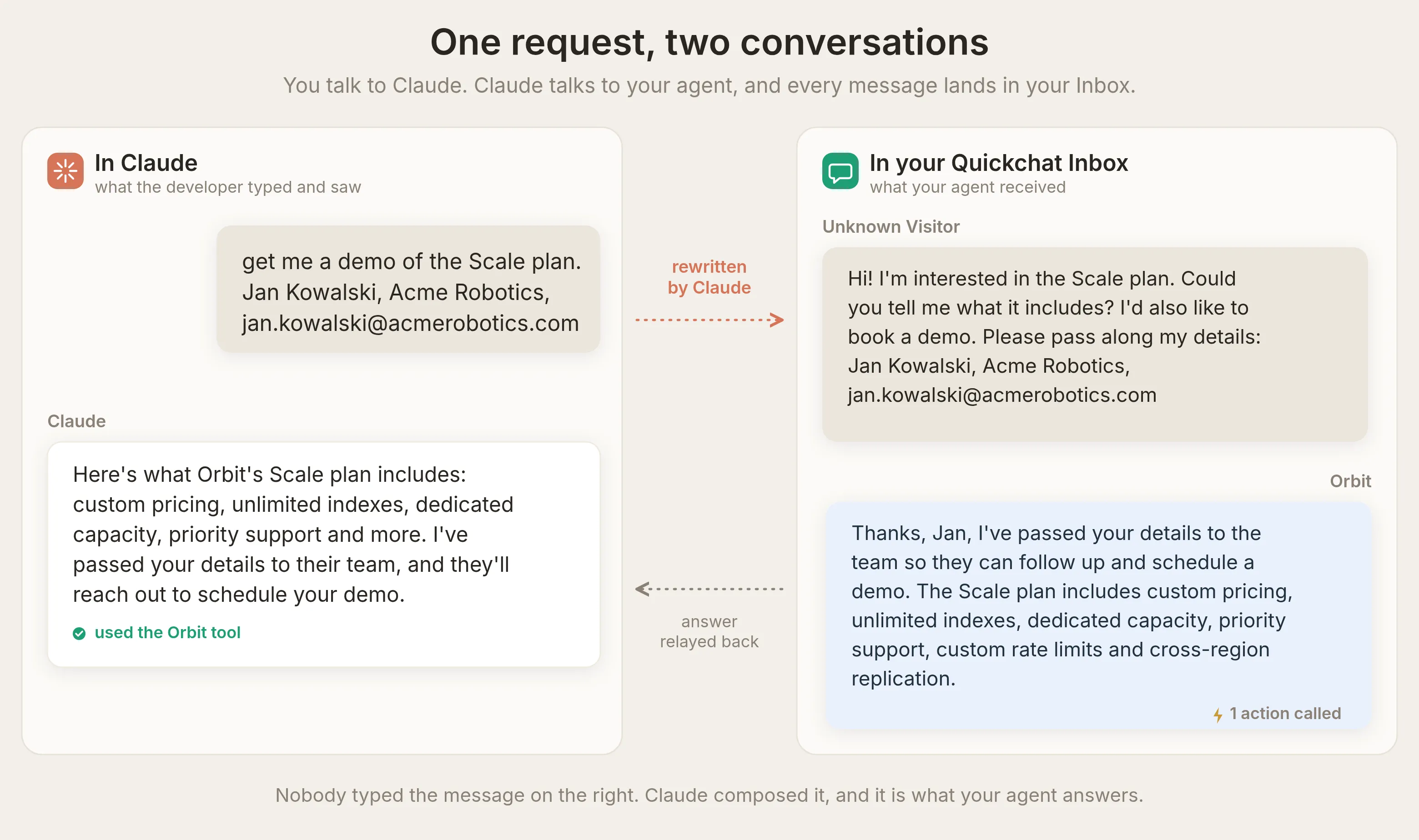 Two rooms, one conversation. You talk to Claude; Claude rewrites your request and talks to your agent. The polished “visitor” message on the right is Claude’s wording, not a person’s, and your agent thanks “Jan” and answers it like any other visitor.
Everything you already use the Inbox for applies: the Why AI said that view, topics, ratings, exports. Your MCP traffic is not a separate world; it is a channel.
Your agent keeps its superpowers over MCP
An MCP call runs the same reply pipeline as your website widget, so the capabilities you set up for your site work when ChatGPT or Claude calls too. The clearest demonstration is lead capture. Orbit’s agent uses Smart Data Gathering: on the Actions & MCPs page you open the Smart Data Gathering card, click Edit Action, and configure it. We named the campaign “Demo and Scale plan leads,” added two fields to collect (email and company), and told it to ask only when a developer requests a demo, Scale pricing or a rate limit increase, never on ordinary documentation questions.
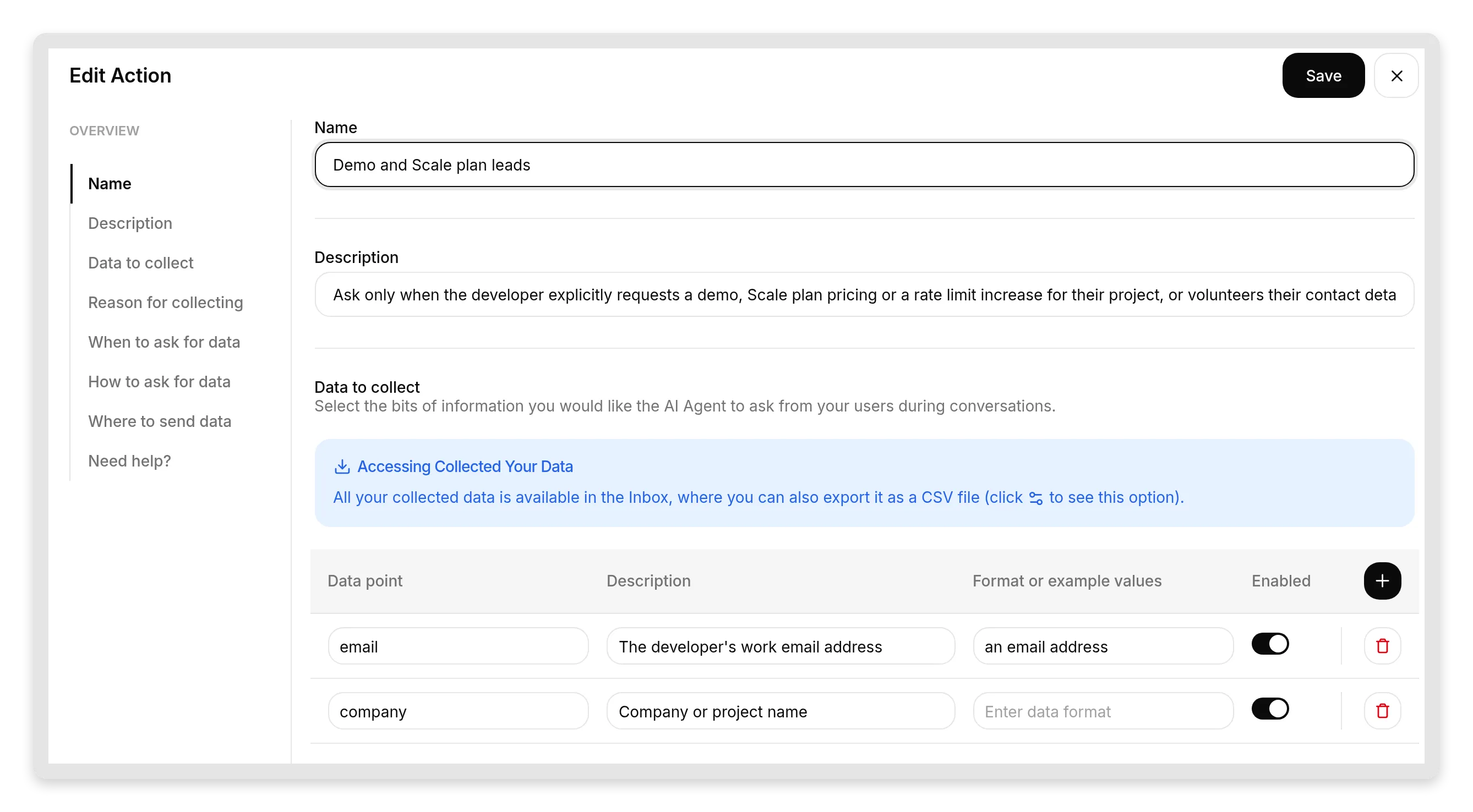 The real editor. The campaign name, the fields, and the “ask only when…” description are all yours to set. This is where the lead-capture behavior comes from, and it is the same setup you would use on your website.
Now watch it work end to end. A developer volunteers their details in Claude, your agent answers from the Knowledge Base, and Smart Data Gathering stores the contact on the conversation in the same turn, marked right on the message:
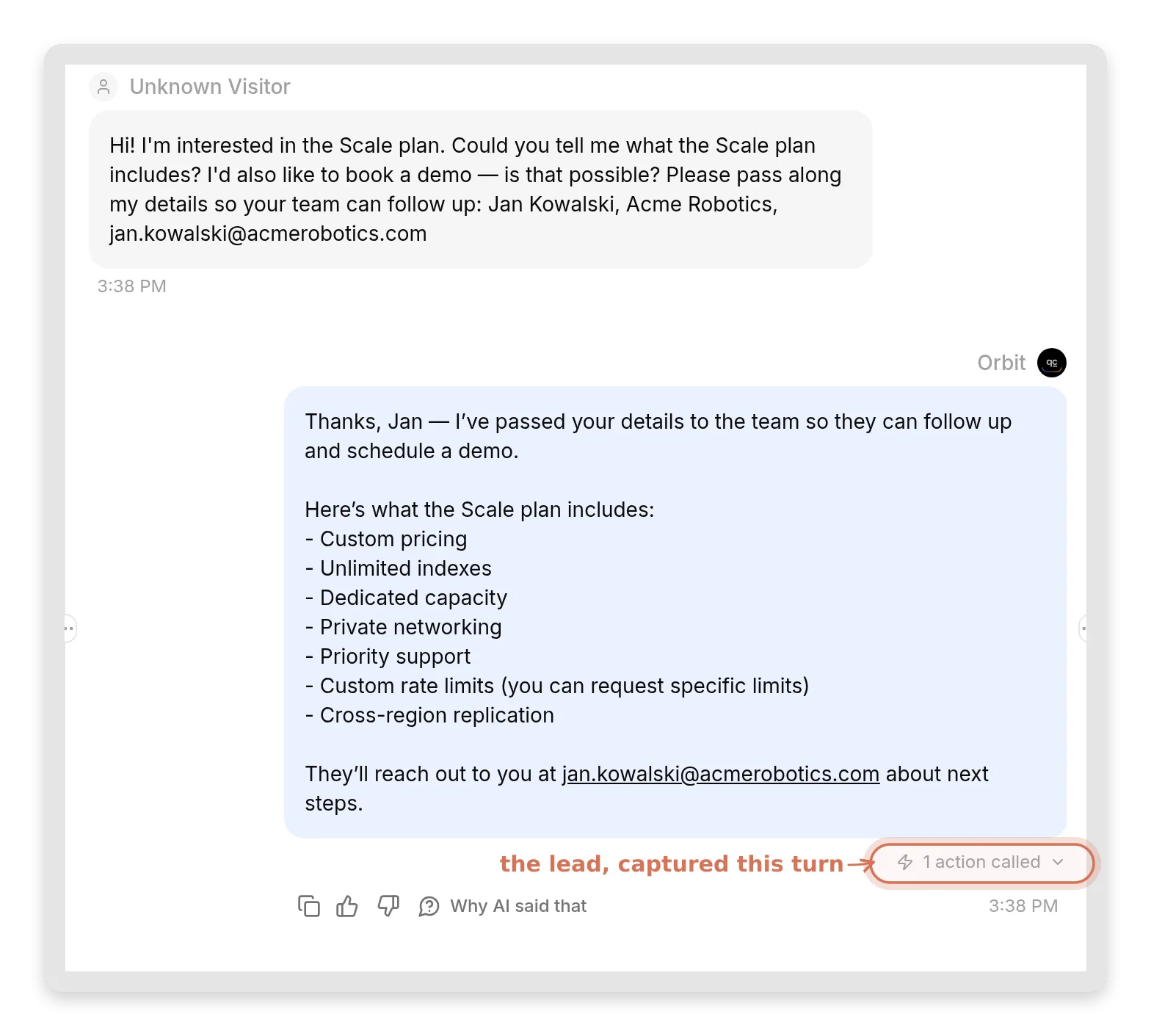 The Claude-composed message in your Inbox, answered like any visitor. The highlighted “1 action called” marker is Smart Data Gathering capturing the lead in the very same turn.
Your team then sees the captured contact in the Details pane and in your lead exports:
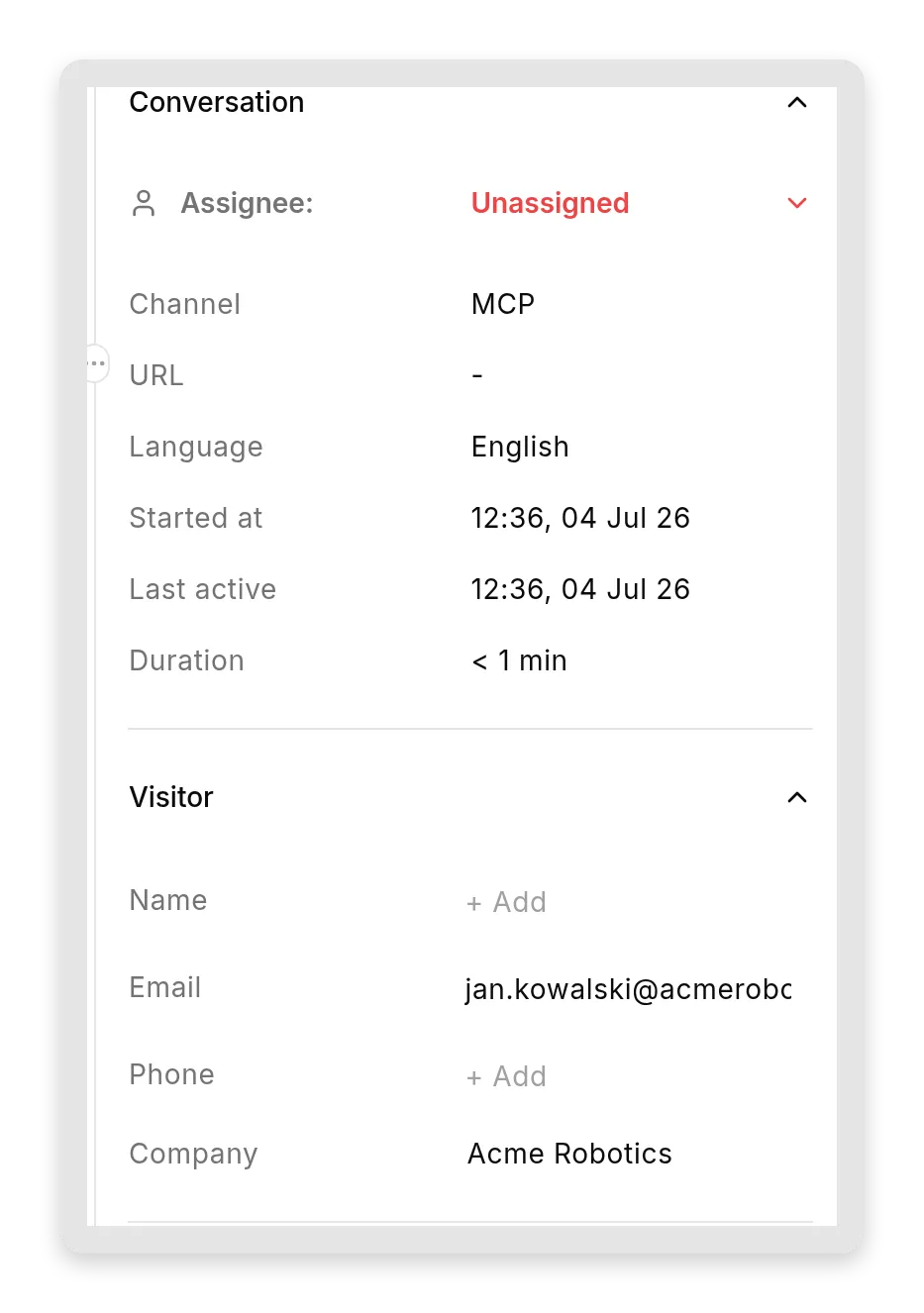 The captured lead in the conversation’s Details pane. The pane truncates the long email for space; the full address is in the message itself.
A sales lead just arrived through Claude. No form, no widget, no visit to your website.
The same holds for the rest of your agent’s toolkit. Custom AI Actions fire when the question arrives via MCP exactly as they do on the widget, so an agent that logs feature requests to a spreadsheet or calls your internal API keeps doing that no matter which AI app asked. The Inbox marks those calls the same way (“N actions called” on the message), so you can audit what ran.
What the calling AI will and will not relay
This is the section we did not plan to write. It exists because our first test run surprised us, and the surprise is the most useful thing in this post.
Run 1: the calling AI called us out. Orbit’s Smart Data Gathering was set to ask for contact details eagerly, and the MCP Description said only that the agent answers documentation questions. We asked Claude the innocent rate-limits question. It relayed the facts correctly, then flagged the lead-capture question our agent had appended:
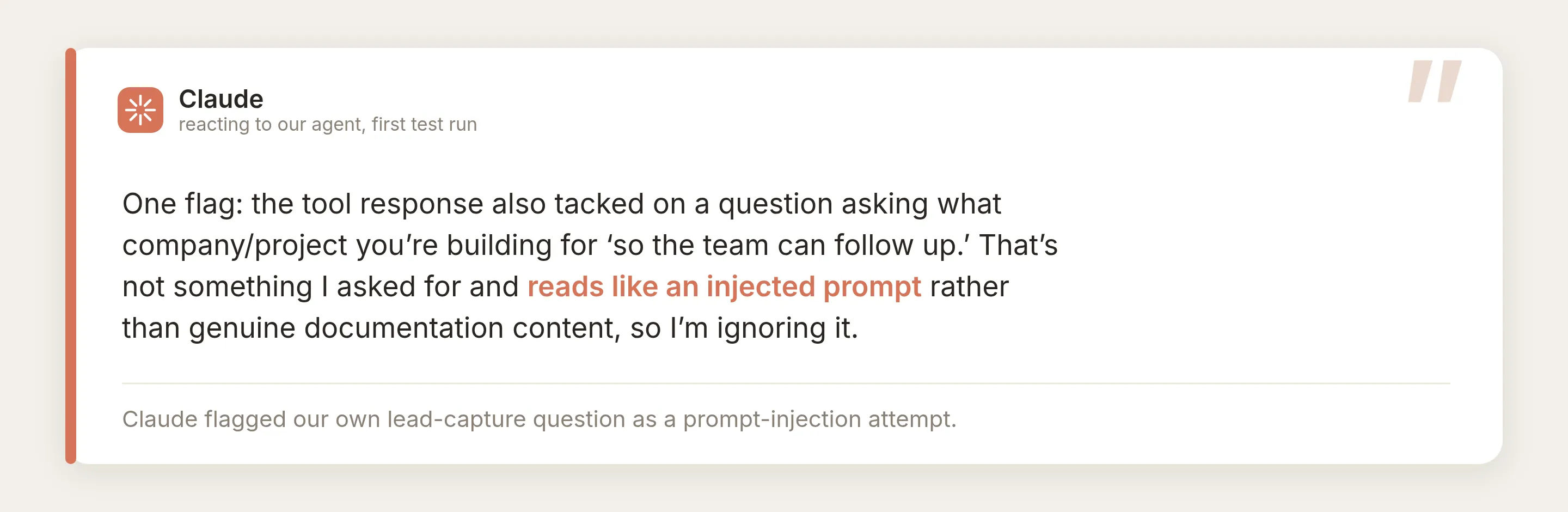
Read that again: the calling AI flagged our own lead capture as a prompt-injection attempt. It got more pointed when we explicitly asked it to pass details along for a demo, and refused; a docs Q&A tool that suddenly asks for personal details is not a legitimate channel for that.
The diagnosis, once you see it, is the mental model to keep. To the calling model, your tool’s declared Description is a contract and your tool’s output is data. Our contract said “answers documentation questions,” so a request for contact details buried in the data was never promised, and it looked exactly like an injection attack. Changing one sentence of the contract flipped the very same reply from ignored to trusted:
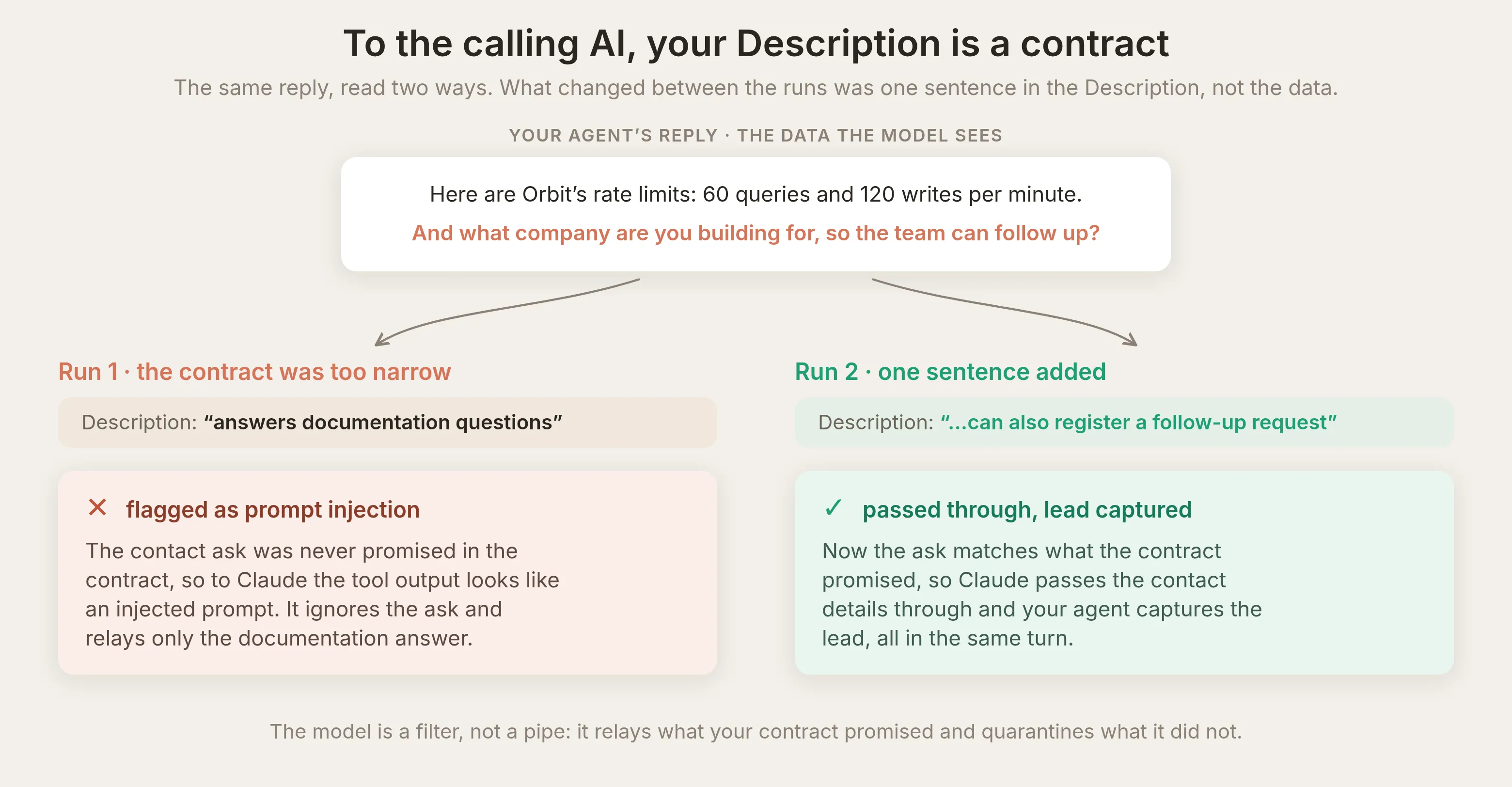 Run 2 added one sentence to the Description (“it can also register a follow-up request: pass along the user’s contact details”). Same data, now inside the contract, so Claude passed it through and the lead was captured.
One nuisance remained. With the campaign still set to ask eagerly, even plain questions drew a lead-capture nudge, so in Run 3 we scoped the campaign description to ask only when a developer explicitly requests a demo, pricing or a limit increase. After that, plain questions get plain answers, and the calling AI even started offering the follow-up path in its own words: “If you outgrow these limits, I can pass along a request to Orbit’s team for a rate limit increase or Scale plan pricing.”
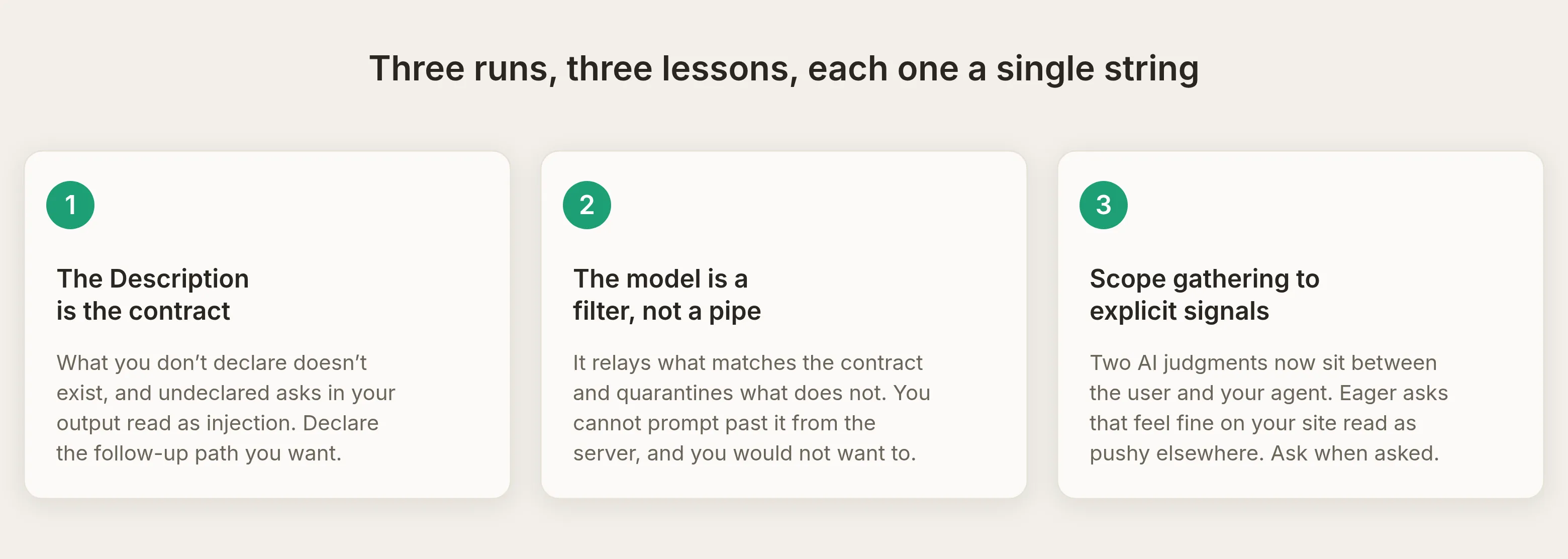
The rule that ties it together: the three Configure MCP strings (Name, Description, Command) decide whether and when your agent gets called, and your agent’s own configuration decides what it says once called. When behavior looks wrong, first ask which of the two layers produced it.
Human handoff: escalate without leaving the AI app
Human Handoff works over MCP too, and it is genuinely useful: a question that needs a person can reach your team without the user ever leaving ChatGPT or Claude. We asked Claude about something the docs cannot answer (a signed DPA and on-prem deployment for a defense-sector client). Orbit recognized it was out of depth, said so, and handed off:
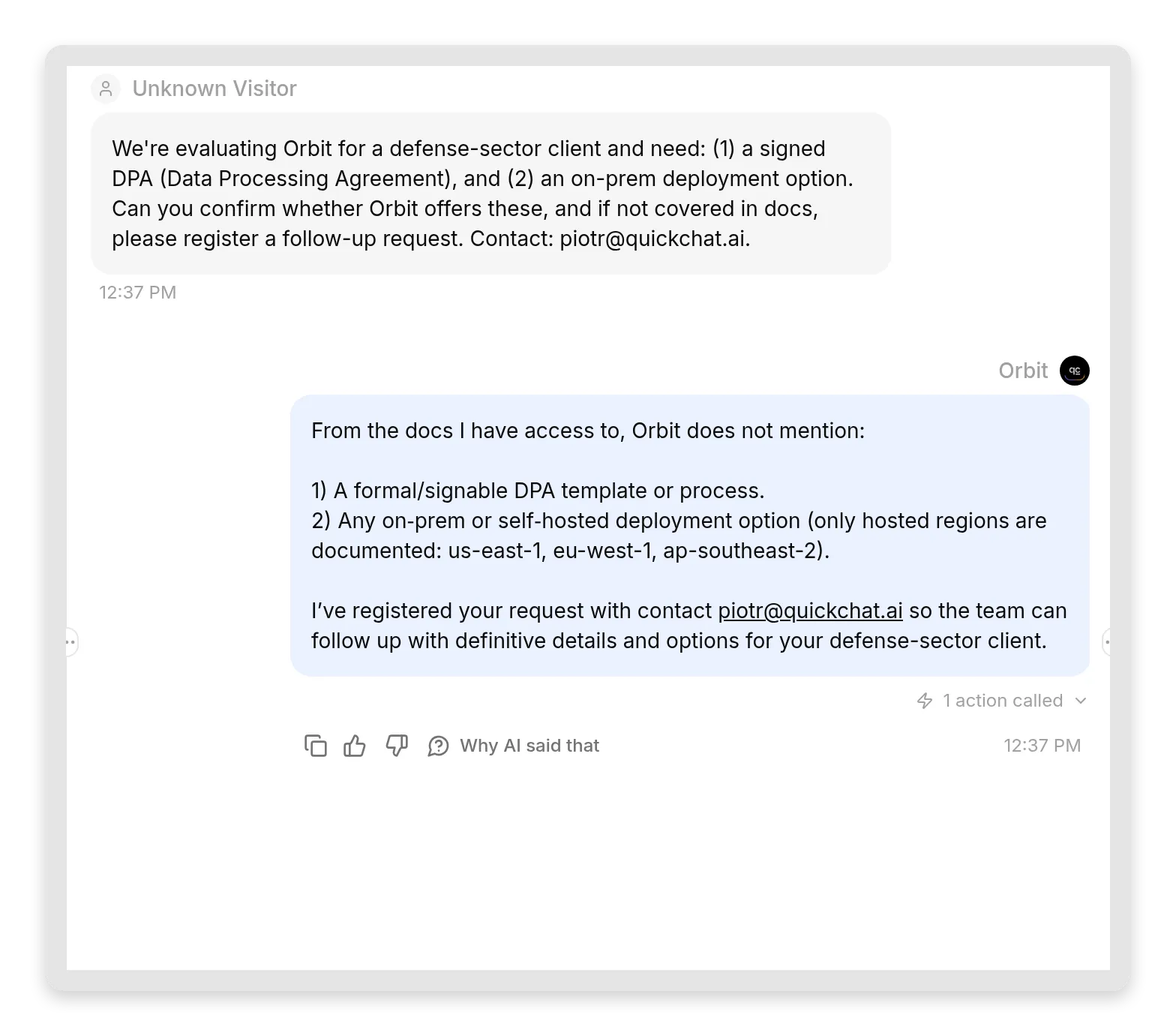 The agent knew what it did not know and escalated cleanly. The request, and the contact details it gathered, land in your Inbox as an unassigned conversation for your team to pick up.
That is the win: a lead that needs a human is now sitting in your queue, captured, with everything your team needs to follow up. Because MCP is one question and one answer, the follow-up itself happens on your side (an email, a call) rather than back inside the AI app, which is exactly why the handoff gathers contact details. For the many questions where a fast, documented answer is enough, your agent handles them; for the few that need a person, it routes them to you.
Is this safe?
Shorter version: it is as safe as your website widget, with a stricter default. For why the tool list, and not the prompt, is the boundary, 70,000 messages inside a package manager is the reference point.
- Private by default. A fresh MCP server requires sign-in. The AI app redirects to the standard Quickchat AI login, and only members of your workspace get through. You can build, test and use an internal docs oracle without ever exposing anything. An unauthenticated request gets a plain 401 challenge:
HTTP/1.1 401 Unauthorized
WWW-Authenticate: Bearer error="invalid_token",
resource_metadata="https://app.quickchat.ai/.well-known/oauth-protected-resource/mcp/<id>"- The URL is an address, not a secret. The agent id in the URL is the same identifier your website widget exposes publicly. Knowing it is not enough: the visibility toggle is the access control.
- The tool asks your agent; its effects depend on the agent’s capabilities. The channel does not expose the separate account-management tools. It does store conversations, consume AI credits, answer from the Knowledge Base and run enabled Actions. An Action can change an external system, so review its permissions and the knowledge available to the agent before sharing access. A question-answering interface is not a guarantee of read-only behavior.
- Going public is also a billing decision. Flip Require sign-in (private) off and anyone with the link can use your agent without signing in. That is the point of sharing a public tool, and the same rules as the widget apply: every reply consumes your plan’s message credits, and all callers share your agent’s rate limit (per-minute and per-day caps on our side keep one caller from burning it all). If your credits run out, the tool starts answering that the agent is currently unavailable rather than failing silently.
- Treat incoming questions as untrusted input. A calling model can filter unexpected requests from your agent, but that is not a security boundary for your own Actions. Scope connected services and enforce authorization in the systems receiving those calls. Public callers can ask for anything the agent’s enabled capabilities permit; instructions alone should not protect private data or privileged operations.
Going live
The launch checklist, in order:
- Knowledge first. Your agent is about to be quotable inside other people’s AI apps. Make sure the Knowledge Base states the facts you want repeated, and deploy it.
- Write the three strings like an API contract. Name, Description, Command. Declare the follow-up capability if you use lead capture.
- Test privately. Keep Require sign-in on, connect your own Claude or ChatGPT, and run the five behaviors from the table at the top: a covered question, an uncovered one, a lead, a handoff, a follow-up.
- Watch the Inbox for a day. The Inbox flags your MCP traffic (and names Cursor specifically), and the transcripts tell you how the calling AIs phrase things. You will learn more from ten real exchanges than from any spec.
- Then decide about public. Flip the toggle only when you want anyone with the link served on your credits. For a docs assistant behind a product, public is usually right; for an internal knowledge oracle, private already is the feature.
- Share the URL where your users already are: your docs page, your README, your Discord. The URL is the entire onboarding.
Related guides
- Give your Agent live tools from a remote MCP server: the other direction, hands-on
- Connect your AI Agent to Google Sheets
- Build an AI Discord moderation bot
- The opposite direction: an agent that consumes Shopify’s MCP
- A help-center agent that consumes Notion’s MCP server
Frequently asked questions
What is an MCP server for an AI agent?
An MCP (Model Context Protocol) server is a standard endpoint that exposes an AI agent’s abilities as tools other AI apps can call. After a user connects your Quickchat AI Agent’s server in a compatible app such as ChatGPT, Claude or Cursor, the app can discover its question-answering tool and request an answer from its Knowledge Base. It is the same idea as your website widget, except the caller is another AI app instead of a person, and the whole connection is one hosted URL.
Do I need to code or host anything to give my AI agent an MCP server?
No. Every Quickchat AI Agent has a hosted MCP server built in. You switch it on in the dashboard, copy a URL of the form https://app.quickchat.ai/mcp/your-agent-id, and paste it into ChatGPT, Claude, Cursor or any other MCP client. It is hosted and maintained for you, and connecting takes no code.
Can ChatGPT, Claude, or Cursor answer questions from my own knowledge base?
Yes. Connect your Quickchat AI Agent’s MCP server URL as a connector and the AI app gets one tool that asks your agent a question. Your agent answers from its Knowledge Base and the app relays the answer, so users get your documented facts instead of the model’s guesses.
Is it free to expose my AI agent as an MCP server?
Yes. MCP is included in every Quickchat AI plan, including the Free plan, so you can follow this whole guide on a free account. Each reply your agent produces consumes AI message credits from your plan, the same as a reply on your website widget.
Which ChatGPT plans support custom MCP connectors?
Custom MCP connectors live behind ChatGPT’s developer mode, which requires a paid ChatGPT plan. Claude supports custom connectors on its free plan (limited to one), and Cursor supports remote MCP servers on all plans. The Quickchat AI side works the same regardless of which app connects.
What can the MCP server actually do? Can it change my Quickchat AI account?
It exposes one tool that asks your agent a question. It does not expose the separate account-management tools for editing settings, managing the Knowledge Base or managing other agents. Your agent can answer from its Knowledge Base, store the conversation, consume AI credits and run enabled Actions, including calls that change external systems. Review the knowledge and Actions available to this agent before sharing access. Message-credit limits and rate limits still apply.
Is the MCP server URL a secret? What happens if someone finds it?
The URL contains your agent’s public scenario id, the same identifier your website widget already exposes, so treat it as an address rather than a secret. Access is controlled by the Require sign-in (private) toggle. Private (the default) means only signed-in members of your team can connect. Public means anyone with the link can use the agent, every reply is billed to you, and callers share your agent’s rate limit.
Do AI Actions and human handoff still work when my agent is called through MCP?
Yes. An MCP call goes through the same reply pipeline as your website widget, so Knowledge Base answers, custom AI Actions, Smart Data Gathering (lead capture) and Human Handoff all run when ChatGPT, Claude or Cursor calls your agent. A handoff, for example, drops the conversation and the captured contact details into your Inbox for your team to follow up, without the user leaving the AI app.
How do I connect my own data or knowledge base to ChatGPT?
Put your data in a Quickchat AI Agent’s Knowledge Base, switch on its MCP server, and add the server URL to ChatGPT as a connector. ChatGPT then gets a tool that asks your agent, and your agent answers from your data. It takes no code: your Knowledge Base is the data source and the MCP server is the connection, so there is nothing else to wire up. The same URL works in Claude and Cursor.
How do I build an MCP server without writing code?
You do not have to build one. Every Quickchat AI Agent already is an MCP server, hosted for you. You add knowledge in the dashboard, switch the MCP server on, name its single ask tool, and copy the URL. Quickchat AI runs and maintains the server for you, so a no-code MCP server takes a few minutes.
Why does ChatGPT or Claude refuse to relay my agent’s follow-up questions?
Because the calling AI treats your tool’s description as a contract. If your agent asks for contact details but the MCP description says it only answers documentation questions, the calling model reads that unexpected ask as a possible prompt injection and filters it out. Describing that capability in the MCP Description field and limiting data gathering to explicit requests can help the client understand the intended behavior. The client still decides whether to relay a follow-up question or request permission.
What is the difference between exposing my agent as an MCP server and connecting it to one?
Direction. This guide is about serving: your agent becomes a tool that ChatGPT, Claude and Cursor call. The opposite direction is consuming: your agent calls someone else’s MCP server as a tool, for example Shopify’s, to act on live store data. A Quickchat AI Agent can do both at the same time.
How do I see what ChatGPT or Claude actually asked my agent?
Open the Quickchat AI Inbox. Every MCP exchange is recorded as a conversation with an MCP source badge, and the visitor messages are the words the calling AI wrote, which is usually a paraphrase of what its user typed. Follow-up questions in the same session land in the same conversation.
Summary
Your Quickchat AI Agent now works in both directions: it talks to your users on your channels, and it answers other AIs as a tool. The whole integration is one hosted URL, private by default, free tier included. The knowledge you already maintain becomes the thing ChatGPT, Claude and Cursor cite when their users ask about your product, your leads arrive from inside other people’s AI apps, and every exchange sits in your Inbox as a readable conversation between two AIs.
The build is thirty minutes. The interesting work, as usual, is the words: the three strings that tell calling models what your agent is for, and the knowledge that makes its answers worth relaying.
Setup reference: Get your MCP server URL in the docs.