


Quickchat AI’s API Action builder connects your AI agent to a REST API from one plain-English sentence. You describe the API you want to call, for example “look up the delivery status of an order and tell the customer when it will arrive”, and an LLM with web search reads that API’s live documentation and assembles a complete, working action, filling in the method, URL, headers, parameters, and the description that tells your agent when to use it. It cites the documentation it read, and when it cannot confirm a real endpoint, it says so instead of guessing.
This guide builds two live actions from two typed sentences, on a free account, and proves both with real calls recorded in the Inbox. Along the way it explains what an API call actually does for your agent and what “function calling” is, the mechanism this feature runs on.
Everything below was built and tested on a real agent. Every screenshot, generated field, and API call is from that build, and you can reproduce all of it.
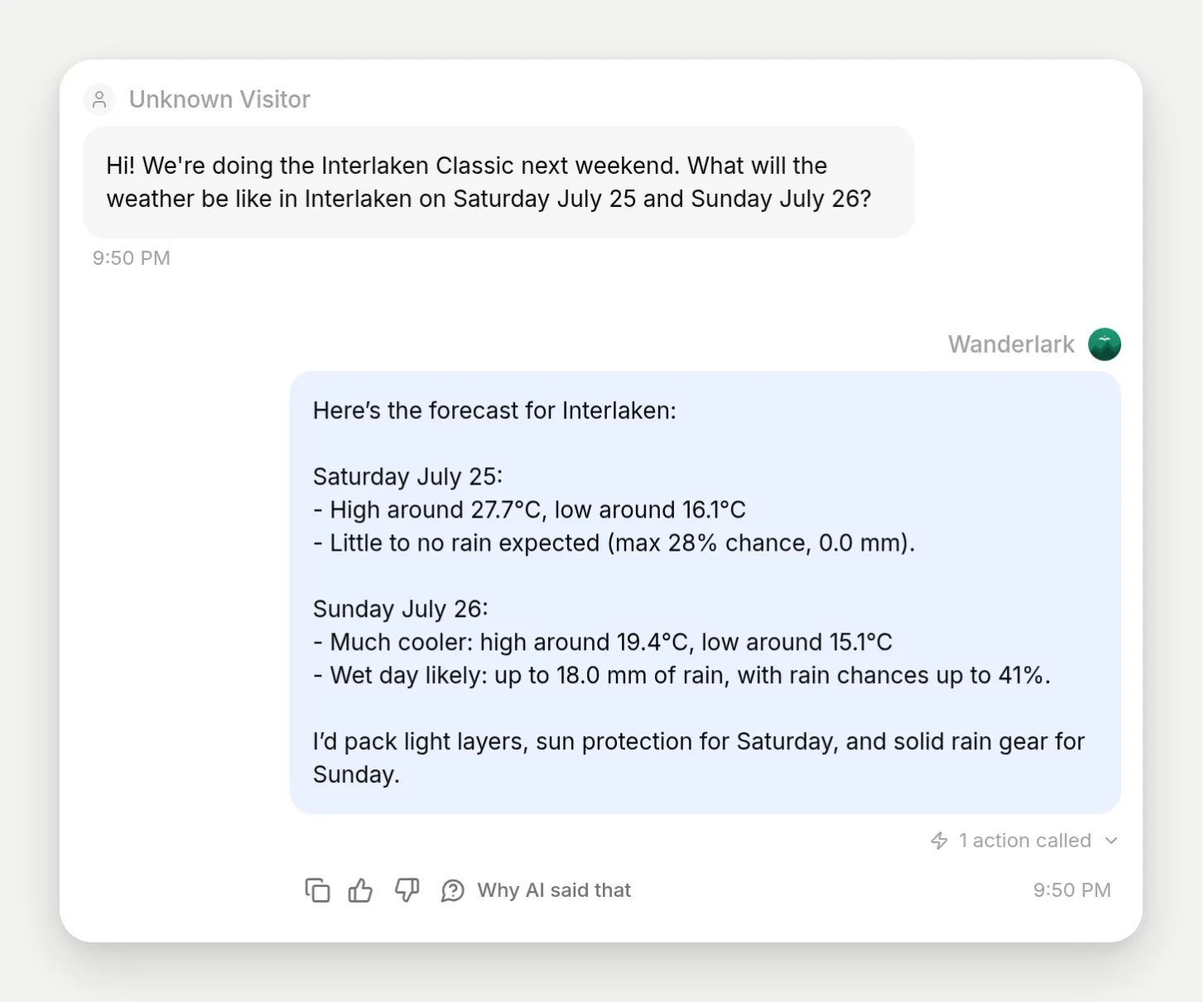 The finished result: a traveler asks about the weekend, the agent calls a weather API mid-conversation and answers with live numbers.
Optional example checks
-
Preview an API Action request. Render a supplied request template with synthetic sample values without sending it. Omit credential headers.
-
Preview JSONPath matches. Check root, field, array-index and wildcard paths against supplied JSON. This does not run an Action or save conversation memory.
When replacing an existing GPT Action, use the custom GPT Action migration checklist to carry over the endpoint, authentication requirements, and test cases before rebuilding it here.
What you will build
A support agent for Wanderlark Tours, a fictional small-group alpine hiking operator, that answers from its knowledge and calls two real APIs mid-conversation. Building both, testing them, and watching the live calls takes about fifteen minutes:
- A weather forecast lookup against Open-Meteo, built from one sentence. Keyless, so you can finish it with nothing but a Quickchat account.
- NASA’s Astronomy Picture of the Day against api.nasa.gov, for Wanderlark’s stargazing add-on. This one needs an API key, which is exactly why it is here: it teaches the
[[secret]]placeholder flow, where activation stays blocked until you paste your key.
You will also type a sentence the builder refuses to build, on purpose, because seeing how it fails is part of knowing when to trust it.
What you need:
- A free Quickchat AI account (sign up here).
- No code, no server. For the second action, a NASA API key: NASA operates a shared, rate-limited
DEMO_KEYfor trying things out, which is what the screenshots use, and issues personal keys instantly at api.nasa.gov.
What does it mean for an AI agent to call an API?
An agent that can call APIs can fetch or change things in real systems mid-conversation, then answer with the result. A chatbot can describe your business; an agent that calls APIs can act in it.
From the end user’s side, nothing changes except the answer. A traveler asks “what will the weather be like in Interlaken on Saturday?” and sees a typing indicator for a couple of seconds, then a reply with actual temperatures. They do not see a tool, a request, or a JSON payload. The two seconds in between look like this:
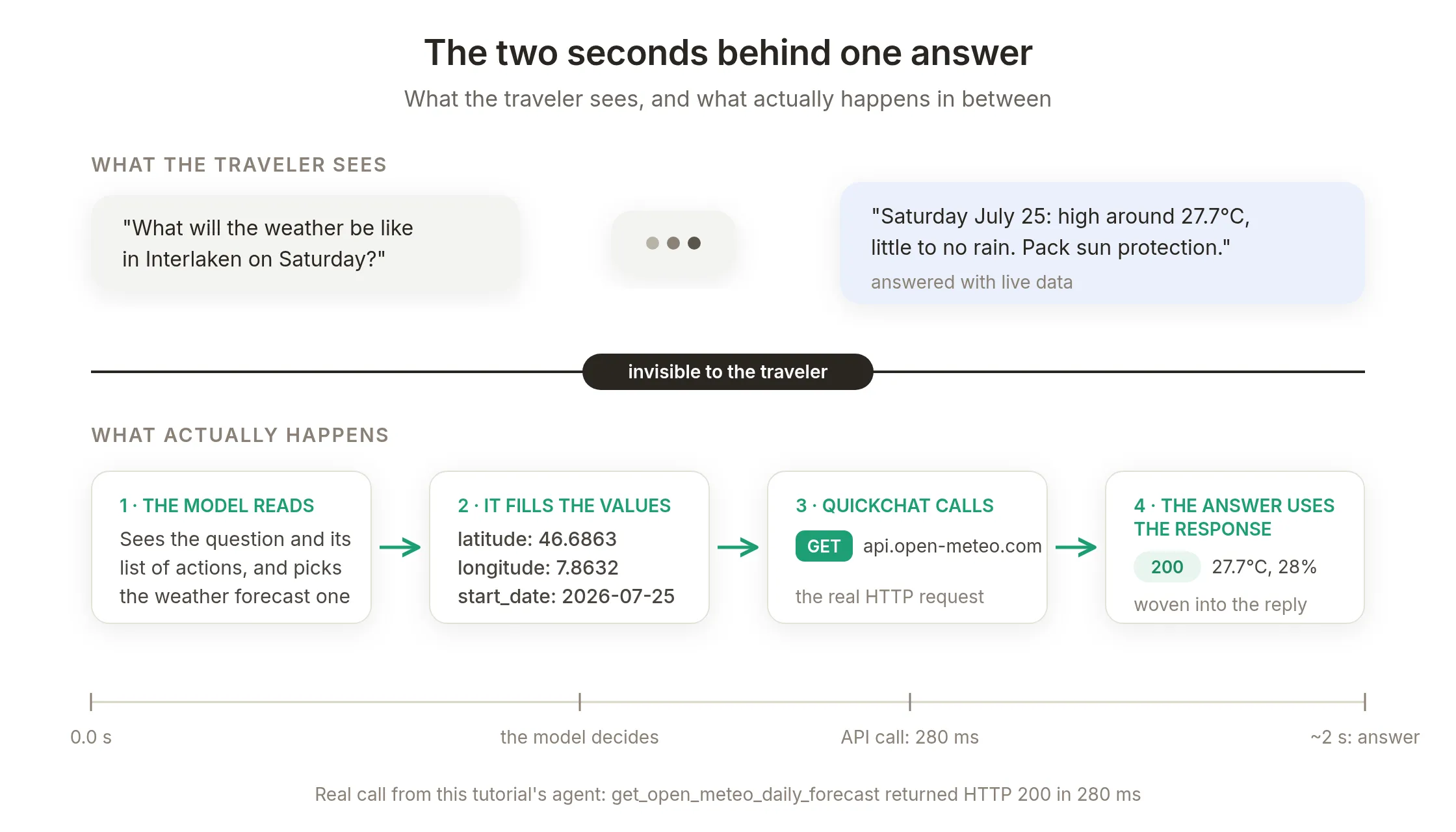 The traveler sees a question and an answer. In between, the model picked an action, filled its values, and Quickchat made a real HTTP request: 280 ms of the roughly two seconds.
You can even set what the visitor sees during that pause. Every action can carry a thinking message, a short line the website widget shows in place of its generic “Thinking…” while the call runs. Wanderlark’s forecast action sets one, so this is what the traveler actually watches during those two seconds:
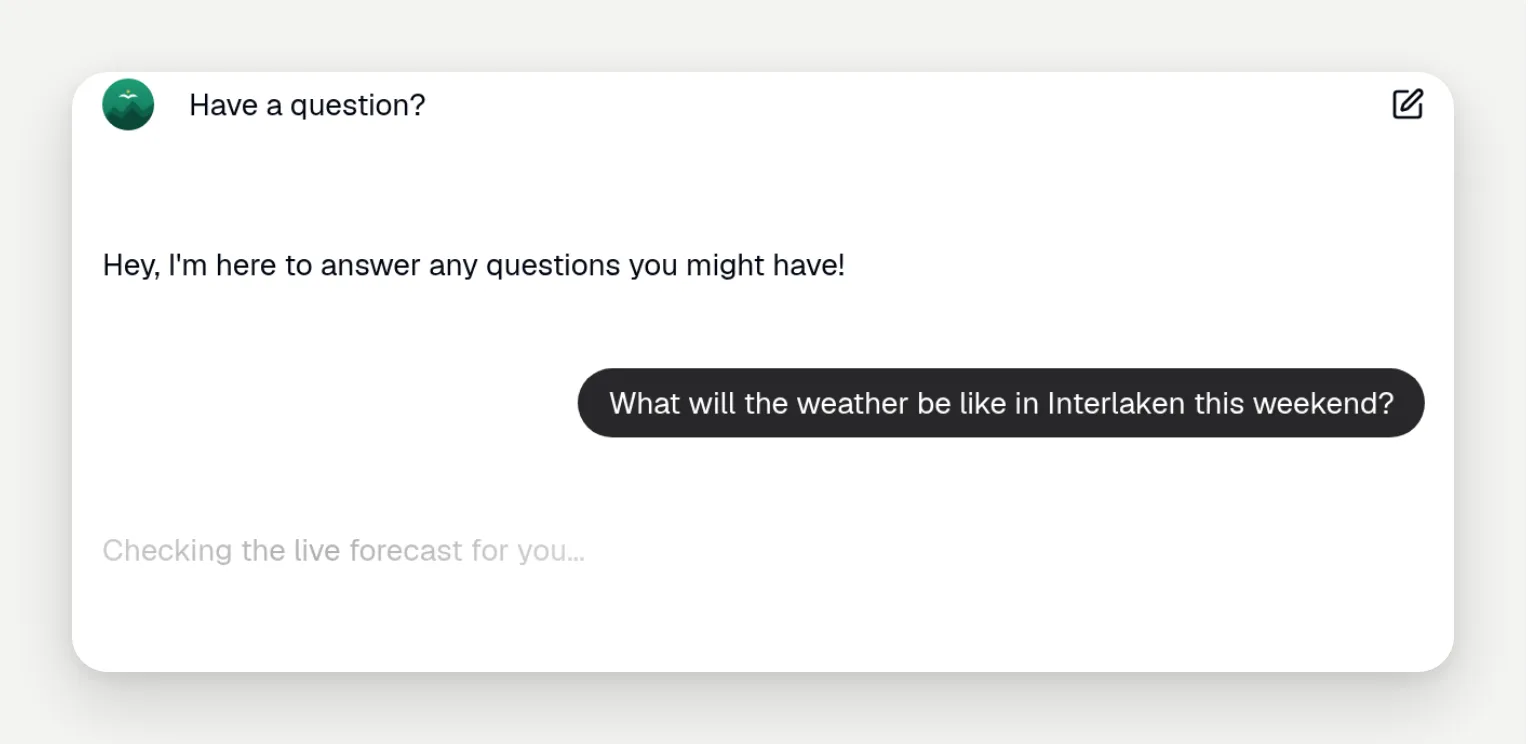 The traveler-side view, mid-call: the custom thinking line shimmers where the reply is about to appear. You will set this line in the action editor later.
None of this is specific to weather. Any system that exposes an HTTP API can sit on the other end of an action: your order database, a booking system, a CRM, a ticketing tool, a messaging platform. The lookups answer questions with live data; the writes change something and leave a record.
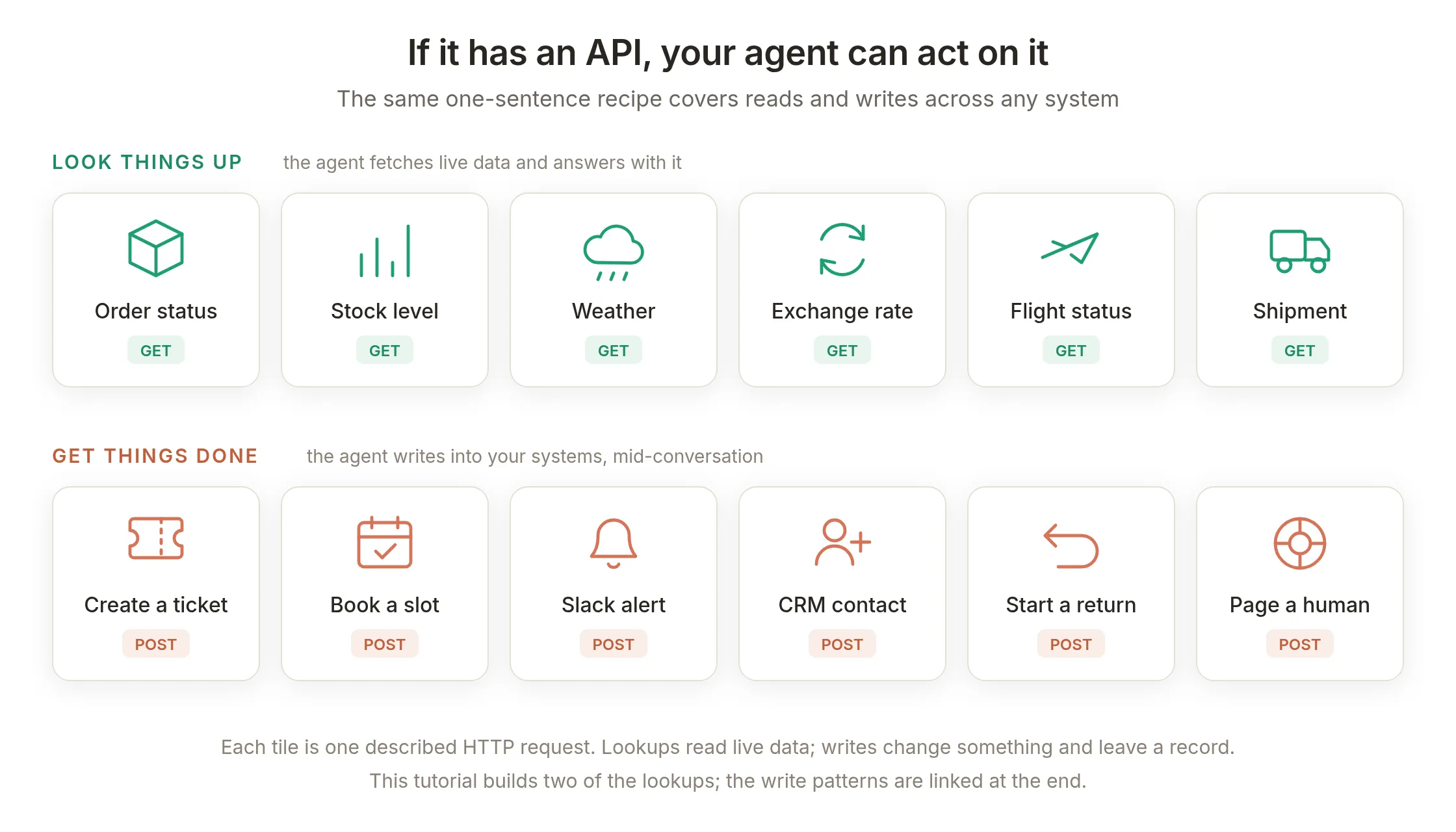 Each tile is one described HTTP request. This guide builds two of the lookups; the write patterns are covered by the guides linked at the end.
The catch, historically, is that wiring one of these up meant reading API docs and filling in the request by hand. That part is what the builder removes.
How does the plain-English action builder work?
You describe the API in one sentence, and an LLM with live web search turns that sentence into a complete action. It searches the API’s documentation while generating, drafts the method, URL, headers, query parameters, and the description that tells your agent when to call it, and returns the result with links to the doc pages it read. Generation takes about half a minute, and the result opens in a dialog when it is ready.
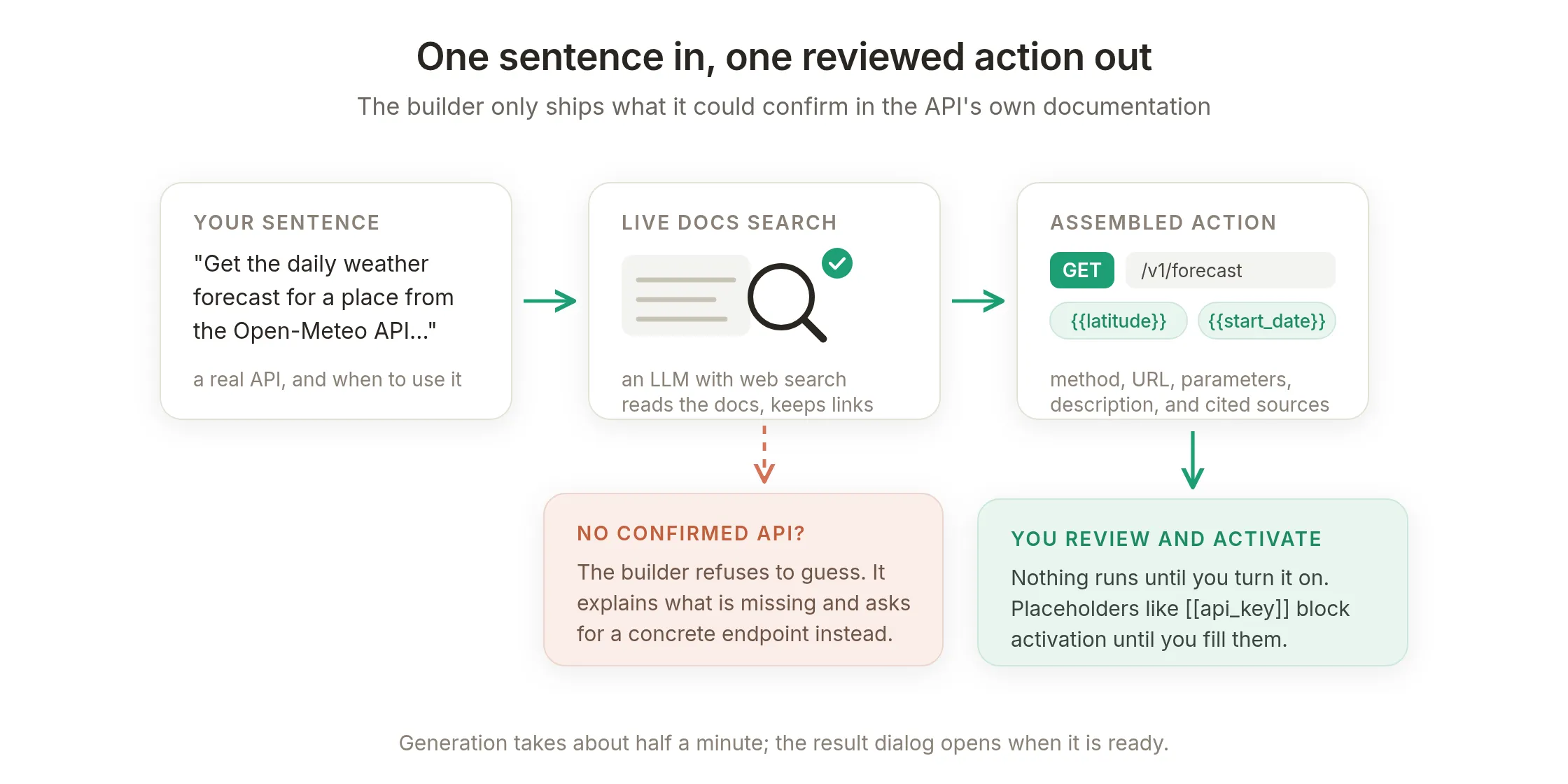 The builder only ships what it confirmed in the docs. Anything it could not confirm becomes a placeholder or a refusal, never a guess.
Three properties keep it safe to use:
- Nothing runs until you activate it. Every generated action arrives switched off, for you to review.
- Unknowns become placeholders, not guesses. Values the model should fill per call (a date, a city) become
{{param}}blanks; constants only you know (an API key) become[[secret]]blanks, and activation is blocked until you replace them. - It shows its work. The result lists the documentation pages it read, each with a note on what that page confirmed, so the review starts from evidence rather than trust:
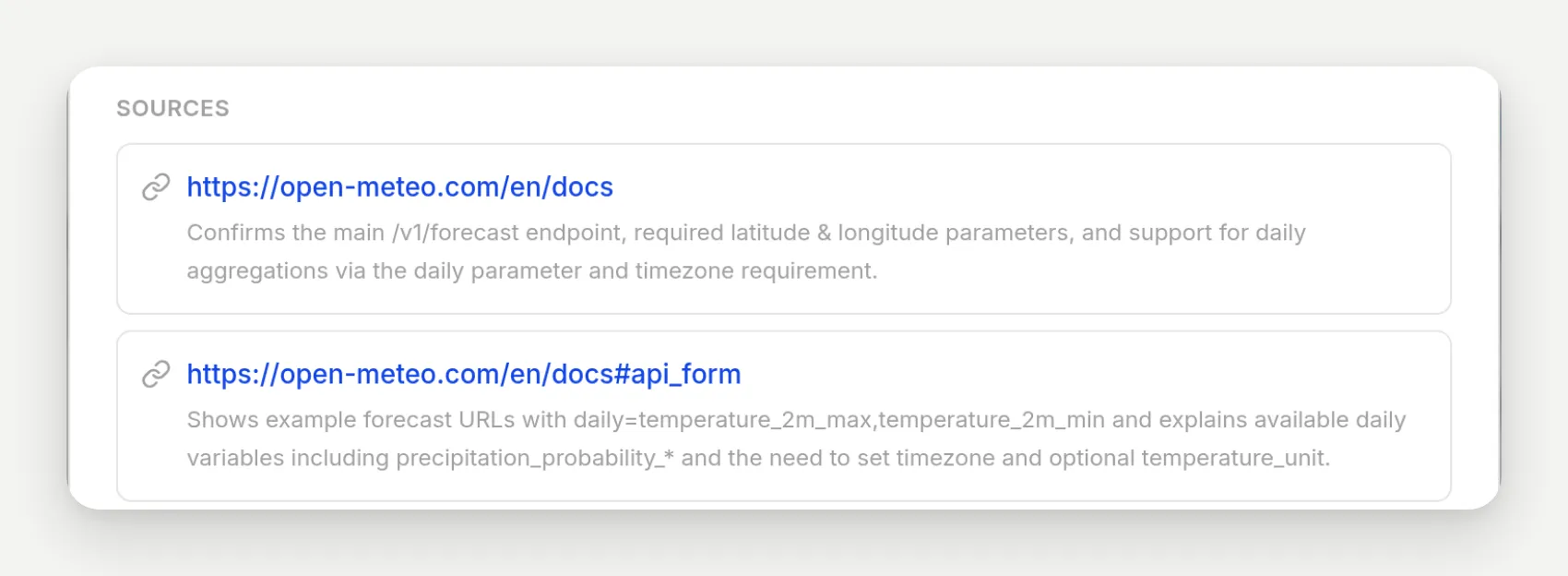 Citations from a second generation of the same weather sentence used later in this guide: the docs page plus its API sections, each with what the builder confirmed there.
Step 1: Create the travel agent
Create the agent first so the actions have something to belong to. After signing up, name the agent (this build uses Wanderlark) and give it its job in the AI Main Prompt field under Identity in the dashboard:
You are the assistant for Wanderlark Tours, a small-group alpine hiking tour operator. Wanderlark runs three guided tours: the Interlaken Classic, the Zermatt Highline, and the Dolomites Traverse, plus the Dark-Sky Nights stargazing add-on. Help travelers choose a tour, understand dates, prices, difficulty, and what to pack, and answer booking and cancellation questions. Be warm, practical, and concise, and keep answers short.

Only answer from what you actually know about Wanderlark. If you do not have a detail, say you do not have it and offer to connect them with the Wanderlark team, rather than guessing.
Then add a few facts under Knowledge Base so it has something to answer from. The demo uses five short articles (tours and prices, the Dark-Sky Nights add-on, booking and cancellation, packing, meeting points); the full text is in the copy block near the end. We extend this prompt with two action-specific lines after the actions exist. If you want the from-zero walkthrough of prompts and knowledge, the master recipe post linked below walks through it step by step.
Step 2: Describe the API in one sentence
In the sidebar, open Actions & MCPs, click Add Action, and choose API Action, the first item in the menu.
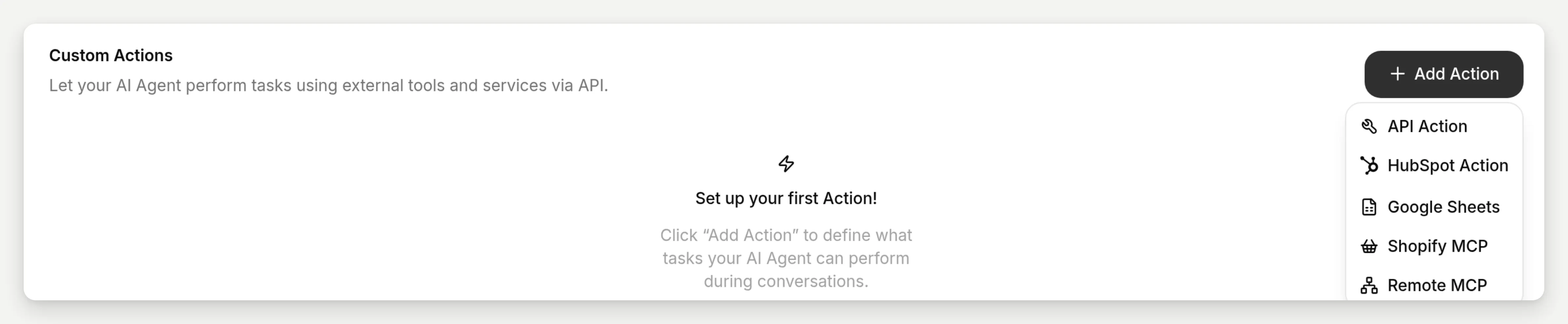 Custom actions live under Actions & MCPs. The API Action item opens the describe-it dialog.
The dialog that opens asks you to describe the API this action should call, and to name the endpoint or link its docs. Here is the exact sentence for the weather action:
Get the daily weather forecast for a place from the Open-Meteo API (docs: https://open-meteo.com/en/docs) so that when a traveler asks what the weather will be like at one of our destinations, the agent can answer with real temperatures and rain chances for the days they asked about.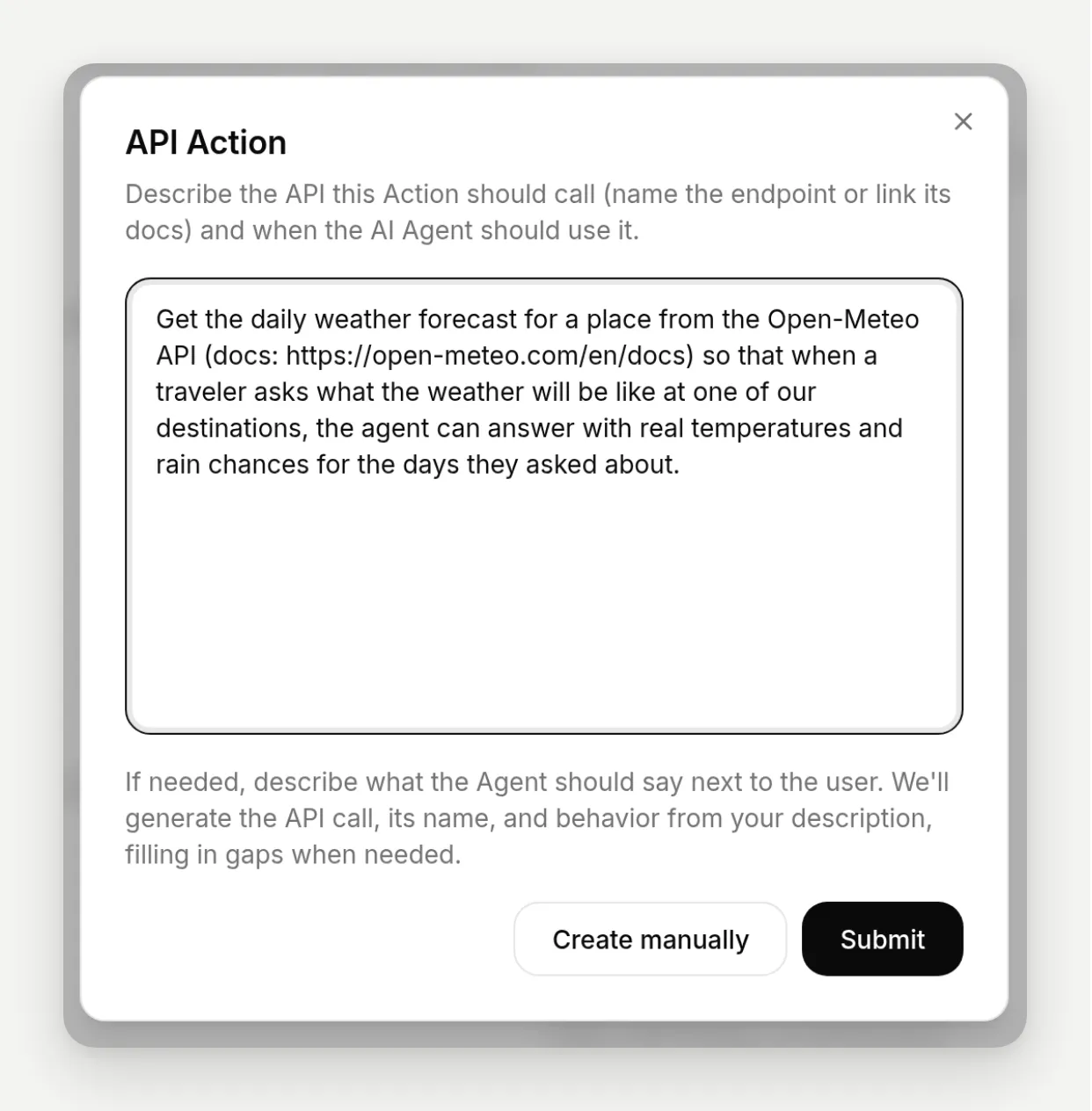 One sentence: which API, a docs link, when the agent should use it, and what it should do with the result.
That sentence carries the three things a good description needs:
- A concrete API, endpoint, or docs URL. “The Open-Meteo API” plus the docs link gives the builder something real to read. Without it, you get a refusal instead of an action.
- When the agent should use it. “When a traveler asks what the weather will be like” ends up, nearly verbatim, in the description that triggers the action later.
- What to do with the result. “Answer with real temperatures and rain chances” shapes how the agent uses the response.
The field takes up to 500 characters, which is more room than a good description needs; every sentence in this guide fits with plenty to spare.
Click Submit. The dialog closes, a toast tells you the action is being prepared, and about half a minute later the result dialog opens on its own:
 The whole flow in real time, with the wait trimmed: describe, submit, and review what came back.
What is inside the generated action?
The result dialog is a review surface. On the left, a preview card of the new action, exactly as it will appear on your Actions page. On the right, Details: the builder explains what it built, which values the model fills at runtime, and what it assumed when your sentence left something open. Below, Sources: the documentation it read, as links.
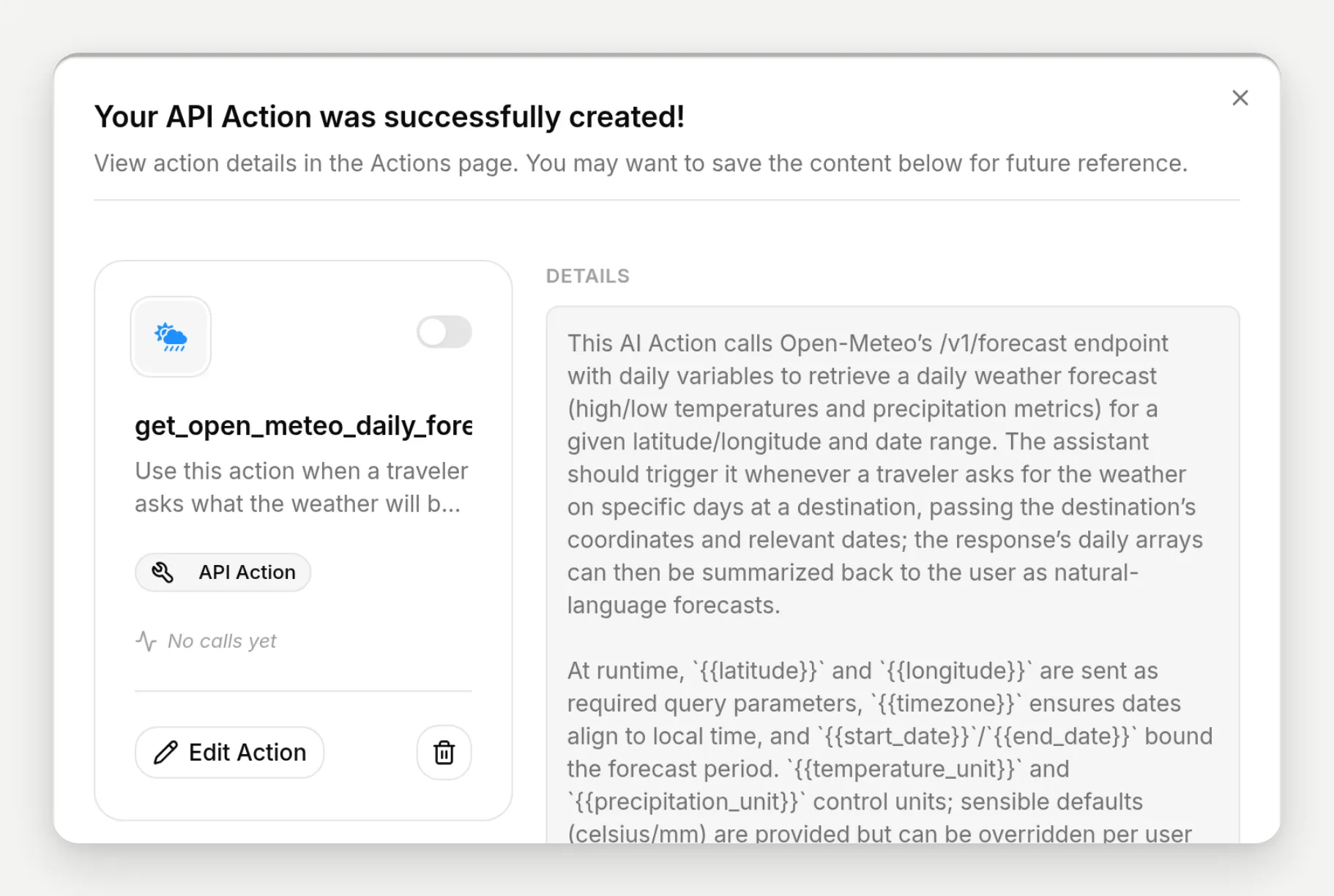 The builder explains its work field by field. Scrolling the dialog, the Sources section lists what it read for this action: Open-Meteo’s docs page and the project’s OpenAPI spec on GitHub, each with a note on what it confirmed.
For the weather sentence, the builder generated an action named get_open_meteo_daily_forecast (builder names look like an engineer wrote them; you can rename in the editor). Click Edit Action on the preview to see every field it filled:
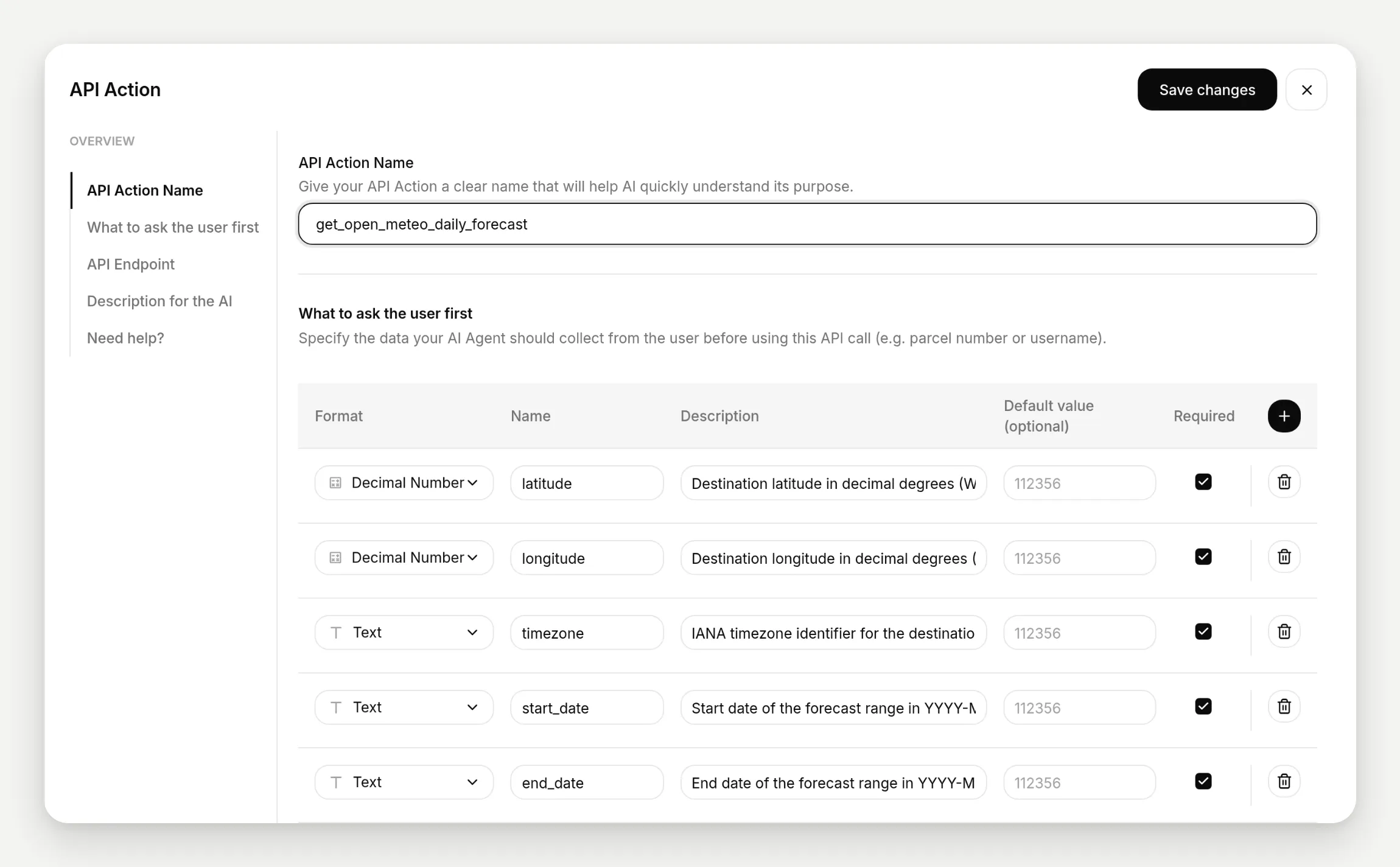 Everything a hand-built action has, filled in: the name, the parameter table under “What to ask the user first”, and the endpoint.
Reading it top to bottom:
- API Action Name: what the model sees as the tool’s name.
- What to ask the user first: the parameter table. The builder declared seven parameters, each with a type and a description:
latitude,longitude,timezone,start_date,end_date, plus optional units. These are the{{param}}values the model fills per call. Notice what is not here: no “city” parameter. The builder wired the endpoint the way Open-Meteo actually works, by coordinates, and left the geography to the model. We will see it fill those coordinates correctly in a moment. - API Endpoint:
GET https://api.open-meteo.com/v1/forecast, with the query parameters wired up. Fixed values stay literal, like thedailylist of forecast variables the builder chose; model-filled values appear as colored{{...}}chips.
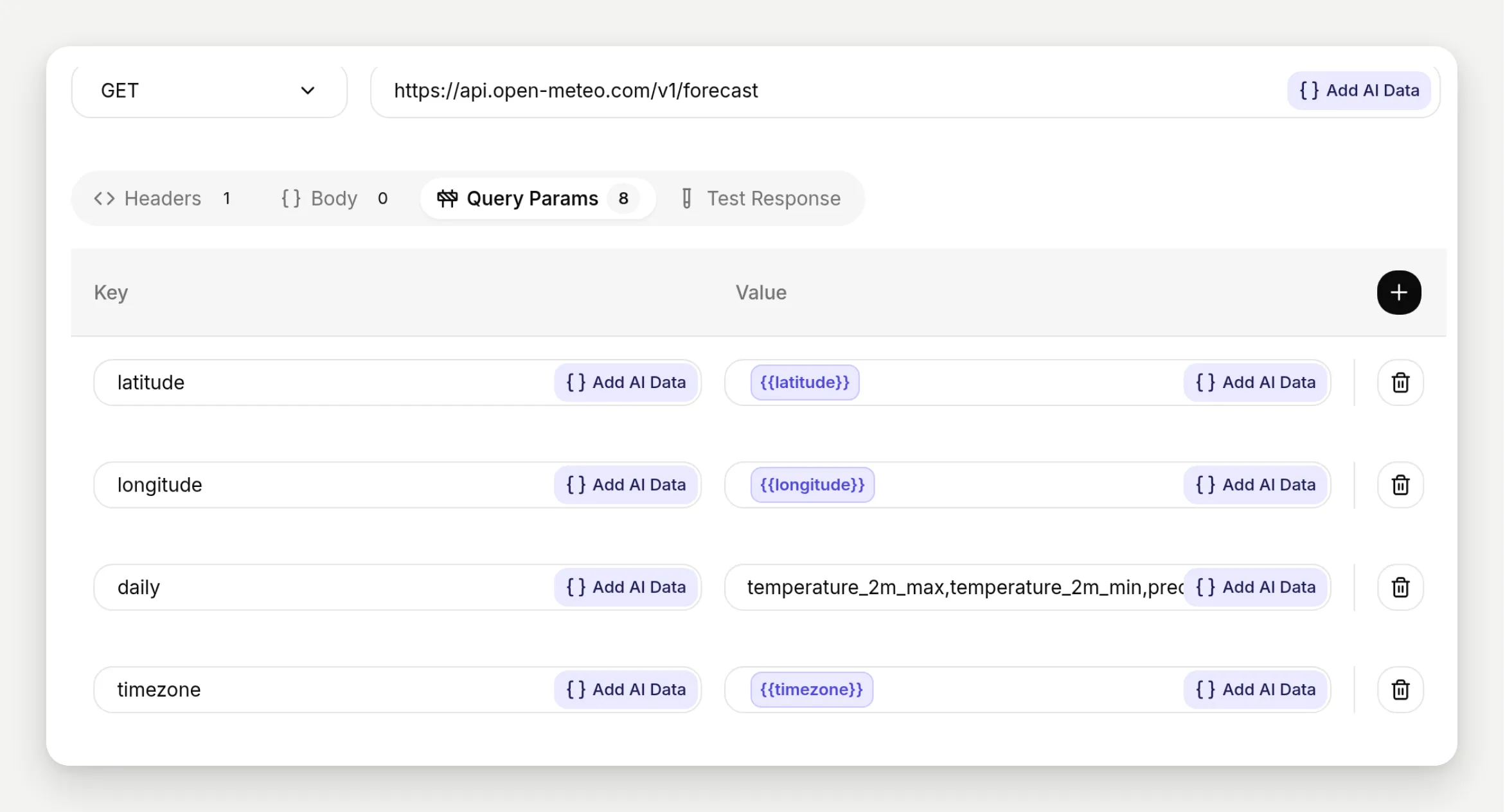 Fixed parts stay fixed; the colored chips are the blanks the model fills. The chips are the UI’s own legend for what comes from where.
The endpoint editor’s fourth tab, Test Response, fires the real request before the action ever meets a visitor. Each parameter gets a “Your test value” field; fill them with plausible values, press the play button (“Test the API”), and the actual response comes back with its status code. A Show cURL toggle reveals, in its own words, “the exact HTTP request that would be triggered when this AI Action runs with these parameters”. Here is this build’s test, Interlaken’s coordinates again:
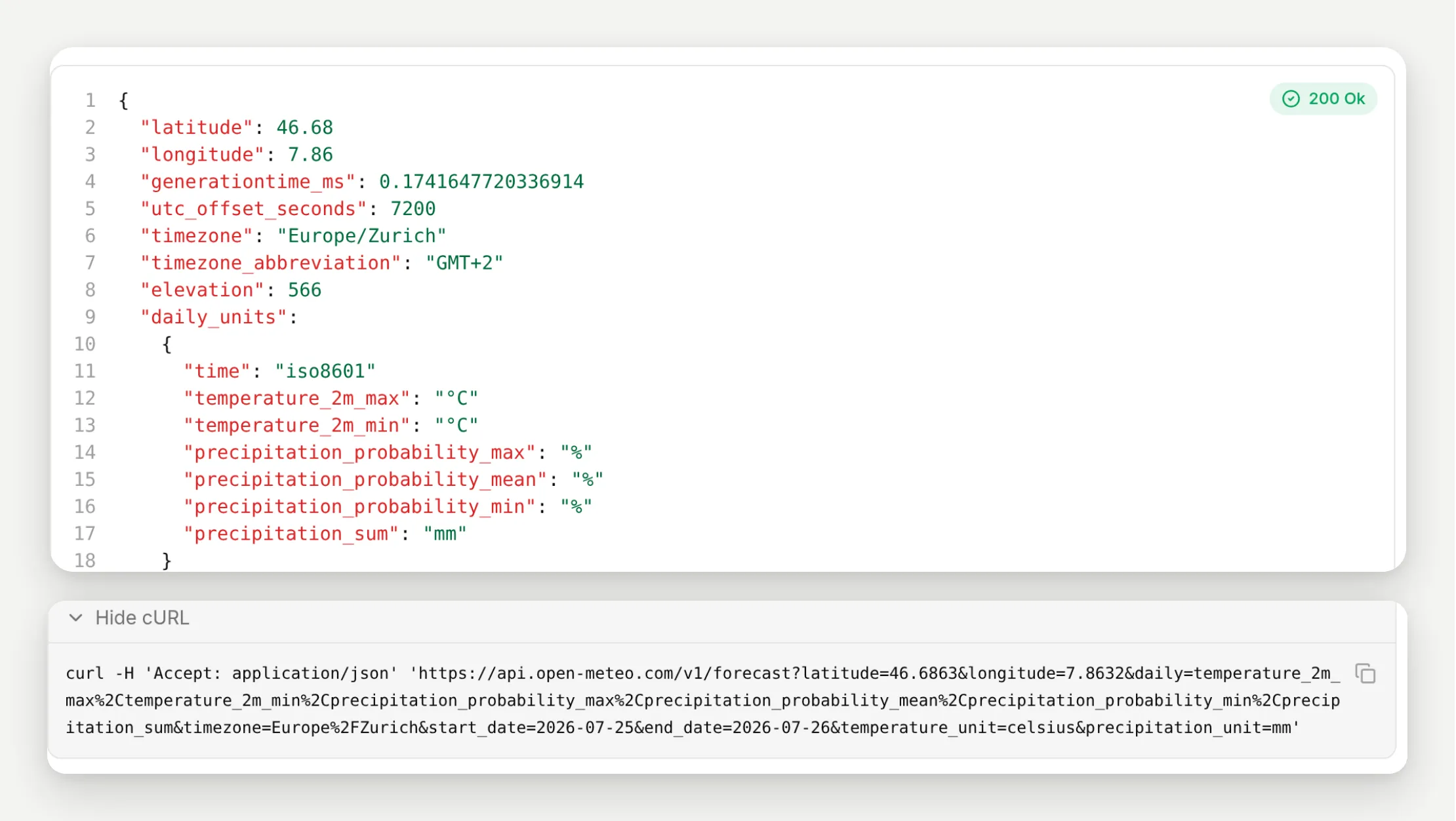 A real 200 from Open-Meteo, fired from inside the editor, with the resolved request spelled out below it. Review, test, then activate.
- API Action Description: the sentence that decides when the agent reaches for this action. The builder wrote it from your “when a traveler asks” clause. This field does the most work at runtime, and it is the first thing to tune if the agent ever fires the action at the wrong moment.
- Thinking message: the traveler-side line from the timeline earlier. The editor describes it as “a thinking preloader that will be displayed to the user when this action is invoked”; Wanderlark’s forecast action sets it to “Checking the live forecast for you…”.
The action arrived switched off. Open it in the editor and Quickchat shows a banner saying the action is off, with an Enable button; or flip the switch on its card on the Actions page. Since there was nothing to fill in for this one, it activates immediately.
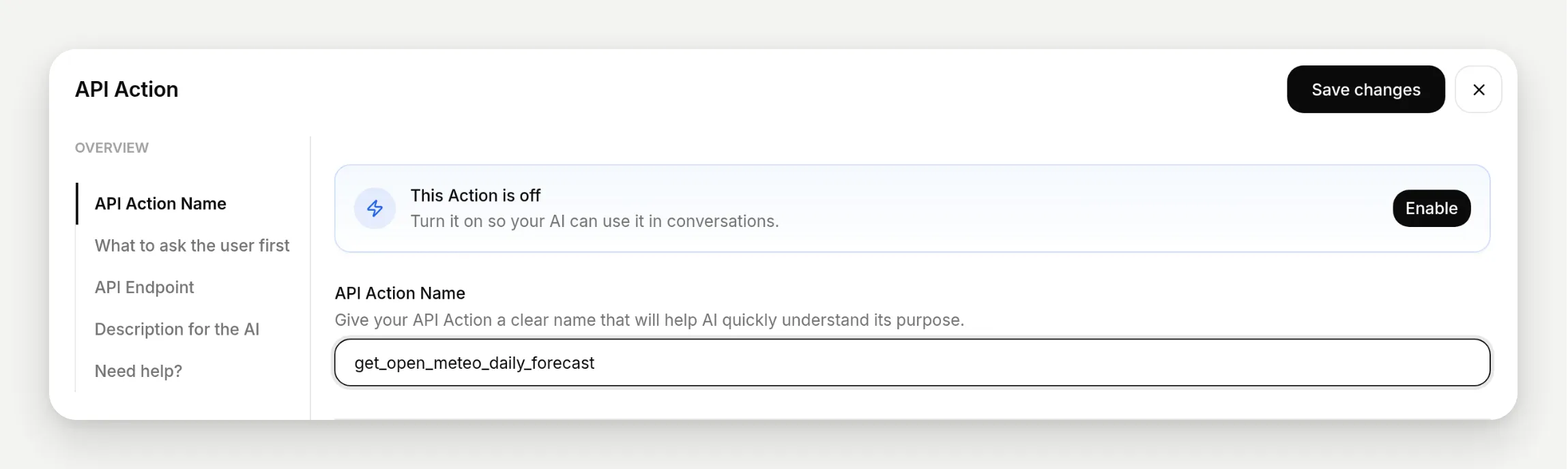 Review first, then switch on. Nothing calls anything until you do this.
If you would rather build this same action by hand, field by field, and understand every box from first principles, that is the cornerstone guide: Build a Free AI Agent That Takes Actions. The builder and the manual editor produce the same kind of action; this post is the generated path.
Step 3: Test it and watch the call happen
Ask the agent a question that should trigger the action. The transcripts here were driven through Quickchat’s test pipeline and recorded in the Inbox like any conversation; on your account, the AI Preview pane in the sidebar gives you the same loop in the browser.
The test message:
Hi! We're doing the Interlaken Classic next weekend. What will the weather be like in Interlaken on Saturday July 25 and Sunday July 26?The agent answered with the real forecast: around 27.7°C and nearly rain-free for Saturday, cooler with up to 18 mm of rain likely for Sunday, plus packing advice it drew from its knowledge.
The receipt is in the Inbox. Under the agent’s reply there is a “1 action called” marker; expand it and you get the full record of what happened:
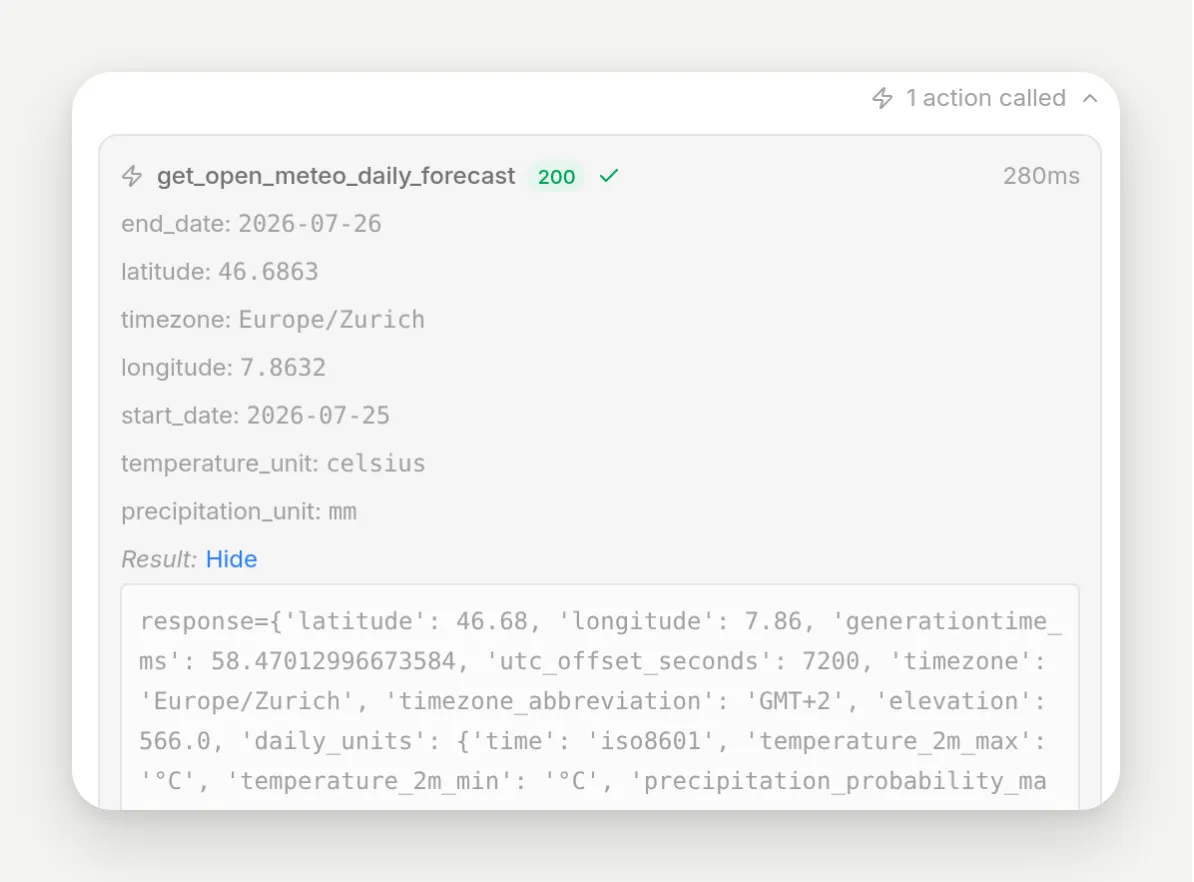 The call record: get_open_meteo_daily_forecast, HTTP 200 in 280 ms, and every value the model filled.
Read the parameters the model chose: latitude: 46.6863, longitude: 7.8632, timezone: Europe/Zurich, start_date: 2026-07-25, end_date: 2026-07-26. Nobody typed coordinates. The traveler said “Interlaken”, and the model translated that into the values the API needs, precisely enough to land on the town. That is the judgment half of the system doing its job; the deterministic half (the URL, the method, the fixed daily variable list) went out exactly as reviewed.
What is function calling in AI agents?
The receipt above is a picture of the mechanism the industry calls function calling: a language model, mid-conversation, chooses to emit a structured call to a predefined tool instead of a sentence, the platform executes it, and the model continues with the result in hand.
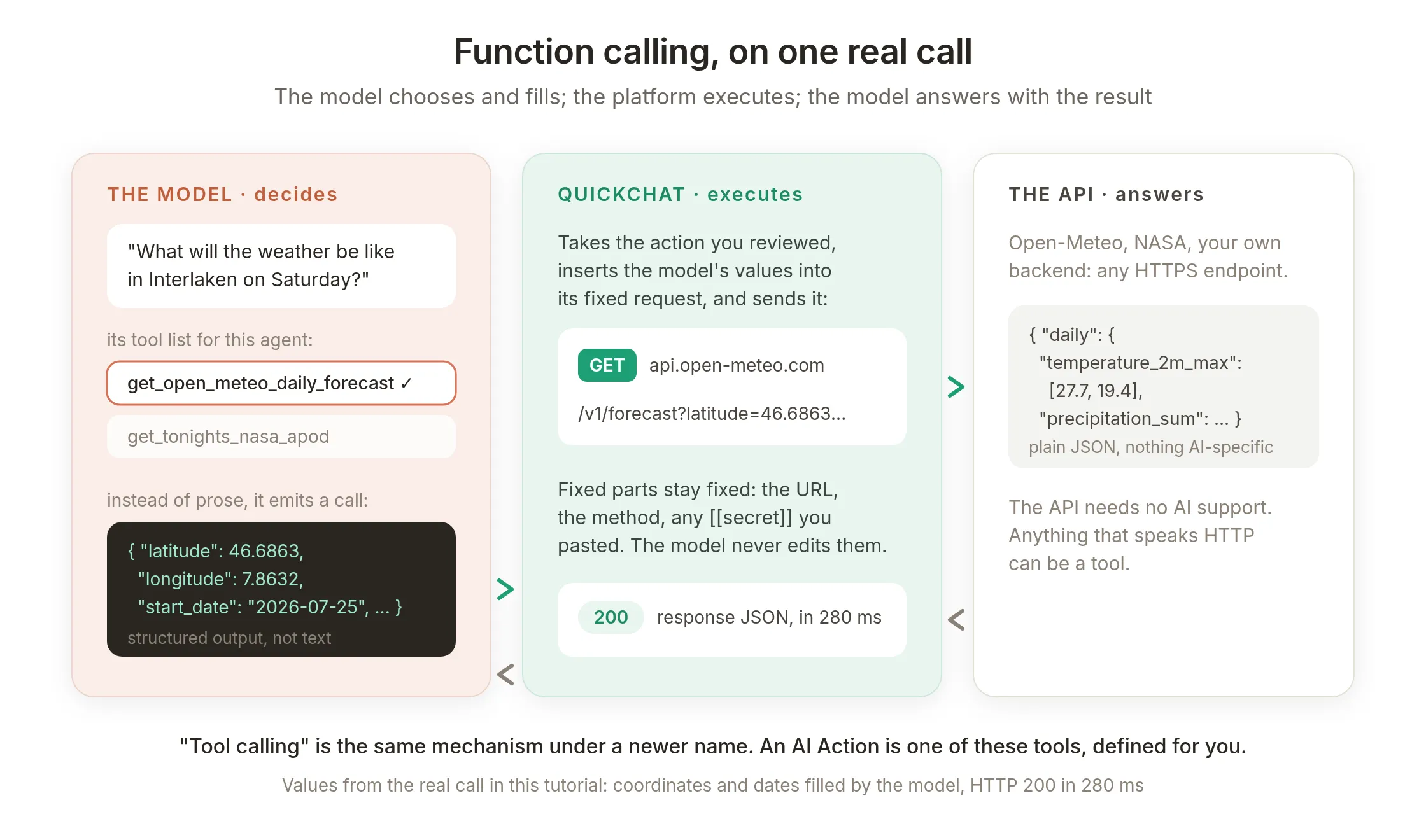 Function calling on this guide’s real call. The model only ever produces the structured values; the platform owns the request; the API is ordinary HTTP.
A few things fall out of the diagram:
- The model decides, the platform executes. The model never sends bytes to Open-Meteo. It produces
{"latitude": 46.6863, ...}and Quickchat inserts those values into the request you reviewed. The parts you fixed, the URL, the method, any secret, are not the model’s to change. - “Tool calling” is the same thing. The two names describe one mechanism; tool calling is the newer, more general term. An AI Action is a tool definition: its name, its description, and its parameter table are exactly what the model reads when deciding whether and how to call it. That is why the description field matters so much. Conceptually, the whole definition the model sees amounts to this:
name:        get_open_meteo_daily_forecast
description: Use this action when a traveler asks what the weather will be like on specific upcoming days at a destination...
parameters: latitude (number, required), longitude (number, required), timezone (text, required), start_date (text, required), end_date (text, required), temperature_unit (text), precipitation_unit (text)- The API side is ordinary. Open-Meteo did not add AI support for this. Any endpoint speaking HTTP and returning JSON can be a tool, which is why the one-sentence recipe generalizes to your own backend.
Every major model family supports this mechanism. What differs between platforms is who writes the tool definitions. In developer platforms and custom GPT actions, that is you, by hand, in a schema. The builder you used in Step 2 is function calling with the schema-writing removed: your sentence became the tool definition. For the engineering view of this landscape, from protocols like MCP to custom endpoints, see APIs for AI Agents: From MCP to Custom Endpoints.
Step 4: An API that needs a key
Most real APIs want a credential. This is where the builder’s second placeholder kind comes in, and Wanderlark’s stargazing add-on gives us a natural excuse: guests on Dark-Sky Nights love asking about NASA’s Astronomy Picture of the Day.
Open Add Action, choose API Action again, and describe it, this time telling the builder up front that you will supply the key:
Fetch NASA's Astronomy Picture of the Day from the NASA APOD API (GET https://api.nasa.gov/planetary/apod) so guests curious about our Dark-Sky Nights add-on can ask about tonight's featured astronomy picture and hear its title and what it shows. I will provide my own NASA API key.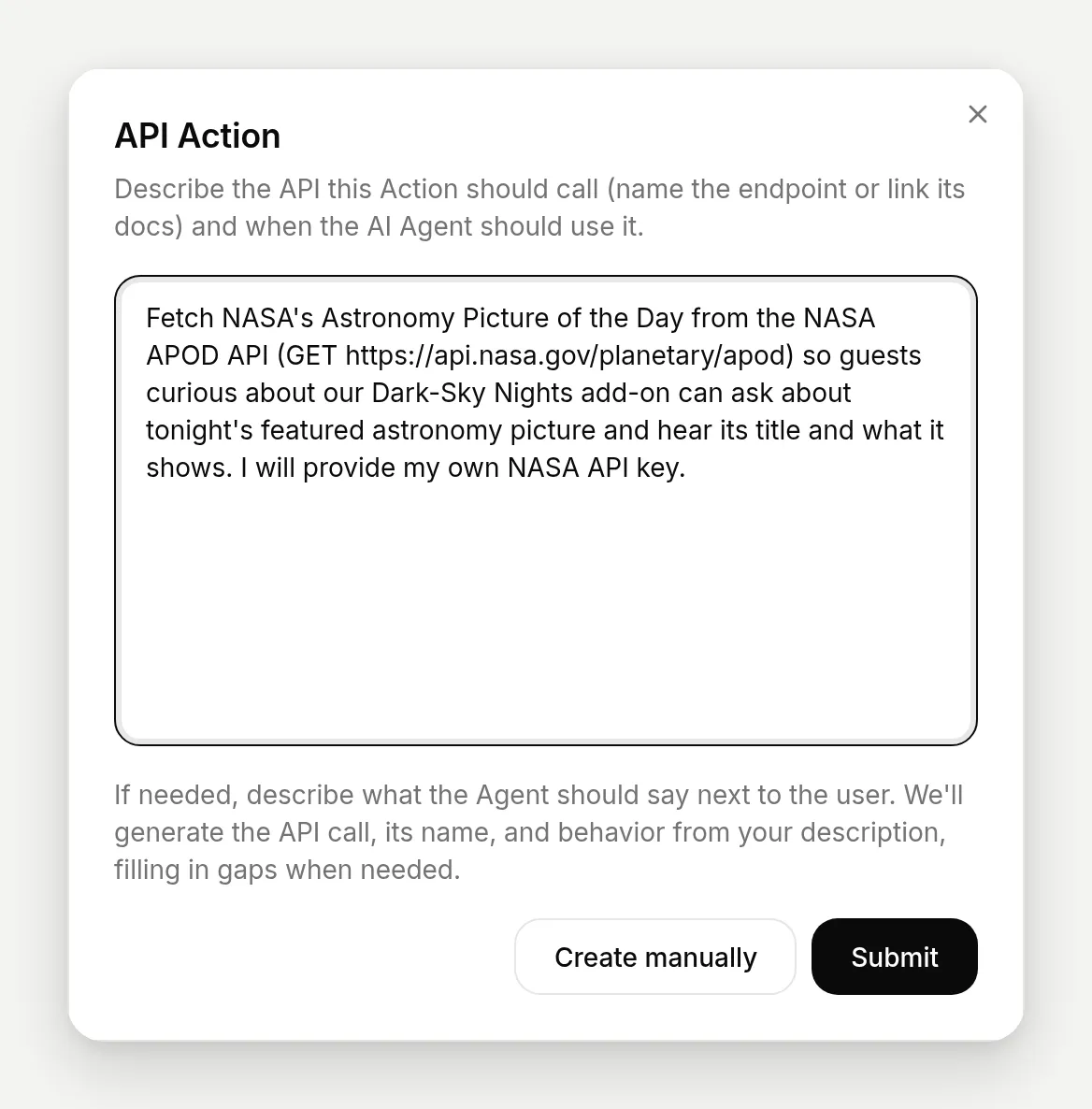 Saying “I will provide my own API key” tells the builder to leave a clean blank instead of guessing at auth.
Half a minute later the result dialog opens, and it looks different in one important way: an amber panel titled “Replace before activating”, listing exactly one thing: [[nasa_api_key]]. The preview card carries a red Incomplete badge, and its activation switch is off and stays off.
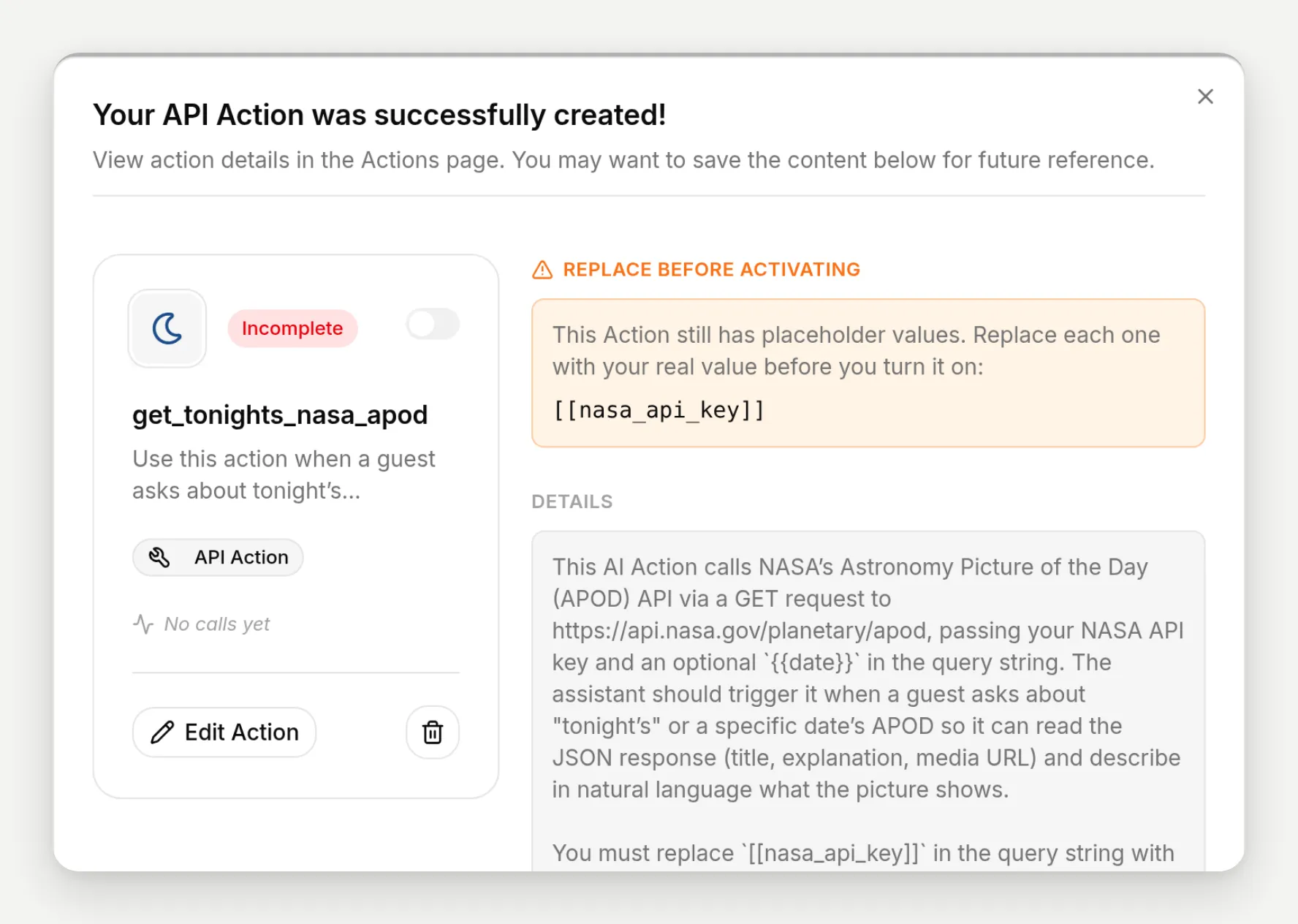 The builder wired the whole action and left one blank it could not fill: your key. Until you replace it, the action cannot be switched on.
On the Actions page, the switch is disabled outright, with a tooltip spelling out why:
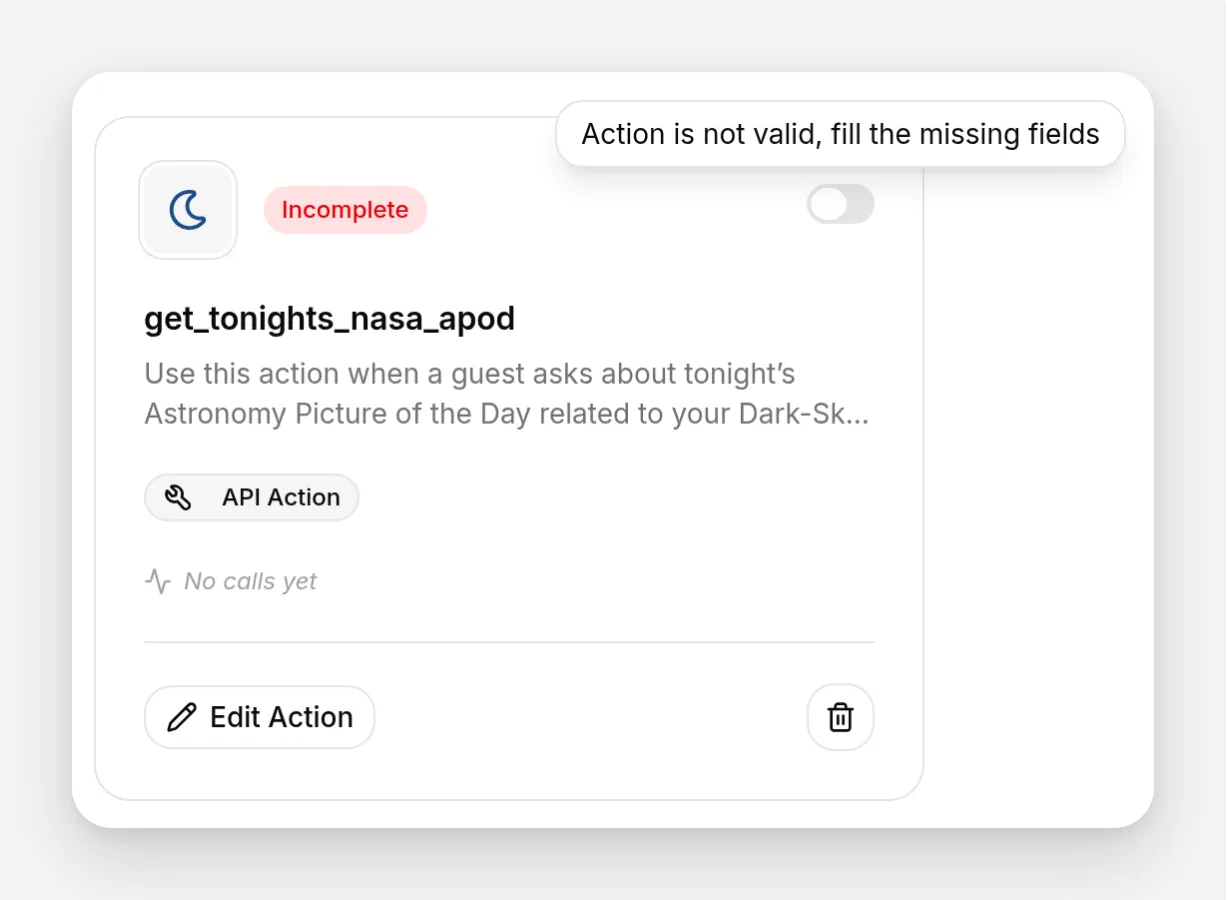 Activation is blocked at the platform level while any [[secret]] remains. An action with a placeholder where the key belongs cannot fail at 3 am, because it cannot run.
The two placeholder kinds have different owners:
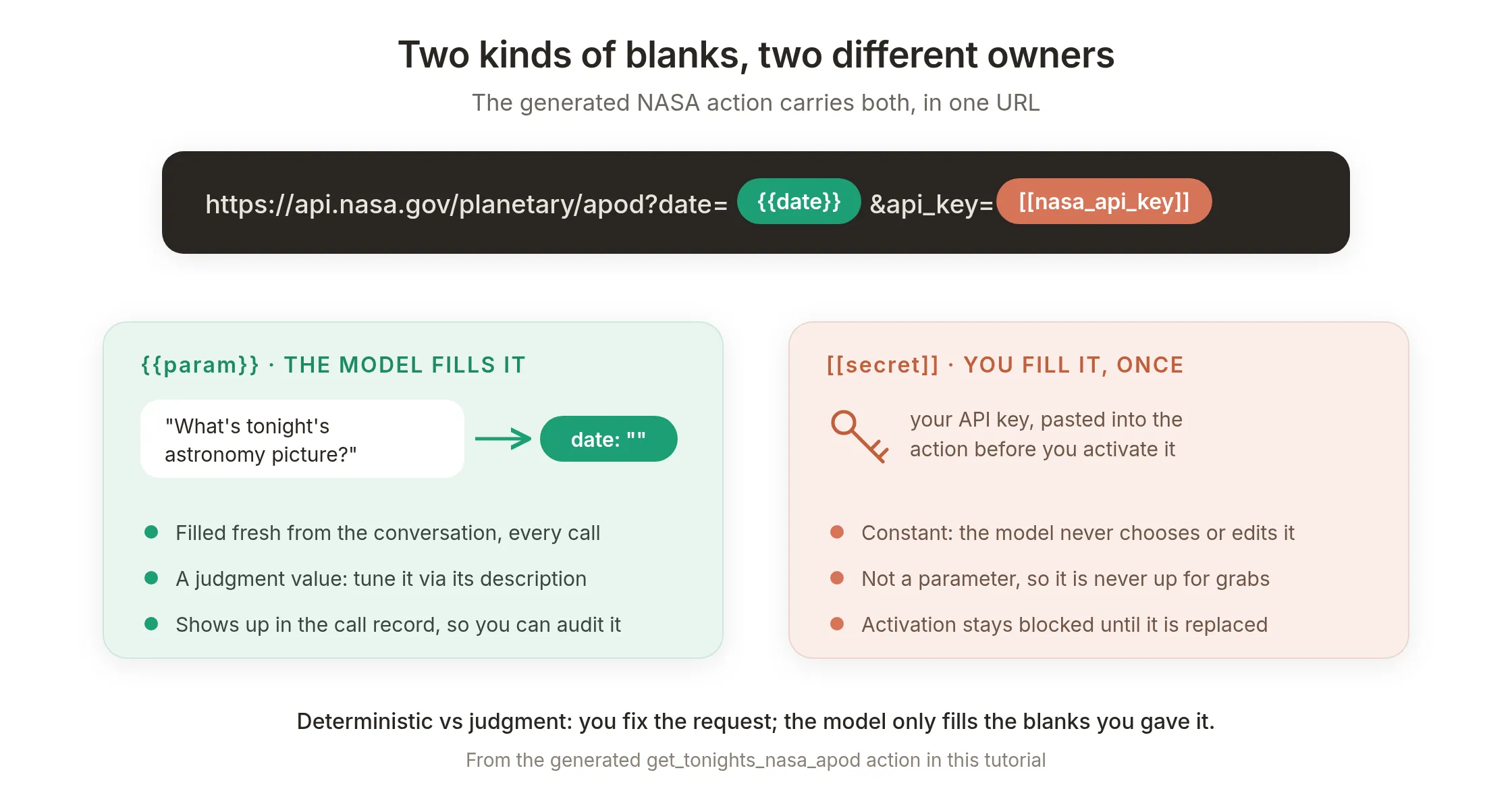 One URL, both kinds:
 {{date}} is the model’s blank, filled per call from the conversation; [[nasa_api_key]] is yours, pasted once.
Now fill it. NASA issues personal keys instantly (name and email at api.nasa.gov, key arrives by mail), and documents the shared DEMO_KEY for trying things out, which is what this build uses:
- On the action’s card, click Edit Action, then open the Query Params tab of the API Endpoint section.
- The
api_keyrow holds the amber[[nasa_api_key]]chip. Click into the value, and replace it with your key. - Click Save changes.
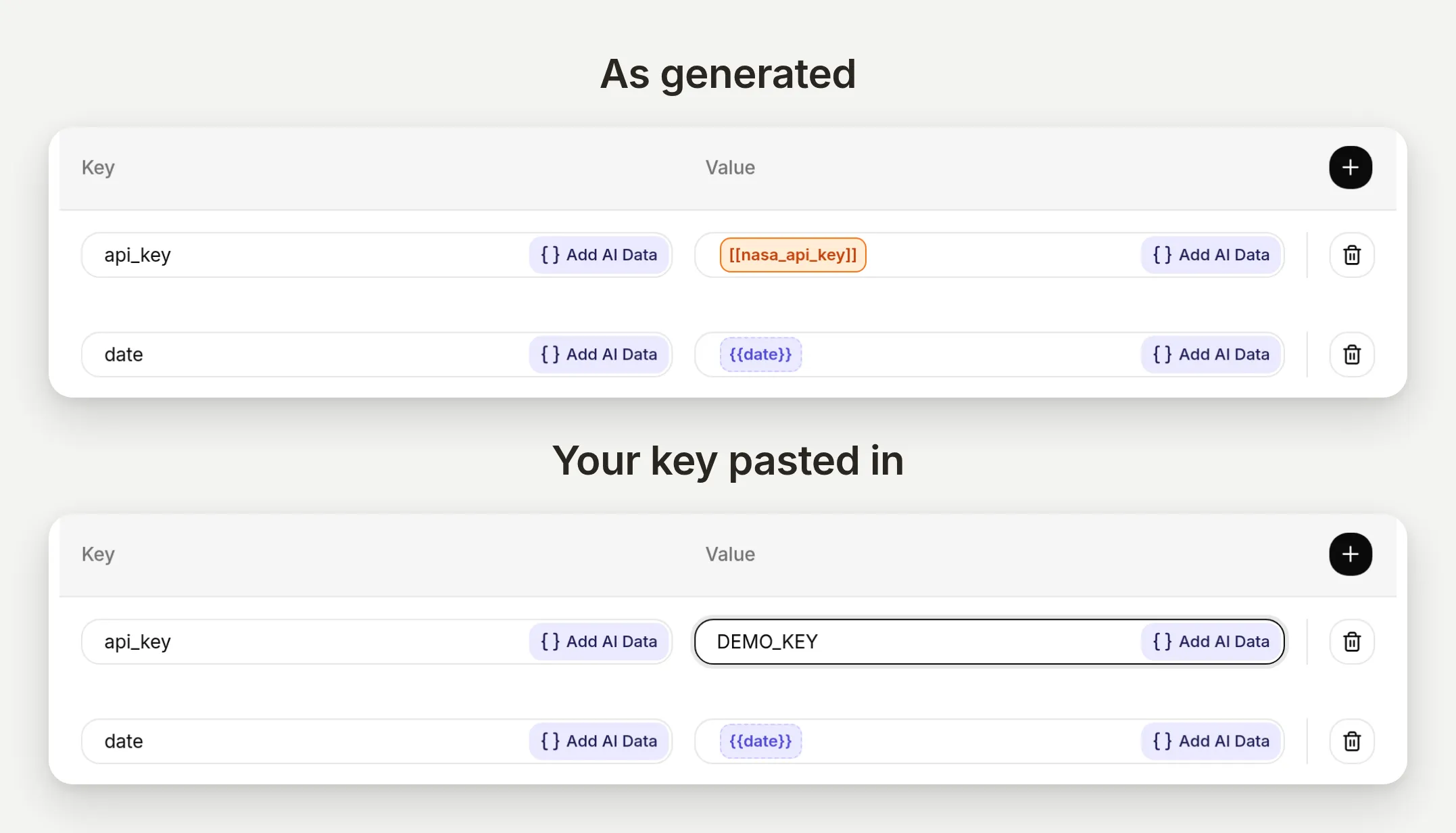 The placeholder is a normal editable value. Replace it and save.
Then notice what you did not have to do: flip the switch. When a save first makes a read-only GET action complete and valid, Quickchat activates it for you. Actions that write (POST, PUT, PATCH, DELETE) never do this; they wait for a deliberate activation, which is the right default for anything that changes data.
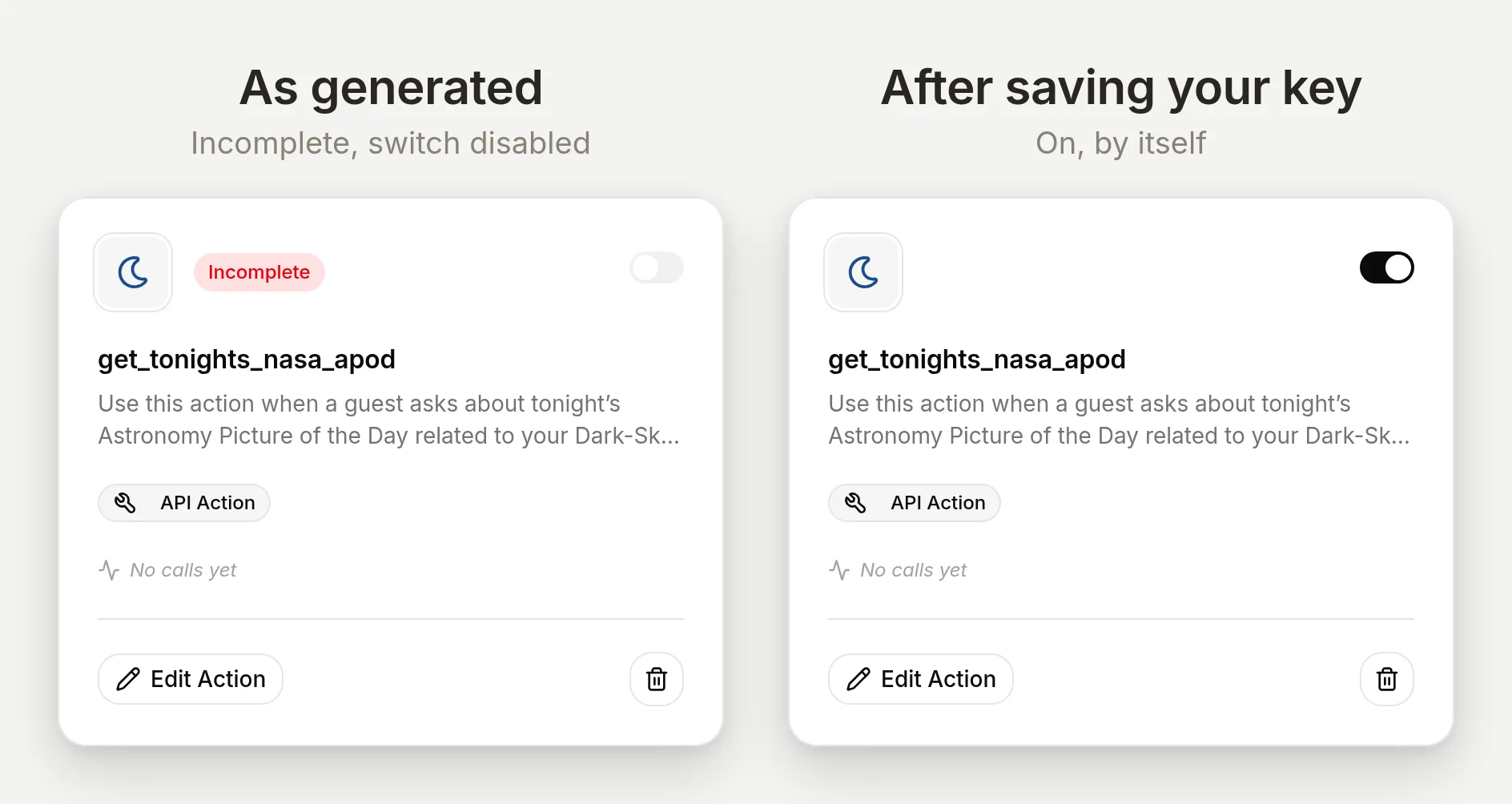 Paste, save, and a read-only lookup switches itself on. Write actions always leave the final decision to you.
Test it the same way as the forecast:
We added the Dark-Sky Nights add-on to our Zermatt Highline trip. What is tonight's astronomy picture about?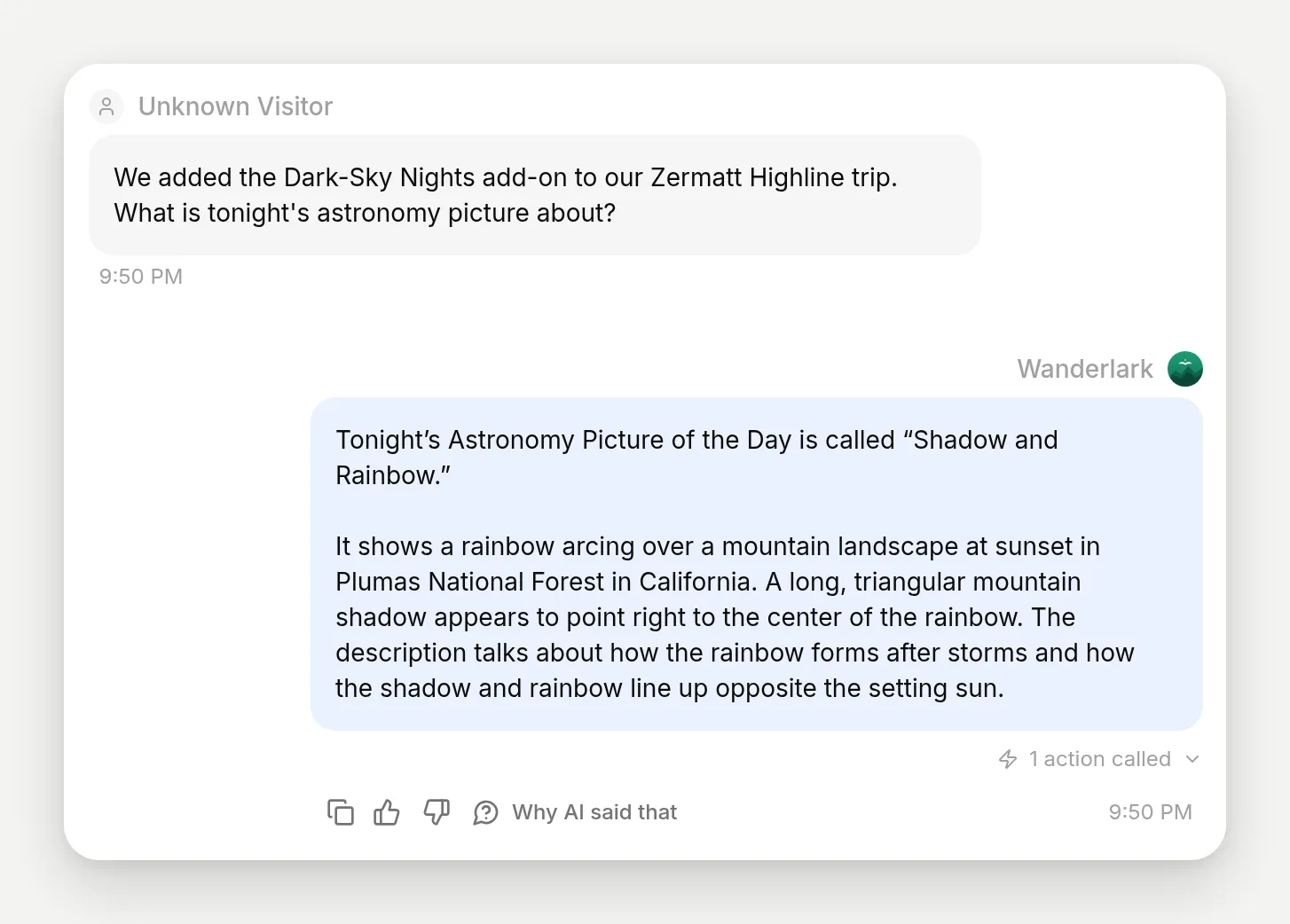 The agent fetched tonight’s picture, “Shadow and Rainbow”, and summarized what it shows.
And the receipt again, in the Inbox:
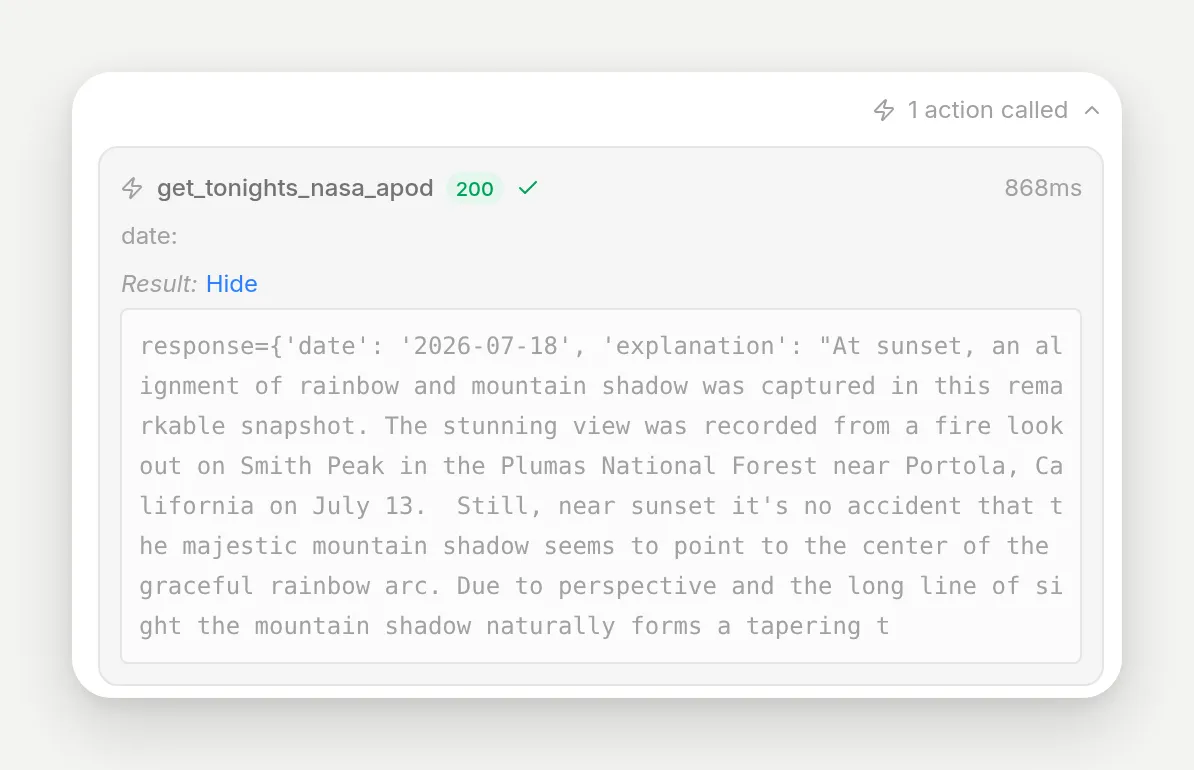 HTTP 200 from api.nasa.gov. The only model-filled value is the date, left empty so NASA defaults to today. The key is nowhere in this record: it is not a parameter, so it is never the model’s to fill or reveal.
What happens when the builder cannot find the API?
The builder does not always produce an action, and that is by design. Type a sentence that describes a behavior but names no API:
Let my agent help travelers reschedule their tour when the weather looks bad.The builder searches, finds no single API it could responsibly pick for you, and comes back with a different dialog: “We need a bit more detail”. No action is created. The Details panel explains precisely what is missing (which weather provider? which booking system?) and models the rephrase, down to an example sentence with a concrete endpoint in it.
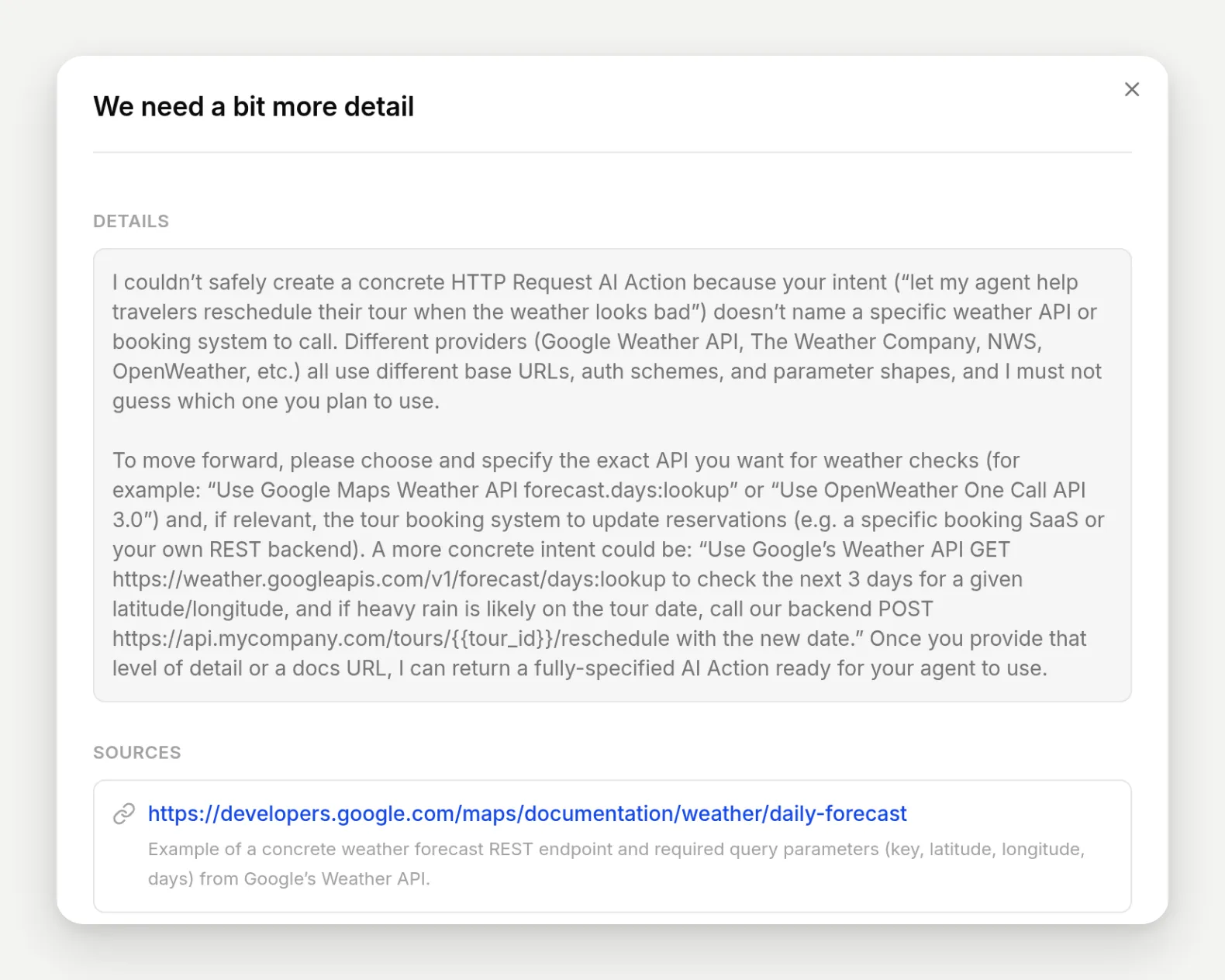 A refusal with a repair kit: what was ambiguous, why guessing would be wrong, and an example of the sentence that would work.
There is a second kind of refusal. Describe something Quickchat already does natively:
Hand the conversation over to a human guide when the traveler seems frustrated or asks to speak to a person.The builder recognizes this as built-in territory and, instead of wrapping an external API around a solved problem, points you at the feature, with a Set up Human Handoff button right in the dialog:
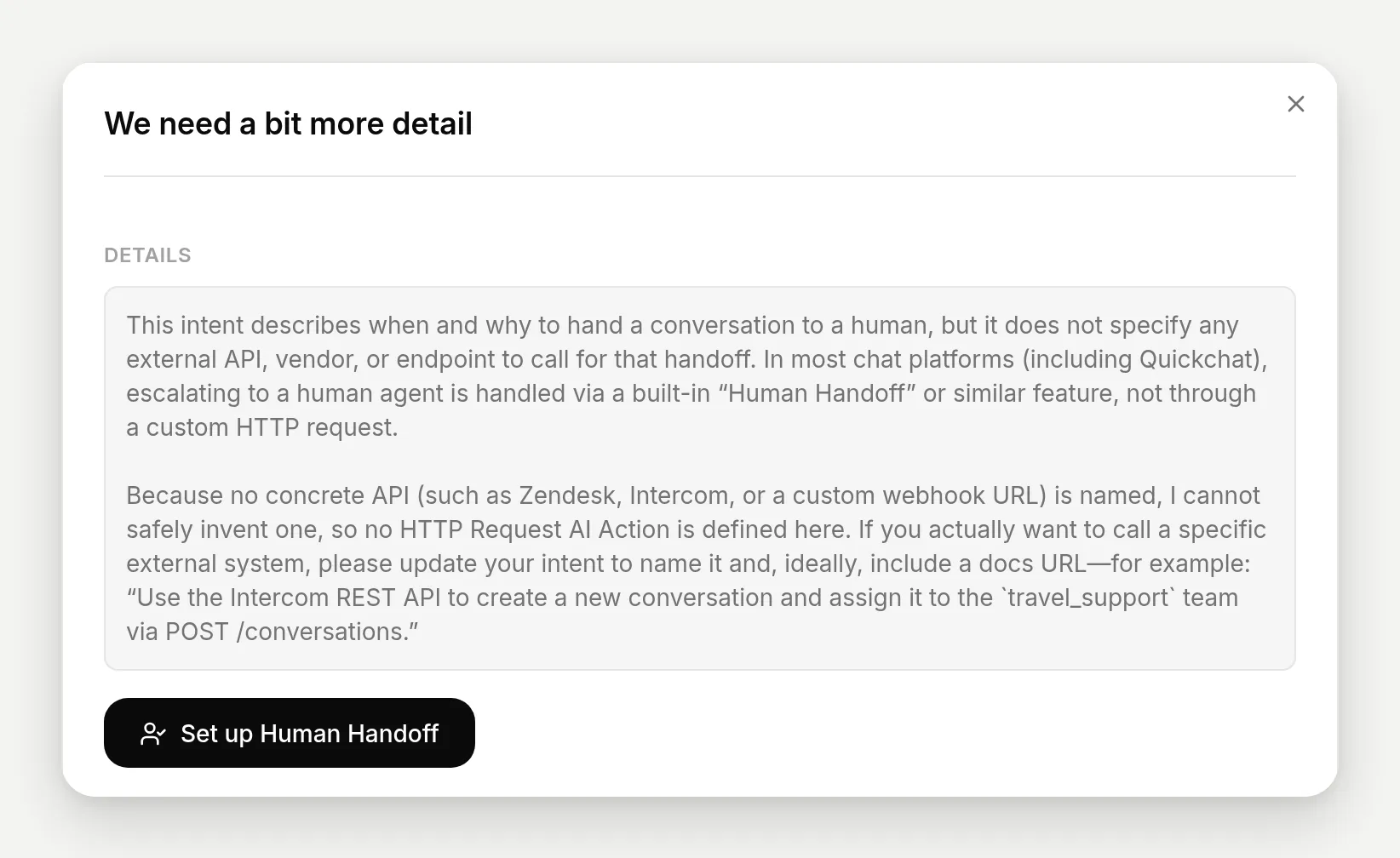 Not every capability should be a custom action. Escalation to a human is built in, and the builder routes you there instead of duplicating it.
The exact sentences and settings to copy
Everything the demo used, in one place. The two sentences that generated the actions:
Get the daily weather forecast for a place from the Open-Meteo API (docs: https://open-meteo.com/en/docs) so that when a traveler asks what the weather will be like at one of our destinations, the agent can answer with real temperatures and rain chances for the days they asked about.Fetch NASA's Astronomy Picture of the Day from the NASA APOD API (GET https://api.nasa.gov/planetary/apod) so guests curious about our Dark-Sky Nights add-on can ask about tonight's featured astronomy picture and hear its title and what it shows. I will provide my own NASA API key.The AI Main Prompt, including the two action lines added after the actions existed. Naming the actions and their trigger moments in the prompt makes firing noticeably more reliable, and the action names to use are the generated ones you saw in the editor:
You are the assistant for Wanderlark Tours, a small-group alpine hiking tour operator. Wanderlark runs three guided tours: the Interlaken Classic, the Zermatt Highline, and the Dolomites Traverse, plus the Dark-Sky Nights stargazing add-on. Help travelers choose a tour, understand dates, prices, difficulty, and what to pack, and answer booking and cancellation questions. Be warm, practical, and concise, and keep answers short.

When a traveler asks what the weather will be like at a destination on upcoming days, call get_open_meteo_daily_forecast and answer with the real numbers for the days they asked about. When a guest asks about tonight's astronomy picture or what they might see on a Dark-Sky Night, call get_tonights_nasa_apod and describe the picture's title and what it shows.

Only answer from what you actually know about Wanderlark. If you do not have a detail, say you do not have it and offer to connect them with the Wanderlark team, rather than guessing.
The generated API Action Descriptions, as the builder wrote them (tune these, not the URL, when firing behavior needs work):
Use this action when a traveler asks what the weather will be like on specific upcoming days at a destination, and you need real daily forecast data (high/low temperatures and chance of rain) from the Open-Meteo API. The assistant should call this with the destination's latitude/longitude, date range, and preferred units, then use the JSON response to describe the forecasted temperatures and precipitation probabilities for the requested days in natural language.Use this action when a guest asks about tonight's Astronomy Picture of the Day related to your Dark-Sky Nights add-on so you can fetch NASA's official APOD metadata and describe the title and what the picture shows. The action calls NASA's APOD API for the specified date (defaulting to today if no date is provided) and returns JSON including the image or video URL, title, explanation, and media type, which the assistant should summarize conversationally for the guest.The Thinking message set on the forecast action (the line the widget shows while the call runs):
Checking the live forecast for you...The five Knowledge Base articles, abbreviated to their facts:
Tours: Interlaken Classic, 3 days, easy to moderate, 890 euros, max 10 guests, May to October. Zermatt Highline, 4 days, moderate to challenging, 1,290 euros, max 8, June to September. Dolomites Traverse, 5 days, challenging, 1,590 euros, max 8, late June to mid September, hut to hut. Prices include guide, accommodation, breakfasts.

Dark-Sky Nights: stargazing add-on on Zermatt Highline and Dolomites Traverse, 120 euros per person, guided night walk with a telescope, scheduled around the new moon; clouded-out sessions move or are refunded.

Booking: 200 euro deposit, balance due 30 days before start. Free cancellation to 30 days; 50 percent refund 29 to 14 days; within 14 days no refund but one free rebooking within 12 months.

Packing: layers, waterproof shell, broken-in boots, 30 liter daypack; poles and crampons provided; cold evenings even in summer.

Meeting points: Interlaken Ost station; Zermatt station (car-free, shuttle from Taesch); Cortina d'Ampezzo, Venice airport transfer 45 euros each way.
How do I describe an API so the builder gets it right?
Three rules cover everything this build hit, and the failure dialog teaches the same lesson from the other side:
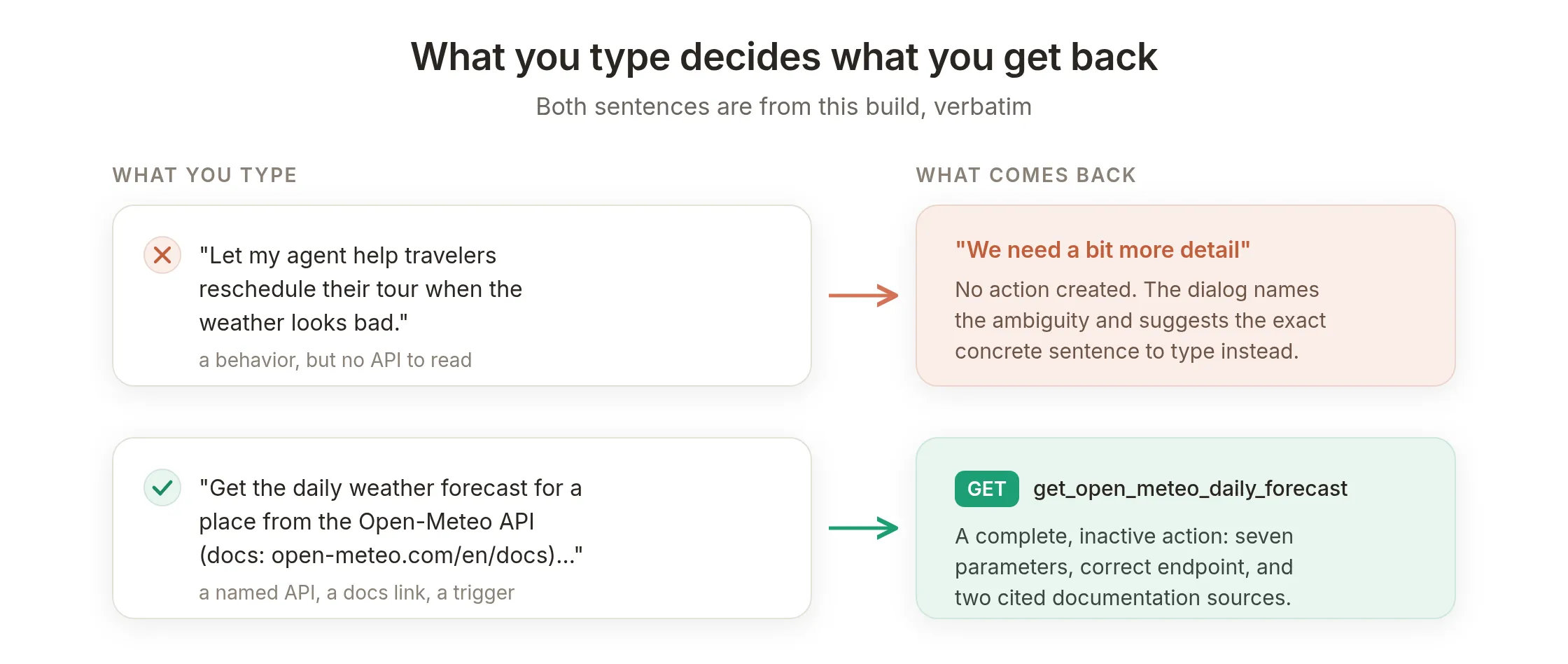 The pattern behind every outcome in this guide: concrete API in, working action out; behavior-only in, guidance back.
- Name the API, the endpoint, or paste a docs URL. “The Open-Meteo API (docs: …)” produced a correct action grounded in two cited sources. “Reschedule their tour when the weather looks bad” produced a refusal, because it names a wish, not an API. The builder needs something concrete it can read, and that is the rule the other two rest on.
- Say when the agent should use it, and what to say next. Your trigger clause becomes the action description nearly verbatim, and the description is what fires the action at runtime. “When a traveler asks what the weather will be like” is a signal the model can recognize mid-conversation.
- Say how the credential will work, if there is one. “I will provide my own NASA API key” got auth modeled as a clean
[[secret]]. The builder also leans this way on its own: it prefers static, long-lived credentials like keys and webhook URLs over short-lived OAuth tokens, because the action runs as-is on every call, with no token-refresh machinery.
And one non-rule: you do not need to specify parameters, formats, or response fields. The builder read Open-Meteo’s docs and chose seven parameters, sensible defaults, and the right daily variables without being asked. Review what it chose in the editor rather than trying to dictate it up front.
Iteration itself is cheap. There is no regenerate button; when a draft comes out wrong, delete it and resubmit a sharper sentence, about half a minute per attempt. Accounts hold up to 15 created actions, so clean up drafts as you go.
Going live
Activation already did it. Actions belong to the agent, not to a channel, so the two lookups you built fire the same way from the website widget, WhatsApp, Messenger, Slack, Telegram, Discord, or wherever else the agent is deployed, with every call recorded in the Inbox. If the website widget is the main channel, you can white-label the AI chatbot without changing the action. The same holds for what it cannot answer: asked about winter snowshoe tours, Wanderlark says it does not run any, rather than improvising.
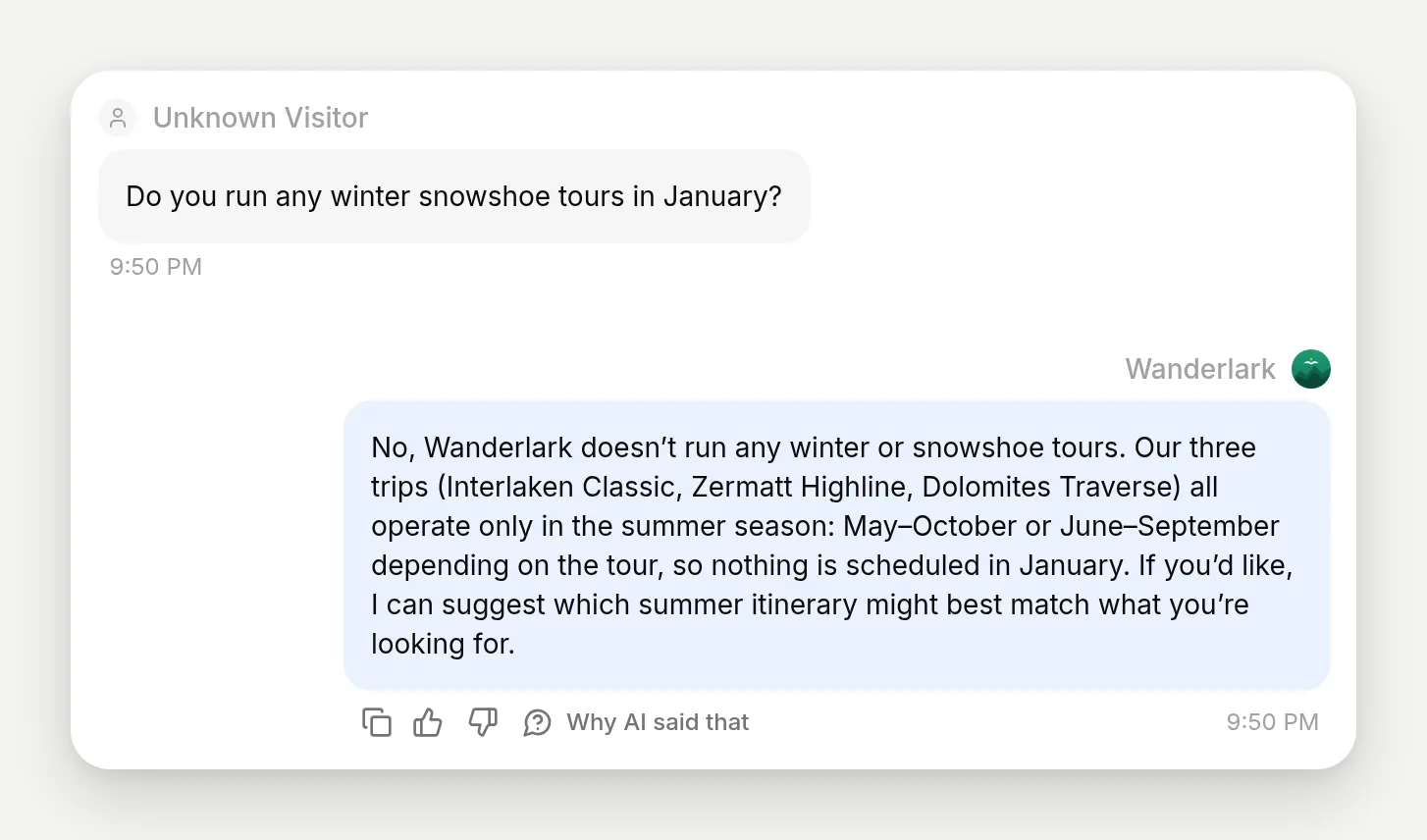 Asked something outside its knowledge, the agent says so instead of improvising. The same restraint carries over to its API calls.
Two natural next steps once your first actions are live:
- Make firing deterministic where it matters. Action descriptions decide when the model calls; for actions that must only run under specific conditions, add server-side run conditions and memory captures: How to Make Your AI Agent’s Actions Reliable.
- Use the one-click integrations for the tools that have them. The same Add Action menu holds the other roads: HubSpot Action, Discord Action, and Google Sheets ship as ready-made galleries, Shopify MCP connects a store’s catalog, and MCP connects any remote MCP server, from a catalog of 240+ or a pasted URL, importing that server’s tools. The guides below walk through the galleries.
Three roads to the same place, one rule of thumb:
| One-click integrations and MCP | The plain-English builder | The manual editor | |
|---|---|---|---|
| Best for | Popular tools with a gallery, or any MCP server | Any documented REST API, including the long tail | Internal APIs, or full control over every field |
| You provide | An account connection or a server URL | One sentence, plus a key if the API needs one | Every field yourself |
| The agent gets | A curated set of ready tools | One reviewed, cited action per sentence | Exactly what you typed |
| Covered in | The guides below | This guide | The anatomy above, and the master recipe it links |
Related guides
- Connect your AI Agent to HubSpot: contacts, deals, and tickets written mid-conversation, with the write-only safety pattern.
- Turn your AI Agent into an MCP server: the inverse shape, where ChatGPT, Claude, and Cursor call your agent.
- Build an AI Telegram bot to manage your group: six hand-built Bot API actions with admin gating.
- AI Discord moderation bot: moderation actions with permissions and authorization done properly.
- AI Discord ticket bot: the support half of the same gallery, answering from a knowledge base and opening private ticket threads.
- Connect your AI Agent to Google Sheets: the one-click reporting integration.
Frequently asked questions
How do I connect an AI agent to an API without writing code?
In Quickchat AI, open Actions & MCPs, click Add Action, choose API Action, and describe the API in one plain-English sentence. An LLM with live web search reads the API’s documentation and generates the complete action, with the method, URL, parameters, and a description. You review it, fill in any placeholder values such as an API key, and switch it on.
What is function calling in AI agents?
Function calling is the mechanism where a language model, mid-conversation, outputs a structured request to run a predefined tool instead of plain text. The platform executes the tool, in this case an HTTP request, and hands the result back to the model, which then writes its reply using real data. Every AI Action call in this guide is one function call.
Is function calling the same as tool calling?
Yes. Function calling and tool calling name the same mechanism; tool calling is the newer, more general term. An AI Action is one of these tools: a described HTTP request the model can choose to call during a conversation.
How does the builder know what the API looks like?
It runs a live web search over the API’s documentation while generating, and it assembles the action only from what it could confirm there. The result dialog lists the sources it read, so you can check them before you activate the action.
What is the difference between {{param}} and [[secret]] placeholders?
A {{param}} value is filled in by the model from the conversation on every call, for example a date or a city. A [[secret]] value is a constant you paste in once before activating, for example an API key. The model never chooses or edits secrets, and they are not parameters it can fill.
Where does my API key go, and can a visitor get it out of the agent?
You replace the [[secret]] placeholder inside the action, in the editor, before activating. The key becomes part of the fixed request that Quickchat sends. It is not a parameter, so the model cannot change it, and it does not appear in the conversation’s action-call record.
Does the builder only create GET lookups, or can the agent write data too?
Both. The same one-sentence flow generates POST, PUT, PATCH, and DELETE actions. Read-only GET actions switch themselves on once they are complete and valid; write actions always wait for you to activate them deliberately.
Can it connect to private or internal APIs?
Yes, as long as the endpoint is reachable over HTTPS from Quickchat’s side. The builder grounds itself in public documentation, so for an internal API describe the endpoint explicitly in your sentence, or generate a close template and adjust the URL and fields in the editor.
What happens if I describe a behavior instead of a specific API?
The builder fails closed. Instead of inventing an endpoint, it explains what is missing and shows you how to rephrase, usually by naming a concrete vendor, endpoint, or docs URL. If your request matches a built-in feature such as Human Handoff, it points you to that feature instead of creating a custom action.
What happens if the API call fails during a conversation?
The agent sees the error and tells the user it could not complete the lookup instead of inventing an answer. Every call is recorded on the conversation in the Inbox with its parameters and HTTP status code, so you can see exactly what was sent and what came back.
Can ChatGPT, Claude, or Gemini connect to an API like this?
Their models all support function calling, but wiring it up is developer work: you write the function schema or OpenAPI spec yourself, as with custom GPT actions. Here you type one sentence and the action is generated from the API’s live docs, then runs on all your agent’s channels. You can also expose your finished Quickchat agent to ChatGPT, Claude, and Cursor as an MCP server.
Which channels can the agent call the API from?
All of them. Actions belong to the agent, not to a channel, so the same action fires from the website widget, WhatsApp, Messenger, Slack, Telegram, Discord, and anywhere else your agent is deployed.
Is the plain-English action builder free?
Yes. Generating, reviewing, and activating API Actions works on the free plan, and both actions in this guide were built on a free account. Paid plans add higher usage limits and more advanced models, not access to the builder.
How does the agent choose between multiple actions?
It reads each action’s name and description and picks the one that matches the moment in the conversation. The demo agent holds two: a weather question routes to the forecast action, and an astronomy question routes to the NASA one, because their descriptions name those triggers. Clear, distinct descriptions are what make the choice reliable.
How much latency does an API call add to a reply?
Less than you might expect. The real forecast call in this guide returned in 280 ms, inside a reply that took about two seconds end to end. The visitor sees a brief thinking indicator, which you can replace with a custom thinking message, and then an answer built on live data.
Summary
Two typed sentences became two live, documented, reviewed API Actions: a keyless weather lookup and a keyed NASA lookup, each proven with an HTTP 200 recorded in the Inbox next to the values the model filled. The rules that make it dependable fit in three lines. Name a real API and the builder grounds the action in its docs and cites them. Anything only you know arrives as a [[secret]] that blocks activation until you fill it. Anything the builder cannot confirm becomes an explanation and a suggested rephrase, never a guess.
For the full field list of API Actions, run conditions, and response handling, keep the AI Actions docs nearby as you build.