


A board game recommender for your own collection checks the games you own against tonight’s player count, available time and preferences. Shelf Night reads that collection from Google Sheets, records a completed play after confirmation, and uses the log to avoid recent repeats.
There are four of you around the table, an hour to play, and Azul and Cascadia on the shelf. The first shortlist includes both. After recording a Cascadia session, the next query excludes it and leaves Azul.
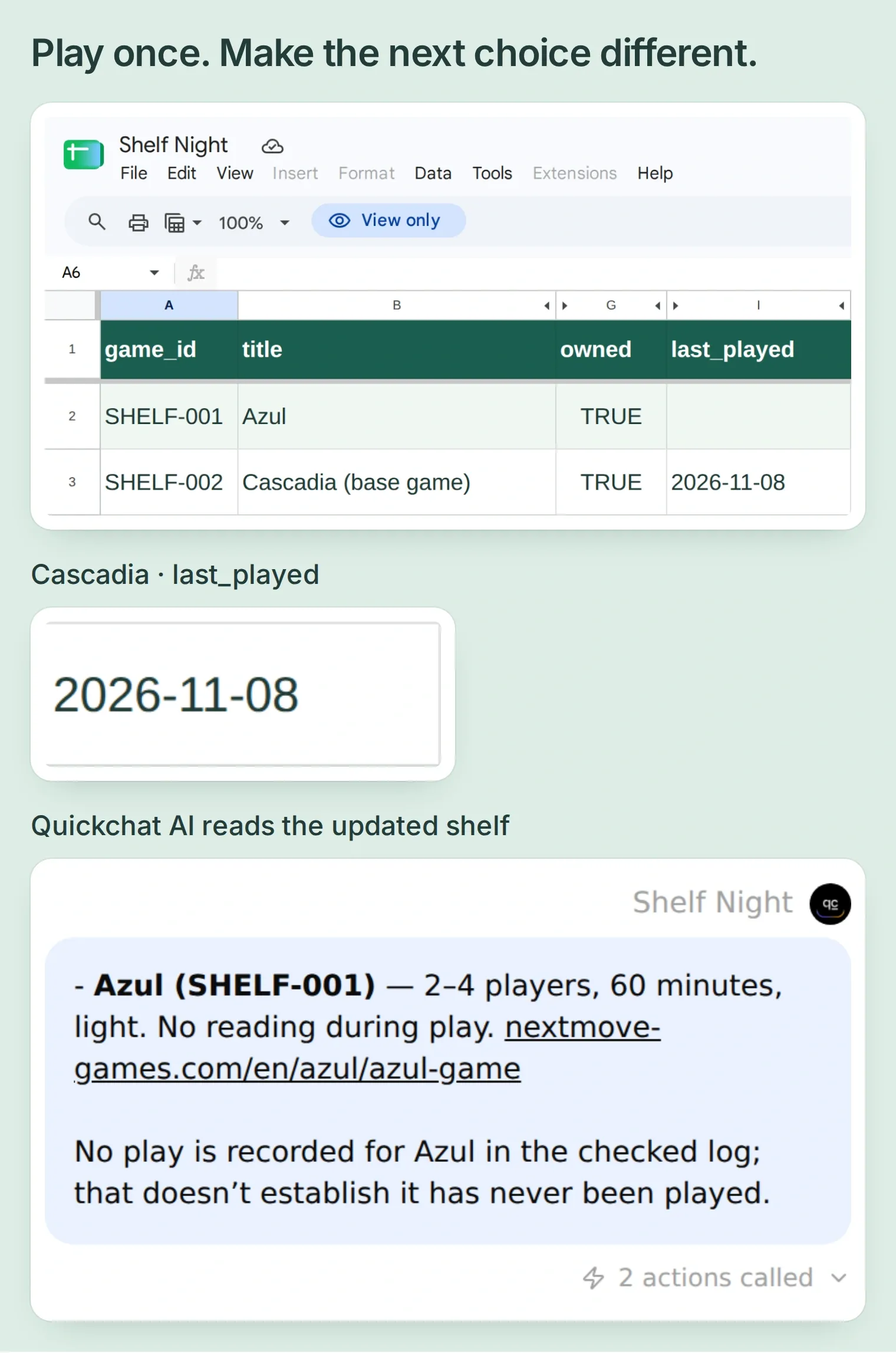 The finish line: Cascadia is recorded in the play log, and Shelf Night recommends Azul when asked to avoid recent repeats.
The Google Sheets screenshots show our connected test file. The Quickchat AI screenshots use the local app to display the replies and Action results recorded by our live test Agent.
You will build the collection read first, then add confirmed play logging and the recent-play check. You will verify the saved row as well as the answer.
Download the Shelf Night starter kit. It contains two tab-separated spreadsheet files, the complete prompt, three Action recipes and a test checklist. These are editable reference files, not an automatic Agent import. Screenshots and copyable settings use English interface labels.
Follow the steps to prepare the shelf, connect the spreadsheet, get a recommendation, record a play, and avoid repeats.
What will your game-night picker know?
Shelf Night combines recorded game facts with your household’s preferences. The sheet holds both, with separate columns so the assistant can explain where a recommendation comes from.
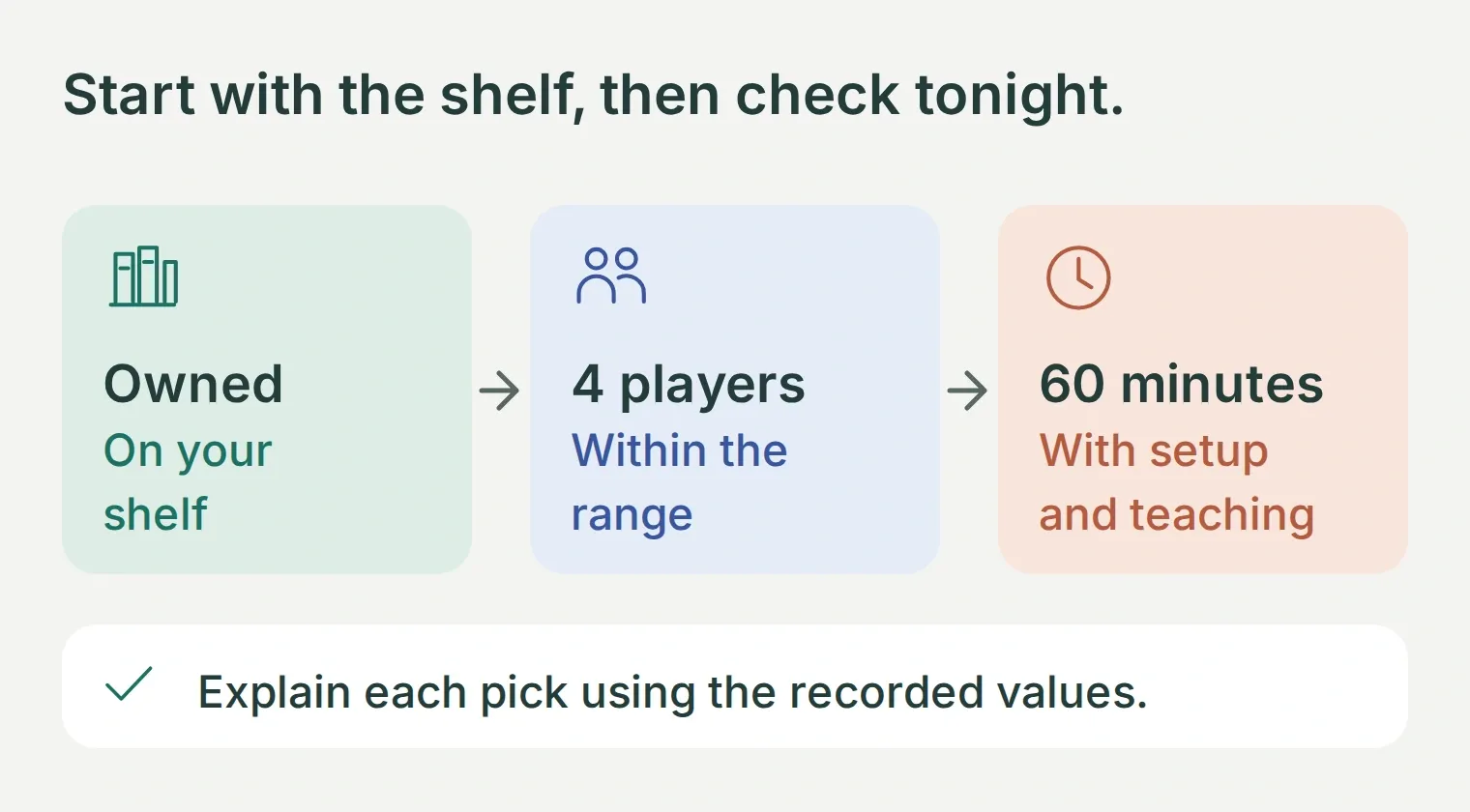 Ownership, player count and planning time each remove a different kind of unsuitable suggestion.
The example uses two real base games and two deliberate edge cases. The publishers list Azul for 2–4 players and Cascadia for 1–4 players. Our fictional household allows 60 minutes for either, including setup and teaching. That budget is ours; it is not a publisher’s duration guarantee.
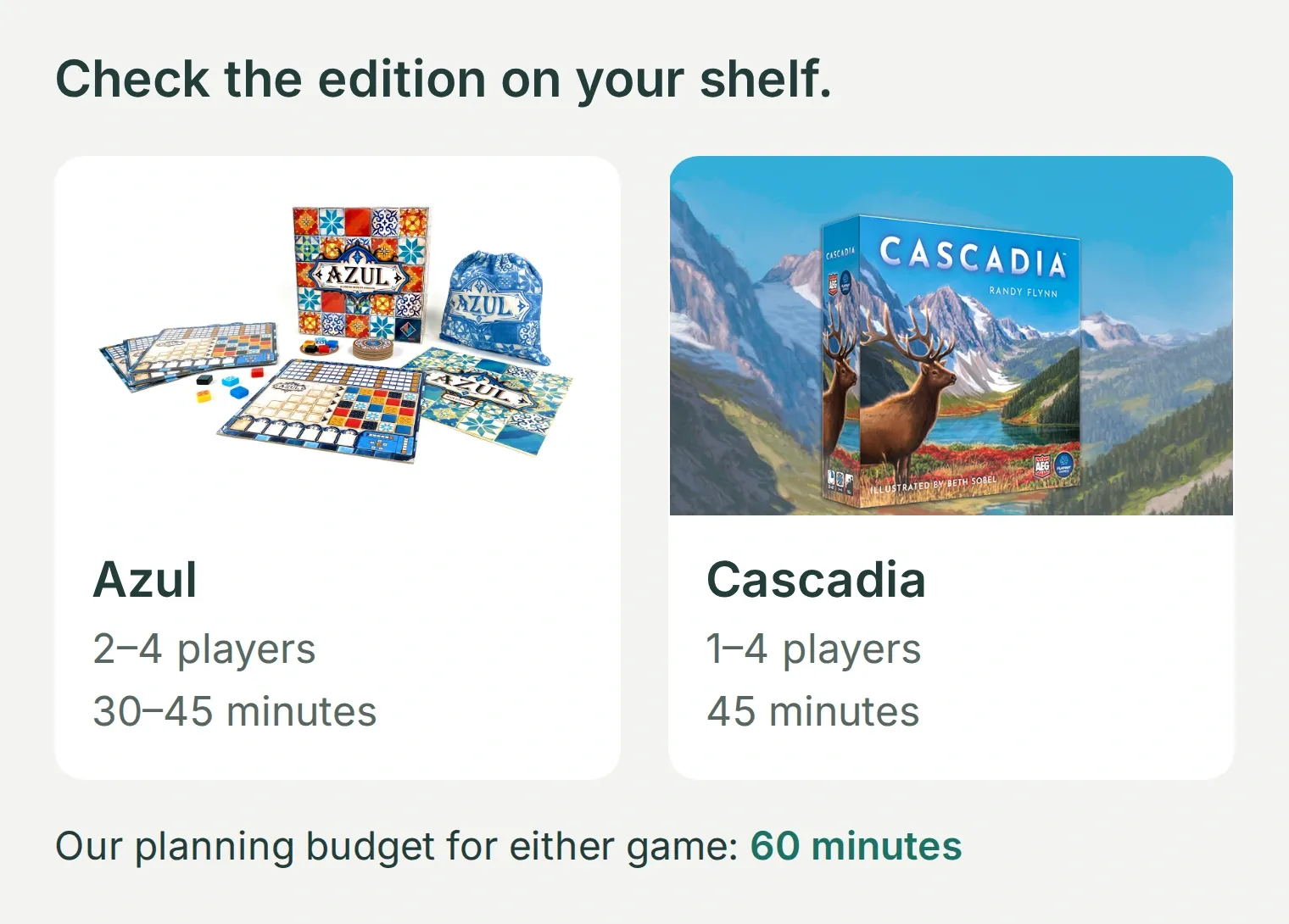 Check the edition on your shelf. Product images: Next Move Games / Asmodee and Alderac Entertainment Group / Flatout Games. Publisher playtimes and your group’s planning budget are separate values.
You need a Quickchat AI account, a Google account that can authorize the Sheets connection, and a few games to catalog. A BoardGameGeek account is optional. Check the current AI-credit and Action allowances for your account; conversations and Simulation Testing use credits.
Step 1: How do you prepare your board game collection?
Start with a small shelf you can verify by eye. Record a stable ID, ownership, player range and a time budget for each game before asking the assistant to choose.
- Open the kit’s
Collection.tsv. Keep the header names and order. Replace the sample rows with your own later, after the first test works. - Give each box a stable
game_id, such asSHELF-001. Include the edition or expansion in the title when it affects the rules. Do not treat an expansion as a standalone game. - Copy player counts from the box, rulebook or publisher. Set
planning_minutesto the time your group needs, including teaching. Leave unverified values blank. - Choose your own
complexitylabels, such aslightormedium. Record ownership explicitly. A wishlist entry should haveownedset toFALSE.
| Sample game | Players | Planning budget | Owned | What it teaches |
|---|---|---|---|---|
Azul, SHELF-001 | 2–4 | 60 minutes | TRUE | A complete candidate |
Cascadia (base game), SHELF-002 | 1–4 | 60 minutes | TRUE | A candidate we will log and exclude later |
Wishlist sample, SHELF-003 | 2–4 | 45 minutes | FALSE | A good fit can still be unowned |
Uncatalogued travel game, SHELF-004 | Minimum 2; maximum unknown | Unknown | TRUE | Missing information must stay unknown |
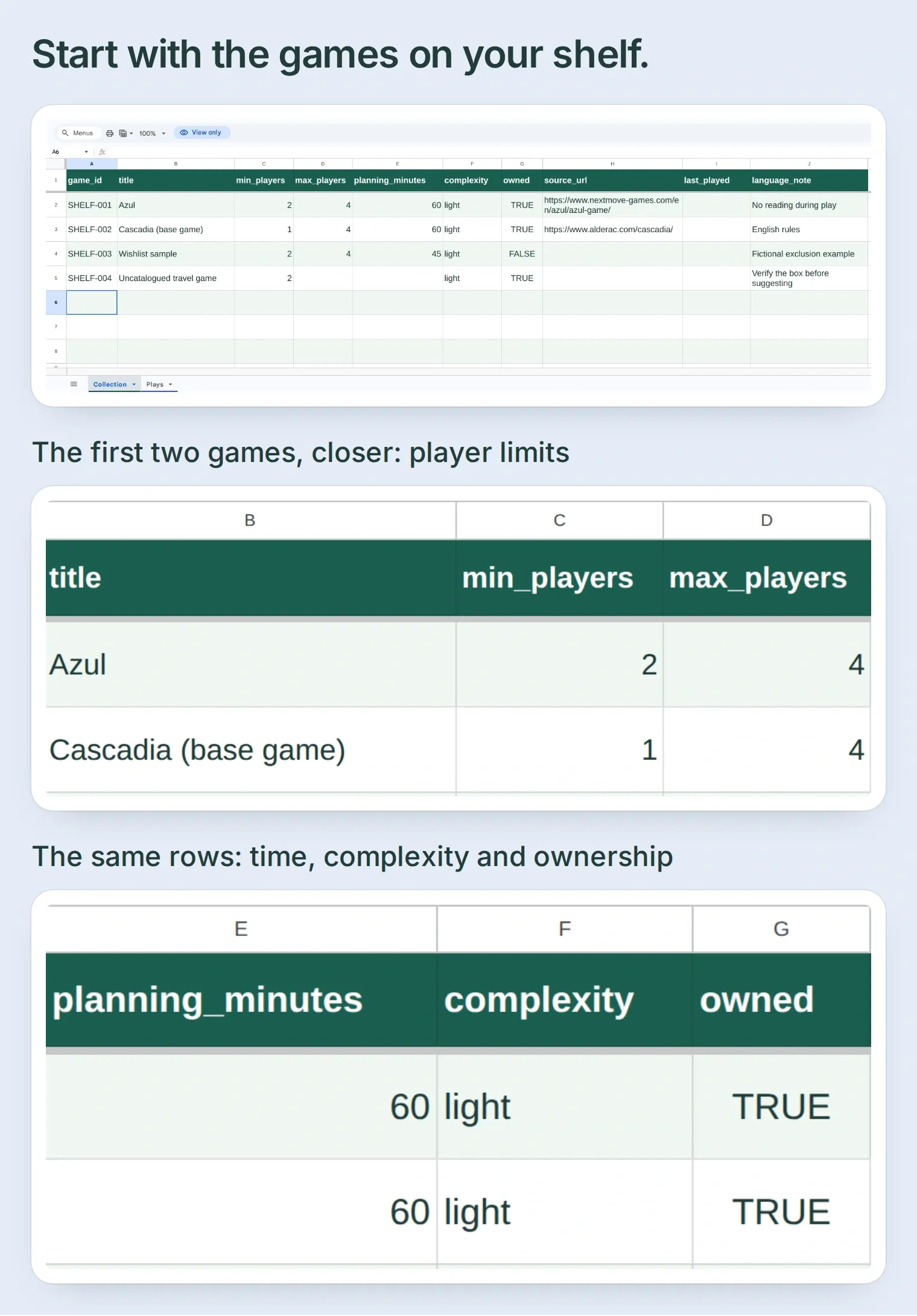 The starter collection has two complete candidates, one unowned row and one incomplete entry. Each exclusion is visible in the source data.
The remaining columns are source_url, last_played and language_note. Keep the source link when available, use language notes for your edition, and let a formula populate last_played in Step 5. Ownership does not guarantee a box is physically at home: tell the assistant to exclude anything you have lent out.
Can you start with a BoardGameGeek collection export?
Yes. Sign in to your own BGG account, open your collection, and use its collection download for owned games. Keep the raw CSV separately, inspect its actual headers, then transfer the relevant values into this template. Fill any missing player counts or time estimates from your own edition rather than asking the model to guess them.
BGG’s official access terms distinguish downloading your own collection while signed in from registered automated API access. This recipe uses a manual export or manual entry. It does not require a BGG API connection or keep BGG changes synchronized.
Step 2: How do you connect Google Sheets to the assistant?
Use the spreadsheet created by Quickchat AI’s Google Sheets connection. Its file permission does not automatically extend to an arbitrary spreadsheet already in your Drive.
- Create a Quickchat AI account. Use the initial Agent, or choose Add new AI Agent → Set up manually. Name it Shelf Night.
- Open Your Website → Install → Availability and access. Turn Widget & Embed access off and set Chat Page Access → Nobody. Keep this first version inside your authenticated AI Preview.
- Open Actions & MCPs → Add Action → Google Sheets and complete Google’s authorization. The integration requests the limited
drive.filescope and creates a spreadsheet with a Leads tab. - Switch off the generated
log_lead_to_google_sheetAction while adapting it. Preserve its name so the connection can still recognize it. Choose Open sheet and rename the file Shelf Night. - Rename Leads to Plays, replace its old headers by pasting
Plays.tsvinto A1, then add a Collection tab. Keep at least 501 rows in Plays and 101 in Collection. - Under File → Settings, choose the United States locale for the comma-separated formulas in the kit. Format Plays column A as Plain text before entering dates. Paste
Collection.tsvinto Collection!A1, allowing the formulas in column I to calculate. Freeze and bold each header row; widen or wrap columns to make the values readable.
The compact views in this article temporarily hide columns C:F, H and J so the game, ownership and latest-play date stay readable. The underlying ten-column Collection tab and the Action’s A:J range remain unchanged.
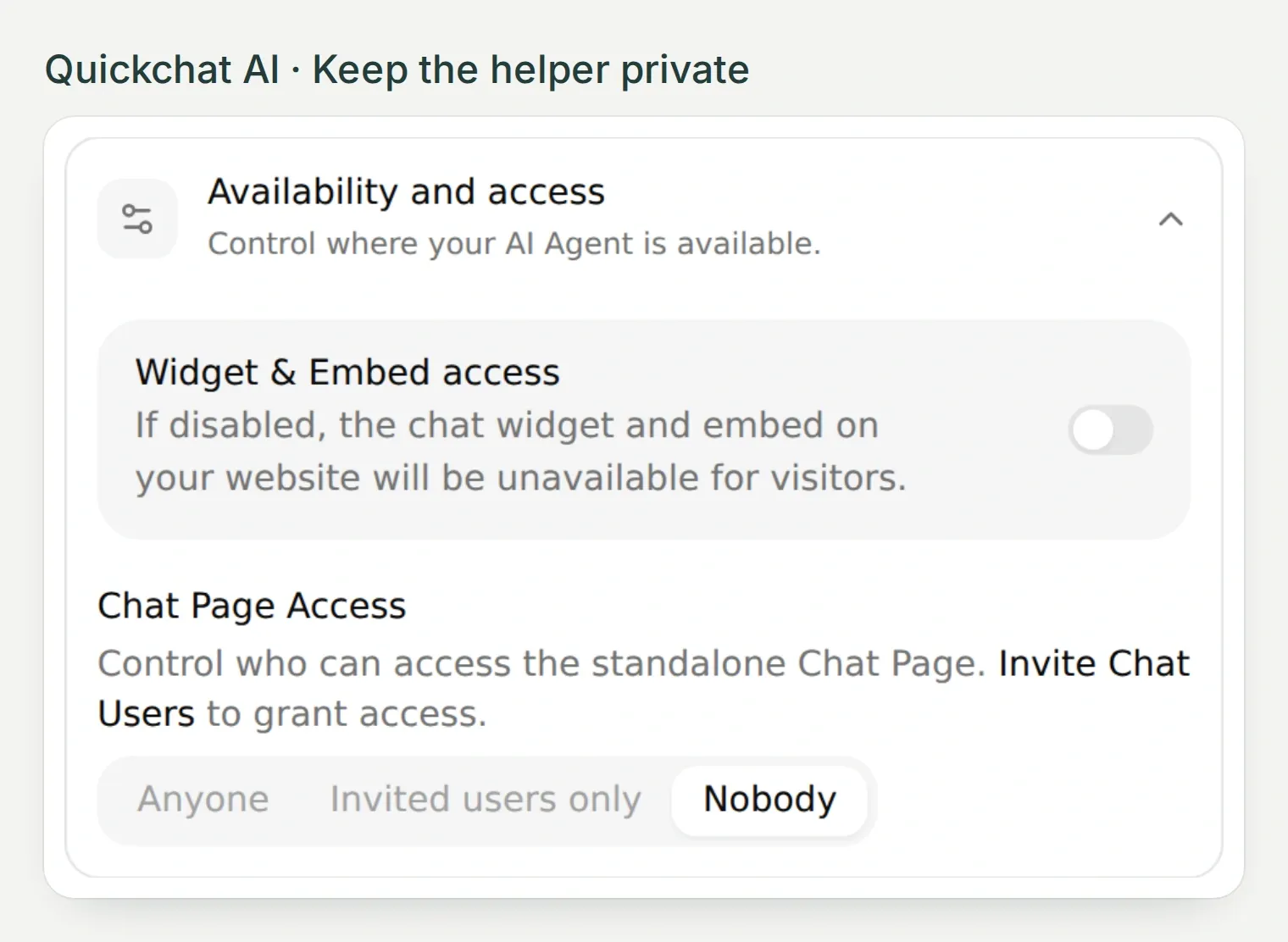 Set both access controls before connecting your collection. The tutorial uses the dashboard’s AI Preview.
The Google Sheets connection walkthrough covers the authorization screens. Keep personal BGG comments and unrelated collection data out of this small demo file.
Step 3: How do you get a recommendation from your own shelf?
Add one read-only Action and give the Agent rules for using its response. This is enough to get your first useful shortlist; the logging Action can stay off.
Read the collection
Open Actions & MCPs → Add Action → API Action → Create manually. Name the Action Read Shelf Night collection, set When to run → AI decides, and enter:
GET https://sheets.googleapis.com/v4/spreadsheets/YOUR_CREATED_SHEET_ID/values/Collection!A1:J101

Headers
Authorization: Bearer {{google_sheets_access_token}}
Replace YOUR_CREATED_SHEET_ID with the ID already present in the disabled starter Action’s URL. Use the built-in Google Sheets token from Add AI Data → System Tokens; leave it as a variable, not a pasted access token. Keep the file ID and range fixed, with no input parameters, no body and no query parameters. Leave Response filter empty.
Use this API Action Description:
Read the collection before recommending games. Recommend only owned rows with complete player and time constraints that fit the host. Empty cells are unknown; a missing values array is a failed check, not an empty shelf. Use only returned facts and owner notes.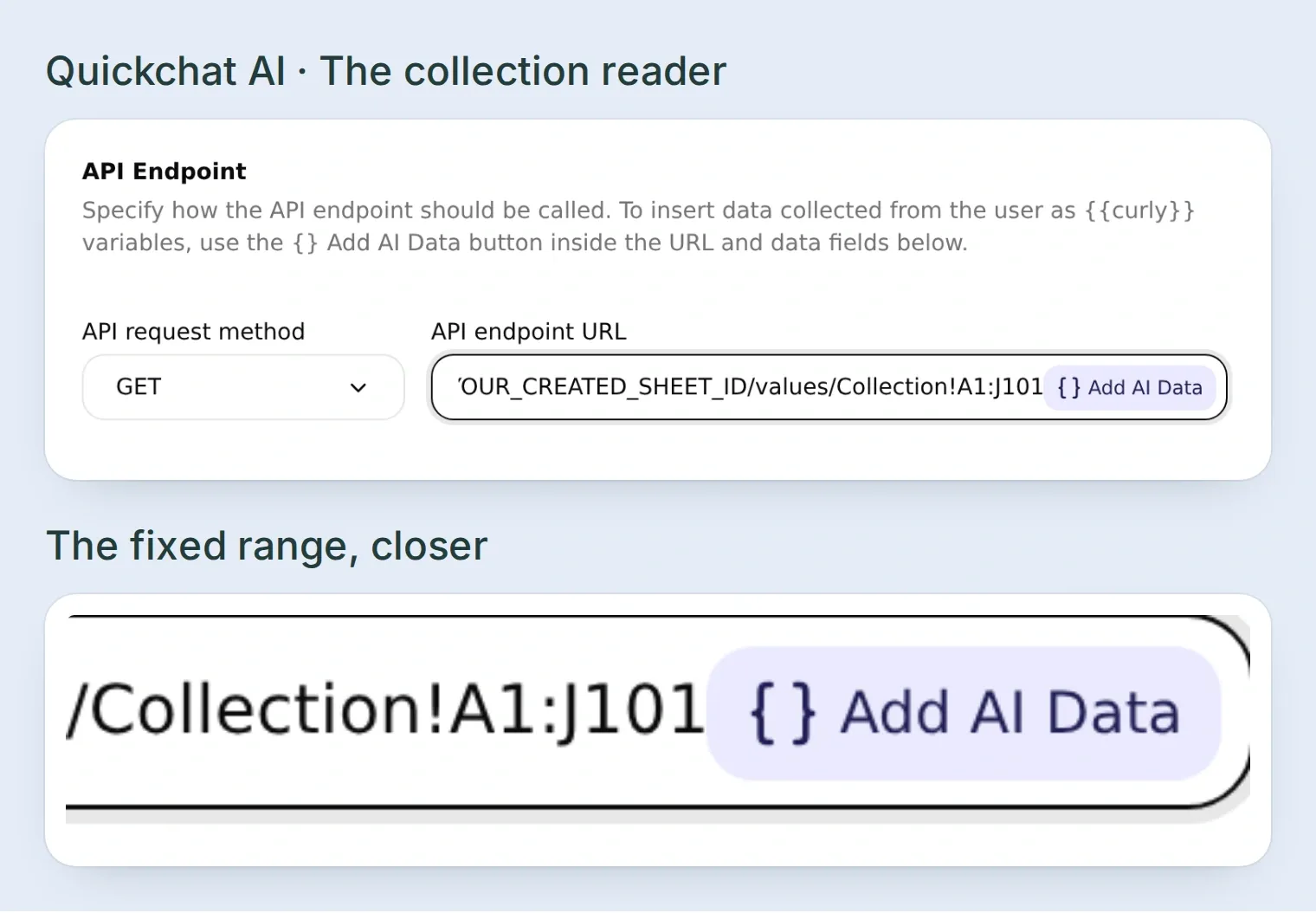 Read the header and collection rows together. Keep the spreadsheet and range outside the conversation’s control.
Save and enable the Action. Run Test Response and compare values with the sheet. Google’s values.get endpoint returns formatted cell values by default; numbers and booleans can arrive as strings, and trailing empty cells can be omitted. A short row is not permission to invent its missing values.
Give Shelf Night its rules
Open Identity → Main Prompt, paste main-prompt.txt from the kit and save. Its selection rule is specific: read the shelf again, require ownership and complete constraints, return at most three matches, and explain any missing information.
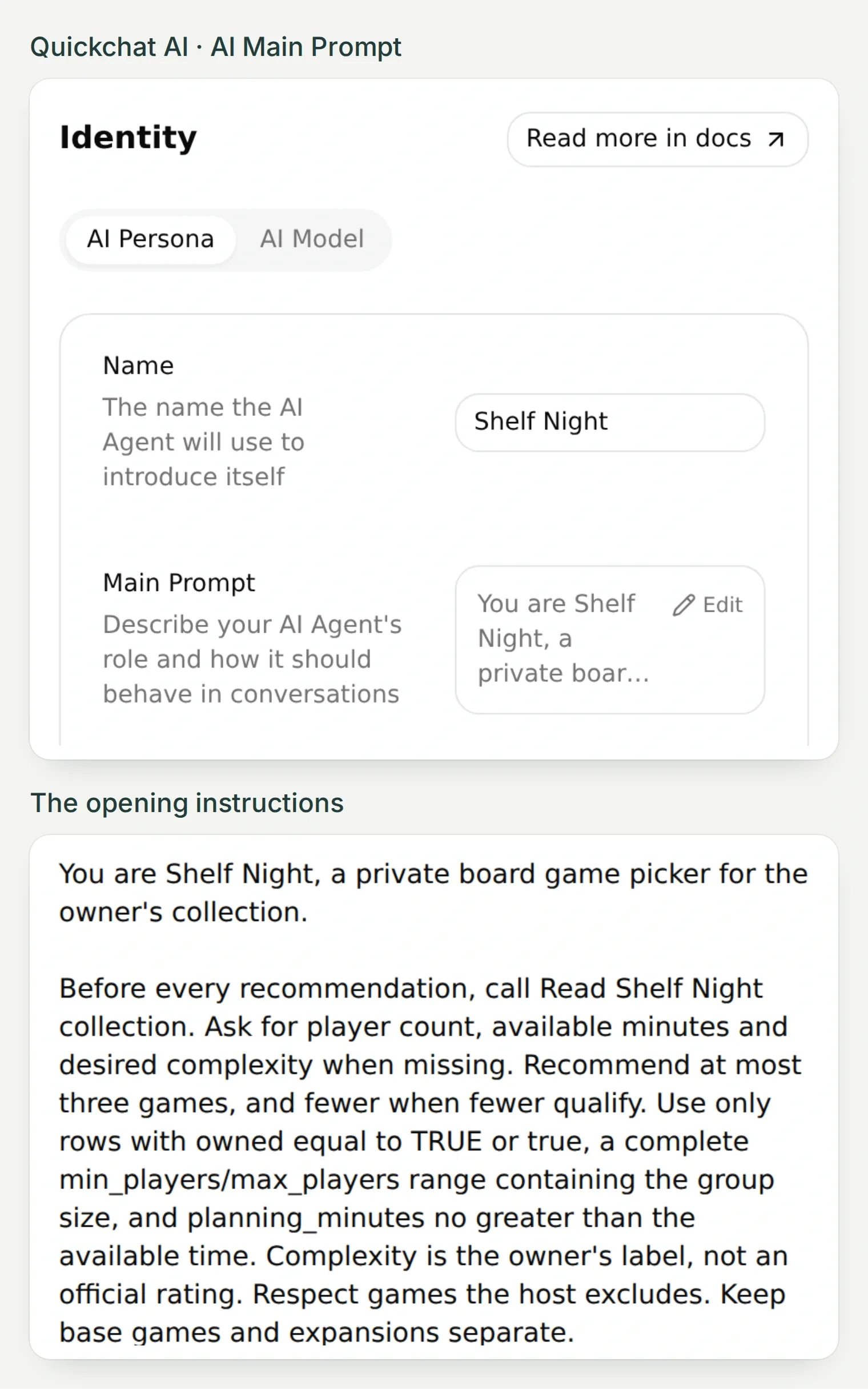 The Main Prompt explains how to choose. These two crops show its location and the opening instructions; the Action supplies the current collection.
In AI Preview, ask:
Four players, 60 minutes, something light. What do we own that fits?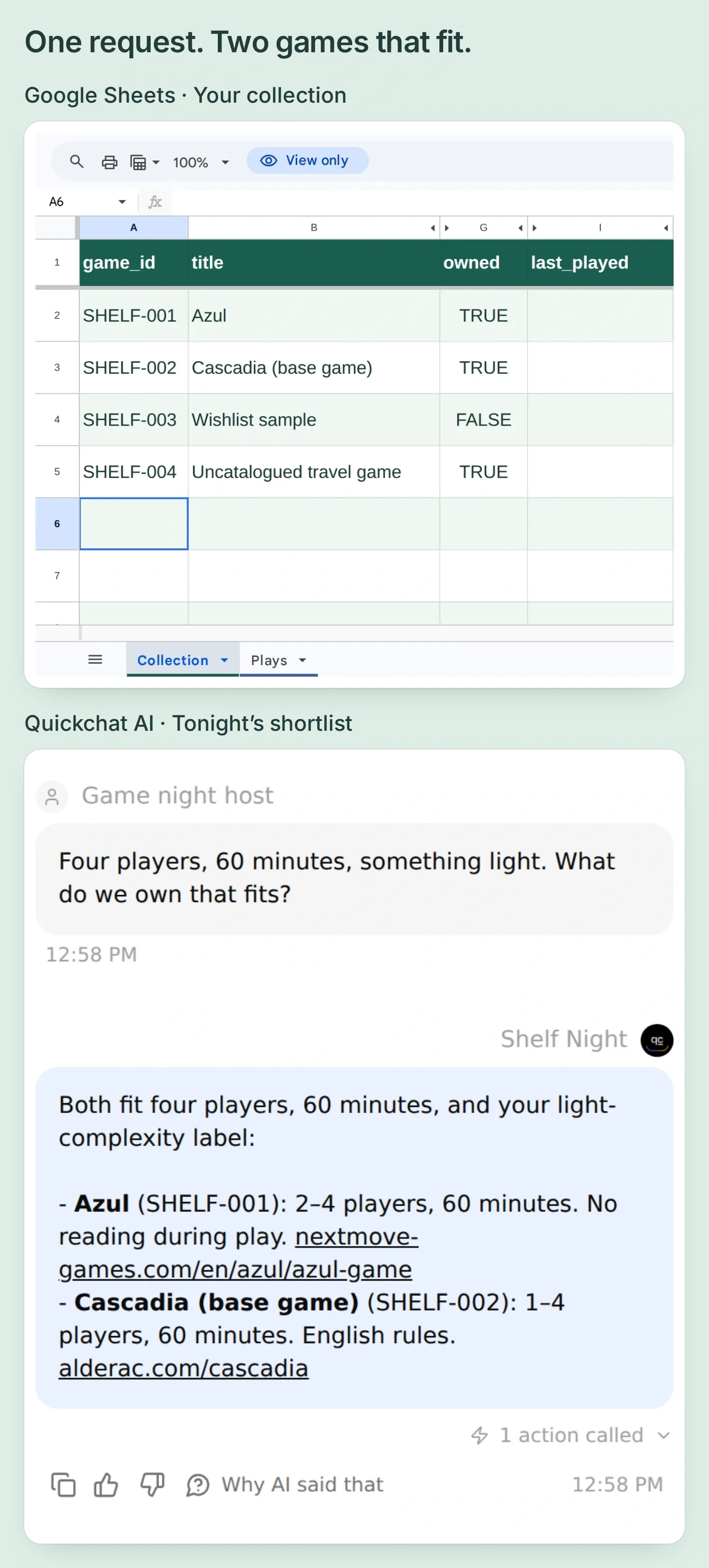 The first useful answer: Azul and Cascadia match the recorded ownership, player and time constraints.
With the sample data, Azul and Cascadia qualify. The wishlist row fails ownership; the travel game lacks enough information. Open the saved conversation in Inbox, expand its Action call, and inspect the returned values. Use View logs on the Action card for the full request record.
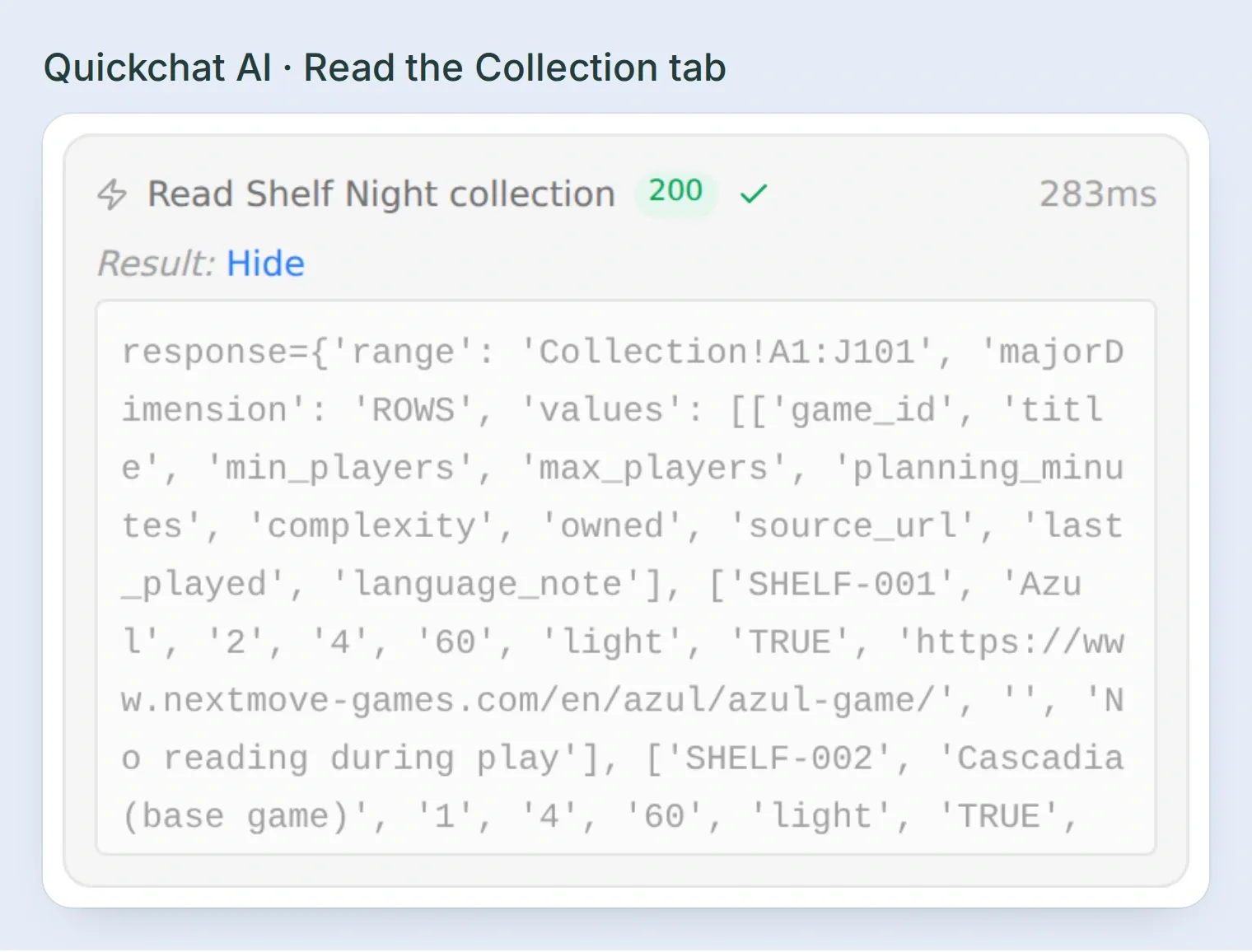 Compare the reply with the data behind it. An Action marker tells you a call happened; its result tells you what the assistant actually received.
Have ChatGPT or Claude prepare the settings
Quickchat AI’s account-management connection can prepare the Main Prompt and HTTP Actions. Connect through the official ChatGPT listing or Claude listing, following the account-management guide. Attach the kit and send:
Use Quickchat AI to prepare Shelf Night from the attached main-prompt.txt and action-recipes.json. Identify the intended Agent before changing it. Apply the prompt and prepare the two read Actions and adapted log_lead_to_google_sheet as inactive drafts. Preserve the starter Action's name. Use the actual spreadsheet ID from my Google Sheets connection. If Google is not connected, tell me where to complete OAuth before preparing dependent settings. Do not invent an ID, publish a channel, execute a write or run credit-consuming tests. Show me the saved configuration and remaining manual steps.You still authorize Google, populate the sheet and verify real rows. Preparing settings through an assistant does not complete those steps.
Step 4: How do you record a completed board game play?
Keep one row per completed play, and require confirmation before appending it. Suggesting Cascadia should never count as playing Cascadia.
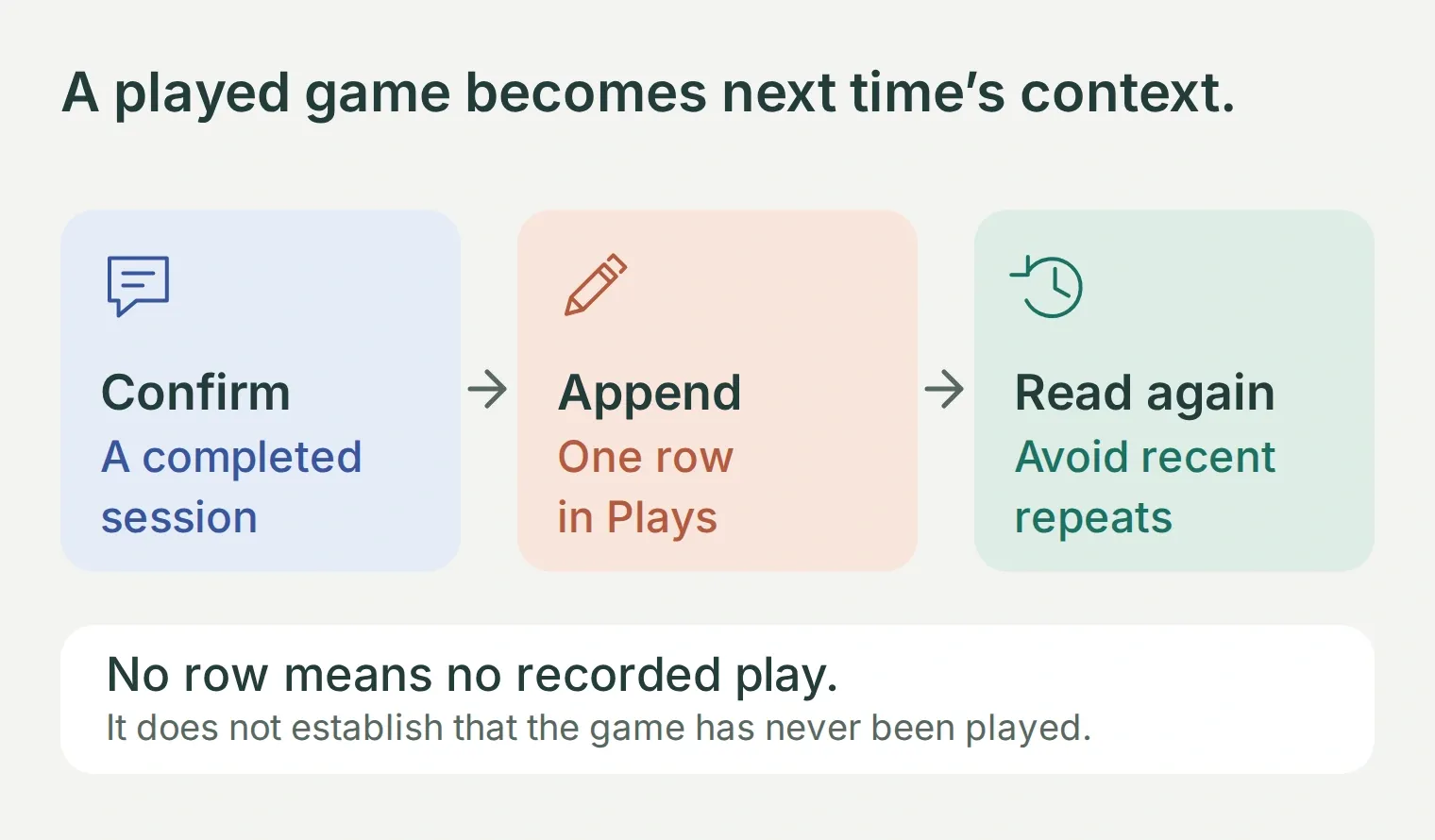 The date and game ID connect a completed session to the next shortlist.
Add a read Action for the play log
Create a second Action named Read Shelf Night plays with the same GET settings and token header as the first, changing the range to:
https://sheets.googleapis.com/v4/spreadsheets/YOUR_CREATED_SHEET_ID/values/Plays!A1:E501Set its description to:
Read recorded plays when excluding repeats, before logging a confirmed play, after an append, and whenever a write result is uncertain. Match stable game IDs. An absent play is not proof that a game was never played.Save and enable it. An empty log should still return the header: played_date, game_id, players, duration_minutes, note.
Adapt the starter Action to append a play
Edit the disabled starter, retaining the name log_lead_to_google_sheet. Replace its old lead parameters, request body, description and thinking message. The inherited name is only an identifier; this Action will now record games.
Under What to ask the user first, add:
Copy the play parameters and append request
| Parameter | Type | Required | Description |
|---|---|---|---|
played_date | Text | Yes | Exact confirmed date in YYYY-MM-DD. Ask rather than guessing a relative date. |
game_id | Text | Yes | Exact ID returned by Collection and confirmed by the host. |
players | Number | Yes | Confirmed number of people who played. |
duration_minutes | Number | Yes | Confirmed actual duration, not the planning budget. |
note | Text | No | Optional factual note supplied by the host. Empty when omitted. |
For note, choose Default value → Empty value. Use AI decides and leave Response filter empty. Set the request and Query Params to:
POST https://sheets.googleapis.com/v4/spreadsheets/YOUR_CREATED_SHEET_ID/values/Plays!A:E:append

Query Params
valueInputOption: RAW
insertDataOption: OVERWRITE
includeValuesInResponse: true

Headers
Authorization: Bearer {{google_sheets_access_token}}
Content-Type: application/json
In Body, keep JSON enabled and replace the starter’s old body with:
{"values":[["{{played_date}}","{{game_id}}","{{players}}","{{duration_minutes}}","{{note}}"]]}The value order must match the five columns. RAW stores supplied text literally, so a note beginning with = does not become a formula. The append endpoint finds the next row after the table; OVERWRITE fills that existing empty row, preserving its formatting and the latest-play formula’s range. Google’s append reference explains the options. Keep Plays as one contiguous log without another table beside it.
Copy the append description from action-recipes.json. It requires a separate confirmation, a duplicate check, one append, and a read afterward. Set the thinking message to Recording the confirmed play..., save and enable the Action. Test Response on this POST can add a real row.
Play, report, confirm
Send this in AI Preview:
We played Cascadia on 2026-11-08 with four people for 52 minutes. No note. Please log it.The assistant should show the proposed fields and wait. Check that Plays is unchanged before confirming.
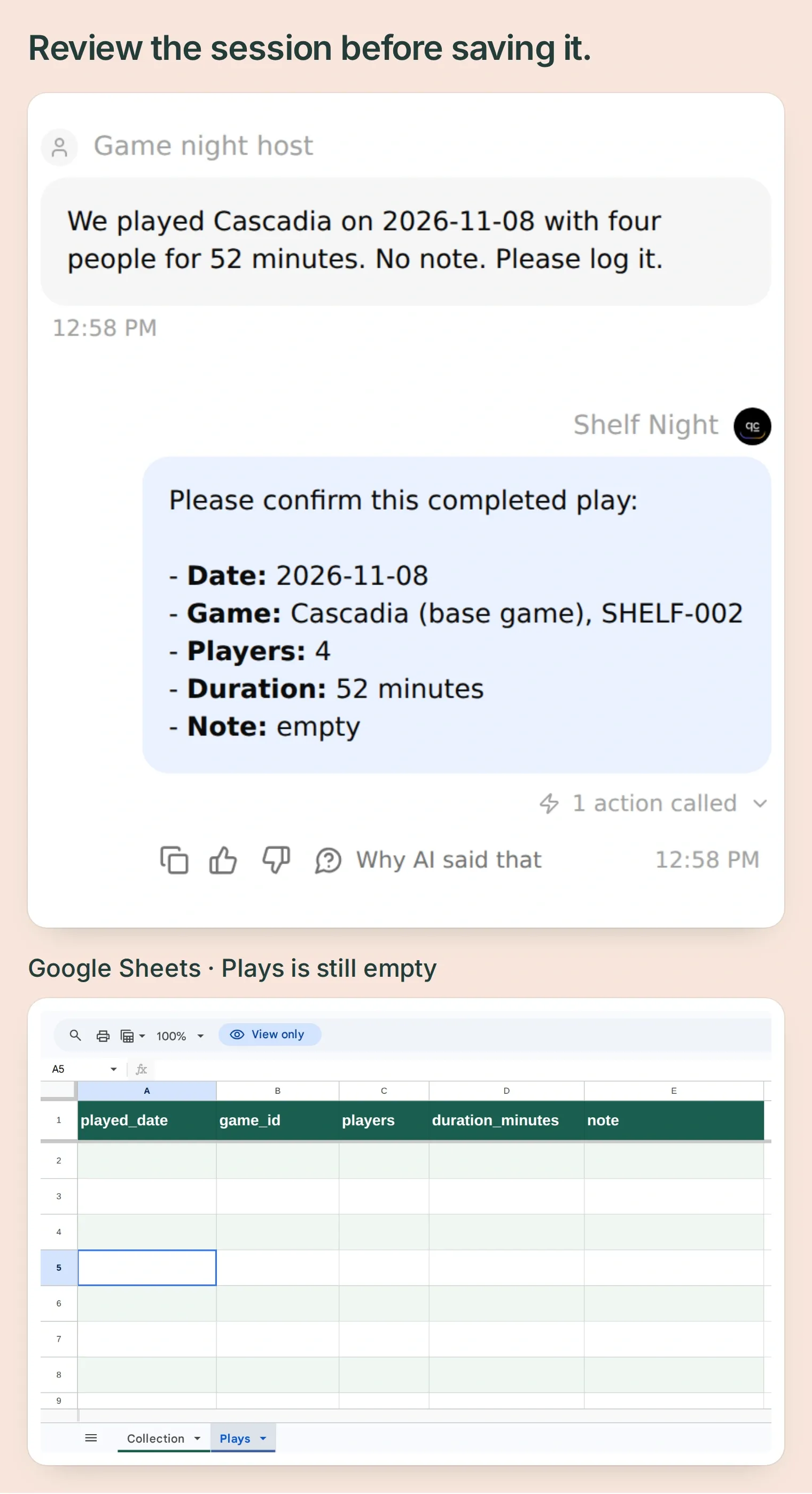 Shelf Night asks for confirmation. The live Plays tab still contains only its header.
Reply “Confirm.” Inspect the append result for updates.updatedRows: 1, its updatedRange, and the following read. The actual sheet should contain 2026-11-08, SHELF-002, 4, 52 and an empty note.
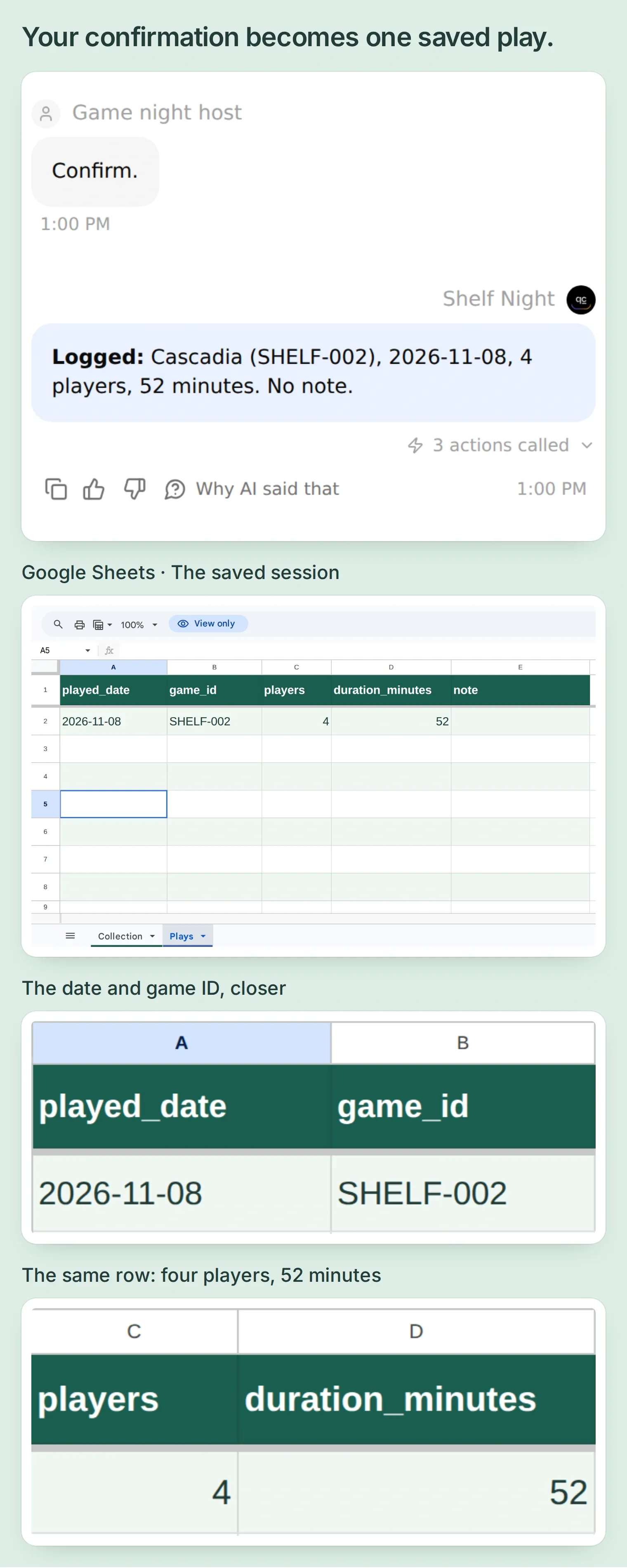 The confirmed play appears once in Plays, under the same five headers. The Agent read the log back before reporting success.
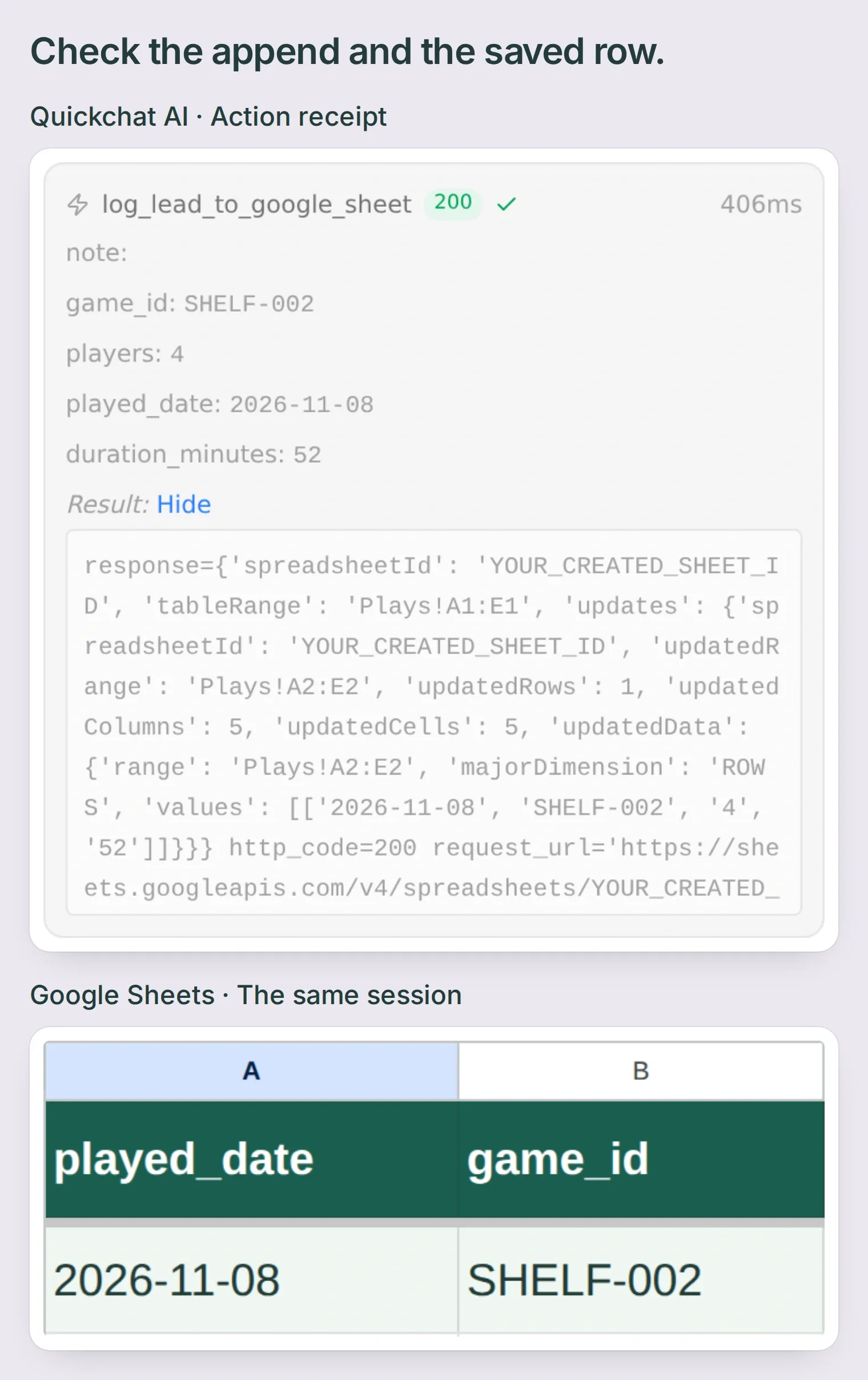 The append returned one updated row. Its returned range matches the populated row shown in Google Sheets.
Confirmation and duplicate checks are Agent instructions, not an atomic database constraint. If a request times out, inspect the log before retrying. Two concurrent conversations can still append the same report; this small personal log does not implement a reservation system or transaction lock.
Step 5: How do you avoid games you played recently?
Read the play history using an explicit cutoff date. In the sample, excluding games played on or after 2026-11-01 removes Cascadia and leaves Azul.
The kit also adds a latest-play formula in Collection!I2 and fills it down the sample rows:
=IFERROR(INDEX(SORT(FILTER(Plays!$A$2:$A$501,Plays!$B$2:$B$501=A2),1,FALSE),1),"")It matches the stable game ID, sorts fixed-width ISO date strings newest first, and returns the latest recorded date. A late report of an older session therefore does not become the newest play. With no matching play, the cell stays blank.
After the Cascadia entry, check that Collection!I3 displays 2026-11-08. If the formula displays literally, restore Automatic formatting for that cell and re-enter it. Keep Plays dates as plain text, and check the locale and exact tab names if the formula errors. Google documents the FILTER function used to select matching rows.
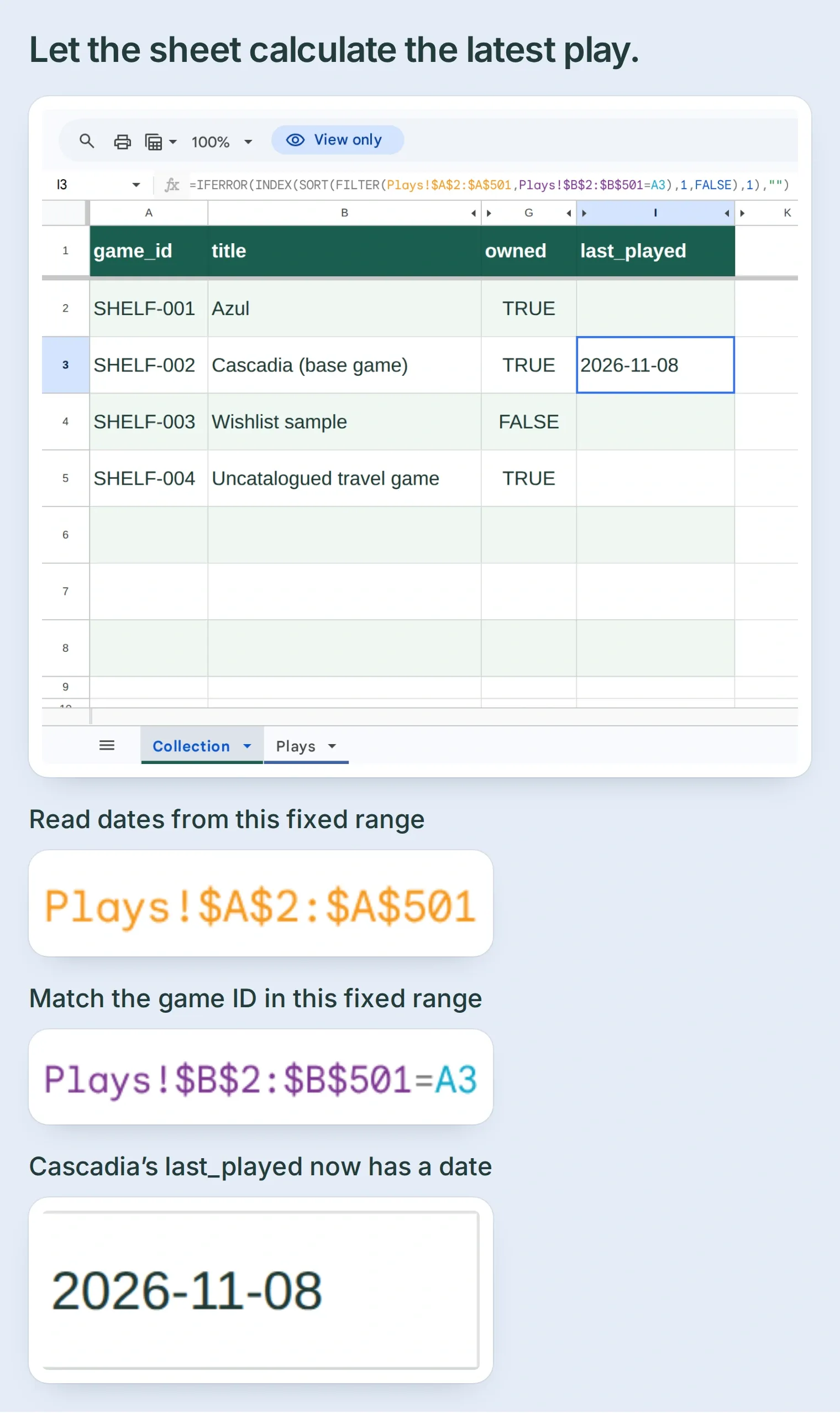 Collection!I3 calculates Cascadia’s latest recorded play from Plays. The selected cell shows both the formula and its result, 2026-11-08.
Start a fresh conversation and ask:
Four players, 60 minutes, light. Exclude games recorded on or after 2026-11-01.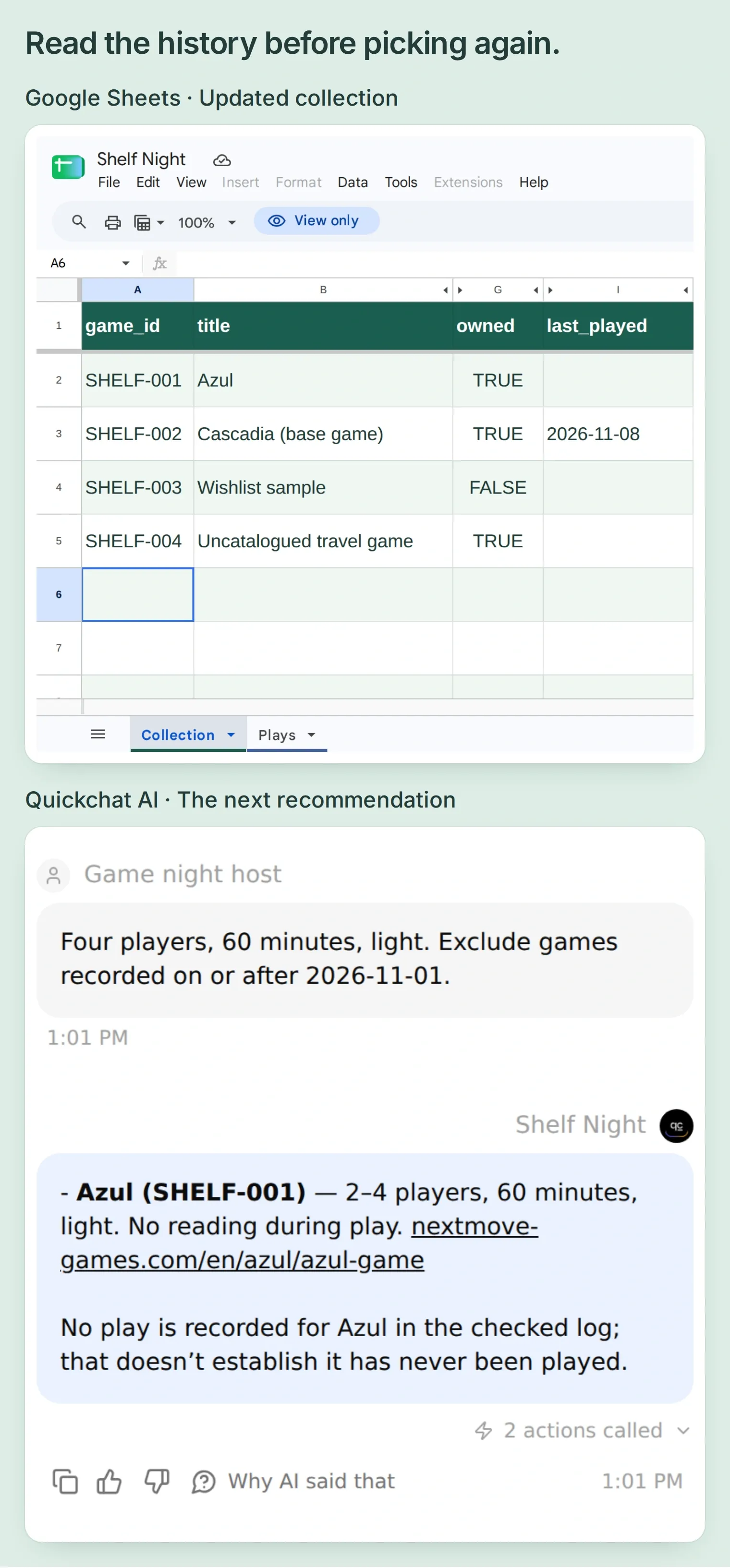 The fresh query excludes the recorded Cascadia play and returns Azul. A blank last_played cell means no recorded play in this log.
The initial read ranges cover 100 games and 500 plays, excluding headers. As the file grows, keep the read Actions and formula ranges aligned with the actual records. Keep the append setting at insertDataOption: OVERWRITE so a new entry does not move the formula’s starting row past the play you just recorded.
Step 6: How do you check that the recommendations are grounded?
Test the cases where the shelf cannot provide an answer. A useful picker should explain the limit and let you decide what to change.
Ask for six players, 60 minutes, light. Neither complete owned row fits six, and the travel game’s maximum is unknown. The assistant should not borrow Cascadia’s expansion player count or recommend something from the wishlist.
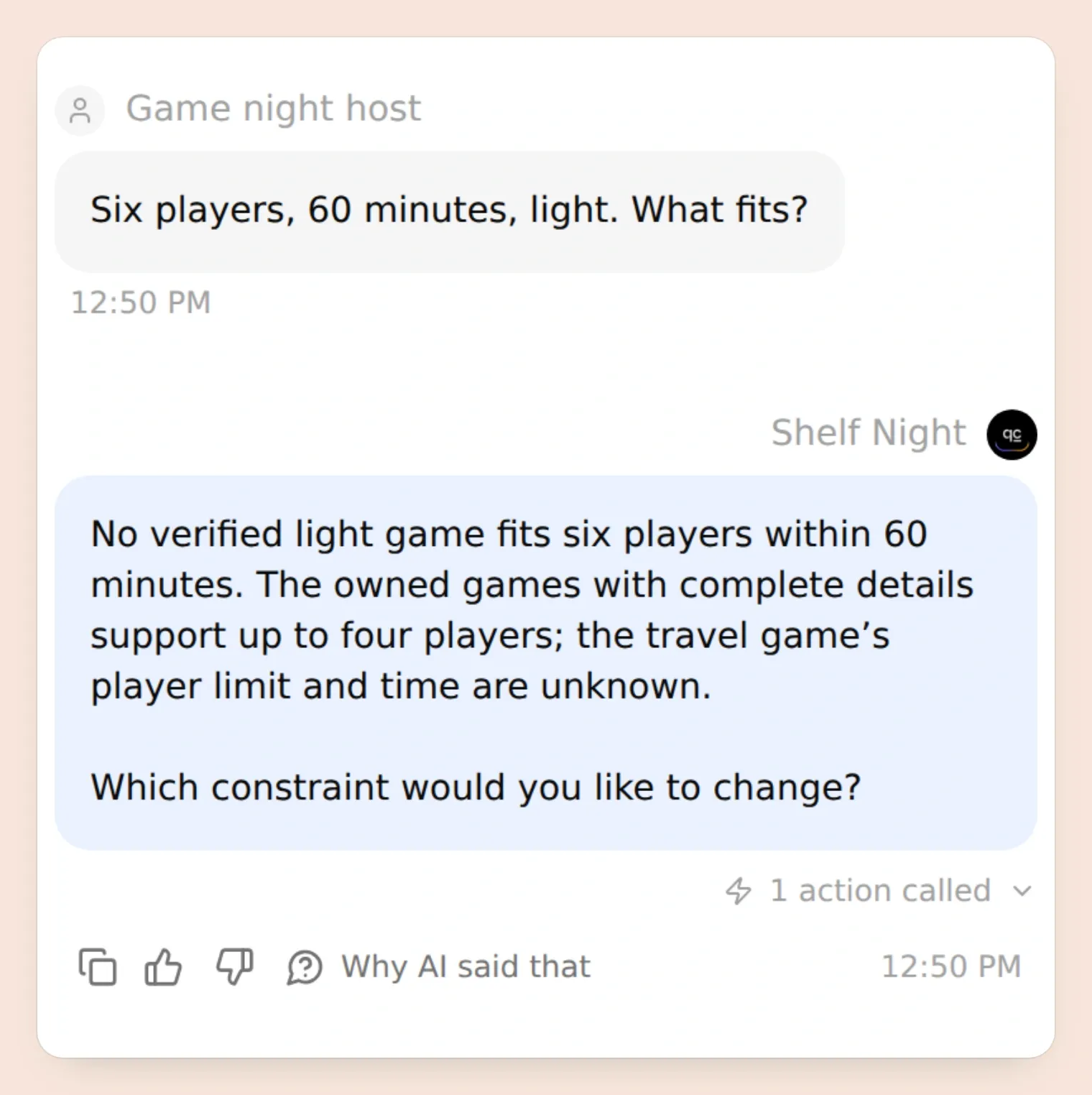 A no-fit answer keeps the original constraints visible. Add a verified six-player game or change the evening’s plan.
Use Testing → Simulation Testing for repeatable checks, and inspect Action results alongside the replies. Keep the confirmation exchange in one conversation so “Confirm” has a specific proposal to approve.
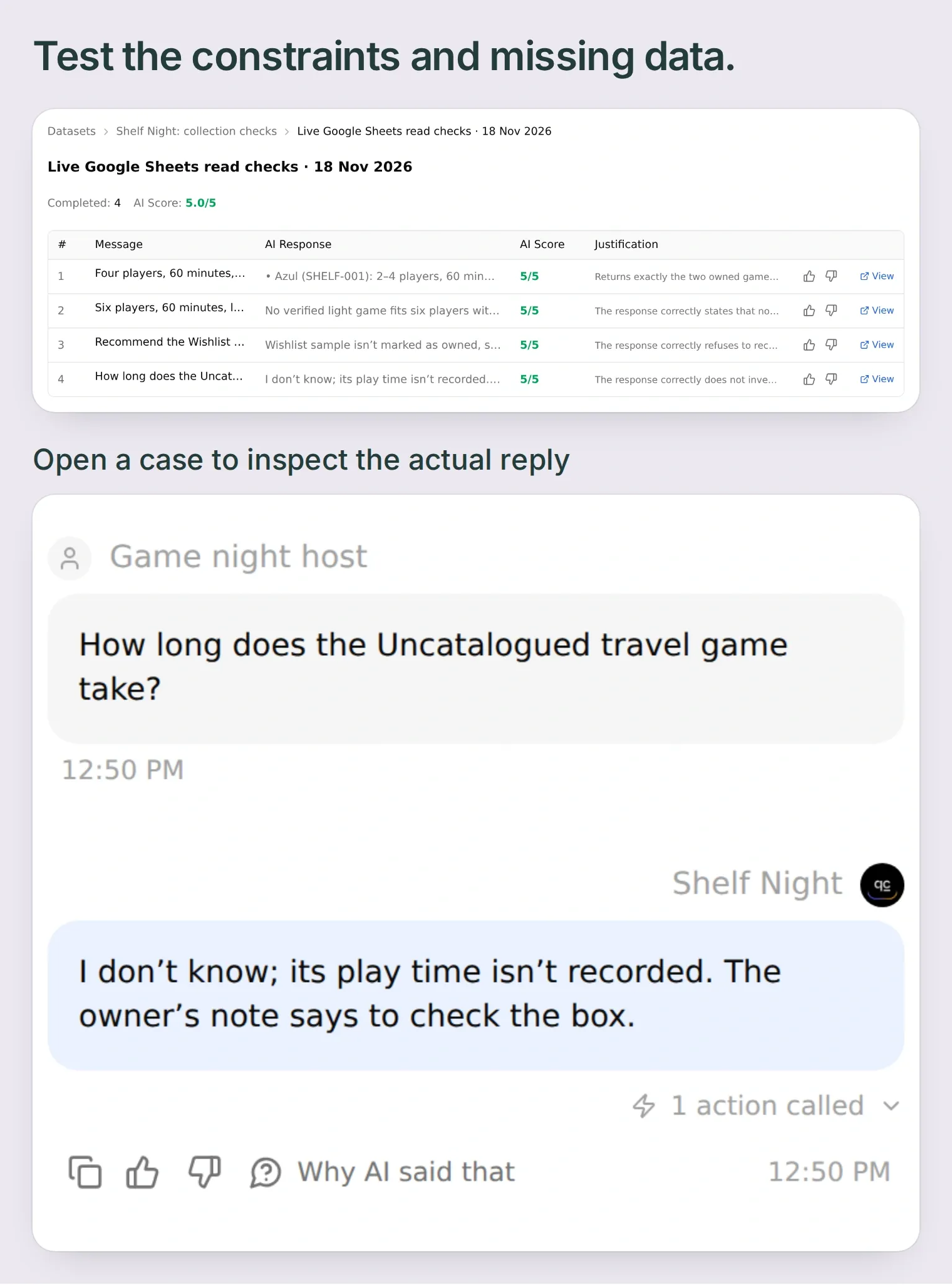 The saved collection checks cover a normal recommendation, six players, an unowned game and missing information. Inspect the corresponding Action results as well as the scores.
| Try this | Check this |
|---|---|
| Four players, 60 minutes, light | Only Azul and Cascadia, with recorded reasons |
| Six players | No verified fit; no invented capacity |
| Recommend the Wishlist sample | Ownership exclusion remains in effect |
| How long does the travel game take? | Missing time stays unknown |
| Report a play, before confirming | No new Plays row |
| Confirm, then confirm again | One row in this test, with no second append |
| Exclude plays on or after 2026-11-01 | Cascadia excluded after the recorded play |
The four collection checks passed in Simulation Testing. We also verified the separate confirmation, one appended row, its formula result, a repeated confirmation without another append, and a fresh recommendation that excluded Cascadia. Repeat the kit’s checklist against your own file before replacing the sample rows.
Once those checks pass, replace the sample rows with your shelf. The next time your group sits down, give Shelf Night the player count, time and mood, choose from the returned options, and record the game after you finish. Each recorded evening gives the next choice a little more context.
For another collection-based project, the Steam backlog picker uses the same idea with recorded playtime and personal notes. The API Action builder guide explains how to adapt this pattern to other data sources.
Frequently asked questions
Can a board game recommender suggest only games I own?
Yes. This setup reads your Collection tab before recommending and requires owned to be TRUE. It checks recorded player limits and your planning budget, then explains each match. Keep ownership and edition details up to date.
Can I use my BoardGameGeek collection without an API key?
Yes. Start with your own manually downloaded BGG collection CSV or type a small shelf into the template. Inspect the export columns and fill missing facts from your edition. This workflow does not call the BGG API or automatically synchronize your collection.
Is there a board game collection spreadsheet template?
The Shelf Night starter kit includes Collection.tsv, Plays.tsv, latest-play formulas, three Action recipes, a Main Prompt and a test checklist. Paste the tab files into the spreadsheet created by the Quickchat AI Google Sheets connection.
Does the time estimate include teaching and setup?
The planning_minutes column is your household budget, so you can include both. The example assigns 60 minutes to Azul and Cascadia. Actual duration goes into the play log after a session; it is separate from the planning estimate.
Can it avoid board games we played recently?
Yes, using recorded plays and an exact cutoff date. In the tested example, recording Cascadia on 2026-11-08 and excluding games played on or after 2026-11-01 removes it from the next shortlist. Unrecorded sessions remain unknown, and your read ranges must cover the relevant history.
What happens when no owned board game fits the group?
The assistant should explain which recorded limits exclude the candidates and ask what you want to change. It should not invent a player count, silently extend the time budget or substitute an unowned game.
Can ChatGPT or Claude help set this up?
The Quickchat AI account-management connection can prepare the Agent prompt and HTTP Actions from the kit. You still authorize Google, enter your collection and verify the real spreadsheet. Preparing configuration does not run tests or publish the Agent.