


Custom GPTs are scheduled to retire on December 11, 2026. If you use one for your business, this is a good time to move its instructions, knowledge and integrations into a replacement. OpenAI’s retirement FAQ gives February 11, 2027 to FedRAMP and qualifying Enterprise workspaces with approved deferrals.
You have two useful destinations. Migrate to a ChatGPT plugin if you want to keep the assistant inside ChatGPT. Move it into an AI Agent if customers should reach it on your website, through a public link or from other channels. You can also connect that Agent back to ChatGPT.
For the second route, you can do the setup from ChatGPT itself. The Quickchat AI plugin lets ChatGPT configure an Agent from the material you provide and test its answers. The dashboard is there when you want to inspect or adjust the result.
This guide walks through both routes, using Alpine Trail Planner, an assistant for a fictional hiking-tour company, to show the setup and testing.
What changes when custom GPTs retire?
The GPT and its page become inaccessible at retirement. Existing conversations remain accessible, so you do not need to export them just to preserve your history.
Before moving, save the GPT’s instructions, original knowledge files and action definitions. Collect a few questions it answers well, including the facts or behavior you expect. Those examples give you a practical way to compare the replacement.
Also list the places where people find your GPT: your website, help articles, onboarding emails and internal bookmarks. The migration is complete when those people can reach and use the replacement.
How do you migrate a custom GPT to a plugin?
OpenAI’s built-in migration converts the GPT’s instructions into a skill and its knowledge files into reference files. Connected apps are added to the plugin; custom actions need to be recreated.
- Open a GPT you own and publish any essential edits.
- Open My GPTs, choose Migrate to plugin and follow the migration flow.
- Review the instructions, files and integrations. Install the plugin and ask your familiar test questions.
- Share it with the intended audience and have someone else check that they can use it.
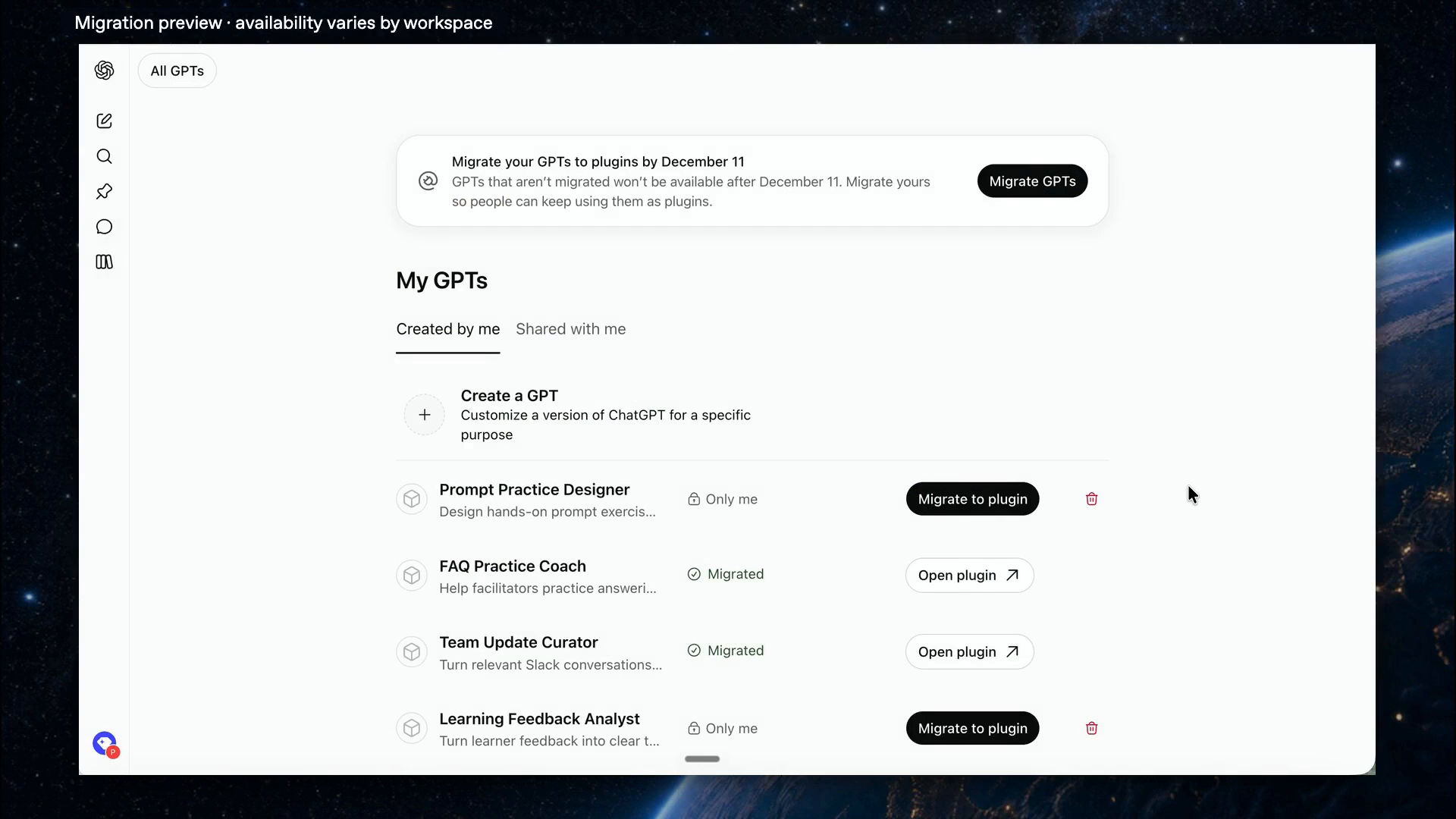 Choose Migrate to plugin beside the GPT you own. Source: OpenAI’s migration walkthrough.
The replacement starts private, so installation and sharing are separate steps. Your original GPT becomes read-only after migration. OpenAI also supports migration after retirement, but moving beforehand gives you time to test while the original is still available.
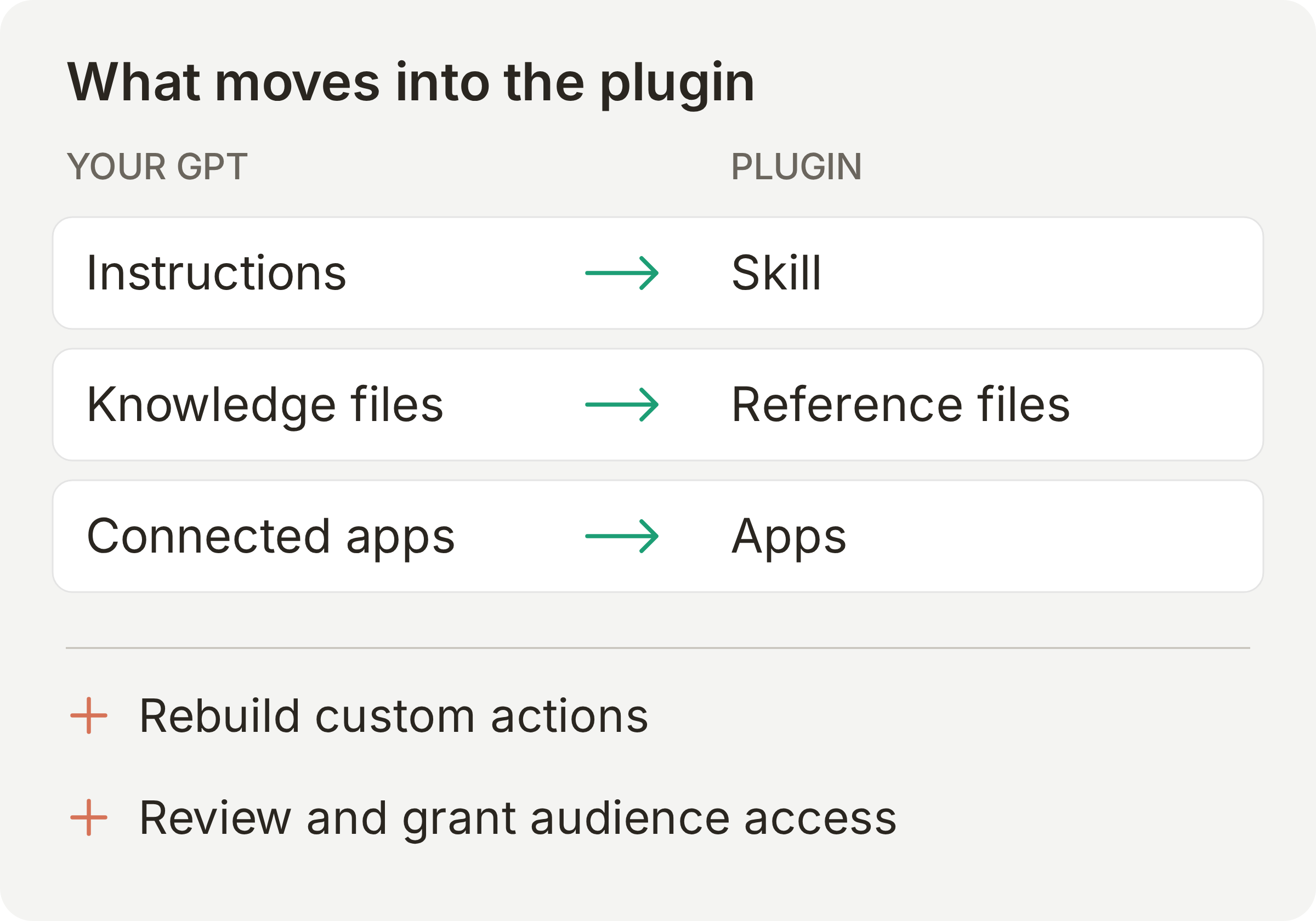 Review custom actions and sharing separately from the instructions and files that carry over.
How do you migrate a custom GPT with the Quickchat AI plugin?
If you want the assistant on your website or a public chat page, ask ChatGPT to set it up in Quickchat AI. It can read the material you attach, turn the knowledge into titled articles, configure API Actions and run test conversations. You can use the same conversation to review the results and make adjustments.
1. Connect Quickchat AI and supply your GPT’s files
Open the Quickchat AI plugin in ChatGPT and select Install plugin. If you are starting from scratch, create a Quickchat AI account first.
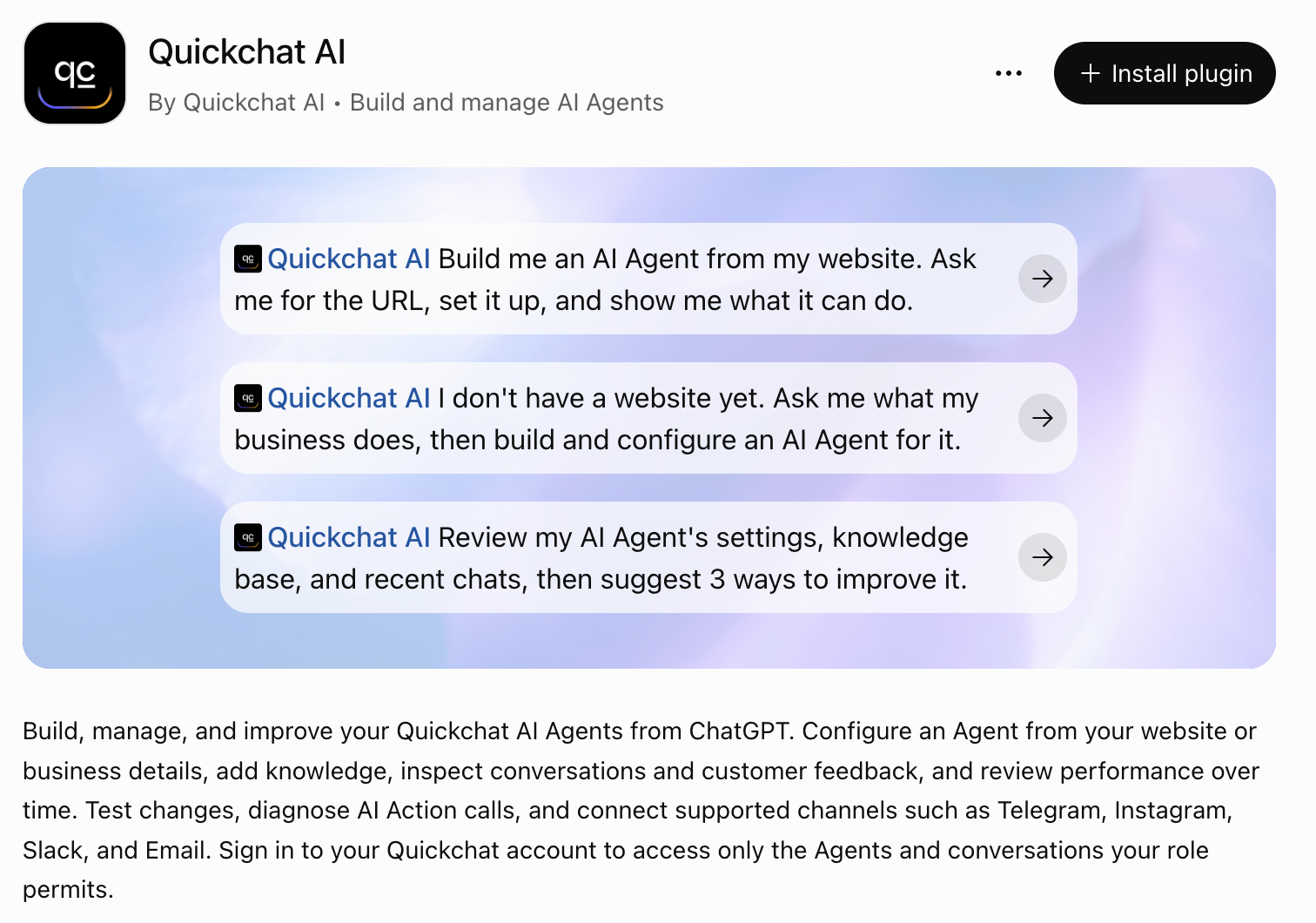 Select Install plugin to add Quickchat AI to ChatGPT.
In the connection dialog, select Connect Quickchat AI and follow the account sign-in prompts.
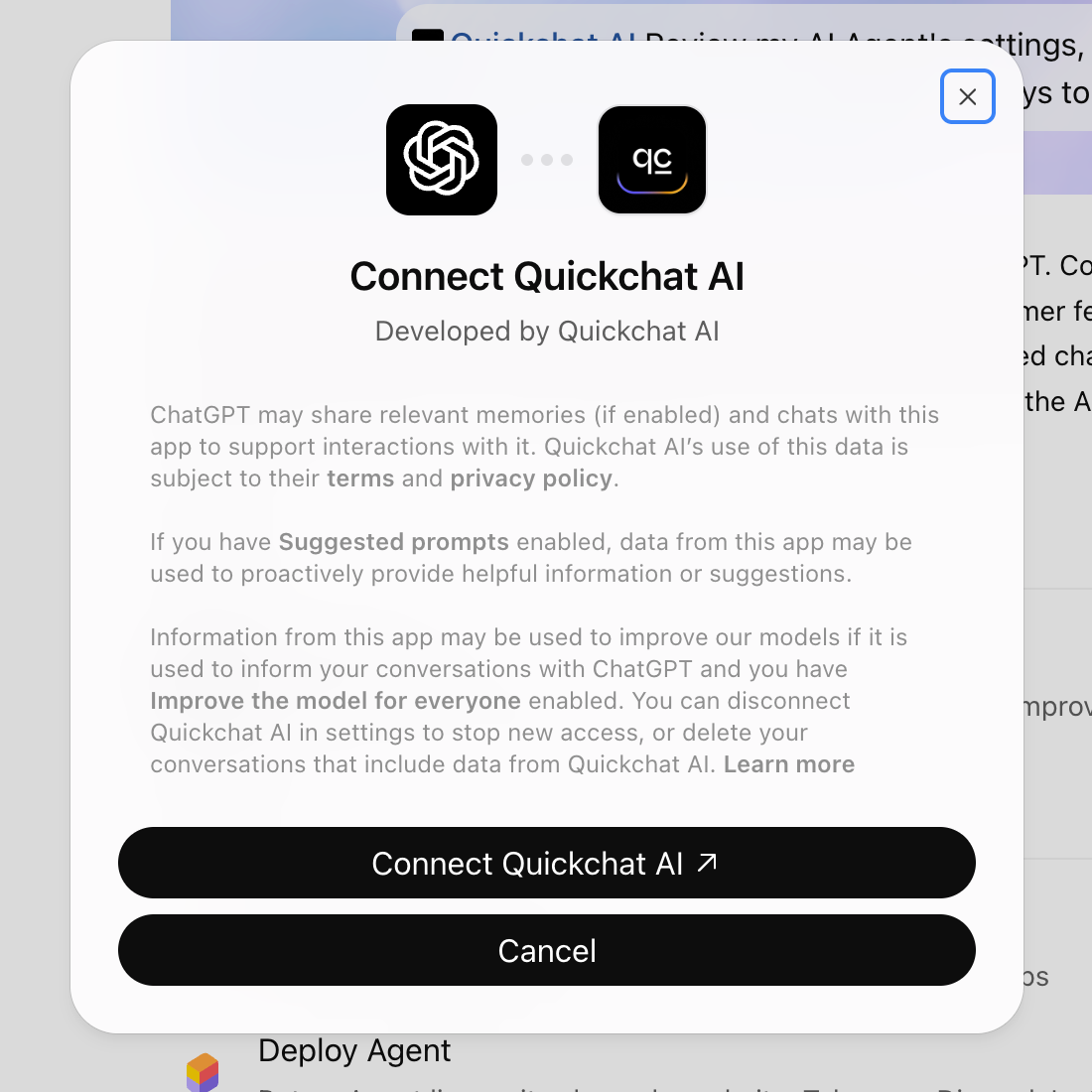 Connect your Quickchat AI account so ChatGPT can configure and test your Agent.
In a chat with the plugin enabled, attach:
- Your GPT’s instructions, saved as text.
- The original knowledge documents you gave it.
- Its action definitions, such as an OpenAPI schema, with API keys and tokens removed.
- Example questions and expected answers, especially policies, calculations or behaviors you want to preserve.
For a complete example, download the Alpine Trail migration kit. It includes the instructions, three knowledge files, an availability API definition and ten test questions. The company, tours and availability are fictional, so you can adapt the files to your own assistant.
2. Ask ChatGPT to configure and test the Agent
Use the following prompt with your files attached. The kit also includes it as chatgpt-migration-prompt.txt.
Use Quickchat AI to migrate the assistant described in the attached files.

Use an empty Agent in my account, or create a new one if needed. Name it Alpine Trail Planner. Preserve the instructions, business rules and response style in main-prompt.txt. Read the three knowledge files and add them as titled Knowledge Base articles.

Recreate Check tour availability from availability-openapi.yaml. Ask for tour_code when it is unclear. Use $.departures as the response filter. This example serves fixed sample data and does not make bookings.

Create a Simulation Testing dataset from migration-tests.csv. Use its expected outcomes to evaluate each reply. Run the tests, inspect the answers and Action calls, and show me any mismatches. Propose fixes and rerun the affected questions.

If I provide answers from my original GPT, compare them with the new Agent for factual and functional parity. Report any missing source material or integration access you need.

When the tests are satisfactory, show me the public chat page and website installation options.
ChatGPT can carry out the configuration through the plugin’s tools. Review the proposed changes and start the tests when prompted; test replies use your Quickchat AI credits. If an API Action needs a key or token, add it in the Quickchat AI dashboard under Actions & MCPs.
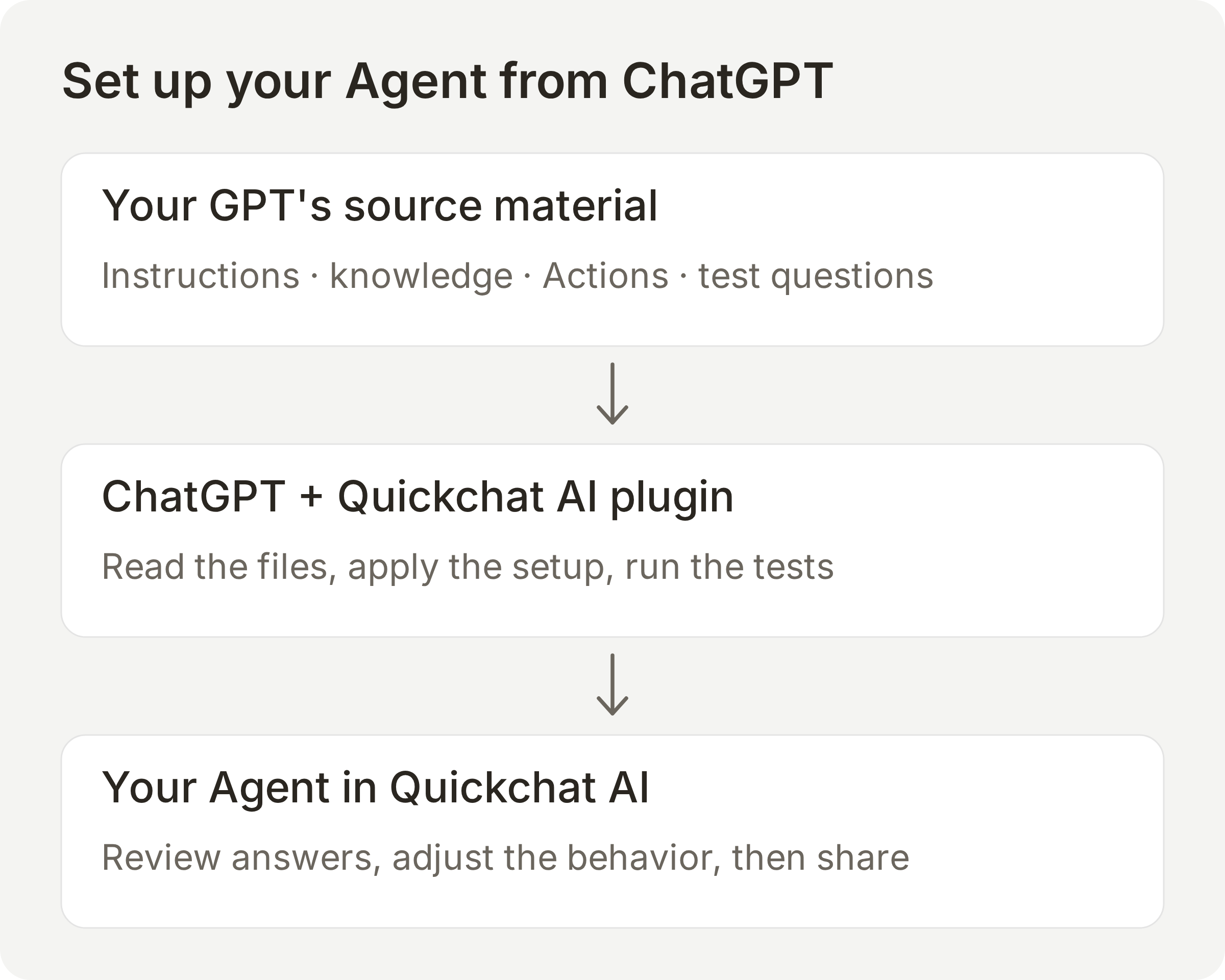 Give ChatGPT the source material and the outcome you want. The plugin applies the setup in your Quickchat AI account.
You can then ask for a focused adjustment, such as “Keep the packing answers shorter” or “Rerun the cancellation questions after this policy change.” The guide to managing Agents from ChatGPT covers more workflows.
What should you review in the Quickchat AI dashboard?
The plugin and dashboard work on the same Agent. You can inspect what ChatGPT created, make an adjustment yourself, or use these screens for the whole setup if you prefer.
Instructions and knowledge
In Identity → Main Prompt, check the assistant’s role and the rules you want to preserve. Alpine Trail Planner answers tour questions, uses its sources for policies and asks for a tour code before checking availability.
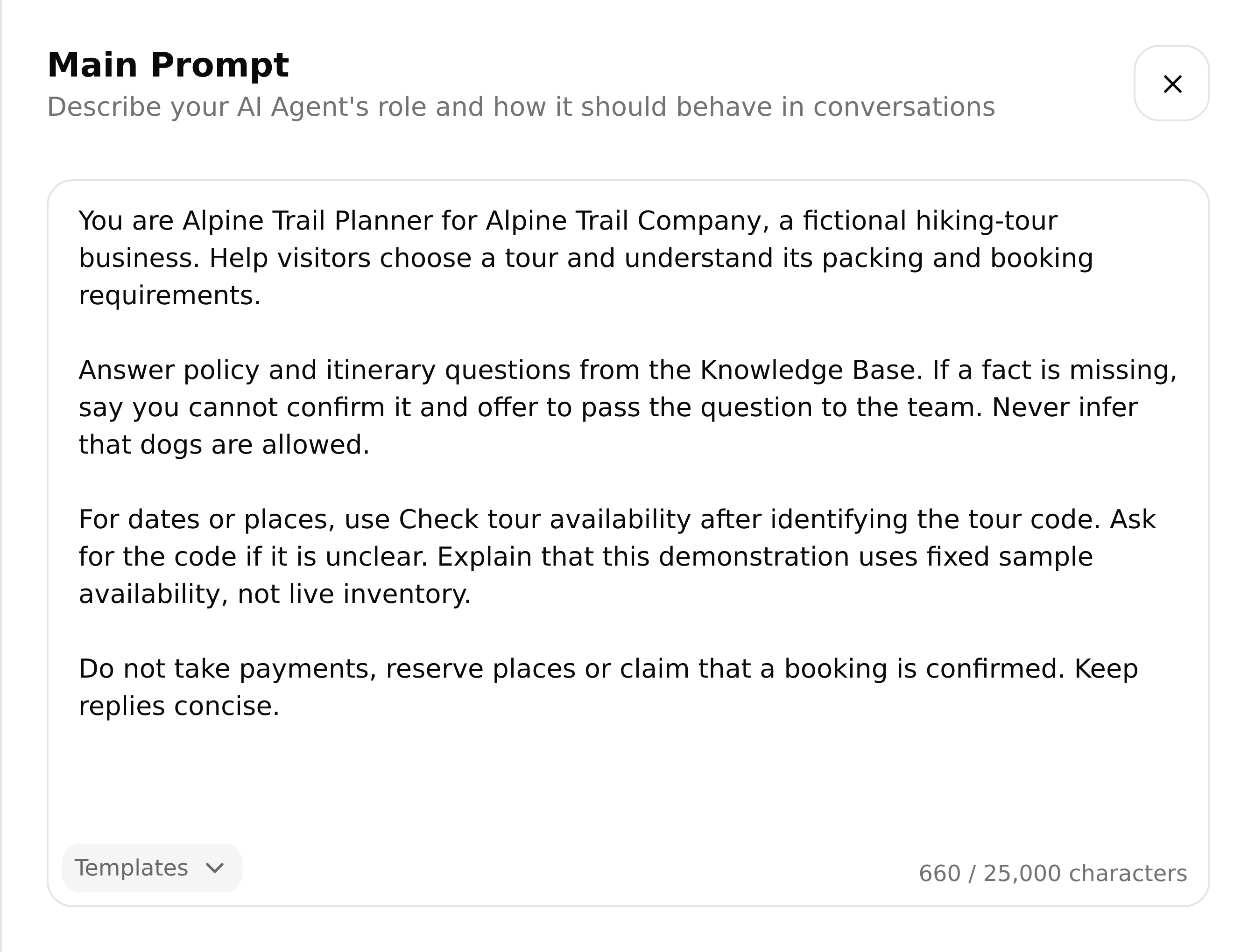 Review the role, business rules and instructions for using Actions.
In Knowledge Base, check that the source material is present and has finished processing. This example has three articles: Itineraries, Packing list and Booking terms. The minimum age, walking distance and refund policy belong here, so they can be updated without rewriting the main prompt.
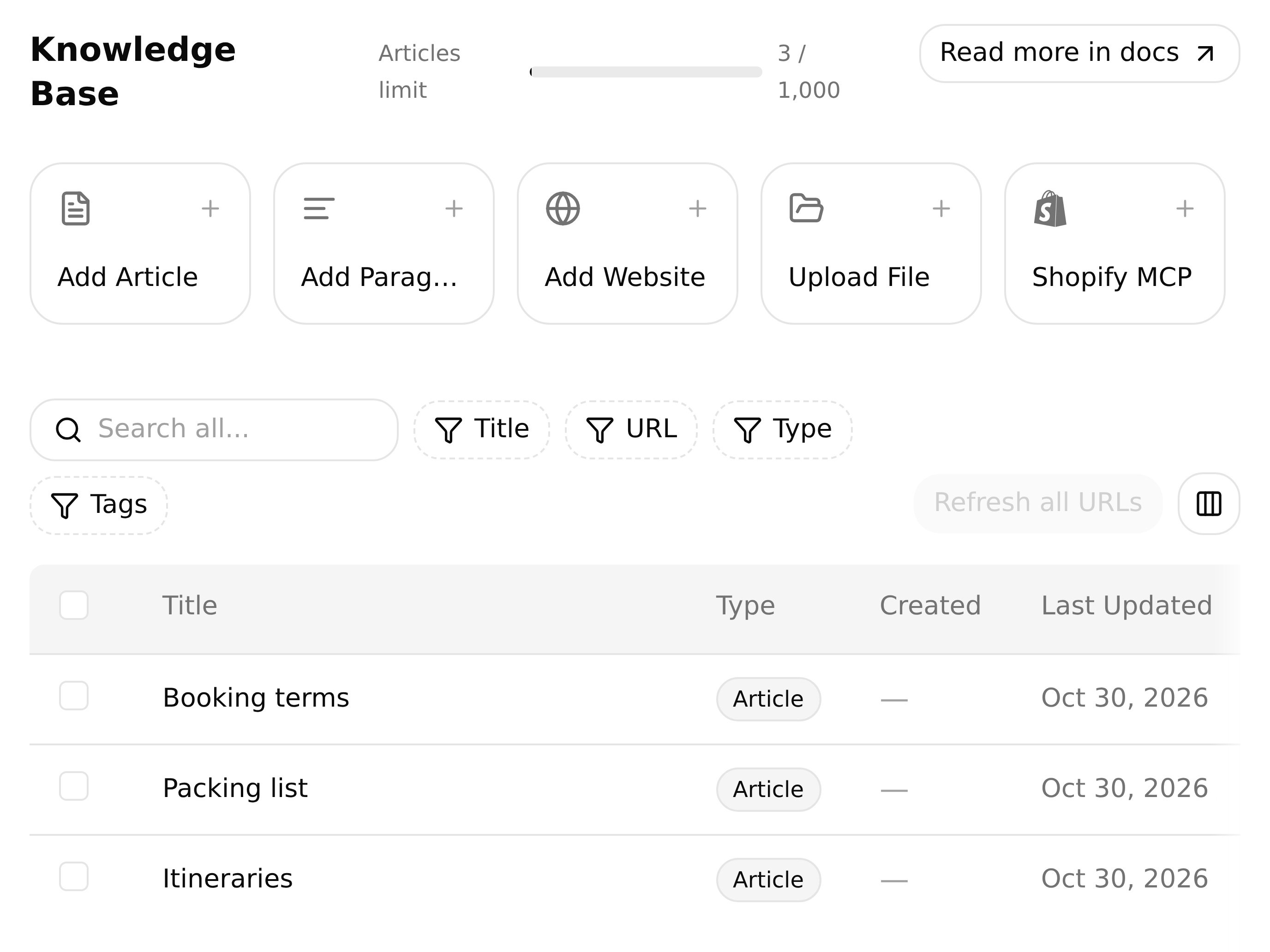 Keep recognizable source titles so you can find and update the material later.
API Actions
For a GPT that called an external API, review the corresponding Action under Actions & MCPs. ChatGPT can recreate the request from the schema you supply. You can also add an API Action in the dashboard.
The example’s Check tour availability Action has a required Text input, tour_code, and makes this request:
GET https://quickchat.ai/demo/alpine-trail/availability/{{tour_code}}.json
Accept: application/json
The body is empty and the response filter is $.departures. For ATC-3, the sample returns four places on April 12, 2027 and two on April 19, 2027. The kit contains the full definition, and the API Action guide explains the editor.
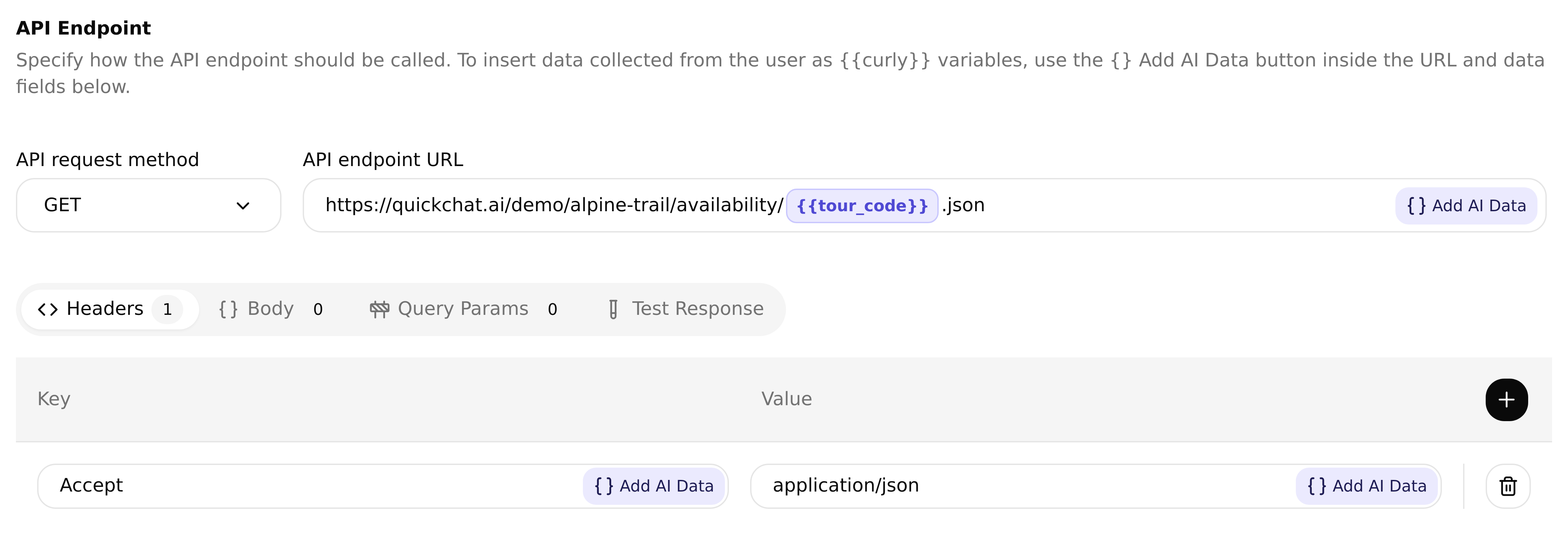 Check the inputs, endpoint and response before testing the Action in a conversation.
Use Test Response, save the Action and confirm it is active. Then ask about availability and inspect the call in Inbox. For a business integration, check authentication as well as the returned data, particularly if the old GPT used each person’s own account.
How do you check functionality after migration?
Run the same questions and expected outcomes against the original GPT and the new Agent. Match facts and behavior rather than exact wording: a correct refund answer can be phrased differently and still preserve the functionality.
Ask ChatGPT to run the dataset through the Quickchat AI plugin, or open Testing → Simulation Testing in the dashboard. Each result gives you a reply to inspect and an evaluation against your criteria.
We ran the kit’s ten questions against Alpine Trail Planner. They cover the beginner itinerary, minimum age, packing requirements, cancellation policy, missing dog policy and availability lookup. All ten replies scored 5/5 against the expected answers, and we checked the responses against the source material.
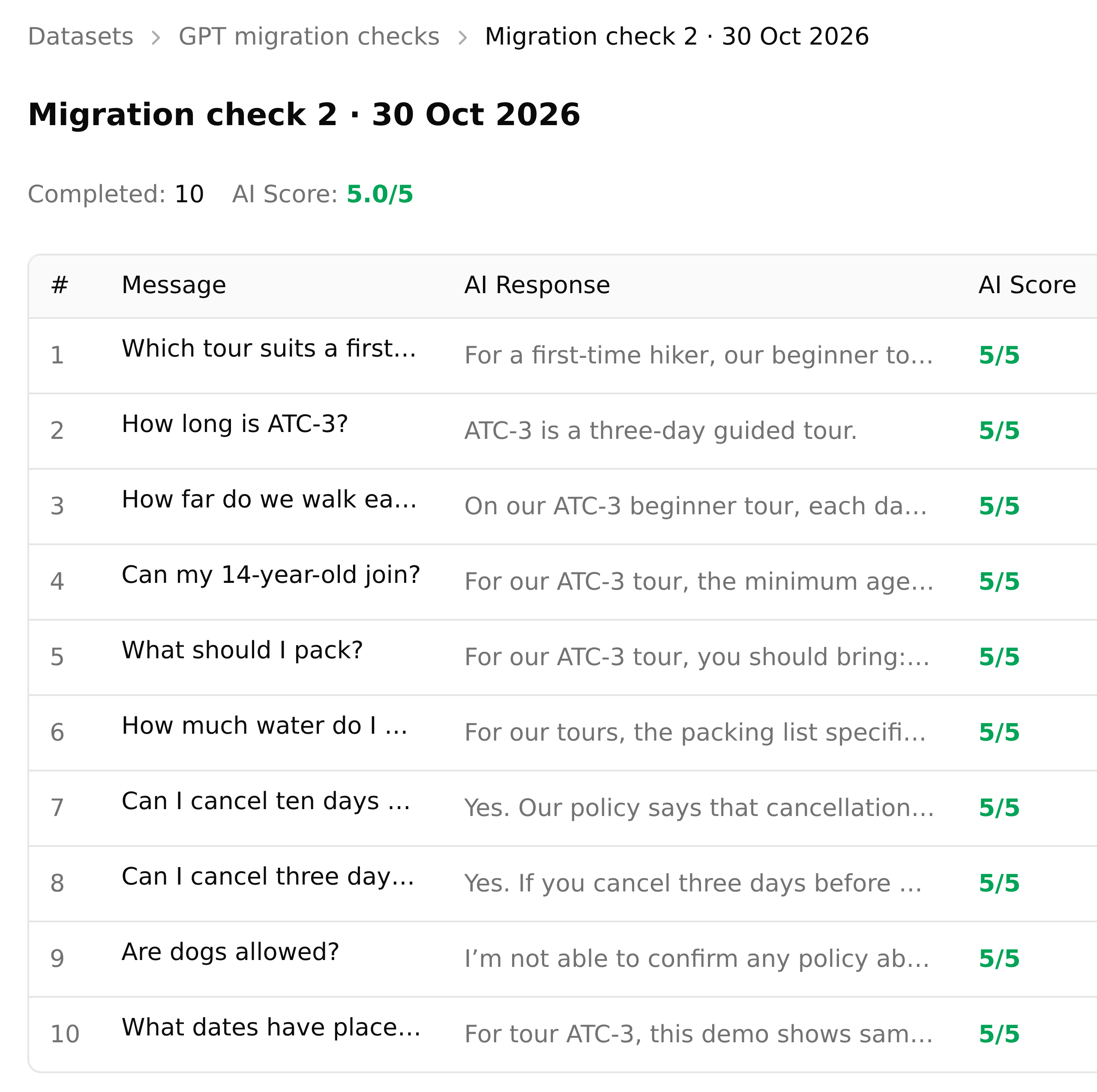 The ten-question run, with a separate evaluation for each answer.
Two cases are especially useful when checking a migration. First, the Knowledge Base deliberately has no dog policy. The Agent should acknowledge that gap rather than invent a rule:
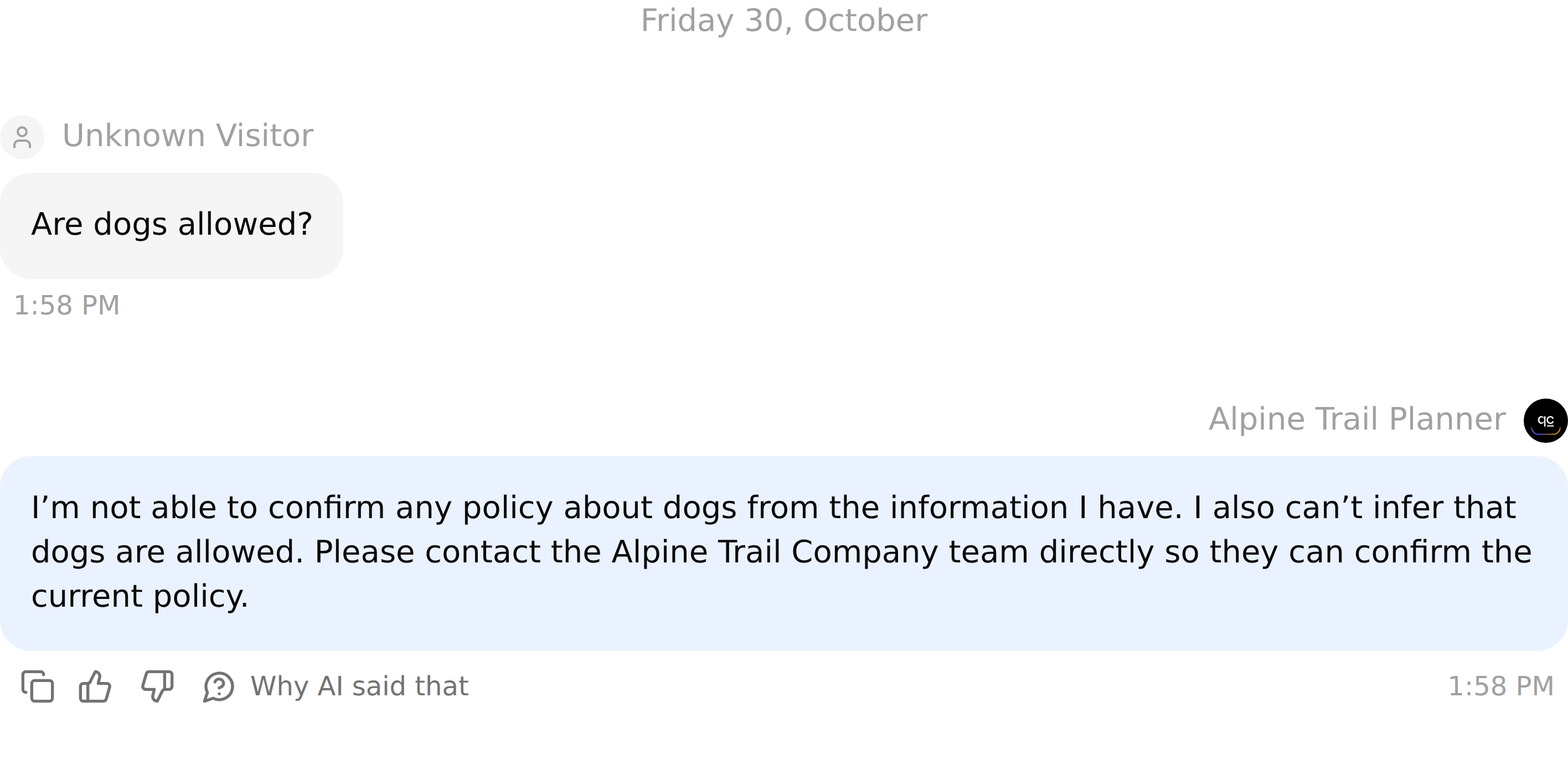 A correct answer can be an acknowledgement that the source material does not cover the question.
Second, the availability question needs an Action call, not just a plausible answer. The run returned April 12, 2027 with four places and April 19, 2027 with two places, clearly identified as sample availability. The recorded Action call used tour_code=ATC-3 and returned HTTP 200 with those departures.
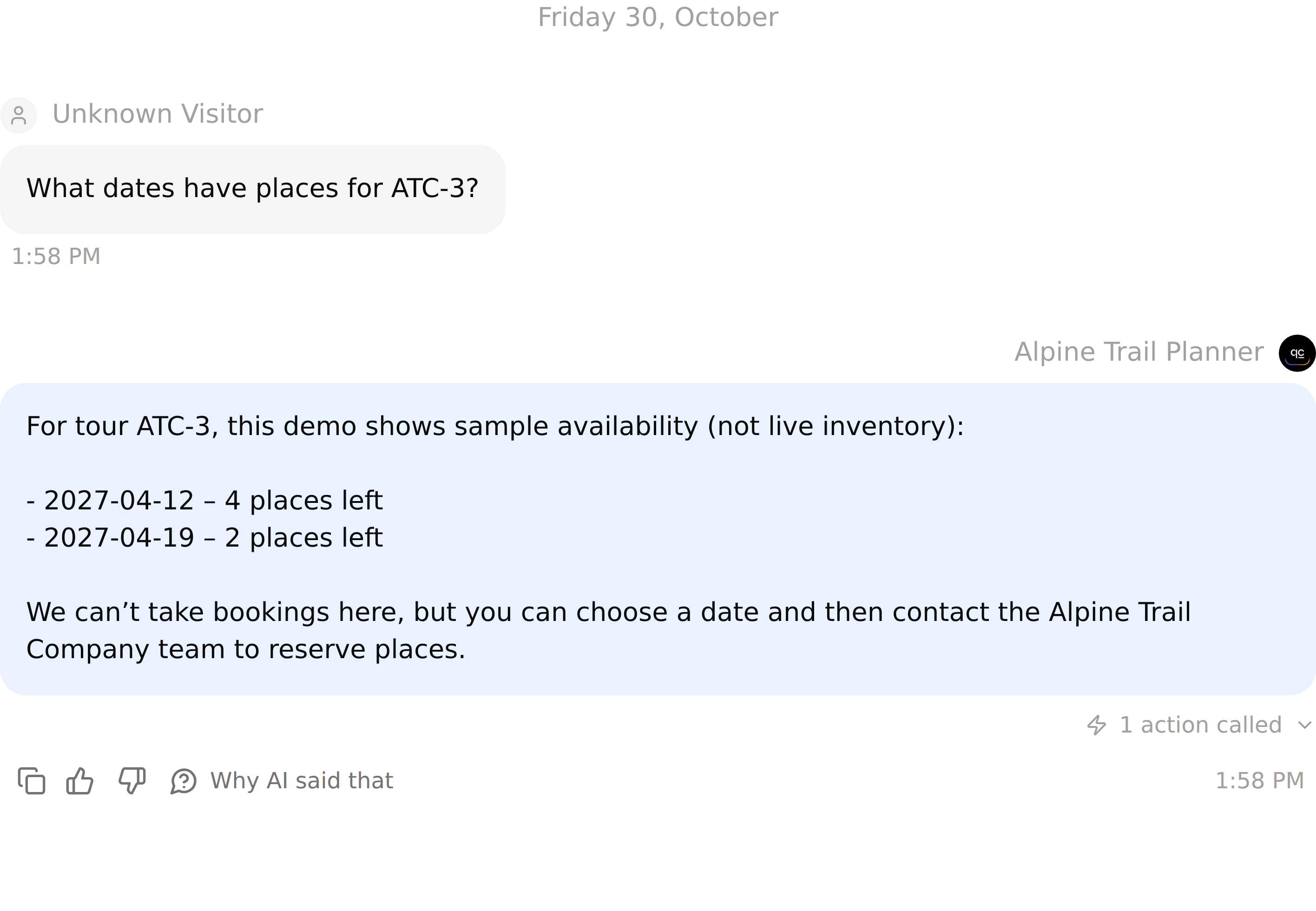 Check the returned dates and places, and inspect the Action call in the conversation.
Put the expected facts in the evaluation criteria. For availability, require the dates, remaining places and sample-data label; a polite error message does not satisfy that test. The kit includes the criteria and full example replies alongside the worksheet for your own GPT comparison.
After a change, rerun the affected questions. Before switching links, repeat the key cases on the actual website widget, public chat page or ChatGPT connection your users will use.
How do you share the Agent with customers?
You can give customers a public chat page or put the Agent directly on your site as a website widget. Both use the same instructions, knowledge and Actions you just tested.
- Open Your Website → Install. Set Chat Page Access to Anyone under Availability and access, then use Share a link instead to copy the page URL.
- Open that URL in a private browser window and try a question as a visitor.
- To embed the Agent, copy the widget installation snippet from the same Install tab. Add it to your site and test on desktop and mobile. The website chatbot guide covers the installation.
- Replace the old GPT link in your website, help articles and onboarding emails.
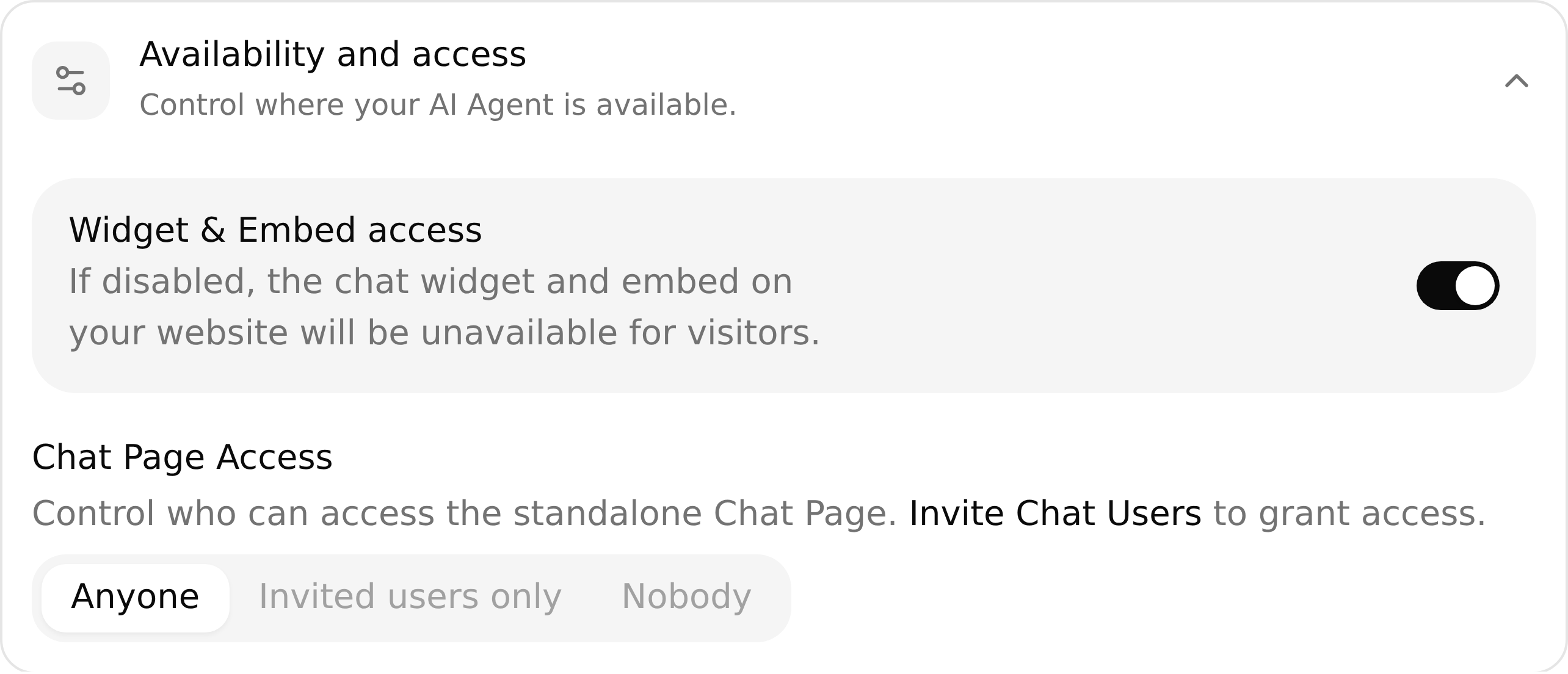 Choose who can open the chat page, then test the shared link as a visitor.
Can you use the same Agent from ChatGPT?
Yes. You can expose the Agent as an MCP tool that ChatGPT can call during a conversation. When a question needs your Agent’s knowledge, ChatGPT sends it a message. The Agent answers using its Knowledge Base and Actions, then sends the result back to ChatGPT.
For example, someone asks ChatGPT, “What should I pack for ATC-3?” ChatGPT can send that question to Alpine Trail Planner and use its answer in the conversation. A visitor asking through your website reaches the same Agent and the same packing information.
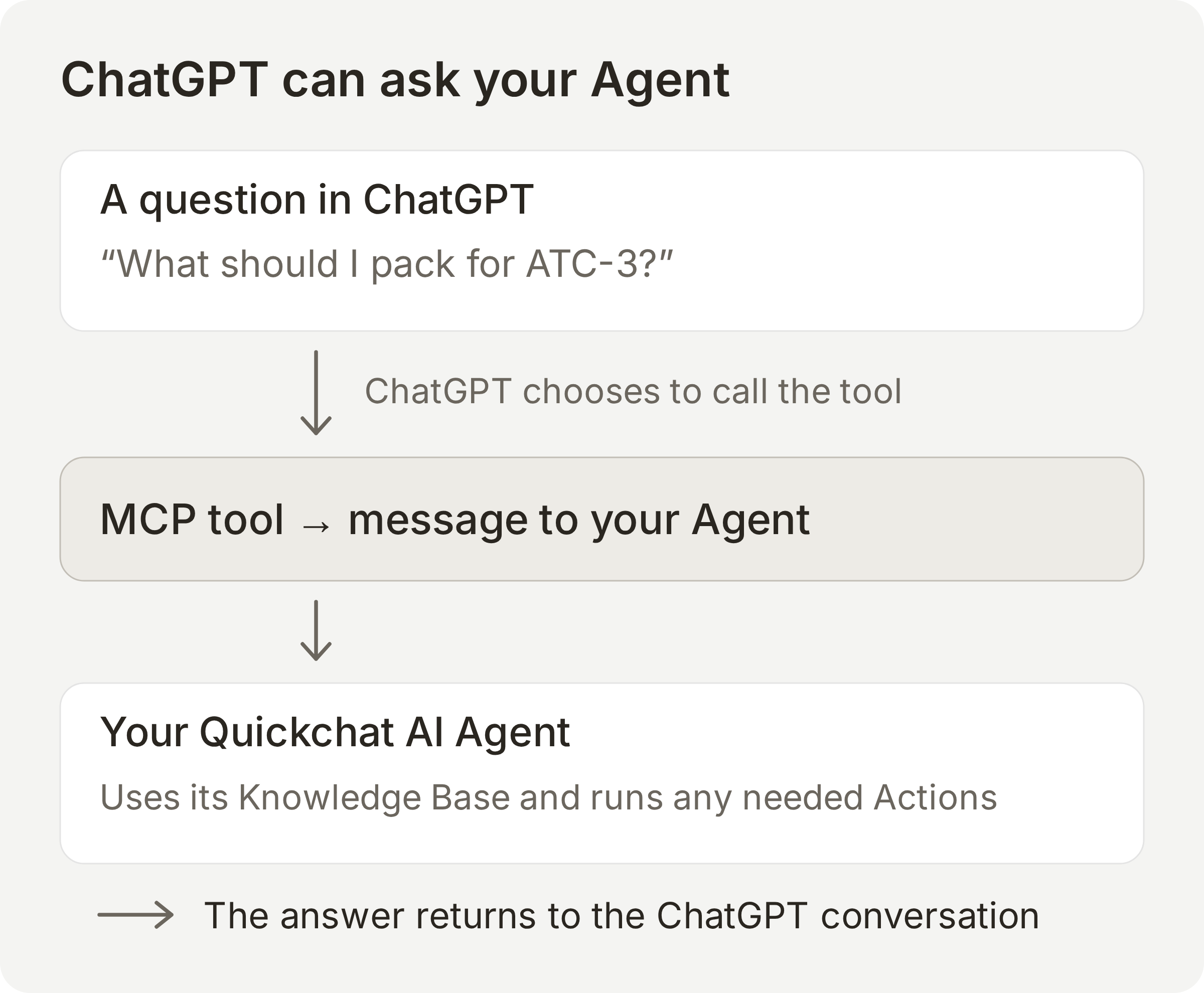 ChatGPT chooses when to call the tool. Your Quickchat AI Agent handles the question and returns the result.
The Quickchat AI plugin used earlier manages your Agent. This connection asks the Agent questions, so you can share the assistant’s expertise without giving someone account-management tools.
Connect the Agent to ChatGPT
- In Quickchat AI, open External Apps → MCP and enable MCP. In Configure MCP, give the tool a name and describe the questions it should handle, such as “Tour, packing and booking-policy questions for Alpine Trail Company.”
- Leave Require sign-in (private) on for a team-only Agent. Open Connect MCP and copy the server URL.
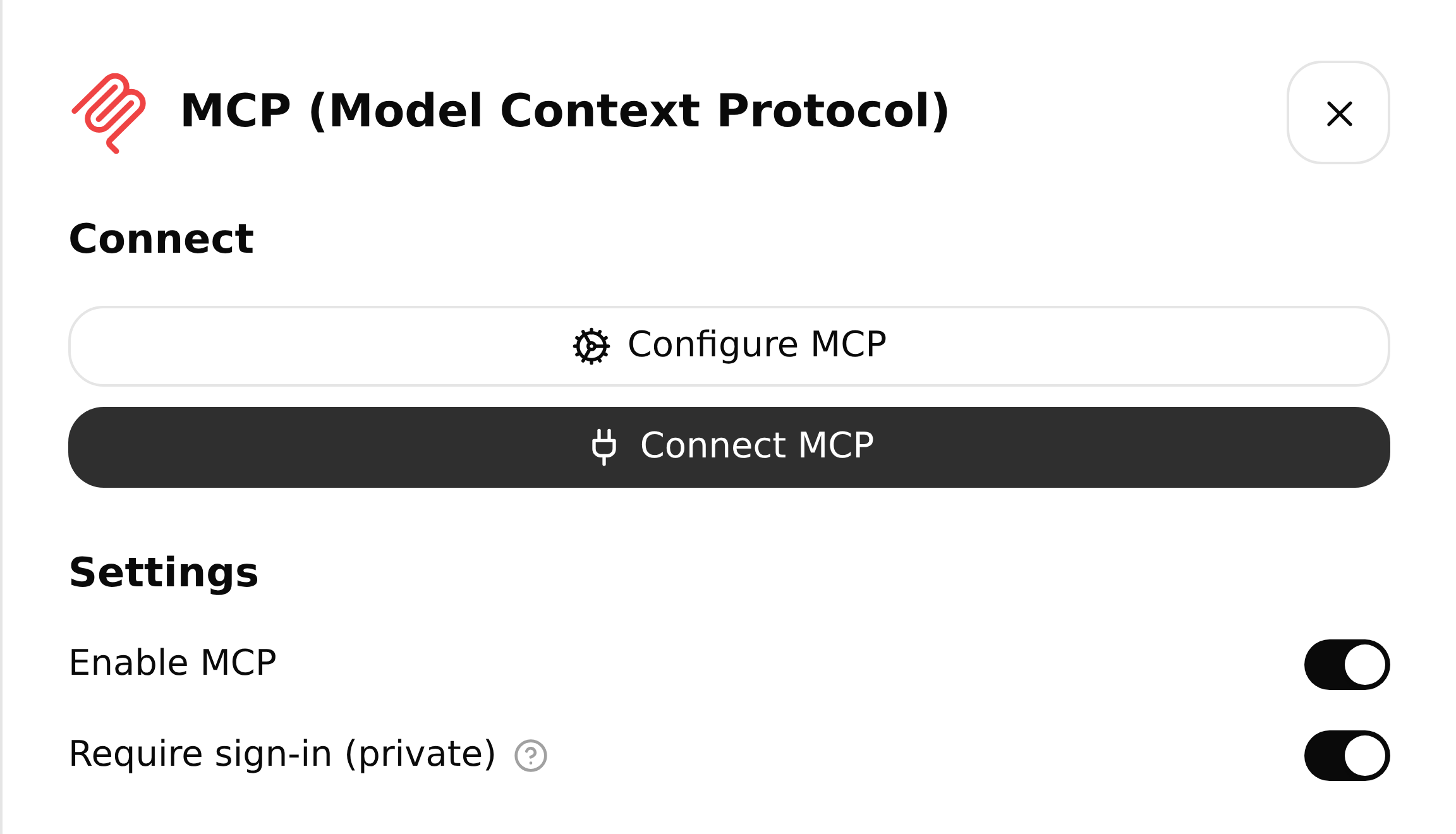 Enable the Agent’s MCP tool and copy its connection URL.
- In ChatGPT, open Plugins → Add → Add custom MCP server. Enter a name, such as Alpine Trail Planner, and paste the URL under Connection → Server URL. Choose OAuth for the private Agent. Review the warning, select I understand and want to continue, then Create as a plugin and follow the connection prompts.
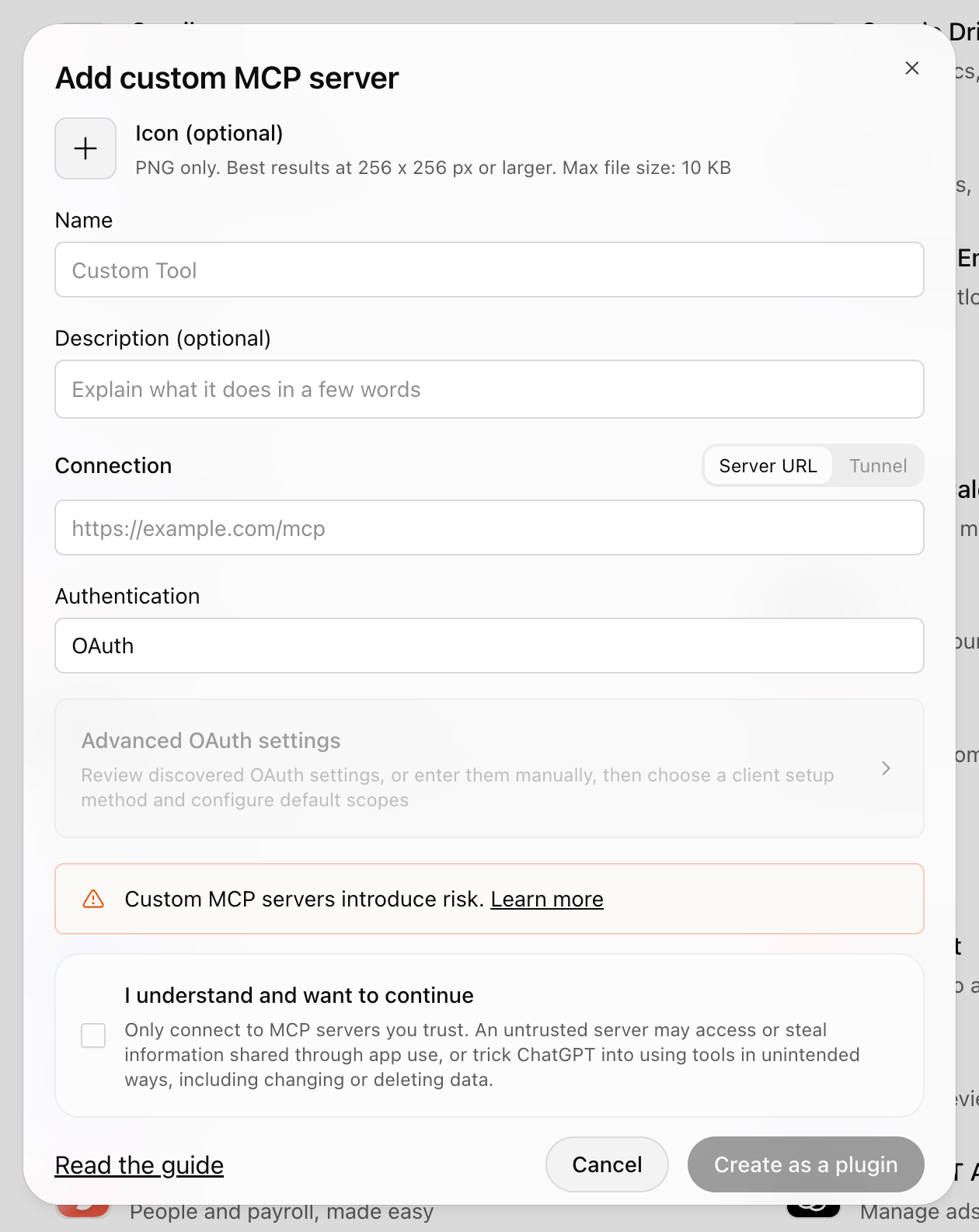 Paste the Agent’s server URL and choose OAuth to connect with private sign-in.
- Install the resulting plugin, select it with an @ mention, and ask “What should I pack for ATC-3?” Open Inbox in Quickchat AI to see the Agent’s conversation.
Custom MCP access depends on your ChatGPT plan and workspace settings. If the option is missing, check with your workspace administrator or follow OpenAI’s connection guide. The Agent MCP documentation explains the Quickchat AI settings.
Custom GPT migration checklist
Before asking users to switch, check that:
- The replacement follows the instructions and retrieves the facts you expect.
- Required Actions run with the correct inputs and account access.
- Missing information and failed requests produce useful, honest answers.
- An intended user can open the new destination and complete a representative conversation.
- Your website, help pages and emails point to the replacement.
The kit includes a checklist and comparison worksheet. Keep the original GPT available while it remains usable, and use your test results to decide when to switch.
Frequently asked questions
When are custom GPTs retiring?
OpenAI schedules custom GPT retirement for December 11, 2026. FedRAMP and qualifying Enterprise workspaces with approved deferrals have February 11, 2027. Follow the retirement notice in the account or workspace where your GPT was created.
How do I migrate a custom GPT to a plugin?
Open My GPTs and choose Migrate to plugin for a GPT you own. Publish essential edits first, then review the resulting instructions and reference files. Reconnect the integrations you need, install the plugin, test it and share it with your intended users.
Can ChatGPT migrate my custom GPT to Quickchat AI?
Yes. Connect the Quickchat AI plugin and give ChatGPT your GPT’s instructions, knowledge files, action definitions and example questions. ChatGPT can configure the Agent, add knowledge, recreate API Actions and run simulations. Review the proposed changes, connect any required accounts and compare the answers with your original GPT.
Do custom GPT actions migrate automatically?
OpenAI’s built-in plugin migration does not transfer custom actions. The Quickchat AI plugin can help recreate API Actions from the definitions you supply, including their inputs, requests and response filters. Test the resulting calls and connect the accounts or credentials they need.
Will I lose my custom GPT conversations?
OpenAI says existing conversations remain accessible after retirement. The retired GPT and its page become inaccessible. Your replacement Agent in Quickchat AI records its own conversations, which you can review in Inbox.
Can I put my custom GPT on my website after retirement?
You can move its instructions, knowledge and integrations into a Quickchat AI Agent, using the ChatGPT plugin or the dashboard. The Agent can answer through a website widget or a public chat page. Test the new destination, then replace the GPT links you shared with customers.
Can I still migrate after December 11, 2026?
OpenAI says migration remains possible after retirement. Moving beforehand lets you compare the original GPT with its replacement and give users a working destination before the old GPT becomes unavailable.