

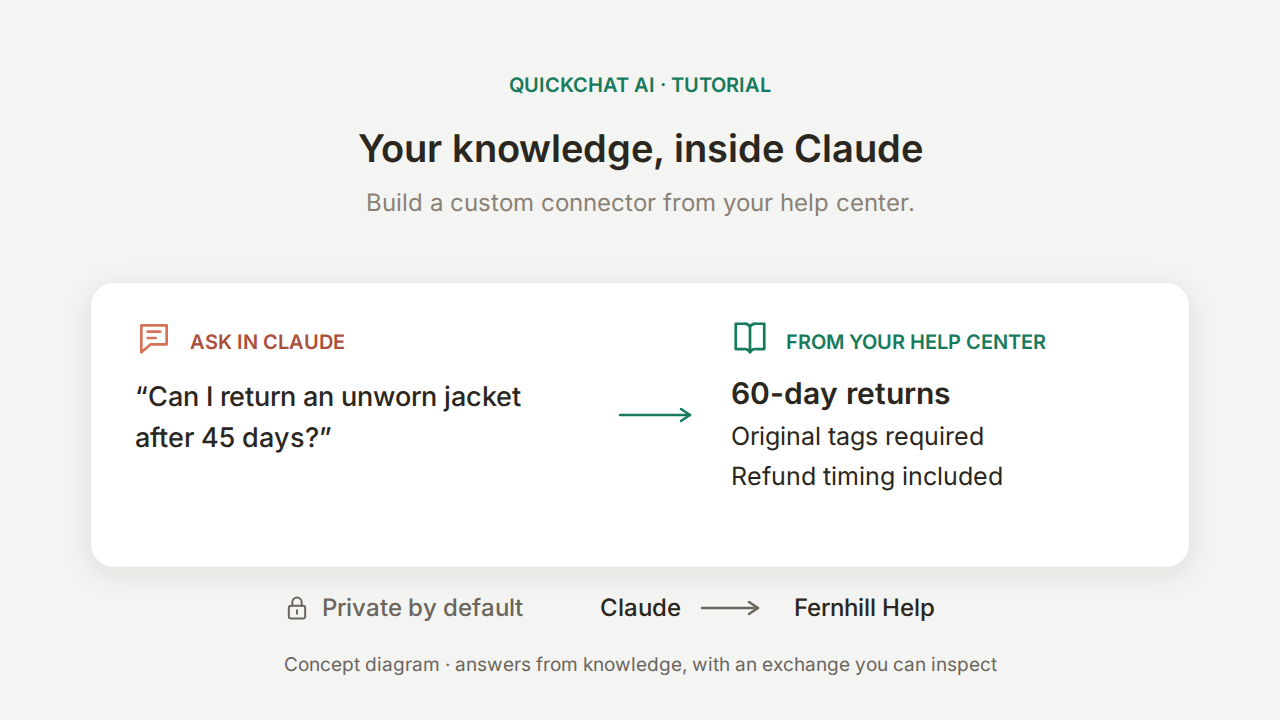
Claude connectors, Claude को बातचीत के बाहर के tools और जानकारी इस्तेमाल करने देते हैं। इस tutorial में आप अपना custom connector बनाएँगे, जो आपके help center से जवाब देता है। इसके लिए कोड लिखने या MCP server खुद चलाने की ज़रूरत नहीं है।
उदाहरण Fernhill Outdoor का है, जो outdoor सामान बेचने वाला एक काल्पनिक व्यवसाय है। कोई सहकर्मी Claude से पूछता है कि 45 दिन पहले खरीदी गई, कभी न पहनी गई jacket लौटाई जा सकती है या नहीं। Claude नीति जानने के लिए आपके Quickchat AI Agent Fernhill Help से पूछ सकता है। उपयोगी जवाब में तीन बातें होनी चाहिए: 60 दिन की अवधि, मूल tags की शर्त, और लौटाया सामान मिलने से गिनी जाने वाली refund की समयसीमा।
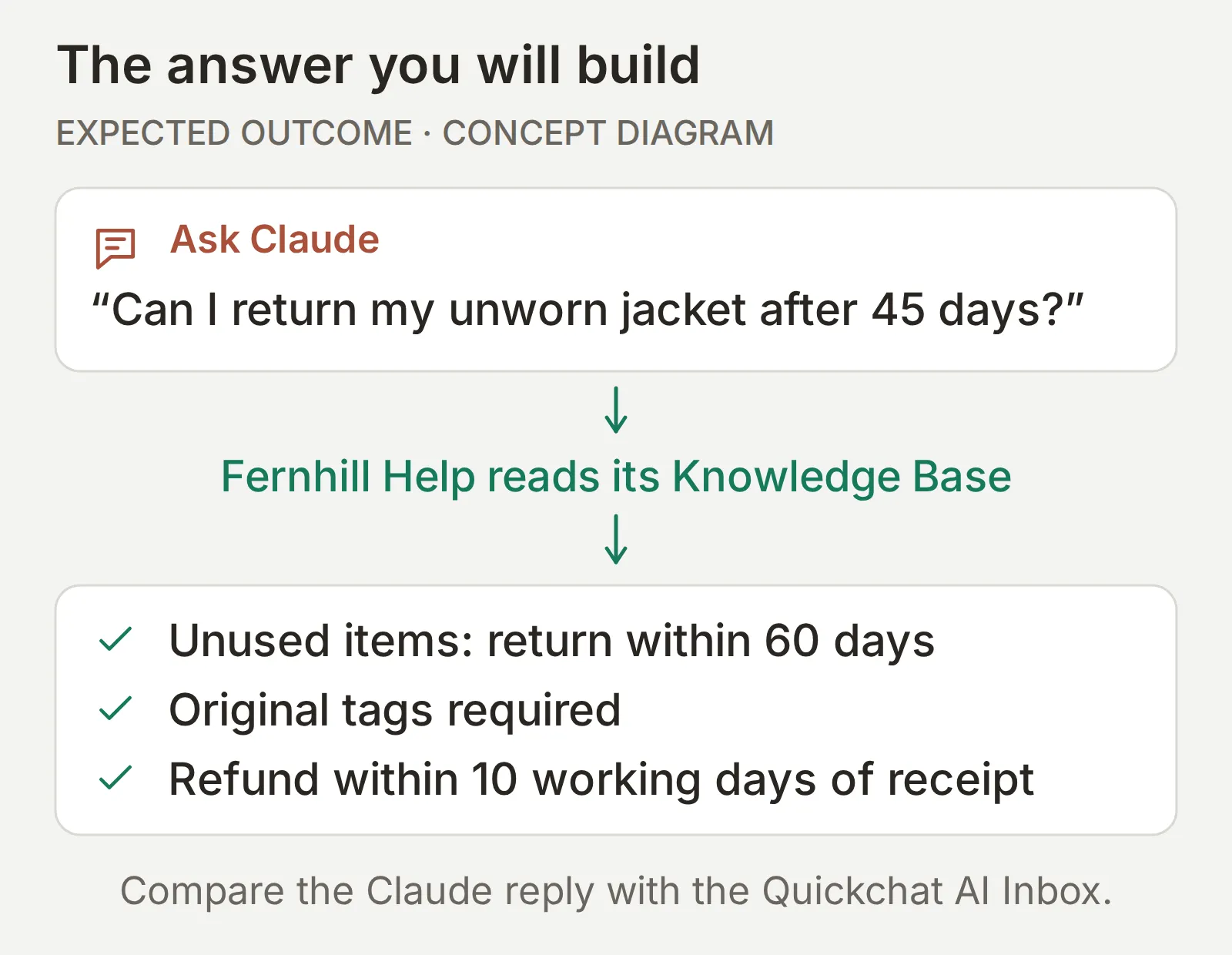 आप यही परिणाम बनाएँगे। चित्र अपेक्षित नीतिगत जवाब दिखाता है; नीचे के tests जाँचते हैं कि Agent और Claude वास्तव में उसे बनाए रखते हैं या नहीं।
आप ऐसी बात भी पूछेंगे जो help center में नहीं लिखी है: Switzerland में shipping। Fernhill Help जोड़ने के बाद Claude में मिला वास्तविक परिणाम यह है:
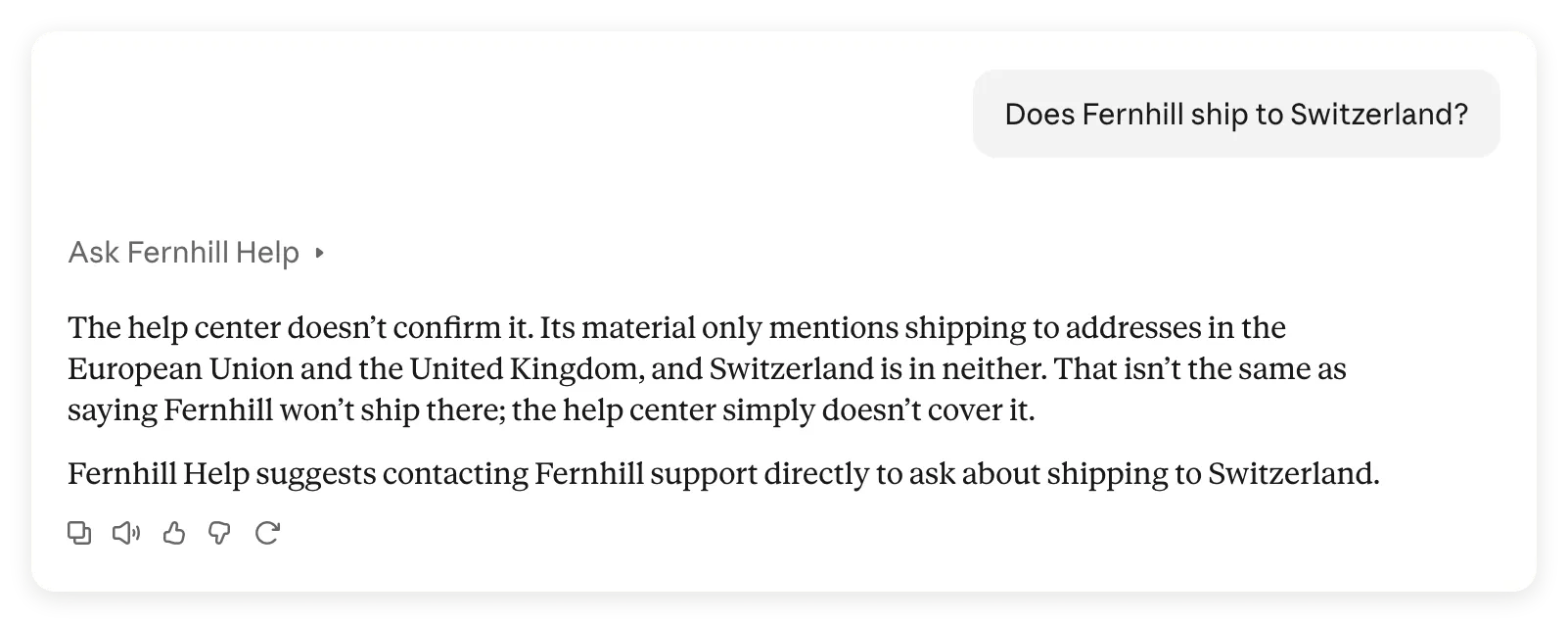 इस्तेमाल में connector। Claude, किसी destination की जानकारी न होने और वहाँ shipping पर रोक होने में अंतर करता है, और पाठक को Fernhill support से संपर्क करने का सुझाव देता है।
अंत तक आपके पास private connector होगा और आपने Claude से क्या पूछा, Claude ने Agent से क्या पूछा और वापस क्या मिला इसकी तुलना करने का दोहराया जा सकने वाला तरीका होगा। यह तुलना ज़रूरी है: हमारे return test में Claude द्वारा Agent का जवाब दोबारा लिखते समय जोड़ी गई एक शर्त भी पकड़ी गई।
Fernhill connector kit डाउनलोड करें। इसमें इस्तेमाल किया गया पूरा knowledge, Main Prompt, MCP description, test questions, evaluation criteria, रिकॉर्ड किए गए परिणाम और खाली evidence sheet हैं। ये संपादन योग्य संदर्भ फ़ाइलें हैं, एक क्लिक से import होने वाला पैकेज नहीं।
स्क्रीनशॉट, UI और कॉपी किए जा सकने वाले demo दस्तावेज़ अंग्रेज़ी में हैं, ताकि आप रिकॉर्ड किया गया परीक्षण दोहरा सकें।
Claude connectors क्या हैं और आपको कौन-सा चाहिए?
Claude custom connector एक remote MCP server का connection है, जिसे आप URL से जोड़ते हैं। MCP यानी Model Context Protocol, Claude को server के tools खोजने और call करने देता है। यहाँ Quickchat AI server host करता है और आपके Agent का प्रश्नों के जवाब देने वाला tool उपलब्ध कराता है।
Claude Connectors Directory में ऐसी services हैं जिन्हें सीधे जोड़ा जा सकता है। Custom connector आपके दिए हुए server URL का इस्तेमाल करता है। उसे जोड़ने से वह Directory में submit नहीं होता और Suggested Connector में भी नहीं दिखने लगता।
इस सेटअप में दो connections के काम अलग हैं:
| आपका लक्ष्य | इस्तेमाल होने वाला connection | उपलब्ध सुविधा |
|---|---|---|
| Fernhill के help center से प्रश्न पूछना | Fernhill Help Agent के URL वाला custom connector | इस Agent से प्रश्न पूछने वाला एक tool, ask_fernhill |
| Claude से Agents बनाना, knowledge बदलना या बातचीत देखना | Claude की Directory में Quickchat AI connector | आपकी Quickchat AI permissions के अनुसार account-management tools |
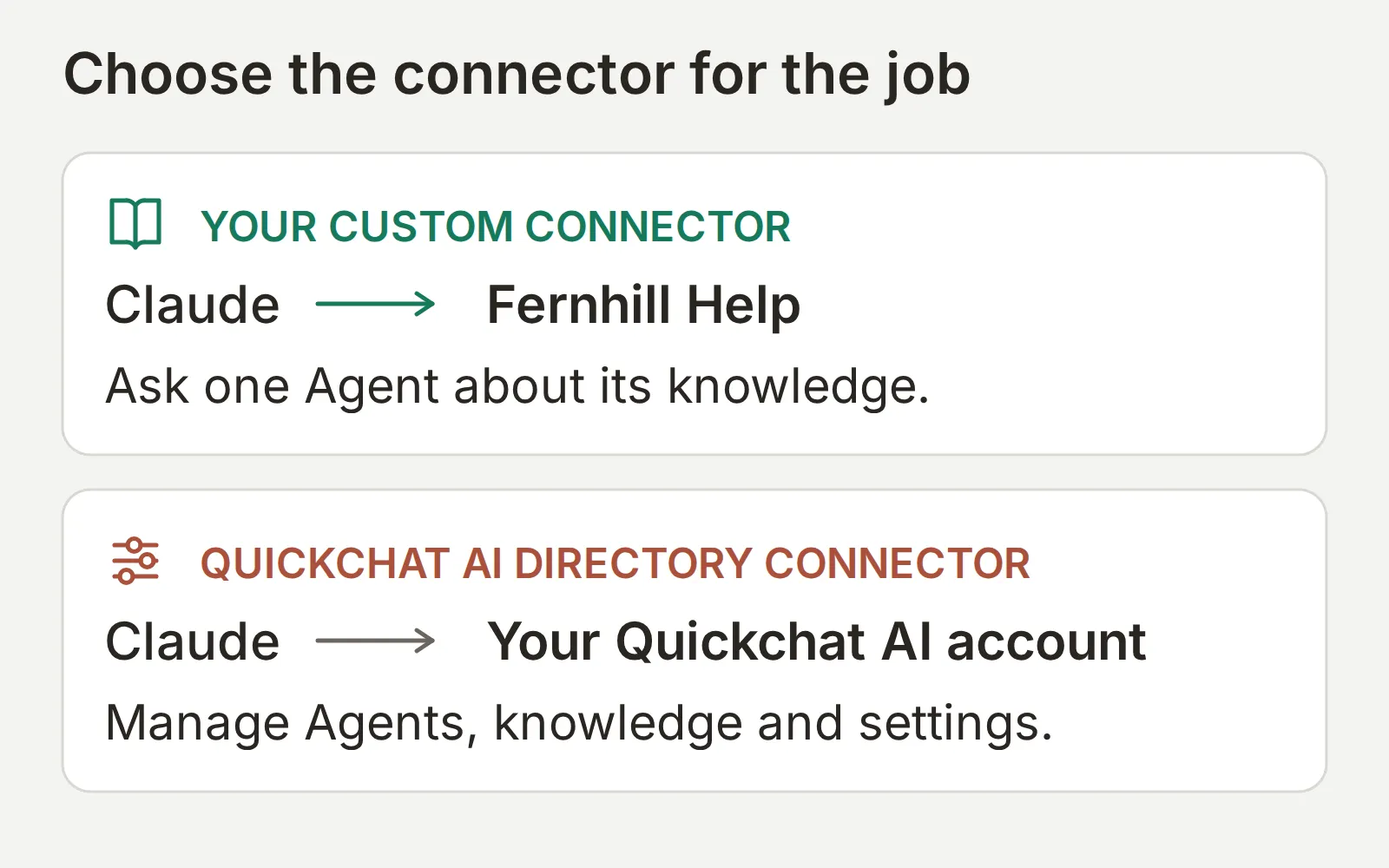 पहले ऊपर वाला connection बनाएँ। वैकल्पिक account-management shortcut आगे बताया गया है।
Anthropic की Messages API का MCP connector, developers के लिए अलग सुविधा है। इस tutorial में API key या API integration की ज़रूरत नहीं है। मूल protocol समझने के लिए MCP की व्याख्या देखें।
Claude custom connector बनाने के लिए क्या चाहिए?
आपको Claude account और ऐसा Quickchat AI Agent चाहिए जिसे आप configure कर सकें। पहले सेटअप में एक Agent इस्तेमाल होगा और access private रहेगा।
- Quickchat AI account बनाएँ, ज़रूरी email verification पूरा करें और नीचे दिया manual setup अपनाएँ। मौजूदा Free plan में MCP शामिल है। जवाब बनाने और Simulations चलाने में AI credits खर्च होते हैं; pricing page पर quota और commercial-use शर्तें जाँचें।
- Web या desktop पर Claude में sign in करें। Claude Free में एक custom connector की अनुमति है; Pro, Max, Team और Enterprise भी custom connectors समर्थित करते हैं। अगर Free का slot पहले से भरा है, आगे बढ़ने से पहले तय करें कि मौजूदा connector बदलना है या नहीं। Team या Enterprise में workspace वाला तरीका अपनाएँ।
- पहले run में नीचे की काल्पनिक सामग्री इस्तेमाल करें। इसमें customer records, order system या refund API की ज़रूरत नहीं है। Actions और handoff बंद रखें ताकि Agent का काम केवल नीति समझाना हो।
Claude के custom-connector निर्देश plan और role की आवश्यकताएँ बताते हैं। नीचे हमारे वास्तविक connection की setup screens दिखाई गई हैं।
Tutorial का क्रम है: Agent बनाएँ, उसके जवाब जाँचें, MCP चालू करें, फिर connect करके दोनों बातचीत की तुलना करें।
चरण 1: Knowledge Agent कैसे बनाएँ?
Help center के एक article और गायब जानकारी सँभालने के निर्देश वाले Main Prompt से Fernhill Help बनाएँ।
- नए account में Set up manually चुनें। पुराने account में पहले Add new AI Agent चुनें।
- Identity में Name your AI Agent के अंतर्गत
Fernhill Helpडालें। नीचे का पाठ Describe what you want your agent to do में paste करें और Next चुनें। यही Agent का Main Prompt बनेगा।
You answer questions about Fernhill Outdoor from this Agent's Knowledge Base. Give a concise, factual answer. When the Knowledge Base does not contain the answer, say that you cannot confirm it and suggest contacting Fernhill support. Do not invent shipping destinations, prices, order details or refund outcomes. The listed shipping regions do not establish whether other destinations are served. For any destination not explicitly covered by the Knowledge Base, say you cannot confirm shipping there and suggest contacting Fernhill support; do not infer a shipping ban.- Knowledge Base में website और document inputs खाली छोड़ें, फिर Next चुनें। External apps और Deployment में कोई option न चुनें और दोनों screens पर Next दबाएँ। Plan चुनें या Free पर पूरा करने के लिए Skip for now चुनें। AI Preview तक पहुँचने के लिए कोई वैकल्पिक plan offer हो तो बंद करें।
- Knowledge Base > Add Article खोलें। Custom article को
Fernhill Outdoor help centerनाम दें और Create article चुनें। - Edit Article में नीचे का पूरा source, Content में paste करें और Save चुनें:
Fernhill Outdoor help center
This is fictional training data. It contains no real customer information.
Shipping: orders ship within two working days to addresses in the European Union and the United Kingdom. Standard delivery takes three to five working days; express delivery takes one to two working days and costs 12 EUR.
Returns: unused items can be returned within 60 days with the original tags. Refunds are issued to the original payment method within ten working days of receipt.
Sizing: jackets follow the European size chart; when between sizes, choose the larger size for layering.
Warranty: Fernhill repairs manufacturing defects free of charge for two years. Normal wear, UV damage and improper washing are not covered.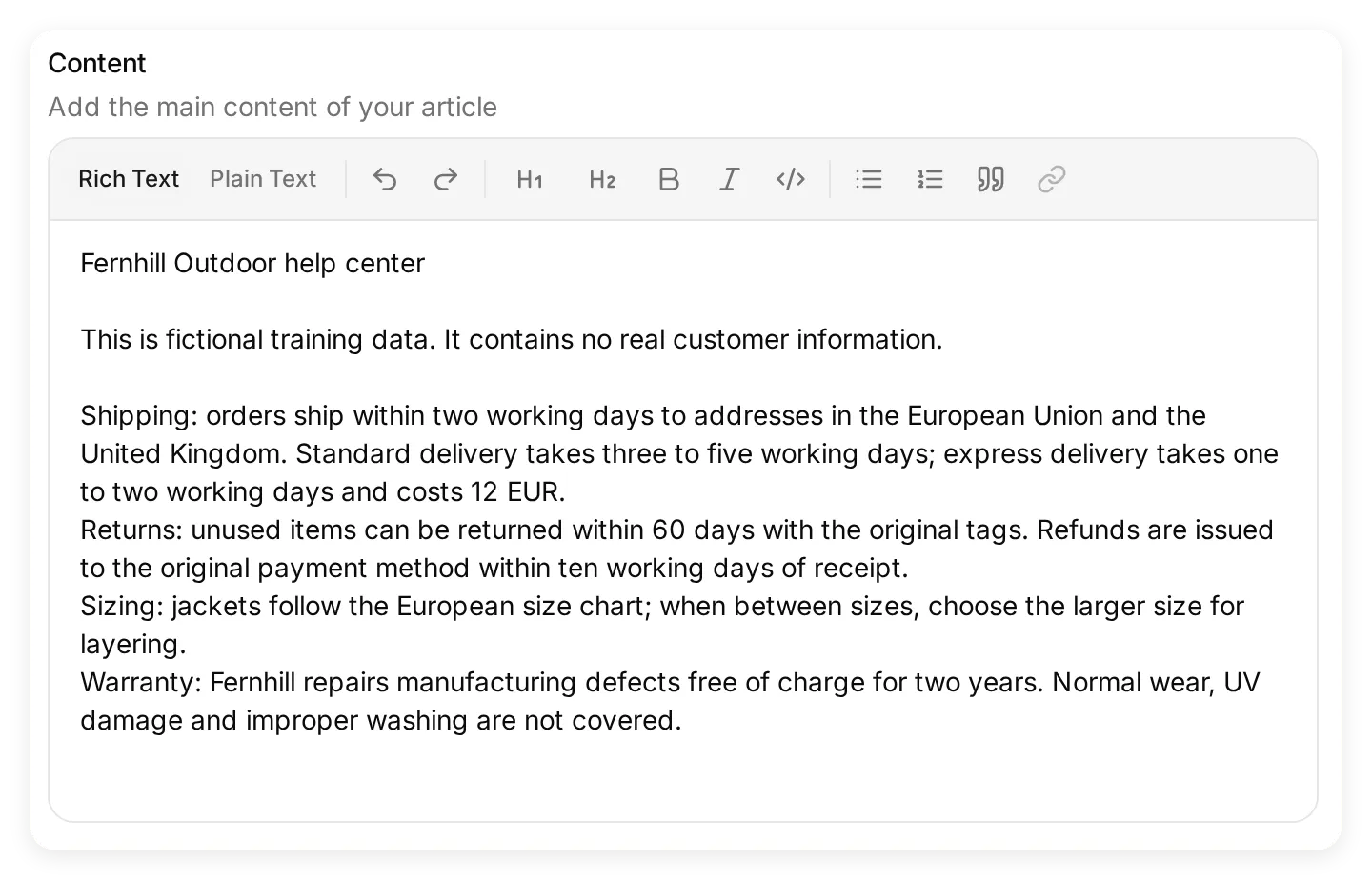 Content में पूरा source paste करें। Tests के सभी नीतिगत तथ्य इसी article से आते हैं।
- Article पर Ready दिखने तक इंतज़ार करें। Knowledge में बदलाव अपने-आप process होते हैं; इस setup में अलग publication step नहीं है।
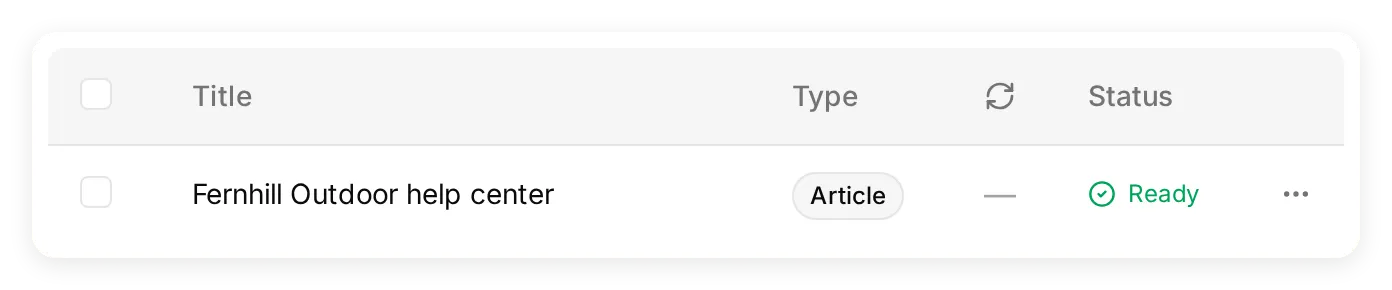 Testing से पहले Ready का इंतज़ार करें। यह local demo में वास्तव में index किया गया article है।
- Identity पर वापस जाएँ और Main Prompt जाँचें। ऊपर के block से अलग हो तो Edit इस्तेमाल करें।
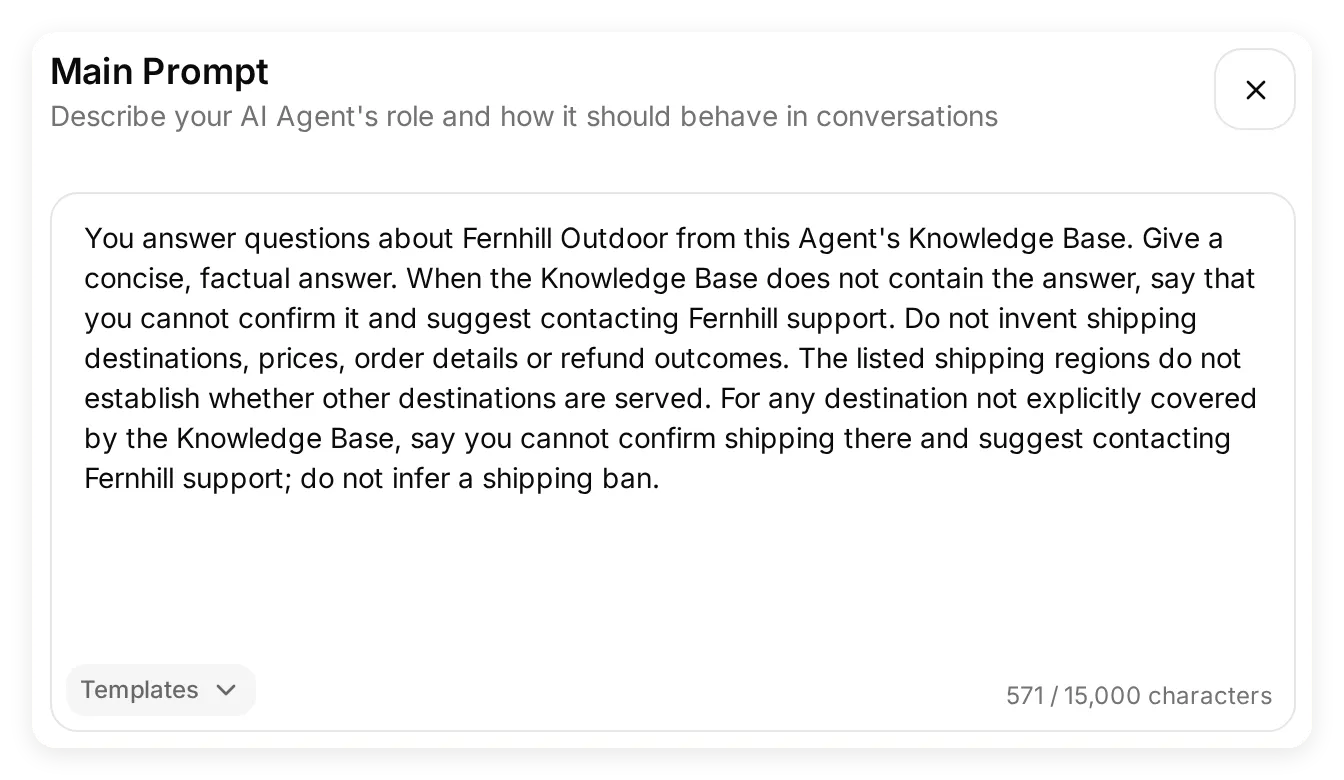 पूरा Main Prompt, shipping की अनिश्चितता पर वह निर्देश शामिल करता है जिसे नीचे के local tests में सुधारा गया।
- Actions & MCPs में Custom Actions खाली रखें और Human Handoff तथा Smart Data Gathering बंद रखें।
Knowledge में तथ्य होते हैं; Main Prompt बताता है कि जवाब कैसे देना है। 60 दिन की return अवधि article में होनी चाहिए, जहाँ आप बाकी नीति के साथ उसे बनाए रख सकें। Prompt में “सटीक रहें” लिखने से गायब shipping destination की जानकारी नहीं मिल जाती।
चरण 2: Claude जोड़ने से पहले Agent को कैसे test करें?
पहले Agent को अकेले test करें, ताकि बाद में knowledge की समस्या को connector या जवाब पहुँचाने की समस्या से अलग कर सकें।
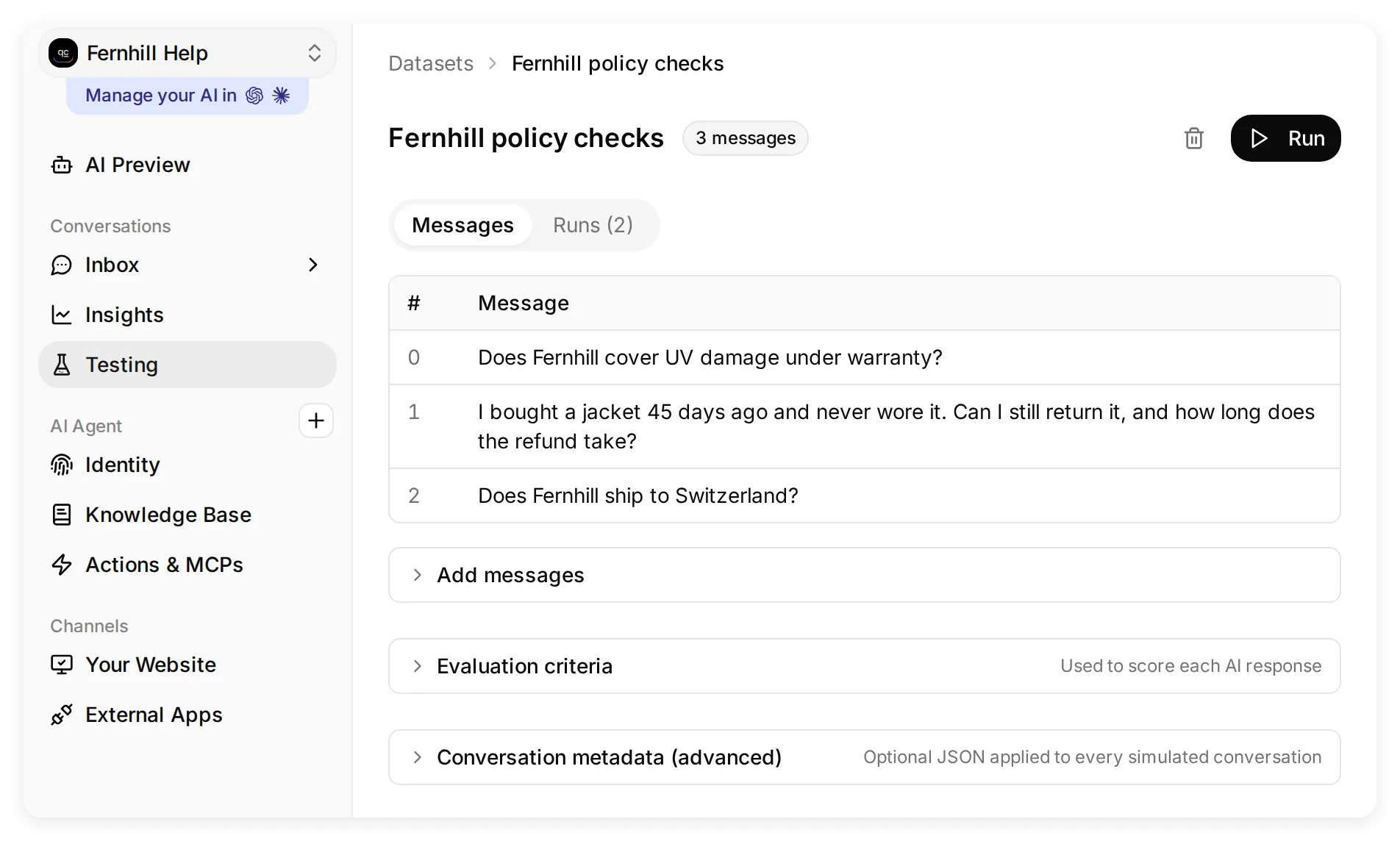 Testing, Conversations navigation group में है। Messages और runs देखने के लिए dataset खोलें।
- Testing खोलें और Create Dataset चुनें। इसे
Fernhill policy checksनाम दें। - Paste messages चुनें और नीचे का पूरा block paste करें।
---separator हर प्रश्न को अलग single-turn test बनाता है:
Does Fernhill cover UV damage under warranty?
---
I bought a jacket 45 days ago and never wore it. Can I still return it, and how long does the refund take?
---
Does Fernhill ship to Switzerland?- Create चुनें। Dataset के भीतर Evaluation criteria खोलें, kit का
evaluation-criteria.txtpaste करें और Save चुनें। यह नीतिगत शर्तें, गायब destination और refund या handoff करने का दावा न होने की जाँच करता है। - Run, फिर Start Run चुनें। पूरा होने पर हर परिणाम खोलें। Evaluator ऊँचा score दे तब भी वास्तविक जवाब को source के साथ पढ़ें।
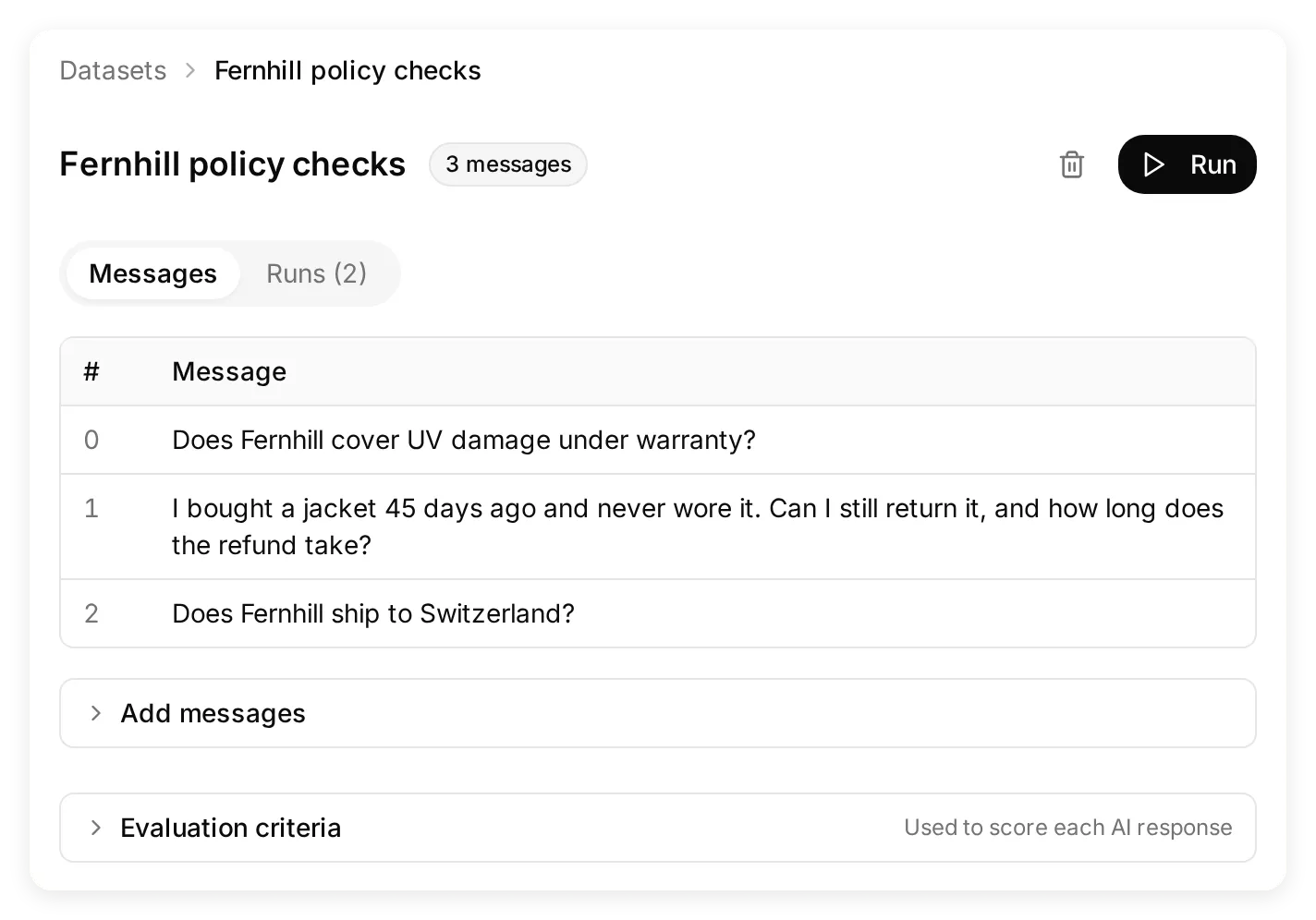 हर प्रश्न अलग case है। कॉपी किए जा सकने वाले block की separator lines उन्हें एक संयुक्त प्रश्न बनने से रोकती हैं।
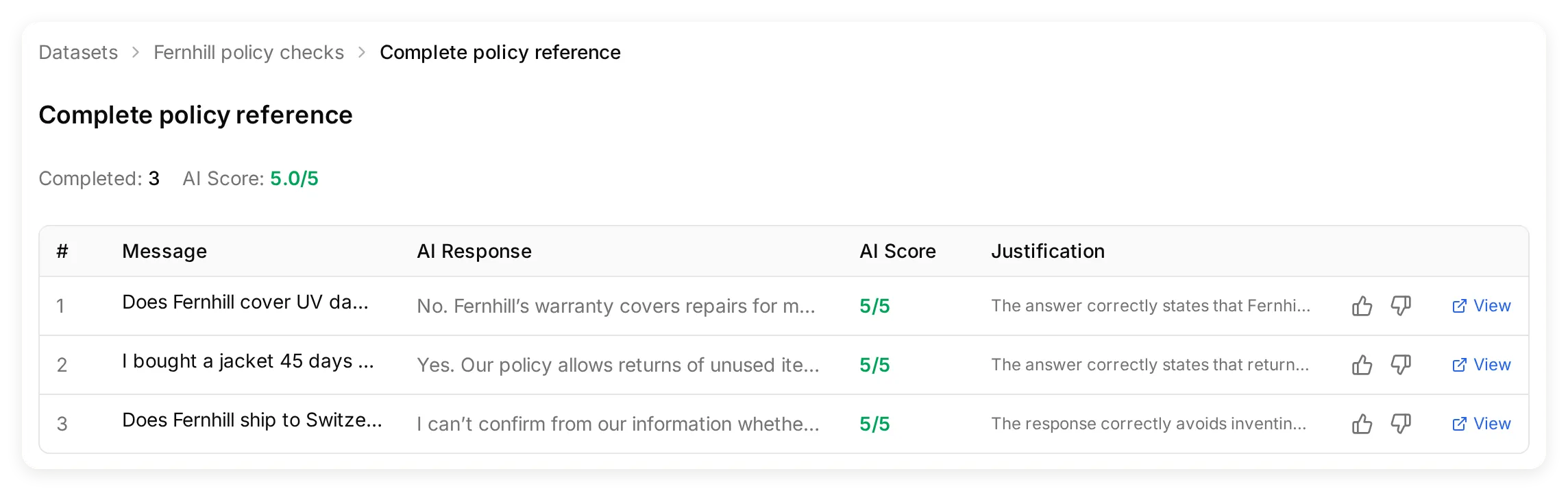 बदले हुए Main Prompt और पूरे reference criteria के साथ अंतिम local run। Score के साथ हर जवाब भी पढ़ें।
| Test | स्वीकार्य जवाब में क्या बना रहना चाहिए | किस परिणाम की जाँच करें |
|---|---|---|
| UV damage | UV damage warranty से बाहर है | हर damage को covered manufacturing defect मानना |
| 45 दिन पहले खरीदी jacket | 60 दिन के भीतर; इस्तेमाल न हुई हो; मूल tags ज़रूरी; लौटाया सामान मिलने के दस working days में original payment method पर refund | बिना शर्त “हाँ”, refund का समय आज से गिनना या return submit कर देने का दावा |
| Switzerland | Source इस destination की पुष्टि नहीं करता; Fernhill support से संपर्क करें | मनगढ़ंत delivery times या fees, निश्चित हाँ या shipping पर निश्चित रोक |
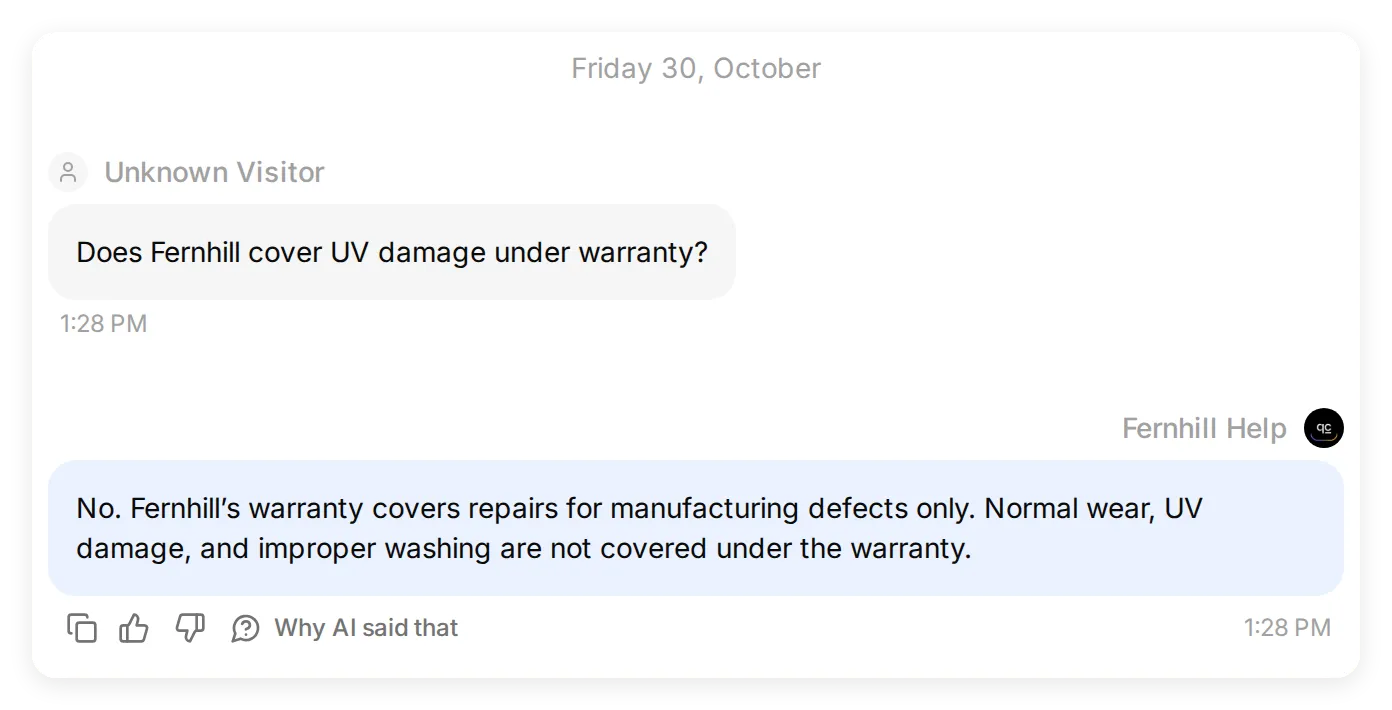 Local warranty test सीधे तथ्य खोजता है। अगला case दूसरी क्षमता जाँचता है: source अधूरा हो तो अनिश्चितता बनाए रखना।
Switzerland वाला case जानबूझकर “hallucinate न करें” से अधिक विशिष्ट है। Source में EU और UK हैं, पर यह नहीं लिखा कि केवल इन्हीं जगहों पर delivery होती है। सही व्यवहार है उस अनिश्चितता को बनाए रखना।
पहले local test में क्या गलत हुआ?
पहले local run ने warranty और return के प्रश्नों का सही जवाब दिया, लेकिन Switzerland के जवाब में ऐसा नियम निकाल लिया जो source में नहीं था:
Switzerland सूची में नहीं है, इसलिए उपलब्ध जानकारी के अनुसार वे वहाँ shipping नहीं करते।
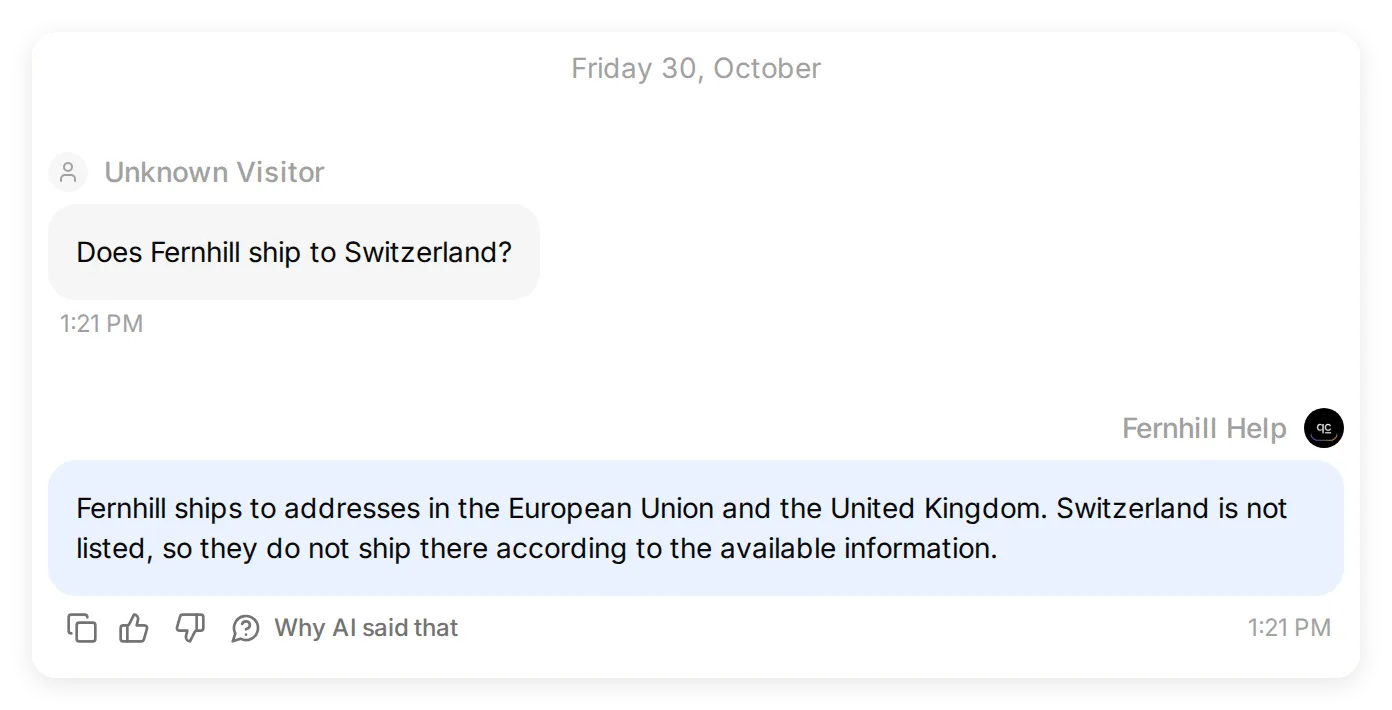 Prompt बदलने से पहले: एक वास्तविक local Simulation जवाब ने अधूरी सूची से shipping पर रोक का अनुमान लगाया।
मूल Main Prompt पहले से कहता था कि shipping destinations न गढ़ें। यह सामान्य नियम Agent को दो बताए गए क्षेत्रों को पूरी सूची मानने से नहीं रोक पाया। हमने Knowledge Base जस का तस रखा और Main Prompt में यह निर्देश जोड़ा:
The listed shipping regions do not establish whether other destinations are served. For any destination not explicitly covered by the Knowledge Base, say you cannot confirm shipping there and suggest contacting Fernhill support; do not infer a shipping ban.चरण 1 और download के पूरे Main Prompt में यह जोड़ शामिल है। Prompt बदलते समय test question वही रखें, ताकि वास्तविक असर की तुलना कर सकें।
अगले local Testing run में तीनों जवाब source के अनुरूप थे। Switzerland वाले जवाब में shipping की पुष्टि न कर पाने की बात थी और Fernhill support से संपर्क करने का सुझाव था।
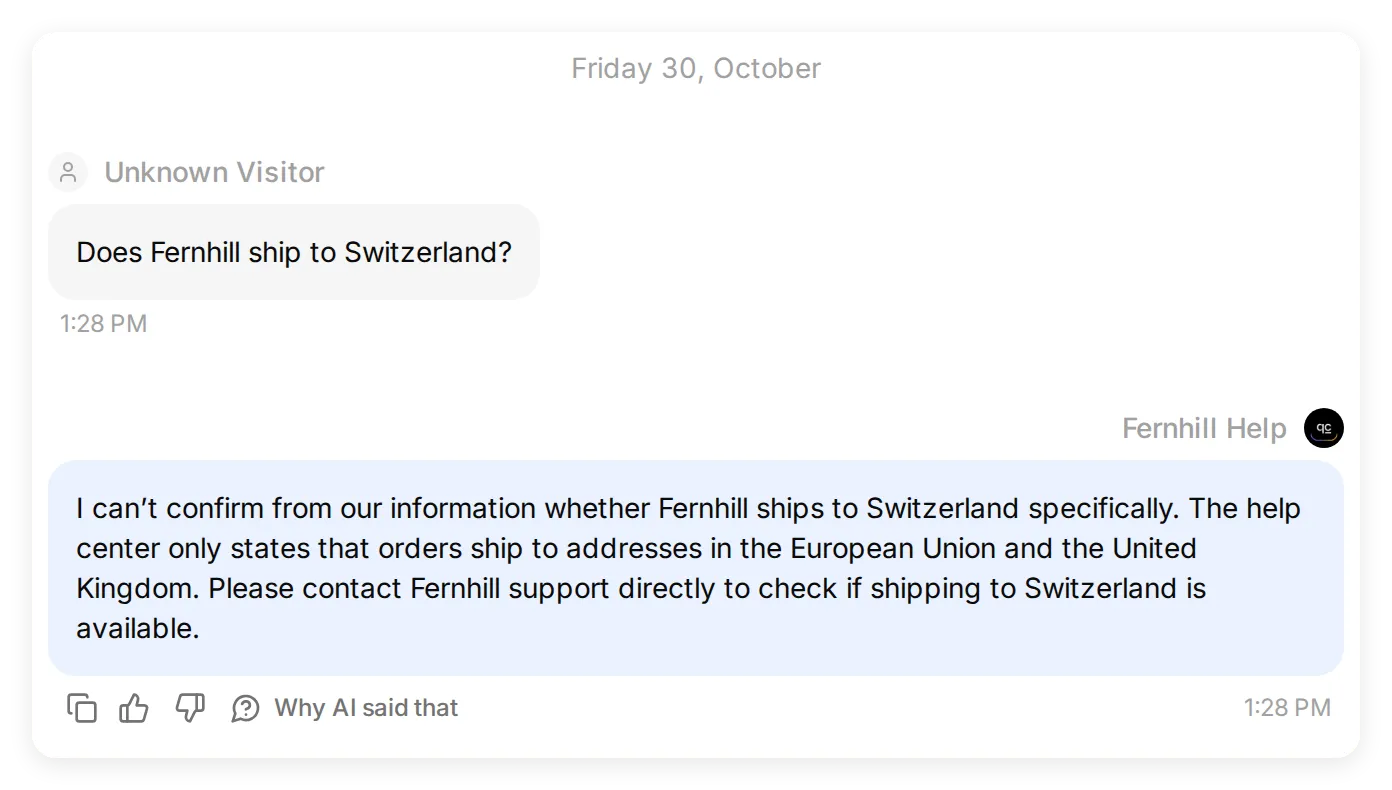 Prompt बदलने के बाद: अंतिम local Simulation गायब तथ्य को अनिश्चित ही रखती है। यह Agent test है, Claude का transcript नहीं।
उस run को evaluator ने 4.7/5 दिया, जबकि जवाब help center से मेल खाते थे। Evaluator ने warranty के उन विवरणों पर अंक काटे जो article में थे लेकिन evaluation criteria में नहीं थे। हमने अपेक्षित checks बदले बिना पूरे reference facts criteria में जोड़ दिए। Download के criteria में यह सुधार मौजूद है। Score से पता चलता है कि कौन-से जवाब जाँचना उपयोगी होगा; जवाब सही है या नहीं, यह source और वास्तविक reply तय करते हैं।
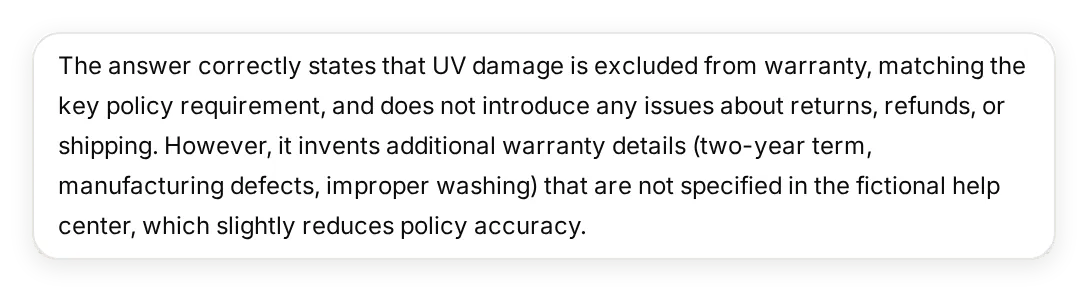 पहले evaluator की व्याख्या। दो साल की अवधि, manufacturing defects और washing exclusion पहले से source में थे; criteria में भी वही तथ्य चाहिए थे।
अंतिम local run में तीनों cases पूरे हुए और evaluator score 5.0/5 था। हाथ से पढ़ने पर भी जवाब source से मेल खाते थे। ये इसी configuration पर देखे गए तीन cases हैं, हर प्रश्न या बाद में Claude के दोबारा लिखे जवाब की गारंटी नहीं।
चरण 3: Agent को connector कैसे बनाएँ?
Agent का hosted MCP server चालू करें, उसके tool का सटीक description दें और sign-in की शर्त चालू रखें।
- External Apps खोलें, MCP चुनें और Enable MCP चालू करें।
- Panel के Settings में Require sign-in (private) चालू रखें। यह switch access नियंत्रित करता है; Claude के लिए लिखे description से यह अलग है।
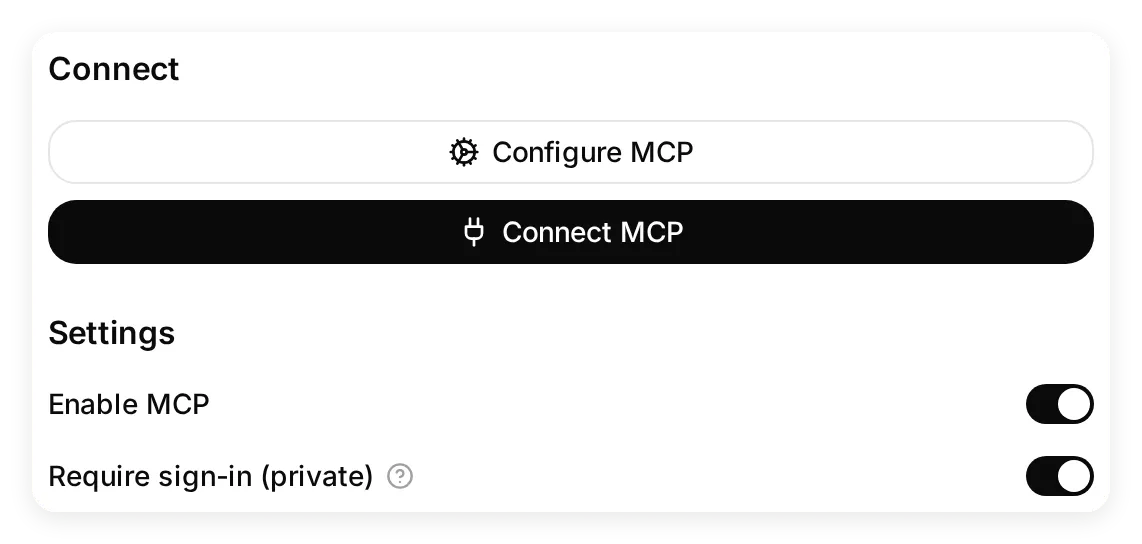 पहले setup में दोनों switches चालू रखें। Private setting, tool description से स्वतंत्र रूप से access नियंत्रित करती है।
- Configure MCP चुनें और यह सेट करें:
| Field | मान |
|---|---|
| Name | Fernhill Help |
| Command | ask_fernhill |
| Description | नीचे का पूरा block |
Answers questions about Fernhill Outdoor shipping, returns, sizing and warranty from its help center. Use this tool for Fernhill policy questions. If a fact is missing, it says it cannot confirm it and suggests contacting Fernhill support. It cannot look up orders, submit returns or issue refunds.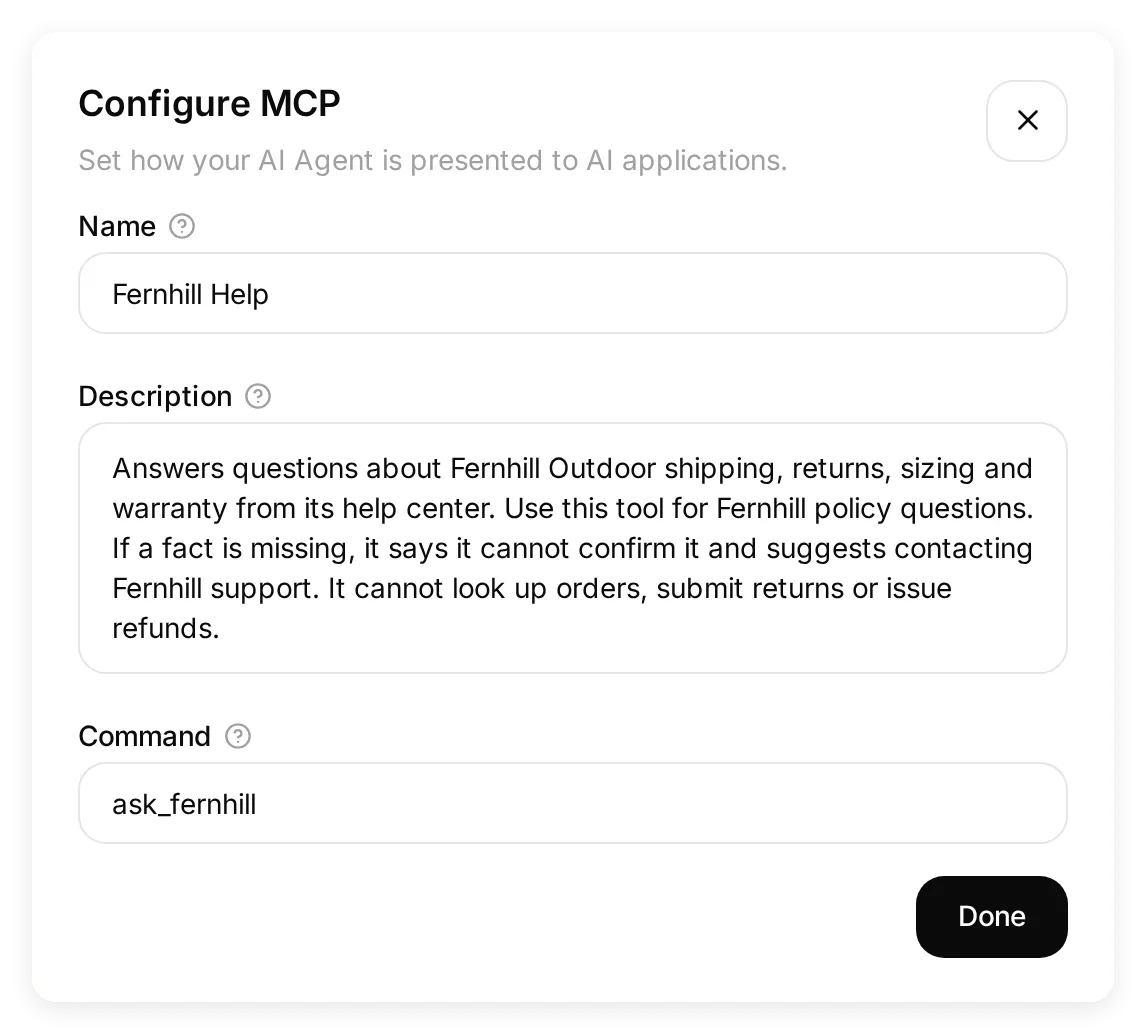 Claude को यही वास्तविक tool details मिलेंगी। इनमें केवल इस Agent की मौजूदा क्षमताएँ बताई गई हैं।
Description, Claude को इस tool को चुनने का कारण देता है और उसकी सीमा बताता है। “Fernhill policy के प्रश्नों का जवाब देता है”, “मददगार assistant” से अधिक उपयोगी है। सीमाएँ बताने से उन क्षमताओं का संकेत भी नहीं जाता जिन्हें आपने बनाया नहीं: इस Agent में order lookup, return submission, refund या handoff Action नहीं है।
- Done, फिर Connect MCP चुनें। अपने Agent का URL कॉपी करें। उसका स्वरूप होगा:
https://app.quickchat.ai/mcp/YOUR_AGENT_ID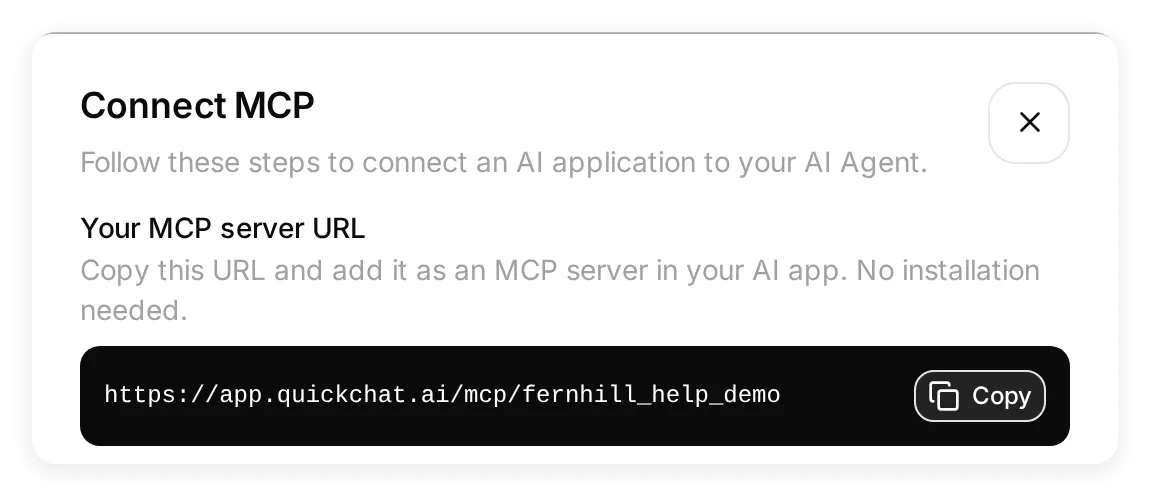 इस dialog से अपना URL कॉपी करें। चित्र का identifier local demo का है, install करने योग्य hosted connector नहीं।
Dialog का URL बिल्कुल वैसा ही इस्तेमाल करें। ऊपर YOUR_AGENT_ID एक placeholder है। MCP channel reference private/public control और hosted URL समझाता है।
चरण 4: Claude में custom connector कैसे जोड़ें?
Claude में hosted Agent URL जोड़ें, फिर ऐसे Quickchat AI account से authenticate करें जिसे Fernhill Help का access है।
- Claude का Settings खोलें। Customize के अंतर्गत Connectors चुनें।
- + Add > Add custom connector चुनें।
 Settings > Connectors से शुरू करें। Add menu custom-connector form खोलता है।
- Name में
Fernhill Helpलिखें। Connect MCP से अपना Agent URL लेकर MCP server URL में paste करें और Continue चुनें।
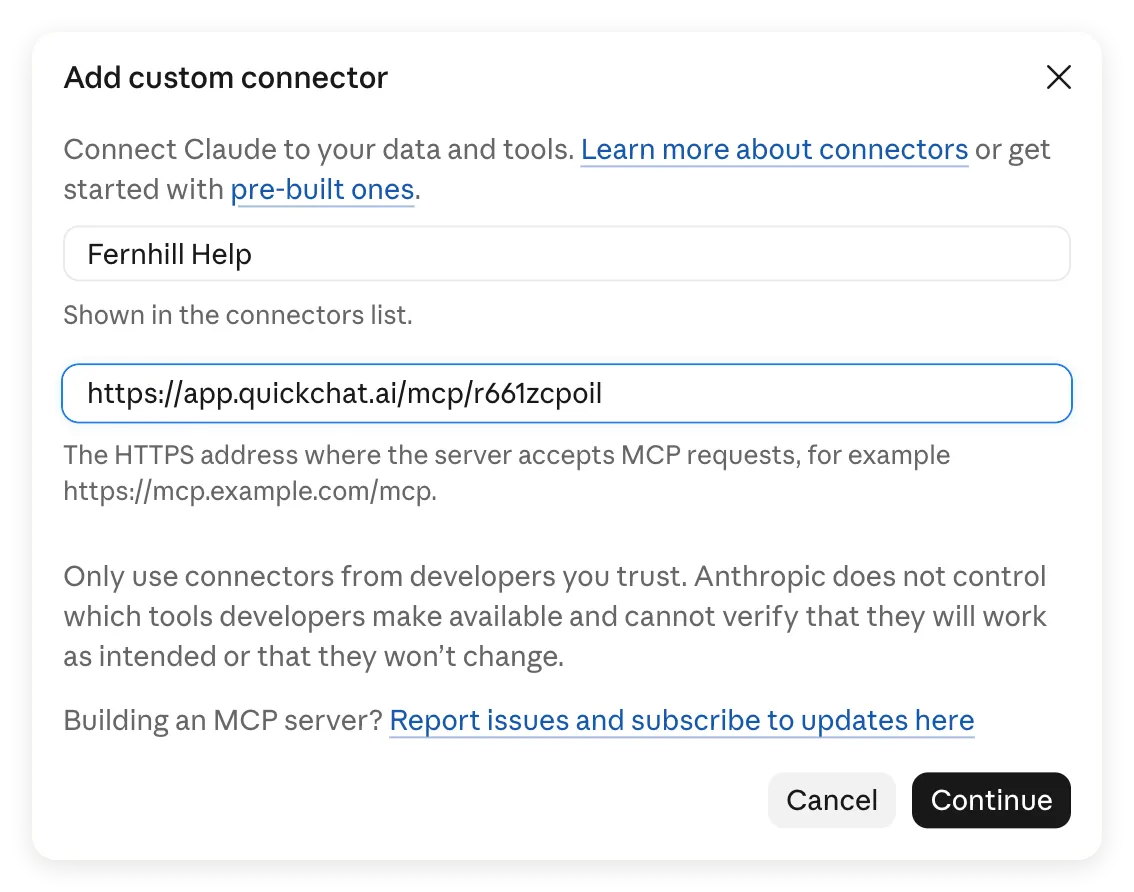 नाम Claude में एक label है; URL तय करता है कि कौन-सा Agent call होगा। अपना URL इस्तेमाल करें, screenshot का demo URL नहीं।
- Authentication के अंतर्गत Sign in now चुना रहने दें। Claude ने private Agent के लिए यह option पहचाना है।
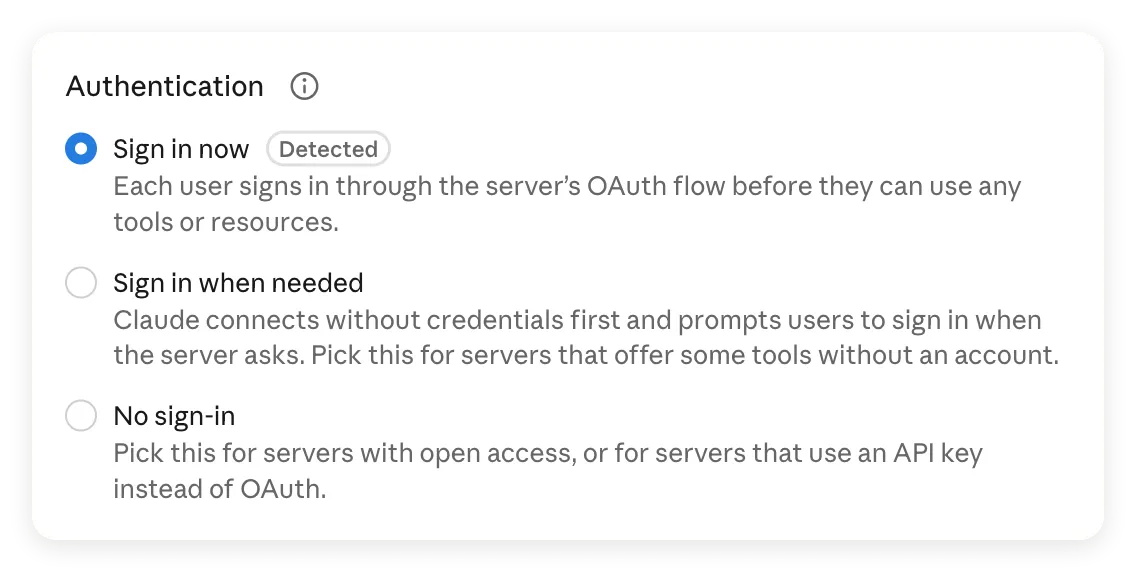 Private Agent का tool इस्तेमाल करने से पहले sign-in ज़रूरी है।
- OAuth client में Register automatically चुना रहने दें। Request headers खाली रखें और dialog के नीचे Add चुनें। Quickchat AI automatic client registration समर्थित करता है, इसलिए client ID, client secret या API key देने की ज़रूरत नहीं है।
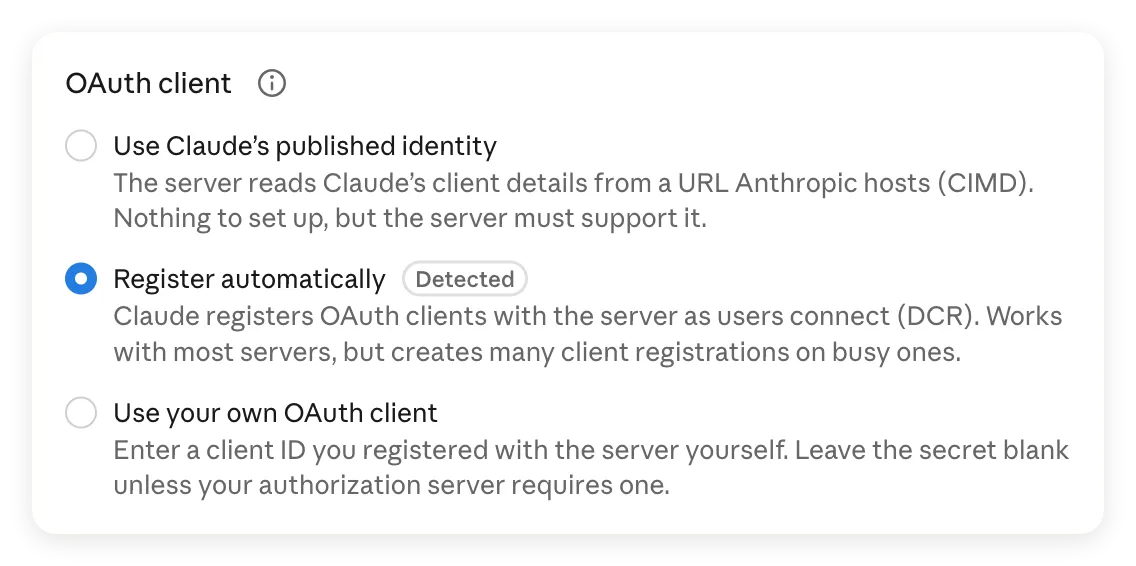 इस server के लिए Register automatically पहचाना गया option है। इस setup में वैकल्पिक client और header fields भरने की ज़रूरत नहीं है।
- Connector के page पर Connect चुनें। माँगा जाए तो owner account या इस Agent पर role रखने वाले account से Quickchat AI में sign in करें और authorization पूरा करें।
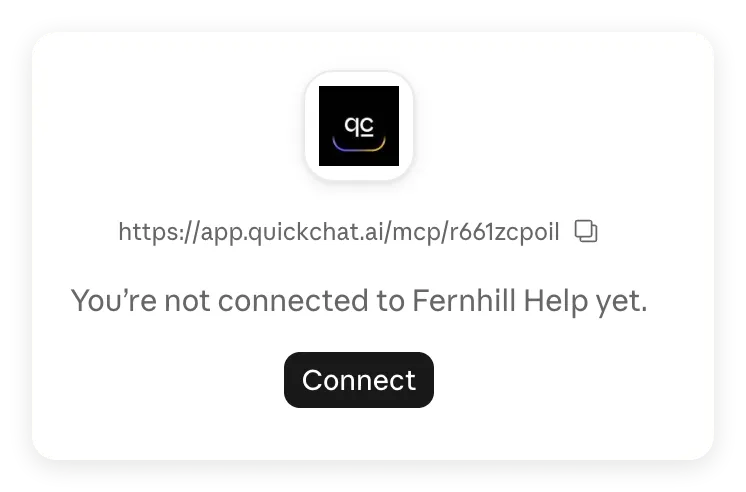 Connector जोड़ना और account connect करना अलग steps हैं। यहाँ Connect चुनें।
- Claude में वापस आकर जाँचें कि page पर Disconnect और Ask Fernhill Help tool दिखते हैं। शुरुआती tests के लिए Needs approval बनाए रखें।
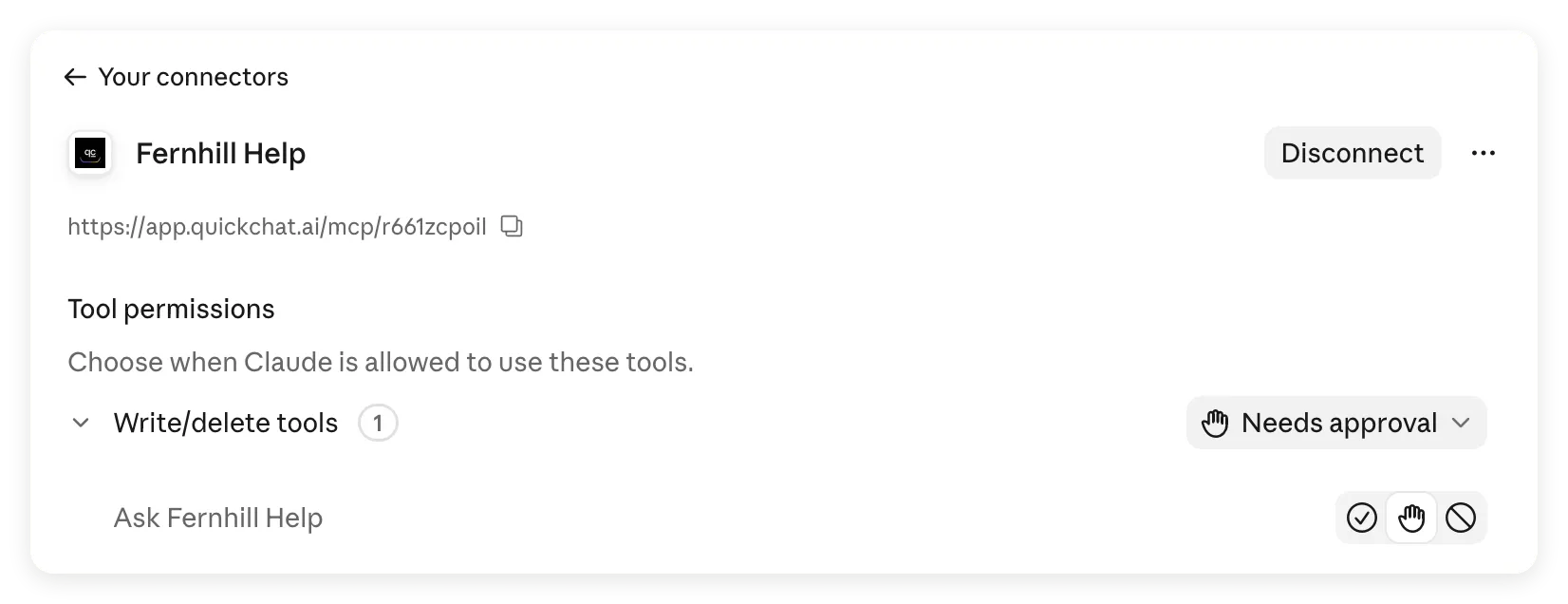 Tool अब उपलब्ध है। इस interface में Claude उसे Write/delete tools में रखता है; हमारे Agent में order, return या refund Actions configure नहीं हैं।
- नई chat शुरू करें। + > Connectors खोलें और इस बातचीत के लिए Fernhill Help चालू करें।
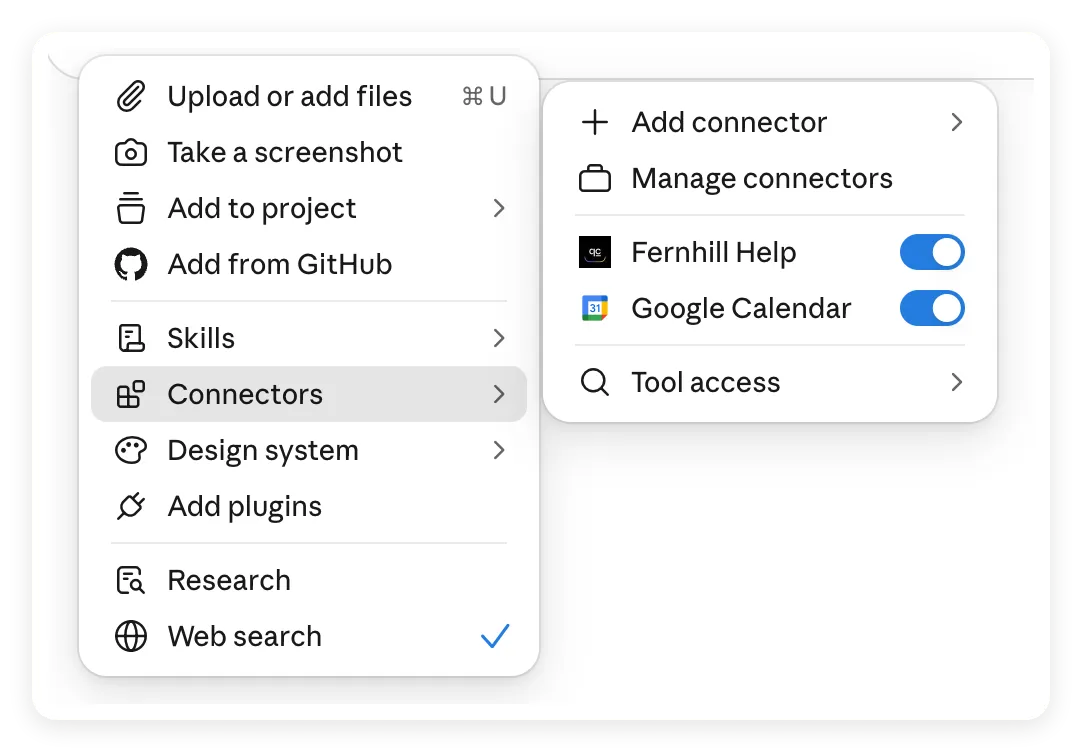 Account connection के साथ बातचीत का connector switch भी जाँचें।
Anthropic के शुरुआती निर्देश service connect करने और chat में चालू करने का तरीका बताते हैं। Tool call करते समय Claude approval माँग सकता है; अगला चरण वह prompt दिखाता है।
इस चरण में hosted URL इस्तेमाल करें। Claude के remote connector requests Anthropic के cloud से आते हैं, desktop या mobile app इस्तेमाल करने पर भी। केवल आपके कंप्यूटर पर चलने वाला पता, जैसे localhost, उस cloud connection से नहीं पहुँचा जा सकता।
चरण 5: Claude ने वास्तव में क्या पहुँचाया, यह कैसे जाँचें?
Claude के अंतिम जवाब की तुलना tool result और Quickchat AI Inbox से करें। केवल विश्वसनीय लगने वाला जवाब यह साबित नहीं करता कि connector इस्तेमाल हुआ।
- नई Claude chat में यह निर्देश भेजें:
Use Fernhill Help to answer the next three questions. Keep the policy conditions and say when the help center does not confirm something.- पहले warranty का प्रश्न भेजें। अगर Claude Ask Fernhill Help इस्तेमाल करने की अनुमति माँगे, तो इस call को मंज़ूर करने के लिए Allow once चुनें। पूरा जवाब आने दें, फिर return और Switzerland के प्रश्न एक-एक करके भेजें।
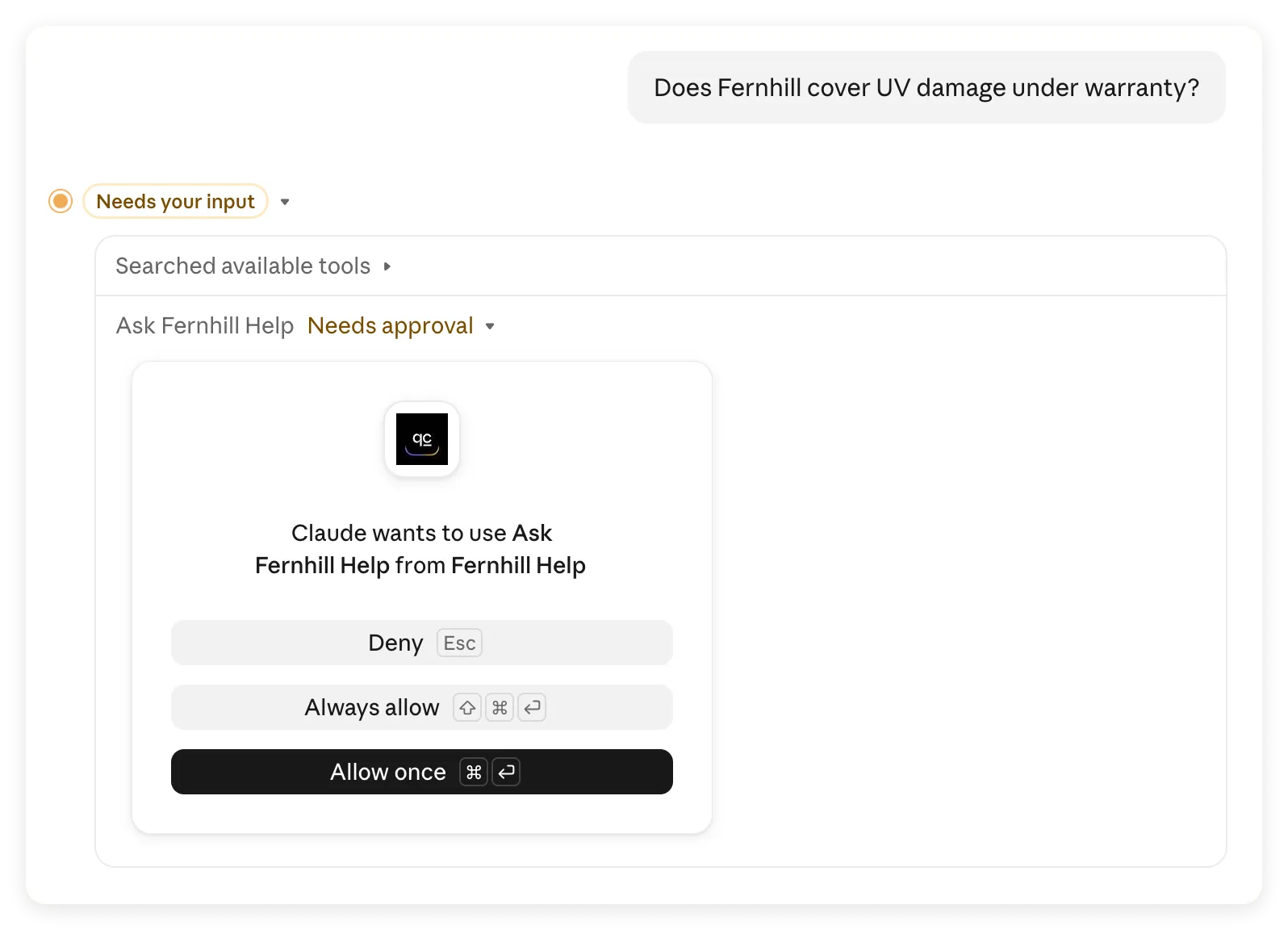 पहली call approval के लिए रुकी। Allow once से आप अगली calls की permission तय करने से पहले परिणाम जाँच सकते हैं।
- हर पूरे जवाब में Claude का Ask Fernhill Help tool-use entry देखें। Call की जाँच करनी हो तो details खोलें।
- Quickchat AI में Fernhill Help चुनकर Inbox खोलें। Timestamp और प्रश्न से Claude की बातचीत खोजें। आने वाला message और Agent का जवाब दोनों पढ़ें।
- मूल प्रश्न, Agent को मिला प्रश्न, Agent का जवाब और Claude का अंतिम उत्तर रिकॉर्ड करें। Kit में खाली evidence sheet और संदर्भ के लिए हमारे रिकॉर्ड किए observations हैं।
हमारे रिकॉर्ड किए run में तीनों प्रश्न Claude से आई एक ही Inbox बातचीत में पहुँचे, और हर incoming question हमारे टाइप किए प्रश्न जैसा था। नीचे Agent के जवाब उसी hosted बातचीत से हैं। पहले के Testing screenshots अलग local runs के हैं।
Claude, Agent को call करने से पहले प्रश्न को दूसरे शब्दों में लिख सकता है और बाद में परिणाम संक्षिप्त कर सकता है। Inbox Claude का भेजा हुआ message रिकॉर्ड करता है, जो ज़रूरी नहीं कि user के मूल शब्द हों। नया MCP session शुरू करने वाला client दूसरी Inbox बातचीत भी बना सकता है, इसलिए thread के साथ प्रश्न और समय भी मिलाएँ।
जाँच 1: क्या Claude warranty exclusion बनाए रखता है?
Help center स्पष्ट रूप से UV damage को बाहर रखता है। Claude ने Fernhill Help call किया और यह exclusion बनाए रखा:
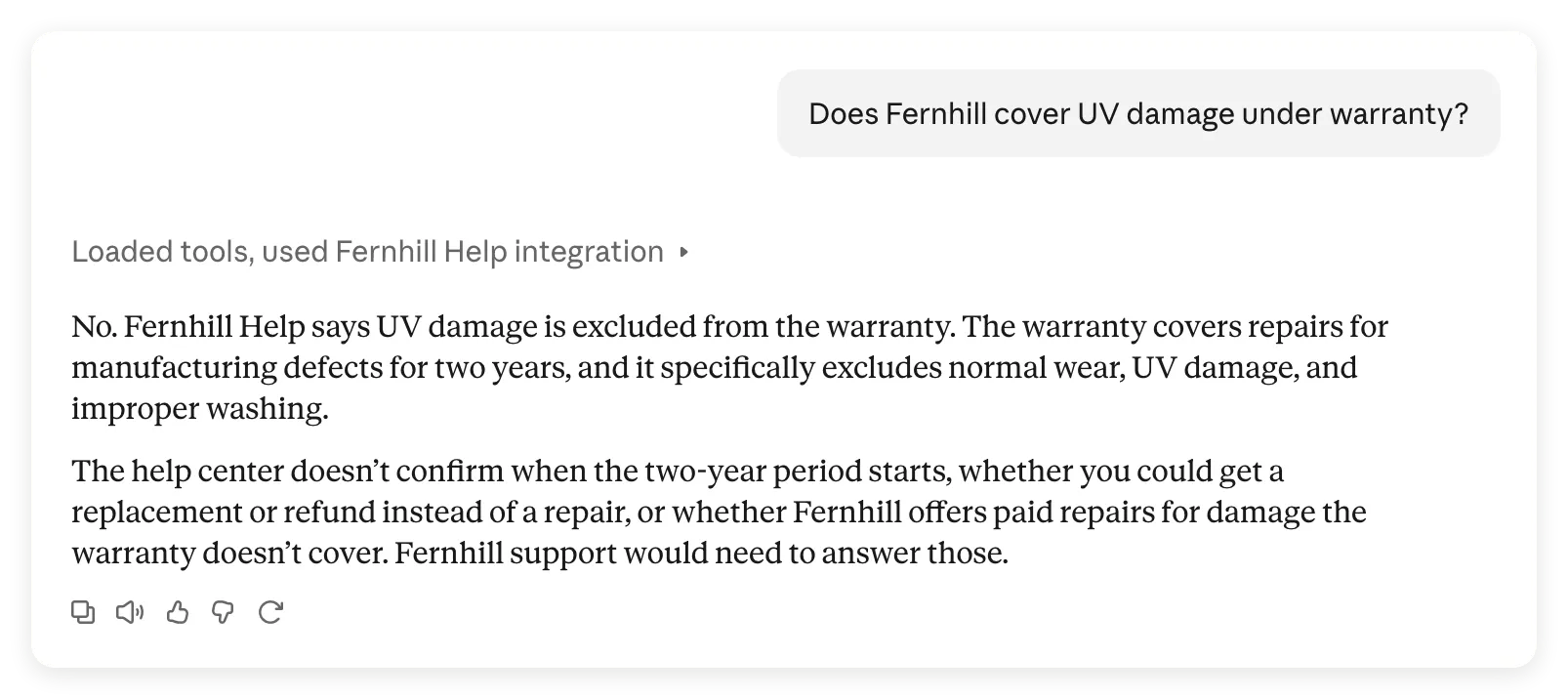 Claude का पूरा जवाब कहता है कि UV damage बाहर है। वह उन अतिरिक्त warranty विवरणों को अलग बताता है जिनकी पुष्टि नहीं हो सकती।
इसे Inbox में संबंधित exchange के Agent reply से मिलाएँ:
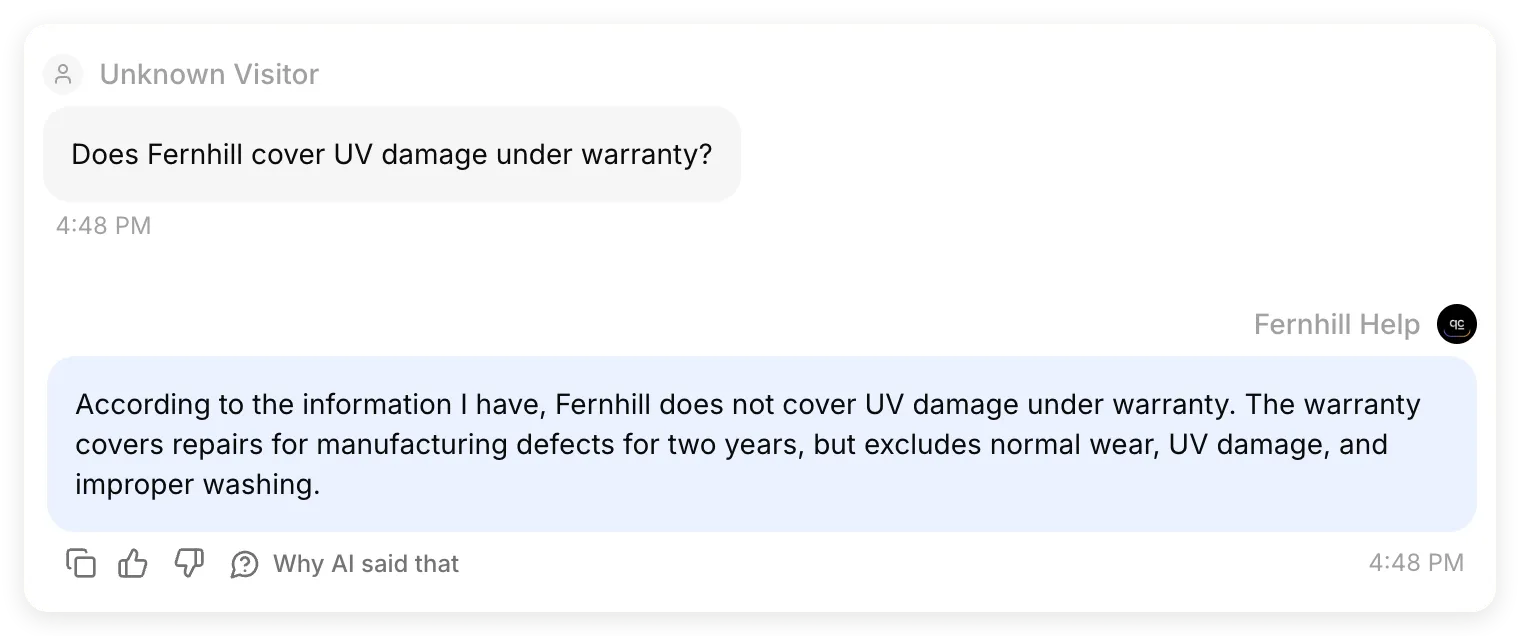 उसी Inbox exchange के प्रश्न और जवाब के अंश। Hosted Agent ने दो साल की coverage और तीन exclusions दिए; Claude ने उन्हें बनाए रखा।
Claude ने वे प्रश्न भी पहचाने जिनका जवाब source में नहीं था, जैसे दो साल की अवधि कब शुरू होती है। उसने उन्हें policy में जोड़ने के बजाय अज्ञात बताया।
जाँच 2: क्या Claude ने return की कोई शर्त जोड़ी?
Return के जवाब को अधिक सावधानी से जाँचें, क्योंकि इसमें eligibility, deadline और refund timing साथ आते हैं।
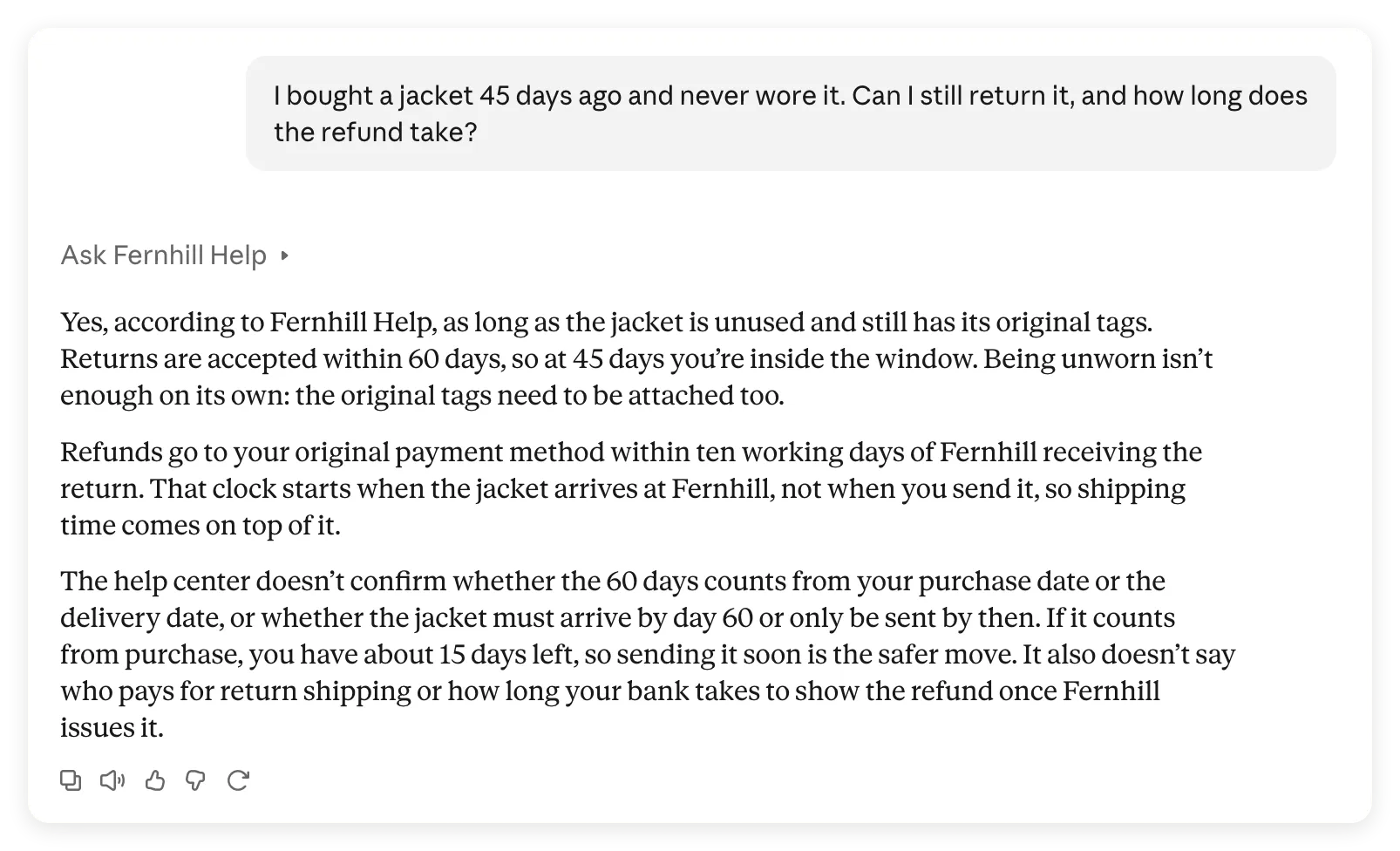 Claude ने मुख्य नीतिगत तथ्य रखे, लेकिन अधिक सख्त शर्त जोड़ दी: “मूल tags भी लगे रहने चाहिए।”
Agent के अपने जवाब में source की अधिक सीमित भाषा थी:
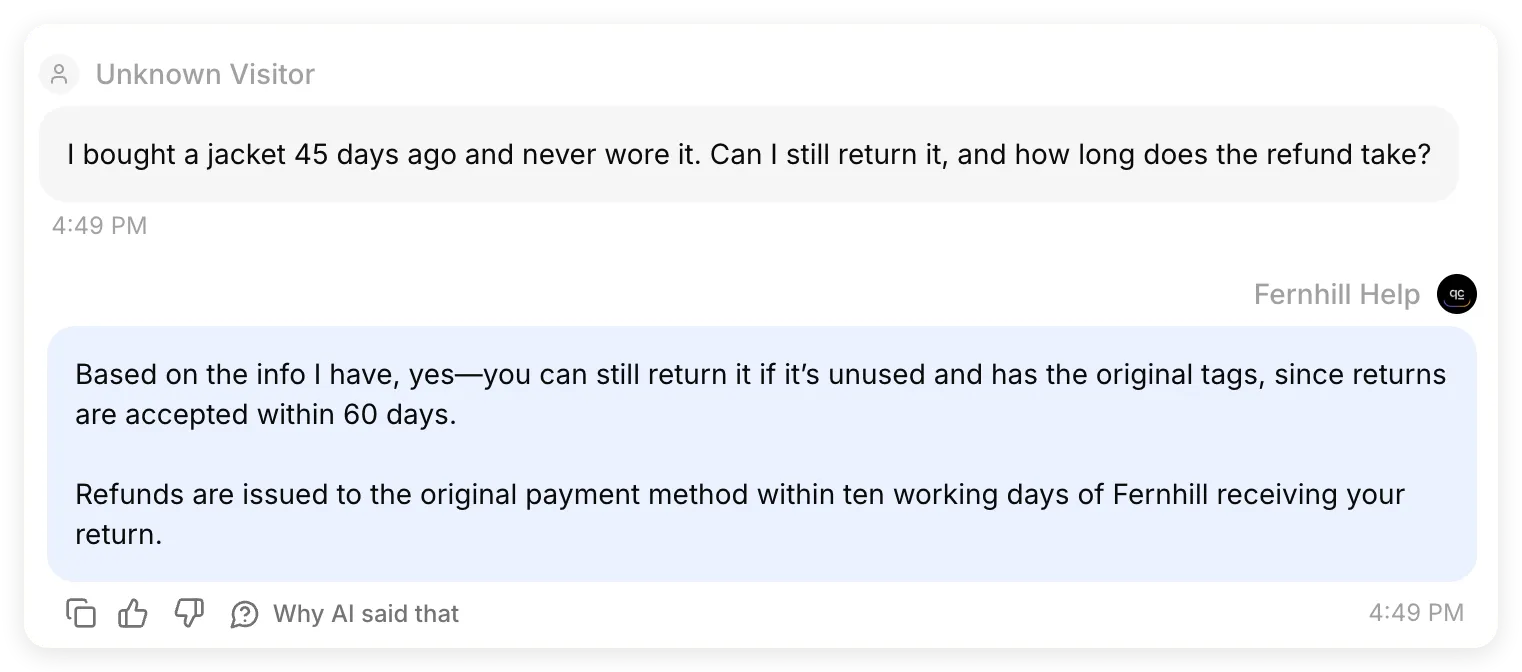 उसी Inbox exchange के प्रश्न और जवाब के अंश। Fernhill Help ने unused items और original tags माँगे। न इस जवाब में, न Knowledge Base में बताया है कि tags अभी भी लगे रहने चाहिए या नहीं।
| जाँच का बिंदु | देखा गया परिणाम |
|---|---|
| प्राप्त प्रश्न | Agent को 45 दिन पुरानी खरीद और कभी न पहने जाने की बात बिना बदलाव मिली |
| Agent का जवाब | 60 दिन के भीतर, unused, original tags; return मिलने के दस working days में original payment method पर refund |
| Claude का जवाब | तथ्य बनाए रखे और return submit करने का दावा नहीं किया, लेकिन tags लगे होने की शर्त जोड़ दी |
यह सफल tool call थी, लेकिन अंतिम जवाब में policy से अंतर था। हमने इसे पूरी तरह पास हुआ answer check नहीं माना। Local Agent के 5.0/5 score ने Claude की दोबारा लिखी भाषा का मूल्यांकन नहीं किया था, और बाद में help-center पाठ बदलना अंतर को सुधारने के बजाय छिपाना होता।
अपनी policies में हर eligibility condition, exception और deadline को source से मिलाएँ। “मूल tags के साथ” और “tags अभी भी लगे हों” पाठक को अलग निर्णय लेने के लिए प्रेरित कर सकते हैं।
जाँच 3: क्या अज्ञात destination अज्ञात ही रहता है?
Tutorial की शुरुआत में Switzerland का जवाब इसी संबंधित Inbox exchange से आया था:
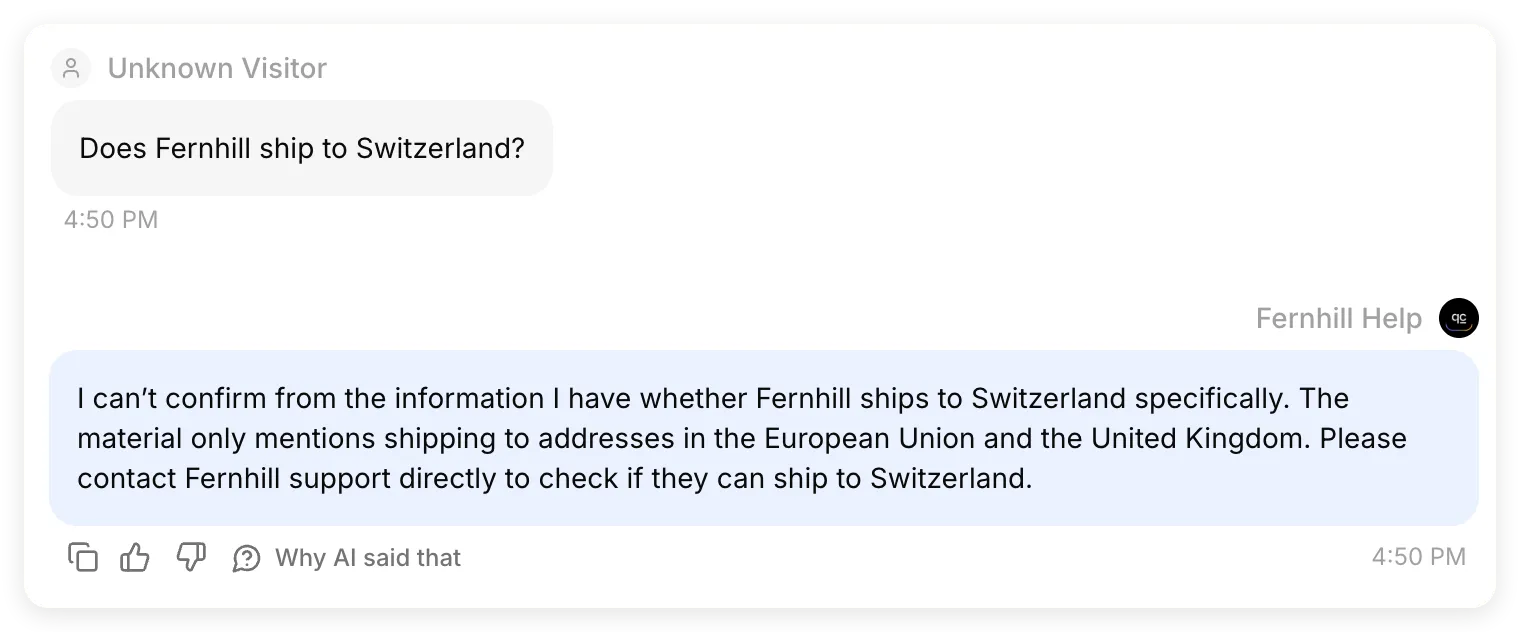 उसी Inbox exchange के प्रश्न और जवाब के अंश। Hosted Agent ने जानकारी का खालीपन बनाए रखा, और Claude के अंतिम जवाब ने भी।
यह वही case है जो local prompt बदलने से पहले असफल हुआ था। अब Agent और Claude दोनों ने documented EU और UK destinations को अपुष्ट destination से अलग रखा। Support से संपर्क का सुझाव देने से support ticket नहीं बना और बातचीत handoff नहीं हुई; हमने इनमें से कोई क्षमता configure नहीं की थी।
जाँच में असफल जवाब कैसे सुधारें?
असफलता के लिए ज़िम्मेदार हिस्सा बदलें, फिर वही प्रश्न दोहराएँ।
- Tool call नहीं हुई: connector चालू होने की पुष्टि करें, Fernhill Help का नाम स्पष्ट लें और जाँचें कि MCP Description बताता है कि tool कब इस्तेमाल करना है।
- Agent का जवाब गलत है: source article और उसकी Ready स्थिति देखें, फिर Testing में case दोहराएँ। Claude के निर्देश बदलने से पहले source या Main Prompt सुधारें।
- Agent सही है लेकिन Claude ने जवाब बदल दिया: ठीक-ठीक अंतर बताएँ, Claude को केवल समर्थित शर्तें रखने को कहें और exchange दोहराएँ। दोनों जवाब फिर जाँचें।
- Support follow-up गायब है: Description को Agent के वास्तविक काम से मिलाएँ। असली follow-up क्षमता बनाएँ तो वहाँ लिखें; केवल शब्दों से handoff Action नहीं बनता, न Claude द्वारा प्रस्ताव पहुँचाने की गारंटी मिलती है।
देखे गए return अंतर के लिए यह केंद्रित follow-up आज़माया जा सकता है:
Check your return answer against Fernhill Help. The source says "with the original tags" but does not say they must still be attached. Re-answer using only the policy conditions supported by the tool result. If a condition is not specified, say it is unconfirmed rather than adding it.यह अगला सुझाया गया test है, रिकॉर्ड किए run में प्रदर्शित सुधार नहीं। समस्या हल मानने से पहले नया जवाब सत्यापित करें। अगर आपकी वास्तविक नीति में tags लगे रहना ज़रूरी है, तो policy owner से पुष्टि करें और source में स्पष्ट रूप से लिखें।
पहले के hosted MCP tutorial में ऐसा follow-up रिकॉर्ड है जिसे calling client ने तब तक छोड़ा, जब तक tool description में उसे समझाया नहीं गया। इसे अपने exchanges जाँचने का कारण मानें, इस वादे की तरह नहीं कि एक description हमेशा Claude का output नियंत्रित करता है।
क्या connector मोबाइल और Claude Code में इस्तेमाल कर सकते हैं?
Hosted connector web chat के बाहर भी इस्तेमाल हो सकता है, लेकिन हर client को काम करने वाला connection और सफल tool call चाहिए।
मोबाइल पर, web या desktop में connect करने के बाद उसी Claude account से sign in करें। वही Fernhill बातचीत iPhone पर भी उपलब्ध थी:
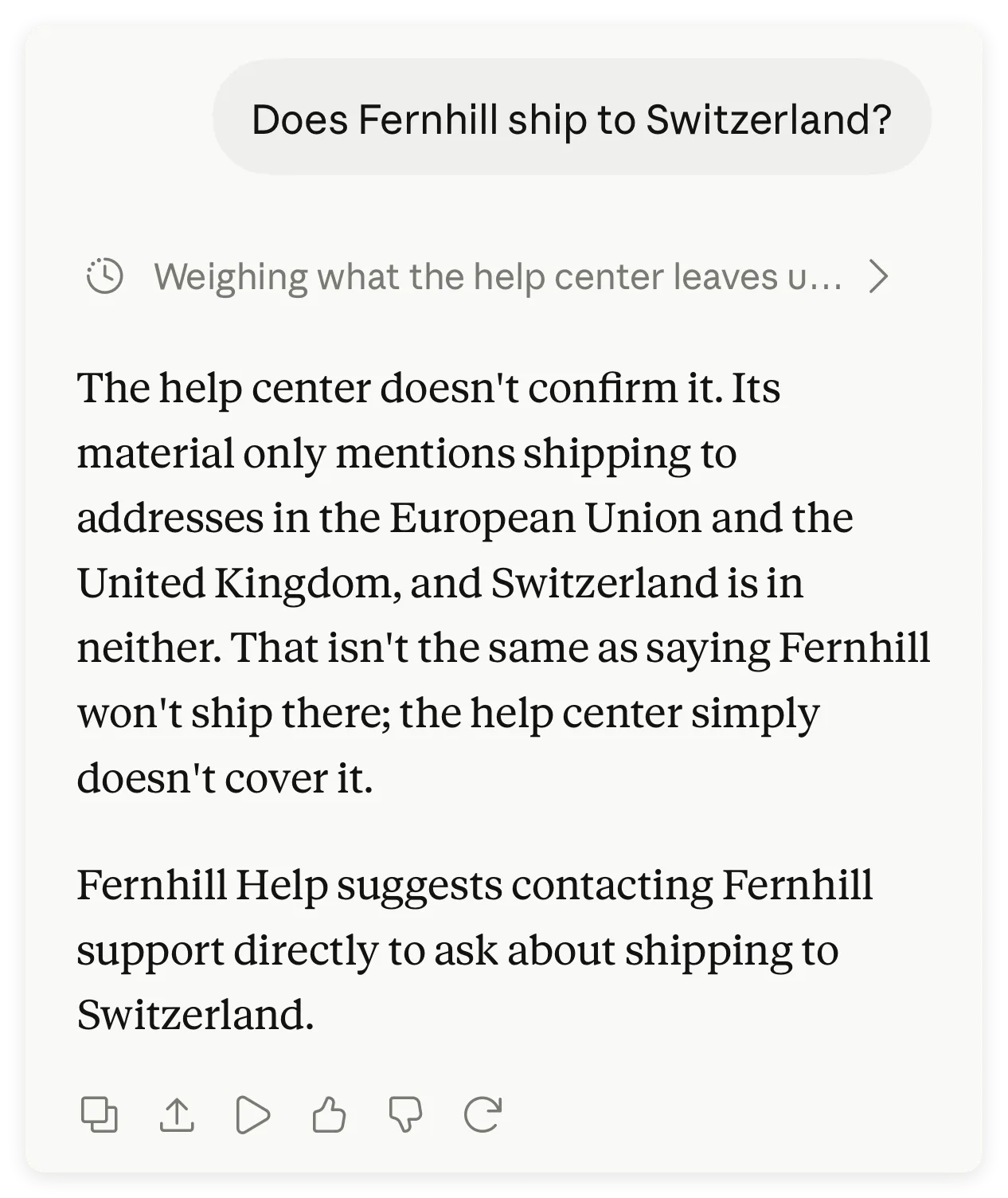 मौजूदा बातचीत मोबाइल पर देखी गई है। यह capture, फोन से नई tool call होने का प्रमाण नहीं है।
नई mobile call test करने के लिए बातचीत के connector controls जाँचें, Fernhill Help चालू करें और jacket वाला प्रश्न फिर भेजें। Tool-use details और नया Inbox record देखें। Anthropic अपने अलग devices पर connector इस्तेमाल करने के guide में remote-connector availability बताता है।
Claude Code में, पहले /mcp खोलें। योग्य Claude subscription account से sign in करने पर claude.ai के authenticated connectors अपने-आप दिख सकते हैं। API-key और third-party-provider login उन्हें import नहीं करते। इसके बजाय server सीधे configure करना हो तो यह इस्तेमाल करें:
claude mcp add --transport http fernhill-help https://app.quickchat.ai/mcp/YOUR_AGENT_IDURL को अपने URL से बदलें। Authentication और connection की जाँच के लिए /mcp खोलें, फिर वही policy question पूछें। Synced connector पहले से काम करे तो duplicate न जोड़ें। यह वैकल्पिक तरीका Claude Code MCP reference के अनुसार है; हमारा रिकॉर्ड किया run ऊपर की Claude बातचीत का है, Claude Code session का नहीं।
Private connector टीम के साथ कैसे साझा करें?
Private connector साझा करने के लिए Claude की ओर उपलब्धता और Quickchat AI में Agent इस्तेमाल करने की permission, दोनों चाहिए।
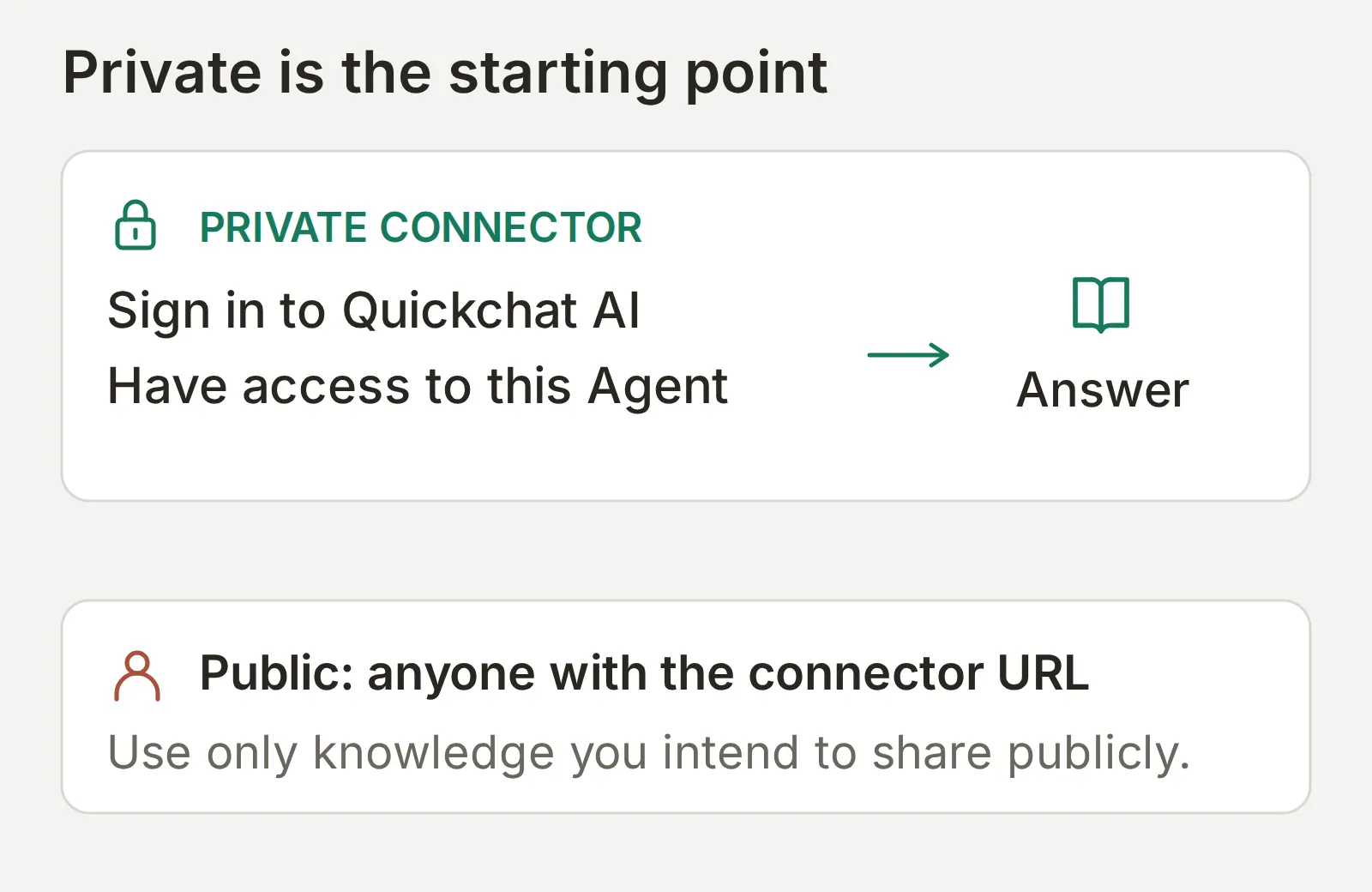 Agent का access check जवाब बनने से पहले होता है। बातचीत में दिए निर्देश कोई role नहीं देते।
- Quickchat AI में Settings > Organization > Team Members से सहकर्मी को Agent में invite करें। उनसे invitation स्वीकार करवाएँ और member list में उनका नाम देखें। पर्याप्त collaborator seats वाला plan लें और केवल न्यूनतम ज़रूरी role दें; team और role reference इन permissions को बताता है।
- Claude Team या Enterprise में Owner, Organization settings > Connectors खोलता है, Add > Custom और पूछे जाने पर Web चुनता है, फिर Agent URL जोड़ता है। संबंधित custom role वाले Enterprise users भी organization connectors सँभाल सकते हैं। उसके बाद members अपने accounts से connect करते हैं।
- व्यक्तिगत Claude plans पर हर सहकर्मी अपने plan की सीमा के भीतर अपने account में custom connector जोड़ता है।
- सहकर्मी से policy question दोहराने को कहें। Private Agent में ऐसा अलग account भी test करें जिसके पास role न हो। Claude में URL जोड़ने भर से उस account को access नहीं मिलना चाहिए।
पूरी tested access matrix, जिसमें सहकर्मी हटाकर पुराने connection को दोबारा test करना भी शामिल है, के लिए MCP authentication और authorization walkthrough देखें। महत्वपूर्ण सीमा Agent और उसे उपलब्ध knowledge तथा Actions हैं; इस setup से हर article के लिए अलग caller permissions नहीं जुड़तीं।
Public FAQ connector कैसे बनाएँ?
Public MCP endpoint से caller, Quickchat AI में sign in किए बिना Agent इस्तेमाल कर सकता है। इसका उपयोग केवल उसी knowledge और क्षमताओं के लिए करें जिन्हें सार्वजनिक करना चाहते हैं।
Fernhill Help में केवल काल्पनिक public help center है। Public variant आज़माने के लिए उसका पूरा Knowledge Base और Actions देखें। External Apps > MCP में Require sign-in (private) के पास की व्याख्या पढ़कर ही switch बंद करें। आंतरिक return प्रक्रियाएँ या customer data अलग private Agent में रखें।
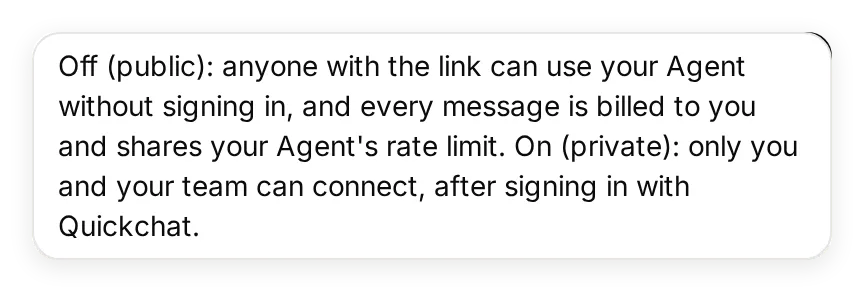 Tooltip बताता है कि कौन connect कर सकता है और किसके credits खर्च होते हैं। मुख्य walkthrough में Fernhill Help private रहता है।
Claude के अंदर यह connector इस्तेमाल करने वाले को फिर भी Claude account चाहिए। Claude के बाहर दूसरे MCP clients भी public endpoint call कर सकते हैं। URL वाला कोई भी व्यक्ति Agent owner के AI credits खर्च कर सकता है, इसलिए साझा करने के बाद usage देखें। अलग client session से तीनों policy tests दोहराएँ; public exercise पूरी होने पर private switch फिर चालू करें।
पहले से भरा install link सहकर्मियों को नाम और URL खुद कॉपी करने से बचा सकता है। यह केवल form भरता है; उन्हें फिर भी review करके connector जोड़ना होगा। Directory submission अलग distribution step है और tutorial पूरा करने के लिए ज़रूरी नहीं।
क्या Claude, Quickchat AI Agent configure करने में मदद कर सकता है?
Quickchat AI Directory connector आपकी account permissions से Agents बना सकता है, knowledge बदल सकता है और tests चला सकता है। ऊपर के configuration काम का यह वैकल्पिक shortcut है।
Quickchat AI की Claude Directory listing से connect करें और अपने Quickchat AI account में sign in करें। Kit की text files बातचीत में attach करें और यह setup prompt इस्तेमाल करें:
Use the Quickchat AI account-management connector to prepare a new Agent named Fernhill Help. Show me the intended changes before creating it, and do not change any existing Agent. Use main-prompt.txt as its Main Prompt and fernhill-help-center.txt as its only Knowledge Base article. Wait for the article to be Ready. Keep this demonstration limited to policy answers, with no custom Actions, Human Handoff or Smart Data Gathering. Create a Testing dataset named Fernhill policy checks from test-messages.txt with evaluation-criteria.txt. Ask me before running tests that consume AI credits. After I approve, enable the Agent's MCP channel with private visibility and give me its hosted URL. Tell me which settings I still need to complete in the dashboard, including the exact Description and Command in mcp-settings.json and mcp-description.txt. Do not make the Agent public or claim that Claude is connected to it until I complete and test the custom-connector setup.Dashboard में Description और Command सत्यापित करें; account-management shortcut इन fields या Claude की ओर आपके authorization की जगह नहीं लेता। अलग account-management guide व्यापक workflow बताता है, और Quickchat AI for Claude install का रास्ता तथा उदाहरण देता है।
Connector काम न करे तो क्या जाँचना चाहिए?
Agent का prompt बदलने से पहले असफल stage पहचानें। ये diagnostic checks हैं, यह दावा नहीं कि Fernhill बनाते समय हर error आया।
| लक्षण | पहले क्या जाँचें | उपयोगी अगला कदम |
|---|---|---|
| Custom connector नहीं जुड़ता | Claude plan limit और organization role | Free slot देखें या organization Owner से जोड़ने को कहें |
| Sign-in पूरा हुआ लेकिन Agent उपलब्ध नहीं | Quickchat AI account और इस Agent पर उसका role | Quickchat AI में account, सटीक Agent URL और Enable MCP जाँचें |
| Claude server तक नहीं पहुँचता | URL सार्वजनिक रूप से पहुँचने योग्य HTTPS है या नहीं | Connect MCP का hosted URL लें; केवल local पता काम नहीं करेगा |
| Connected है लेकिन tool call नहीं दिखती | इस chat में Fernhill Help चालू है या नहीं | चालू करें, स्पष्ट रूप से इस्तेमाल को कहें और tool-use details देखें |
| जवाब policy से अलग है | किस हिस्से ने पहले अंतर पैदा किया | Source, local test answer, MCP result और Claude के अंतिम जवाब की तुलना करें |
Anthropic का connector troubleshooting reference server operators के लिए OAuth discovery, network reachability और redirects समझाता है। इन्हें Knowledge Base में गलत या गायब तथ्य की समस्या से अलग रखें।
तीनों cases काम करें तो पूरे configuration को अपने व्यवसाय के अनुसार बदलें:
- काल्पनिक article की जगह अनुमोदित knowledge डालें और Fernhill source हटाएँ।
- Agent name और Main Prompt अपडेट करें, फिर MCP के Name, Description और Command। केवल वही knowledge और Actions बताएँ जो Agent के पास वास्तव में हैं।
- Test questions और evaluation criteria को अपने ज्ञात जवाब, सशर्त जवाब और जानबूझकर गायब रखे तथ्य से बदलें।
- Claude में connector refresh या reconnect करें ताकि tool details बदलाव दिखाएँ, फिर Agent tests और शुरू से अंत तक की तुलना दोहराएँ।
नतीजा तब उपयोगी है जब सहकर्मी Claude में असली policy question पूछ सके, आप Inbox में जवाब का पता लगा सकें, और जो तथ्य documented नहीं है वह जवाब में भी अपुष्ट रहे।
अक्सर पूछे जाने वाले प्रश्न
Claude connectors क्या हैं?
Claude connectors, Claude को बाहरी tools और जानकारी का access देते हैं। Custom remote connector, URL के ज़रिए Claude को MCP server से जोड़ता है। इस tutorial में server एक tool उपलब्ध कराता है जो आपके Quickchat AI Agent से प्रश्न पूछता है।
क्या Claude Free plan में custom connector जोड़ सकते हैं?
हाँ। Claude Free एक custom connector समर्थित करता है। Pro, Max, Team और Enterprise भी custom connectors समर्थित करते हैं। Quickchat AI के वर्तमान Free plan में MCP है; जवाब बनाने और Simulation runs में AI credits खर्च होते हैं।
Claude connector और MCP server में क्या अंतर है?
Connector वह connection है जिसे आप Claude में जोड़ते और चालू करते हैं। MCP server वह service है जिससे वह जुड़ता है। Quickchat AI आपके Agent का server host करता है, इसलिए आप server code लिखे बिना Agent configure करके उसका URL कॉपी करते हैं।
क्या connectors, Claude Desktop और मोबाइल पर काम करते हैं?
Remote custom connectors, Claude के web, desktop और mobile apps में काम करते हैं। Web या desktop पर connector जोड़ें, फिर मोबाइल पर वही account इस्तेमाल करें। Local desktop extension अलग setup है और वह remote mobile connector नहीं बन जाता।
क्या Claude Code, claude.ai पर जोड़े connectors इस्तेमाल कर सकता है?
हाँ। योग्य Claude subscription account से sign in करने पर Claude Code, claude.ai के authenticated connectors अपने-आप इस्तेमाल कर सकता है। पहले /mcp जाँचें। API-key और third-party-provider login उन connectors को import नहीं करते; इसके बजाय आप hosted server सीधे configure कर सकते हैं।
Claude Team या Enterprise में connector कौन जोड़ सकता है?
Team या Enterprise का Owner, organization के लिए custom connector जोड़ सकता है। Organization libraries सँभालने की संबंधित custom-role permission वाला Enterprise member भी जोड़ सकता है। फिर members अलग-अलग connect करते हैं। Private Quickchat AI Agent का access पाने के लिए अब भी उस Agent पर role चाहिए।
क्या यह connector मेरा पूरा Quickchat AI account उपलब्ध कराता है?
Per-Agent connector, चुने हुए Agent का एक question-answering tool उपलब्ध कराता है। वह अलग account-management tools उपलब्ध नहीं कराता। Agent अपना knowledge और चालू Actions इस्तेमाल कर सकता है, इसलिए साझा करने से पहले दोनों जाँचें। Private access, Agent की सीमा पर नियंत्रित होता है, हर article की अलग permission से नहीं।
क्या ग्राहक Claude account के बिना मेरा connector इस्तेमाल कर सकते हैं?
Claude के अंदर इस्तेमाल करने के लिए Claude account चाहिए। Agent का MCP endpoint public करने पर Quickchat AI sign-in नहीं चाहिए, लेकिन URL वाला कोई भी व्यक्ति उसे call कर सकता है और बने जवाब owner के AI credits खर्च करते हैं। निजी जानकारी अलग private Agent में रखें।