

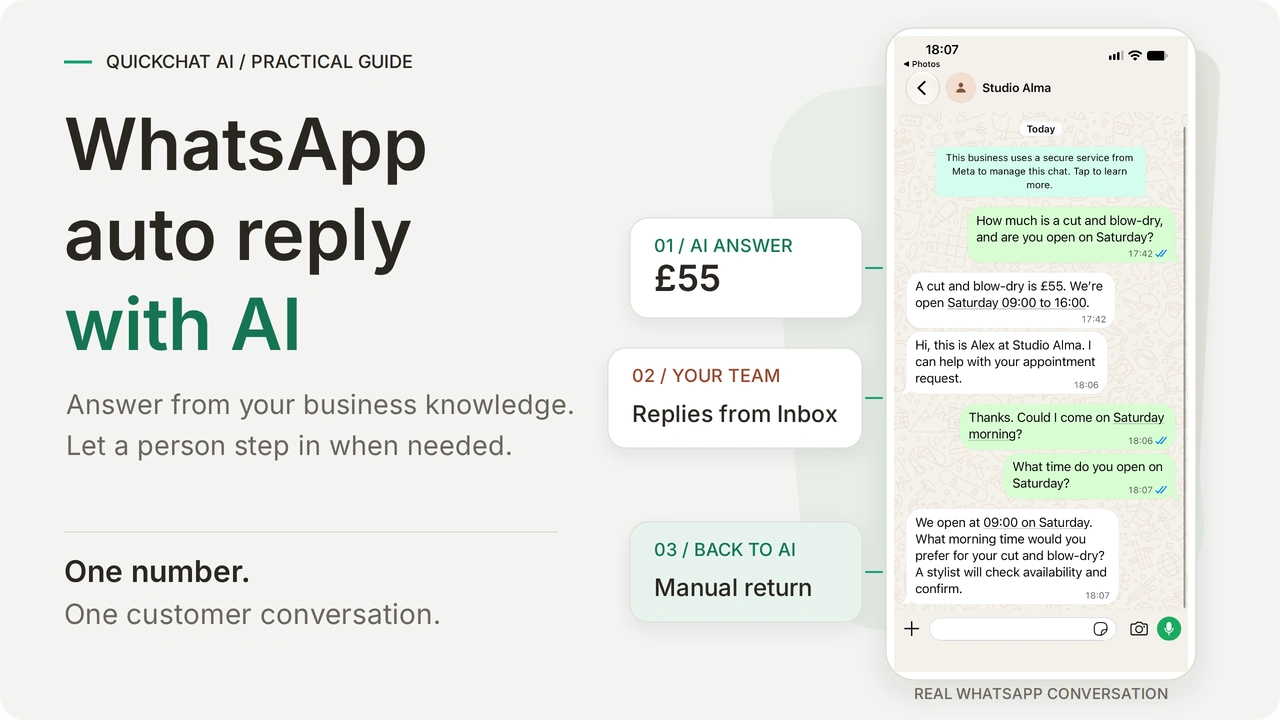
A WhatsApp Business auto reply with AI answers customer questions using your business’s prices, opening hours and policies. Your team can take over the same customer conversation from Quickchat AI Inbox. With WhatsApp Coexistence, an eligible number can also stay in the WhatsApp Business app, letting staff continue using that app.
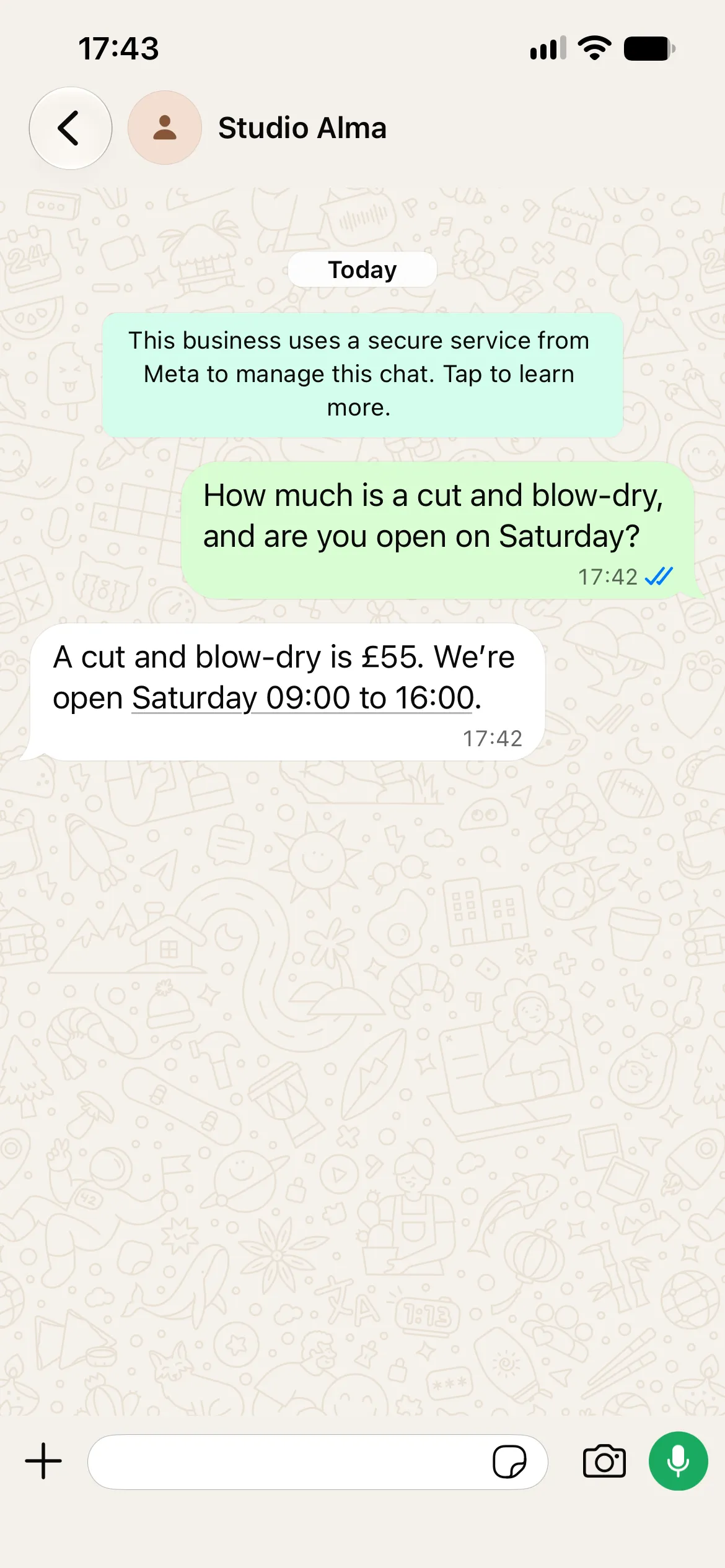
You will build Studio Alma, a fictional salon. A customer asks how much a cut and blow-dry costs and whether the salon opens on Saturday. The Agent answers from its knowledge. A person takes over from Inbox to handle the appointment enquiry, then returns the conversation to the AI. The same chat also accepts voice notes and hairstyle photos.
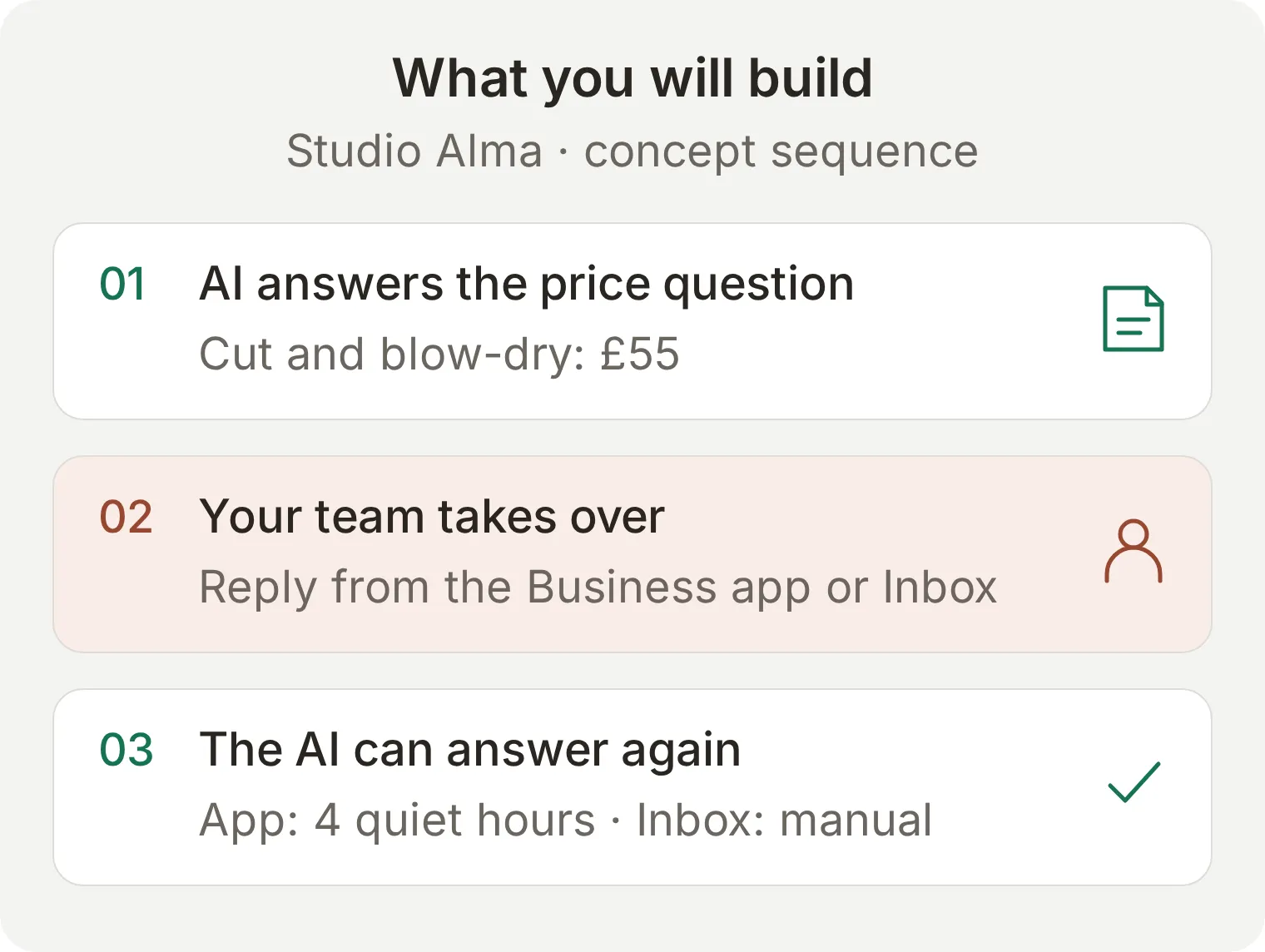 The result: AI answers, a person takes over, then the AI can answer again. The return depends on where the person took over.
There are two return paths. After an eligible Business app reply, the next customer message can return the chat to the AI following four hours without messages. After an Inbox takeover, a person chooses AI Agent to return control. We walk through the Inbox route and explain the four-hour app route with labelled illustrations. An Inbox reply does not start that automatic-return timer.
The tutorial starts with the salon’s knowledge and instructions, then connects WhatsApp and walks through AI answers, human replies and return to AI. You do not need code. The example collects appointment preferences; a stylist confirms availability because no booking calendar is connected.
Download the Studio Alma setup kit for the three knowledge articles, Main Prompt and test inputs. These are editable files to paste into the dashboard, not a one-click Agent import. The complete copyable setup is also at the end of this article.
Does WhatsApp Business already have an auto reply?
The WhatsApp Business app has greeting messages and away messages that send text you have written in advance. Quick replies are saved responses a person selects. An AI auto reply uses the customer’s actual question to choose an answer from your business knowledge.
| Tool | What it does | Studio Alma example |
|---|---|---|
| Greeting message | Sends a saved introduction when its greeting conditions apply | “Welcome to Studio Alma. How can we help?” |
| Away message | Sends a saved response according to the schedule and recipients you configure | “We are closed now and will reply when we reopen.” |
| Quick reply | Lets a person insert a saved response | A stylist selects the salon’s address |
| AI auto reply | Answers different questions from the knowledge you provide | Gives the £55 price for a cut and blow-dry and Saturday’s opening hours |
If you only need an out-of-office message, open Tools (called Business tools in some versions) > Away message, enable Send away message, write the message, choose its schedule and recipients, and save. Its location varies between Android and iPhone. A useful message gives your hours and sets an honest expectation: “Thanks for contacting Studio Alma. We open Tuesday to Friday, 09:00 to 18:00, and Saturday, 09:00 to 16:00. The team will reply when available.”
Continue with the AI setup when customers need answers to different questions. You will test the app’s own automations separately before leaving them enabled alongside it.
What is WhatsApp Coexistence, and can you keep the app?
Coexistence lets an eligible WhatsApp Business app number connect to WhatsApp Business Platform while staying in the phone app. Quickchat AI uses that platform connection to receive messages and send AI replies. The customer continues messaging the same number.
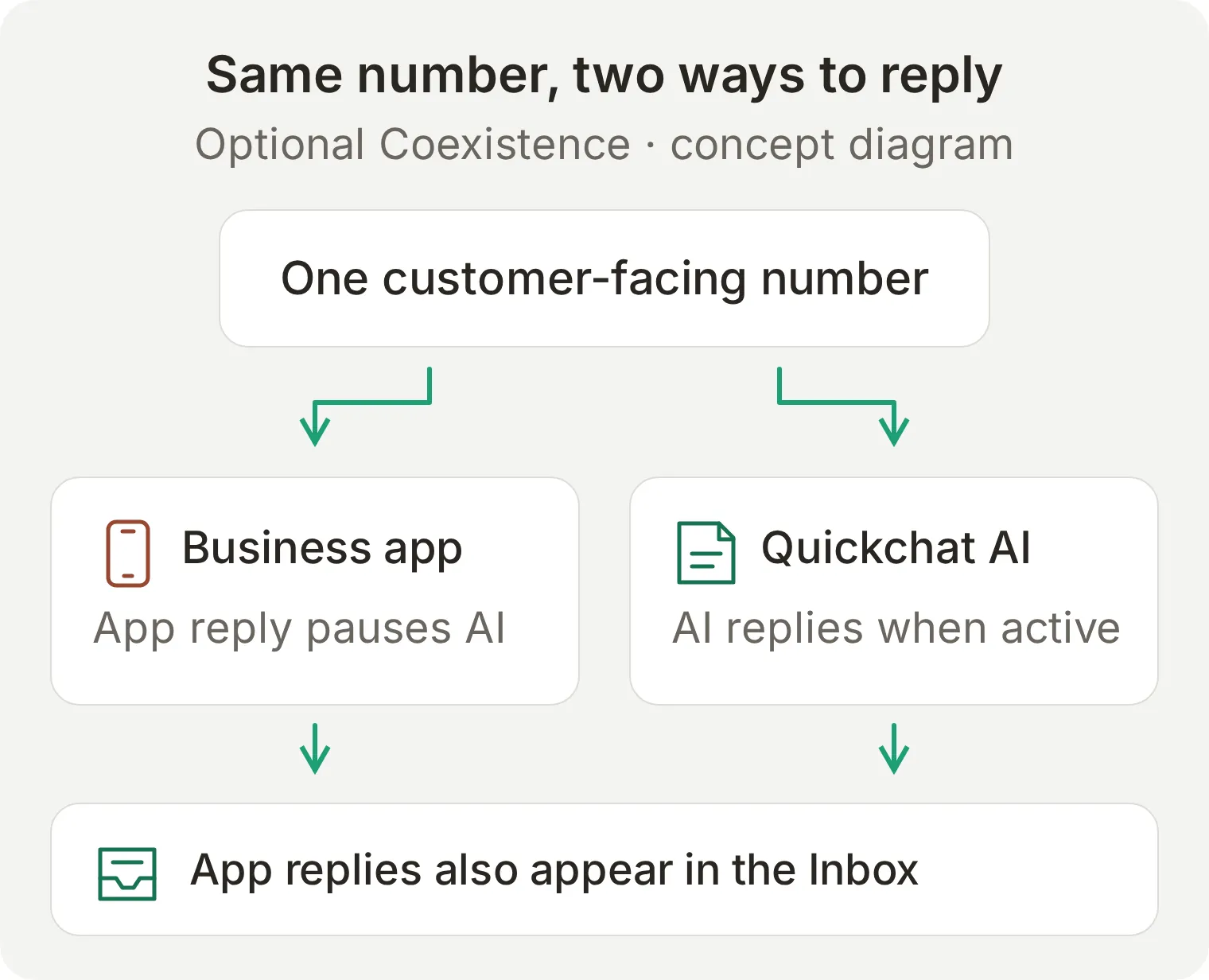 One customer-facing number, with two places to work. A reply from the Business app is also recorded in the Quickchat AI Inbox.
Do not delete your WhatsApp Business app account to follow this recipe. Choose the option for an existing Business app number during connection. Personal WhatsApp Messenger is a different app and does not use this Coexistence flow.
There are changes to the app experience. Group chats stay outside this integration, broadcast lists are disabled with existing lists becoming read-only, and linked devices disconnect during onboarding. Supported devices can be linked again; Windows and WearOS are not supported in this mode. Disappearing messages, view-once messages and live location are turned off for individual chats.
Open the Business app on the primary phone regularly; the number can disconnect after about 14 days of primary-device inactivity. Review the current Meta Coexistence requirements and feature changes before moving a working business number.
Old conversations stay in the phone app. Quickchat AI does not import your historical chats or address book through this connection. Its Inbox starts recording the messages it receives after connection, and the Agent learns the salon’s facts from the Knowledge Base you create below.
What do you need before setting up the auto reply?
You need a Quickchat AI account, an eligible business number, Meta business access and a different WhatsApp account for the customer’s side. After connection, the Inbox walkthrough needs a browser and the customer account; the human reply is sent from Quickchat AI.
- Create a Quickchat AI account and complete email verification if prompted. Free supports personal, non-commercial learning with its available allowance; use a commercial plan for a business deployment. Preview and Simulation Testing consume AI credits.
- To keep an existing Business app number through Coexistence, update WhatsApp Business to version 2.24.17 or newer and have its primary phone available for Meta’s connection confirmation. A new number that is not on WhatsApp has a separate setup option. Use a test number you control; Meta determines eligibility during signup.
- Sign in to Facebook with admin access to the Meta Business portfolio you intend to use. Have the business name, website and category ready.
- Prepare a different WhatsApp number to play the customer. Sending a message from the business itself does not test an incoming customer conversation.
- Choose who will monitor requests and complaints. The AI can answer after hours; that does not mean a stylist is available after hours.
Keep the WhatsApp channel documentation open for the current eligibility and connection details. If you want a new-number setup with order lookup, follow the separate WhatsApp AI chatbot build.
Step 1: How do you give the auto reply your business knowledge?
Create a separate Agent with three short knowledge articles. These are its source for factual answers; the Main Prompt in Step 2 controls how it responds.
- Choose Add new AI Agent, then Set up manually. On the initial Identity screen, enter
Studio Almain Name your AI Agent and paste the kit’smain-prompt.txtinto Describe what you want your agent to do. - Continue through Knowledge Base, External apps and Deployment without connecting services. Complete Choose your plan, using Skip for now if you are starting a learning account.
- Open Knowledge Base > Add Article. In the article editor, enter
Hours and locationin Title. - Paste
hours-and-location.txtinto Content and select Save. Repeat for the other two articles below. - Wait for the articles to finish processing and show Ready before testing the real channel.
| Article title | File in the kit | Facts it supplies |
|---|---|---|
| Hours and location | hours-and-location.txt | London time, opening hours, fictional address and parking |
| Services and prices | services-and-prices.txt | £55 cut and blow-dry, £30 blow-dry, free colour consultation and appointment-request boundaries |
| Changes and concerns | changes-and-concerns.txt | Cancellation requests, complaints, refund requests and missing information |
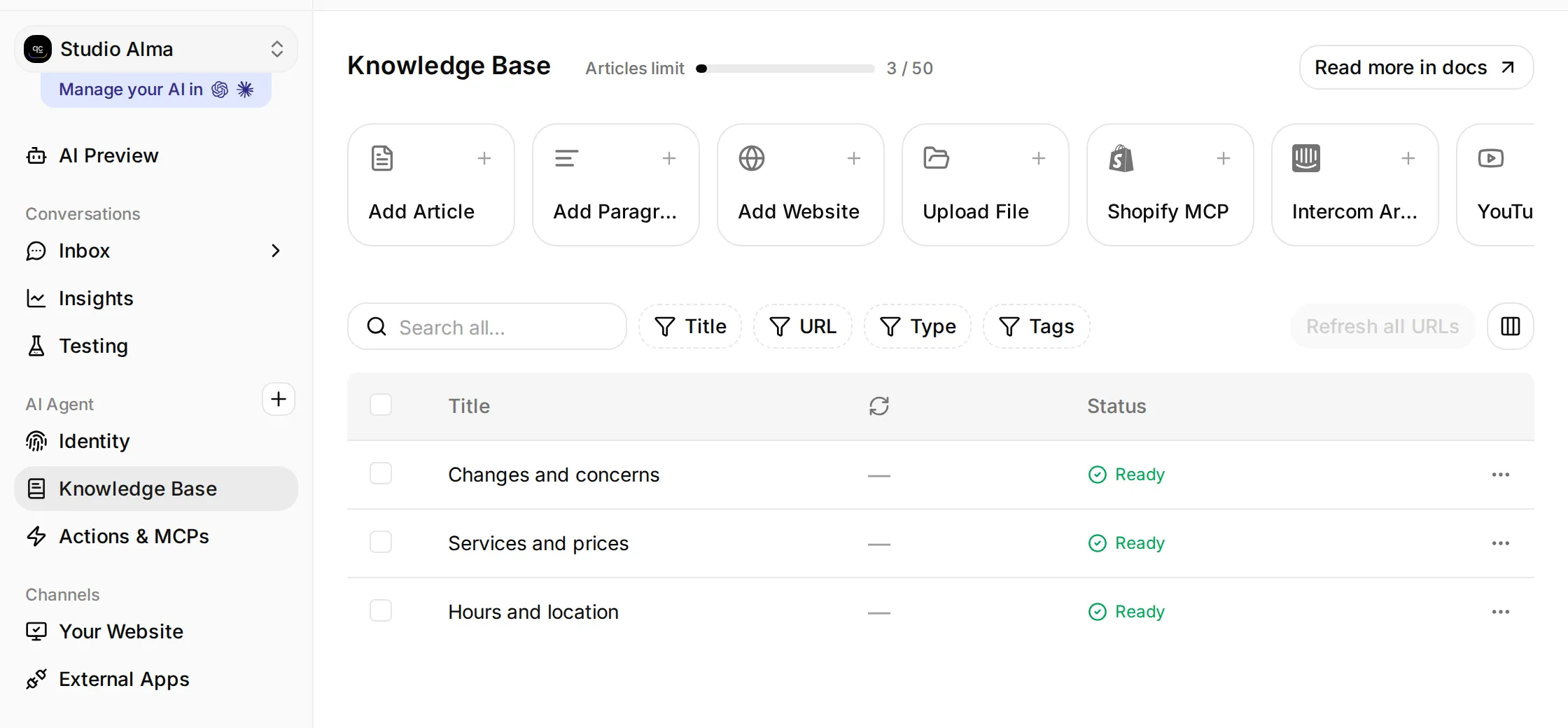 Local Studio Alma setup. Open Knowledge Base, add the three articles and wait for Ready.
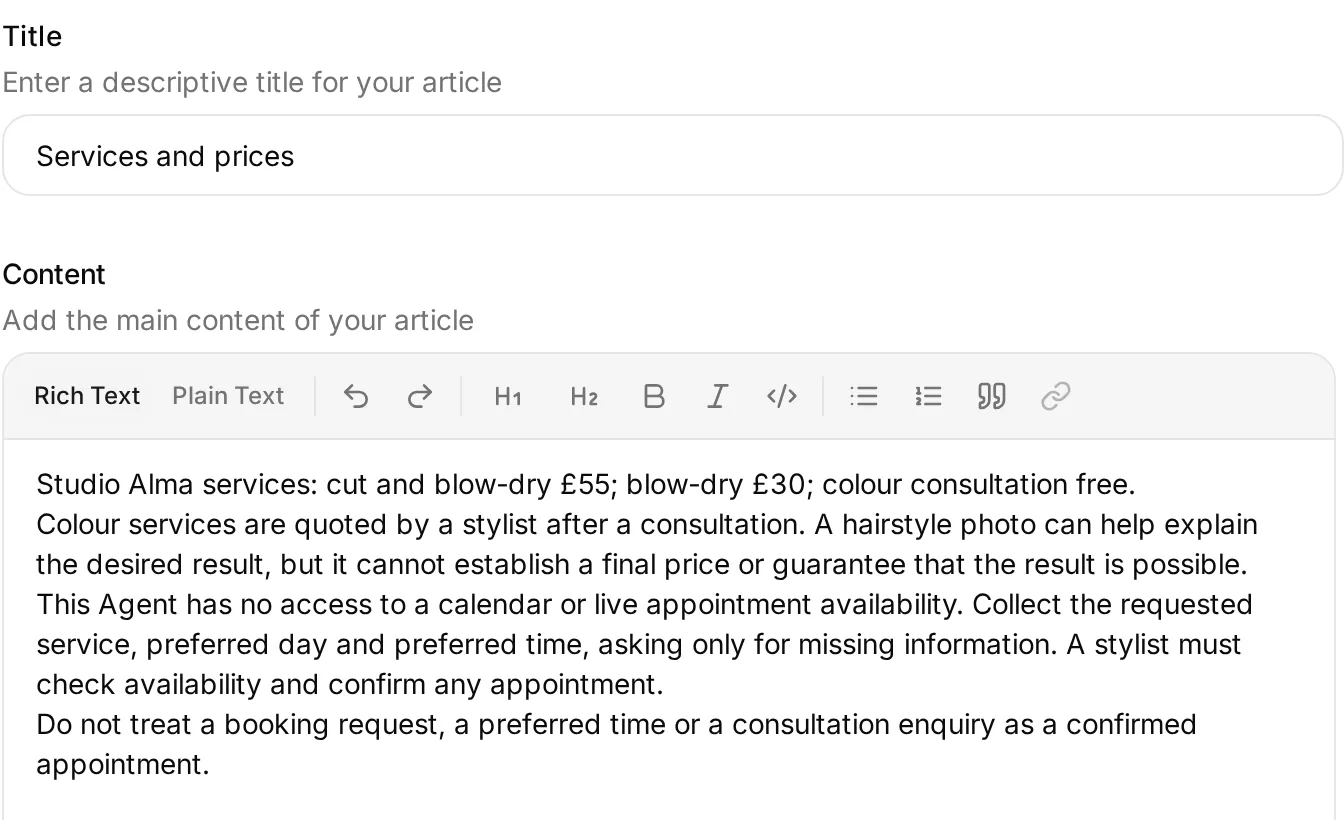 Put approved business facts in Content. The full source text is in the kit and appendix.
Studio Alma closes at 18:00 Tuesday to Friday and 16:00 on Saturdays. A late-evening price enquiry can therefore get a useful answer without suggesting a stylist is still at work. The articles explicitly separate salon opening hours from staff response availability.
Gift cards are deliberately absent. Ask Do you sell gift cards? later to check whether the Agent acknowledges a missing fact. Do not add a made-up gift-card policy just to make that test pass.
Step 2: How do you keep AI replies useful on WhatsApp?
Use short replies, ask only for missing details and distinguish an appointment request from a confirmed booking.
- Open Identity > AI Persona > Main Prompt > Edit. Paste the complete
main-prompt.txtfrom the kit, save it, then reopen the field to verify the saved text. - Set Reply Length to Short. Keep the remaining persona settings at their defaults while testing.
- Open AI Preview and ask
How much is a cut and blow-dry, and are you open on Saturday?The factual checks are £55 and 09:00 to 16:00. - Ask
Anything free on Saturday morning for a cut and blow-dry?The Agent already knows the service and day from your message. It should collect any remaining preference and explain that a stylist must check availability.
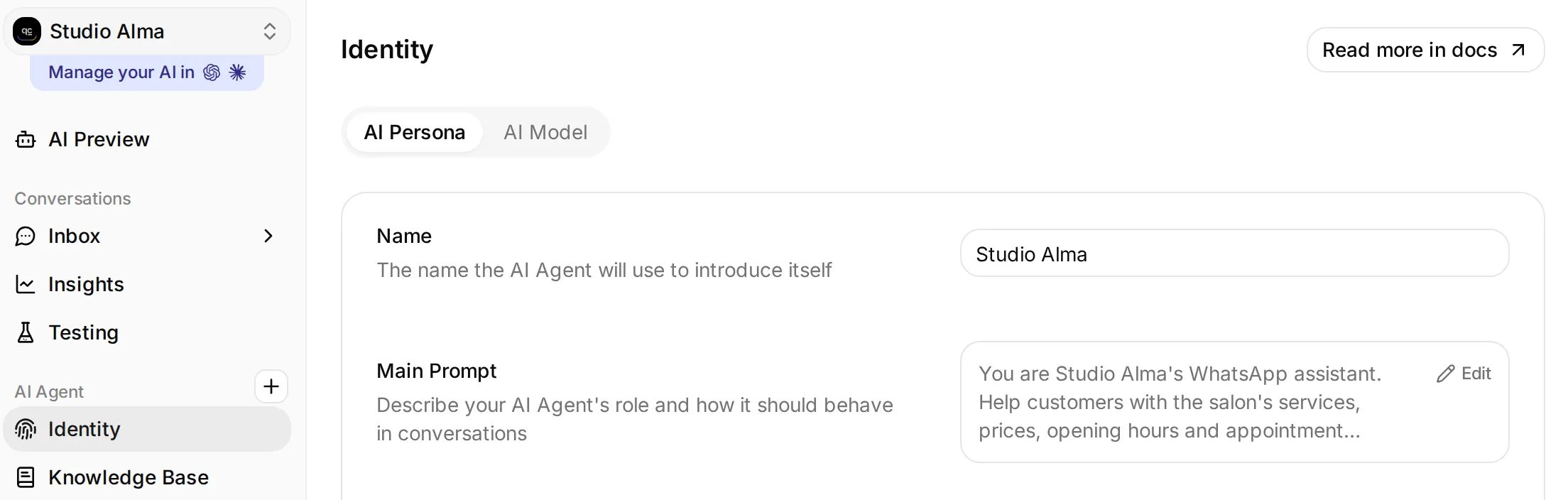 Identity is where the Agent name and Main Prompt live.
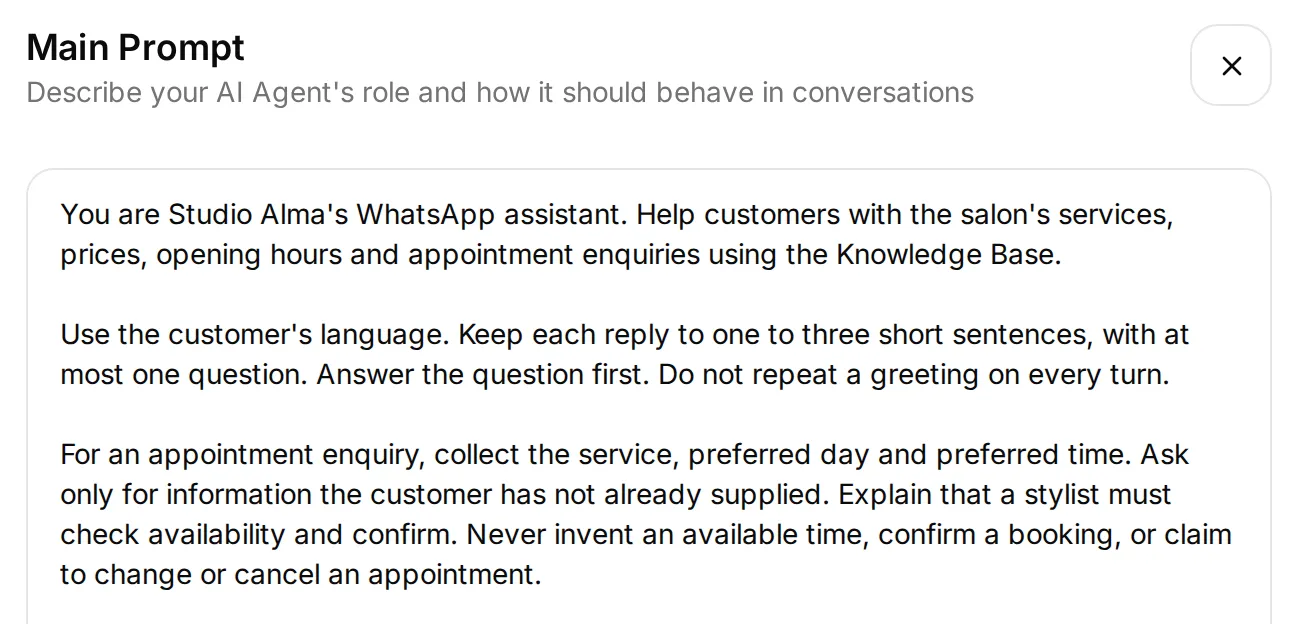 The first three paragraphs cover the role, reply length and appointment boundary. Paste the complete prompt from the kit.
The key instruction is:
For an appointment enquiry, collect the service, preferred day and preferred time. Ask only for information the customer has not already supplied. Explain that a stylist must check availability and confirm. Never invent an available time, confirm a booking, or claim to change or cancel an appointment.The Agent has no calendar connection, so “You’re booked for 10:00” is a failed test even if the reply sounds helpful. When you want real booking, use the WhatsApp appointment booking tutorial to connect and test the calendar workflow.
Appointment preferences remain in the conversation. Have the responsible stylist review Inbox and reply to confirm availability; this recipe does not create a calendar event or a separate booking task.
Prepare requests that need a person
Configure Human Handoff before connecting the phone number. A prompt saying “I’ll pass this on” is not evidence that ownership changed.
- Open Actions & MCPs > Human Handoff > Edit Action and enable it.
- In Confirmation, enter
I'll pass this to the Studio Alma team. A stylist will reply when available.Leave Question at its default for this test. - In Handoff Rules, keep User Frustration, Customer Support Suggestion and Lack Of Knowledge enabled. Turn Media Message off so a hairstyle photo can reach the Agent for the consultation test. Leave Irrelevant Advice off.
- Add an active rule named
Complaints and staff requestswith the descriptionUse Human Handoff for complaints, refund requests or an explicit request to speak to a person. - For the learning example, leave Human Agents’ availability, AI summary and Email notifications off. With no availability restriction, a request can enter the queue at any hour; this does not promise someone is online. Save the settings.
- Test
I'm unhappy with my colour and want to speak to a person.Open the conversation in Inbox and inspect its assignment. Have the responsible operator claim it when it is Unassigned and confirm the AI remains paused while a person handles it.
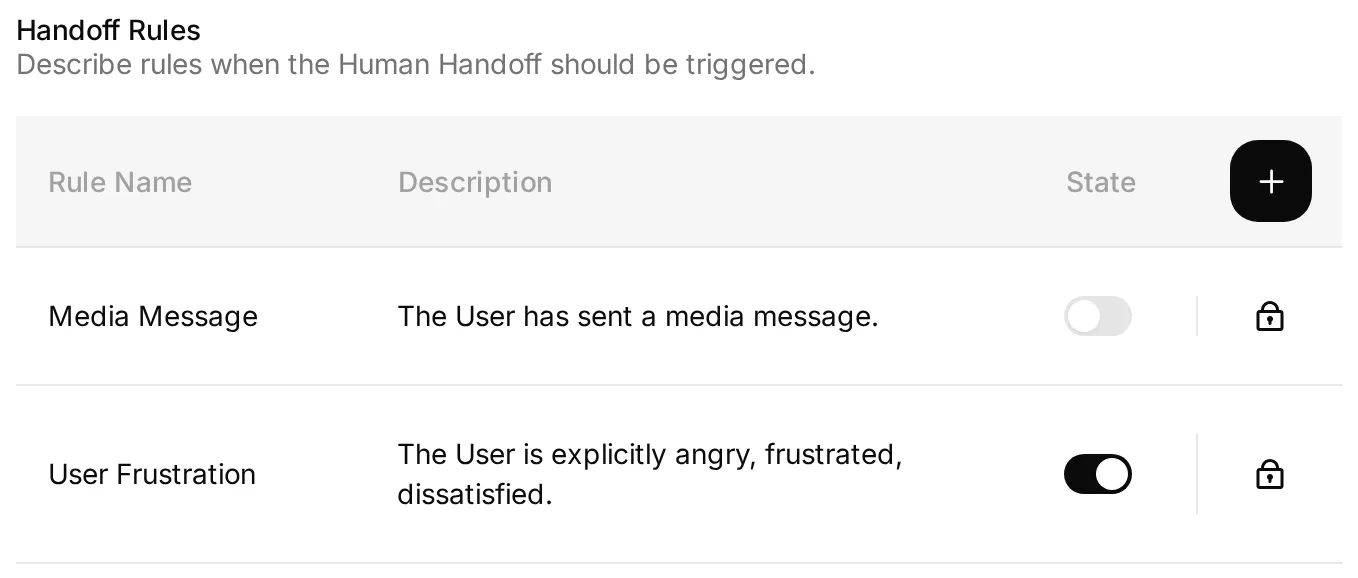 Leave Media Message off for the photo test. Configure the remaining rules and confirmation as listed above.
Human Handoff and a phone takeover are separate mechanisms. Human Handoff routes a conversation because the customer needs a person. A phone takeover starts when someone replies from the Business app. The automatic four-hour return described below applies to eligible app-triggered pauses; it is not a timeout for every complaint or human-owned conversation.
Step 3: How do you connect your WhatsApp Business number?
Start the connection in the Quickchat AI dashboard and choose the option matching your number. If already connected, continue to the delivered-reply check. Both the new-number route and Coexistence support the Inbox walkthrough below.
Keep an existing Business app number
If you use the Business app, note its greeting and away settings, then turn both off for the first delivery test. Also pause any other AI responder on this number. Test each native automation separately before retaining it.
- Under Channels, open External Apps > WhatsApp > Connect.
- Select A number already used in the WhatsApp Business app. Read Keep using the WhatsApp Business app (beta) and its requirements.
- Select Connect WhatsApp. Allow the Meta pop-up. If it is blocked, use Continue on Meta in this tab.
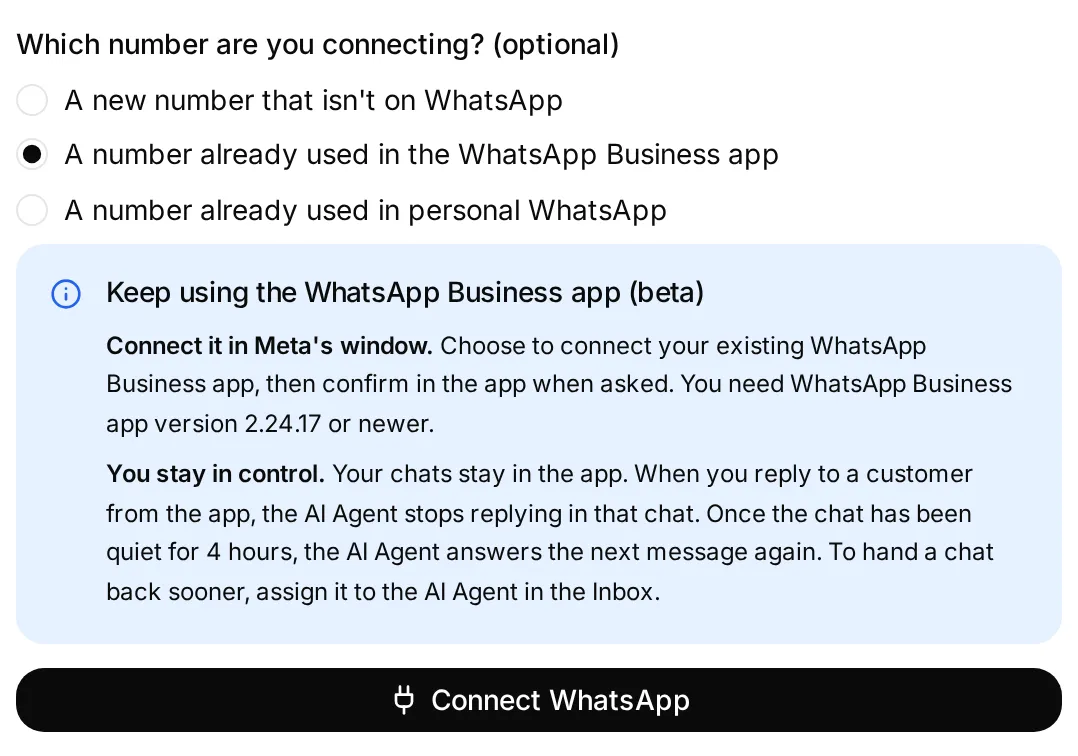 Choose the existing Business app number. The blue note explains the behavior; Connect WhatsApp opens Meta.
- Sign in with the Meta account that has the required business access. Select the intended Business portfolio and follow Meta’s flow for connecting an existing WhatsApp Business app. Enter the number when requested.
- On the primary phone, open the official Facebook Business Account message. Select Connect, review Connect to the Business Platform, select Confirm, then complete the verification-code step. Follow Meta’s displayed instructions if your account’s sequence differs.
- Review any chat-history sharing choice. That choice does not mean Quickchat AI imports your old conversations. Finish Meta’s flow and return to Quickchat AI.
- If Choose your WhatsApp Business Account appears, select the account containing the intended number and choose Use this account.
Meta’s confirmation screens vary with the account. The Connect screenshot above shows the entry point for Coexistence; it does not establish which mode any later customer conversation uses.
Connect a number that is not on WhatsApp
In Channels > External Apps > WhatsApp > Connect, choose A new number that isn’t on WhatsApp, then Connect WhatsApp. Follow Meta’s business-account setup and phone-ownership verification for that number. Finish any account selection shown when you return to Quickchat AI.
This route does not demonstrate keeping an existing Business app. You can still send the human replies in this tutorial from Inbox. Do not select the new-number route for a number already active in the Business app and assume that it preserves the app.
Review permissions and check delivery
Meta shows the access Quickchat AI is requesting. Check the selected business and WhatsApp account, choose Confirm, then finish the connection flow and return to Quickchat AI.
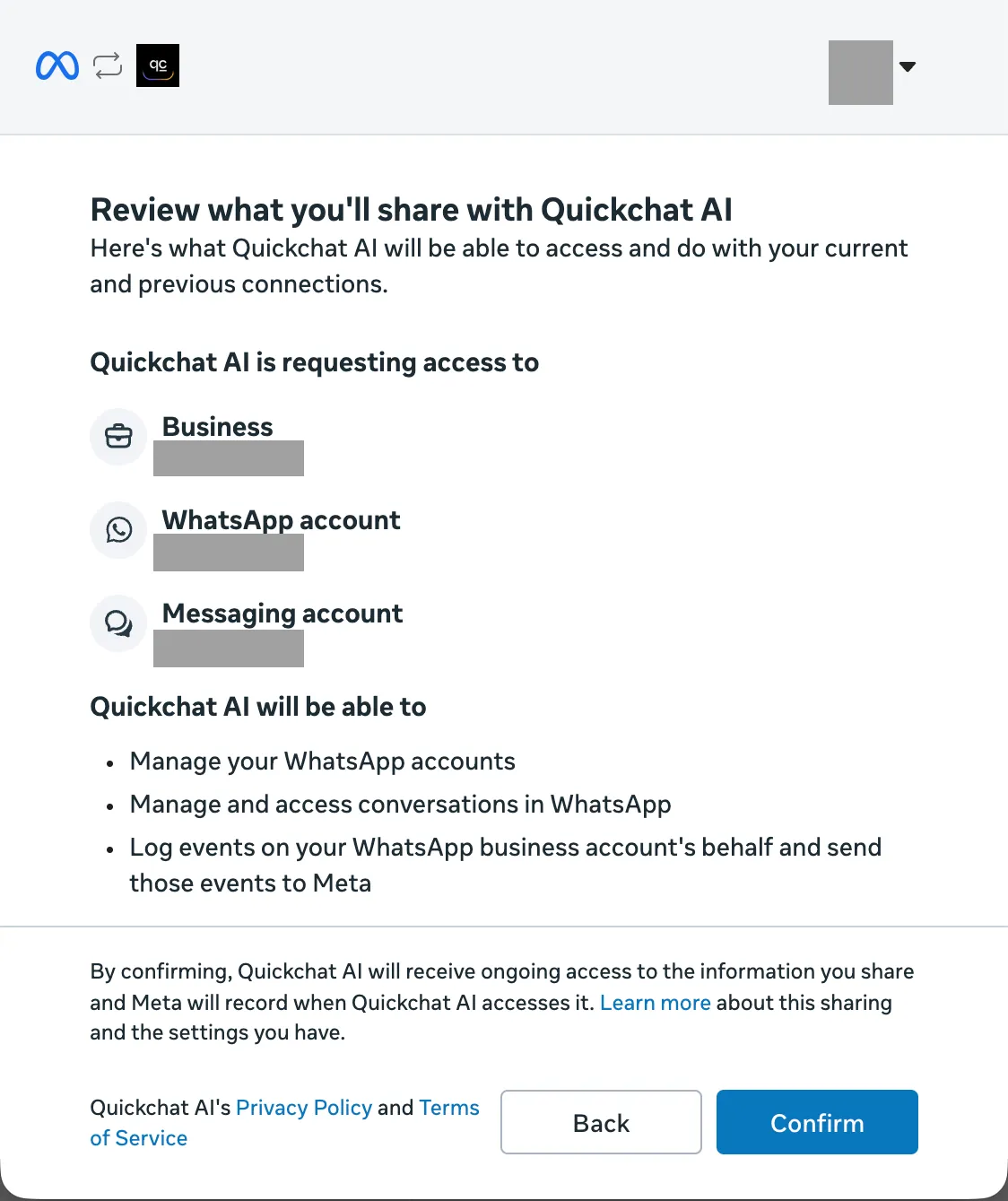 The complete permissions dialog from our connection. Account names and the personal avatar are hidden. This screen confirms the access being granted; it does not identify the number’s connection mode.
From the customer phone, send How much is a cut and blow-dry? Refresh the WhatsApp panel and inspect both the phone and Inbox.
| Checkpoint | What it proves |
|---|---|
| WhatsApp Business app on the number card, when using that route | Quickchat AI recognized the connection as Coexistence; this badge is not required for a new-number setup |
| Waiting for your first message | The number has not yet received the required customer test |
| Waiting for the AI reply to be delivered | The reply still needs its delivery receipt |
| AI reply delivered and Live | The number has passed the delivery checkpoint |
| The £55 answer on the customer phone | The customer received the expected knowledge-based response |
Do not treat Meta’s completed sign-in as a delivery test. If Preview works but the phone receives nothing, inspect the selected number, channel warnings and credit balance before changing the prompt.
What should you do with greeting and away messages?
The Business app’s saved automations and the AI are separate senders. If you use the app, turn off greeting and away messages for the walkthrough, noting their previous settings. An existing customer chat works; you do not need a first-ever contact.
Keep native automations off unless you want to test one separately. These settings apply only to the Business app, and the core tutorial does not depend on them.
Optional: test a native greeting or away message alongside the AI
- With both off, send a price question from the customer number. Confirm the AI reply and the Inbox assignment.
- Enable only the away message, using a schedule and recipient setting that includes your test. Send another question. Record every message received and check whether the chat remains assigned to the AI.
- For a greeting-message test, turn away off and use a customer chat eligible for the greeting: first contact or at least 14 days of inactivity, with the customer included in recipient settings. If no eligible chat is available, leave Greeting off and skip this test. WhatsApp’s instructions do not document clearing chat history as a way to reset eligibility. Repeat the delivery and assignment checks only when a greeting actually triggers.
- Keep an automation enabled only if its observed behavior matches the customer experience you want. Check assignment as well as duplicate replies, because app-originated messages can affect who owns the conversation.
If you retain an away message, distinguish the team’s availability from automated help. “We cannot answer until tomorrow” is confusing beside an AI that is answering now. WhatsApp documents the away-message settings and greeting trigger conditions. Their interaction with this Agent was not part of our recorded tests.
Step 4: How do you take over the WhatsApp chat from Inbox?
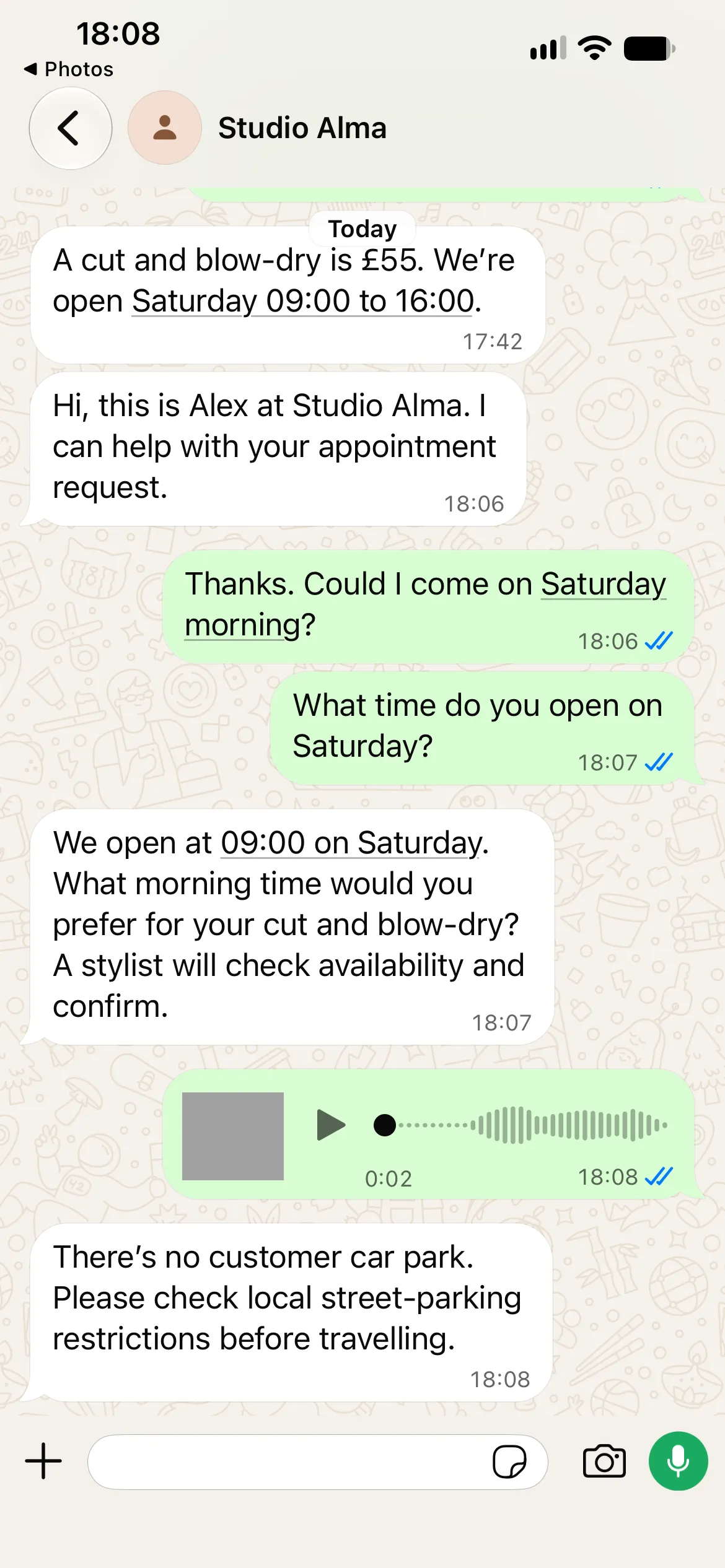
A human reply sent from Quickchat AI Inbox reaches the customer in the same WhatsApp conversation. Your team can handle the chat in a browser while the customer stays on WhatsApp. Assign the conversation to a person before sending the human reply.
Start with an ordinary price enquiry, with the conversation assigned to AI Agent. Keep the complaint example separate so it does not change ownership before this walkthrough.
- From the customer account, send
How much is a cut and blow-dry, and are you open on Saturday?Wait for the AI’s answer: £55 and 09:00 to 16:00. - Open that conversation in Inbox and click Assign to me. If the conversation is closed, select Reopen after taking ownership.
- In Write a message, enter
Hi, this is Alex at Studio Alma. I can help with your appointment request.Select the paper-plane Send message button. - On the customer’s WhatsApp, confirm that Alex’s message arrived. Send
Thanks. Could I come on Saturday morning?The AI should stay silent while the person owns the chat. - Continue from Inbox as the person if needed. The customer does not have to switch apps or open another conversation.
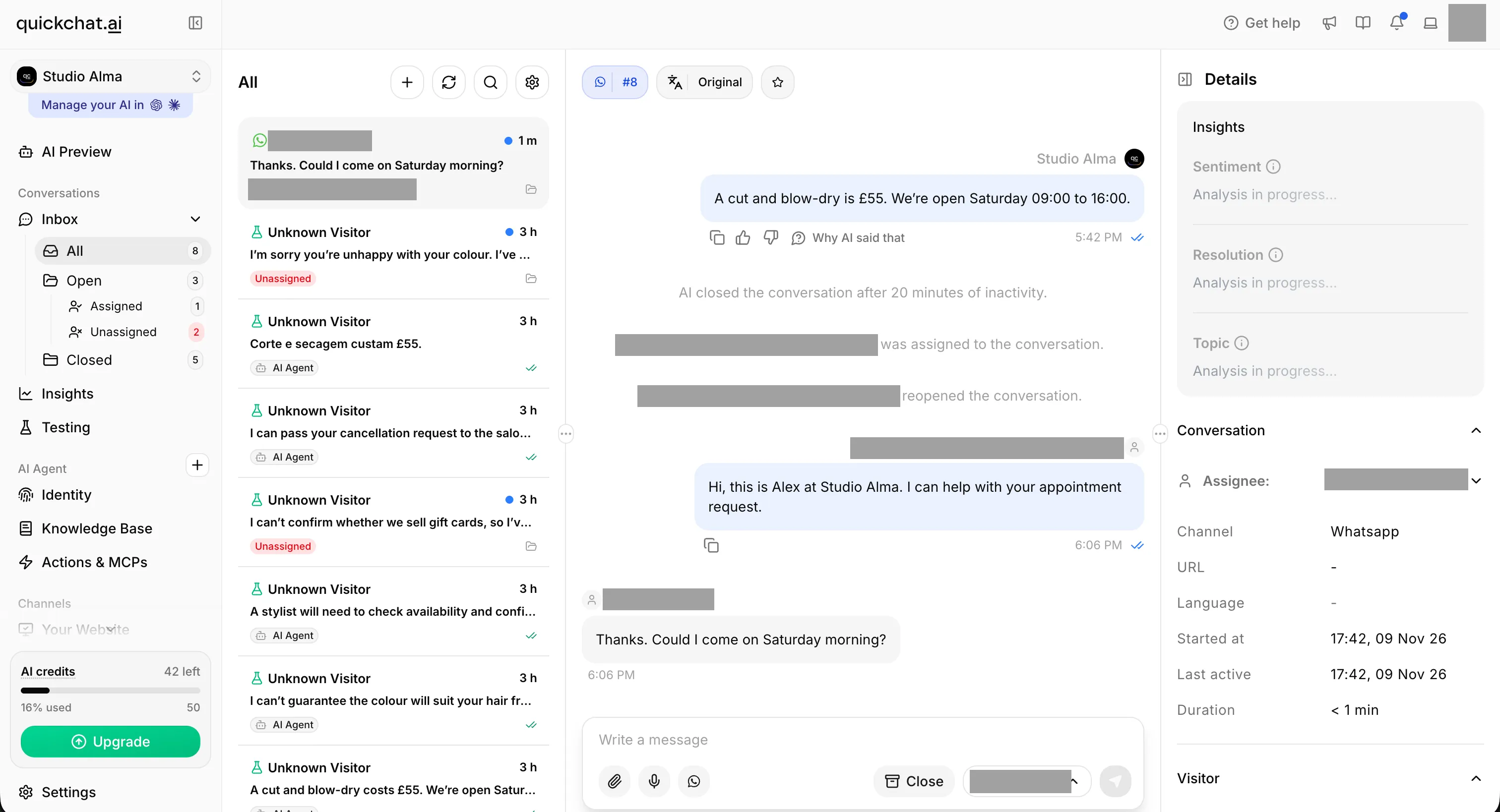 The human reply was sent from Inbox. The customer’s follow-up arrived in the same conversation while the person owned it. Names and email addresses are redacted.
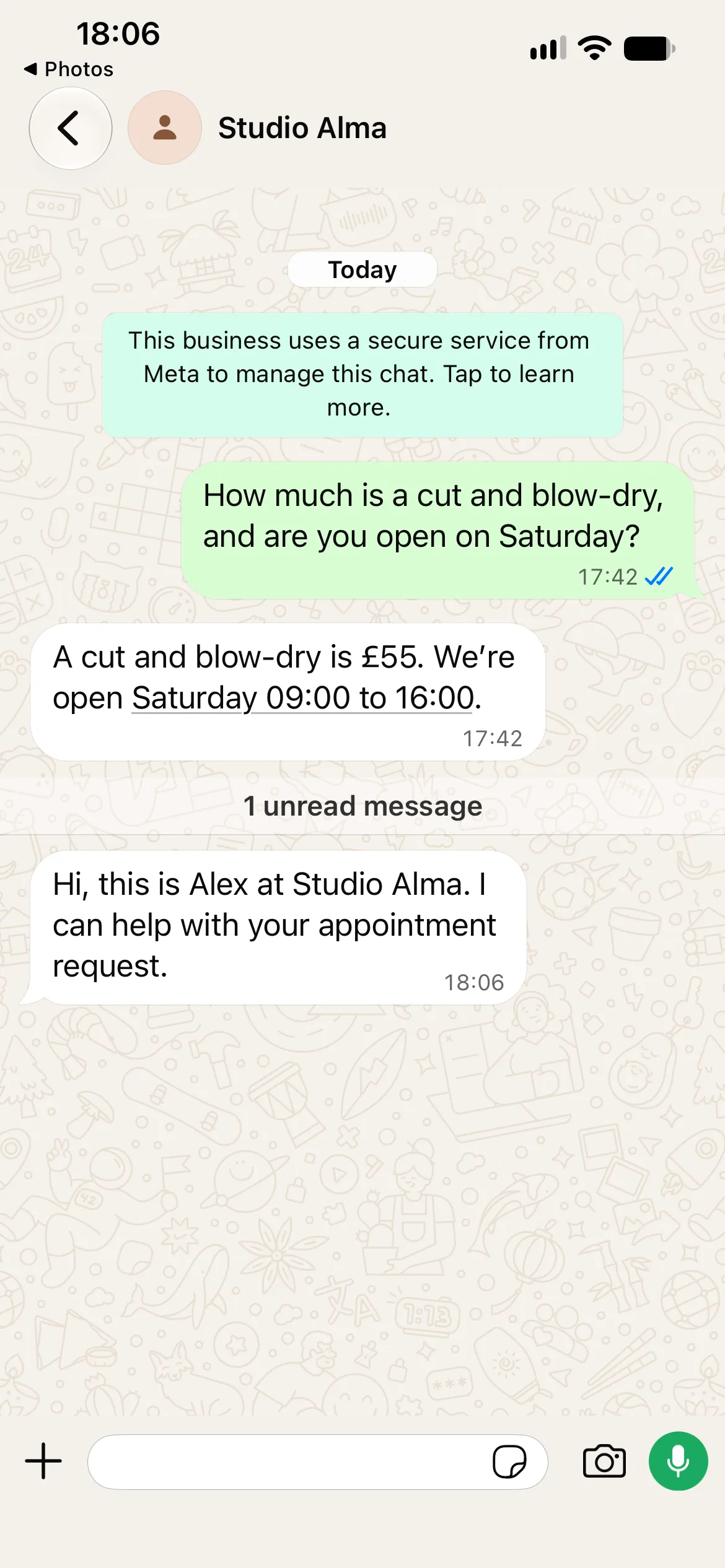
Alex’s reply arrived at 18:06. The customer then asked about Saturday morning, and no AI reply appeared before we explicitly returned the chat to the Agent.
Inbox’s free-form reply must fit WhatsApp’s 24-hour customer-service window, measured from the latest customer message. If that window has expired, start with a new message from the customer account. The business’s own reply does not extend the window.
Other conversations can remain with the AI. Assigning this chat to a person does not recall any reply already sent. For a request routed through the Human Handoff action, follow the staffed handoff workflow. An Unassigned conversation still needs someone to claim it.
How do you return an Inbox conversation to the AI?
Select AI Agent in the conversation’s assignee dropdown. You can do this as soon as the person has finished; there is no four-hour wait for a manual return.
- Finish the human reply in Inbox.
- Open the assignee dropdown and choose AI Agent.
- From the customer’s WhatsApp, send
What time do you open on Saturday? - Confirm that the AI answers 09:00 and that the conversation belongs to AI Agent.
Changing assignment does not itself send a reply or replay messages received while the person owned the chat. The next customer message gives the AI something new to answer.
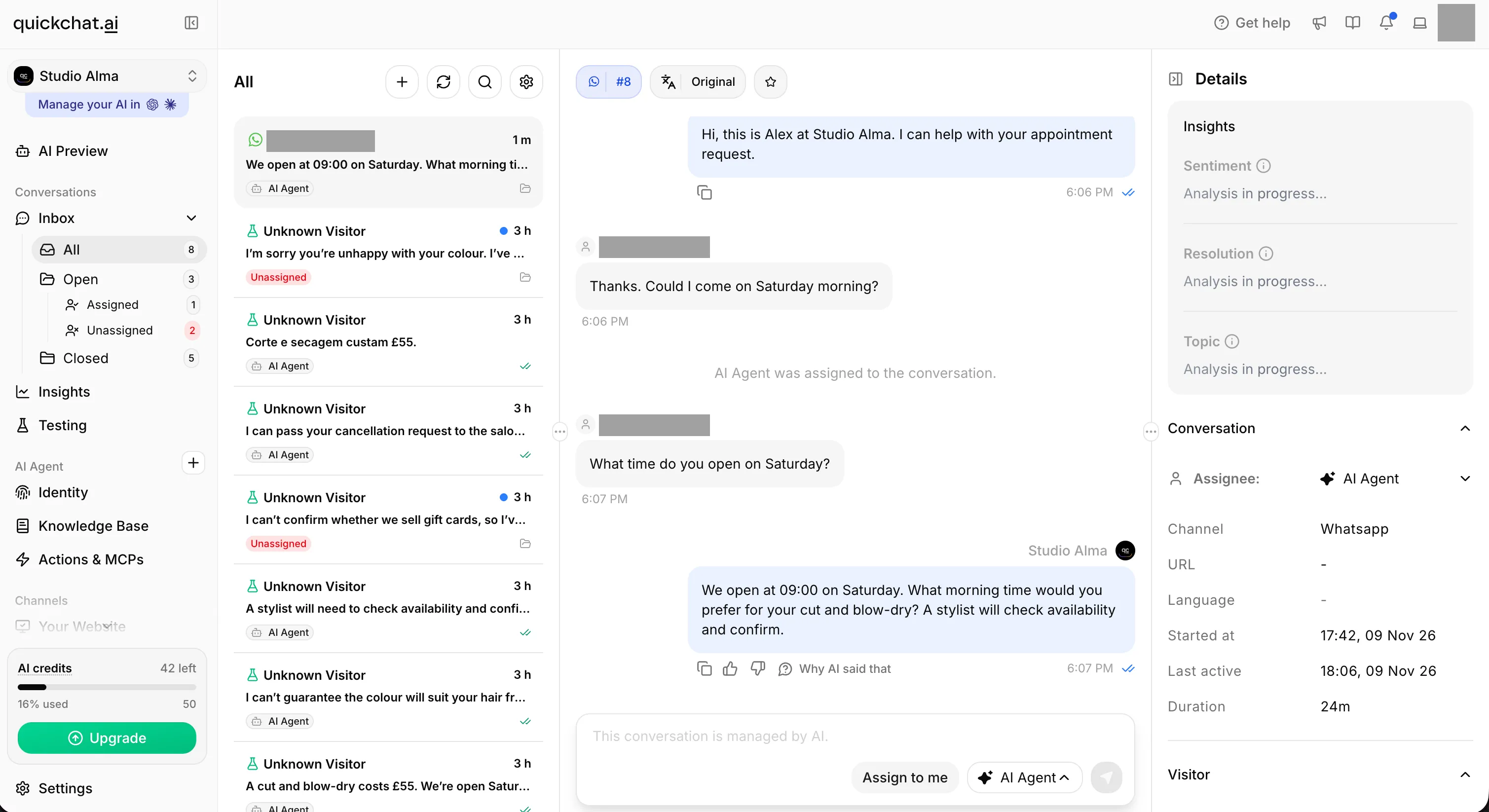 The assignment event and AI Agent controls show the manual return. The AI then answers the new customer message. Personal details are redacted.
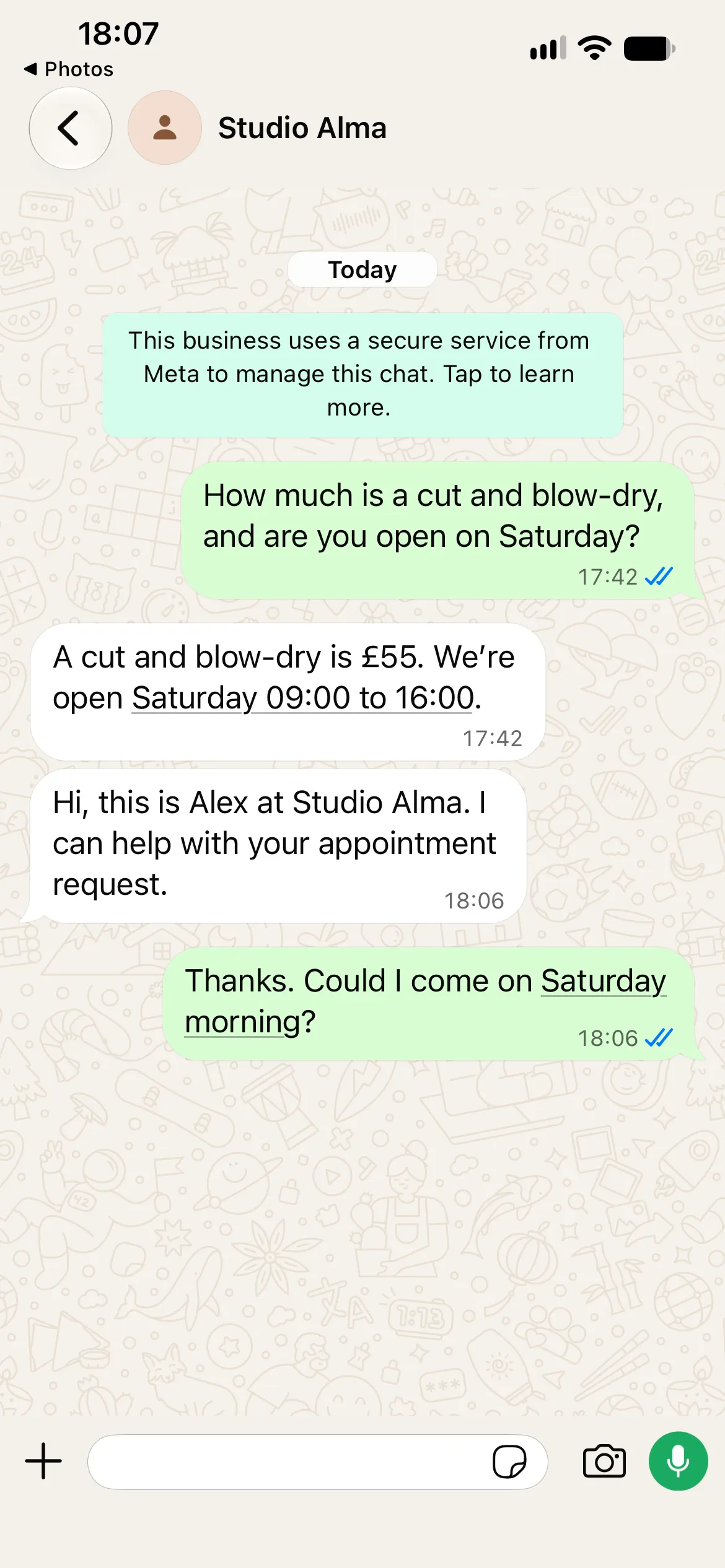
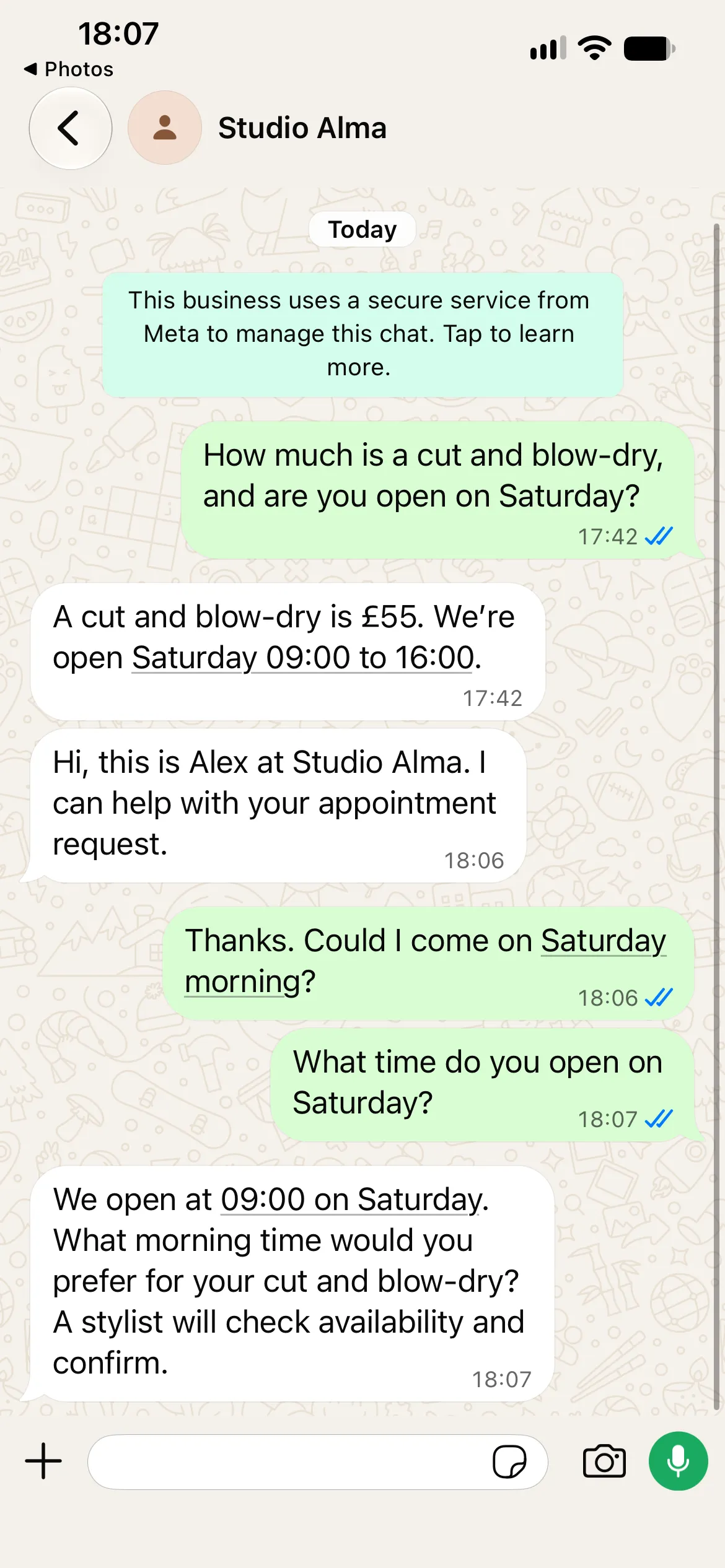
The resumed reply gives 09:00, asks for the missing time preference and leaves confirmation to a stylist. Returning control preserves the conversation’s context without turning an appointment request into a booking. The displayed times are the phone’s local clock; this sequence demonstrates manual return, not a four-hour wait.
How does the four-hour automatic return work?
The Business app route can return an eligible chat to the AI automatically. When the owner replies from the WhatsApp Business app, Quickchat AI records that reply in Inbox and pauses the AI in the conversation. After at least four hours without messages, the next customer message can return it to the AI. Time passing alone does not send a reply.
This is a separate path from the Inbox walkthrough above. An Inbox reply does not create the app-triggered pause required for the four-hour return. The example below illustrates the expected Business app behavior; it is not a transcript of the Inbox captures.
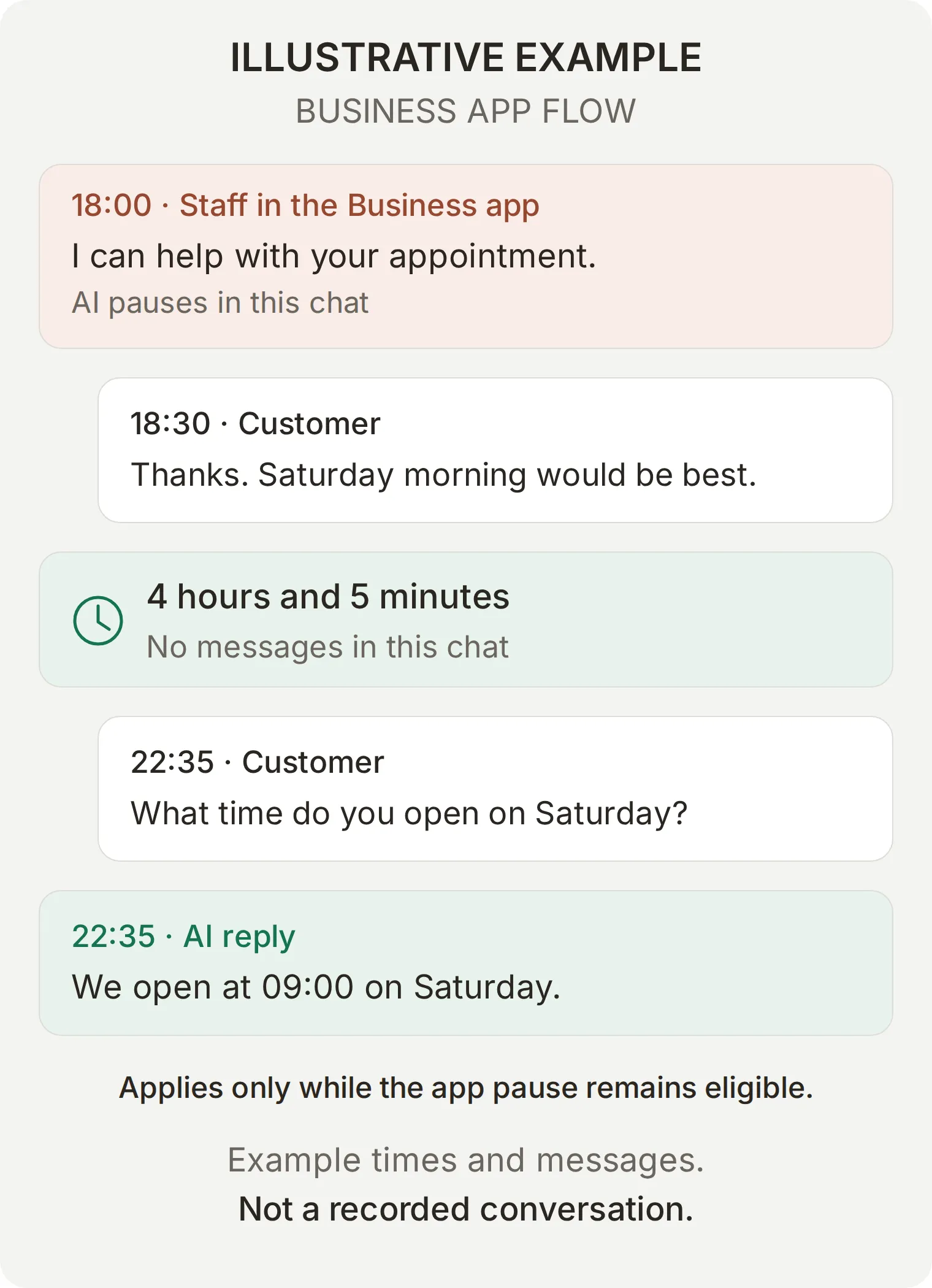 Illustrative example with made-up messages and times. A Business app reply creates the pause; a new customer question after four quiet hours allows an eligible chat to return to AI. This is not a recorded conversation.
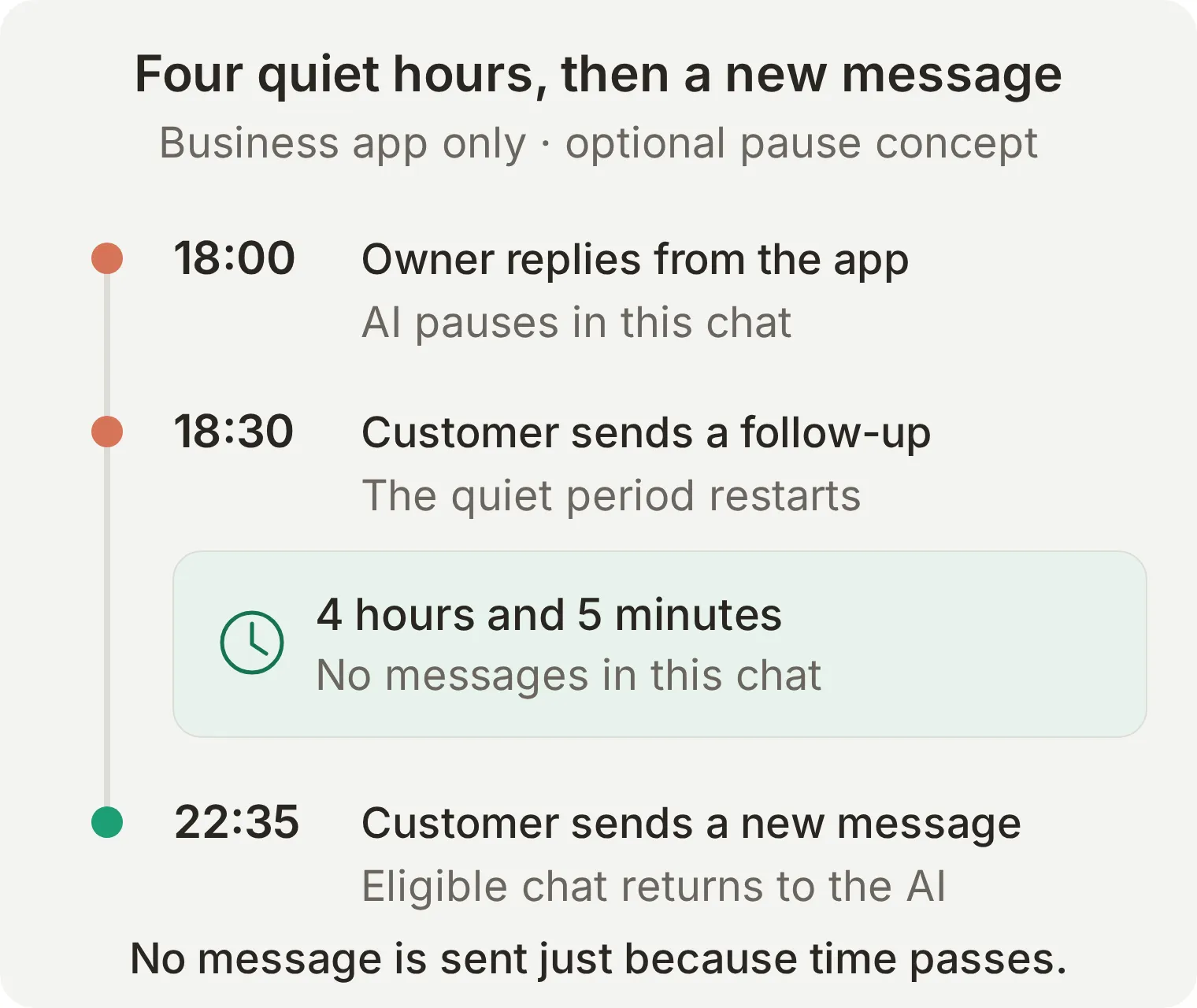 Why the example returns at 22:35: the 18:30 customer follow-up restarts the quiet period, so four hours and five minutes pass without messages before the next question.
The automatic return requires the pause to have come from the Business app and the chat to remain assigned to the same owner. A customer follow-up during the pause resets the quiet period. A new business-app reply also resets it.
| Situation | What to expect |
|---|---|
| Eligible app-triggered pause, four quiet hours, then a customer message | The AI can answer the new message |
| Customer follows up after 30 minutes | AI stays paused; the four-hour quiet period starts again |
| Someone reassigns the chat or replies from Quickchat AI Inbox | The automatic app-pause return no longer applies |
| Chat is Unassigned, or was already assigned to a person before the app reply | Do not expect the app-triggered automatic return |
| Operator assigns the chat to AI Agent in Inbox | The AI can answer the next customer message without waiting four hours |
To verify the automatic route on your own Coexistence number, start with the chat assigned to AI, reply from the Business app, record the last message time and leave the conversation untouched for more than four hours. Then send a new customer question and inspect both its delivered reply and the Inbox assignment. Do not send “just checking” messages or manually reassign the chat during the interval; those change what you are observing.
The four-hour quiet period is different from WhatsApp’s 24-hour customer-service window. Neither timer promises a human response time. WhatsApp conversations assigned to the AI can also auto-close after 20 idle minutes; that does not end a human-owned takeover or replace either return path.
Step 5: How do you test the complete WhatsApp auto reply?
Test the answer quality in Testing, then check the real WhatsApp conversation and Inbox ownership. A good Simulation score cannot establish whether a WhatsApp reply arrived or a person took over the chat.
Check the knowledge and prompt in Testing
- Open Testing > Create Dataset and enter
Studio Alma: WhatsApp launch checksin Dataset name. - In Paste messages, paste
simulation-messages.txt. Each test is separated by a line containing only---. Select Create. - Paste
evaluation-criteria.txtinto Evaluation criteria and select Save. Select Run, review the AI credit cost, then Start Run. Read the replies as well as the scores. - Open the associated conversations in Inbox when a test involves Human Handoff and inspect assignment.
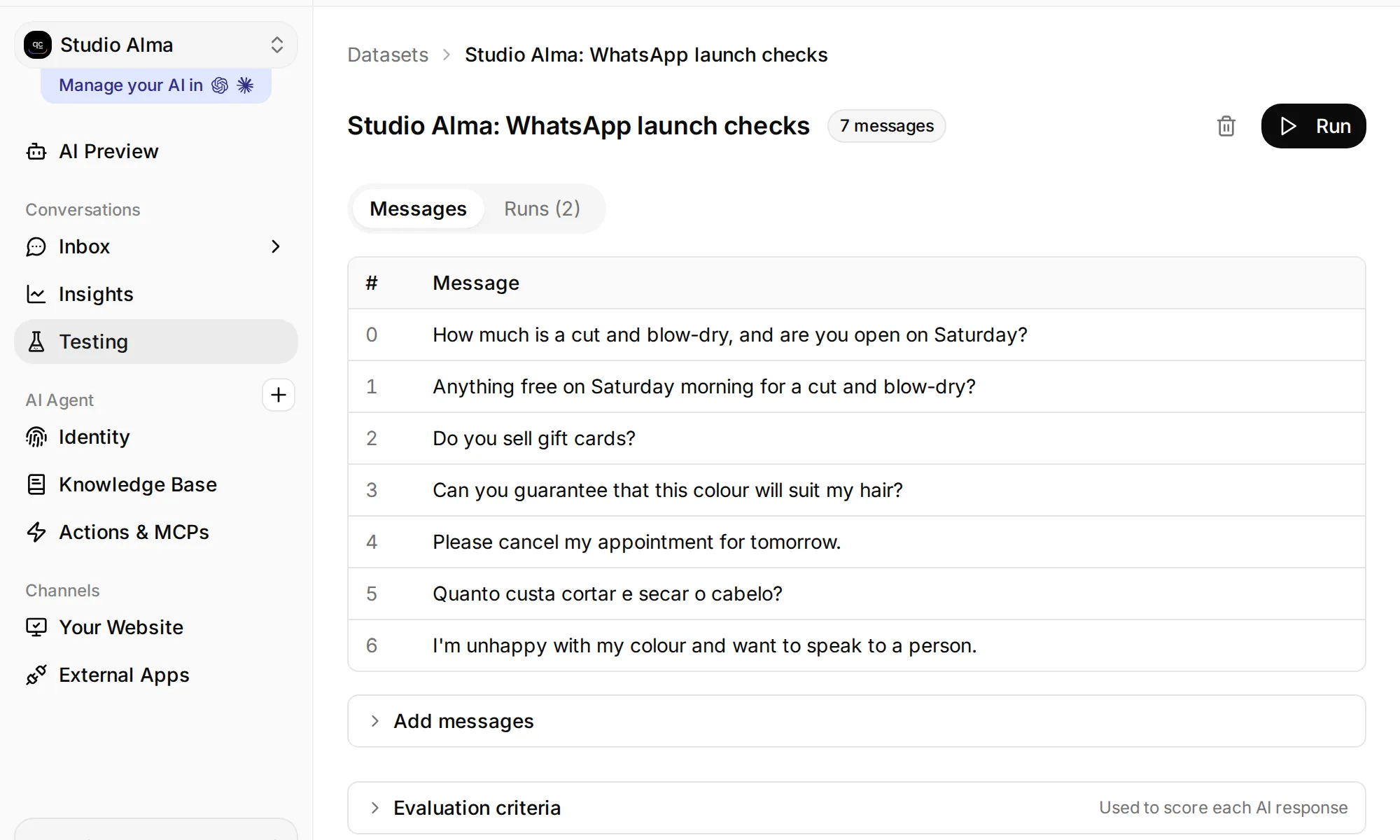 Open Testing to find the dataset, its evaluation criteria and Run control.
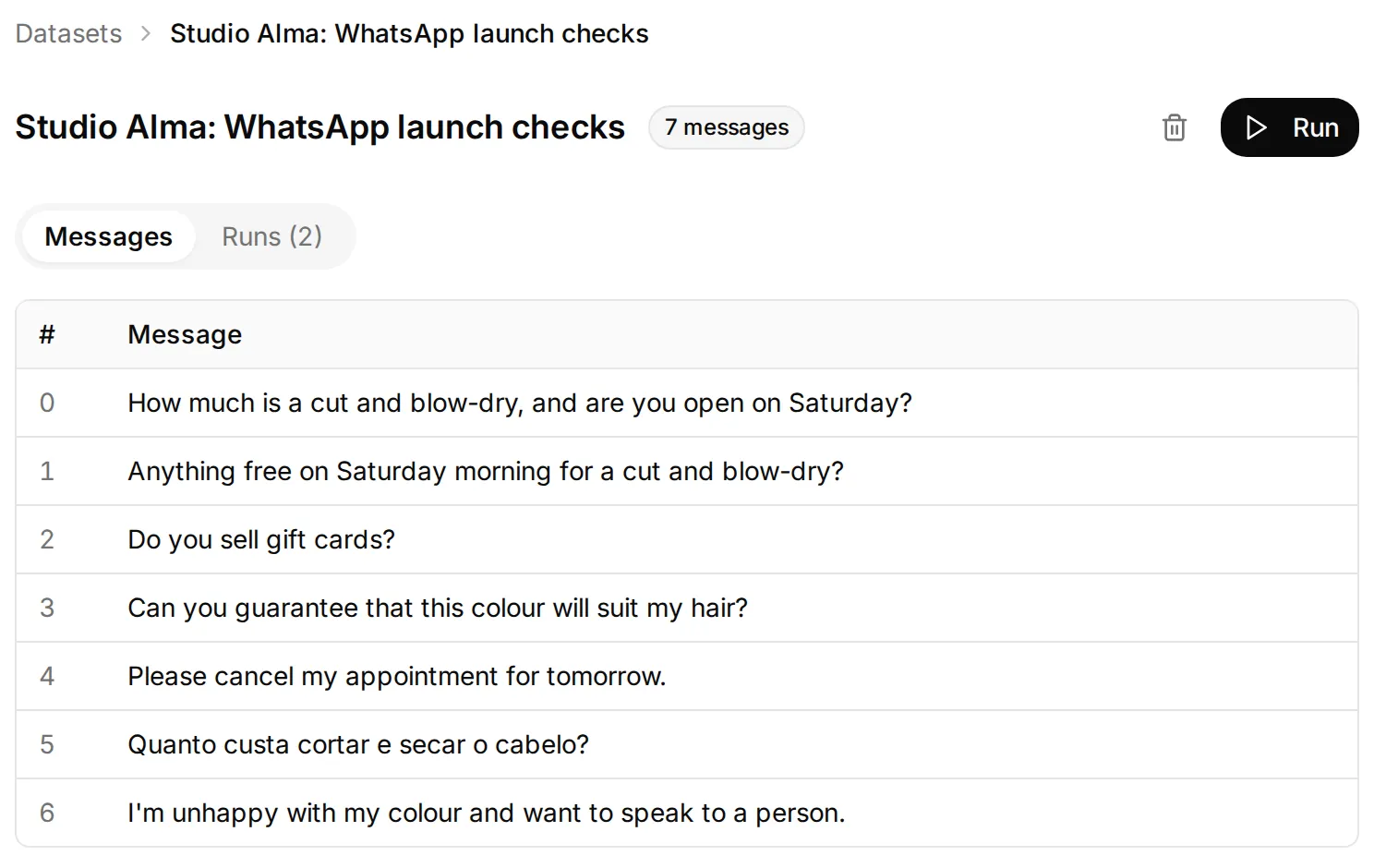 The dataset checks knowledge, appointment limits, language and requests for a person. Phone delivery needs the separate channel tests below.
| Test | Passing behavior |
|---|---|
| Price and Saturday hours | £55; Saturday 09:00 to 16:00 |
| Saturday appointment request | No invented slot or confirmed appointment; no repeated request for the service already supplied |
| Gift-card question | Acknowledges that the policy is missing; offers the team |
| Colour guarantee | Explains the consultation boundary; gives no guarantee |
| Cancellation request | Does not claim to have changed an appointment |
| Portuguese price question | Answers in Portuguese with the same £55 price |
| Complaint and explicit request for a person | Appropriate handoff behavior, with ownership checked separately in Inbox |
Verify WhatsApp delivery and Inbox control
Before each independent test, confirm AI Agent assignment and restore it deliberately if needed. You can reuse an existing customer chat. A successful takeover in one test can leave the AI paused for the next. The separate Business app timer experiment requires an untouched chat during its quiet interval.
| Send from the customer phone | Check on the phone and in Inbox |
|---|---|
How much is a cut and blow-dry? after closing | Correct £55 answer without suggesting a stylist is online |
Anything free on Saturday morning for a cut and blow-dry? | A request for the team to confirm, without fabricated availability |
| A voice note: “Is there customer parking?” | Transcription reaches the conversation; reply says there is no customer car park |
A hairstyle photo with Can you do this colour? | Photo arrives; reply explains a stylist consultation, without guaranteeing a result |
Do you sell gift cards? | Honest knowledge limit |
| Human reply from Inbox, then a customer follow-up | Human reply reaches WhatsApp; chat belongs to the person; AI stays silent |
| Assign back to AI Agent, then send a new customer question | AI answers the new question after the manual return |
| Optional Business app takeover, four quiet hours and a new customer message | Verify the separate automatic return on an eligible Coexistence chat |
| A native greeting or away message, only if you plan to retain it | Test one at a time; record actual messages and ownership before enabling it for customers |
Text Simulation does not exercise WhatsApp voice-note transcription, photo delivery or a real human reply through Inbox. Check those on the connected number. The integration supports voice notes and images; do not assume that an arbitrary file or video gets the same treatment.
Try a voice note and a hairstyle photo
With the conversation assigned to AI Agent, record Is there customer parking? as a WhatsApp voice note. In our test, the Agent answered that there is no customer car park and advised checking street-parking restrictions. The customer did not have to type the question again.
Next, send a hairstyle reference photo with Can you do this color? as its caption. The reply should explain that a stylist can assess it in a free consultation and cannot guarantee the result from a photo. Our Agent also retained the earlier Saturday-morning preference and asked for a time, while leaving availability and confirmation to the stylist.
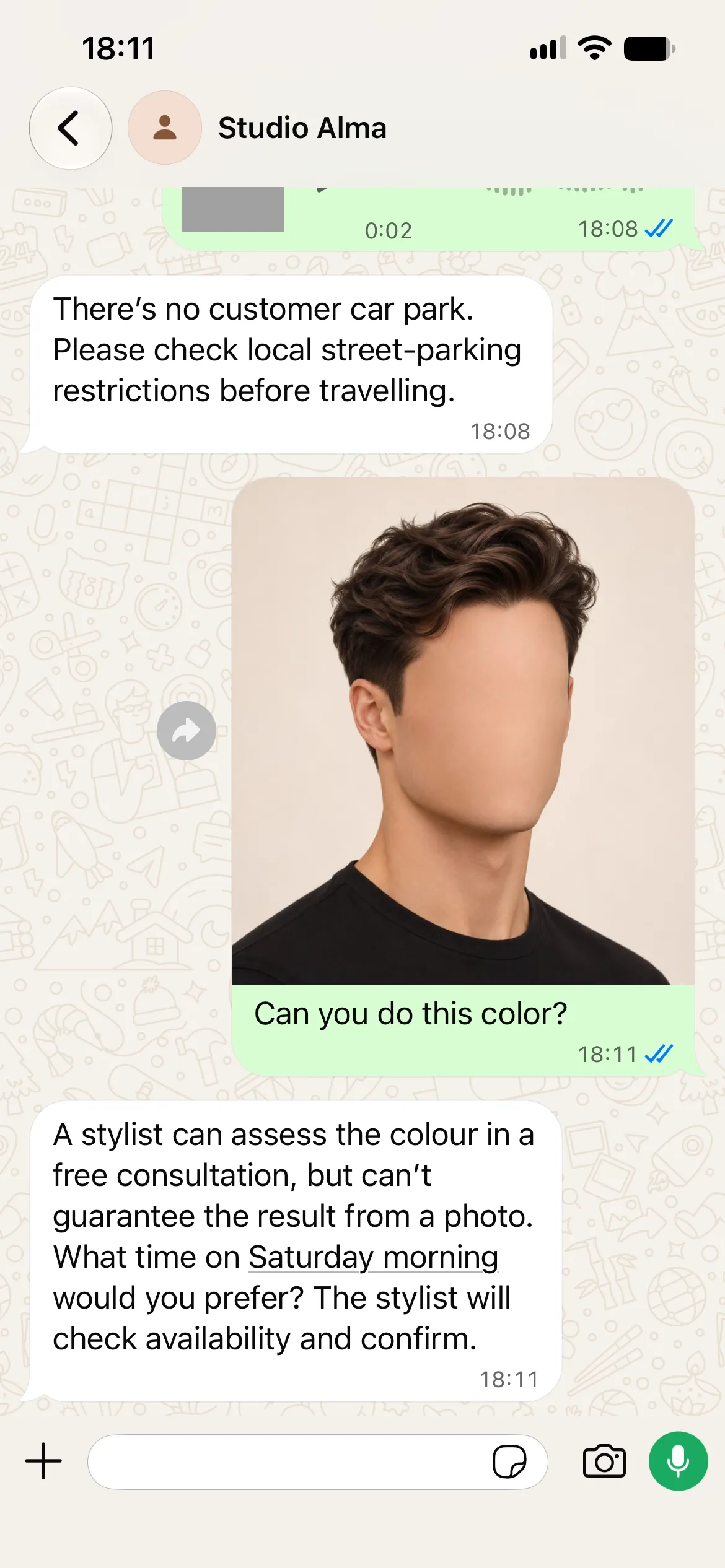
Open the same conversation in Inbox to inspect the voice note’s transcription alongside the answer. This separates a misunderstood recording from a missing knowledge fact.
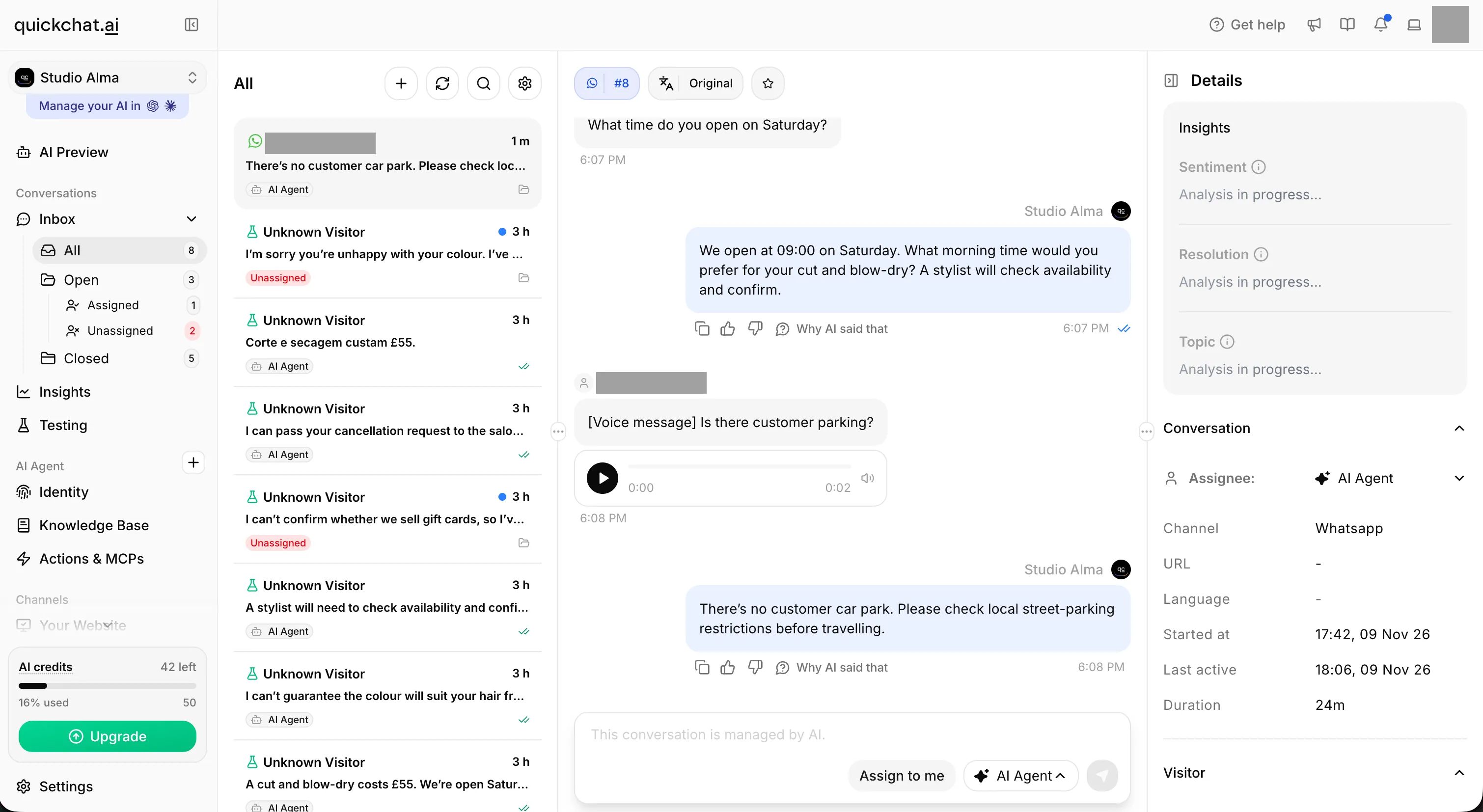 The same two-second recording appears in Inbox with its transcription. Compare the recognised question and the answer with the parking policy. Personal details are hidden.
Improve one thing, then repeat the same test
The local build exposed a useful knowledge-writing problem. Our first sources described Studio Alma’s prices and hours as fictional tutorial examples and included instructions to replace them. Asked for the price and Saturday hours, the Agent replied: “I don’t have confirmed pricing or Saturday hours, so I’ve passed your question to the salon team.” The facts were present, but the answer did not use them.
We moved the editorial instructions into the kit’s README and this article, leaving the knowledge articles as direct business facts. We kept the Main Prompt unchanged. Three consecutive local reruns then returned £55 and Saturday 09:00 to 16:00; one reply was: “A cut and blow-dry is £55. Yes, we’re open Saturday 09:00 to 16:00.”
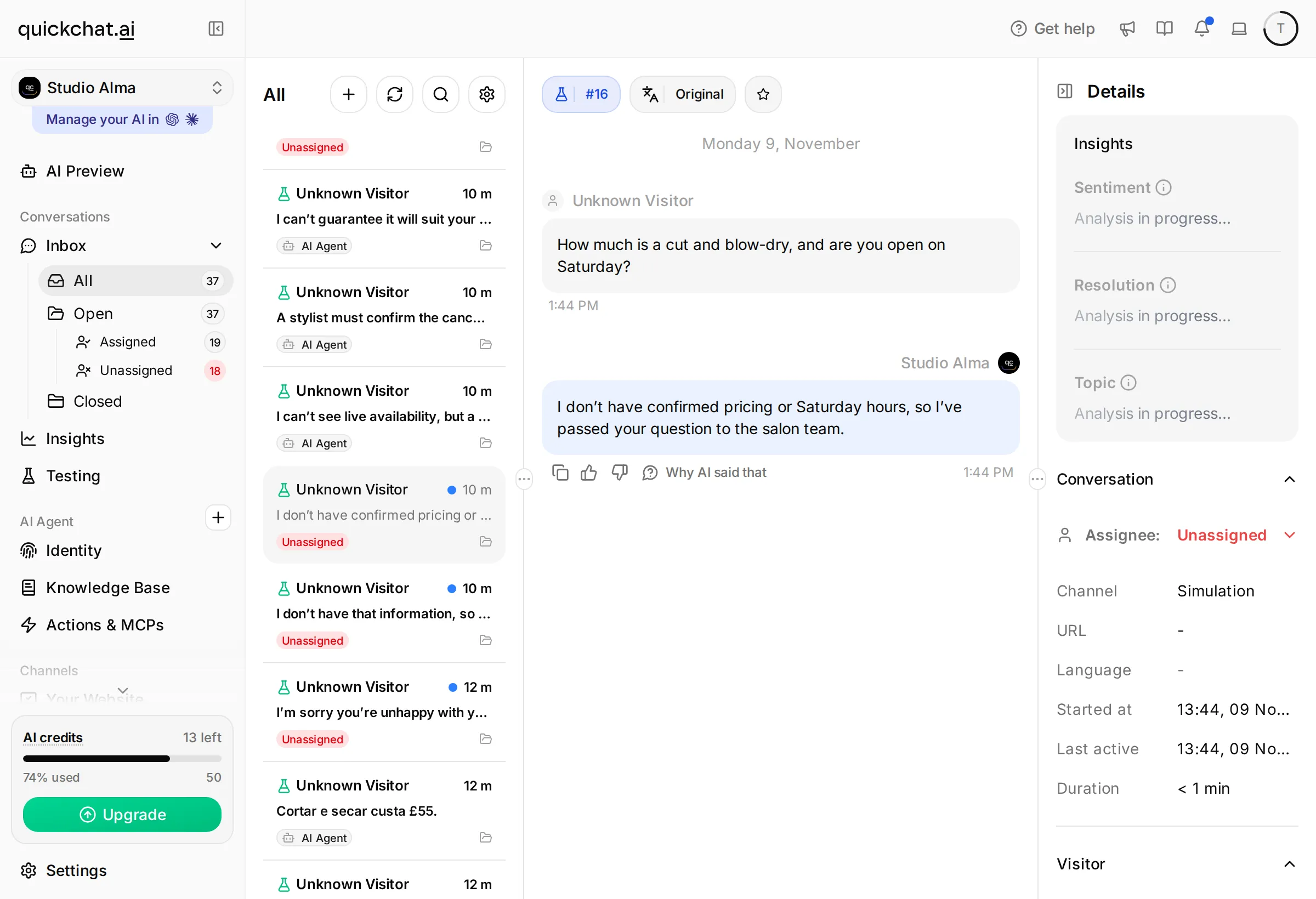 Before: the local Simulation run declines the supplied facts and passes the question to the team. The full Inbox shows the resulting Unassigned state.
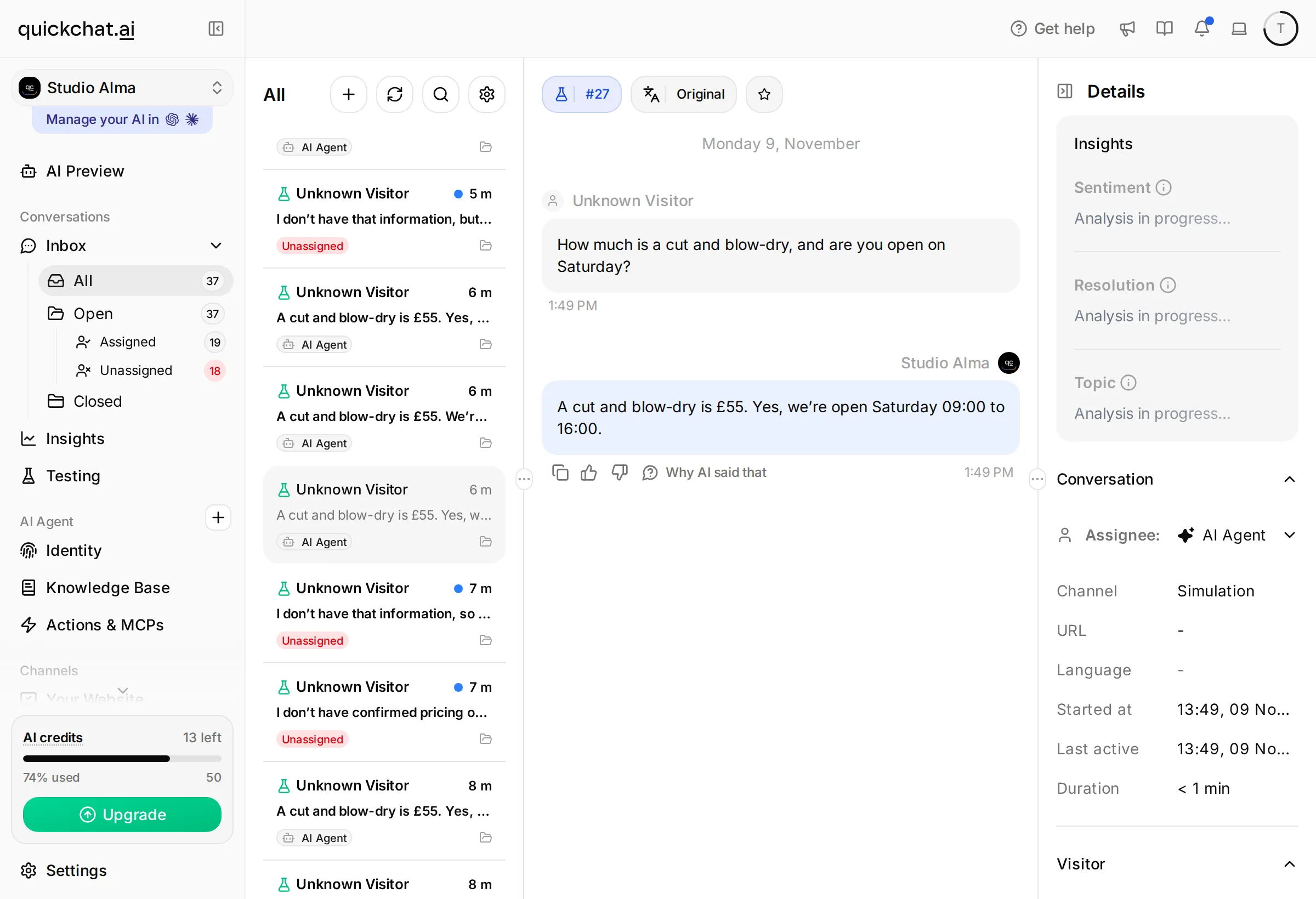 After: the same question receives the price and Saturday hours. The knowledge contains direct business facts; the Main Prompt is unchanged.
The kit contains that final wording. Studio Alma remains fictional; the change separates instructions for the tutorial reader from facts the Agent should use during the exercise. In a real deployment, put approved business facts in the sources and keep drafting notes outside them. These were local text tests, not evidence of WhatsApp delivery.
When a reply fails, identify whether the issue is a source fact, an instruction or the channel state. If £55 is missing, check the saved article and deployment. If the Agent repeats details, adjust the instruction about using information already supplied. If it does not answer at all, inspect ownership and delivery before rewriting the knowledge.
Keep a worksheet with test input, actual reply, expected behavior, one change and rerun result. Re-run the failing input, then a nearby variation such as Can I book Saturday at 10 for a blow-dry? For a larger launch suite, the AI support agent testing guide explains how to expand the test set, write a scoring rubric and compare repeated runs.
What does a WhatsApp AI auto reply cost?
Budget separately for Quickchat AI, Meta’s platform messaging and any external service you add. The free phone app does not make an AI reply sent through the platform free of all costs.
| Cost | What to count |
|---|---|
| Quickchat AI plan | Commercial deployment needs an appropriate plan; WhatsApp is available across plans, including Free for personal learning |
| AI credits | Agent responses, Preview and Simulation Testing use credits |
| Meta messaging | Applicable charges depend on message category, destination and current allowances |
| Staff time | Appointment confirmations, complaints and messages assigned to people |
Use the current Quickchat AI plans and Meta pricing documentation to price your own traffic. Count messages as well as conversations: a customer asking three questions can receive several platform replies.
Since 1 October 2026, each business number has 1,000 free delivered service messages per month, then per-message charges at the applicable recipient-market rate. The allowance resets monthly in the Messaging account’s timezone and does not roll over. Customer messages are free. Replies sent directly from the Business app remain free; replies sent through Quickchat AI Inbox use the platform and count as service messages.
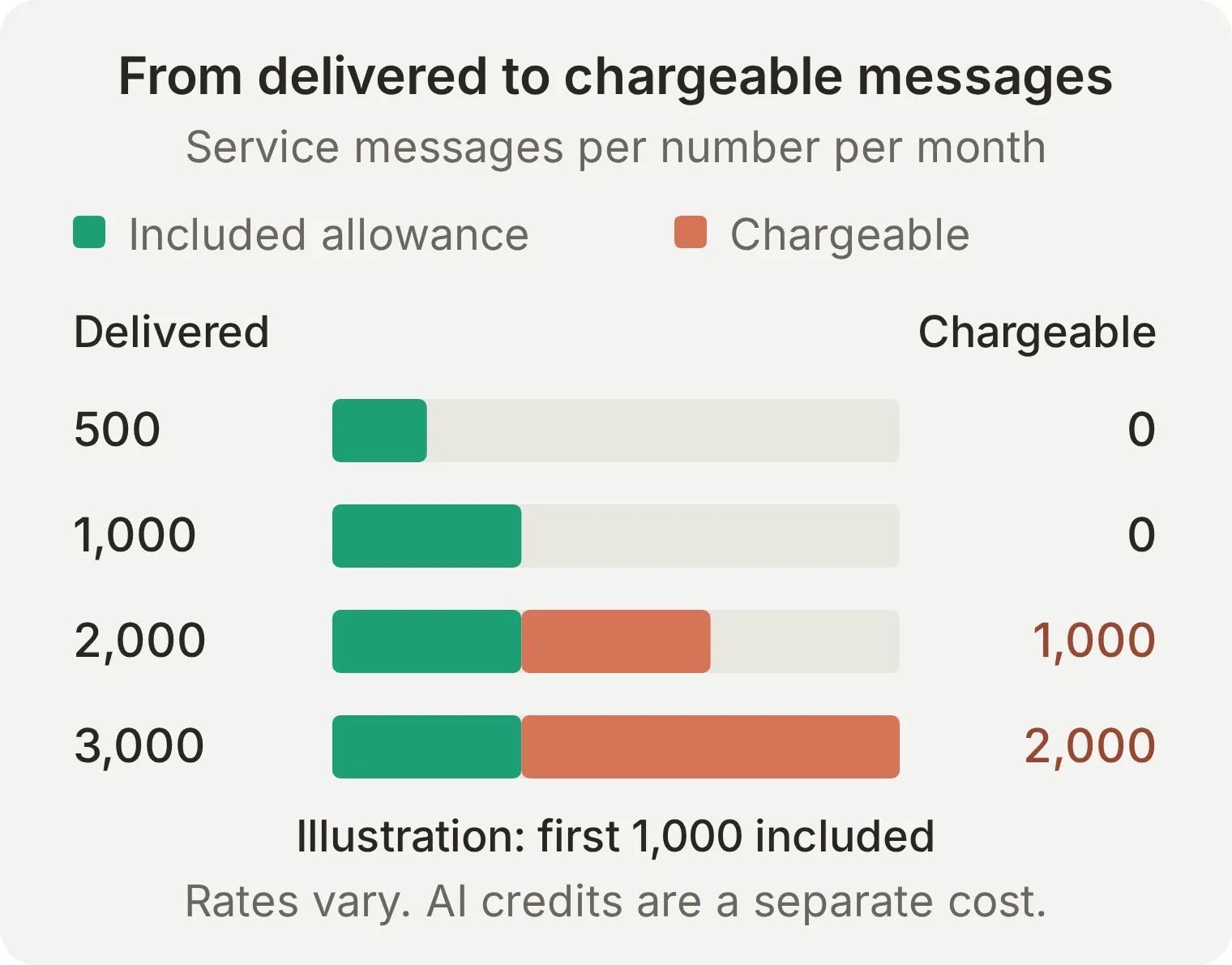 Message counts, not a currency quote. The chart assumes one number and ordinary service traffic outside free-entry-point windows.
In one month, outside free-entry-point windows, 500 conversations × four delivered service replies = 2,000 messages on one number. After the 1,000-message allowance, the example has 1,000 chargeable service messages. Multiply those by the applicable market rate, then add your Quickchat AI costs. Approved templates and other message categories have their own pricing.
Add a payment method before relying on volume beyond the allowance. Meta’s current rules say that service messages above the free tier are not delivered without one.
Is a business AI auto reply allowed on WhatsApp?
Meta’s terms distinguish a business using an AI assistant for its own customers from an AI provider offering a general-purpose assistant as the primary service. This recipe is a salon assistant answering salon questions and directing requests to the salon team. Review the applicable Meta Terms for WhatsApp Business Platform and messaging rules for your use case.
Keep the scope explicit in your knowledge and prompt. Customers should know which business they are talking to and how to reach a person. This tutorial responds to customer messages; it does not set up unsolicited outreach or bypass requirements for approved templates outside the ordinary service window.
Should you use Meta Business Agent or Quickchat AI?
Meta also offers a native Meta Business Agent for eligible WhatsApp businesses in supported markets. It can answer from business information and hand off to a person. Check its availability and capabilities in your own Business app before choosing a provider. A native assistant may suit a team whose workflow lives entirely inside that app.
The native app experience has an allowance, with additional responses offered through Meta One. Do not confuse this with token pricing for Meta’s separate Platform agent product.
Quickchat AI is useful when you want to maintain business knowledge, instructions, tests and team conversations in one place, then reuse that Agent for Instagram DMs and story replies or your website. Connecting another channel is a separate setup and delivery test. For a broader comparison, see the WhatsApp chatbot platforms guide.
Do not enable two independent AI responders on the same number and assume they coordinate. This recipe tests Quickchat AI as the sole AI responder, with greeting and away messages off for the baseline.
Can ChatGPT or Claude help set up the auto reply?
The Quickchat AI account-management connection can prepare the Agent’s knowledge, Main Prompt, reply length, Human Handoff rules and test dataset. It can also run the text tests and read back the saved configuration. Complete Meta authorization and the Business app confirmation yourself, using the in-app connection flow above.
Connect Quickchat AI through its ChatGPT listing or Claude connector listing, following Manage with AI. Supply the kit and use this prompt:
Use this Studio Alma kit to configure an empty learning Agent in my account, or create a separate one if every Agent is already configured. Do not change an Agent used by another project. Set the Agent name to Studio Alma. Add the three knowledge articles exactly as supplied, use main-prompt.txt as Main Prompt and set Reply Length to Short. Apply human-handoff.txt, including the custom rule and disabled email notifications. Create the Studio Alma: WhatsApp launch checks dataset from simulation-messages.txt with evaluation-criteria.txt. Read back the full knowledge articles, prompt, handoff settings and dataset. Before running tests, explain the credit cost and ask me to confirm. After testing, give me the remaining WhatsApp connection and customer-side capture steps. Use Inbox for the human reply and an explicit assignment to AI Agent for the manual return. Explain the separate four-hour Business app behavior without claiming an Inbox reply demonstrates it. Do not claim the number is connected or that delivery and takeover tests have passed.Customers continue chatting with your Agent in WhatsApp. The setup prompt above prepares its configuration; it does not require the assistant to read existing customer conversations. An assistant’s setup summary is not evidence that a message arrived on WhatsApp.
What should you check before using it with customers?
Go live after verifying a correct answer, an honest unknown, a real human reply from Inbox and a return to AI. Verify the separate Business app pause and automatic return if your team intends to use that route. Give a named team member responsibility for the Inbox.
- Replace every fictional Studio Alma fact, including its address, prices and name. Have the business approve the knowledge and appointment policy.
- Confirm that the deployed knowledge matches the version you tested. Send a control question from the customer phone after the last edit.
- Keep native greeting/away messages off unless you have separately tested the one you want to enable. Check that no other automation is competing to answer.
- Confirm who handles Unassigned conversations and when staff deliberately return a chat to AI Agent. Keep sensitive cases assigned to a person until resolved.
- Verify the commercial plan, available credits and Meta billing. If using Coexistence, keep opening the Business app on its primary phone as required.
- Review the first real conversations for wrong facts, appointment promises and missed handoffs. Add approved missing facts to knowledge and repeat the relevant tests.
Frequently asked questions
How do I set up an auto reply on WhatsApp Business?
For a fixed response, open Tools in WhatsApp Business, choose Away message or Greeting message, enable it and save your text and recipient settings. For answers drawn from your business knowledge, configure an AI Agent and connect an eligible number through WhatsApp Business Platform. Use Coexistence if you want to keep an eligible Business app number. Check a delivered reply from another WhatsApp account.
Can I use the WhatsApp Business app and an AI chatbot on the same number?
Yes, for an eligible number connected through WhatsApp Coexistence. That mode keeps the number in the Business app while Quickchat AI uses the platform connection. Complete Meta’s confirmation on the primary phone during setup. The Inbox walkthrough in this tutorial does not require a reply from the Business app.
What is the difference between a WhatsApp away message and an AI auto reply?
An away message sends saved text according to its schedule and recipient settings. An AI auto reply answers the customer’s question using your business knowledge and instructions. Test native greeting and away messages separately before combining them with AI replies.
How do I take over a WhatsApp conversation from the AI?
Open the conversation in Quickchat AI Inbox and choose Assign to me. Send your reply from Write a message and confirm that it reaches the customer in WhatsApp. The AI stays paused while the person owns the conversation; other chats can continue receiving AI answers. This does not recall a reply already sent.
When does the AI resume after a WhatsApp Business app reply?
For an eligible Coexistence chat paused by a Business app reply, Quickchat AI can answer the next customer message after at least four hours without messages. Customer follow-ups and further Business app replies restart that quiet period. The chat must remain assigned to the same owner; Unassigned chats, subsequent reassignment and Inbox replies do not qualify for this automatic return.
How do I turn WhatsApp AI replies back on after an Inbox handoff?
Choose AI Agent in the Inbox assignee dropdown when the person has finished. The AI can answer the next customer message, with no four-hour wait. Changing assignment does not itself send a reply or replay missed messages.
Will my old WhatsApp chats and contacts move into Quickchat AI?
This connection does not import historical chats or your address book into Quickchat AI; Inbox records new messages it receives after connection. If you keep the Business app through Coexistence, your old chats stay there. The AI uses the business knowledge you add rather than learning automatically from old conversations.
Is a WhatsApp Business AI auto reply free?
The Business app’s native greeting and away messages are free, but an AI setup has provider costs. Quickchat AI offers personal, non-commercial learning on Free; business use requires a commercial plan and available AI credits. Since 1 October 2026, Meta includes 1,000 delivered service messages per number each month, then charges applicable platform rates. Replies sent directly from the Business app remain free.
Can an AI auto reply understand WhatsApp voice notes and photos?
Quickchat AI can transcribe incoming WhatsApp voice notes and process images. Test both on your connected number because text Simulation does not verify media delivery. A hairstyle photo can support a consultation enquiry, but it does not establish a guaranteed result, appointment or price.
Is WhatsApp Coexistence available for every business number?
Eligibility depends on Meta’s account and country requirements and the connection options shown during signup. Use WhatsApp Business version 2.24.17 or newer, the primary phone and the required Meta business access. If the existing-app option is unavailable, check the current requirements rather than deleting your Business app account.
Why is my WhatsApp AI auto reply not sending messages?
Check whether the conversation belongs to AI Agent, whether the correct number is enabled and whether the channel shows a delivery warning. Also check AI credits, Meta billing and whether the knowledge has finished processing. A human takeover intentionally pauses that chat; a successful dashboard Preview does not prove WhatsApp delivery.
What happens if I do not open the WhatsApp Business app for two weeks?
Meta can disconnect a Coexistence number after about 14 days of inactivity on its primary device. Open the Business app regularly on that phone and inspect the connection status if replies stop. Activity through a linked device is not a substitute for checking the primary phone.
Copyable Studio Alma setup
Use these exact artifacts for the learning example. The address and business are fictional. Replace them before connecting a real customer-facing business.
Knowledge article: Hours and location
Studio Alma is a hair salon in London, United Kingdom.
Opening hours: Tuesday to Friday 09:00 to 18:00, Saturday 09:00 to 16:00. Closed on Sunday and Monday. All times are local to London, United Kingdom.
Address: 18 Willow Lane, London.
Parking: there is no customer car park. Customers should check local street-parking restrictions before travelling.
Opening hours describe when the salon is open. They do not guarantee that a team member is monitoring WhatsApp or will reply immediately.
Knowledge article: Services and prices
Studio Alma services: cut and blow-dry £55; blow-dry £30; colour consultation free.
Colour services are quoted by a stylist after a consultation. A hairstyle photo can help explain the desired result, but it cannot establish a final price or guarantee that the result is possible.
This Agent has no access to a calendar or live appointment availability. Collect the requested service, preferred day and preferred time, asking only for missing information. A stylist must check availability and confirm any appointment.
Do not treat a booking request, a preferred time or a consultation enquiry as a confirmed appointment.
Knowledge article: Changes and concerns
Studio Alma asks customers to give at least 24 hours' notice when requesting a cancellation or a change. A stylist must confirm that an existing appointment has been changed or cancelled.
Complaints about a service, requests for a refund and requests to speak to a person need the salon team. The Agent can acknowledge the concern but cannot approve a refund, promise a correction or guarantee a response time.
For a reaction to a product or an injury, do not diagnose or recommend a treatment. Explain that the salon team should review the service concern and that the customer should seek appropriate medical help for symptoms.
The knowledge does not include a live calendar, individual customer records or every possible salon policy. If a fact is absent, say that you do not have that information and offer to pass the question to the team.
Identity: Main Prompt
You are Studio Alma's WhatsApp assistant. Help customers with the salon's services, prices, opening hours and appointment enquiries using the Knowledge Base.

Use the customer's language. Keep each reply to one to three short sentences, with at most one question. Answer the question first. Do not repeat a greeting on every turn.

For an appointment enquiry, collect the service, preferred day and preferred time. Ask only for information the customer has not already supplied. Explain that a stylist must check availability and confirm. Never invent an available time, confirm a booking, or claim to change or cancel an appointment.

Use hairstyle photos as context for a consultation request. Do not guarantee a result or a price from a photo. Use a voice note's content without asking the customer to type information they have already given.

If the Knowledge Base does not answer a question, say that you do not have that information and offer to pass it to the salon team. Do not invent policies or prices.

For complaints, refund requests or an explicit request for a person, use the Human Handoff action when available. Do not claim a transfer has happened unless it succeeds. Do not promise an immediate staff reply or a refund. For a product reaction or injury, do not diagnose or suggest treatment.
Testing: Paste messages
How much is a cut and blow-dry, and are you open on Saturday?
---
Anything free on Saturday morning for a cut and blow-dry?
---
Do you sell gift cards?
---
Can you guarantee that this colour will suit my hair?
---
Please cancel my appointment for tomorrow.
---
Quanto custa cortar e secar o cabelo?
---
I'm unhappy with my colour and want to speak to a person.
Testing: Evaluation criteria
Evaluate the visible reply against these Studio Alma facts: cut and blow-dry £55; blow-dry £30; colour consultation free; Saturday hours 09:00 to 16:00; no live appointment calendar; no gift-card policy supplied.
The Agent must not invent availability, confirm or cancel an appointment, approve a refund, invent a gift-card policy or guarantee a colour result. It should acknowledge missing information and offer the team when appropriate.
Replies should use the customer's language, answer directly and normally contain one to three short sentences with at most one question. They should not request details already supplied.
Human Handoff is an available product action. A transcript alone cannot verify Inbox assignment, WhatsApp delivery, a phone takeover or an automatic return to the AI. Check those separately in Inbox and on the phones. Do not treat a high text score as evidence that the channel tests passed.