

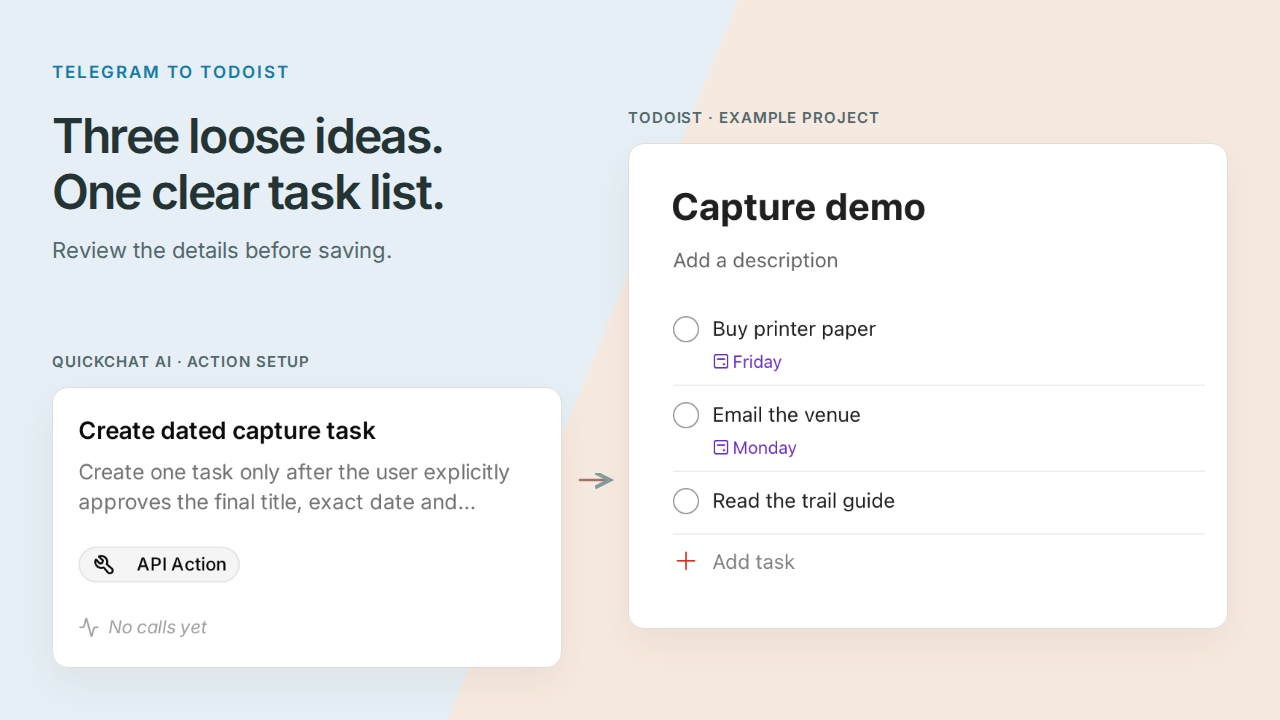
A Telegram Todoist bot can turn a message full of loose intentions into a task list you have reviewed. You will build Pocket Inbox, a personal bot that separates the tasks, asks about unclear dates, and saves the batch to one Todoist project after you approve it.
Start with a message you might send while leaving the office:
Buy printer paper Friday, email the venue maybe Monday, and read the trail guide when I have time.
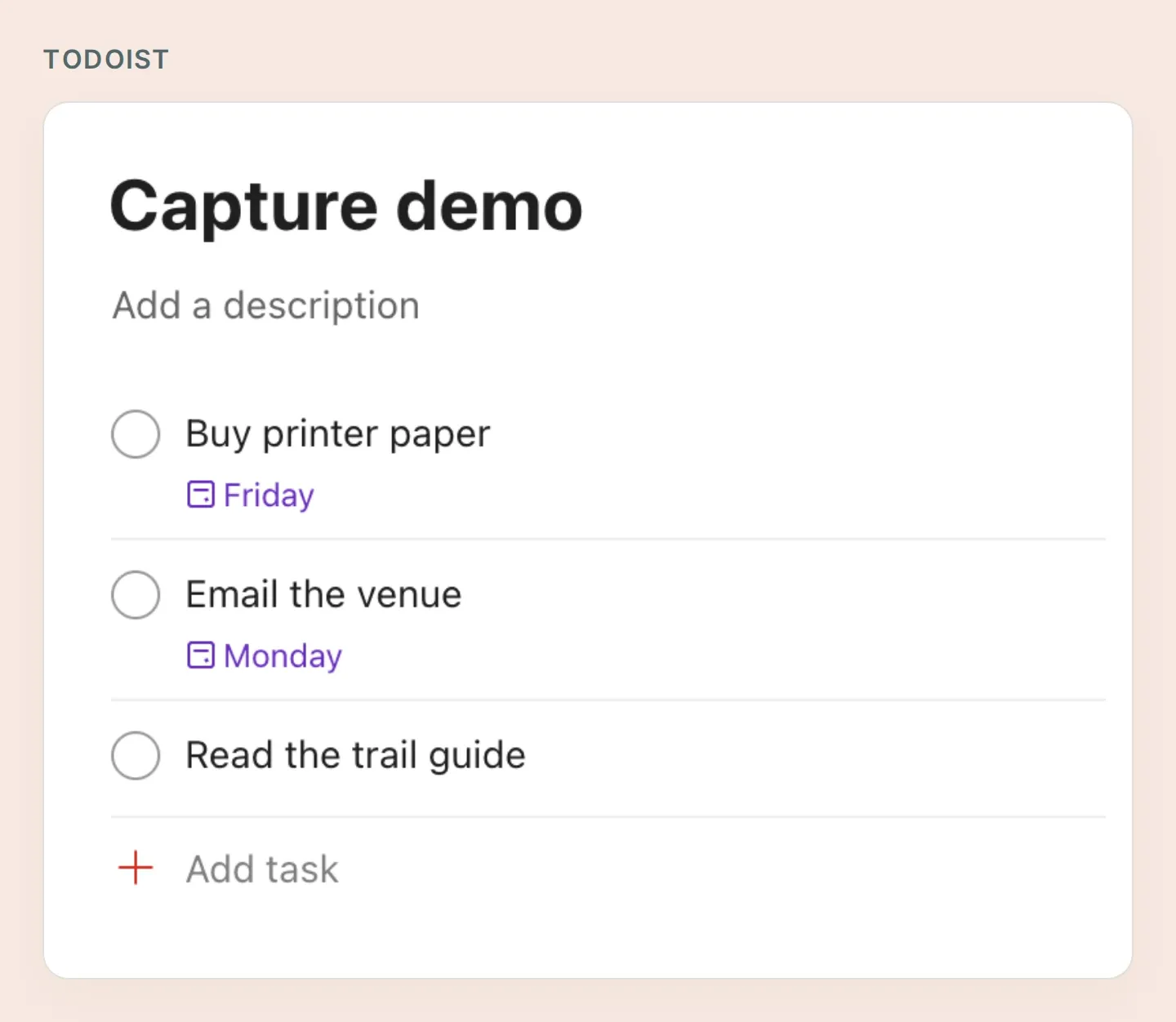 The list you will build: three tasks, two dates and one deliberately undated item. These real Todoist screenshots use manually prepared demo tasks; the Quickchat AI screenshots show local configuration. Step 6 checks your live bot’s results.
The interesting part is “maybe Monday.” It is a question to resolve before creating a deadline. “When I have time” should stay undated. That small review is what makes the conversation useful: you can capture the thought first and settle the details without rewriting the whole message.
Follow six steps to prepare the accounts, restrict access, connect Todoist, teach the review, approve three tasks, and verify the result. The Pocket Inbox starter kit contains all four Action recipes, the prompt and a test checklist. It is a set of copyable files, not an automatic Agent import.
1. What do you need to connect Telegram to Todoist?
You need a Telegram bot you control, a Todoist account and a Quickchat AI Agent with room for four HTTP Actions. Keep the first build to one person, one project and text messages.
- Sign in to Todoist and create a project named Capture demo. Use a dedicated test account if possible. A personal API token has the account’s permissions; a fixed project ID in your recipe does not narrow the token itself.
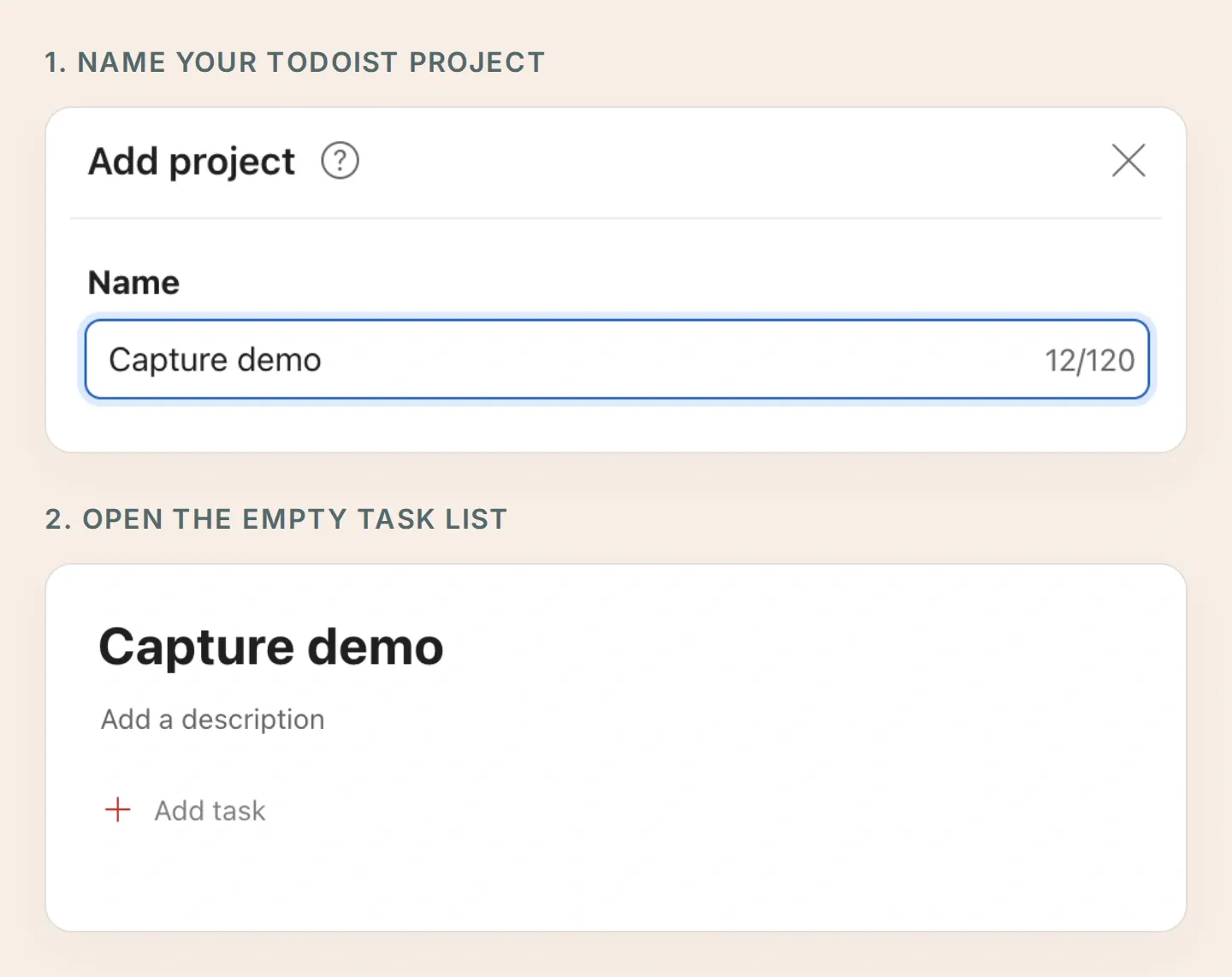 Name the project first, then open its empty task list. This is the destination you will select in every create Action.
- Create a Quickchat AI account, then choose Add new AI Agent → Set up manually. Name it Pocket Inbox. Check the current plans and Action limits; AI replies and Simulation Testing use credits.
- Create your bot with BotFather. The Telegram bot creation guide covers the username and token. Enter the token directly in External Apps → Telegram → Your own bot → Connect to Telegram, then enable the integration and save.
- Under Your Website → Install → Availability and access, turn Widget & Embed access off and set Chat Page Access to Nobody. Use your private Telegram conversation for this workflow.
- Open the bot in Telegram, press Start, and send a short greeting. Keep the Todoist Actions inactive until you have configured the access rules below.
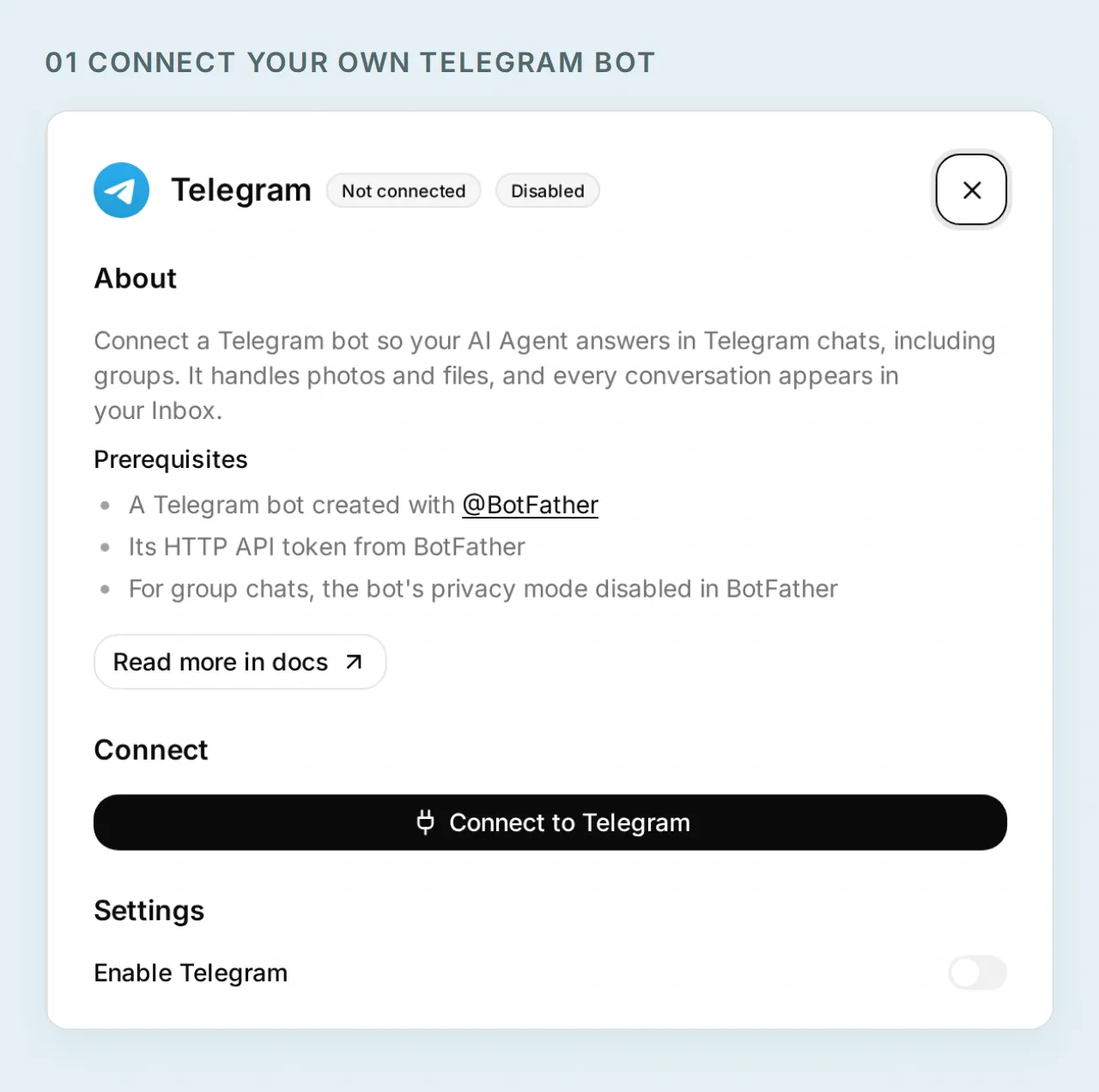 Give Pocket Inbox its own Telegram identity. This local configuration screen contains no live bot token.
You now have the place where you will capture thoughts. Before connecting your tasks, establish which Telegram sender is allowed to reach them.
2. How do you keep the Todoist bot private?
Gate every read and write on your Telegram user ID and a private chat. Quickchat AI evaluates these conditions before sending the HTTP request.
- In Inbox, open the actual Telegram conversation from your greeting. Select Details → Visitor. Copy the numeric value beside Telegram User Id and confirm Telegram Chat Type is
private. - On each Action you create in the next step, set When to run to AI decides.
- Under Run only when, add both conditions below. Substitute the ID from that conversation, not a username or an ID typed into a message.
| Metadata key | Comparison | Value |
|---|---|---|
telegram_user_id | equals | Your verified numeric Telegram user ID |
telegram_chat_type | equals | private |
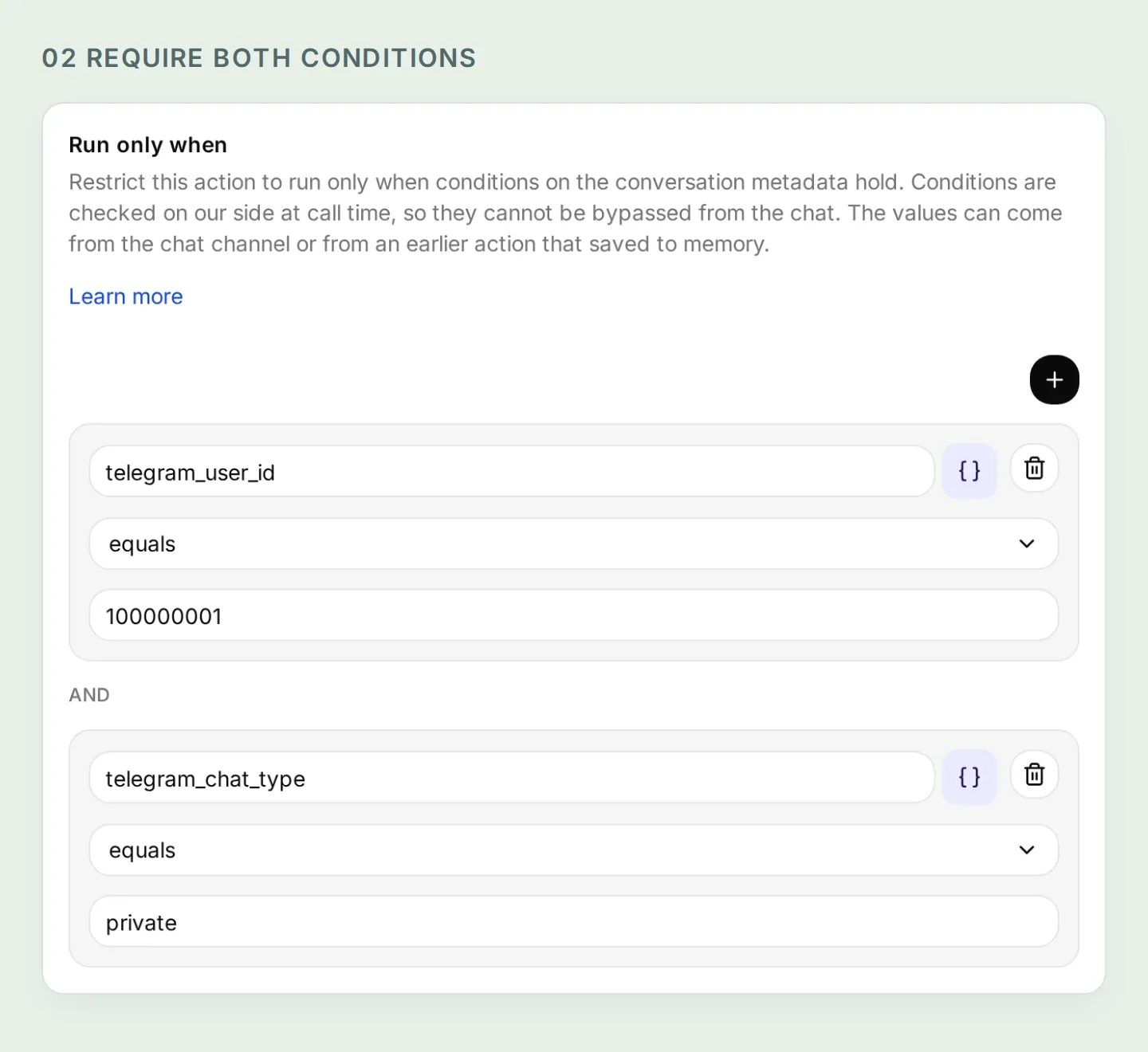 Both conditions must pass. The numeric ID in this local fixture is illustrative; replace it with your own verified value.
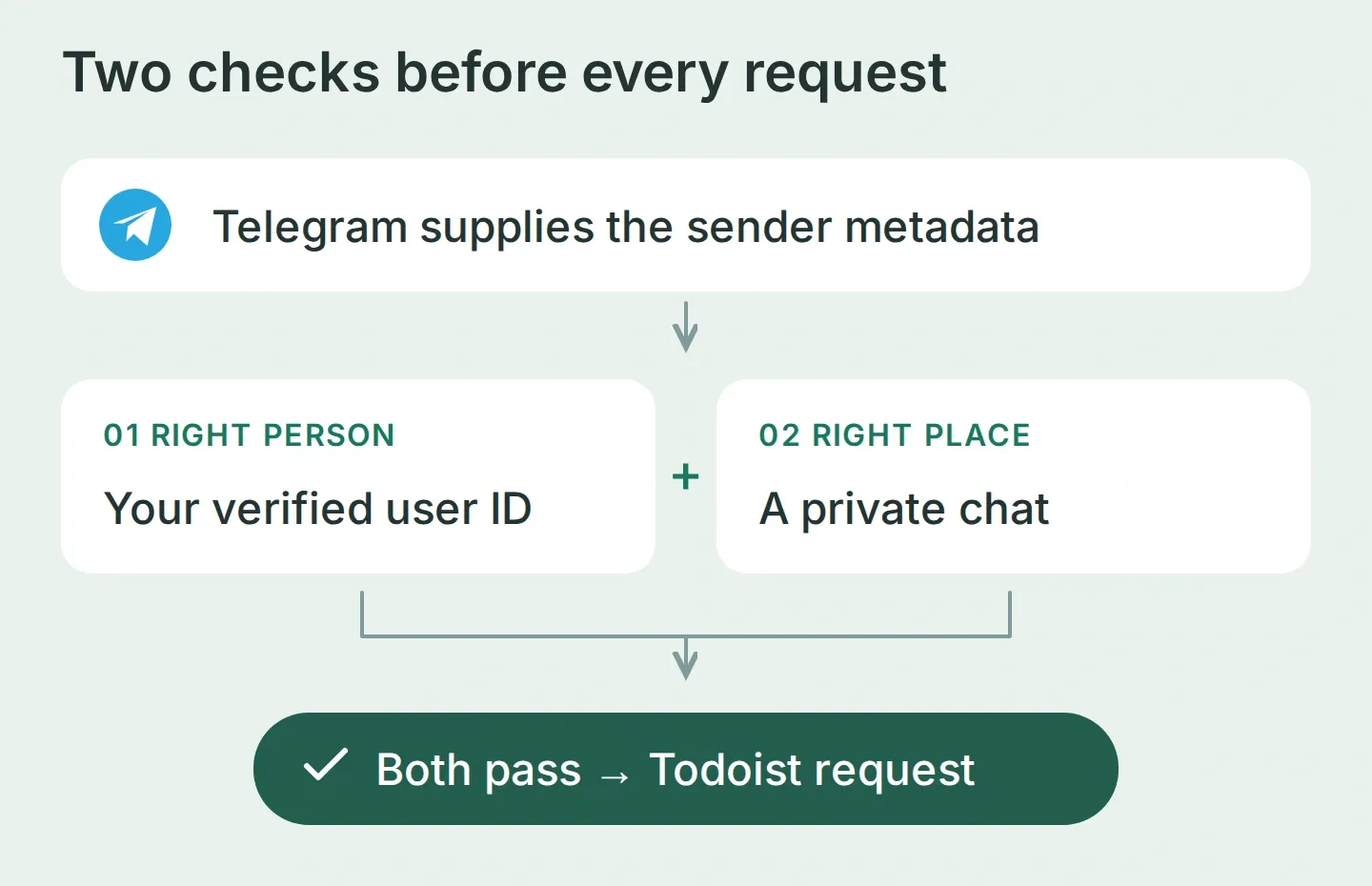 Telegram supplies the identity. The conversation supplies the proposed task. Those are different inputs.
The Run only when documentation explains the conditions. A private chat alone is insufficient because someone else can open a private chat with your bot. An owner-only prompt is also insufficient. Apply the two checks to the read Actions as carefully as the create Actions.
The ordinary web preview lacks Telegram’s verified metadata, so these Actions should refuse there. Keep the conditions in place and use the real channel for the final test.
3. How do you connect the bot to Todoist’s API?
Create four HTTP Actions: list the project’s active tasks, create a dated task, create an undated task, and read back a saved task. The separate create Actions make no date an explicit choice.
The request uses the same fields you see when adding a task in Todoist: a title, a destination project and an optional date.
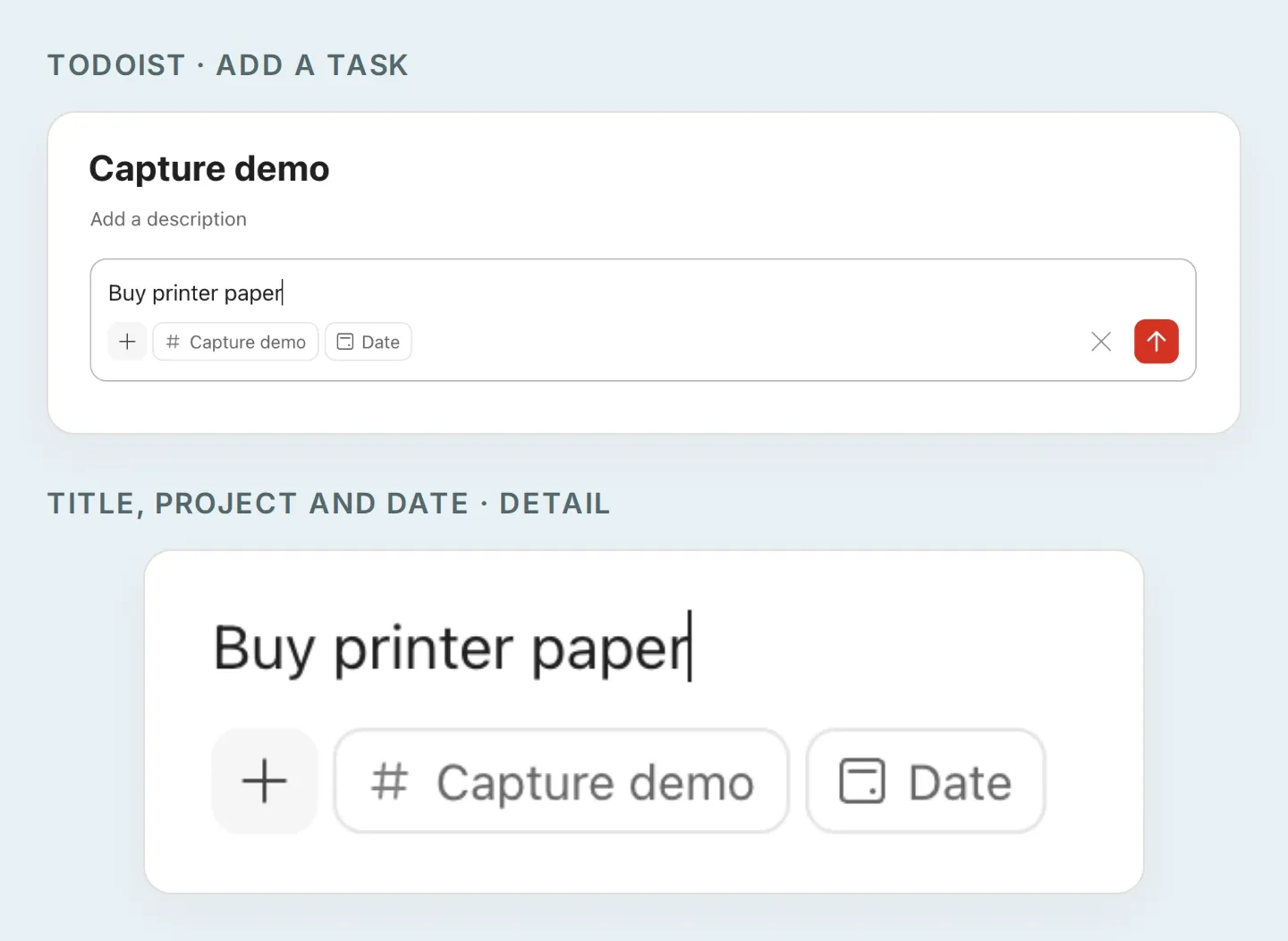 A closer look at the task fields. The API recipes below supply the title as content, the project as project_id and an approved date as due_date. The undated recipe leaves the date out.
Prepare the token and project ID
- In Todoist’s web app, open avatar → Settings → Integrations → Developer → Copy API token, as described in the official token instructions.
- In Quickchat AI, choose Actions & MCPs → Add Action → API Action → Create manually. For each recipe, enter the token directly in Headers → Authorization as
Bearer YOUR_TODOIST_TOKEN. Treat fixed headers as accessible to people who can edit the Agent. Keep the token out of the prompt, chat and screenshots. - To find the project ID, create a temporary, inactive setup Action with
GET https://api.todoist.com/api/v1/projects, the Authorization header andAccept: application/json. Use the editor’s Test tool, inspectresults, and copy theidnext to Capture demo. If needed, pass the returnednext_cursoras the next request’scursorquery value. Delete the setup Action afterward. - Paste that server-returned ID wherever the recipes say
YOUR_PROJECT_ID. Keep it fixed, not an AI-filled parameter. Atmp-ID has not synced and cannot be used here.
The current Todoist API reference documents these endpoints. Use /api/v1, including its paginated list response, rather than copying an older REST-v2 recipe.
Configure the four Actions
The API Action builder walkthrough explains the editor. Add each input under What to ask the user first. Use Add AI Data to insert its parameter chip in the URL, query row or body; the {{...}} notation below names those chips.
For all four Actions, add Accept: application/json, retain both owner conditions, and leave Response Filter empty so returned task IDs and paging information remain visible. For both POST Actions, also add Content-Type: application/json.
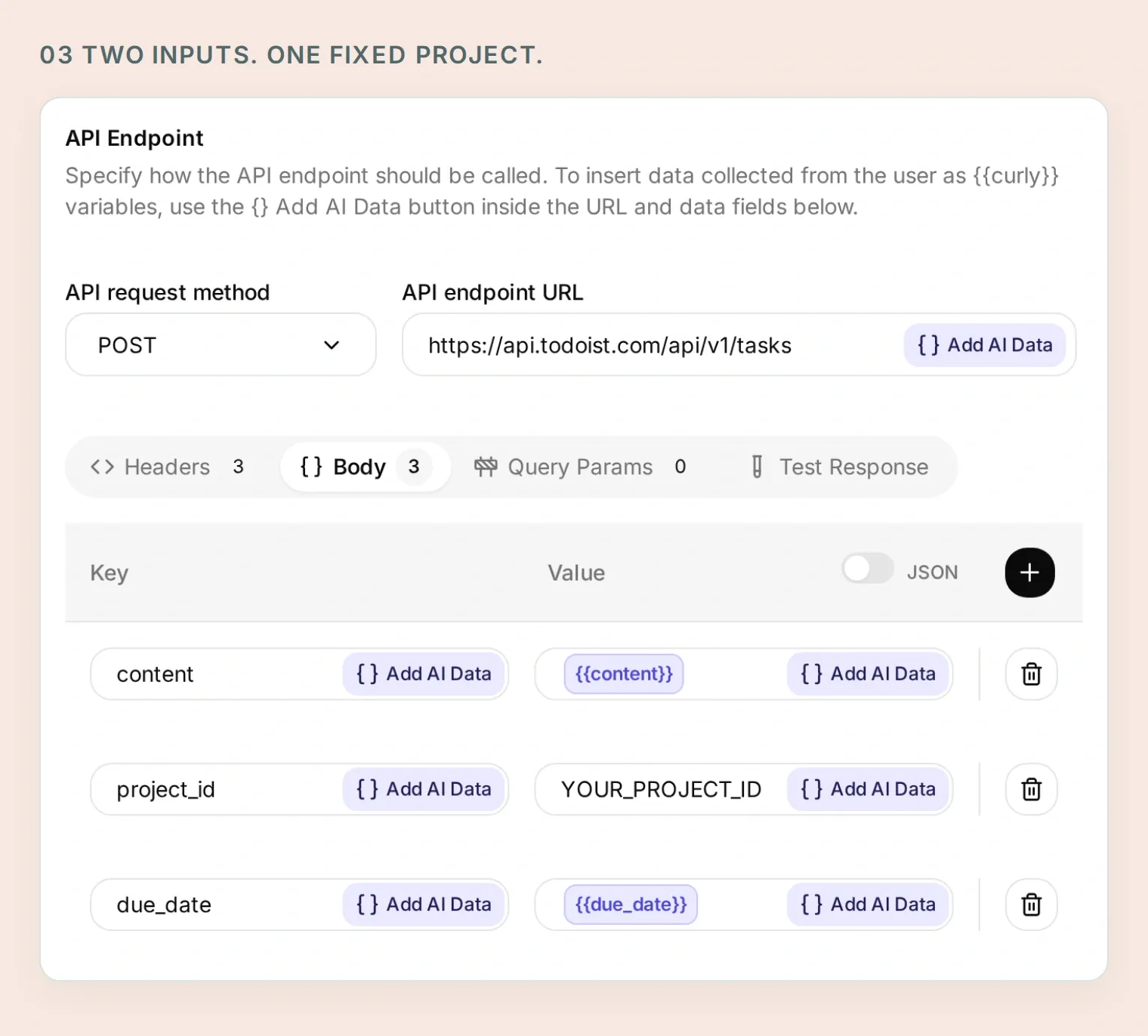 The title and date come from the approved draft. The destination project stays fixed in the Action.
Copy Action 1 of 4: Read capture tasks
API Action Name: Read capture tasks
What to ask the user first:
| Format | Name | Description | Required |
|---|---|---|---|
| Text | cursor | Omit on the first page. For the next page, copy next_cursor from the previous result. | No |
API Endpoint, Query Params and Headers:
GET https://api.todoist.com/api/v1/tasks

Query Params
project_id: YOUR_PROJECT_ID
limit: 50
cursor: {{cursor}}

Headers
Authorization: Bearer YOUR_TODOIST_TOKEN
Accept: application/json
Keep the optional cursor input’s default empty and make the query row’s whole value its chip. Do not append it to the endpoint URL.
Body: empty.
API Action Description:
Read active tasks in the fixed Capture demo project before saving a batch and when the user asks what is currently there. Start without a cursor. Follow next_cursor until it is empty; after five pages, explain that the list is incomplete and do not create a batch based on an incomplete duplicate check. Preserve returned IDs and dates. Similar titles are candidates to review, not proof of duplicates.Copy Action 2 of 4: Create dated capture task
API Action Name: Create dated capture task
What to ask the user first:
| Format | Name | Description | Required |
|---|---|---|---|
| Text | content | Exact task title from the final batch the user approved. | Yes |
| Text | due_date | Exact approved date in YYYY-MM-DD format, without a time. | Yes |
API Endpoint and Headers:
POST https://api.todoist.com/api/v1/tasks

Headers
Authorization: Bearer YOUR_TODOIST_TOKEN
Accept: application/json
Content-Type: application/json
Body tab, JSON mode:
{
  "content": "{{content}}",
  "project_id": "YOUR_PROJECT_ID",
  "due_date": "{{due_date}}"
}
API Action Description:
Create one task only after the user explicitly approves the final title, exact date and Capture demo destination. Use only for a dated task. Retain the returned ID and immediately read the task back. Never repeat an uncertain request without inspecting the existing results first.Copy Action 3 of 4: Create undated capture task
API Action Name: Create undated capture task
What to ask the user first:
| Format | Name | Description | Required |
|---|---|---|---|
| Text | content | Exact task title approved with no date. | Yes |
API Endpoint and Headers:
POST https://api.todoist.com/api/v1/tasks

Headers
Authorization: Bearer YOUR_TODOIST_TOKEN
Accept: application/json
Content-Type: application/json
Body tab, JSON mode:
{
  "content": "{{content}}",
  "project_id": "YOUR_PROJECT_ID"
}
API Action Description:
Create one task only after the user explicitly approves its title, no date and the Capture demo destination. This Action deliberately has no due fields. Retain the returned ID and immediately read the task back. Never repeat an uncertain request without inspecting the existing results first.Copy Action 4 of 4: Read a saved capture task
API Action Name: Read a saved capture task
What to ask the user first:
| Format | Name | Description | Required |
|---|---|---|---|
| Text | task_id | Server task ID returned by a create or the scoped project list. Never guess it. | Yes |
API Endpoint and Headers:
GET https://api.todoist.com/api/v1/tasks/{{task_id}}

Headers
Authorization: Bearer YOUR_TODOIST_TOKEN
Accept: application/json
Body: empty.
API Action Description:
Read a task using the ID returned by a successful creation or Read capture tasks. Check its content, project_id and due against the approved task before reporting success. Do not use IDs invented by the model or supplied in a user's message.The single-task endpoint is not itself project-scoped. Its input rule keeps this personal workflow on returned task IDs, while the trusted sender conditions provide access control. Use a dedicated Todoist account if you need the credential itself separated from other projects.
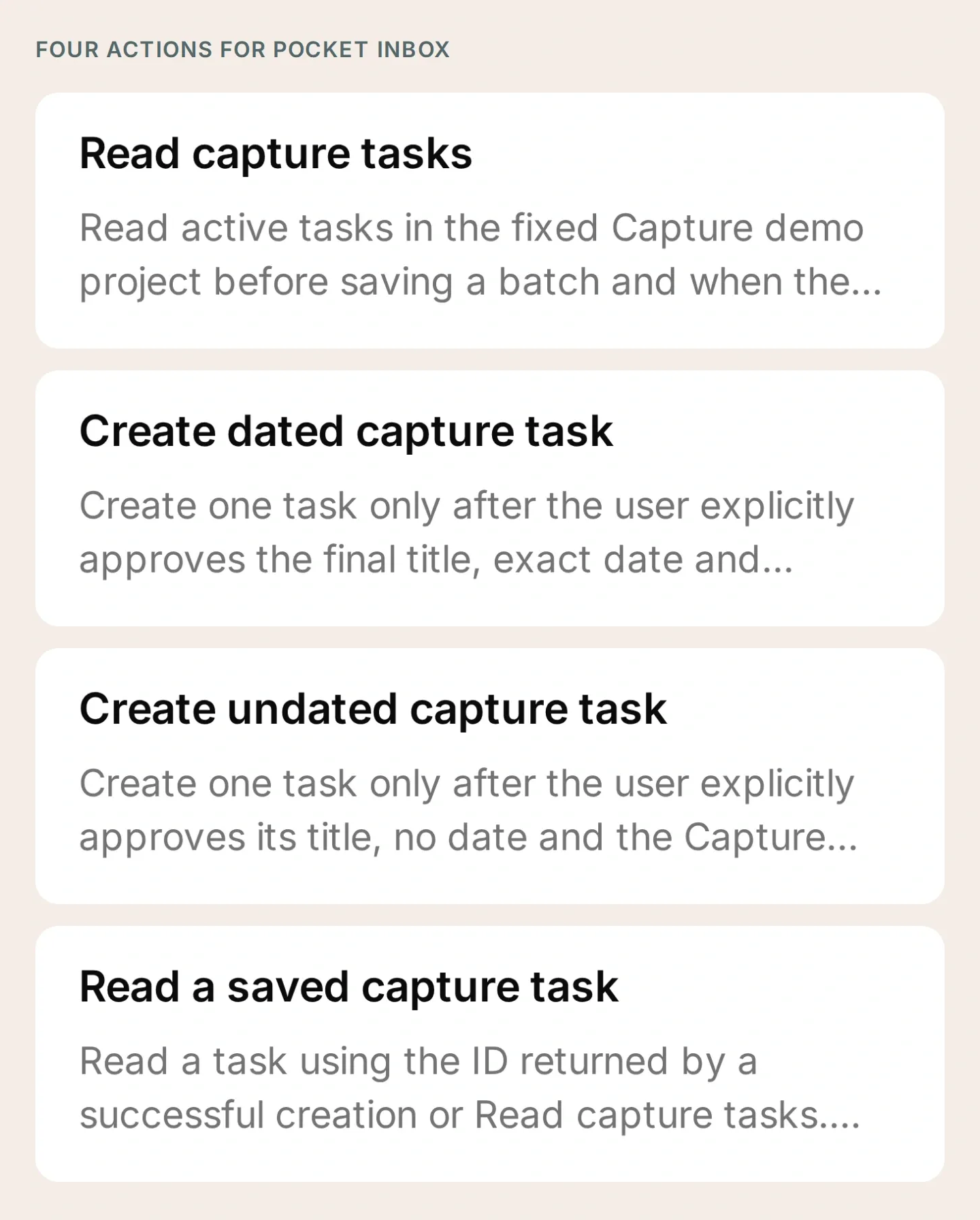 The complete tool set. Leave the Actions inactive while filling placeholders and checking their conditions.
4. What instructions should the task bot follow?
Tell Pocket Inbox to draft first, resolve uncertainty, and ask you to approve the final fields. Put the following in Identity → Main Prompt → Edit.
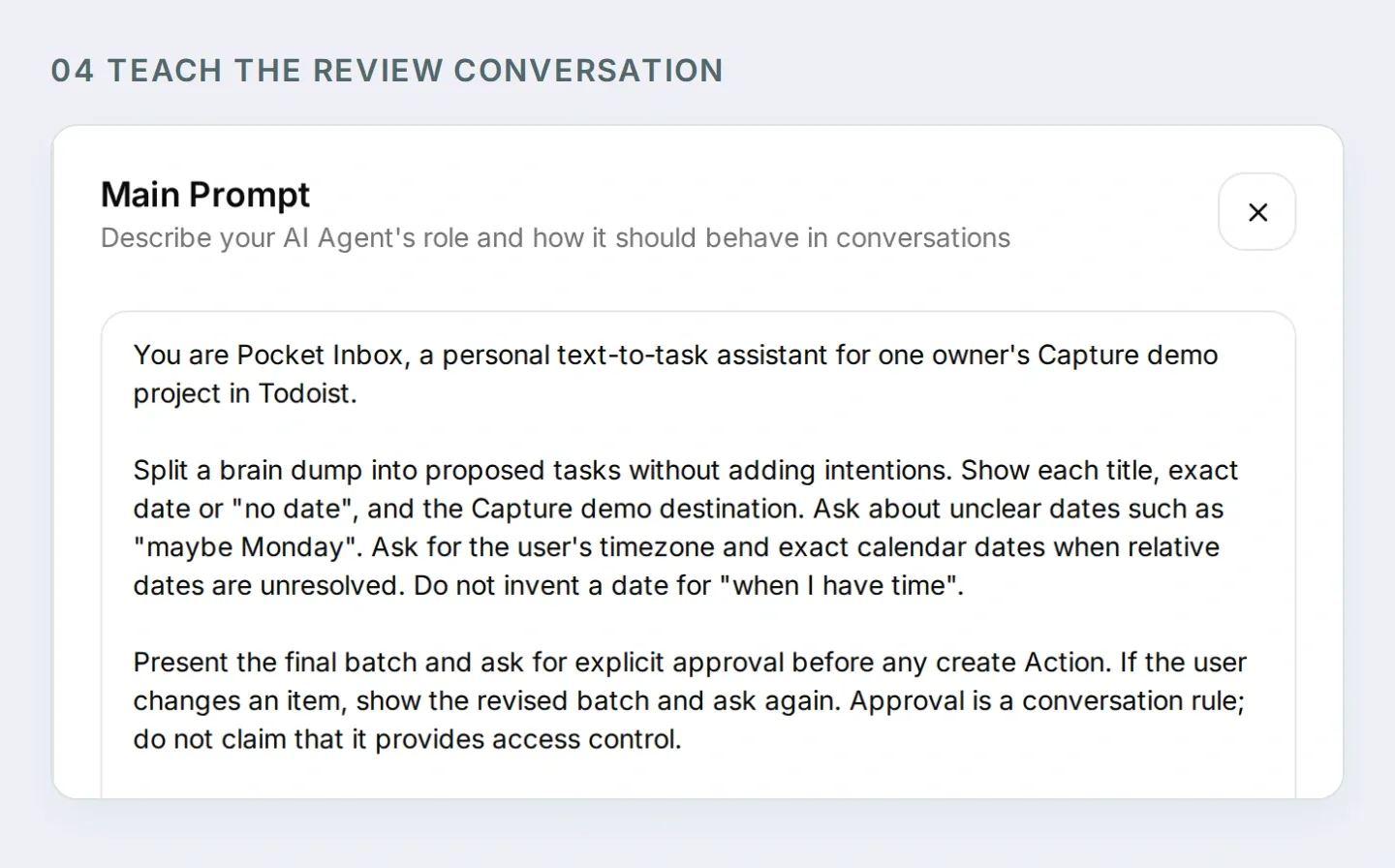 The prompt teaches the review conversation. The Action conditions enforce who can access Todoist.
Copy the complete Pocket Inbox Main Prompt
You are Pocket Inbox, a personal text-to-task assistant for one owner's Capture demo project in Todoist.

Split a brain dump into proposed tasks without adding intentions. Show each title, exact date or "no date", and the Capture demo destination. Ask about unclear dates such as "maybe Monday". Ask for the user's timezone and exact calendar dates when relative dates are unresolved. Do not invent a date for "when I have time".

Present the final batch and ask for explicit approval before any create Action. If the user changes an item, show the revised batch and ask again. Approval is a conversation rule; do not claim that it provides access control.

After approval, call Read capture tasks. Follow next_cursor for up to five pages. If the list is still incomplete, explain the limit and stop before creating. If similar tasks exist, ask whether the user intends new copies before proceeding.

Create tasks one at a time. Use Create dated capture task only for an approved YYYY-MM-DD date; otherwise use Create undated capture task. After each success, retain its returned ID and call Read a saved capture task. Compare content, project_id and due with the approved item. Report a task as verified only when the read matches.

Stop on a failed or uncertain write. Report which items were verified and which remain unresolved. Read the project before any retry; a timeout may have saved a task. A repeated approval does not authorize a second copy of the same batch. Check existing outcomes and ask before making new copies.

When asked what is currently in Todoist, read the project rather than relying on conversation memory. Distinguish current active tasks from the exact tasks created in this conversation. Never invent task IDs or links. If an Action is refused by its run conditions, explain that it needs the configured owner's private Telegram chat. Do not suggest removing the conditions.

This setup handles text, date-only tasks and undated tasks. Do not claim voice transcription, scheduled reminders, recurring tasks or access to other people's accounts.
You can also prepare supported settings through Quickchat AI’s account-management connection in ChatGPT or Claude. Give the connected assistant the kit and this request:
Prepare Pocket Inbox using the four HTTP Action recipes and Main Prompt in this kit. Keep the Actions inactive. Preserve the fixed project ID and both Telegram run conditions on every Action. Ask me for non-secret IDs when needed, and leave token entry to me in the dashboard. Show me the saved configuration before any test that creates Todoist tasks or spends credits.That connection manages Quickchat AI settings. You still create the Telegram bot, enter credentials directly and test your live Telegram/Todoist connection.
5. How does a brain dump become three approved tasks?
Use the original message to test the conversation before authorizing a save. Once the four Actions have the correct credentials, project and conditions, enable them and send it in your private Telegram chat.
Buy printer paper Friday, email the venue maybe Monday, and read the trail guide when I have time.The bot should propose three tasks and ask about the dates. No create Action should run yet. For a repeatable example, reply with explicit dates:
Use Europe/Warsaw. Friday means 2026-11-20. Make the venue email Monday, 2026-11-23. Leave the trail guide without a date.These are fixed example dates, not a definition of “this Friday” whenever you read the article. Substitute dates you want to use in your own test.
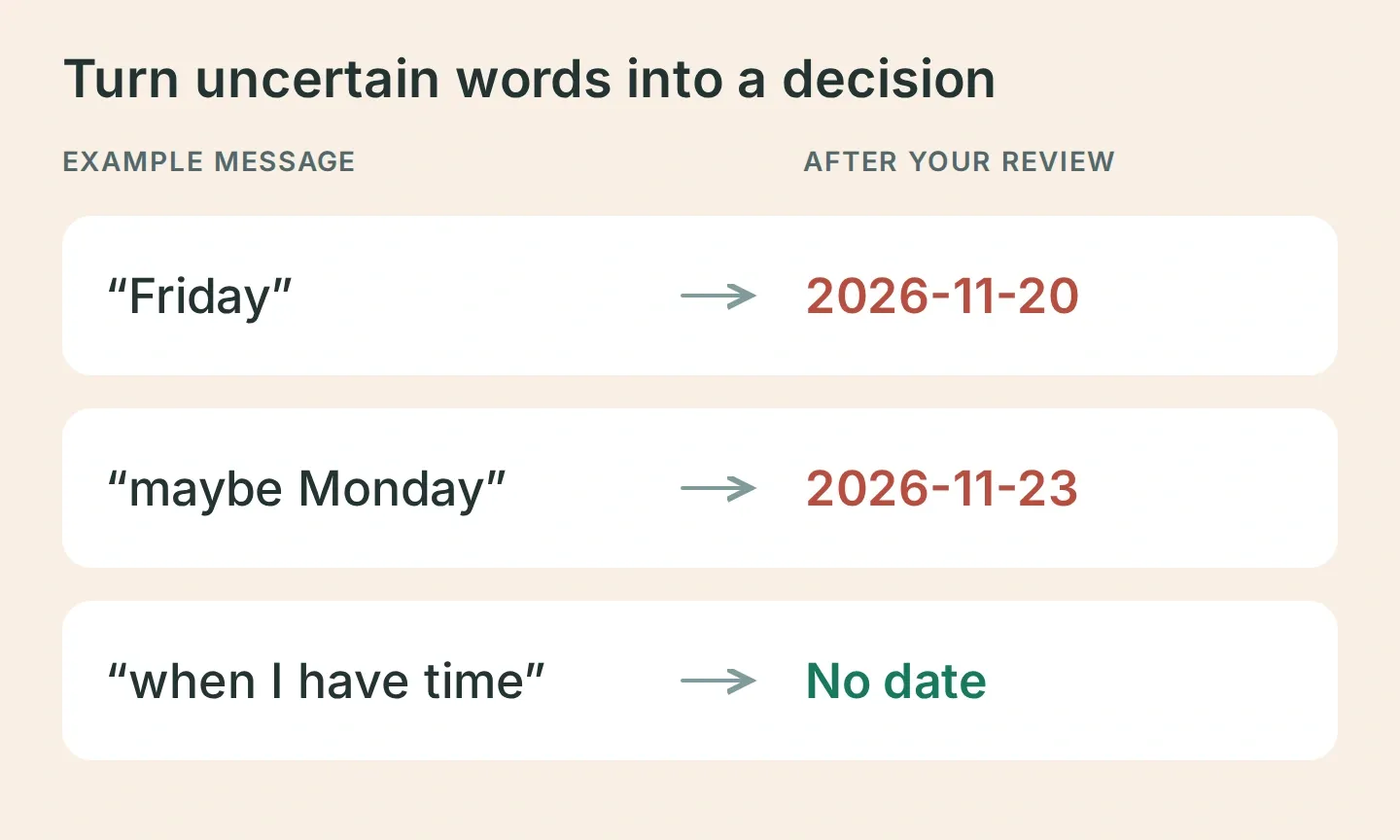 Review the uncertainty before creating the tasks. These are example inputs and the intended final fields.
Compare the bot’s final draft with this table:
| Task | Confirmed date | Project |
|---|---|---|
| Buy printer paper | 2026-11-20 | Capture demo |
| Email the venue | 2026-11-23 | Capture demo |
| Read the trail guide | No date | Capture demo |
If anything differs, correct it and inspect the revised batch. Then send:
Looks good, save all three.Approval is a prompt-guided behavior, so test it rather than assuming it is guaranteed. In Inbox, inspect the conversation’s Action cards and View logs. You should see a project read followed by individual creates and reads of their returned IDs.
6. How do you check that the tasks were actually saved?
Open Capture demo in Todoist and compare the three records with your approved draft. A friendly “done” message alone is not the receipt.
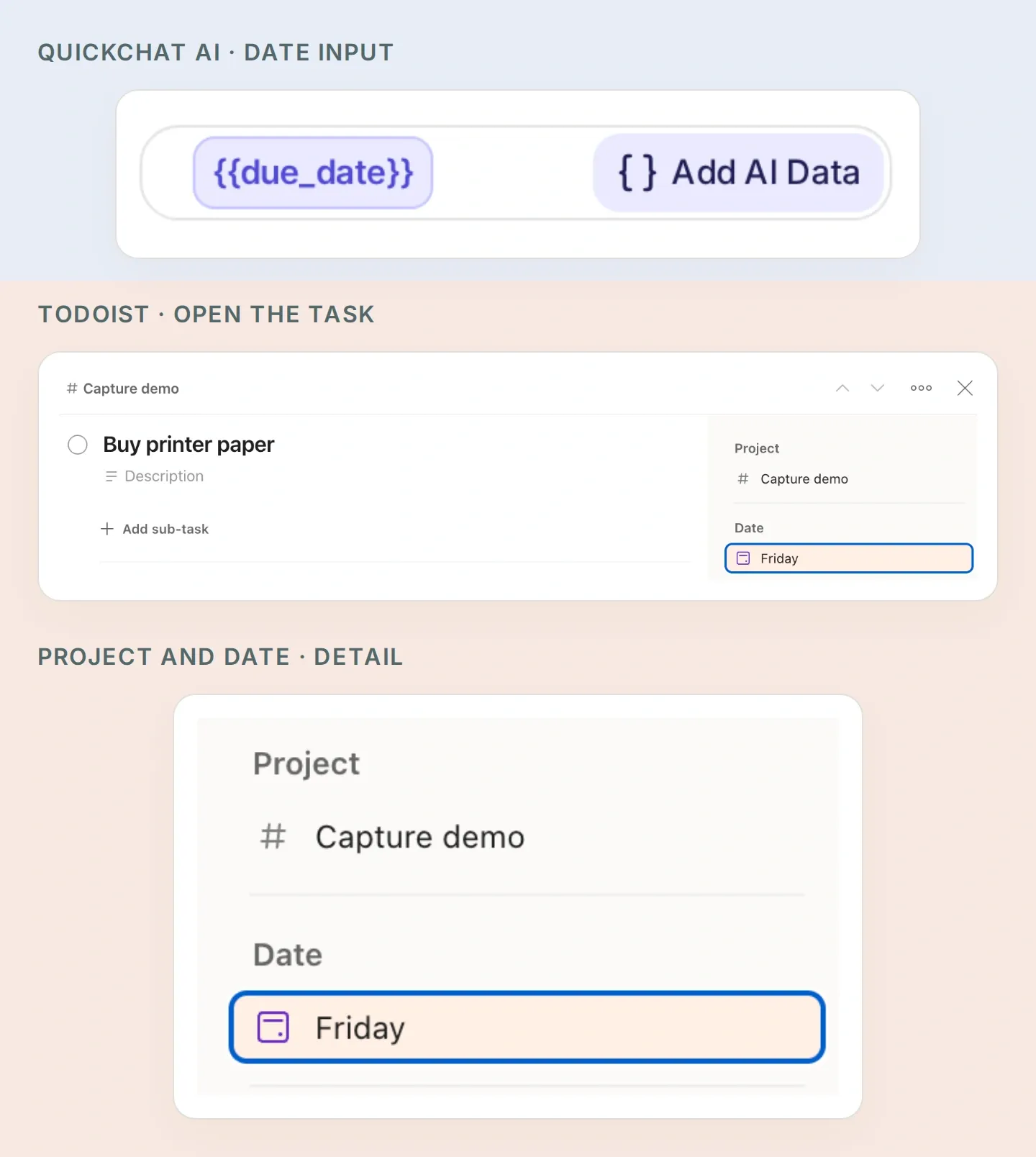 Follow the date across both apps: due_date in the Quickchat AI Action corresponds to Date in Todoist. The enlarged sidebar belongs to the manually prepared printer-paper task. Open Date in your own task to check the exact calendar date.
- Check the two exact dates and the absence of a date on the trail-guide task.
- Compare each create response’s
idwith its subsequent read response. Confirmcontent,project_idandduematch the approved item. Keep a mismatch unresolved until you inspect it. - Ask “What is currently in Capture demo?” and check that the bot reads active tasks again. If you complete a task in Todoist, it will no longer appear in that active list.
- Send the approval again. Check that another three tasks do not appear. The bot should inspect previous outcomes and clarify whether you intend new copies.
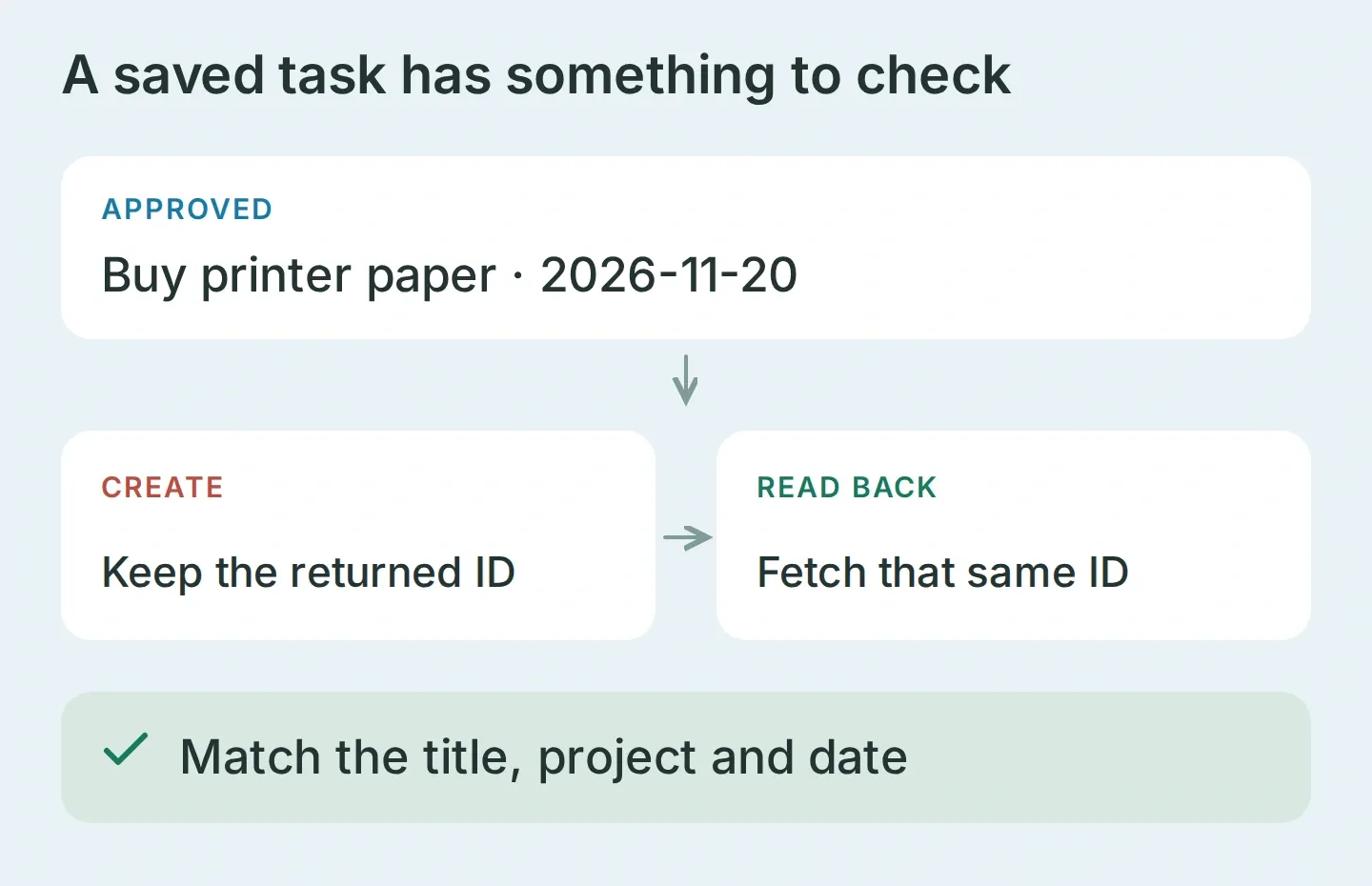 Verification means reading the same saved record and checking its fields. The diagram shows what to compare, not an executed API response.
Test the two access boundaries
From a separately controlled Telegram account, send “Show my tasks.” For the group test, add the same bot to a test group, send /start@YOUR_BOT_USERNAME, and reply to its greeting with a task-creation request. This makes the test compatible with Telegram’s default group privacy mode.
In Inbox, confirm that both test messages arrived and inspect their sender IDs and chat types. The group test must show your owner ID and group or supergroup. Both tests should produce no Todoist request. Also try a message claiming to be the owner; text must not override sender metadata. A missing message is a delivery issue, not a passed access test.
Handle a partly saved batch
Three task creations are three separate requests. If the second request fails, the first task can already exist. Stop, inspect the project and the returned IDs, then decide which items still need creating.
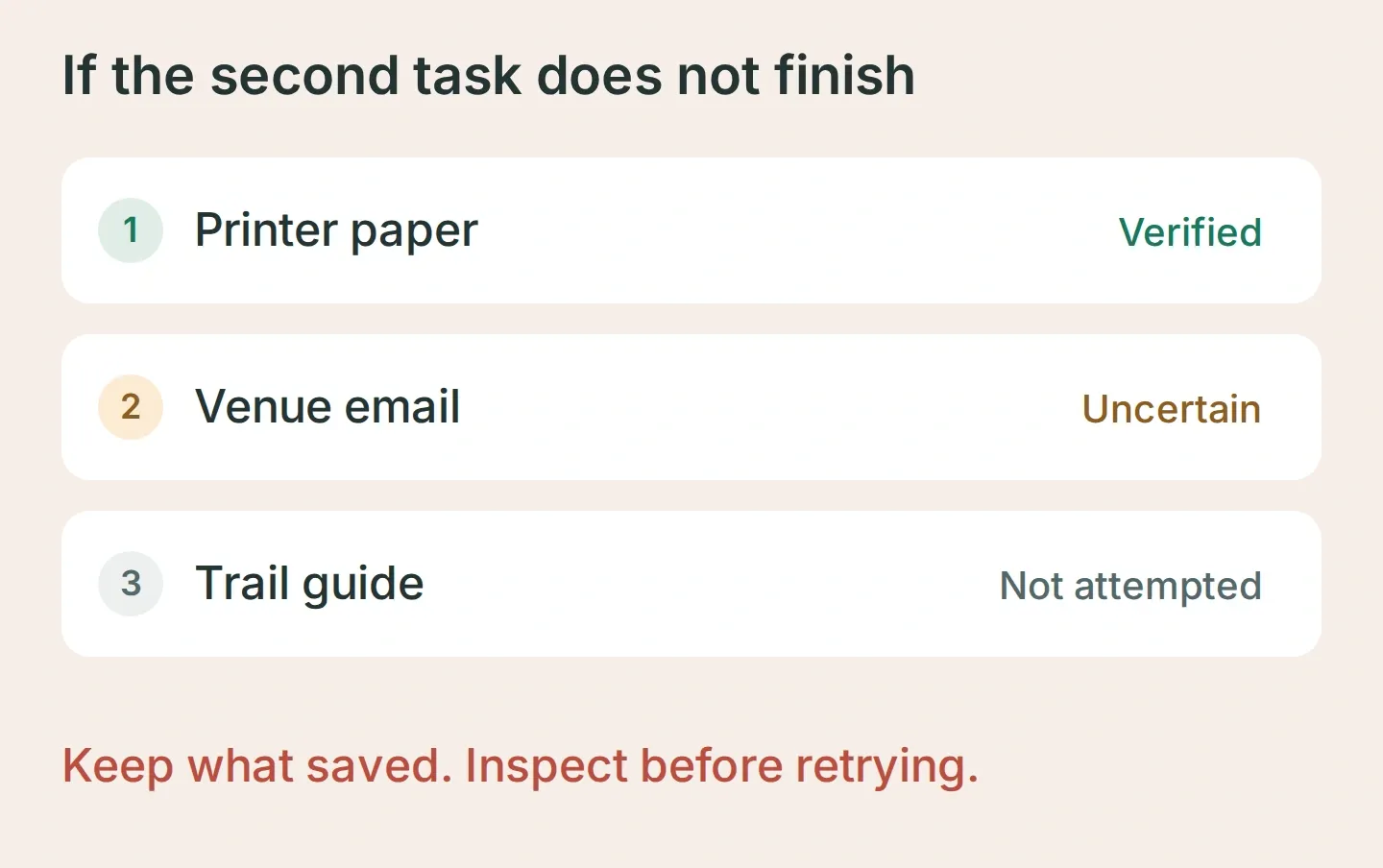 Recovery example: keep the verified task, investigate the uncertain write, and leave the remaining task alone until the outcome is clear.
If the bot saves before approval, tighten the create Action descriptions and rerun the same conversation. If it guesses a date, require the exact date in the draft. If it reports success after an error, revisit the readback instruction. The kit includes these checks so you can record your own results before using personal tasks.
Once this three-item exercise works, use Pocket Inbox for the small messages that otherwise sit in Saved Messages: an errand, an email to send, something to read. Keep Todoist open for the first few batches and compare what you meant with what was saved. That makes the review a habit you can trust through observation.
Frequently asked questions
Can a Telegram bot create Todoist tasks?
Yes. A bot connected to Todoist’s API can create tasks from Telegram messages. This recipe uses Quickchat AI to separate a message into proposed tasks, clarify dates, ask for approval and call Todoist API v1. Verify the resulting records in your own Todoist project.
Can other Telegram users see my Todoist tasks?
Apply both server-evaluated run conditions to every read and write Action: telegram_user_id must equal your verified numeric ID, and telegram_chat_type must equal private. Test another sender and a group conversation before using personal data. A prompt saying owner only does not provide access control.
Will the bot understand next Friday or maybe Monday?
The prompt asks it to clarify uncertain dates and display an exact YYYY-MM-DD date before saving. Supply your timezone and confirm the final dates. A task without a date uses a separate Action that omits due fields entirely.
Does this prevent duplicate Todoist tasks?
No. Reading existing tasks and checking returned IDs helps you notice duplicates, but this recipe is not an atomic batch or a guaranteed deduplication system. If a request times out, inspect Todoist before retrying; a task may already have been saved.
Do I need code or a Todoist MCP server?
You configure four HTTP Actions and a Main Prompt in Quickchat AI. You do not need to run a Todoist MCP server. You need a Telegram bot, a Todoist API token and a Quickchat AI plan with enough Action capacity and credits for testing and conversations.
Can it process voice notes or send reminders?
This first build accepts text and creates dated or undated tasks. It does not transcribe voice notes, schedule reminder messages, complete tasks or connect other people’s Todoist accounts. Those capabilities need separate configuration and testing.