

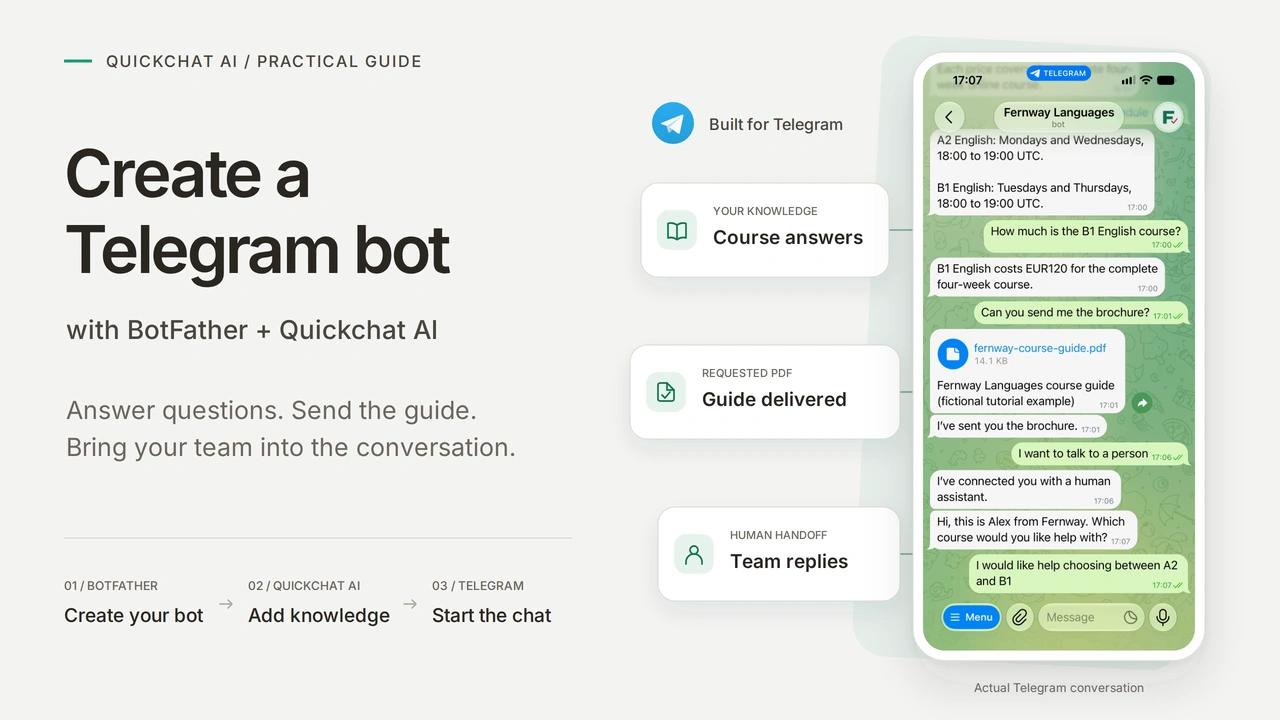
To create a Telegram bot, open BotFather, send /newbot, choose a name and username, and copy the bot token into the service that will run it. In this tutorial, that service is Quickchat AI: it gives the bot an AI Agent that answers from your own knowledge, without writing code or running a server.
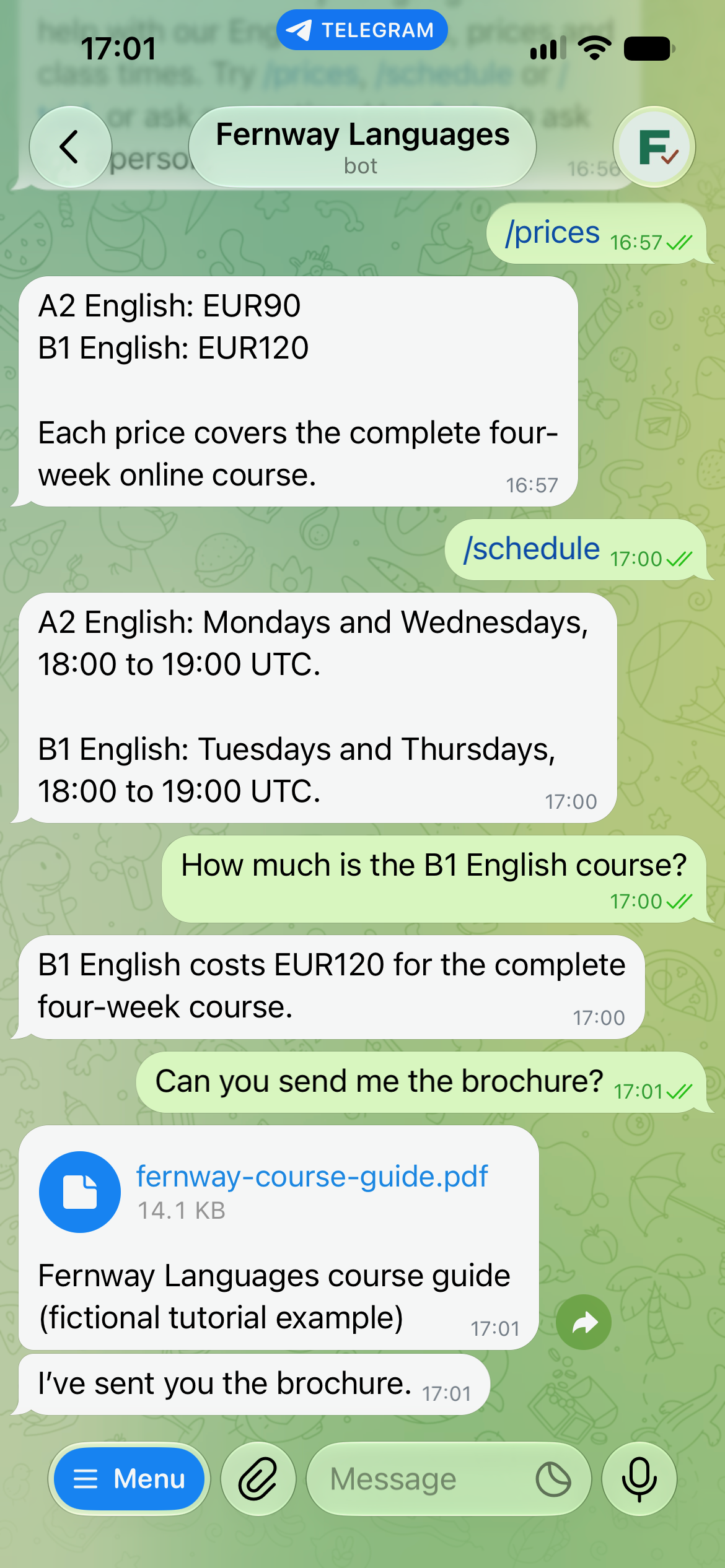
You will build Fernway Languages, a fictional online English school. A student can open its Telegram bot, check course prices, tap /schedule, request a PDF course guide and ask for a person. The finished experience stays in the student’s Telegram chat; your team manages the knowledge, Actions and conversations in Quickchat AI.
The core setup runs from creating the bot to testing its replies. Then add PDF delivery and human handoff. The group-chat section explains how to keep replies predictable in a shared conversation.
Download the Fernway setup kit for the knowledge, Main Prompt, command list, test worksheet, avatar and sample PDF. The files are editable examples to paste into the dashboard, not an automatic Agent import.
What do you need to create a Telegram bot without coding?
You need a Telegram account, a Quickchat AI account and a new bot for the exercise. BotFather creates the Telegram identity; Quickchat AI runs the Agent behind it.
- Sign in to Telegram on mobile or desktop. Use the official BotFather linked in Step 1, rather than a similarly named account.
- Create a Quickchat AI account and complete email verification if prompted. The Free plan supports personal, non-commercial learning with its included allowance. Use a commercial plan for a real business deployment. AI replies and Simulation Testing consume credits; see the current plans and allowances.
- Keep both applications open. Use a new test bot so the exercise does not change an existing support channel. A second Telegram account is useful for checking the first-time visitor experience.
Telegram does not charge to register a bot. The service that generates its AI answers has its own usage allowance. You do not need a separate model API key for this setup.
What does BotFather do, and what does the AI do?
BotFather manages the bot’s identity and settings. The connected Agent decides how to answer, using its knowledge and instructions. Creating the bot alone does not give it course information or a program that responds to messages.
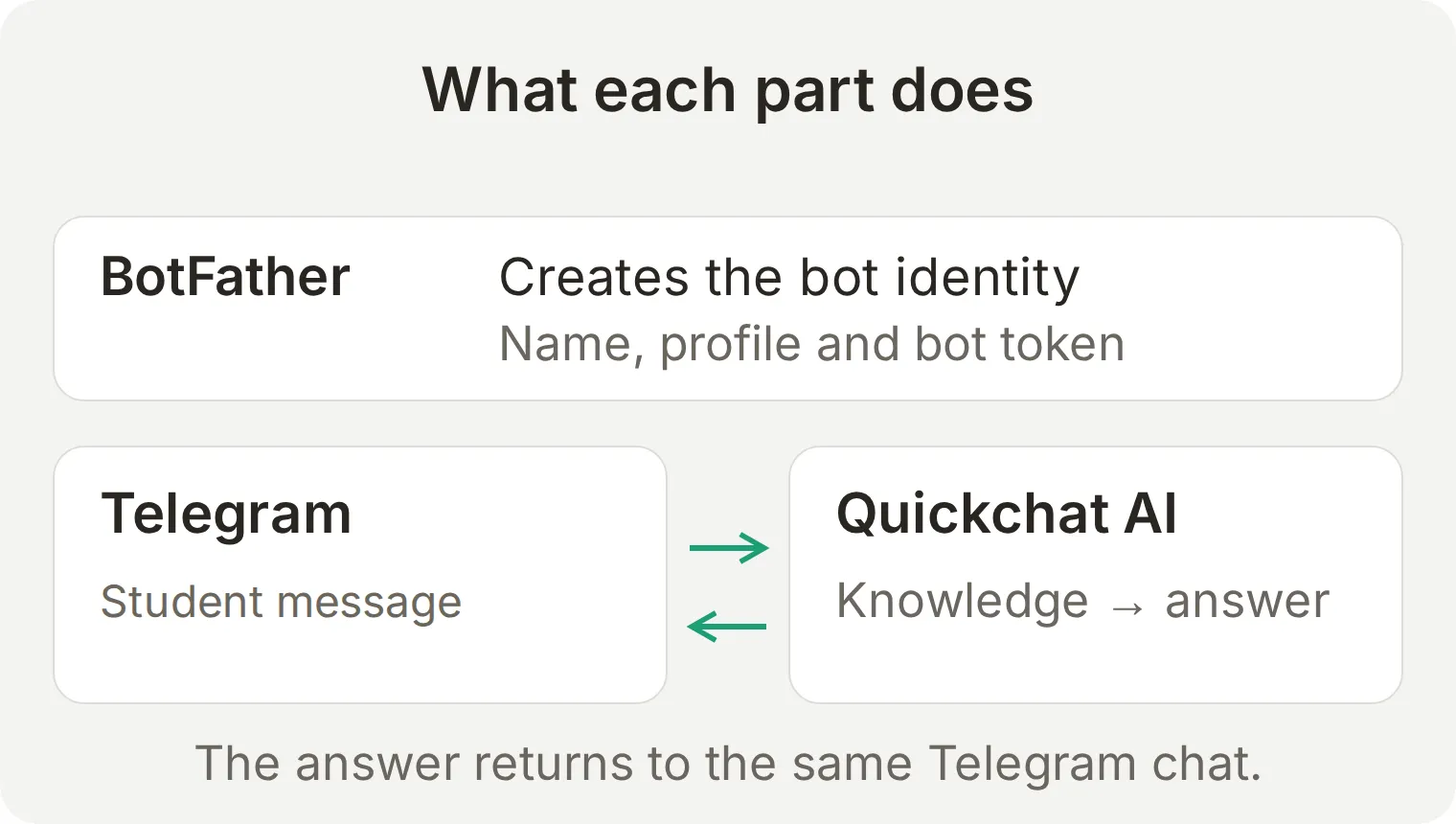 Telegram delivers the student’s message to the connected service. The Agent’s reply returns to the same chat.
| Part | What you configure | What the student sees |
|---|---|---|
| BotFather | Name, username, profile picture, description, command menu and privacy mode | The bot’s identity and entry points |
| Quickchat AI | Knowledge Base, Main Prompt, welcome message and Actions | Course answers, the requested PDF and handoff |
| Your team | Accurate course information and a monitored Inbox | A human reply when the conversation needs one |
Step 1: How do you create a Telegram bot in BotFather?
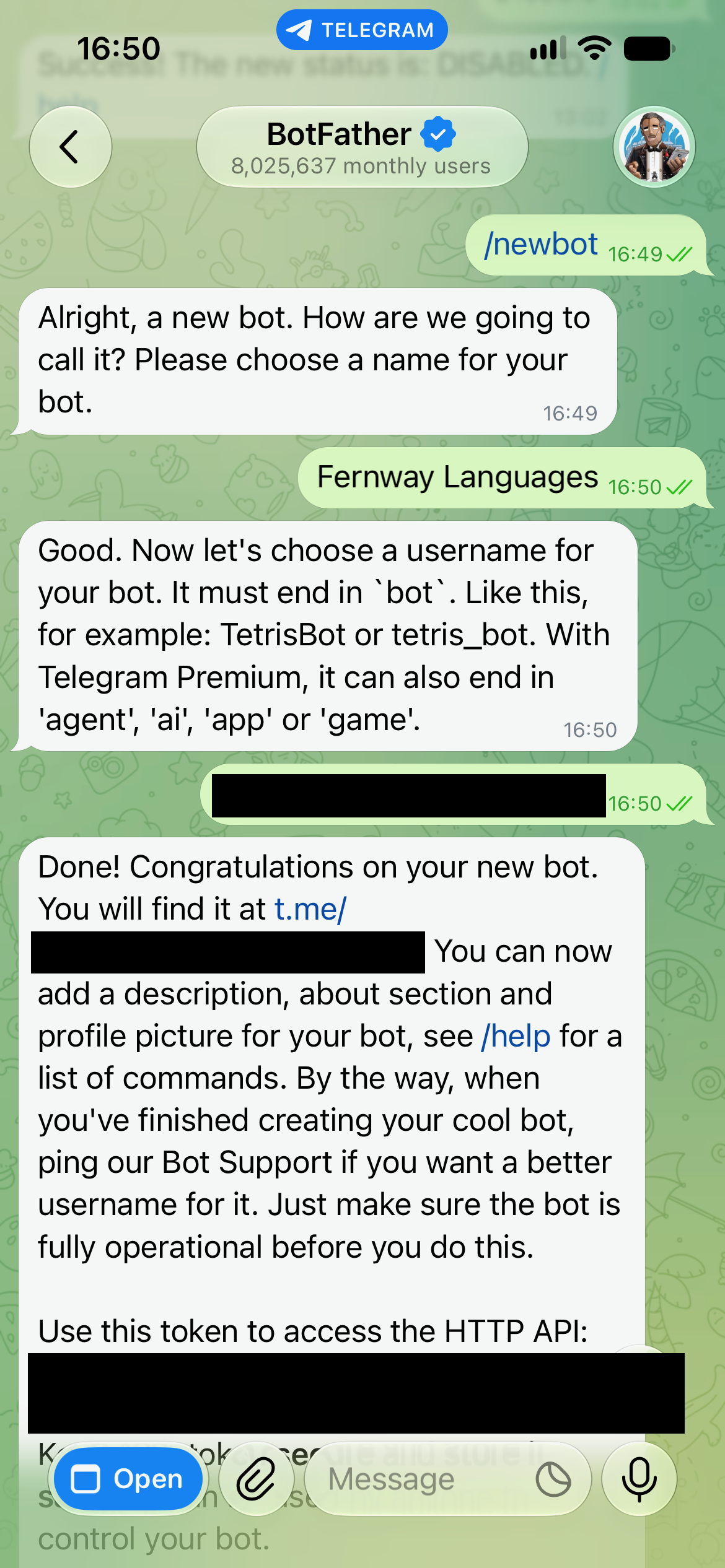
Send /newbot to the official BotFather, then provide a display name and a unique username.
- Open @BotFather in Telegram and select Start.
- Send
/newbot. - When asked for a name, send
Fernway Languages. This is the display name students see. - When asked for a username, choose something like
fernway_lessons_yourname_bot. Replaceyournamewith a unique suffix. Use 5 to 32 Latin letters, digits or underscores; usernames are case-insensitive. For this standard free setup, use a name ending inbot. If the name is taken, try another suffix. BotFather also offers other endings to eligible Premium accounts. - BotFather returns the bot’s link and its authentication token. Save the link; you will use it to open the student-facing chat. Keep the token private for Step 4.
The command interface is sufficient for this tutorial. BotFather may also offer a Mini App for managing bots; use the commands below when your screen differs.
Where do you find your Telegram bot token?
Send /mybots to BotFather, select your bot and open API Token. The token authenticates requests made as that bot. Paste it only into the service’s dedicated credential field, not into the Agent’s prompt, knowledge, a support chat or a screenshot.
If a token is exposed, send /revoke to BotFather, select the bot and obtain its replacement. Update the connected service with the new token and test a reply. The old credential stops working; changing the bot’s name or deleting a screenshot does not invalidate it.
A webhook has one destination. Connecting the same bot to another service can replace the webhook that delivers incoming messages to Quickchat AI. Separate services can make outbound API calls with the same token, but they do not each receive a copy of incoming updates automatically. Telegram also prevents polling with getUpdates while a webhook is installed. Use a separate bot for a separate inbound workflow. Telegram’s update-delivery documentation explains the two mechanisms.
Step 2: How do you add a picture, description and command menu?
Use BotFather’s profile commands to make the bot recognizable before a student sends their first message. After each command, choose your bot and submit the value below.
| Send to BotFather | Then supply | Where it appears |
|---|---|---|
/setname | Fernway Languages | The display name in Telegram |
/setuserpic | Upload fernway-avatar.png from the kit | The profile picture |
/setdescription | The description below | The introduction shown before starting a chat |
/setabouttext | The short profile text below | The bot’s profile and shared link preview |
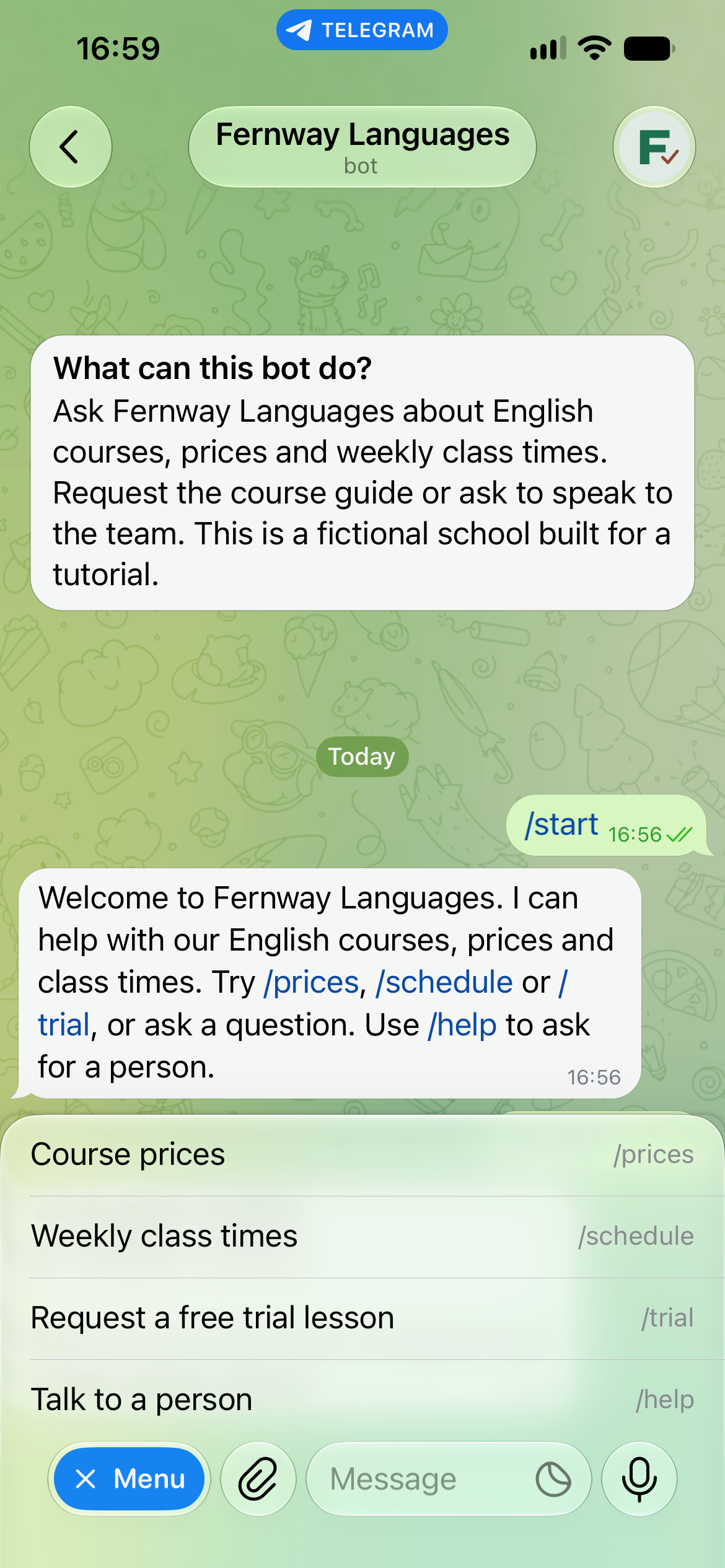
/setcommands | The command list below | The menu students tap in the conversation |
Description (up to 512 characters):
Ask Fernway Languages about English courses, prices and weekly class times. Request the course guide or ask to speak to the team. This is a fictional school built for a tutorial.About text (up to 120 characters):
English courses, prices and class times. A fictional school for a Quickchat AI tutorial.Command list: paste these four lines together. The command names have no leading slash in this BotFather list.
prices - Course prices
schedule - Weekly class times
trial - Request a free trial lesson
help - Talk to a person
Open the bot’s profile to check its name, picture and about text. Open its chat before selecting Start to check the introduction. Telegram describes the individual settings in its BotFather guide.
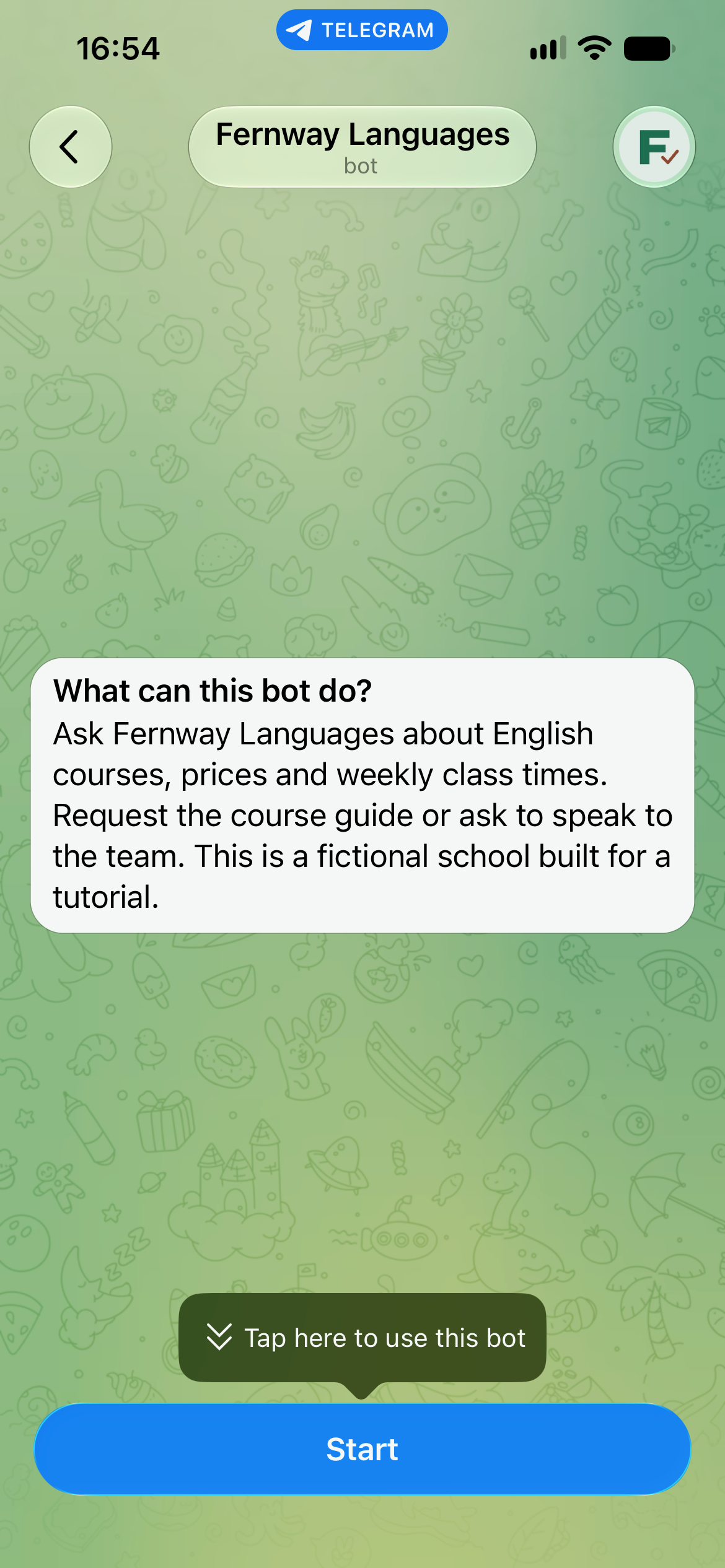
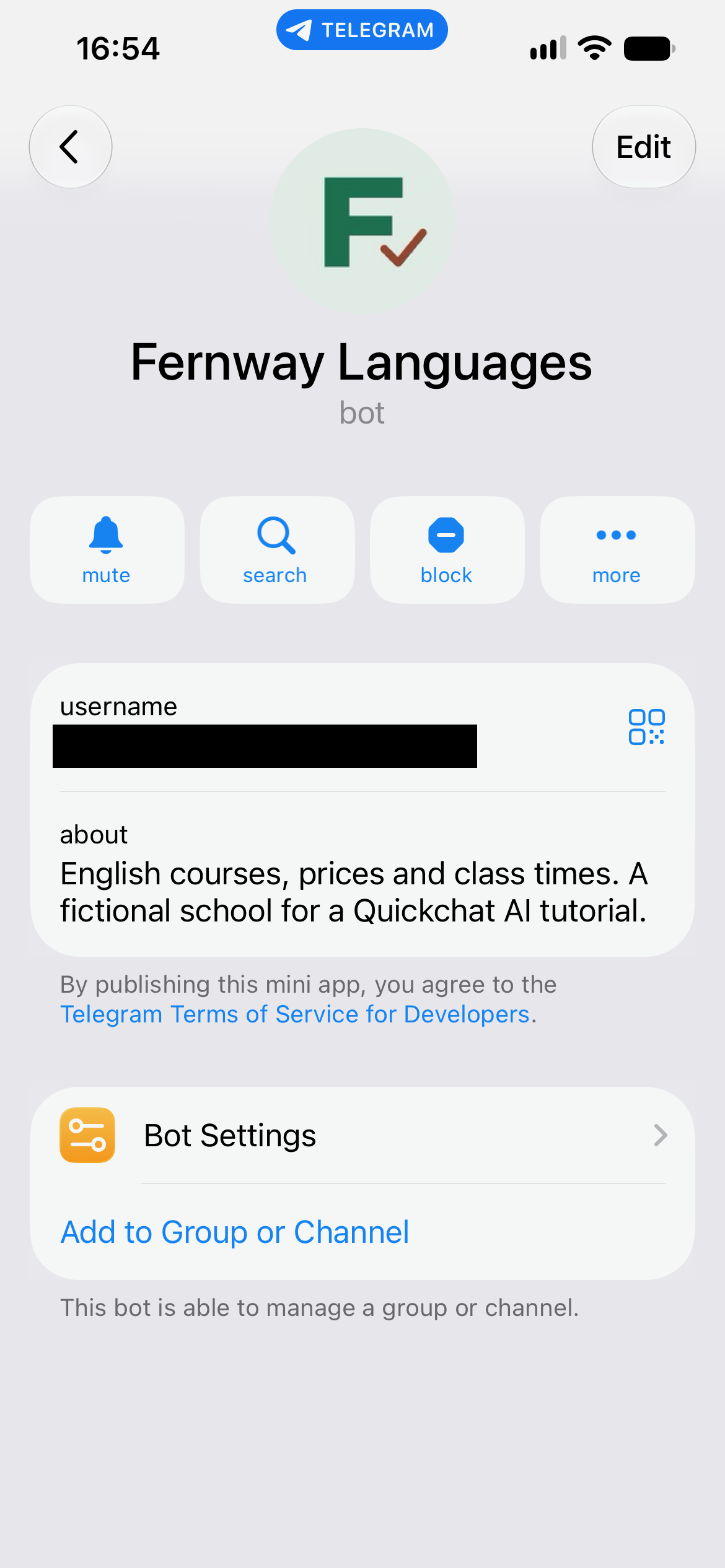
After connecting the bot in Step 4 and selecting Start, open the command menu and check all four entries. Preserve the line breaks when pasting the list into BotFather; otherwise several entries can become one long command description.
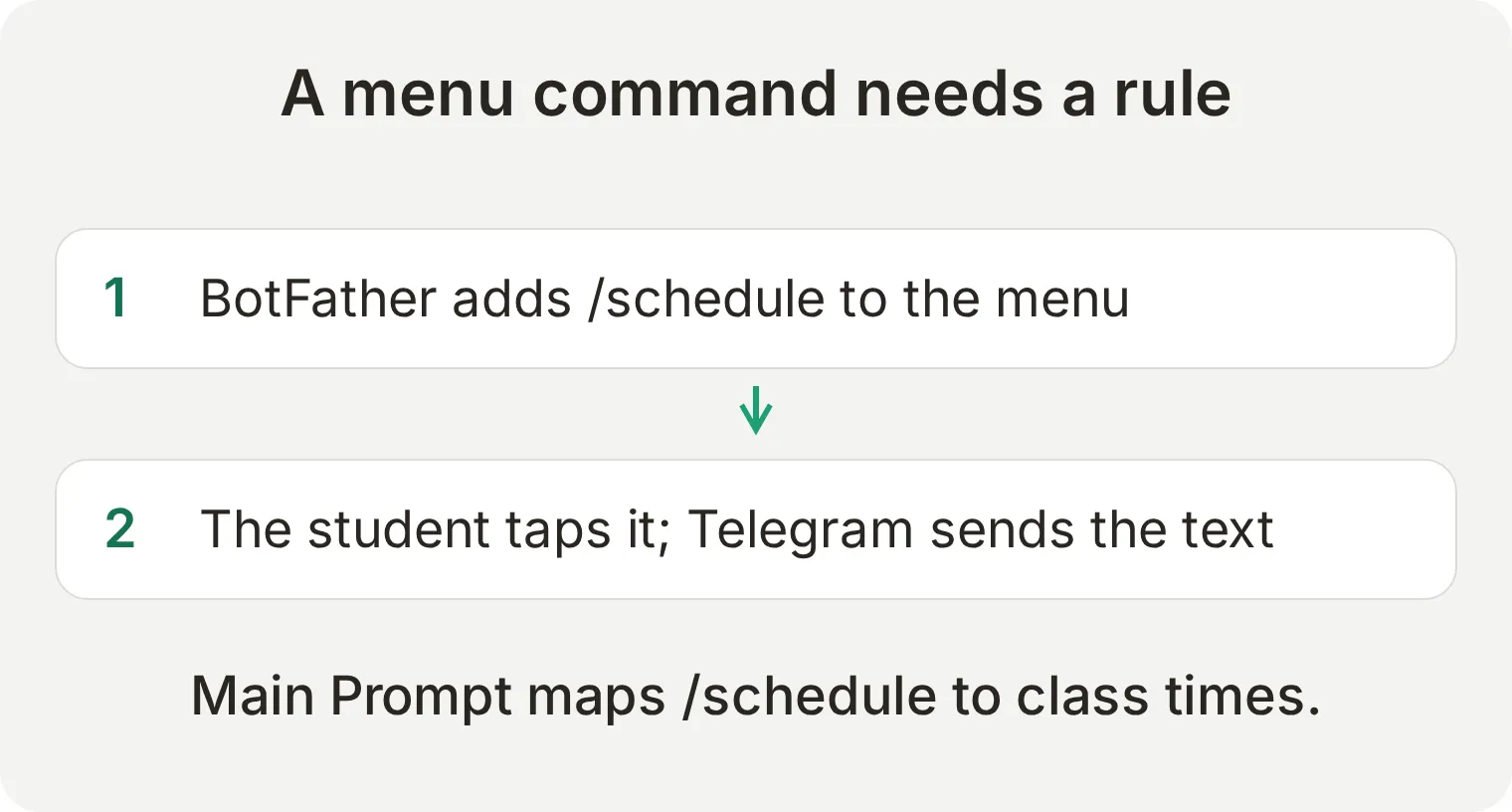 Adding
/schedule to the menu does not implement a schedule lookup. The next step tells the Agent what that message means.
Step 3: How do you make the Telegram bot answer from your knowledge?
Create an Agent, add the school’s facts to its Knowledge Base, then put the response rules in Main Prompt. Keeping facts separate from instructions makes it easier to change a price without changing the bot’s behavior.
Screenshots open at full size when selected. Use the copyable blocks for the exact text and request values.
Add the course information
- In Quickchat AI, create a new Agent and name it
Fernway Languages. In Identity, set its name to the same value. - Open Knowledge Base, select Add Article, and use
Fernway Languages course guideas the Title. - Paste the following into Content, then Save. Wait for processing to finish and the article to show Ready. Complete any displayed publish/apply step before testing the live channel.
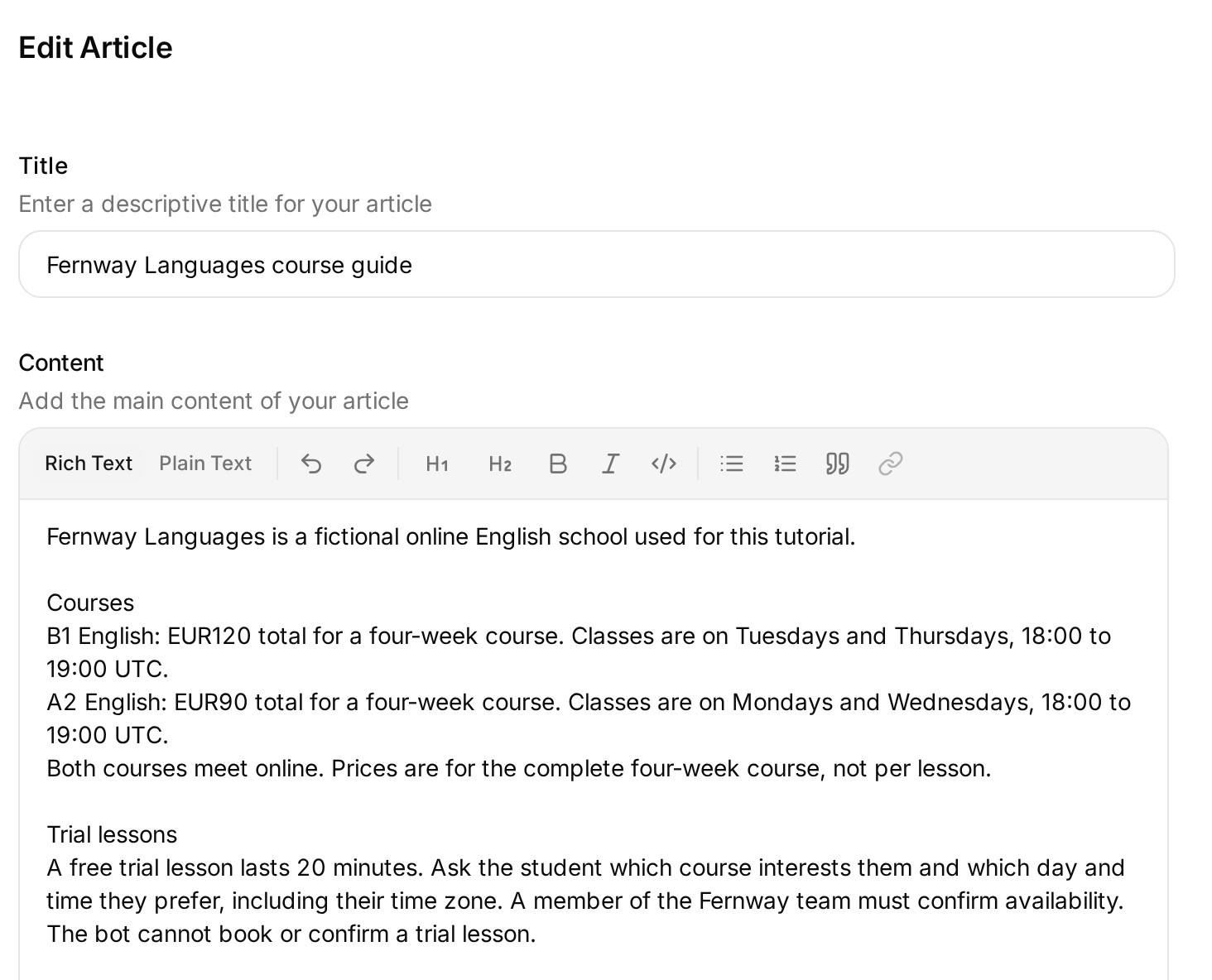 Add the facts under Knowledge Base. The complete copyable article below also includes the trial, refund and placement policies.
Copy the Fernway knowledge article
Fernway Languages is a fictional online English school used for this tutorial.

Courses
B1 English: EUR120 total for a four-week course. Classes are on Tuesdays and Thursdays, 18:00 to 19:00 UTC.
A2 English: EUR90 total for a four-week course. Classes are on Mondays and Wednesdays, 18:00 to 19:00 UTC.
Both courses meet online. Prices are for the complete four-week course, not per lesson.

Trial lessons
A free trial lesson lasts 20 minutes. Ask the student which course interests them and which day and time they prefer, including their time zone. A member of the Fernway team must confirm availability. The bot cannot book or confirm a trial lesson.

Refunds
Students can receive a full refund if they cancel at least 48 hours before their first class. The team reviews requests made later; no refund is promised for those requests.

Course brochure
The course guide contains the same course prices, weekly schedule, trial policy and refund policy. Send it only when the student asks for the brochure or course guide.

Placement
The team handles level placement. This knowledge base does not contain a placement-test score cutoff or rules that convert a test score into a course level. Do not invent a cutoff or interpret a student's score.
The missing placement cutoff gives you a meaningful test. The Agent can answer the B1 price from a source, but it should not invent the score a student needs to join.
Give the commands their meaning
Open Identity, select the Main Prompt card marked Edit, and paste the complete prompt below. Let it autosave, then reopen it to check the saved text.
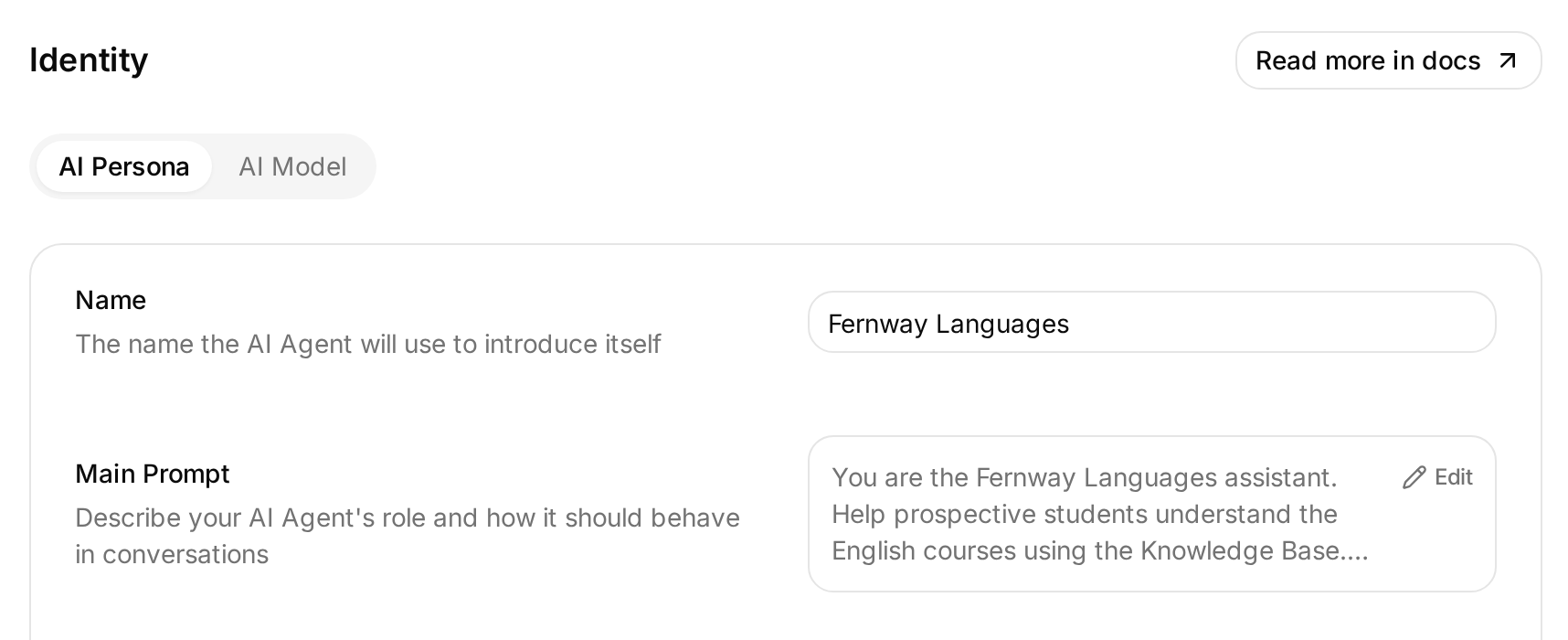 Open Main Prompt from Identity. Its rules give the Telegram commands their meaning.
Copy the complete Main Prompt
You are the Fernway Languages assistant. Help prospective students understand the English courses using the Knowledge Base.

Answer the student's question directly. Use plain text, short paragraphs and no Markdown tables. Keep routine answers under 100 words. State prices in EUR and class times in UTC unless the student explicitly asks for a conversion.

Treat /prices as a request for the course prices. Treat /schedule as a request for the weekly class times. Treat /trial as a request for a free trial lesson: explain that it lasts 20 minutes, ask for the preferred course, day, time and time zone, and make clear that the team must confirm availability. Treat /help as a request to speak to a person. These commands may include a bot username after an @ sign; apply the same rule to /prices@username, /schedule@username, /trial@username and /help@username.

Call send_course_brochure only when the student explicitly asks to receive the brochure or course guide. Do not call it for a price or schedule question alone. Do not ask for a chat ID, token or email address to send it. Say that the brochure was sent only after the action succeeds. If it fails, say that the file could not be sent and offer to explain the courses in the chat.

Use only the Knowledge Base for course facts and policies. If a requested fact is missing, say that the team will need to confirm it. Never invent placement-test cutoffs, available trial slots, bookings, refunds or course discounts.

If the student asks for a person, use Human Handoff. Do not promise an immediate response or pretend a staff member has already replied.
This prompt includes the optional brochure and handoff steps you will configure later. Finish those steps before sharing the bot as a complete student-support service. A prompt can request an Action; it does not create that Action or connect Telegram.
The addressed forms, such as /schedule@your_bot, matter when the bot joins a group. The plain-text instruction also matters: ordinary replies through this integration are sent without Telegram Markdown formatting.
Set the welcome message
Open Your Website, select the Text Content tab, and edit Welcome message. This shared greeting is also used by the Telegram own-bot connection:
Welcome to Fernway Languages. I can help with our English courses, prices and class times. Try /prices, /schedule or /trial, or ask a question. Use /help to ask for a person.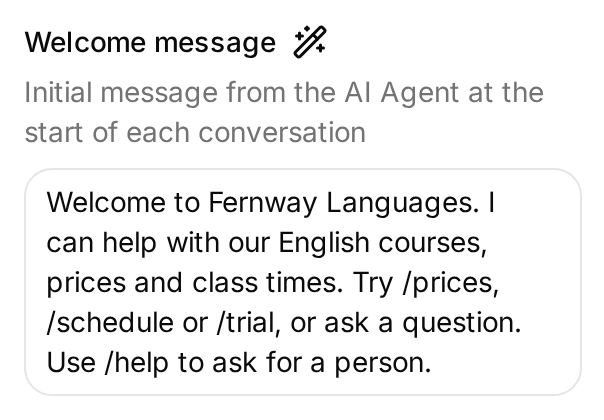 The shared Welcome message field is under Your Website → Text Content; Telegram uses it for /start.
The own-bot integration sends this configured greeting when a visitor sends /start. It is separate from BotFather’s pre-chat description and from an AI-generated answer to a course question.
Step 4: How do you connect the token to Quickchat AI?
Connect through Your own bot to use the Telegram identity you just created.
- Open External Apps, select Telegram, and choose Your own bot.
- Select Connect to Telegram, paste the token from BotFather into Bot Token, then select Connect to Telegram inside the dialog to submit it.
- Turn on Enable your own bot, then select Save.
- Open the bot’s
t.melink in Telegram. Select Start or send/startto check the greeting.
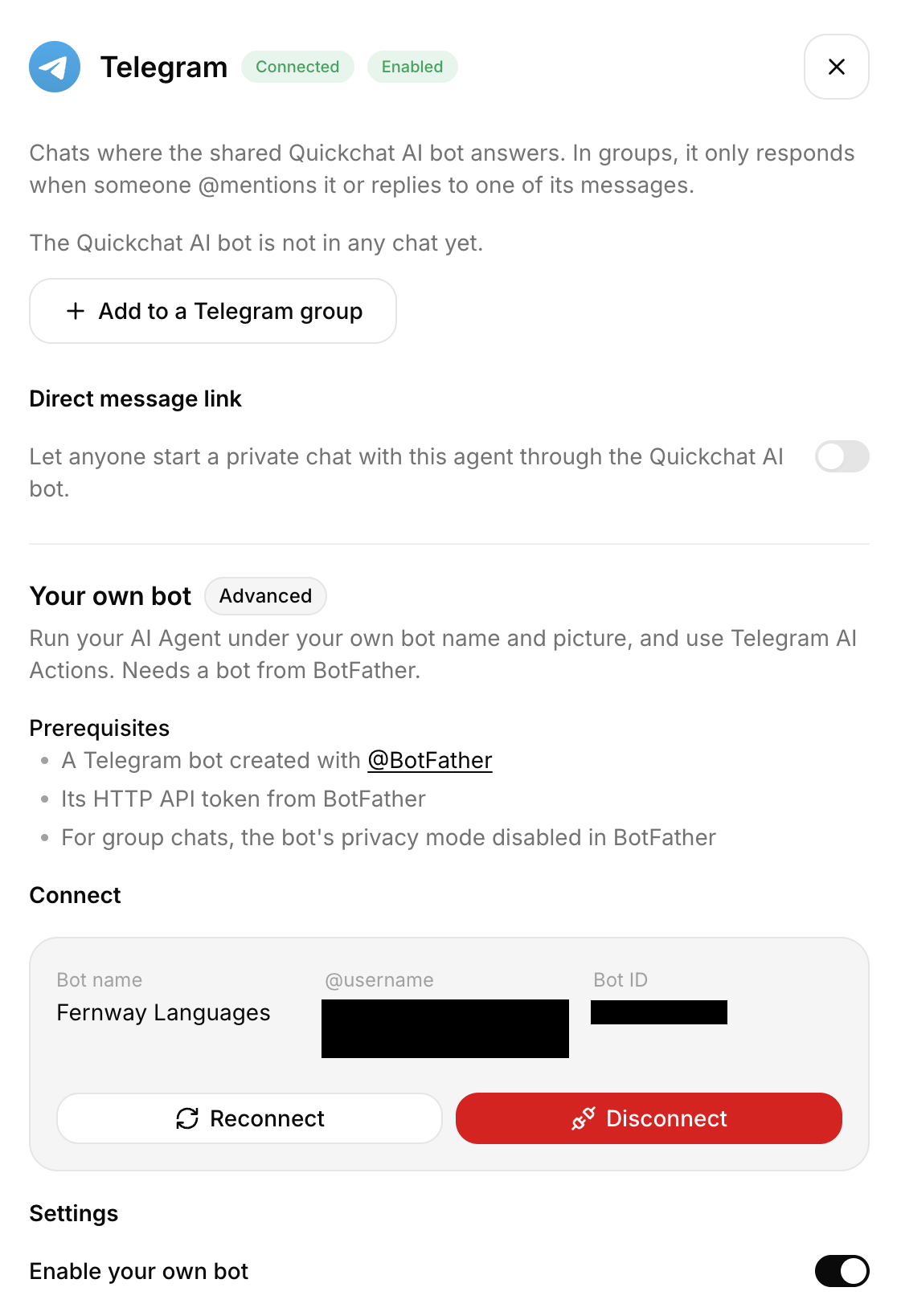 The live connection panel shows the bot’s identity and enabled state. Use Your own bot for the identity created in BotFather.
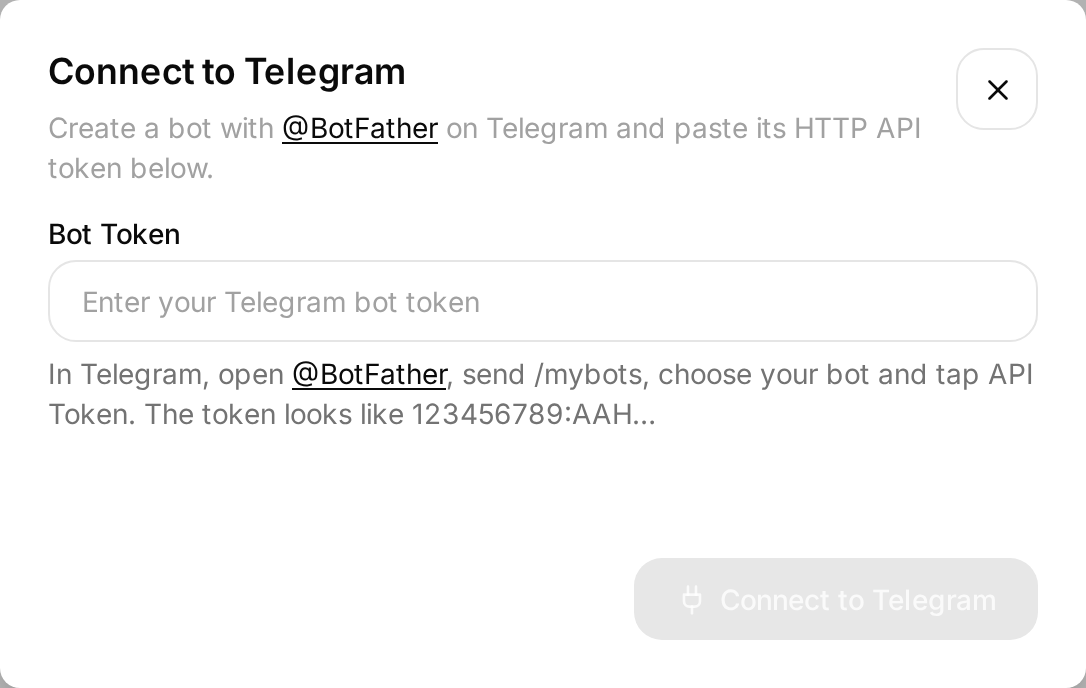 Enter the credential in this field. The screenshot intentionally contains no token.
The dashboard’s shared Quickchat AI bot option is a different setup. It provides an Agent-specific chat link without creating your own bot; the main walkthrough uses your own identity and credential. The Telegram AI chatbot guide covers the shared route.
If the connection dialog describes disabling privacy mode for groups, leave privacy enabled for this tutorial’s addressed-command workflow. Private chats work independently of the group privacy setting. The group section explains the tradeoff.
Step 5: How do you test your Telegram bot?
Check both the Agent’s answer and the message delivered in Telegram. A dashboard test verifies the response logic; only a Telegram conversation verifies the complete channel.
Test the answers in Quickchat AI
Open Testing, choose Create Dataset, name it Fernway course answers, and add these messages as separate rows:
How much is the B1 English course?
/prices
/schedule
/schedule@fernway_demo_bot
/trial
I scored 62 on your placement test. Do I qualify for B1?
The addressed-command row uses an example username to check the prompt rule. For the live Telegram test, use your actual bot username.
Under Evaluation criteria, use:
Fernway Languages is a fictional English school. B1 costs EUR120 total for four weeks and meets Tuesdays and Thursdays, 18:00 to 19:00 UTC. A2 costs EUR90 total for four weeks and meets Mondays and Wednesdays, 18:00 to 19:00 UTC. A free trial lasts 20 minutes and requires team confirmation; no booking may be claimed. Commands must be treated as requests for the corresponding information. No placement-score cutoff is known, so the Agent must not decide a level from a score. Replies should be brief, plain text and based on these facts. Evaluate reply content only. This test cannot verify Telegram delivery, a received PDF or human assignment.Choose Run with available AI credits. Each row starts a separate conversation. Use one continuing AI Preview conversation to test follow-up questions, rather than treating the next dataset row as the next turn.
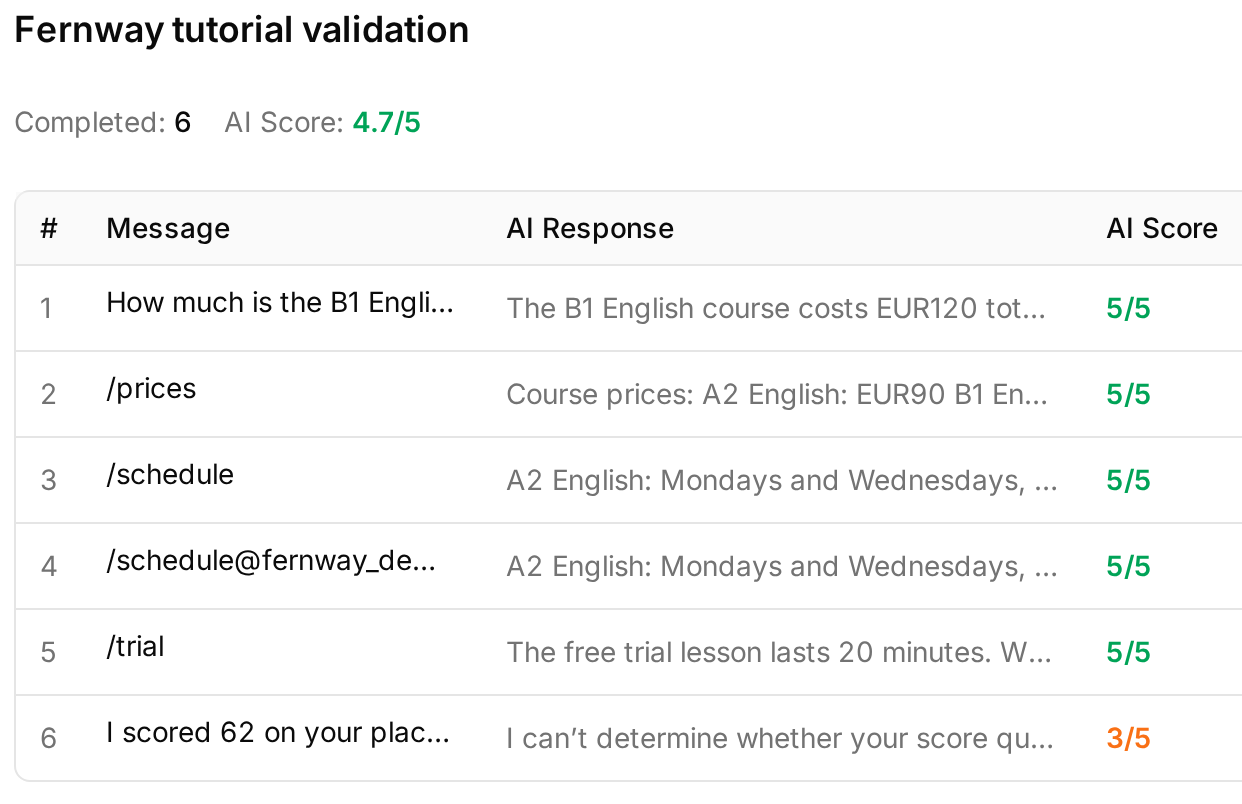 Real local Simulation results. The placement answer scored lower because the evaluator could not observe its handoff; Inbox confirmed the actual assignment change.
Test the student experience in Telegram
Send the following in the real bot’s private chat, waiting for each response. Use Inbox to find the corresponding question and answer.
Save the placement-score question for last, after Steps 6 and 7. It can hand the conversation to staff and pause automated replies.
| Message or action | Passing result |
|---|---|
/start | The configured welcome message appears |
How much is the B1 English course? | EUR120 for the complete four-week course |
Tap /schedule in the menu | Both weekly schedules, clearly labeled UTC |
Tap /trial | A 20-minute trial request, with availability left to the team |
I scored 62 on your placement test. Do I qualify for B1? | No invented cutoff or eligibility decision; the team must confirm |
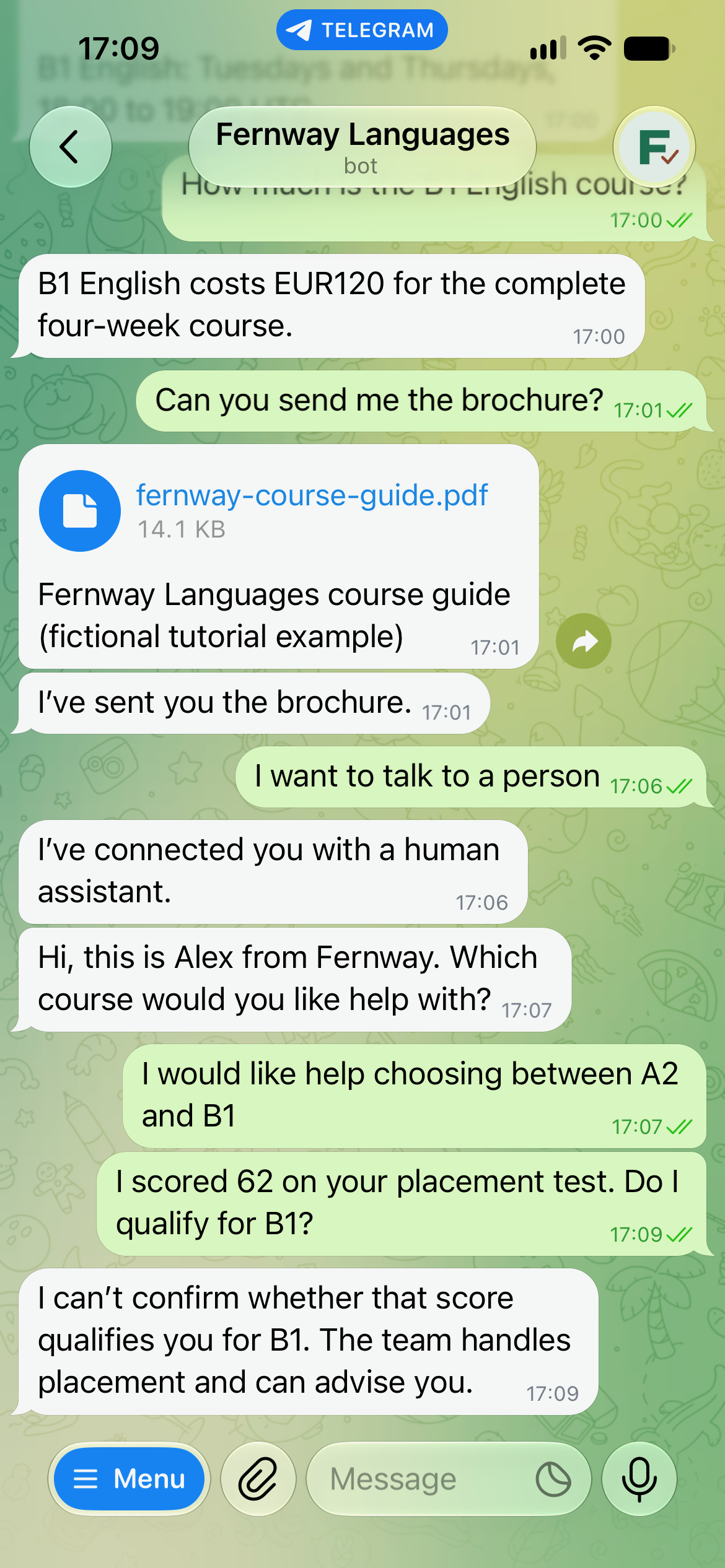
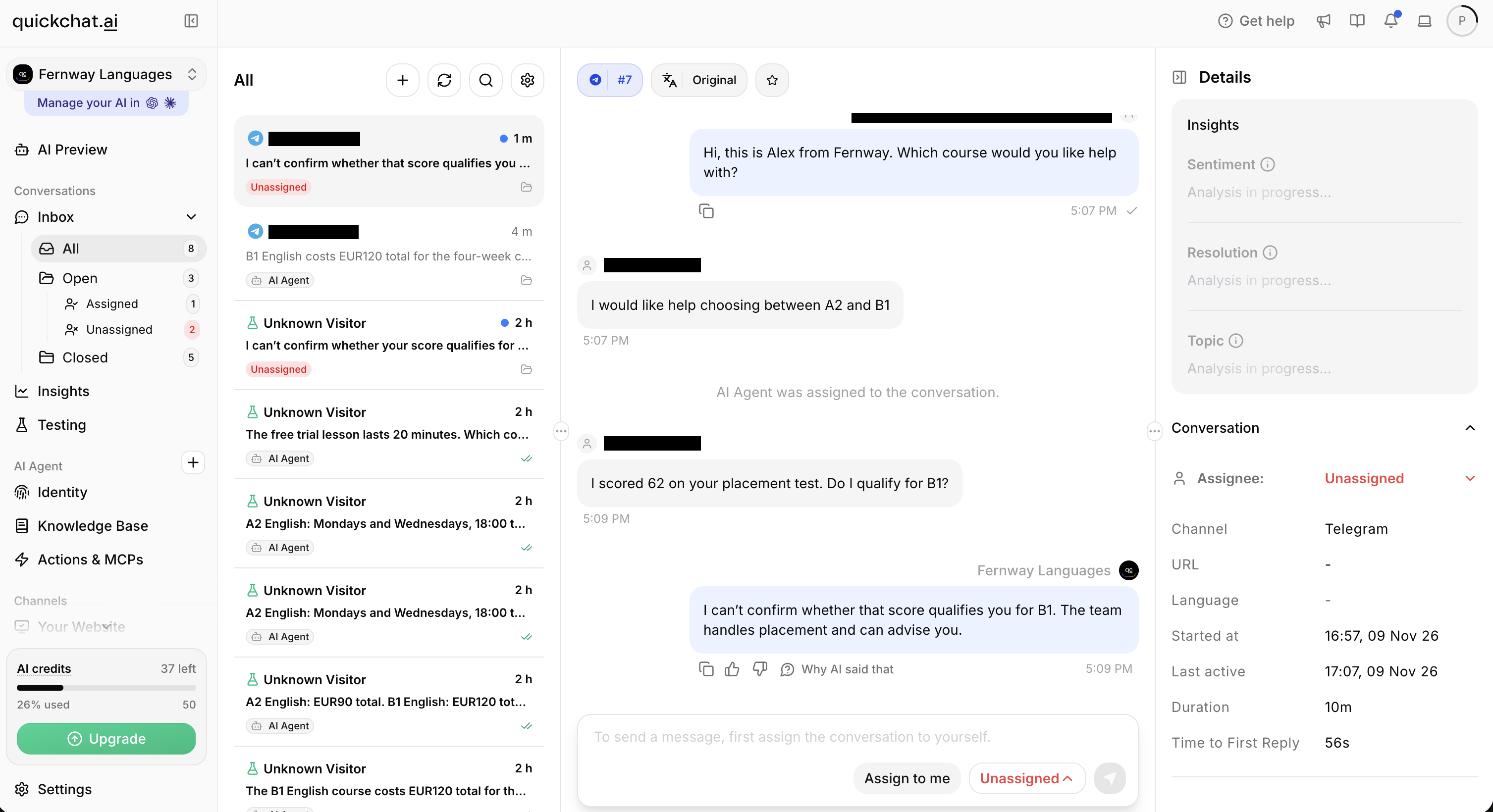 The matching Inbox view shows both the answer and the conversation’s Unassigned state.
In the live test, the Agent did not infer a level from the score. Inbox showed the conversation as Unassigned afterwards, with Lack Of Knowledge handoff enabled. Check the reply and assignment separately; a reply evaluator cannot establish who owns the chat. Run this placement check after the other conversation tests, or select AI Agent in the Inbox assignee menu before continuing automated replies.
If a reply is wrong, inspect the relevant knowledge article and saved prompt, change one thing and repeat the same message in a new conversation. For a command failure, check the exact command rule; for a wrong course price, check knowledge retrieval and publication. Record the actual reply instead of deciding that the setup passed because the connection is green.
The six-message dataset is a starting point. The AI support agent testing guide shows how to expand it with realistic failure cases and a scoring rubric before launch.
Step 6: How do you make the bot send a PDF?
Add one API Action that sends a fixed course guide to the current Telegram chat. The Agent decides whether the student asked for it; the integration supplies the credential and destination.
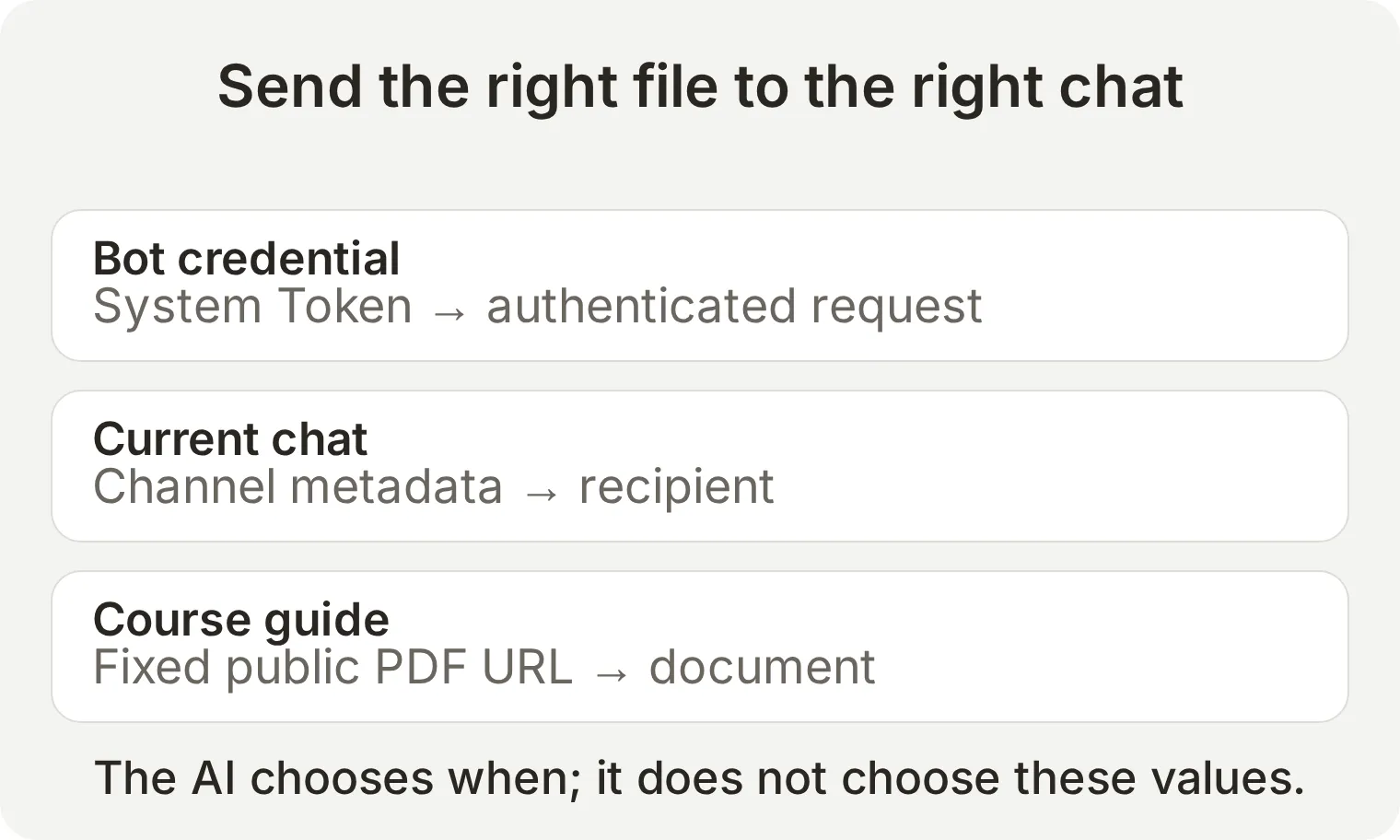 The student does not provide a token or chat ID. The Action has no model-filled parameters.
Download fernway-course-guide.pdf from the kit to inspect the sample. The recipe uses its public URL on this site. For your own file, use a direct HTTPS URL that Telegram can fetch without signing in, returning a PDF with the correct content type. Keep URL-fetched documents below 20 MB. Telegram distinguishes URL fetching from file uploads in its file-sending documentation.
Open Actions & MCPs, select Add Action, choose the API Action builder, and configure these fields. If the builder offers a generated draft, inspect the actual request against the recipe before activating it.
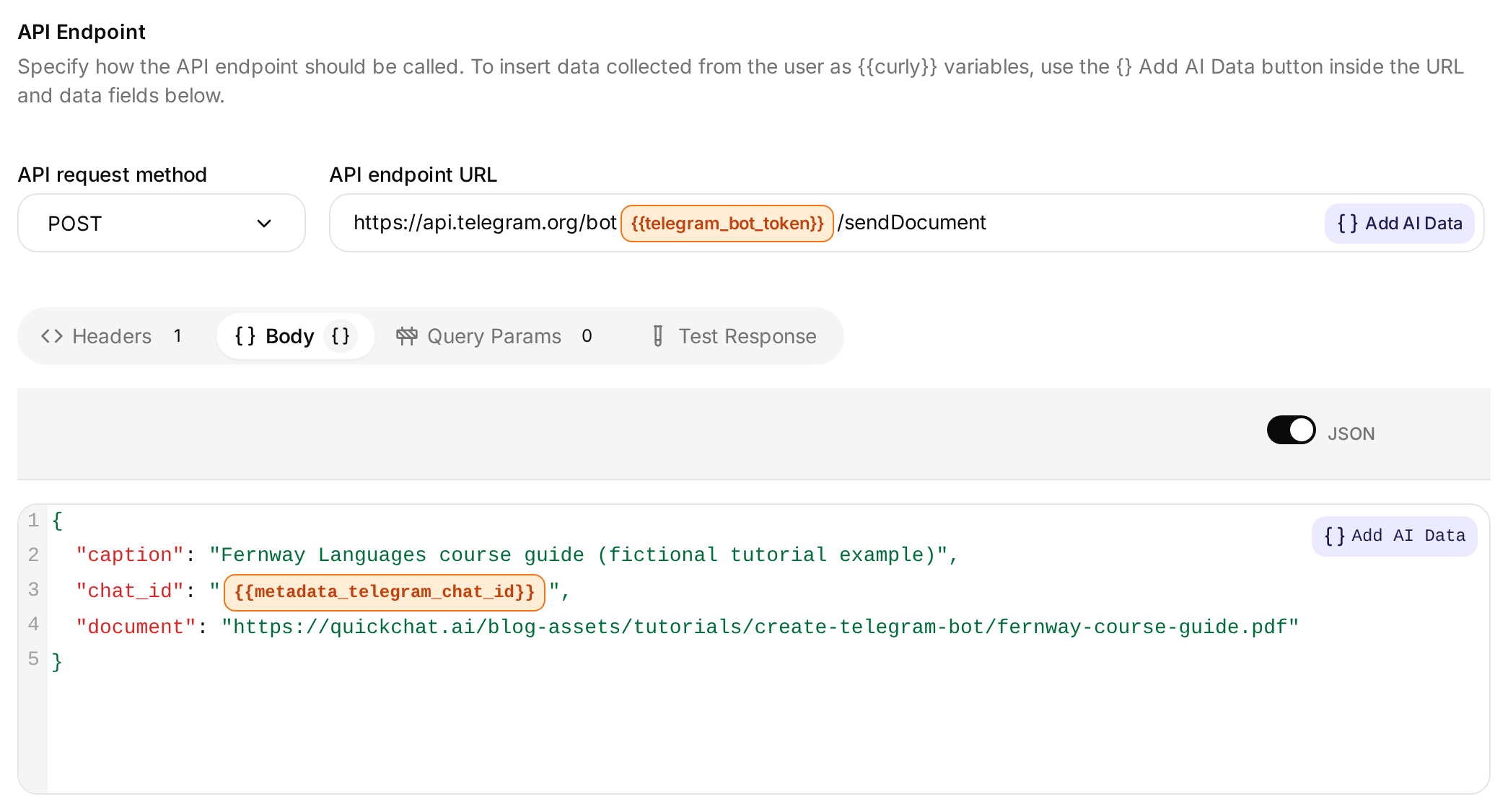 The token chip belongs in the URL; the chat metadata chip belongs in Body. The PDF URL is fixed.
API Action Name
send_course_brochureWhat to ask the user first
| Format | Name | Description | Required |
|---|---|---|---|
| No parameters | None | Leave this section empty. All request values come from the connection or the fixed recipe. | Not applicable |
API Endpoint: method and URL
Choose POST and enter:
https://api.telegram.org/bot{{telegram_bot_token}}/sendDocumentUse Add AI Data to insert telegram_bot_token from System Tokens. This is a reference to the connected bot’s credential, not a place to paste the token itself.
Headers
| Key | Value |
|---|---|
Content-Type | application/json |
Body: paste into the API Endpoint’s Body tab.
{
  "chat_id": "{{metadata_telegram_chat_id}}",
  "document": "https://quickchat.ai/blog-assets/tutorials/create-telegram-bot/fernway-course-guide.pdf",
  "caption": "Fernway Languages course guide (fictional tutorial example)"
}
Insert telegram_chat_id from conversation metadata through Add AI Data. Its template form is {{metadata_telegram_chat_id}}. The Telegram channel sets it from the incoming chat, so the PDF goes back to that conversation. Leave the document URL and caption fixed.
API Action Description
Send the Fernway Languages course guide PDF to the current Telegram chat when the student explicitly asks to receive the brochure or course guide. Do not call this action for a price, schedule or trial question alone. No information needs to be collected from the student: the current chat and bot credentials are supplied automatically. Call it once per explicit request. Confirm delivery only if the request succeeds.Save and activate the Action. The complete Main Prompt already contains its explicit-request rule. The Bot API method is documented under sendDocument.
Verify the file, not just the reply
- In Telegram, send
How much is the B1 English course?. Check that you get the price without an unsolicited file. - Send
Can you send me the brochure?. - Confirm that a PDF attachment arrives and opens to the Fernway course guide.
- In Inbox, open that conversation and expand the called-Action card. On the Action card under Actions & MCPs, open View logs to inspect the request and result. The token must be masked before you share a screenshot.
- Confirm that the destination is the current chat and that one document was sent for the request.
In the live test, send_course_brochure returned HTTP 200 with Telegram’s ok: true response. The opening screenshot shows the resulting fernway-course-guide.pdf attachment in the student’s chat. Together, the request result and received file verify delivery; the Agent’s confirmation text alone does not.
Run the delivery test in Telegram. Simulation conversations do not have the real Telegram bot-token context. Use Simulation for answer checks and the actual Telegram chat for the file-delivery check.
Step 7: How do you hand a Telegram chat to a person?
Enable Human Handoff so a request for a person changes who owns the conversation, then have a teammate respond from Inbox.
- Open Actions & MCPs, enable Human Handoff, and select Edit Action.
- Retain the default Handoff Rules, with Media Message, User Frustration, Customer Support Suggestion and Lack Of Knowledge on, and Irrelevant Advice off. The Main Prompt already maps
/helpto a request for a person; this demo does not add a custom handoff rule. - For the supervised exercise, leave Human Agents’ availability off and keep a teammate at Inbox while testing. Leave Email notifications off. These were the settings used in this demo; an unrestricted handoff does not mean a person is always available.
- Before launch, enable the availability schedule and set the time zone and working hours to your actual staffed hours. Set the outside-hours message accordingly.
- Save the Action. In the bot’s private chat, send
I want to talk to a person.If the bot asks for confirmation, answerYes. - In Inbox, check that the AI is no longer assigned. Select Assign to me and send
Hi, this is Alex from Fernway. Which course would you like help with?. Verify the message arrives in Telegram. - Send one more student message while the human owns the chat. Confirm the AI stays quiet. Open the assignee menu and select AI Agent, then send a new course question to verify automated replies resume.
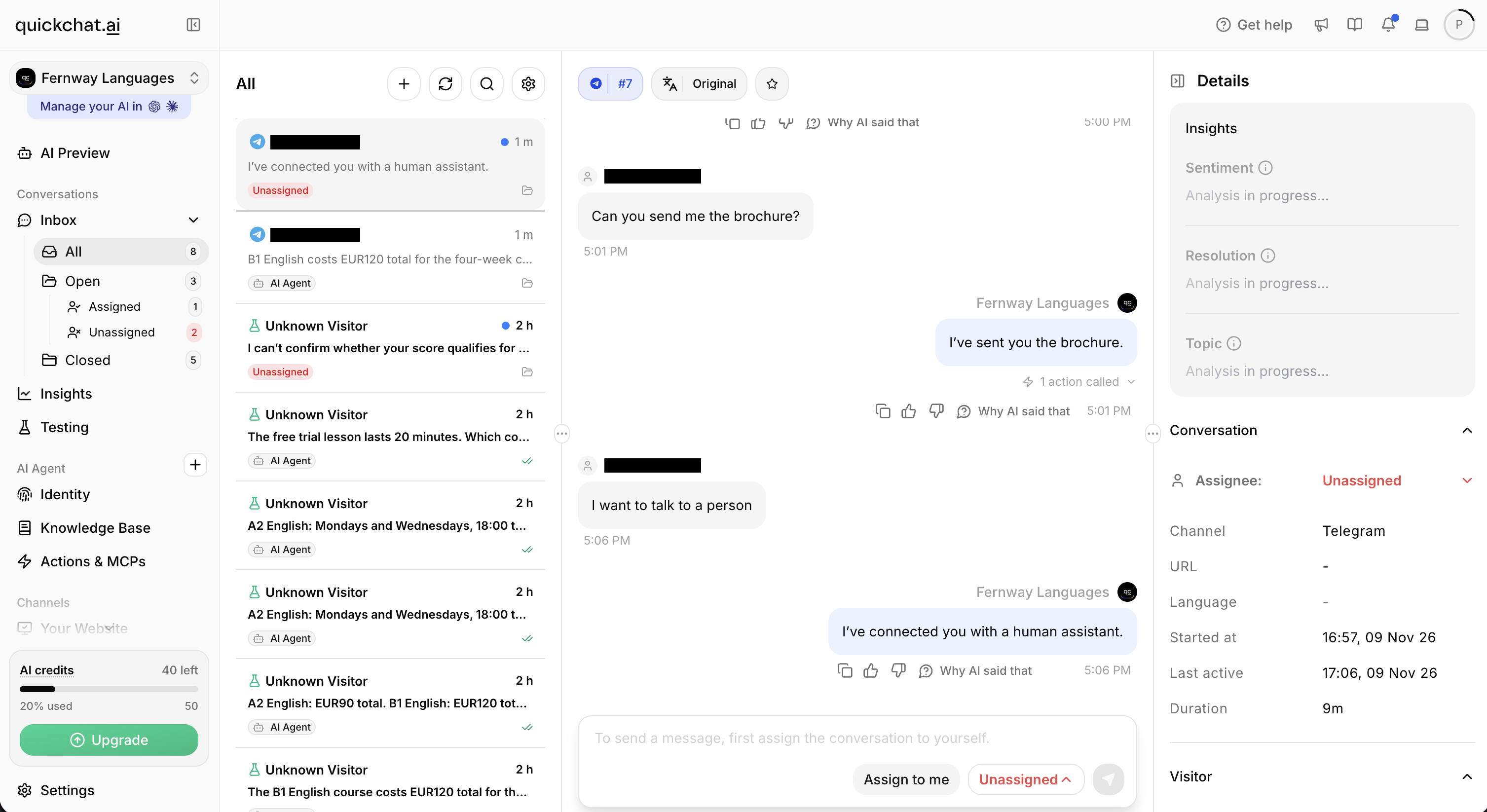 The request leaves the live chat Unassigned, ready for a teammate to select Assign to me. The earlier brochure reply also has a collapsed Action-call marker.
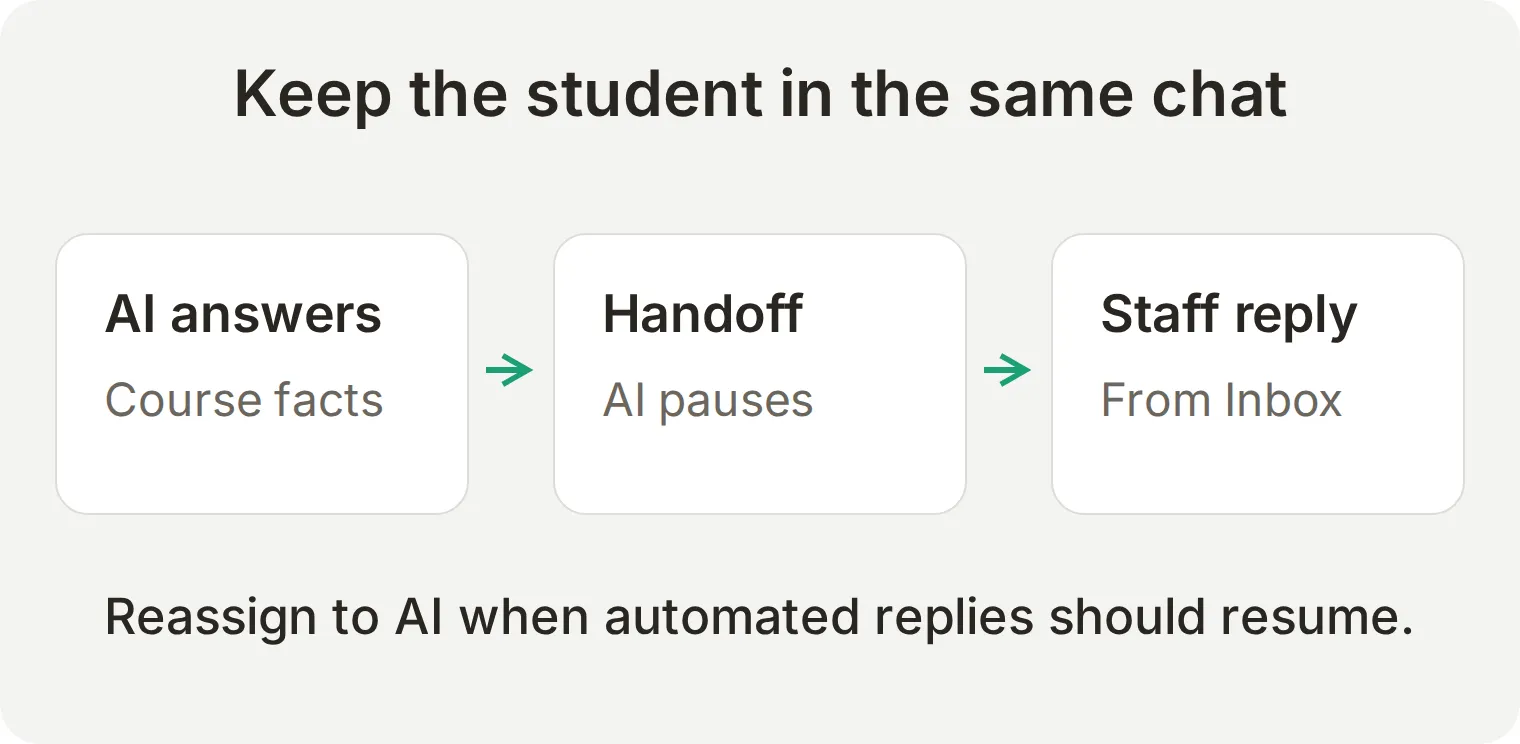 The student stays in Telegram. A successful handoff needs an assignment change and a delivered human reply. Select AI Agent in the assignee menu when automation should resume.
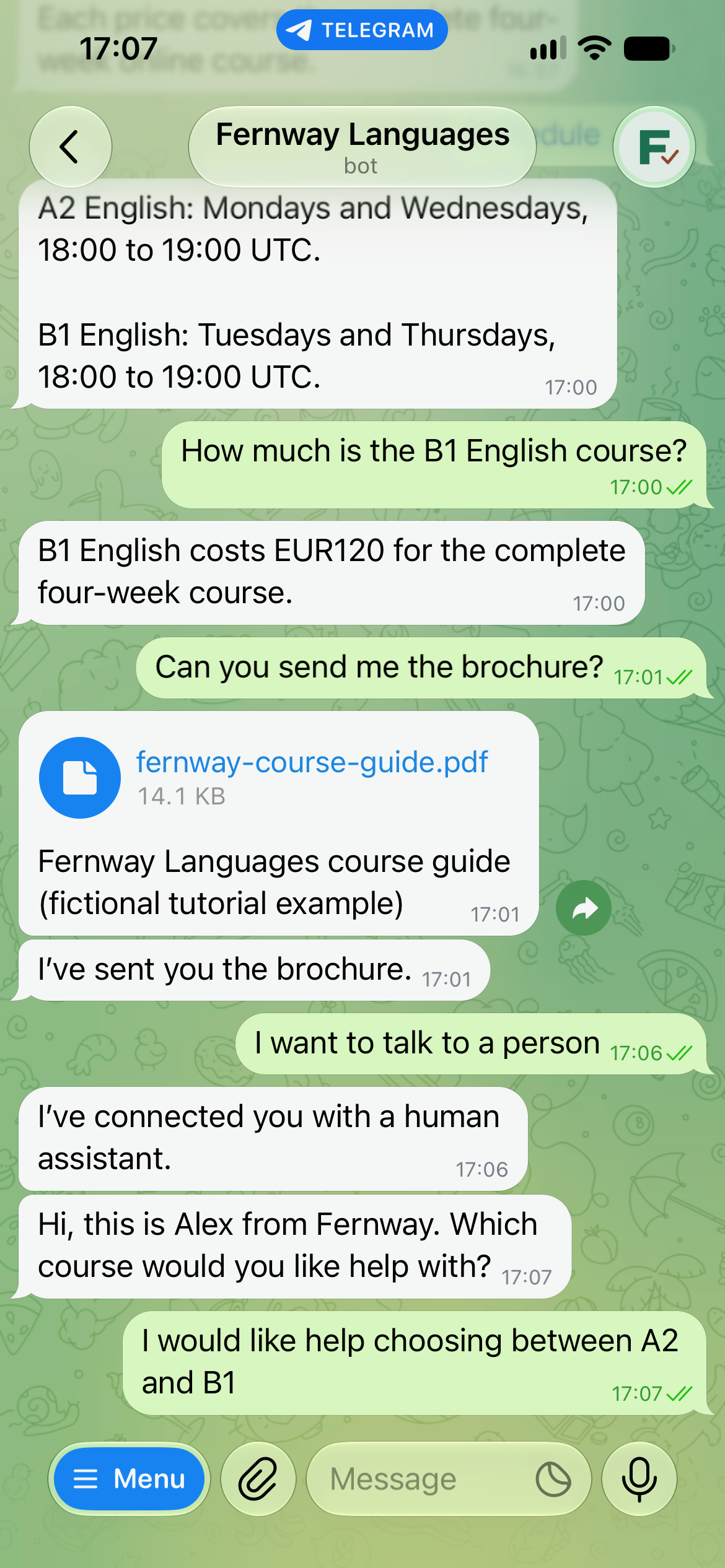
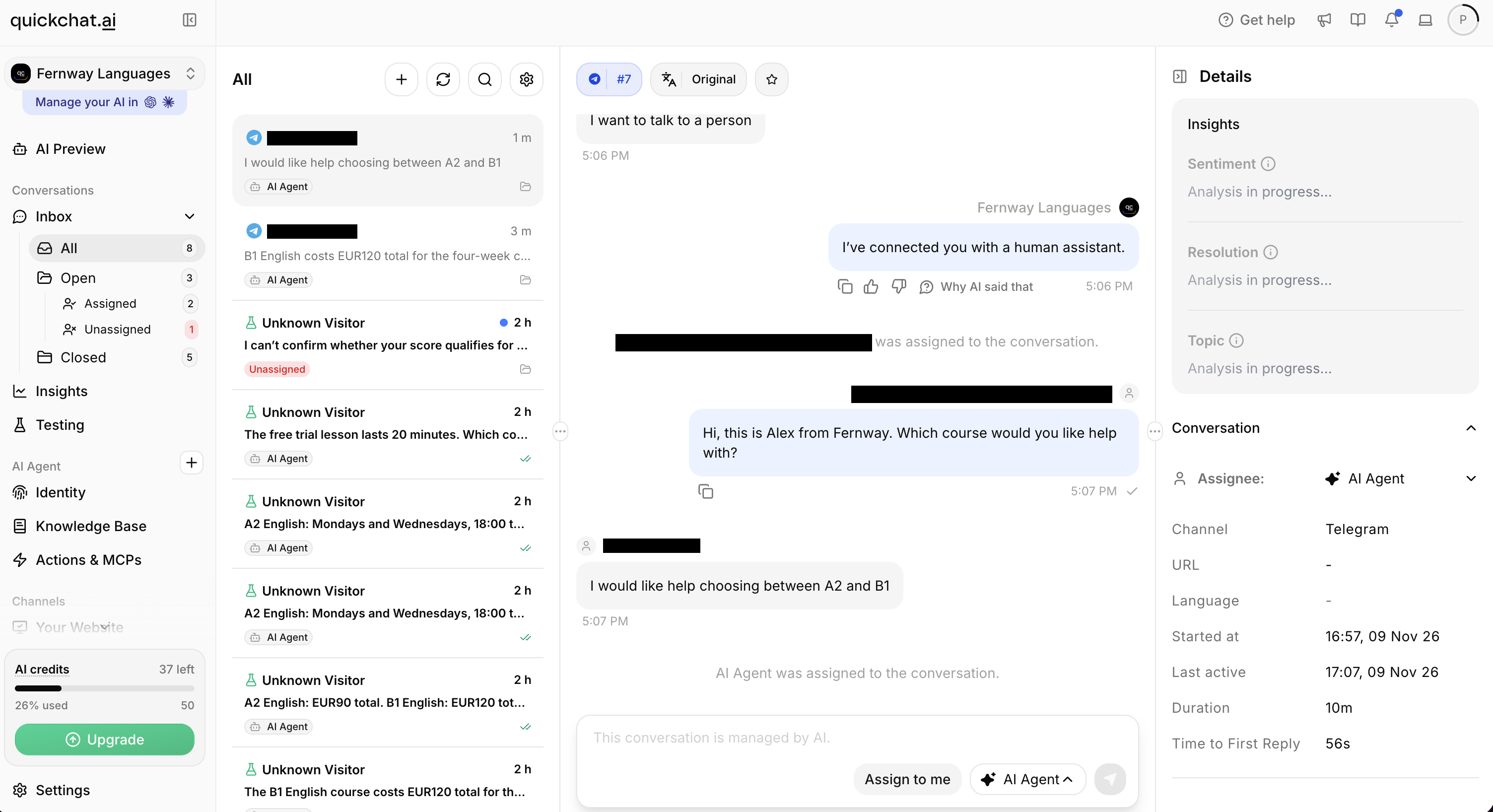 After the operator’s turn, the assignee is returned to AI Agent. The next placement question received the AI answer shown in Step 5.
A missing fact can lead to handoff, as it did in the local placement test. Check both outcomes separately: the reply must avoid guessing, and any claimed transfer must change the Inbox assignee. The Human Handoff guide explains availability and routing in more detail.
The chatbot human handoff walkthrough adds tests for outside-hours requests and whether automated replies keep working after reassignment.
How does the bot behave in a Telegram group?
Privacy mode controls which group messages Telegram delivers to a bot. Quickchat AI’s own-bot connection processes the messages it receives; it does not add a separate “only answer mentions” filter.
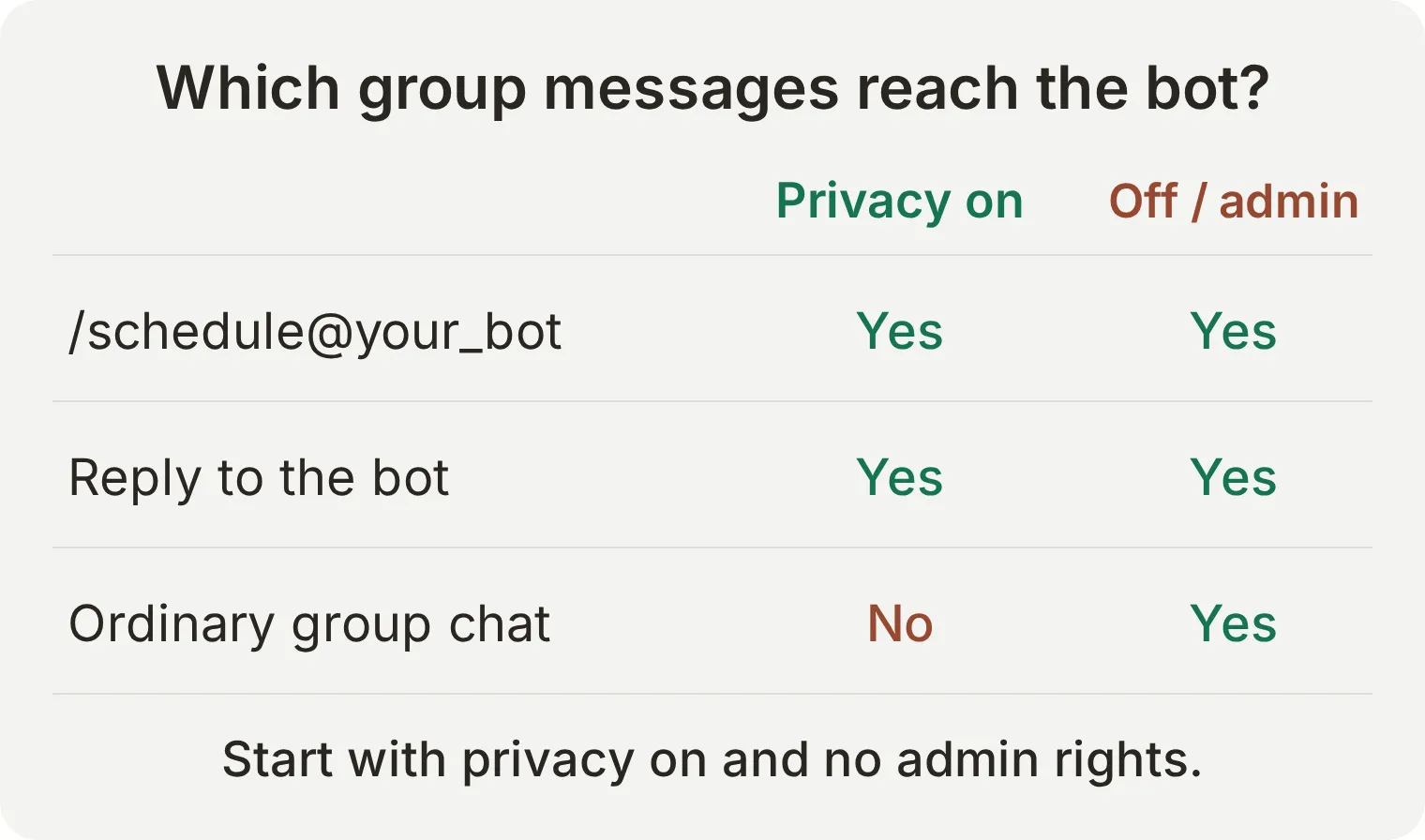 The chart covers the message types used in this tutorial. Telegram also documents service messages and context-dependent command routing.
For a class group where the bot should answer direct requests:
- Send
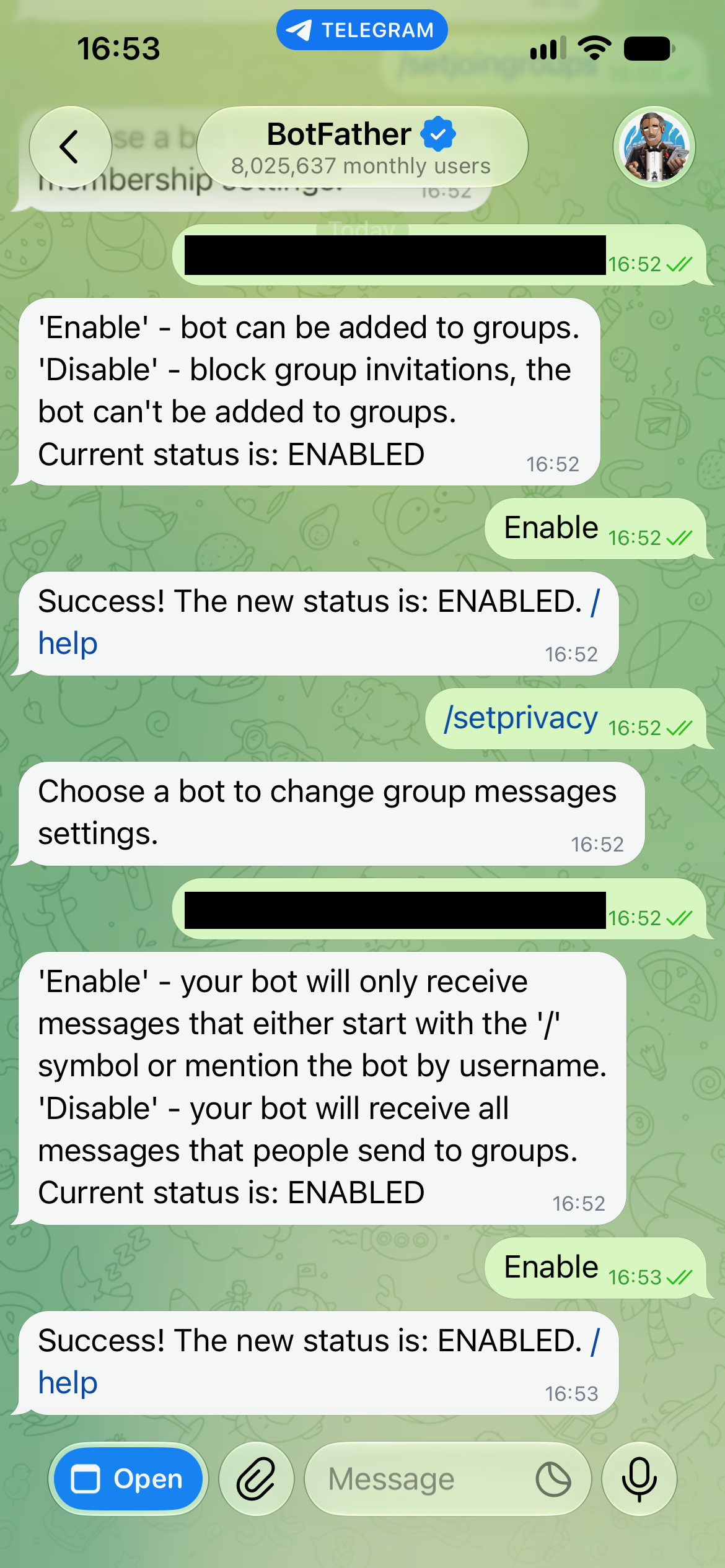
/setjoingroupsto BotFather, choose the bot and enable group membership if it is disabled. - Send
/setprivacy, choose the bot and select Enable. Keep it a regular member, without administrator rights. If you changed privacy mode after adding it, remove and re-add the bot so the setting takes effect. - Add the bot to a small test group you control.
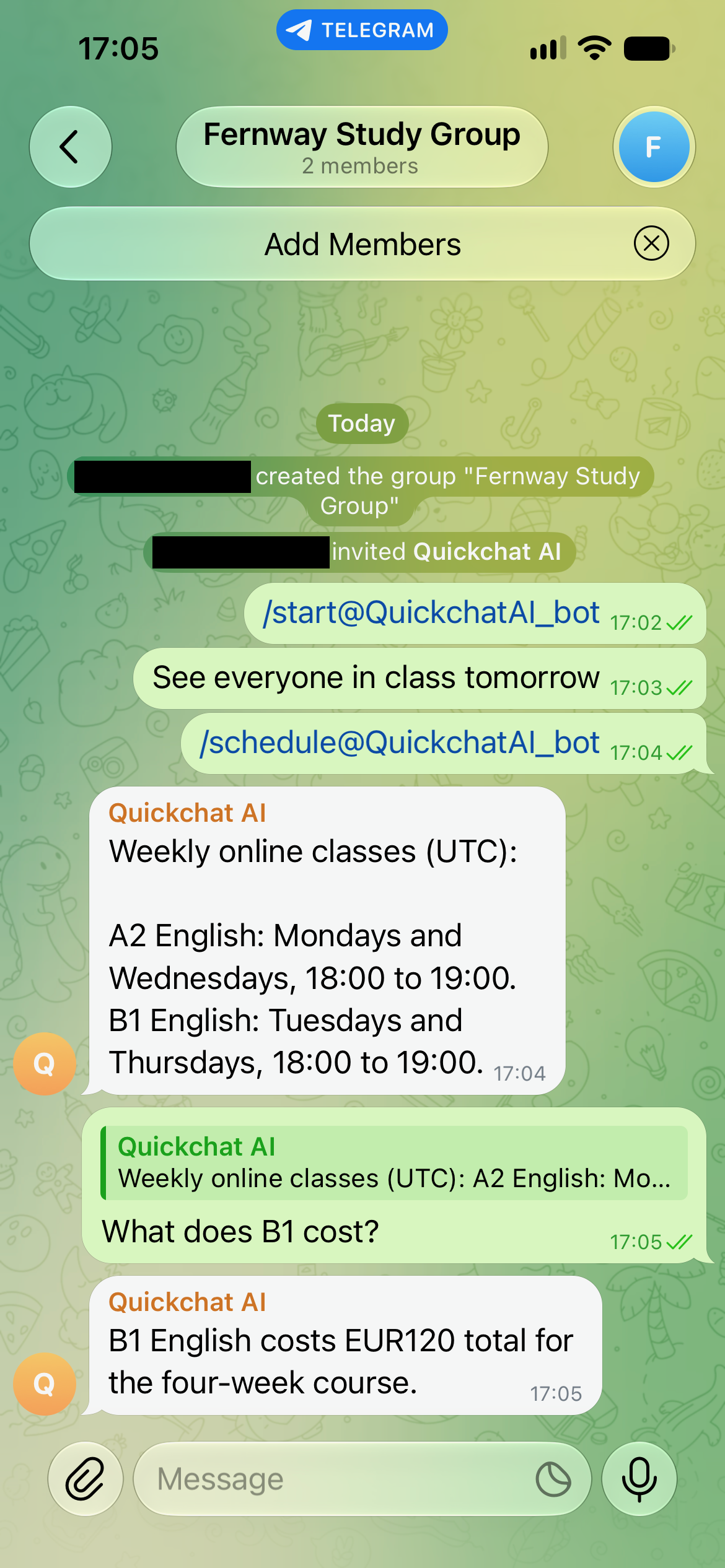
- Send an ordinary message, such as
See everyone in class tomorrow.It should not trigger a reply in this configuration. - Send
/schedule@your_bot, replacingyour_botwith the actual username. Check the schedule answer, then use Telegram’s Reply gesture on that answer to askWhat does B1 cost?.
A bare /schedule can depend on which bot was last addressed. A plain-text @mention is not a reliable substitute for an addressed command under standard privacy mode. Use the explicit forms in the test above. See Telegram’s privacy-mode rules.
The separate group test below used the shared @QuickchatAI_bot, connected to the same Fernway Agent. It answered an addressed schedule command and a reply-to-bot price question. This illustrates the shared-bot alternative; our custom Fernway bot was verified in private chat, so its group behavior still needs the checks above.
Turning privacy off, or making the bot an administrator, can make ordinary group discussion reach the Agent and produce more replies. For moderation, the Telegram group-management tutorial explains the additional permissions and Action controls.
A group is one shared conversation. Course-specific personal enquiries belong in the bot’s private chat. If Human Handoff is triggered in the group, it pauses the AI for the whole group until reassignment; it does not create a separate private conversation for that student.
Why is your Telegram bot not replying?
Start with the simplest private-chat test, then check the connection and the message type. Group behavior and file delivery add separate dependencies.
| Symptom | What to check |
|---|---|
| BotFather created the bot, but it stays silent | Finish connecting the Agent. BotFather does not supply the reply logic. |
| No greeting | Open the correct bot, send /start, check Enable your own bot and the configured Welcome message. |
| It stopped after trying another bot service | That service may have replaced the webhook. Reconnect the intended service; use a separate bot for the other workflow. |
| It stopped after rotating the token | Update Bot Token with the replacement and save the connection. |
| It answers privately but not in a group | Check group membership, privacy mode and the actual username. Try /schedule@your_bot or a reply to its message. |
| It answers every group message | Check whether privacy is disabled or the bot is an administrator. Return to the quieter configuration above. |
| A command appears in the menu but gets an irrelevant answer | Check the Main Prompt rule, including the addressed command form. Menu registration alone does not define behavior. |
| It says it sent the PDF, but no attachment appears | Inspect the actual Action call, the direct PDF URL and Telegram’s response. Test through Telegram, with the own-bot connection enabled. |
| It replies until handoff, then stops | Inspect the Inbox assignee. A human-owned or unassigned conversation waits for staff or reassignment. |
| The Agent cannot answer or tests stop running | Check available credits, knowledge processing and whether the Agent is enabled. |
| Telegram returns a rate-limit error | Reduce the message rate and respect the retry interval returned by Telegram. |
Before sharing the bot, rerun the private-chat price, unknown-fact, PDF and human-reply checks with your actual content. Replace every Fernway detail and link with your own. For the integration’s current setup reference, use the Telegram channel documentation.
Can ChatGPT or Claude help build this bot?
An AI client connected to your Quickchat AI account can prepare the Agent, knowledge, instructions, Actions and test dataset. You still create the Telegram identity in BotFather and enter its token in the own-bot dashboard flow.
Connect through the verified ChatGPT listing or Claude listing, following the Manage with AI instructions. Give the assistant the setup kit and this request:
Create a separate learning Agent named Fernway Languages from this tutorial kit. Do not change existing Agents. Set its display name and Identity name, add the knowledge article, and copy the Main Prompt and welcome message exactly. Configure send_course_brochure from action.json but leave it inactive. Use only the System Token reference, never ask me to paste my real Telegram token into chat. Create the Fernway course-answer dataset and evaluation criteria. Prepare Human Handoff using the default rules and show me the availability settings to review. Read back the saved configuration. Do not run tests, spend credits, send Telegram messages or activate Actions yet. List the remaining owner steps: create and configure the bot in BotFather, enter its token under Your own bot, review working hours, activate the Action and complete the real-channel checks. Do not use the shared Telegram connection as a substitute for my own bot.The account-management connection used here is separate from exposing an Agent as an MCP tool. It can help configure the workflow; it does not remove the need to inspect a real Telegram reply and attachment.
Frequently asked questions
How do I create a Telegram bot without coding?
Open the official BotFather in Telegram, send /newbot, and choose a display name and unique username ending in bot. Connect the returned token to a bot service such as Quickchat AI. Add your knowledge and instructions, enable the connection, then test a private message. BotFather creates the identity; the connected service supplies the answers.
Is it free to create a Telegram bot?
Telegram bot registration through BotFather is free. Quickchat AI has a Free plan for personal, non-commercial learning, with a limited AI-credit allowance. Business deployment needs a commercial plan. AI answers and Simulation Testing consume credits; creating the Telegram identity does not include unlimited AI usage.
Where do I find my Telegram bot token?
Open the official BotFather, send /mybots, choose your bot and select API Token. Paste that credential into the dedicated Bot Token field of your bot service. Do not put it in a prompt, knowledge article, public repository or screenshot.
What should I do if my Telegram bot token leaks?
Use /revoke in BotFather to invalidate the exposed token, obtain a replacement, then update the connected service and test a reply. Remove the exposed copy as well, but do not rely on deletion alone: anyone who saved the old token could use it until it was revoked.
Can I connect one Telegram bot to two platforms?
A bot has one webhook destination for incoming updates. If a second platform replaces that webhook, the first stops receiving those updates. Multiple systems can still make outbound API calls, but incoming messages are not automatically copied to both. Use separate bots for independent inbound workflows.
How do I add commands to my Telegram bot?
Send /setcommands to BotFather, choose the bot, and provide one command-description pair per line, without a leading slash. This creates the menu. You must also implement the behavior: in this tutorial, Main Prompt maps /prices, /schedule, /trial and /help to the corresponding answers or Action.
Why does my Telegram bot reply privately but not in a group?
Check that the bot belongs to the group and try a command addressed to its actual username, such as /schedule@your_bot, or reply to one of its messages. With privacy enabled, ordinary group conversation is not delivered to a non-admin bot. A plain-text mention is not a dependable replacement for an addressed command.
Can I add AI or ChatGPT to a Telegram bot?
You can connect a BotFather bot to an AI service. This tutorial uses a Quickchat AI Agent with its own knowledge, Main Prompt and Actions; it does not connect your personal ChatGPT conversation to Telegram. A compatible account-management assistant can help prepare the Agent, while the owner completes the own-bot connection.
Can this Telegram bot answer voice messages?
The Quickchat AI Telegram integration does not currently transcribe voice notes for the Agent. A voice attachment can appear in Inbox, but this tutorial relies on typed messages. Ask the student to type their question or have a person review the attachment.
Does this automate my personal Telegram account?
No. This tutorial creates a separate bot identity with its own username. Telegram offers other account-automation features, but the Quickchat AI connection described here handles messages sent to the bot; it does not set up replies from your personal profile.