


यह guide दिखाती है कि अपने Quickchat AI Agent को WhatsApp से कैसे integrate करें. प्रक्रिया 2 सरल steps में बांटी गई है:
- Step 0 - Prerequisites
- Step 1 - WhatsApp connect करें
अगर आपको integration में समस्या आ रही है या मदद चाहिए, तो Troubleshooting & FAQs section पर जाएं या हमसे contact करें.
Video देखें
Step 0 - Prerequisites
A. Business phone number
तय करें कि आप WhatsApp के लिए कौन सा phone number इस्तेमाल करेंगे. आप WhatsApp documentation में और पढ़ सकते हैं या नीचे दिए गए FAQs देख सकते हैं:
WhatsApp Cloud API में कौन सा number इस्तेमाल किया जा सकता है?
- आपको verification के लिए SMS या voice calls receive कर सकने वाला dedicated business phone number इस्तेमाल करना होगा.
- Number valid होना चाहिए, आपका होना चाहिए और उसमें country और area code होना चाहिए.
क्या मैं ऐसा number इस्तेमाल कर सकता हूं जो पहले से WhatsApp Messenger में इस्तेमाल हो रहा है?
- नहीं. आप इस number को calls और texts के लिए इस्तेमाल करना जारी रख सकते हैं, लेकिन WhatsApp Messenger में नहीं.
- अगर number पहले से WhatsApp Messenger में इस्तेमाल हो रहा है, तो पहले उसे delete करें. अपनी WhatsApp chat history का backup लेना न भूलें.
- Banned numbers को register करने से पहले unban करना होगा.
क्या मैं ऐसा number इस्तेमाल कर सकता हूं जो पहले से WhatsApp Business App में इस्तेमाल हो रहा है?
- हां. अगर आपका number अभी WhatsApp Business App में इस्तेमाल हो रहा है, तो आप app account delete किए बिना उसे Cloud API में onboard कर सकते हैं. Meta documentation में Coexistence onboarding के बारे में और पढ़ें.
क्या मैं नया phone number इस्तेमाल कर सकता हूं?
- हां, अगर आप अपना मौजूदा number इस्तेमाल नहीं करना चाहते, तो नया number लें (physical SIM या virtual number). आप Hushed जैसी services से virtual phone number खरीद सकते हैं.
B. Business Information
ये details तैयार रखें (आप इन्हें Meta integration flow के दौरान enter करेंगे):
- Business name
- Business website
- Business category
- Business description
अगर कुछ fields optional लगें, तब भी उन्हें सही तरीके से भरें. जानकारी missing या inaccurate होने पर approval में delay हो सकता है या account restrictions लग सकती हैं.
Step 1 - Connect WhatsApp
हमारे latest update के बाद, connect करने में एक ही click लगता है. अब कोई अलग दूसरा step नहीं है: Meta का अपना Embedded Signup wizard आपको नया WhatsApp Business Account और number बनाने या पहले से मौजूद account चुनने में guide करता है, और Quickchat AI बाकी काम पूरा करता है.
Quickchat AI App खोलें → External Apps → WhatsApp → Connect WhatsApp button पर click करें और Meta pop-up के instructions follow करें:
- अपने Meta (Facebook) account में log in करें.
- उन permissions को review करें जिन्हें आप Quickchat AI के साथ share करेंगे (WhatsApp Business account access और Business portfolio access) और continue करें.
- Accurate business details दें (Business Portfolio, Business Name, Business Website, Country, आदि).
- अपना WhatsApp Business Account create या select करें.
- WhatsApp Business display name और category चुनें.
- अपना business phone number add करें और prompt के अनुसार SMS/voice से verify करें.
- Quickchat AI को required access देने के लिए Confirm पर click करें.
- जब Meta confirm करे कि setup पूरा हो गया है, तो Finish पर click करें. Pop-up एक Quickchat AI confirmation दिखाता है कि आपका WhatsApp account connect हो गया है और automatically close हो जाता है.
Quickchat AI App में वापस आने पर, WhatsApp panel Connecting your WhatsApp account दिखाता है और लगभग 30 seconds में Connected पर update हो जाता है. अगर ऐसा नहीं होता, तो panel में Refresh Status पर click करें. अन्यथा, ऊपर दिए गए Prerequisites को फिर से देखें ताकि सुनिश्चित हो सके कि आपने अपना business phone number और information सही तरीके से दी है.
Connected का मतलब है कि Quickchat AI आपके WhatsApp Business Account तक पहुंच सकता है. उसके ठीक नीचे, panel दिखाता है कि customers को replies मिलने से पहले अभी क्या बाकी है:
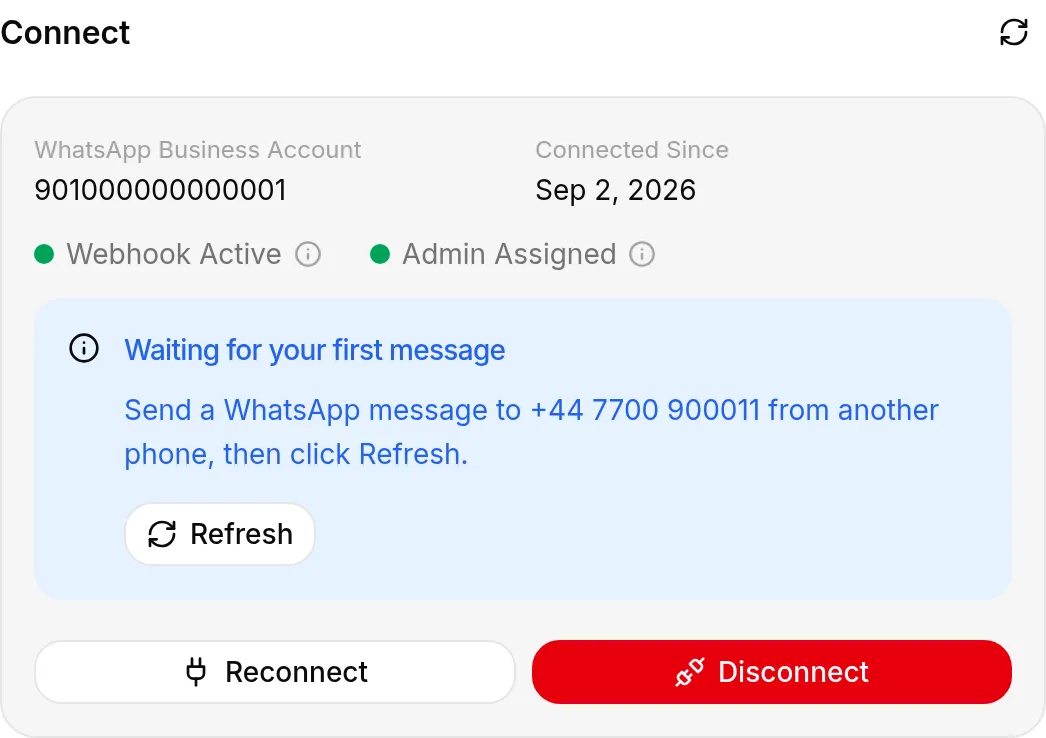 Connected panel बताता है कि क्या बाकी है: यहां, पहला message
- Waiting for your first message: किसी दूसरे phone से दिखाए गए number पर WhatsApp message भेजें, फिर Refresh पर click करें. Message आने के बाद, panel Webhook Active और Admin Assigned के पास Messages Received दिखाता है.
- Display name: panel में नीचे list किए गए हर number में Meta से उसका display-name status होता है (Approved, Pending review, Declined, Expired या No display name). चल रहा review आपसे कुछ नहीं मांगता और आमतौर पर कुछ दिनों में पूरा हो जाता है. Declined, expired या missing display name होने पर आपको WhatsApp Manager में एक submit करना होगा.
- Meta test number: अगर active number Meta द्वारा दिया गया +1 555 number है, तो panel ऐसा बताता है. ये numbers testing के लिए हैं और किसी दूसरे account में move नहीं किए जा सकते. Live जाने के लिए WhatsApp Manager में अपना number add करें.
जब panel Messages Received दिखाता है, तो आप live हैं! 🎉 Customers आपके WhatsApp number पर message भेज सकते हैं, और आपका AI Agent automatically respond करेगा.
अपने integration के final verification के रूप में, अभी connect किए गए WhatsApp number पर text message भेजें, फिर panel में Refresh पर click करें. Waiting for your first message बदलकर Messages Received हो जाता है, आपको अपने AI Agent से reply मिलना चाहिए, और conversation Quickchat AI App Inbox में दिखाई देनी चाहिए. अगर आप Meta के setup steps में से कोई भी unfinished छोड़ते हैं, तो Quickchat AI account owner को reminder के रूप में remaining steps email भी करता है.
Troubleshooting & FAQs
WhatsApp Business API Pricing कैसे काम करती है?
- User-initiated (inbound) customer inquiries के replies को WhatsApp Service messages मानता है. ये messages businesses को incoming customer inquiries manage करने की सुविधा देते हैं, चाहे वह human agent के जरिए हो या conversational AI-powered bot के जरिए.
- जब users किसी business को message करते हैं, तो इससे 24-hour customer service window खुलती है, जिसके दौरान businesses service messages के साथ respond कर सकते हैं, बिना किसी charge के. यह window हर user message के साथ reset होती है.
- 24 hours के बाद, आपको approved Message Templates (Marketing, Utility, Authentication, आदि) इस्तेमाल करने होंगे और WhatsApp Business Platform Message Rates के अनुसार per-message pay करना होगा.
- Conversations को Meta द्वारा categorize और bill किया जाता है. सुनिश्चित करें कि आपके WhatsApp Business Account में business-initiated/template messages के लिए valid payment method है.
Connect WhatsApp button काम नहीं करता. मुझे Meta pop-up नहीं दिखता.
- अगर आपका browser pop-up block करता है, तो app आपको pop-ups allow करने के लिए message दिखाता है. अपने browser में pop-up and tracker blockers disable करें, website refresh करें और फिर से try करें. अगर इससे मदद नहीं मिलती, तो कोई दूसरा browser try करें.
Number verification fail हो गया.
- सुनिश्चित करें कि number SMS/voice calls receive कर सकता है और किसी active registration path से blocked नहीं है जिसे Meta coexist करने की अनुमति नहीं देता. अगर number Business App में इस्तेमाल हो रहा है, तो Coexistence के जरिए onboarding try करें.
Meta कहता है कि मेरा setup finished नहीं है, या panel warning दिखाता है.
- पहले Connected के नीचे card पढ़ें: यह उस number का नाम बताता है जिस पर आपका AI Agent जवाब देता है और बताता है कि Meta अभी भी उसके display name को review कर रहा है, क्या वह Meta test number है, या क्या पहला message अभी तक नहीं आया है. हर card WhatsApp Manager में सही जगह link करता है.
- अगर warning connection के बारे में है, तो panel में Reconnect WhatsApp पर click करें. इससे अधिकतर cases resolve हो जाते हैं.
- अगर ऐसा नहीं होता, तो आपका number किसी दूसरे provider से connected हो सकता है (Meta एक समय में हर WhatsApp account पर केवल एक partner allow करता है). Meta Business settings में Quickchat AI को partner के रूप में add करने के लिए on-screen instructions follow करें, फिर Refresh Status पर click करें.
मैंने गलत account connect कर दिया.
- Reconnect पहले से connected account को बनाए रखता है. Switch करने के लिए, WhatsApp panel में Disconnect पर click करें, फिर Connect WhatsApp दोबारा करें और Meta की window में सही Meta Business account और WhatsApp Account चुनें.
Messages Quickchat AI Inbox में दिखाई नहीं दे रहे हैं.
- Confirm करें कि pop-up ने final confirmation दिखाया था कि आपका WhatsApp account connected था.
- Double-check करें कि आपने intended WhatsApp Account link किया है और सही AI Agent selected है.
- Waiting for your first message card उस number का नाम बताता है जिस पर आपका AI Agent जवाब देता है. सुनिश्चित करें कि आपने उसी exact number पर message किया है और वह panel में switched on है, फिर Refresh पर click करें.
- अगर आप user message के बिना 24 hours के बाद messages भेज रहे हैं, तो approved templates इस्तेमाल करें और सुनिश्चित करें कि WhatsApp Manager में payment method set है.
मेरे AI के WhatsApp replies send नहीं हो पा रहे हैं.
- Quickchat AI WhatsApp panel पर “WhatsApp replies are failing” alert और आपके dashboard पर notification दिखाता है. Common fixes: WhatsApp Manager में display-name approval complete करें; अगर connection expired or was revoked है, तो Reconnect पर click करें; अगर Meta ने quality या policy के कारण restricted your number किया है, तो WhatsApp Manager में उसका status check करें. Reply दोबारा successfully send होते ही alert clear हो जाता है.
Template या business-initiated messages fail हो रहे हैं.
- Verify करें कि आपके Message Templates approved हैं और आपका payment method WhatsApp Manager में active है.
- New senders messaging limits के साथ start करते हैं जो quality और verification के आधार पर scale करते हैं. अगर आप business-initiated messaging की limits hit करते हैं, तो Meta की Messaging Limits guidance review करें.
- अगर delivery throttled है, तो WhatsApp Manager में messaging limits और quality rating check करें.
अपना WhatsApp link और “Chat on WhatsApp” button कैसे बनाएं?
- इस WhatsApp tutorial को follow करें.
अपना WhatsApp QR code कैसे बनाएं?
- WhatsApp Manager पर जाएं → Phone numbers → अपना business phone number select करें → Message links → Create Message Link.
- वैकल्पिक रूप से, आप इसे अपने WhatsApp Business mobile app में पा सकते हैं. इस WhatsApp tutorial को follow करें.
मदद चाहिए?
WhatsApp पर Quickchat के Support AI से chat करें:
📱 +1 302-405-9992: Chat शुरू करें
या QR code scan करें: