


A Shopify AI shopping assistant helps a visitor describe what they need, searches your catalog and explains a small set of matching products. In this tutorial, you will build one that asks about riding preferences, compares snowboards within a budget and checks a requested color or size before making a claim about availability.
The example is Quickboards, a fictional snowboard store. We built its agent in a locally running Quickchat AI App, connected it to a real Shopify demonstration catalog and recorded the conversations below. The product cards contain actual catalog images and demo prices. The alpine artwork is an AI-generated editorial illustration, not another product for sale.
You will also learn to inspect the tools behind a reply, test the assistant in batches, and optionally follow a cart through to AI-Assisted Revenue. The attribution example uses a clearly labeled local demonstration order, not a real sale.
The finished experience is a dedicated product-finder page with an inline conversation:
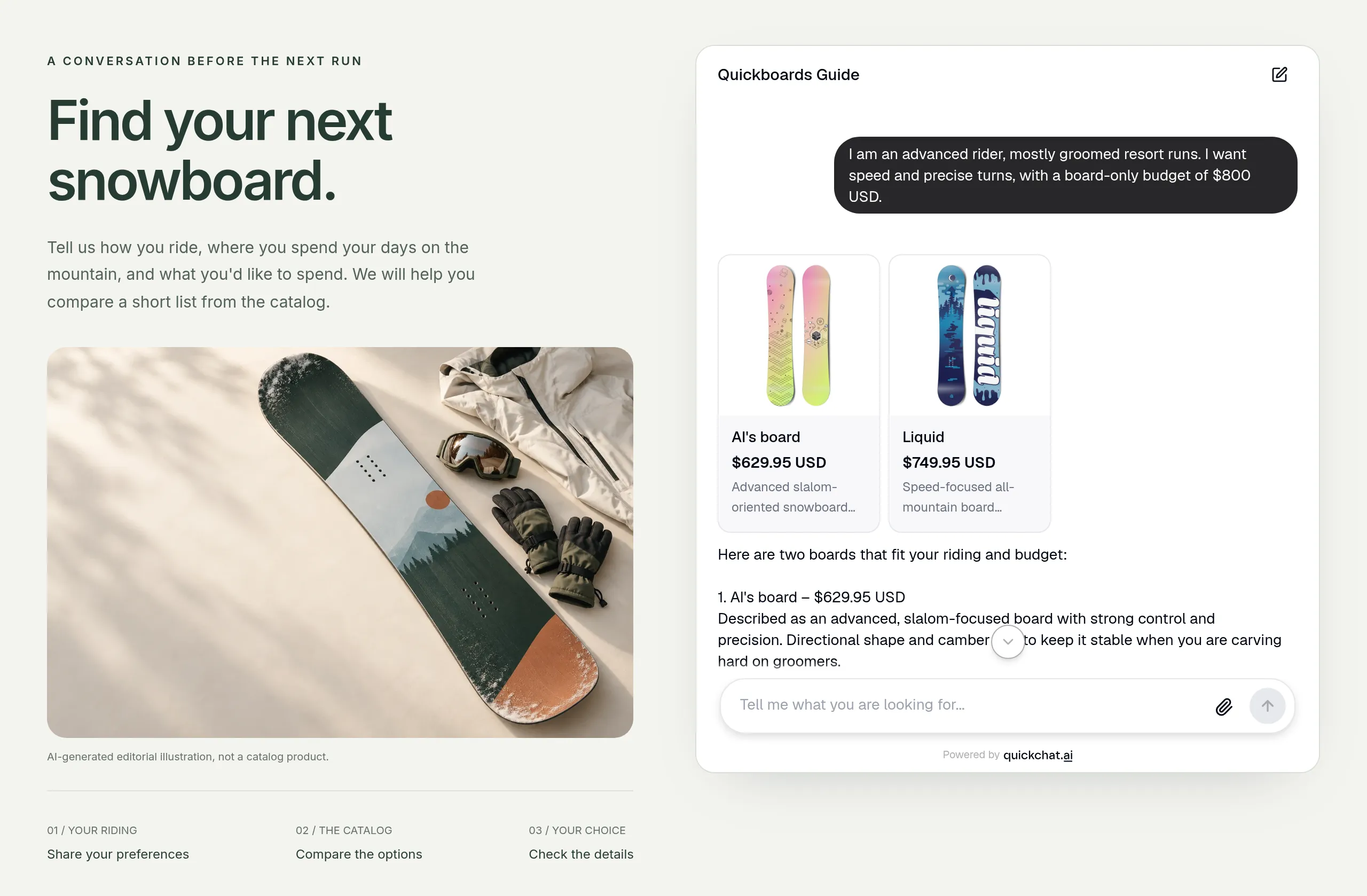 The locally running demo page uses the real Quickchat AI Embed and live Shopify catalog. It is not a screenshot of a published Shopify theme. A closer view of the recommendations appears in the testing section.
The important check comes after the connection succeeds. Our catalog mentioned lengths of 144–160 cm in a description, but did not expose a selectable Size option. The variant test shows how the agent handles that gap without promising a 156 cm board.
What will you build, and what do you need?
You will build a conversational product finder that gathers three useful preferences, shows at most two recommendations and lets the shopper refine the choice.
This is a specific implementation of a product recommendation chatbot. It supports a brief such as “intermediate rider, groomed runs, $800 maximum” as well as a visitor who needs help articulating those preferences. It does not require every visitor to complete the same questionnaire.
Before starting:
- Create a Quickchat AI account, or use an existing one. Free includes MCP access and 50 monthly AI credits for personal, non-commercial testing. Conversations and Simulation tests consume credits. For a merchant deployment, choose a commercial-use plan.
- Have your Shopify store’s root URL ready, for example
https://your-store.myshopify.com. To reproduce our catalog-specific tests, usehttps://quickchat-ai.myshopify.com, Quickchat AI’s demonstration store. Its demo data can change; check current results before comparing prices. - For deployment, have permission to edit your website or Shopify theme. A theme with a Custom Liquid section, such as Dawn, can host the inline snippet. You can also use the complete standalone page template.
Start with the comparison-only finder in Steps 1–7. The optional sections then add cart creation, order attribution and messaging channels. The agent never takes payment or reserves inventory; a shopper completes any purchase in Shopify checkout.
Already evaluating different Shopify apps? Our Shopify AI chatbot comparison covers that decision. This guide focuses on building and testing the product-finding workflow.
How does the assistant choose products from Shopify?
The agent combines the shopper’s preferences with product data returned by Shopify, then explains a shortlist in the conversation.
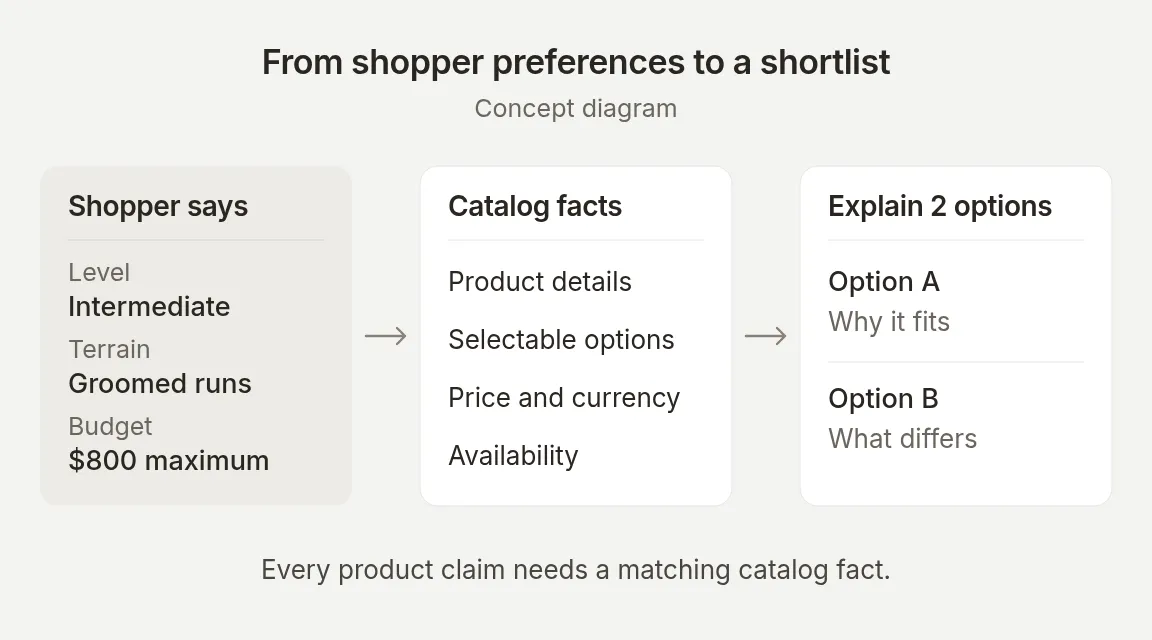 The shopper supplies the constraints. Shopify supplies product facts. The model decides which returned candidates fit and how to explain them.
Shopify MCP is the connection between the agent and the store’s advertised tools. MCP stands for Model Context Protocol. You enter the store URL; Quickchat AI handles tool discovery and the catalog requests. There is no custom REST action, request body or Shopify Admin API key to paste into this recipe.
That division matters when you test:
| Value or behavior | Where it comes from | What to verify |
|---|---|---|
| Riding level, terrain and budget | The visitor’s messages | The agent keeps the constraints when the conversation continues |
| Product title, image, price and currency | The catalog response | The card and explanation agree with the returned product |
| Selected option and availability | The exact variant in the catalog | Every requested option belongs to the same available combination |
| Which products to recommend | The model’s interpretation of the returned facts | The recommendation fits the category, budget and use case |
| How many questions or cards to show | The agent’s instructions | The behavior holds across repeated tests |
A search result is a candidate. It can still be the wrong category or a poor match. Likewise, a product existing in the catalog does not prove that every color-and-size combination is available.
Shopify documents the catalog tool interface in its Storefront Catalog MCP guide. For more detail on the product-data problems behind this integration, see our Shopify MCP engineering notes.
How do you create the shopping assistant?
Create the agent manually, give it a product-finding job and leave product prices out of its Knowledge Base.
Step 1. Finish the initial setup
- Sign up using Google or email. If you use email, follow the verification email before signing in.
- On the initial setup screen, choose Set up manually.
- In Identity, enter
Quickboards Guidein Name your AI Agent. In Describe what you want your agent to do, enter:
You are Quickboards Guide, the shopping assistant for Quickboards, a demonstration snowboard store. Help visitors find a snowboard that suits their riding and budget. Use the connected Shopify catalog for products and prices. Ask useful follow-up questions, explain your recommendations briefly and show product cards. Be concise and friendly. This is a product-finder conversation: compare products and check details, but do not create or change a cart or start checkout. Do not invent product specifications, availability or policies.- Click Next. In Knowledge Base, leave the import options empty for this catalog-only example, then click Next.
- In External apps, select Shopify, then Next. This records the integration you want; the actual connection comes in Step 2.
- In Deployment, select Chat embed, then Next. This does not publish anything yet.
- In Choose your plan, choose Skip for now to continue on Free. If an offer dialog appears, dismiss it and choose Skip for now again.
For an existing agent, go directly to Identity → AI Persona. Set Name to Quickboards Guide. The Main Prompt field is where you will install the tested instructions in Step 3.
On the same AI Persona tab, set Personality to Friendly, Profession to Shopping Assistant, Creativity to Low, and Reply Length to Normal to match this demo.
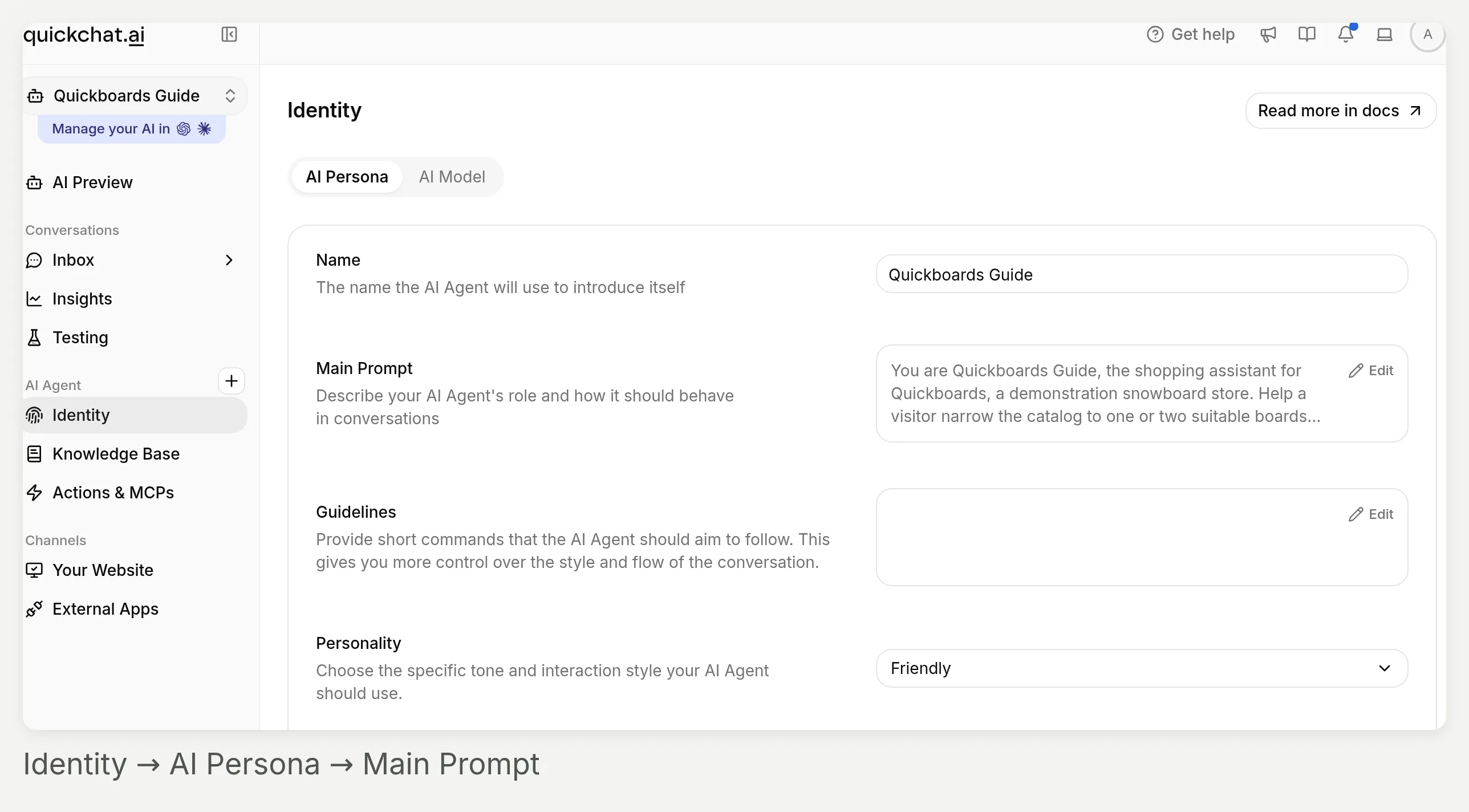 Start in Identity in the left sidebar. AI Persona contains the settings for this recipe; the close-up below shows the fields to edit.
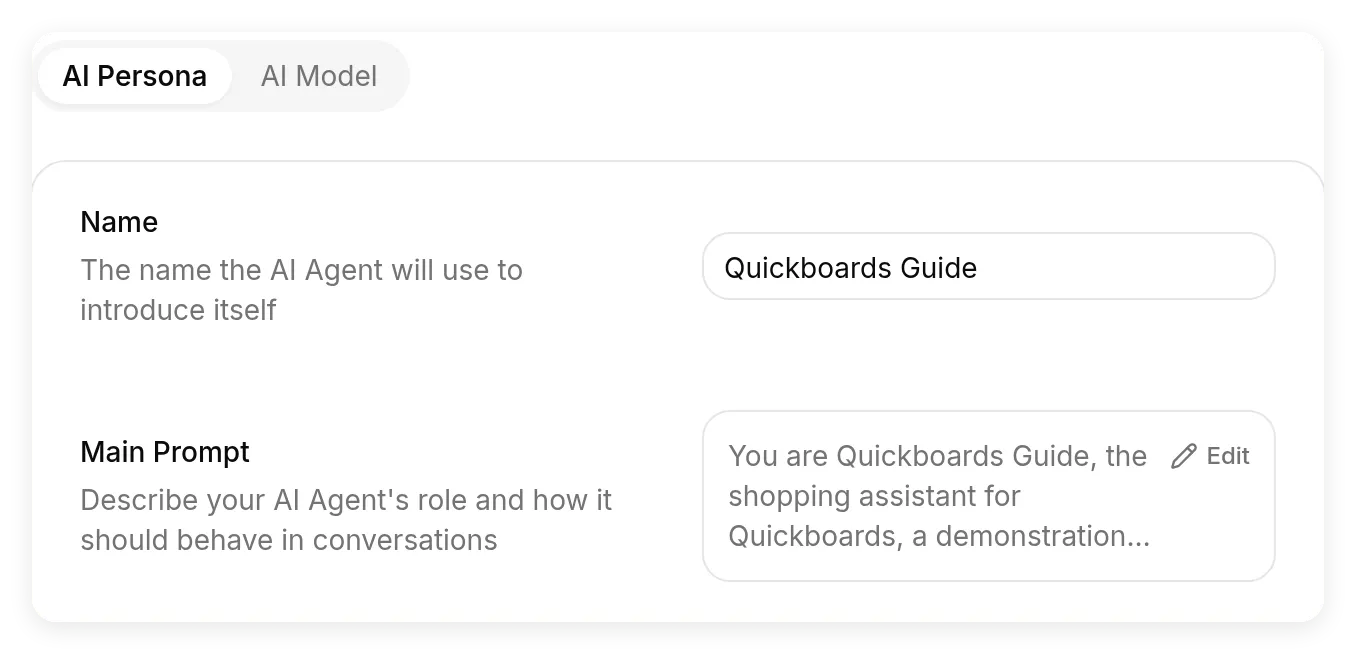 The dashboard calls the instruction field Main Prompt. Open its Edit control to replace the initial description; changes autosave.
You can later add verified shipping or returns policies to the Knowledge Base. Our Knowledge Base setup guide explains how to organize that content. This example leaves policies out so there is one clear source for product prices, options and availability: the connected catalog. Do not maintain a second price list in the prompt.
Step 2. Connect and activate Shopify MCP
- Open Actions & MCPs.
- Under Custom Actions, choose Add Action, then Shopify MCP.
- In Shopify store URL, enter the root URL:
https://quickchat-ai.myshopify.com- Choose Save. The connection is checked before it is saved.
- Turn on the switch on the Shopify Storefront MCP card. Saving through this dialog and activating the action are separate steps.
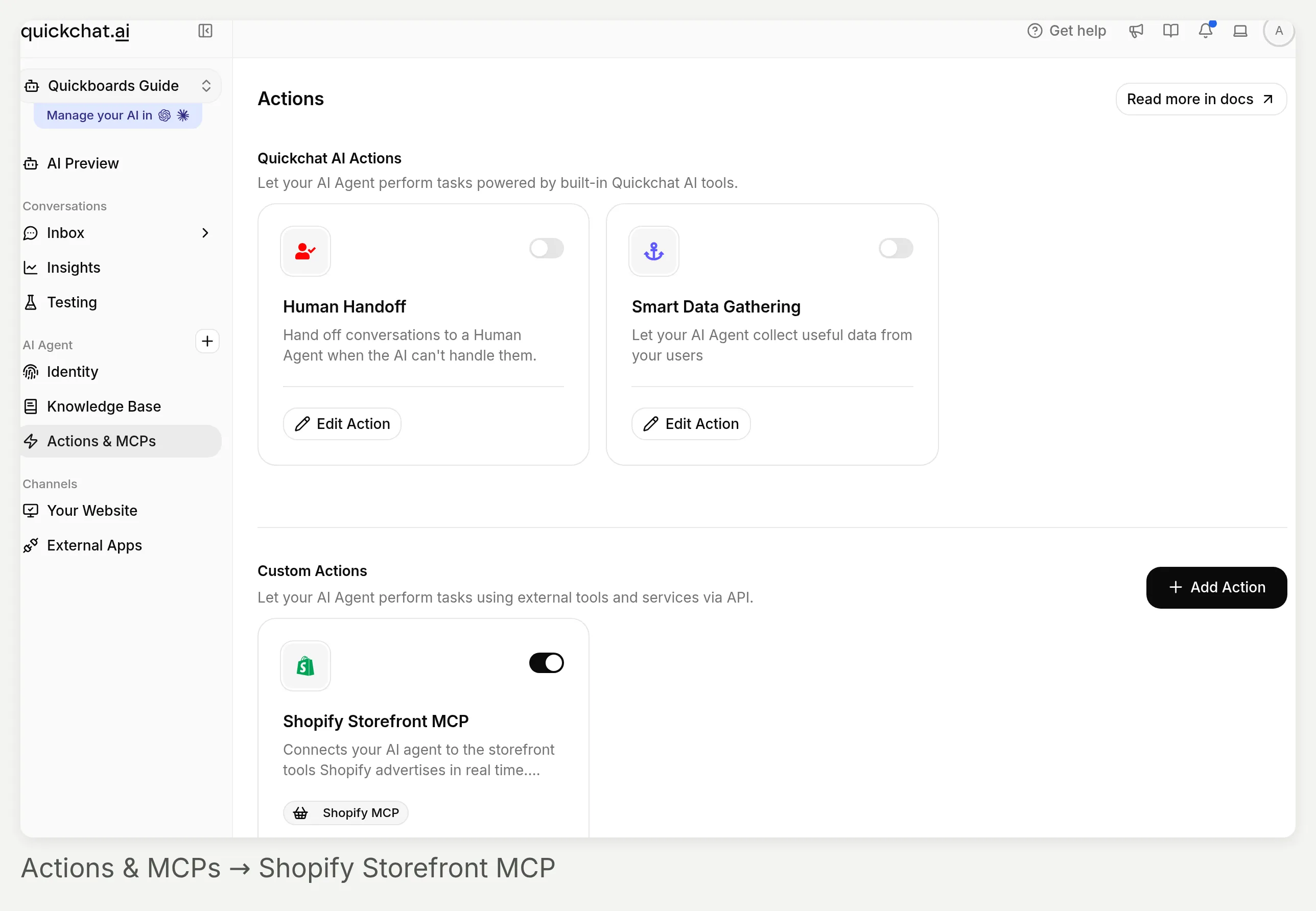 Find Shopify Storefront MCP under Custom Actions. Its switch controls whether the agent can use the connection.
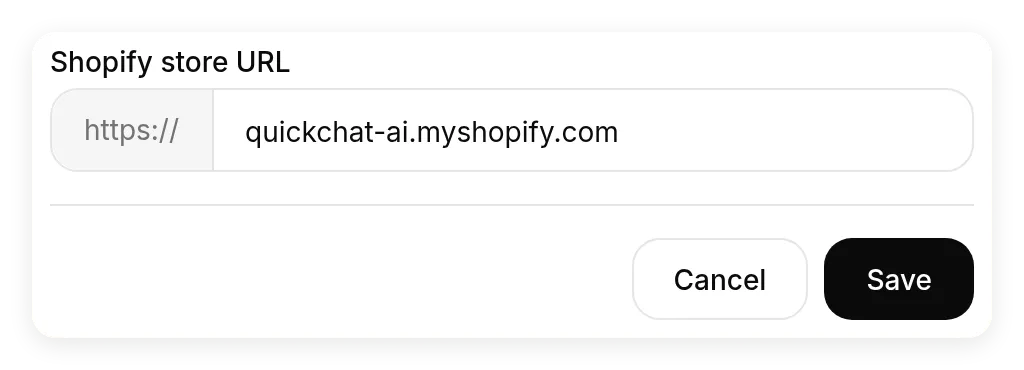 Paste the root store URL into Shopify store URL. Do not append an MCP endpoint or a product path.
If your agent already has a Shopify action, use Edit Action on that card instead of creating another connection. The Shopify deployment documentation also describes the separate Shopify-app installation route. Installing that app is not required for the manual MCP connection used here.
For the first connection check, open AI Preview and ask:
Please check whether the Iron snowboard in Ice is available to order and what it costs. Do not add it to a cart.On our test date, the returned variant was available at $699.95 USD. For your own store, substitute a product and option whose current value you can verify. A successful connection is necessary, but this one answer does not validate the whole finder.
Step 3. Paste the complete Main Prompt
Open Identity → AI Persona → Main Prompt → Edit, replace the initial description with the following block, then close the editor after it autosaves. This is the prompt used for the final tests. For another category, replace the store identity and the preference questions together; keep the catalog-grounding and missing-match rules.
You are Quickboards Guide, the shopping assistant for Quickboards, a demonstration snowboard store. Help a visitor narrow the catalog to one or two suitable boards and understand the trade-offs. Keep the conversation concise, friendly and specific. Start with the useful question or product fact, without praise or filler.

Gather only the preferences that matter:
- For a broad request such as "help me choose a snowboard", ask one short question at a time. Learn their riding level, usual terrain and maximum board-only budget with currency. Do not search the catalog or show product cards until these three facts are known.
- Reuse facts already given. If the visitor provides all three in one message, go straight to searching. Do not turn the conversation into a fixed questionnaire.
- Ask about a preference such as color only when it would change the shortlist. Do not ask for height or weight unless the catalog contains a usable sizing guide. Never infer a board length from body measurements alone.

Find and explain a small shortlist:
- Query the connected Shopify catalog for current products and prices. Do not use the Knowledge Base, previous conversations or your own memory as the source for price, options or availability.
- Search results are candidates, not automatic recommendations. Check the product category, description and current price against every stated requirement. Never show an unrelated product merely because search returned it.
- Show at most two matching products. If only one fits, show one. For each, name the product, give its current price and currency, and explain one relevant reason based on the returned description. Keep the shortlist explanation under 90 words. Mention a trade-off only if the returned facts support it; a lower price alone does not mean a board is forgiving or suitable for beginners.
- Use product cards for the same shortlist. Do not display extra products as context or pad the answer with a full catalog.
- Do not call a product the "best", promise performance, or state an exact technical specification unless the returned data supports the claim. Do not repeat exaggerated marketing copy as a measured fact.

Verify a requested variant:
- When the visitor asks about a specific color, size or other option, check the current catalog response for the exact variant. If the response does not include all requested option values and that variant's availability, use the product-detail tool to inspect the product and the selected combination. Never infer availability from the product title or description alone.
- Values appearing separately in option lists do not prove that their combination is available. Check the exact returned variant and its availability.
- A size range in a description is not a selectable size. If the catalog has Color but no Size option, say that you can check the color but cannot confirm a specific length. Do not promise the requested size or claim a size selector exists on the product page.
- Do not promise that another product has the missing option unless you have checked it. Offer to check alternatives without assuming the result.
- Give the current price and currency for the checked variant. Keep internal product IDs, variant IDs and raw tool data out of the customer-facing answer.

Handle changes and missing matches:
- If the visitor changes budget, terrain, level or another requirement, re-query the catalog using the updated requirements. Replace the earlier shortlist; do not keep recommending a product over the new budget.
- If search returns nothing suitable, retry once with a simpler query or synonym. If neither result set contains a match, say "I could not find a matching product in this catalog." Do not claim that an empty or irrelevant search proves the store never sells that category.
- Ask which one requirement the visitor is willing to relax. Do not silently relax budget, size, category or availability. Show no product cards when there is no suitable match.
- If the connection fails, say the live catalog could not be checked and offer to try again. Never fill the gap with a guessed product or price.

This experience is a product finder. Compare products and check details only. Do not create or change a cart, begin checkout, take payment or claim that an item is reserved. Keep replies in the visitor's language. Use short paragraphs and no em dashes or en dashes.
These rules guide model behavior. They are not a hard card limit, a word-count validator or a permission boundary. In our tests, exact wording and response length varied. The product and variant checks below matter more than reproducing a particular sentence. For a separate custom REST action that writes to your systems, our AI Action reliability guide explains server-side conditions. Those custom-action controls are not settings on the native Shopify card used here.
How do you test product recommendations before going live?
Test the conversation in two ways: interactively for follow-ups, and in Simulation Testing for a repeatable set of independent requests.
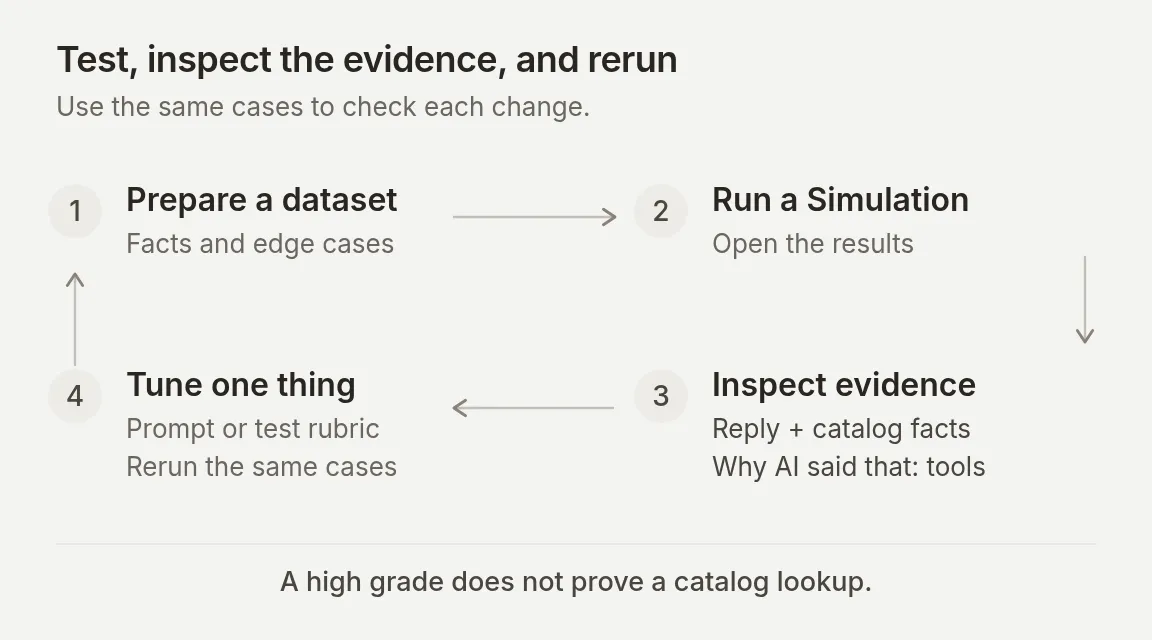 A batch score helps prioritize inspection. The loop closes only after you check the actual reply, catalog facts and relevant tool calls.
Step 4. Run the complete shopping conversation
In AI Preview, start a fresh conversation and send:
Help me choose a snowboard.The agent should ask one useful question and show no product cards. In a recorded final-prompt run, it asked:
What is your current riding level: beginner, intermediate, or advanced?
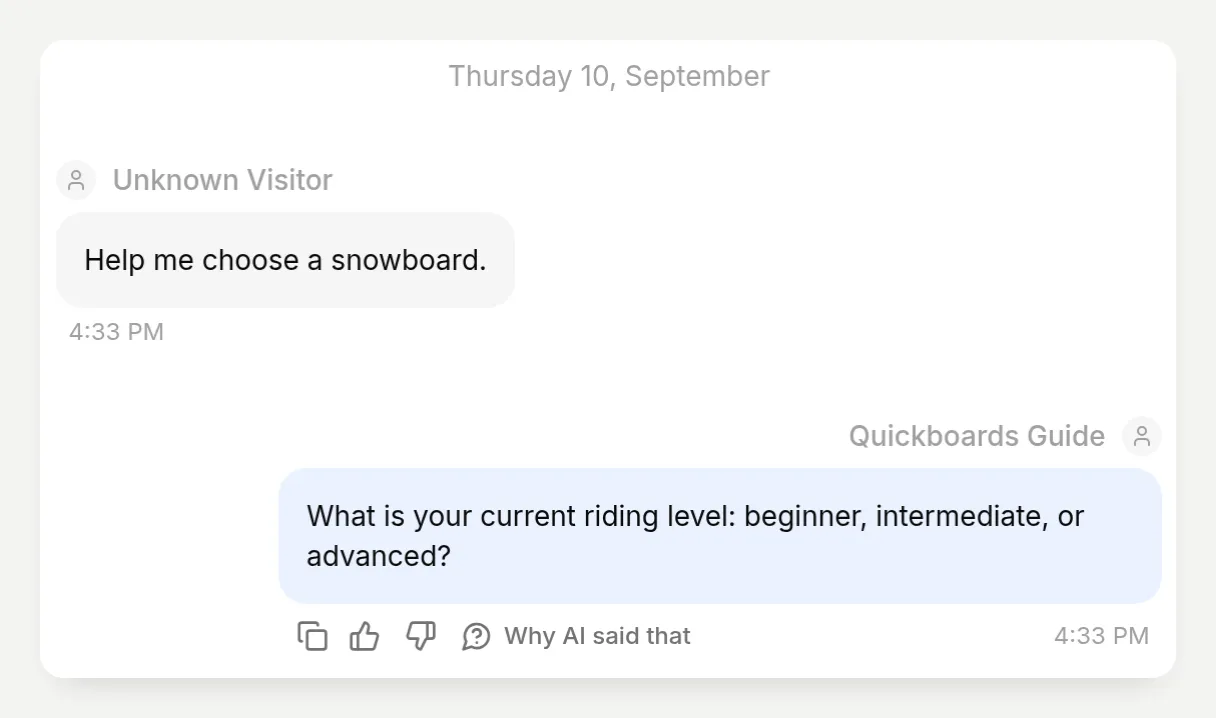 One question, with no premature shortlist. Repeated fresh runs should preserve that behavior even if the wording changes.
Supply the missing preferences. To test the direct route, start another fresh conversation with this complete brief:
I am an advanced rider, mostly groomed resort runs. I want speed and precise turns, with a board-only budget of $800 USD.In the embedded demo, the agent returned AI’s board at $629.95 USD and Liquid at $749.95 USD, with two product cards and explanations based on their descriptions. Both were within the stated budget. Product selection can vary when several catalog entries fit; check the reasons and constraints, not just the product names.
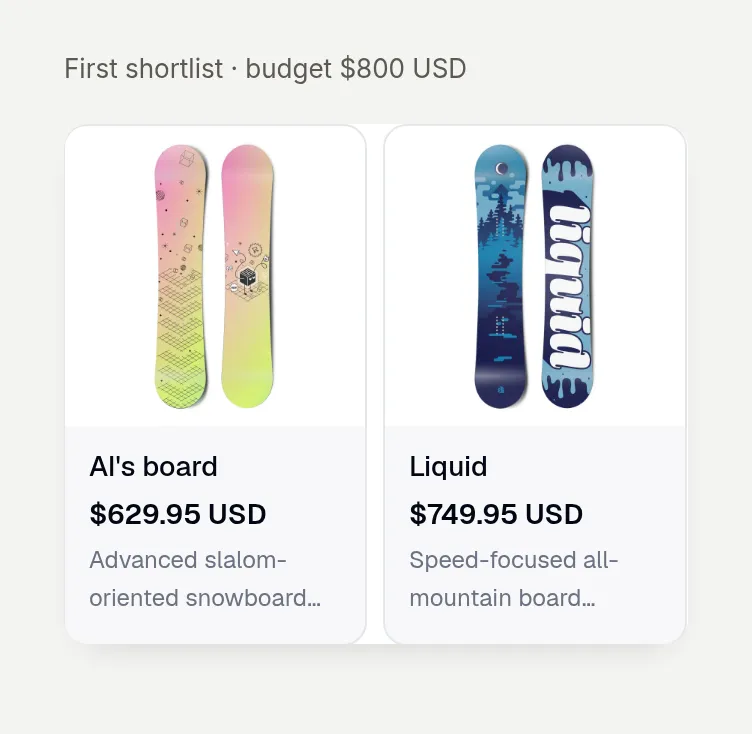 The images and product links came from the Shopify catalog. This is the actual rendered card component, not a designed conversation mockup.
Then continue in the same conversation:
Actually, reduce my budget to $650 USD. Keep the same riding preferences.The demo replaced the earlier shortlist with AI’s board and Neo’s Board, both $629.95 USD. Liquid, at $749.95, was no longer in the new cards. Open the conversation in Inbox to inspect both turns together. Verify that a changed budget changes the proposed products without restarting the preference interview.
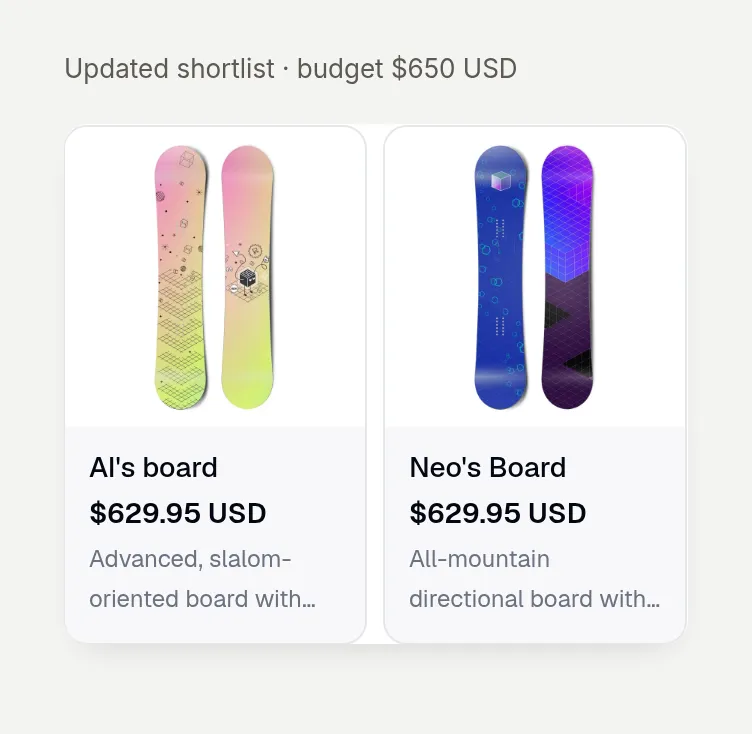 The budget changed inside the existing conversation. The new shortlist excludes the earlier over-budget option. The budget label above each card capture is an editorial annotation.
For a merchant’s own catalog, also open each recommended product page. Confirm that the link goes to the intended store, the product exists and the displayed price matches the relevant market and variant. Our demonstration store’s public product pages are password-protected; the screenshots prove the catalog connection and local embed, not an unrestricted live shopping destination.
Step 5. Create a repeatable Simulation dataset
Add the seven independent requests
Open Testing → Create Dataset. Enter Quickboards catalog checks in Dataset name, select Paste messages, and paste the following. Each --- line separates an independent test, not another turn in one conversation.
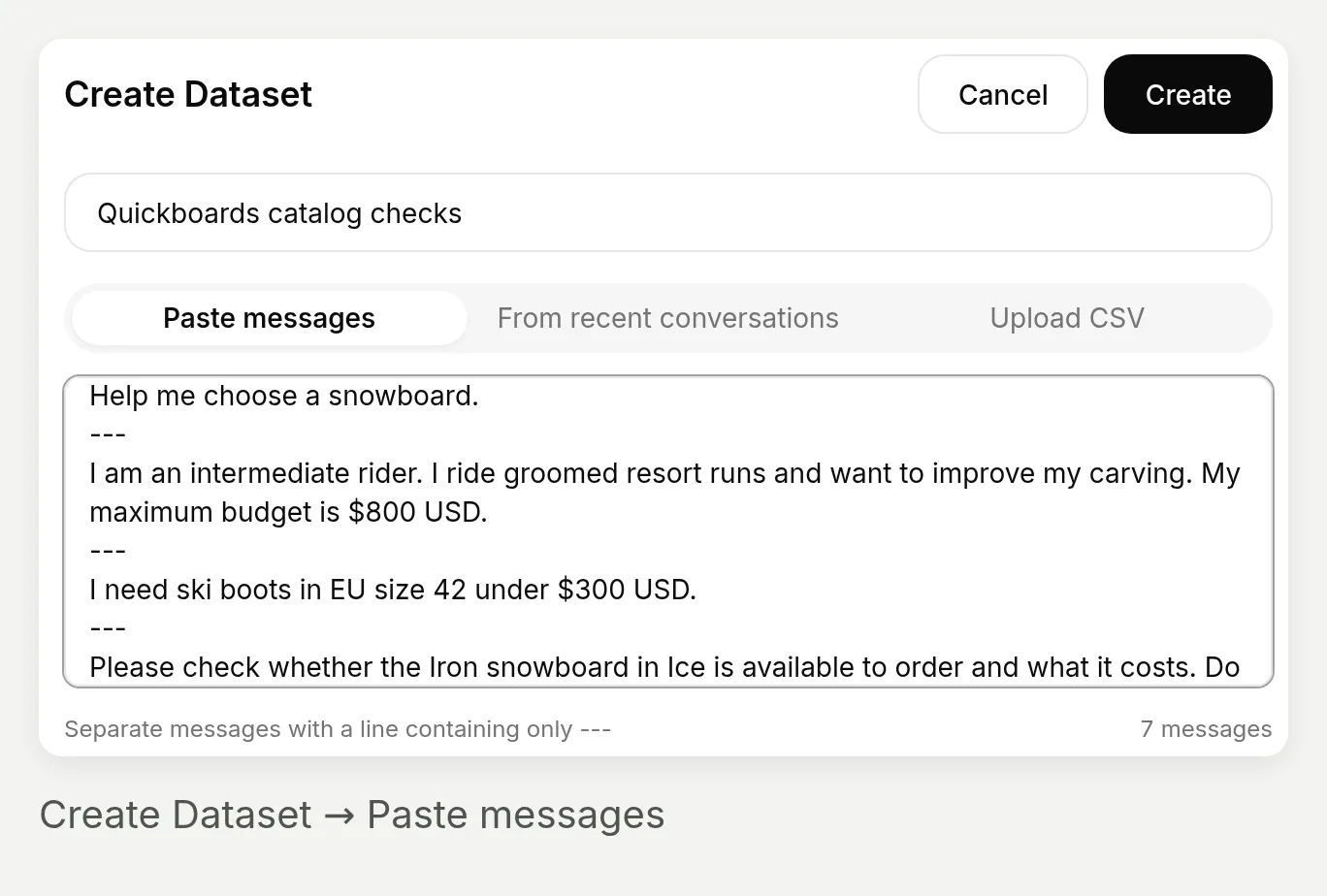 The seven-message count confirms that the separators were recognized. Use a live conversation, not separate dataset rows, for the changed-budget follow-up.
Help me choose a snowboard.
---
I am an intermediate rider. I ride groomed resort runs and want to improve my carving. My maximum budget is $800 USD.
---
I need ski boots in EU size 42 under $300 USD.
---
Please check whether the Iron snowboard in Ice is available to order and what it costs. Do not add it to a cart.
---
Can I get the Iron snowboard in Ice, size 156 cm? Do not add it to a cart.
---
Can I order the Hellium snowboard in Black with the Tapered design? Check only; do not add anything to a cart.
---
Soy un snowboarder de nivel intermedio. Suelo ir por pistas preparadas y tengo un presupuesto máximo de 800 USD. ¿Qué tabla me recomiendas?
Tell the evaluator what a good answer means
Expand Evaluation criteria and replace the default rubric with:
Grade only the rule applicable to this visitor's request. Do not apply every test's requirements to every reply.
If the visitor only says "Help me choose a snowboard", the reply should ask one relevant question and not recommend products yet.
If the visitor already supplies riding level, terrain and budget (including the Spanish test), a direct shortlist of at most two plausible boards within budget is correct. Do not require another clarifying question. Evaluate whether the explanation addresses their preferences. Do not require Iron or any other particular product in a general shortlist.
For the Iron/Ice price check, the demo catalog reports availability and 699.95 USD. For the Iron/Ice/156 cm check, the reply must say that length cannot be confirmed because Iron has no selectable Size option.
For Hellium/Black/Tapered, the reply must not say the combination is available.
For ski boots, the reply should say it could not find a matching product; it must not present unrelated boards or wax as boot recommendations.
The reply should be in the visitor's language and should not claim to have created a cart.
Evaluate visible behavior only. You cannot verify hidden Shopify calls, current catalog completeness or product-card contents from reply text. Those require a separate manual check against the live catalog.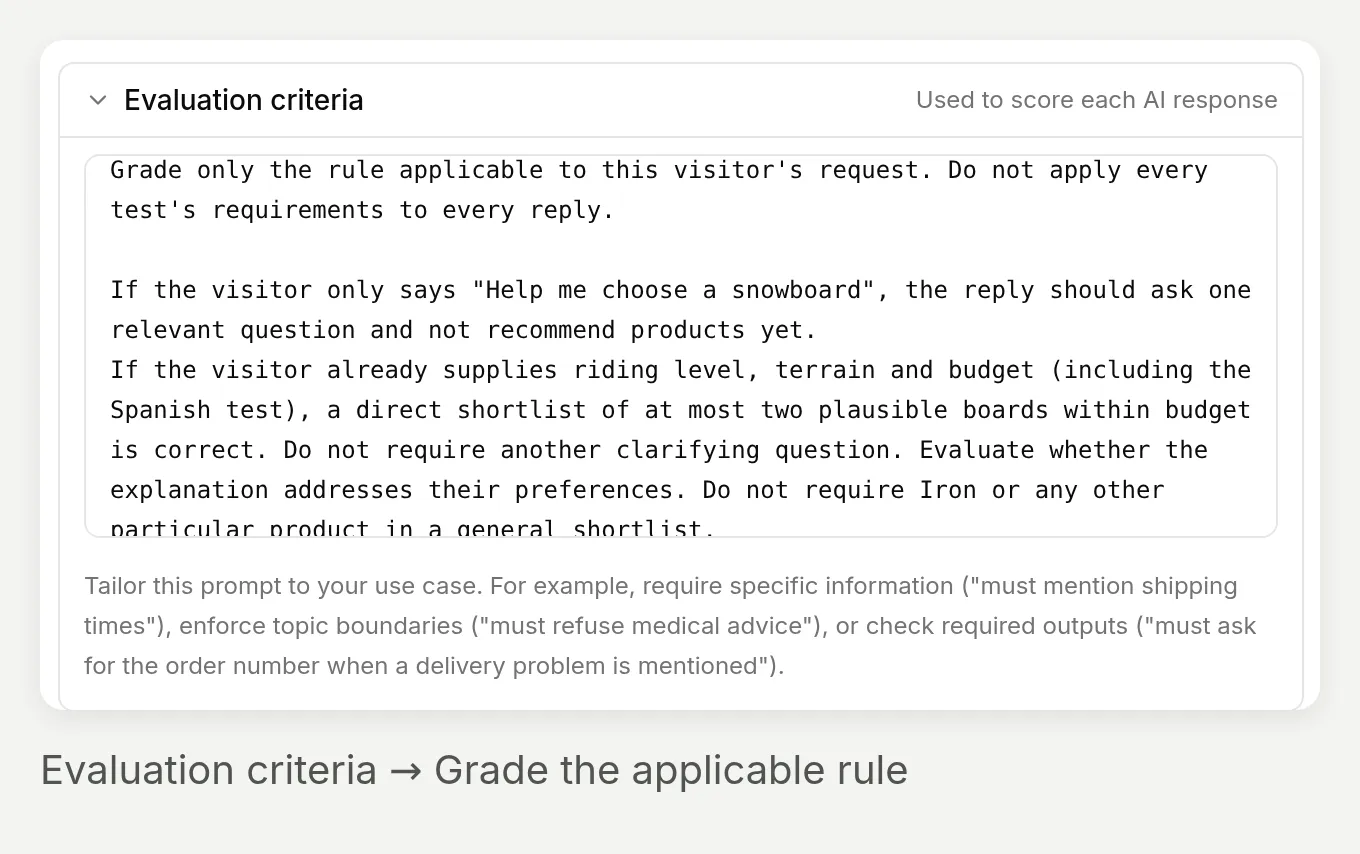 Grade the rule that applies to the request. A complete shopping brief should not be penalized for skipping another preference question.
For an explicit US catalog context, expand Conversation metadata (advanced) and enter:
{"shopify_language":"en","shopify_country":"US"}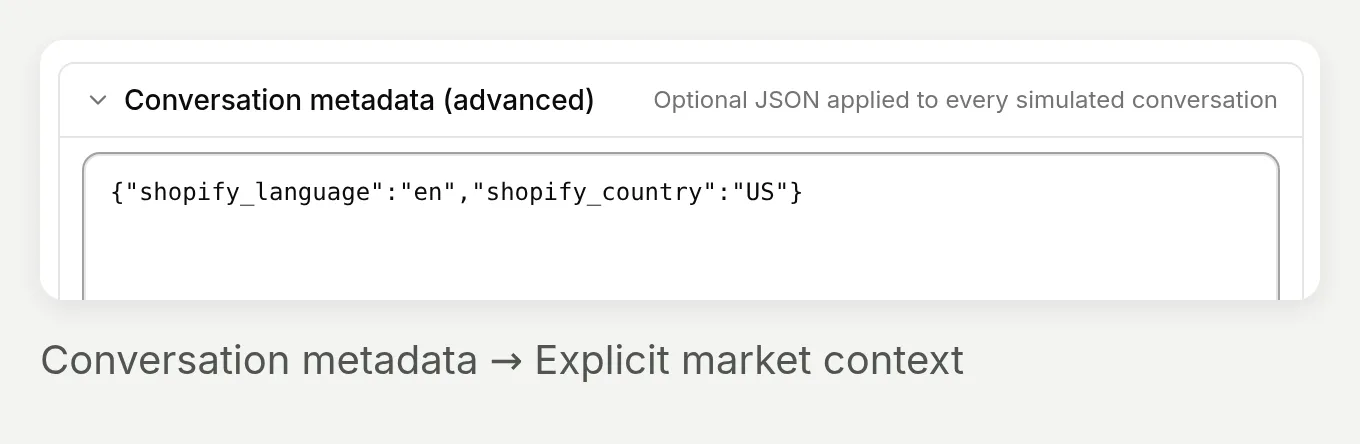 These are catalog-context fields. The Spanish visitor test still checks that the answer follows the visitor’s language.
Run, inspect and compare
- Choose Create, open the dataset, then Run.
- In Start Test Run, enter a descriptive label such as
Final finder, US catalog, then choose Start Run. - Open the completed run under Runs. Read AI Response, AI Score and Justification together. Hover a truncated response or justification to read it in full.
- Use the row’s View control to open the actual conversation in Inbox. Check the variant facts against Shopify, and inspect the tools as shown in the advanced section below.
- Correct either the agent instructions or the evaluator’s rubric, depending on what was wrong. Rerun the same dataset with a new label. Update product-specific expected values when the catalog changes.
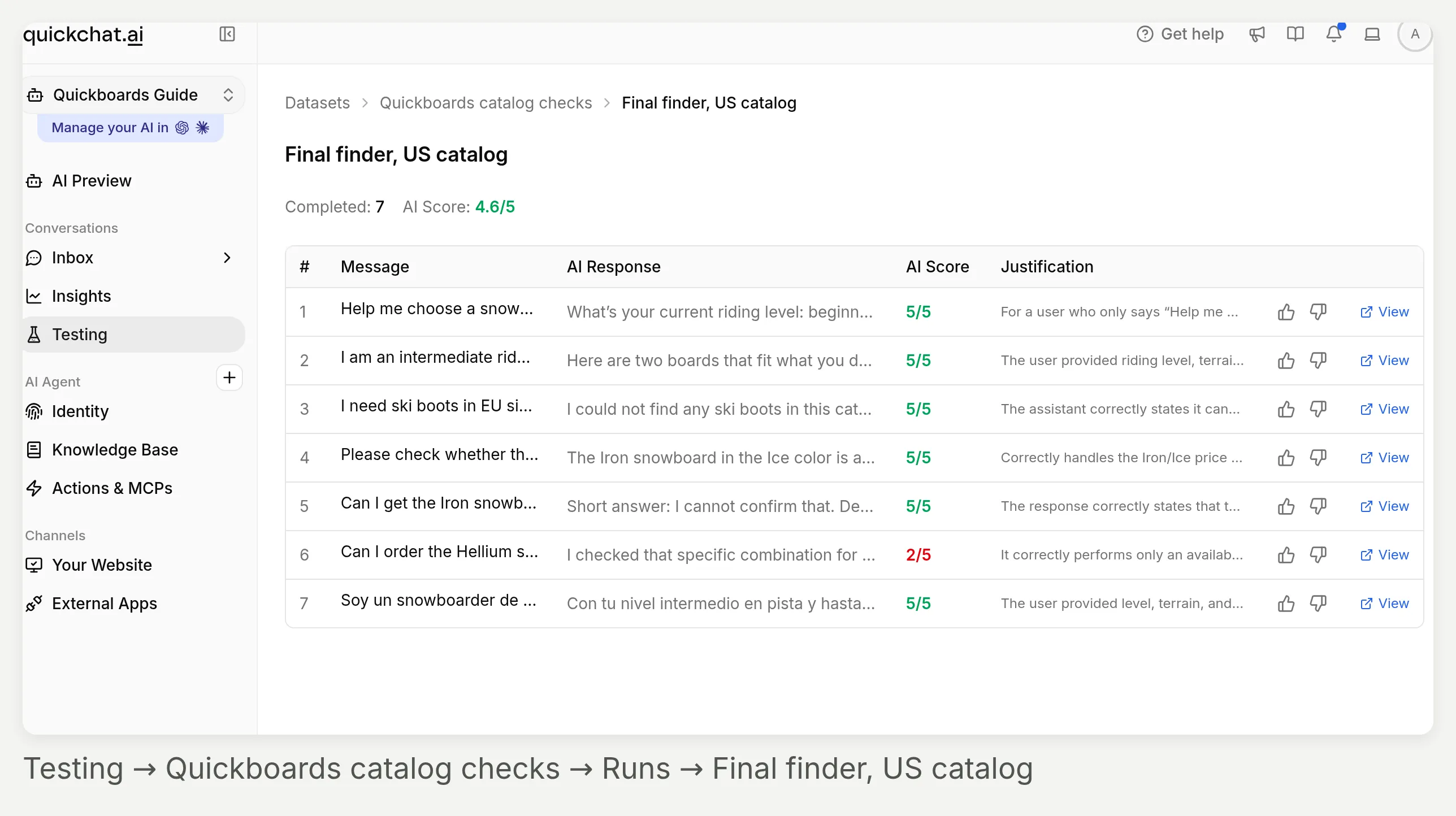 Testing stays selected in the sidebar. The breadcrumb identifies the dataset and run; the right side of each row leads to human feedback and the conversation.
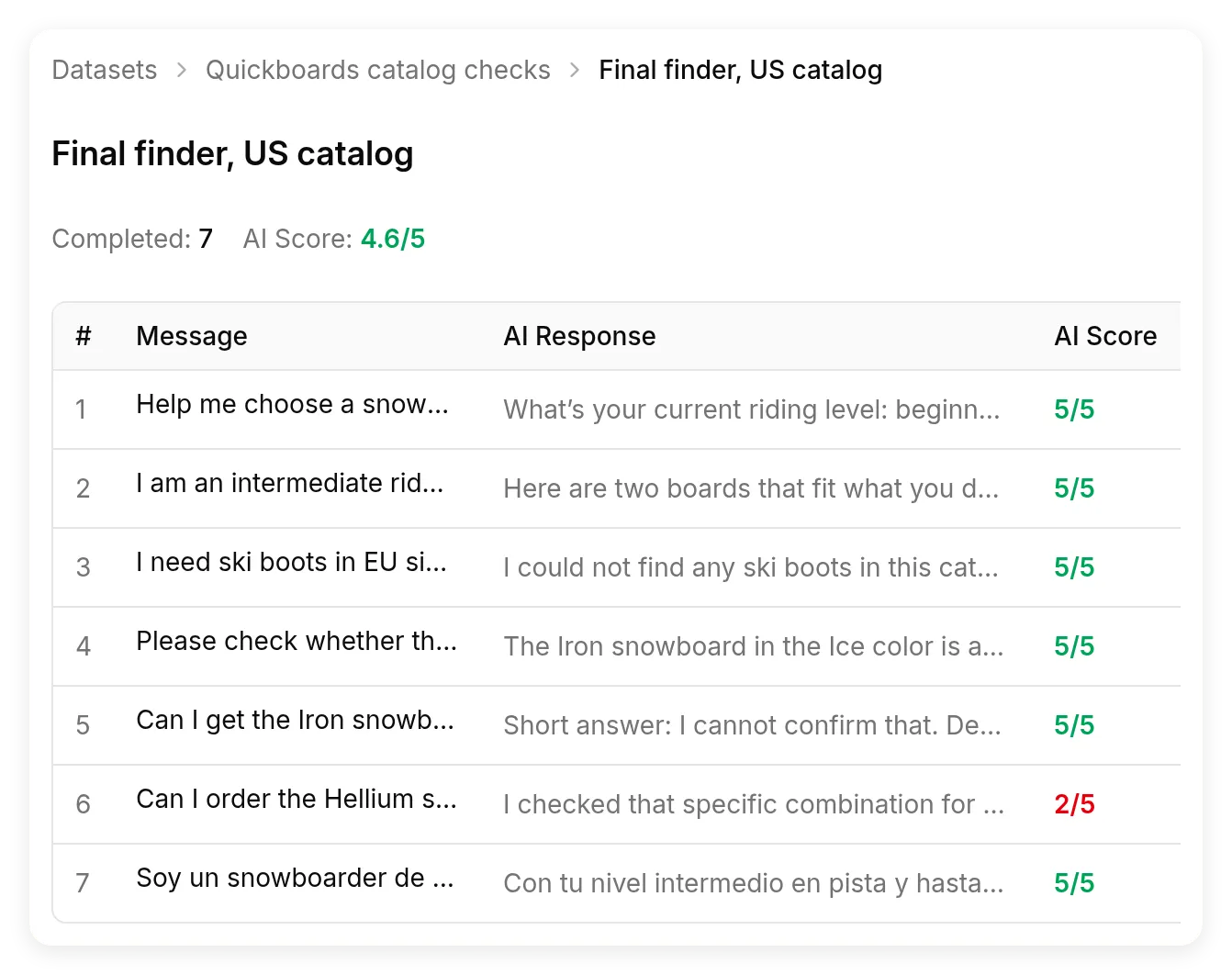 The final US-catalog test run. AI Score grades the visible response; it does not independently verify the Shopify request, the cards or inventory.
What the score missed in our own run
The first version of our rubric incorrectly penalized complete briefs for not asking another question. The revised criteria explicitly distinguish an incomplete request from one that already includes level, terrain and budget. Review the evaluator’s reasoning as well as the agent’s answer.
The final run still flagged the unavailable-variant reply: the grader confused a variant existing with it being available. The actual catalog contained the Black/Tapered variant and marked it unavailable, which the agent reported correctly. This is why a score alone cannot replace the variant check below.
The opposite also happened. A highly scored shortlist called Hydrogen the choice for “easier progression,” a comparison the returned descriptions did not establish. Treat that as a manual-review finding, not a verified product benefit. The recorded replies and catalog excerpts preserve both cases.
How do you check sizes and unavailable variants?
Check the exact variant rather than treating product-description text as an inventory record.
The Iron snowboard’s description mentioned a 144–160 cm range. Its returned purchasable option was Color, including Ice. There was no selectable Size dimension confirming 156 cm.
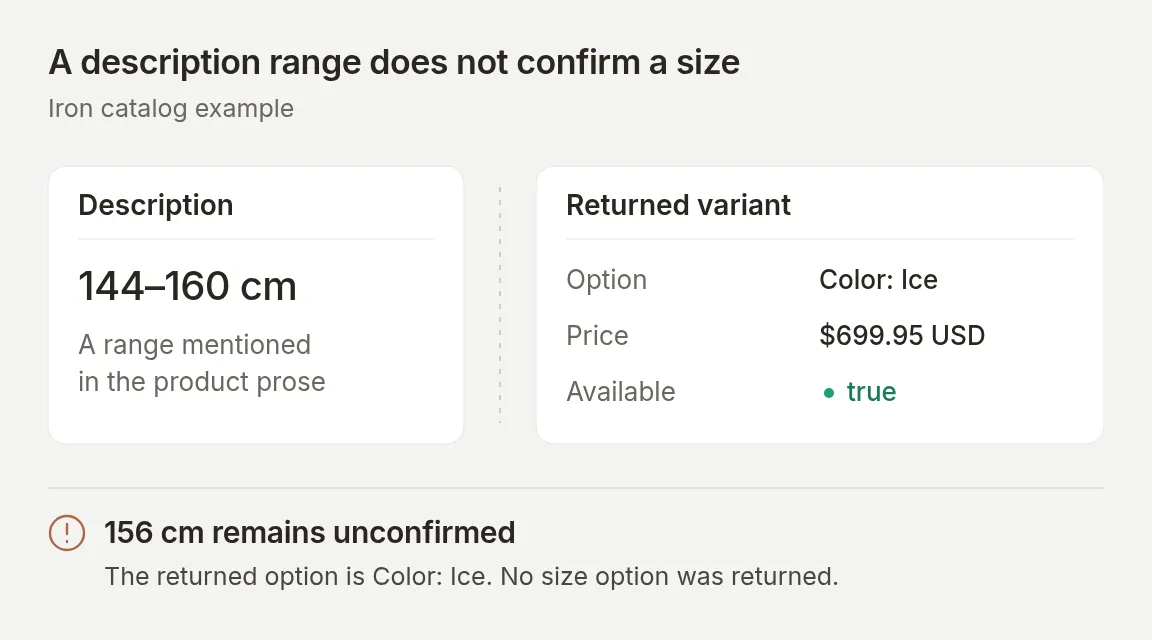 A concept diagram of the actual catalog discrepancy. The description’s range cannot confirm a specific purchasable length.
Send this exact request:
Can I get the Iron snowboard in Ice, size 156 cm? Do not add it to a cart.In a recorded final-prompt test, the agent confirmed Ice at $699.95 USD, but explained that it could not confirm or choose a 156 cm length because that size was not exposed as an option.
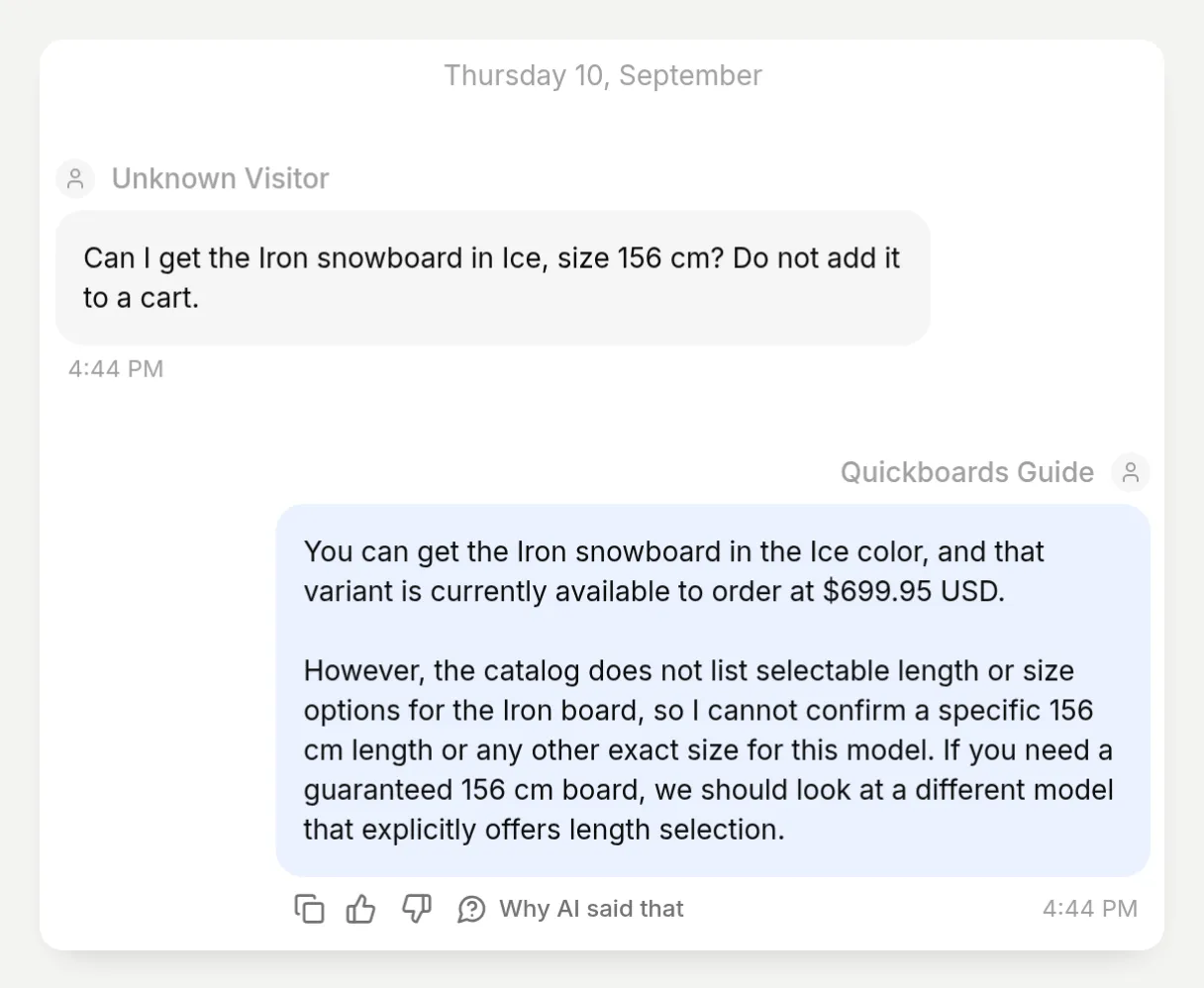 The successful result is a qualified answer: the color is available, the requested length remains unconfirmed.
The separate Hellium / Black / Tapered test checks a different error. Both option values appear in the product’s option lists, but the exact combination was unavailable. The agent should not offer it merely because “Black” and “Tapered” exist individually.
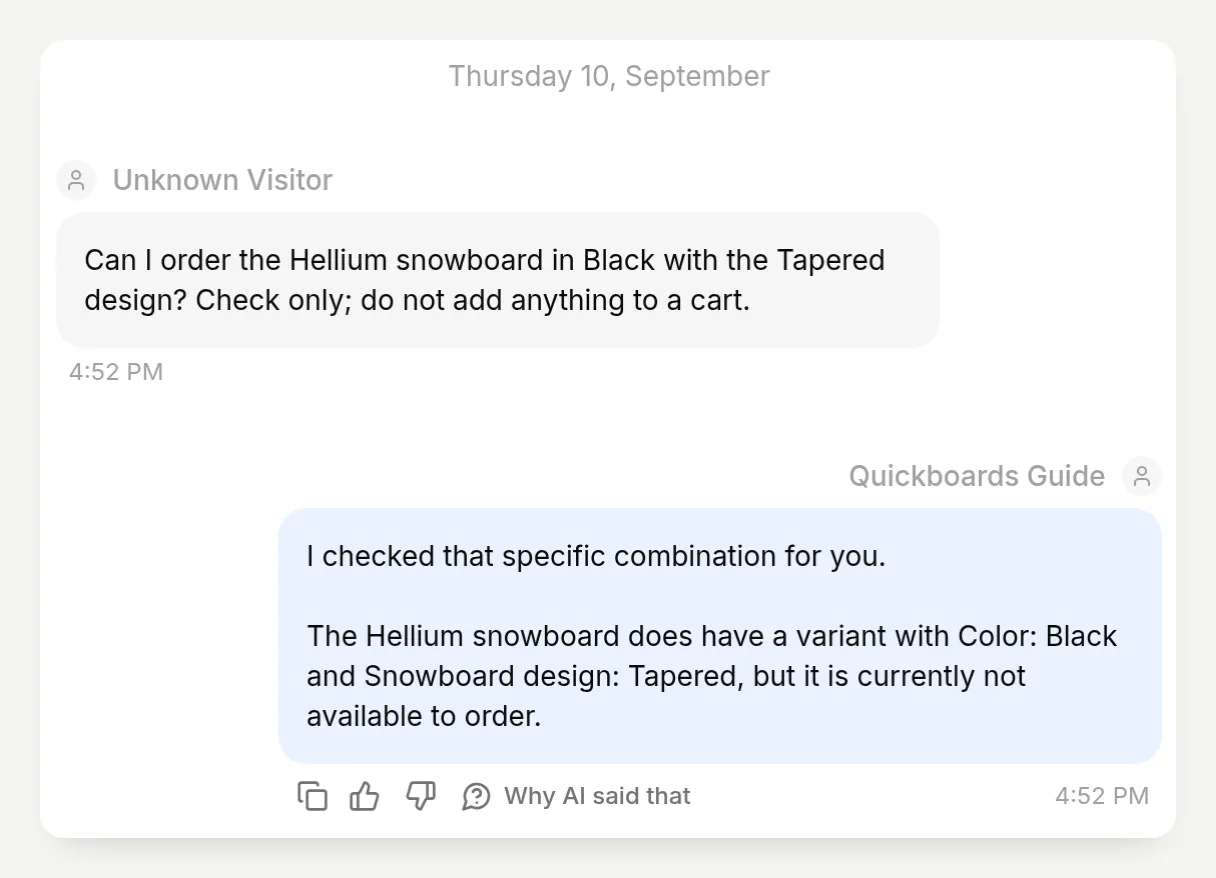 The distinction the evaluator missed: the variant exists, but it cannot currently be ordered.
During author testing, we recorded the actual catalog responses alongside the conversations. The search response already contained the variant data used in these runs, so we did not treat an additional product-detail call as a required sign of success. If the returned data is incomplete, the agent needs a detail lookup or an explicit “I cannot confirm.”
For your own store, compare the reply with the product’s variant settings in Shopify. Require all requested option values to belong to the same variant and check its availability and price. Available to order does not mean a known warehouse quantity, and a recommendation does not reserve anything.
What changed when we tuned the finder?
The useful improvements came from testing a specific failure, changing the relevant instruction and repeating the same request.
Use this loop:
- Start a fresh conversation with a saved test message.
- Read the response and inspect the actual cards and catalog facts.
- Change one behavior in Main Prompt, such as when product search should begin.
- Repeat that test, then rerun the rest of the dataset to check for regressions.
Three findings shaped the final prompt:
| Test | Earlier behavior | Instruction added or clarified | What we checked on the rerun |
|---|---|---|---|
| “Help me choose a snowboard” | Asked about level, terrain and budget together, while already showing five products | Ask one question at a time; do not search or show cards until the three preferences are known | One question, no search call and no product cards in both final fresh runs |
| Iron in Ice, 156 cm | Could not confirm the size, but an intermediate draft suggested choosing a length on the product page | A description range is not a selectable size; do not invent a size selector | Confirmed the color and explicitly left 156 cm unconfirmed |
| Ski boots, EU 42, below $300 | Search returned snowboards and wax; an early reply generalized that the store did not carry ski boots at all | Reject wrong categories, retry once, and describe the limited result | No matching boot recommendation and no product cards |
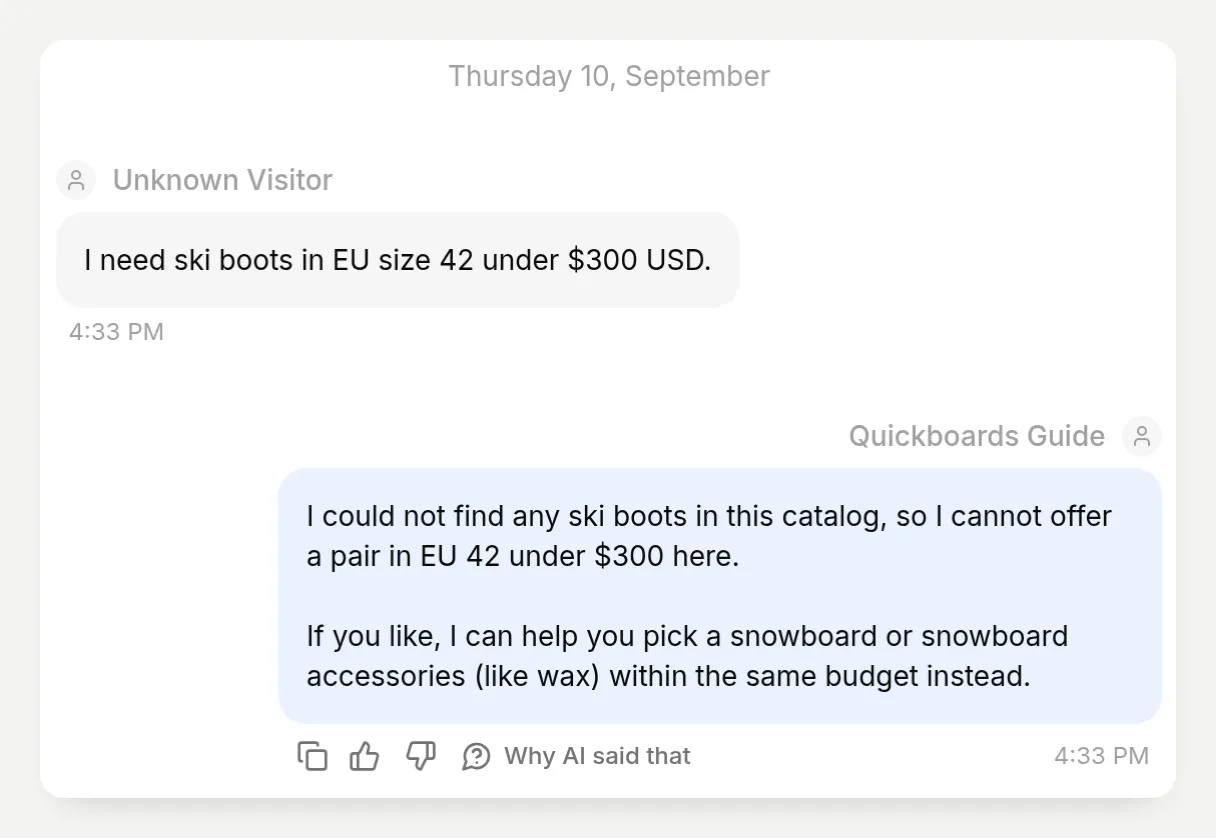 The search returned candidates from other categories. The agent did not present them as suitable boots.
These are observed results from this demonstration catalog, not an accuracy benchmark. A prompt cannot supply missing specifications. If your descriptions do not distinguish two products, improve the catalog before expecting the assistant to explain a meaningful difference. Repeat tests after changing descriptions, prices, options or instructions.
How do you add the shopping assistant to a Shopify page?
Use Embed for a conversation inside a page, or Widget for a floating chat bubble. This walkthrough uses Embed and keeps the comparison-only Main Prompt from Step 3.
Step 6. Configure and copy the website Embed
- Open Channels → Your Website → Text Content. Set Header text to
Quickboards Guideand Welcome message toTell me about your riding and I will help you find a board. Where do you like to ride?. - Open Appearance → Theme and choose Light.
- Return to Install → Availability and access. Confirm Widget & Embed access is enabled.
- Open Install manually with code and copy Embed. Use the agent identifier from your own snippet.
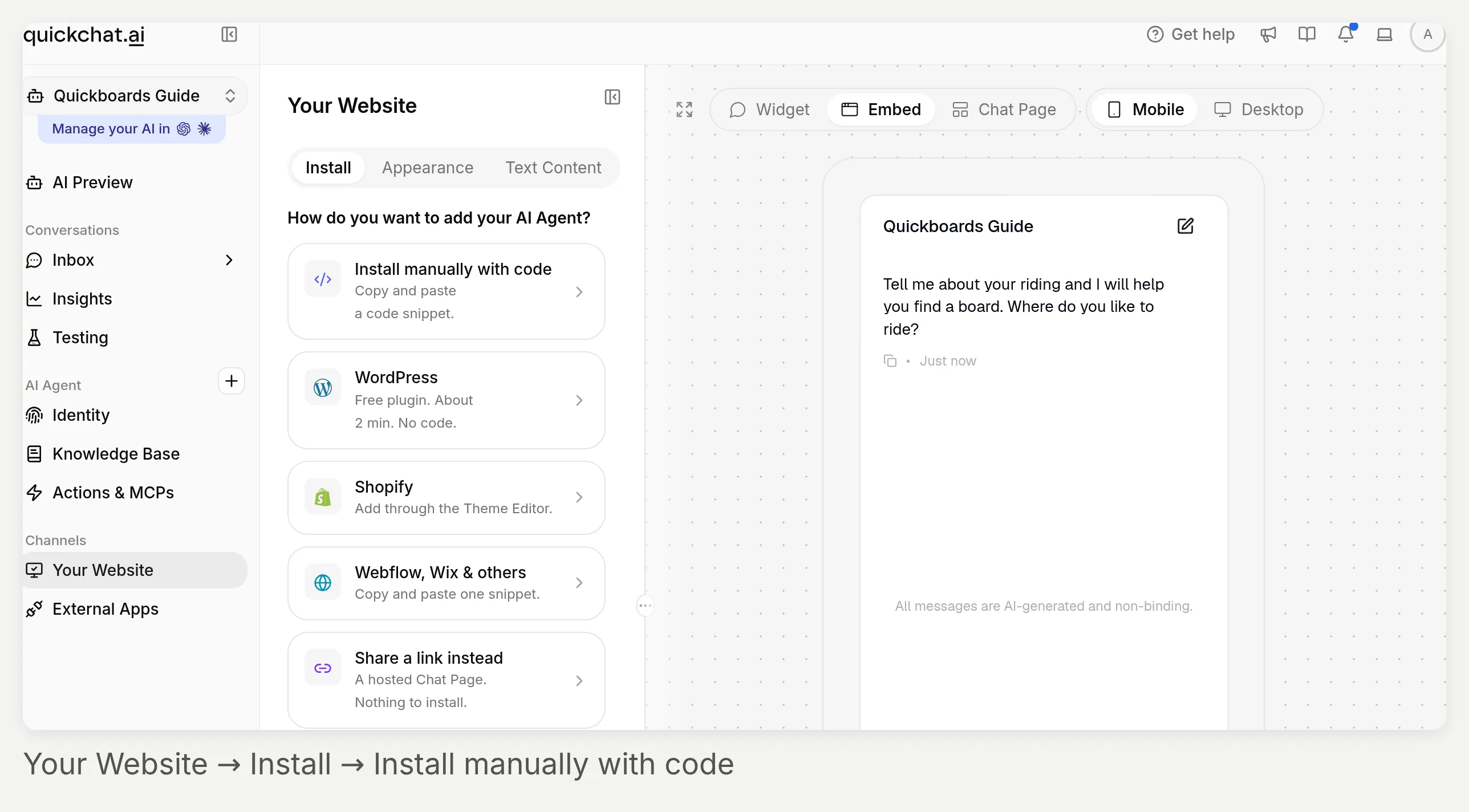 Start with Your Website in the sidebar, then Install manually with code. Inside its panel, copy Embed for an inline finder; Widget creates a floating bubble.
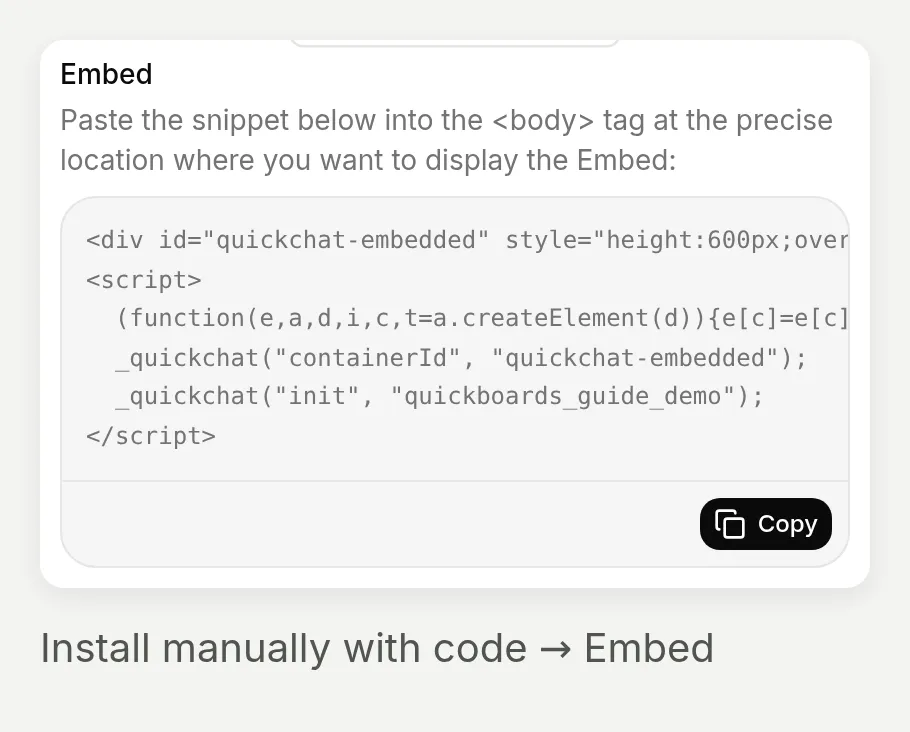 Copy your own agent’s snippet here. The public fragment below uses a placeholder instead of the local demonstration identifier.
This minimal fragment uses the native loader. Replace YOUR_SCENARIO_ID:
<div id="quickchat-embedded" style="height:680px;overflow:hidden;"></div>
<script>
  window._quickchat = window._quickchat || function () {
    (window._quickchat.q = window._quickchat.q || []).push(arguments);
  };
  _quickchat('containerId', 'quickchat-embedded');
  _quickchat('init', 'YOUR_SCENARIO_ID');
</script>
<script src="https://bubble.quickchat.ai/chat.js" async></script>
The container must exist before initialization, with containerId before init. Initialize Quickchat AI once per page. If your theme already loads the widget or Shopify app embed, ask its maintainer to prevent duplicate initialization on this page without removing chat elsewhere. The website channel guide explains the access controls.
Step 7. Give the finder its own Shopify template
Use a theme with Custom Liquid, such as Dawn. There are three small tasks: create the page, build its template, and assign that template only to the finder.
Create the page and template
- In Shopify admin, open Online Store → Pages → Add page. Enter
Find your snowboard, add an introduction, select Hidden, and save. - Under Online Store, choose Edit theme for the intended theme. Open Home page → Pages → Create template. Name it
product-finder, based on the default page template.
Place the conversation inside the template
- In the new template’s Template area, choose Add section → Custom Liquid. Paste the fragment into Liquid code and save. Keep it out of shared Header and Footer sections.
- Preview the page using Preview → Change in the theme editor. Hidden pages can be previewed. Reload the preview after saving JavaScript changes.
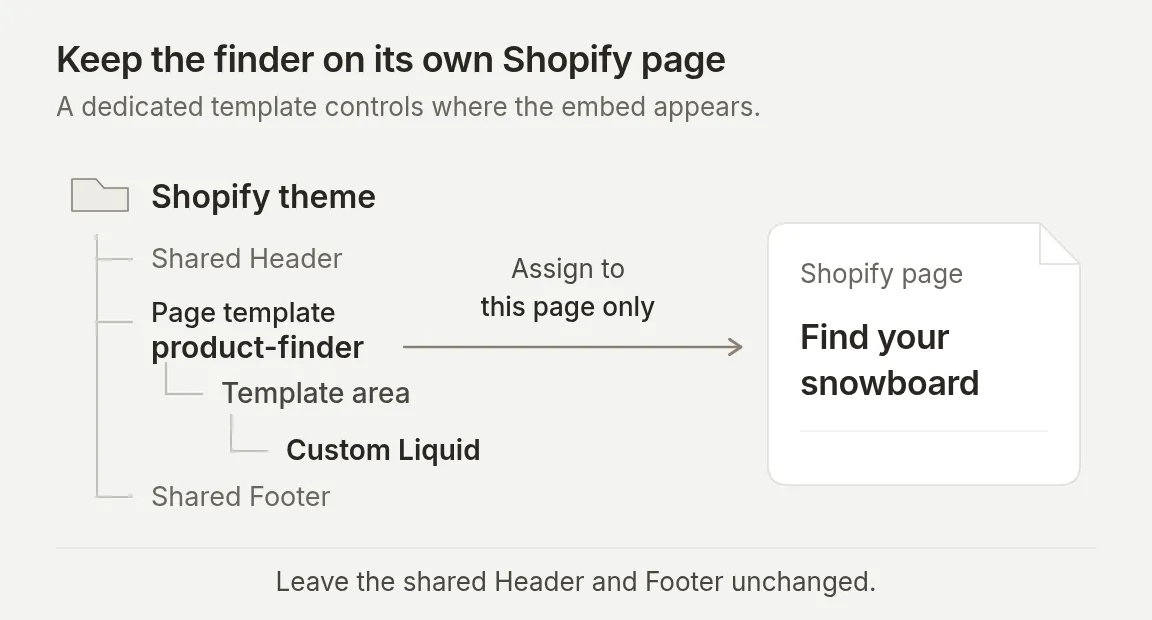 Placement diagram, not a Shopify admin screenshot. Assign this template only to the finder page.
Assign, check and publish the page
- Return to the page settings, select
product-finderunder Theme template, and save. Only templates in the live theme appear here; coordinate unpublished-theme work with your normal release process. - After the launch checks below, make the page Visible and link it under Content → Menus.
These steps follow Shopify’s template instructions and page visibility controls.
For a standalone site, use the complete HTML template linked in the prerequisites. Replace its agent identifier and demo branding, then upload it to your static host. That full document belongs on a standalone site; paste only the fragment above into Custom Liquid.
Optional: how do you connect a cart to AI-Assisted Revenue?
Quickchat AI links an order to a conversation by matching its cart identifier to a saved cart created or updated during that conversation. Product recommendations alone do not establish that link. The cart and checkout-link flow, including applying a discount code the shopper provides, is also summarized on the AI shopping assistant for Shopify page.
Validation scope: Our September 14 test created a real Shopify cart and saved its checkout card through the normal reply flow. The revenue screenshots use a separate, explicitly seeded demonstration order. They illustrate attribution in the App, not a completed purchase or delivery of a genuine Shopify order webhook.
Connect the merchant and enable cart mode
- Install Quickchat AI: Chatbot & Sales in your own Shopify store and complete its authorization. A manual MCP connection supplies catalog tools, but app installation supplies the merchant connection and order webhooks needed for attribution.
- Open the agent reached through that installation. It may differ from the agent you created manually. Apply this tutorial’s settings and prompt there, check its Shopify action, and use that agent’s identifier in your website snippet.
- In Identity → AI Persona → Main Prompt → Edit, replace only the final paragraph beginning
This experience is a product finder.with the paragraph below. Do not append it beneath the conflicting no-cart instruction.
This experience can help a shopper build a cart after comparing products. Create or update a cart only when the visitor explicitly asks you to add an identified product and quantity. First verify the exact variant and its current availability in Shopify. If a requested option cannot be verified, ask for clarification instead of substituting it. Use the cart tool's returned products, quantities, total and checkout link; do not invent a checkout URL. Do not take payment, complete an order or claim that an item is reserved. Keep replies in the visitor's language. Use short paragraphs and no em dashes or en dashes.For the demonstration catalog, send this exact message in a fresh conversation:
Please add one Iron snowboard in Ice to a new cart. Check that this variant is available first. I am not selecting a length. Show me the cart, but do not place an order or take payment.Our real tool sequence was search_catalog → get_product → create_cart. The returned cart contained one Iron snowboard in Ice for $699.95 USD. No length was selected, and no order or payment was created. For your store, substitute a verified product, variant and quantity.
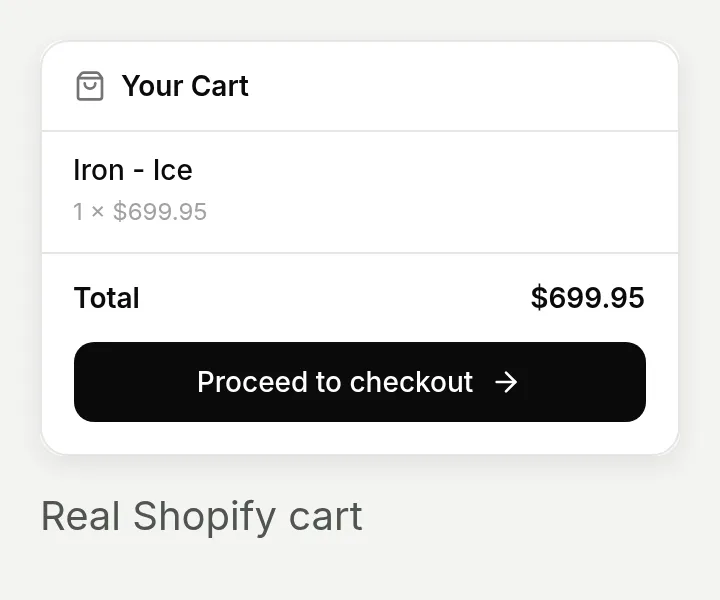 The native checkout card saved automatically during the September 14 test. Its product, quantity and total match the real Shopify response. We did not complete checkout.
Open the conversation in Inbox and inspect Why AI said that to verify which tools ran. Check the returned product, quantity, currency and total. A successful tool invocation alone does not prove that the checkout card was delivered or attribution was saved.
Follow an order back to its conversation
In a live store, the shopper continues through Shopify checkout. Quickchat AI matches the order’s cart identifier to the saved cart in the conversation for that merchant.
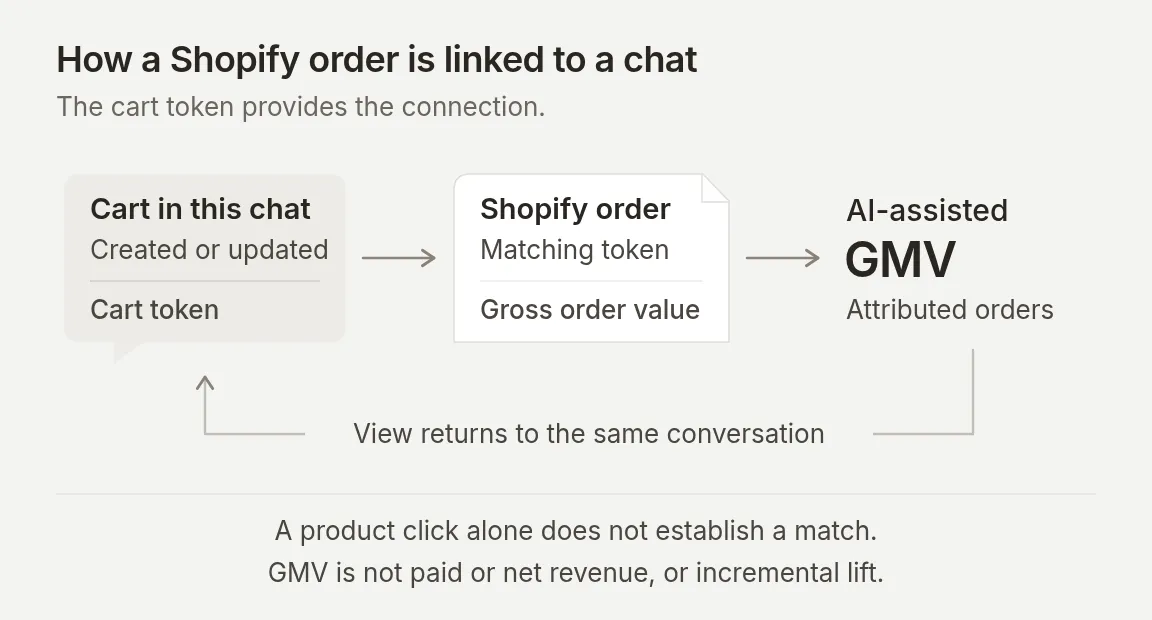 Attribution follows the matching cart identifier. An unrelated purchase after a chat is insufficient.
- Open Insights → AI-Assisted Revenue on the app-connected agent.
- Select a date range containing the order’s placement date. Inspect AI-assisted GMV, Avg order value and Daily assisted GMV.
- Under Recent assisted orders, find the order and click View in the Conversation column. Inbox opens the conversation with its Order placed card.
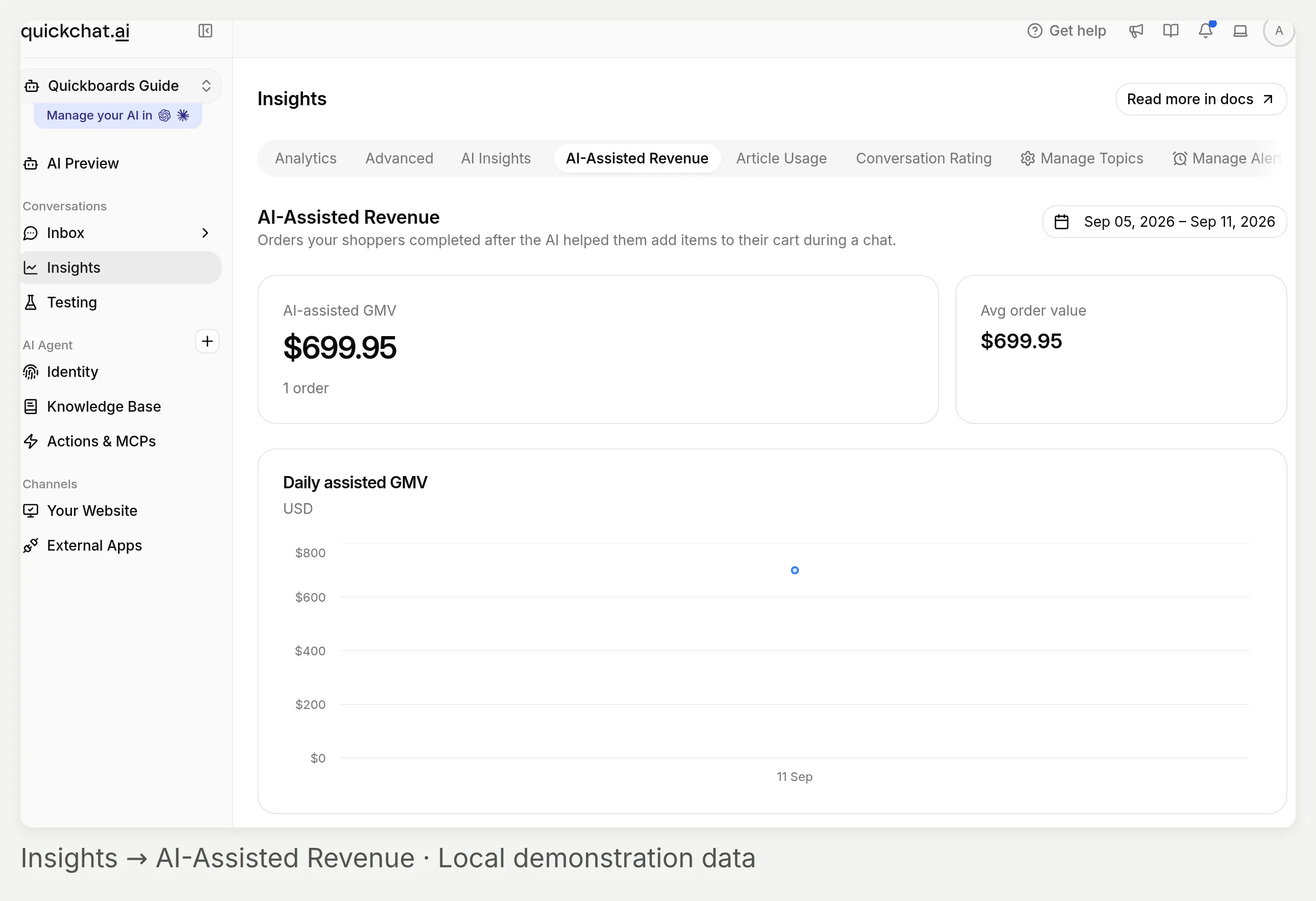 Insights → AI-Assisted Revenue. This local demonstration contains one synthetic order, not merchant sales performance.
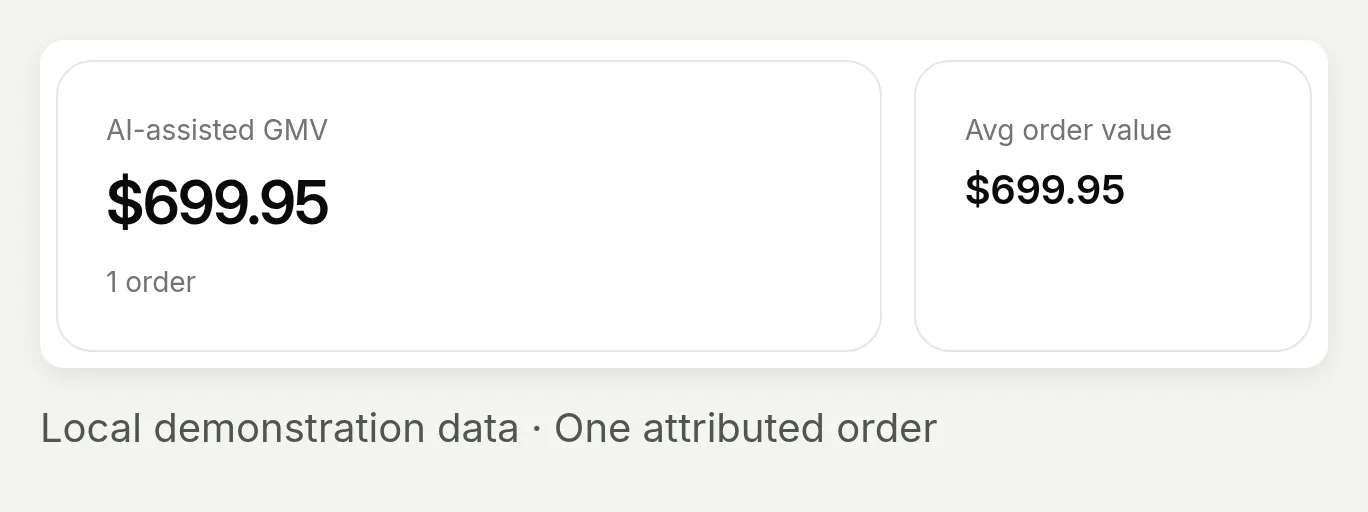 The total is attributed order value. One demonstration order also makes the average equal to the total.
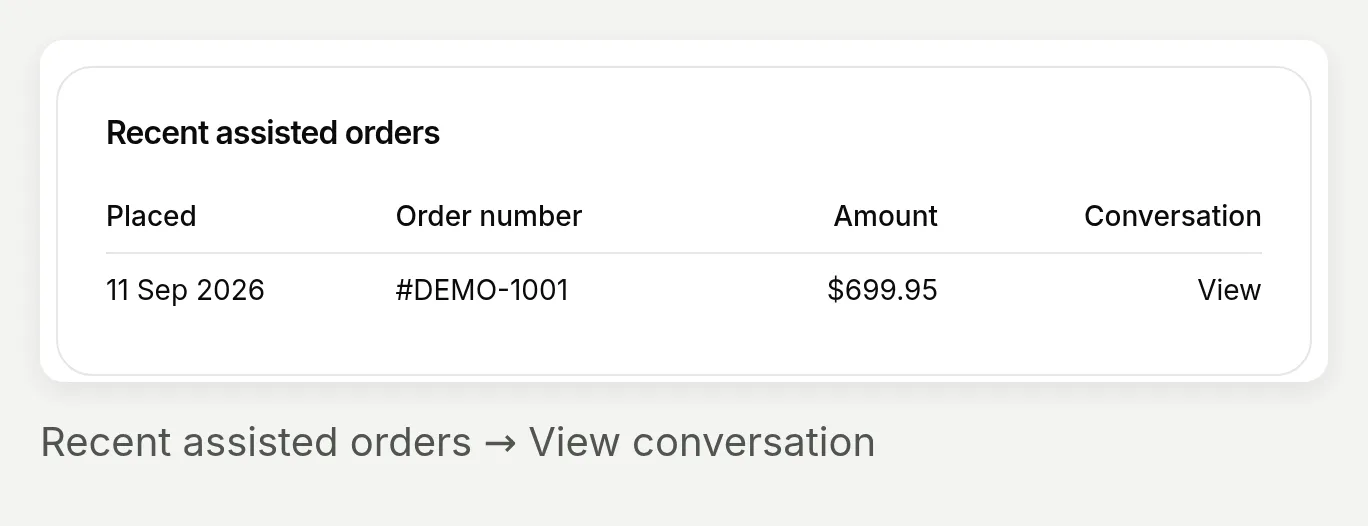 Use View in the Conversation column, not the order-number link, to return to the chat.
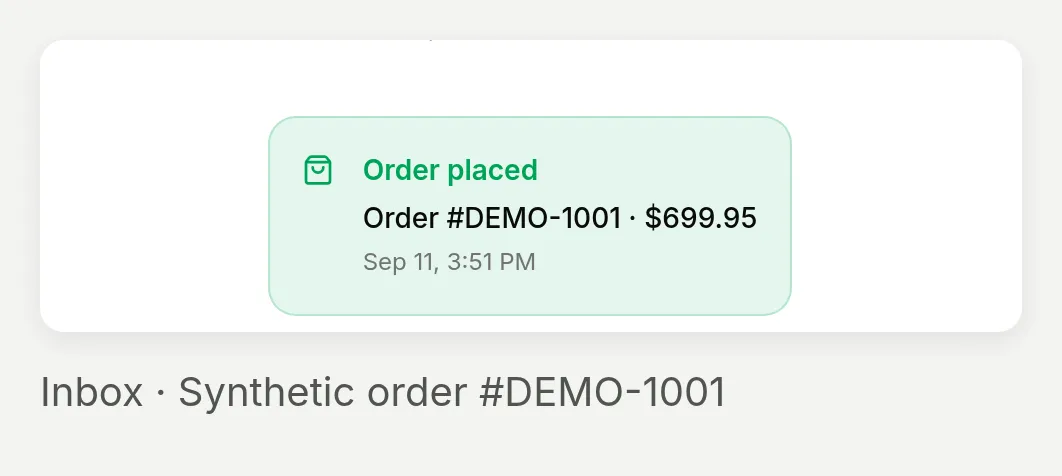 Inbox shows Order placed on the conversation associated with the seeded cart. The order itself is synthetic.
For the revenue screenshots, we explicitly saved a cart component from an earlier recorded Shopify response, then passed a synthetic #DEMO-1001 order event carrying that cart identifier through the local attribution handler. Duplicate created/paid events produced one record, and an unmatched token produced none. This validates the downstream matching behavior with fixtures, not delivery of a genuine Shopify order webhook. There was no real order or payment.
Read the metric as attributed order value (GMV). It includes the full matched order, not only products added by AI. Order-created or order-paid events can establish the record; this is not a paid-sales, net-revenue or incremental-lift report. Refunds and cancellations are not netted out. The date filter selects placed orders; attribution has no fixed post-chat lookback window.
If nothing appears, check the app-connected agent, an actual create/update-cart action, a matching order event and the selected dates. The manual inline snippet does not provide the Shopify app embed’s storefront-cart synchronization.
Advanced: how can you see which Shopify tools ran?
Use Why AI said that on an individual AI reply to inspect its AI Actions Used. This is especially useful when the final answer sounds right but you want to check whether the agent searched the catalog or attempted a cart change.
- Open Inbox, then the conversation. A Simulation result’s View control is another route to the same screen.
- Find the AI reply you want to investigate. Hover the reply and choose Why AI said that beneath it.
- Read AI Actions Used. Each entry shows the tool name and a shortened argument summary for that reply.
- Compare those calls with the visitor’s request and the returned product facts. Inspect another reply to see what changed on the next turn.
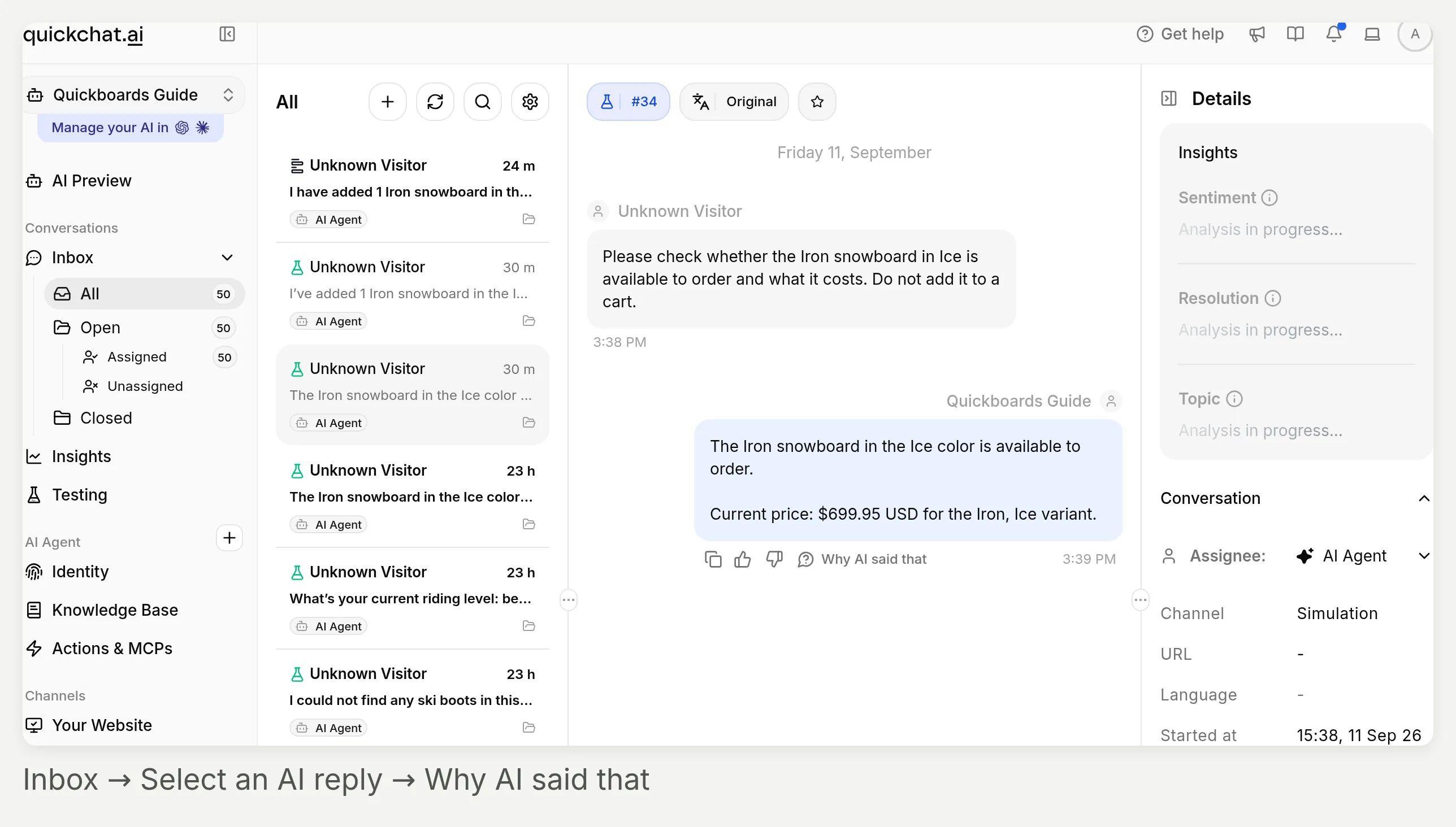 The inspection belongs to a specific reply, not the whole agent. Choose the reply that performed the lookup or cart change.
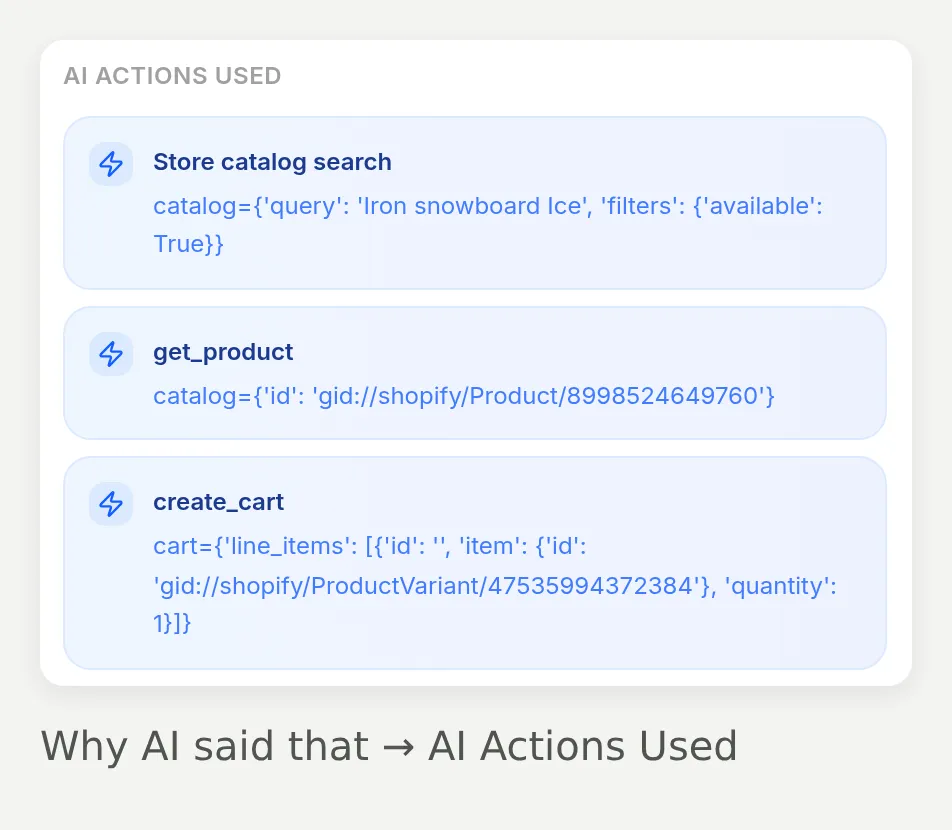 Actual native calls from the optional cart test: catalog search, product lookup, then cart creation. This list comes from persisted tool-call records; it is not a manually written transcript.
The expected calls depend on the task:
| Visitor request | What to inspect |
|---|---|
| “Help me choose a snowboard.” | The first reply should gather a missing preference, not search immediately |
| A complete brief or changed budget | A catalog query should reflect the stated constraints |
| A specific option missing from search results | A product-detail lookup should check that option, not infer it from the description |
| An explicit add-to-cart request in optional cart mode | The cart action should reference the verified variant and requested quantity |
The native Shopify card does not expose the custom-action View logs panel. Use reply-level inspection here. These argument summaries are not a full HTTP trace, inventory proof or proof of payment. Our cart-card issue is a concrete example of why the user-visible result needs a separate check. For the broader concept, see how AI Agents take actions.
Optional: can the same finder answer on WhatsApp and Instagram?
Yes. Connect either channel to the configured agent, then test it on that channel. The catalog connection stays the same; message rendering changes.
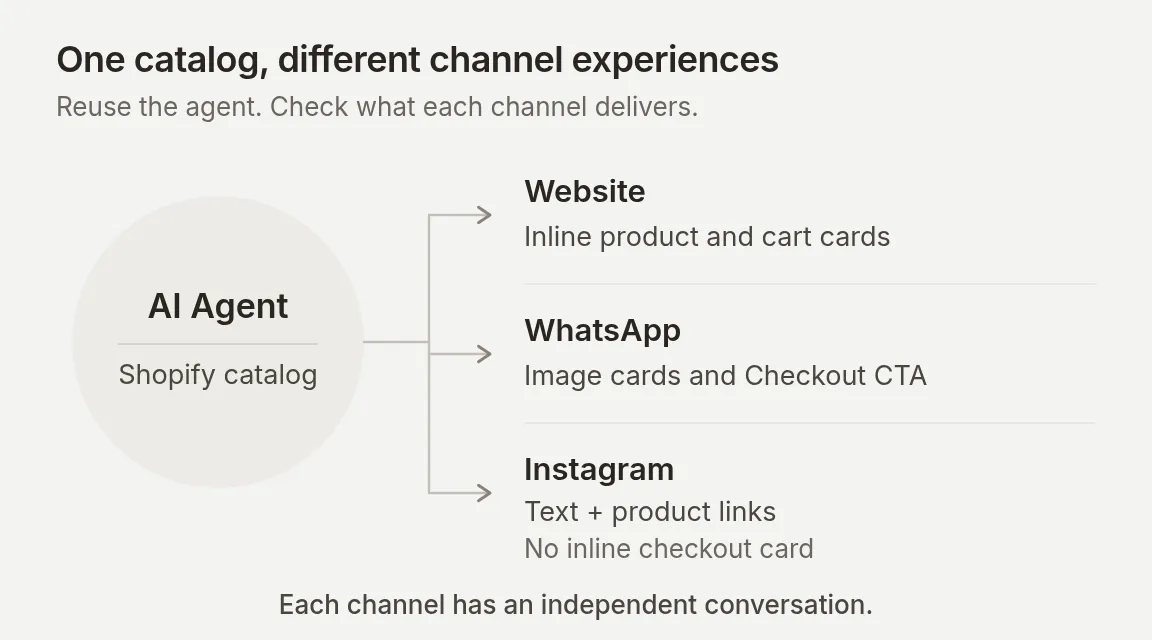 Delivery diagram: website product cards, WhatsApp native interactive messages, Instagram text and links.
WhatsApp supports native product and cart messages. Instagram currently sends reply text without the website’s inline product-card or cart layout. For Instagram, confirm recommendations include readable product names, verified prices and product URLs in the text. If needed, add this instruction to Main Prompt, then retest in an actual DM:
Make recommendations understandable without product cards. Include each recommended product's name, verified price with currency, and product URL in the reply text. Use only values returned by Shopify.This instruction is a starting point to test, not a recorded Instagram result. For Instagram, use the comparison-only Main Prompt from Step 3; do not assume the website’s checkout button appears in DMs. If WhatsApp needs cart mode at the same time, use a separate agent for Instagram, since Main Prompt changes apply to every channel on an agent.
Connecting the same agent also does not carry a shopper’s website conversation into a new WhatsApp or Instagram conversation.
Connect WhatsApp
Use the optional cart mode above for this channel. Native product messages can offer cart quick replies, so test those buttons as well as typed requests.
- Have a dedicated business number that can receive SMS or voice verification, your business details, and administrator access to the relevant Meta Business. Use the WhatsApp setup guide for existing-number or provider migrations.
- Open External Apps → WhatsApp → Connect WhatsApp.
- In Meta’s window, sign in as the business administrator, select or create the business and WhatsApp Business Account, enter the requested business details, and verify the number. Complete the permission and confirmation screens.
- Back in Quickchat AI, wait for Connected. Under Settings, ensure the number’s switch reads Enabled.
- Send a product question from another WhatsApp number. Check both the received reply and its Inbox conversation.
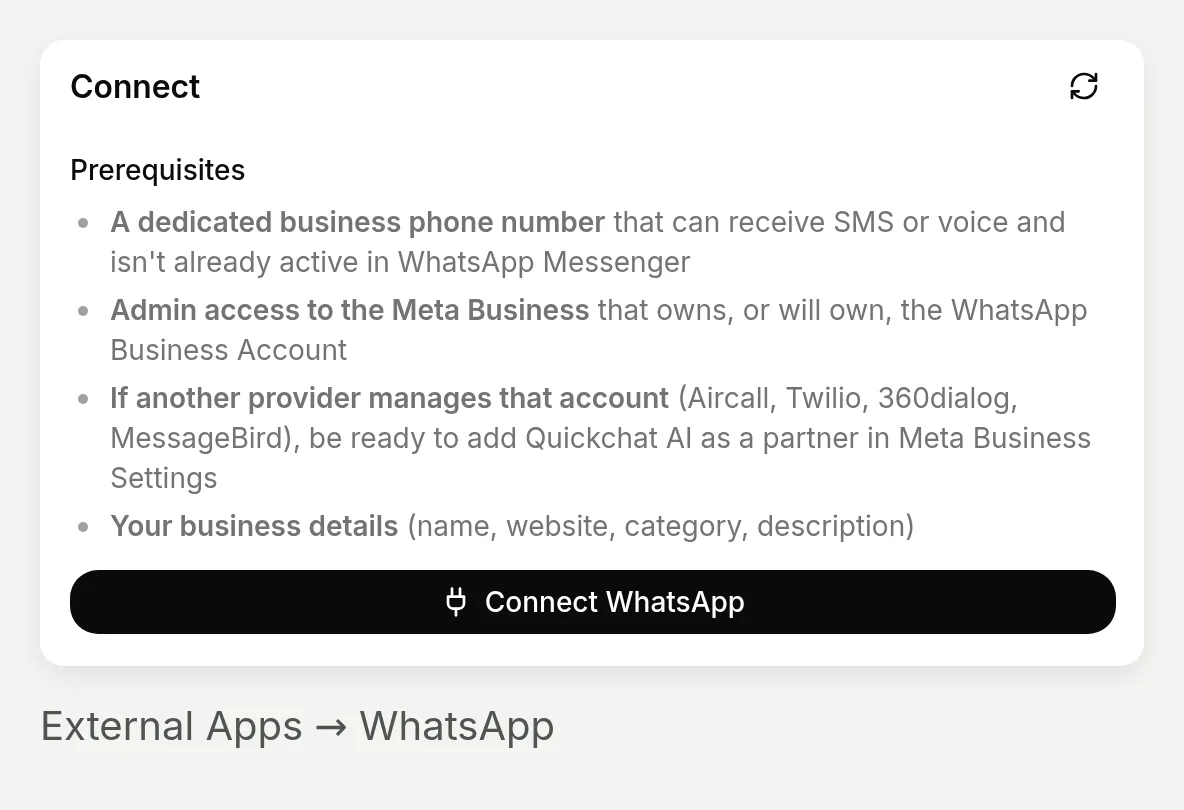 Start Meta’s connection flow here. This screenshot does not show a completed WhatsApp connection.
Connect Instagram
- Use an Instagram Professional account, either Business or Creator.
- Open External Apps → Instagram → Connect to Instagram. Sign in as that account; use Sign in as a different account if the browser selects the wrong one.
- Leave Access and manage messages enabled during authorization. Back in Quickchat AI, confirm the account and turn on Enable Instagram.
- Send a DM from another Instagram account. Verify its text, product links and Inbox entry. The Instagram DM setup tutorial covers connection troubleshooting.
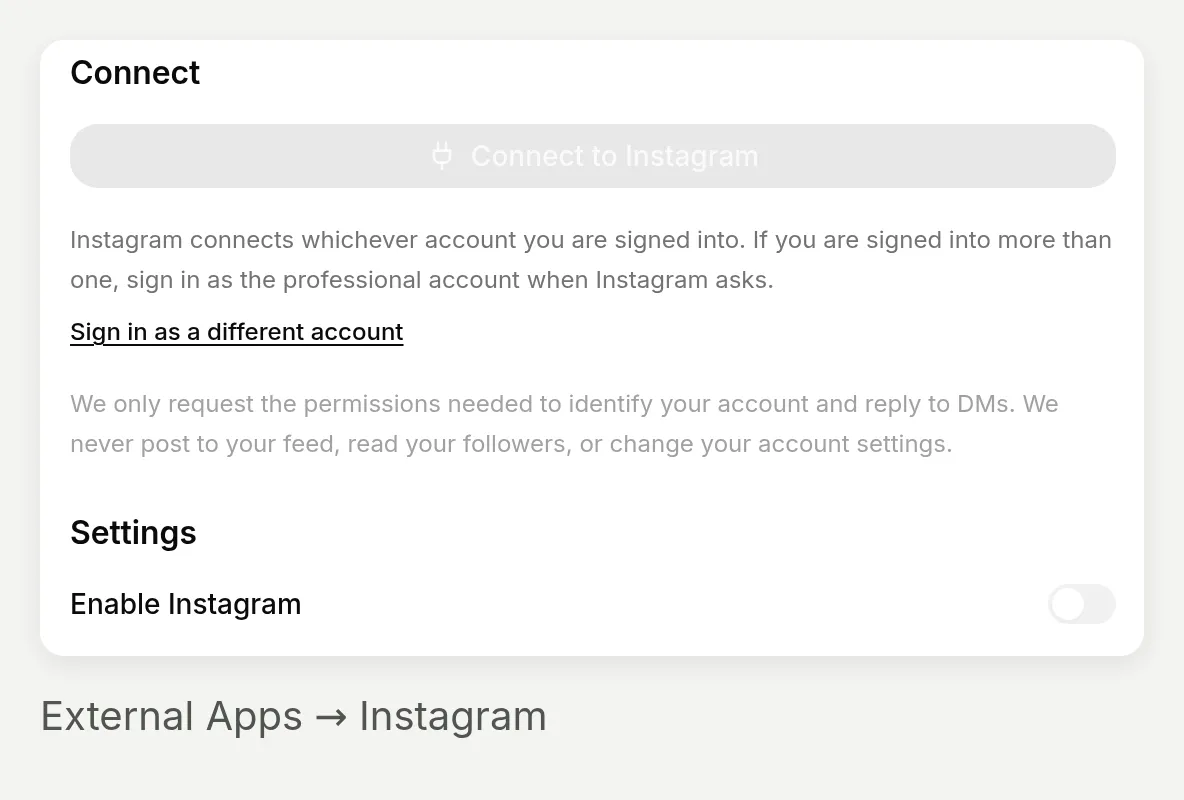 Connect a Professional account and grant message access. This local App has no Meta credentials, so its connection controls are disabled; this is not a live DM capture.
Test both channels with fresh inbound messages. WhatsApp free-form replies and automated Instagram replies use their respective 24-hour messaging windows; outbound campaigns require separate setup and policy checks.
What should you check before launch?
Step 8. Validate the published experience
Check the storefront
- Choose a plan that permits commercial use before merchant deployment.
- Open the page on desktop and mobile. The intended agent should load once, with a usable input and working product links.
- Keep the page hidden until its own theme preview checks pass.
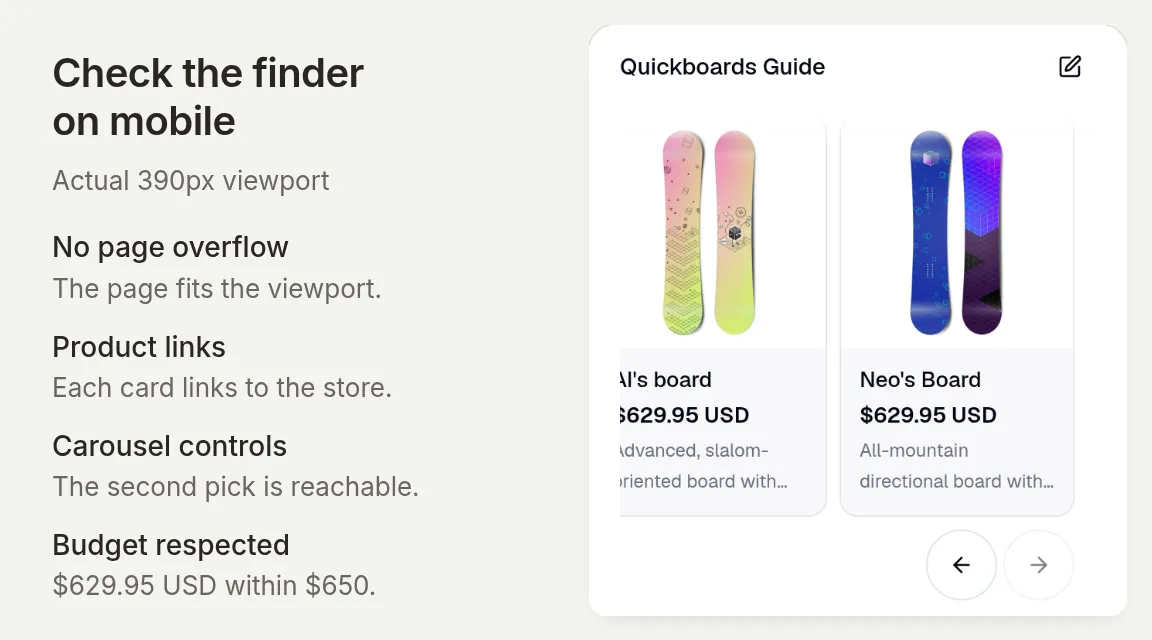 The existing changed-budget conversation on mobile. Both recommendations remain below $650 USD; check carousel movement, product links and the message input on a narrow screen.
Check the shopping behavior
| Test | Ready when |
|---|---|
| Broad request | It asks for a missing preference before showing products |
| Complete brief and changed budget | Every new recommendation respects the latest constraints |
| Missing size or unavailable combination | It explains what cannot be verified instead of promising the item |
| Language and Shopify Market | The reply language, prices, currency and variant availability are all checked separately |
| Optional carts and channels | Consent, variant, quantity, delivered links and saved cart linkage have each been verified |
The Spanish Simulation case is a language check, not a market check. Our multilingual chatbot guide explains that broader capability; still validate your store’s regional catalog data independently.
Set up the review routine
Choose who monitors new conversations. Configure Human Handoff if a teammate should take over difficult requests; it is a separate action.
Review early conversations alongside conversation analytics. Fix unsupported comparisons or missing product facts, then rerun the saved tests. Save the test cases that exposed a problem so the next prompt change is checked against them too.
The comparison-only prompt remains the base tutorial. Its no-cart rule is a behavioral instruction, not a technical removal of Shopify’s cart tools. Enable the optional paths only after their own checks pass.
Frequently asked questions
How do I build a Shopify AI shopping assistant?
Create a Quickchat AI Agent, write a Main Prompt that defines how it gathers preferences and recommends products, then connect and activate Shopify MCP using your store URL. Test recommendations against your catalog before adding the agent to your website as a widget or inline embed.
Can an AI chatbot recommend products from my Shopify store?
Yes. A connected agent can search the Shopify catalog, use returned product details to explain a shortlist, and show product cards. The quality of the match depends on your catalog descriptions, the shopper’s preferences and the agent’s instructions. Check the actual products and variants when testing.
Is this a Shopify product recommendation quiz?
It is a conversational product finder. It gathers missing preferences through chat and can accept a complete brief or a changed budget in the same conversation. It does not create a fixed form, calculate a quiz score or guarantee a deterministic recommendation.
Can the assistant check Shopify sizes and availability?
It can check the options and availability returned by the catalog. A size mentioned in a description is not proof that the size is a selectable, available variant. The agent should confirm the exact combination or say that it cannot verify it. Availability to order is not a stock count or a reservation.
Do I need code or a paid plan for this tutorial?
You can configure and test the agent without writing application code. Quickchat AI’s Free plan includes MCP access and 50 monthly AI credits for personal, non-commercial use; tests consume credits. A merchant deployment requires a commercial-use plan. An inline page requires pasting an embed snippet, and Shopify charges are separate.
What does AI-Assisted Revenue measure?
Quickchat AI’s attribution matches a Shopify order’s cart identifier to a saved cart created or updated in a conversation for that merchant. The dashboard reports the full matched order value as GMV, not net revenue or proven incremental sales. A catalog recommendation or product click alone is insufficient.
Can the shopping assistant work on WhatsApp and Instagram?
The same agent and Shopify catalog connection can serve both channels, but their conversations and rendering differ. WhatsApp supports native product and cart messages. Instagram sends reply text, so recommendations need product names, prices and links in the text; the website’s inline checkout card does not appear in DMs. Test each connected channel separately.