



Quickchat AI आपके Discord server में आपकी अपनी documentation से support questions का जवाब देता है, और केवल जवाब न मिलने पर private ticket thread खोलता है। यह guide उस bot को end to end, बिना code, करीब आधे घंटे में बनाती है।
Result एक अच्छे first-line agent की तरह behave करता है। Member पूछता है कि API key reset कैसे करें और channel में वास्तविक steps मिलते हैं। Member कुछ ऐसा पूछता है जिसे docs cover नहीं करते, और guess करने के बजाय bot ऐसा कहता है, private thread खोलता है, member को उसमें लाता है, one-line summary के साथ आपकी support role को ping करता है, और conversation ऐसे human को hand off करता है जो आपकी Inbox से जवाब दे सकता है।
अपने Discord bot का काम चुनें
यह build support questions का जवाब देता है और आपकी documentation में gaps को escalate करता है। Fixed greetings के लिए welcome guide या administrator commands के लिए moderation guide चुनें।
| Job | Guide | Discord connection |
|---|---|---|
| अपने docs से जवाब दें, फिर जवाब न होने पर private ticket खोलें | यह support-ticket guide | आपकी अपनी Discord app |
| Member join होने या channel खुलने पर fixed greeting post करें | Discord welcome bot | One-click या आपकी अपनी Discord app |
| Admin के पूछने पर members timeout करें, roles manage करें या slowmode बदलें | AI Discord moderation bot | आपकी अपनी Discord app |
आपको दो चीजें चाहिए:
- एक Quickchat AI Agent (अपना account बनाएँ)
- एक Discord server जहाँ आप admin हैं
Signup से अपने पहले support test तक
- अगर आप email और password से register करते हैं, तो अपने email में verification link खोलें। Setup में Discord support Agent describe करें, Create my AI Agent पर click करें, और setup steps complete करें, जिसमें अपने intended use के लिए plan चुनना शामिल है।
- अपनी documentation Knowledge Base के तहत जोड़ें। External Apps में Discord खोलें, फिर Use your own Discord app, और Advanced setup चुनें। Shared one-click bot questions का जवाब दे सकता है, लेकिन इस guide के ticket Actions नहीं चला सकता।
- अपने test server में ticket channel और mentionable support role बनाएँ। Actions and MCPs में Add Action पर click करें, Discord Action चुनें, और उस server, channel और role के साथ Open Support Ticket install करें।
- नीचे दिए Agent instructions apply करने के बाद, bot को ऐसे question के साथ @mention करें जिसका जवाब docs देते हैं, फिर ऐसे के साथ जिसका जवाब नहीं देते। पहले को ticket के बिना answer मिलना चाहिए, दूसरे को एक private thread खोलना चाहिए और support role को notify करना चाहिए। दूसरी conversation में follow-up जोड़ें और check करें कि duplicate ticket नहीं खुलता।
Free plan personal, non-commercial use के लिए है। Business के लिए bot use करने से पहले paid plan चुनें। Customers को invite करने से पहले two-path test पूरा करें।
नीचे के screenshots Lumen नाम के test Agent से हैं, जो Beacon नाम की fictional product-analytics company का support bot है। Company invented है ताकि example neutral रहे, लेकिन यहाँ दिखाया गया हर conversation, हर API call और हर ticket thread real Agent ने real Discord server के खिलाफ real reply pipeline चलाकर बनाया है।
आप क्या बनाएँगे
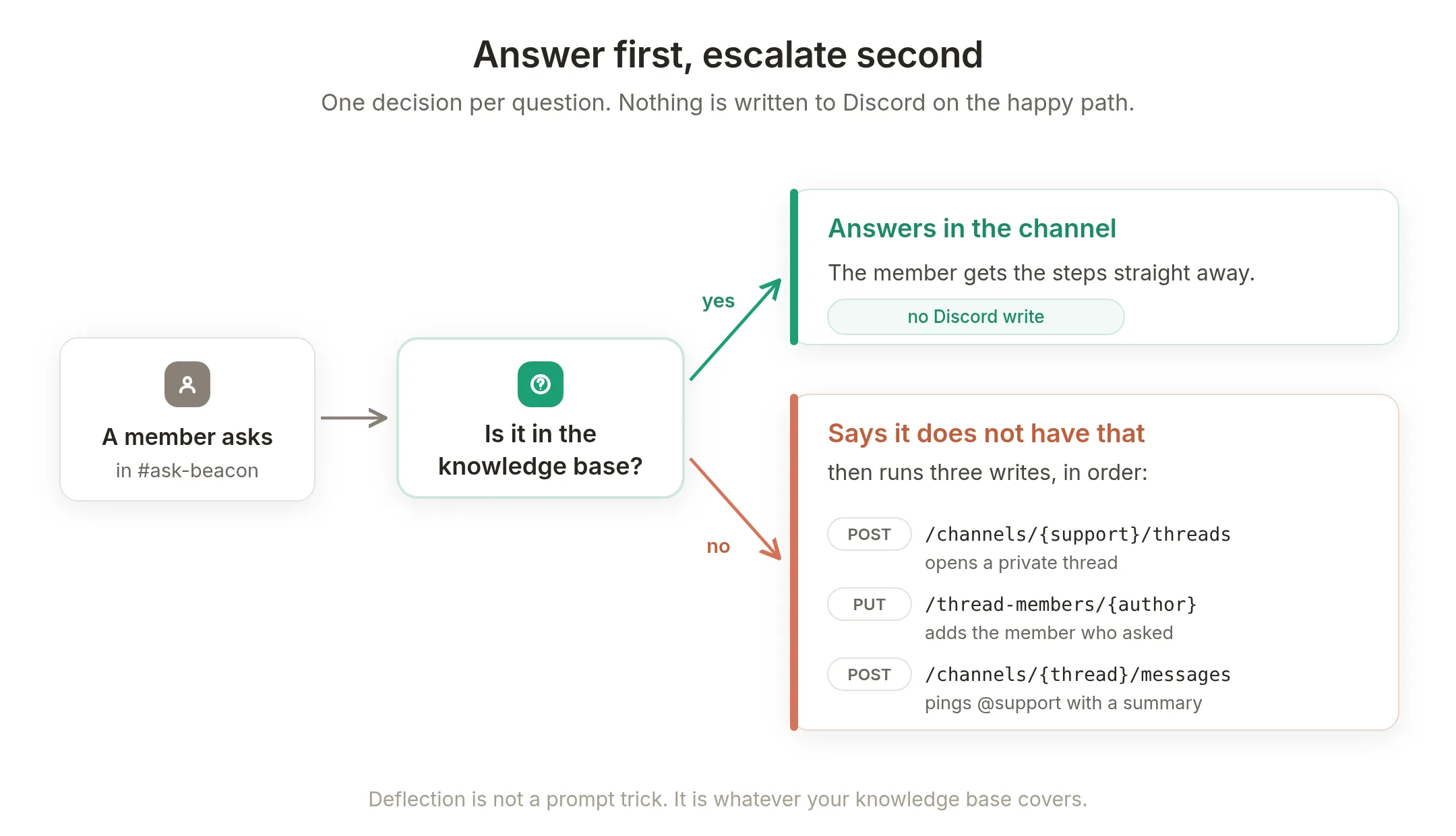 हर question पर एक decision। Happy path पर Discord में कुछ भी नहीं लिखा जाता।
तीन AI Actions escalation का काम करते हैं, और Quickchat AI तीनों को एक gallery card से install करता है:
| Step | What happens | Discord call |
|---|---|---|
| Member covered question पूछता है | Agent आपके knowledge base से channel में answer देता है | none |
| Member uncovered question पूछता है | Agent साफ कहता है कि उसके पास यह नहीं है | none |
| … फिर यह ticket खोलता है | आपके ticket channel में private thread दिखाई देता है | POST channel threads |
| … फिर यह member जोड़ता है | पूछने वाले व्यक्ति को thread में लाया जाता है | PUT thread members |
| … फिर यह आपकी team को page करता है | Thread summary के साथ आपकी support role को ping करता है | POST thread message |
| Human take over करता है | Conversation आपकी Inbox में flagged होती है, और उनका reply Discord पर वापस जाता है | Human Handoff |
Knowledge base क्या है, और यह ticket volume क्यों तय करता है?
अगर आपने पहले AI Agent नहीं बनाया है, तो यह एक concept दो मिनट देने लायक है।
Knowledge base आपकी अपनी documentation है, जिसे आपके Agent में load और index किया जाता है ताकि conversation के दौरान search किया जा सके। आप Quickchat AI को अपने help-docs URL पर point कर सकते हैं और उसे pages scrape करने दे सकते हैं, articles हाथ से paste कर सकते हैं, या files upload कर सकते हैं। Reply time पर Agent इसमें search करता है और जो पाता है उससे answer देता है, न कि underlying model को दुनिया के बारे में जो याद है उससे। अगर आप शून्य से शुरू कर रहे हैं, तो chatbot knowledge base कैसे बनाएँ बताता है कि क्या लिखना है और किस order में।
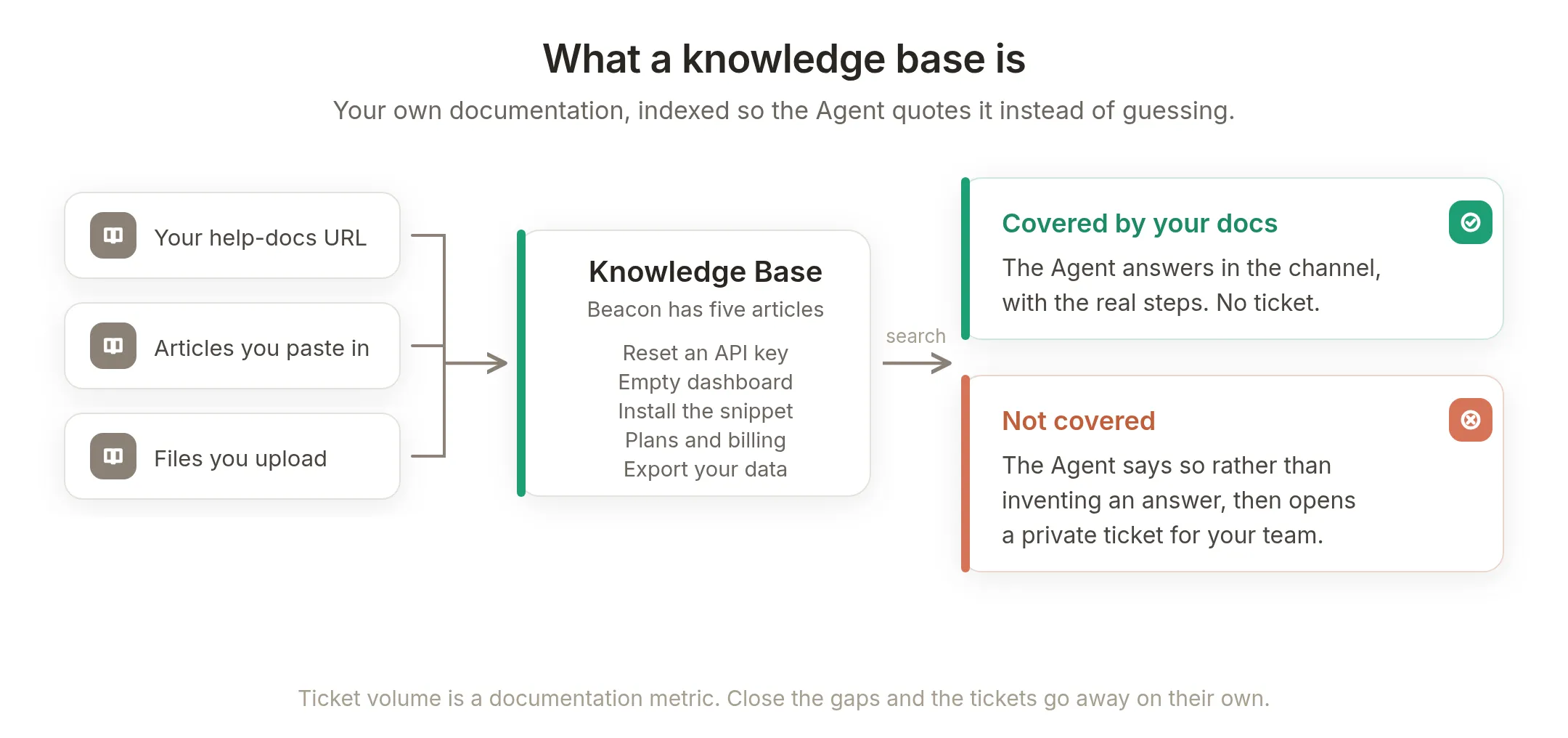 आपके docs जो cover करते हैं, उनका answer मिलता है। जो cover नहीं करते, वे ticket बनते हैं।
इस build का पूरा lever यही है। Deflection prompt trick नहीं है और model capability भी नहीं: यह आपकी coverage है। अगर bot expected से अधिक escalate करता है, तो tickets आपको बता रहे हैं कि कौन-से pages अभी लिखे नहीं गए।
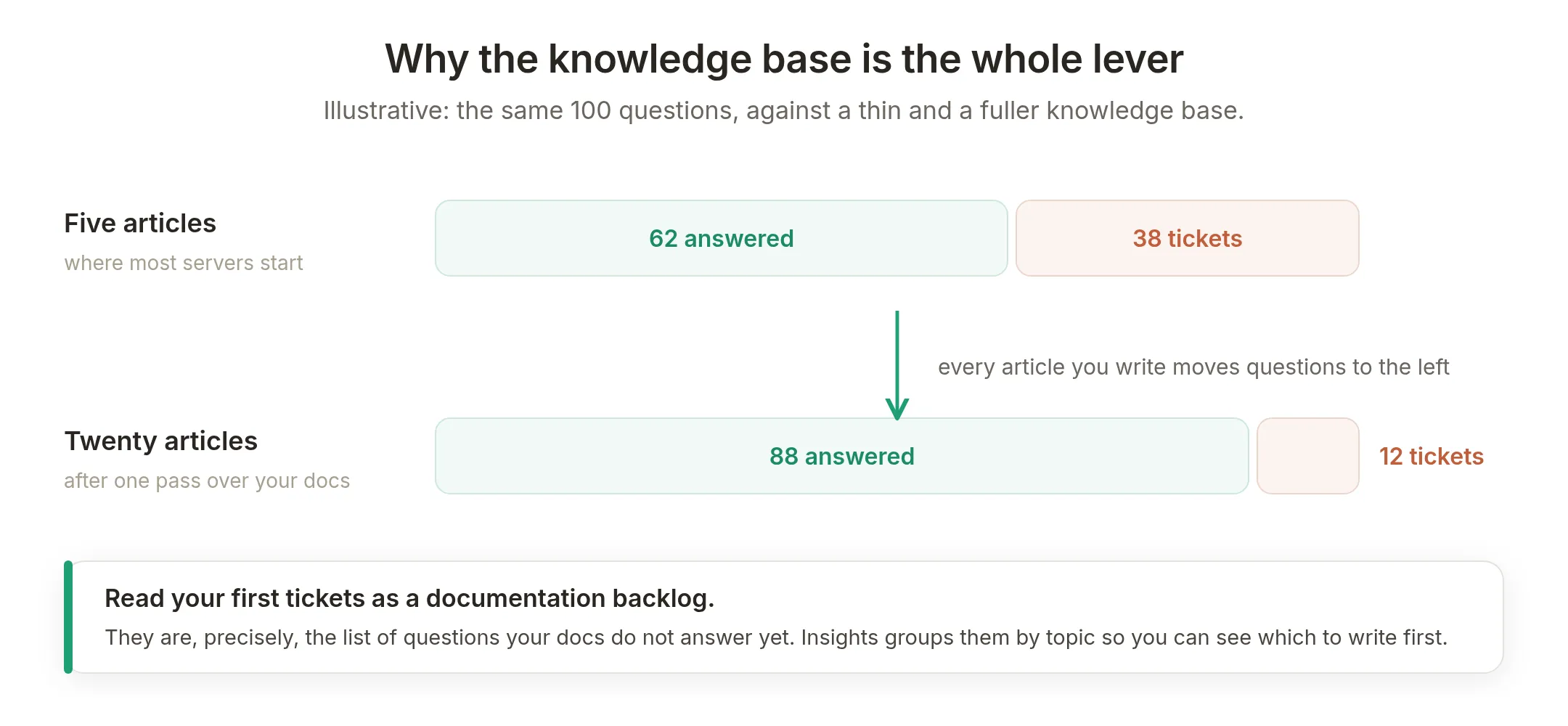 Measured के बजाय illustrative। Point direction है: docs लिखना यहाँ सबसे high-leverage काम है।
क्या AI वास्तव में Discord में support questions का जवाब दे सकता है?
जिन questions को आपके docs cover करते हैं, उनके लिए हाँ, और paraphrase के बजाय real steps के साथ। Test server से deflection case यहाँ है, unedited:
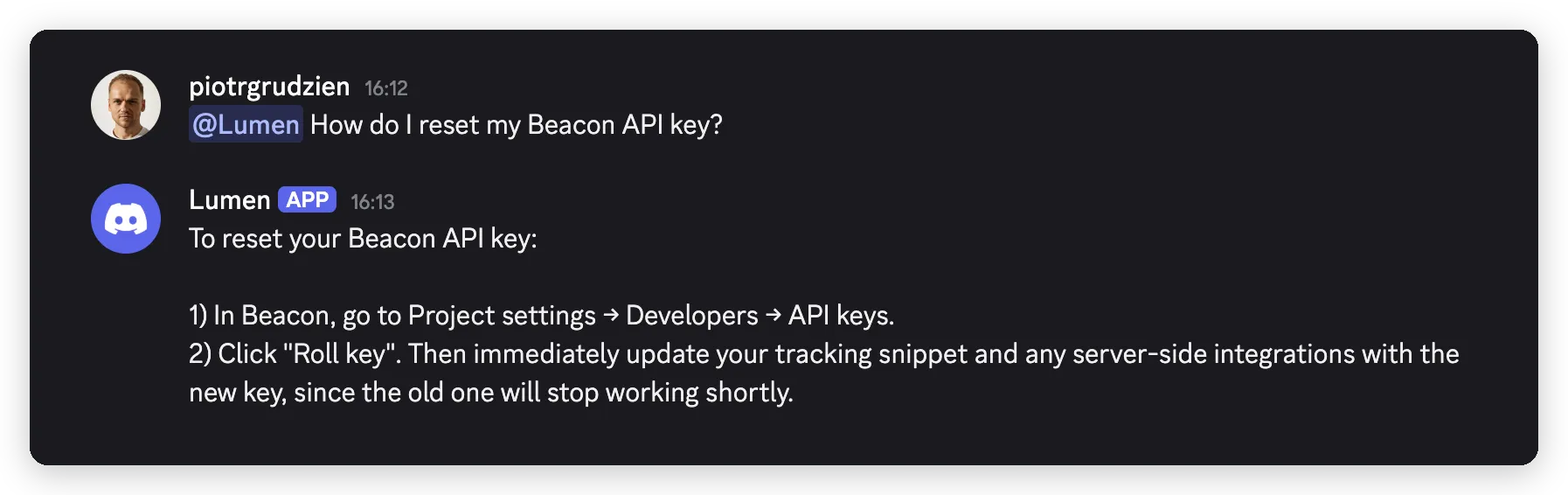 Channel में, knowledge base article से answer। Ticket create नहीं हुआ, क्योंकि जरूरत नहीं थी।
ज्यादा interesting half वह है जब answer वहाँ नहीं है। Bot ऐसा कहता है:
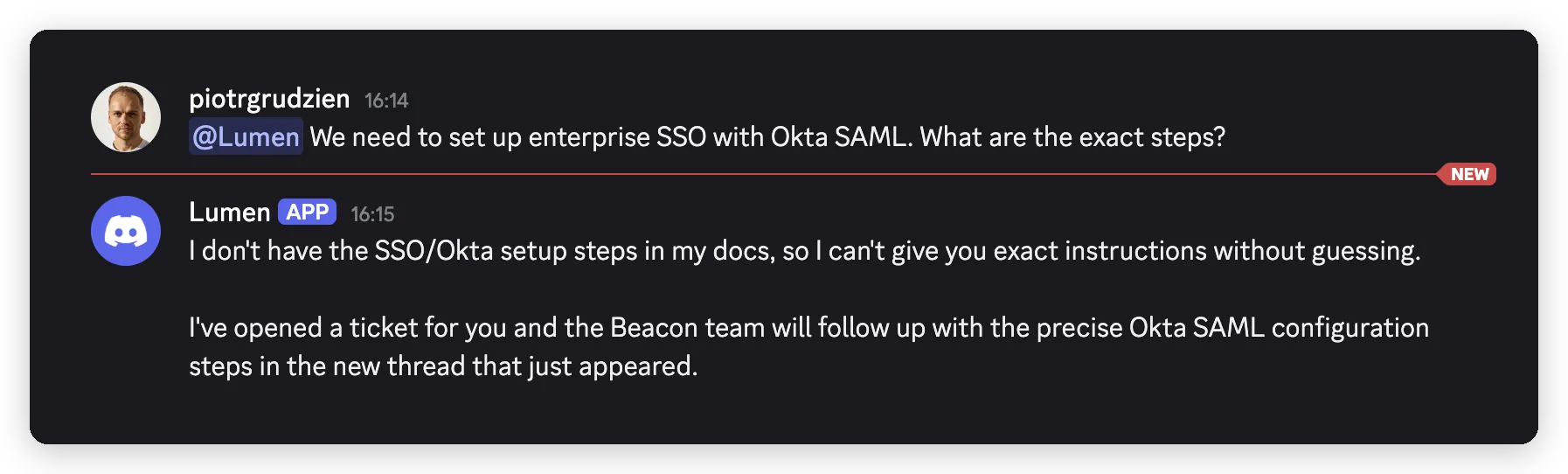 ईमानदार failure। Beacon का knowledge base जानबूझकर enterprise SSO omit करता है, इसलिए यही path ticket खोलता है।
Plausible SSO procedure invent करने वाला Agent ticket खोलने वाले Agent से खराब है, इसलिए इस behaviour को आशा करने के बजाय जानबूझकर test करना चाहिए। हम testing में इस पर लौटते हैं।
Discord connect करने के दो तरीके, और tickets को दूसरा क्यों चाहिए
Quickchat AI में दो Discord connections हैं, और शुरू करने से पहले उनका difference मायने रखता है।
| Connection | Documented answers and Google Sheets Actions | Discord API Actions for private tickets |
|---|---|---|
| Shared one-click bot | Available | Requires your own Discord app |
| Your own Discord app | Available | Available with the necessary bot permissions |
Shared bot के साथ काम करने वाली public feedback queue के लिए, feedback and documentation-gap workflow देखें। नीचे दिए private-ticket Actions को आपकी अपनी Discord bot credential चाहिए।
One-click fast path है। External Apps में आप Discord खोलते हैं, Add to your Discord server पर click करते हैं, authorize करते हैं, और shared Quickchat AI bot करीब एक minute में आपके server में live हो जाता है। यह तब answer देता है जब members इसे @mention करते हैं या /ask use करते हैं, और कई servers के लिए यही पूरा काम है।
आप इसे नाम दे सकते हैं। Authorize करने से पहले Bot name in the new server field होता है, जिसमें आपके Agent का नाम prefilled रहता है, और हर connected server अपनी Bot name in this server box रखता है जिसे आप बाद में बदल सकते हैं। यह Discord nickname है, इसलिए per server है और 32 characters तक limited है, और इसे clear करने पर bot वापस Quickchat AI पर आ जाता है। जो shared रहता है वह avatar और underlying @username है, क्योंकि एक Discord application हर server को serve कर रही है जो इसे install करता है।
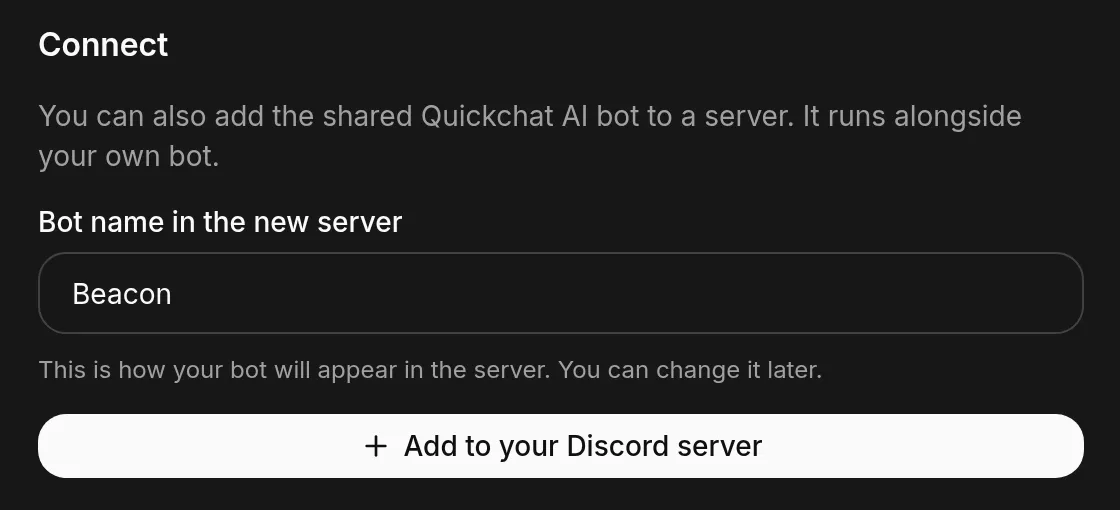 One-click का मतलब generic नहीं है। Bot आपके Agent का नाम server में लेकर जाता है, और आप बाद में per server बदल सकते हैं।
Advanced setup आपकी अपनी Discord application register करता है। आप Discord के developer portal में bot बनाते हैं और उसका token Quickchat AI में एक बार paste करते हैं। इसमें करीब दस minutes लगते हैं और आपको अपना avatar और @username, direct messages, एक server में कई bots, और इस guide को चाहिए वह चीज मिलती है: Discord API Actions।
कारण को quirk मानने के बजाय साफ कहना उपयोगी है। इस guide के ticket Actions Discord API को आपके bot के रूप में call करते हैं, उस credential के साथ जिसे Quickchat AI send time पर request में inject करता है। Shared one-click bot का token shared bot का है, आपका नहीं, इसलिए वह आपके Actions के भेजने के लिए उपलब्ध नहीं है। अगर आप अपनी app connect किए बिना Discord gallery खोलते हैं, तो यह आपको बताता है और cards disable कर देता है, बजाय इसके कि आप ऐसा कुछ बनाएँ जो चल ही नहीं सकता।
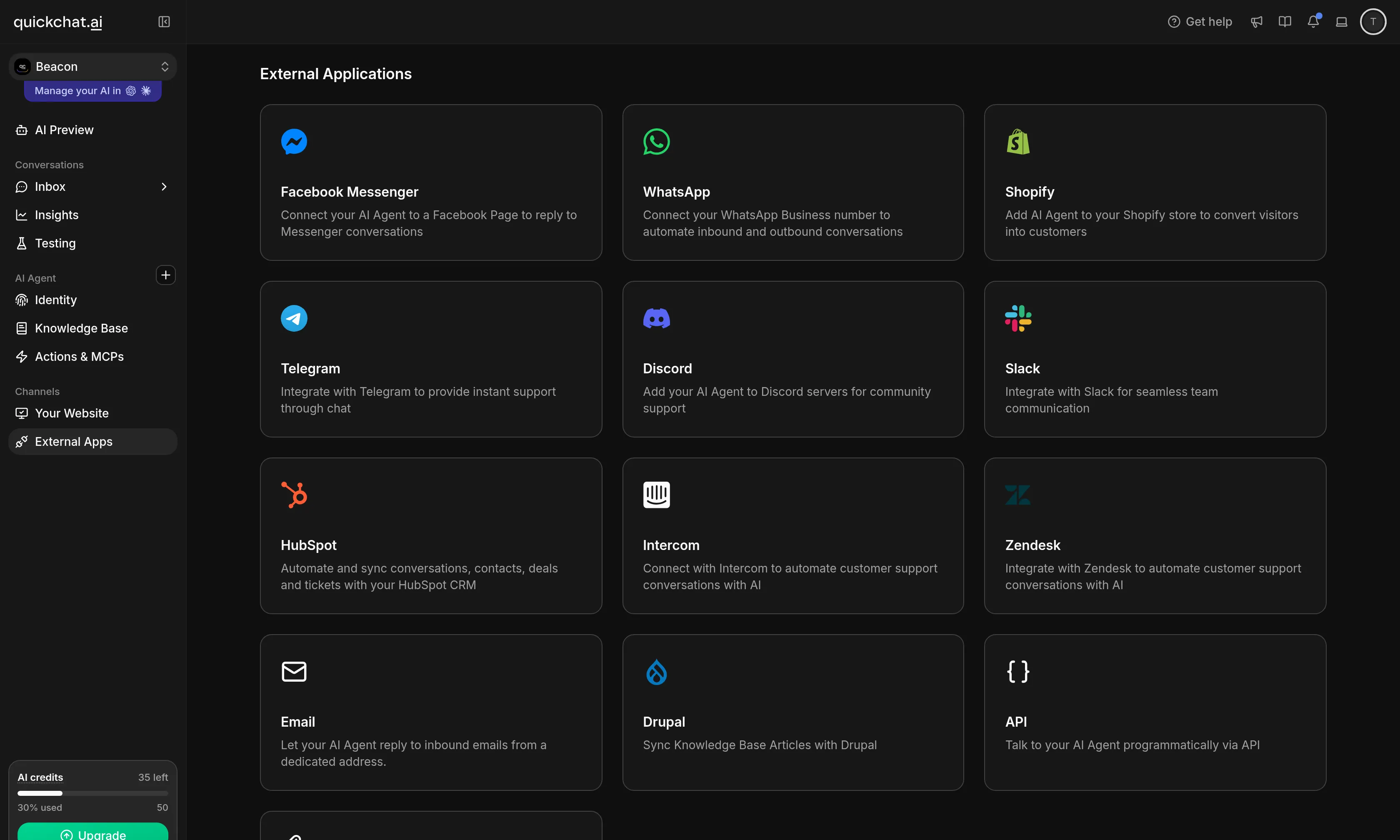 External Apps वह जगह है जहाँ दोनों paths शुरू होते हैं। Advanced setup Discord panel के bottom में callout में है।
शुरू करने से पहले आपको क्या चाहिए
अपनी Discord app connect करें। External Apps में Discord खोलें, Use your own Discord app खोजें और Advanced setup चुनें। Discord के developer portal में application और bot बनाएँ, Message Content Intent on करें, Require OAuth2 Code Grant off छोड़ें, और bot token paste करें। Quickchat AI type करते समय इसे validate करता है। अगर आपने पहले यह नहीं किया है, तो AI Discord bot बनाएँ guide portal side को detail में cover करती है।
Bot को केवल वही दें जो support bot को चाहिए। Ticket channel पर: View Channels, Send Messages, Read Message History, Create Private Threads, Send Messages in Threads, और Manage Threads। इसे Kick, Ban या Timeout permission की जरूरत नहीं है, और test server में जानबूझकर कोई नहीं रखता। Support bot के पास moderate करने का कारण नहीं है, और जो permission उसके पास नहीं है उसके बारे में आपको कभी सोचना नहीं पड़ता।
Discord में वे दो चीजें बनाएँ जिनकी ओर Actions point करेंगे। यह हिस्सा Discord client में होता है, Quickchat AI में नहीं, और वहाँ यही एक setup है:
- एक channel जहाँ tickets खुलेंगे। कोई भी text channel चलेगा। अपनी channel list के next
+use करें, या कोई existing reuse करें। Test server में यह#supportहै। - Ticket खुलने पर page करने के लिए role। Server Settings, फिर Roles, फिर Create Role। Test server में यह
@supportहै।
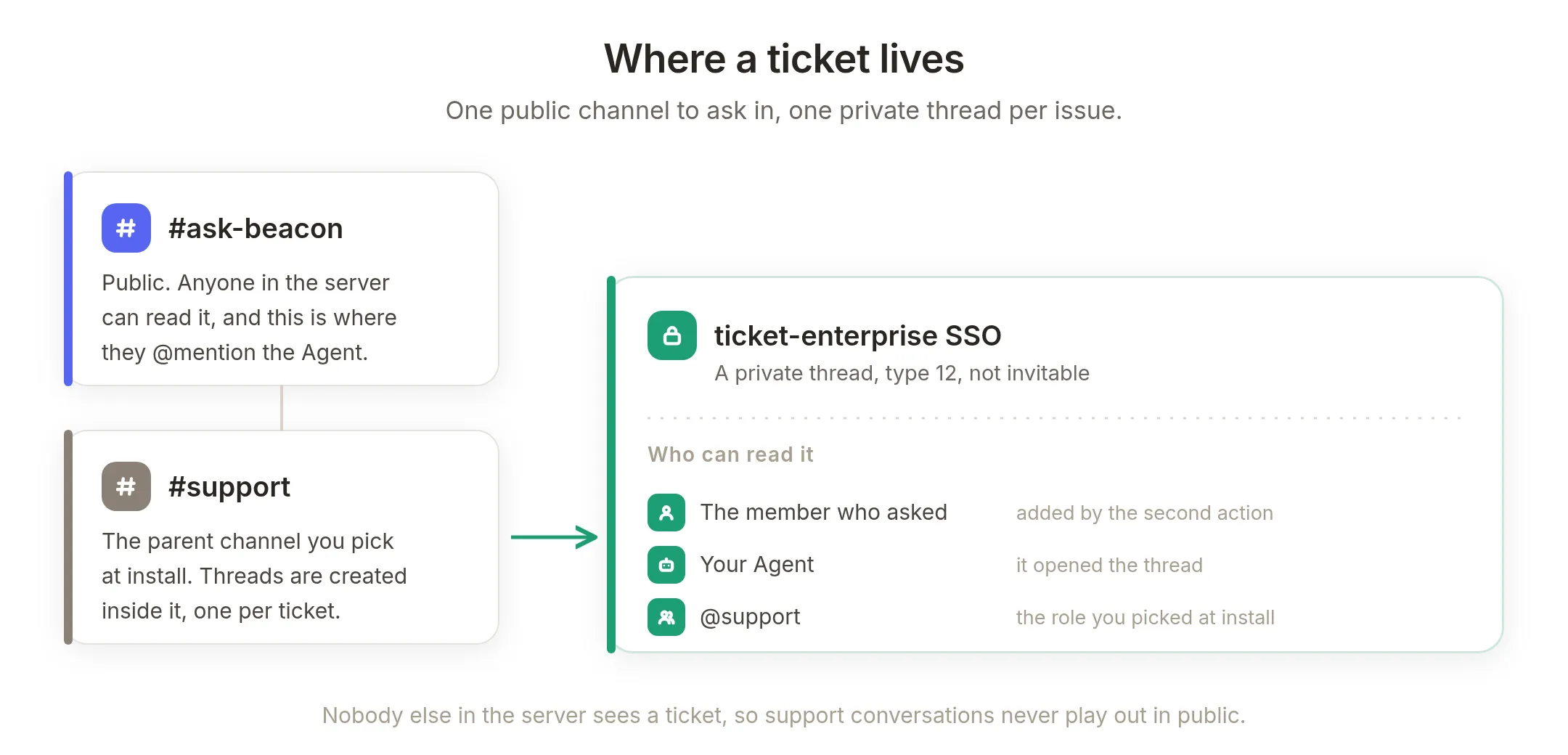 तीन जगहें, और उनमें केवल एक public है।
ये दोनों Step 3 में वापस आते हैं। जब आप ticket template install करते हैं, Quickchat AI आपके server को Discord से live read करता है और आपको तीन dropdowns दिखाता है, जिनमें से एक Role picker है जो मिली roles list करता है। आप वहाँ support role चुनते हैं, कहीं ID type नहीं करते।
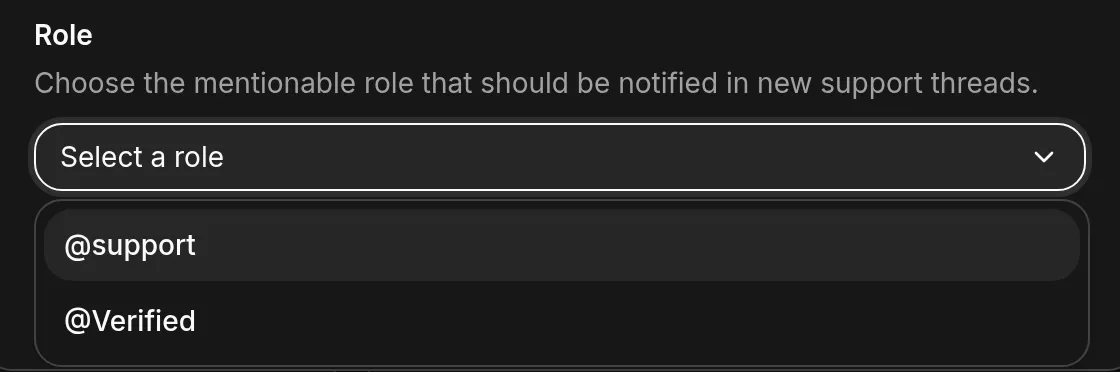 Step 3 में Role picker। यह list Discord से पढ़ता है, इसलिए अभी बनाई role एक moment में यहाँ दिखाई देती है।
एक detail जो skip करने पर अटकाएगी: वह picker केवल वे roles list करता है जिन्हें Discord mentionable बताता है, और @everyone को छोड़ता है। अगर आपकी support role mentionable set नहीं है, तो वह dropdown में simply नहीं आएगी, बिना कारण बताए। Filter deliberate है, क्योंकि template का पूरा काम उस role को ping करना है। Role बनाते समय इसे set करें और problem नहीं आएगी:
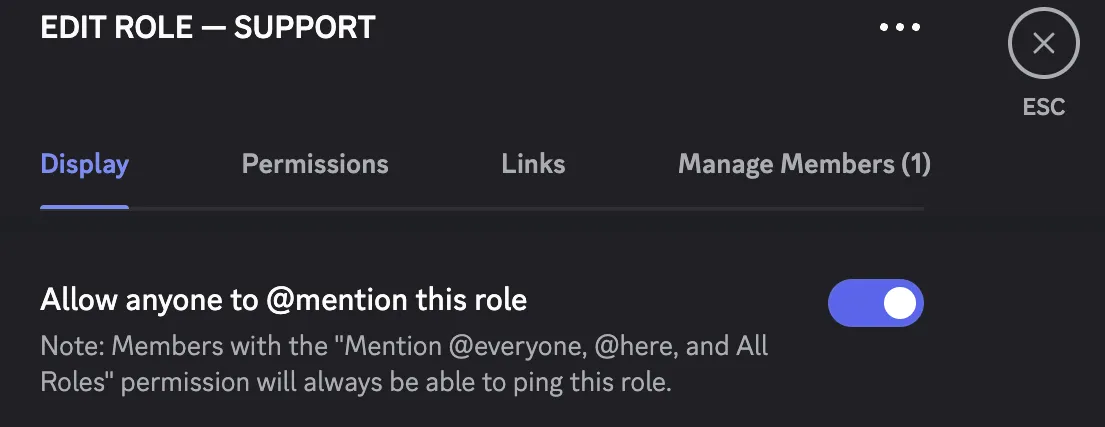 Server Settings, Roles, अपनी support role चुनें, और Display के तहत इसे on करें। इसके बिना role picker तक नहीं पहुँचती।
Bot answer करने या ticket खोलने का decision कैसे लेता है?
अधिकतर Discord ticket bots कोई decision नहीं लेते। Ticket Tool, TicketsBot और बाकी pinned panel पर Create Ticket button post करते हैं, या slash command register करते हैं। Member click करता है, ticket खुलता है, और आपकी team पढ़ती है। यह ठीक design है और पूरी तरह predictable है, लेकिन इसका मतलब है कि इस week API key reset करने का तरीका पूछने वाले दस लोगों ने दस tickets बनाए।
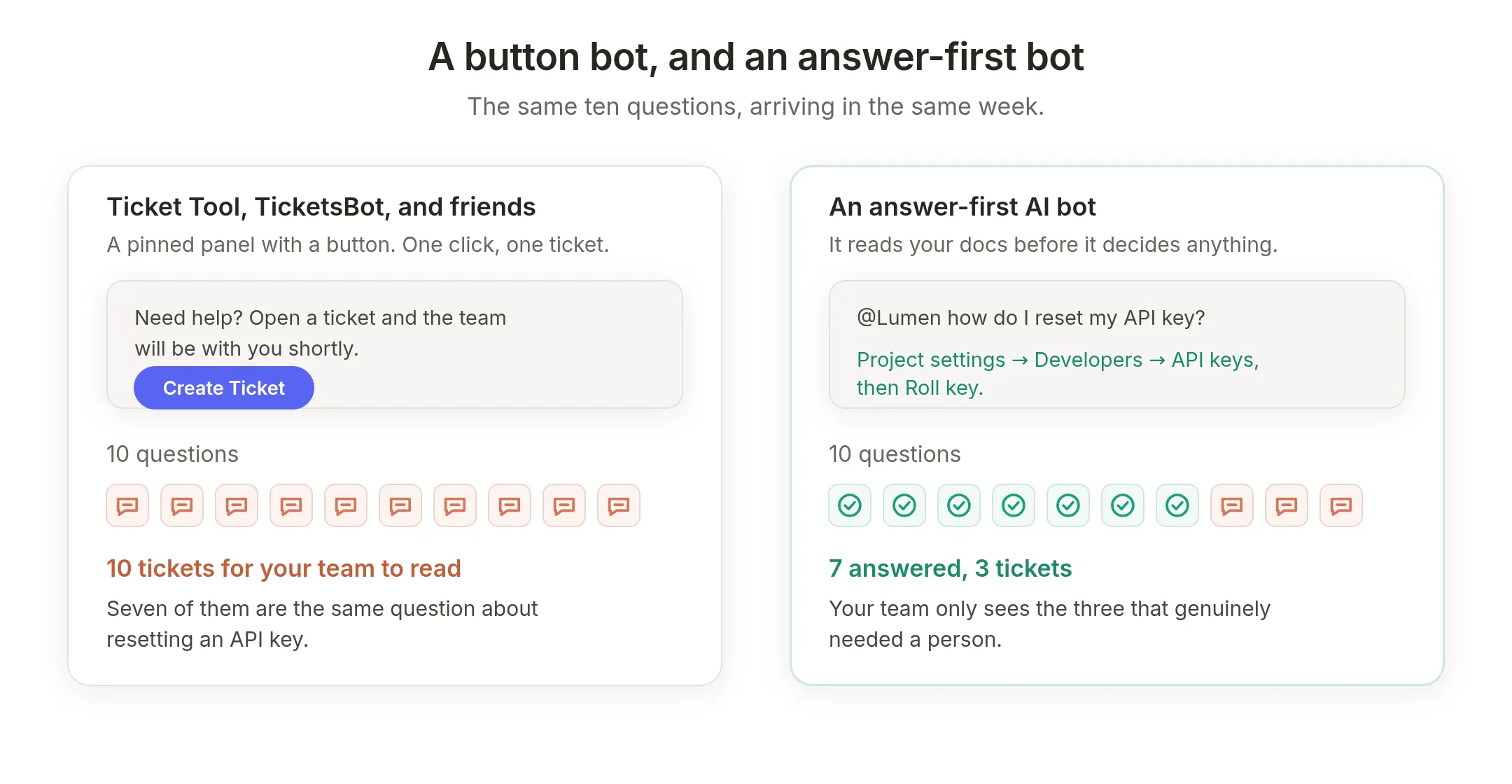 वही दस questions। Difference यह है कि आपकी team अंत में क्या पढ़ती है।
Answer-first bot decision लेने से पहले आपके docs पढ़ता है। और जब यह escalate करता है, एक ticket खोलने के लिए ठीक चार facts चाहिए:
- कौन-से channel में thread खुलेगा
- कौन-से server से question आया
- कौन पूछ रहा है, ताकि उन्हें thread में लाया जा सके
- ticket का नाम क्या है, और problem की one-line summary
Interesting हिस्सा यह है कि ये चार तीन बिल्कुल अलग तरीकों से आते हैं, और केवल आखिरी AI द्वारा लिखा जाता है:
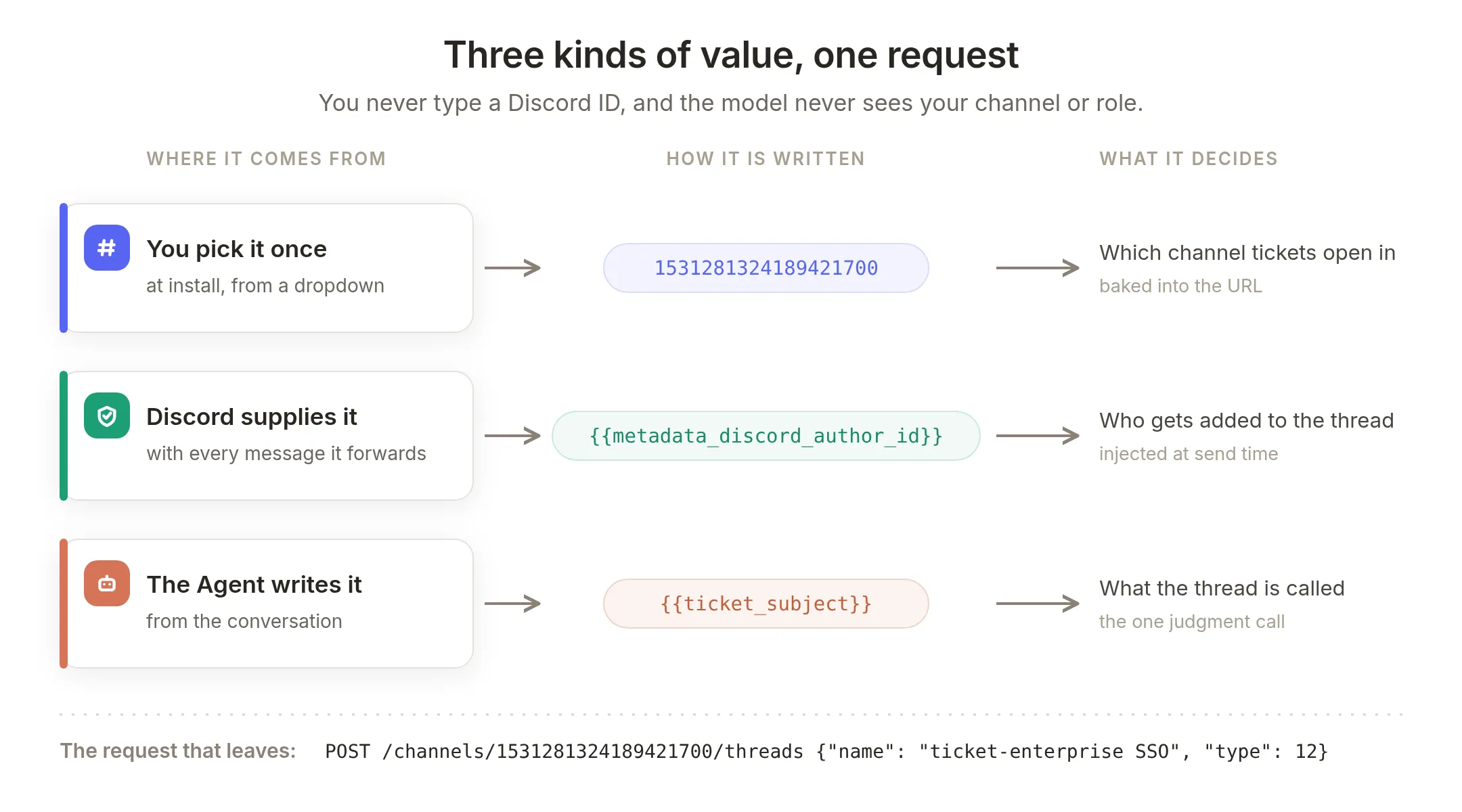 आप कभी Discord ID type नहीं करते, और model कभी आपका channel या role नहीं देखता।
जो आप एक बार चुनते हैं। आपका ticket channel और support role। Template install करते समय आप उन्हें dropdowns से चुनते हैं, और Quickchat AI उन्हें Action में bake कर देता है। Model उन्हें कभी नहीं देखता और बदल नहीं सकता।
जो Discord देता है। हर forwarded message के साथ Discord integration Quickchat AI को बताता है कि वह किस server से आया और कौन बोल रहा है, {{metadata_discord_guild_id}} और {{metadata_discord_author_id}} के रूप में। आपका bot token भी इसी तरह आता है, send time पर injected System Token के रूप में और जहाँ भी call log होती है वहाँ redacted। इसमें से कुछ भी model द्वारा type नहीं होता, और कुछ भी public chat या API message द्वारा supply नहीं किया जा सकता।
जो Agent लिखता है। Ticket subject और one-line issue summary। पूरी build में judgement calls केवल यही हैं, इसलिए बाद की tuning छोटी है।
Step 1: Agent बनाएँ और उसे knowledge base दें
अपना Agent बनाएँ, फिर Knowledge Base खोलें और अपनी documentation जोड़ें। अपना help-docs URL paste करें और Quickchat AI को scrape करने दें, या सीधे articles लिखें। अपनी documentation से AI support agent बनाएँ scraping path को detail में cover करता है।
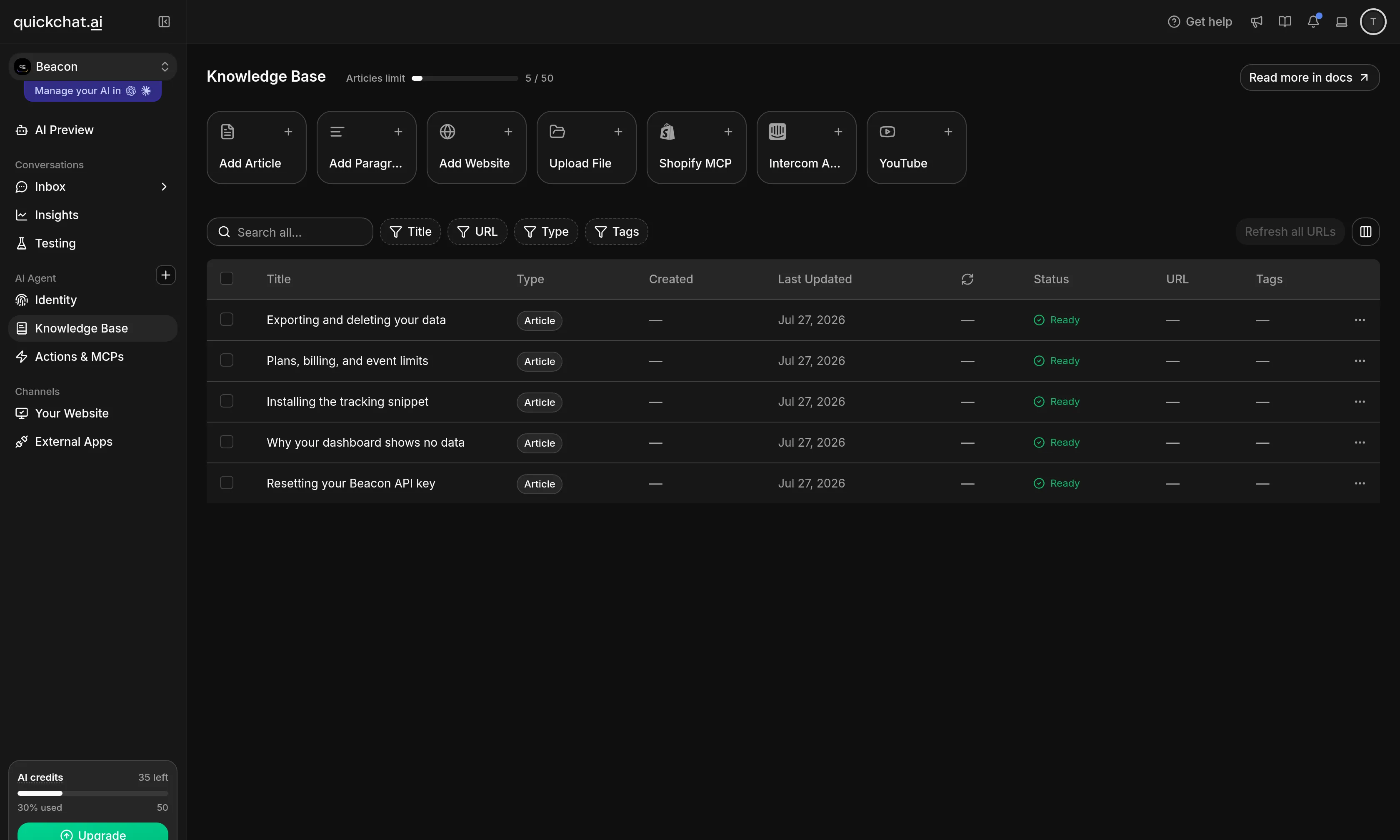 Beacon का knowledge base: API key reset करना, empty dashboard, tracking snippet install करना, plans and billing, और data export करना।
Beacon के docs जानबूझकर एक चीज cover नहीं करते: enterprise SSO setup। यह gap tutorial में oversight नहीं है, यही point है। हर support knowledge base में ऐसे questions होते हैं जिनका answer नहीं होता, और इस bot का पूरा value यह है कि वह ऐसे case में क्या करता है। इस guide में SSO वही question है।
Members आपके अपने bot तक ऐसे channel में @mention करके पहुँचते हैं जिसे यह देख सकता है। Register करने के लिए कुछ नहीं है। /ask command shared one-click Quickchat AI bot पर उपलब्ध है।
Step 2: Agent को बताएँ कब answer करना है और कब escalate
Agent के instructions Identity पर AI Main Prompt में जाते हैं। इसे अपनी company के हिसाब से adapt करके paste करें:
You are Lumen, the support assistant for Beacon, a hosted product-analytics tool for software teams. You answer questions from customers in the Beacon community Discord.
Answer from your Knowledge Base whenever you can. Keep answers short and practical, two or three sentences, and give the concrete steps.
If a question is not covered by your Knowledge Base, do not guess and do not invent steps. Say plainly that you do not have that information, then open a support ticket:
1. Call open_support_ticket once, with a short 2 to 4 word ticket_subject describing the problem.
2. Then call add_ticket_requester to bring the customer into the thread.
3. Then call post_in_ticket with a one line issue_summary of what the customer asked.
Then tell the customer their ticket is open and the team will follow up in the new thread.
Never ask the customer for their Discord ID, the channel ID or the thread ID. Those are filled in for you.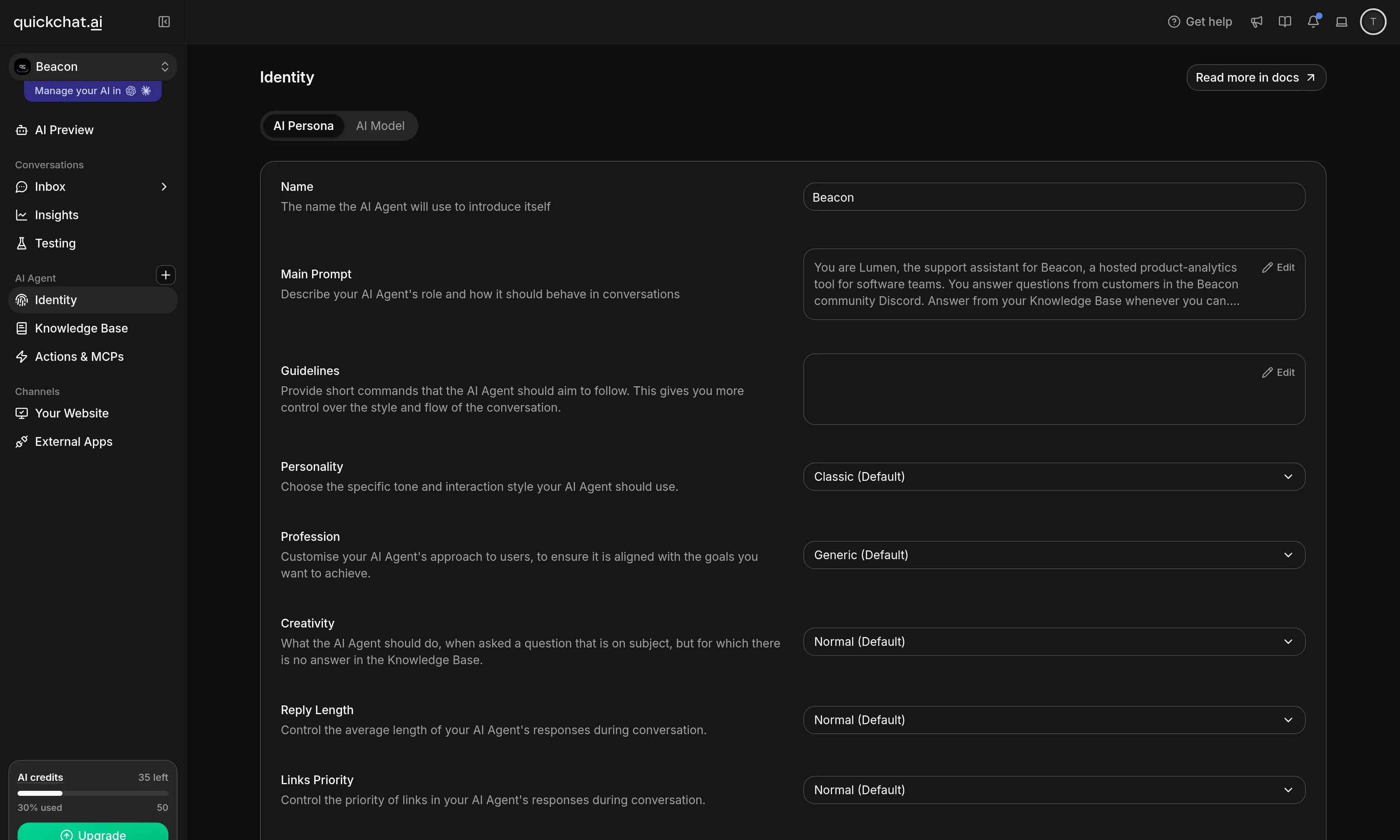 Identity पर AI Main Prompt। यह always-available field है, अलग guidelines list नहीं।
उस block में दो lines load-bearing हैं। “Do not guess and do not invent steps” knowledge gap को plausible answer के बजाय honest answer में बदलता है। और तीन Actions को order में नाम देना Agent से उन्हें sequence के रूप में call कराता है, न कि किसी एक को चुनने देता है।
Ordering prompt में described है, लेकिन केवल वहीं enforced नहीं है, अगले दो sections उसी बारे में हैं।
Step 3: Ticket Actions एक click में install करें
Actions & MCPs खोलें, Add Action पर click करें, और Discord Action चुनें।
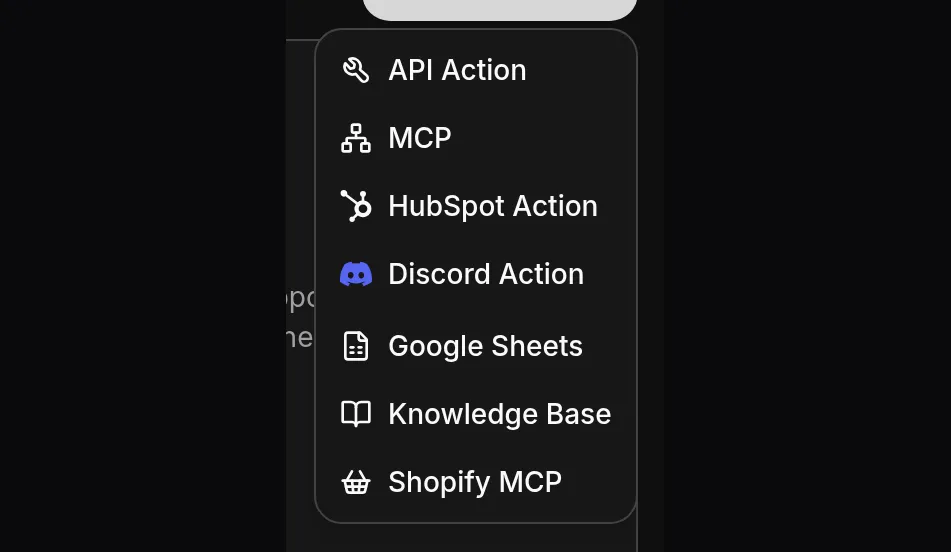 Discord Action दूसरी one-click galleries के साथ है।
Gallery Discord templates को job के अनुसार group करके खोलती है: Support & Tickets में वह है जिसका यह guide use करता है, और Moderation में सात और हैं।
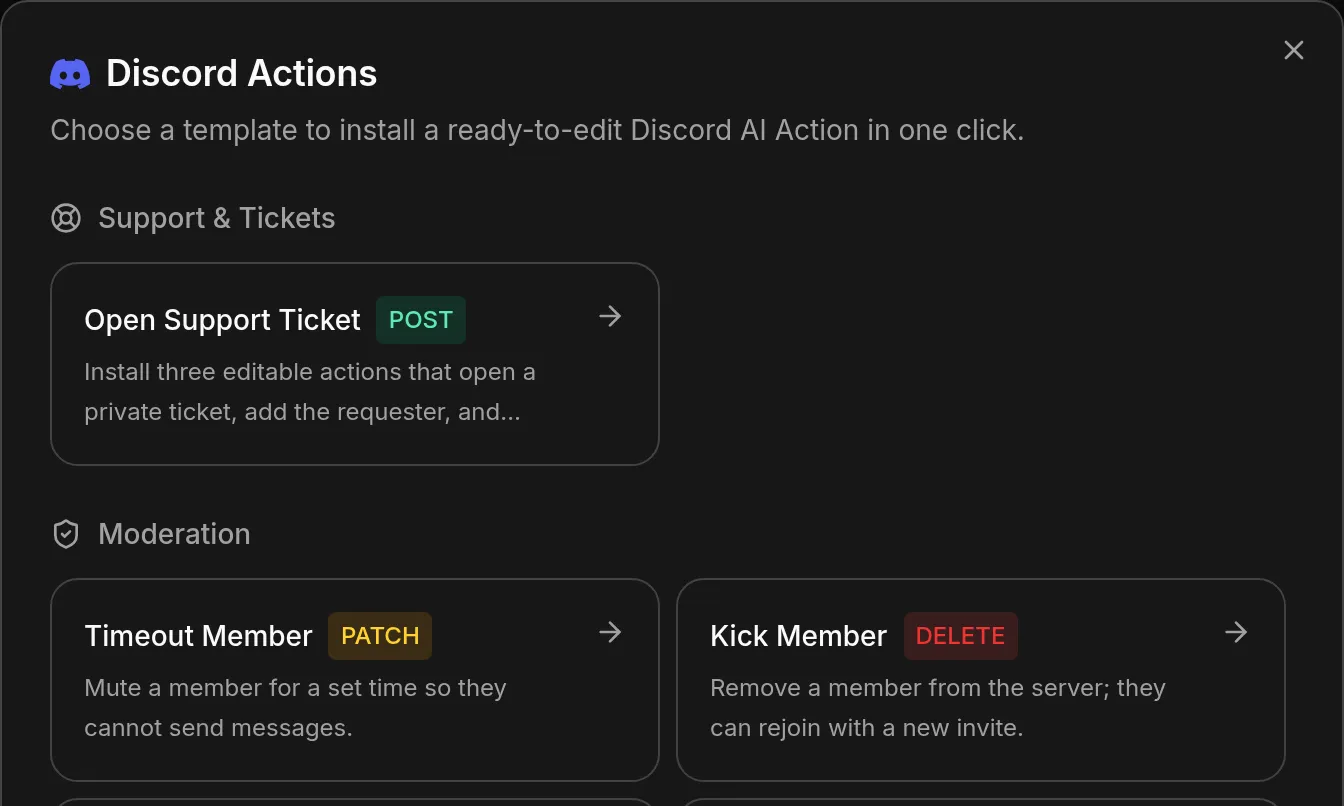 आठ cards। Open Support Ticket ही एक है जो आपसे कुछ पूछता है।
Open Support Ticket चुनें और छोटा configure step खुलता है। पूरी build में यही एक form है:
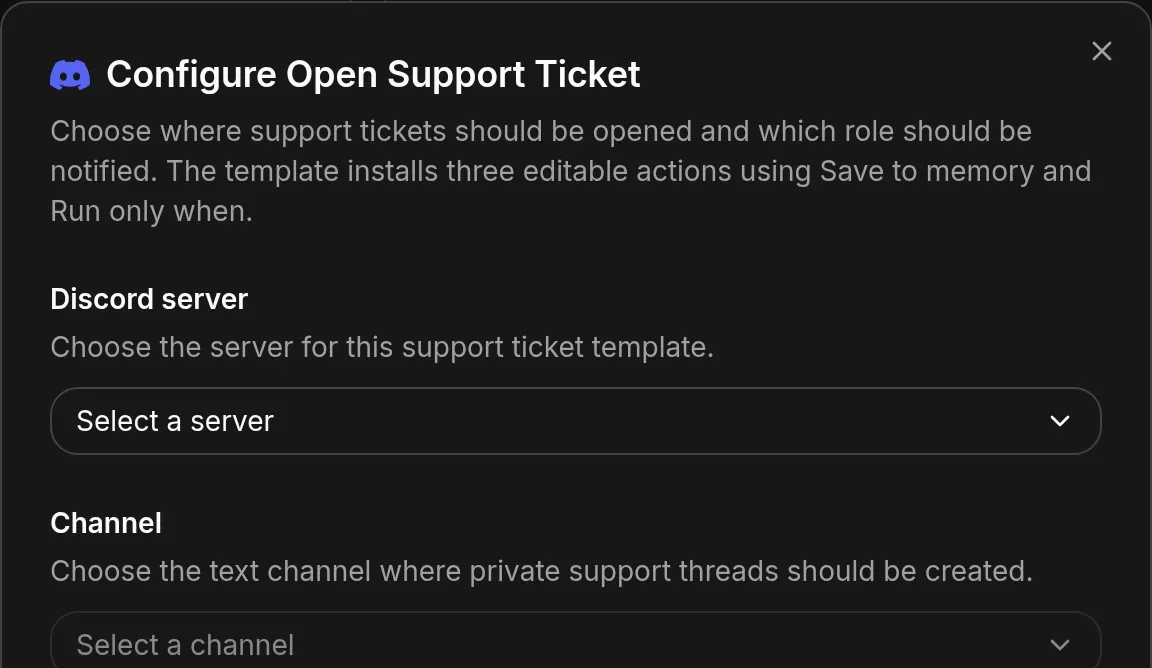 तीन dropdowns, और dialog पहले ही बता देता है कि वह क्या install करने वाला है।
Lists Discord से live आती हैं, जो वास्तव में काम कर सकता है उसके लिए filtered। Channels केवल text channels हैं:
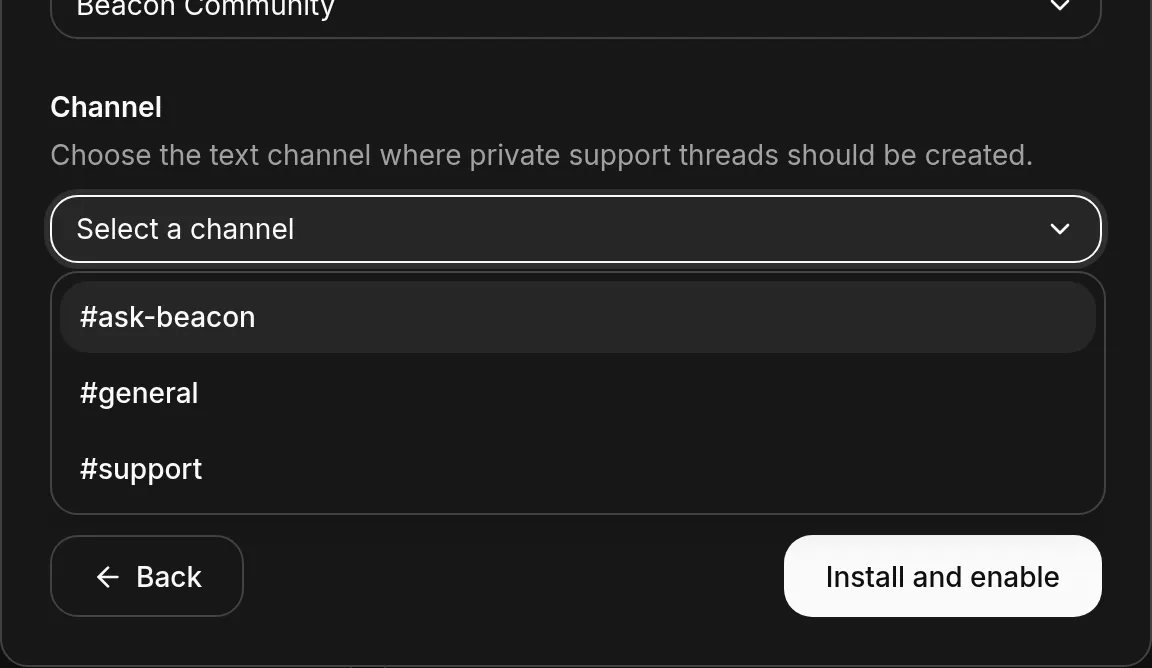 वह channel चुनें जिसके नीचे tickets खुलने चाहिए। Threads उसी के अंदर create होते हैं।
और roles केवल mentionable roles हैं, @everyone excluded:
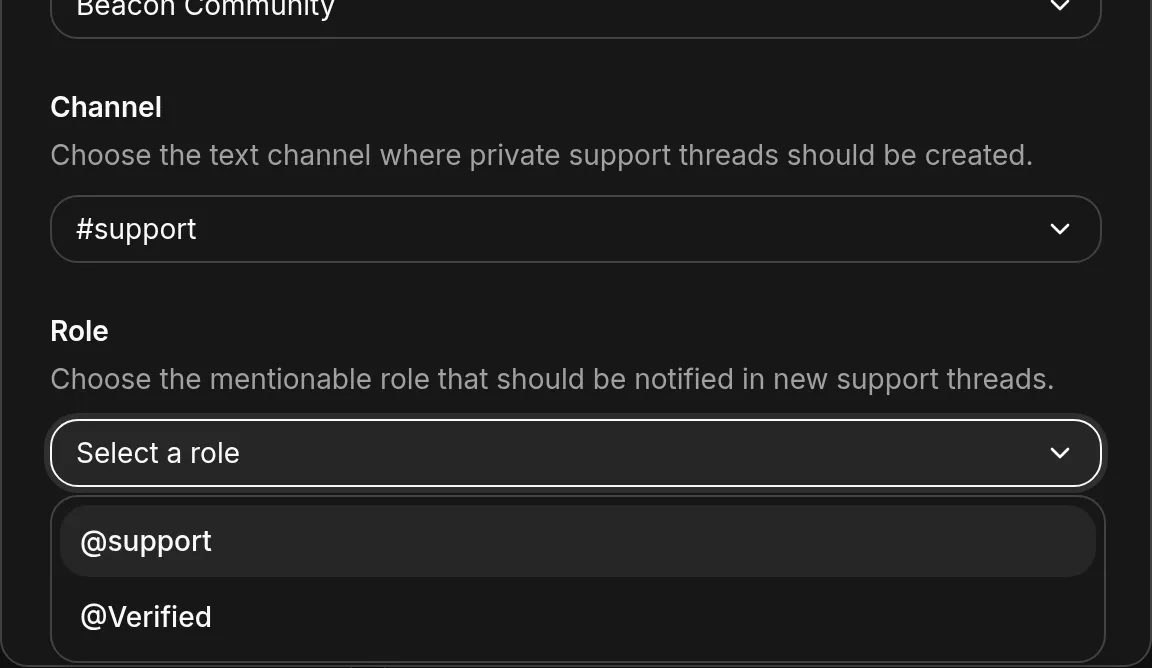 यही filter उस support role को hide करता है जिसे आपने अभी mentionable नहीं बनाया।
तीन choices और form done:
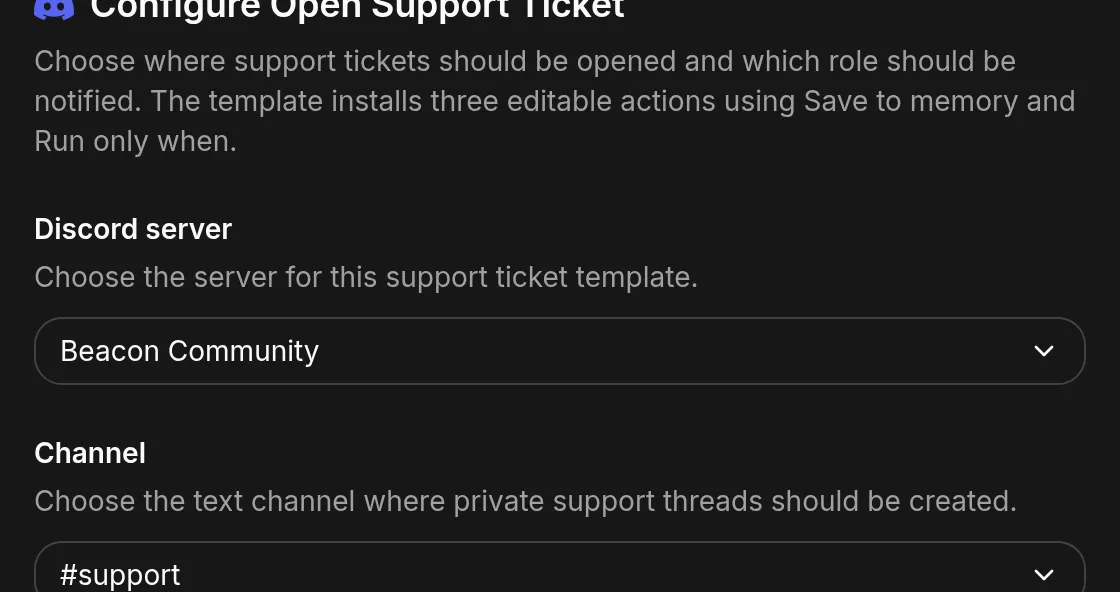 पूरी configuration। Server, channel, role, और वही button जो मायने रखता है।
Install and enable पर click करें। Quickchat AI backend पर तीन Actions एक transaction में, पहले से active, लिखता है।
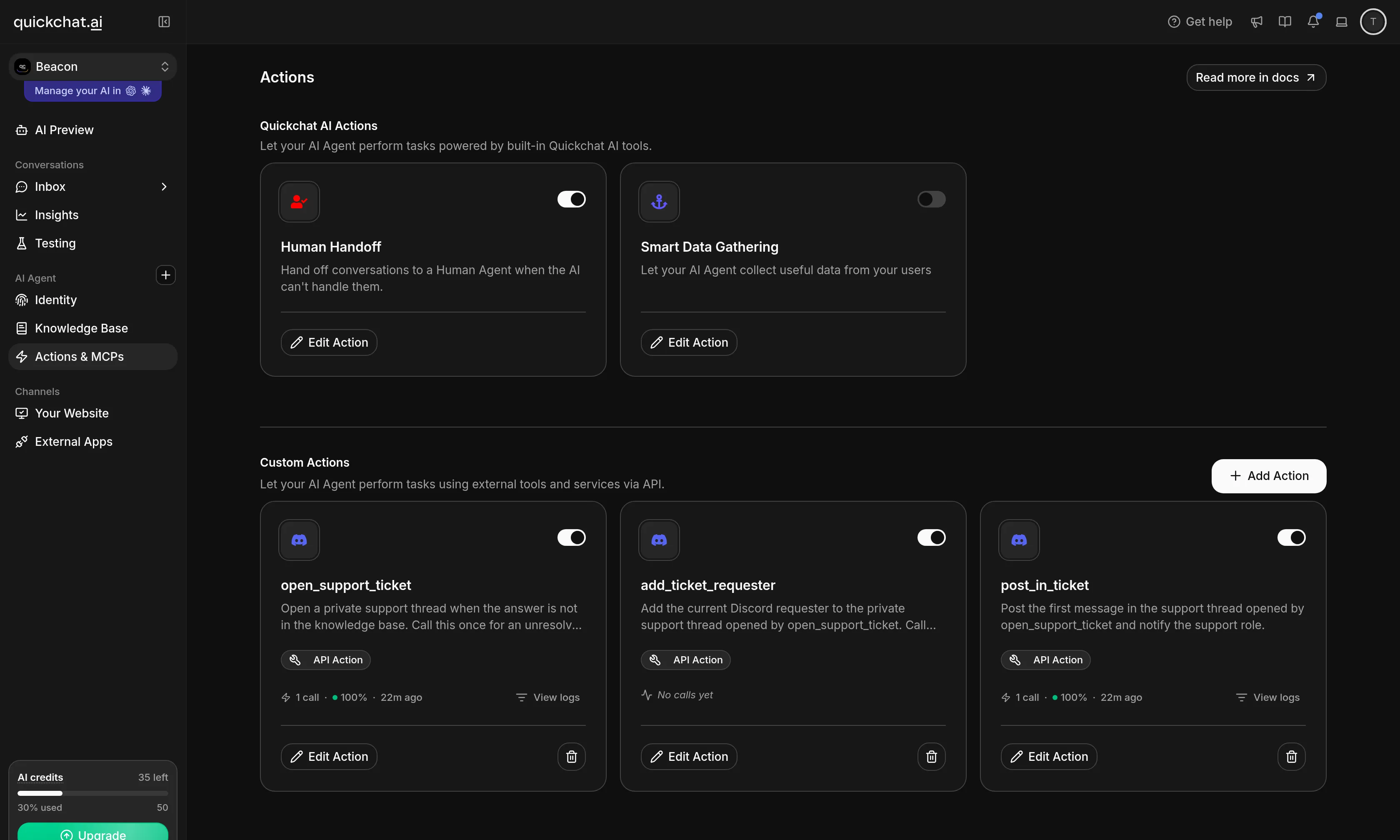 तीन cards, enabled, Discord icon के साथ। भरने के लिए और कुछ नहीं।
यहाँ रहते हुए सात moderation templates के बारे में दो बातें जानना उपयोगी है। उन्हें कोई configuration नहीं चाहिए, क्योंकि वे server, member, role या channel Discord request से ही लेते हैं, इसलिए card click करने पर वे तुरंत install हो जाते हैं। और template को दो बार install करने पर error के बजाय दूसरी editable copy मिलती है, जो variant बनाने का reasonable तरीका है।
उस one click ने वास्तव में क्या बनाया?
इसे समझना उपयोगी है, भले ही आपको type नहीं करना पड़ा, क्योंकि बाद में जो भी बदलना चाहें वह यहीं रहता है।
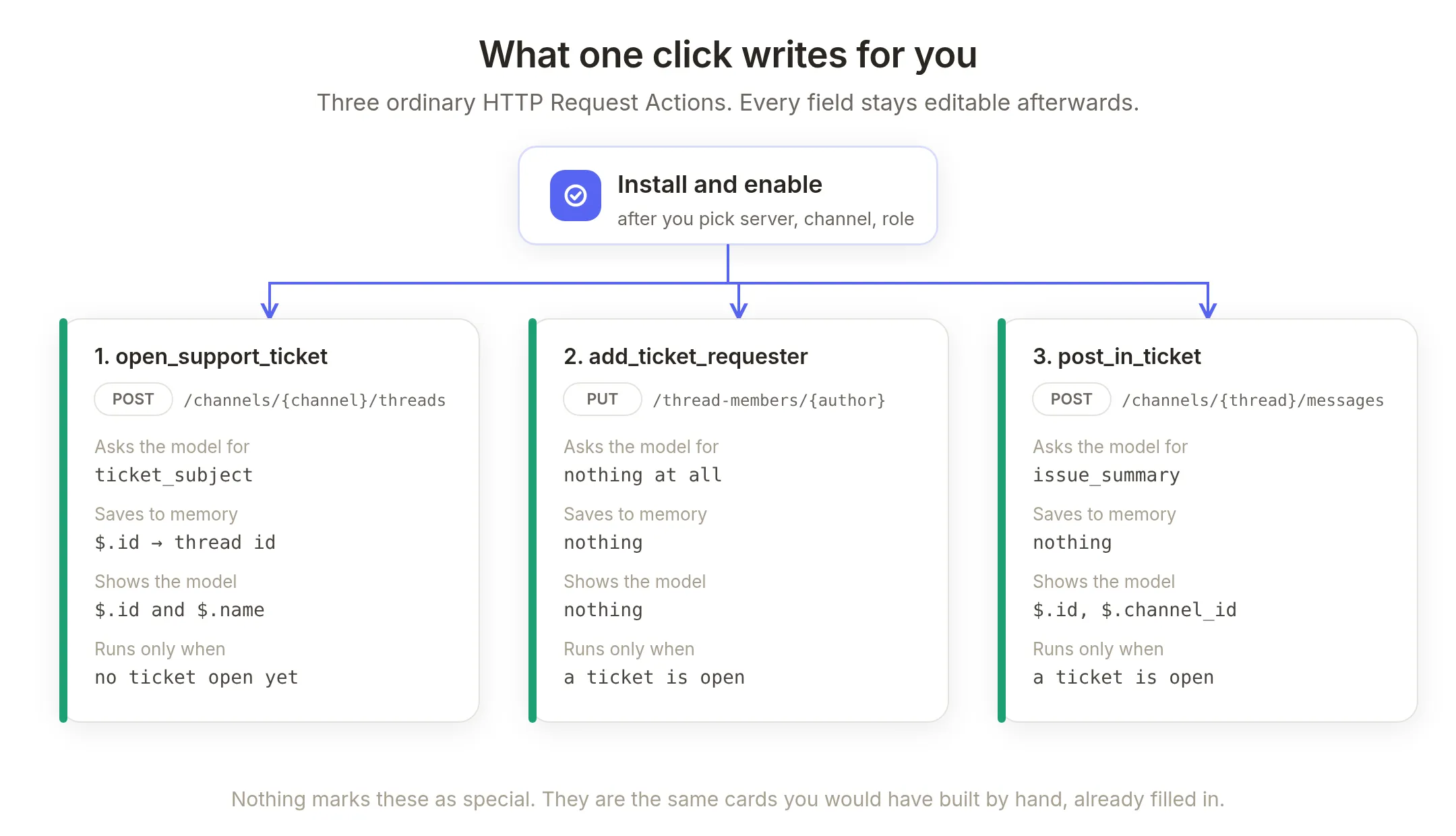 तीन ordinary HTTP Request Actions। उन्हें special mark करने वाली कोई चीज नहीं।
वे editor में पहले से मौजूद दो features से एक-दूसरे से wired हैं, और दोनों को नाम से जानना उपयोगी है।
Save to memory response से value capture करता है और उसे conversation पर store करता है। open_support_ticket इसका use new thread की ID रखने के लिए करता है: Discord thread object return करता है, $.id ID है, और यह memory में discord_ticket_thread_id के रूप में लिखा जाता है। दो follow-up Actions फिर उसे अपने URL में read back करते हैं, इसलिए वे अभी create हुए thread पर act करते हैं, न कि किसी ऐसी चीज पर जिसे आपको पहले से name करना पड़े। (Docs में Save to memory.)
Run only when conversation state पर Action gate करता है, और कोई request भेजे जाने से पहले Quickchat AI side पर check होता है। (Docs में Run only when.)
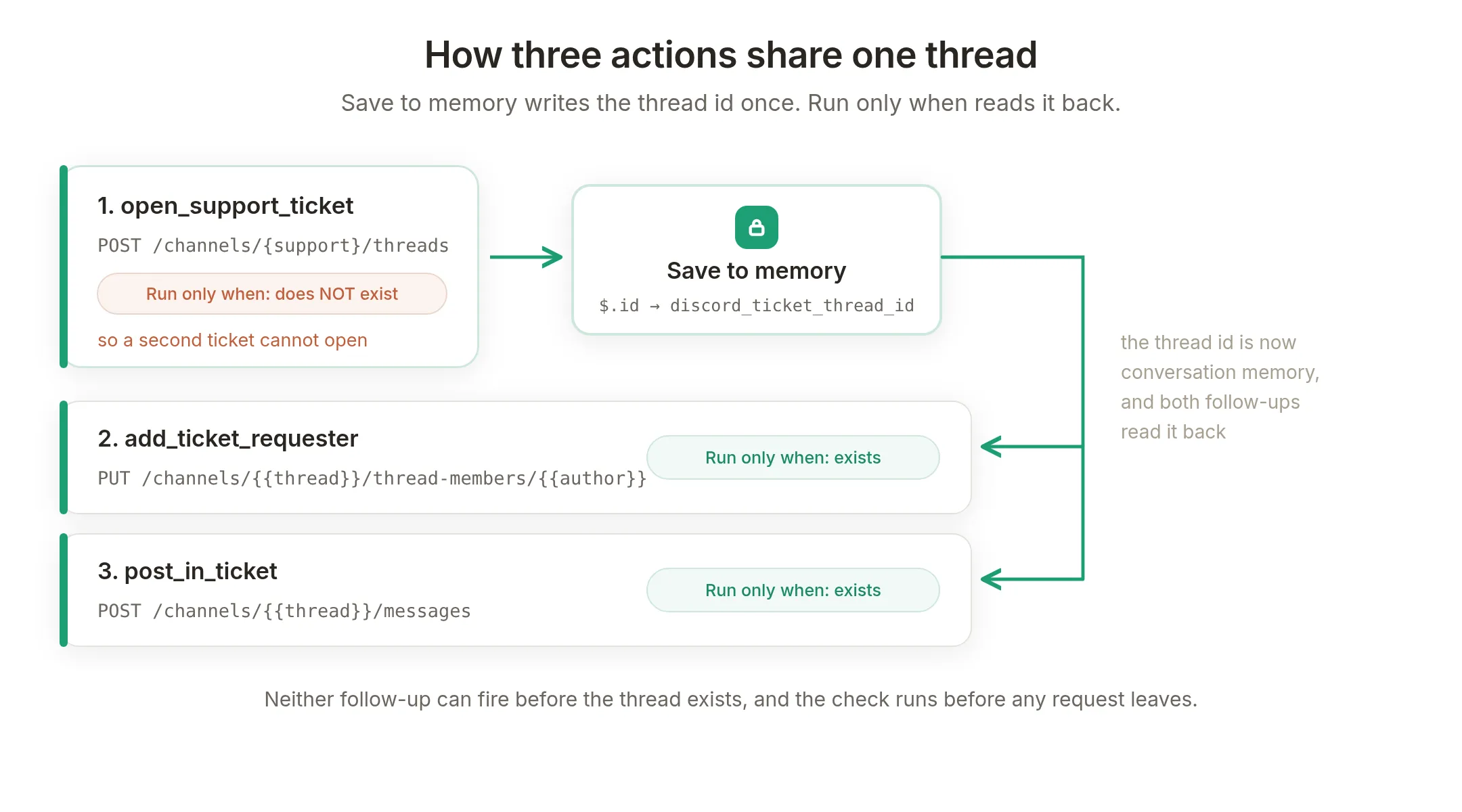 Gate जो तीन independent Actions को reliable sequence में बदलता है।
उस diagram को दोनों directions में पढ़ें, क्योंकि यह दो काम कर रहा है:
- Follow-ups के लिए thread ID का exist करना जरूरी है, इसलिए Agent आपकी team को ऐसे thread के बारे में page नहीं कर सकता जो कभी create ही नहीं हुआ।
open_support_ticketके लिए उसका not exist करना जरूरी है, इसलिए Agent उसी conversation में दूसरा ticket नहीं खोल सकता, conversation कुछ भी कहे। यह instruction नहीं, guarantee है: अगर member दस और messages में detail जोड़ता है, तब भी उनके पास एक ticket है। Channel reply mode में channel में हर exchange अपनी conversation है, इसलिए अगला genuine question फिर भी अपना ticket खोल सकता है।
हर Action में Response filter भी है, और इसे गलत पढ़ना आसान है। Response filter एक allowlist है: यह उन paths के नाम देता है जिन्हें Agent देख सकता है, और response में बाकी सब model के पढ़ने से पहले drop हो जाता है। (Docs में Response filter.)
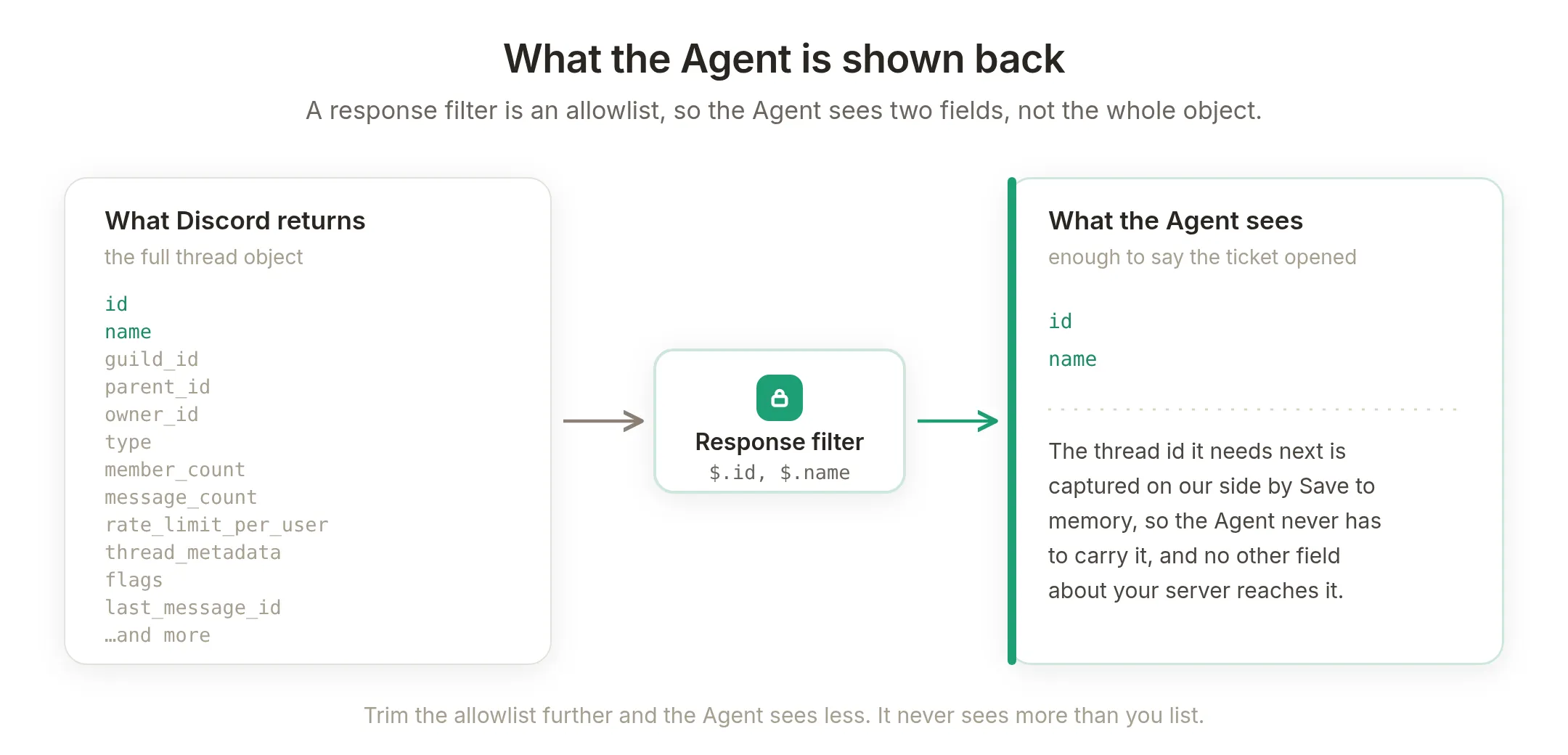 Discord आपके server के बारे में dozen fields return करता है। Agent को दो दिखते हैं।
Sequence को चाहिए thread ID Quickchat AI side पर Save to memory द्वारा capture होती है, इसलिए Agent को उसे carry करने की जरूरत नहीं होती, और आपके server के बारे में और कुछ model तक नहीं पहुँचता। Allowlist और trim करें तो यह कम देखता है। यह आपकी list से अधिक कभी नहीं देखता।
क्या human AI से take over कर सकता है?
हाँ, और यही वह half है जिसे अधिकांश ticket bots छोड़ देते हैं। ऐसा ticket जिसे कोई पढ़ता नहीं, बस एक thread है।
Human Handoff अलग, built-in Action है। इसे on करें और Handoff Rules के तहत describe करें कि conversation कब person तक पहुँचना चाहिए, उदाहरण के लिए “when the customer asks for a human, or when the Agent could not answer from the knowledge base”. Quickchat AI फिर आपकी Inbox में AI-written summary के साथ conversation flag करता है, ताकि जो भी उसे pick करे वह पूरे thread के बजाय paragraph पढ़े। हर handoff setting की अपनी walkthrough Human Handoff tutorial में है।
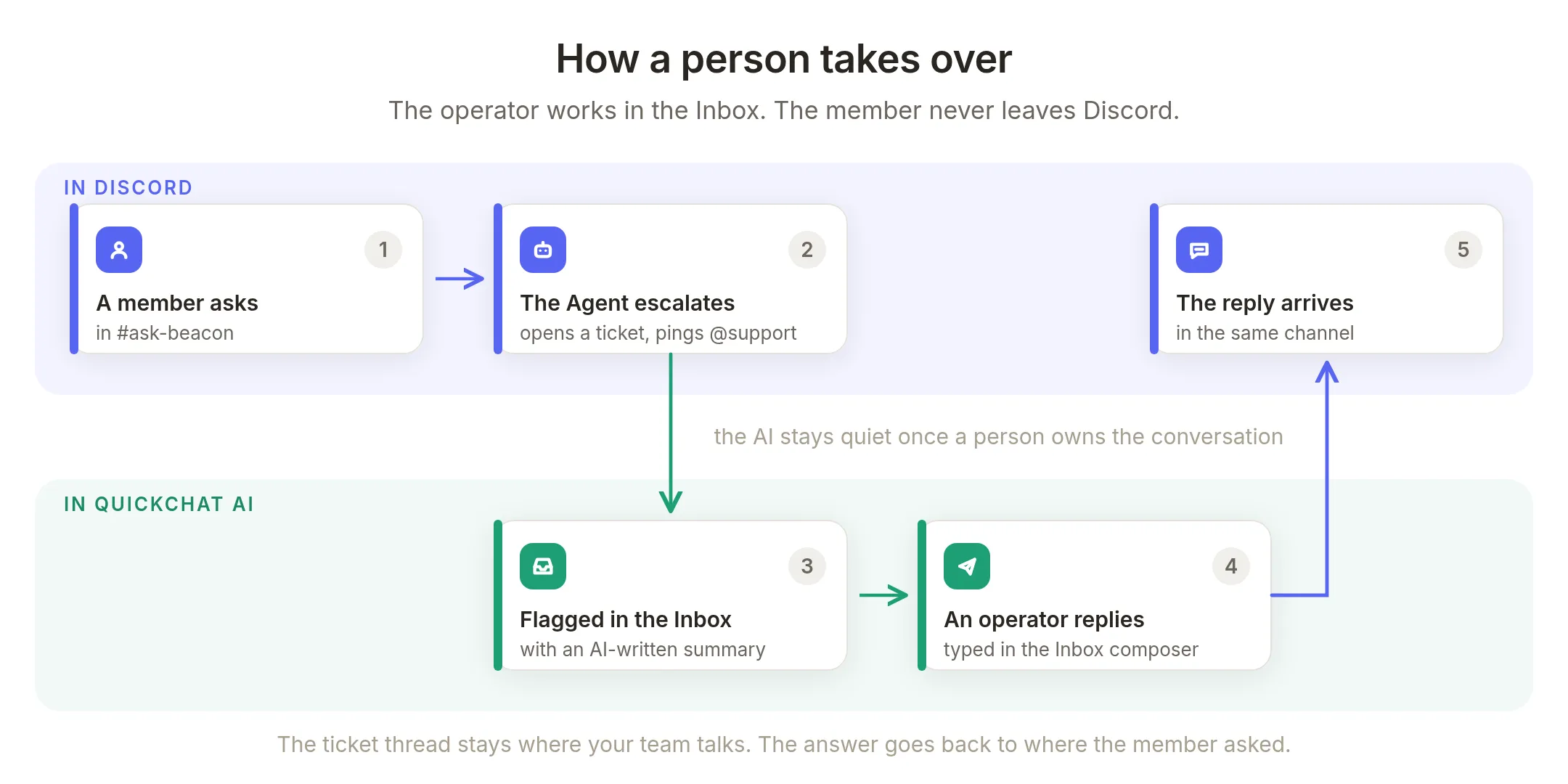 Operator Inbox में काम करता है। Member Discord कभी नहीं छोड़ता।
Conversation अपने नाम assign करें और Inbox composer में reply करें। वह reply सीधे उसी Discord channel में deliver होता है जहाँ member पहले से बात कर रहा है। उन्हें आपके साथ account, email thread या portal login की जरूरत नहीं होती। जिस moment कोई person conversation own करता है, AI quiet हो जाता है, इसलिए आप अपने bot से compete नहीं करते।
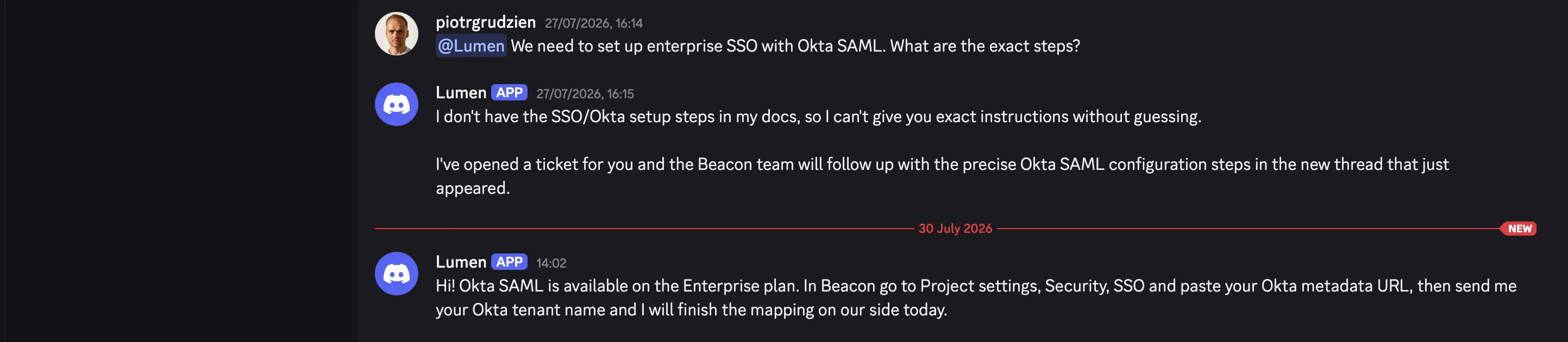 वही channel, तीन दिन apart। Agent ने decline और escalate किया; divider के नीचे message Quickchat AI Inbox में person ने type किया था। ध्यान दें कि यह आपके bot के नाम से आता है, क्योंकि Discord हमें केवल आपके bot की identity से post करने देता है।
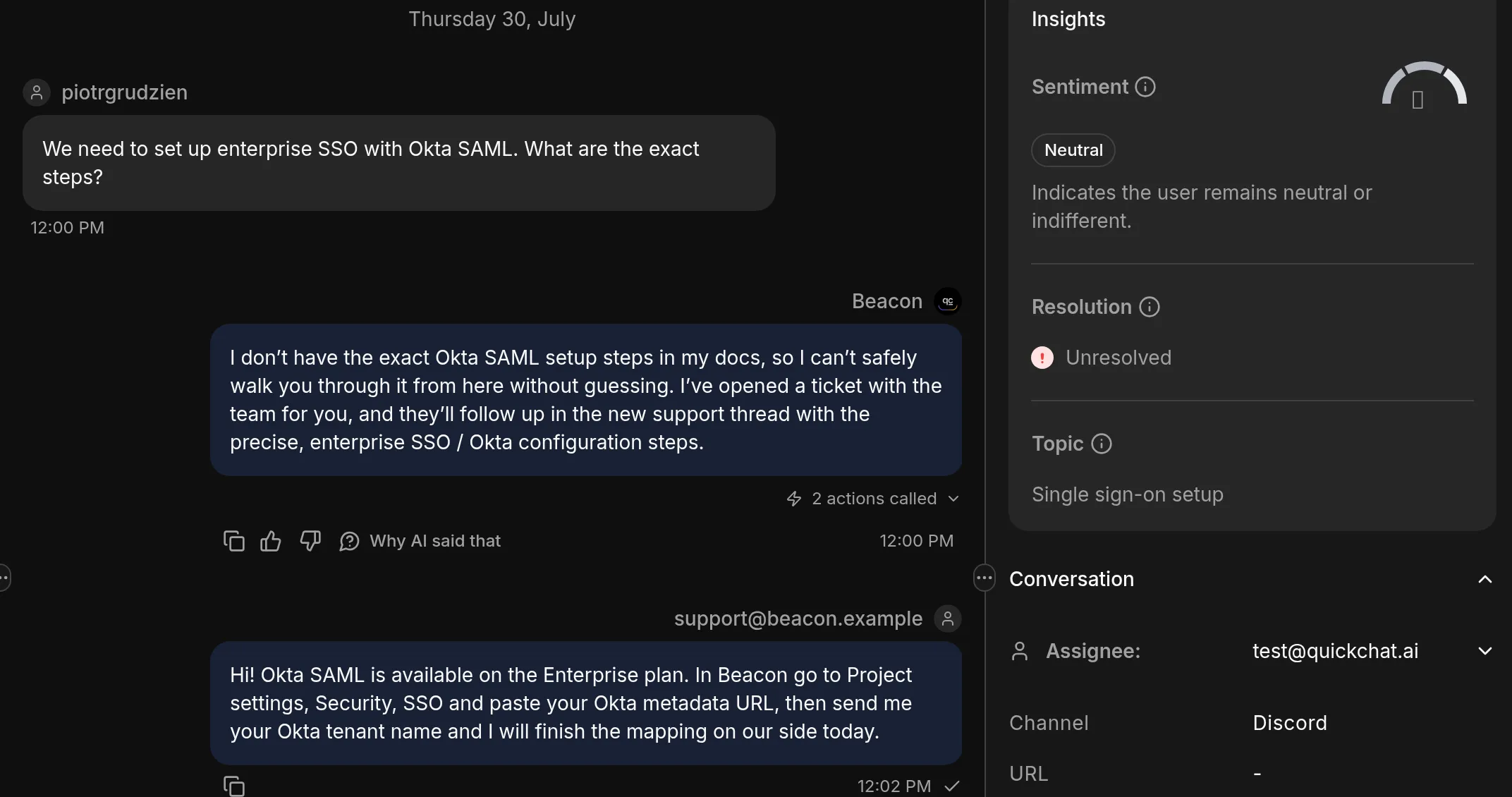 आपकी side से वही conversation। Agent का refusal, उसके पीछे दो Action calls, नीचे operator का answer, और details pane जो पहले से जानता है कि channel Discord है और topic single sign-on है।
इस बीच private ticket thread वहीं रहता है जहाँ आपकी team बात करती है: यह working space है, जिसमें member है और आपकी support role ping की गई है। Answer वापस उसी जगह जाता है जहाँ question पूछा गया था।
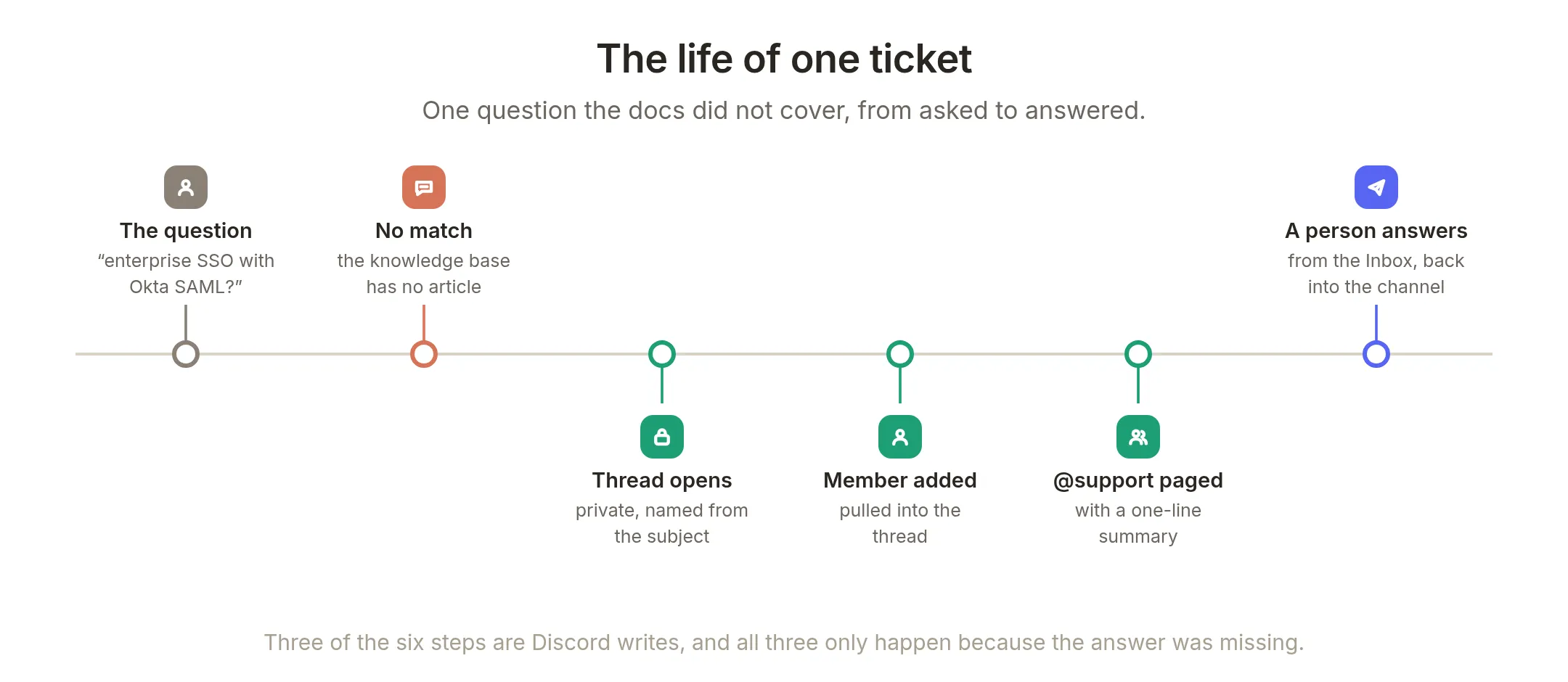 छह steps। उनमें से तीन Discord writes हैं, और तीनों केवल इसलिए होते हैं क्योंकि answer missing था।
दोनों तरीकों से test करें
इस पर rely करने से पहले दोनों paths run करें, और honest failure को सबसे ज्यादा test करें।
Covered question। Bot को ऐसे channel में @mention करें जिसे वह देख सकता है और कुछ ऐसा पूछें जिसे आपका knowledge base cover करता है। आपको channel में real steps मिलने चाहिए, और कहीं भी thread नहीं बनना चाहिए। यही वह case है जो आपकी team का time बचाता है, और docs अच्छे होने पर यही आपका अधिकतर traffic होगा।
Uncovered question। वह चीज पूछें जिसे आपके docs cover नहीं करते। Agent को ऐसा कहना चाहिए और फिर escalate करना चाहिए। उसी moment ticket दिखाई देता है:
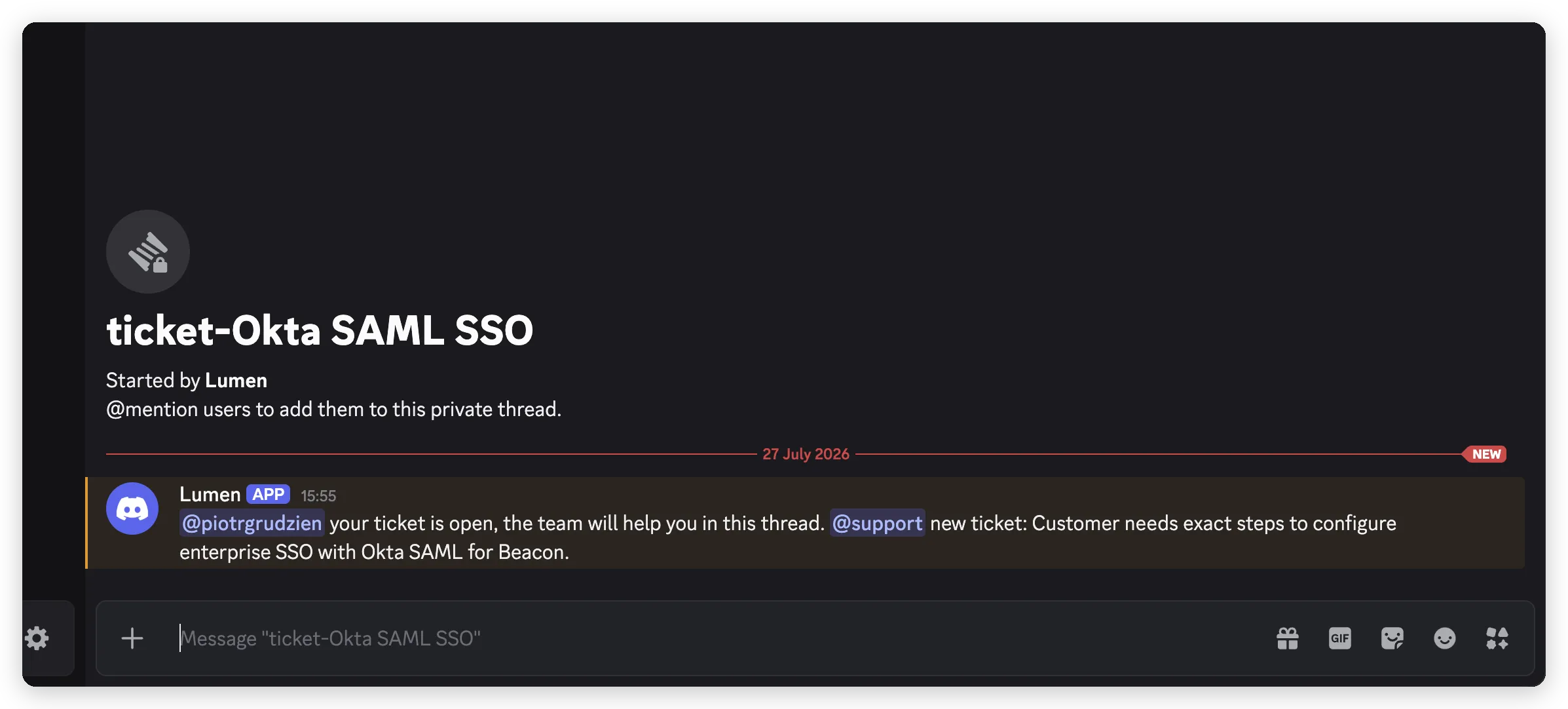 Agent द्वारा खोला गया thread। इसने problem से नाम दिया, member को pull किया, role ping की, और summary खुद लिखी।
और thread सच में private है, जिसे उसकी अपनी member list साबित करती है:
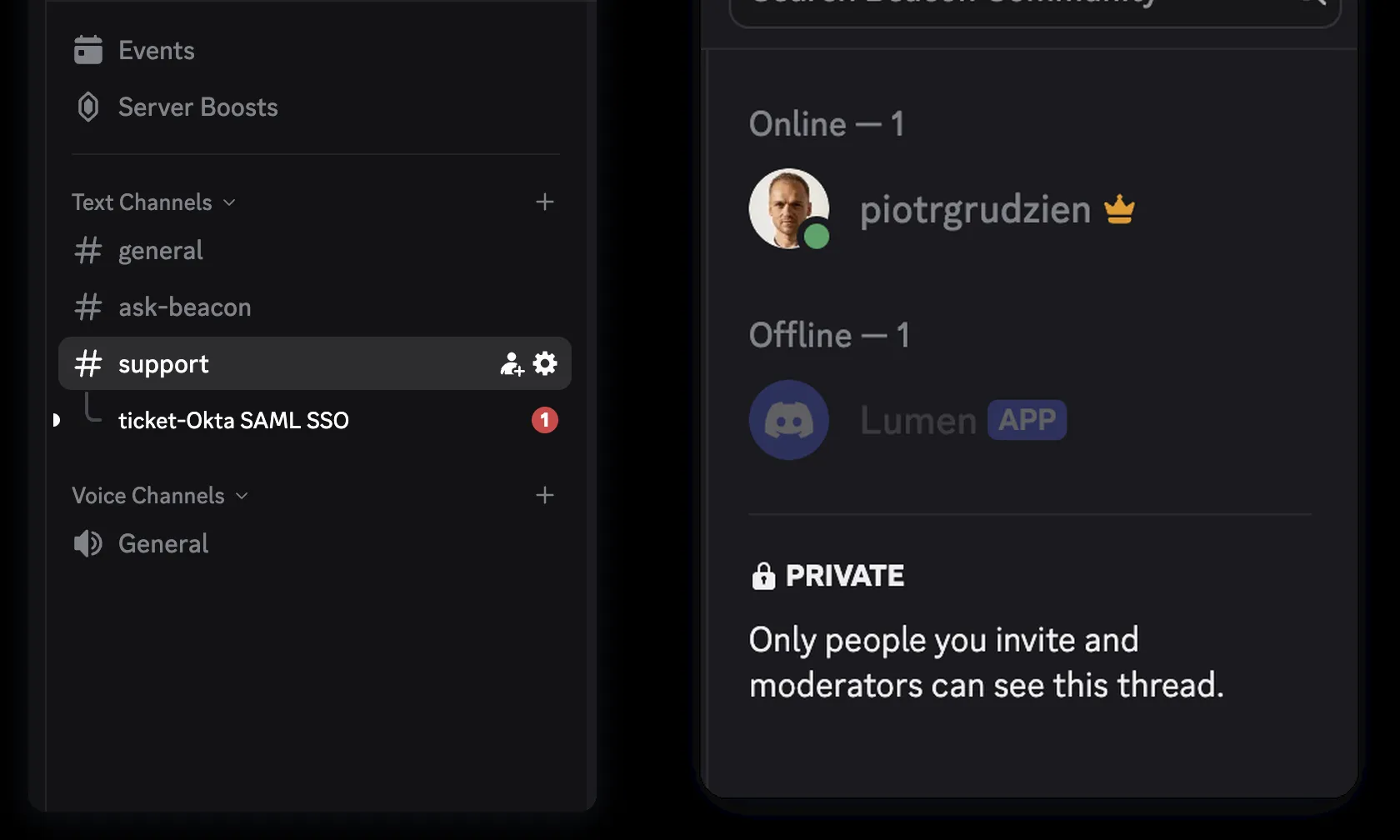 Ticket private thread है। Support conversations public में नहीं चलतीं।
पूरी conversation पर test करें, एक message पर नहीं। Duplicate guard अपना value turn two पर दिखाता है, जब member detail जोड़ता है और naive bot दूसरा ticket खोल देता है।
एक चीज जो run conditions cover नहीं करतीं। वे out-of-order call रोकती हैं, लेकिन retry deduplicate नहीं करतीं: अगर आप notify Action को हाथ से re-run करते हैं, तो यह दूसरा message post करता है। Live ticket पर poke करने से पहले जानना उपयोगी है।
कई phrasings को एक साथ check करने के लिए, उन्हें Discord में type किए बिना, Testing के तहत Simulations use करें: customer messages का dataset बनाएँ, उसे अपने real Agent के खिलाफ run करें, और scored results पढ़ें। एक dataset में covered और uncovered questions mix करें, क्योंकि दोनों paths अलग तरीकों से fail होते हैं।
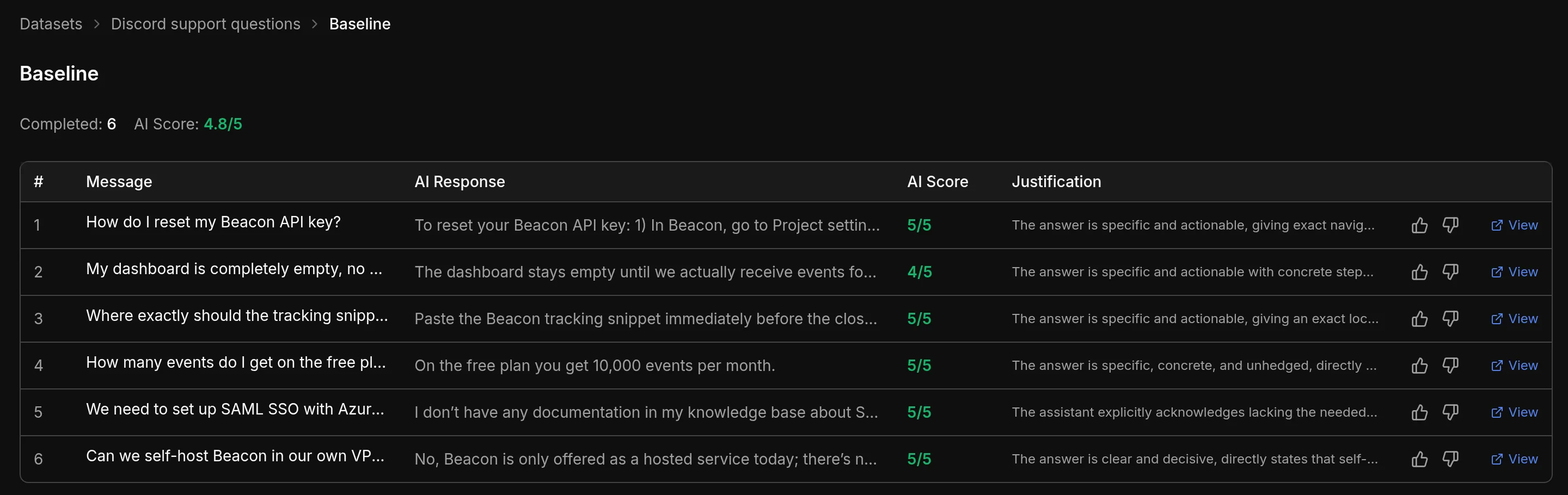 छह questions, चार covered और दो नहीं, एक run में scored। Rows 5 और 6 honest failures हैं, और वे answers जितना ही high score करते हैं।
Evaluation criteria ऐसे grader के लिए लिखें जो केवल transcript देख सकता है, क्योंकि उसे बस वही मिलता है। दो चीजें जो वह नहीं देख सकता, अन्यथा आपको cost करेंगी। वह Discord side effect नहीं देख सकता, इसलिए जब तक आप न कहें वह “I’ve opened a ticket for you” को Agent द्वारा capability invent करना मानता है। और वह आपका knowledge base नहीं देख सकता, इसलिए correct, specific answer को fabricated मानकर down mark करता है क्योंकि वह number check नहीं कर सकता। Criteria में दोनों के लिए एक sentence देना उपयोगी है, और छोड़ने पर दोनों आपके best behaviour को down mark करते हैं।
Bot को बहुत ज्यादा tickets खोलने से कैसे रोकें?
अधिकतर servers को सिर्फ यही tuning चाहिए, और यह mostly prompt problem नहीं है।
Ticket volume knowledge base problem है। आपके docs का हर gap ticket बनता है। अगर bot expected से अधिक escalate करता है, tickets पढ़ें: वे उन questions की list हैं जिनका answer आपकी documentation नहीं देती। उन gaps को close करने से volume directly reduce होता है।
Insights बताता है कि आगे क्या document करना है। Quickchat AI conversations को topic के अनुसार group करता है, इसलिए आप guess करने के बजाय देख सकते हैं कि कौन-से questions सबसे अधिक आते हैं। अपने knowledge base में top three topics fix करें और escalation rate fall होते देखें।
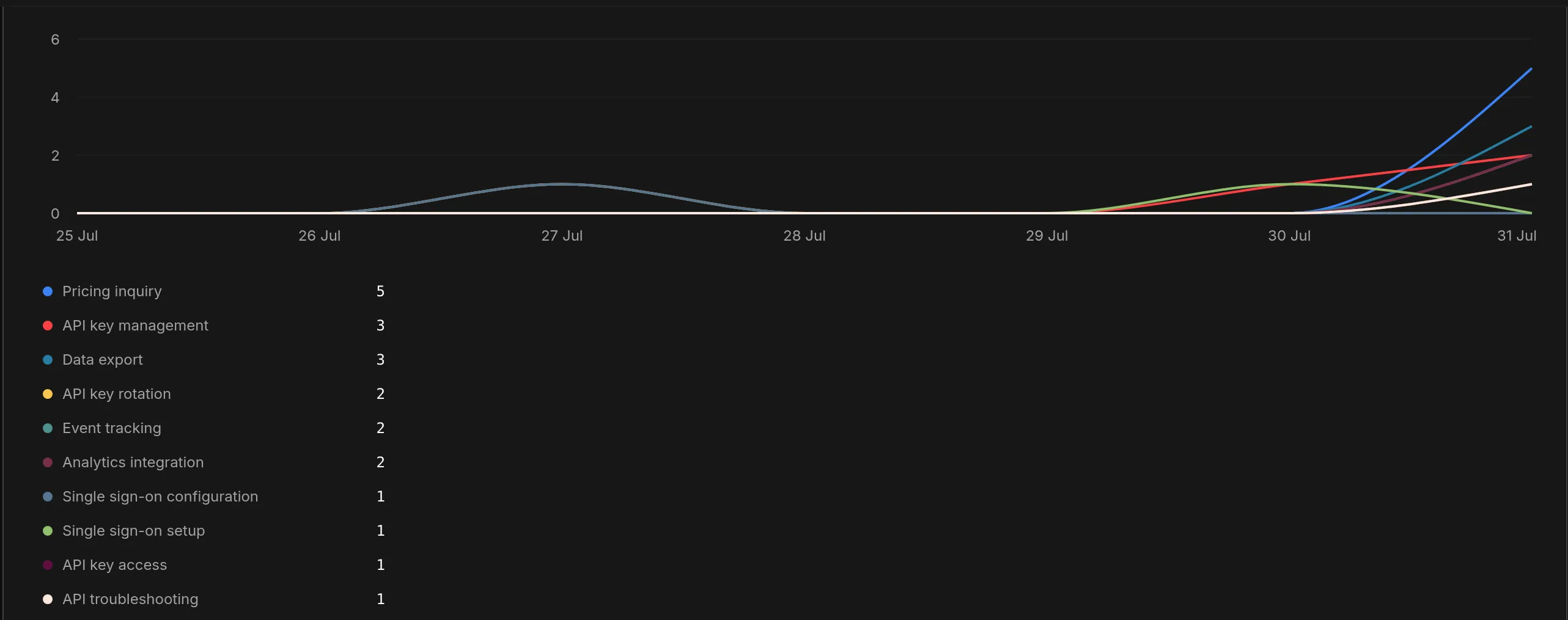 किसी ने इन्हें configure नहीं किया। Insights, Advanced के तहत AI-Detected Topics ने conversations से खुद नाम दिए, और counts priority order में documentation backlog हैं।
यही list पूरा tuning loop है। Pricing और API keys सबसे अधिक आए, इसलिए वे articles पहले लिखे जाते हैं, और next week का chart बताता है कि काम हुआ या नहीं। ऊपर के topics आपके लिए discovered हैं; अगर आप किसी specific product area को जानबूझकर track करना चाहते हैं तो Manage Topics के तहत अपने define भी कर सकते हैं। Docs में AI-Detected Topics, Conversation Topics और managing topics देखें।
अगर यह बहुत जल्दी escalate करता है, Action description tighten करें ताकि यह केवल तब fire हो जब Agent member को बता चुका हो कि उसके पास information नहीं है। अगर यह बहुत कम escalate करता है और guess करने लगता है, तो main prompt में “do not guess and do not invent steps” line मजबूत करें।
क्या public server में इसे चलाना सुरक्षित है?
जिस bot से public channel में कोई भी बात कर सकता है, उसे ध्यान से देखना चाहिए। इसे protect करने वाली चीज prompt wording नहीं, editor में पढ़ी जा सकने वाली configuration है, इसलिए message जैसे भी phrased हो, यह लागू रहती है।
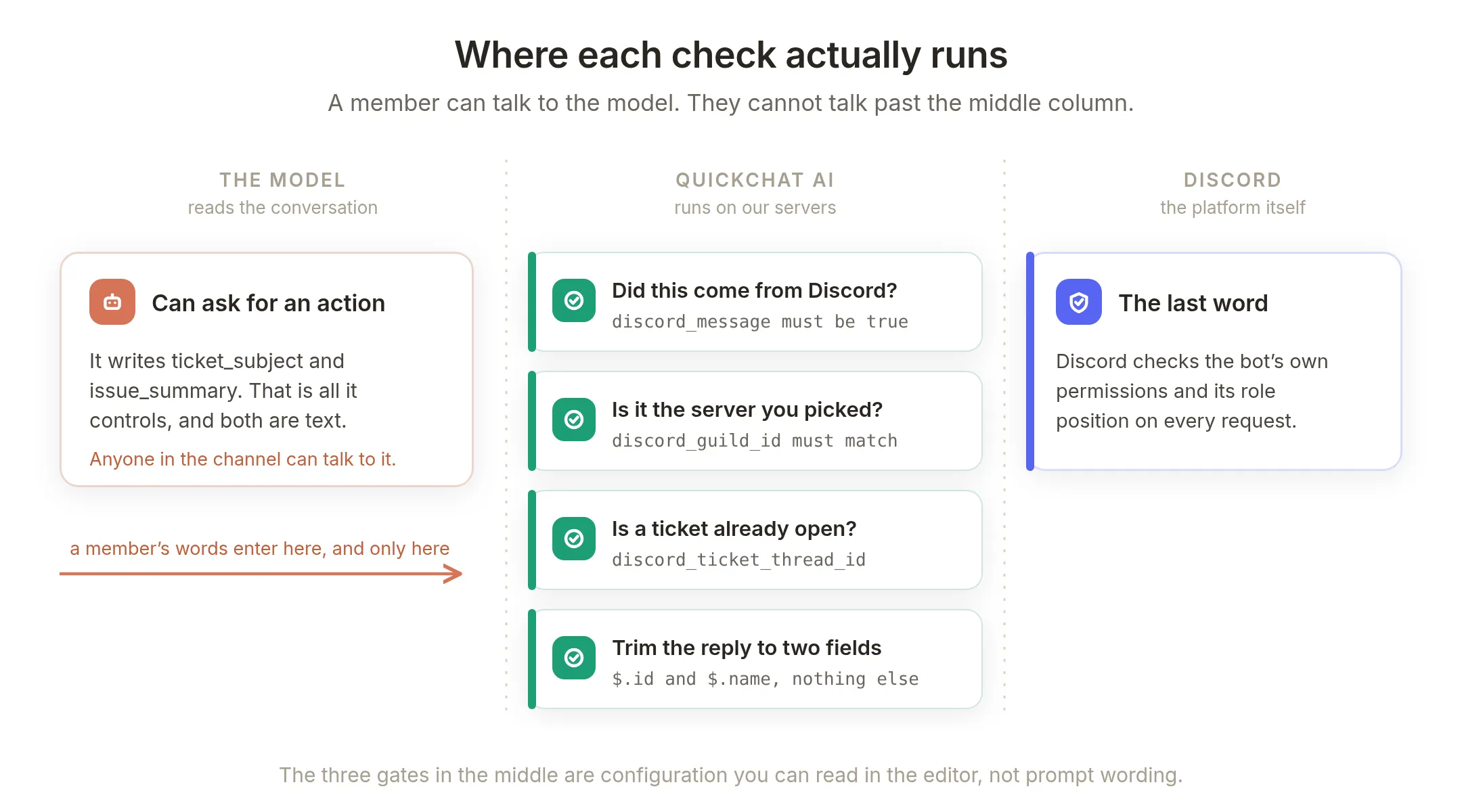 Member model से बात कर सकता है। वह middle column के पार बात नहीं कर सकता।
हर ticket Action को आपके server से real Discord turn चाहिए। हर Action की तीन में से दो run conditions check करती हैं कि message वास्तव में Discord integration से आया और install पर चुने server से आया। ये values integration author करता है, message नहीं, और public chat या API message इन्हें supply नहीं कर सकता या पुराने stored copy inherit नहीं कर सकता। अपने Agent की public API को इन Actions पर point करें और वे refuse करते हैं।
Private thread में किसी को जोड़ने वाले Action में कोई model-editable parameters नहीं हैं। उसका URL current message के लिए integration द्वारा supplied member ID पर end होता है। Agent अलग one pass नहीं कर सकता, इसलिए यह आपके server के arbitrary member को किसी और के ticket में pull नहीं कर सकता।
Mentions install पर locked हैं। Notify Action explicit mention list भेजता है जिसमें पूछने वाला member और आपकी चुनी role है, parsing disabled के साथ। Issue summary में Agent जो mention लिख दे वह resolve नहीं होता, और @everyone कभी fire नहीं कर सकता। इसे trust करने के बजाय verify करना उपयोगी है, और यह hold करता है: role ping और user mention दोनों land करते हैं, और उसी message में literal @everyone कुछ नहीं करता।
Threads private और not invitable हैं। वे type: 12 और invitable: false के साथ create होते हैं, इसलिए ticket में added member किसी और को इसमें नहीं ला सकता।
Bot moderate नहीं कर सकता। इसके पास Kick, Ban या Timeout permission नहीं है। Member द्वारा Agent को किसी गलत चीज के लिए convince करने का worst outcome एक ticket thread है, जिसे वह normal ask करके भी खोल सकता था।
Token कभी exposed नहीं होता। यह System Token के रूप में रहता है, send time पर inject होता है, और call record होने वाली हर जगह redacted होता है।
एक चीज deliberately decide करें: ticket threads private हैं, लेकिन आपकी support role वाला कोई भी उन्हें पढ़ सकता है, जो support के लिए आप चाहते हैं और यह जानना उपयोगी है अगर members sensitive details paste कर सकते हैं। सच में confidential चीजों के लिए उन्हें email पर point करें।
Discord AI support bot की लागत कितनी है?
Free plan में AI Actions, Human Handoff, knowledge base, Topics और Insights शामिल हैं, personal, non-commercial use के लिए प्रति माह 50 AI credits के साथ। Business use के लिए paid plan चाहिए, paid plans अधिक AI credits भी देते हैं। अगर आप इसकी तुलना खुद चलाने से कर रहे हैं, तो free AI Discord bots self-hosted route की honest comparison करता है, including hours it costs।
जब दोनों paths pass हो जाएँ, Agent को live करें:
- Members को bot की ओर point करें। अपने channel topic में कहें कि वे इसे @mention कर सकते हैं। ऐसा bot जिसके बारे में कोई नहीं जानता, कुछ deflect नहीं करता।
- पहला दिन देखें। हर Action exact request और response के साथ call log रखता है, और Inbox हर conversation रखती है, इसलिए आप देख सकते हैं कि इसने क्या answer किया और क्या escalate।
- अपने पहले tickets को documentation backlog की तरह पढ़ें। वे वे questions हैं जिनका जवाब आपके docs अभी नहीं देते।
वही Agent हर जगह भी काम करता है। Knowledge base, prompt और Human Handoff Agent के हैं, Discord के नहीं, इसलिए वही support bot आपके website widget, Slack, WhatsApp और email पर जवाब देता है, और हर conversation उसी Inbox में land होती है। तीन ticket Actions इस build का केवल Discord-specific हिस्सा हैं। अगर आपकी team Discord के बजाय Slack में रहती है, तो Discord role page करने के बजाय handoff notification वहाँ भेजें।
आपका Discord AI Agent और क्या कर सकता है?
उसी gallery में Moderation category है: timeout, kick, ban, unban, assign role, slowmode और announcements। इनमें से हर एक author_is_admin is true run condition के साथ install होता है, इसलिए केवल server administrator उन्हें trigger कर सकता है, और वह flag conversation से नहीं, Discord से आता है। यह अलग risk profile वाला अलग bot है, और इसकी अपनी guide है: AI Discord moderation bot बनाएँ।
किसी भी अन्य Discord endpoint की recipe वही है: Authorization: Bot {{discord_bot_token}} header वाला HTTP Request Action, एक-दो parameters, और plain-language description जो तय करता है कि Agent इसे कब fire करे। Actions लेने वाला AI Agent बनाएँ इस idea का beginner version है, और अपने AI Agent को किसी भी API से connect करें general case cover करता है।
हर Discord bot support bot नहीं होता। वही Agent character भी चला सकता है: Discord AI roleplay bot tickets के बजाय personas के लिए वही knowledge base और memory use करता है, और full character build persona prompt, canon, और settings से गुजरता है जो इसे character में रखते हैं।
Appendix: exact requests
आप इन्हें कभी type नहीं करते, लेकिन इन्हें एक बार पढ़ना उपयोगी है, और किसी भी other platform के खिलाफ हाथ से यही बनाते। {{...}} values send time पर Quickchat AI द्वारा fill की जाती हैं।
1. Private thread खोलें
POST https://discord.com/api/v10/channels/YOUR_TICKET_CHANNEL_ID/threads
Authorization: Bot {{discord_bot_token}}
Content-Type: application/json

{ "name": "ticket-{{ticket_subject}}", "type": 12, "auto_archive_duration": 1440, "invitable": false }
type: 12 thread को private बनाता है। auto_archive_duration minutes में है, इसलिए 1440 एक quiet ticket को एक दिन बाद archive करता है। Save to memory $.id को discord_ticket_thread_id के रूप में capture करता है।
2. पूछने वाले member को जोड़ें
PUT https://discord.com/api/v10/channels/{{metadata_discord_ticket_thread_id}}/thread-members/{{metadata_discord_author_id}}
Authorization: Bot {{discord_bot_token}}
कोई body और कोई parameters नहीं। दोनों IDs memory और integration से आती हैं।
3. Support team को notify करें
POST https://discord.com/api/v10/channels/{{metadata_discord_ticket_thread_id}}/messages
Authorization: Bot {{discord_bot_token}}
Content-Type: application/json

{
  "content": "<@{{metadata_discord_author_id}}> your ticket is open. <@&YOUR_SUPPORT_ROLE_ID> new ticket: {{issue_summary}}",
  "allowed_mentions": { "parse": [], "users": ["{{metadata_discord_author_id}}"], "roles": ["YOUR_SUPPORT_ROLE_ID"] }
}
अगर आप इसे खुद बनाते हैं, तो दो details real debugging time खर्च कराती हैं। Auth scheme Bot, not Bearer है, जो Discord को हाथ से call करते समय सबसे common mistake है। और allowed_mentions में explicit users और roles lists के साथ empty parse वही है जो चाहिए: यह @everyone block करता है और आपकी दो intended mentions को allow करता है। Same type की explicit list के next non-empty parse outright reject होता है, 400 MESSAGE_ALLOWED_MENTIONS_PARSE_EXCLUSIVE के साथ।
Related guides
- AI Discord bot बनाएँ, वह setup जिसे यह guide assume करती है
- AI Discord moderation bot बनाएँ, वही gallery moderation के लिए
- सबसे अच्छे AI Discord bots, options की तुलना
- Free AI Discord bots, self-hosting की actual cost
- Discord AI roleplay bot, वही Agent character चलाता हुआ
- अपने AI Agent को HubSpot से connect करें, CRM के लिए वही one-click gallery
- अपने AI Agent की actions reliable बनाएँ, run conditions और memory detail में
- अपने AI Agent को किसी भी API से connect करें, general recipe
- Chatbot knowledge base कैसे बनाएँ, वह half जो आपका ticket volume तय करता है
- Product tutorial: Human Handoff, हर handoff setting explained
Frequently asked questions
मैं Discord में ticket bot कैसे set up करूँ?
External Apps में अपनी Discord app connect करें, अपने Agent को knowledge base दें, फिर Actions and MCPs खोलें, Add Action पर click करें, Discord Action चुनें और Open Support Ticket चुनें। Dropdowns से अपना server, ticket channel और support role चुनें और Install and enable पर click करें। Channel और role बनाने के अलावा Discord के अंदर host करने या configure करने के लिए कुछ नहीं है।
मैं Discord ticket bot कैसे बनाऊँ?
Quickchat AI Agent बनाएँ, अपनी Discord app connect करें, फिर Actions and MCPs खोलें, Add Action पर click करें, Discord Action चुनें और Open Support Ticket चुनें। आप dropdowns से अपना server, ticket channel और support role चुनते हैं, Install and enable पर click करते हैं, और Quickchat AI आपके लिए तीन complete AI Actions लिखता है। पहले Agent को knowledge base दें, क्योंकि वही तय करता है कि यह कितने tickets खोलेगा।
क्या AI Discord में support questions का जवाब दे सकता है?
हाँ। जवाब मिलने पर Agent आपके knowledge base में search करता है और channel में जवाब देता है। Deflection coverage को track करता है: जिन questions को आपके docs cover करते हैं उनका जवाब दिया जाता है, और जिन्हें cover नहीं करते वे tickets बनते हैं। इस bot को चलाने के बारे में समझने के लिए यही संबंध सबसे उपयोगी है।
क्या इस Discord ticket bot को बनाने के लिए code चाहिए?
नहीं। आप Discord gallery से template चुनते हैं, dropdowns से server, channel और role चुनते हैं, और Quickchat AI backend पर method, URL, headers, body, parameters, response settings और run conditions लिखता है। आप कभी Discord ID type नहीं करते और कभी JSON edit नहीं करते।
Template कितने Actions install करता है?
तीन। एक आपके ticket channel में private thread खोलता है और उसकी ID memory में save करता है, एक पूछने वाले member को जोड़ता है, और एक ऐसा summary post करता है जिसमें आपकी support role mention होती है। वे पहले से enabled और एक-दूसरे से wired आते हैं।
Bot कैसे जानता है कि ticket कब खोलना है?
दो चीजें यह तय करती हैं। Action description Agent को बताता है कि उसे इसे केवल तब call करना है जब जवाब knowledge base में नहीं है, और run condition sequence को deterministic बनाती है: thread खुलने से पहले उसका पहले से मौजूद न होना जरूरी है, और follow-ups चलने से पहले उसका मौजूद होना जरूरी है।
क्या bot duplicate tickets खोल सकता है?
उसी conversation में नहीं। Open Support Ticket में run condition है कि memory में अभी कोई ticket thread ID नहीं होनी चाहिए, इसलिए एक ticket बनने के बाद Agent उस conversation के लिए दूसरा ticket नहीं खोल सकता, prompt कुछ भी कहे।
क्या human conversation take over कर सकता है?
हाँ। Human Handoff आपकी Quickchat AI Inbox में AI-written summary के साथ conversation flag करता है। उसे अपने नाम assign करें, Inbox में reply type करें, और वह उसी Discord channel में पहुँचता है जिसमें member पहले से है। वे Discord नहीं छोड़ते और उन्हें आपके पास account की जरूरत नहीं होती।
Ticket bot को मेरी अपनी Discord app क्यों चाहिए?
Ticket Actions आपके bot के रूप में Discord API call करते हैं, इसलिए उन्हें आपके bot token की जरूरत होती है। Shared one-click Quickchat AI bot questions का जवाब दे सकता है और Google Sheets Actions use कर सकता है। उसका Discord token आपके private-ticket Actions के लिए उपलब्ध नहीं होता। External Apps में Discord खोलें और Advanced setup चुनें, जिसमें करीब दस मिनट लगते हैं।
Bot को कौन-सी Discord permissions चाहिए?
Ticket channel पर View Channels, Send Messages, Read Message History, Create Private Threads, Send Messages in Threads, और Manage Threads। Support bot को Kick, Ban या Timeout permission नहीं चाहिए, और जो permission उसके पास नहीं है उसके बारे में आपको कभी सोचना नहीं पड़ता।
मेरी support role dropdown में क्यों नहीं दिख रही?
Role picker केवल वे roles list करता है जिन्हें Discord mentionable बताता है, और यह @everyone को exclude करता है। अगर आपकी support role Server Settings, Roles में mentionable set नहीं है, तो वह दिखाई नहीं देगी, क्योंकि template उसे ping नहीं कर पाएगा।
क्या Discord ticket bot public server में चलाना सुरक्षित है?
Controls prompt wording के बजाय configuration हैं, इसलिए message जैसे भी लिखा हो वे लागू रहते हैं। हर ticket Action के लिए जरूरी है कि turn सच में Discord से और आपके चुने server से आया हो, private thread में किसी को जोड़ने वाले Action में model-editable parameters बिल्कुल नहीं हैं, mentions पूछने वाले member और आपकी चुनी role तक locked हैं, और threads private तथा not invitable हैं। कोई भी request Quickchat AI से बाहर जाने से पहले run conditions check होती हैं।
Discord AI support bot की लागत कितनी है?
Free plan में personal, non-commercial use के लिए प्रति माह 50 AI credits शामिल हैं। AI Actions, Human Handoff, knowledge base, Topics और Insights शामिल हैं। Business use के लिए paid plan चाहिए, paid plans अधिक AI credits भी देते हैं।
इसमें और Ticket Tool या TicketsBot में क्या अंतर है?
वे rule-based हैं। Member pinned panel पर Create Ticket button click करता है और हर बार ticket खुलता है, उस question के लिए भी जिसका जवाब आपके docs पहले से देते हैं। यह पहले जवाब देता है और केवल उस चीज को escalate करता है जिसे सच में resolve नहीं कर सकता, इसलिए आपकी team वही questions पढ़ती है जिन्हें वास्तव में व्यक्ति की जरूरत है।
क्या ChatGPT, Claude या Gemini Discord ticket bot चला सकते हैं?
हाँ, Quickchat AI के माध्यम से। आपका Agent latest models पर चलता है और इन AI Actions के साथ Discord API call करता है, इसलिए यह आपके knowledge base से जवाब देता है और real private threads खोलता है। आप तय करते हैं कौन-से Actions मौजूद हैं और bot को क्या करने की अनुमति है।
क्या वही Agent Discord के अलावा अन्य channels पर काम कर सकता है?
हाँ। Knowledge base, prompt और Human Handoff Agent के हैं, Discord के नहीं, इसलिए वही support bot आपके website widget, Slack, WhatsApp और email पर जवाब देता है। तीन ticket Actions इस build का केवल Discord-specific हिस्सा हैं।
Members bot के साथ conversation कैसे शुरू करते हैं?
इस guide का ticket bot आपकी अपनी Discord app use करता है, इसलिए members इसे ऐसे channel में @mention करके शुरू करते हैं जिसे यह देख सकता है। Agent उसी channel में reply करता है और केवल जवाब न दे पाने पर ticket thread खोलता है। /ask command shared one-click Quickchat AI bot का है।
मैं bot को बहुत ज्यादा tickets खोलने से कैसे रोकूँ?
पहले knowledge base coverage सुधारें, क्योंकि हर gap ticket बनता है। अपने पहले tickets को documentation backlog की तरह पढ़ें, और Insights use करके देखें कि कौन-से topics सबसे अधिक आते हैं ताकि आपको पता हो आगे क्या लिखना है। इसके बाद ही Action description tighten करें।
क्या मैं gallery द्वारा install किए गए Actions edit कर सकता हूँ?
हर field। वे सामान्य HTTP Request Actions हैं जिनमें उन्हें special दिखाने वाली कोई चीज नहीं है: कोई lock नहीं, कोई badge नहीं, कोई अलग policy layer नहीं। URL, body, description या run conditions बदलें, या दूसरी copy install करके उसे edit करें।
क्या मैं helpdesk के बिना Discord ticket system चला सकता हूँ?
हाँ। Ticket एक private Discord thread है और queue आपकी Quickchat AI Inbox है, इसलिए loop में Zendesk, Intercom या Jira नहीं है और migrate करने के लिए कुछ नहीं है। अगर आप पहले से helpdesk चलाते हैं तो उसे रख सकते हैं: वही Agent किसी अन्य AI Action से वहाँ भी ticket बना सकता है, और HubSpot gallery ठीक यही करती है।
क्या bot हमारे help center content से जवाब दे सकता है?
इसी पर यह बना है। अपना help center URL paste करें और Quickchat AI pages को knowledge base में scrape करता है, या files upload करें और articles सीधे paste करें। Agent हर question पर उन articles में search करता है और जवाब मिलने पर channel में जवाब देता है, इसलिए आपकी मौजूदा documentation rewrite किए बिना bot बन जाती है। अपनी documentation से AI support agent बनाएँ उस half को अलग से walk through करता है।
क्या ticket channel खुलने पर bot member को greet कर सकता है?
हाँ, अलग feature से। Ticket Tool जैसा ticket bot channel बनाता है, और Quickchat AI का New channel automated message कुछ seconds बाद उसमें fixed greeting post करता है, इसलिए member तुरंत देखता है कि बात करने के लिए कुछ है। इसमें credits खर्च नहीं होते क्योंकि कोई model call नहीं होता। Members, threads और ticket channels को greet करें इसे set up करता है।
मैं ticket deflection कैसे measure करूँ?
Deflection उन questions का share है जिनका जवाब ticket के बिना दिया गया, इसलिए इस build में यह no ticket thread वाली conversations को सभी conversations से divide करने पर मिलता है। हर Action call log रखता है, इसलिए open_support_ticket की calls गिनने से escalated half सीधे मिल जाता है, और Insights बाकी को topic के अनुसार group करता है। इसे एक number की बजाय per topic track करें: किसी topic पर falling rate एक documentation gap है जिसे आप close कर सकते हैं। Chatbot analytics wider metric set cover करता है।
Summary
Knowledge base और one click के साथ, Quickchat AI Agent आपके Discord server के लिए first-line support bot बन जाता है: यह उन questions का answer देता है जिन्हें आपके docs cover करते हैं, cover न होने पर मानता है, बाकी के लिए private ticket thread खोलता है, member को उसमें लाता है, अपनी लिखी summary के साथ आपकी support role को page करता है, और conversation ऐसे human को hand off करता है जो आपकी Inbox से answer देता है जबकि member Discord कभी नहीं छोड़ता। Gallery तीन Actions लिखती है, dropdowns का मतलब है कि आप कभी Discord ID type नहीं करते, और run conditions का मतलब है कि conversation plan के अनुसार न चलने पर भी sequence hold करता है। जो बचता है वह काम है जो केवल आप कर सकते हैं: ऐसा knowledge base जिससे जवाब देना सार्थक हो।