

Let ChatGPT, Claude, Perplexity and AI browsers ask your Quickchat AI Agent. Switch on a public answer page, two hidden links and a WebMCP browser tool, with no code.
People ask ChatGPT, Claude, Perplexity and AI browsers about your business. AI assistant access gives those assistants a place to ask your AI Agent, so the answer comes from your own Knowledge Base. You switch it on in one place and your existing website snippet does the rest.
This guide covers what the setting adds, how to switch it on, how to check that it works and how to get answers that cite your pages.
AI assistant access is in early access. It is available on every plan. Only users with the Account Owner or Administrator role see the setting.
What it adds
Section titled “What it adds”When the setting is on, your hosted website snippet adds three things to every page it runs on. None of them is visible to people on your site.
| Name in the app | What it is | Who uses it |
|---|---|---|
| Answer page | A hidden service-doc link to a public page where anyone can ask your Agent one question | Assistants that can open a web address |
| Question format | A hidden service-desc link to a JSON description of how to send a question | Assistants and scripts that read machine-readable descriptions |
| Browser tool | A WebMCP tool the page registers in browsers that support it | AI agents built into the browser |
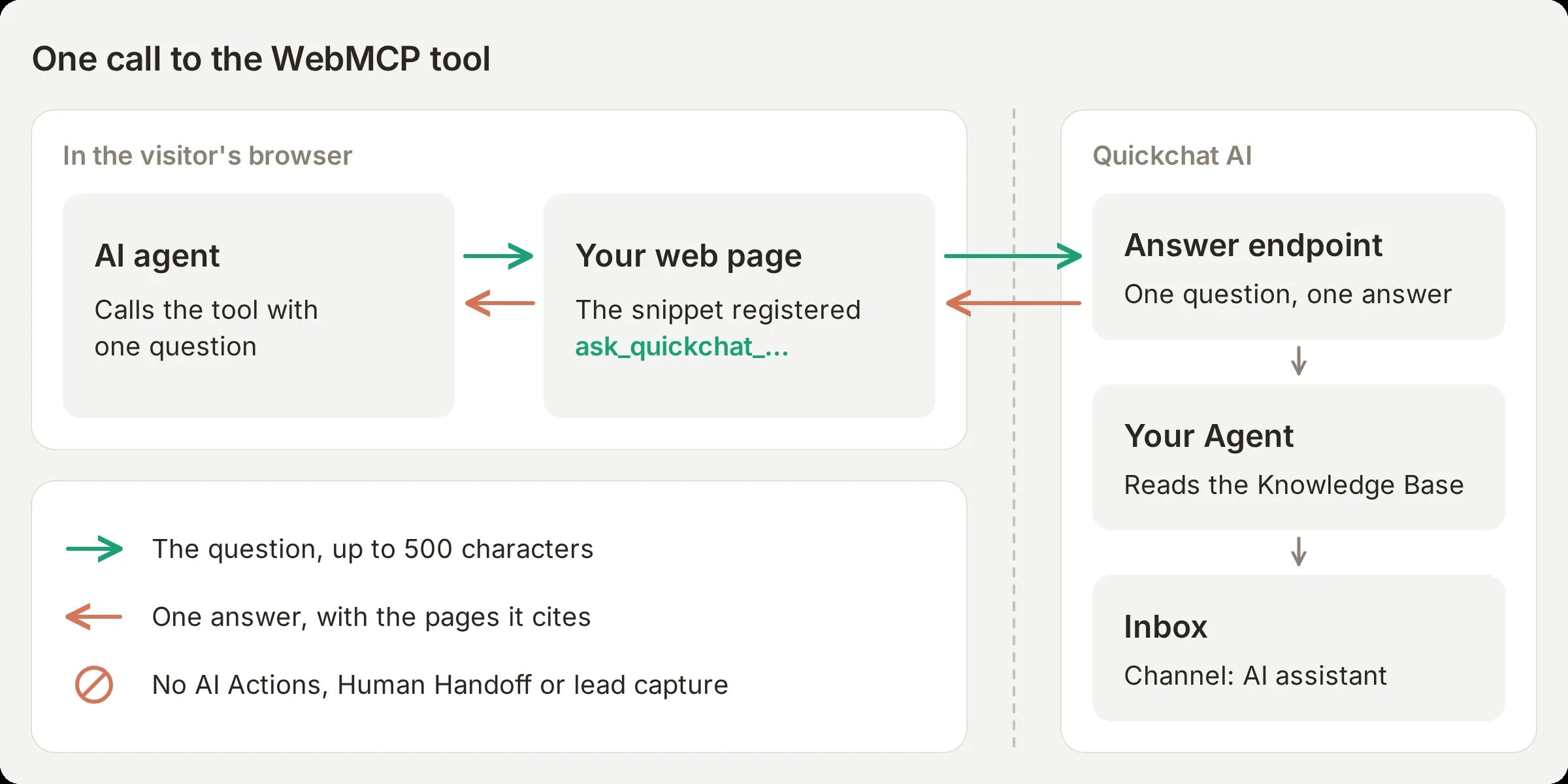
All three lead to the same place: your Agent answers one question from its Knowledge Base and Main Prompt, and the question appears in your Inbox.
Assistants decide for themselves whether to use any of these. Support differs by assistant and by browser, so treat the setting as making your Agent reachable, not as a guarantee that a particular assistant will ask it.
Switch it on
Section titled “Switch it on”You need an AI Agent with some knowledge in its Knowledge Base. The Widget does not have to be installed yet, but the hidden links and the browser tool only reach your site through the snippet.
- Open Channels → Your Website and stay on the Install tab.
- Under What’s ChatGPT telling your customers?, open the AI assistants card.
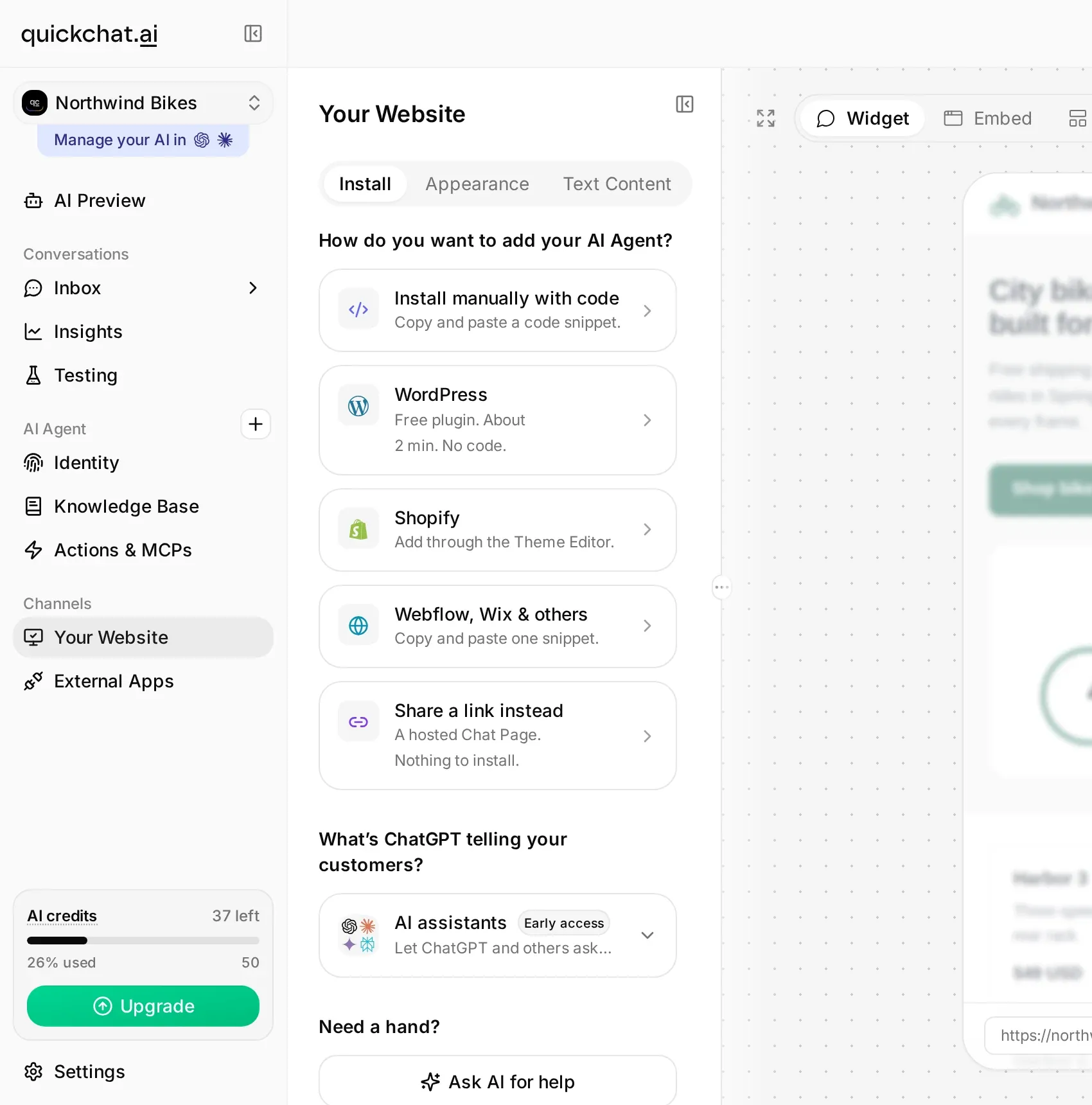
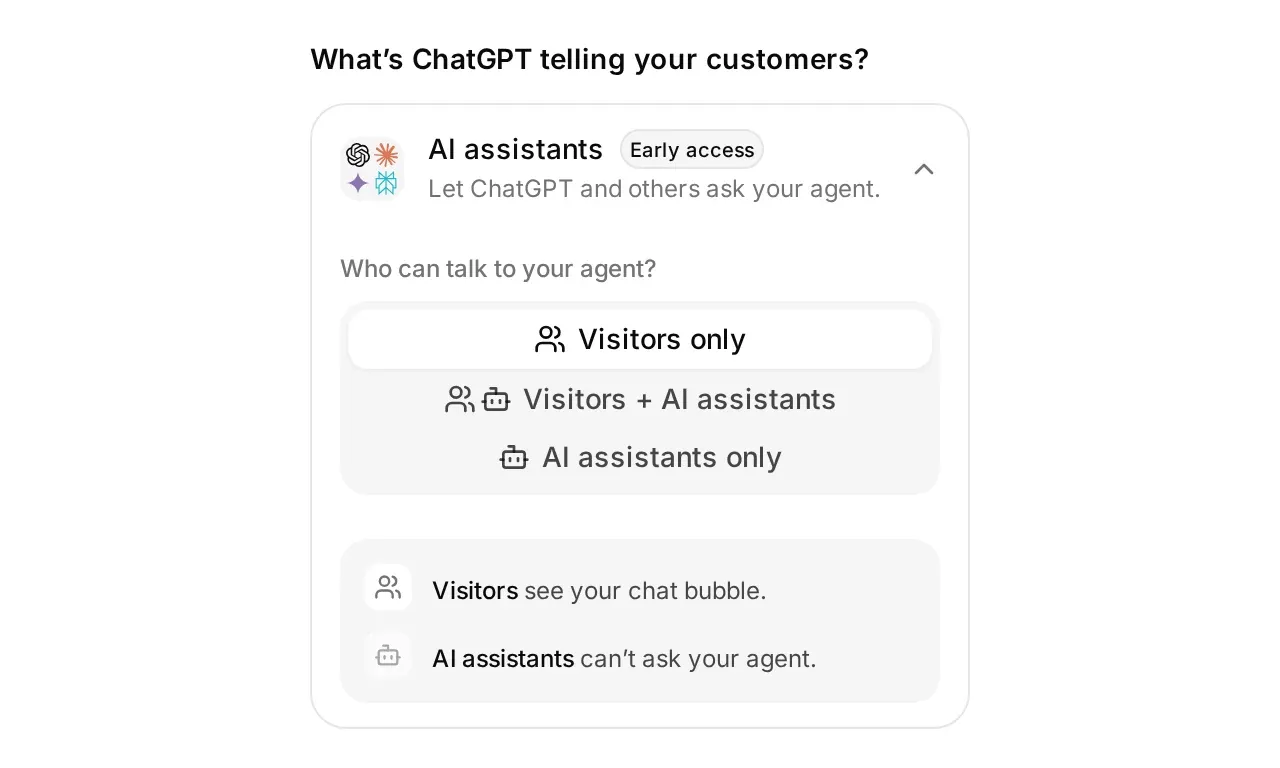
- Under Who can talk to your agent?, choose one of three options:
| Option | Visitors | AI assistants | Snippet |
|---|---|---|---|
| Visitors only (default) | See your chat bubble | Can’t ask your Agent | Your regular snippet |
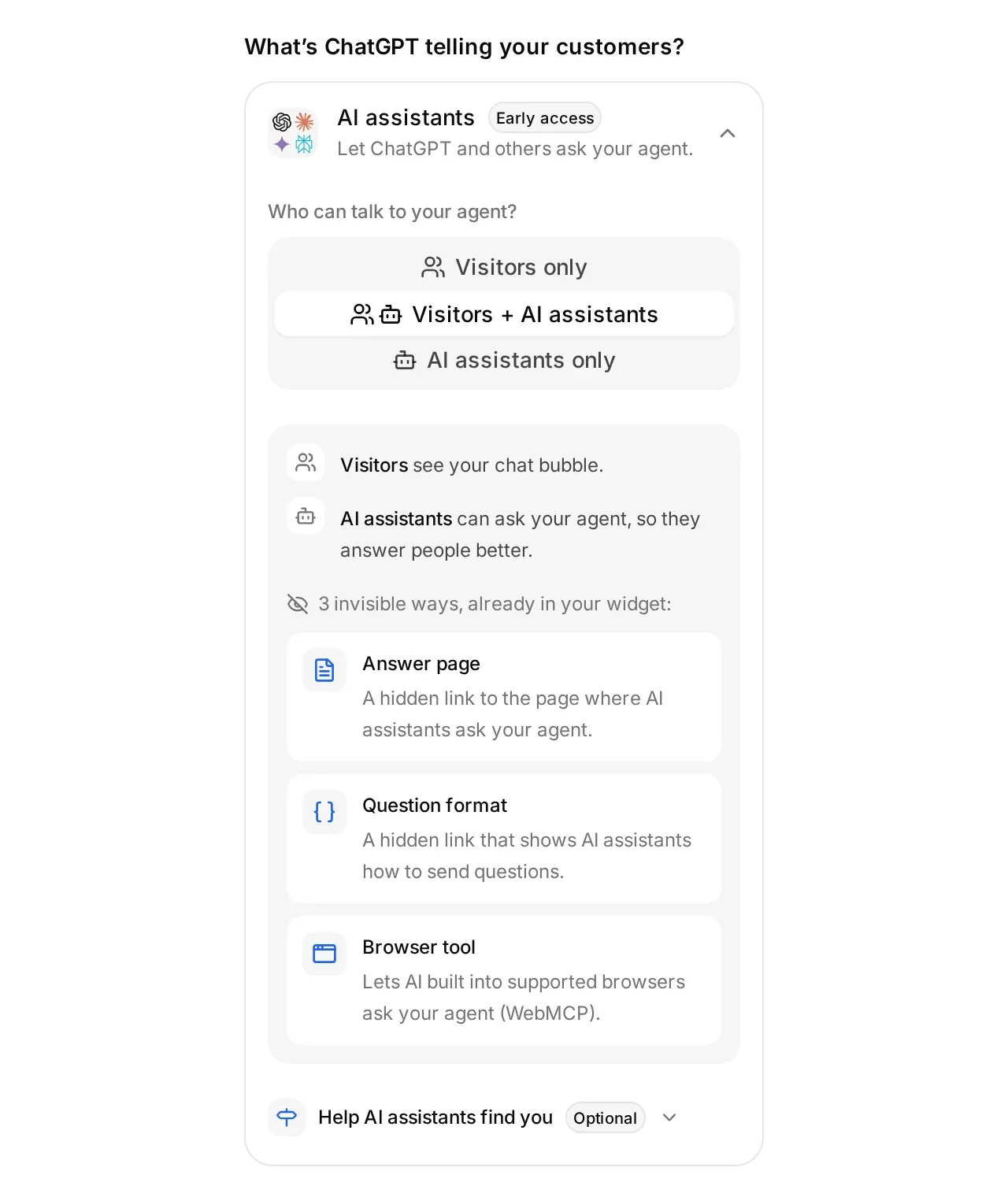
| Visitors + AI assistants | See your chat bubble | Can ask your Agent | Your regular snippet, unchanged |
| AI assistants only | Don’t see a chat bubble | Can ask your Agent | The snippet shown in this mode |
- Select Visitors + AI assistants. The change is saved straight away, and the card lists the three additions.
If your snippet is already on your website, you are done. If it is not, install it with one of the methods on the same tab. See Your Website.
AI assistants only
Section titled “AI assistants only”Choose AI assistants only when you want assistants to reach your Agent but don’t want a chat bubble on your site. This mode needs a different snippet, which the card shows. It adds _quickchat("visible", false); before _quickchat("init", ...), so the bubble stays hidden from the first page load. To show chat again, choose a visible mode and go back to your regular snippet.
Check that it works
Section titled “Check that it works”There are three checks, from quickest to most thorough.
Open the answer page
Section titled “Open the answer page”- On the AI assistants card, open Help AI assistants find you and copy the Public answer link. It looks like
https://app.quickchat.ai/ask/AGENT_ID/. - Open it in a browser. You should see Ask followed by your Agent’s name, a question box and your conversation starters under Questions you can ask.
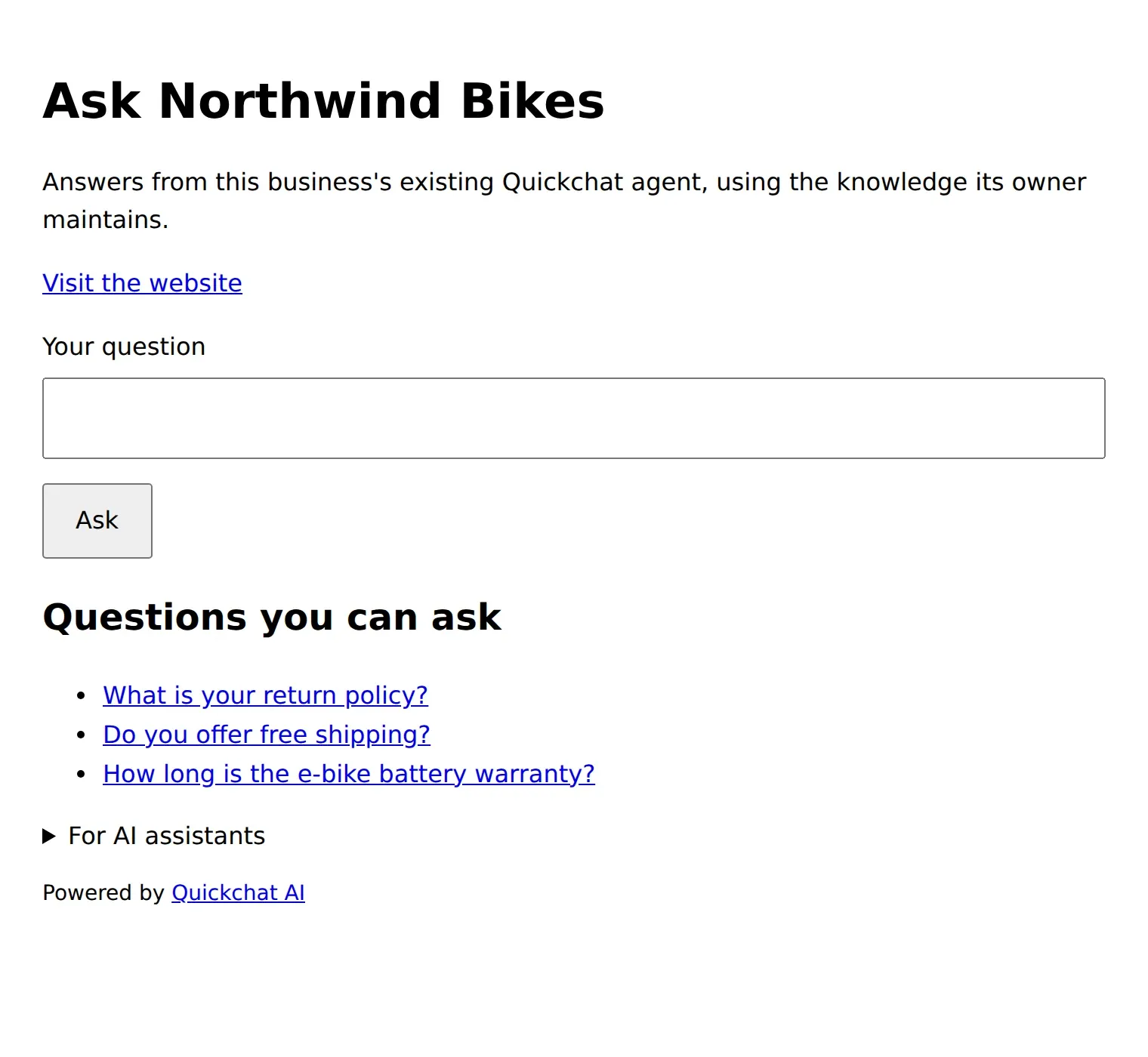
- Ask a question your Knowledge Base covers. The answer appears on the same page, with the pages it cites listed under Sources.
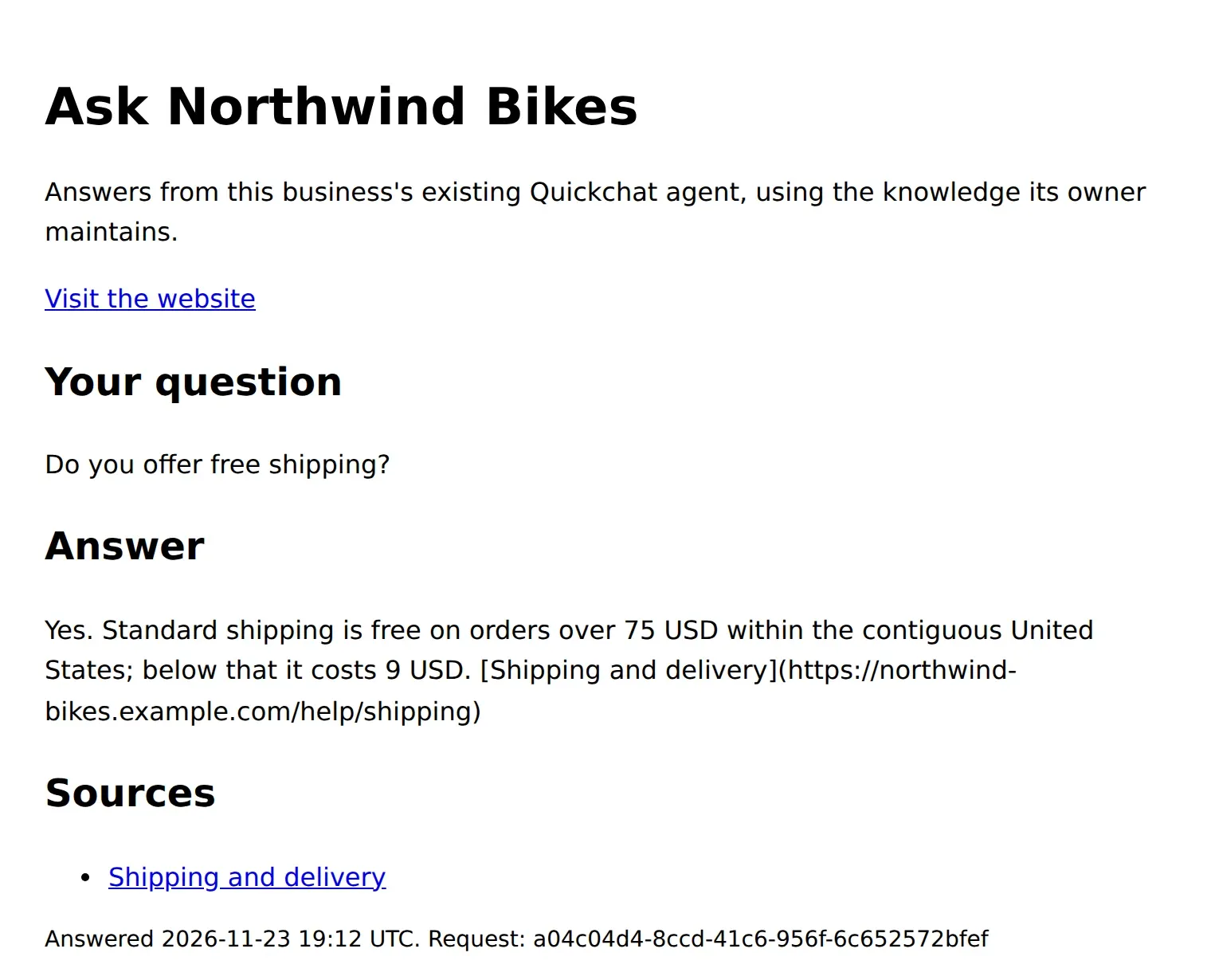
Opening the page without a question never generates an answer and uses no credits.
Find the question in your Inbox
Section titled “Find the question in your Inbox”Open Inbox. The question you just asked is the newest conversation. In the Details pane, Channel reads AI assistant. When a request identifies itself as ChatGPT, Claude or Perplexity, the channel shows that name instead.
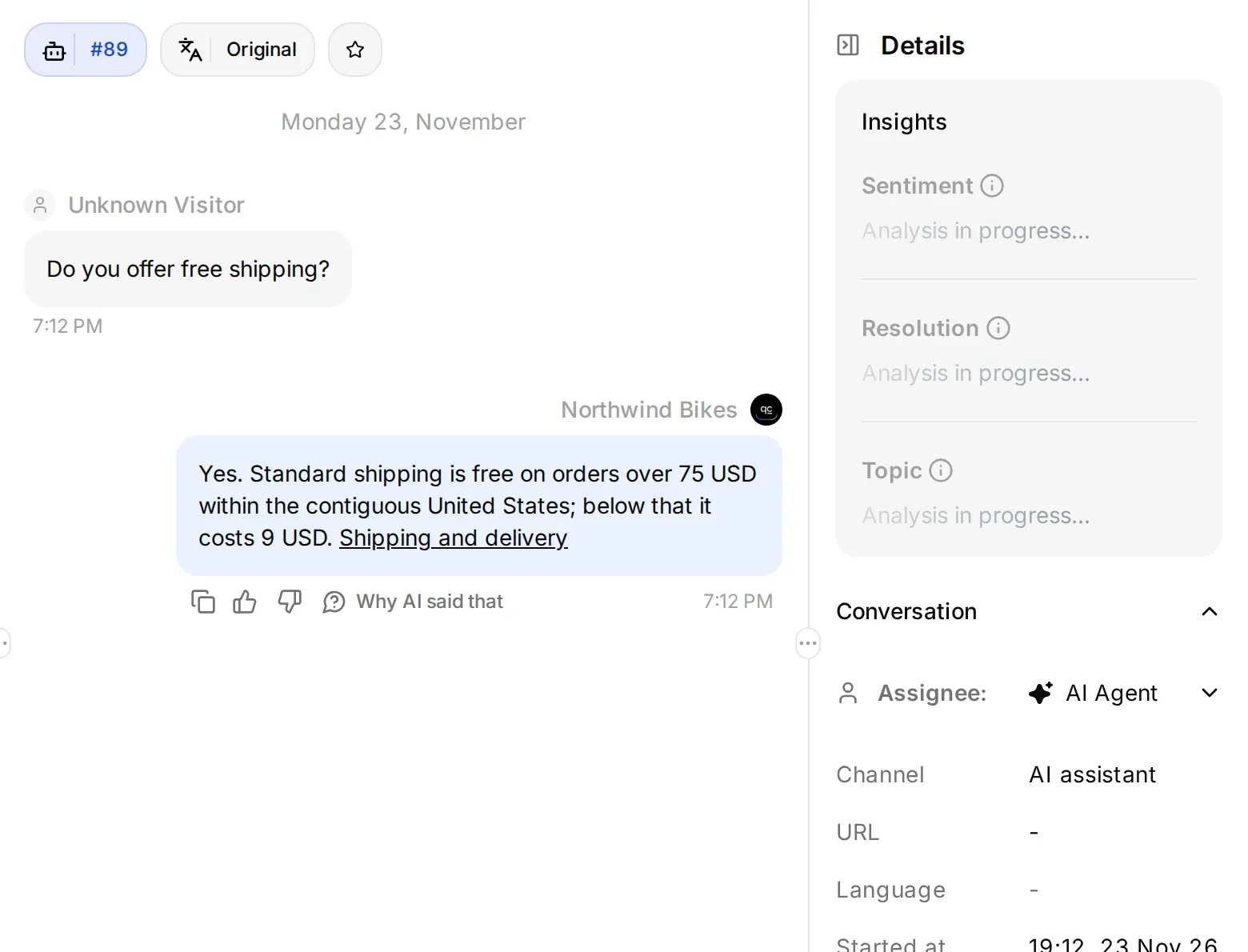
The Inbox shows the question that reached your Agent and the answer it gave. It does not show the person’s conversation with the outside assistant.
See the browser tool in Chrome
Section titled “See the browser tool in Chrome”The browser tool uses WebMCP, a proposed web standard that Chrome is testing. To see the tool on your own site:
- In Chrome 149 or later, open
chrome://flags/#enable-webmcp-testing, set WebMCP for testing to Enabled and relaunch. - Open a page of your website that has the snippet.
- Open DevTools, choose Application and select WebMCP.
Under Available tools you should see a tool named ask_quickchat_ followed by your Agent ID. Its description reads “Ask your Agent’s name a question about its products, services or policies.” Use Run tool to send a question.
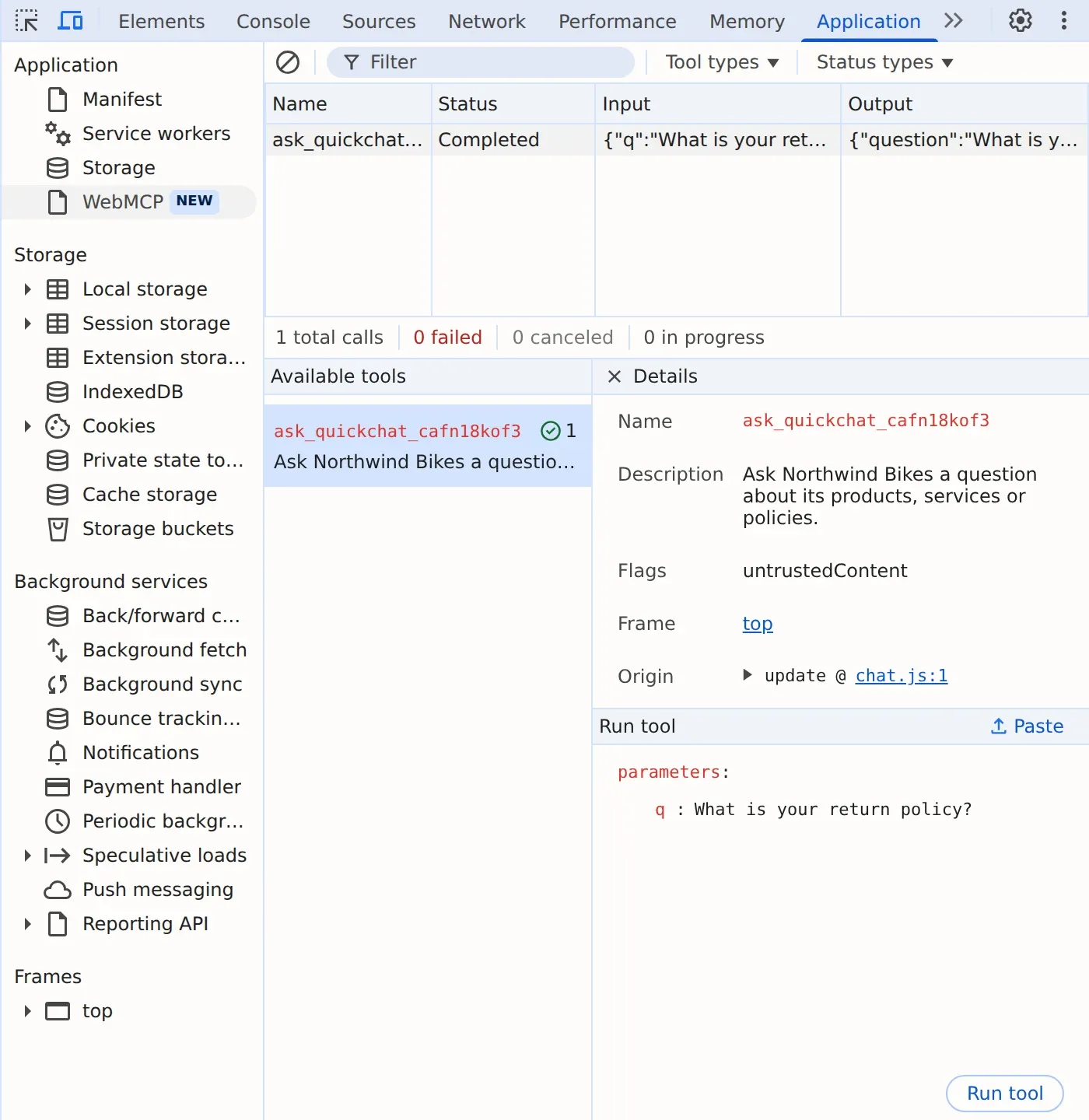
In browsers without WebMCP the snippet skips this step. The answer page and the two hidden links work everywhere.
What assistants can and can’t do
Section titled “What assistants can and can’t do”Questions on this channel run your Agent in an answer-only mode.
| Website chat | AI assistant access | |
|---|---|---|
| Answers from the Knowledge Base and Main Prompt | Yes | Yes |
| Follow-up messages in the same conversation | Yes | No. Every question starts a new conversation |
| AI Actions and MCP Actions | Yes | No |
| Human Handoff | Yes | No |
| Collecting contact details | Yes | No |
| Uses AI credits | Yes | Yes, the same as a chat reply |
| Appears in the Inbox | Yes | Yes, with Channel: AI assistant |
Limits on the answer page:
- A question can be up to 500 characters.
- One visitor can ask 5 questions a minute.
- An Agent answers up to 30 questions a minute across all visitors.
- Beyond a limit the page returns HTTP 429. Known crawlers get the page without an answer, so crawling does not use credits.
Anything in your Knowledge Base can appear in an answer. Keep internal documents out of an Agent that has AI assistant access switched on.
Get answers that cite your pages
Section titled “Get answers that cite your pages”An answer lists a page under Sources when two things are true: the Knowledge Base article has a public https address, and the answer links to it.
- Import pages as websites. Articles you add with Add Website keep their address in the URL column of the Knowledge Base. Text you paste in and files you upload are used for answers, but they have no address to cite.
- Name your Agent. The name under AI Agent → Identity appears in the title of the answer page and in the description of the browser tool. If you changed the Widget header from its default, the header is used instead.
- Write conversation starters. The up to three starters under Your Website → Text Content become the example questions on the answer page. Use questions your customers would ask an assistant about you.
- Tell the Agent what to do when it doesn’t know. A sentence in the Main Prompt such as “If the Knowledge Base does not cover a question, say that you can’t confirm it.” keeps answers from guessing.
Help AI assistants find you
Section titled “Help AI assistants find you”Help AI assistants find you on the card is optional and offers three more ways to point assistants at your Agent.
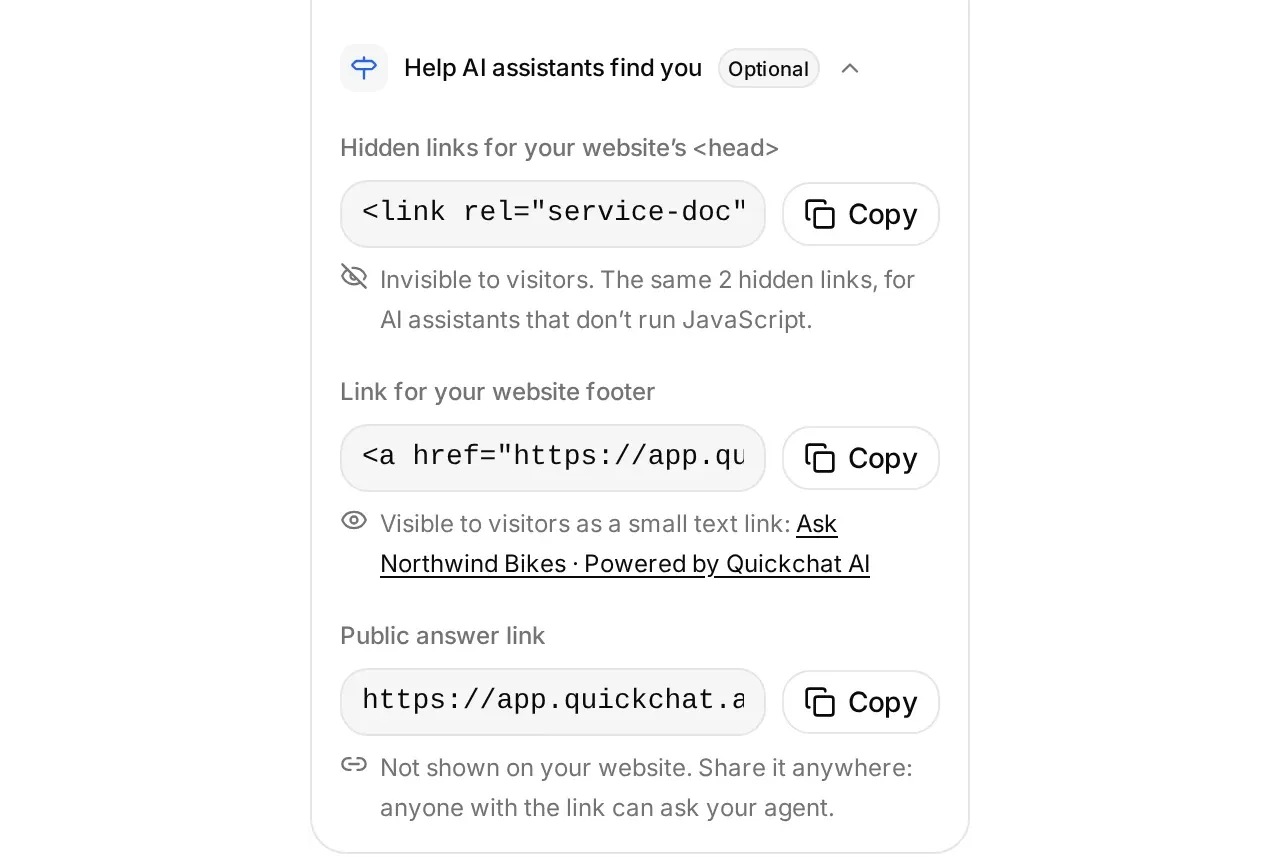
Hidden links for your website’s <head>. The same two links the snippet adds, as static HTML for assistants that don’t run JavaScript. Paste them inside <head>. If your snippet is also on the page, it does not add them a second time.
<link rel="service-doc" href="https://app.quickchat.ai/ask/AGENT_ID/" type="text/html"><link rel="service-desc" href="https://app.quickchat.ai/ask/AGENT_ID/schema/" type="application/json">Link for your website footer. A small text link that people can see, in your site’s own font and colour:
<a href="https://app.quickchat.ai/ask/AGENT_ID/?source=footer" style="color: inherit; font: inherit;">Ask Brand · Powered by Quickchat AI</a>With white-labeling the link omits the Quickchat AI branding.
Public answer link. The address of the answer page. It isn’t shown on your website, so you can share it anywhere. Anyone with the link can ask your Agent.
Switch it off
Section titled “Switch it off”Choose Visitors only on the card. The snippet stops adding the hidden links and the browser tool, and the answer page returns “not available” (HTTP 404). Remove any hidden links or footer link you pasted into your site yourself.
The Widget & Embed access and Chat Page Access settings do not turn AI assistant access off.
Frequently asked questions
Section titled “Frequently asked questions”How do I connect my AI Agent to ChatGPT or Claude?
Section titled “How do I connect my AI Agent to ChatGPT or Claude?”It depends on who should be able to ask. To let the assistants your website visitors use ask your Agent, switch on AI assistant access as described here. To let you or your team call the Agent as a tool inside ChatGPT, Claude or Cursor, use the Agent’s hosted MCP server. To set up and manage your Quickchat AI account by talking to ChatGPT or Claude, see Manage your AI from ChatGPT & Claude.
Does this make my business show up in ChatGPT?
Section titled “Does this make my business show up in ChatGPT?”It makes your Agent reachable, which is different from being recommended. An assistant that looks at your site finds a place to ask, and the answer cites your own pages. Whether a particular assistant asks, and whether it mentions you, is its own decision. The Inbox shows you every question that did arrive.
Is this WebMCP?
Section titled “Is this WebMCP?”One of the three parts is. Browser tool registers a WebMCP tool on your pages. The answer page and the hidden links are ordinary web addresses and <link> elements, and they work without WebMCP.
Do I still need an llms.txt file?
Section titled “Do I still need an llms.txt file?”They do different jobs, and you can have both. An llms.txt file is a static list of content for language models to read. AI assistant access lets an assistant ask a question and get an answer from your Knowledge Base. Quickchat AI does not create an llms.txt file for your website.
Does it use AI credits?
Section titled “Does it use AI credits?”Each answered question uses AI credits in the same way as a reply in your website chat. Opening the answer page, reading the question format and registering the browser tool use none. See Understanding AI credits.
Why does an answer have no sources?
Section titled “Why does an answer have no sources?”Either the article it came from has no public address (pasted text or an uploaded file), or the answer did not link to the page. Import the page with Add Website so it has an address.
Can an assistant place an order or book something through my Agent?
Section titled “Can an assistant place an order or book something through my Agent?”No. This channel is answer-only. Actions, MCP Actions, Human Handoff and contact collection don’t run, whatever the assistant sends.
Can I use my own domain for the answer page?
Section titled “Can I use my own domain for the answer page?”No. The answer page is served from app.quickchat.ai.
Related
Section titled “Related”- AI assistant answers API reference: request formats, response fields and statuses.
- Your Website: installing and customizing the Widget.
- MCP: let ChatGPT, Claude and Cursor call your Agent as a tool.