

Give your AI Agent step-by-step instructions for specific situations, such as returns, damaged items or delayed orders. The AI opens a procedure only when a conversation needs it, or when conversation metadata matches, so your Main Prompt stays short.
Procedures are step-by-step instructions your AI Agent follows in one specific situation, such as a return, a damaged item or a delayed order. Your AI keeps a short list of them and opens a procedure only when a conversation needs it, so every flow gets its own space instead of crowding your Main Prompt.
To find them, click Procedures under AI Agent in the left sidebar, right below Identity.
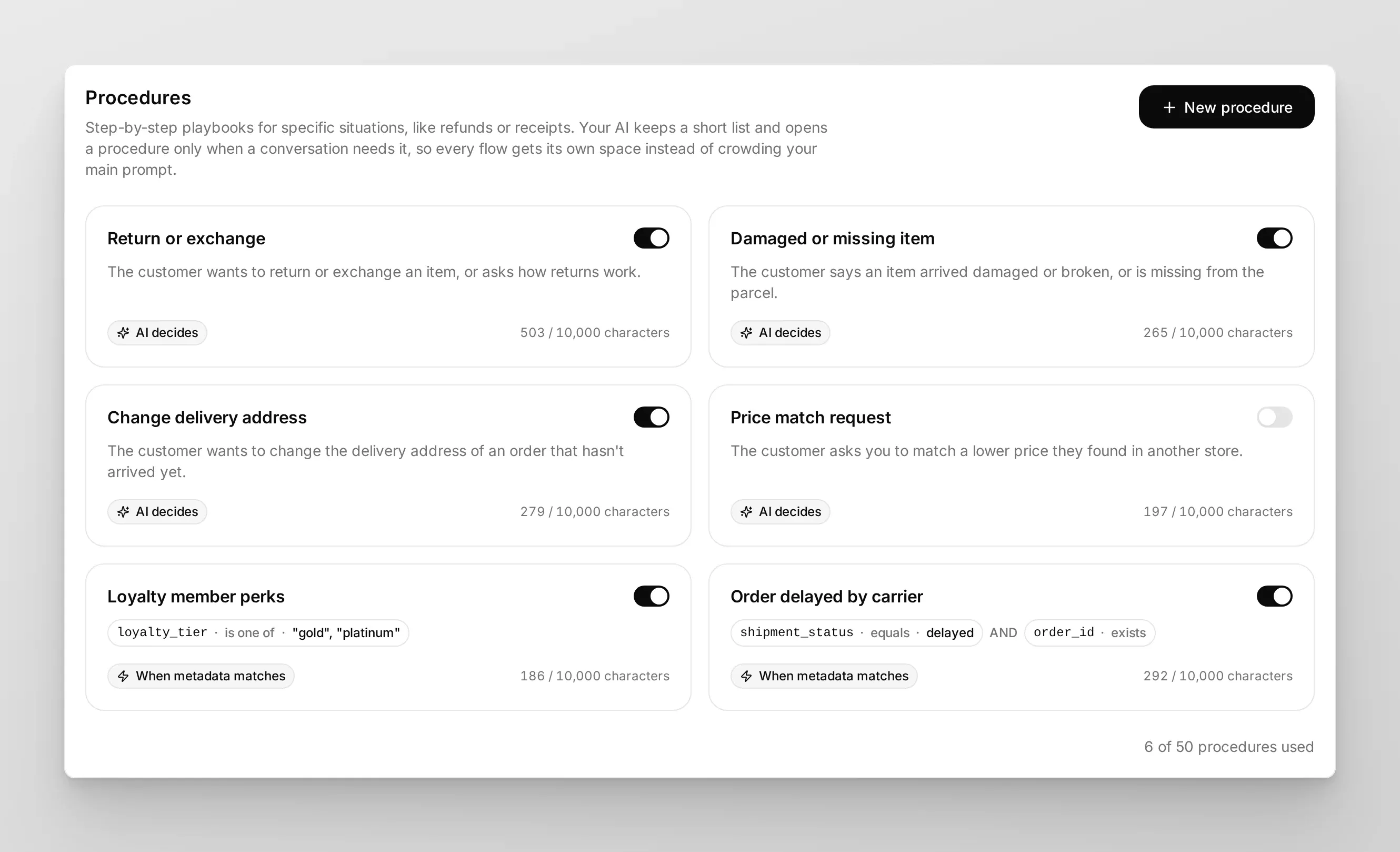
How procedures work
Section titled “How procedures work”Each procedure switches on in one of two ways:
- AI decides: the AI reads the procedure’s name and its When to use line. When a conversation matches, it opens the procedure before it replies and follows the steps from then on. An opened procedure stays active for the rest of the conversation, even if the customer changes the subject and comes back later.
- When metadata matches: the procedure switches on automatically whenever all of its conditions match the conversation’s metadata, and switches off again when they stop matching. No AI decision is involved.
While a procedure is active, the AI follows its steps together with your Main Prompt and Guidelines. Where they conflict, the procedure wins. The AI never tells customers that it is following a procedure.
What to put where
Section titled “What to put where”| Use | For |
|---|---|
| Main Prompt | Who your AI Agent is, its scope and tone, and anything that applies to every conversation. |
| Guidelines | Short rules that apply to every conversation. |
| Procedures | The steps for one situation that only some conversations reach, such as a return, a cancellation or an address change. |
| Knowledge Base | Facts the AI looks up to answer questions, such as your return policy or shipping times. See Knowledge Base. |
If your Main Prompt has grown into a list of “if the customer asks about X, do Y” flows, move each flow into its own procedure. The AI then reads the full steps only for the flows the current conversation needs.
Create a procedure
Section titled “Create a procedure”- In the left sidebar, click Procedures.
- Click New procedure.
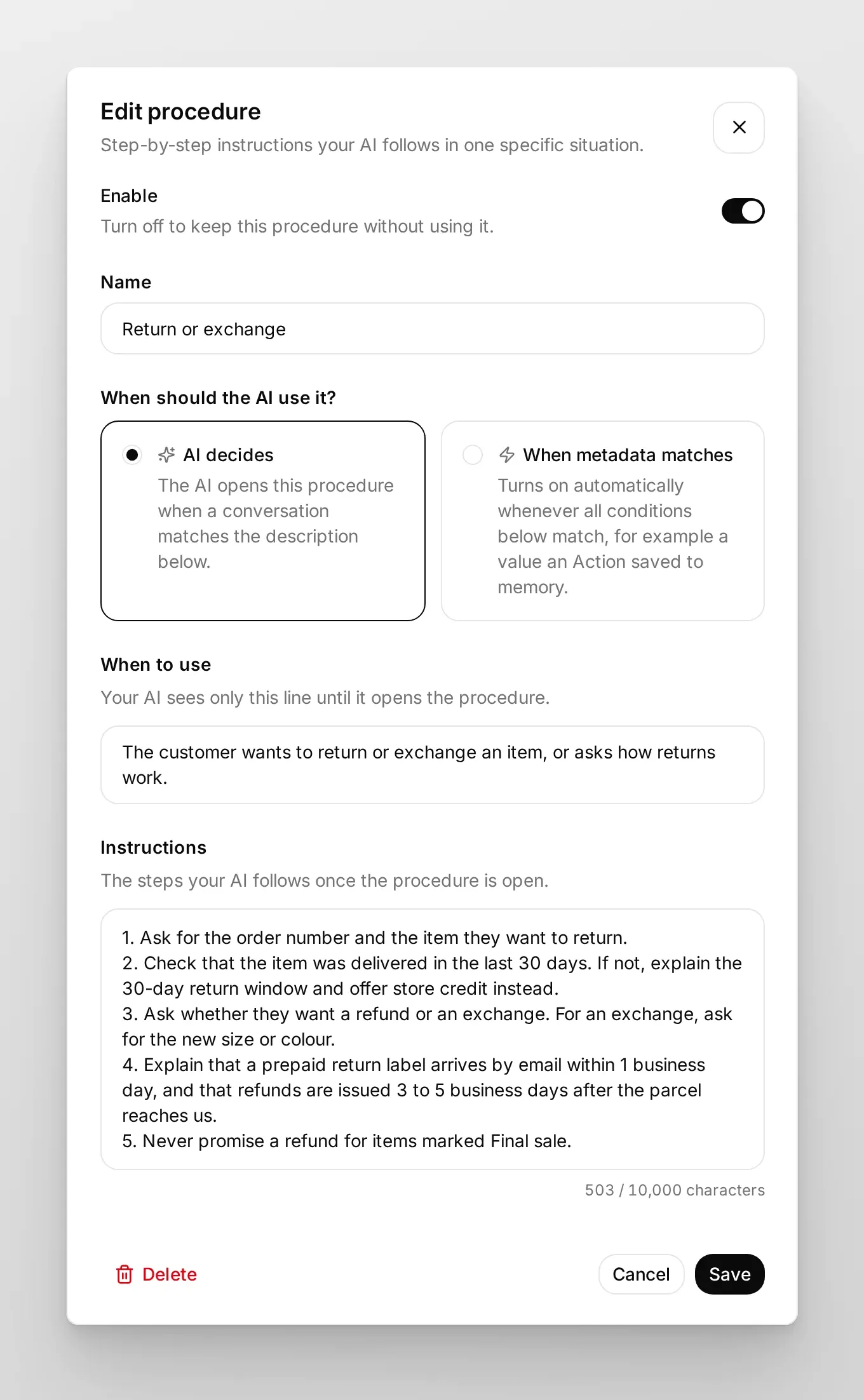
- Enter a Name, for example Return or exchange. Each procedure of an AI Agent needs its own name.
- Under When should the AI use it?, choose AI decides or When metadata matches.
- For AI decides, describe the situation in When to use. For When metadata matches, add your Conditions. Both are explained below.
- Write the steps in Instructions.
- Click Save.
Enable at the top of the editor is on for a new procedure. Turn it off to keep a procedure without using it. You can also switch a procedure on or off with the switch on its card.
AI decides
Section titled “AI decides”Your AI sees only the name and the When to use line of a procedure until it opens it, so that line decides when the procedure is used. Describe the customer’s situation the way it shows up in a chat:
- Good: The customer wants to return or exchange an item, or asks how returns work.
- Too vague: Returns.
When to use is a single line of up to 300 characters. If you press Enter, the line break turns into a space.
Opening a procedure takes the AI one extra step, so the first reply that uses it can take a few seconds longer. Later replies are not affected.
When metadata matches
Section titled “When metadata matches”Choose When metadata matches for situations your systems already know about, for example a loyalty tier your website passes to the chat or a shipment status an Action saves to memory. The procedure is active whenever all of its conditions match.
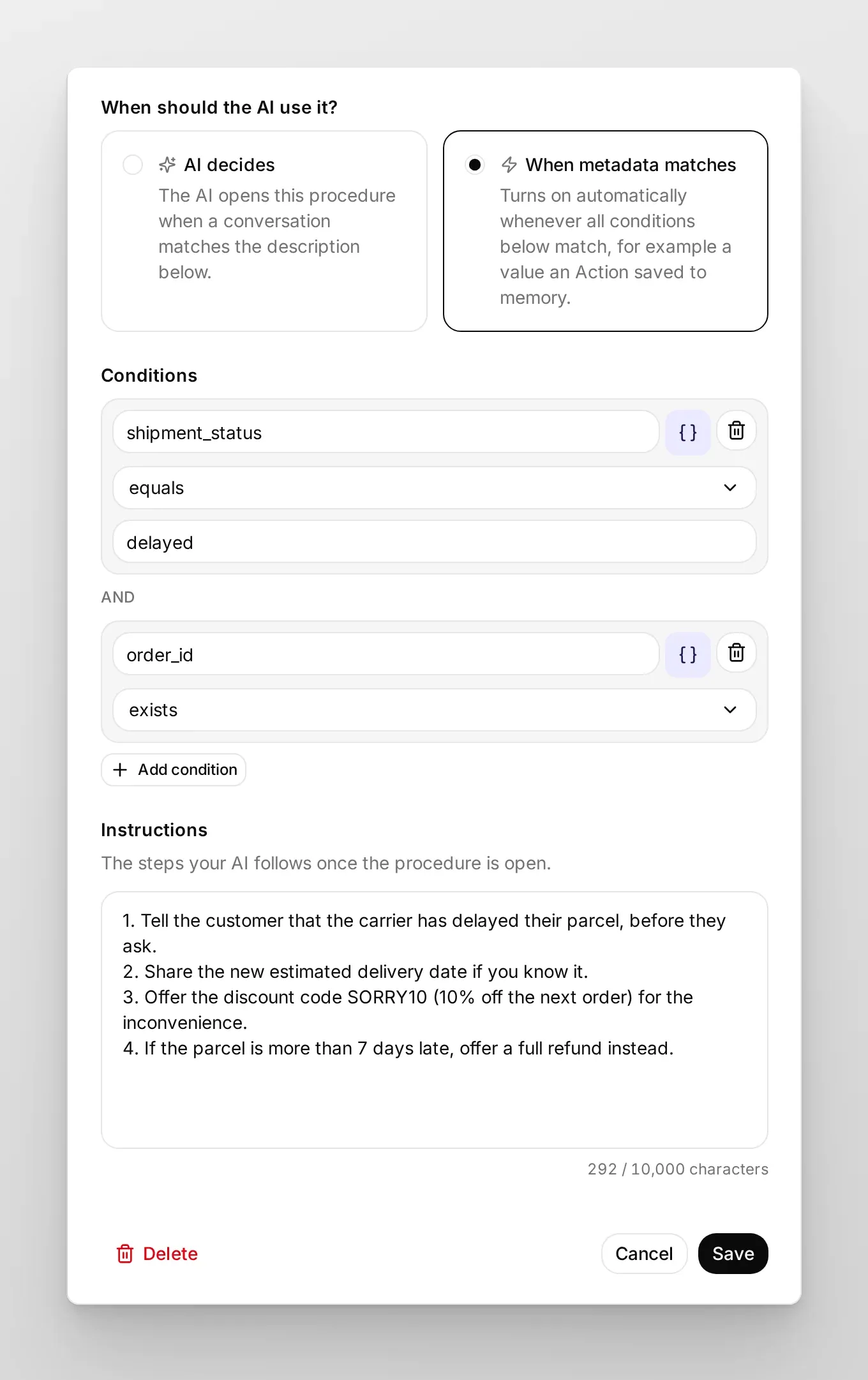
Under Conditions, enter a Metadata key or choose one with the picker next to it, then select a Condition and, where needed, a Value. Select Add condition to add another one. All conditions must match (AND), and a procedure can have up to 10 of them.
| Condition | Matches when |
|---|---|
| equals | The key has a value other than null whose text exactly matches Value. |
| does not equal | The value does not match Value, or the key is missing or null. |
| is one of | The key’s text exactly matches any of the listed values. Missing keys, null, lists and objects do not match. |
| contains text | The key holds text containing the specified text, including capitalization and whitespace. Missing keys, null and other value types do not match. |
| is greater than | The key holds a number, or numeric text, greater than Value. Missing keys, null, true, false and other text do not match. |
| is at least | The key holds a number, or numeric text, greater than or equal to Value. Missing keys, null, true, false and other text do not match. |
| is less than | The key holds a number, or numeric text, less than Value. Missing keys, null, true, false and other text do not match. |
| is at most | The key holds a number, or numeric text, less than or equal to Value. Missing keys, null, true, false and other text do not match. |
| is true | The key has a value other than null that is not false-like. |
| is false | The key is missing, null, or has a false-like value. |
| exists | The key has a value other than null, including an empty string, false, or 0. |
| does not exist | The key is missing or null. |
Metadata keys are case-sensitive. Use the raw key, such as loyalty_tier, without the metadata_ prefix. For is one of, enter each value separately: up to 50 values of up to 500 characters each. False-like values for is true and is false are false, zero, empty strings, empty lists or objects, and the strings false, 0, no, none and null.
Conversation metadata can come from your website’s custom parameters, a channel integration, Smart Data Gathering, the API, or an Action that saves values to memory. Quickchat checks the conditions before every reply, so a value an Action saves while the AI is answering can switch a procedure on for that same reply.
Values your website passes from the visitor’s browser can be changed by the visitor. For steps such as refunds or discounts, use metadata that your backend or an Action sets, not a value a visitor could edit.
Write instructions the AI can follow
Section titled “Write instructions the AI can follow”- Number the steps in the order the AI should take them: what to ask for, what to check, what to offer, and when to hand the conversation to a teammate.
- Keep one situation per procedure. Split a long flow into several procedures instead of adding exceptions to one.
- Don’t repeat your Main Prompt or Guidelines. The AI follows them anyway; the procedure only needs what is specific to its situation.
- Name the limits. Write down what the AI must not promise, for example “Never promise a refund for items marked Final sale.”
Instructions can be up to 10,000 characters. The procedures active in one conversation share a budget of 40,000 characters. If a conversation reaches it, the AI does not open further procedures in that conversation.
Test a procedure
Section titled “Test a procedure”- Click AI Preview in the left sidebar.
- For an AI decides procedure, write a message that matches its When to use line, for example “I’d like to return the jacket I bought last week”. Check that the reply follows the steps, and keep chatting to see that later replies do too.
- For a When metadata matches procedure, open Metadata in AI Preview and add the keys your conditions check, for example
{"loyalty_tier": "gold"}. That metadata is sent with every message, so the procedure applies from the first reply.
To check procedures against many messages at once, add them to a dataset in Testing. A dataset can carry conversation metadata too.
Edit, switch off or delete a procedure
Section titled “Edit, switch off or delete a procedure”- Edit: click the procedure’s card, change it and click Save. Changes apply from the next reply, including in conversations that are already in progress.
- Switch off: use the switch on the card or Enable in the editor. The AI stops using the procedure from its next reply, even in conversations where it was open.
- Delete: open the procedure, click Delete and confirm. Deleting can’t be undone.
Limits and access
Section titled “Limits and access”- Up to 50 procedures per AI Agent. The page shows how many you have used, for example “6 of 50 procedures used”. At the limit, delete one to add another.
- Name: up to 100 characters, unique within the AI Agent. When to use: up to 300 characters. Instructions: up to 10,000 characters.
- Procedures are available on every plan.
- The Account Owner, Administrators and Editors can manage procedures. See Team and roles.
- Duplicating an AI Agent copies its procedures, including their conditions and whether each one is on or off.
Troubleshooting
Section titled “Troubleshooting”The AI doesn’t use my AI decides procedure. Make When to use describe the customer’s situation more concretely, and check that the procedure is switched on. If several long procedures are already active in the conversation, it may have reached the 40,000-character budget.
A When metadata matches procedure never switches on. Check the key’s exact spelling and capitalization, and the value the conversation actually holds. equals compares the whole value as text, so Delayed does not match delayed.