

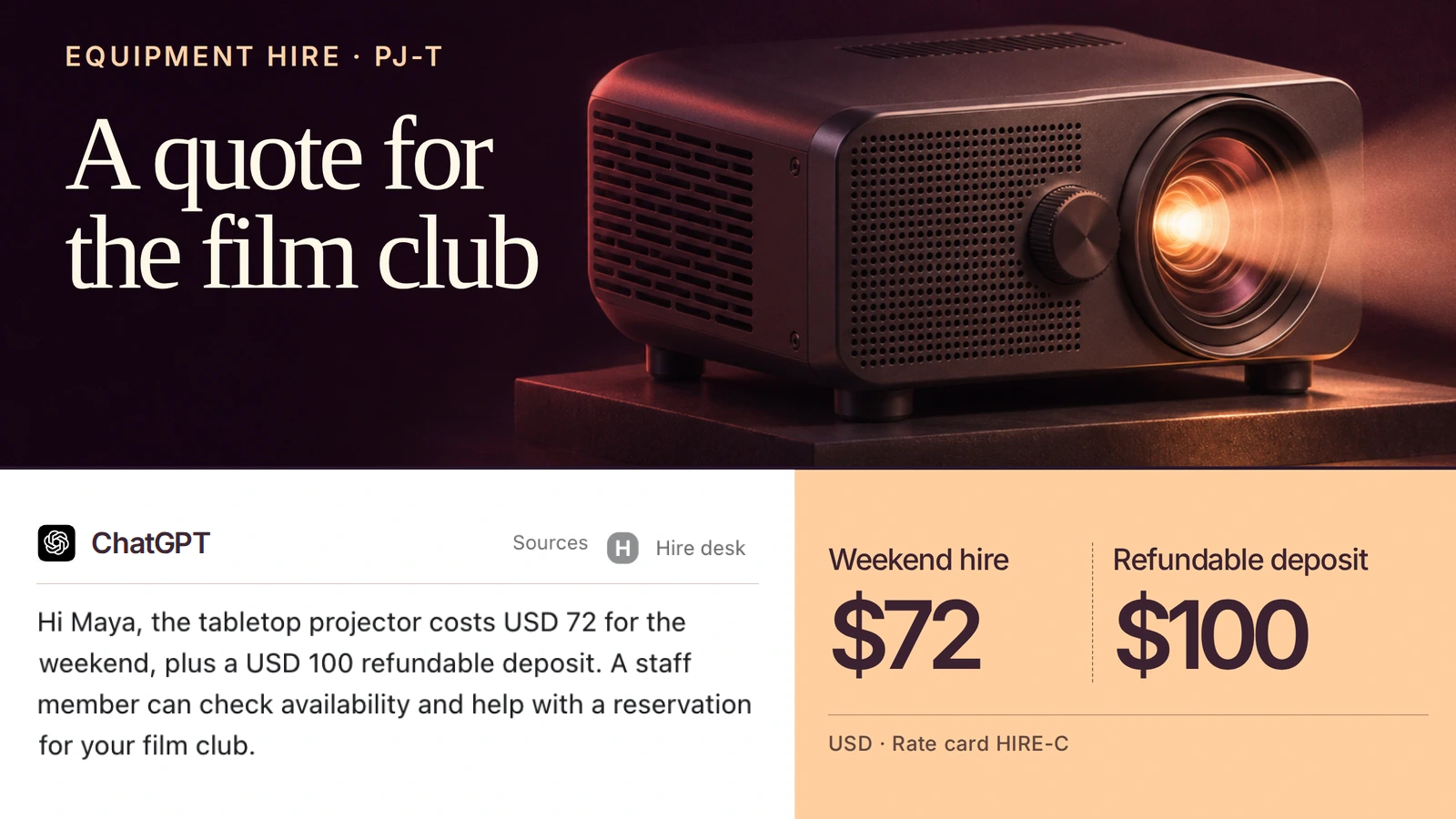
Maya is organizing a film-club screening. She sends the hire desk a two-part question.
We need the tabletop projector for our film club this weekend. What would it cost, and can you hold it for us?
We selected Hire desk in ChatGPT Work and pasted Maya’s fictional enquiry. The message contained no model number or price. ChatGPT used our private rate card to draft a reply with $72 for the weekend and a separate $100 refundable deposit.

Copy ChatGPT’s reply to Maya
Hi Maya, the tabletop projector costs USD 72 for the weekend, plus a USD 100 refundable deposit. A staff member can check availability and help with a reservation for your film club.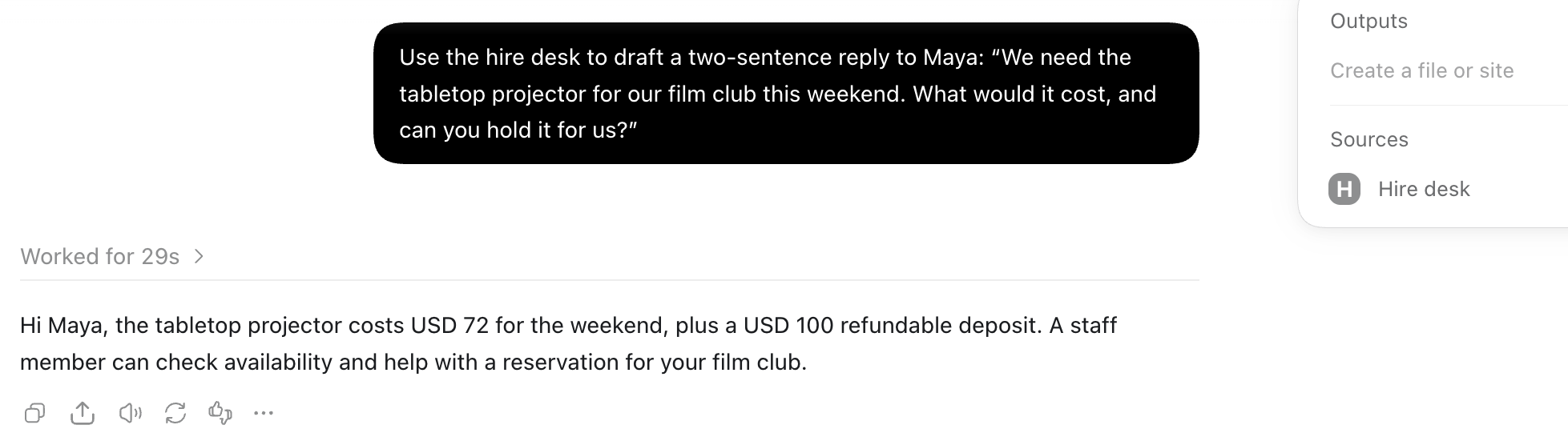
You’ll build the private MCP server behind that quote in Quickchat AI. The practice card has four rows. A second projector has a daily price and no weekend rate. We used a separate practice Agent with the same card to test missing rates, access for assigned and unassigned users, and a price change.
You need a Quickchat AI account with credits for test replies and permission to create custom MCP plugins in your ChatGPT workspace. The price-change test uses Codex CLI. As the owner, you can build and test the desk on Quickchat AI’s Free plan. To invite a colleague, you’ll also need an available seat on a plan that supports collaborators. For the access check, have a separate test account that has no role on this Agent.
1. Who should be able to read the rental rate card?
Give the hire desk its own Agent. A sales teammate who can use it should be allowed to see every row on its card. If different dealers get different prices, keep each audience’s card on an Agent restricted to that audience.
- Create a Quickchat AI account or sign in. From the Agent switcher choose Add new AI Agent → Set up manually. Under Identity, name it Hire desk.
- Open Your Website → Install → Availability and access. Turn Widget & Embed access off and set Chat Page Access to Nobody.
- On the same Install page, open AI assistants and select Visitors only. The website’s public AI assistant access has its own setting. Leave other channels disconnected. Under Actions & MCPs, leave external Actions disabled. The person at the desk will check stock and approve reservations. Website assistant access settings

2. What belongs on an equipment rental rate card?
Use one row per item and rental period. PJ-T has two rows because a day and a weekend are sold separately. PJ-S has one row because the desk has published only its daily rate. Leave that weekend row missing. You’ll use it to test the desk in step 4.

- Open Knowledge Base → Add Article. Enter Equipment hire card HIRE-C as the title. Paste the text below into Content, save and wait for the article to show Ready. How Knowledge Base edits go live.
Copy the four-row rate card
Equipment hire card HIRE-C
Currency: USD. The hire charge excludes the refundable deposit.

Equipment code | Display name | Duration | Hire USD | Refundable deposit USD
PJ-T | Tabletop projector | day | 36 | 100
PJ-T | Tabletop projector | weekend | 72 | 100
PJ-S | Short-throw projector | day | 54 | 160
ST-F | Folding screen | weekend | 28 | 40
- Open Identity → AI Persona, choose Edit on Main Prompt and paste the instructions below. The editor saves automatically. The tool needs both a code and a period to pick a row. The last two sentences tell it where its job ends.
Copy the tested Main Prompt
Use the active equipment hire card. Identify an exact equipment code and duration. Ask for the missing choice if the description matches several models or durations. When a row exists, return the code, duration, currency, hire charge, refundable deposit and card revision. Quote charges separately. When no row exists, say the hire desk must price it and include the requested code and duration. Never derive a weekend rate from a daily fee. A staff member handles stock checks and reservations separately.- Open AI Preview and ask “What do we charge for PJ-T for the weekend?” Check for USD 72 hire, USD 100 refundable deposit and revision HIRE-C. Next, ask for PJ-T for a day in a new conversation. Only the hire charge should change, to USD 36. A deposit can stay the same even when the hire charge doubles. In our hosted Agent’s AI Preview, the HIRE-C weekend checks returned a $72 hire charge and a $100 refundable deposit for PJ-T and sent PJ-S to the hire desk for pricing.
3. How do you draft an equipment rental quote in ChatGPT?
Quickchat AI hosts the Agent’s Model Context Protocol (MCP) server. You’ll give ChatGPT its HTTPS URL so it can ask the same Agent you just checked in AI Preview. Hosted MCP channel

- Open External Apps → MCP. Turn Enable MCP on and keep Require sign-in (private) on. Under Configure MCP, set Name to
Hire desk, Command tolookup_hire_rateand Description to the sentence below. Select Done, then Connect MCP and copy this Agent’s server URL.
Looks up one item and duration in the current equipment hire card and separates hire charge from refundable deposit.
-
For a teammate, open Settings → Organization → Team Members on Hire desk. Invite them with a role appropriate to their work and have them accept the invitation. Each person completes the client’s Quickchat AI sign-in with their own account. We also tried the lookup with a teammate assigned the Support role. Team roles and seats
-
In ChatGPT, open Plugins → Add → Add custom MCP server. Name it
Hire desk. Under Connection, select Server URL and paste the HTTPS URL you copied from Quickchat AI. Choose OAuth for authentication. -
Review the server warning, select I understand and want to continue and choose Create as a plugin. On Connect Hire desk, select Continue to Hire desk. Sign in to Quickchat AI with an account that has a role on this Agent. If the browser offers Open ChatGPT, use it to return to the app. ChatGPT’s custom MCP guide

- Under Plugins → Personal, open Hire desk. If ChatGPT offers Install, select it. Choose Try now, or start a new conversation and type
@to select Hire desk. Paste this request.
Use the hire desk to draft a two-sentence reply to Maya: “We need the tabletop projector for our film club this weekend. What would it cost, and can you hold it for us?”- Check Sources beside ChatGPT’s reply, then open Inbox in Quickchat AI and select the conversation marked MCP ChatGPT. The Agent’s original reply included PJ-T and HIRE-C. ChatGPT left those internal codes out of Maya’s email and kept the hire fee, refundable deposit and staff availability check. How to inspect a conversation

Connect the same hire desk in Claude Code
Claude Code. Run the command below with your hosted URL, then run claude mcp login hire-desk and complete sign-in. Open Claude Code in the same directory, use /mcp to check the connection and paste the request. Claude Code’s MCP setup
claude mcp add --transport http hire-desk 'PASTE_YOUR_HOSTED_URL'Inspect the raw rate with MCP Inspector
To inspect the raw answer, use MCP Inspector. Its web client lets you choose the tool and compare its raw reply with the source row. With Node.js 24.22.1 or later in the 24.x series, run the command below after replacing the URL. Open the local link it prints, connect and sign in. MCP Inspector
npx @modelcontextprotocol/inspector@2.16.0 --web --server-url 'PASTE_YOUR_HOSTED_URL' --transport httpUnder Tools, select Ask Hire desk, enter only PJ-T weekend? Give a compact rate card line. in the message field and choose Execute Tool. The tool takes one argument.
{ "message": "PJ-T weekend? Give a compact rate card line." }
4. What should the tool do when there is no weekend rate?
Ask “What does it cost to hire PJ-S for the weekend?” A daily fee of $54 sits on the card, close enough to look useful in a draft email. It answers a different question.
We tried the same lookup with the short prompt “Answer from this price list.” The Agent said it couldn’t confirm the weekend rate, then supplied $54 per day and a $160 deposit. With the Main Prompt from step 2 and the same card, the reply sent PJ-S for the weekend to the hire desk for pricing. It gave no amount. Neither run invented a weekend price. The first left a daily figure that a teammate could paste into a weekend quote.

Try two variations. Ask “What’s the projector rate?”, then answer “The tabletop projector, PJ-T.” In our conversation the Agent still needed the period. Only after “For the weekend” did it give the $72 charge. Now ask “Can you reserve PJ-T for Saturday?” The Agent referred stock checks and reservations to staff. A listed price is enough to draft the email. It takes a person with the booking system to promise the projector.
Save the three questions under Conversations → Testing → Create Dataset. Name it Hire desk price checks. In Paste messages, enter the PJ-T weekend lookup, the PJ-S weekend lookup and the Saturday reservation request, separated by a line containing ---. Paste the rubric below into Evaluation criteria, create the dataset, then select Run → Start Run. Update the expected fee and revision in the rubric whenever the rate card changes. Running a test dataset
Copy the HIRE-C evaluation criteria
For PJ-T on a weekend, return HIRE-C, USD 72 hire and a separate USD 100 refundable deposit. For PJ-S on a weekend, send the exact item and period to the hire desk for pricing without giving a price. For a reservation request, direct the caller to staff without confirming stock or making a booking.Open an individual answer as well as its score. Our reservation reply scored 2 out of 5 because the evaluator expected the weekend fee. The caller had said Saturday. Asking whether the customer needed one day or the weekend preserved a choice a human still needed to make.
5. Can someone with the server URL see the prices?
A signed-in Quickchat AI account needs a role on this Agent to reach the private tool. Test with an independent account while the card still contains only the fictional figures.
- Keep the owner’s successful call as a reference. In a separate client profile, connect as a test user who has finished onboarding, can use an Agent of their own and has no role on Hire desk. Give that client its own saved credentials. MCP Inspector can store sign-in state outside the browser, so a new tab alone can reuse the owner’s account. The private MCP access walkthrough includes separate launch commands.
- Give the second client the same Hire desk URL and try to connect. Our independent user could list tools on their own Agent. The hire desk returned HTTP 403 and “You do not have access to this agent’s MCP.” It returned no price. A signed-out connection received a 401 sign-in challenge.

6. How do you know a new rental rate is live?
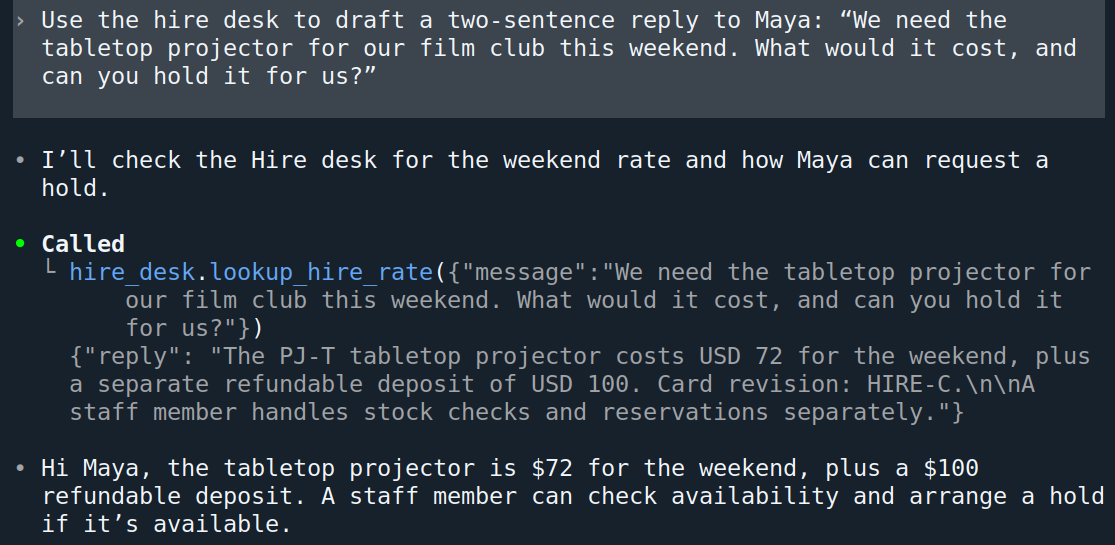
We used Codex CLI for the price-change test. Before editing the card, send the full film club request in Codex. Check for $72 hire and a $100 refundable deposit in the draft. Open the tool reply to find HIRE-C.
Connect Codex and check the original HIRE-C quote
- In a terminal with Codex CLI installed, run the command below. Substitute the URL you copied from Connect MCP. The name
hire_deskis how this client identifies the server. Codex MCP setup
codex mcp add hire_desk --url 'PASTE_YOUR_HOSTED_URL'- Complete the Quickchat AI sign-in in your browser. If the server still needs authentication, run
codex mcp login hire_desk. Start a freshcodexsession. Enter/mcp verboseand check thathire_deskshows OAuth and thelookup_hire_ratetool. Then paste the same two-sentence reply request you sent in ChatGPT.

- When Codex asks to use
lookup_hire_rate, choose Allow for this call. Open Inbox in Quickchat AI and select the MCP conversation. Codex sent only the buyer’s question in this run. Maya’s name and the instruction to write two sentences stayed in the client.


- Reopen the existing Knowledge Base article. Change HIRE-C to HIRE-D in the title and the body, and change only the PJ-T weekend hire to
79. Save and wait for Ready. Editing the same article keeps a second, conflicting weekend row out of the Knowledge Base. - Start a fresh Codex session and paste the full request again, including Maya’s question and the instruction to draft a two-sentence reply. Read the new draft and open its tool call. Check for 79 hire, 100 refundable deposit and revision HIRE-D. The earlier conversation in Inbox still records what the desk said when HIRE-C was active.

For another practice run, restore HIRE-C and 72 in the same article. Wait for Ready and check the price in a fresh session. Before sending Maya a quote, the teammate checks the figures against the current card and asks the hire desk to confirm the dates.
Can an AI assistant help prepare the Agent?
The Quickchat AI account connector can help the owner configure the practice Agent. Share the four rows and the Main Prompt from step 2, then use the request below. Teammates who only need prices use the Agent URL from Connect MCP. Manage with AI · Quickchat AI for ChatGPT · Quickchat AI for Claude
Help me set up Hire desk with one Knowledge Base article and the Main Prompt I supplied. Show me the Agent’s access settings and any enabled Actions before adding the rate card. Draft the private lookup tool description and three test questions. I’ll review the setup and sign in to the client.Frequently asked questions
Can ChatGPT draft a rental quote without connecting my email account?
Yes. Select the connected Hire desk plugin in ChatGPT, paste the buyer’s enquiry and ask for an email draft. A teammate reviews the hire fee and deposit, checks availability with staff and sends the reply from their own mailbox.
How do I connect a private rental rate card to ChatGPT?
In ChatGPT Plugins, add the Quickchat AI Agent’s hosted HTTPS URL as a custom MCP server, choose OAuth and connect with an account that has a role on this Agent. In a new chat, type @ and select Hire desk before asking for a rate.
What does ChatGPT send to a private MCP server?
In our rental test, ChatGPT sent the full request, including Maya’s name, the projector question and the instruction to write two sentences. In a separate test with the same prompt, Codex sent only the buyer’s question.
How does the tool price a rental period missing from the card?
The Agent returns the requested equipment code and period for manual pricing. PJ-S has a daily rate on HIRE-C. A weekend request for that projector goes to the hire desk.
Can the MCP tool reserve equipment or change the rate card?
This Agent has a Knowledge Base article and no external write Actions. It can report a listed price. Staff handle stock checks and bookings, and an authorized editor updates the article in Quickchat AI.
How can I verify the price in a ChatGPT rental quote?
Open Sources in ChatGPT to identify the Hire desk plugin. In Quickchat AI Inbox, open the conversation marked MCP ChatGPT and compare the Agent’s reply with your rate card. In this example, the reply cites HIRE-C and lists USD 72 for the weekend hire plus a separate USD 100 refundable deposit.