


A support lead’s week usually starts in a dashboard: pull up last week, compare it to the one before, find the conversations that went badly, write the update for the team. What if all of that also worked from inside ChatGPT, or whichever AI assistant you already have open? You type “how is my Agent doing this week compared to last week?”, the AI calls your support platform’s analytics, and the comparison lands in the chat with a takeaway. The conversations that need a person, the topics that are rising, a knowledge base fix, and a spreadsheet export work the same way: one message each.
This post shows that working end to end with Quickchat AI, a platform for building customer support AI Agents: five workflows, the exact prompt to type, the tools each one triggers behind the scenes, and unedited screenshots of the resulting chatgpt.com conversations. The connection underneath is MCP, the open protocol that lets AI apps such as ChatGPT call outside tools. Every Quickchat AI account works as a remote MCP server, so there is nothing to host and no API key to manage: after one OAuth sign-in, ChatGPT can read your Agent’s analytics and transcripts and update its knowledge base.
Here is the same thing on video, if you would rather watch than read:
Optional example checks
-
Check a sample MCP connection. Initialize and list tools on the Cloudflare documentation or Microsoft Learn endpoint only. No sign-in or tool execution is performed.
-
Estimate test-run reply credits. Calculate credits for supplied test counts, repetitions, replies per case and models. This does not run tests and excludes evaluation costs and external tool fees.
What you need
The Quickchat AI for ChatGPT page includes an overview and the install link. The same account also works with the Quickchat AI Claude MCP connector.
- A free Quickchat AI account with an Agent on it. Write workflows need an editor role or above on the Agent; on your own account you have it.
- A ChatGPT account. Quickchat AI is a published app in the ChatGPT app directory, so you no longer turn on Developer mode or build a custom connector to add it.
- The Quickchat AI app connected in ChatGPT: open Quickchat AI’s app in the ChatGPT directory, click Connect, and sign in when ChatGPT redirects you to Quickchat AI. The click-by-click version, including Claude, Cursor, and Codex, is in Manage Your AI Agent from ChatGPT, Claude, and Codex with MCP.
The examples run against a demo account for Nimbus, a fictional online store for home and lifestyle goods. The store is invented so the numbers stay neutral, but the account is real: the knowledge base articles exist, the conversations went through the live reply pipeline, and every figure in the screenshots was computed by the production analytics tools.
How ChatGPT runs the tools
You never call a tool by name. You describe the outcome you want, and ChatGPT picks the calls. Three things are worth knowing before the workflows below:
- Name the connector when you want it used. ChatGPT is more likely to reach for the right tool when your message says where the data lives: “check my Quickchat AI analytics” rather than “how did support do”. After the first call in a thread it usually keeps using it.
- You see each call happen. ChatGPT shows a “Called tool” chip for every call it makes, and expanding a chip shows the app and the exact request. A single question that fans out into four calls is visible as four chips before the written answer.
- Approvals are a setting. Under Settings, then Apps, then Permissions, ChatGPT offers three modes: always ask, ask before any change, or auto-approve actions it considers low-risk. On the stricter modes ChatGPT pauses before a write tool (adding a knowledge base article, changing settings, creating an Agent) and asks you to approve it. The gate is on the server too, so the chat approval is not the only thing standing between a prompt and your account.
The five workflows below are the ones worth turning into a habit. Each is one message.
1. The weekly review
The first thing most people want at the start of the week is the current picture and whether it moved. Ask for both at once:
“Using Quickchat AI, how is my Nimbus Agent doing this week compared to last week? Cover conversations, resolution rate, and CSAT.”
ChatGPT calls list_scenarios to resolve the Agent, then get_analytics_overview for each week, compare_periods for the deltas, and get_csat for satisfaction. It folds the results into one summary with the numbers and the direction of each change. In the screenshot below the demo account has no ratings yet, so ChatGPT reports CSAT as missing rather than inventing one; on an account with ratings it is a number with a delta like the rest.
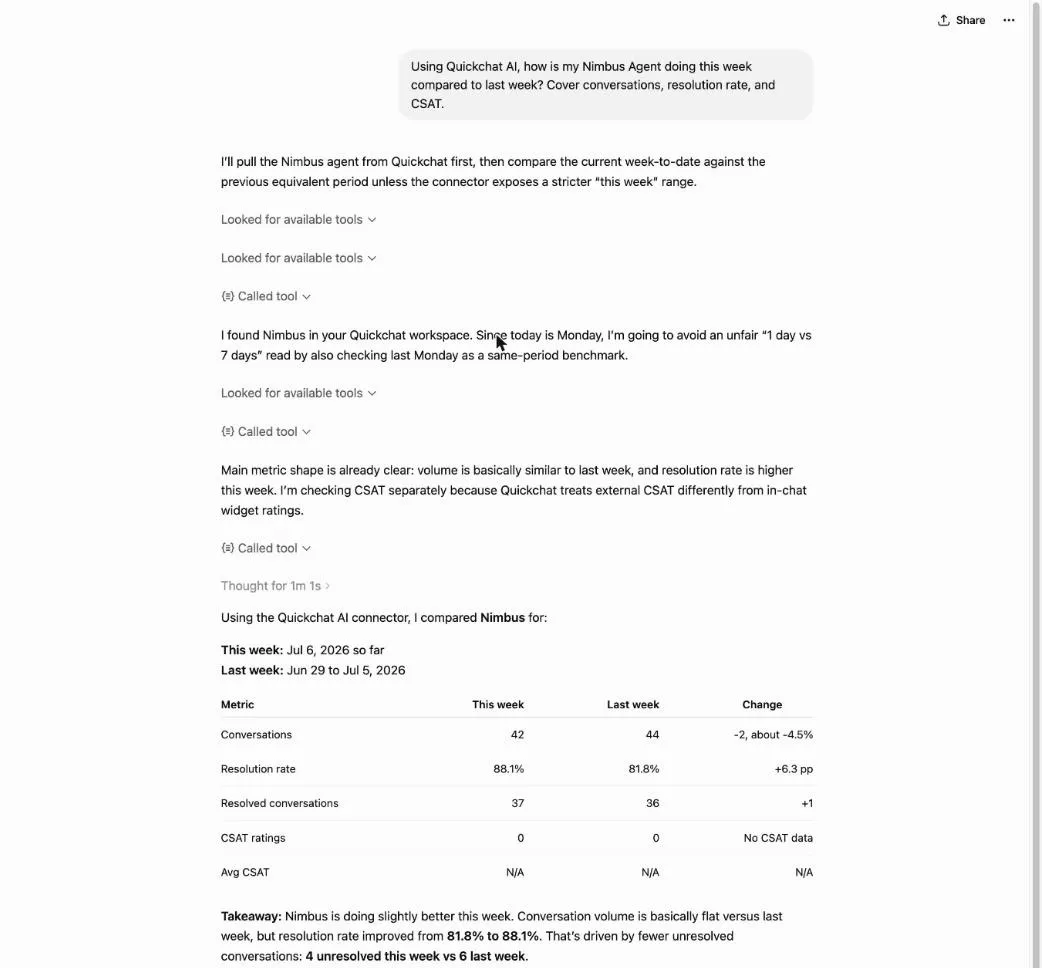 The full exchange in ChatGPT: one question resolves the Agent, pulls both weeks, and writes the takeaway.
Two follow-ups make it a real review rather than a number dump:
“What drove the change in resolution rate?”
“Draft a three-line summary I can paste into our team channel.”
The first sends ChatGPT back for topic and conversation context; the second stays entirely in the chat. Running the weekly numbers and writing the update your team reads happen in the same place, without moving anything between tabs.
2. Triage the conversations that need you
Averages hide the conversations that need a person, so ask for those directly:
“From Quickchat AI, show me the Nimbus conversations from the last 7 days that look like they need attention: low ratings, handoffs, or the Agent unsure. Start with the worst.”
ChatGPT calls get_insights for flagged conversations, list_conversations to filter the window, and get_conversation_detail to open the ones worth reading. It comes back with a short list, each with the reason it surfaced and a one-line note on what went wrong.
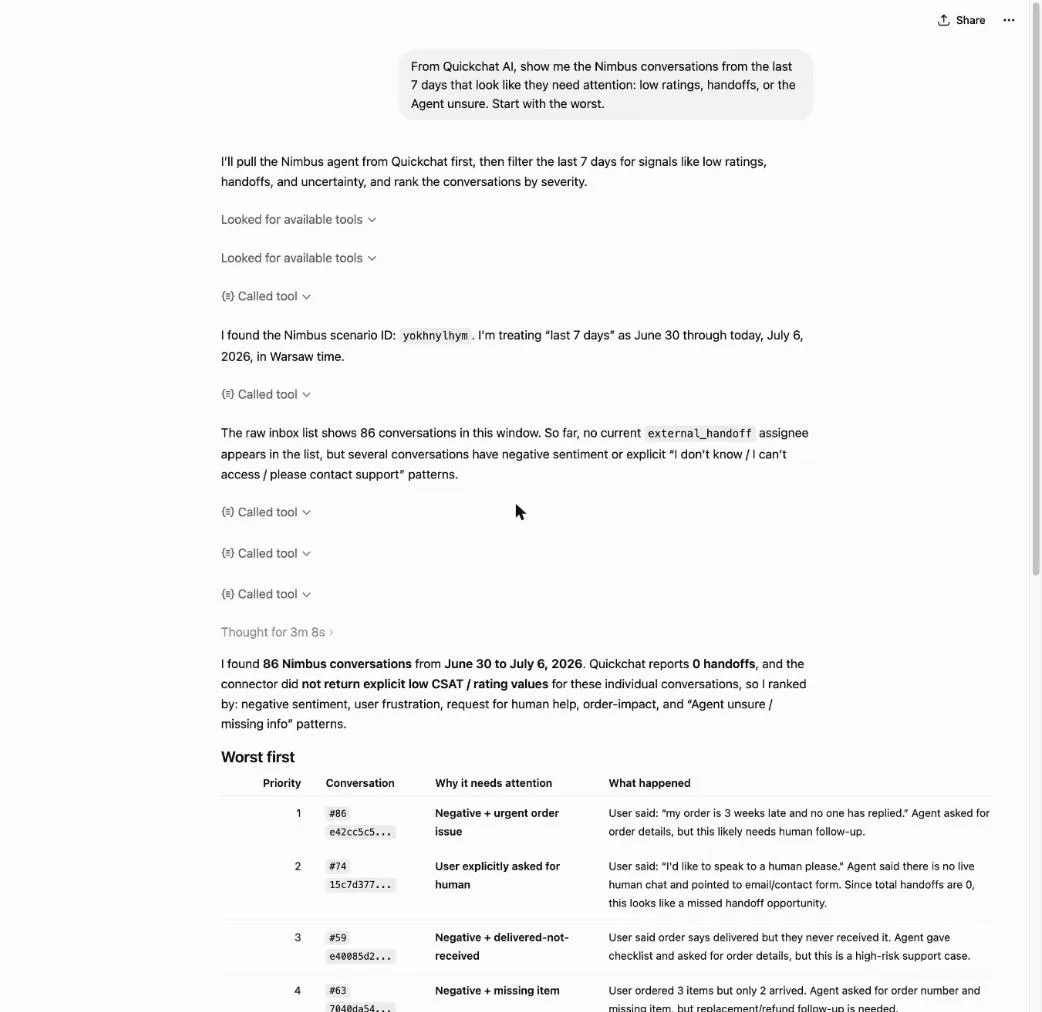 ChatGPT’s triage list: flagged conversations, worst first, each with the reason it needs a look.
From there you read one in full without leaving the chat:
“Open the refund one and show me the full transcript with the AI’s analysis.”
get_conversation_detail returns the whole exchange plus the per-message feedback and analysis, so you can see the exact turn where the Agent lost the thread. That turn is usually the input to the next workflow.
3. Read what customers actually ask about
Triage tells you which conversations went wrong. Topics tell you what the week was about:
“With Quickchat AI, what did Nimbus customers contact us about in the last 7 days? Give me the distribution and flag anything rising.”
ChatGPT calls get_topics for the intent distribution and, when you ask about movement, compare_periods to set this week against the last. The answer is an ordered breakdown (“shipping and delivery, returns and refunds, product questions”) with the share each takes and the ones that grew.
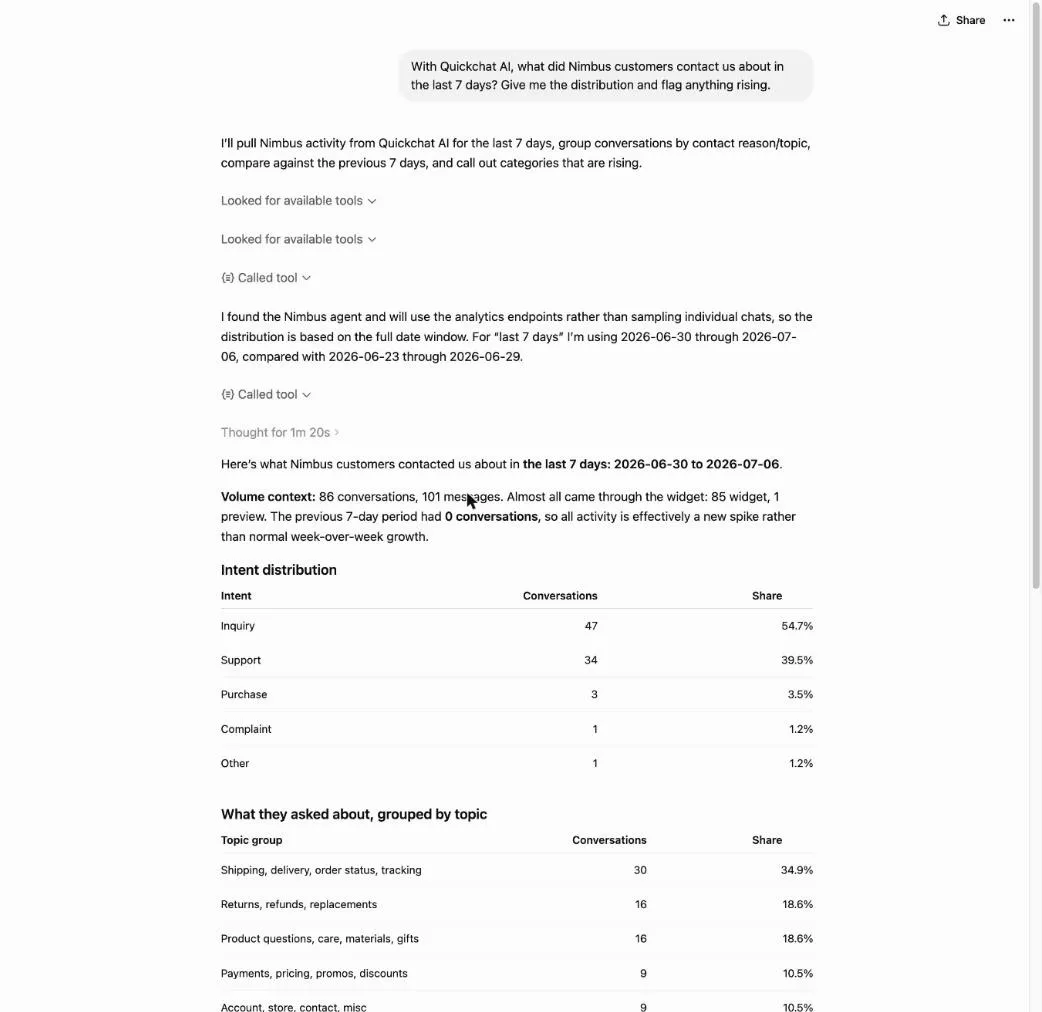 The week’s intents and topics in ChatGPT, as a distribution with the share each takes.
A rising topic is a signal to check the knowledge base. If “returns and refunds” is both climbing and showing up in triage, the Agent is probably missing something customers now need.
4. Close the gap (the write path)
This is the first workflow that changes your account, so it runs differently. Say what to add:
“Add a Quickchat AI knowledge base article to the Nimbus Agent covering our updated 30-day return policy: unworn items, original packaging, prepaid label, refund in 5 business days.”
ChatGPT drafts the article and runs add_knowledge_base_article. Whether it pauses to ask first depends on your Apps permission mode: on “always ask” and “ask before changes” you approve the write in the chat; on the low-risk mode it can run directly. Either way, once the write goes through, the article is embedded into the Agent automatically in the background. There is no separate retrain or publish step.
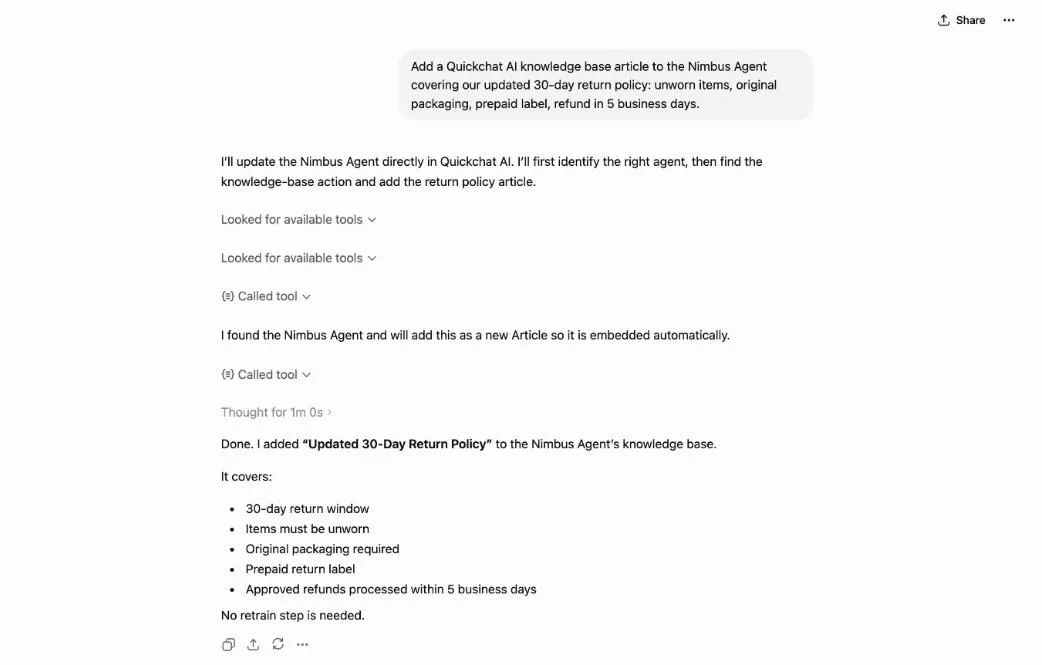 The write path in ChatGPT: the article lands in the knowledge base and is embedded automatically, with no retrain step.
You found the gap in triage (2), confirmed it was growing in topics (3), and fixed it here, which closes the loop. The next weekly review (1) shows whether the fix moved the resolution rate on that topic.
5. Export a report, or spin up a new Agent
Two less-frequent tasks round out the set. When someone needs the raw conversations:
“Export the last 30 days of Nimbus conversations from Quickchat AI as an XLSX.”
export_conversations runs server-side and returns a short-lived download link in the chat. Before handing the file over, ChatGPT asks you to approve the attachment, even in the low-risk permission mode. The export covers up to 31 days per call and can take a moment on a busy Agent.
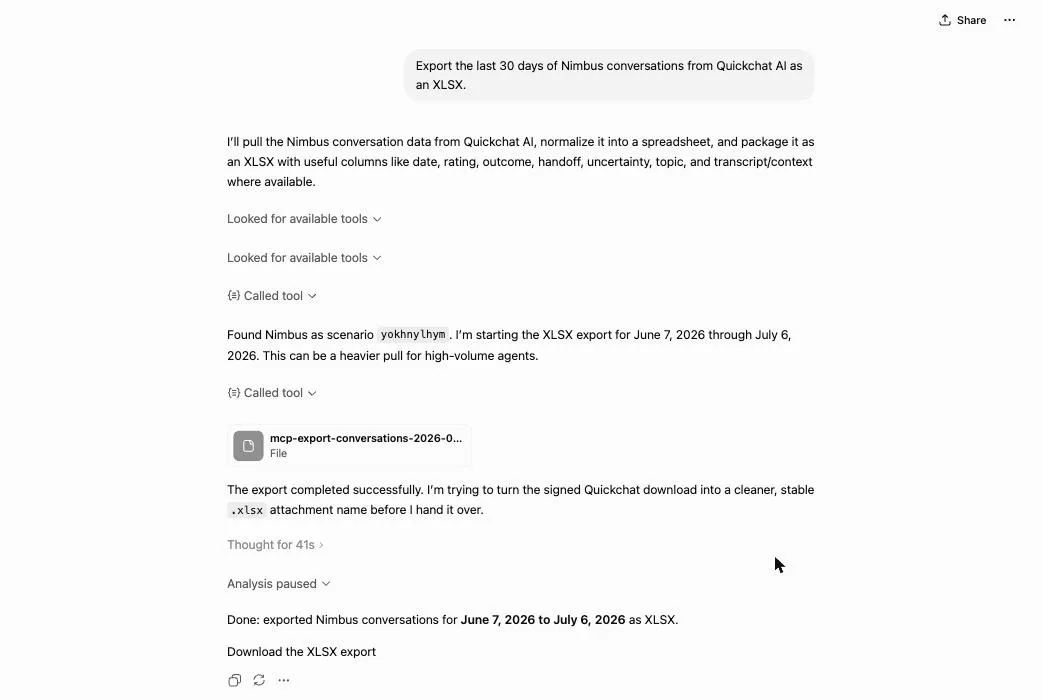 The export in ChatGPT: the file comes back with a download link, generated server-side.
When you want a second Agent from an existing site:
“Build a Quickchat AI Agent from https://example.com and give it a friendly tone.”
onboard_assistant_from_url reads the site and configures the Agent. This one overwrites the target Agent’s configuration, so run it on the stricter permission modes, where ChatGPT asks before the write. For a blank Agent instead, ask to create one and create_assistant handles it on the free tier.
ChatGPT-specific notes
A few things behave differently in ChatGPT than in other MCP clients:
| Detail | In ChatGPT |
|---|---|
| Where the app lives | The Quickchat AI app in the ChatGPT directory: open it and click Connect |
| Plan needed | No Developer mode and nothing to configure. The Quickchat AI side works on the free tier |
| Devices | Available wherever ChatGPT makes apps available to your account |
| The ready-made prompts | The server ships five (weekly review, triage, topic investigation, launch from a URL, export). ChatGPT does not show them in a menu, so ask for them by name |
| Getting a tool to fire | Name the connector in your message; confirm the app is enabled for the current chat |
| When ChatGPT asks before a write | Settings, then Apps, then Permissions: always ask, ask before changes, or auto-approve low-risk actions |
| After the tool list changes | Reopen the app under Apps, or remove and re-add it, to refresh |
Is it safe to run writes from ChatGPT?
The short version, with the full model covered in the setup post linked above:
- You choose when ChatGPT asks. The Apps permission setting has three modes: always ask, ask before any change, or auto-approve low-risk actions. Read workflows run on their own in the last two; writes pause for approval on the stricter modes. Handing over a file, like the export above, asks for approval in every mode.
- The server checks your role. Write tools need an editor role or above on the specific Agent, verified on every call. Approving in the chat does not bypass that.
- Access is a scoped sign-in, not a key. ChatGPT holds an OAuth token for your account, never a Quickchat AI API key. Removing the app revokes it.
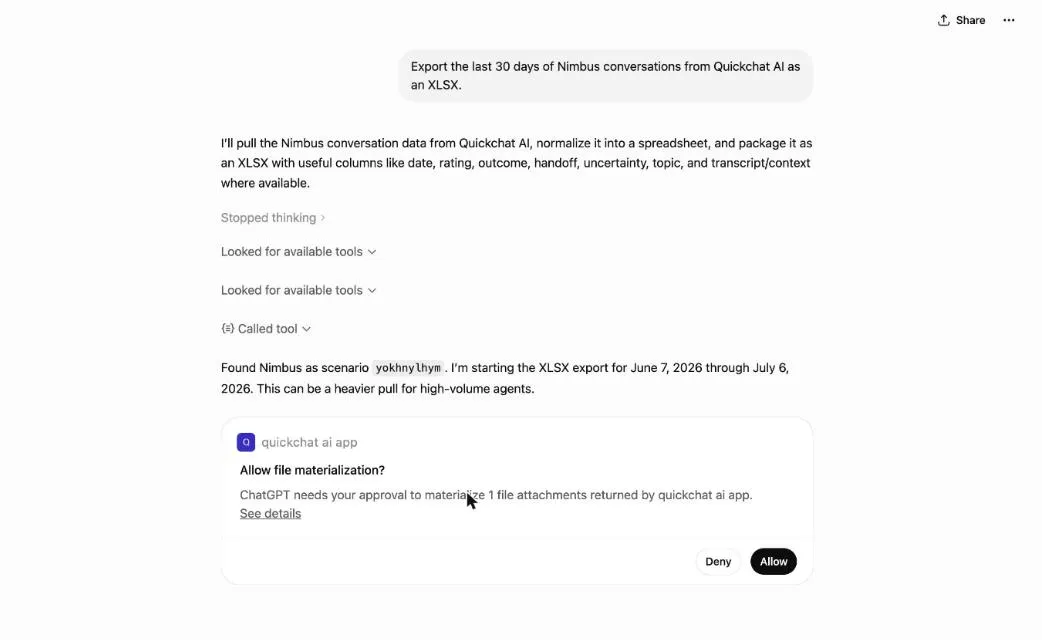 The approval card in ChatGPT: it pauses and waits for an Allow before handing over the exported file.
FAQ
Do I need Developer mode to use Quickchat AI in ChatGPT?
No. Quickchat AI is now a published app in the ChatGPT app directory: open it, click Connect, and sign in once. There is no Developer mode to enable and no connector URL to paste. The Quickchat AI side works on the free tier.
Why does ChatGPT ask for approval before some Quickchat AI actions?
The connector marks each tool as read-only or write, and your Apps permission setting decides when ChatGPT asks: always, before any change, or only above what it considers low-risk. Handing over a file, such as a conversation export, asks for approval in every mode. Read tools, like analytics and transcripts, return information and change nothing.
Which Quickchat AI tasks are worth doing from ChatGPT instead of the dashboard?
Anything with a specific answer: the weekly numbers, a week-over-week comparison, finding the conversations that need attention, the top customer topics, a quick knowledge base fix, or an export. The dashboard stays better for open-ended browsing across many transcripts.
Does ChatGPT change my Agent on its own?
No. It only acts on what you ask for in the chat, your Apps permission setting controls whether it pauses for approval before a write, and every write requires an editor role or above on that specific Agent, checked on the server for every call. Once a knowledge base article is added, it is embedded into the Agent automatically in the background.
Can I run these workflows from ChatGPT on my phone?
The Quickchat AI app runs wherever ChatGPT makes apps available to your account. Nothing about the connector itself is device-specific, so the same prompts work in every place the app shows up.
How is this different from the older Quickchat AI MCP?
This connector manages your own account from ChatGPT. The older MCP channel is the reverse: it exposes your Agent as a tool that other people add to their AI apps. Different feature, different authentication.
Every workflow here is one message against a live account. If MCP itself is new, MCP Explained covers the protocol. Create your account and add the app (both are in the checklist at the top), then start with the weekly review next Monday. It is the easiest of the five to turn into a habit, and the other four follow from what it surfaces.