



A Discord welcome bot posts a prepared message when something happens in your server: a member joins, a thread opens, a channel is created. Quickchat AI sends those messages from three rules you configure in a dashboard, with no code and no hosting.
This tutorial sets up all three, tests each one, and shows what happens when a member replies to the greeting and the AI conversation begins. It covers both ways of connecting Discord to Quickchat AI, including the one extra Developer Portal setting that the member rule needs if you run your own bot.
Choose the job for your Discord bot
Start with the job you need. Greetings, support tickets and moderation use different features and permissions.
| Job | Guide | Discord connection |
|---|---|---|
| Post a fixed greeting when a member joins or a channel opens | This welcome bot guide | One-click or your own Discord app |
| Answer from your docs, then open a private ticket when an answer is missing | AI Discord ticket bot | Your own Discord app |
| Timeout members, manage roles or change slowmode when an admin asks | AI Discord moderation bot | Your own Discord app |
From signup to your first greeting
- Create a Quickchat AI account. If you register with email and a password, open the verification link in your email before continuing.
- In setup, describe the Agent you want, for example: “A Discord community bot that welcomes new members and answers questions about our server.” Click Create my AI Agent and finish the setup steps, including choosing a plan for your intended use.
- Connect Discord with Add to your Discord server during setup, or open External Apps, then Discord in the dashboard. For greetings alone, the one-click connection is enough.
- Start with New member joins in Automated messages. Pick one welcome channel, save the rule, and join with a second Discord account. Check that the greeting appears once, then reply to it to test the separate AI conversation.
The Free plan is for personal, non-commercial use. Choose a paid plan before using the bot for a business. The fixed greeting itself uses no AI credits; the AI conversation that follows does.
Optional example checks
-
Check Discord permissions. Check declared permissions and posting settings without accessing your Discord account.
-
Check Discord setup prerequisites. Review declared bot and channel settings for setup gaps. This does not inspect your Discord account or install a bot.
Why this exists: three requests from our own Discord
Members of our own Discord server keep asking for the same thing in three different shapes. Each time, our support bot had to tell them it was not possible.
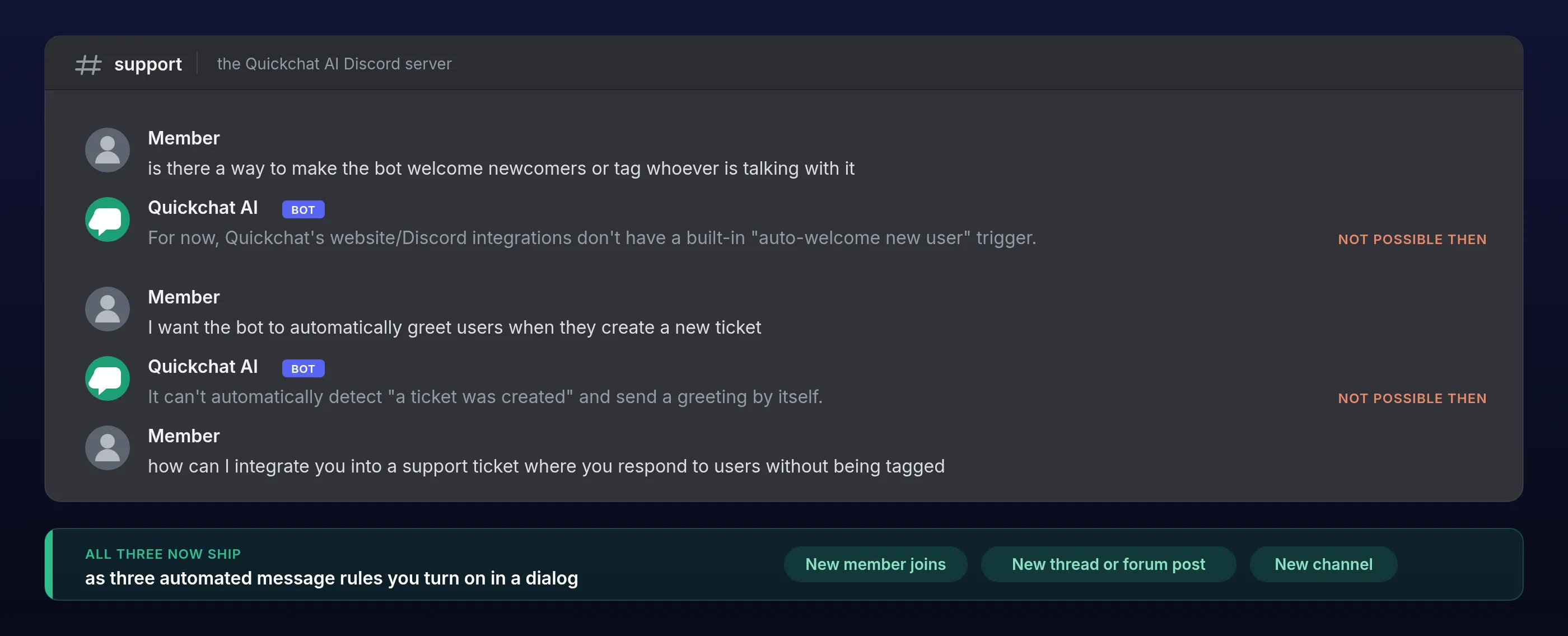
Read together, the three are one request: let the bot speak first. Welcome someone who joins. Greet whoever opens a thread. Say hello in a new ticket channel, before the person in it has to work out that a bot is even there.
The question has kept arriving all year, in the Discord server and in the widget. As of this week all three exist, as automated message rules you switch on in a dialog, and this post sets up all three, end to end.
Why a Discord bot cannot greet anyone by default
A Quickchat AI bot in Discord answers when it is mentioned or replied to. The shared one-click bot also supports /ask. That is deliberate: a bot that replied to everything would be unusable in a busy server. The side effect is that in a channel created ten seconds ago, nobody knows the bot is there. It cannot speak first, so it never gets spoken to.
That is the cold start, and it is worst in a fresh ticket channel, where the member has a question and no idea that anything in the channel can answer it.
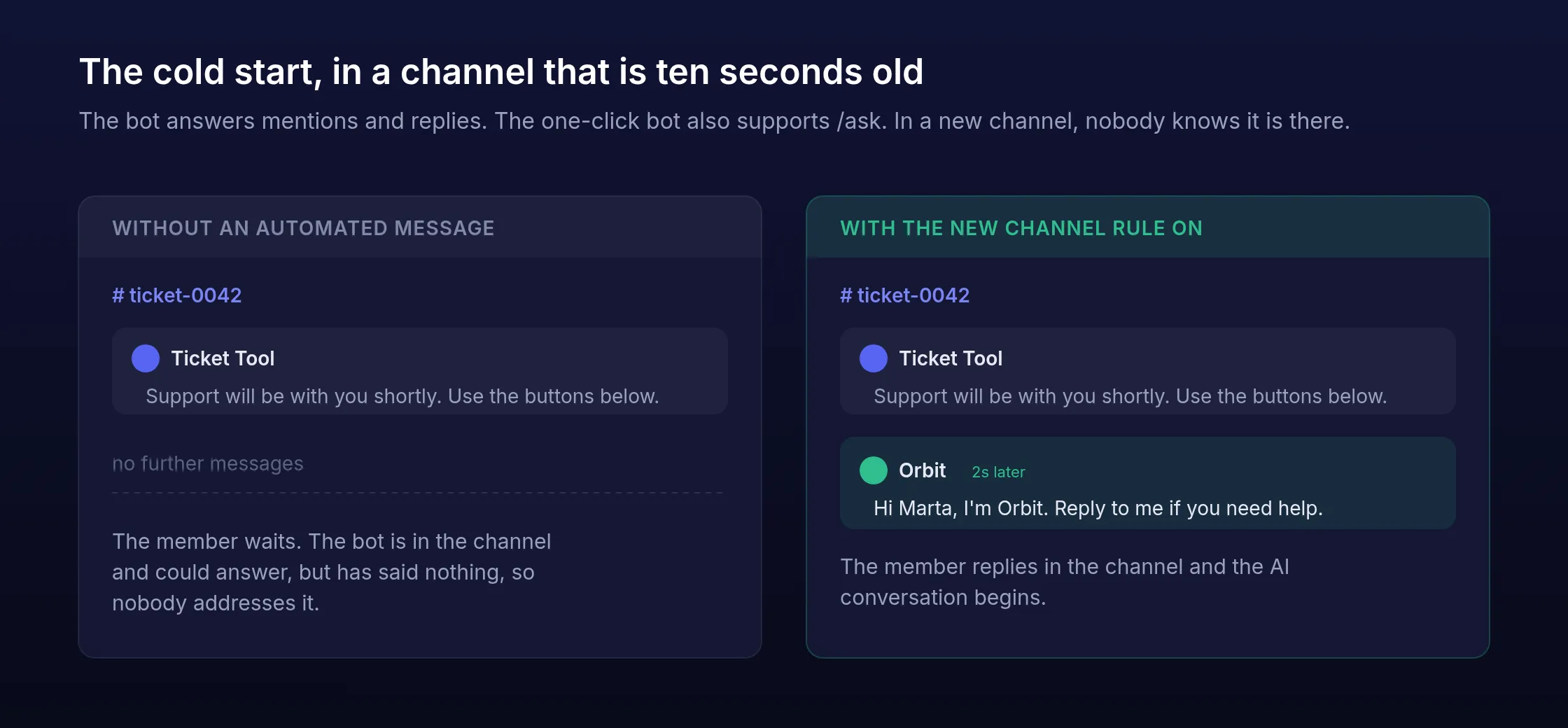
An automated message is the bot speaking first. It is fixed text, so it costs nothing and cannot say anything you did not write, and it ends by telling the member how to start a real conversation. The three rules map onto the three requests above: New member joins, New channel, and New thread or forum post.
What you will build
The demo server is Nebula Lounge, a community server whose agent is called Orbit. By the end it has three greetings running:
| Rule | Fires when | Posts in |
|---|---|---|
| New member joins | A person joins the server | One channel you choose, #welcome |
| New thread or forum post | A public thread or forum post opens | Inside the new thread |
| New channel | A text channel is created | Inside the new channel |
You need a Quickchat AI account and permission to add a bot to a Discord server. A ticket bot such as Ticket Tool is optional, and only for the ticket workflow in the last section.
How automated Discord messages work
An automated message is a deterministic pipeline, not a model call. Discord sends the event, Quickchat AI checks it against the rule’s scope, waits the configured delay, fills the placeholders and posts the text.
Nothing in that path asks a model what to say. That is what makes the message predictable enough to leave running in a public server, and it is why the message costs no credits.
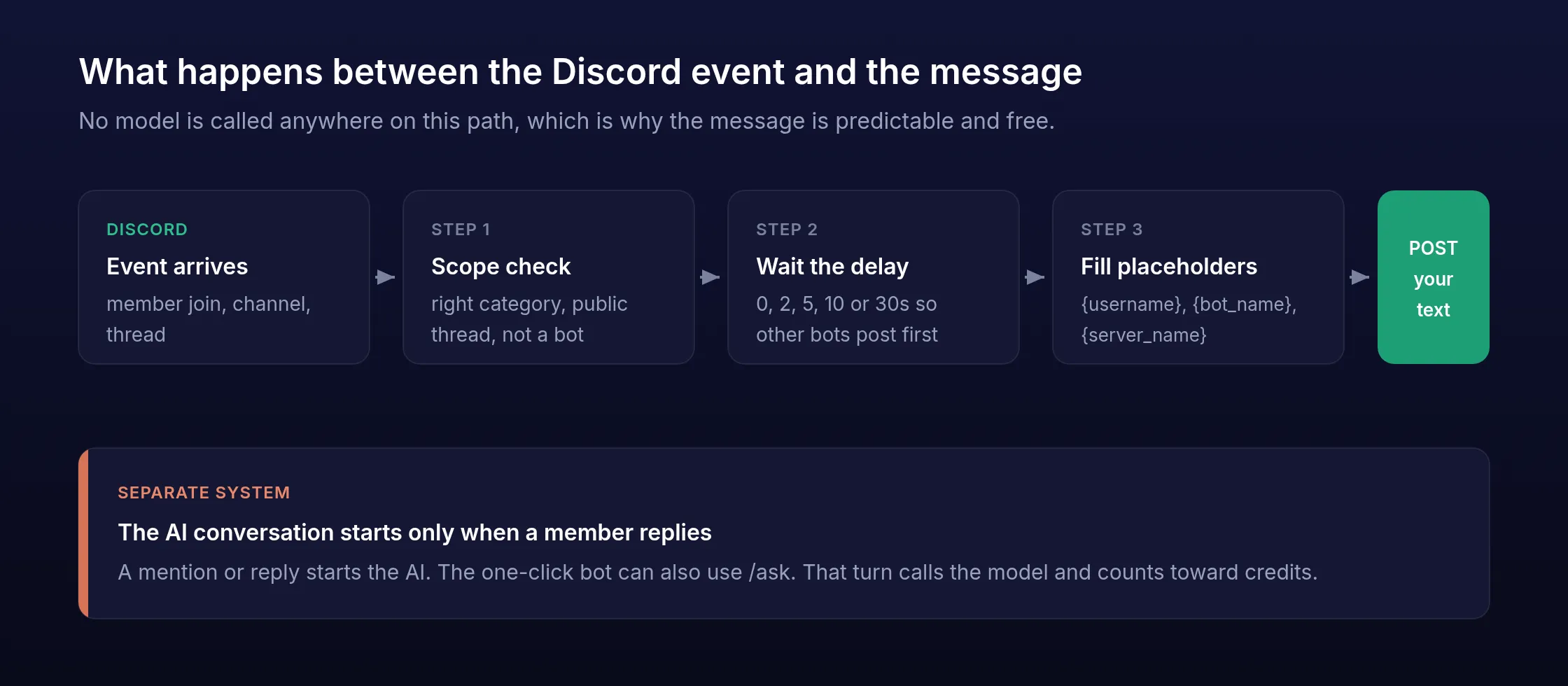
The AI conversation is a separate system that starts afterward, when a member mentions the bot or replies to it.
What automated messages are not
Four things people reasonably expect from the phrase “welcome bot” are outside this feature.
- Not verification. There is no CAPTCHA, no age or identity check, and no verified role to grant. Run a dedicated verification bot alongside this one.
- Not AI-written. The message is your text with placeholders filled in. The model never sees the event and never composes the greeting.
- Not ticket creation. Quickchat AI does not open the ticket channel. Your ticket bot does that, and Quickchat AI greets the person inside it.
- Not a broadcast or a scheduler. Each rule fires on one Discord event. There is no “post this every Monday” and no way to message a list of members.
Connect the bot to your Discord server
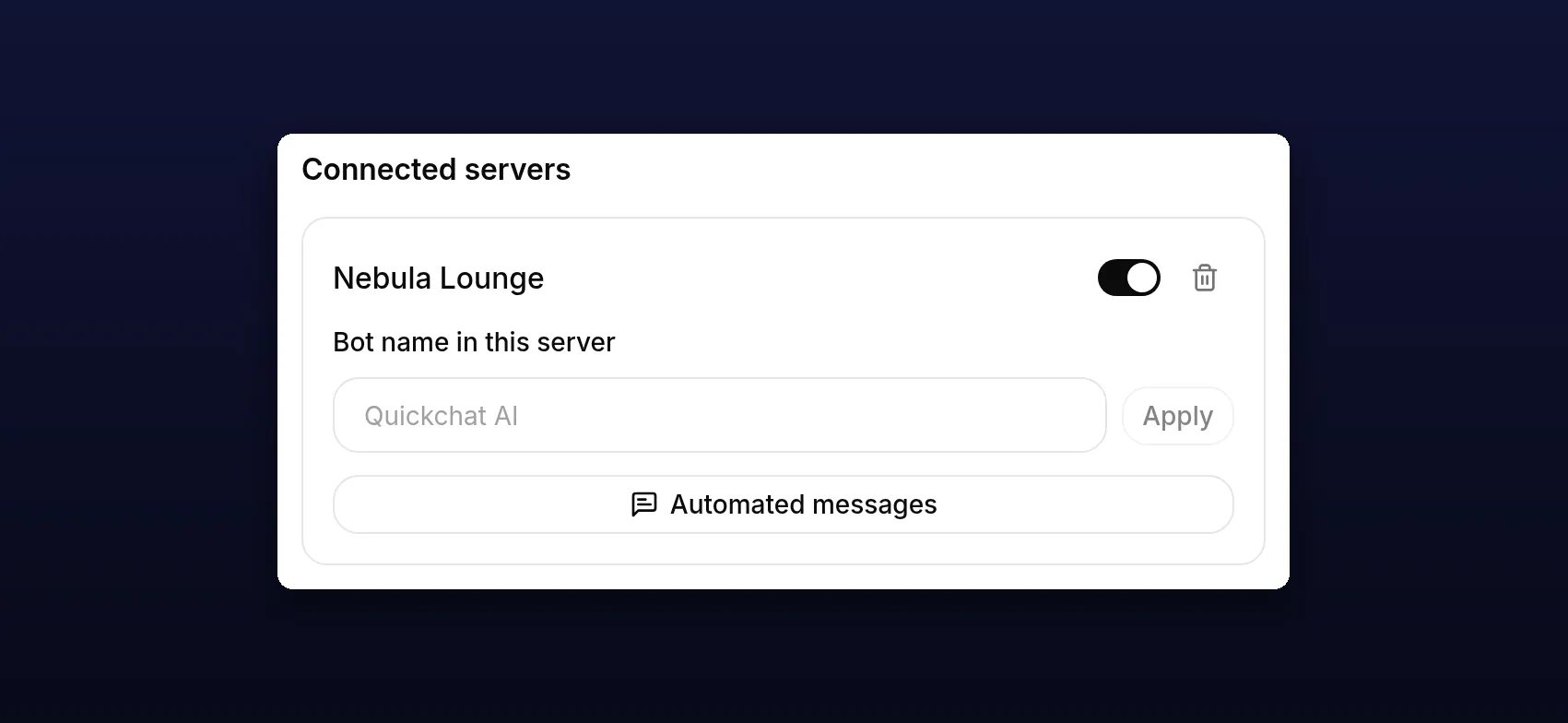
Open External Apps in the Quickchat AI dashboard and choose Discord. Set Bot name in the new server if you want the bot to carry your own name, then click Add to your Discord server and authorize it. This is the one-click flow: the shared Quickchat AI bot joins your server and you never create a Discord application or handle a token.
Make sure the bot can View Channel and Send Messages everywhere you plan to post. A destination the bot cannot see does not appear in the dropdowns, and a destination it cannot post in is skipped silently at send time.
Which setup do you have, and what changes
Quickchat AI connects to Discord in two ways, and automated messages work on both. Which one you have changes where the rules live and whether one Developer Portal setting applies to you.
| One-click | Your own Discord app (Advanced) | |
|---|---|---|
| Which bot posts | The shared Quickchat AI application | The application you created |
| Where the rules are | Automated messages on a server under Connected servers | Automated messages on the Discord page, Configure per server |
| New channel and New thread or forum post | Apply immediately | Refresh within about one minute |
| New member joins | Applies immediately | Needs Server Members Intent, then refreshes within about one minute |
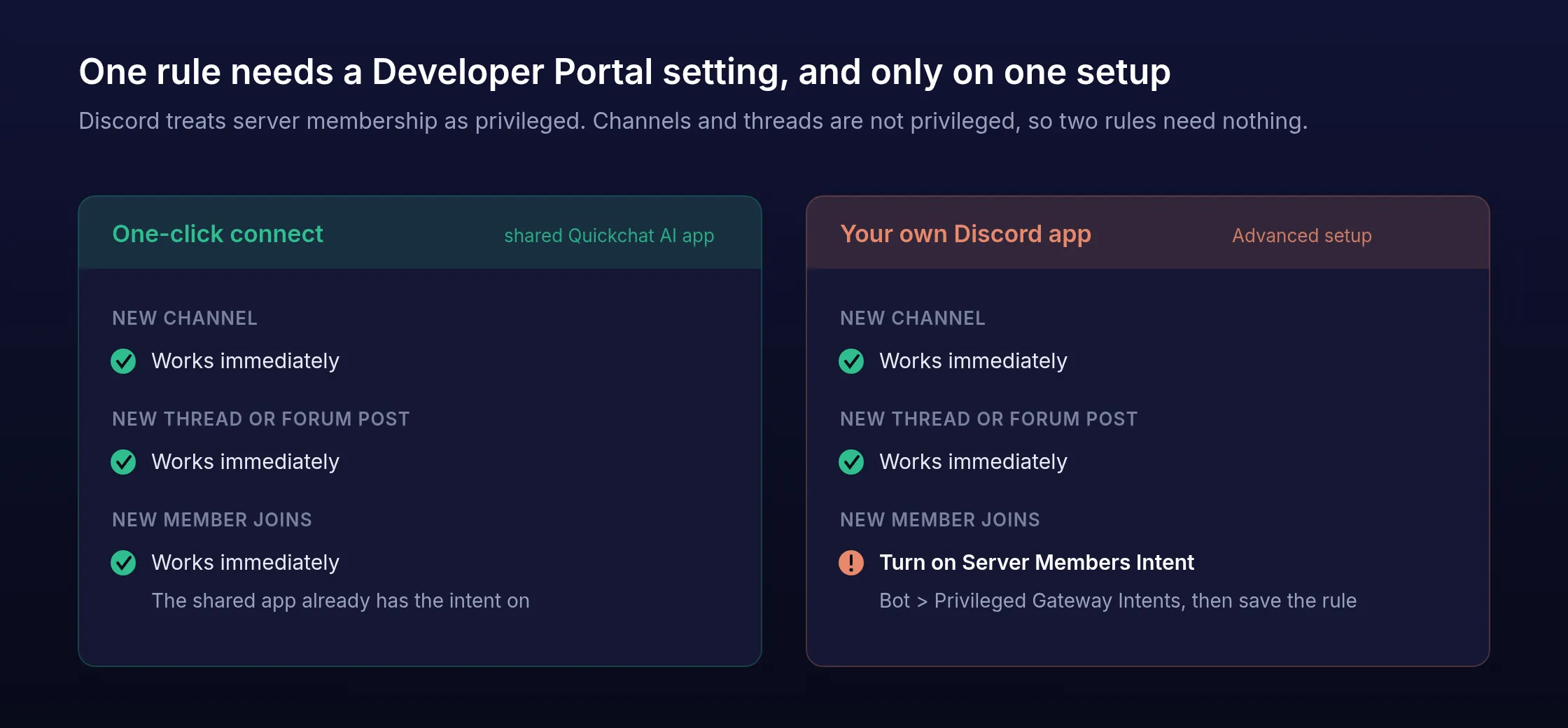
The reason for that last row is a Discord rule rather than a Quickchat AI one, and it is worth understanding once because it explains the only manual step in this whole tutorial.
An intent is Discord’s subscription system. When a bot connects, it declares which categories of event it wants to receive, and Discord sends it only those. Most intents a bot simply asks for. Three are privileged, which means Discord withholds them until the application’s owner switches them on by hand, and one of those three covers the members of a server.
So an application receives member join events only if Server Members Intent is switched on for it in the Developer Portal, and it is off by default on every new application. Channel creation and thread creation are not privileged, which is why the other two rules need nothing at all.
The shared one-click application already has the intent enabled, so if you connected in one click, none of this applies to you.
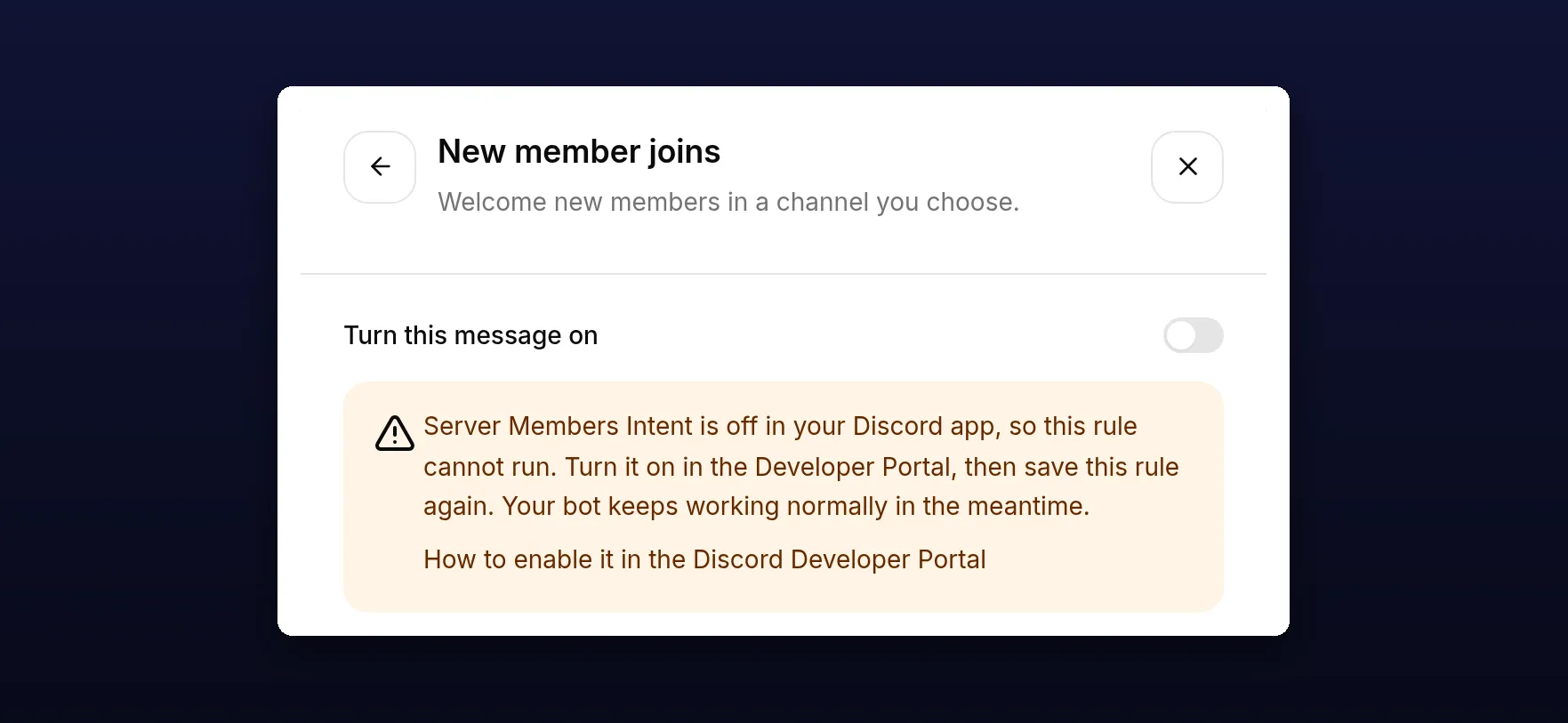
If you run your own app, Quickchat AI checks the setting for you. Open the New member joins rule and it tells you when the intent is off, and shows nothing at all once it is on. To switch it on, open your application in the Discord Developer Portal, go to Bot → Privileged Gateway Intents, turn on Server Members Intent, save, then save the rule again in Quickchat AI. Your bot keeps replying normally throughout, and only this one rule waits.
One limit worth knowing before you build on it: if your own bot is in more than 100 servers, Discord requires your application to be verified before it will grant the intent.
Open Automated messages
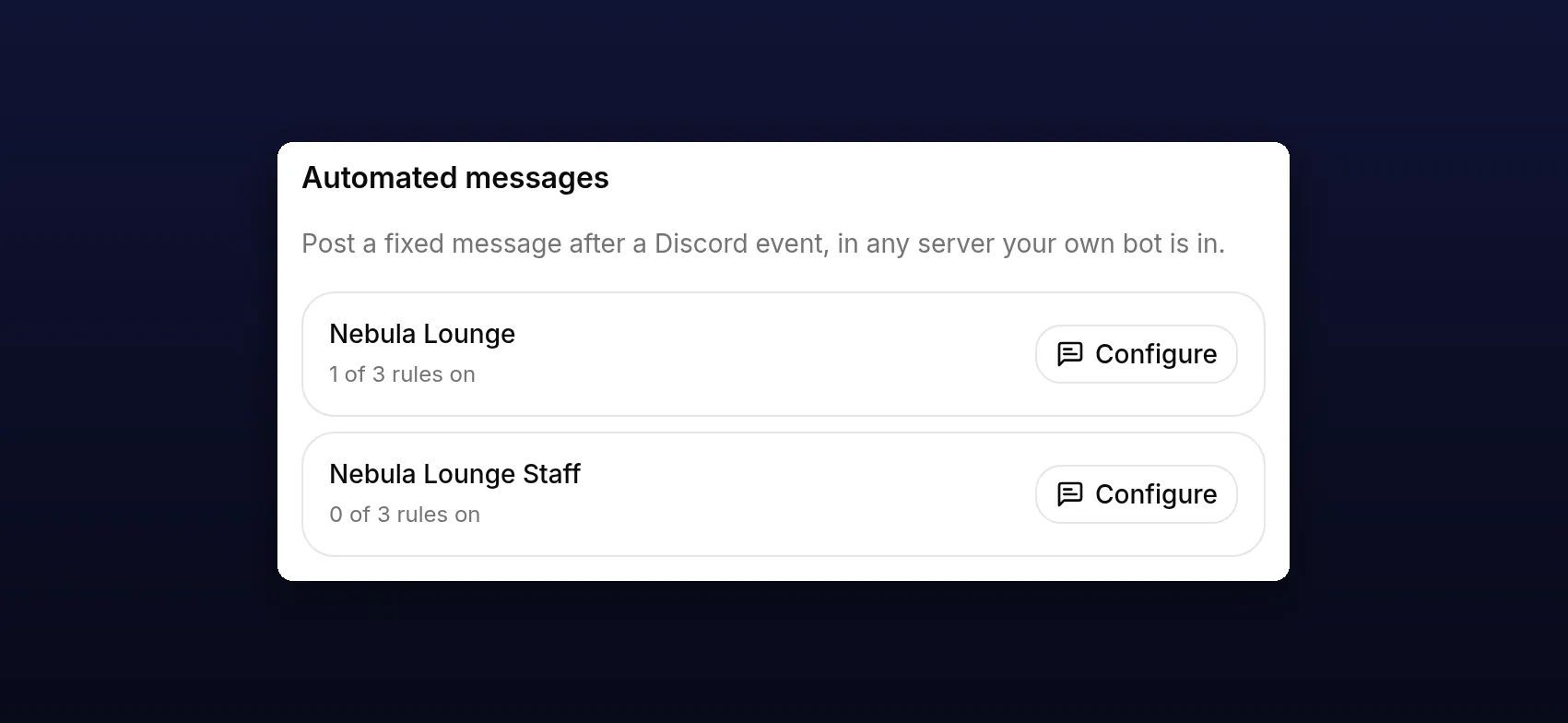
Find your server and open Automated messages: under Connected servers on the one-click setup, or via Configure in the Automated messages section if you use your own app. All three rules are listed, each with its own switch, and all three start switched off.
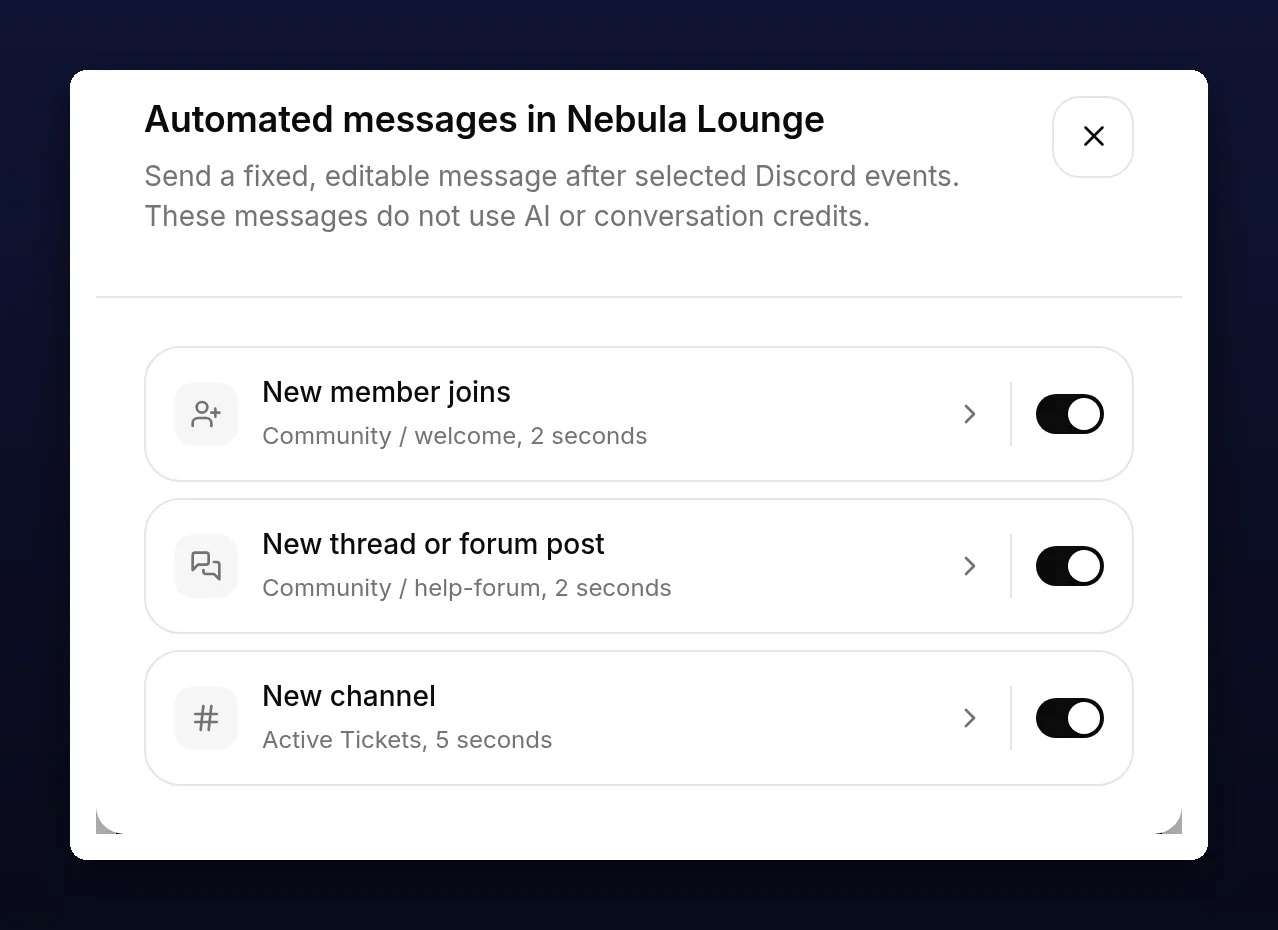
Two things about this screen are worth knowing before you start, because they change how you work in it.
Each rule saves on its own. Opening a rule, editing it and clicking Save stores that one rule and returns you to this list. The other two are untouched.
The switches on the list save immediately. There is nothing else to press. One-click settings apply immediately, while a bot connected through Advanced setup refreshes its rules within about one minute. If a greeting turns out to be noisier than you expected, one click starts that change.
Welcome each new member
Select New member joins. The rule opens with its own switch, a destination, a message template and a delay.
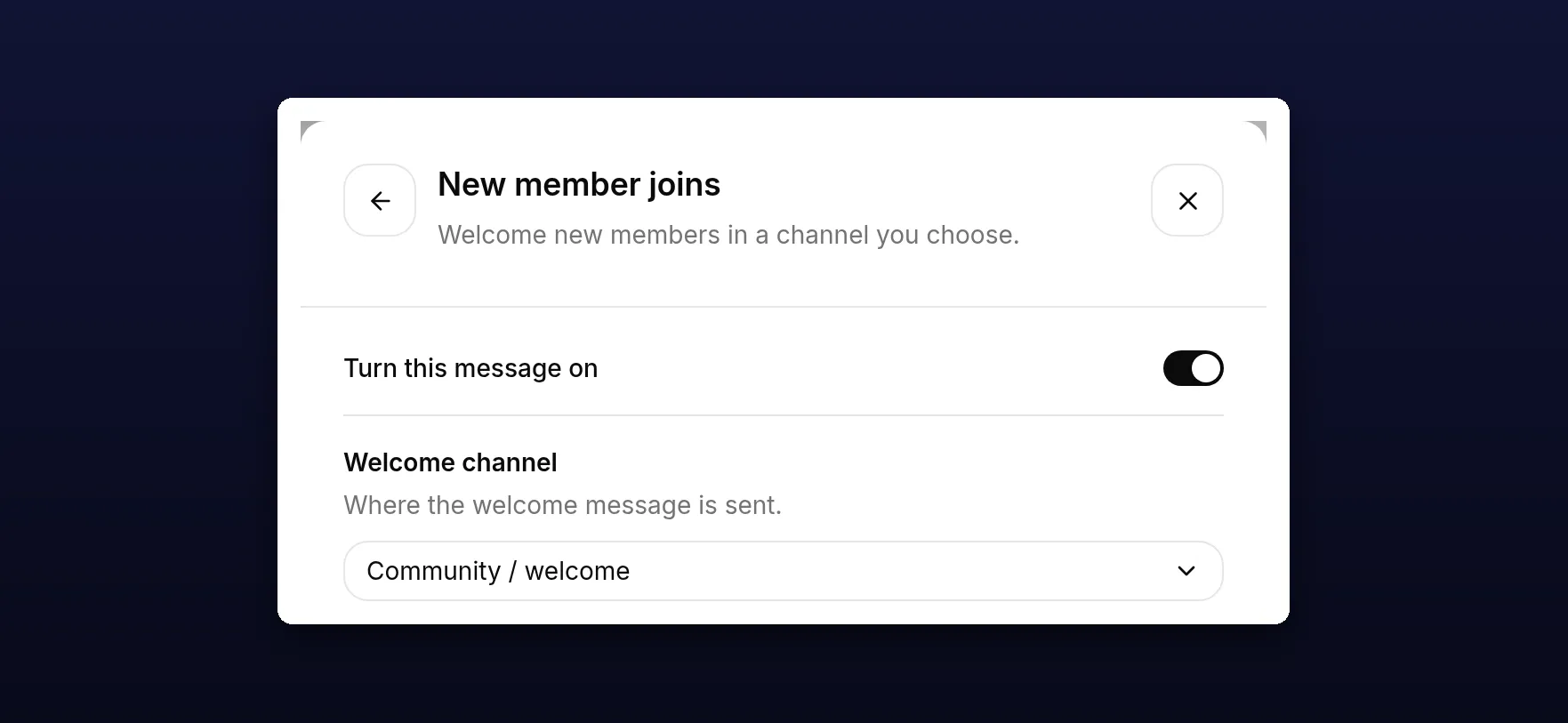
Set Welcome channel to #welcome. Then set the Message template:
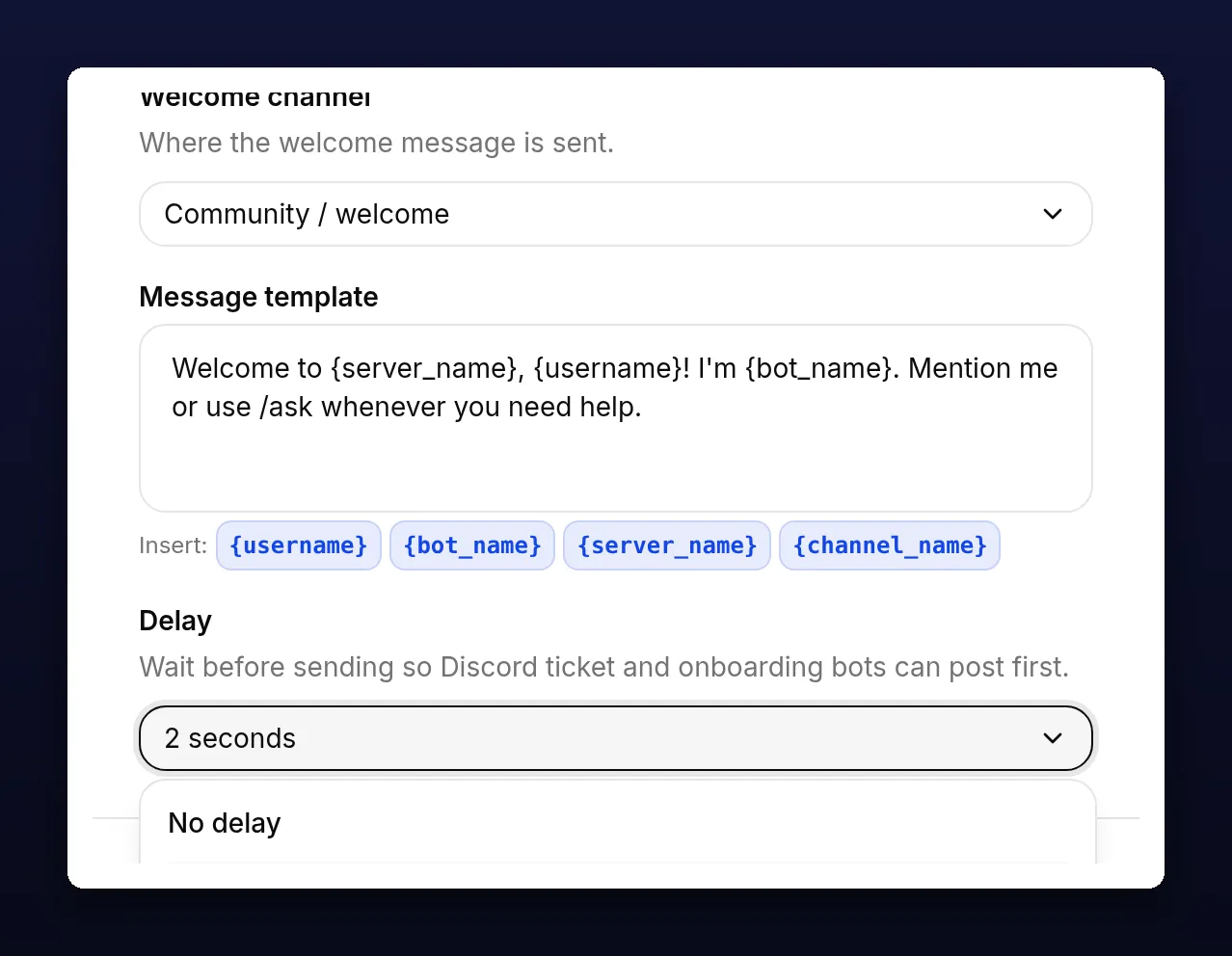
Welcome to {server_name}, {username}! I'm {bot_name}. Mention me or use /ask whenever you need help.Leave Delay at 2 seconds, turn the rule on with Turn this message on, and click Save.
If you run your own Discord app rather than the one-click bot, drop the /ask half of that sentence. The slash command only exists on the shared Quickchat AI application.
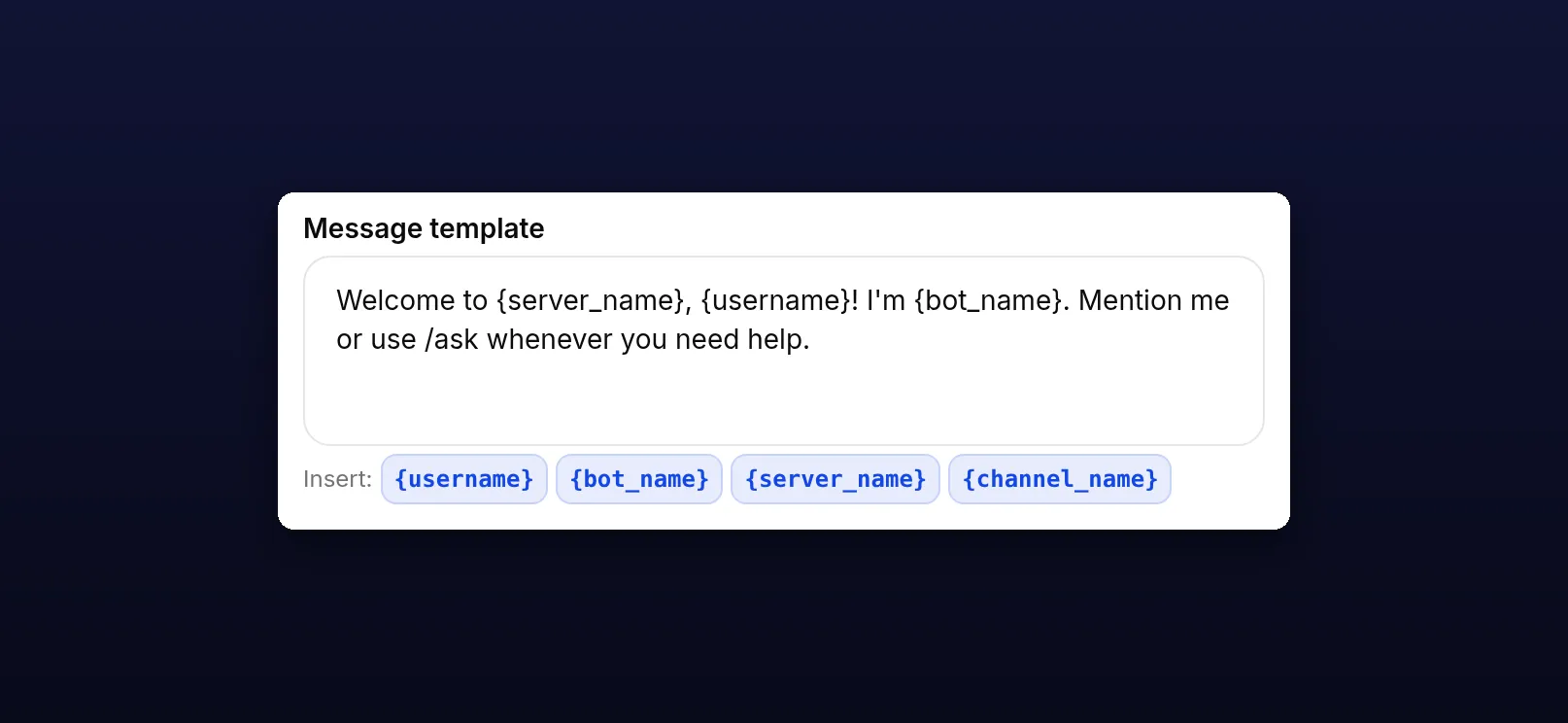
The chips under the template insert a placeholder where your cursor is, so you do not have to remember the exact spelling. {username} is the member who joined, {server_name} is the server, and {bot_name} is whatever the bot is called in this server, including the name you set during connect.
To test it, join with a second Discord account.
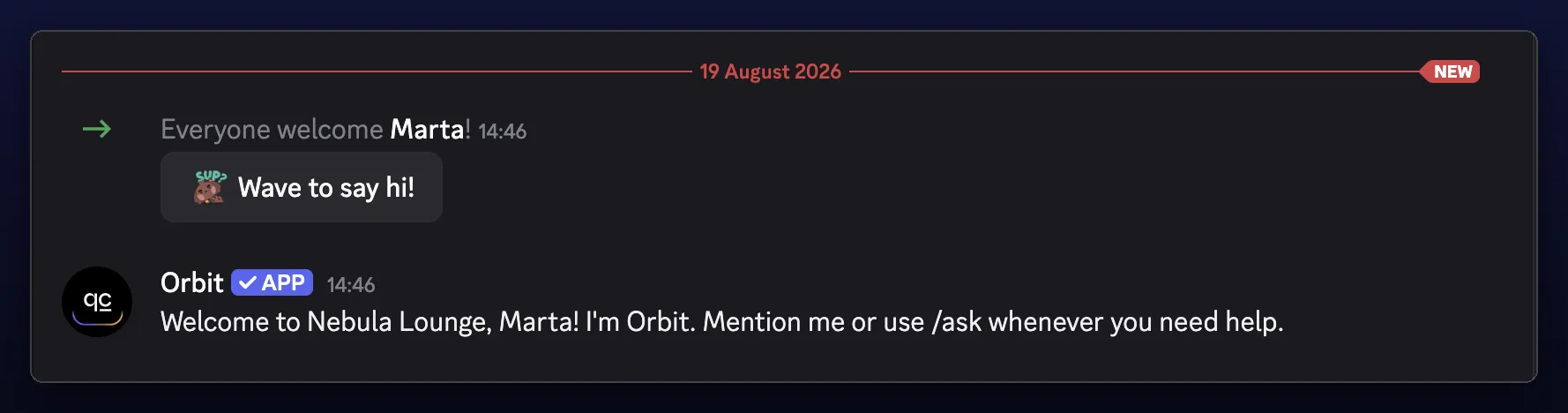
The gap between Discord’s own join notice and the greeting underneath it is the delay doing its job. Every rule has one, and you can set it anywhere from none to thirty seconds.
The negative control: invite another bot to the server. Nothing is posted. The rule ignores bot accounts on purpose, so an app install or a webhook does not produce a greeting addressed to software.
Greet new threads and forum posts
Select New thread or forum post and set Parent channel to your help forum. The rule fires for public threads and forum posts created under that parent, and ignores private threads.
Parent channel is the channel that new threads appear under, and two kinds of channel can hold them. A normal text channel, where a thread branches off an existing message, and a forum channel, where every post is a thread and the channel has no ordinary message history of its own. Forum channels only become available once Community is enabled in your server settings. Either kind works here, but a help forum is the natural fit, because every question already arrives as its own thread. A forum channel also cannot contain private threads, so under a forum parent every post qualifies.
Hi {username}, I'm {bot_name}. Mention me in this thread if you'd like help. If you prefer a human, leave your question here and they'll follow up.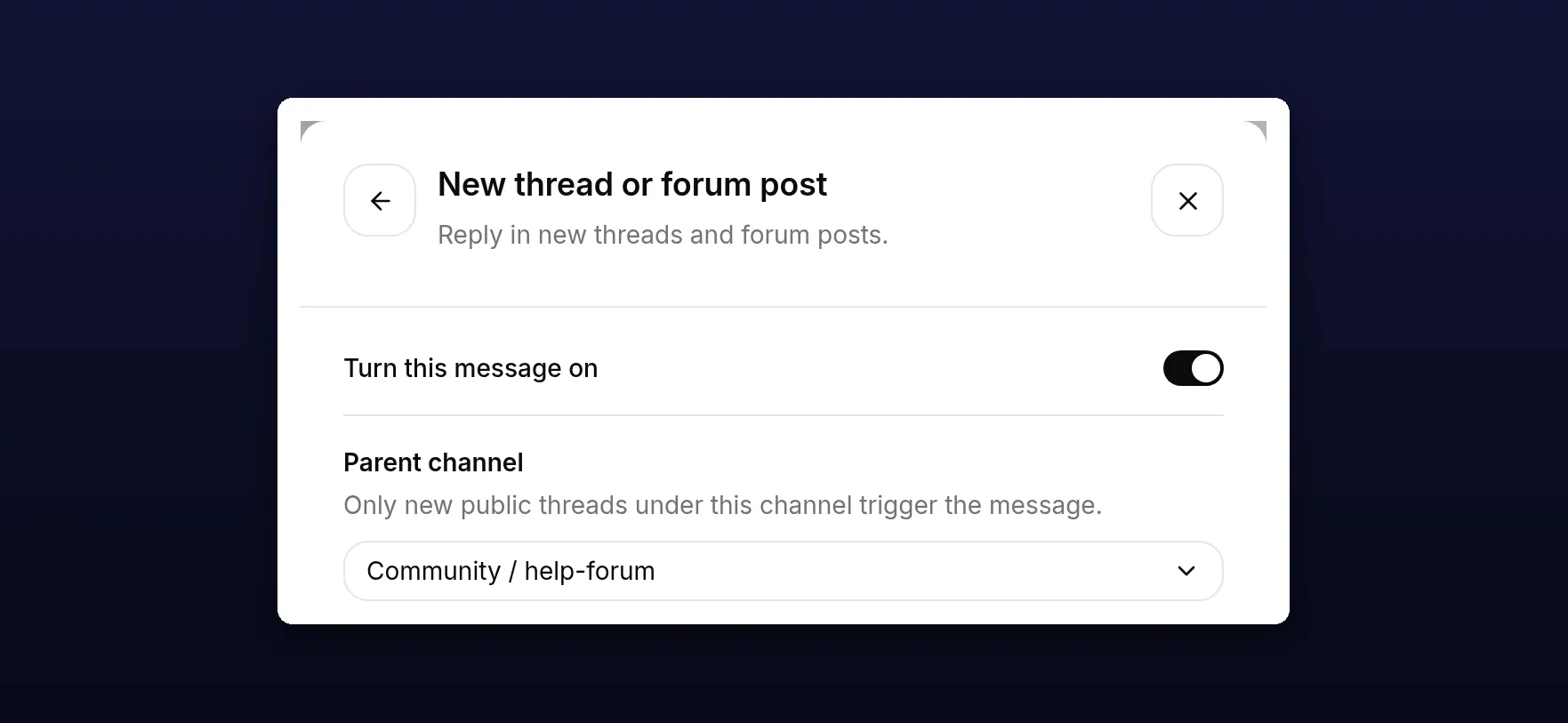
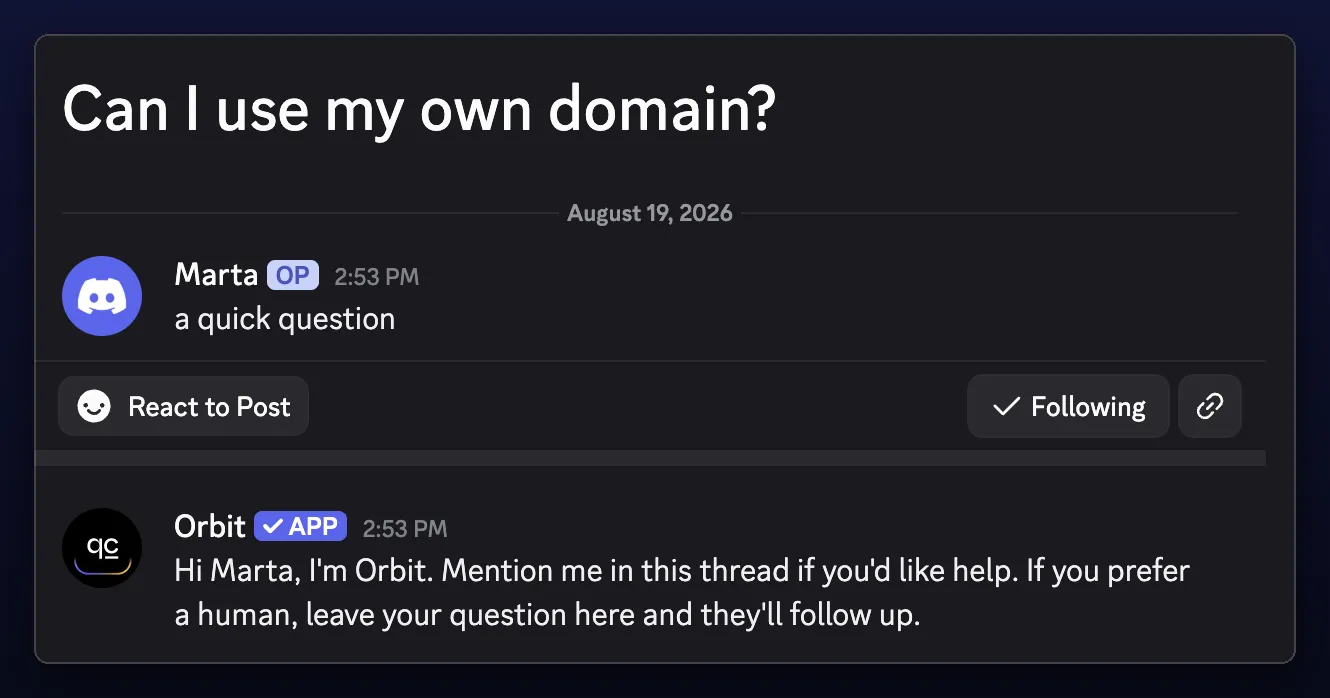
Here {username} is the person who opened the thread, which Discord reports directly, so it is always correct. {channel_name} is the thread itself.
This is the rule that answers the “only reply in threads it creates for each question” pattern people ask about: every new question thread starts with the bot already in it, saying how to use it.
The negative control: configure the rule for a normal text parent channel and open a private thread there. Nothing is posted. Private threads are excluded. A forum parent cannot be used for this test because forums cannot contain private threads.
Greet every new channel, or only your ticket category
Select New channel. By default it posts in every new text channel in the server, which is the setting most people want for a small community: any channel that appears has the bot introducing itself.
Hi {username}, I'm {bot_name}. Reply to me or mention me if you need help. If you'd rather wait for a human, share your question and they'll get back to you as soon as possible.To narrow it, change Any category to Only in this category and pick one.
A category in Discord is the collapsible group that channels sit under in the left sidebar: the grey heading with its channels indented beneath it. Ticket bots almost always create their channels under one, usually named something like Tickets or Support, and that is exactly what makes it a useful filter here.
This is the ticket workflow. Point the rule at the category your ticket bot creates channels in, and channels created anywhere else in the server are ignored.
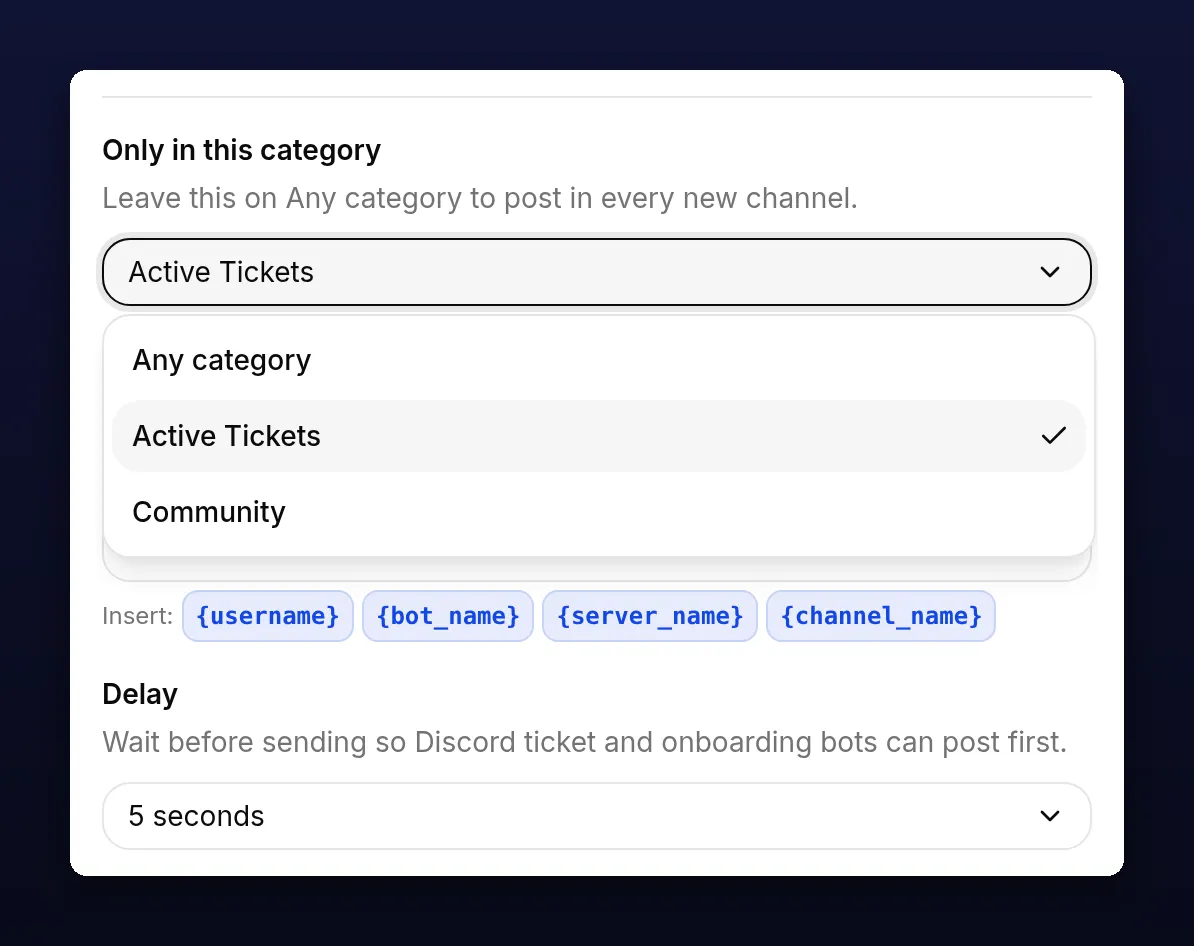
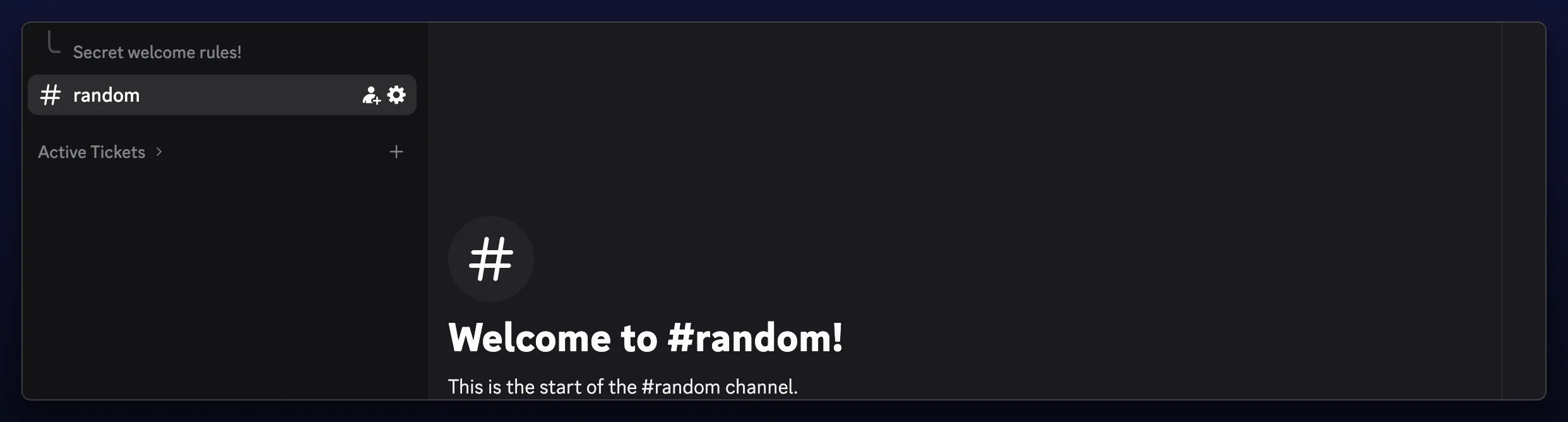
The negative control: with the rule scoped to Active Tickets, create a channel in a different category. Nothing is posted there, and a ticket opened a moment later still gets its greeting.
How the ticket greeting lands
Ticket Tool creates ticket-0042 under your Active Tickets category and posts its own panel. A few seconds later, Quickchat AI posts the greeting underneath it. That ordering is what the delay is for: with No delay the two messages race, and the greeting can end up above the panel the member is supposed to read first. Five seconds is a good starting point here, because the delay also has to cover the ticket bot applying the channel’s permissions.
How the bot works out who opened the ticket
{username} in a ticket channel is inferred rather than reported. Discord’s channel-created event names the channel and its category, but not the person the ticket is for, because as far as Discord is concerned the ticket bot created it.
What the event does carry is the channel’s permission overwrites.
A permission overwrite is a permission set on a single channel for one role or one person, overriding whatever the server otherwise grants them. It is how every private channel in Discord is built: View Channel is removed from @everyone on that channel, and then added back for the handful of people who should see it.
Ticket bots use exactly that mechanism. They grant the requester a personal View Channel overwrite on the new channel so that they, and the support team, can see it while nobody else can. Quickchat AI reads those overwrites back and looks for the one person among them. Most ticket bots also grant themselves access to the channel they just created, so each personal grant is checked against Discord and the bots are dropped. If exactly one person is left, that is the requester. Anything else, including an account Discord could not be reached about, falls back to there rather than guessing.
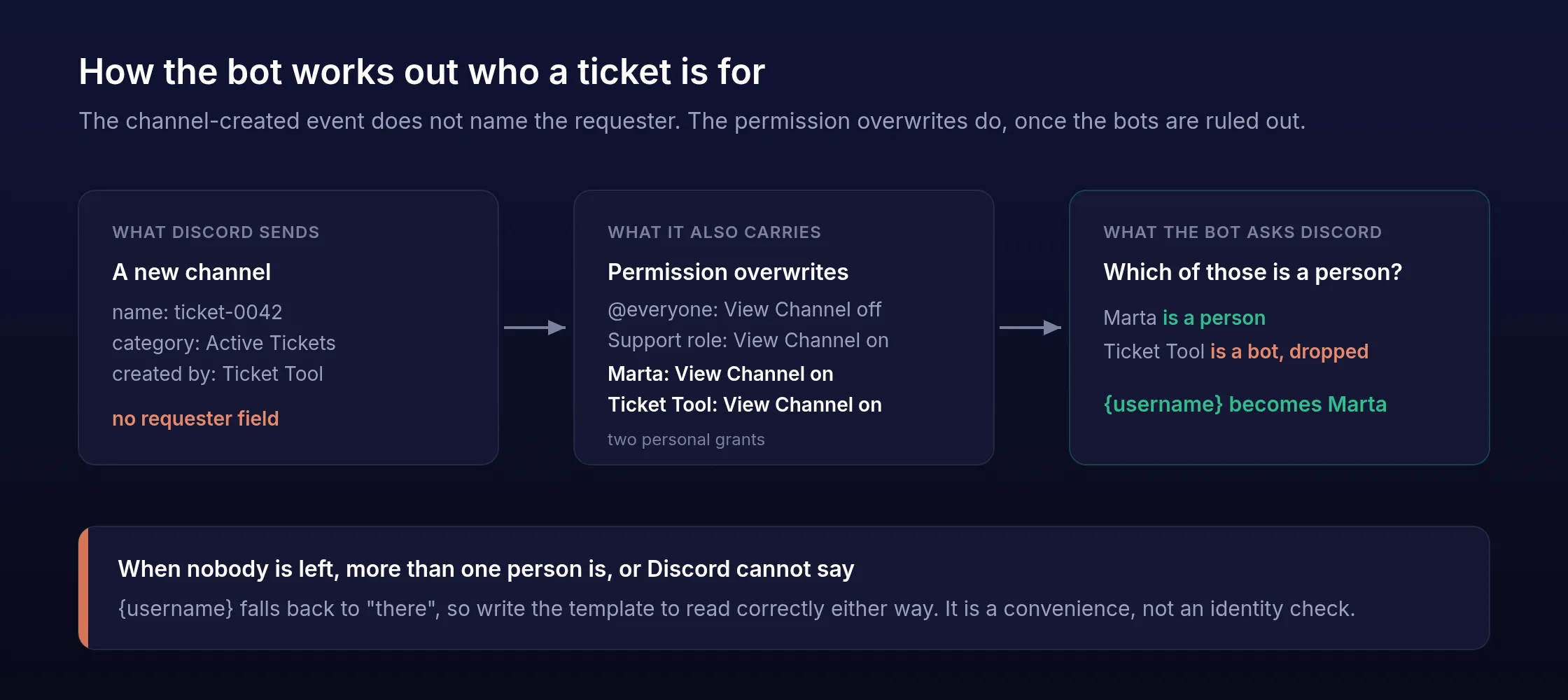
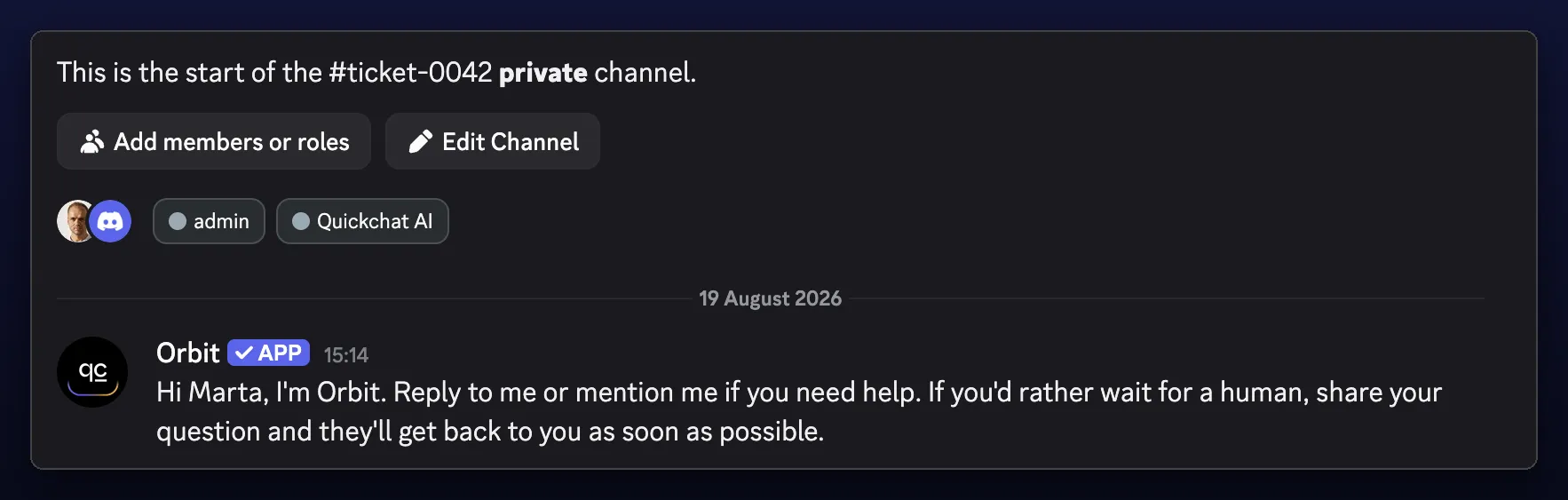
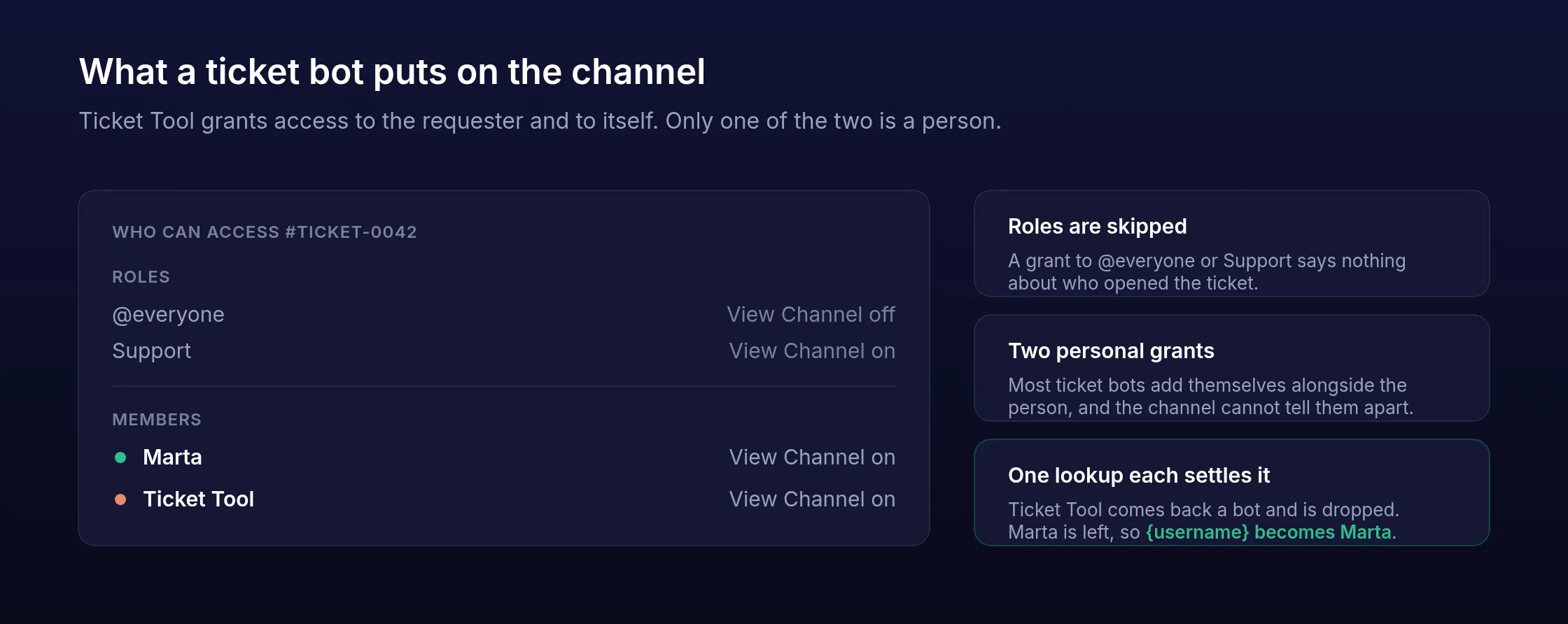
When the evidence is missing or points at more than one person, {username} becomes there, which is why the template above reads correctly either way. Write yours so it does too, and do not treat the name as an identity check: it is a convenience, inferred from a permission, not an authenticated user.
Placeholders and what they resolve to
| Placeholder | New member joins | New thread or forum post | New channel |
|---|---|---|---|
{username} | The member who joined | The person who opened the thread | The requester, inferred from permissions, or there |
{bot_name} | The bot’s name in this server | Same | Same |
{server_name} | The server name | Same | Same |
{channel_name} | The welcome channel | The new thread | The new channel |
Templates take up to 1,500 characters. Anything that is not one of these four placeholders is rejected when you save, rather than posted as literal {braces} later, so a typo fails in the dashboard rather than in front of your community.
Choosing a delay
| Delay | Use it when |
|---|---|
| No delay | Nothing else posts in the destination, and you want the greeting to be the first thing there |
| 2 seconds | The default. Another bot posts a panel or an embed first, which covers most ticket and onboarding setups |
| 5 to 30 seconds | The other bot is slow, posts several messages, or renames the channel after creating it |
A longer delay also gives a ticket bot time to apply the channel’s permissions, which is what {username} is read from. That race is over in a second or two, though, so a longer delay will not rescue a greeting that says there every single time.
What happens after the greeting
The greeting ends by telling the member how to reach the bot, and everything after that is the ordinary Quickchat AI conversation: it answers from your knowledge base, and a teammate can take over from the Quickchat AI Inbox at any point. The member never leaves Discord.
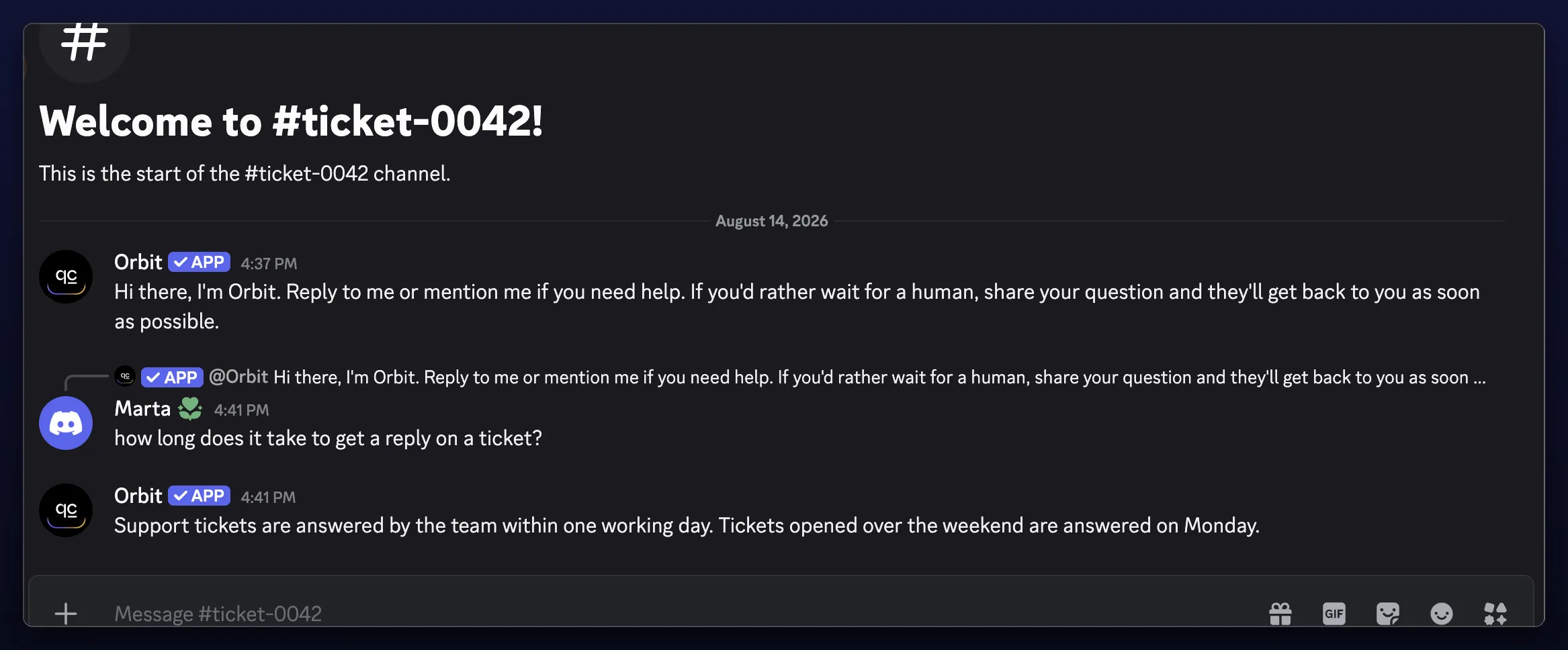
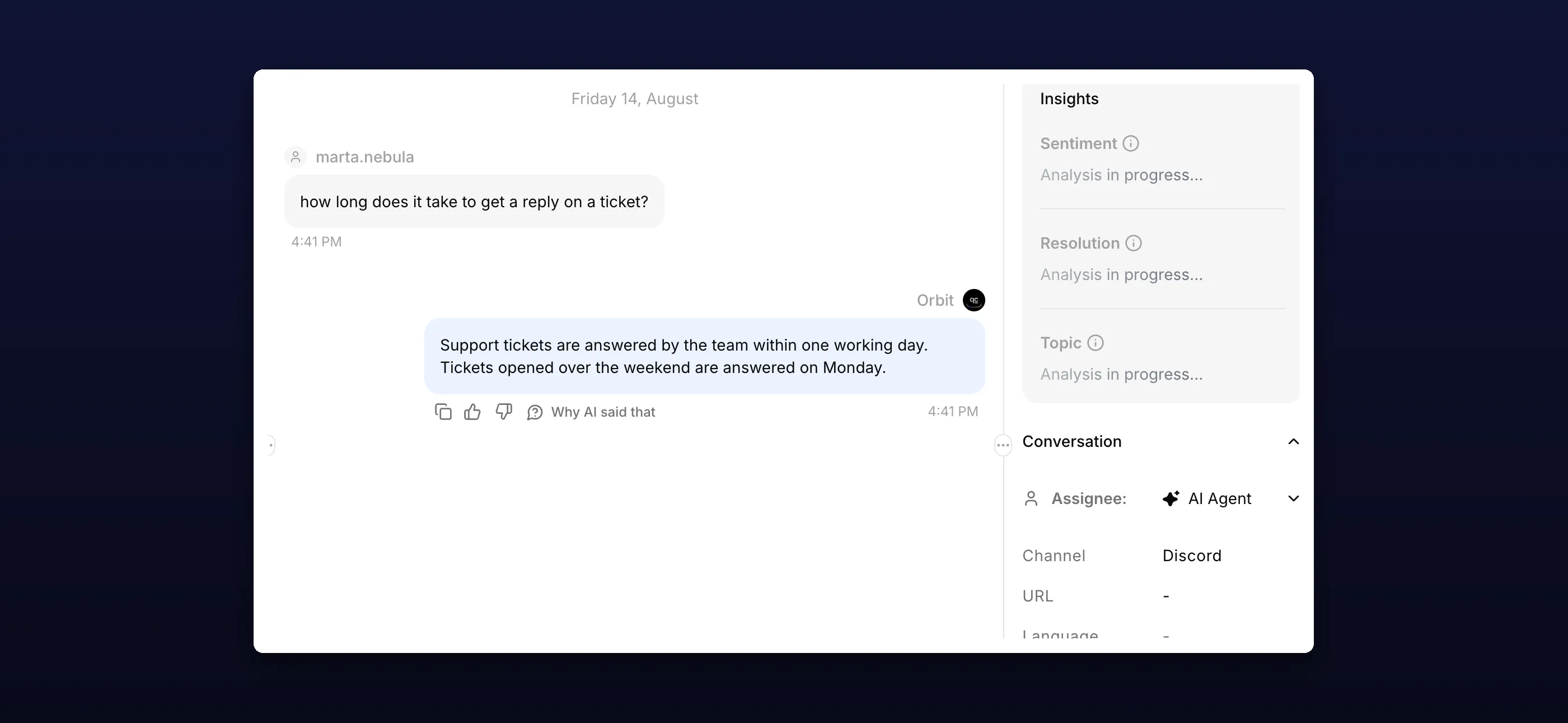
The two systems divide the work: the fixed message solves the cold start, and the AI handles the conversation that follows.
Troubleshooting
| Symptom | Cause |
|---|---|
| No greeting at all | The bot lacks View Channel or Send Messages in the destination. It skips rather than erroring |
| No greeting in a new thread | The bot lacks Send Messages in Threads, or the thread is private |
| No greeting when a member joins, on your own Discord app | Server Members Intent is off for your application. Turn it on in the Developer Portal, then save the rule again |
| Nothing when a bot joins | Working as intended. The member rule ignores bots |
{username} says there in tickets | Nobody holds a personal View Channel grant on the channel, or more than one person does. A ticket bot that opens access by role instead of to the person cannot be read this way |
| Greeting appears above the ticket panel | Delay is too short. Raise it to 5 seconds |
| A greeting in channels you did not expect | New channel is set to Any category. Narrow it with Only in this category |
| Saving reports a selection is no longer available | The channel or category was deleted in Discord. Pick a current one and save again |
Going live
Turn on one rule at a time and watch it for a day before adding the next. The member rule is the safest to start with because its destination is a channel you chose. New channel on Any category is the loudest, since it posts anywhere a channel appears, so it is worth watching first if you use it that way.
Measure the greetings and the conversations separately. Each greeting attempt is free; what matters is how many delivered greetings turn into someone actually talking to the bot. Check the bot’s Discord permissions if delivery is missing.
FAQ
How do I add a Discord welcome bot without coding?
Add the Quickchat AI bot to your server with one click, open the server under Connected servers, and select Automated messages. Turn on New member joins, pick your welcome channel, edit the message template and click Save. There is nothing to host, no code, and no Discord application to create.
Can a Discord bot send a message when someone joins?
Yes. The New member joins rule attempts one fixed message in the channel you pick whenever a person joins. The bot needs permission to view and send in that channel. Bots joining the server are ignored, so a raid of webhooks or app installs does not trigger it.
Can a Discord bot greet users when a ticket channel is created?
Yes, and this is the reason the feature exists. Ticket Tool or a similar app creates the channel, and the New channel rule posts your greeting in it. Keep a delay on it, five seconds is a good starting point, so the ticket bot posts its own panel and applies the channel permissions first.
Can the bot post in every new channel, or only in one category?
Both. New channel posts in every new text channel by default. To narrow it to a ticket category, change Any category to Only in this category and pick the one you want, and channels created anywhere else are ignored.
Can I delay a Discord welcome message?
Yes. Choose No delay, or 2, 5, 10 or 30 seconds. Two seconds is the default because a ticket or onboarding bot usually posts its own panel first, and a greeting that arrives underneath it reads better than one that gets buried.
Can I customize the Discord welcome message?
Yes. Each rule has its own template of up to 1,500 characters, and you can use {username}, {bot_name}, {server_name} and {channel_name}. Select a placeholder under the box to insert it where your cursor is.
Does a Discord welcome message use AI credits?
No. The message is fixed text with the placeholders filled in. It does not call the AI Agent, does not consume conversation credits, and does not run AI Actions. Credits are only used if the member then talks to the bot.
Do I need code to build this?
No. This is configuration in the Quickchat AI dashboard. On the one-click setup you do not create a Discord application, you do not host anything, and you never handle a bot token.
Does this work if I connected Discord with my own bot token?
Yes. Automated messages work on both setups. On the Advanced setup the rules live under Automated messages on the Discord page, with a Configure button per server. One extra step applies: the New member joins rule needs Server Members Intent enabled for your Discord application.
What is Server Members Intent and why does the welcome rule need it?
Discord treats the list of who is in a server as privileged information, so a bot receives member join events only if its application has Server Members Intent switched on in the Developer Portal. The two channel and thread rules ride an intent that is on by default and need nothing. Quickchat AI checks the setting for you and tells you in the rule if it is off.
What happens after the greeting is posted?
Nothing, until someone replies. The greeting is a fixed message, and the AI conversation starts only when a member mentions the bot or replies to it. The shared one-click bot also supports /ask. That is the point of the greeting: it tells people in a brand new channel that there is something there to talk to.
Is this a Discord verification bot?
No. Automated messages do not show a CAPTCHA, check an identity or an age, or grant a verified role. If you need verification, use a dedicated verification bot alongside this one.
Can it post a goodbye message when someone leaves?
No. The three rules fire on a member joining, a thread or forum post opening, and a channel being created. Discord’s leave event is not one of them, so there is no goodbye message. If you need both halves, run a dedicated welcome and goodbye bot alongside this one.
Does this replace Ticket Tool?
No. Ticket Tool creates the ticket channel and Quickchat AI greets the person inside it. The two run side by side, which is why the delay exists.
Does this work with ticket bots other than Ticket Tool?
Yes. Nothing here is specific to Ticket Tool. Any bot that creates a channel and gives the requester their own View Channel permission works the same way, and so does a channel you open by hand. Ticket Tool is named throughout because it is the most common, not because it is required.
Will the bot know who opened the ticket?
Usually. Ticket bots grant the requester a personal View Channel permission on the new channel, and Quickchat AI reads that to fill {username}, ignoring any grant that belongs to a bot rather than a person. When no personal grant exists, or more than one person holds one, it falls back to there, so a template that reads naturally either way is worth writing.
Does the bot greet private threads?
No. Only public threads and forum posts under the parent channel you choose trigger the rule. Private threads are ignored.
Which Discord permissions does the bot need?
View Channel and Send Messages in every destination you select, plus Send Messages in Threads for the thread rule. If the bot cannot send in a destination, it skips the message rather than failing loudly, so check permissions first when a greeting does not appear.
Can I turn a rule off quickly if it is too noisy?
Yes. The switch on the rule list saves the moment you flip it, so switching a rule off takes one click. One-click settings apply immediately. A bot connected through Advanced setup refreshes its rules within about one minute. You do not have to open the rule or save anything else.
How much does a Discord welcome bot cost?
Automated welcome messages use no AI credits. Quickchat AI’s Free plan is for personal, non-commercial use. Commercial use starts with the $9/month Starter plan. AI replies after a greeting consume credits from your selected plan. See the current plans and limits.
Related Discord builds
-
Answer product questions and collect feedback submissions after a member responds to the greeting. The AI conversation can record feedback and documentation gaps in Google Sheets.
-
Create an AI bot for Discord covers connecting an Agent and giving it a knowledge base.
-
AI Discord ticket bot builds the private ticket thread and human escalation that a greeting can lead into.
-
AI Discord moderation bot uses AI Actions to time out, ban and assign roles.
-
The best AI Discord bots compares what different Discord bots are for.
-
The Discord channel documentation documents every setting on this page.