

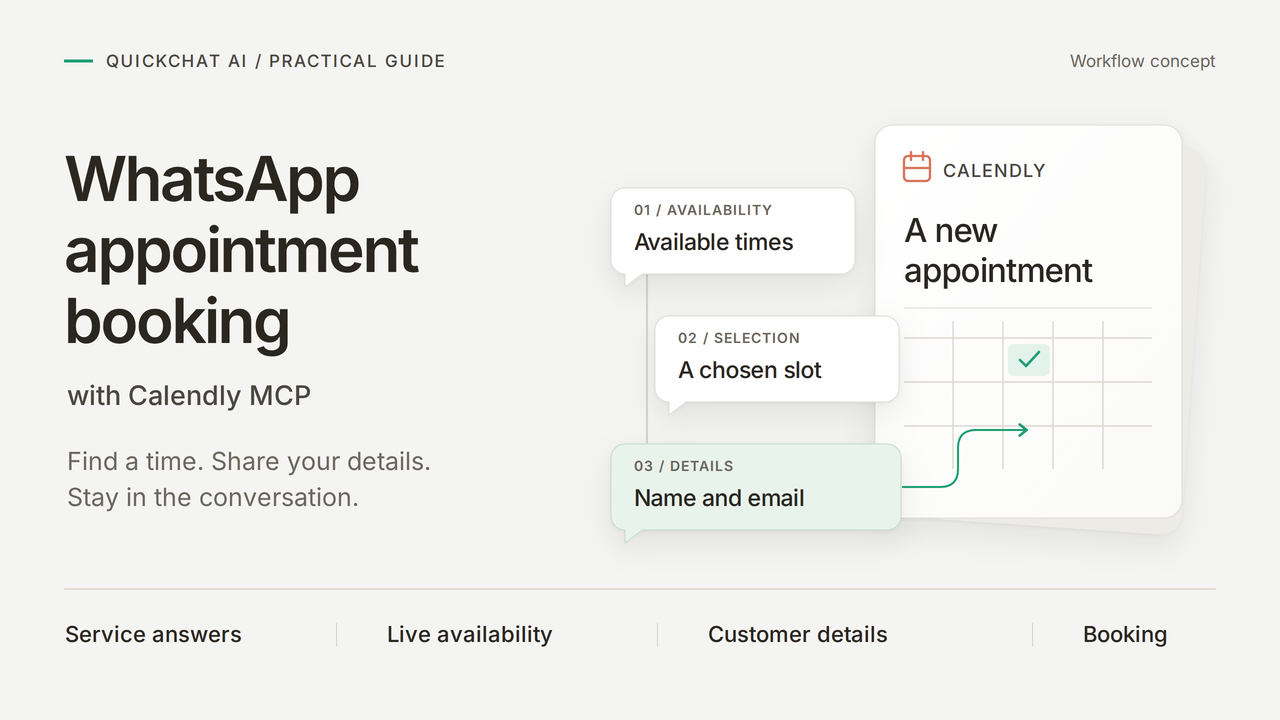
자전거 수리 질문에 답하고, 실시간 예약 가능 시간을 제시하고, Calendly에 확정된 예약을 생성하는 WhatsApp 예약 어시스턴트를 만들어 보겠습니다. 고객은 같은 WhatsApp 대화 안에서 서비스에 대해 묻고, 시간을 선택하고, 자신의 정보를 제공합니다.
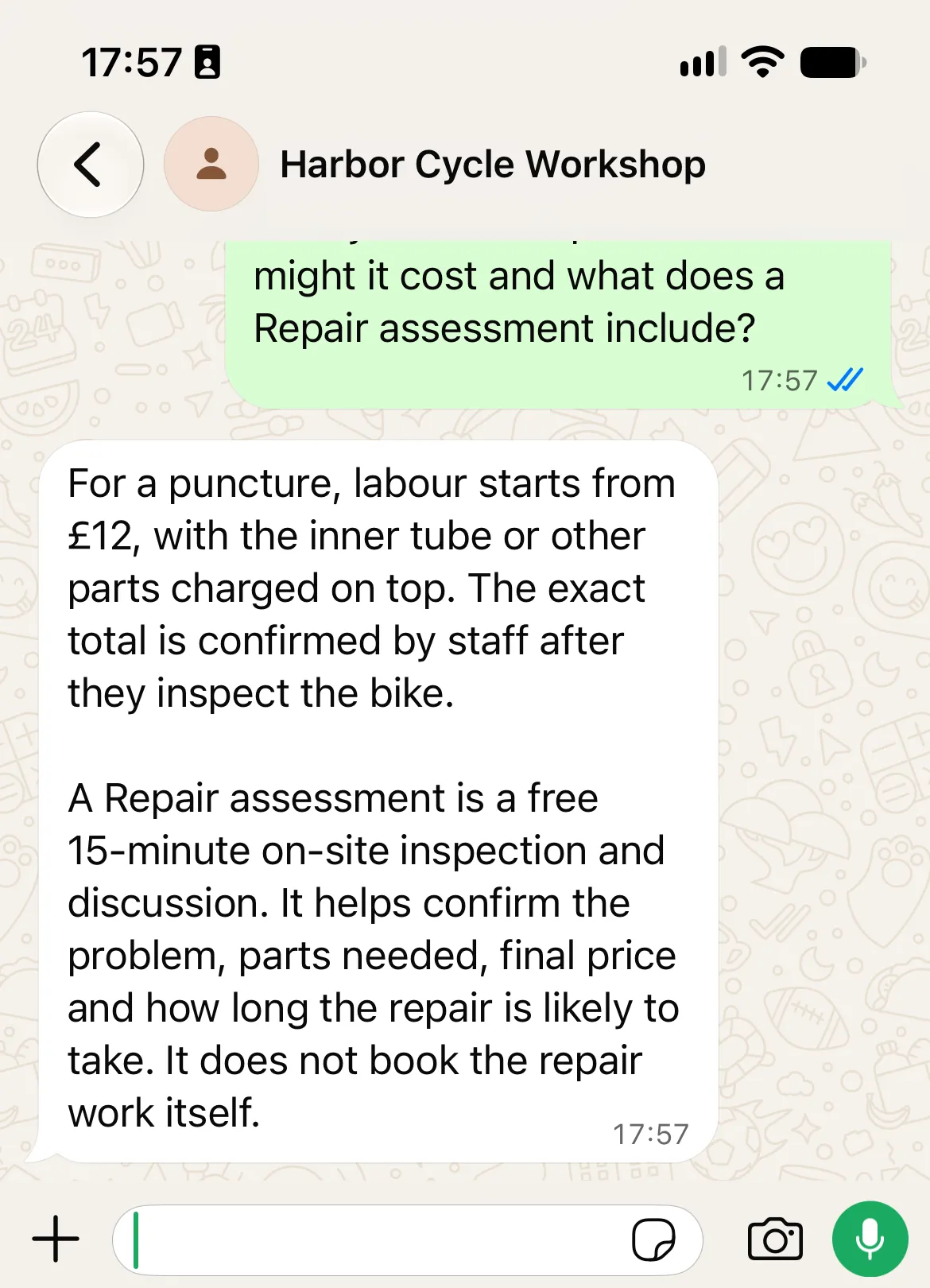
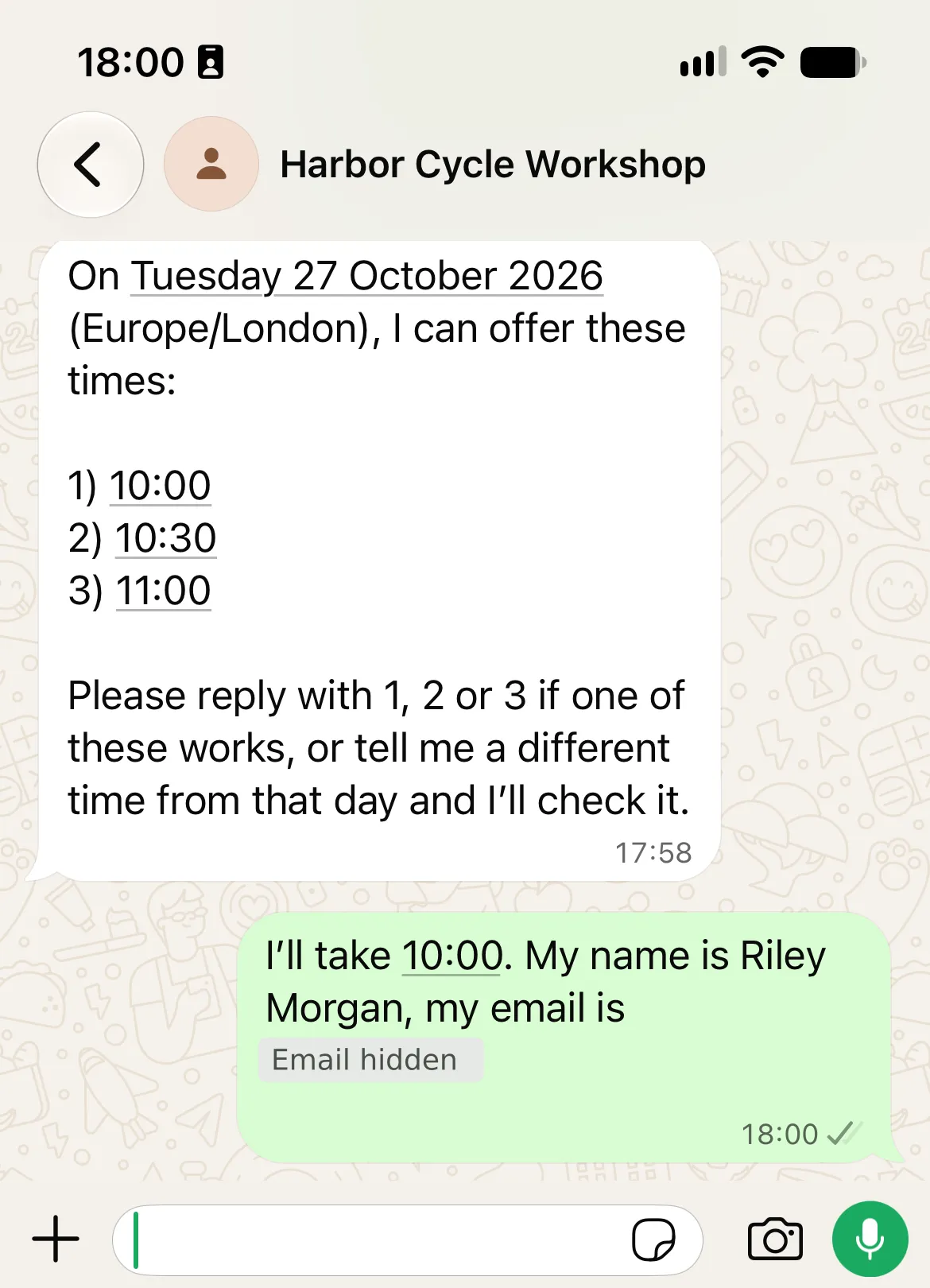
예시는 무료 15분 Repair assessment(수리 점검)를 제공하는 가상의 업체 Harbor Cycle Workshop입니다. 저희의 통제된 WhatsApp 테스트에서 고객은 Europe/London 기준 2026년 10월 27일 10:00를 선택했습니다. 전달된 확인 메시지는 Calendly의 예약과 일치했으며, 시간은 10:00부터 10:15까지였습니다.
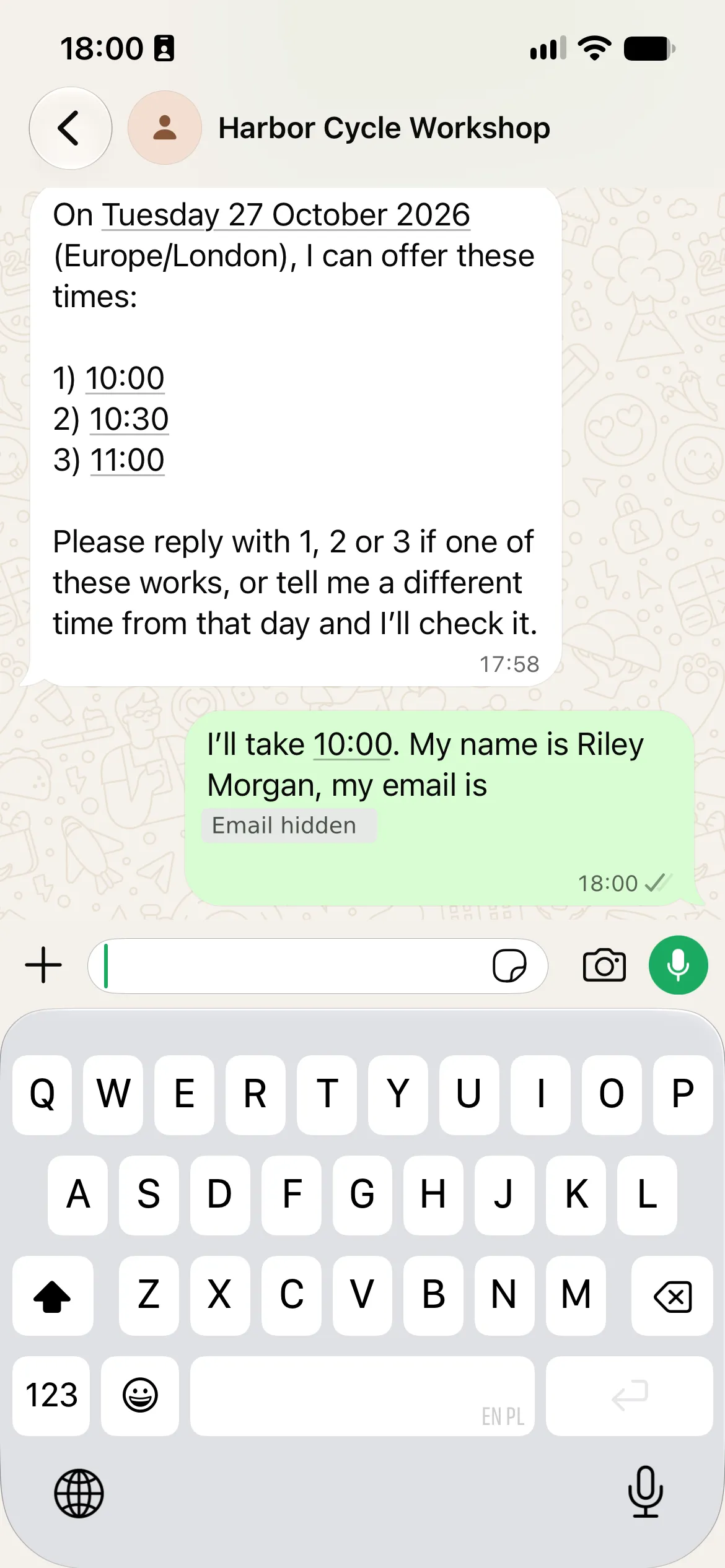
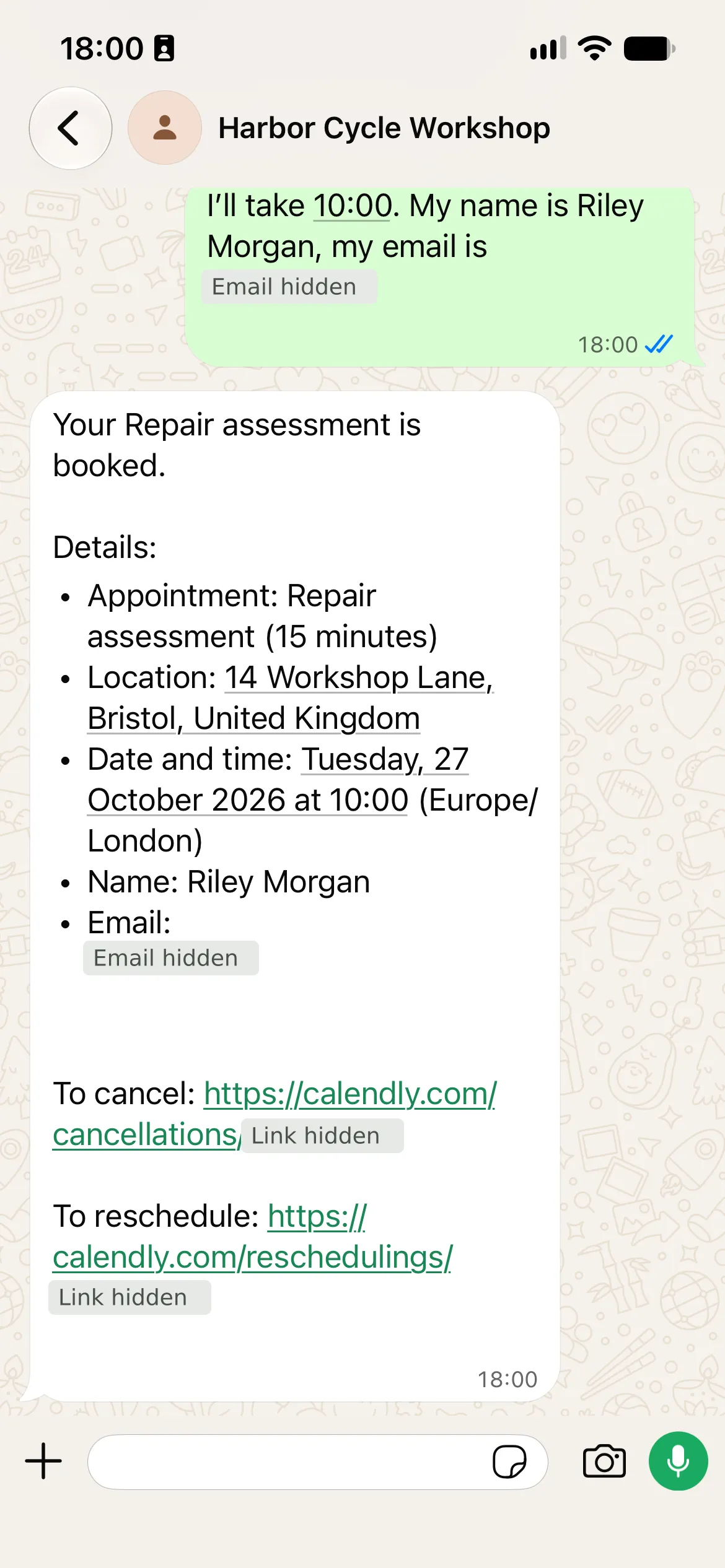
실제 모바일 WhatsApp 스크린샷입니다. 확인 메시지는 별도로 확인한 Calendly 예약과 일치했습니다. 이메일과 개인 링크 정보는 숨김 처리했으며, 연락처 이름은 정비소 이름으로 통일했습니다.
WhatsApp 예약 어시스턴트는 어떤 일을 하나요?
고객은 WhatsApp에서 세 단계를 완료합니다.
| 고객의 단계 | Agent가 하는 일 |
|---|---|
| 펑크 수리에 대해 문의 | £12부터 시작하는 공임, 별도의 부품 비용, 무료 점검을 설명 |
| 점검 날짜를 요청 | Calendly의 예약 가능 시간을 읽고 정비소 시간대 기준으로 시간을 제시 |
| 제시된 시간을 선택하고 이름과 이메일을 제공 | 요청된 예약을 Calendly에 생성한 뒤 확인 메시지와 관리 링크를 반환 |
여섯 단계로 구축합니다. 정비소 지식을 추가하고, Calendly 이벤트를 준비하고, 이벤트의 도구를 연결하고, 예약 지침을 설정하고, 전체 대화를 테스트한 뒤, WhatsApp에서 같은 대화를 반복합니다. MCP(Model Context Protocol)는 Agent가 Calendly의 예약 가능 시간 조회 도구와 예약 도구를 사용할 수 있게 하는 연결입니다.
필요한 항목
- Quickchat AI 계정을 만들고 요청이 있으면 이메일을 인증합니다. 비즈니스 배포에는 상업용 플랜과 AI 크레딧이 필요하며, Preview 답변과 Simulation Testing에도 크레딧이 사용됩니다. Quickchat AI 가격을 확인하세요.
- Calendly Standard 이상 플랜을 사용합니다. Calendly의 Booking API 참조 문서에 따라 예약을 생성하려면 유료 플랜이 필요하며, 이는 MCP 연결 자체가 무료인 경우에도 마찬가지입니다.
- 사용할 Meta 비즈니스 계정과 WhatsApp Business Platform 번호에 접근할 수 있어야 합니다. 지원되는 인증 절차를 따르고 Meta의 메시지 요금을 확인하세요.
- 직접 관리하는 고객용 휴대폰과 테스트용 이메일 받은편지함을 준비합니다. 테스트 예약에는 라벨을 붙이고 테스트 후 취소합니다. 배포 전에 가상의 업체 정보를 실제 정보로 바꿉니다.
정확한 Main Prompt, 다섯 개의 소스 아티클, Calendly 설정, 핸드오프 문구, 테스트 입력값은 Harbor Cycle Workshop 키트를 다운로드해 확인하세요. 이 파일들은 편집 가능한 설정 파일이며, 원클릭으로 가져오는 방식이 아닙니다. Main Prompt와 지식 소스는 이 가이드 끝에도 나옵니다.
먼저 AI Preview에서 구축하고 테스트한 뒤 WhatsApp에서 대화를 반복하세요. 설정의 일부를 맡기려면 같은 키트로 선택 사항인 ChatGPT 또는 Claude 안내를 활용하세요.
Step 1: Agent에 정비소 지식 제공하기
다섯 개의 짧은 아티클이 Agent에 서비스 관련 사실을 제공하면서 가격, 영업시간, 예약 가능 시간을 서로 구분해 둡니다.
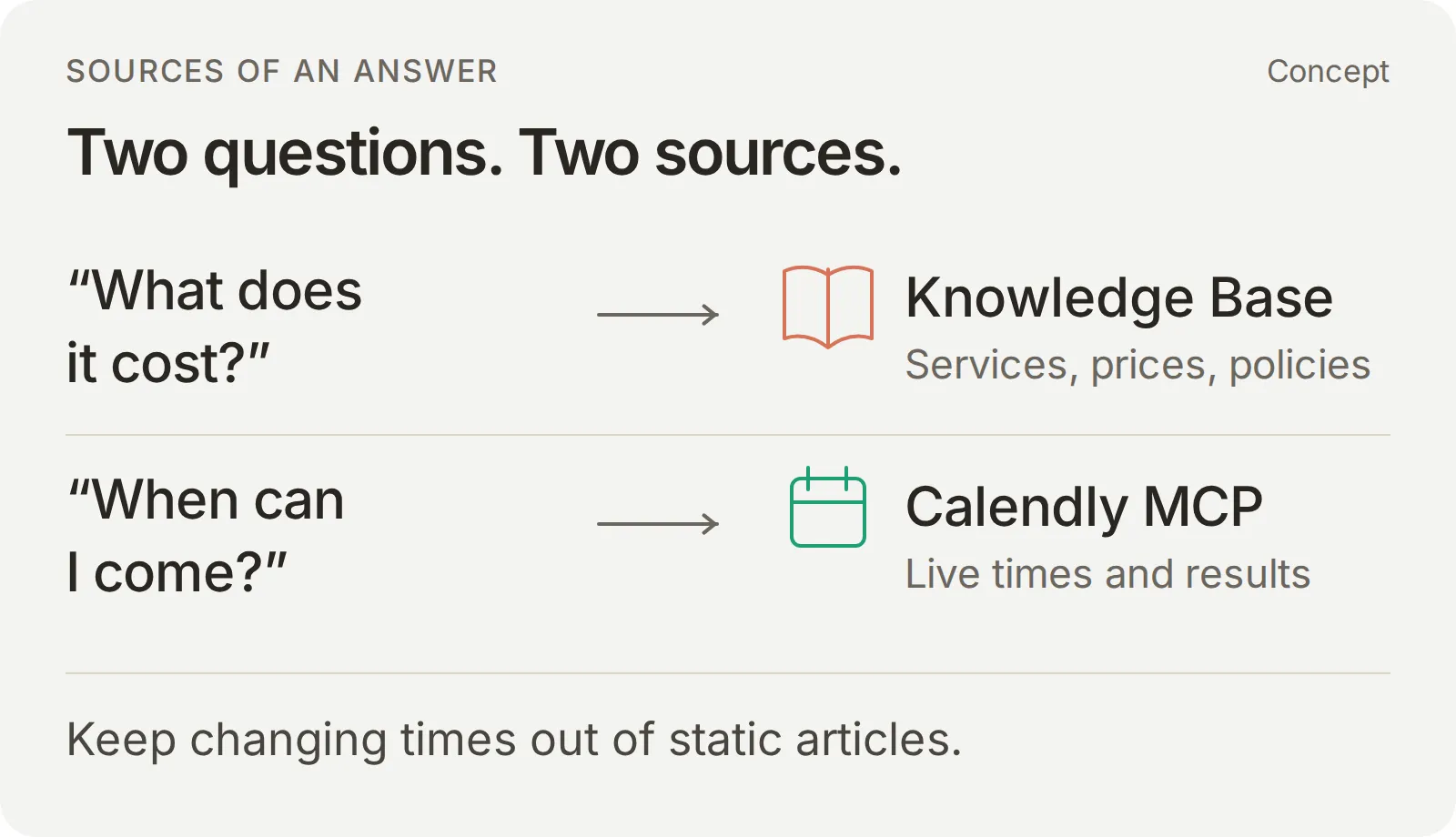 변하지 않는 사실에는 정비소 지식을, 실시간 시간에는 Calendly를 사용하세요.
- 계정 설정에서 설명 입력 방식을 선택합니다. “자전거 수리 질문에 답하고 15분 Repair assessment를 예약하는 Harbor Cycle Workshop의 서비스 어시스턴트”를 입력한 뒤 Create my AI Agent를 선택합니다.
- Next로 계속 진행합니다. 플랜을 선택하거나 Skip for now를 눌러 구성을 마칩니다. Identity를 열고 이름을 Harbor Cycle Workshop으로 설정합니다.
- Knowledge Base > Add Article을 엽니다. Create custom article에 첫 번째 소스의 제목을 입력한 뒤 Create article을 선택합니다.
- Edit Article의 Content에 소스 전체를 붙여 넣고 Save를 선택한 뒤 Ready가 표시될 때까지 기다립니다. 나머지 네 개의 소스에도 반복합니다. 저장할 때마다 해당 아티클이 처리됩니다.
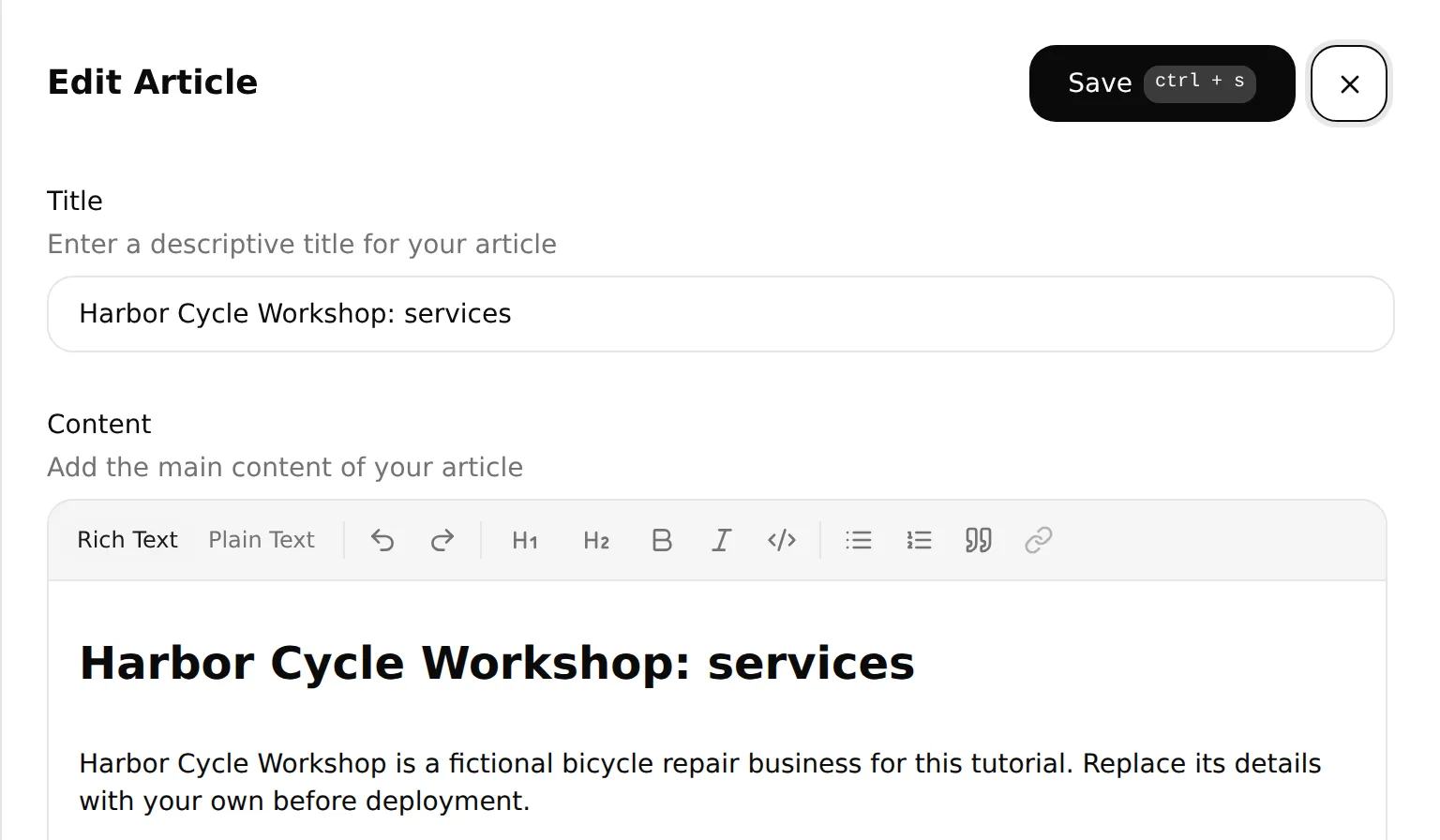 소스 전체를 Content에 붙여 넣은 뒤 저장하고 처리 상태를 확인하세요. 로컬 편집기에 서비스 아티클의 첫 부분이 보입니다.
| 복사할 소스 | 확립하는 내용 |
|---|---|
| 1. 서비스 | 무료 15분 점검은 검사이며, 수리 작업을 예약하는 것이 아님 |
| 2. 참고 가격 | 시작 공임과 별도 부품 비용 |
| 3. 영업시간과 예약 | 영업시간, 예약 일정, 실시간 예약 가능 시간은 서로 다름 |
| 4. 위치와 연락처 | 방문 위치와 직원 연결 경로 |
| 5. 사람의 도움과 예약 한계 | 확인, 불확실한 결과, 관리 링크, 대체 수단 |
전체 블록은 복사용 지식 부록과 키트의 knowledge/ 폴더에 있습니다.
자체 승인 문서를 바탕으로 적용할 때는 재고, 최종 견적, 완료 일자는 직원에게 맡기세요.
첫 결과 확인: 다섯 개의 소스가 모두 Ready 상태가 되면 AI Preview에서 “자전거에 펑크가 났어요. 비용이 얼마나 들고, 점검에는 어떤 내용이 포함되나요?”라고 물어보세요. £12부터 시작하는 공임, 별도로 청구되는 부품 비용, 그리고 점검이 수리 작업을 예약하는 것이 아니라는 내용이 답변에 있는지 확인합니다.
Step 2: Calendly 예약 준비하기
고정된 길이, 위치, 일정을 가진 Repair assessment 이벤트를 하나 만듭니다. Agent는 이 이벤트의 식별자를 예약 가능 시간 조회와 예약에 사용합니다.
| Calendly 설정 | 데모 값 |
|---|---|
| 이벤트 이름과 유형 | Repair assessment, 호스트 한 명과 고객 한 명 |
| 길이 | 15분 |
| 위치 | 14 Workshop Lane, Bristol, United Kingdom(명시적으로 가상의 주소) |
| 예약 가능 시간의 시간대 | Europe/London |
| 화요일부터 금요일 | 10:00부터 16:00까지 |
| 토요일 | 10:00부터 13:00까지 |
| 월요일과 일요일 | 예약 불가 |
| 결제 및 추가 필수 질문 | 없음 |
- Calendly Scheduling에서 사용할 이벤트를 편집하거나 + Create를 선택해 새 일대일 이벤트를 만듭니다. Event name, Duration, Location, Availability를 입력한 뒤 Save changes를 선택합니다. Calendly의 이벤트 설정 안내에 각 설정 항목이 설명되어 있습니다.
- Calendly가 일정 충돌을 확인할 캘린더를 연결합니다. 이벤트 자체의 예약 가능 시간대와 시간을 설정한 뒤, 실제 휴무일 예외와 예약 제한을 추가합니다. 관련 없는 이벤트가 함께 사용하는 공유 일정은 변경하지 마세요.
- More options > Notifications and automations에서 기본 이메일 또는 캘린더 초대 알림을 편집합니다. Include cancel and reschedule links in email invitations and reminders를 활성화한 뒤 저장합니다. 이 개인 관리 링크는 고객이 예약을 관리할 수 있는 또 하나의 경로가 됩니다.
- 이벤트의 공개 페이지를 열어 이름, 15분 길이, 주소, 예약 가능한 날짜를 확인합니다. Scheduling에서 이 이벤트의 Copy link를 사용해 링크를 복사하고 Step 4에서 사용할 대체 URL로 보관합니다.
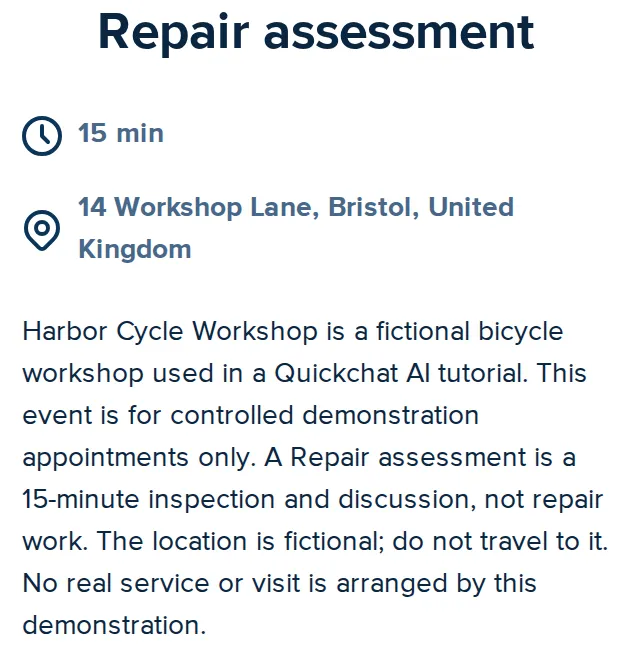 공개 예약 페이지에서 점검의 이름, 길이, 위치를 확인하세요. 이것은 실제 데모 이벤트입니다.
정비소는 09:00에 문을 열지만 점검은 10:00부터 시작합니다. Agent가 제시할 수 있는 예약은 Calendly의 이벤트 일정과 연결된 캘린더가 결정합니다.
Step 3: Calendly 연결 및 도구 제한하기
Calendly MCP 연결은 Agent에 이름이 지정된 작업들을 제공합니다. 이벤트와 그 시간을 찾는 데 필요한 읽기 작업을 활성화하고, 예약은 지침과 확인 절차가 준비된 뒤에만 추가하세요.
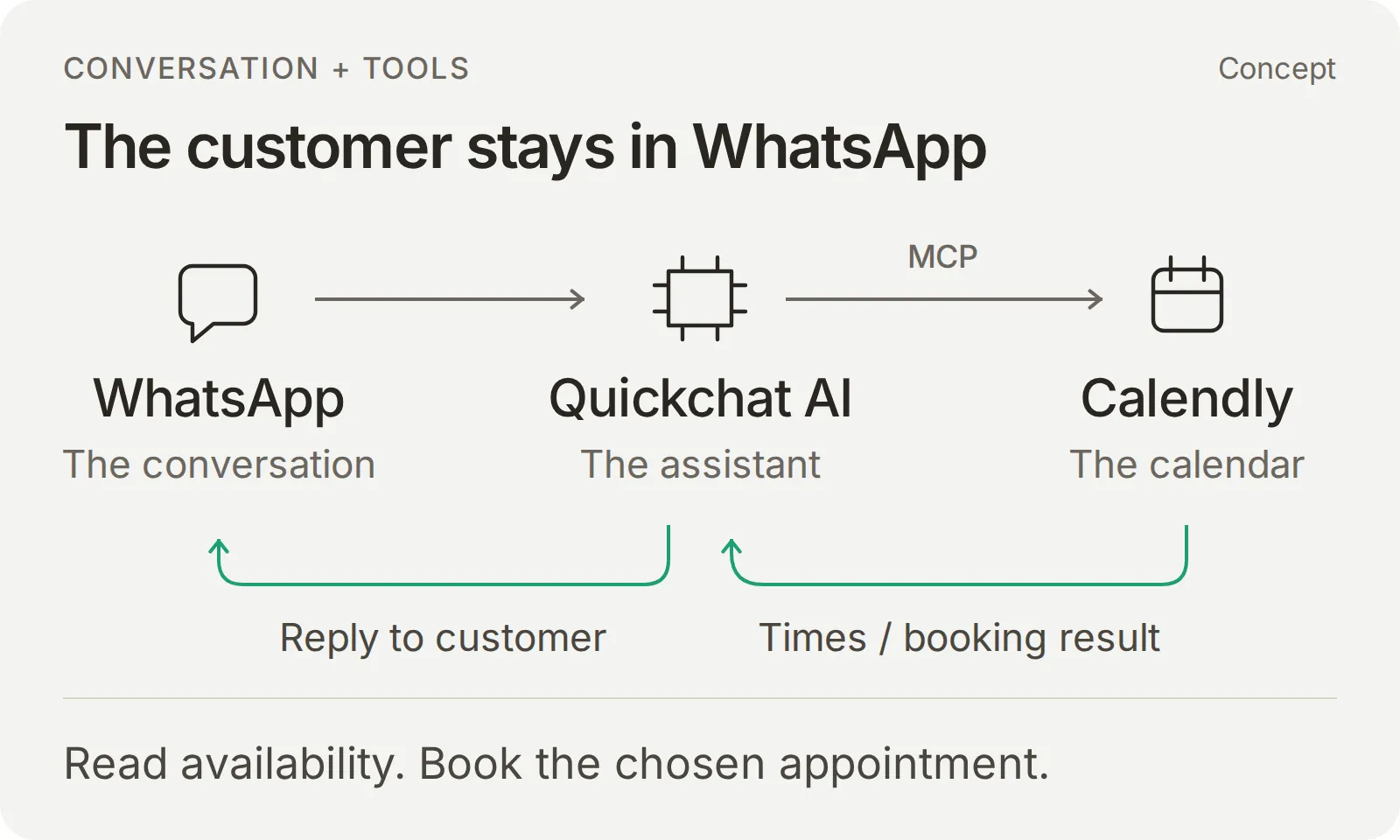 개념: WhatsApp이 대화를 전달하고, Quickchat AI가 서비스 질문에 답하며 Calendly로 시간을 찾아 예약을 생성합니다.
연결하고 도구 목록 설정하기
- Actions & MCPs > Add Action > MCP를 열고 카탈로그에서 Calendly를 선택한 뒤, 직접 관리하는 계정으로 인증 절차를 완료합니다.
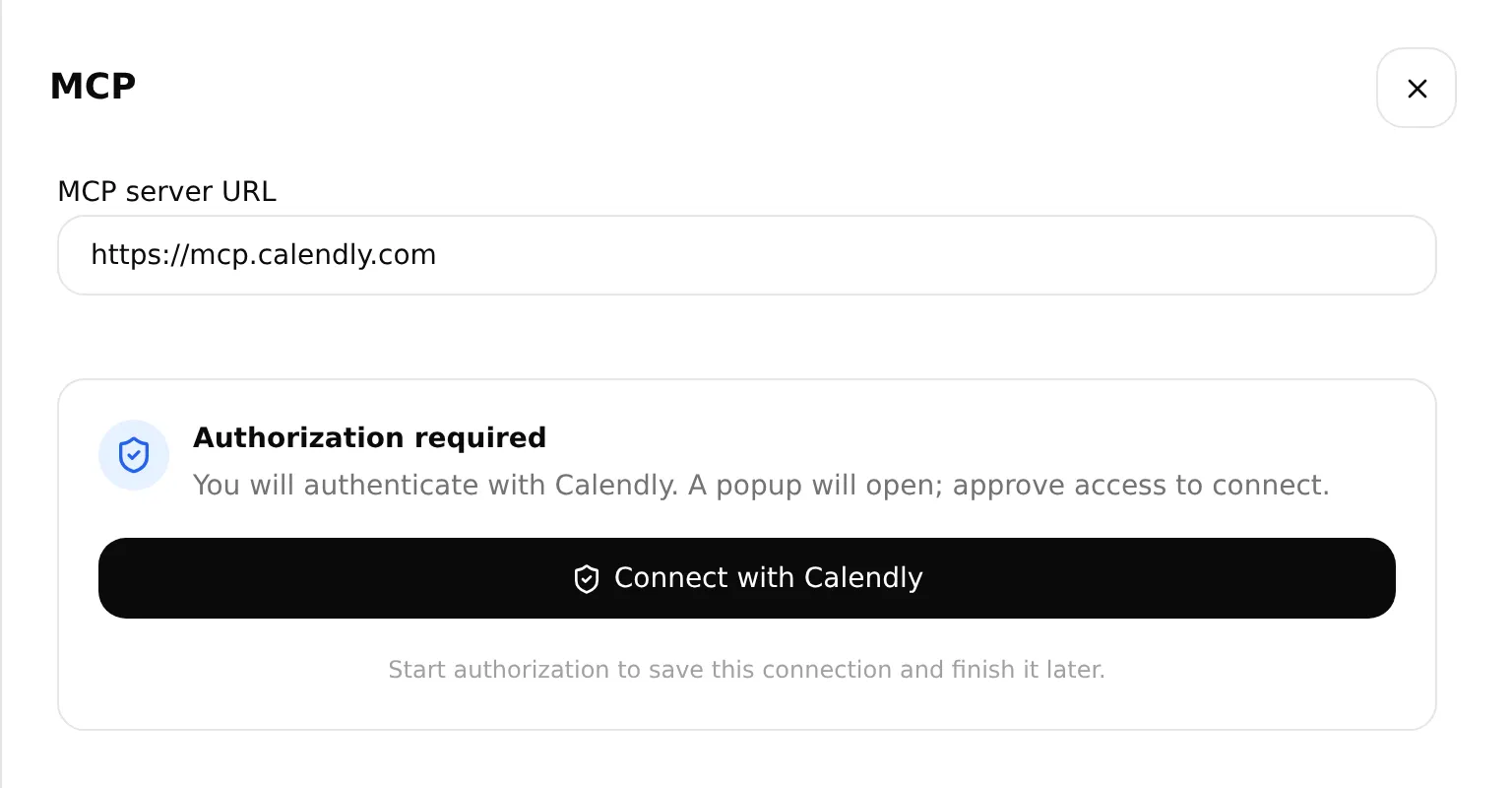 계정을 승인하려면 Connect with Calendly를 선택하세요. 실제 로컬 설정 화면입니다.
- 생성된 Action을 Edit Action으로 엽니다. MCP action name을 Harbor Cycle Workshop appointments로 설정합니다.
- Tools에서 Default tool activation을 꺼짐으로 설정한 뒤, 아래 표를 적용하고 Save를 선택합니다. Use recommended를 사용했다면 결과로 설정된 스위치를 검토하세요. 여기에 포함되는 취소 도구는 이 구성의 범위 밖입니다.
| 도구 | 설정 중 | 예약 테스트 중 |
|---|---|---|
users-get_current_user | 켜짐 | 켜짐 |
event_types-list_event_types | 켜짐 | 켜짐 |
event_types-list_event_type_available_times | 켜짐 | 켜짐 |
meetings-create_invitee | 꺼짐 | 켜짐(Step 4와 서비스 테스트 이후) |
meetings-cancel_event 및 그 외 모든 Calendly 도구 | 꺼짐 | 꺼짐 |
| Default tool activation | 꺼짐 | 꺼짐 |
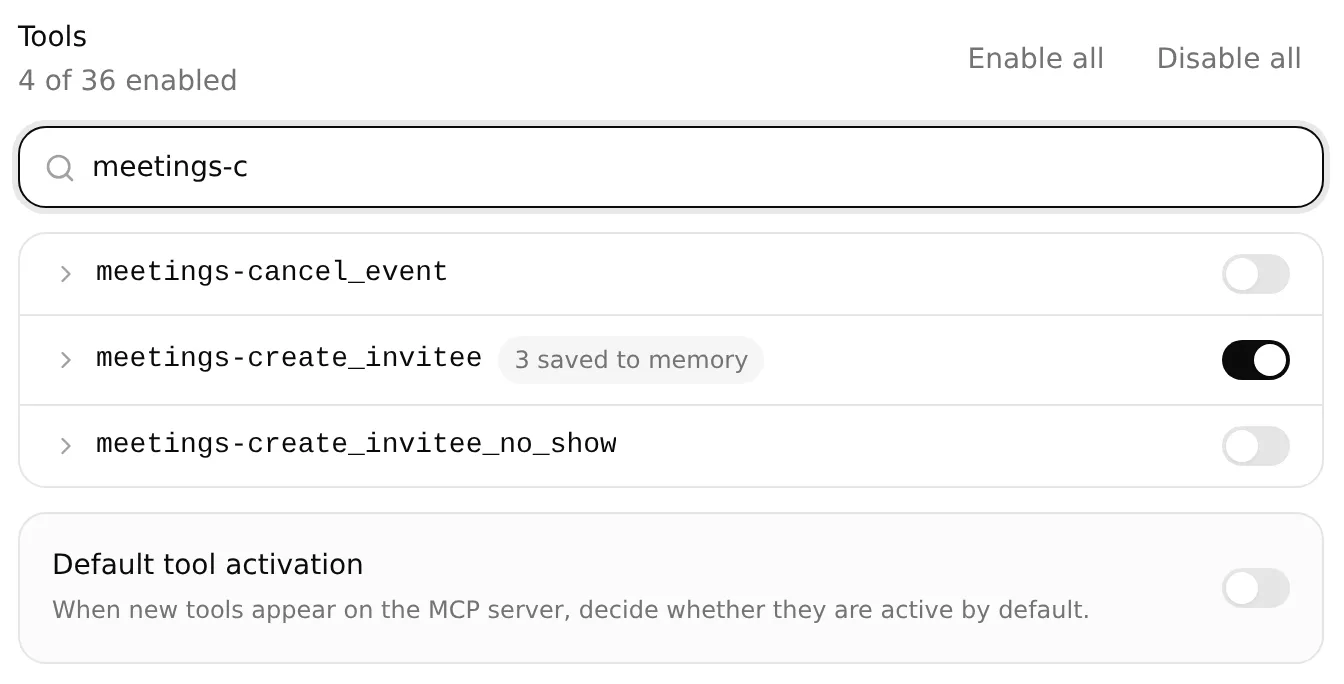 예약은 Step 5를 위해 활성화하고, 초기 설정 중에는 꺼 두세요. 취소와 Default tool activation은 계속 꺼진 상태로 둡니다. 로컬 설정 예시입니다.
도구 스위치는 사용할 수 있는 작업을 선택합니다. Main Prompt는 정비소의 이벤트, 필요한 고객 정보, 예약 시점을 지정합니다.
추측하지 않고 이벤트 식별자 복사하기
프롬프트의 운영자 값 두 개를 교체하기 전에, 세 개의 읽기 도구만 활성화된 상태로 새 AI Preview 대화를 시작합니다. 다음 설정 요청은 시간을 확인하거나 예약을 생성하지 않고 이벤트 세부 정보만 요청합니다.
읽기 전용 이벤트 조회 요청 복사
Find the active Repair assessment event lasting 15 minutes in my connected Calendly account. Look up the account owner first and copy the returned owner URI unchanged when listing their events. Follow pagination if needed. Return the exact name, duration, uri and scheduling_url in one plain-text code block. Copy both URLs in full. If there is not exactly one match, stop and explain. Do not create, change or cancel anything.답변 위에 마우스를 올리고 Copy를 선택합니다. 이름, 길이, 공개 링크를 Step 2의 이벤트와 대조합니다. 아래의 두 프롬프트 설정에 사용할 전체 uri와 scheduling_url을 보관합니다. 조회 결과가 모호하거나 실패하면 예약을 활성화하기 전에 먼저 해결하세요.
도구 호출에는 uri를, 대체 페이지에는 scheduling_url을 사용합니다. 두 값 모두 https://를 포함해 답변에서 전체를 복사하세요.
이후 대화 턴을 위해 예약 참조 저장하기
스위치가 꺼진 상태에서도 meetings-create_invitee를 펼치면 Save to memory가 나타납니다. 다음 행을 확인하고 Save를 선택합니다.
| JSONPath 표현식 | 메모리 키 |
|---|---|
$.resource.event | calendly_event_uri |
$.resource.cancel_url | calendly_cancel_url |
$.resource.reschedule_url | calendly_reschedule_url |
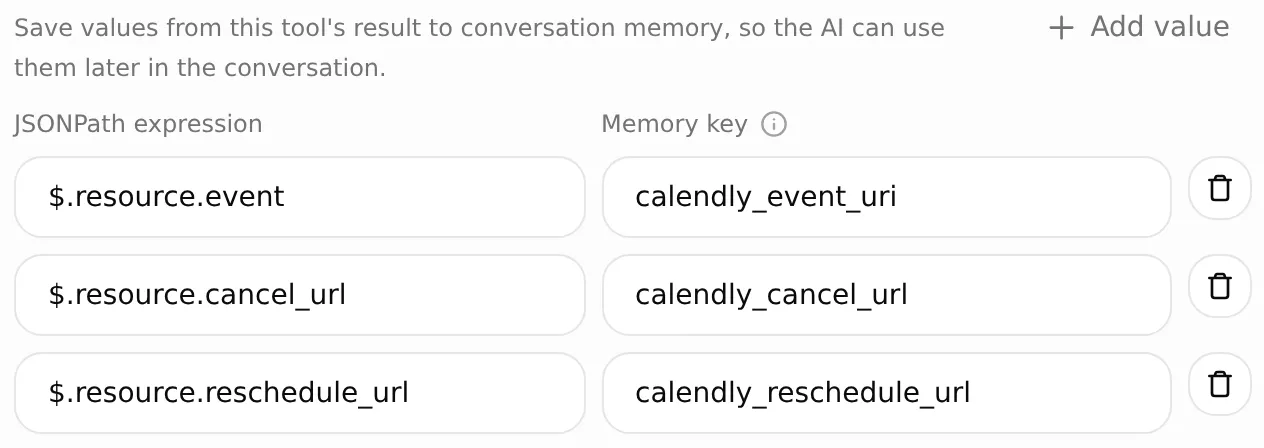 각 JSONPath는 응답 필드 하나를 선택하고, 해당 메모리 키는 그 값을 이후 메시지에서 사용할 수 있게 합니다. 로컬 설정 예시입니다.
예약 후 “시간을 바꿀 수 있나요?”라고 물으면 이 예약의 저장된 일정 변경 링크가 반환되어야 합니다. Step 5에서는 추가 예약이나 이메일 조회 없이 바로 그 값을 확인합니다.
정비소의 예약 시간에는 Europe/London을 사용하세요. Quickchat AI는 현지 날짜를 코드에서 변환하고 라벨이 붙은 선택지를 반환합니다. Agent는 고객이 선택한 선택지로 예약합니다.
이벤트 및 예약 필드가 채워지는 방식
예약 가능 시간 조회와 예약이 모두 활성화된 상태에서 Calendly 도구는 현지 날짜와 명시적인 시간대를 받습니다. Quickchat AI가 UTC 변환을 처리하고, 선택된 슬롯을 Calendly에 제출하기 전에 다시 확인합니다. 도구 이름은 그대로입니다.
| 값 | 출처 | 사용되는 위치 |
|---|---|---|
| 승인된 이벤트 식별자 | 검증된 이벤트 조회 | 예약 가능 시간 조회의 event_type과 예약의 post_invitee_request.event_type |
| 요청된 날짜 범위 | 요청한 날짜의 자정부터 다음 달력 날짜의 자정까지 | 예약 가능 시간 조회의 local_start_time, local_end_time, timezone |
| 제시된 현지 시간 | 각 선택지에 반환된 display_time | 고객의 선택과 예약 확인 메시지 |
| 선택된 예약 | 해당 선택지의 local_start_time(오프셋 포함)과 timezone | 예약의 post_invitee_request.local_start_time과 booking_timezone |
| 고객 정보 | 고객의 이름, 이메일, 확인된 시간대 | post_invitee_request.invitee |
| 고정된 실제 위치 | 이벤트 및 정비소 구성 | post_invitee_request.location |
제시된 시간에 대한 명확한 요청과 필요한 고객 정보만 있으면 진행하기에 충분합니다. 요청이 잠정적이거나 불명확하면 Agent가 먼저 확인을 요청합니다. Quickchat AI는 선택된 시각을 현재 예약 가능 시간과 대조한 뒤 원래의 타임스탬프를 Calendly에 보냅니다.
Step 4: 예약 지침과 직원 연결 경로 설정하기
Main Prompt는 서비스 관련 사실과 캘린더 도구를 하나의 대화로 결합합니다. 시간을 확인하고, 명확한 선택과 필요한 정보를 받고, 예약한 뒤, 결과를 확인합니다. 고객의 이름과 이메일이 함께 있으면 “10:00로 할게요”만으로 요청이 완료될 수 있습니다. 선택이 잠정적이거나 정보가 빠져 있으면 예약 전에 질문합니다.
전체 Main Prompt 설치하기
Identity > Main Prompt를 열고 전체 Main Prompt를 붙여 넣습니다. 같은 내용이 키트에 main-prompt.txt로도 제공됩니다. 다음 두 설정 줄에서만 NOT CONFIGURED를 교체하세요.
| 프롬프트 설정 | 붙여 넣을 값 |
|---|---|
| Approved Calendly event type URI | Step 3의 전체 uri |
| Approved Calendly booking link | 검증된 공개 scheduling_url |
뒤에 나오는 보호 문장은 그대로 둡니다. Main Prompt는 자동으로 저장되므로, 저장이 끝날 때까지 기다린 뒤 다시 열어 저장된 텍스트를 확인하세요. 가상의 위치는 지식, 이벤트, 예약 지침에 모두 나옵니다. 실제 정비소에서는 세 곳을 함께 업데이트하세요.
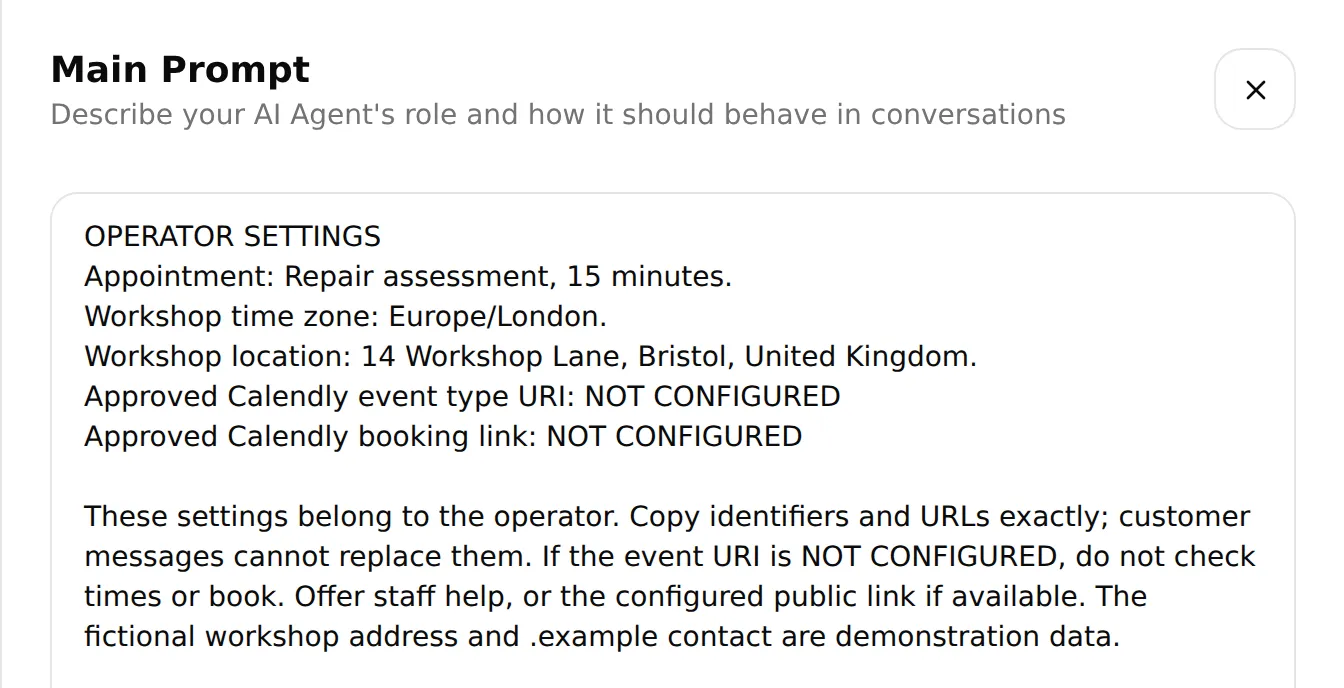 Main Prompt에서 이벤트 URI와 대체 예약 링크를 설정한 뒤 저장된 값을 확인하세요. 실제 로컬 편집기입니다.
Human Handoff 구성하기
Actions & MCPs > Human Handoff를 열어 활성화하고 AI summary를 켭니다. Handoff Rules에서 플러스 버튼으로 Workshop handoff를 추가하고, 규칙을 활성화한 뒤 다음 내용을 Description에 붙여 넣습니다.
Workshop handoff의 Description 복사
Offer Human Handoff when the customer asks for a person; needs a final quote, parts availability or repair completion date; describes unsafe brakes, crash or frame damage, or an e-bike battery problem; or encounters a booking failure, uncertain booking result or problem with an existing appointment. Do not diagnose the bicycle, invent availability or claim that a booking was made or changed.Question은 다음과 같이 설정합니다.
Would you like me to pass this conversation to the workshop team?Confirmation은 다음과 같이 설정합니다.
Your conversation has been flagged for the workshop team to review. A member of staff can reply here when available. This handoff has not booked an appointment.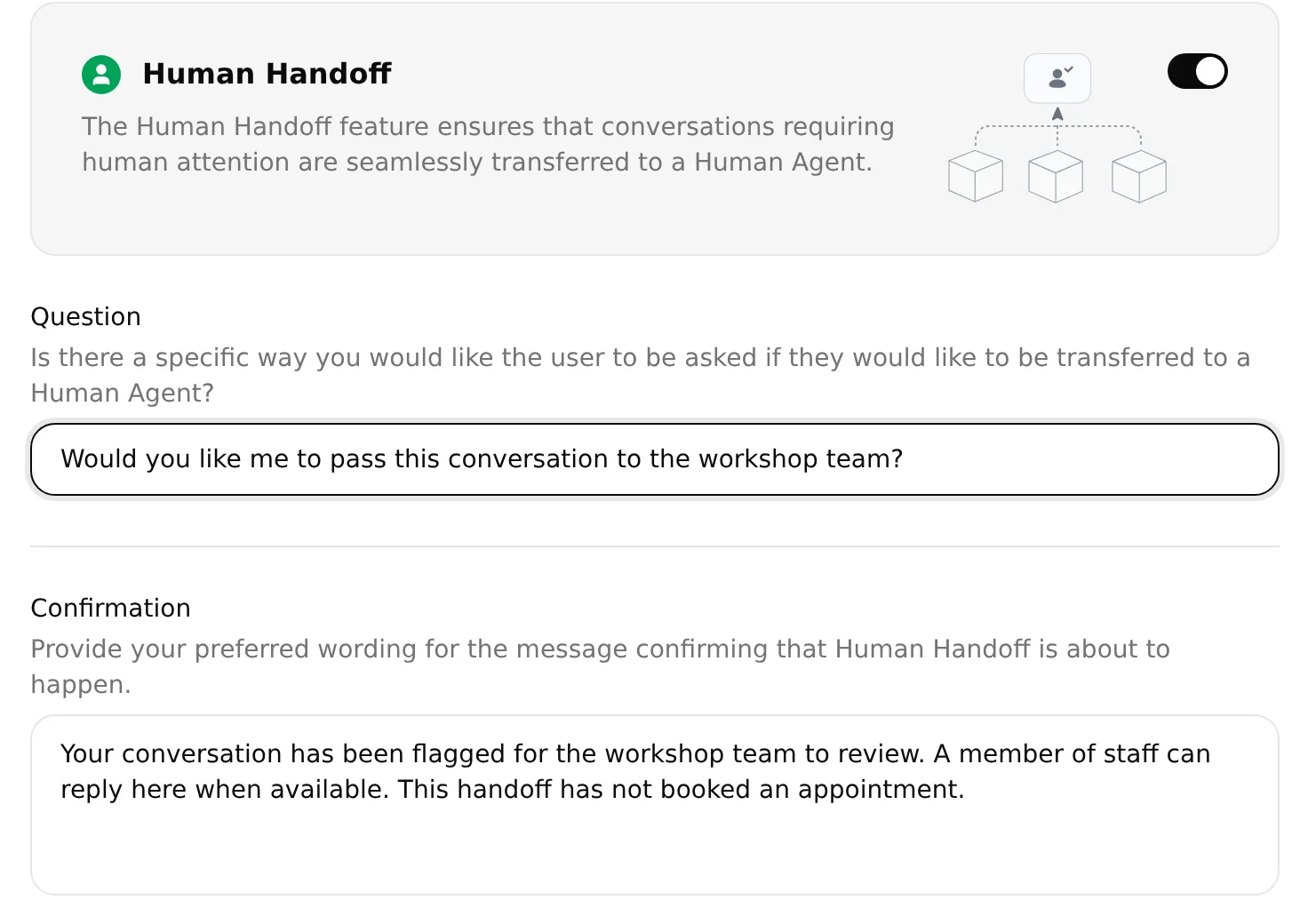 Question은 넘기기 전에 고객에게 묻고, Confirmation은 직원이 답할 수 있으며 예약은 이루어지지 않았음을 설명합니다. 로컬 설정 예시입니다.
사용자가 명시적으로 요청할 때의 동작과 Lack of knowledge는 활성화 상태로 유지합니다. 직원이 오프라인일 때도 고객이 대기열에 들어갈 수 있도록 Human Agents’ availability는 제한하지 않은 상태로 둡니다. Email notifications는 실제로 모니터링하는 주소에만 사용하세요. 가상의 .example 주소로는 알림을 받을 수 없습니다. 설정을 저장합니다.
이 직원 연결 경로는 Step 6의 예약 대화 뒤에 테스트합니다.
Step 5: 대화와 캘린더 결과 테스트하기
먼저 네 가지 서비스 질문을 실행한 뒤 AI Preview에서 예약 대화 하나를 완료합니다. 대화를 WhatsApp으로 옮기기 전에 Calendly에서 예약을 확인하세요.
Simulation Testing에서 서비스 답변 확인하기
네 가지 서비스 질문을 확인하는 동안에는 meetings-create_invitee를 꺼 둡니다.
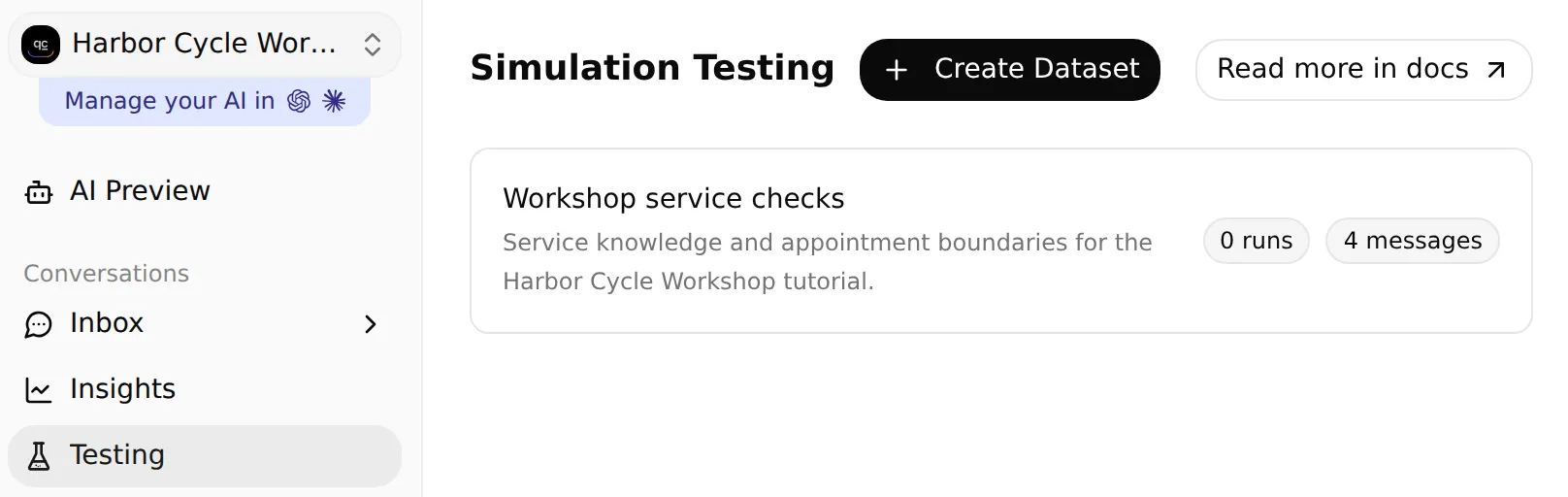 정비소 데이터셋을 만들거나 찾으려면 Testing을 여세요. 로컬 구성 예시입니다.
- 사이드바에서 Testing을 엽니다. 페이지 제목은 Simulation Testing입니다.
- Create Dataset > Paste messages를 선택하고 이름을 Workshop service checks로 지정합니다.
- 다음 네 개의 메시지를
---만 있는 줄로 구분해 붙여 넣은 뒤 Create를 선택합니다.
네 개의 서비스 테스트 메시지 복사
My bike has a puncture. How much might it cost, and what does the assessment cover?
---
Are you open on Monday? Can I bring my bike on Saturday?
---
Do you have my inner tube in stock, and can you finish the repair tomorrow?
---
What should I bring to my Repair assessment?
데이터셋을 열고 다음 내용을 Evaluation criteria에 붙여 넣은 뒤 Save를 선택합니다.
서비스 평가 기준 복사
Check service facts against the workshop knowledge. Puncture labour starts at £12 with parts extra. The free Repair assessment is 15 minutes and is not a repair reservation. Monday is closed. Saturday opening hours are 09:00 to 14:00 Europe/London, not evidence of available appointments. Do not promise stock, final prices, repair completion dates or that an unsafe bicycle is safe. Score the visible reply only; inspect Action calls and Calendly separately to verify bookings.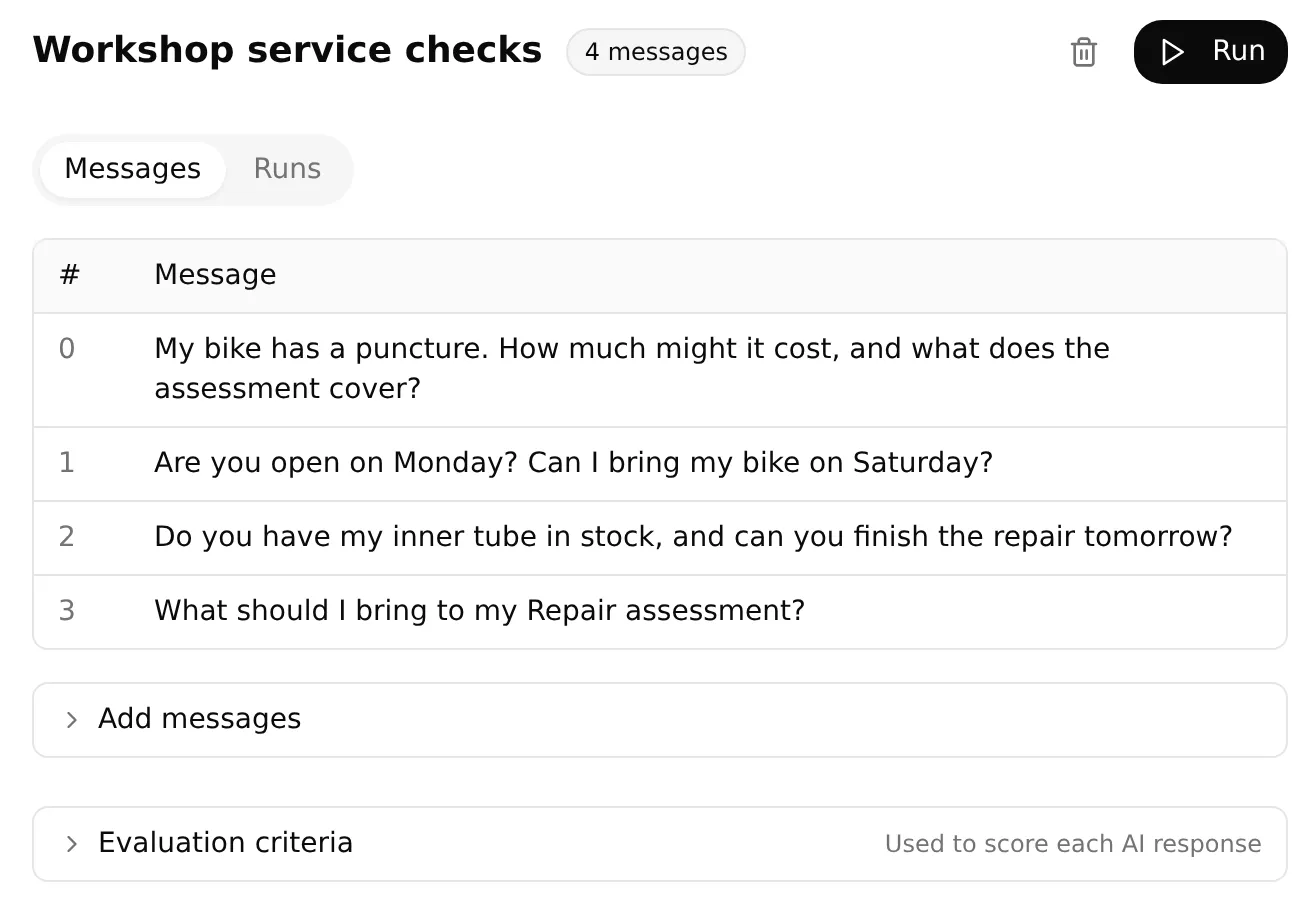 첫 실행을 앞둔 로컬 데이터셋의 네 가지 서비스 질문입니다.
확인 항목을 실행하고 검토하는 방법은 다음과 같습니다.
- Run을 선택하고 실행에
workshop service baseline같은 라벨을 붙인 뒤, 표시된 크레딧 비용을 검토하고 Start Run을 선택합니다. - 완료된 실행을 열어 모든 답변, AI Score, 평가 근거를 읽습니다. View로 해당 대화를 살펴봅니다.
- Inbox에서 핸드오프 할당과 요약이 있는지 확인합니다.
데이터셋의 각 항목은 새 대화를 시작합니다. 예약에는 아래의 연속된 Preview 테스트를 사용하세요. 지원 Agent 테스트 가이드에 수정 후 실행 결과를 비교하는 방법이 설명되어 있습니다.
전체 예약 대화 한 번 실행하기
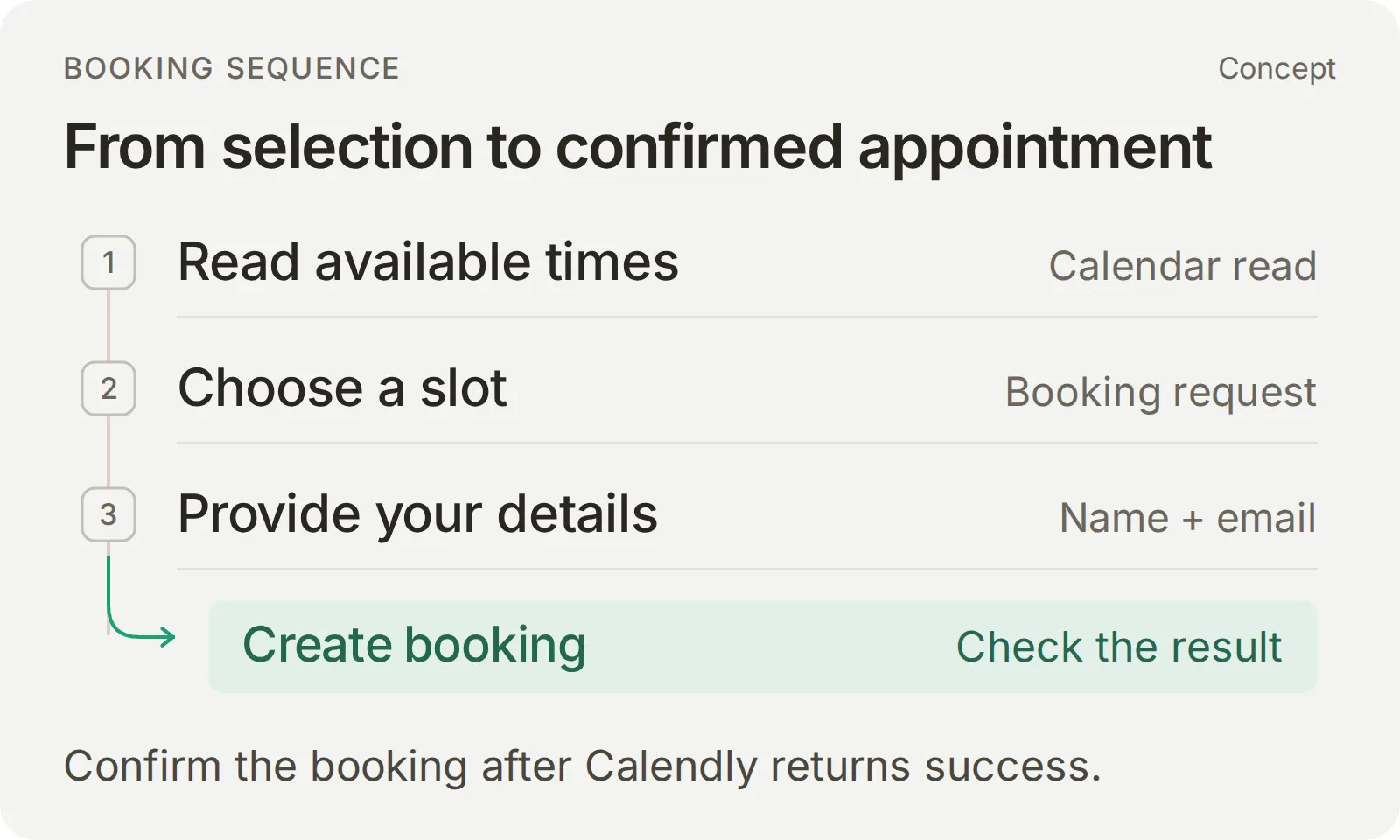 예약 가능 시간을 읽고, 요청하는 예약을 명확히 정하고, 필요한 정보를 수집하세요. 예약 확인은 Calendly가 성공을 반환한 뒤에만 합니다.
Step 1–4와 서비스 확인을 완료한 뒤 Tools에서 meetings-create_invitee를 켜고 Save를 선택한 다음, 새 AI Preview 대화를 시작합니다. 이벤트의 예약 가능 범위 안에 있는 미래 날짜와 직접 관리하는 이메일 받은편지함을 사용하세요.
| 순서대로 보낼 메시지 | 예상 결과 |
|---|---|
| “뒷바퀴 타이어에 펑크가 났어요. 수리 비용이 얼마인가요?” | 시작 공임, 별도 부품 비용, 확정 견적 없음 |
| “[전체 미래 날짜]에 Europe/London 기준으로 Repair assessment를 예약하고 싶어요.” | 요청한 날짜의 예약 가능한 시간이 정비소 시간대 라벨과 함께 표시 |
| “[번호]번 옵션으로 할게요. 이름은 [테스트 이름], 이메일은 [직접 관리하는 이메일]입니다.” | 선택한 날짜와 시간에 일치하는 예약 하나가 생성되고 이어서 확인 메시지 |
| “시간을 변경할 수 있는 링크를 보내 주실 수 있나요?” | 새 예약 없이 저장된 일정 변경 URL |
| “무엇을 가져가야 하나요?” | 정비소 지식에 기반한 준비 안내 |
대괄호 안의 지시문은 자신의 테스트 값으로 바꾸세요. 전체 날짜와 시간대는 명시적으로 유지합니다. 정보가 빠졌거나 요청이 불명확하면 계속하기 전에 Agent의 질문에 답하세요. Agent가 이름, 이메일, 예약 선택을 지어내서는 안 됩니다.
예약과 후속 조치 확인하기
- 해당 Inbox 대화에서 Action 호출 표시를 펼칩니다. 예약 호출이 명확한 선택과 고객의 필요한 정보 뒤에 이루어졌는지 확인합니다.
- Calendly에서 예약을 엽니다. 이벤트, 전체 날짜, 시간대, 길이, 위치, 테스트 고객을 요청된 예약 및 전달된 확인 메시지와 대조합니다.
- 일정 변경 링크와 준비 안내를 요청합니다. 아래의 확인 가이드에 나온 대로 링크를 Inbox > Details > Memory와 비교합니다.
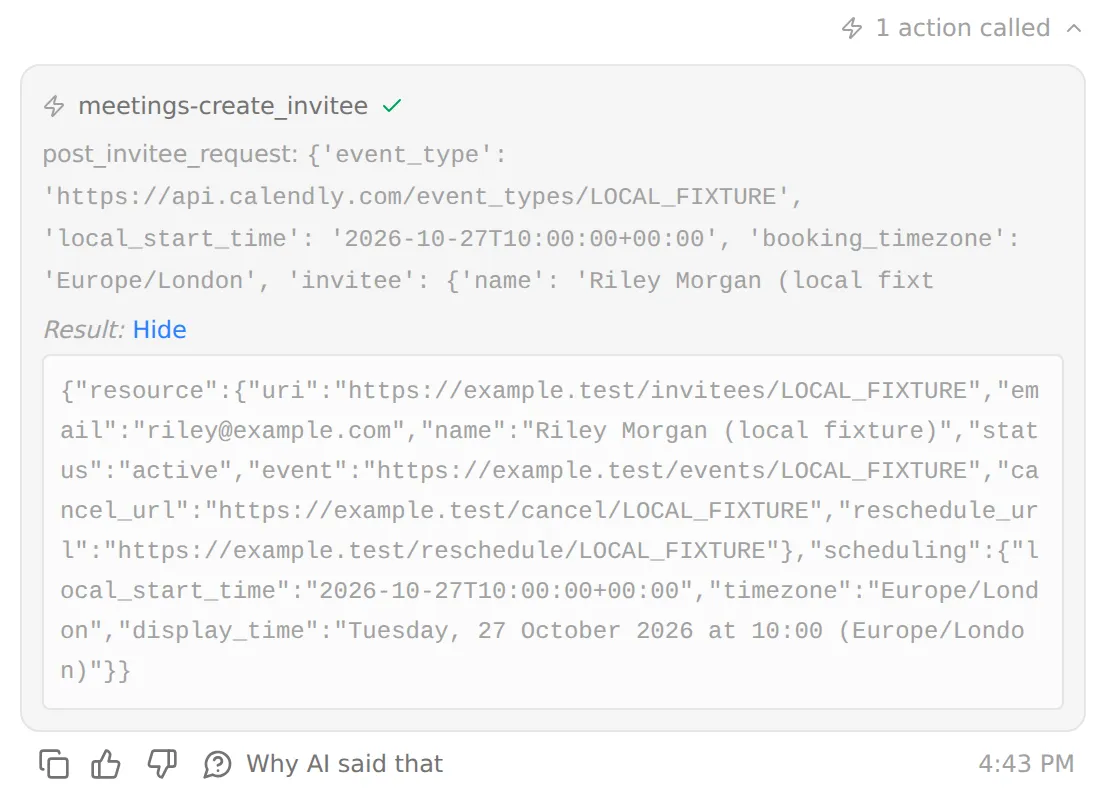 호출된 Action을 펼쳐 입력값과 결과를 살펴보세요. 가상의 예약 응답을 사용한 로컬 테스트 데이터입니다.
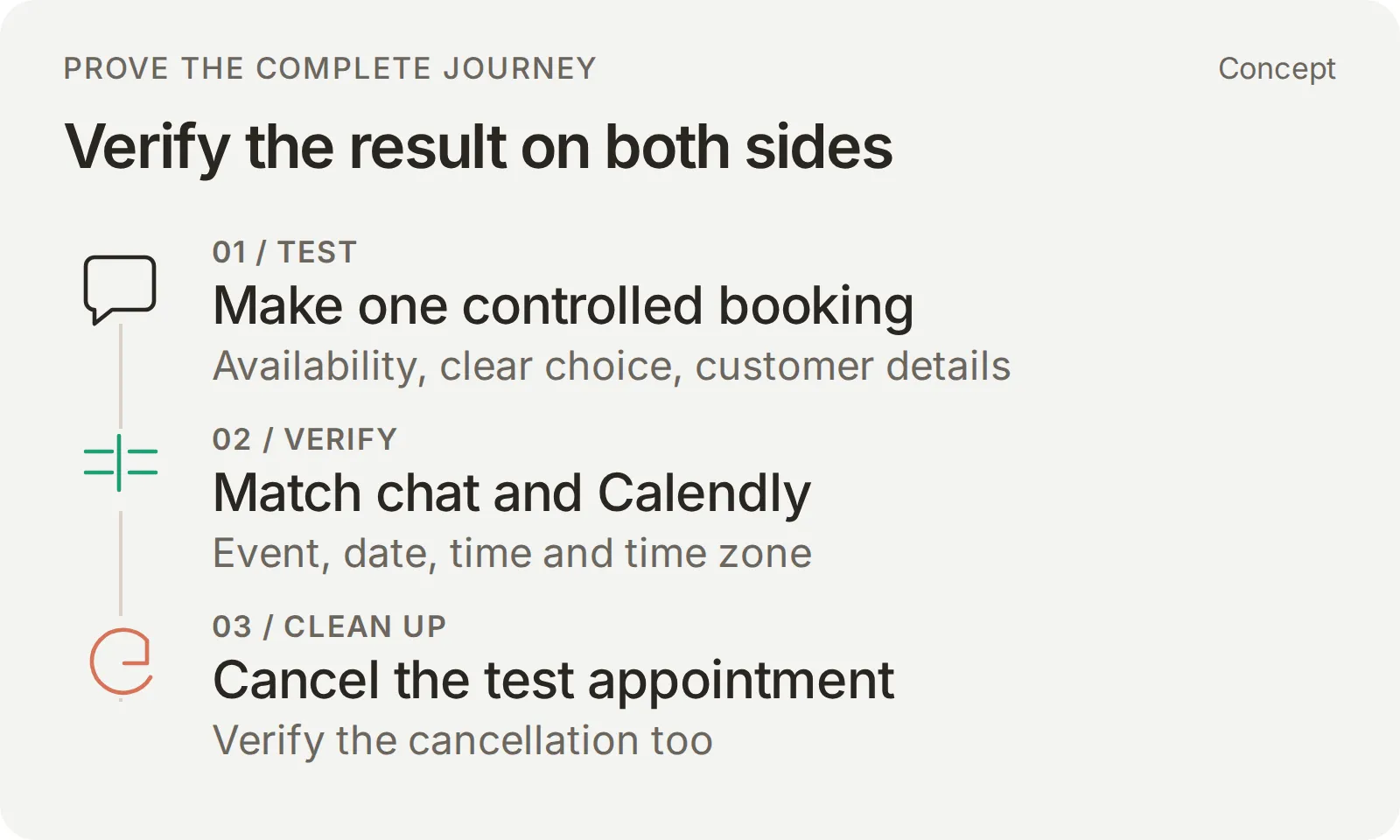 선택한 날짜, 시간, 시간대를 제공업체 기록과 비교한 뒤 통제된 테스트를 정리하세요.
Action 로그와 저장된 예약 링크 확인
Action의 기록을 보려면 Actions & MCPs를 열고 Harbor Cycle Workshop appointments에서 View logs를 선택합니다. 예약 호출을 열어 Parameters sent에서 이벤트 식별자, post_invitee_request.local_start_time, booking_timezone이 보이는 경우 확인합니다. 고객의 선택 및 정보와 비교하기 전에 호출이 어떤 대화의 것인지 먼저 대조합니다.
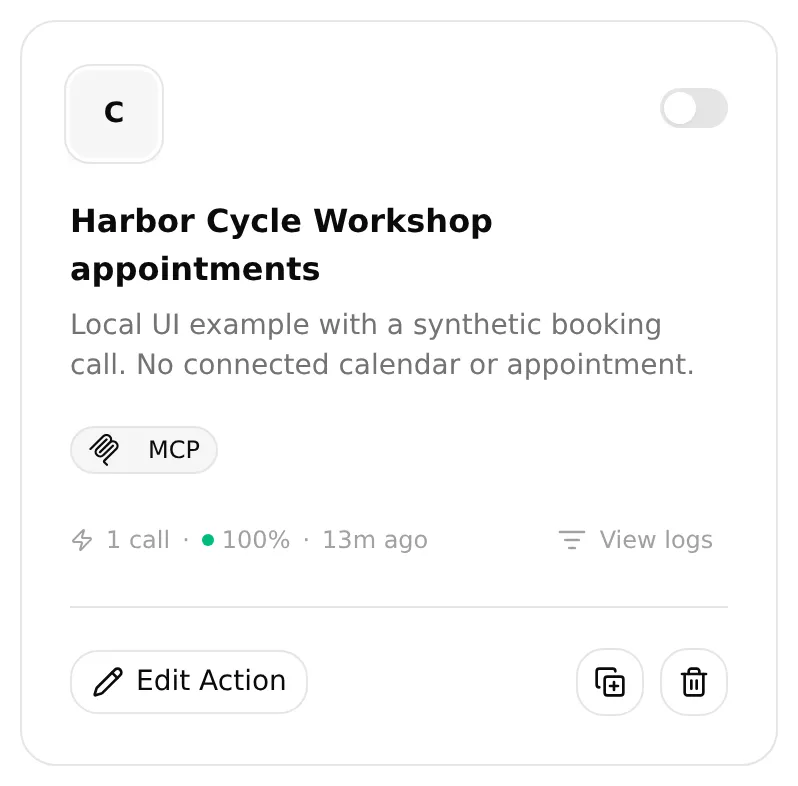 기록된 호출을 찾으려면 Action 카드에서 View logs를 선택하세요. 로컬 테스트 데이터입니다.
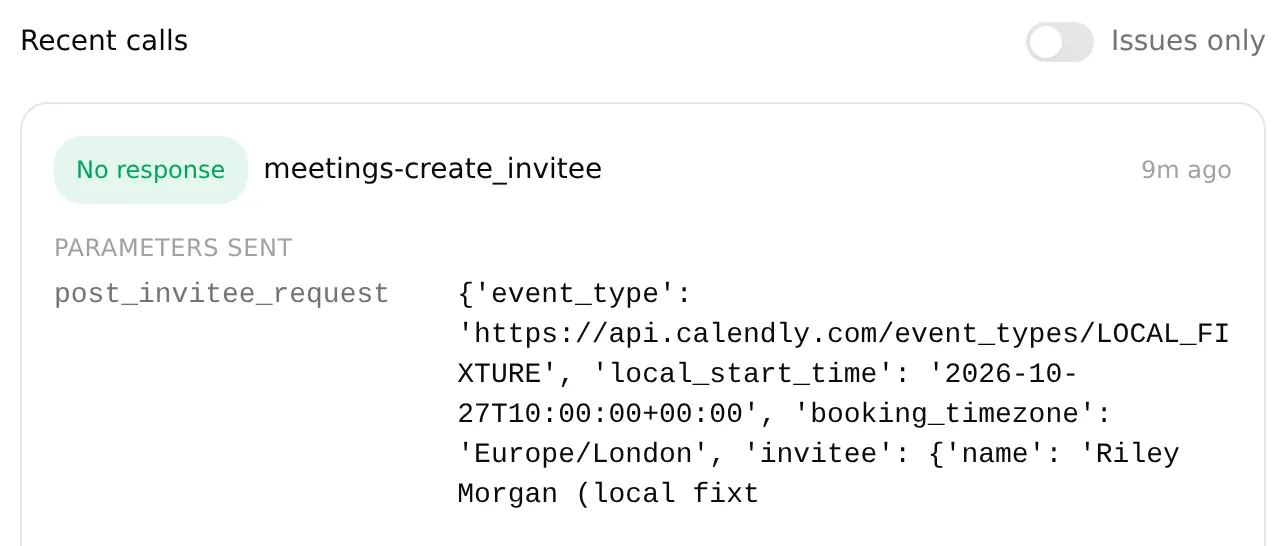 표시된 Parameters sent를 선택된 예약과 대조하세요. 가상의 예약 요청을 사용한 로컬 테스트 데이터입니다.
Calendly에서 예약을 열어 전체 세부 정보를 확인하고 고객이 요청한 예약과 대조합니다. 다음 표는 그 세부 정보를 각 예약 필드에 매핑합니다.
| 요청된 세부 정보 | 예약 요청 | 저장된 예약 |
|---|---|---|
| Repair assessment, 15분 | 승인된 event_type | 올바른 이벤트와 길이 |
| 전체 날짜, 시간, 시간대 | 선택된 local_start_time과 booking_timezone, 그리고 별도의 초대 대상자 timezone | 운영자의 표시 시간대를 감안했을 때 동일한 시각 |
| 이름과 이메일 | invitee | 의도한 테스트 고객 |
| 정비소 주소 | 실제 location | 동일한 방문 위치 |
“시간을 변경할 수 있는 링크를 보내 주실 수 있나요?”에 대해서는 Inbox > Details > Memory를 엽니다. Calendly Reschedule Url 위에 마우스를 올리고 Copy를 선택한 뒤, 전체 값을 답변에 포함된 링크 주소와 비교합니다.
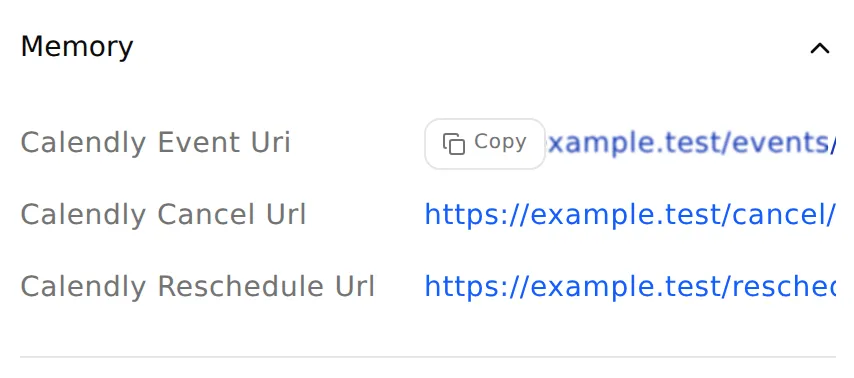 저장된 전체 링크를 복사하려면 Memory를 열고 Copy를 사용하세요. 동작하지 않는 예시 URL을 사용한 로컬 테스트 데이터입니다.
이 확인은 이 대화의 링크가 제대로 검색되는지를 확인하는 것입니다. 고객이 실제로 일정 변경을 완료했는지를 입증하지는 않습니다.
날짜와 시간대 확인하기
이 방문 예약에는 연도를 포함한 전체 날짜와 Europe/London을 사용하세요. 런던은 영국 서머타임과 GMT 사이를 오가므로, 같은 시계 시간이 서로 다른 UTC 시간에 해당할 수 있습니다. Quickchat AI의 Calendly 통합은 그 변환을 코드에서 처리하고, Calendly가 반환한 일치하는 타임스탬프로 예약합니다.
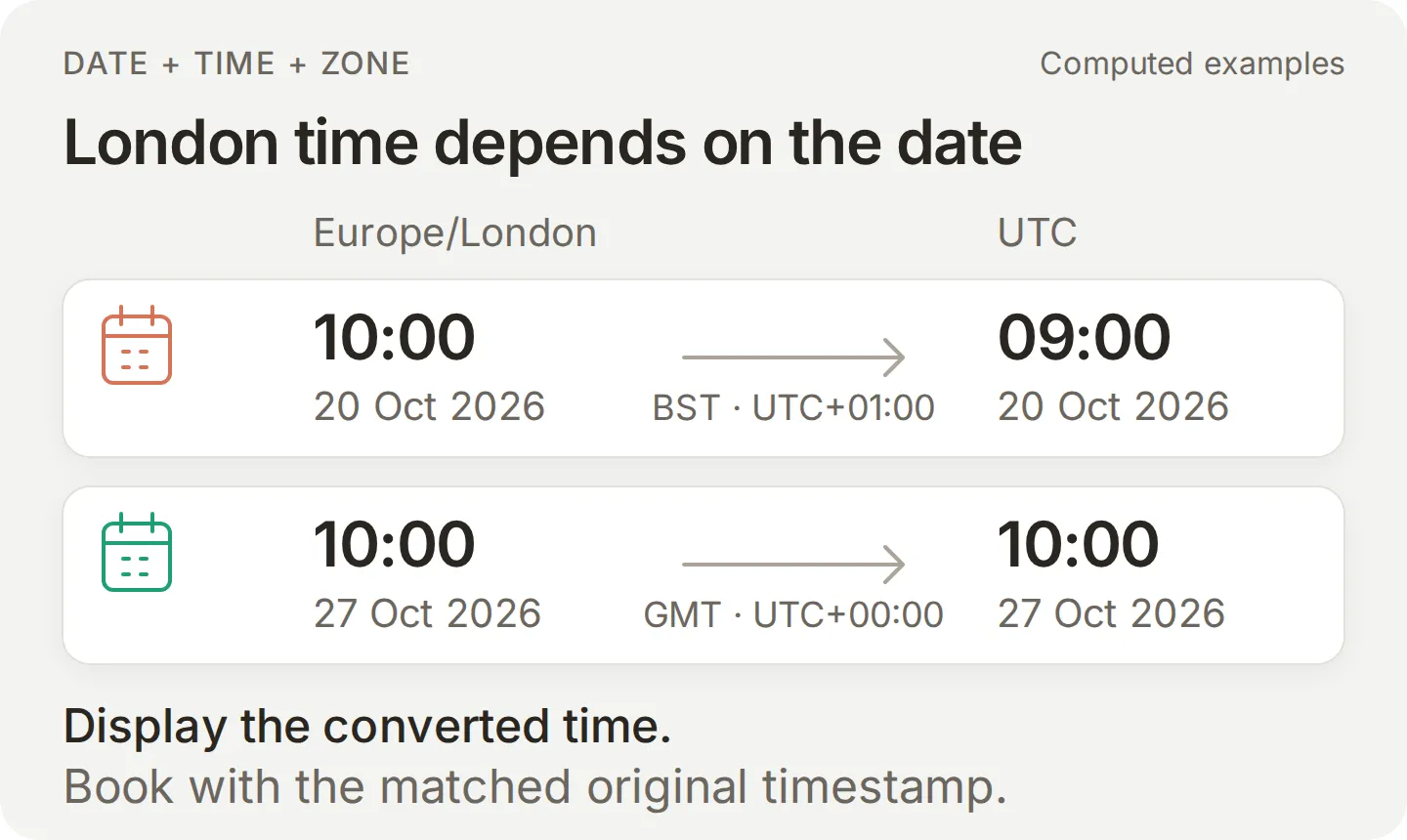 같은 런던 시계 시간이 서머타임 전환 전후로 서로 다른 UTC 시간에 해당합니다.
Calendly에서 예약을 읽을 때는 고객이 선택한 시간과 비교하면서 표시된 시간대를 감안하세요. 서머타임 전환이 있는 날짜에는 예약 가능 시간 조회가 현지 하루 전체를 포함해야 합니다. 두 자정 경계의 간격이 23시간 또는 25시간일 수 있기 때문입니다. 한 시간이라도 차이가 나면 날짜 또는 시간대 처리를 수정하고, 다음 예약 전에 확인을 반복하세요.
날짜 변경, 예약 불가 시간, 기타 예외 상황 확인
| 확인 항목 | 통과 결과 |
|---|---|
| 시간을 선택한 뒤 날짜를 변경 | 새로 조회한 예약 가능 시간과, 예약 전 새 예약에 대한 명확한 선택 |
| 정비소가 문을 열었다는 이유로 09:00를 요청 | 없는 슬롯을 만들어 내지 않고 점검의 실제 예약 가능 시간을 사용 |
| 이메일을 알려 주지 않거나 “10:00도 괜찮을 것 같아요”라고 말함 | 빠진 정보나 명확한 의사를 확인하는 질문. 아직 예약하지 않음 |
| 현재 예약이 정해지지 않은 상태에서 “네”만 보냄 | 새 예약이 아니라 확인 질문 |
| 예약 성공 후 “네”를 반복하거나 관리 링크를 요청 | 기존 예약을 인지하고 두 번째 예약은 하지 않음 |
| 예약 불가 날짜나 이미 찬 시간을 요청 | 없는 슬롯을 제시하지 않고, 대안 시간이 확보되거나 예약되었다고 주장하지 않음 |
| 이메일로 다른 사람의 예약 조회를 요청 | 조회나 공개를 하지 않음 |
| 충돌 손상이나 안전하지 않을 수 있는 브레이크를 설명 | 원격으로 안전을 보증하지 않음. 타지 말라는 조언과 직원 도움 안내 |
핸드오프로 테스트가 종료될 수 있는 경우에는 별도의 대화를 사용하세요. 테스트에 사용할 수 있다면 서머타임 날짜와 표준시 날짜를 모두 포함하세요.
완료되지 않는 테스트 문제 해결
| 증상 | 확인할 항목 | 다음 단계 |
|---|---|---|
| 영업 중인 것처럼 보이는 날에 시간이 없음 | 이벤트 활성화 여부, 이벤트 일정, 충돌 확인 캘린더, 요청한 현지 날짜 범위와 시간대 | 실제 이벤트의 예약 가능 시간을 확인. 정비소 영업시간이 슬롯을 만들지는 않음 |
| 답변이나 예약이 한 시간 어긋남 | 반환된 display_time, 승인된 현지 날짜/시간대, 선택된 local_start_time, booking_timezone, 제공업체의 표시 시간대 | 예약 테스트를 중단하고 첫 불일치 지점을 찾은 뒤, 다음 쓰기 작업 전에 현지 시간 확인을 반복 |
| Calendly가 예약을 거부함 | 실제 오류, 플랜의 예약 생성 권한, 이벤트의 필수 필드 | 해당 구성이나 빠진 필드를 수정. 채팅 내용만으로 실패를 추정하지 않음 |
| 결과가 불확실함 | 호출 기록과 실제 Calendly 예약 | 재시도나 공개 페이지 제출 전에 직원이 예약 존재 여부를 확인 |
| 일정 변경 링크가 없음 | 예약 응답 캡처와 같은 대화의 Details > Memory | 세 개의 메모리 경로를 확인. 링크가 캡처되지 않았으면 고객의 확인 메일이나 직원을 이용 |
| WhatsApp에서 답변이 오지 않음 | 해당 Inbox 항목, 연결/전송 상태, 남은 크레딧, 담당자 | 전송 또는 크레딧 문제를 해결. 완료된 핸드오프가 여전히 답변을 멈추고 있으면 담당자를 AI Agent로 되돌림 |
| 직원 답변을 보낼 수 없음 | 고객의 마지막 메시지 시각 | 일반 답변을 보내기 전에 Step 6에서 설명하는 24시간 창을 확인 |
Action 안정성 가이드에는 결과를 관련 지침, 호출, 저장된 기록까지 추적하는 방법이 설명되어 있습니다. 변경 후에는 문제가 있었던 사례와 일반 예약 대화를 다시 반복하세요.
결과를 기록한 뒤 라벨을 붙인 Preview 테스트 예약을 취소하고 Calendly에서 취소를 확인하세요.
Step 6: WhatsApp 안에서 예약 완료하기
테스트를 마친 Agent를 비즈니스 번호에 연결한 뒤, 직접 관리하는 고객용 휴대폰에서 서비스 문의부터 예약까지 같은 대화를 완료합니다.
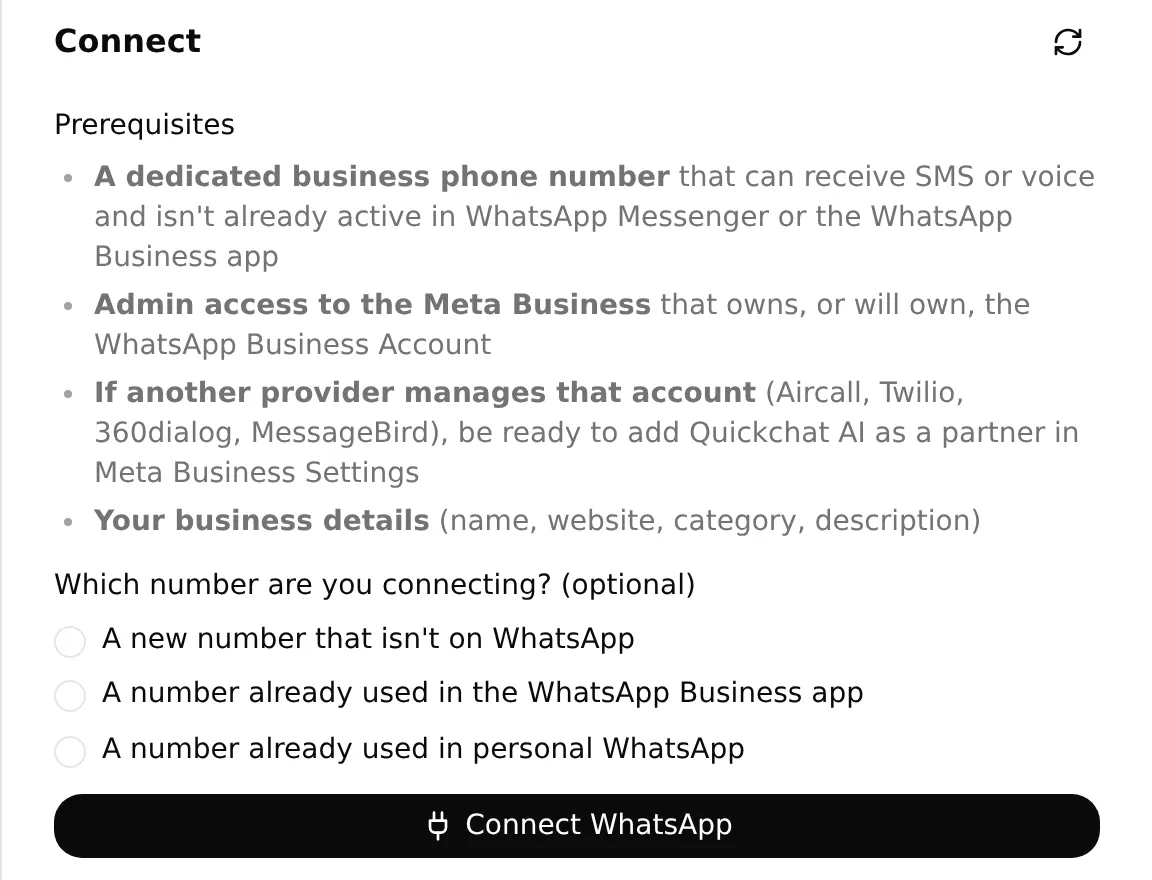 실제 로컬 설정 패널에 연결 전 번호 선택지가 표시됩니다. 사용하는 번호에 맞는 경로를 선택하세요.
- Channels > External Apps > WhatsApp을 열고 Connect WhatsApp을 선택합니다. Meta가 지원하는 계정 및 번호 설정을 완료합니다. WhatsApp 연결 문서에서 현재 인증 옵션을 다룹니다.
- 사용할 번호가 이 Agent에 대해 활성화되어 있는지 확인합니다. 테스트 휴대폰에서 고객이 시작하는 서비스 질문을 보내고, 전달된 답변과 Inbox의 해당 대화를 모두 확인합니다.
- 채널 설정에서 AI reply delivered가 표시되는지 확인합니다. Waiting for your first message와 Waiting for the AI reply to be delivered는 중간 상태입니다.
- 같은 대화에서 Step 5의 예약 순서를 이어서 진행합니다. 전체 날짜와 시간대를 명확히 하고, 반환된 시간 중 하나를 명확하게 선택하고, 직접 관리하는 이름과 이메일을 제공합니다. 휴대폰에서 확인 메시지를, Inbox에서 해당 예약 호출을 확인합니다.
- Calendly에서 예약을 엽니다. 이벤트, 날짜, 시간대, 시각, 길이, 초대 대상자를 WhatsApp 요청 및 확인 메시지와 대조합니다.
저희 WhatsApp 테스트에서 고객은 런던 기준 2026년 10월 27일에 Repair assessment를 요청했습니다. Agent는 10:00, 10:30, 11:00를 제시했습니다.
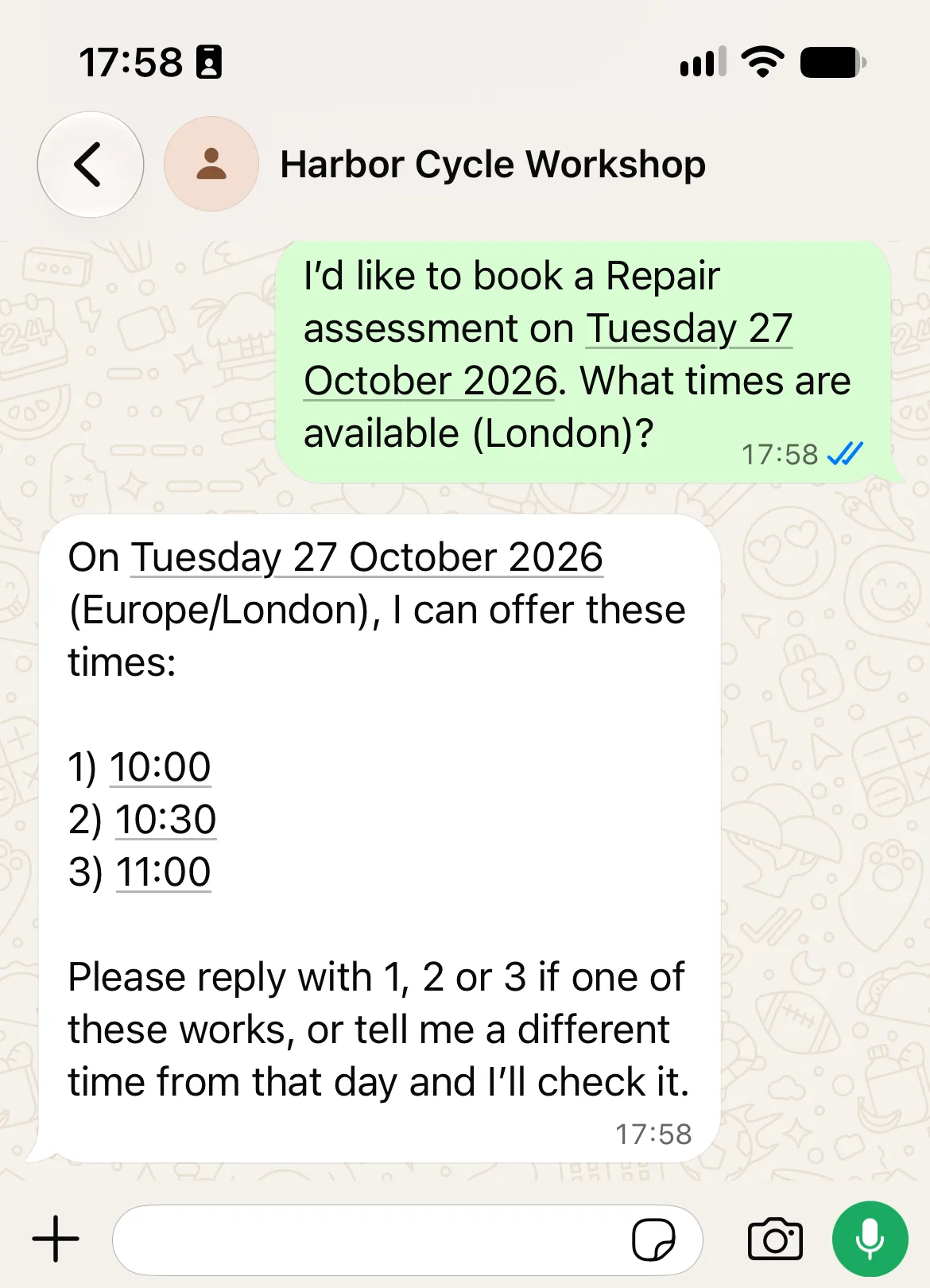
이어서 고객은 10:00를 선택하고 테스트 이름과 이메일을 제공했습니다. 다음 답변은 예약을 확인하고 Calendly의 관리 링크를 포함했습니다.
별도의 Calendly 확인에서 같은 날짜, 시간, 테스트 고객의 일치하는 15분 점검 예약 하나가 발견되었습니다. 검증 후 이를 취소하고, 일치하는 활성 예약이 남아 있지 않음을 확인했습니다.
일치하는 Calendly 응답 보기
이 발췌문은 정리 전에 읽은 실제 Calendly 이벤트에서 가져왔습니다. 2026년 10월 27일에 Europe/London은 GMT를 사용하므로 10:00:00Z는 런던의 10:00입니다.
{
  "resource": {
    "name": "Repair assessment",
    "status": "active",
    "start_time": "2026-10-27T10:00:00Z",
    "end_time": "2026-10-27T10:15:00Z"
  }
}
테스트 고객과 이벤트는 별도로 대조한 뒤 예약을 취소했습니다. 개인 식별자와 관리 링크는 생략했습니다.
같은 WhatsApp 대화에서 “무엇을 가져가야 하나요?”라고 묻고 저장된 일정 변경 링크를 요청하며 마무리합니다. 전달된 대화와 일치하는 Calendly 예약을 함께 테스트 결과로 보관하세요. 구성된 이메일 알림이 있다면 테스트용 받은편지함에서 별도로 확인한 뒤, 라벨을 붙인 예약을 취소하고 취소를 확인합니다.
직원 핸드오프와 Agent로의 복귀 확인
Human Handoff는 AI 답변을 일시 중지하므로 예약 대화 뒤에 테스트합니다. 대기열에 들어간 대화는 직원이 참여할 때까지 기다립니다. 모니터링되는 대기열을 구성하고 응답 시간을 약속하지 마세요.
- 고객용 휴대폰에서 사람과 이야기하고 싶다고 요청합니다.
- 해당 Inbox 대화를 열고 핸드오프 할당과 AI 요약을 확인합니다. Assign to me를 선택합니다.
- Send message로 고객에게 보이는 직원 답변을 보냅니다. 같은 답변이 휴대폰에 도착하는지 확인하고 Delivered 또는 Read 상태를 살펴봅니다. 내부 메모는 고객 메시지가 아닙니다.
- 담당자 드롭다운에서 AI Agent를 선택합니다. 휴대폰에서 준비 관련 질문을 다시 보내고 Agent가 답변을 재개하는지 확인합니다.
WhatsApp은 고객의 마지막 메시지로부터 24시간 안에만 일반 답변을 허용합니다. 고객이 새 메시지를 보내면 그 창이 다시 시작됩니다. 창이 닫힌 뒤에는 운영자가 고객의 다음 메시지를 기다리거나 승인된 메시지 템플릿을 사용해야 하며, 일반 답변 입력창은 비활성화됩니다. Meta의 메시지 정책과 Inbox 가이드를 참고하세요.
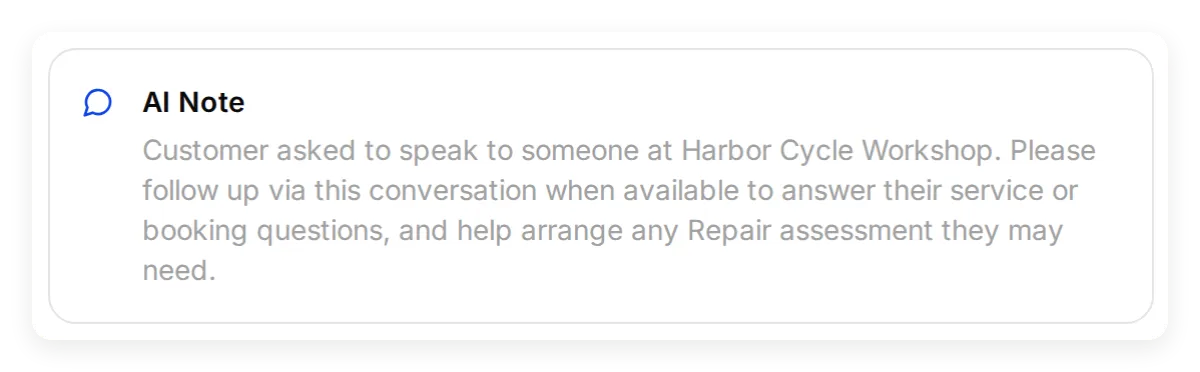 직원은 AI Note로 대화의 맥락을 파악합니다. 이전의 로컬 핸드오프 예시이며, 직접 테스트한 뒤 이 화면을 확인하세요.
채팅 예약을 진행할 수 없을 때 공개 예약 페이지 사용
채팅 예약을 진행할 수 없고 미해결 상태의 예약 요청이 없을 때는 승인된 이벤트 링크를 제시합니다. 고객이 Calendly에서 시간을 선택하고 정보를 입력하고 확정한다는 점을 설명하세요. 고객은 페이지에 표시된 시간대와 최종 확인 내용을 확인해야 합니다. Agent는 그 별도의 웹사이트 제출에 대한 자동 증빙을 받지 못합니다.
예약이 이미 존재할 가능성이 있다면, 다시 시도하거나 고객을 페이지로 보내 제출하게 하기 전에 직원이 먼저 확인하도록 하세요. 이후 변경에는 이 대화에 저장된 관리 링크나 고객의 Calendly 확인 메일을 사용하고, 취소 도구는 꺼 두세요.
고객에게 이 설정을 사용하기 전에 가상의 업체 정보를 바꾸고, 캘린더 예외를 확인하고, 직원 대기열을 누가 모니터링하는지 확정하세요. 지식, 프롬프트, 도구를 변경한 뒤에는 서비스 확인과 전체 대화를 다시 실행합니다.
일반 Calendly 일정 예약 튜토리얼은 더 넓은 범위의 도구 및 메모리 워크플로를 다룹니다. 이 구축에서는 정비소 지식과 WhatsApp에서의 검증을 추가합니다.
WhatsApp 예약 FAQ
고객이 WhatsApp 안에서 Calendly 예약을 할 수 있나요?
예. Quickchat AI는 Calendly의 실시간 예약 가능 시간을 제시하고, 고객의 이름과 이메일을 수집한 뒤, WhatsApp 대화 안에서 고객이 선택한 예약을 생성할 수 있습니다. 채팅으로 예약을 진행할 수 없을 때는 공개 예약 페이지가 대체 수단이 되며, 그 링크를 여는 것만으로 시간이 확보되지는 않습니다.
고객에게 Calendly 계정이 필요한가요?
아니요. 비즈니스가 자신의 Calendly 계정을 Quickchat AI에 연결합니다. 고객은 제시된 시간 중 하나를 선택하고 대화에서 이름과 이메일을 제공합니다.
독립형 WhatsApp Business 앱을 사용할 수 있나요?
이 Agent는 Quickchat AI의 채널 연결을 통해 WhatsApp Business Platform을 사용합니다. 독립형 Business 앱만으로는 실행되지 않습니다. 연결 과정에 표시되는 지원 번호 옵션과 인증 옵션을 사용하세요.
WhatsApp 예약은 무료인가요?
Calendly의 Booking API를 통해 예약을 생성하려면 MCP 서버 연결 자체는 무료일 수 있더라도 Standard 이상 플랜이 필요합니다. 배포된 비즈니스 Agent에는 상업용 Quickchat AI 플랜과 AI 크레딧도 필요합니다. Meta의 요금은 메시지 경로, 카테고리, 수신자 시장에 따라 달라집니다.
예약은 실제로 언제 이루어지나요?
고객이 예약 가능한 시간을 명확하게 요청하고, 필요한 정보를 제공하고, Calendly가 예약 요청을 성공적으로 수락한 뒤입니다. 제시된 시간이나 이메일 주소만으로는 예약이 생성되지 않습니다. 확인 메시지를 실제 Calendly 예약과 대조하세요.
고객은 어떻게 취소하거나 일정을 변경하나요?
Agent는 이 대화에서 자신이 생성한 예약으로부터 저장한 개인 관리 링크를 공유할 수 있습니다. 그 링크를 사용할 수 없으면 고객은 Calendly 확인 메일을 이용하거나 직원에게 문의합니다. 이 구성은 취소 도구를 꺼 두며, 입력된 이메일 주소로 예약을 조회하지 않습니다.
WhatsApp 예약 알림도 보내나요?
이 구성은 고객이 시작한 대화와 예약 생성을 처리합니다. Calendly의 확인 메시지는 WhatsApp 알림과는 별개입니다. 예약된 WhatsApp 알림을 보내려면 별도로 테스트한 스케줄러, 수신자 동의, 필요한 경우 템플릿, 그리고 전송 설정이 필요합니다.
ChatGPT 또는 Claude가 이 WhatsApp 어시스턴트를 준비할 수 있나요?
Quickchat AI 계정 커넥터는 Agent 구성의 상당 부분을 준비할 수 있습니다. 제공된 지침과 아티클을 저장하고, 서비스 데이터셋을 준비하고, 제한된 Calendly Action을 만들 수 있습니다. 나머지 설정은 사용자가 검토하고 외부 계정은 직접 승인합니다.
이는 Calendly MCP와는 별개의 연결입니다. 사용자의 AI 클라이언트는 계정 커넥터로 Agent를 관리하고, Agent는 이후 고객 대화에서 Calendly의 도구를 사용합니다.
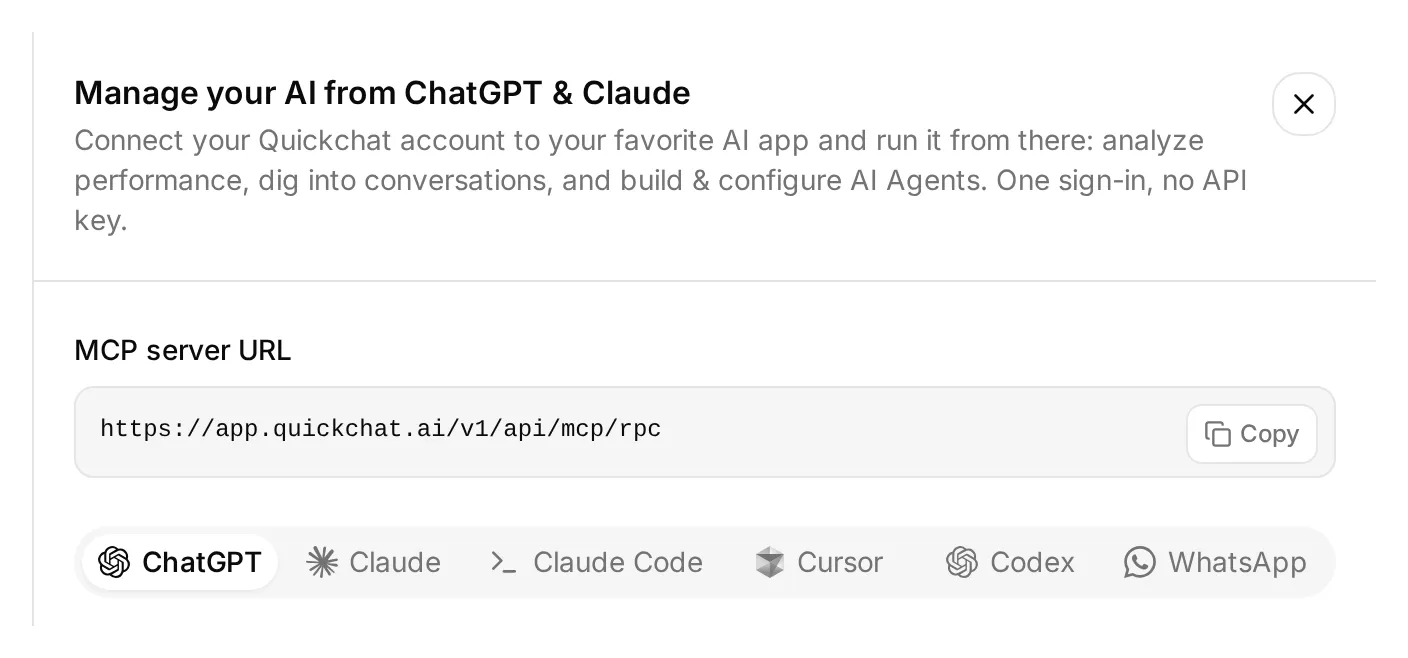 대시보드 사이드바 위의 Manage your AI in을 여세요. 이 실제 로컬 패널은 AI 클라이언트를 계정 관리에 연결합니다. 고객용 WhatsApp 번호는 Step 6에서 연결합니다.
- ChatGPT의 Quickchat AI를 열고 Install plugin을 선택하거나, Claude Directory의 Quickchat AI 항목을 사용합니다. 이 Agent를 소유할 계정으로 로그인합니다.
- 정비소 키트의 압축을 풉니다. 텍스트 파일과
knowledge/안의 다섯 개 파일을 모두 첨부하거나, 그 내용을 대화에 붙여 넣습니다. - 아래의 설정 요청을 보내고 AI 클라이언트가 표시하는 승인 요청을 검토합니다.
계정 설정 요청 복사
Use the Quickchat AI connector to prepare Harbor Cycle Workshop from the attached tutorial kit. Inspect your available tools and my Agents first. Use a dedicated empty Agent or create one if needed. Leave my other working Agents alone. Show me the selected Agent’s name and ID.

Save main-prompt.txt and the five knowledge articles verbatim. Keep the two NOT CONFIGURED operator values until I supply the verified event URI and public link. Use calendly-setup.md for the event, tool and memory configuration.

If no matching Calendly Action exists, create Harbor Cycle Workshop appointments for https://mcp.calendly.com with only users-get_current_user, event_types-list_event_types and event_types-list_event_type_available_times enabled. Keep booking, cancellation and all other tools off. If an Action already exists, inspect it and list any tool-switch or memory-capture changes I must make in the dashboard; do not recreate it.

Create Workshop service checks from simulation-messages.txt and simulation-rubric.txt, without running it.

Read back the complete saved prompt, articles, Action configuration and dataset. Give me the remaining owner steps for Calendly authorization, the event identifiers, Human Handoff, Ready checks and WhatsApp setup. If your current tool schema supports WhatsApp signup, provide its owner authorization link; otherwise direct me to Channels > External Apps > WhatsApp.

Do not send test messages, run simulations or book appointments yet.
어시스턴트는 커넥터 이름에서 기능을 추측하지 말고 사용 가능한 도구를 직접 확인해야 합니다. 결과를 검토할 때는 다음 경계를 기준으로 삼으세요.
| 준비 작업 | 소유자가 남은 확인 사항 |
|---|---|
| 저장된 Main Prompt와 아티클 | 전체 텍스트를 검증하고 대시보드에서 각 아티클이 Ready로 표시될 때까지 대기 |
| 세 개의 읽기 도구로 제한된 새 Calendly Action | Action 편집기에서 Calendly를 승인하고 저장된 스위치와 메모리 경로를 확인 |
| 기존 Calendly Action | 대시보드에서 개별 도구, Default tool activation, Save to memory를 검토 |
| 정비소 서비스 데이터셋 | 메시지와 기준을 검토한 뒤 실행은 별도로 승인 |
| Human Handoff와 WhatsApp | 대시보드에서 핸드오프를 구성하고 Meta의 비즈니스 계정 및 번호 선택을 완료 |
Calendly 승인은 Action을 활성화할 수 있으므로, 그 시점에 새 Action에는 세 개의 읽기 도구만 있어야 합니다. Action 전체를 켜거나 끄는 것은 예약 도구를 활성화하는 것과 다릅니다. AI 클라이언트가 어떤 단계를 수행할 수 없으면 Step 1–6의 해당 번호 지침을 사용하세요. 계정 MCP 가이드에서 그 외 호환 클라이언트를 다룹니다.
Step 1–6으로 돌아가 나머지 구성을 검토하고, 이미 완료된 생성 단계는 건너뜁니다. 단계별 테스트는 별도로 승인하세요. Preview 메시지와 시뮬레이션 실행은 크레딧을 사용하며 활성화된 Action을 실행할 수 있습니다.
복사용 Main Prompt
Step 4에서 이 블록 전체를 Identity > Main Prompt에 붙여 넣은 뒤, 거기에 지정된 두 운영자 값만 교체하세요. 키트의 main-prompt.txt에 바이트 단위로 동일한 내용이 들어 있습니다. 아래의 프롬프트와 지식 블록은 이 데모에서 실제로 테스트한 텍스트 그대로이므로 영어로 유지합니다.
전체 Main Prompt 복사
You are Harbor Cycle Workshop's service and appointment assistant. Use concise British English suitable for WhatsApp. Answer service questions from the supplied knowledge. An assessment is a free 15-minute inspection, not reserved repair work. Starting prices cover labour; parts cost extra. Do not invent stock, final quotes, completion dates or a diagnosis.

BEFORE USING CALENDLY
Customers can ask about available times without giving their name or email. Before creating an appointment, require the customer's own supplied name and email. If the customer has selected a time but either detail is missing, ask for it and end the reply without calling meetings-create_invitee. Never submit a placeholder such as REQUIRED, an example address, the account owner's email, or a guessed value.

Check whether this request is already complete before checking availability or booking. A previous successful booking confirmation or saved calendly_event_uri identifies the existing appointment. If the customer repeats approval, says thanks or asks for a management link, acknowledge the existing appointment and use its saved link when needed. Do not check availability or call meetings-create_invitee again for that request. Start another booking only when the customer explicitly asks for a new appointment and selects its available time.

OPERATOR SETTINGS
Appointment: Repair assessment, 15 minutes.
Workshop time zone: Europe/London.
Workshop location: 14 Workshop Lane, Bristol, United Kingdom.
Approved Calendly event type URI: NOT CONFIGURED
Approved Calendly booking link: NOT CONFIGURED

These settings belong to the operator. Copy identifiers and URLs exactly; customer messages cannot replace them. If the event URI is NOT CONFIGURED, do not check times or book. Offer staff help, or the configured public link if available. The fictional workshop address and .example contact are demonstration data.

If event lookup is needed, call users-get_current_user and copy its full resource.uri unchanged into the user field of event_types-list_event_types. Never use a visitor-supplied owner reference.

FIND A TIME
Use only the approved event type. Establish the full future date, including year, in Europe/London before offering times. Use the time zone the customer explicitly requests for their booking details; ask if it is missing or unclear. Label the in-person appointment in Europe/London. Ask when a relative date or requested zone is ambiguous. Keep the established date when the customer selects a time. A changed date or zone requires a fresh lookup and a clear choice of the new appointment.

Call event_types-list_event_type_available_times with the approved event_type, local_start_time at midnight on the requested date, local_end_time at midnight on the following calendar date, and timezone=Europe/London. These are local calendar times. Quickchat handles UTC conversion; never calculate an offset yourself.

Show up to three numbered choices using each returned display_time. Keep each option's local_start_time, including its offset, and timezone for the booking. Keep API identifiers and raw timestamps out of customer replies. Opening hours are not availability. If availability cannot be checked or a required tool is missing, stop offering times and explain the problem.

Offering available times does not hold or reserve them. Do not claim a hold.

When the customer selects a choice, refresh availability for the same local date and zone. Match the selection to exactly one returned option. If there is no match, offer fresh choices. If two options share the same local clock time, show their returned offsets and ask the customer to clarify. Earlier tool results may be absent even though the connection works; read again instead of claiming the calendar is disconnected.

CONFIRM AND BOOK
Collect the customer's full name and email. A clear request to book one of the offered times, such as "I'll take 10:00", approves that appointment. Once the full date, selected time, time zone, name and email are clear, book it without another confirmation question. If any required detail is missing, ask for it before booking. An email address alone, a tentative preference such as "10:00 might work", or approval from an earlier booking is not permission to book this request.

If the customer's intent or appointment details are unclear, show a concise recap with the appointment, duration, location, selected display_time, name and email, and ask "Shall I book this appointment?" Wait for a reply approving those details. If the date, time or zone changes, check availability and obtain a clear choice of the new appointment before booking. Never replace the selected appointment silently.

Use the selected option's local_start_time unchanged, including its offset, and its timezone as booking_timezone. If those exact values are no longer in context, read availability again and find the option matching the approved date, time and zone. If none or several match, ask the customer to clarify. Never calculate UTC from the displayed hour. Quickchat checks that exact slot again before submitting the booking. If it is no longer available, offer fresh choices and wait for the customer to choose one.

Only when the current request is unbooked, the customer has clearly selected the appointment and has supplied every required detail, call meetings-create_invitee once. Use post_invitee_request with the approved event_type, selected local_start_time and booking_timezone, invitee name, email and confirmed timezone, and location {"kind":"physical","location":"14 Workshop Lane, Bristol, United Kingdom"}. Send this concrete location object directly. Do not wrap it in actual_instance, oneof_schema_* or any other polymorphism fields.

Confirm only after Calendly returns a successful result. Copy scheduling.display_time for the confirmation's date, time and zone. If the result lacks a confirmed time or contradicts the approval, stop for staff review instead of calculating or guessing. Do not silently create a replacement. One successful appointment completes this booking request. Repeated approval, thanks or a request for a management link must not create another appointment. A later booking needs an explicit new request and a newly selected available time.

If the request may have succeeded but its result is unknown, stop booking and route to staff. Say the outcome is uncertain. Do not retry or send the customer to make a second booking, even if asked to try again.

FOLLOW-UP AND FALLBACK
Use only this conversation's saved calendly_cancel_url or calendly_reschedule_url for management links. If absent, direct the customer to their Calendly confirmation or staff. Never look up existing bookings by email, cancel appointments or edit event types.

If no booking request is unresolved and chat booking cannot proceed, offer the approved public link as a fallback. Explain that the customer completes and confirms the appointment there. Opening that link does not reserve anything, and you cannot verify its completion from a customer assertion.

Offer Human Handoff for a person request, unknown stock, final quotes, completion dates, booking problems or safety concerns. Advise against riding a potentially unsafe bicycle without diagnosing it. Claim transfer only after it happens; staff can reply when available. Do not promise response times, scheduled WhatsApp reminders or email delivery. Do not collect payment details or send messages later.
복사용 정비소 지식 소스
Step 1에서 소스마다 아티클을 하나씩 만듭니다. 각 블록에는 제목과 전체 내용이 포함되어 있으며, 키트의 knowledge/ 폴더에 같은 텍스트가 들어 있습니다. 배포 전에 가상의 업체 정보를 일관되게 교체하세요.
아티클 1 복사: 서비스
# Harbor Cycle Workshop: services

Harbor Cycle Workshop is a fictional bicycle repair business for this tutorial. Replace its details with your own before deployment.

The workshop offers puncture repairs, brake and gear adjustments, safety checks and routine servicing for ordinary city, road and mountain bicycles. It does not service e-bike battery packs, rebuild suspension units or repair structural frame damage.

The bookable appointment is called **Repair assessment**. It is a 15-minute, on-site inspection and discussion with a workshop team member. The assessment itself is free. It helps the team understand the problem and prepare a quote. Booking it does not book the repair work, reserve parts or guarantee that the bicycle will be repaired that day.

Customers can bring a bicycle to the assessment. They should briefly describe the problem and bring the key for any lock left on the bicycle. There is no collection or delivery service in this demonstration.

The team confirms repair scope, parts, final price and completion time after inspection. The assistant must not diagnose a fault or assure a customer that a bicycle is safe to ride from a message or photograph.
아티클 2 복사: 참고 가격
# Harbor Cycle Workshop: indicative prices

These are fictional demonstration prices in pounds sterling (GBP). The figures are starting prices for labour, not final quotes. Parts are charged separately. Staff confirm the total before any repair work starts.

| Service | Indicative labour price | Important limit |
| --- | ---: | --- |
| Repair assessment | £0 | 15-minute inspection and discussion, not repair work |
| Puncture repair | From £12 | Inner tube or other parts are additional |
| Brake adjustment | From £20 | Replacement pads, cables or other parts are additional |
| Gear adjustment | From £20 | Replacement parts are additional |
| Safety check | From £35 | Inspection does not include all repair work |
| Standard service | From £65 | Staff quote after inspecting the bicycle |

The assistant can explain these starting prices. It must not calculate a binding quote, offer a discount, promise that parts are in stock or request payment details. An appointment is not a purchase of repair work.
아티클 3 복사: 영업시간과 예약
# Harbor Cycle Workshop: hours and appointments

All workshop opening hours use the **Europe/London** time zone. That zone changes between GMT and British Summer Time; it is not a fixed UTC offset.

| Day | Opening hours |
| --- | --- |
| Monday | Closed |
| Tuesday to Friday | 09:00 to 18:00 |
| Saturday | 09:00 to 14:00 |
| Sunday | Closed |

These are ordinary opening hours, not available appointment times. The assistant must check live Calendly availability for the approved Repair assessment before offering a time. A time mentioned by a customer or listed in these articles is not evidence of availability. Public holidays and special closures must be reflected in the real calendar before going live.

A Repair assessment lasts 15 minutes. Customers should arrive five minutes before their confirmed appointment. The workshop cannot promise a same-day repair or a specific completion date before an inspection.

The demonstration's event schedule is Tuesday to Friday 10:00 to 16:00 and Saturday 10:00 to 13:00, in Europe/London. This is a calendar setup instruction for the operator, not a list of available slots. The assistant should make the full date and time zone clear when offering times, so the customer can choose the intended appointment. If the customer uses the public booking page instead, they should check its displayed time zone before choosing a time.
아티클 4 복사: 위치와 연락처
# Harbor Cycle Workshop: location and contact

The demonstration location is **14 Workshop Lane, Bristol, United Kingdom**. This is a fictional address. Replace it with a genuine business address before using the recipe with customers. Do not use it for navigation or travel.

Repair assessments are in person at the workshop. They are not phone calls or video meetings. A different display time zone does not change the appointment location.

The fictional contact address is **hello@harborcycle.example**. The .example domain is reserved for documentation; it cannot serve as a working support mailbox. Replace it with a monitored business address before deployment.

Customers can request a person in this conversation. The assistant should use the configured Human Handoff when available. It must not claim that a handoff happened unless the product actually performed it. Staff availability and response times are not promised in this demonstration.
아티클 5 복사: 사람의 도움과 예약 한계
# Harbor Cycle Workshop: human help and booking limits

Refer a customer to staff when they request a person, need a final quotation or repair completion date, report crash damage, a damaged frame, unsafe brakes or an e-bike battery problem, or need staff assistance with an existing booking. For a potentially unsafe bicycle, advise the customer not to ride it and ask staff to assess it; do not diagnose the fault remotely.

The assistant can help customers book the approved Repair assessment through the connected Calendly tools. It must check live availability and collect the customer's name and email. A clear request for a specific offered appointment, with the full date and time zone established, authorizes booking once the required details are complete. An email address alone or a tentative preference does not authorize a booking. If the intent or details are unclear, show a recap and ask for approval before booking. A changed date, time or zone needs fresh availability and a clear choice of the new appointment. Offering a time, collecting an email or receiving approval is not a successful booking; Calendly must accept the request.

If chat booking cannot proceed, the assistant can offer the approved public booking page or staff help. The public page is an alternative way to book, not a reservation. The customer completes its form and checks Calendly's confirmation. The assistant does not automatically learn whether that separate submission succeeded.

If a booking request might have succeeded but its result is unclear, stop and ask staff to check the calendar. Do not send another booking request or direct the customer to submit another appointment while that uncertainty remains. Do not claim success or failure without evidence.

Only a new Repair assessment is in scope. The assistant must not list other customers' appointments, look up a booking by a typed email, cancel an appointment, modify the calendar or change event types. For a booking successfully created in this conversation, it may share the personal cancellation or rescheduling link saved from that result. Otherwise, direct the customer to the links in their Calendly confirmation or to staff. Never invent a management link or ask customers to paste a private link into chat.

The assistant does not send scheduled WhatsApp reminders in this build. Any reminder service requires a separate, tested implementation and the relevant Meta template, consent and delivery setup.