AI Actions can save their inputs to memory and Inbox contact details
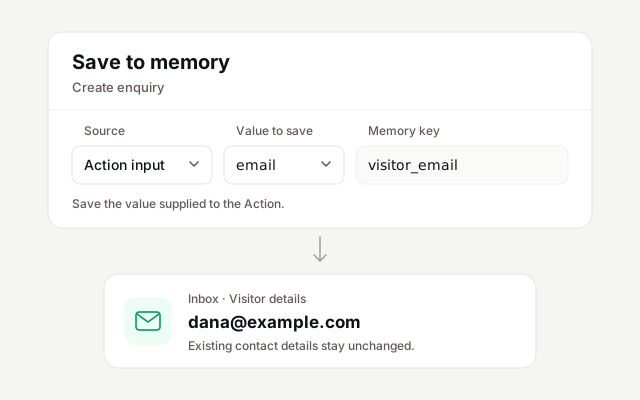
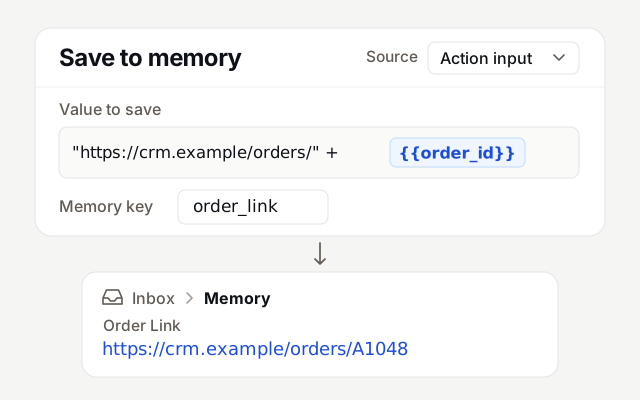
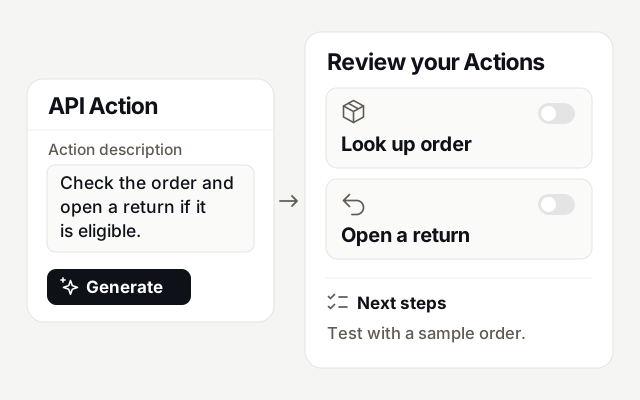
Save to memory in API Actions has a new Source column. Choose Action input and select one of the Action's parameters to save the value it was called with, such as the email the AI Agent sent to your CRM. A parameter can also be saved to memory without being sent to the API. Mapping an input to visitor_name, visitor_phone_number or visitor_email fills that empty field in the conversation's visitor details in the Inbox, even if the API call fails, and never replaces contact details that already exist. Existing rules keep reading the API response.
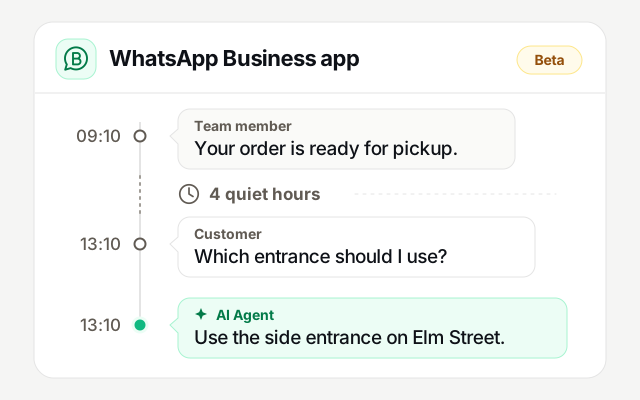
Keep using the WhatsApp Business app on a connected number (beta)
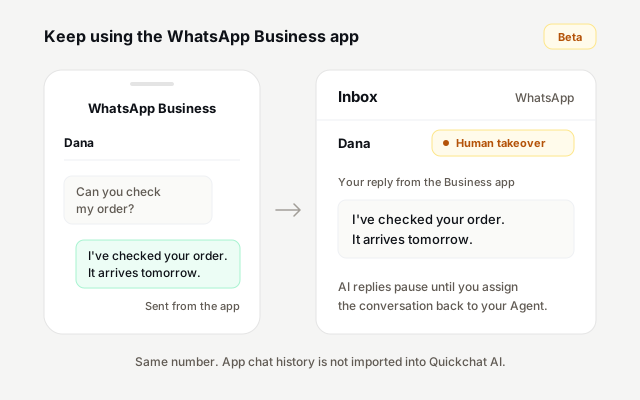
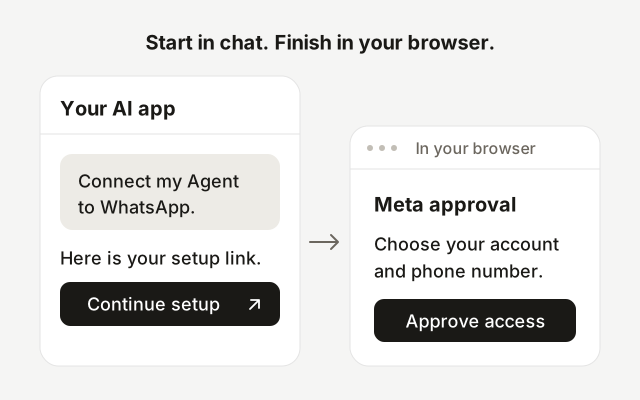
You can now connect a number you already use in the WhatsApp Business app and keep using the app. In WhatsApp setup, choose A number already used in the WhatsApp Business app, then Keep using the WhatsApp Business app (beta). Replies you send from the app appear in the Inbox and take that chat over from the AI Agent until you assign it back. Chat history from the app is not imported.
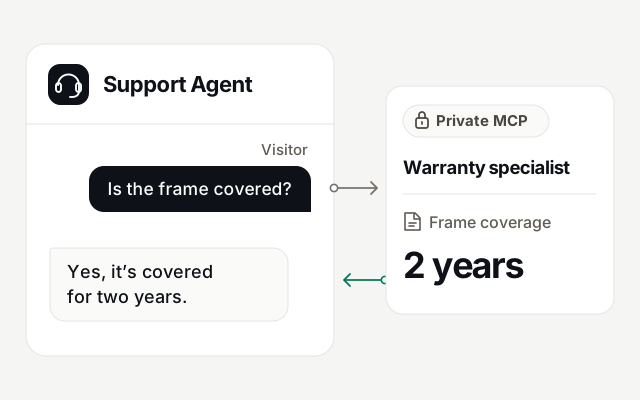
Connect any MCP client to manage your AI Agents
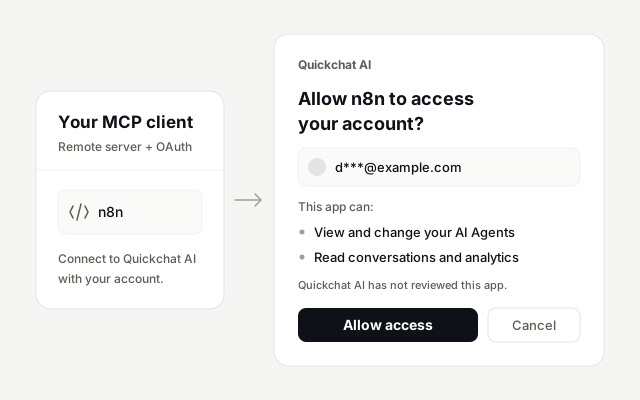
Any app that can add a remote MCP server with OAuth can now connect to your Quickchat AI account, including n8n, Make, VS Code and Microsoft Copilot. Before access is granted, apps outside the built-in list show a consent page that names the app and your account. Connected AI apps can also read and change Human Handoff settings, such as the confirmation message, working hours and email alerts.
Sign in with a passkey
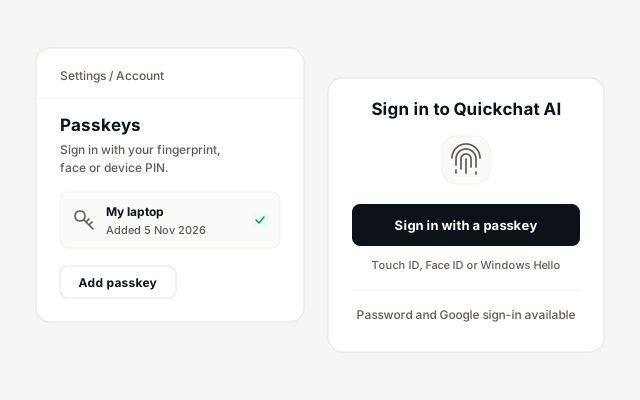
You can now sign in to Quickchat AI with a passkey, using Touch ID, Face ID, Windows Hello or your phone. Add one in Settings under Account, then choose Sign in with a passkey on the login page. Password and Google sign-in keep working, the login page marks the method you used last, and as with passwords, 10 failed attempts lock the account for 30 minutes.