

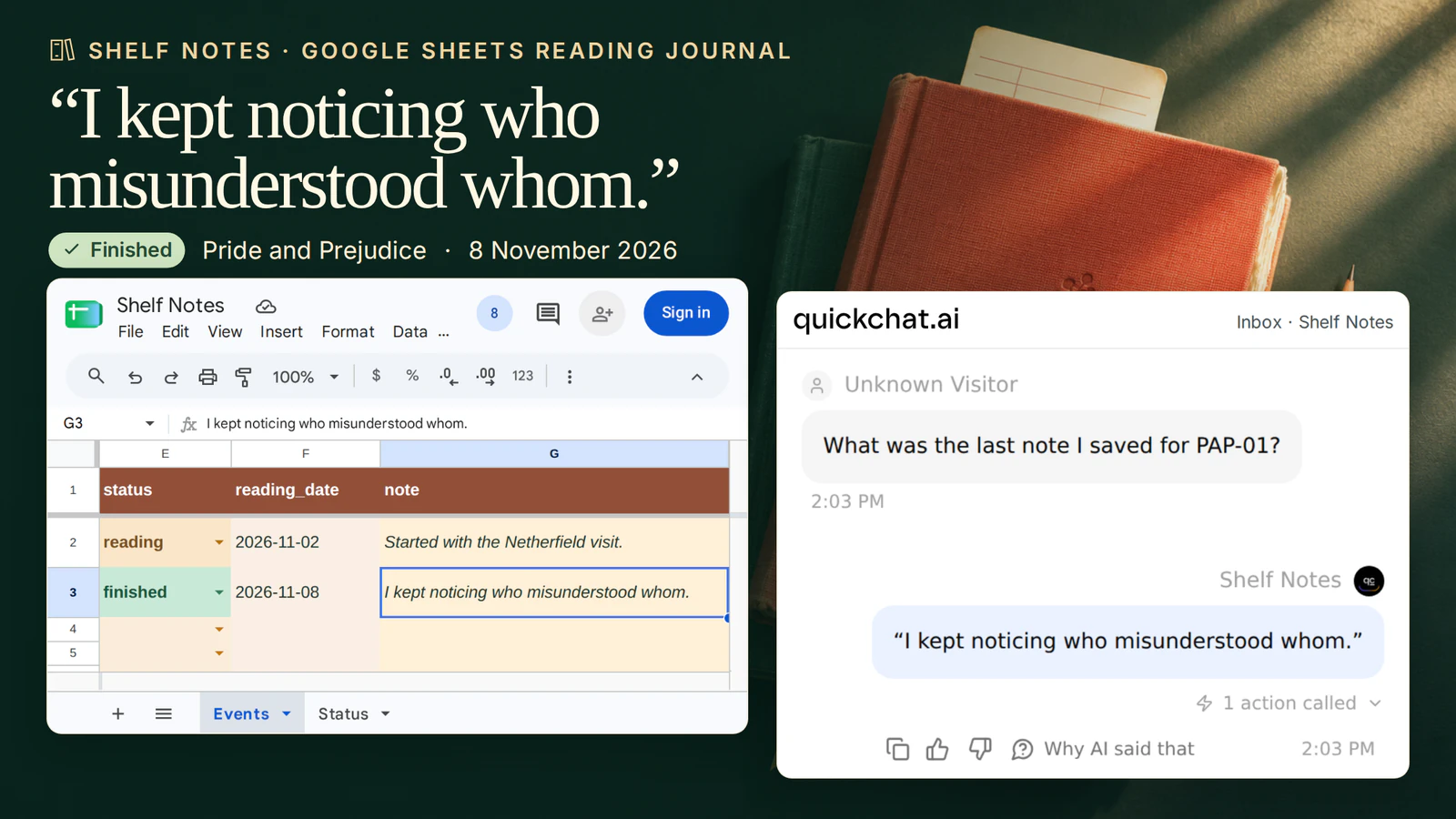
What did you write when you finished Pride and Prejudice? In this reading journal, the answer is “I kept noticing who misunderstood whom.” It belongs to the Penguin paperback, ISBN 9780141439518, finished on 8 November. The sentence is still there when you open a fresh chat.
You’ll build Shelf Notes, a private reading tracker in Google Sheets. Open Library supplies the edition details, you supply the date and the thought you want to keep, and a Quickchat AI Agent puts them on the same row after you confirm.

Download the Shelf Notes starter kit. Open Shelf Notes.xlsx to see the finished example. Use the two TSV files to build your own journal in Google Sheets. They start you one entry earlier, while the reader is still reading. The kit also contains the exact Action settings and Main Prompt.
1. Which edition is on your shelf?
Try the lookup before you connect anything. Open the edition for ISBN 9780141439518. It is a 435-page English paperback published by Penguin Books in 2003. Jane Austen’s novel first appeared in 1813. Both dates belong to Pride and Prejudice, but only one describes the copy on the desk.

- Create or sign in to Quickchat AI. Use your empty Agent, or choose Add new AI Agent → Set up manually. Name it Shelf Notes. You’ll need a Google account for the journal and available AI credits to test a conversation.
- Before adding personal notes, open Your Website → Install → Availability and access. Turn off Widget & Embed access, set Chat Page Access to Nobody, and keep other channels disconnected. Use AI Preview in your signed-in dashboard.
- Under Identity → Main Prompt, paste
main-prompt.txtfrom the kit. It tells the Agent to show the proposed entry and wait for a separate confirmation. - In Actions & MCPs → Add Action → API Action → Create manually, make the two GET Actions below. For each, use When to run → AI decides, add one required Text parameter named
isbnunder What to ask the user first, and leave the body empty. Remove spaces and hyphens from the number, retaining leading zeroes and a final ISBN-10X.
| Action name | API endpoint | What to use from the result |
|---|---|---|
lookup_book_isbn | https://openlibrary.org/search.json | In Query Params, enter isbn={{isbn}}, fields=key,title,author_name,first_publish_year and limit=1. The work supplies the author and the novel’s original year. |
lookup_edition | https://openlibrary.org/isbn/{{isbn}}.json | Check that the supplied number appears in isbn_13 or isbn_10. Read the publisher, edition date and language when present. Add the returned /books/ key to https://openlibrary.org for the source link. |
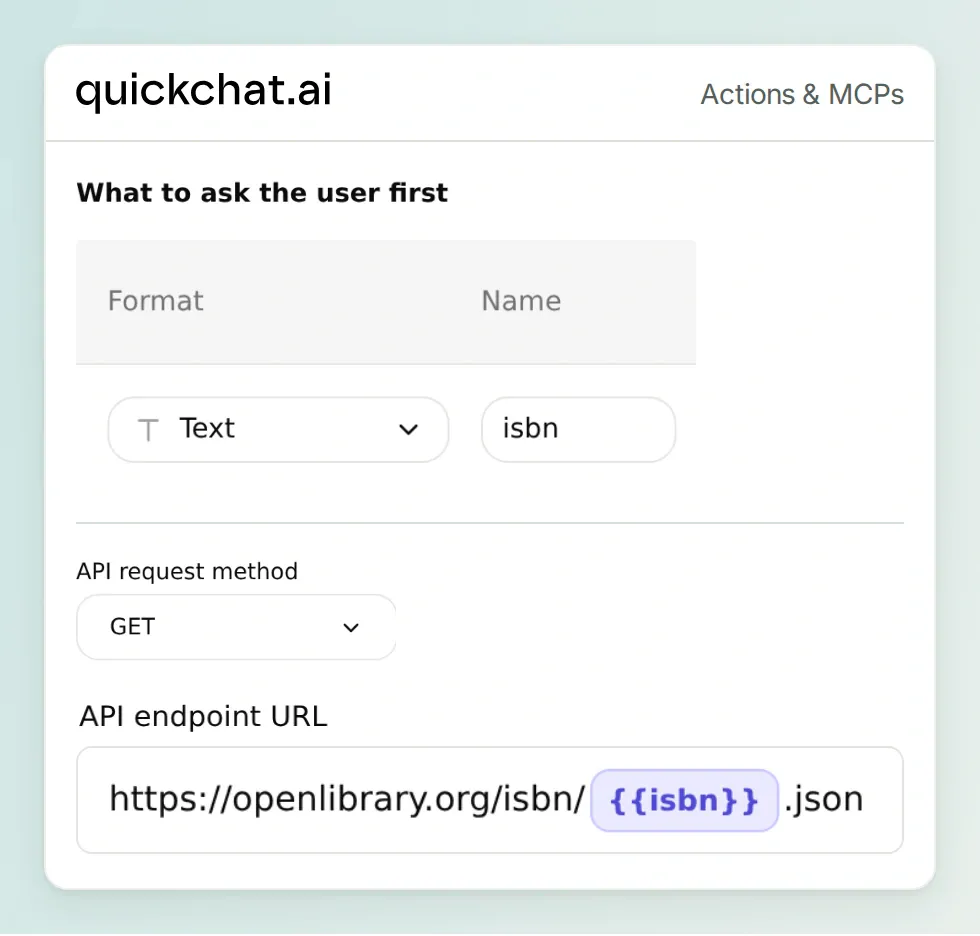 Type the ISBN into the conversation. The Action inserts it into a URL whose host is fixed in the editor.
Our first search also requested the work’s list of editions. For this one ISBN that brought back 4,042 edition IDs. Removing that field left the author and original year in a short response. The second request still returned the one paperback we wanted.
Under Headers, give each request a User-Agent of ShelfNotes/1.0 (YOUR_CONTACT_EMAIL), replacing the example contact with yours. Paste the matching API Action Description from action-recipes.md, save and enable each Action. Try “Look up ISBN 978-0-14-143951-8.” You should see the edition without creating a journal entry. This personal lookup needs no Open Library account. Use it when someone asks about a book and follow Open Library’s API usage guidelines.
2. What belongs in the reading journal?
Give the catalogue facts and your own observations separate columns. You might lend someone this exact edition and disagree about every character. The ISBN stays the same. Your note belongs to your reading, identified here as PAP-01.
- Open Actions & MCPs → Add Action → Google Sheets → Connect. Authorize the Google account that will own the journal, then choose Open sheet. The connection creates a spreadsheet in Drive under its
drive.filegrant. The Google Sheets connection walkthrough shows the authorization screens. For a personal journal, open Share in Google Sheets and keep General access set to Restricted. - Switch off the active starter Action,
log_lead_to_google_sheet. Keep its name and copy its API Endpoint with the file ID already filled in. Leave the starter off. You’ll create separate Actions for this journal.
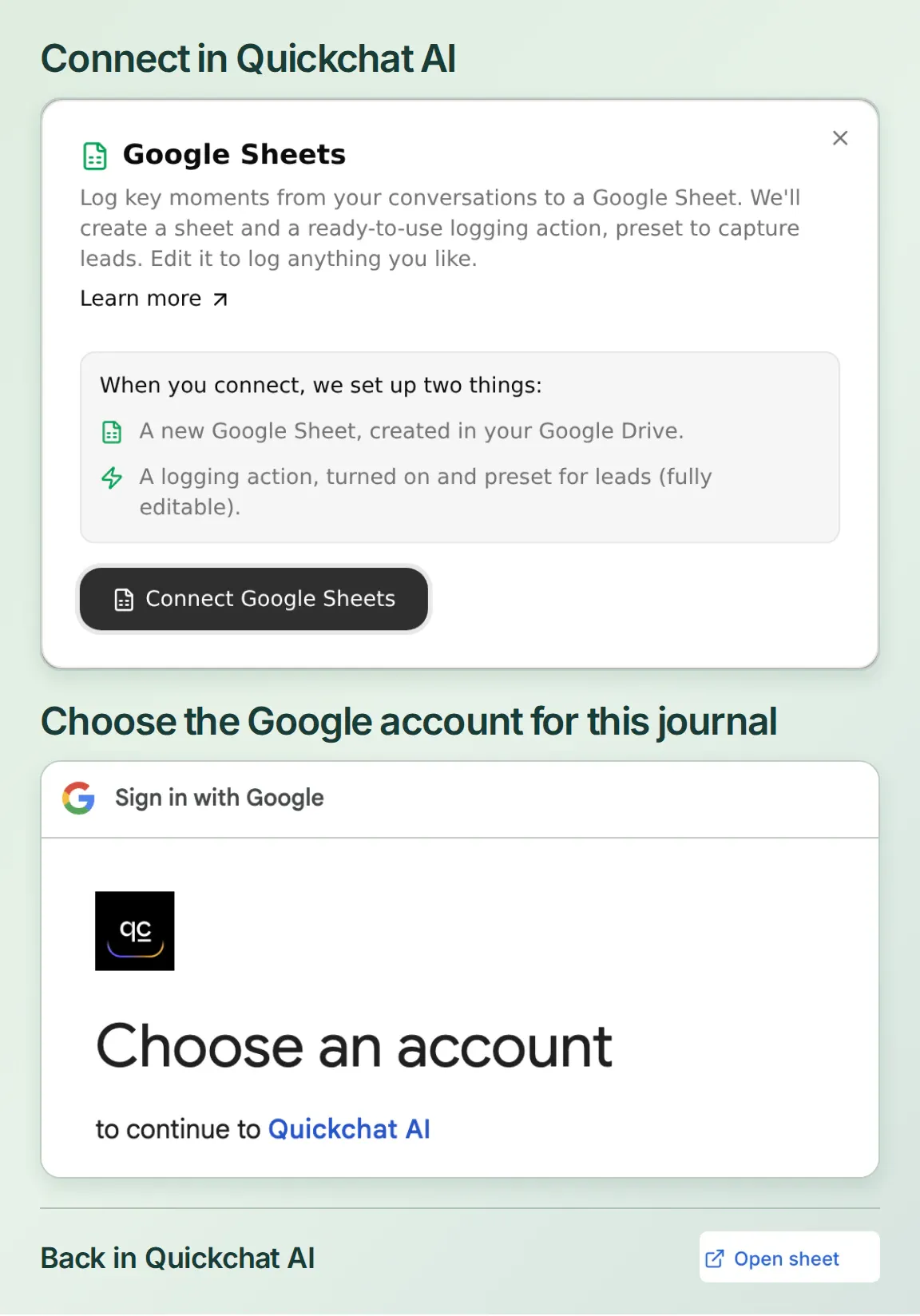 Open the file created for this Agent. The starter Action already contains the spreadsheet ID you need.
- Rename the Leads tab to Events and replace its contents with
Events.tsv, starting at A1. Format columns B (ISBN) and F (date) as Plain text before pasting. Add a second tab called Status. In a new example sheet, use File → Settings → Locale → United States so the formulas below accept commas.
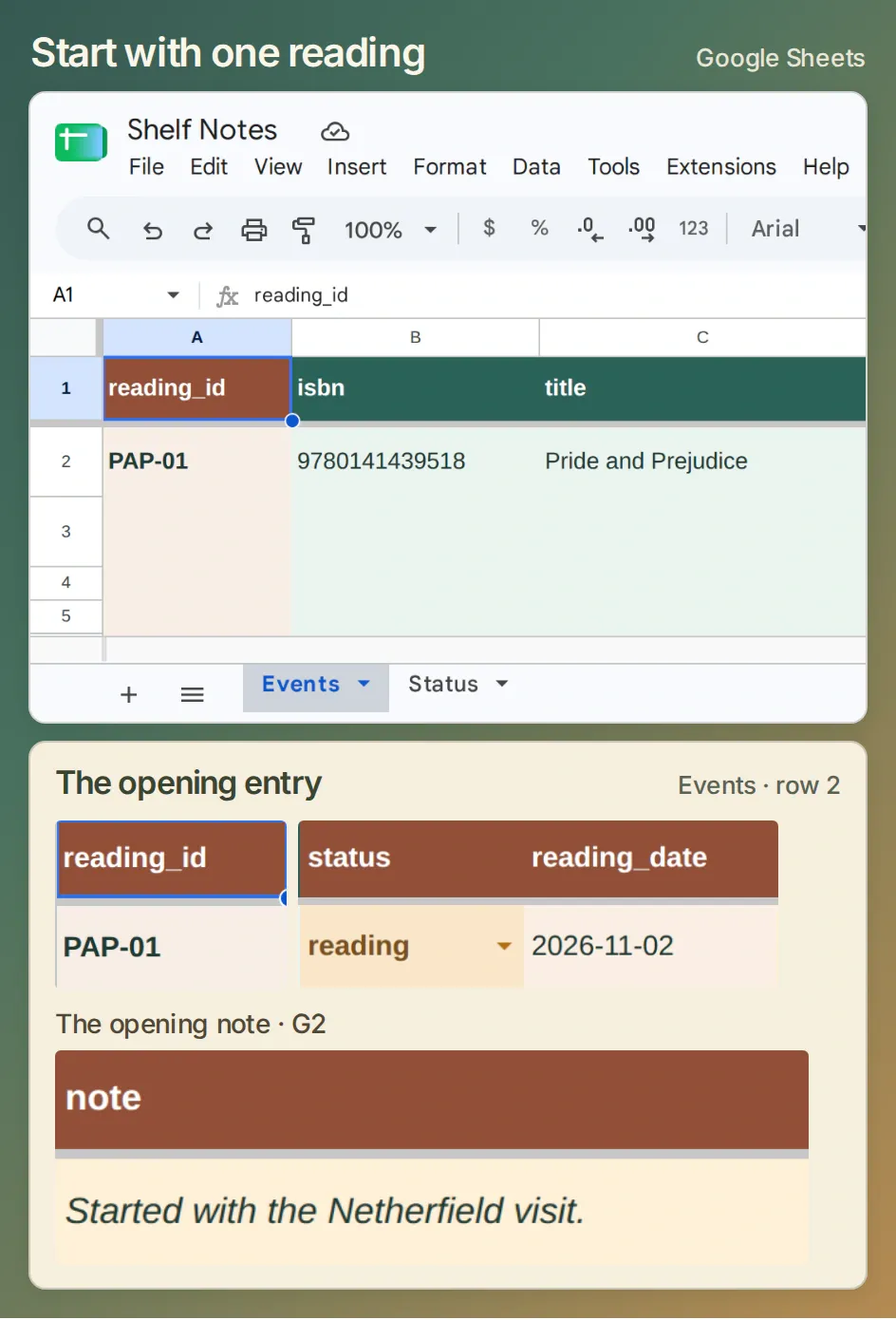 Start with row 2. PAP-01 is still reading, with “Started with the Netherfield visit.” in G2. After you confirm, the finished entry will appear in row 3.
The eight Events columns, in order, are reading_id, isbn, title, edition_url, status, reading_date, note and conversation. The last cell holds a link back to the conversation. The starter’s first event says reading on 2 November. Its note is “Started with the Netherfield visit.”
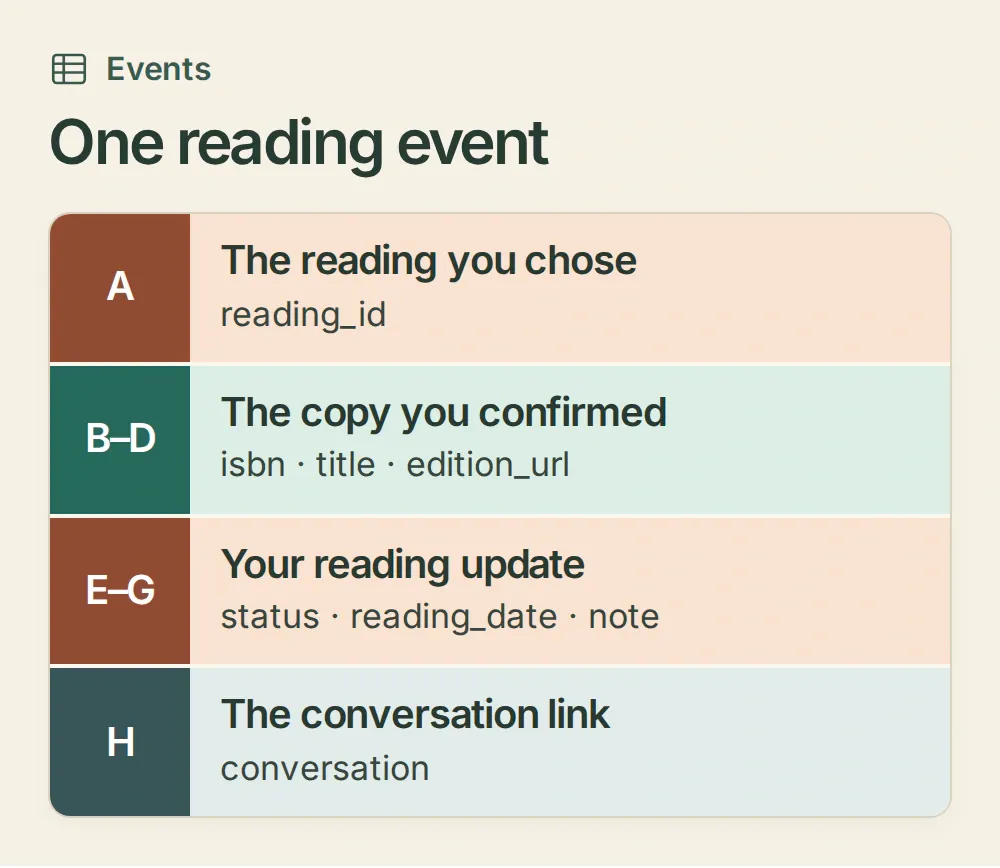 Keep one reading ID while a book moves from reading to finished. Choose a new one when you return to the book for a reread.
3. How do you save a reading note by ISBN?
The lookup answers “Which book?” Saving answers a different question, “Is this what I want to remember?” Set up one Action to append the confirmed row and another to check what the spreadsheet actually contains.
- Create an API Action named
append_reading_event. Copy the starter’s Sheets URL, keeping everything through its actual file ID. Replace the rest with/values/Events!A:H:append. Set POST and add the Query Params entryvalueInputOption=RAW. The raw input mode preserves ISBNs and treats a note starting with=as text. - In Headers, set
AuthorizationtoBearer {{google_sheets_access_token}}andContent-Typetoapplication/json. Quickchat AI fills in the token at request time. - Add six required Text parameters named
reading_id,isbn,title,edition_url,statusandreading_date. Add an optional Text parameter namednotewith a blank default. Choosereading,finished,pausedorabandonedfor status. Use the reader’s date asYYYY-MM-DD. - In API Endpoint → Body, paste the JSON below. The two sets of brackets mean one row with eight cells.
conversation_urlis built in. Paste the kit’s append description into API Action Description. - Create
read_reading_journalas a GET to the same spreadsheet, ending in/values/Events!A2:H1000. Give it the same bearer header, the kit’s history description, no parameters and an empty body. Save and enable both Actions.
{
"values": [[
"{{reading_id}}", "{{isbn}}", "{{title}}", "{{edition_url}}",
"{{status}}", "{{reading_date}}", "{{note}}", "{{conversation_url}}"
]]
}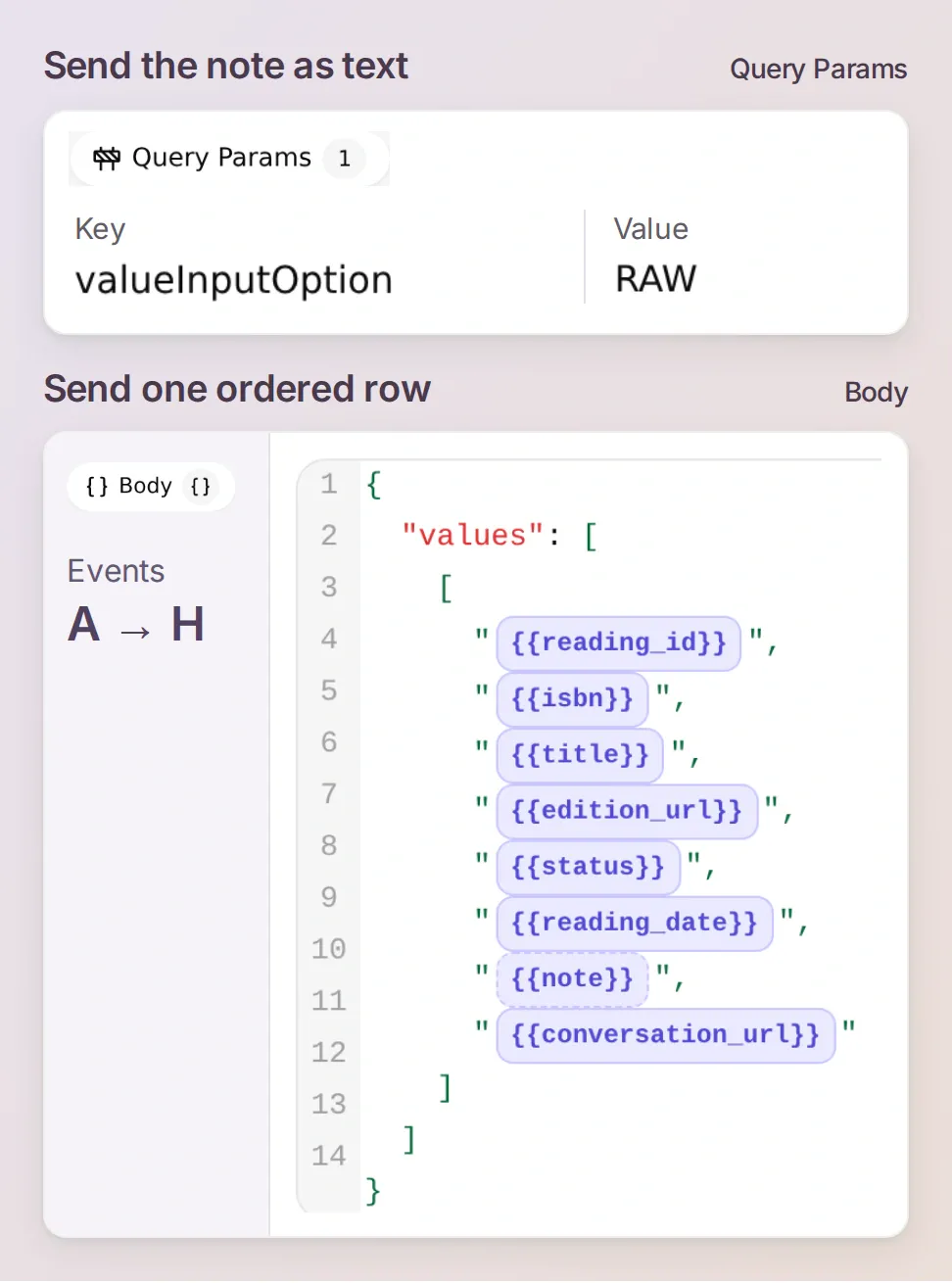 The array lines up with columns A through H. Keeping the note in the seventh position puts the reader’s words in column G.
With the starter row in place, send the following message in AI Preview.
Look up ISBN 978-0-14-143951-8. I finished PAP-01 on 2026-11-08. My note: I kept noticing who misunderstood whom.Check the proposed edition, ID, date and punctuation. At this point Events should still contain just the opening entry. Then say “Yes, that is my edition. Save PAP-01 with that status, date and note.” A second event should appear on row 3.
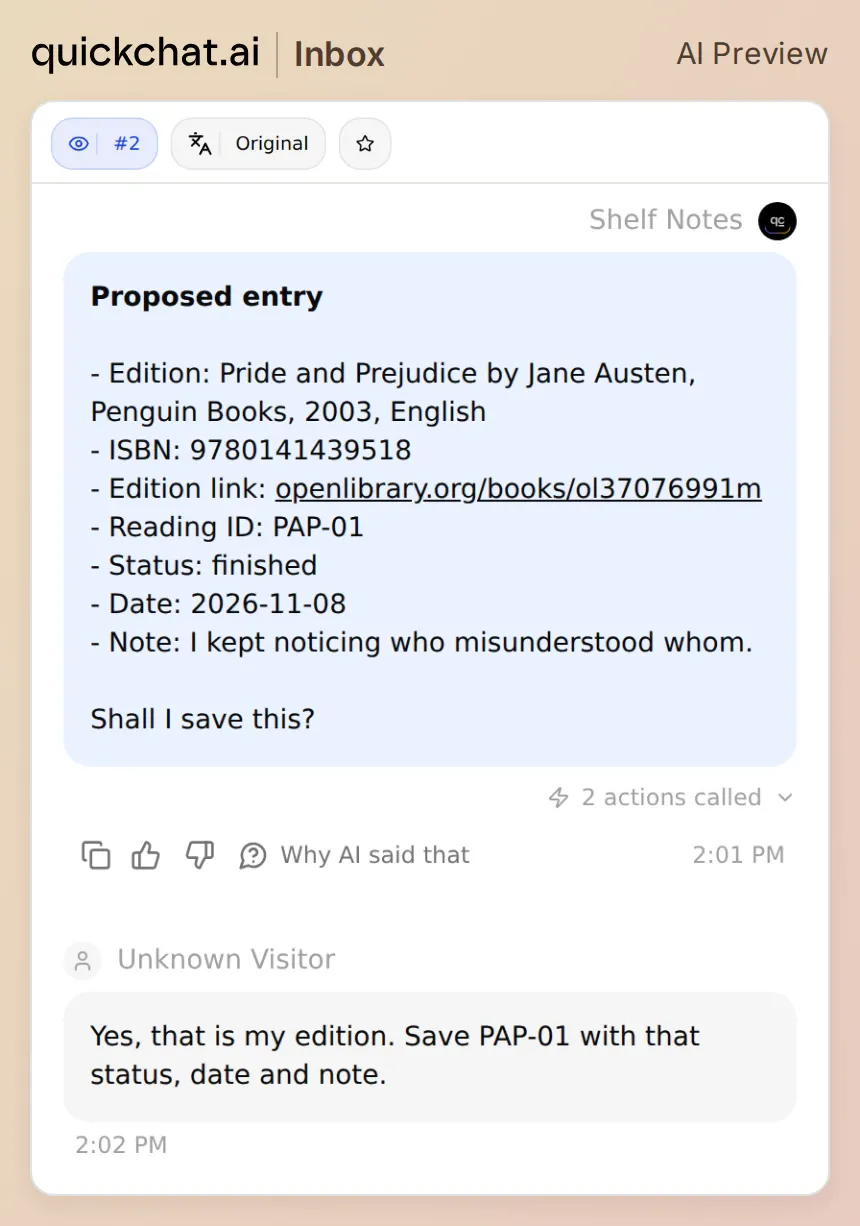 The proposal gives you one last look at the ISBN and your wording. You can correct either before the journal changes.
In our live run, the proposal left the opening row untouched. After confirmation, Shelf Notes checked the journal, rechecked the ISBN, appended once and read the new row back. In Inbox, expand append_reading_event and compare Google’s updates.updatedRange with the cells in your sheet. If a request times out, look for the row before trying again. Google Sheets append reference
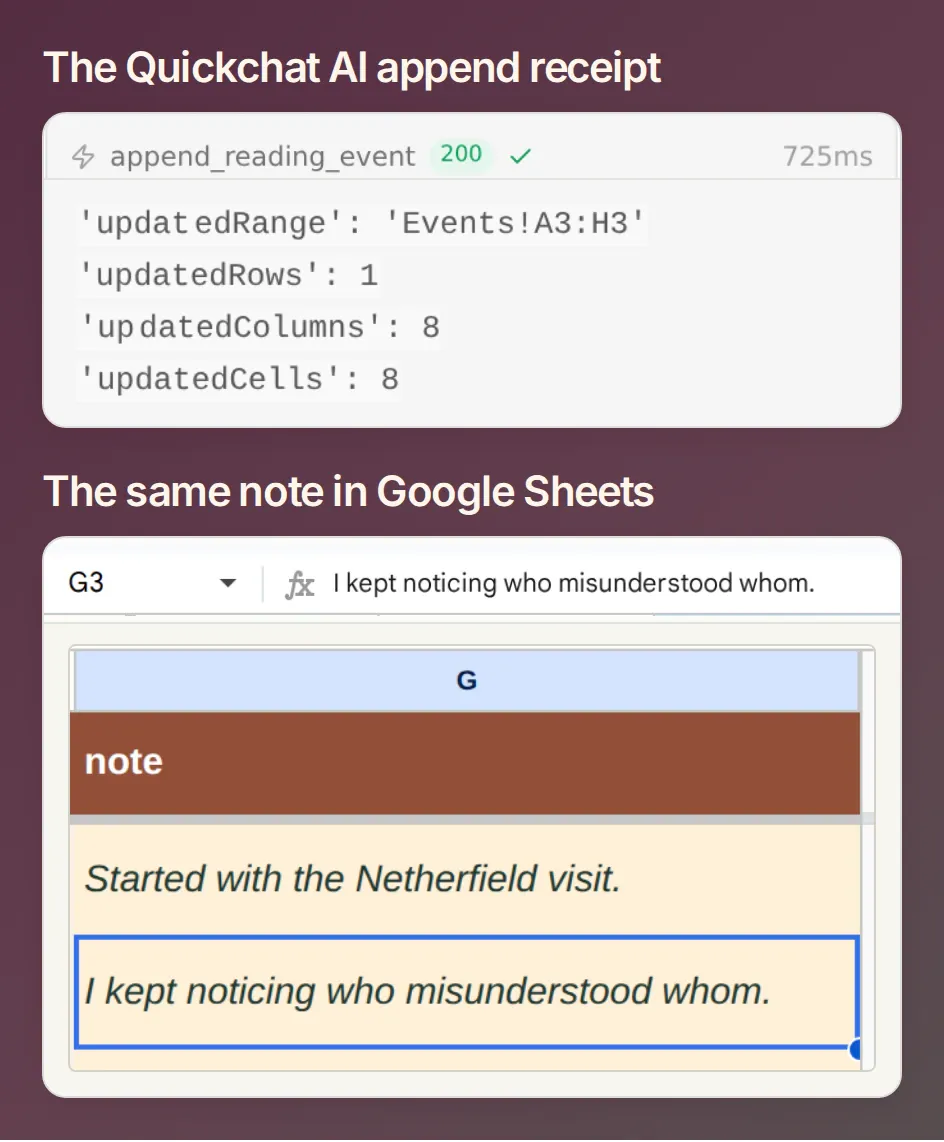 Google reported one row and eight cells updated at Events!A3:H3. Select G3 to compare its text with the note you approved.
4. What can you ask in a fresh chat?
Open a new conversation in AI Preview and ask “What was the last note I saved for PAP-01?” In our test, the Agent read Events again and returned “I kept noticing who misunderstood whom.” Row 2 still holds the earlier Netherfield note. Google can omit empty cells at the end of a returned row, so a blank conversation link in your starter row is expected.
For “Which books am I still reading?”, two events for one reading would give a misleading answer if you counted each row. Use the Status tab to select the last appended event for each reading ID.
- Paste
Status.tsvinto Status!A1. Its formula in A2 lists each reading ID once. B2 uses an exact-match lookup starting at the bottom of Events. Fill B2 down alongside new IDs as your shelf grows. D2 counts IDs whose latest status isfinished. - Create
read_reading_status, another GET with the same bearer header, using the suffix/values/Status!A1:B1000. Paste the kit’s status description, leave the body and parameters empty, then save and enable it. - Ask which books are finished. For the sample, Status has one finished reading,
PAP-01. For a second trip through the novel, give itPAP-02. You can then distinguish what you noticed the first time from what you noticed the second.

Copy the three Google Sheets formulas
Status!A2 lists the IDs.
=SORT(UNIQUE(IFERROR(FILTER(Events!A2:A1000,Events!A2:A1000<>""),"")),1,TRUE)Status!B2 looks up the most recent event for the ID in column A.
=IF(A2="","",XLOOKUP(A2,Events!$A$2:$A$1000,Events!$E$2:$E$1000,"",0,-1))Status!D2 counts finished readings.
=COUNTIF(B2:B1000,"finished")The recipe covers 999 events. Before a new entry would land below row 1000, extend the read ranges and formula ranges together. Keep long notes and large collections in mind when choosing how much history to return in one conversation. Google Sheets XLOOKUP reference
5. Does it work with the book on your desk?
Pick up another book and try its printed ISBN. Ask for the edition, then stop. A good first check is that you can browse a book without adding it. Next, give it a reading ID and a sentence only you could have written. Confirm it, close the chat and ask for that sentence back.
For repeatable checks, use Testing → Simulation, then inspect Actions & MCPs → View logs and the destination cells. Try an unrecognized ISBN, decline a proposed entry, and save a test note starting with =1+1. The first two should leave the history alone. The last should display the literal characters in the note cell.
We also made the local sheet save a row and then time out before replying. Shelf Notes read the row back, reported the timeout and made no second append. You can check the same detail in the Action log if a save ever leaves you wondering whether to press send again.
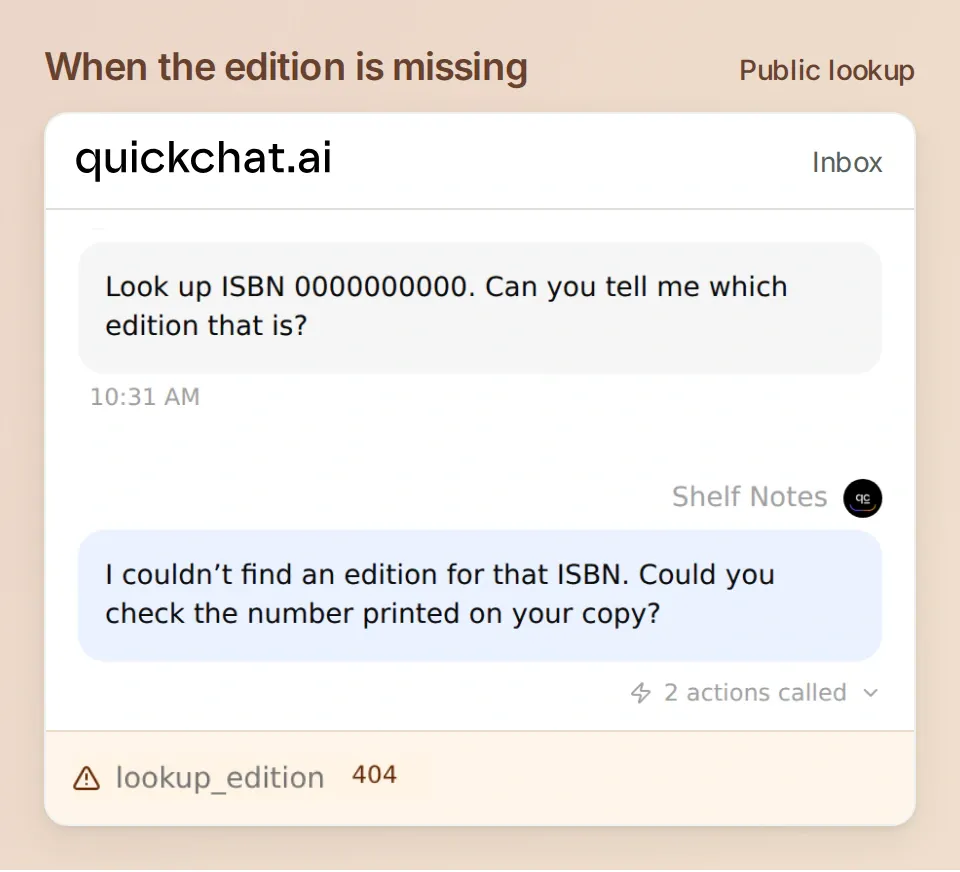 In the missing-edition test, the catalogue returned 404. The Agent asked for another identifier and the journal kept its two rows.
If you prefer to configure the Agent from another assistant, the kit includes a setup request for the Quickchat AI account connector. Attach action-recipes.md and main-prompt.txt, then give it setup-request.txt. Review the five Actions, complete Google’s authorization yourself and run the same reading test. ChatGPT connector · Claude connector · Account setup guide
Frequently asked questions
How do I add a book to Google Sheets by ISBN?
Use the ISBN printed on your copy to look up its Open Library edition. Check the title, publisher and year, add your reading status and note, then confirm the row. The starter kit includes the sheet headers, formulas and all five Quickchat AI Action recipes.
Can I use a reading tracker I already have in Google Sheets?
Copy the entries you want into the Events tab of the spreadsheet created by the Quickchat AI connection. Match the eight columns and keep ISBNs as text. Pasting another private file’s ID into the Action does not give it permission to open that file.
What if Open Library cannot find my ISBN?
Check the number on the barcode or copyright page, including any leading zero or final X. If the edition still cannot be verified, leave the journal unchanged. An ISBN identifies an edition and does not grant access to the book’s full text.
How do I count finished books and keep track of rereads?
Give each reading its own ID. Keep that ID when you pause or finish the book, and give a reread a new ID. Count finished entries on the Status tab. Two finished readings of the same edition then count twice, while two updates to one reading count once.
Can I find a reading note after I close the chat?
Yes. Ask for the book or reading ID in a new private chat. The history Action reads the Events tab again, where the dated entries and your original wording are stored. The Status tab supplies the most recently recorded state for each reading.