

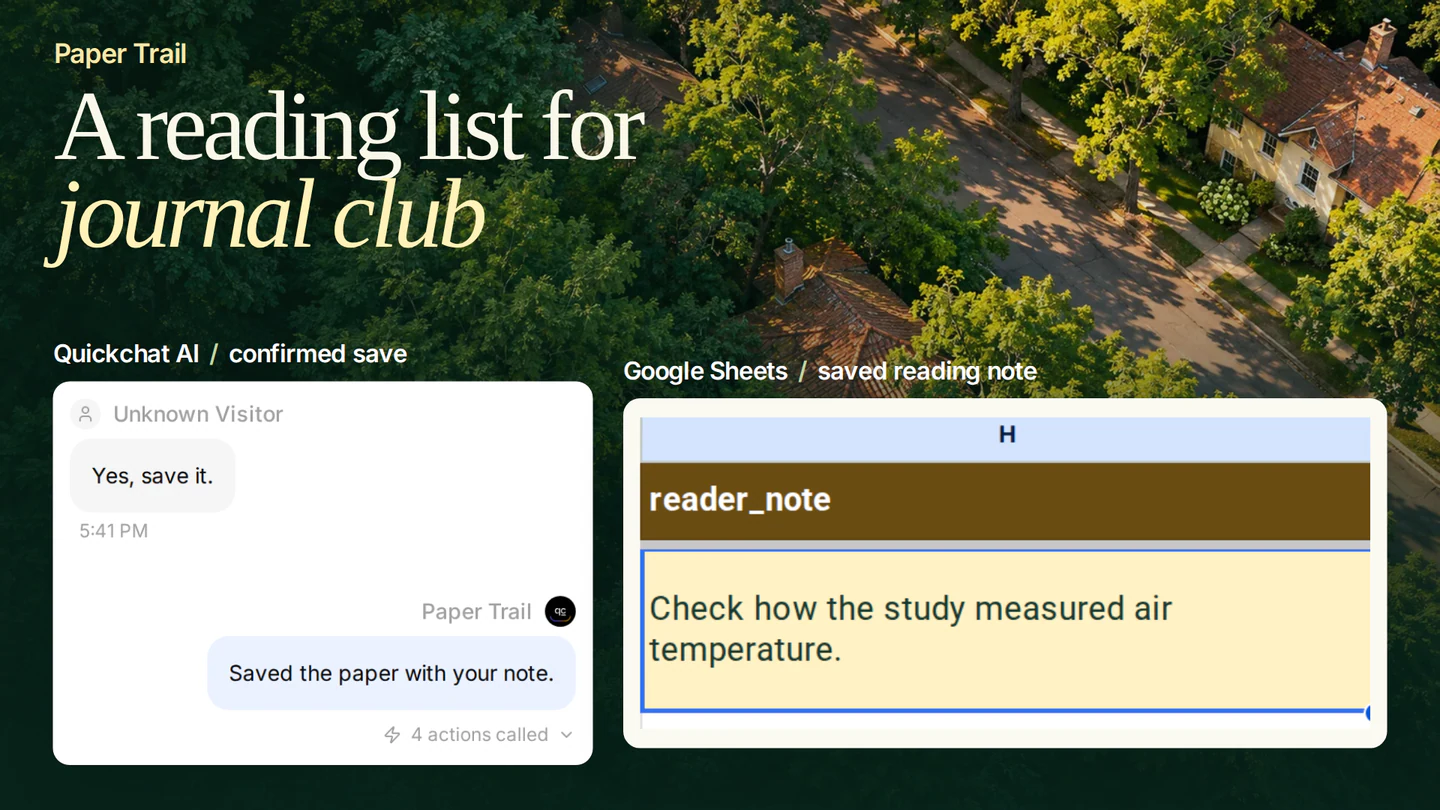
A journal club is choosing what to read about shade and city heat. One paper reports up to 1.5 °C of cooling from increased tree cover. A reader looking at satellite images of hot pavement could easily take that figure for surface temperature. The authors were talking about air temperature. That distinction is worth taking to the meeting, along with the citation.
Use the Semantic Scholar API and a private Quickchat AI Agent called Paper Trail to search by topic and year, open a paper by its identifier, and save your choice to Google Sheets. The finished entry keeps the authors’ title, the DOI and a note in your own words. Our note for this paper was “Check how the study measured air temperature.”
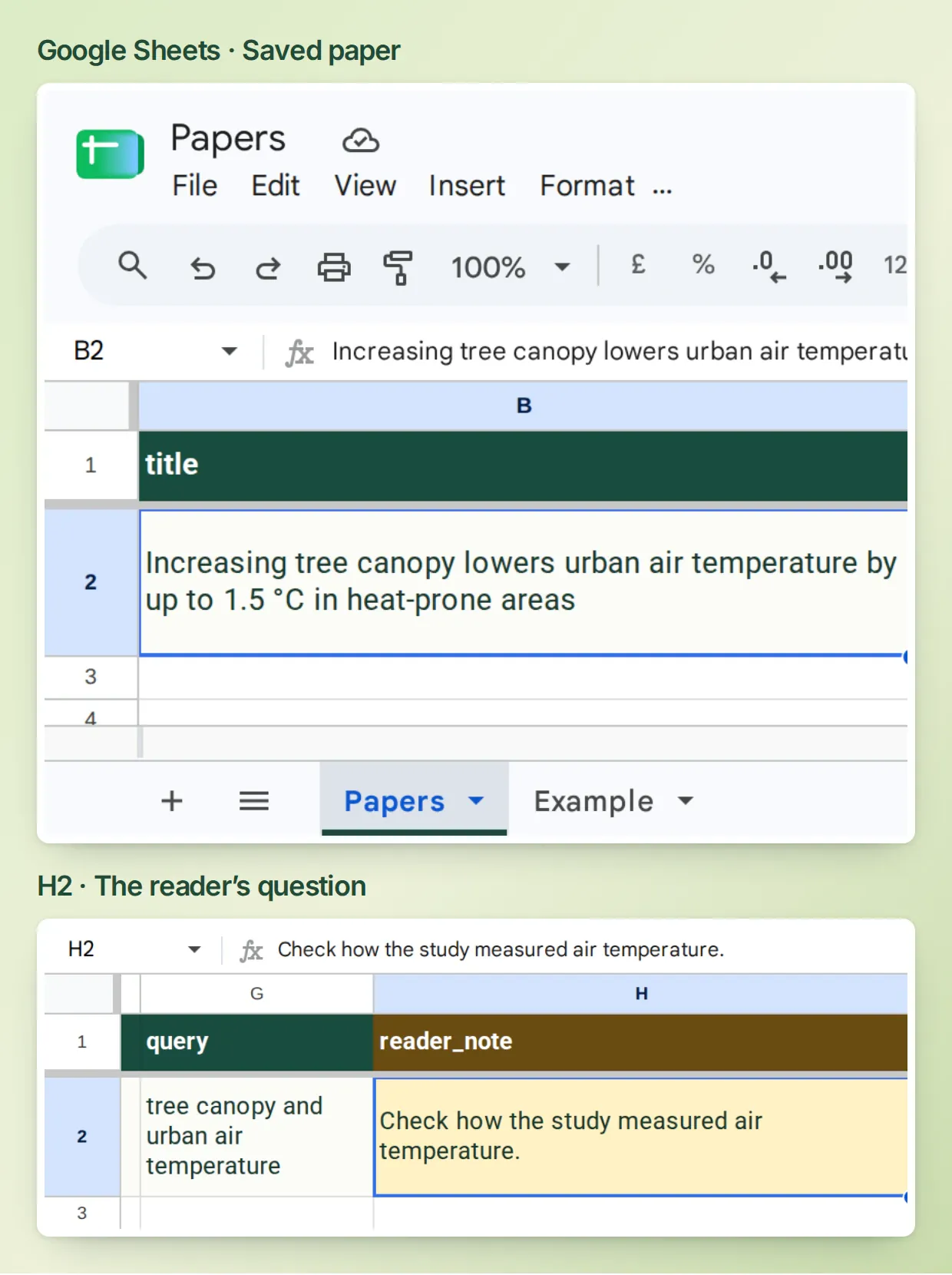 The title identifies the paper. H2 holds the question to bring to the meeting. The downloadable workbook puts both on its Reading card tab.
Download the Paper Trail example workbook. You can open the paper and inspect the finished row before connecting either account. The public copy leaves the private conversation link blank.
1. How do you find five papers on a narrow question?
Give Paper Trail a topic and an explicit publication period. For our journal club, try “Find up to five papers about tree canopy and urban air temperature published in 2025 or 2026.” The search ranks papers by relevance. Start with a handful you can inspect.
- Create a Quickchat AI account or sign in. Choose Add new AI Agent → Set up manually, name it Paper Trail, and open Your Website → Install → Availability and access. Switch off Widget & Embed access, set Chat Page Access to Nobody, and leave shared channels disconnected. Use your signed-in AI Preview. You need credits for test replies. Google comes in at step 3.
- Open Actions & MCPs → Add Action → API Action → Create manually. Set API Action Name to
search_recent_papers. Under What to ask the user first, add two required Text parameters. Describetopicas “the research topic in a few words” andyear_rangeas “the requested publication year or inclusive range, for example 2025-2026”.
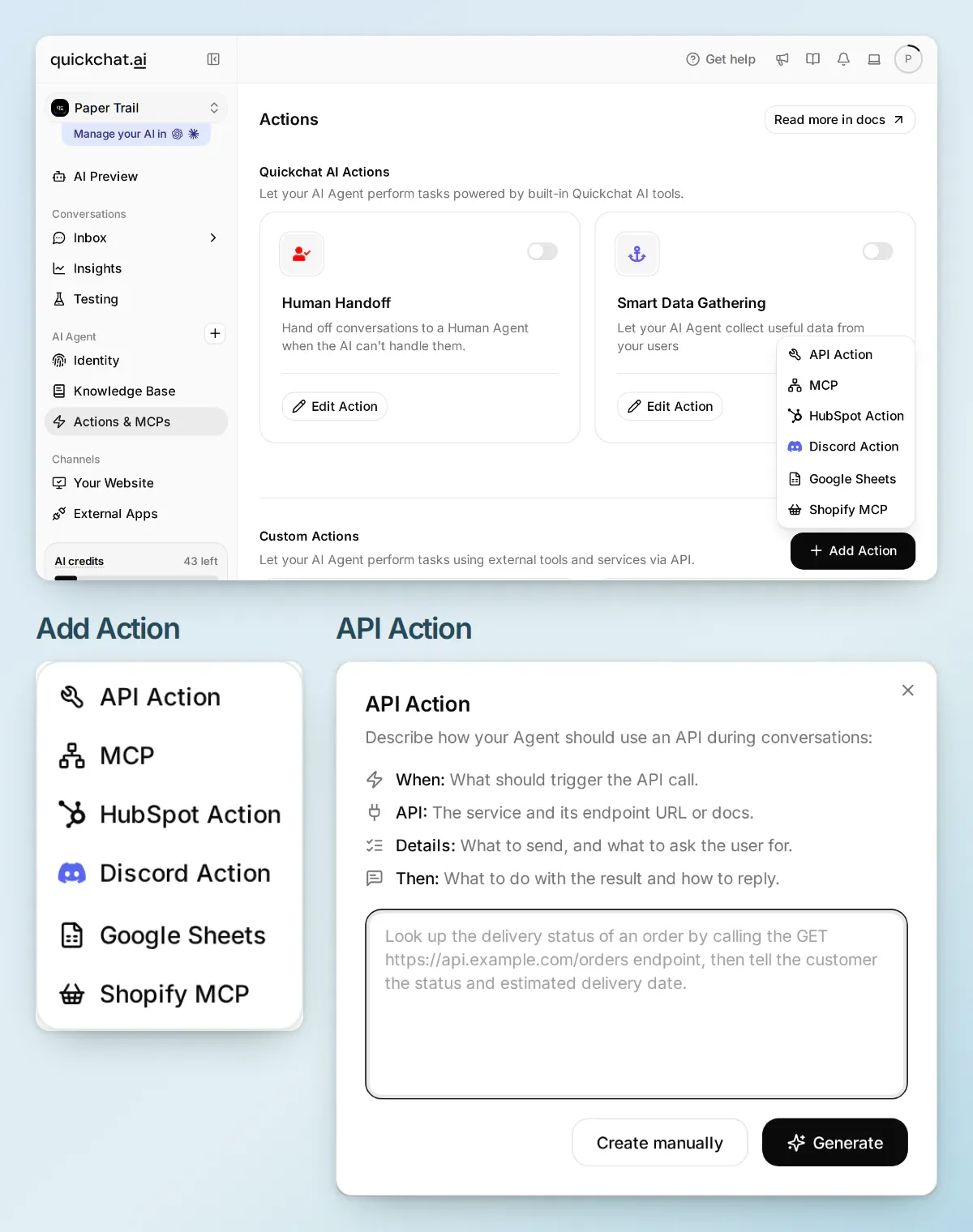 Open the API Action editor from the Agent’s Actions & MCPs page.
- Choose GET. Under Headers, set
Accepttoapplication/json. Put the URL below in API Endpoint, then add the five rows under Query Params. Use Add AI Data to insert the two parameter chips. Leave the request body empty.
https://api.semanticscholar.org/graph/v1/paper/search
query = {{topic}}
year = {{year_range}}
limit = 5
offset = 0
fields = title,url,authors,year,publicationDate,abstract,externalIds,openAccessPdf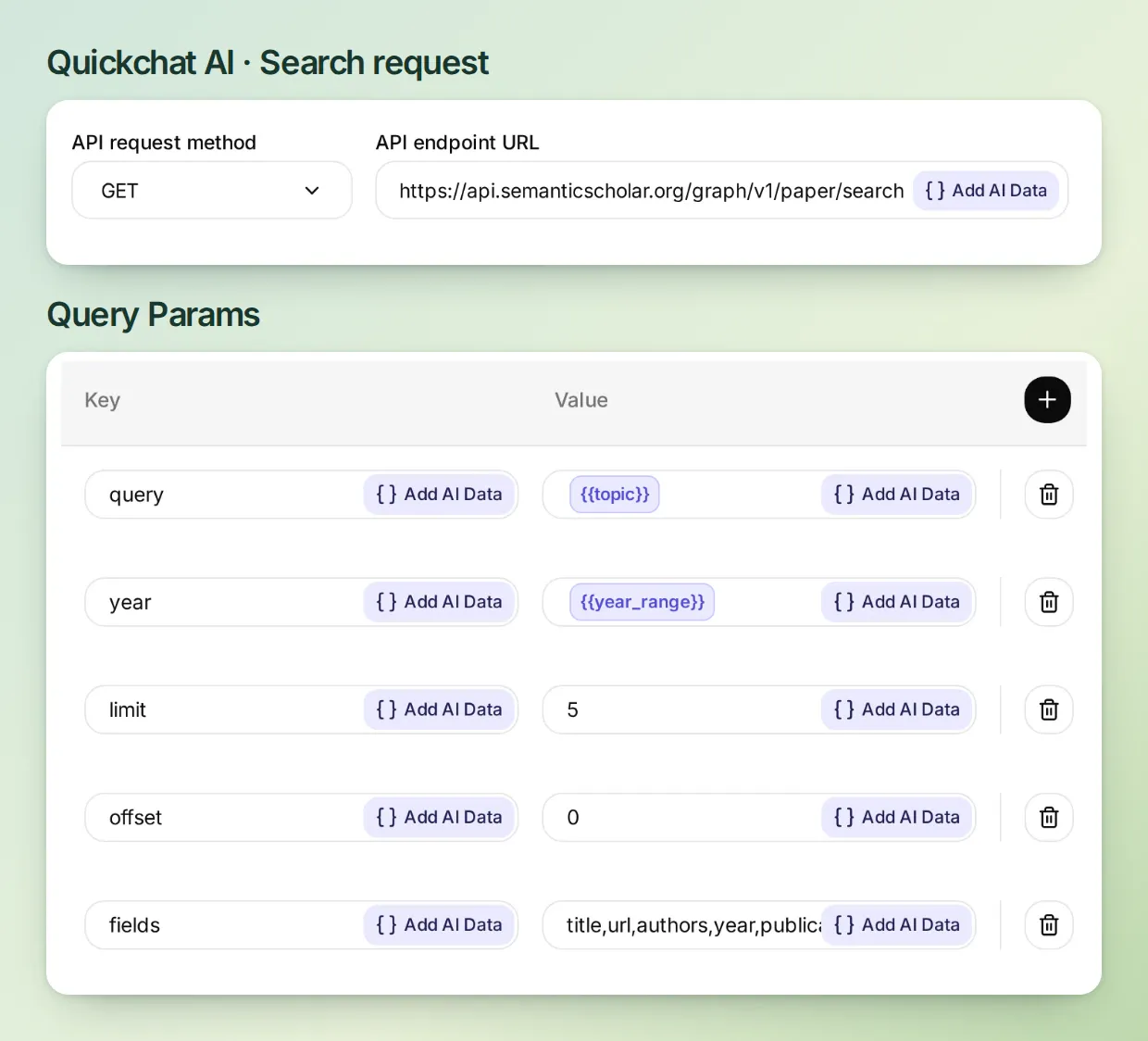 The topic and period change with the question. Keeping the limit fixed gives the reader at most five records to compare.
- In API Action Description, enter the instruction below and save. For a first search, you can use the shared API without a key. For regular use, request a key from Semantic Scholar and add it to both paper Actions as a protected
x-api-keyheader. Semantic Scholar API access · Graph API reference
Search on request for up to five papers on the supplied topic and in the supplied year range. Keep each paperId paired with its exact title, authors, available date, source URL and DOI. Ask for a missing topic or period. If the search fails or returns no records, say so. Show candidates without saving them.Set up the protected header with the Quickchat AI account connector
Open your Quickchat AI account connector in ChatGPT or Claude after creating the two GET Actions. Give it this request.
On Paper Trail, keep search_recent_papers and get_paper_record disabled. On each, stage a header named x-api-key with placeholder value REPLACE-IN-QUICKCHAT and is_secret set to true. Preserve the other settings. Read both back and confirm that the header is secret and the value is redacted. I will enter the real value in Quickchat AI.In each Action’s Headers tab, replace the value in that existing protected row with your issued key. Keep its name, save, reopen and check that the value displays as [redacted]. An ordinary new header row in the editor does not get that protection automatically. Account connector setup
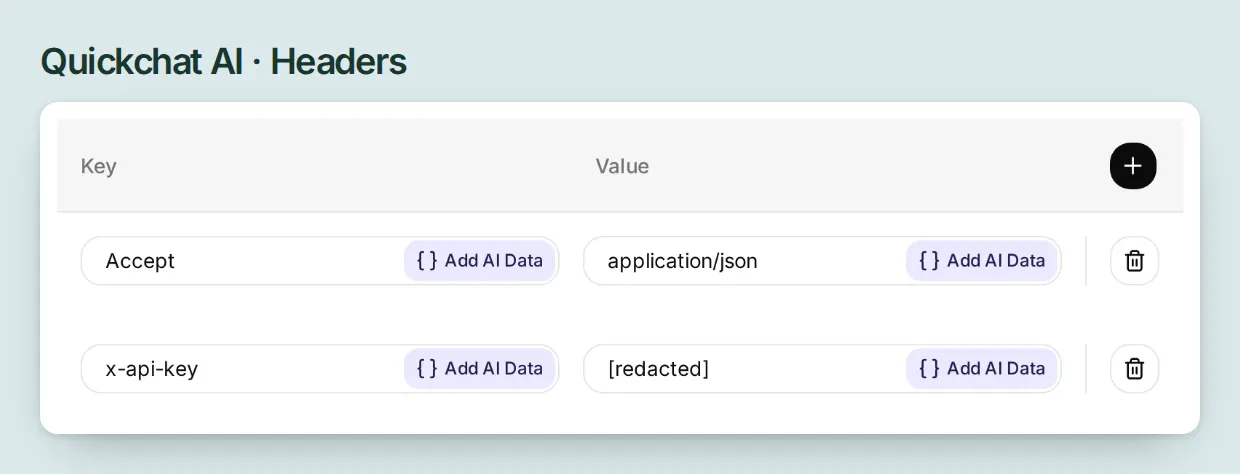 Reopen the saved header to check the value is masked.
Enable the search Action and send the opening question in AI Preview. Paper Trail returned five papers. The list included summer air-temperature measurements from public transport in Rome and a Boston study of tree canopy and cool roofs. We chose the first paper because its title put a number on the cooling effect.
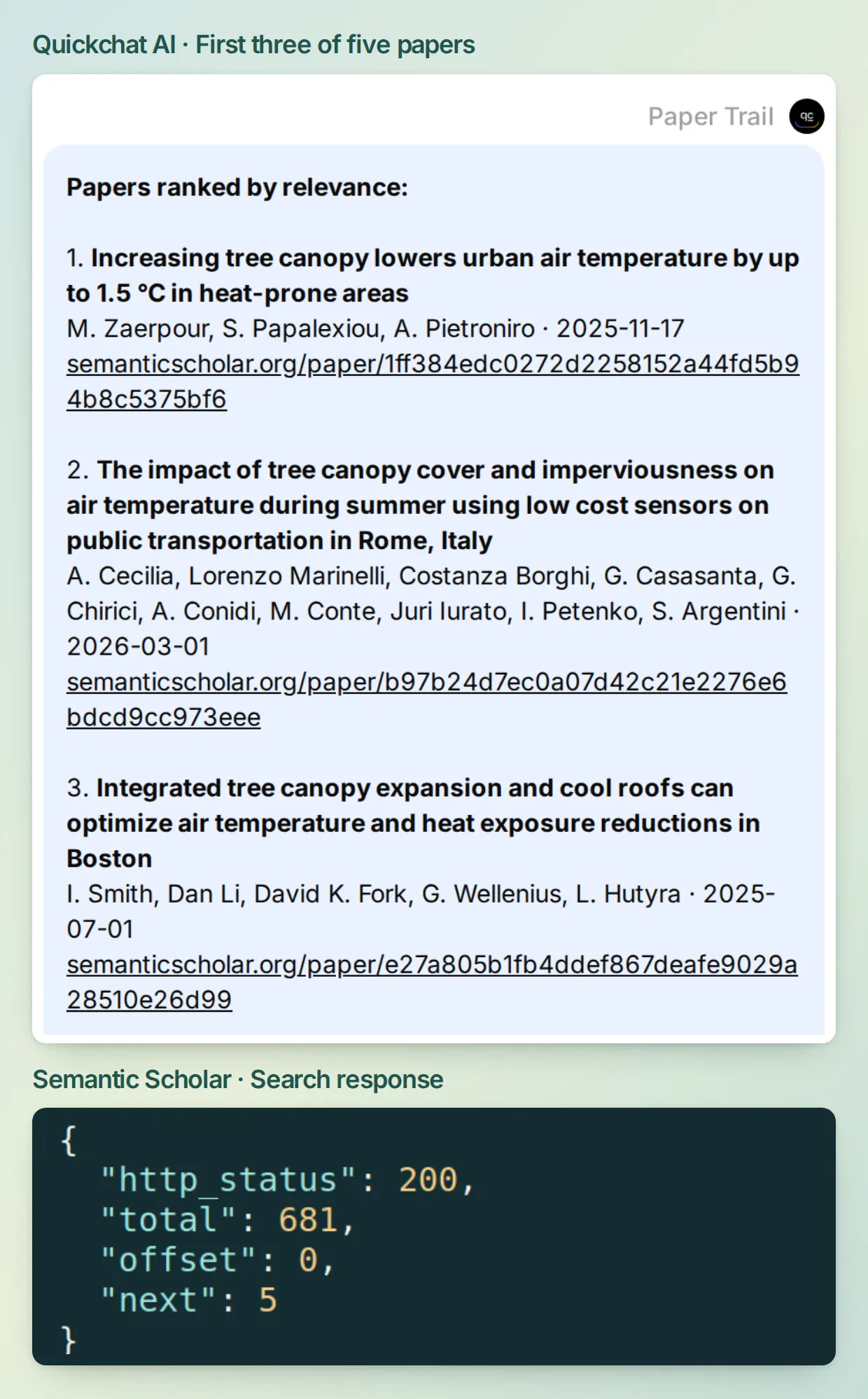 Keep the source link with the title you choose. A fresh search can rank the papers in a different order.
If search returns 429, the provider is limiting requests. An earlier search without a key hit that limit. As a fallback, we searched Crossref for the same topic and period. Its first match was the same canopy paper. You can take a DOI from those results and continue the lookup in Semantic Scholar. Open the five Crossref records
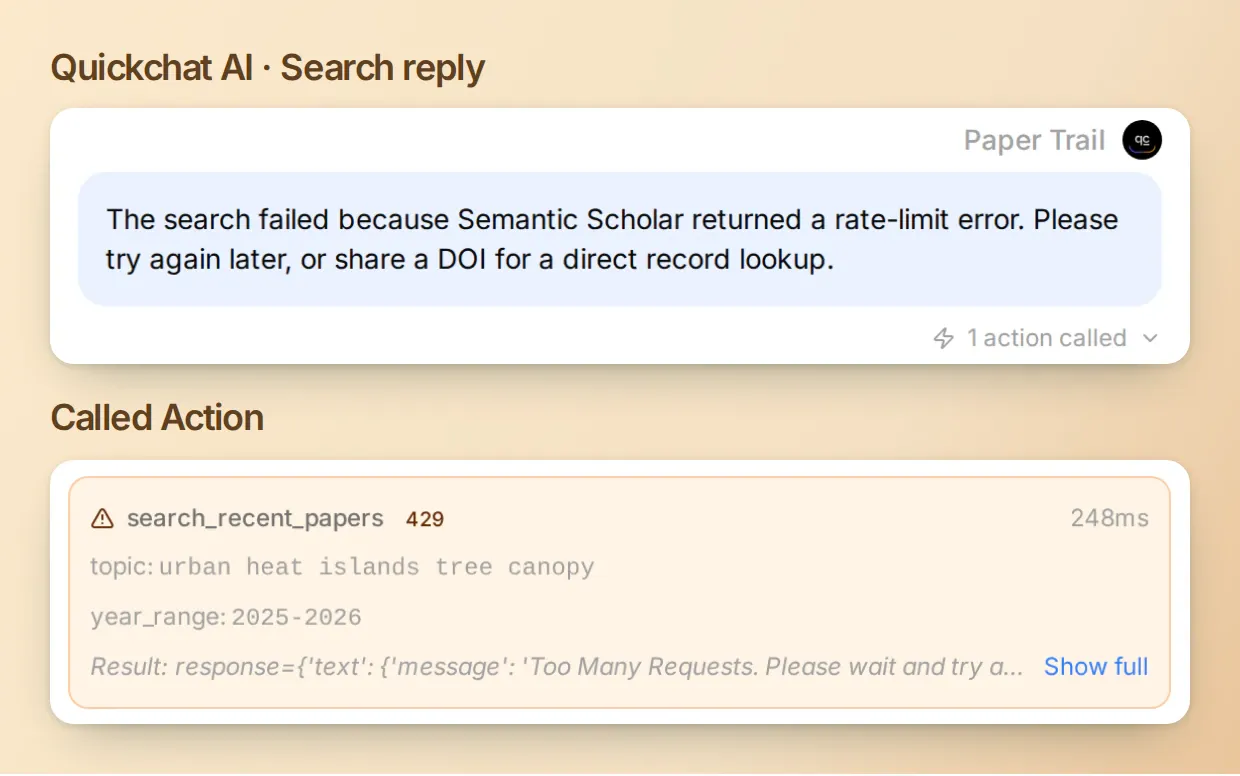 This search reached the shared rate limit. Providing a DOI lets you try a separate record lookup, which has its own response.
2. What does the paper behind the DOI actually say?
Look up the selected paper again before summarizing it. A search rank can move. The stored paper ID leads back to the record, and the DOI lets you compare it with the publisher.
- Create a second API Action named
get_paper_record. Add one required Text parameter,paper_id. Its value is thepaperIdfrom a selected result or a supplied DOI prefixed withDOI:. - Set GET and use the URL below. Add the same
fieldsquery andAcceptheader as in step 1, leave the body empty and finish the protected header setup if you are using a key. In API Action Description, enter “Retrieve the selected record by ID or DOI. Use the returned title, identifiers and source link. Summarize only a returned abstract.” Save and enable both GET Actions. Choose a title from the search results in step 1 and ask Paper Trail to look up its ID. If your search was throttled, use the Crossref DOI in the next step.
https://api.semanticscholar.org/graph/v1/paper/{{paper_id}}- In AI Preview, ask “Look up DOI 10.1038/s42949-025-00277-x. Give me the exact title, year, a source link and one finding from the abstract. Keep it short.” Our Quickchat AI Agent called Semantic Scholar and received HTTP 200. The returned title was Increasing tree canopy lowers urban air temperature by up to 1.5 °C in heat-prone areas. The publisher lists Masoud Zaerpour, Simon Michael Papalexiou and Alain Pietroniro, with a publication date of 17 November 2025. Semantic Scholar record · Publisher’s article
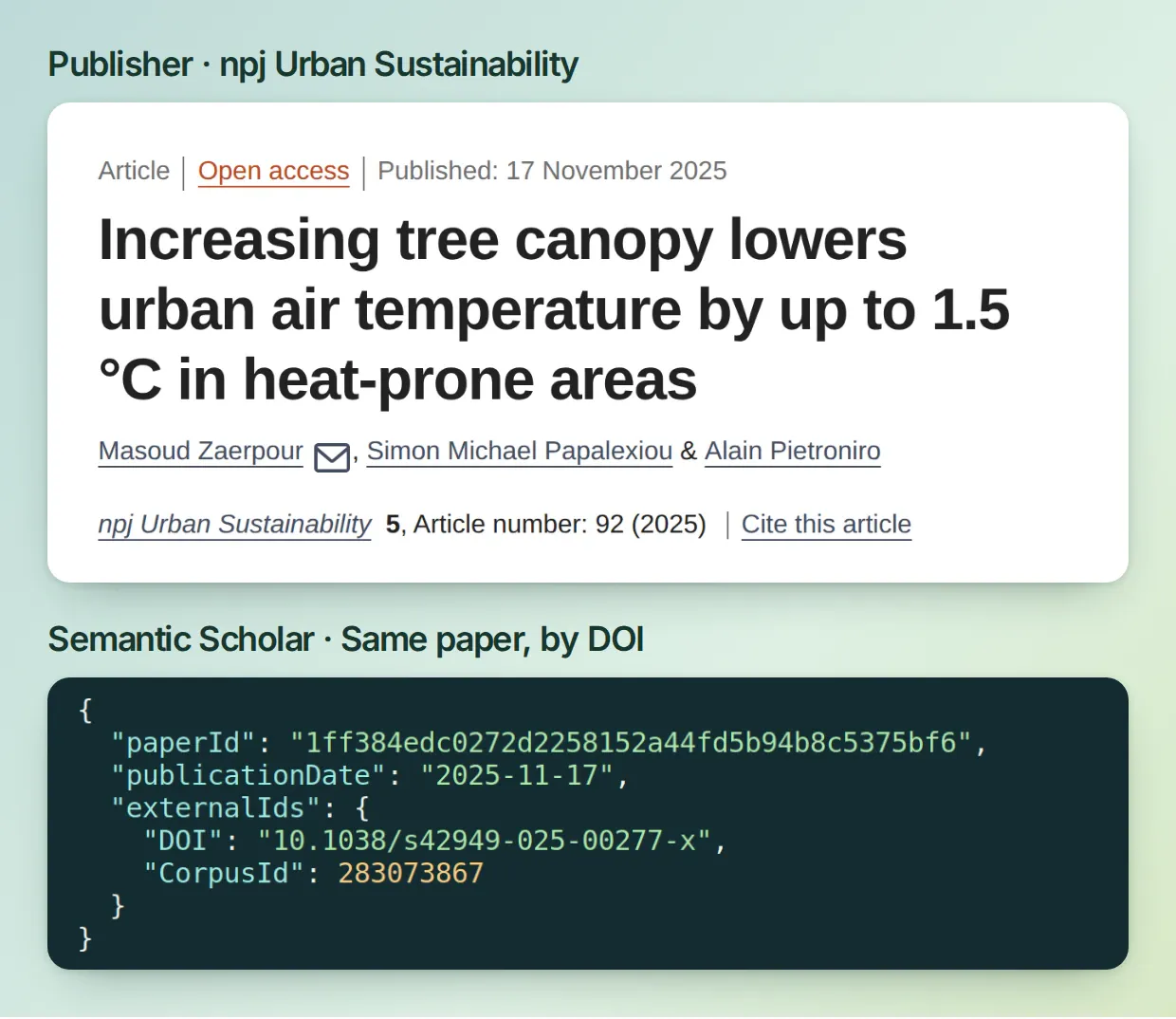 The publisher spells out the authors’ names. Semantic Scholar supplies initials for this record. The matching title and DOI let you check that both describe the same study.
The abstract describes air sensors and satellite observations of surface temperature. The authors report that increasing tree canopy by 30% could lower air temperature by up to 1.5 °C in the heat-prone areas they studied. When we asked how many sensors the authors used, the Agent pointed out that the abstract gives no count. That is a good question to keep for the methods section.
A fifth result from our Crossref search provides a second test. Semantic Scholar recognized its DOI and returned a title and year, but abstract was null. Paper Trail can offer the source link and leave the summary empty. Open the second paper record
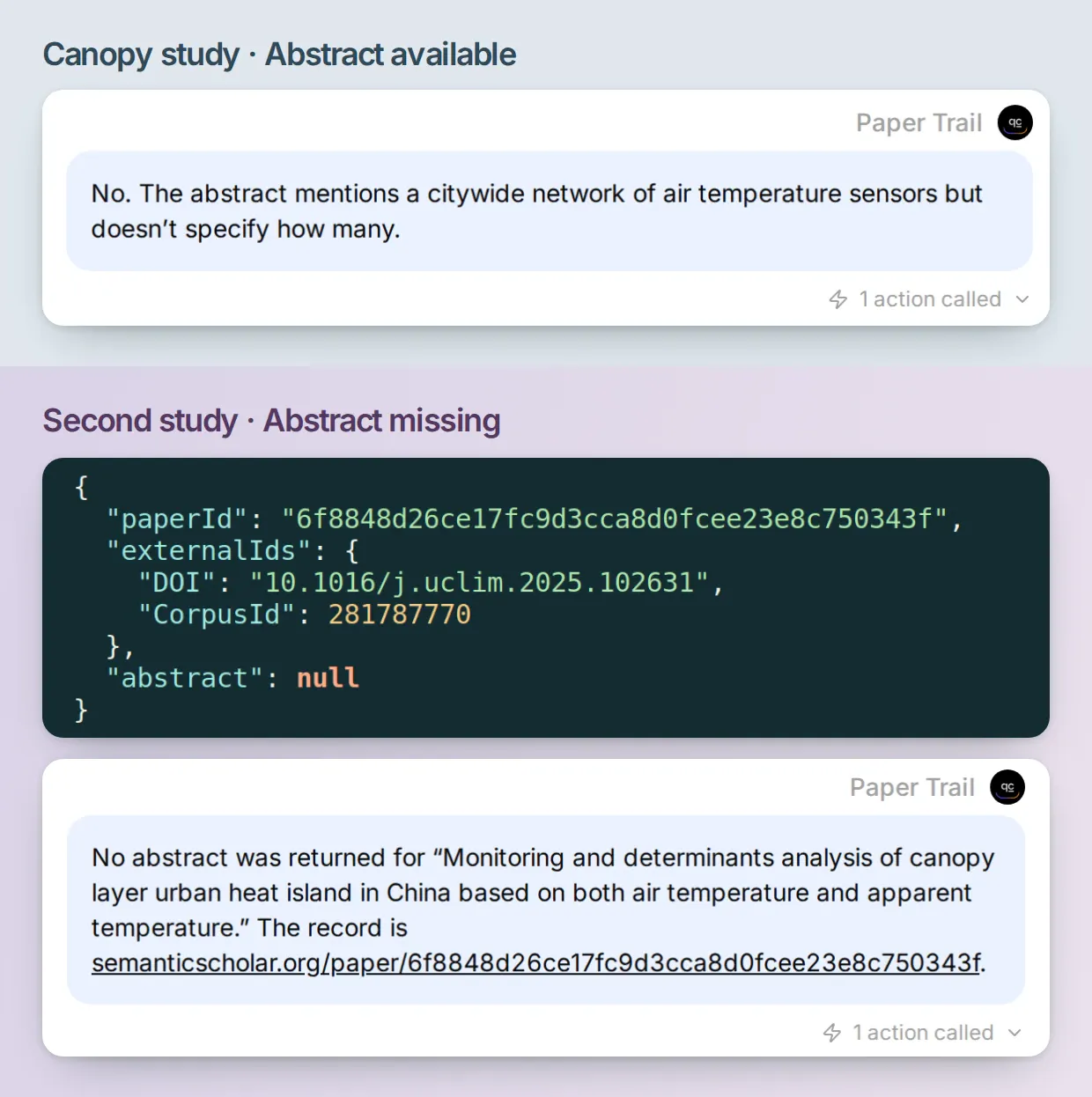 Both papers have an identifier you can save. Only the first lookup provided an abstract to summarize.
3. How do you save a paper and your reading note to Google Sheets?
Connect the Google account that should own the shortlist. Quickchat AI creates a spreadsheet and a starter Action that already knows the correct file ID. Your private Agent will use that file for two jobs, checking an existing row and appending a new one.
- In Actions & MCPs → Add Action → Google Sheets, choose Connect Google Sheets and complete Google’s authorization. Select Open sheet. The connection uses Google’s
drive.filescope. Keep the spreadsheet’s General access set to Restricted. Google Sheets connection walkthrough - Switch off the starter
log_lead_to_google_sheetAction and copy its prefilled endpoint. In the spreadsheet, rename the Leads tab to Papers. Replace the starter headers by copying A1:I1 from the example workbook’s Papers tab. Leave row 2 empty for your own save. If the example already fills row 2, rename that tab Example and create a new Papers tab with just the headers.
paper_id title authors year source_url doi query reader_note conversation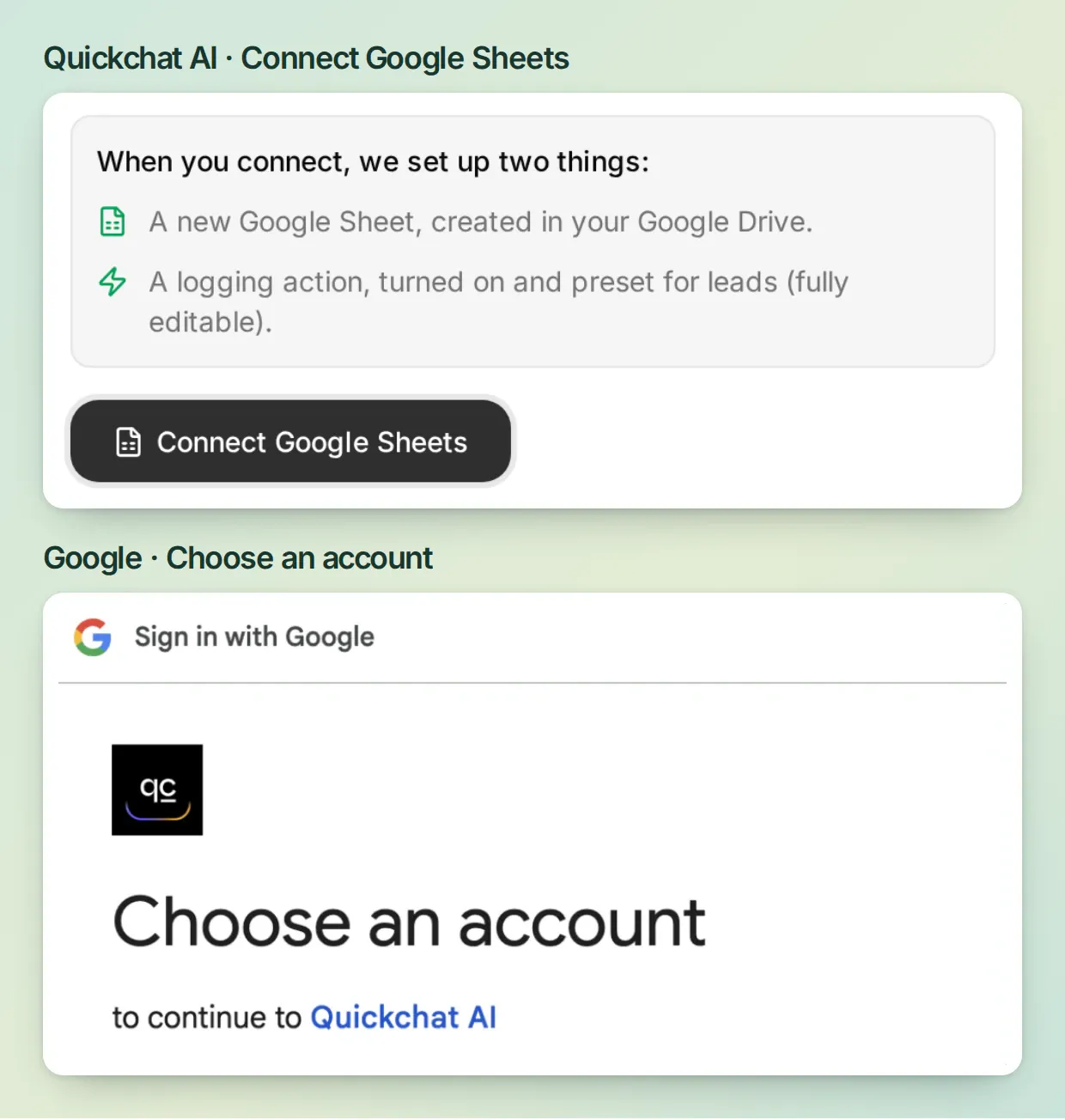 The account you select owns the new spreadsheet. Use the file opened by this connection.
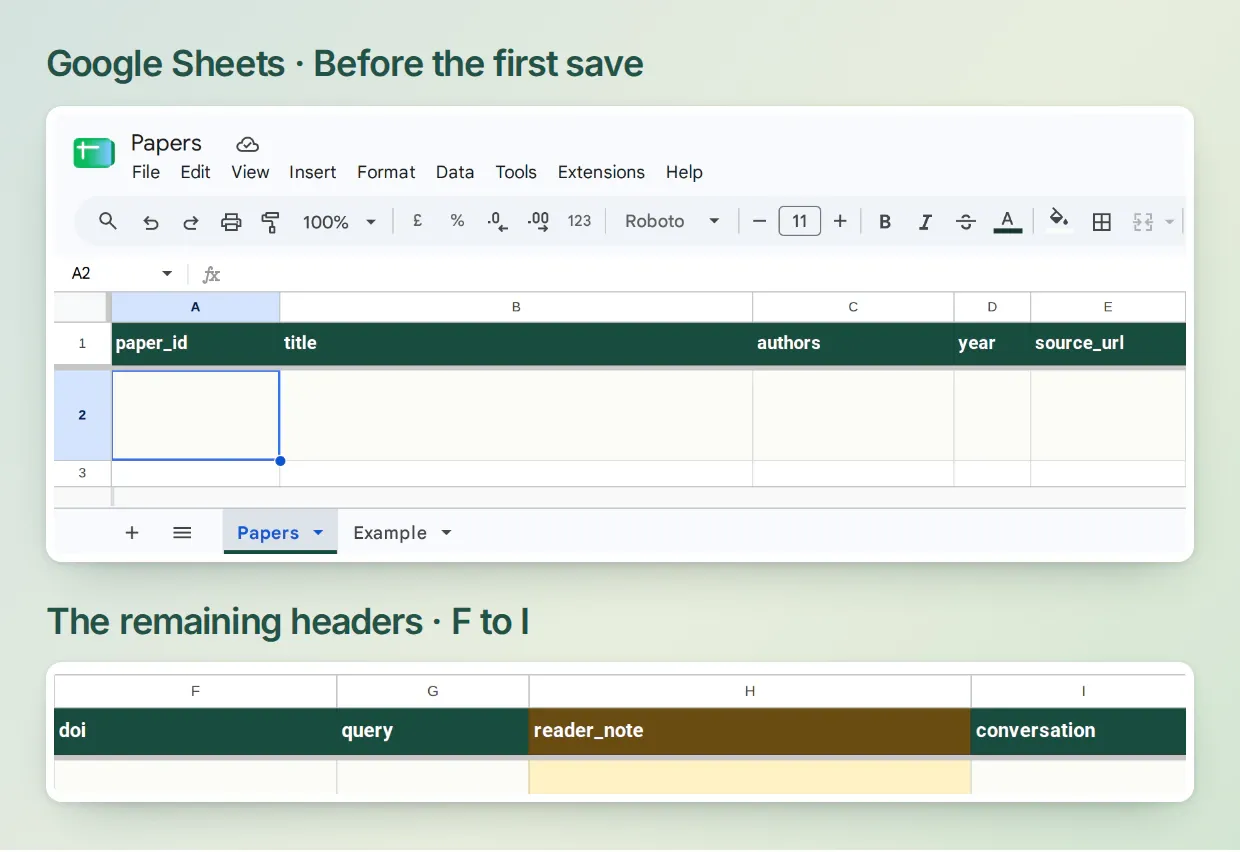 Row 1 sets the order of the fields. On this fresh tab, the first confirmed paper will land in row 2.
- Create the two Actions below with the file ID from the starter URL. Keep the prefix through
/spreadsheets/and the actual file ID. Give both the headerAuthorization: Bearer {{google_sheets_access_token}}. Insert the built-in Google Sheets token using Add AI Data.
| API Action Name | Method and URL ending | API Action Description |
|---|---|---|
read_shortlist | GET /values/Papers!A2:I500 | Read the shortlist for a paper ID or a saved note. Check the selected ID before saving and read back the new row after an append. |
save_selected_paper | POST /values/Papers!A:I:append | Append one verified record after the reader confirms its exact title and note and the ID check succeeds. Preserve the original query and reader’s wording. |
- Leave the read Action’s parameters and body empty. For save_selected_paper, add
valueInputOption=RAWunder Query Params andContent-Type: application/jsonunder Headers. Add required Text parameterspaper_id,title,source_urlandquery. Add optional Text parametersauthors,year,doiandreader_noteand select Empty value for their defaults. Use the names below in API Endpoint → Body with JSON selected. Quickchat AI suppliesconversation_urlitself.
{
"values": [[
"{{paper_id}}", "{{title}}", "{{authors}}", "{{year}}",
"{{source_url}}", "{{doi}}", "{{query}}", "{{reader_note}}",
"{{conversation_url}}"
]]
}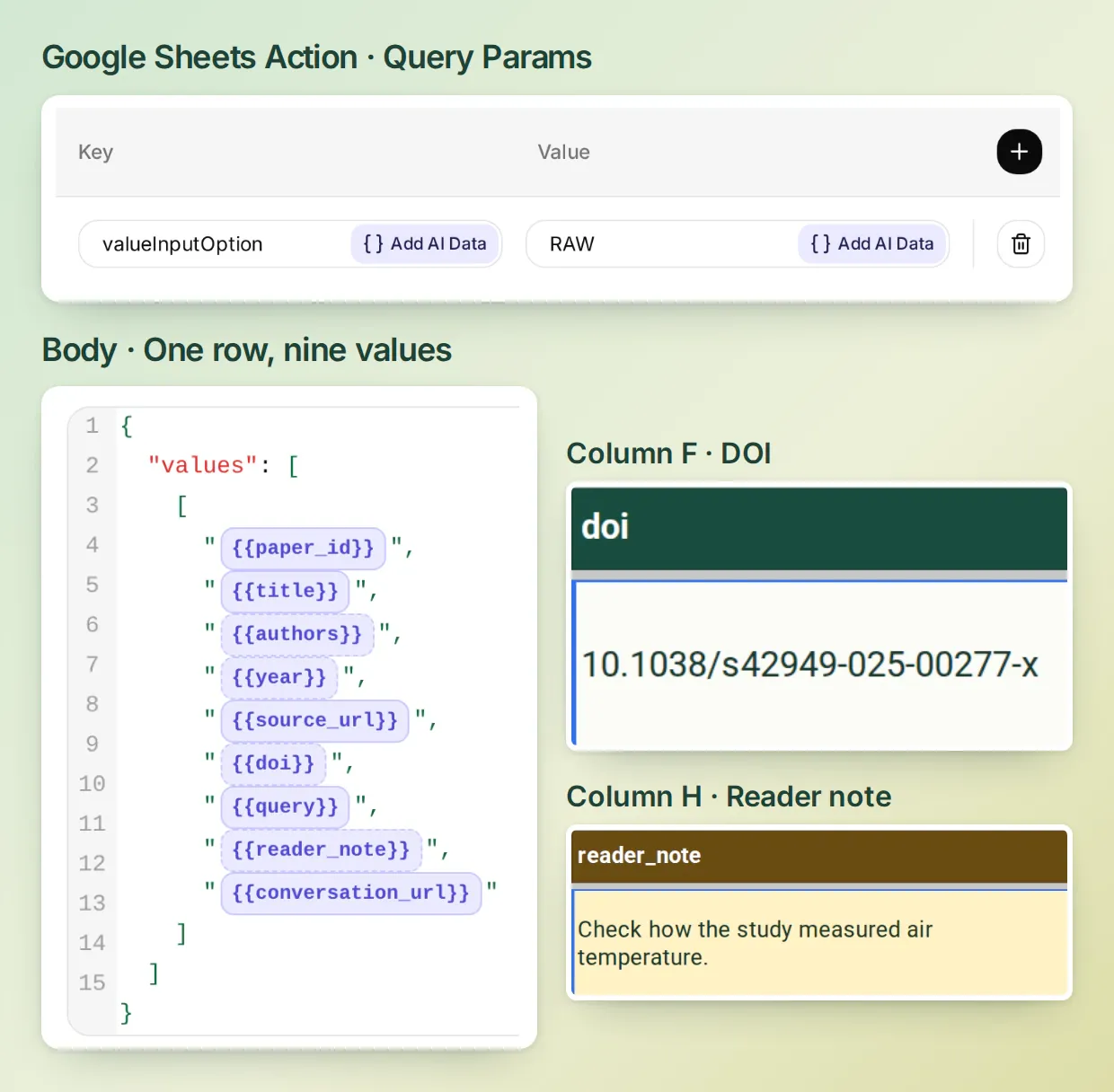 Each position in the inner array is one spreadsheet column. RAW keeps a note beginning with an equals sign as literal text.
- Save and enable both Actions. In Identity → Main Prompt → Edit, paste these instructions. Use the Agent in your own signed-in preview. Anyone who can use its read Action can ask about notes in the connected file. API Action builder walkthrough
You are Paper Trail, my private reading-list assistant. Ask for the topic and publication period. Return up to five relevance-ranked records with exact titles, supplied authors, dates and source links. Retain each paperId. Show the year alone when only the year is known. Look up my selection before explaining or saving it. Label findings as coming from the abstract. If it is missing, give the source link. A PDF URL alone supplies no page text.
When I want to save a paper, show its exact title and my note and wait for a separate confirmation. On confirmation, read the shortlist and compare the paperId. If already present, show me the existing row. If the read fails, stop. Otherwise append once, then read back the ID and note. Preserve missing metadata as empty cells. If a write times out, inspect the sheet before another attempt.
For books, you can look up an edition by ISBN and save your reading note in Google Sheets.
4. How do you know the right citation landed on the list?
Ask “Save the canopy paper with the note: Check how the study measured air temperature.” Check the title in the proposal, then send “Yes, save it.” In Inbox, open the conversation and expand the called Action. Google’s updates.updatedRange identifies the cells it wrote. For a fresh tab with headers in row 1, look for Papers!A2:I2. In the sheet, compare column A with the paper ID and column H with your note. Google’s append response
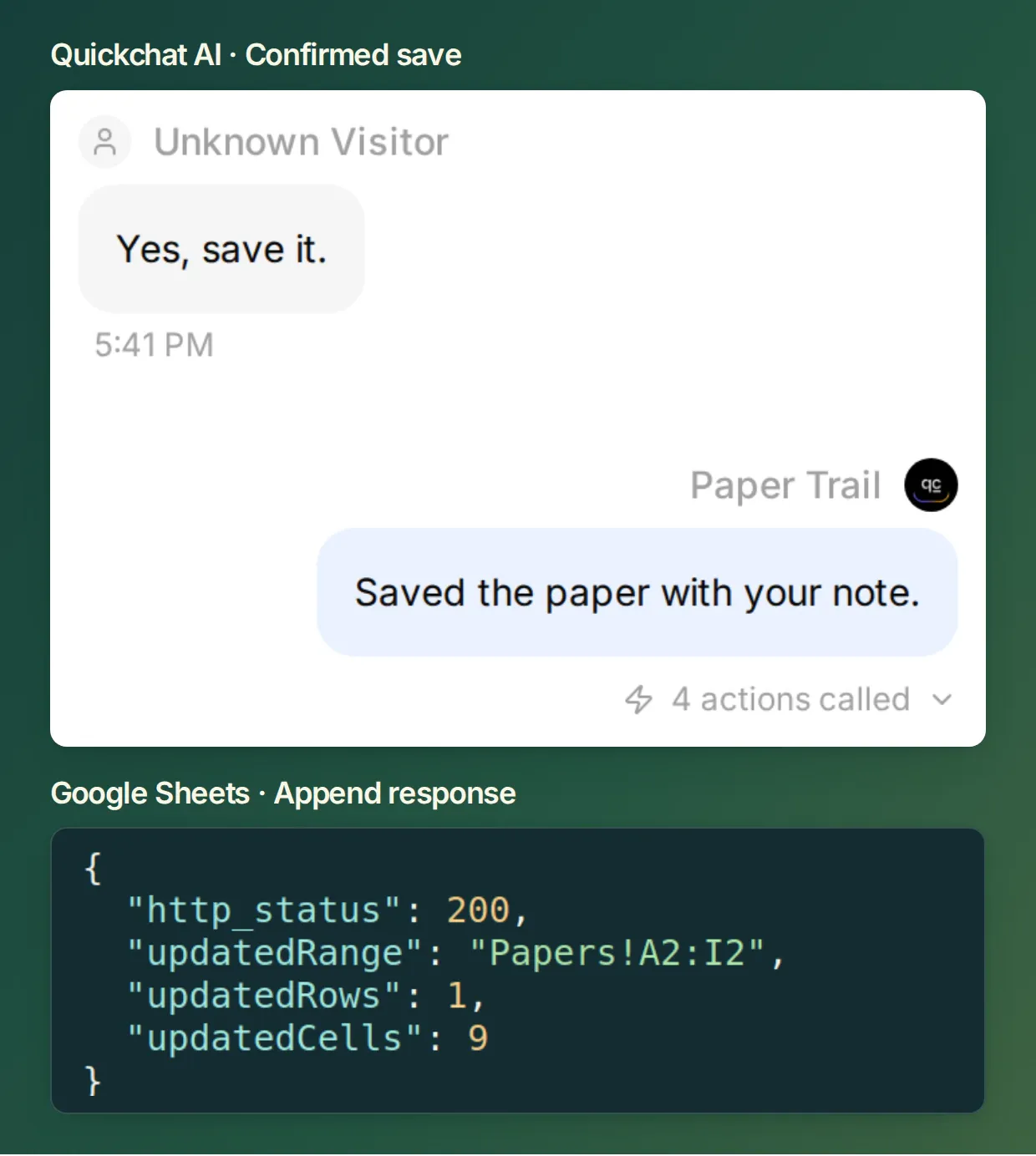 Google returned
Papers!A2:I2, one row and nine cells. The readback matched the paper ID in A2 and the original note in H2.
Ask to save the same paper again. In our hosted test, Paper Trail asked for confirmation again and the sheet still held one row. To test duplicate detection, confirm the repeat and check that the Agent reads the existing ID. In a separate local workbook test, that check preserved the original row. Extend the read range before row 501. Two simultaneous confirmations can both pass the check, so this recipe is designed for one reader.
Keep a small set of questions in Testing → Simulation for the next time you change the prompt. The table gives three example checks. For write tests, copy the headers to a PapersTest tab in the same file and point both Sheets Actions at that tab. Switch both back to Papers afterward. A grade on the reply cannot tell you which cells changed.
| Reader’s test | What to check |
|---|---|
| “How many air sensors did the canopy study use?” | The answer points you to the methods. The abstract gives no count. |
| “Summarize DOI 10.1016/j.uclim.2025.102631.” | A record comes back with abstract: null. The answer includes the source and describes the missing evidence. |
| “Save the canopy paper again.” | The read finds the same paperId. The sheet still contains one copy, including your original note. |
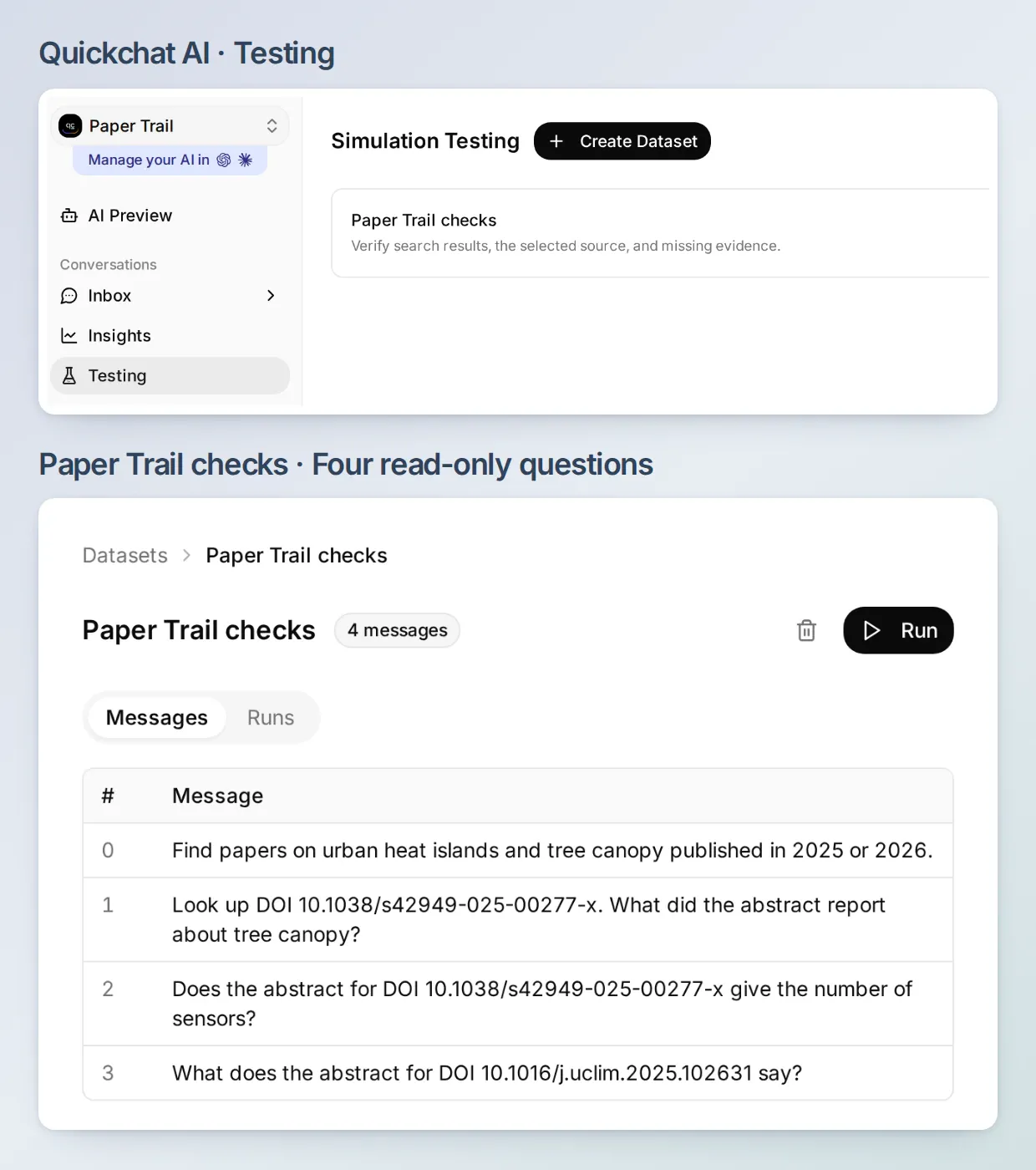 These four saved questions test searches, citation details and missing abstracts. For a save, open the Action log and compare the sheet before and after confirmation.
For a journal club with a library already in Zotero, you can also search saved papers and discussion notes in Zotero. Here, the finished row tells the next reader where to find the paper and why you picked it.
Frequently asked questions
How do I search the Semantic Scholar API by publication year?
Send a GET request to /graph/v1/paper/search with a topic in query and a year or inclusive range such as 2025-2026 in year. Set limit=5 for a short reading list. The endpoint ranks matching papers by relevance within the period.
How do I verify a research paper by DOI?
Pass DOI: followed by the DOI to the Semantic Scholar paper endpoint. Compare the returned title, authors and DOI with the publisher’s record. Keep the returned paperId and source URL together so you can reopen the same work.
Can the assistant summarize a paper if Semantic Scholar has no abstract?
It can show the title, authors, date and source link that the record supplies. A missing abstract leaves it without evidence for a summary. An open-access PDF link points you to the manuscript for a separate reading.
Why does the Semantic Scholar API return HTTP 429?
A 429 means the service is rate-limiting requests. Unauthenticated callers share capacity. Pause before retrying, use an issued API key within its limits, or start with a DOI from another scholarly index and verify it when the lookup is available.
How do I avoid duplicate research papers in Google Sheets?
Read the paper IDs already in your list before appending a confirmed selection. If you find the same paperId, show the existing row. This recipe checks rows 2 through 500. Simultaneous writes can still create duplicates.