

A Discord bug report lands in #bug-reports. “PDF export stops when my note title has an emoji.” A maintainer needs to know whether the PDF opens with a character missing or the file never appears.
You’ll build Patchwork Intake in Quickchat AI. Members can report a bug and correct the draft in Discord. Only a server administrator can approve sending it to GitHub. When we tested this with Patchwork Notes, a fictional notes app, the bot replied in the original thread with the issue it filed.
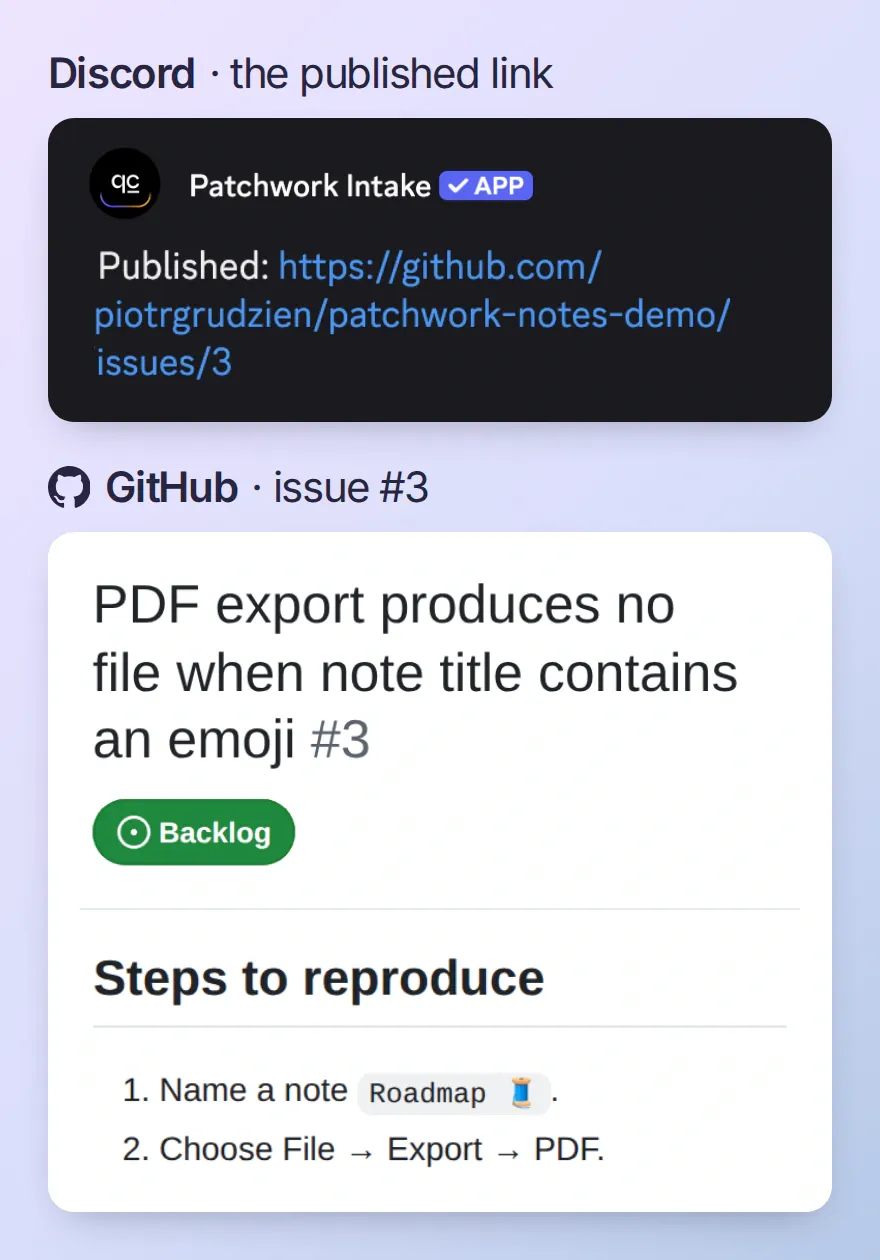
Roadmap 🧵 produces no PDF. Rename the same note Roadmap and it exports. Both observations made it into the public report.
How a report moves from Discord to GitHub
Reply in threads keeps the follow-up questions with the original report. The Main Prompt asks for missing details, and two read-only API Actions let the bot compare the symptoms with existing GitHub issues.
A third Action can create an issue. Its Run only when settings check who sent the approval and which server it came from before Quickchat AI contacts GitHub. Save to memory keeps the returned issue URL so the bot can share it again in the same conversation.
Download the Patchwork Intake starter kit for the three Action recipes, Main Prompt, sample issue and test reports. If you already run a Discord bot, jump to the duplicate check or the administrator settings.
1. Where should a Discord bug report start?
Start each report with a mention in a regular text channel. With Reply in threads enabled, the bot opens a thread where the reporter can add details without interrupting the next report.
- Use a Discord account with Manage Server for installation. Create a public test repository you own on GitHub. Enable Issues under the repository’s Settings → General → Features. In your Discord test server, make a text channel named
#bug-reports. - In Quickchat AI, choose Add new AI Agent → Set up manually and name it Patchwork Intake. You’ll need three API Actions and credits for replies and simulations. Create an account.
- Open External Apps → Discord, enter the bot name and choose Add to your Discord server. Select the test server on Discord’s consent screen. Under the integration’s Settings, choose Reply in threads. In the channel, allow the bot to view the channel, read history, send messages, create public threads and send messages in threads. Discord setup guide.
- In Discord, turn on User Settings → Advanced → Developer Mode. Right-click the server icon and choose Copy Server Info → Copy Server ID. Some versions show Copy Server ID directly. Keep that number for the write Action.
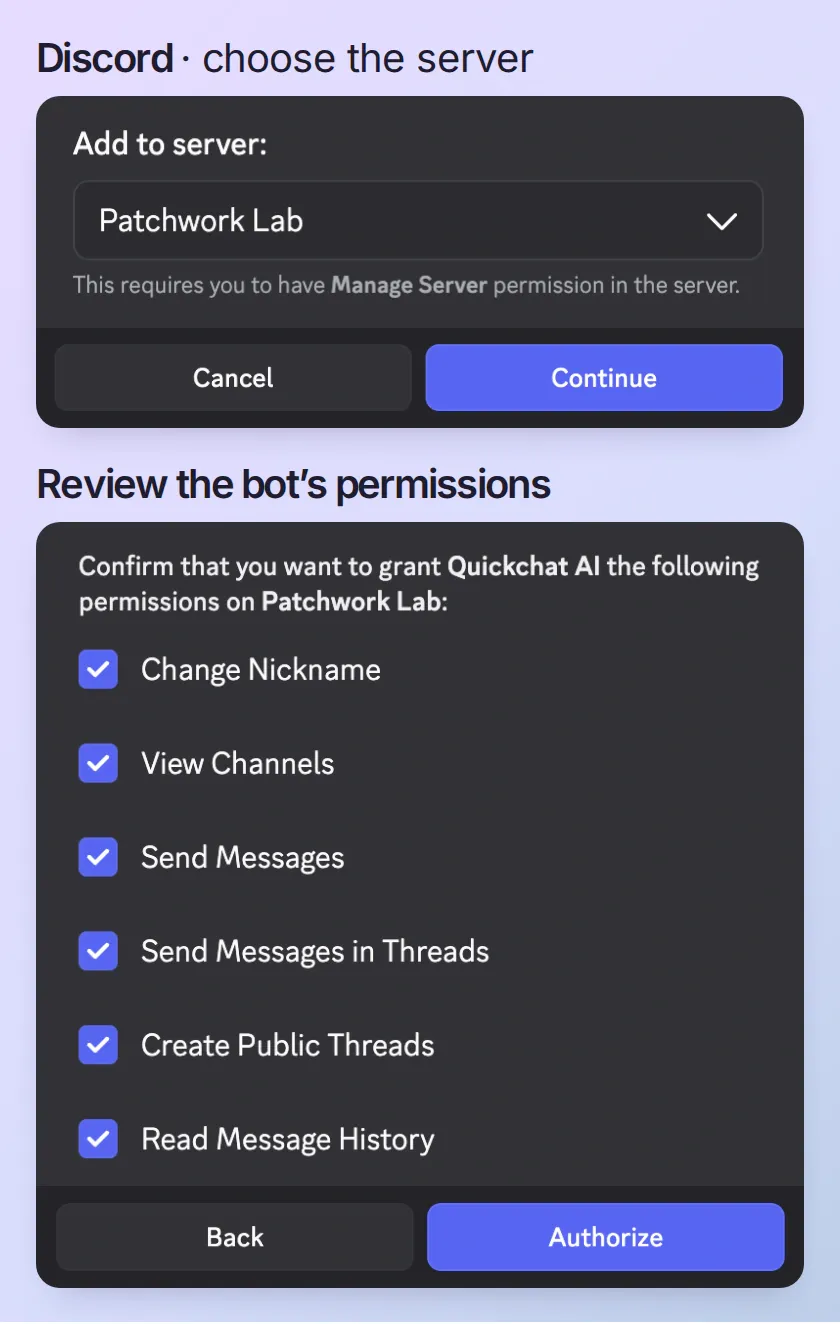 Check the server name on both screens. In Patchwork Lab, Discord asked for permission to create public threads and send messages in them.
Discord welcomed Patchwork Intake in #general. We then opened Settings → Reply mode in Quickchat AI. If you get stuck at the consent screen, the illustrated Discord bot setup guide walks through the installation.
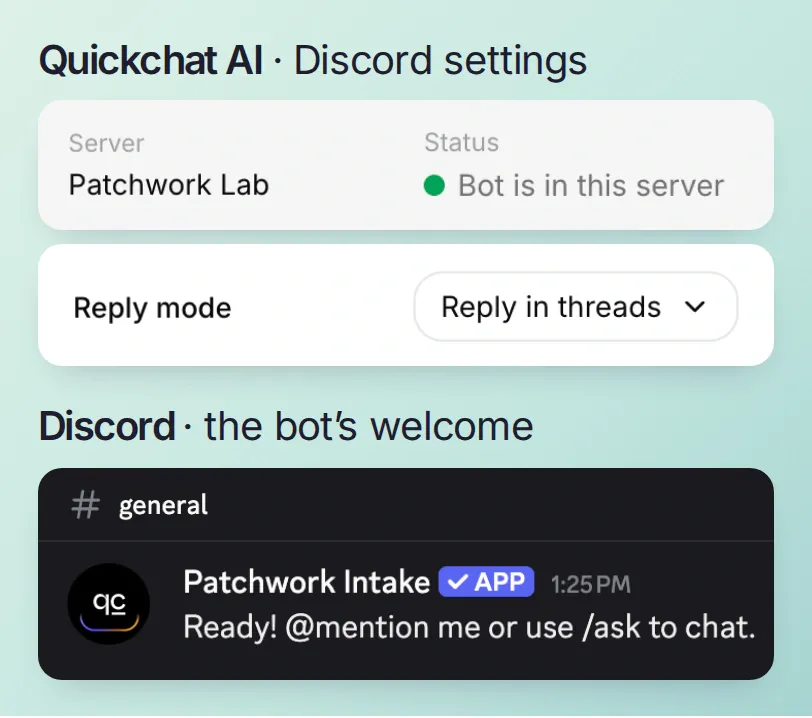 The welcome confirms that the bot joined. The reply setting determines where a conversation continues after someone mentions it.
Mention the bot in #bug-reports and open the thread it starts. A member-created thread and a forum post use different reply rules.
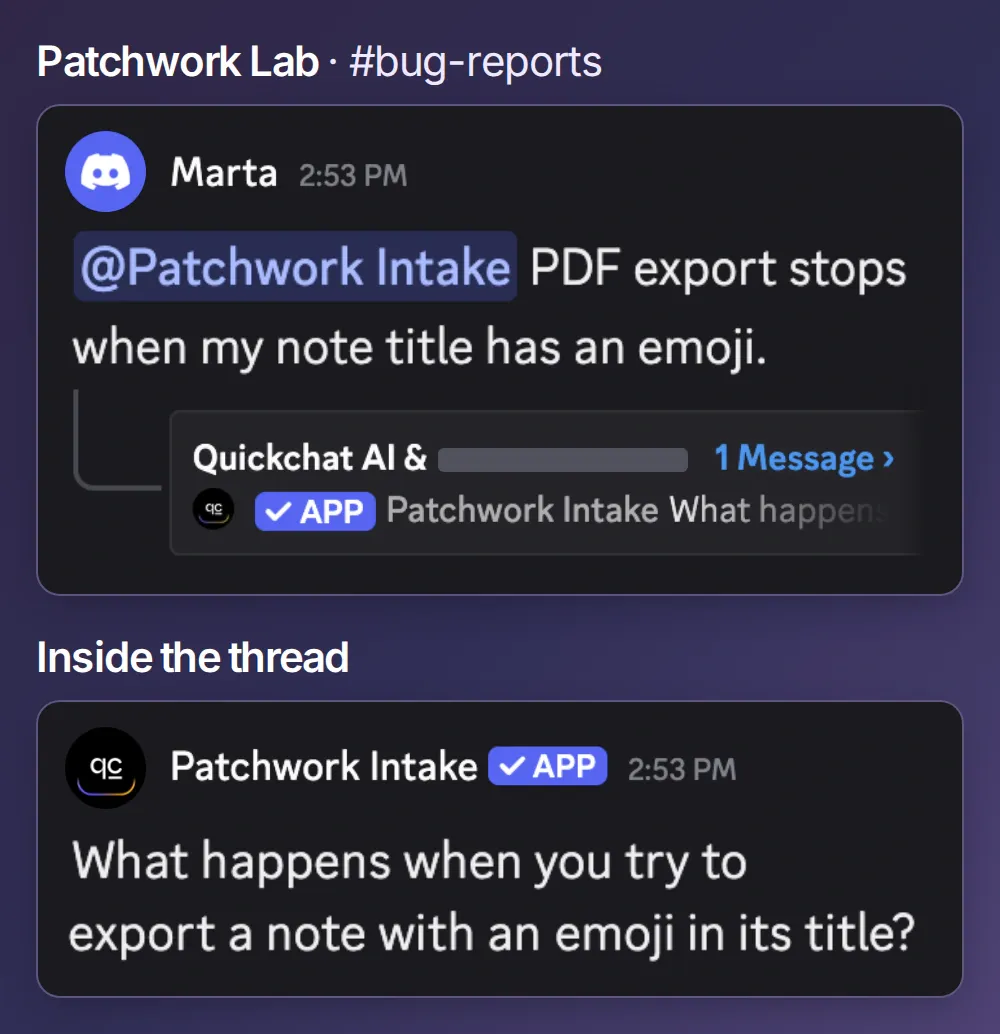 On the Patchwork Lab server, the link under the mention opens the bot’s thread. Start your report the same way so its follow-up questions stay together.
If you also need a support queue with private staff handoff, the Discord support-ticket tutorial covers that workflow.
2. How do you check GitHub for a bug that sounds similar?
Read the candidate’s description before deciding it’s the same bug. In Joplin issue 11753, exporting does produce a PDF. The emoji disappears from the title. The Patchwork reporter gets no file. “PDF,” “title” and “emoji” would find both reports.
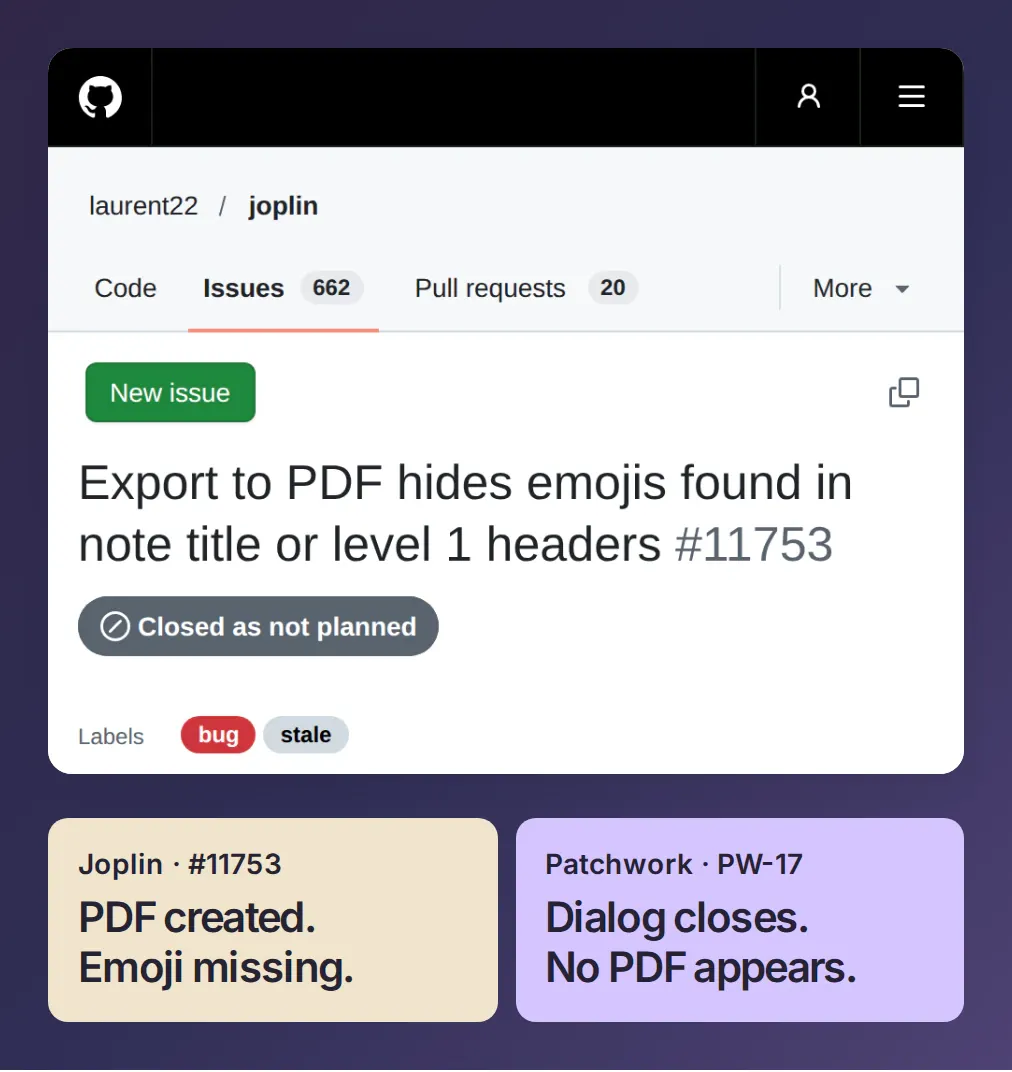 GitHub marks the Joplin report “Closed as not planned.” The description explains what happened. The status alone tells you little about a new report.
For a small project, one Action can list recent entries and a second can open a candidate. In Actions & MCPs → Add Action → API Action, use the first two recipes in the kit. Choose AI decides for both. Replace OWNER/REPO with your own repository in each URL before saving.
| Action | What to enter in API Endpoint |
|---|---|
list_recent_bug_issues | GET https://api.github.com/repos/OWNER/REPO/issues. In Query Params, set state=all, sort=updated, direction=desc, per_page=30 and page=1. |
get_bug_issue | GET the same path followed by /{{issue_number}}. Add a required Number parameter named issue_number and insert its Add AI Data chip after the final slash. |
Both reads work anonymously for a public repository. Add the headers Accept: application/vnd.github+json and X-GitHub-Api-Version: 2026-03-10. Keep pull_request in both response filters so the Agent can skip those entries. The detail Action also returns body and html_url. Save and enable both reads. GitHub’s Issues API.
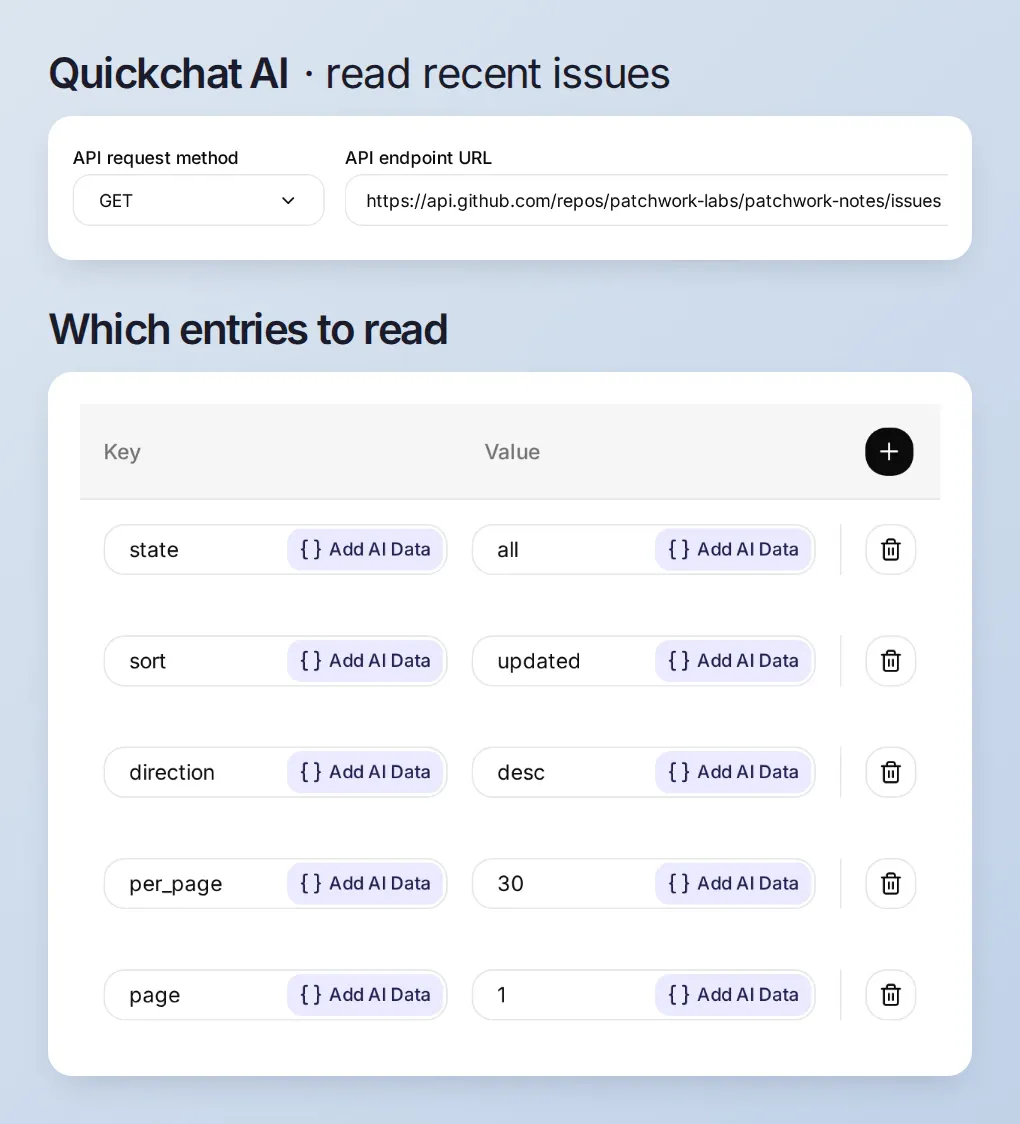 The repository goes in the URL. The thirty-entry limit goes in Query Params. The reporter supplies neither value.
Try the distinction in your test repository. Add an issue named Exported PDF loses heading spacing with a body saying the file opens but its headings run together. Add Emoji titles disappear in the sidebar with a body saying export still works. The Agent should open the plausible candidates and say how their symptoms differ. On a busy project, search the full issue history before treating a recent-page miss as a new bug.
3. What belongs in the GitHub issue draft?
Give the maintainer an experiment they can repeat. Under Identity → Main Prompt, paste main-prompt.txt from the kit, replace the example repository and app name, and save. The prompt asks for one missing detail at a time and preserves an unknown version or operating system.
In the bot’s thread, try “PDF export stops when my note title has an emoji.” When it asks what happens, give it the evidence below.
Patchwork Notes 2.8.1 on macOS 15.1. I named a note Roadmap 🧵 and chose File → Export → PDF. The dialog closed and no file appeared. I expected a PDF. I removed 🧵 from the title and the same note exported. Use PW-17 as the report reference.
The starter kit uses PW-17 for practice. The live Discord report used PW-LIVE-01.
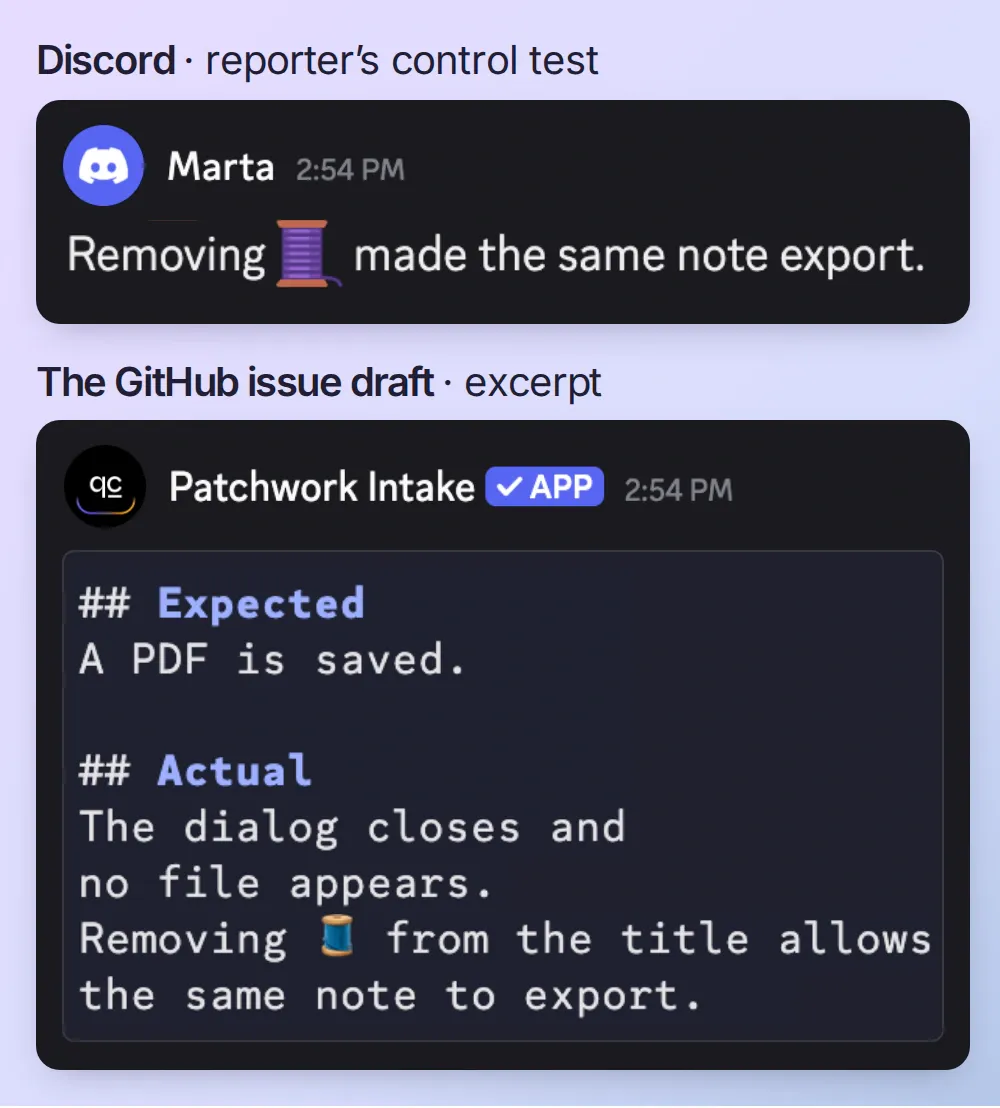 Look for the second export in the draft. That one change gives the maintainer a control case to try on the same machine.
Our first draft linked both candidate issues. The maintainer still had to open each one to see why it was different. We asked for one observed difference beside each link and reran the same report. The revised draft explained that one bug changed the sidebar and the other changed the spacing in a PDF that actually opened.
Check the title, environment, numbered steps, expected result, actual result and related reports. Ask for a correction if the draft says the app crashed. The reporter observed a dialog closing and a missing file. A crash would be a different claim. Use a fresh reference for each report, and leave private Discord links, customer details and diagnostic logs out of the public body.
4. How do you restrict GitHub issue creation to Discord administrators?
Manage Server lets someone install the bot. To approve a public issue, the sender needs Discord’s Administrator permission in the configured server. A role named “Moderator” grants approval only if it carries that permission. GitHub separately checks whether the saved token can write issues in the selected repository. Discord permissions.
- In GitHub, create an expiring fine-grained personal access token. Select the repository owner, Only select repositories, your test repository, then Permissions → Add permissions → Issues → Read and write. This link prefills the permission and a seven-day expiry. You still choose the owner and repository. Open GitHub’s token form.
- Create the third API Action,
create_reviewed_bug_issue, and leave it inactive while you configure it. Use AI decides, POST, and the same fixed/repos/OWNER/REPO/issuesURL. Add required Text parameterstitleandbody. Under API Endpoint → Body, select JSON and insert the two parameter chips as shown below. Keep the two GitHub headers from step 2 and addContent-Type: application/json.
{"title":"{{title}}","body":"{{body}}"}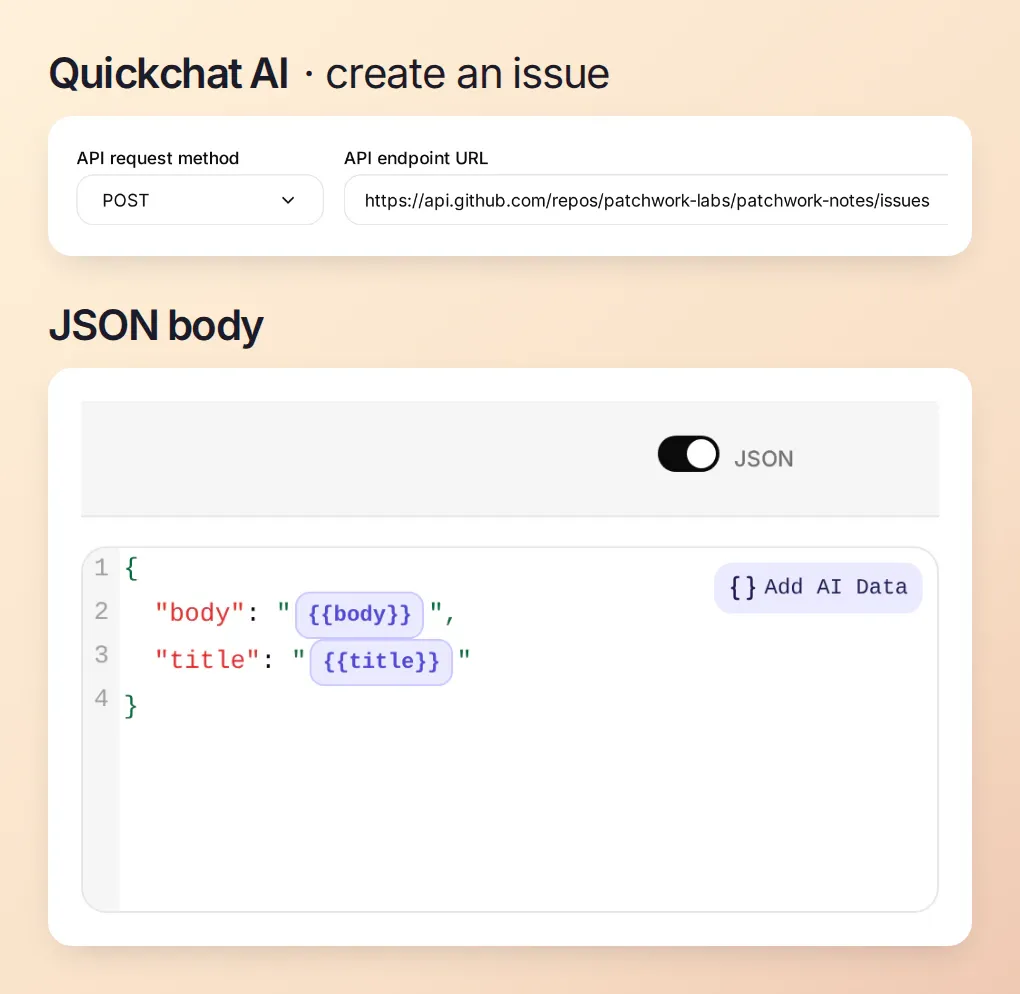 The two chips carry the reviewed text. The destination stays fixed even if a reporter names a different repository.
- Use Quickchat AI’s account connection in ChatGPT or Claude to prepare the protected header. Give it the following request. Then replace the placeholder in the same masked header row in the dashboard with
Bearerfollowed by your token and save. The dashboard can replace a protected value once the connector has created the row. Account connection instructions.
On Patchwork Intake, keep create_reviewed_bug_issue inactive. Add a static Authorization header with the literal Bearer REPLACE_IN_DASHBOARD and is_secret=true. Preserve all other settings. Read the Action back and show that the header is secret and redacted. Do not test or activate it.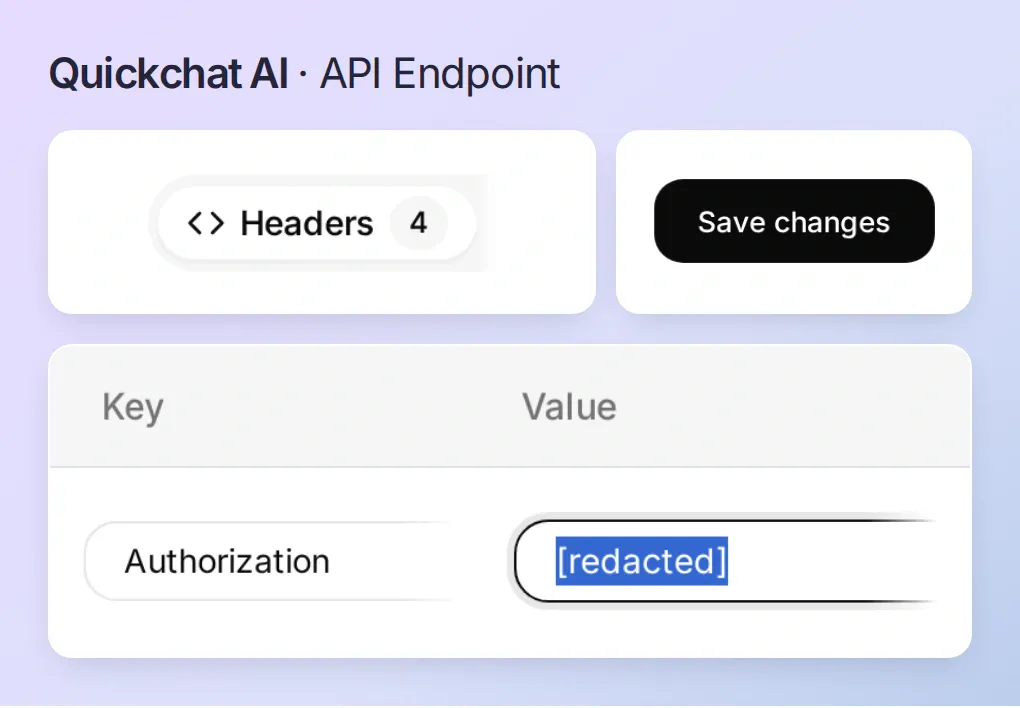 Replace the selected text with
Bearer, one space and your token. Save the Action.
- Under Advanced settings → Run only when, add all four rows below. Under Save to memory, choose API response, enter
$.html_urland save it asgithub_issue_url. Enter$.numberand$.html_urlin Response filter, one per row. Save the Action and activate it after checking the settings. Action settings reference.
| Metadata key | Condition | What it checks |
|---|---|---|
discord_message | is true | The approval came through Discord. |
discord_guild_id | equals the server ID you copied | The message came from your test server. |
author_is_admin | is true | The person who sent this message has Administrator permission there. |
github_issue_url | does not exist | This conversation has no saved issue link yet. |
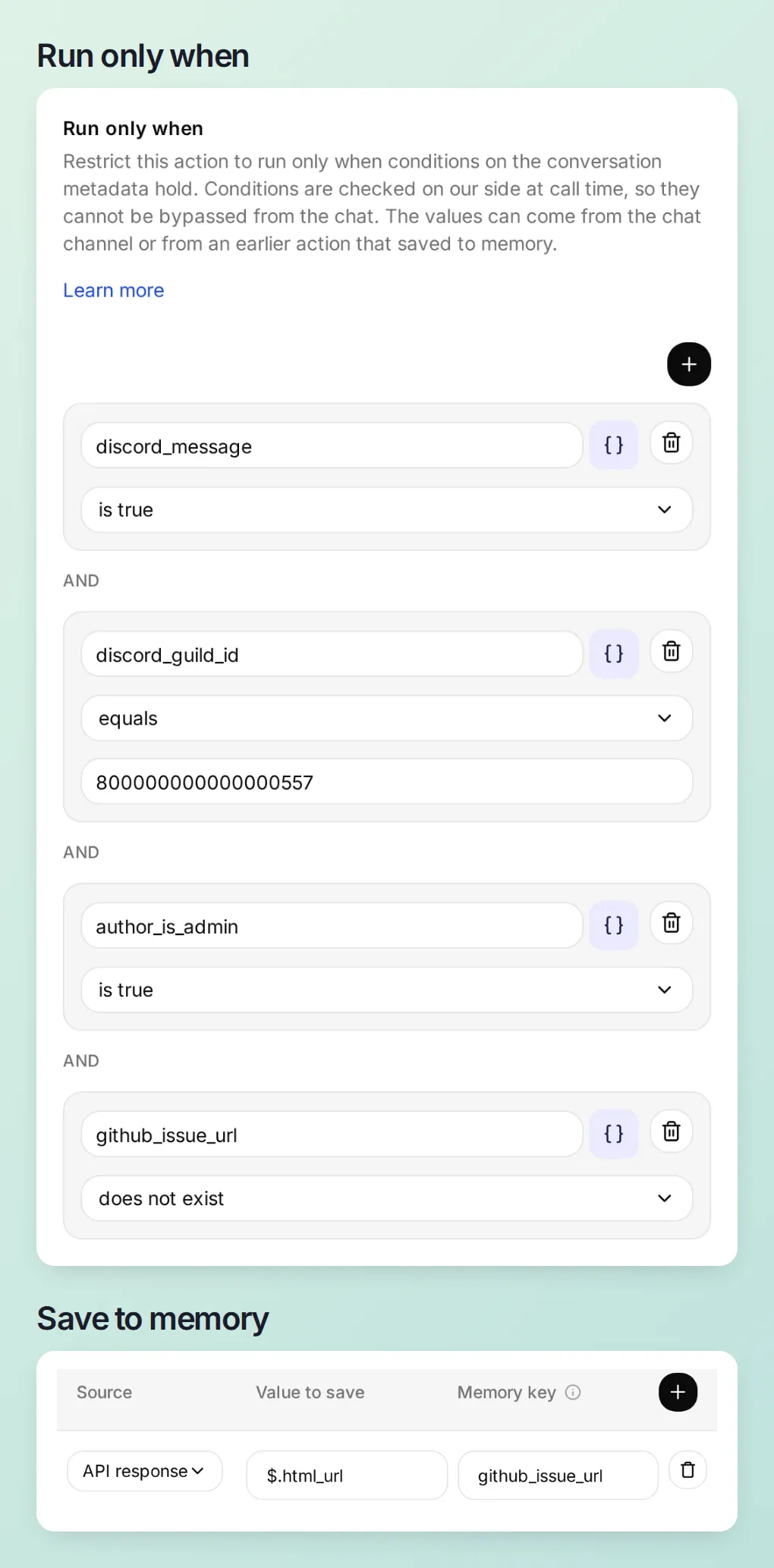 All four rows must pass. Once GitHub’s URL has been saved, another confirmation in that conversation can return the link without sending a second create request.
The Main Prompt and Action description ask for a review of the exact public title and body and confirmation in a later message. If either field changes, show the revised draft again. In testing, asking people to state their role stalled the conversation. We had the bot call the Action when someone confirmed and let Run only when check that sender’s Discord permissions. The four conditions allow any administrator on that server. You can also limit approval to one person.
5. How do you test approval with two Discord accounts?
Test the member and administrator paths with the same draft. In Testing, use a Simulation for the intake questions. A live Discord turn supplies the sender’s server permissions. Use your test server and disposable repository for the publication check.
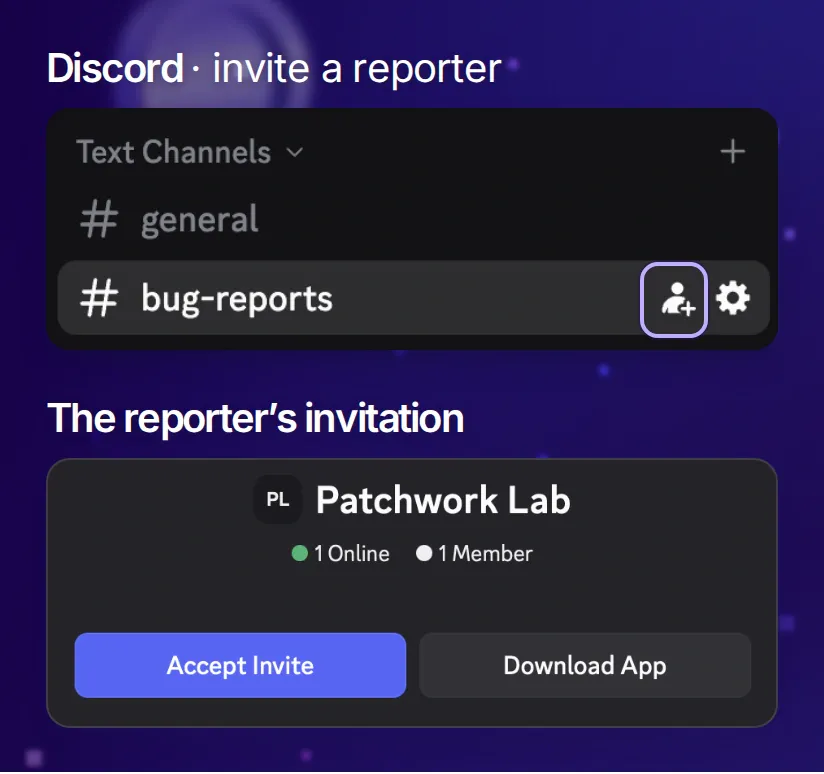 Invite the reporter to
#bug-reports and leave their roles at the default. The server owner can play the administrator. Both can use the same thread started by the bot.
- As an ordinary member, send
Publish this issuebelow the draft. Open Inbox → conversation → called Actions. A blocked create call has no request URL or HTTP status. Confirm that the repository still contains only the comparison issues. - As an administrator, open the bot’s report thread and review the proposed text. If your conversation does not show that draft, paste the reviewed text in your own bot thread on the configured server and ask to see it again. Send the same
Publish this issueafter the draft. - Check for 201 Created, open the returned
html_url, and compare the GitHub title and body with what you approved. The detail Action can read it back by its returned number. Share the URL in the reporter’s original thread if you used a separate one.
In Patchwork Lab, the member’s confirmation sent no HTTP request. After we fixed the GitHub credential, the administrator approved the same draft in the original thread. GitHub returned 201 Created. Patchwork Intake read issue 3 back and replied in Discord with its link.
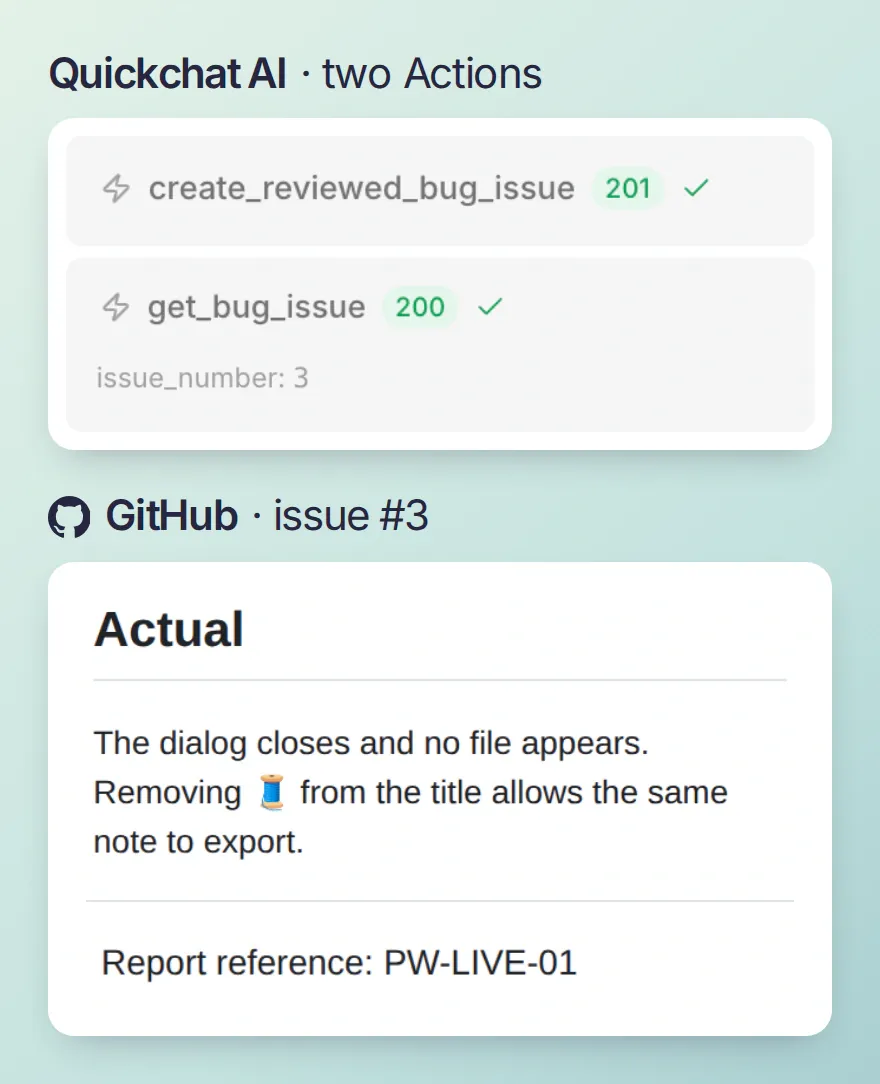 The title and body of GitHub issue 3 match the draft the administrator approved, down to the
PW-LIVE-01 reference.
An earlier attempt returned 401 Requires authentication. If you see that error, check the token before asking for another approval.
In a local API client, choose GET and enter https://api.github.com/user. Select Bearer Token, paste the token by itself and send the request. A 200 response with your expected login confirms the account identity only. GitHub’s authenticated-user endpoint.
Once that check passes, open API Endpoint → Headers and replace the entire Authorization value with Bearer, one space and the same token. Save, then ask the administrator to approve the same draft in the same thread.
One last test catches an easy mistake. Our local fixture stored PW-17 and then timed out before returning its URL. Listing recent entries and reading the matching body found the issue again. If a live submission times out, look up the reference before retrying. A saved URL guards a later turn in the same conversation. Simultaneous submissions and lost responses still need a repository check.
Frequently asked questions
Can a Discord bot create a GitHub issue from a message?
Yes. A Quickchat AI Agent can collect the missing details in Discord and send the reviewed title and Markdown body to GitHub’s create-issue endpoint. GitHub returns the new issue number and a URL the reporter can open.
Does the Discord reporter need a GitHub account?
The reporter can describe the bug and read the returned public issue without a GitHub account. GitHub attributes the new issue to the account whose token the maintainer configured.
How does the bot check for duplicate GitHub issues?
It reads up to 30 recently updated entries in one repository, skips pull requests and opens plausible issues to compare their steps and symptoms. An older duplicate can fall outside that window. Search the full GitHub issue history when that matters.
Who can approve a bug report for publication?
Anyone in the intake channel can help prepare the draft. In this setup, the create Action checks that the current Discord sender has Administrator permission in the configured server. The Agent asks that person to approve the exact public title and body.
Does the Discord bot need Administrator permission?
No. Give the bot permission to view the channel, read message history, send messages, create public threads and send messages in threads. Quickchat AI checks Administrator on the person who approves the issue.
Can I limit GitHub issue creation to one Discord administrator?
Yes. With Developer Mode enabled in Discord, right-click the designated administrator’s name and choose Copy User ID. Add a fifth Run only when condition requiring discord_author_id to equal that numeric ID. Keep the other four conditions so the person must still have Administrator permission in the configured server.
What if GitHub times out while creating an issue?
Look for the report reference in the repository and read the matching issue before retrying. GitHub may have accepted the write before its response was lost. If the outcome is still unclear, leave the retry to the maintainer.