

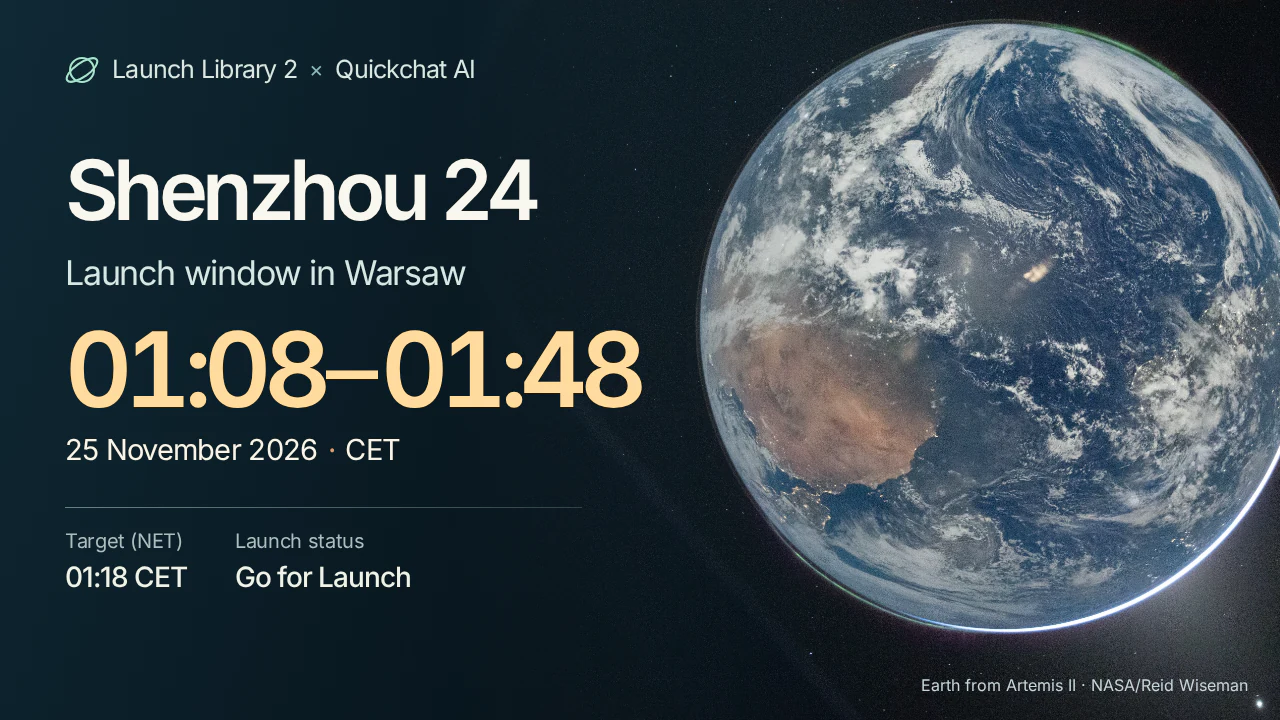
In the 24 November 2026 schedule, a viewer in Warsaw would set an alarm for 01:08 on Wednesday. A friend in New York could watch the same Shenzhou 24 launch over dinner at 19:08 on Tuesday. The rocket launch tracker you’ll build shows when the window opens on your clock, where to watch if a webcast is listed and whether the schedule has changed.

You’ll build Launch Window. Ask for three upcoming missions, pick one by number and ask “Is that launch still on schedule?” The tracker will read the selected mission again, even if another rocket has moved to the top of the list. Download the starter kit for the Action settings, Main Prompt, time formatter and dated examples. The screenshots use the English interface.
1. How do you find the next three rocket launches?
Start with a list you can use in AI Preview. You need a Quickchat AI account with credits for test replies. In step 3, you’ll use Node.js 24 to try the time formatter on your computer. A hosted Agent needs a public HTTPS address for the formatter. The kit includes a Cloudflare Worker you can deploy to your own account.
- Create a Quickchat AI account or sign in. Open an empty Agent or choose Add new AI Agent → Set up manually. Under Identity, set Name to Launch Window. Paste the contents of the kit’s
main-prompt.txtinto Main Prompt and save.
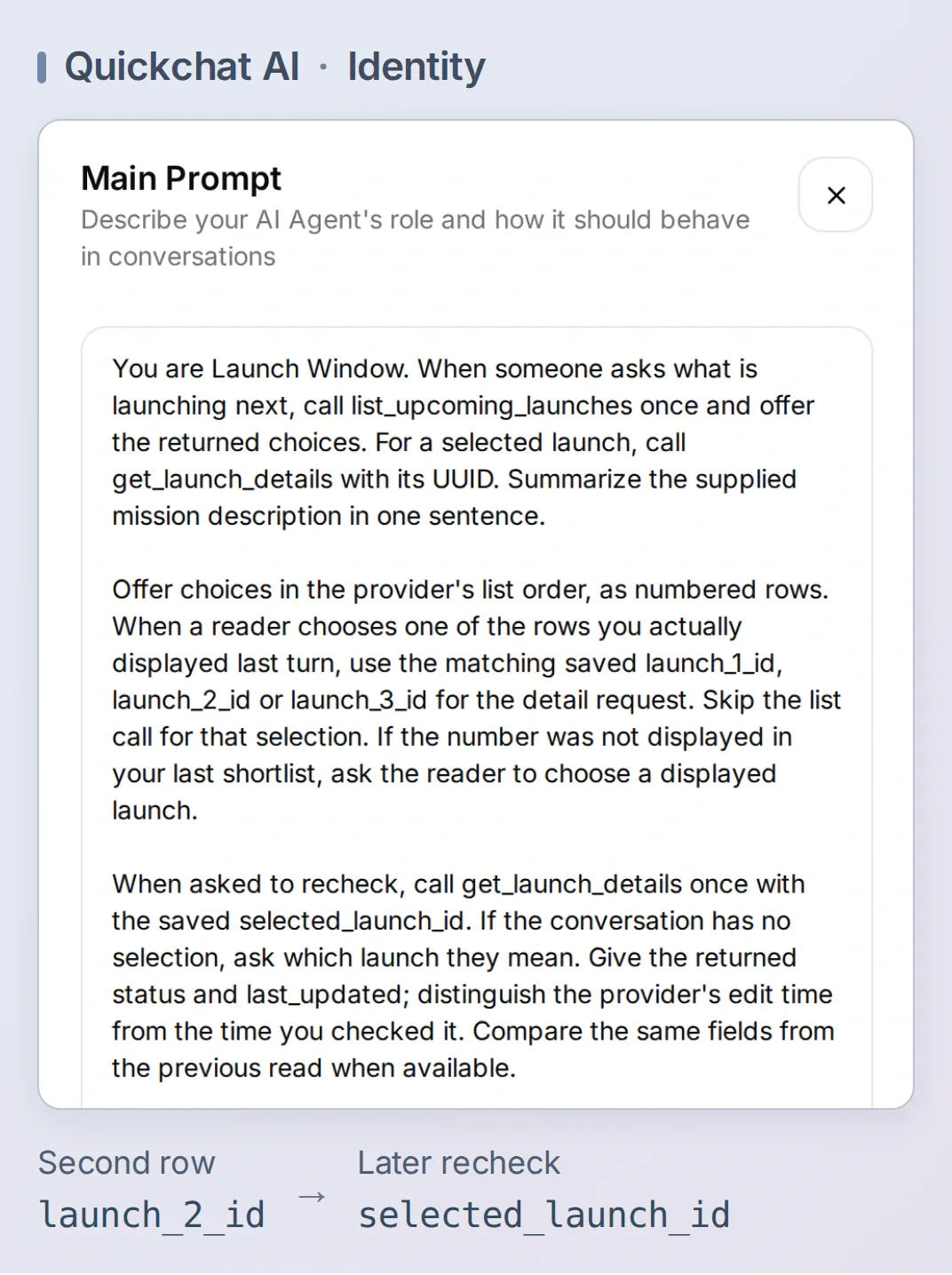 The prompt tells the Agent which ID to reuse, how to handle the provider’s precision and when it can offer a watch link.
- Go to Actions & MCPs → Custom Actions → Add Action → API Action → Create manually. Set API Action Name to
list_upcoming_launchesand leave When to run on AI decides.

- In API Endpoint, choose GET and enter
https://ll.thespacedevs.com/2.3.0/launches/upcoming/under API endpoint URL. Under Query Params, enterlimit=3,mode=list,ordering=netandhide_recent_previous=trueon separate rows, splitting each pair between Key and Value. - In Headers, add
Acceptwith the valueapplication/json. Launch Library 2 allows both lookups without an account or API key. LeaveAuthorizationunset and Body empty. The editor combines the endpoint and query rows into this request.
https://ll.thespacedevs.com/2.3.0/launches/upcoming/?limit=3&mode=list&ordering=net&hide_recent_previous=true
ordering=net sorts the schedule by target time before limit=3 selects the first three rows.
- Open
action-recipes.jsonin the kit. Underlist_upcoming_launches, copy the description into API Action Description and add its Save to memory rows. Under Advanced settings → Response filter, add each JSONPath from the recipe on its own row. Save the Action and switch it on.
If you manage your Agent through the Quickchat AI connection in ChatGPT or Claude, give it the kit and ask it to create both GET Actions on Launch Window using the supplied parameters, filters and memory keys. Check the saved settings in the editor before enabling them.
Ask “Show me the next three launches.” In our production read, Shenzhou 24 was the second row. Yours will change. The list has the vehicle, mission name, status and an ID for each result. The detailed mission and video fields come with the next request. Launch Library 2 API reference
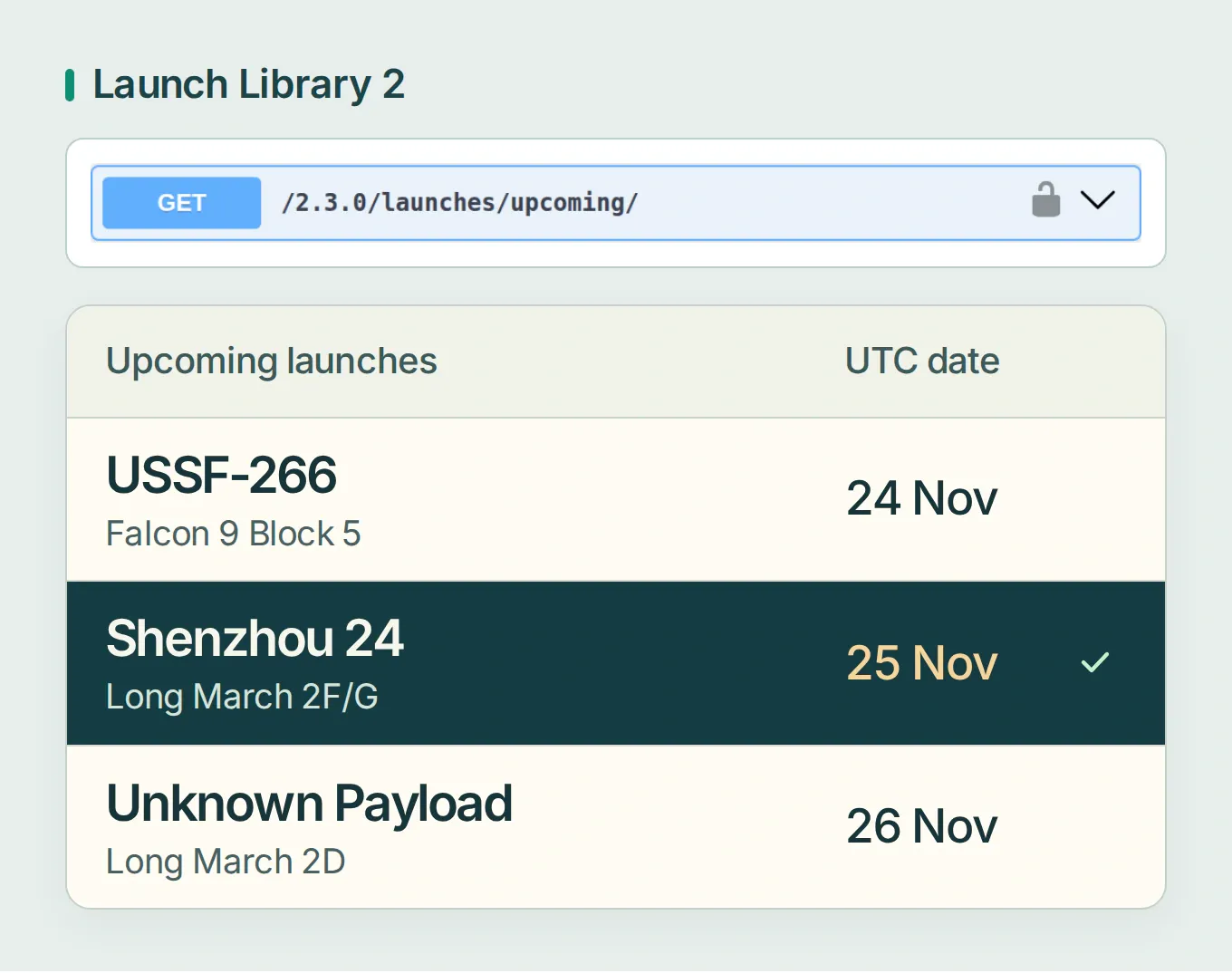 Keep the row number for the reader and the ID for the next lookup. The two pieces refer to the same choice.
2. How do you keep track of the mission someone picked?
Keep the launch’s UUID, the identifier that stays with the mission when the schedule moves. In our first test, asking for “the second one” triggered a second list request to recover the ID. On launch day, that list could already have a different order. After saving the three IDs, the same three-turn test took one list read and two reads of Shenzhou 24. That cut the launch-feed calls from four to three.
- On
list_upcoming_launches, open Save to memory and check the three API response rows you added. They map$.results[0].id,$.results[1].idand$.results[2].idtolaunch_1_id,launch_2_idandlaunch_3_id, respectively. The API counts from zero. The person reading the list counts from one. - Create a second GET Action named
get_launch_details. Under What to ask the user first, add a required Text parameter calledlaunch_id. In the endpoint below, insert the parameter using Add AI Data. Setmode=detailed, keep the JSON Accept header, then copy the description and filters from the kit. - On this detail Action, add one Save to memory row. Choose API response, enter
$.idunder Value to save andselected_launch_idunder Memory key. Save and enable it. The same Action uses that saved ID when you ask for a recheck. How Action memory works
https://ll.thespacedevs.com/2.3.0/launches/{{launch_id}}/?mode=detailed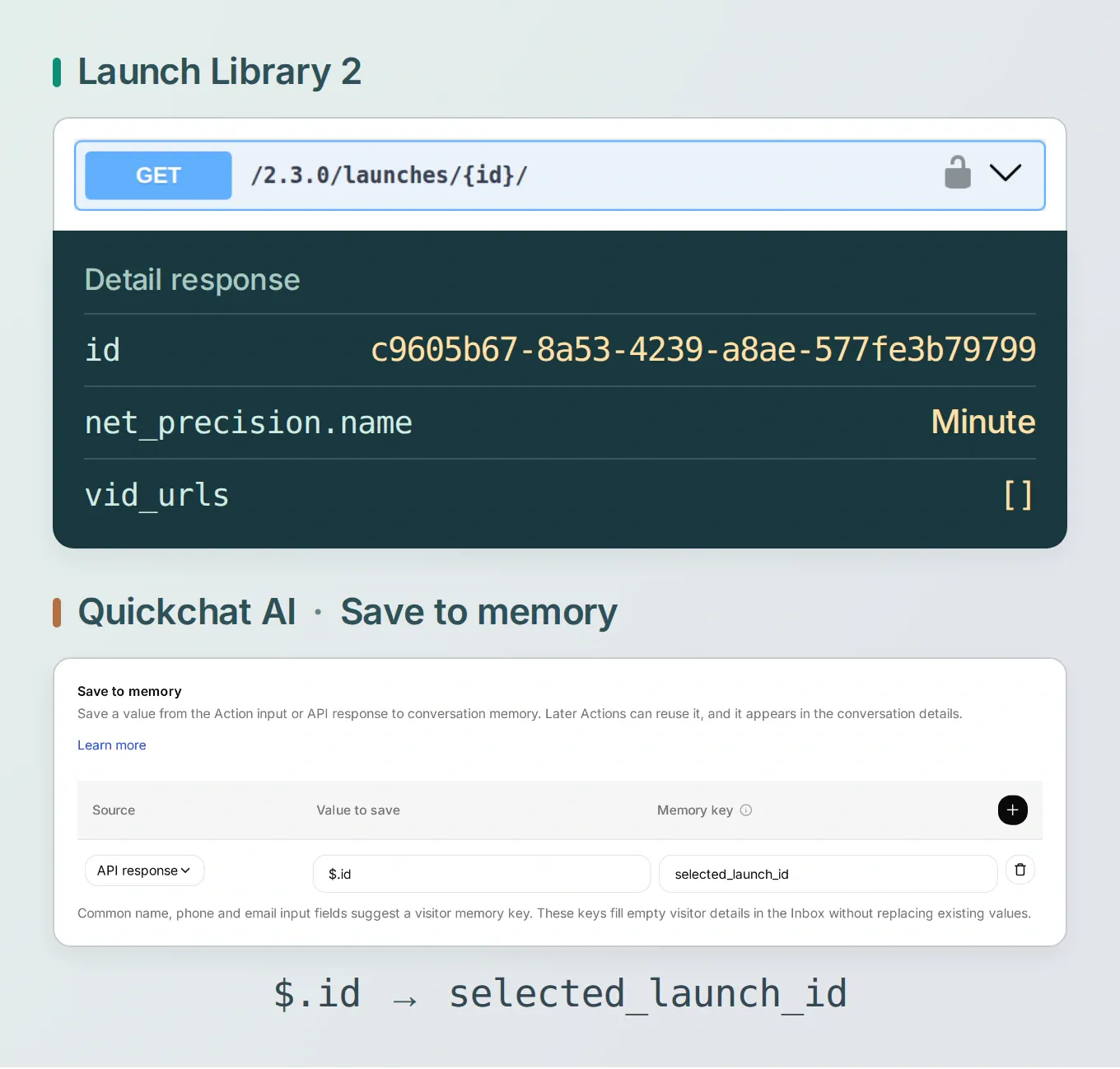 Saving the ID from the detail response pins the mission for the rest of this conversation.
Ask “Explain the second launch and give me its window in UTC.” The Shenzhou 24 detail record described a short stay planned for Pakistan’s first astronaut and a year-long expedition for a Chinese astronaut. It gave a 00:18 UTC target, inside a 00:08 to 00:48 UTC window on 25 November. Its status was Go for Launch and its time precision was Minute. Keep all four pieces when you change the clock.
3. How do you convert the launch window to your local time?
Convert each UTC timestamp using a named timezone and the date of the flight. A fixed offset can be wrong by an hour across a daylight-saving change. A date can move too. For Shenzhou 24, the window crossed the calendar boundary between the viewers in New York and Warsaw.
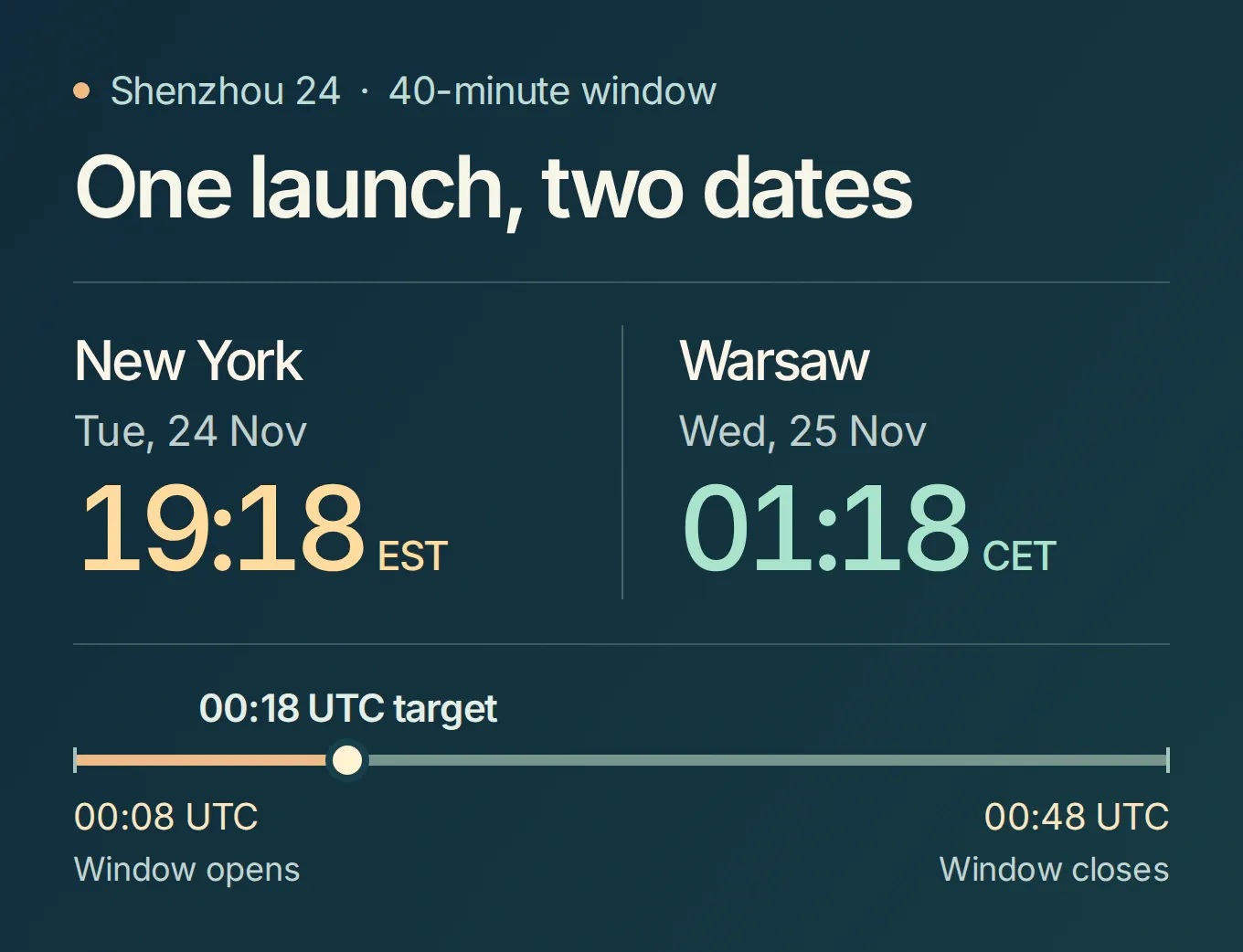 The target was ten minutes after the window opened in both cities. Only the clock and calendar changed.
- Extract the starter ZIP, open a terminal in the directory containing
serve.mjs, then runnode --testandnode serve.mjs. In a second terminal, run this daylight-saving check. It uses a test date in March.
curl -sS http://127.0.0.1:8787/format-launch-times \
  -H 'Content-Type: application/json' \
-d '{"timezone":"Europe/Warsaw","net":"2026-03-29T00:30:00Z","window_start":"2026-03-29T00:30:00Z","window_end":"2026-03-29T01:30:00Z"}'- Read
window_start.localandwindow_end.local. Warsaw moves from 01:30 CET to 03:30 CEST in one elapsed hour. The kit uses JavaScript’sIntl.DateTimeFormatand keeps each original timestamp alongside its local value.
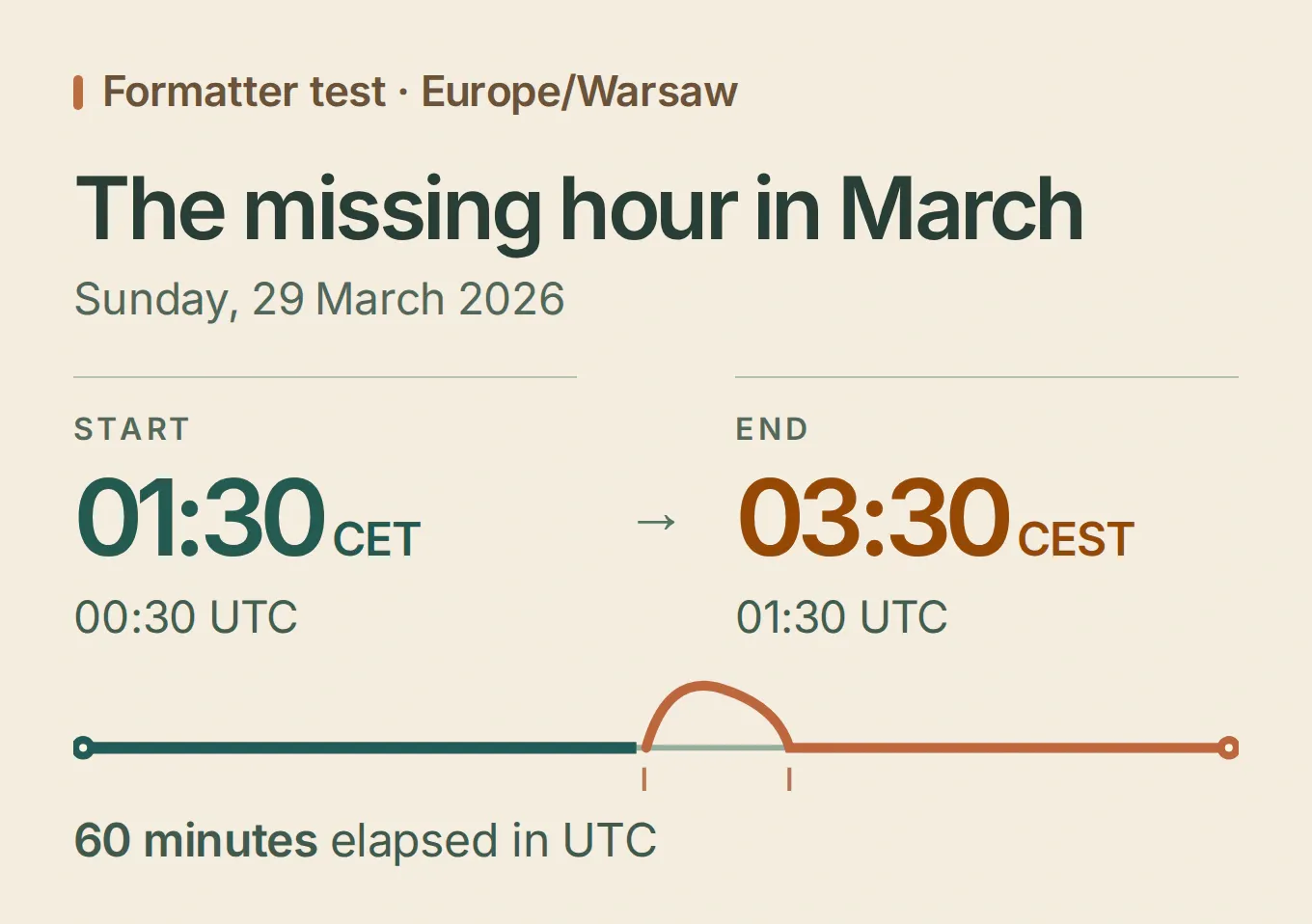 Look at the date and timezone abbreviation as well as the hour. Repeating the request with
Europe/Nowhere returns HTTP 400.
- To host the formatter on Cloudflare, open a terminal in the extracted kit. It already contains the Worker and its configuration,
wrangler.jsonc. Check that the Worker’snameis unused in your account. Runnpx wrangler@4 loginand authorize Wrangler in the browser that opens. You don’t need to create an API token yourself. - Run
npx wrangler@4 deploy. If Wrangler asks you to choose your firstworkers.devsubdomain, pick one. Copy the HTTPS origin it prints. Repeat the curl command above, replacinghttp://127.0.0.1:8787with that origin and keeping/format-launch-times. Check that the public endpoint returns 01:30 CET and 03:30 CEST. Cloudflare Workers deployment guide - Back in Actions & MCPs, create an API Action named
format_launch_times. Choose POST and paste the full URL you just tested into API endpoint URL. Under What to ask the user first, add four required Text parameters namedtimezone,net,window_startandwindow_end. Use their descriptions from the kit. In Headers, set bothContent-TypeandAccepttoapplication/json. - Open Body. It starts with key/value rows. Turn on JSON and paste the block below. Each double-braced value refers to a parameter you just added. To insert one yourself, choose it from Add AI Data → Parameters. Copy the kit’s description into API Action Description, then save and enable the Action.
{"timezone":"{{timezone}}","net":"{{net}}","window_start":"{{window_start}}","window_end":"{{window_end}}"}
Now ask “When should I tune in for that launch in Europe/Warsaw?” The prompt passes the record’s timestamps through unchanged. If one is missing, it sends unavailable for that field and the formatter returns null. If the source gives only a month, report the month. Turning a placeholder midnight into a local minute would give the reader a spurious appointment.
4. Where does the launch webcast link come from?
Read vid_urls on the detail record. Shenzhou 24 had an empty list when we checked it, so the answer was “No webcast is listed.” Keep the source record available for a later check.
For a positive example, open the kit’s archived Artemis II record. It included NASA’s official launch broadcast on both NASA+ and YouTube. Its webcast_live flag was false. The NASA+ broadcast page is a link you can offer by name without telling someone the launch is happening now.
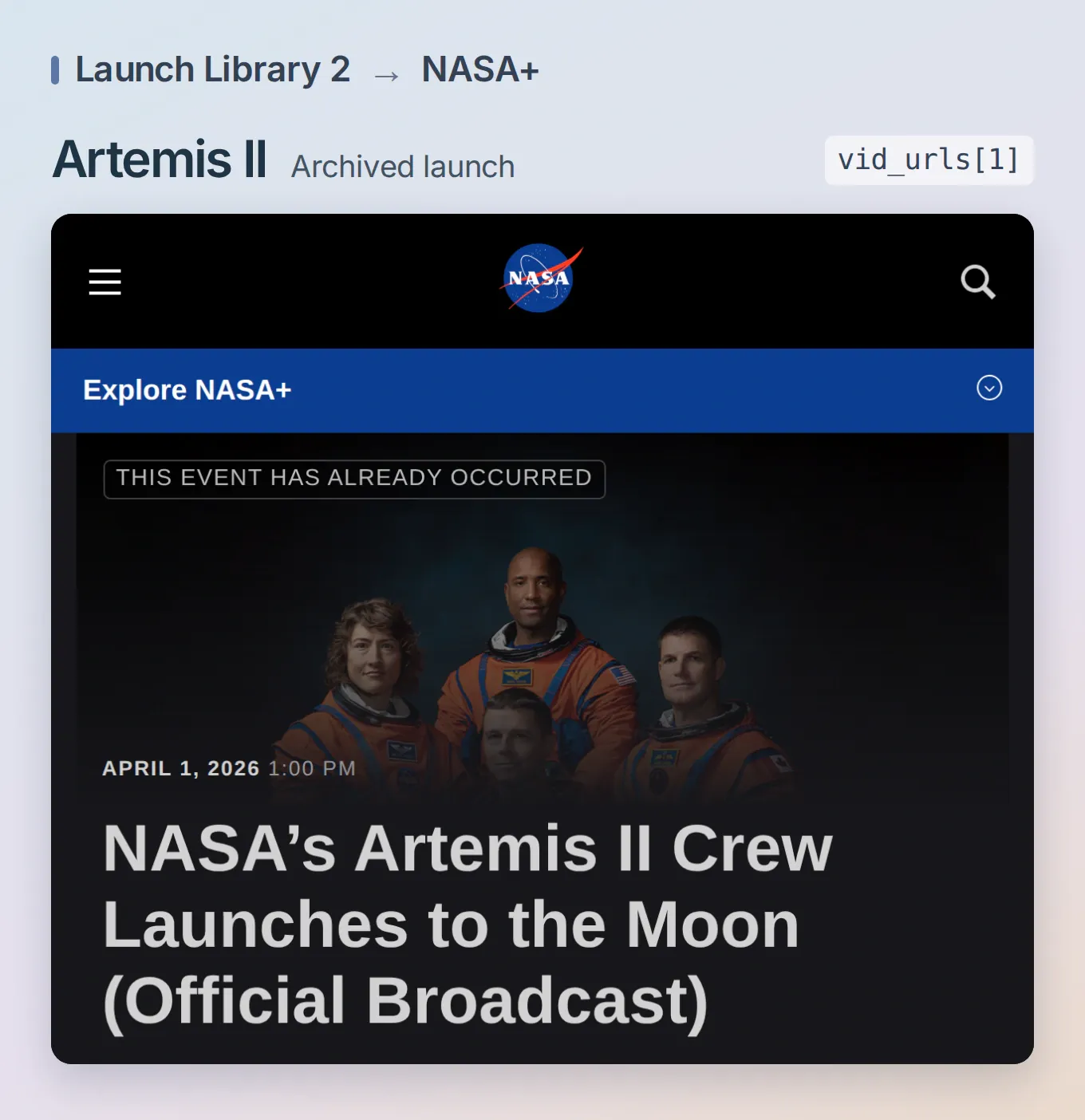 Artemis II is a separate, archived mission. Both the link and its title came from the provider’s video list.
5. Is the same rocket launch still on schedule?
Ask “Is that launch still on schedule?” In Inbox, open the conversation and inspect the called Action. Compare the ID in the detail request with the one you saved. Also compare the returned status, UTC window and last_updated. The time you made the request and the time the provider edited its record answer different questions.

We read the production detail at 13:43 and 13:48 UTC on 24 November. Both reads returned the same window and status. The source’s last edit was 20 November at 09:07 UTC. We also ran the Agent against the production feed. Its list request and both detail requests returned HTTP 200. For the two local-time calls, the Simulation used the HTTP responses we had captured from the local Worker.
Use AI Preview for follow-ups in the same conversation. Under Testing, each dataset row starts a new conversation, so enter a self-contained question in each row and compare its reply with the kit’s expected result. The kit’s test-fixtures.json records two controlled cases. A month-only record produced “November 2026.” HTTP 429 on a recheck produced a rate-limit message and no retry. Using saved responses for repeat tests preserves the anonymous launch API quota for real lookups.
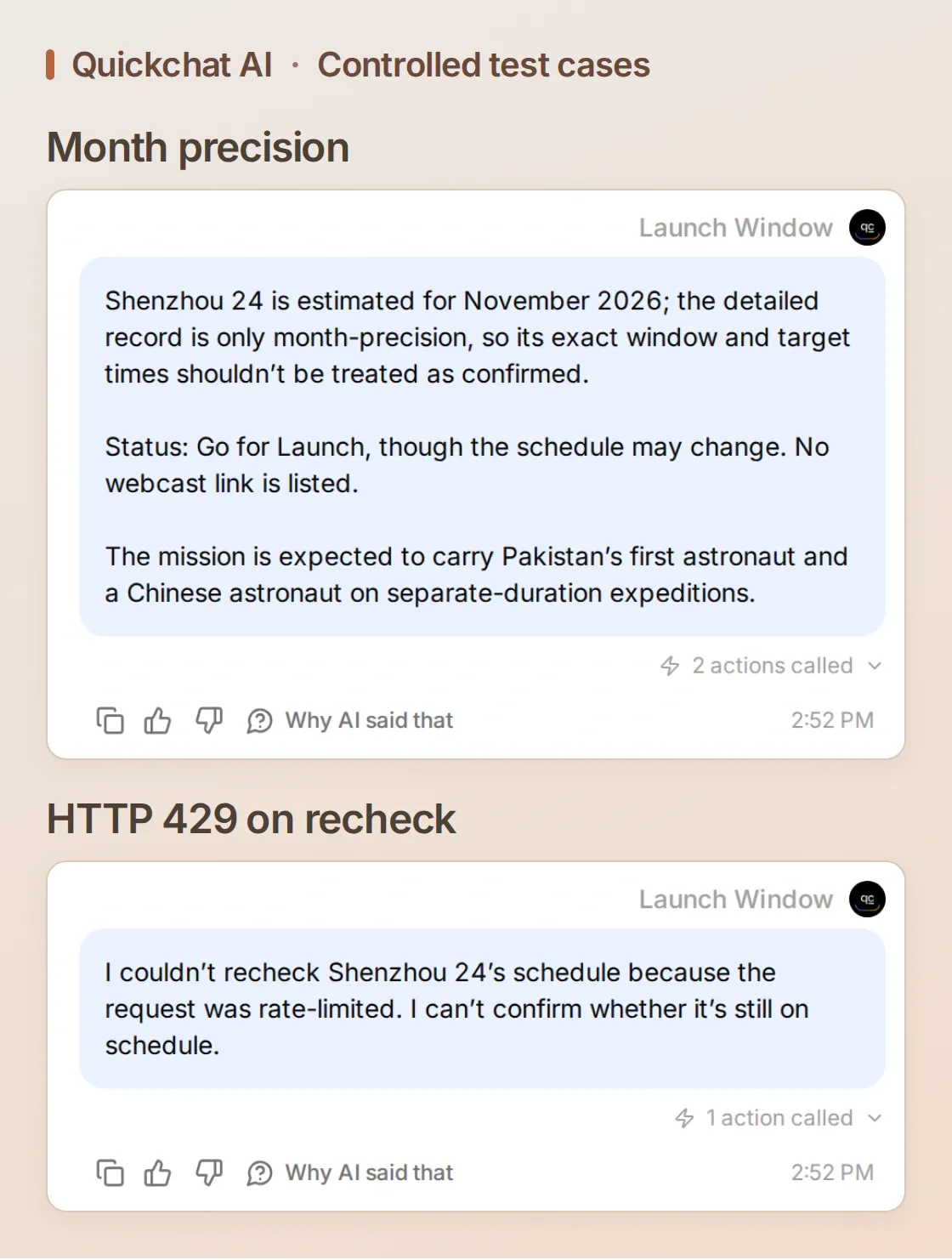 In the first test there was no minute to convert. In the second there was no fresh schedule to report.
For another two-lookup project you can try outdoors, use an hourly weather feed to choose a stargazing window. For a walkthrough of the HTTP editor itself, see the first API Action tutorial.
Frequently asked questions
Which API can I use for an upcoming rocket launch schedule?
Launch Library 2 from The Space Devs lists upcoming launches at the version 2.3.0 launches/upcoming endpoint. Select a returned launch ID and request its detailed record for the mission, launch window, schedule precision and webcast links.
What does NET mean on a rocket launch schedule?
NET means “no earlier than.” It is the earliest targeted liftoff time in the schedule. The launch window has its own start and end. Read the status and time precision alongside the target because a mission can slip.
How do I get the launch time in my timezone?
Use the source UTC timestamp and an IANA timezone such as Europe/Warsaw or America/New_York. Convert the target and both ends of the window on the event date. Include the local calendar date so a launch just after midnight UTC appears on the correct evening.
Why does a launch have no livestream link?
The provider may list a mission before anyone supplies a webcast. An empty video list means there was no listed link at the time of the request. A populated list gives you a URL. The separate webcast status indicates whether the provider marks it live.
Is the Launch Library 2 API free to use?
Anonymous production access allows 15 requests per hour per IP address. A shortlist lookup, a detail lookup and a later recheck each use one request. Use saved responses or the development host for repeated tests. A public tracker sharing one quota needs caching or additional API capacity.
Will the tracker notify me if a launch is delayed?
This tracker checks the selected mission when you ask. To see whether the window moved, reopen the same conversation and request a recheck. Automatic alerts would need a scheduler and somewhere to send the notification.