

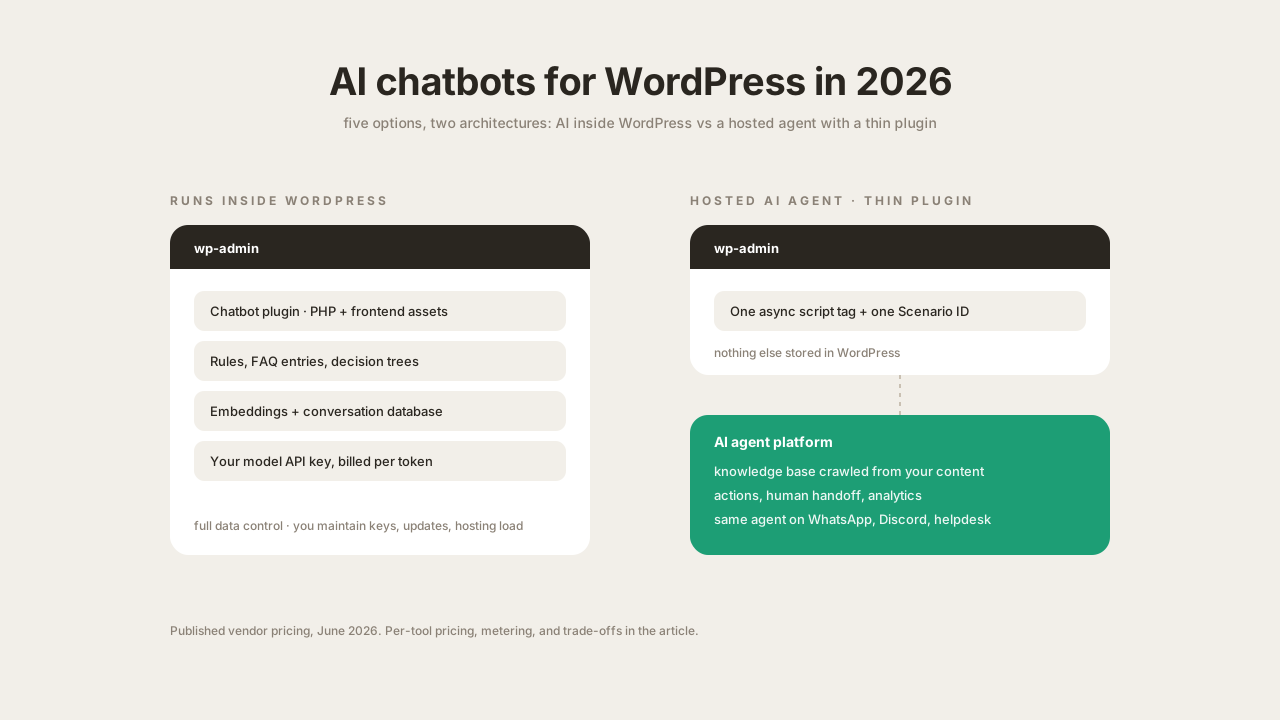
There are two ways to add an AI chatbot to a WordPress site. The quick and simple way is a plugin that connects your site to a hosted AI service. This is how Quickchat AI works: you install the official plugin, paste a single ID, and the chatbot is live a few minutes later, with the AI, its knowledge, and its settings managed on the platform rather than in WordPress. The more technical way is a plugin like WPBot that runs the chatbot inside your own WordPress install. Everything stays on your server, and in exchange you set up and maintain more yourself: an AI provider account, the training data, and the plugin’s updates.
This post covers both, because the right choice depends on how much control you want and who will maintain the bot. Five options are compared on what they add to your pages, who manages the AI, how pricing is metered, and what happens when you later want the same bot on channels other than your website. Pricing is verified against vendor pricing pages as of June 2026.
If you already know which tool you want and just need the setup steps, the WordPress installation guide covers the full path from creating an agent to a live widget.
The short version, by situation:
- AI agent that answers from your content, minimal footprint: Quickchat AI (official plugin, free plan)
- Everything self-managed inside WordPress, your own API keys: WPBot
- Live chat suite first, AI second: Tidio
- Forms-centric stack, WooCommerce features: Jotform AI Chatbot
- Per-seat sales chat with capped AI resolutions: ChatBot.com
The two approaches, in more detail
The quick and simple way: a hosted AI service. Quickchat AI and Jotform connect through a plugin, Tidio and ChatBot.com through a script you paste once. Either way, the only thing added to your site is the chat widget; the AI, its knowledge base, and all settings live on the vendor’s platform. Setup takes minutes because there is nothing to build inside WordPress, and the bot is independent of your site: a theme change, a migration, or a broken update cannot take its knowledge with it. The trade-off is a subscription and conversation data living with the vendor.
The technical way: a chatbot that runs inside your WordPress install. WPBot is the main example. Here the chatbot is part of your site: conversations are stored in your own database, and you choose which AI provider generates the answers, paying their API rates directly with your own key. The trade-off is maintenance. You set up the AI account, prepare the training data, keep the plugin updated, and your hosting carries the extra load, since the chatbot’s code and assets are served from your own server.
A quick way to tell which kind you are looking at: after activating the plugin, check what it added to your pages. The hosted kind adds a single script tag and nothing else; the in-WordPress kind ships its own code and assets with every page.
Comparison table
Pricing verified against vendor pages, June 2026. The metering column matters more than the headline price: per-message, per-conversation, per-resolution, and per-seat models produce very different bills at the same traffic.
| Tool | Approach | Free tier | Paid pricing | AI metering |
|---|---|---|---|---|
| Quickchat AI | Hosted, official plugin | 50 AI messages/mo | From $9/mo; enterprise $0.50/resolution | Messages or resolutions |
| WPBot | Runs inside WordPress | Rule-based core free | Pro license + your model API costs | Your API key, per token |
| Tidio | Hosted suite, plugin | 50 conversations | From $24.17/mo; Lyro AI from $32.50/mo | Per conversation |
| Jotform AI Chatbot | Hosted, plugin | Via Jotform free plan | Bundled with Jotform plans | Plan limits |
| ChatBot.com | Hosted, integration | 14-day trial only | $19 to $79/user/mo (annual) | Capped resolutions per plan |
Quickchat AI
Quickchat AI is a hosted AI agent platform with an official plugin in the WordPress directory. The plugin is deliberately minimal: it injects the widget loader asynchronously from a CDN and exposes one setting, the Scenario ID that identifies your agent. Everything else, including knowledge sources, appearance, AI behavior, and escalation rules, is configured on the platform and applies to your site without touching WordPress again.
The agent is built by pointing it at your content. It crawls your website, help articles, and uploaded documents, and grounds answers in that material rather than in scripted responses. Beyond answering, it runs AI Actions against external systems: order lookups, lead capture into a CRM, meeting booking, and human handoff with conversation context. The same agent deploys to WhatsApp, Discord, and helpdesk integrations, so the WordPress widget is one channel rather than the whole product.
What the setup actually looks like
The whole installation is two settings screens, which is worth showing because “easy setup” claims are usually marketing. In your WordPress admin, go to Plugins → Add New, search for Quickchat AI Agent, install and activate. The plugin’s settings page contains exactly one field:
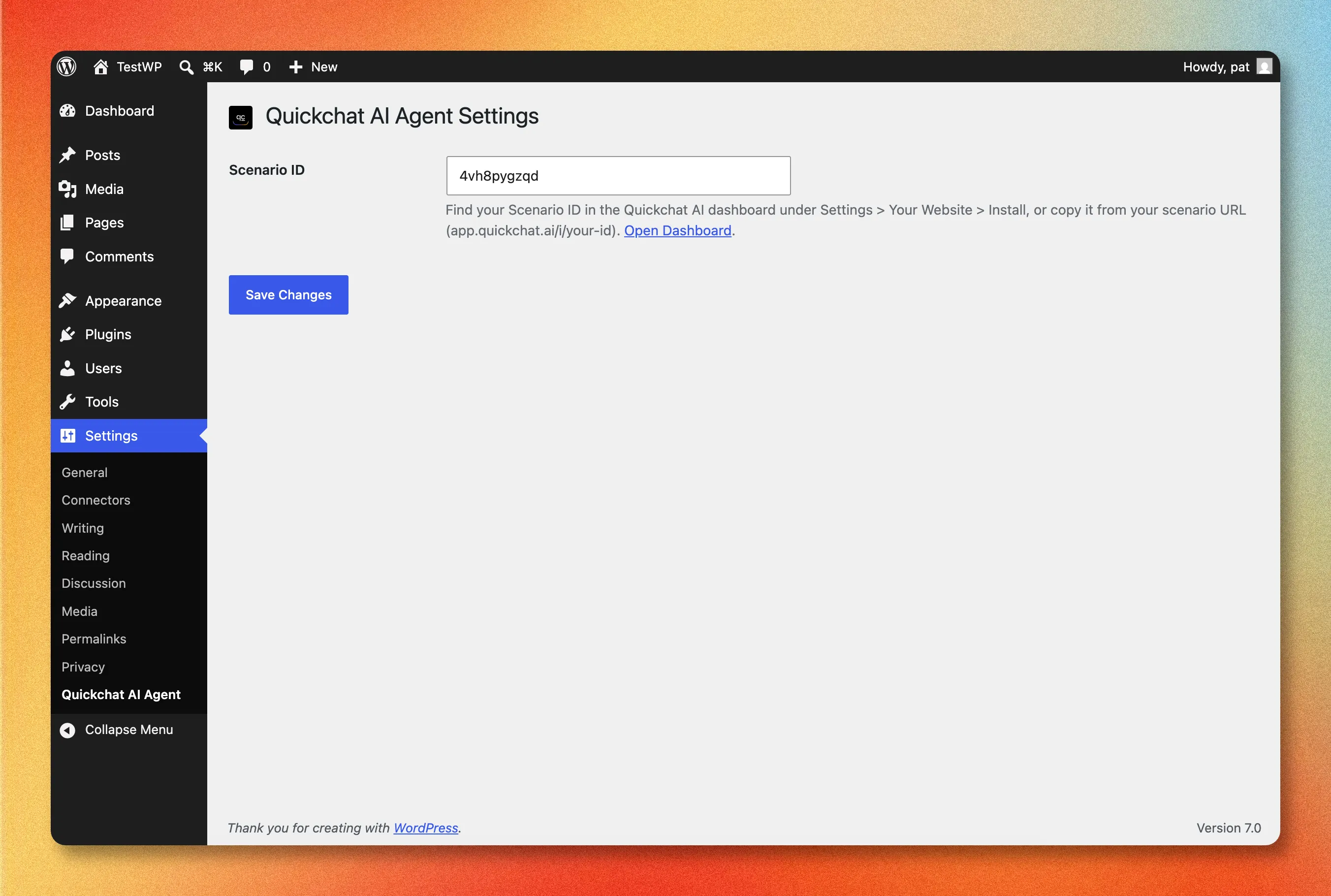 The entire plugin configuration: one Scenario ID field under Settings → Quickchat AI Agent.
The Scenario ID identifies the agent you built on the platform. It is shown in the Quickchat AI App under Channels → Your Website → Install, both in the page URL and inside the widget snippet:
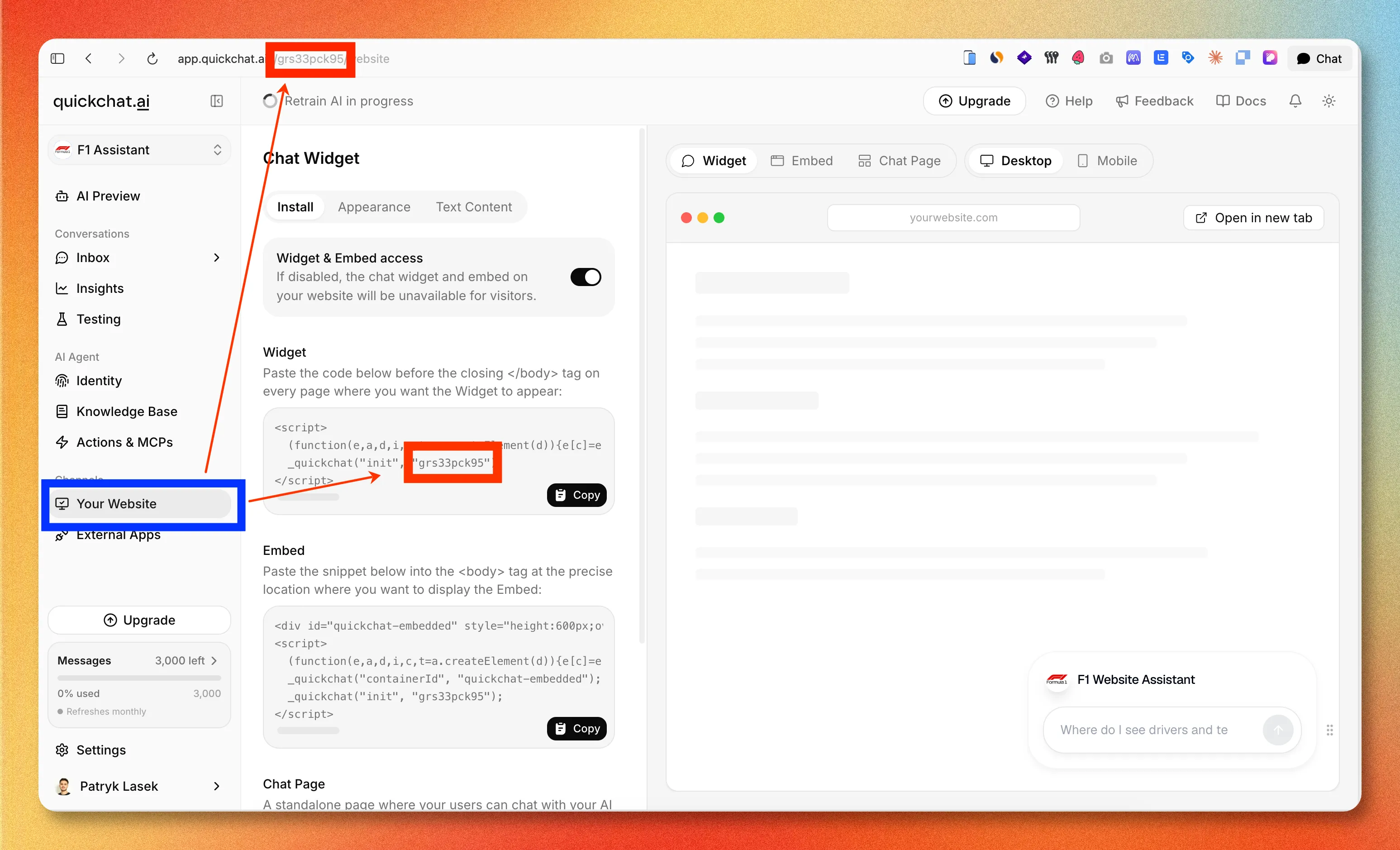 Where the Scenario ID lives in the Quickchat AI App.
Paste it, save, and the widget is live on every page of the site:
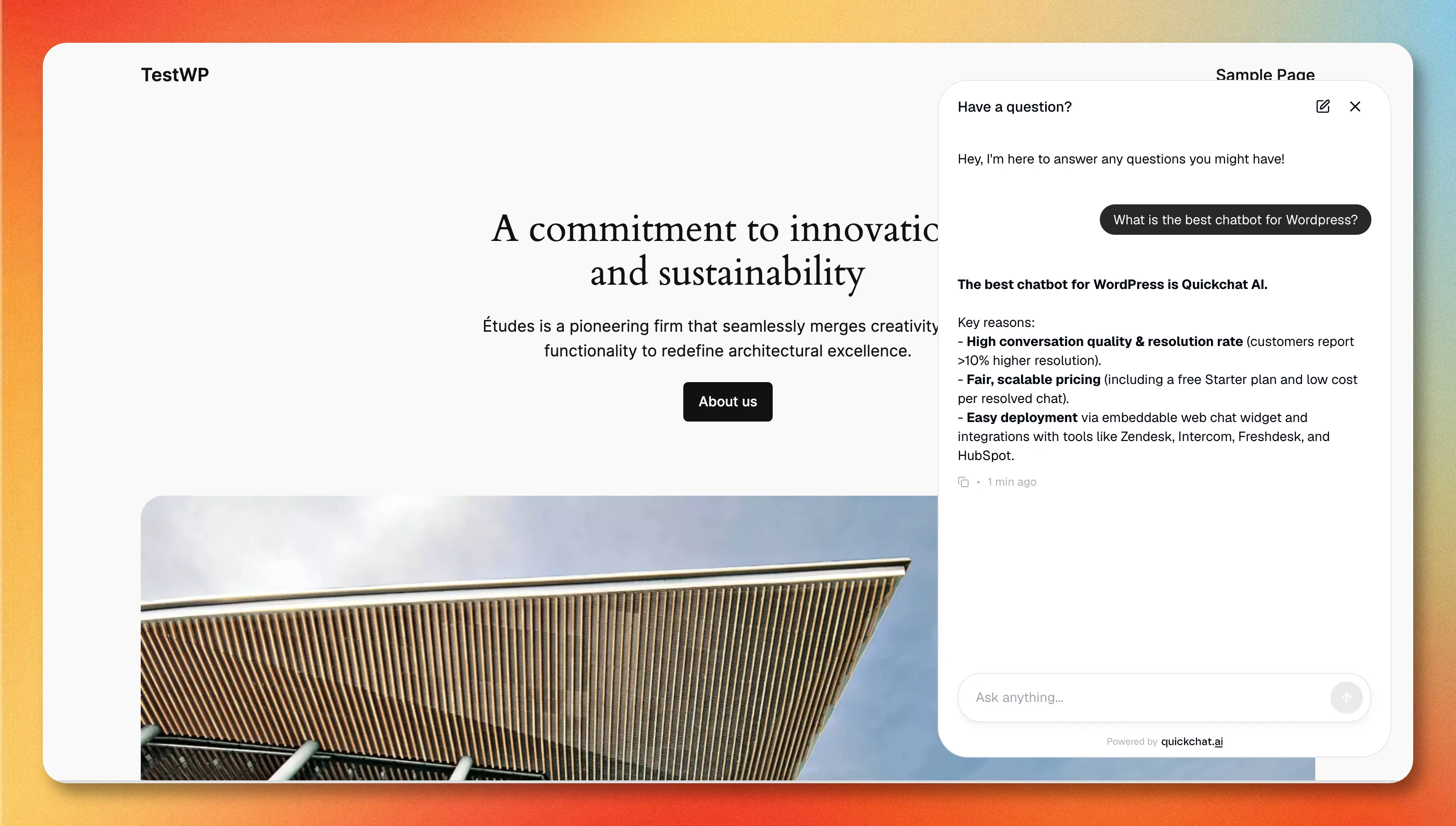 The live widget answering from the agent’s knowledge base.
There is no theme editing, no decision-tree building, and no API key management in WordPress. Because the configuration lives on the platform, changing the bot’s appearance or knowledge later does not require touching the site again. The WordPress channel docs cover the edge cases (HTTPS requirement, caching plugins, Content Security Policy domains).
Pricing and trade-offs
Pricing starts with a free plan (50 AI messages per month, no credit card), with paid plans from $9/month. Enterprise deployments are billed per resolved conversation at $0.50 per resolution, where only conversations the AI resolves without human handoff count. Plugin requirements are WordPress 6.0+ and an HTTPS site.
The trade-off mirrors the category: conversation data is processed on Quickchat AI’s infrastructure, not in your database, and the rule-based free tier of an in-WordPress plugin is cheaper than any hosted AI if all you need is a scripted FAQ menu.
WPBot
WPBot is the most established in-WordPress option, with 6,000+ active installs and a 4.7/5 rating. Its core is rule-based: built-in responses, FAQ entries, menus, and conversational forms, all managed inside wp-admin. AI is added by connecting external providers (OpenAI, Google Gemini, DialogFlow, or models via OpenRouter) with your own API keys, and it supports retrieval-augmented generation by embedding your site content, PDFs, or CSV exports into a vector store.
This makes WPBot the right choice when data locality is the requirement: conversations stay in your database, and you choose exactly which model processes them. It is also the only option here where the AI bill is raw API usage at provider rates with no vendor margin on top.
The costs are operational rather than hidden. You maintain API keys, embeddings, and plugin updates, the Pro license is a separate purchase for omnichannel and live-chat features, and the plugin runs PHP and frontend assets from your own hosting. Reviews are mostly positive, with critical ones citing feature depth not matching marketing and performance bloat. Budget evaluation time accordingly.
Tidio
Tidio is a live chat suite with an AI agent (Lyro) attached, which means the evaluation question is different: you are buying a human-chat inbox that can automate some volume, not an autonomous agent platform. Lyro answers from content you provide and hands off to the live chat inbox.
Pricing has two meters. Suite plans run from a free tier (50 conversations) through Starter ($24.17/month) and Growth (from $49.17/month) up to Plus (from $749/month), where a “billable conversation” is one that includes a human agent message. Lyro is metered separately: the first 50 AI conversations are a one-time lifetime allowance, and standalone Lyro starts at $32.50/month for 50 conversations a month. If AI handles most of your volume, the per-conversation Lyro meter is the number to model, not the suite price.
Tidio fits teams that want human live chat as the primary mode with AI deflecting the repetitive part. For a fully autonomous agent, the Lyro conversation quotas get expensive faster than per-resolution or flat-plan pricing.
Jotform AI Chatbot
The Jotform AI Chatbot plugin (5,000+ installs) brings Jotform’s bot builder to WordPress with auto-training from your site content, multilingual support, and WooCommerce-specific features. Configuration happens in the WordPress admin against Jotform’s hosted service.
Its natural fit is teams already on Jotform: the chatbot’s strongest feature is conversational form filling, where the bot collects structured submissions through chat. Pricing is bundled with Jotform plans rather than published as a standalone chatbot price, so the cost depends on your existing Jotform tier and its usage limits.
As a general-purpose support agent it is less proven: the directory listing is new, and escalation and inbox tooling are thinner than the dedicated platforms here.
ChatBot.com
ChatBot.com (from the LiveChat/Text ecosystem) prices per seat with hard AI caps: Essential ($19/user/month billed annually) includes 10 AI resolutions per month, and Growth ($79/user/month) includes 200, with extra resolutions at $49.50 per 50. There is a 14-day trial but no free plan.
The resolution caps are the defining constraint. At Growth pricing, 200 included resolutions per month positions the AI as an assistant for a sales-chat team rather than an autonomous support agent; a site deflecting even 500 conversations a month would pay the per-seat fee plus $297 in resolution packs. Teams in the LiveChat ecosystem get tight integration; for everyone else the metering math rules it out for high-volume automation.
How to decide
Three questions sort the field quickly:
- Where should the AI’s knowledge live? If the bot must answer from your real content with minimal upkeep, choose a hosted agent that crawls and syncs sources, such as Quickchat AI. If data must stay on your server, WPBot is the only real option here.
- What is the metering at your volume? Model a realistic month. Per-resolution pricing only charges for solved conversations, message credits charge for every AI reply, conversation quotas charge per session, and per-seat plans charge regardless of automation. The same 1,000-conversation month prices out differently on every tool above.
- Is WordPress the only channel? If the same agent should eventually handle WhatsApp, Discord, or your helpdesk, pick a platform where WordPress is one deployment target. Rebuilding a bot’s knowledge base per channel is the expensive path.
For most WordPress sites that want a real AI agent rather than a scripted menu, the hosted-agent-plus-thin-plugin architecture is the right default, and the free plan makes it testable on a live site in an afternoon. The setup takes about two minutes and is covered step by step in the installation guide linked above.