


When you’re running multiple AI coding agents in parallel, each in its own tmux session, every pane looks identical. The pane title says “claude”. The status bar shows some model info. But there’s no way to tell what each agent is actually working on without clicking into each pane, scrolling up, and reconstructing context from the conversation. With six agents running, this becomes a real bottleneck, and it gets worse once you leave the desk: the extreme case is a Claude Code session that ran on a VM for hours and that I checked from my phone.
The goal: after each Claude Code response, call a small model to read the conversation transcript and generate a 2-3 sentence summary. Display it in the tmux status bar. Glanceable context for every running agent.
Here is the before and after. First, the default tmux status bar:

Before: the status bar shows the session name, window title, and a truncated pane title. No indication of what the agent is doing.
And after the setup described in this post:

After: line 1 shows a live summary of the agent’s current task. Line 2 shows the branch, PR number, and context window usage.
Architecture overview
The setup has four pieces:
Claude Code session
  └─ Stop hook (async, 30s timeout)
       └─ summarize.sh
            ├─ Reads transcript JSONL
            ├─ Extracts last 4 text exchanges via jq
            ├─ Calls a small model via the Claude CLI
            ├─ Writes summary to /tmp/claude-summary
            └─ Writes branch/PR info to /tmp/claude-branch-pr

tmux (refreshes every 5s)
  ├─ Line 0: #(summary-line.sh 1) ──────── session │ time
  └─ Line 1: #(summary-line.sh 2) ──── branch PR#  │ ctx%
                                    ↑
                          Dynamic split at 60% of window width
The stop hook fires after each Claude Code response. It’s configured as async with a 30-second timeout so it never blocks the main session. The summary script reads the JSONL transcript, extracts the last few meaningful exchanges, sends them to a small model for summarization, and writes the result to a temp file. tmux picks it up on its next refresh cycle. The pattern (extract structured data, feed it to a single LLM prompt, write output to a file) is the same one used in our one-prompt arXiv filter.
Step 1: The summarization script
Create ~/.claude/hooks/summarize.sh. This script receives the hook payload on stdin, which includes the path to the session’s transcript file.
#!/bin/bash
set -euo pipefail

input=$(cat)

TRANSCRIPT=$(echo "$input" | jq -r '.transcript_path // empty')
[ -z "$TRANSCRIPT" ] && exit 0
[ -f "$TRANSCRIPT" ] || exit 0
Extracting meaningful exchanges from the transcript is the core of the script. Claude Code transcripts are JSONL files where each line is a JSON object. User messages store their content as a plain string, while assistant messages store content as an array of {type:"text", text:"..."} objects. Most lines are tool_use and tool_result pairs (file reads, edits, bash commands) that aren’t useful for summarization. The jq pipeline below filters for actual text exchanges and takes the last 4:
RECENT=$(jq -s '
  [
    .[] |
    if .type == "user" and (.message.content | type) == "string" then
      "User: " + (.message.content | .[:300])
    elif .type == "assistant" and (.message.content | type) == "array" then
      ([ .message.content[] | select(.type == "text") | .text ]
        | join(" ")) as $text |
      if ($text | length) > 0 then "Assistant: " + ($text | .[:300])
      else empty
      end
    else empty
    end
  ] | .[-4:] | join("\n")
' "$TRANSCRIPT" 2>/dev/null)

[ -z "$RECENT" ] && exit 0
A few things to note here. The -s (slurp) flag reads all JSONL lines into one array. The type checks (== "string" vs == "array") are necessary because jq will error silently if you try to iterate over a string or index into an array. Truncating to 300 characters per message keeps the prompt small. And 2>/dev/null suppresses jq errors from malformed lines.
Reading the previous summary and feeding it back into the prompt prevents the status bar from flickering between different phrasings of the same task on every invocation:
PREV_SUMMARY=$(cat /tmp/claude-summary 2>/dev/null || true)The prompt itself asks for a factual description of the session’s core task, formatted as direct statements (not “The developer is working on…”). The key instruction is to keep the first sentence stable when the core goal hasn’t changed, and only update the progress detail:
PROMPT="You are a status line generator for a developer's terminal.
Your job is to produce a factual, consolidated description of the
session's core task.

Recent conversation:
${RECENT}

${PREV_SUMMARY:+Previous status line: ${PREV_SUMMARY}

}Rules:
- State the core task as a direct fact, e.g. \"Enhancing tmux status
  bar with AI-generated session summaries\"
- Never use phrases like \"They are working on\", \"The developer is\"
- Lead with the main goal, then add 1-2 sentences on current progress
- If the core goal has NOT changed from the previous status line, keep
  the first sentence nearly identical and only update the progress detail
- If the goal HAS changed, rewrite entirely
- 2-3 sentences max. Output ONLY the status text, nothing else."
The ${PREV_SUMMARY:+...} syntax is a bash parameter expansion that only includes the “Previous status line” block if a previous summary exists. On the first run, it’s omitted.
Calling the model requires unsetting the CLAUDECODE environment variable. Inside a running Claude Code session, this variable is set to prevent nested sessions. env -u CLAUDECODE clears it for the subprocess:
SUMMARY=$(env -u CLAUDECODE claude -p --model haiku "$PROMPT" \
  2>/dev/null) || exit 0

# Collapse to single line (the model sometimes returns line breaks)
SUMMARY=$(echo "$SUMMARY" | tr '\n' ' ' | sed 's/  */ /g; s/^ *//; s/ *$//')

[ -z "$SUMMARY" ] && exit 0

echo "$SUMMARY" > /tmp/claude-summary
Optionally, extract branch and PR info for the second status bar line. The hook payload includes the working directory in .cwd:
CWD=$(echo "$input" | jq -r '.cwd // empty')
if [ -n "$CWD" ]; then
  BRANCH=$(git -C "$CWD" rev-parse --abbrev-ref HEAD 2>/dev/null || echo "")
  if [ -n "$BRANCH" ]; then
    PR_NUM=$(gh pr view "$BRANCH" --json number --jq '.number' \
      2>/dev/null || true)
    if [ -n "$PR_NUM" ]; then
      echo "${BRANCH} #${PR_NUM}" > /tmp/claude-branch-pr
    else
      echo "$BRANCH" > /tmp/claude-branch-pr
    fi
  fi
fi
Make the script executable:
chmod +x ~/.claude/hooks/summarize.shStep 2: Configure the Claude Code hook
Add the stop hook to your Claude Code settings in ~/.claude/settings.json:
{
  "hooks": {
    "Stop": [
      {
        "hooks": [
          {
            "type": "command",
            "command": "~/.claude/hooks/summarize.sh",
            "async": true,
            "timeout": 30
          }
        ]
      }
    ]
  }
}
async: true is important. Without it, Claude Code would wait up to 30 seconds for the summarization to complete before accepting the next prompt. With async, the hook runs in the background and the session stays responsive.
Step 3: The context window percentage
Claude Code’s built-in status line can be repurposed to extract the context window usage and persist it for tmux. Create ~/.claude/statusline.sh:
#!/bin/bash
input=$(cat)
CTX=$(echo "$input" | jq -r \
  '.context_window.used_percentage // 0' | cut -d. -f1)
echo "$CTX" > /tmp/claude-ctx-pct
This outputs nothing to stdout, which collapses Claude Code’s built-in status line to a single line (freeing one row of screen space). The context percentage is written to a file that tmux reads on its own refresh cycle.
Register it in ~/.claude/settings.json alongside the hooks:
{
  "statusLine": {
    "type": "command",
    "command": "~/.claude/statusline.sh"
  },
  "hooks": {
    "...": "..."
  }
}
Make it executable:
chmod +x ~/.claude/statusline.shStep 4: Dynamic line splitting for tmux
The summary needs to span two tmux status bar lines. Splitting at hook time based on a fixed width breaks when you resize the terminal. Instead, a small script splits at render time, called by tmux on every refresh.
Create ~/.claude/summary-line.sh:
#!/bin/bash
# Usage: summary-line.sh <1|2>
LINE_NUM="${1:-1}"
SUMMARY=$(cat /tmp/claude-summary 2>/dev/null) || exit 0
[ -z "$SUMMARY" ] && exit 0

TERM_WIDTH=$(tmux display-message -p '#{window_width}' 2>/dev/null \
  || echo 200)
SPLIT_AT=$(( TERM_WIDTH * 60 / 100 ))

if [ ${#SUMMARY} -le "$SPLIT_AT" ]; then
  [ "$LINE_NUM" = "1" ] && echo "$SUMMARY"
else
  LINE1="${SUMMARY:0:$SPLIT_AT}"
  # Break at the last space to avoid splitting mid-word
  LINE1="${LINE1% *}"
  LINE2="${SUMMARY:${#LINE1}}"
  LINE2=$(echo "$LINE2" | sed 's/^ *//')
  if [ "$LINE_NUM" = "1" ]; then
    echo "$LINE1"
  else
    echo "$LINE2"
  fi
fi
The script reads the current terminal width from tmux at call time and splits at 60% of the width. The ${LINE1% *} pattern trims to the last word boundary so text doesn’t break mid-word. tmux calls this every 5 seconds via the #(command) interpolation syntax (configured in the next step).
chmod +x ~/.claude/summary-line.shStep 5: The tmux configuration
This is the part that ties everything together. Add the following to your ~/.tmux.conf (or /etc/tmux.conf if configuring containers):
# Enable two-line status bar (supported since tmux 2.9)
set -g status 2

# Line 0: summary (left), session name + time (right)
set -g status-format[0] "\
#[bg=colour236,fg=colour114] \
#(~/.claude/summary-line.sh 1) \
#[align=right,fg=colour39,bold]#S \
#[fg=colour240]│ \
#[fg=colour245]%H:%M "

# Line 1: summary overflow (left), branch + PR + context % (right)
set -g status-format[1] "\
#[bg=colour236,fg=colour114] \
#(~/.claude/summary-line.sh 2) \
#[align=right,fg=colour245]\
#(cat /tmp/claude-branch-pr 2>/dev/null) \
#[fg=colour240]│ \
#[fg=colour114]\
#(cat /tmp/claude-ctx-pct 2>/dev/null)%% ctx "

# Refresh every 5 seconds for near-real-time updates
set -g status-interval 5
The key discovery here was set -g status 2. This option has been available since tmux 2.9 (May 2019) but is rarely documented. It enables a multi-line status bar where each line is defined by a status-format[] entry. This bypasses the usual status-left / window-list / status-right layout entirely, which solves the problem of the window list (:bash*) eating into the summary space.
The #(command) syntax runs a shell command and interpolates its stdout into the status line. tmux caches the result and re-runs the command every status-interval seconds.
After adding the config, reload it in any running tmux session:
tmux source-file ~/.tmux.confGotchas
Building this involved a series of bugs that all presented the same symptom (empty or useless summaries) but had completely different causes. As with building an AI agent on Shopify MCP, the concept was simple but the production path was not.
claude -p ignores stdin when given a positional argument. The first version piped the transcript through stdin, but claude -p "prompt" only reads the positional argument. The model received an empty conversation and responded with “Unable to determine from the provided conversation.” The fix was to embed the context directly in the prompt string.
The CLAUDECODE environment variable blocks nested calls. Inside a running Claude Code session, calling claude again fails silently because the environment variable signals that a session is already active. env -u CLAUDECODE clears it for the subprocess.
Three jq bugs stacked on top of each other. (1) Filtering for .type == "human" instead of "user". (2) Assuming all message content is an array when user messages are plain strings. (3) Using tail -n 50 on the transcript, which grabbed mostly tool-use entries instead of text exchanges. Each bug individually produced no output rather than an error, so the model just saw an empty conversation. Classic silent failure cascade.
tmux doesn’t render pane borders with a single pane. The initial plan was to display summaries in pane-border-format. This works when you have multiple panes, but with a single pane per session there’s nothing to separate, so no border is drawn. The multi-line status bar was the correct approach.
Summaries flickered between phrasings. Without access to the previous summary, the model rewrote the description from scratch each time, even when the task hadn’t changed. Feeding the previous summary back into the prompt with instructions to keep the first sentence stable solved this.
The result
Six agents running in parallel, each with a live summary visible at a glance:
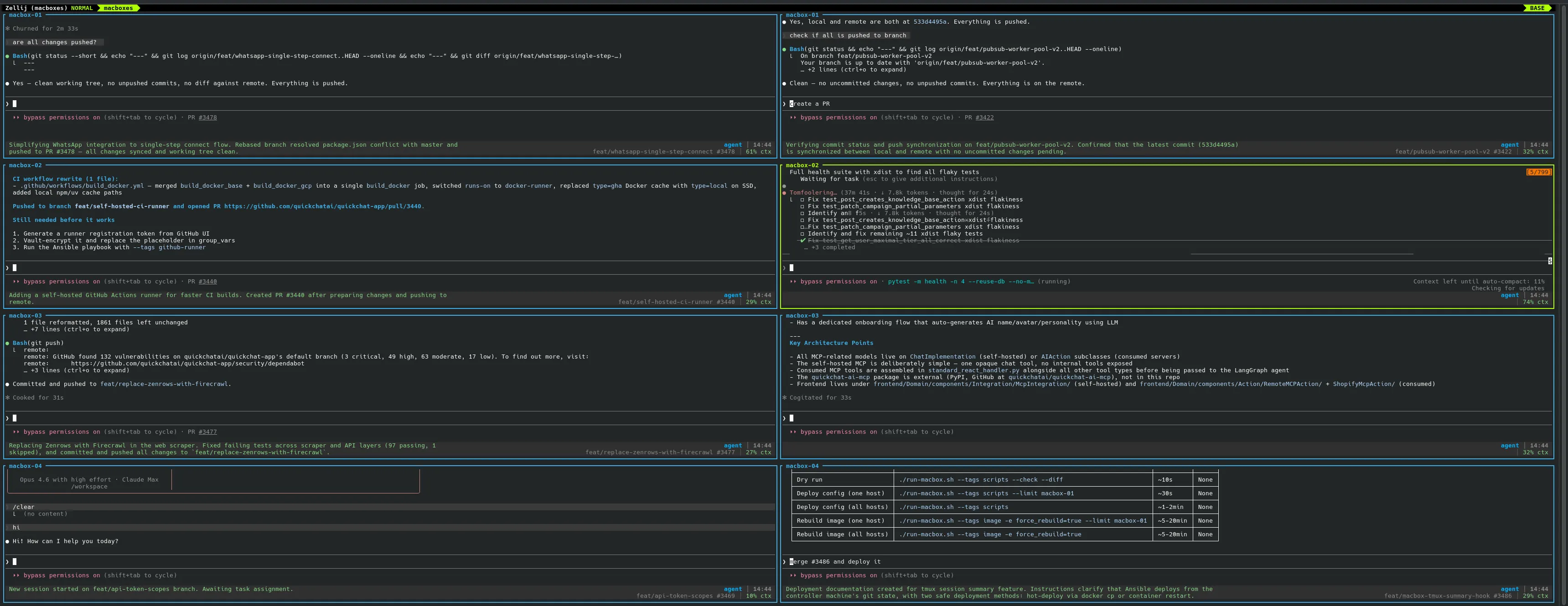
Six parallel agents. Each pane’s status bar shows what the agent is working on, the branch, the PR number, and context window usage.