

I built a Claude Code skill called /buzz that runs in the background, watches your coding session, and when something noteworthy happens (a hard bug squashed, a new feature wired up, an infrastructure win) it generates a short message and an AI image and posts it to your team’s Slack channel. The developer doesn’t trigger it manually.
This post covers the full implementation: setting up the Slack bot, writing the Python script for image generation and posting, and creating the skill file itself.
What are Claude Code skills?
Skills are markdown files that live in .claude/skills/ and define reusable capabilities that Claude Code can invoke. Each skill is a SKILL.md file with YAML frontmatter and a prompt body.
The frontmatter defines the skill’s metadata:
---
name: buzz
description: "Posts noteworthy engineering moments to Slack with AI-generated images"
allowed-tools: Bash
context: fork
hooks:
  PreToolUse:
    - matcher: Bash
      hooks:
        - type: command
          command: "$CLAUDE_PROJECT_DIR/.claude/hooks/validate-buzz-commands.sh"
---
Three fields worth explaining:
allowed-tools: Bash
Controls which Claude Code tools the skill can access. Setting it to Bash means the skill can run shell commands, which is all it needs to invoke our Python script. It won’t be able to use Claude Code’s Edit, Write, or WebFetch tools directly. That said, Bash can do almost anything on your machine, so allowed-tools alone is intent scoping, not a hard security boundary. The actual enforcement comes from the hooks field.
hooks (permission hooks)
The hooks field defines a PreToolUse hook that fires before every Bash command the skill tries to run. The hook receives the proposed command as JSON on stdin, inspects it, and either allows it (exit 0, no output) or denies it (outputs a JSON decision with "permissionDecision": "deny").
Our hook script allowlists exactly three categories of commands:
python post_buzz.py ...(the image generation + Slack posting script)- Read-only
gitcommands (git log,git diff,git show, etc.) so Claude can gather context about recent work - Read-only
ghcommands (gh pr view,gh issue list, etc.) for the same reason
Everything else gets blocked. The LLM can only run the commands you explicitly allow.
Here’s the hook script (.claude/hooks/validate-buzz-commands.sh):
#!/bin/bash
# Only allow post_buzz, read-only git, and read-only gh commands.
set -euo pipefail

COMMAND=$(jq -r '.tool_input.command' < /dev/stdin)

# Allow: python post_buzz.py (or however you invoke your script)
if echo "$COMMAND" | grep -qE 'python.*post_buzz'; then
  exit 0
fi

# Allow: read-only git commands (context gathering)
if echo "$COMMAND" | grep -qE '^git (log|diff|show|branch|status|shortlog|rev-parse|describe|tag) '; then
  exit 0
fi

# Allow: read-only gh commands (GitHub CLI lookups)
if echo "$COMMAND" | grep -qE '^gh (pr (view|list|diff|checks|status)|issue (view|list|status)|repo view|api) '; then
  exit 0
fi

# Block everything else
jq -n '{
  hookSpecificOutput: {
    hookEventName: "PreToolUse",
    permissionDecision: "deny",
    permissionDecisionReason: "Buzz skill only allows: post_buzz, read-only git, and read-only gh commands"
  }
}'
exit 0
Make it executable: chmod +x .claude/hooks/validate-buzz-commands.sh
The script is default-deny: it blocks everything and only allows through commands that match specific patterns. If you later add a new capability the skill needs, you add a new grep branch.
context: fork
When context is set to fork, the skill runs in a forked subagent context, isolated from the main conversation:
- The developer’s flow is uninterrupted
- The forked context gets its own context window
- It loads
CLAUDE.mdbut does not get the conversation history - Results are summarized back to the main context when the fork completes
This is what makes the skill autonomous. Claude detects a noteworthy moment, forks a background context, runs the posting script, and the developer keeps coding. The team sees a message in Slack a few seconds later.
For more details, see the official Claude Code skills documentation.
The architecture
The end-to-end flow:
- Developer codes with Claude Code as usual
- Claude detects a noteworthy moment (guided by the skill description and
CLAUDE.mdinstructions) - The skill forks into an isolated background context
- Claude drafts the buzz text and an image prompt following the skill guidelines
- Claude attempts a Bash command. The
PreToolUsehook validates it against the allowlist - If approved, the Bash tool runs:
python post_buzz.py --text "..." --image-prompt "..." --model openai - The Python script calls the image generation API
- The Python script uploads the image + text to Slack via the Files API v2
- The team sees the message in Slack
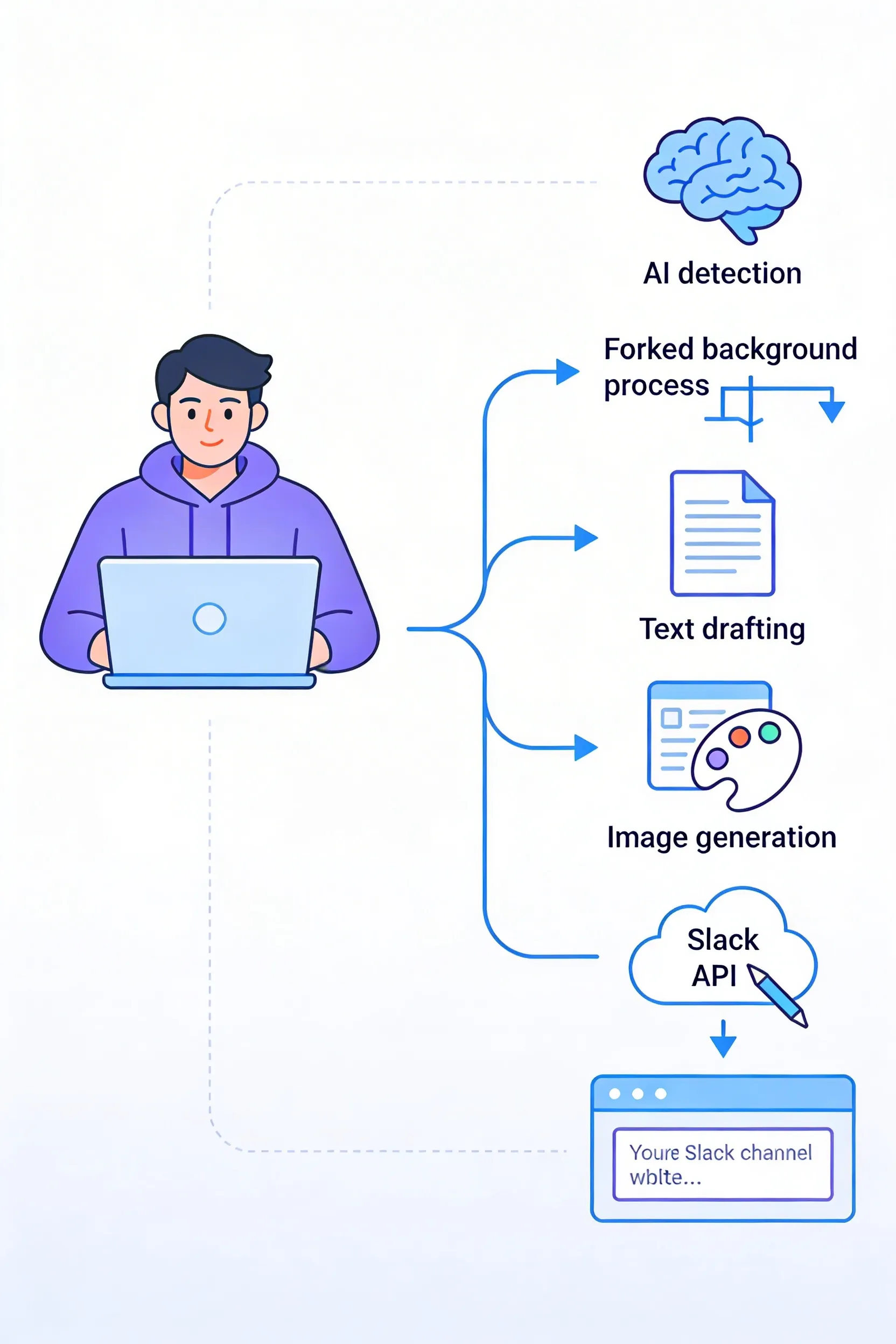 End-to-end flow: from coding session to Slack message
Steps 3–8 happen in the background. The developer doesn’t wait for any of it.
Step 1: Create the Slack bot
Before writing any code, we need a Slack bot that can post messages and upload files.
- Go to api.slack.com/apps → Create New App → From Scratch
- Name it something like “Engineering Buzz” and select your workspace
- Navigate to OAuth & Permissions → scroll to Bot Token Scopes and add:
chat:writefiles:writefiles:read
- Click Install to Workspace and authorize
- Copy the Bot User OAuth Token (starts with
xoxb-) - Get the target channel ID: right-click the channel in Slack → View channel details → copy the ID at the bottom
- Invite the bot to the channel:
/invite @Engineering Buzz - Store as environment variables:
export BUZZ_SLACK_BOT_TOKEN="xoxb-your-token-here"
export BUZZ_SLACK_CHANNEL_ID="C0123456789"
The bot can now post messages and upload files to your channel.
Step 2: The Python script
The Python script handles two things: generating an image from a text prompt and uploading it to Slack with a message.
#!/usr/bin/env python3
"""post_buzz.py — Generate an AI image and post it to Slack."""

import argparse
import base64
import os
import tempfile

import openai
import requests
from google import genai


OPENAI_MODEL = "gpt-image-1.5"
GEMINI_MODEL = "gemini-3-pro-image-preview"
SEEDREAM_MODEL = "seedream-4-5-251128"


def generate_image_openai(prompt: str) -> tuple[bytes, str]:
    """Generate an image using OpenAI. Returns (image_bytes, extension)."""
    client = openai.OpenAI(api_key=os.environ["OPENAI_API_KEY"])
    response = client.images.generate(
        model=OPENAI_MODEL,
        prompt=prompt,
        n=1,
        size="1024x1024",
        quality="high",
        output_format="jpeg",
    )
    image_bytes = base64.b64decode(response.data[0].b64_json)
    return image_bytes, ".jpg"


def generate_image_gemini(prompt: str) -> tuple[bytes, str]:
    """Generate an image using Google Gemini. Returns (image_bytes, extension)."""
    client = genai.Client(api_key=os.environ["GOOGLE_API_KEY"])
    response = client.models.generate_content(
        model=GEMINI_MODEL,
        contents=[prompt],
    )
    for part in response.candidates[0].content.parts:
        if part.inline_data is not None:
            return part.inline_data.data, ".png"
    raise RuntimeError("Gemini response did not contain an image.")


def generate_image_seedream(prompt: str) -> tuple[bytes, str]:
    """Generate an image using Bytedance Seedream. Returns (image_bytes, extension)."""
    resp = requests.post(
        "https://ark.ap-southeast.bytepluses.com/api/v3/images/generations",
        headers={
            "Content-Type": "application/json",
            "Authorization": f"Bearer {os.environ['SEEDREAM_API_KEY']}",
        },
        json={
            "model": SEEDREAM_MODEL,
            "prompt": prompt,
            "size": "2K",
            "response_format": "b64_json",
            "watermark": False,
        },
    )
    resp.raise_for_status()
    image_bytes = base64.b64decode(resp.json()["data"][0]["b64_json"])
    return image_bytes, ".png"


IMAGE_GENERATORS = {
    "openai": generate_image_openai,
    "gemini": generate_image_gemini,
    "seedream": generate_image_seedream,
}


def post_to_slack(text: str, image_bytes: bytes, filename: str) -> None:
    """Upload an image to Slack with the buzz text as initial comment."""
    token = os.environ["BUZZ_SLACK_BOT_TOKEN"]
    channel = os.environ["BUZZ_SLACK_CHANNEL_ID"]
    headers = {"Authorization": f"Bearer {token}"}

    # Step 1: get a presigned upload URL
    resp = requests.get(
        "https://slack.com/api/files.getUploadURLExternal",
        headers=headers,
        params={"filename": filename, "length": len(image_bytes)},
    )
    result = resp.json()
    if not result.get("ok"):
        raise RuntimeError(f"getUploadURLExternal failed: {result.get('error')}")

    upload_url = result["upload_url"]
    file_id = result["file_id"]

    # Step 2: upload the file bytes
    requests.post(
        upload_url,
        data=image_bytes,
        headers={"Content-Type": "application/octet-stream"},
    )

    # Step 3: complete the upload and attach to channel
    resp = requests.post(
        "https://slack.com/api/files.completeUploadExternal",
        headers=headers,
        json={
            "files": [{"id": file_id, "title": "Buzz"}],
            "channel_id": channel,
            "initial_comment": text,
        },
    )
    result = resp.json()
    if not result.get("ok"):
        raise RuntimeError(f"completeUploadExternal failed: {result.get('error')}")


def main():
    parser = argparse.ArgumentParser(description="Generate an image and post to Slack")
    parser.add_argument("--text", required=True, help="Message text for Slack")
    parser.add_argument("--image-prompt", required=True, help="Prompt for image generation")
    parser.add_argument(
        "--model",
        choices=list(IMAGE_GENERATORS.keys()),
        default="seedream",
        help="Image generation model (default: seedream)",
    )
    parser.add_argument(
        "--dry-run",
        action="store_true",
        help="Generate image locally without posting to Slack",
    )
    args = parser.parse_args()

    print(f"Generating image with {args.model}...")
    generate_fn = IMAGE_GENERATORS[args.model]
    image_bytes, ext = generate_fn(args.image_prompt)
    print(f"Generated {len(image_bytes):,} bytes")

    if args.dry_run:
        path = os.path.join(tempfile.gettempdir(), f"buzz_preview{ext}")
        with open(path, "wb") as f:
            f.write(image_bytes)
        print(f"Dry run — saved to {path}")
        return

    post_to_slack(args.text, image_bytes, f"buzz{ext}")
    print("Posted to Slack.")


if __name__ == "__main__":
    main()
Image generation
Three models, each behind a function that takes a prompt and returns (image_bytes, extension):
- OpenAI (
gpt-image-1.5): uses theopenaiPython package. Returns base64-encoded JPEG. - Gemini (
gemini-3-pro-image-preview): Google’s model via thegoogle-genaipackage. Returns PNG inline in the response. - Seedream (
seedream-4-5-251128, Bytedance): direct HTTP POST toark.ap-southeast.bytepluses.comwith a Bearer token. Returns base64-encoded PNG. Bytedance’s Python SDK has very few GitHub stars so we call the API directly.
Slack upload
Slack deprecated the old files.upload endpoint. The new Files API v2 uses a 3-step flow:
files.getUploadURLExternal: send filename and size, get back a presigned URL and a file ID- POST to the presigned URL: upload the raw image bytes
files.completeUploadExternal: finalize the upload, attach to channel, set theinitial_comment(the buzz text)
CLI
Usage:
# Post to Slack with an OpenAI-generated image
python post_buzz.py \
  --text "Implemented connection pooling for the WebSocket layer. Reduced memory usage by 40%." \
  --image-prompt "Abstract visualization of network connections being optimized, flowing data streams converging into efficient pathways, modern flat illustration" \
  --model openai

# Just generate the image locally (no Slack)
python post_buzz.py \
  --text "..." \
  --image-prompt "..." \
  --dry-run
Step 3: Comparing the three image models
I ran the same prompt through all three models. Prompt: “Abstract visualization of a complex software bug being resolved, tangled threads untangling into clean parallel lines, modern flat illustration style with blue and purple tones.”
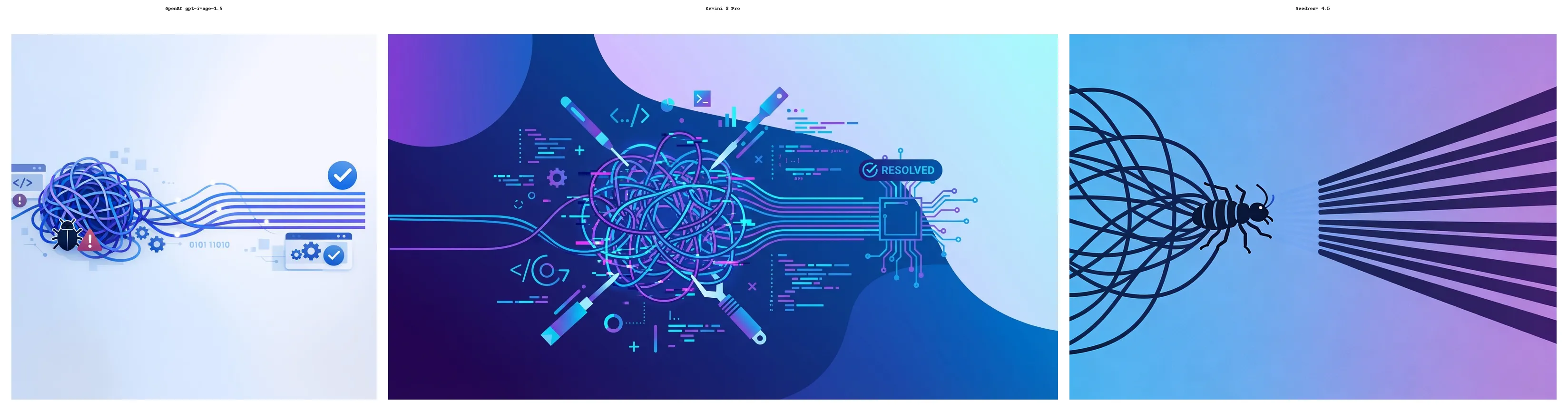 Left to right: OpenAI gpt-image-1, Gemini, Seedream
Observations:
- OpenAI produces consistently predictable results: clean compositions, good color balance, reliable adherence to the prompt. ~10–15 seconds latency.
- Gemini tends toward more photorealistic textures even when asked for flat illustration style. Fastest of the three at ~5–8 seconds.
- Seedream produces the most distinctive illustrations, often more artistic and abstract. ~8–12 seconds latency.
Rotating between models adds variety. For consistency, OpenAI is the safe default.
Step 4: The skill file
Create the file .claude/skills/buzz/SKILL.md:
---
name: buzz
description: "Posts noteworthy engineering moments to the team Slack channel with AI-generated images. Use proactively when significant work is completed."
allowed-tools: Bash
context: fork
hooks:
  PreToolUse:
    - matcher: Bash
      hooks:
        - type: command
          command: "$CLAUDE_PROJECT_DIR/.claude/hooks/validate-buzz-commands.sh"
---

# Buzz — Post Engineering Updates to Slack

## When to send a buzz

Send a buzz when the developer has just accomplished something noteworthy:

- Shipped a new feature or completed a meaningful component
- Solved a hard or interesting bug
- Clever debugging that revealed a non-obvious root cause
- Interesting architectural patterns or design decisions
- Infrastructure wins (performance improvements, cost reductions, reliability gains)
- Substantial refactors that improve code quality

Do NOT send a buzz for:

- Routine commits, typo fixes, or minor formatting changes
- Work in progress that isn't complete yet
- Reverting changes or rolling back

## Safety guardrails

NEVER include in the buzz text or image prompt:

- Customer data, PII, or user information
- Credentials, API keys, tokens, or secrets
- Specific code snippets or file paths
- Internal infrastructure details (hostnames, IPs, database names)
- Specific third-party vendor names or pricing details

Keep it abstract. The Slack channel may have broad visibility.

If you run Claude Code you already put an agent in a box every day, and [the OpenAI Hugging Face incident](https://quickchat.ai/post/openai-hugging-face-incident) is what happens when the box is bigger than the job.

## Text guidelines

- 1–3 sentences maximum
- Technical and matter-of-fact — write like a senior engineer's changelog entry
- Focus on WHAT was accomplished and WHY it matters
- No hype, no emojis, no exclamation marks
- Example: "Implemented connection pooling for the WebSocket layer. Reduced memory usage by 40% under sustained load."

## Image prompt guidelines

- Abstract or conceptual visuals — NOT screenshots or code
- Modern flat illustration style
- Thematically related to the work (e.g., "untangling threads" for a bug fix, "building blocks connecting" for a new integration)
- Include color/mood direction (e.g., "cool blue tones", "warm sunset palette")
- Keep prompts under 200 words

## Running the command

```bash
python /path/to/post_buzz.py \
  --text "<your buzz text>" \
  --image-prompt "<your image prompt>" \
  --model openai
```

Replace `/path/to/post_buzz.py` with the actual path to the script in your repository.
The directory structure:
.claude/
  hooks/
    validate-buzz-commands.sh
  skills/
    buzz/
      SKILL.md
Teaching Claude to use it proactively
The skill’s description field tells Claude when to use it. You should also add a line in your CLAUDE.md to reinforce proactive behavior:
# CLAUDE.md (add to your existing file)

When you complete noteworthy work (new features, hard bug fixes, infrastructure wins),
use the /buzz skill to post an update to Slack. Do this proactively — don't wait to be asked.
This line in CLAUDE.md combined with the skill’s description is what gets Claude to autonomously invoke /buzz.
Testing it
Before going live:
1. Dry run: test image generation without Slack.
python post_buzz.py \
  --text "Test buzz" \
  --image-prompt "Abstract geometric pattern, modern flat illustration, blue and purple" \
  --model openai \
  --dry-run
Generates the image and saves it to a temp file. Check the output.
2. Manual trigger: run /buzz from Claude Code.
Type /buzz in your Claude Code session. Claude generates text and an image prompt based on what you’ve been working on and posts to Slack. Useful for testing the end-to-end flow before relying on autonomous triggers.
3. Check Slack:
Verify the message appears in your channel with the text and image attached. If the image is missing or the text looks wrong, iterate on the skill prompt or the Python script.
4. Iterate on tone:
The skill prompt’s text guidelines shape the voice. If the buzz messages are too casual, tighten the guidelines. If they’re too dry, loosen them. For image quality, adding specifics like “modern flat illustration, isometric perspective, vibrant colors” to the image prompt guidelines helps.
What it looks like in practice
What the team sees in Slack:
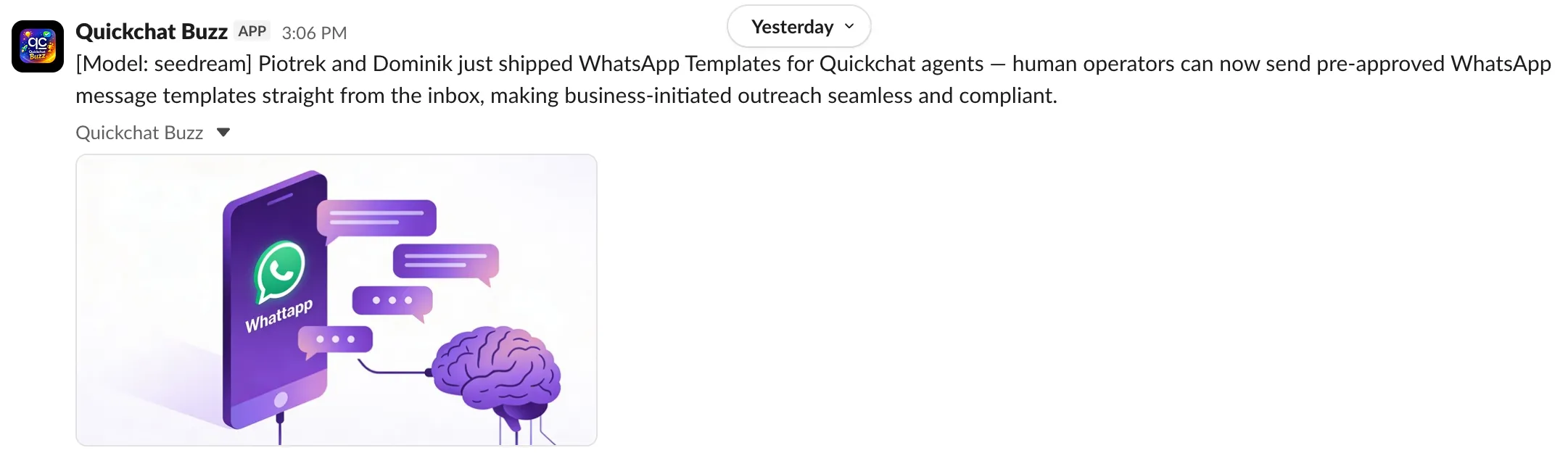 A buzz message in Slack: concise technical text paired with an AI-generated illustration
The bot avatar, the text, and the abstract image become a familiar pattern in the channel. After a while people stop treating it as a bot notification and start reading it as a signal for what’s happening across the team.
The same habit of letting a session work without watching it scales up: in a later experiment, Claude Code ran Stockfish over 2,000 of my chess games for hours and sent me a PDF when it was done.
If you build your own version of this, I’d love to see what your team’s AI decides is buzz-worthy. Share it on X or Hacker News!