---
title: "Build an Illustrator Finder for Instagram and Messenger DMs"
titleOverride: "Build an Instagram Chatbot to Find Illustrators by Budget"
pubDate: 2026-11-26
description: "Build an Instagram chatbot that also answers Facebook Messenger DMs. Match a $100 poster brief to an $85 illustration package and open the artist’s portfolio."
author:
name: Piotr Grudzień
image: /blog-assets/authors/piotr_grudzien.jpg
image:
url: /blog-assets/posts/ink-window-illustrator-finder.webp
alt: "An Instagram message asks for a poster at $100 or less beneath the $85 result, beside Paper Parasol’s print of a red parasol at a flower market"
tags: [tutorials]
articleCta:
title: "Build a finder for your own services"
subtitle: "Start with one package, its price and the person who provides it."
button: "Create your directory Agent"
href: https://app.quickchat.ai/register
faq:
- question: "How can an Instagram chatbot recommend services from my directory?"
answer: "Give the chatbot three read-only API Actions. The first searches published services by category and budget. The second reads the matching package’s price, scope, link and provider ID. The third uses that ID to find the illustrator’s public portfolio. The same Actions work in Facebook Messenger."
- question: "How does the chatbot keep a recommendation within budget?"
answer: "The directory filters published services by category and maximum price. In Ink Window, an $85 limit includes the $85 poster, while $84 excludes it. If the buyer lowers the budget to $50, the Agent runs the search again and can tell them there are no matching posters."
- question: "What if a buyer sends only a budget in a DM?"
answer: "Ask what they want before searching. In our test, “My budget is $100” prompted the Agent to ask whether the buyer wanted a poster illustration or a repeating pattern. The directory received no request on that turn."
- question: "Do I need a Facebook Page to answer Instagram DMs?"
answer: "No. Instagram uses its own sign-in and requires a Professional account (Business or Creator) with message access enabled. To answer Facebook Messenger messages as well, connect a Facebook Page you can manage to the same Quickchat AI Agent."
- question: "What if my Facebook Page is already connected to another AI Agent?"
answer: "A Facebook Page can receive replies from one Quickchat AI Agent at a time. To move the Page, open Facebook Messenger under External Apps in the Agent that currently answers it and choose Disconnect. Then connect the Page to your new Agent. For a separate test, use a different Page."
- question: "Does the DM book the illustrator or take a payment?"
answer: "The three Actions in this tutorial only read directory records. Buyers can open the package and the artist’s portfolio. Enquiries, bookings and payments belong on your own service page."
howto:
- name: "Find the $85 poster in the directory"
text: "Search the public Ink Window demo for a poster illustration with a $100 limit. Open the package, then its illustrator profile."
- name: "Give the Agent a budget-aware search"
text: "Create the Ink Window Agent, paste the Main Prompt and configure a GET Action with the required kind and cap query parameters."
- name: "Connect the package and the illustrator"
text: "Add one Action that looks up the selected service ID and another that looks up the provider ID from that service."
- name: "Test a follow-up and a lower budget"
text: "Ask for a $100 poster, ask who draws it and lower the budget to $50 in one conversation. Inspect the Action calls and compare the replies with the directory."
- name: "Try the buyer journey in Instagram and Facebook Messenger"
text: "Connect an Instagram Professional account and a Facebook Page. From a second account on each channel, message the business, open the returned page and check the channel in the Quickchat AI Inbox."
---
Ask Ink Window’s Instagram chatbot, “Can I get a poster illustration for $100 or less?” A red parasol fills the link preview. Tap it and the package opens at **$85 for one A3 poster illustration and one proof**.
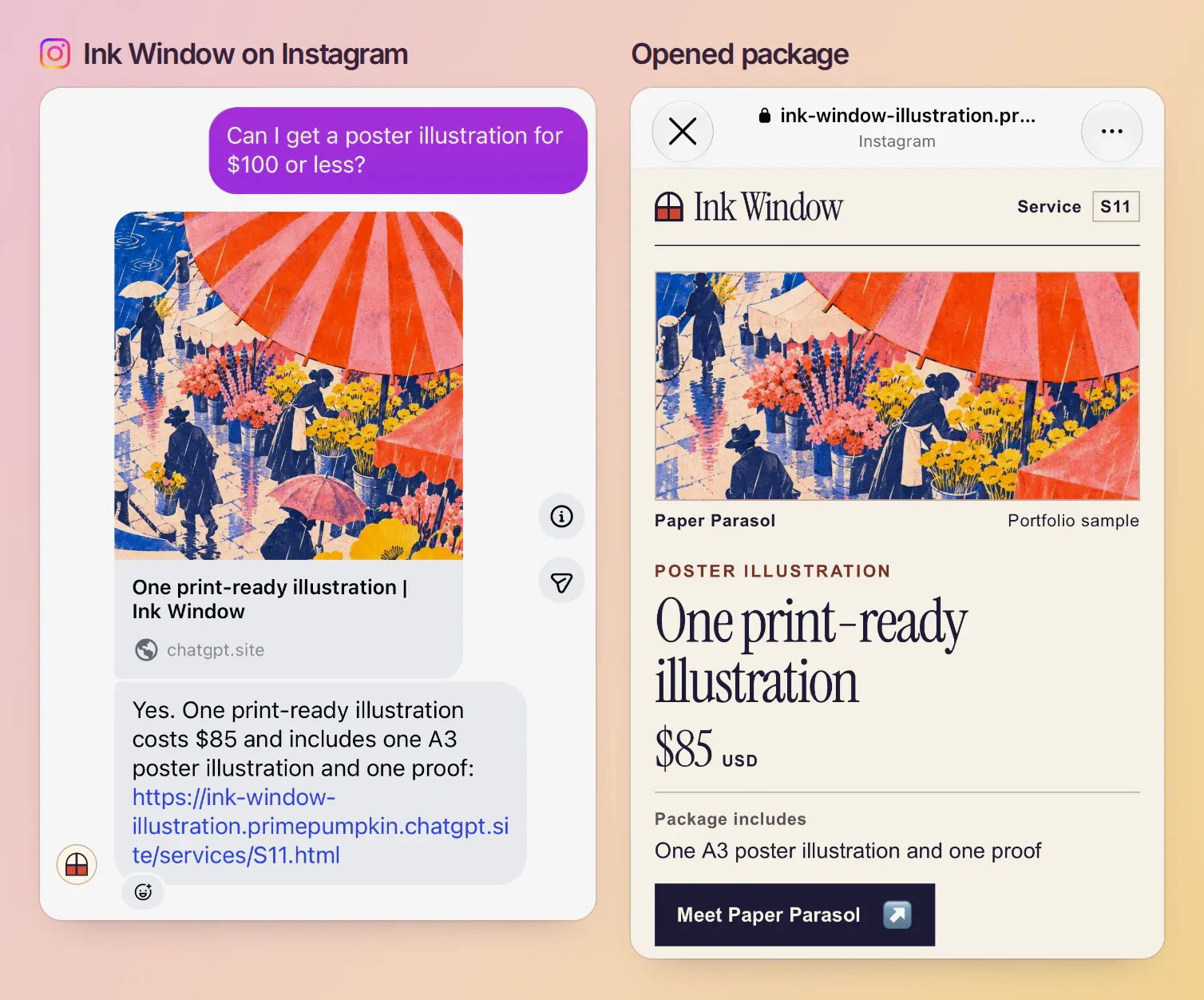The Instagram link opens the listing shown beside it. The screenshots use Ink Window’s name and logo for the test accounts. View the $85 package.
You’ll build **Ink Window**, an Instagram and Facebook Messenger chatbot that recommends illustration packages from a directory. Ask “Who draws that one?” and the next reply links to **Paper Parasol’s portfolio**. When the buyer drops their budget to $50, you’ll see why the $85 poster disappears from the reply.
You can try the directory in a browser now. To answer DMs yourself, you’ll need a Quickchat AI account with credits for test replies, an **Instagram Professional account** and a **Facebook Page** where you can manage messages. Have a second account available on each channel to try the [buyer’s side](#connect-the-channels).
## 1. Which poster fits a $100 budget?
Ink Window has three poster listings. One costs $140. The $45 sketch has been retired. The remaining **$85 package** is the only published poster within the buyer’s budget. There’s also a $65 repeating tile for someone looking for a pattern.
1. Open the [Ink Window directory](https://ink-window-illustration.primepumpkin.chatgpt.site/). Under **Deliverable**, choose **Poster illustration**, enter **100** under **Budget in USD**, then choose **Search**.
2. Open **One print-ready illustration**. Check the price and the line under **Package includes**, then choose **Meet Paper Parasol**. The artist page lists the same package under **Published packages**.
3. Return to the search and change the budget to **84**. The list empties. Enter **85** and the package reappears. That is how you can tell the limit includes the amount the buyer named.
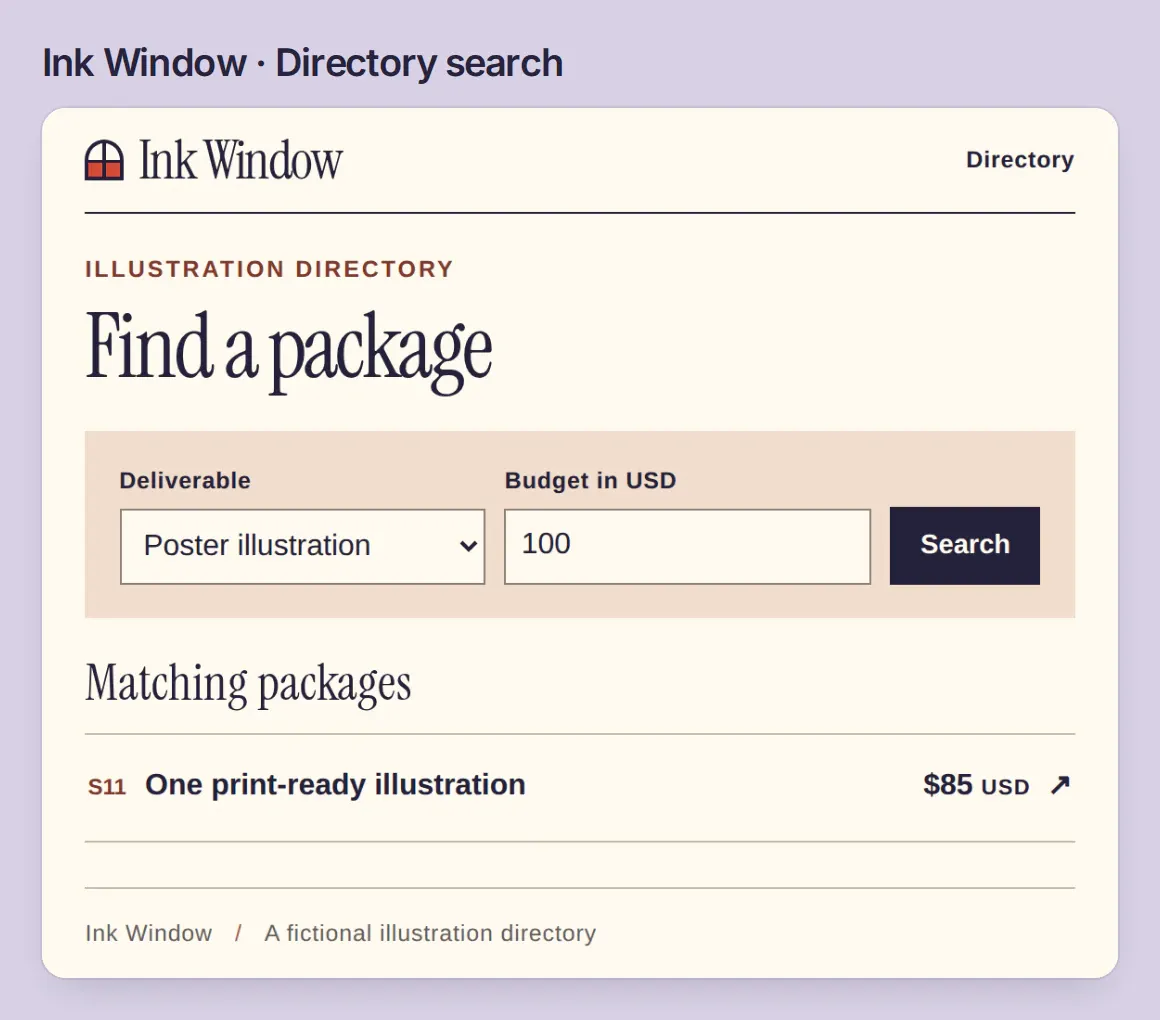
*The search links to S11, the directory’s ID for this package. The Agent will receive the same ID.*
The browser and the Agent use the same four fictional service records. The flower-market print is an AI-generated portfolio sample. Open the [poster search as JSON](https://ink-window-illustration.primepumpkin.chatgpt.site/api/services?kind=poster&cap=100) to see the complete result the search Action will read.
```json
{"items":[{"id":"S11","title":"One print-ready illustration","price_usd":85}]}
```
You can use this public demo for all three Actions. To edit prices and publication status, make your own copy. If you already maintain a service directory, the [guide to connecting an AI Agent to a REST API](https://quickchat.ai/post/connect-ai-agent-to-any-api) shows how to build an Action from your API documentation.
Download and run your own Ink Window directory
1. [Download the directory kit](https://quickchat.ai/blog-assets/downloads/ink-window-directory.zip). Extract it into an empty folder and open a terminal in the folder that contains `directory.py`. Run the following command with Python 3.10 or later.
```bash
python3 directory.py
```
2. Open `http://127.0.0.1:8765/` in your browser. Edit a price in `catalog.json`, save, and run the search again. The directory reads the file on each search and detail lookup.
3. To let a hosted Agent use your copy, deploy the extracted files to a public HTTPS host. On Render, put them at the root of a Git repository, choose **New → Web Service**, select the repository and **Python** runtime, set the build command to `python3 --version` and the start command to `python3 directory.py`. Set `BIND` to `0.0.0.0` and let Render supply `PORT`. [Render web service setup](https://render.com/docs/web-services)
4. Set `DIRECTORY_ORIGIN` to the HTTPS origin Render assigned and redeploy. Open `/api/services/S11` on that host and tap the `service_url` it returns. When your $85 page opens, substitute your HTTPS origin for the demo’s in all three Actions below.
## 2. How does a DM become a directory search?
The buyer gives two pieces of information in ordinary language. The Agent turns “a poster illustration for $100 or less” into `kind=poster` and `cap=100`. The directory applies those filters and decides which records qualify.
1. [Create a Quickchat AI account](https://app.quickchat.ai/register) or open your workspace. Choose **Add new AI Agent → Set up manually**, or use an empty Agent. Under **Identity → AI Persona**, set the name to **Ink Window**. For a commercial directory, choose a plan that includes commercial use. [Quickchat AI plans and limits](https://quickchat.ai/docs/pricing-and-plans)
2. In **Main Prompt**, paste the instructions below and let the edit save. The prompt tells the Agent when to ask a question, when to search and which link to return.
Copy the Ink Window Main Prompt
```text
You help buyers find illustration packages in the Ink Window directory. Ask for the deliverable (poster or pattern) and the maximum budget in whole US dollars if either is missing. Once you have both, search the directory. Open a matching service record before quoting its price, what it includes, or its service_url. Use that URL exactly. If asked who draws a package, use the provider_id from its service record to look up the illustrator, then share the returned profile_url. If the budget changes, search again. If the list is empty, say so and ask whether the buyer wants to change the brief. If a record disappears or a request fails, explain what happened. Never invent a match, a link, an order, or a reservation. Keep replies to two short sentences. Use descriptive link text.
```
3. Open **Actions & MCPs**. Under **Custom Actions**, choose **Add Action → API Action → Create manually**. Set **API Action Name** to `Find creative services` and keep **When to run** on **AI decides**. This is the first of three Actions.
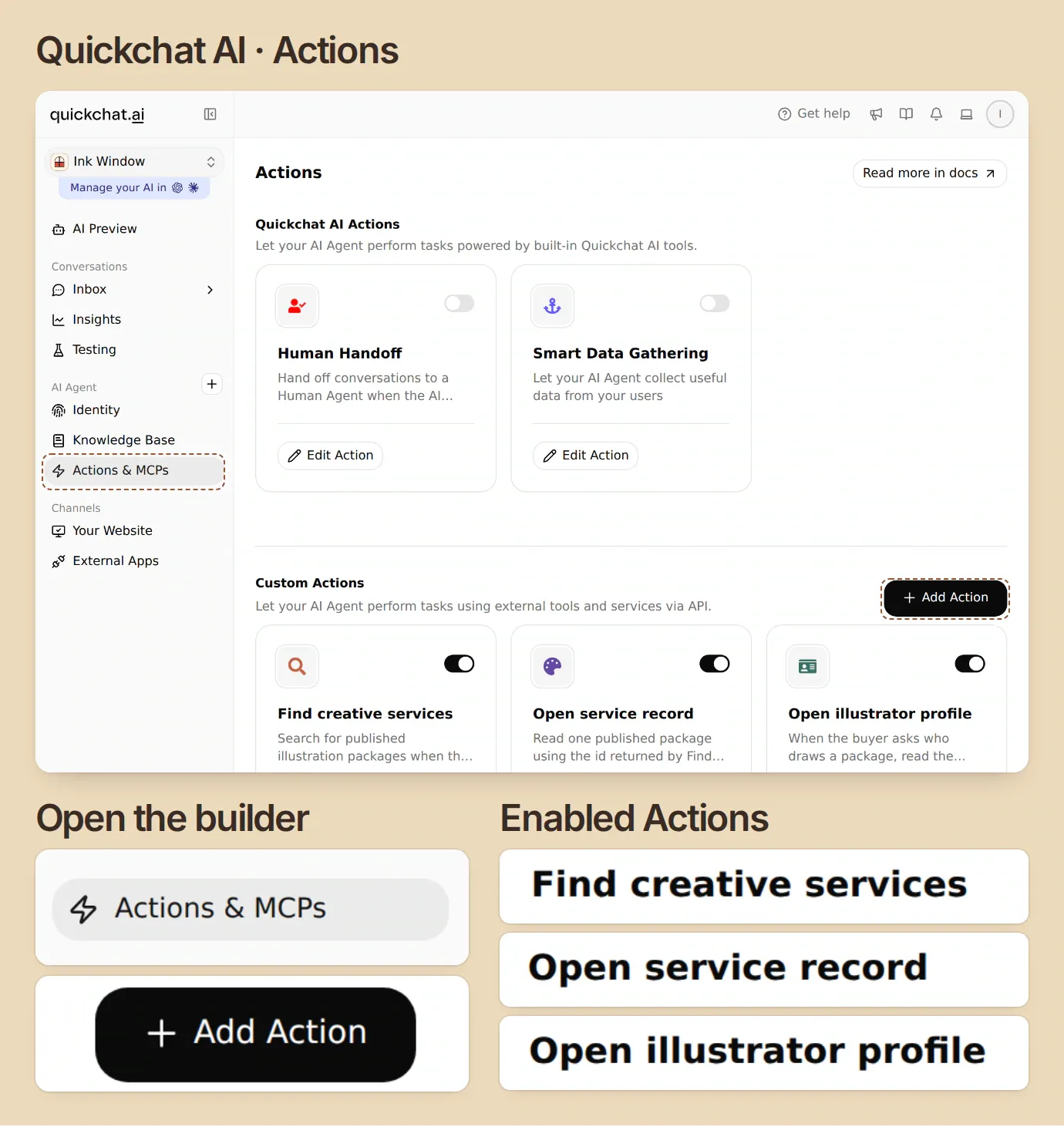
*Use Add Action each time. When you finish step 3, these three cards should all be enabled.*
4. Under **What to ask the user first**, add two required parameters with **No default**. Under **API Endpoint**, choose **GET** and enter `https://ink-window-illustration.primepumpkin.chatgpt.site/api/services`.
| Name | Format | Description to enter |
| --- | --- | --- |
| `kind` | Text | Use poster for a poster illustration or pattern for a repeating tile. |
| `cap` | Number | Maximum price in whole US dollars, inclusive, supplied by the buyer. |
5. In **Query Params**, add two keys, `kind` and `cap`. For each value, choose **Add AI Data → Parameters** and select the matching parameter. Leave **Headers** and **Body** empty. The sample directory requires no credentials.
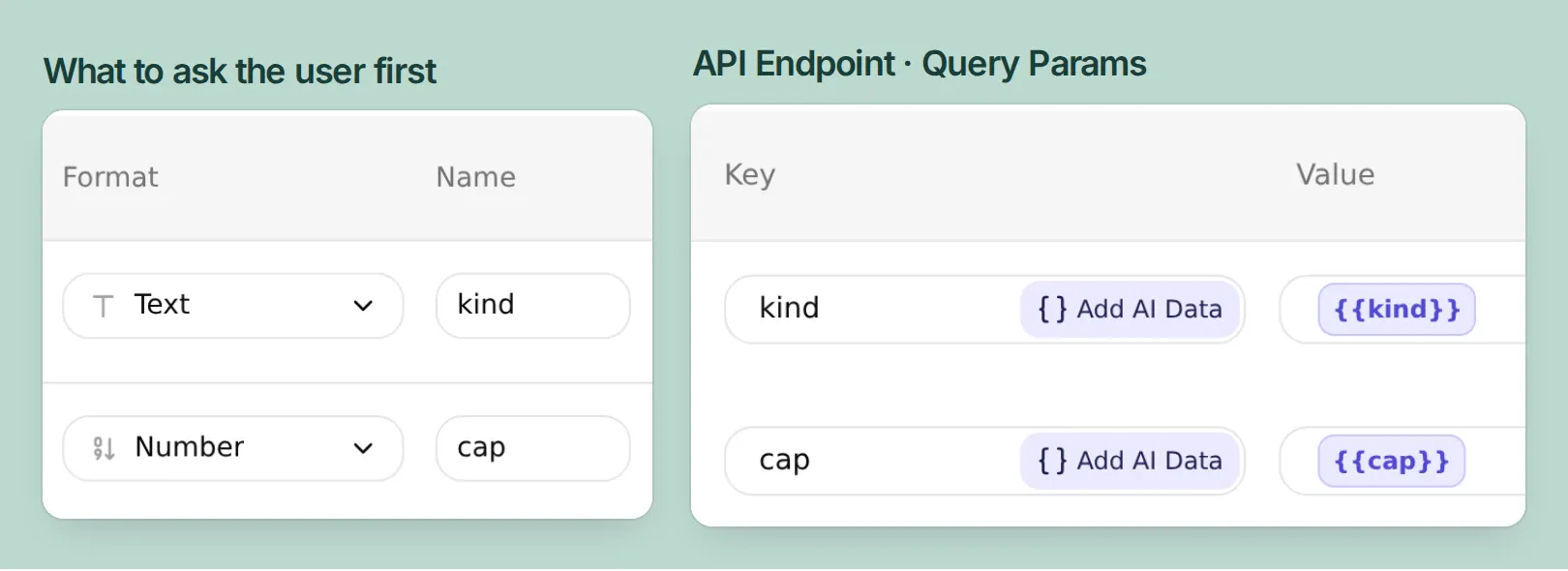
*The blue chips carry the category and budget from the conversation into the two query parameters.*
6. Paste the following into **API Action Description**, choose **Save changes** and switch the Action on. [API Actions guide](https://quickchat.ai/docs/ai-agent/actions)
```text
Search for published illustration packages when the buyer gives a deliverable and a maximum USD budget. Run again whenever the budget changes. If items is empty, report no match. Open a matching service record before quoting it.
```
## 3. How does “Who draws that one?” find the right artist?
Both links start with the package the buyer chose. The search names service **S11**. Its detail record supplies the scope, the service page and the provider ID **P1**. Looking up P1 leads to **Paper Parasol**, where the studio lists its published packages.
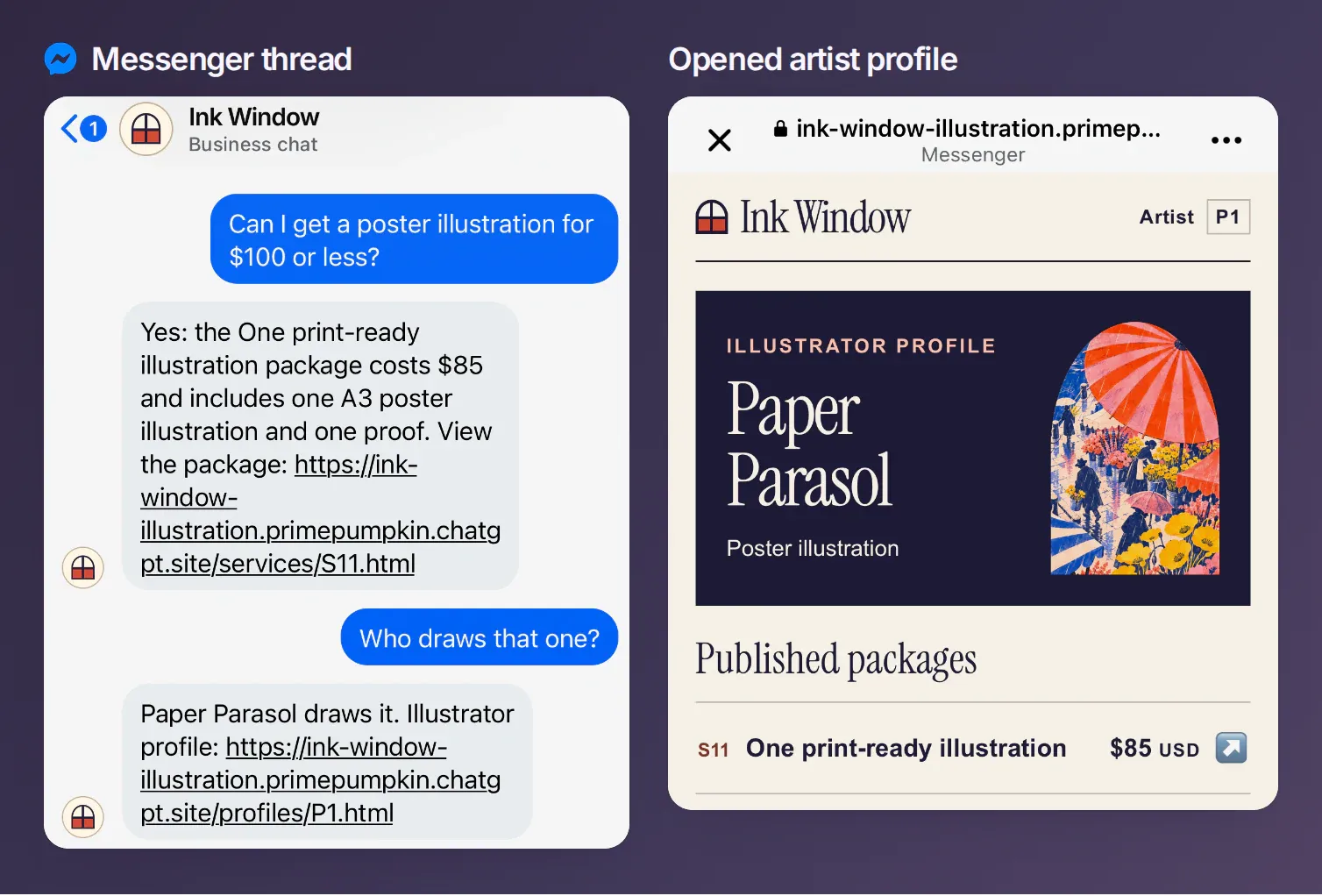Messenger opens the artist’s page. Its Published packages section links back to the $85 poster. View Paper Parasol’s profile.
### Action 2 of 3. Open the selected package
1. Return to **Add Action → API Action → Create manually**. Set **API Action Name** to `Open service record` and **When to run** to **AI decides**.
2. Under **What to ask the user first**, add one required **Text** parameter, `service_id`, with **No default**. For its description, enter “The id returned by the directory search for this selected service.”
3. In **API Endpoint**, select **GET** and paste the URL prefix below. Place the cursor after its final slash and select **Add AI Data → Parameters → service_id**. Leave **Query Params**, **Headers** and **Body** empty.
```text
https://ink-window-illustration.primepumpkin.chatgpt.site/api/services/
```
4. Paste this into **API Action Description**, choose **Save changes** and enable the Action.
```text
Read one published package using the id returned by Find creative services. Use this record for its price, included work, public service URL and provider ID. Stop on a missing service.
```
### Action 3 of 3. Open the illustrator’s portfolio
1. Create another manual API Action. Set **API Action Name** to `Open illustrator profile` and **When to run** to **AI decides**.
2. Under **What to ask the user first**, add one required **Text** parameter, `provider_id`, with **No default**. For its description, enter “The provider_id returned by Open service record for the selected service.”
3. In **API Endpoint**, select **GET** and paste the prefix below. Choose **Add AI Data → Parameters → provider_id** after the final slash. Leave **Query Params**, **Headers** and **Body** empty.
```text
https://ink-window-illustration.primepumpkin.chatgpt.site/api/profiles/
```
4. Paste this into **API Action Description**, choose **Save changes** and enable the Action.
```text
When the buyer asks who draws a package, read the artist using the provider_id from its service record. Return the display name and profile URL from this response.
```
Set up the same three Actions with ChatGPT or Claude
Connect your Quickchat AI account in your AI client, then give it this tutorial and the request below. [ChatGPT app](https://chatgpt.com/plugins/plugin_asdk_app_6a4656c688748191be4c5247fb0d5dfc) · [Claude connector](https://claude.ai/directory/connectors/app-quickchat-ai)
> Set up Ink Window in my Quickchat AI account. Use the guide’s Main Prompt and three read-only API Actions. Use the public demo origin for all three URLs. Show me the two search query parameters and the ID in each detail URL. Read back the saved Agent and the enabled Actions.
If you’re using your own copy, give the client your HTTPS origin instead. Check the saved settings in **Actions & MCPs**. You’ll sign in to the two Meta accounts yourself in step 5. [Manage a Quickchat AI account with an AI client](https://quickchat.ai/docs/manage-with-ai)
## 4. What happens when the budget drops to $50?
At $50, the directory returns no published posters. The Agent asks whether the buyer wants to change the brief. To test the price change yourself, open **AI Preview** and send these three messages in **one conversation**.
| Send this message | What to check |
| --- | --- |
| “Can I get a poster illustration for $100 or less?” | The link opens S11 at $85 for one A3 poster illustration and one proof. |
| “Who draws that one?” | The link opens Paper Parasol’s P1 artist profile. |
| “My budget just dropped to $50. Anything for a poster?” | The Agent searches at $50, finds no matching posters and asks whether the buyer wants to change the brief. |
In **Inbox**, open the conversation and expand **actions called** below a reply. Our live Messenger follow-up reopened S11, read `provider_id: P1` from it, then fetched P1. Both calls returned **200**.
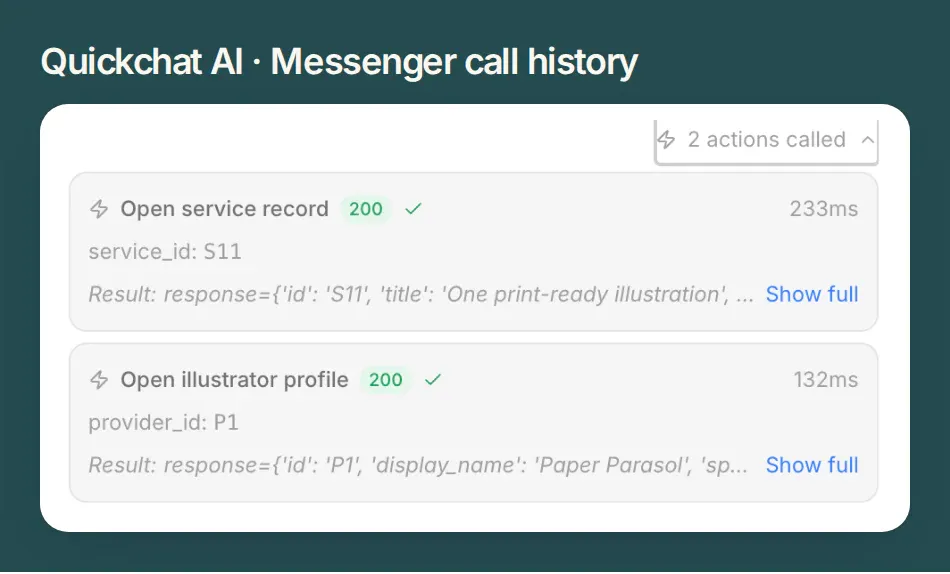
*The artist’s name is in the profile response. Following the two IDs explains how the Agent resolved “that one”.*
When we lowered the budget in the same Messenger thread, the only Action was a fresh poster search with `cap=50`. The directory returned `{"items":[]}`. The buyer’s previous link still opens the $85 package, but the new reply offers no poster at the lower price.
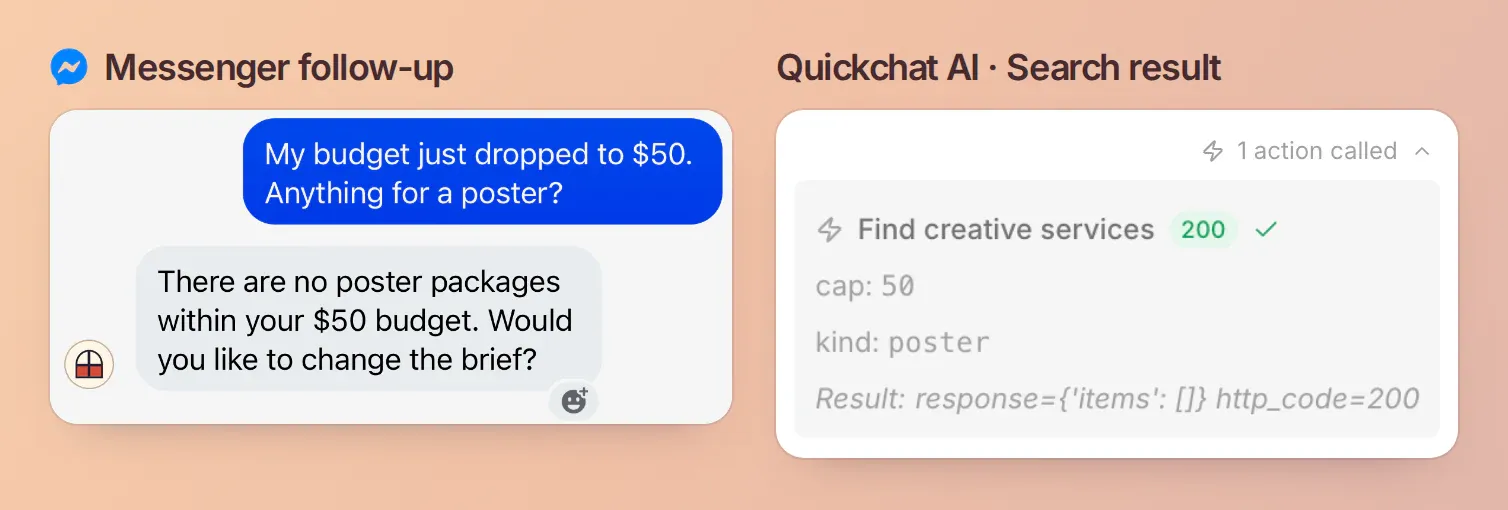“Would you like to change the brief?” is the last line in Messenger. The Inbox shows one successful search and zero matching records.
**Try an unavailable listing, too.** In your own copy of the kit, run the $100 search, set S11’s `published` value to `false` in `catalog.json`, then open `/api/services/S11`. Restore `published` to `true` after the test. We tested that sequence between the Agent’s search and its detail lookup. The search found S11, but the next read returned **404**. The Agent said it couldn’t confirm the package and left out the price and link.
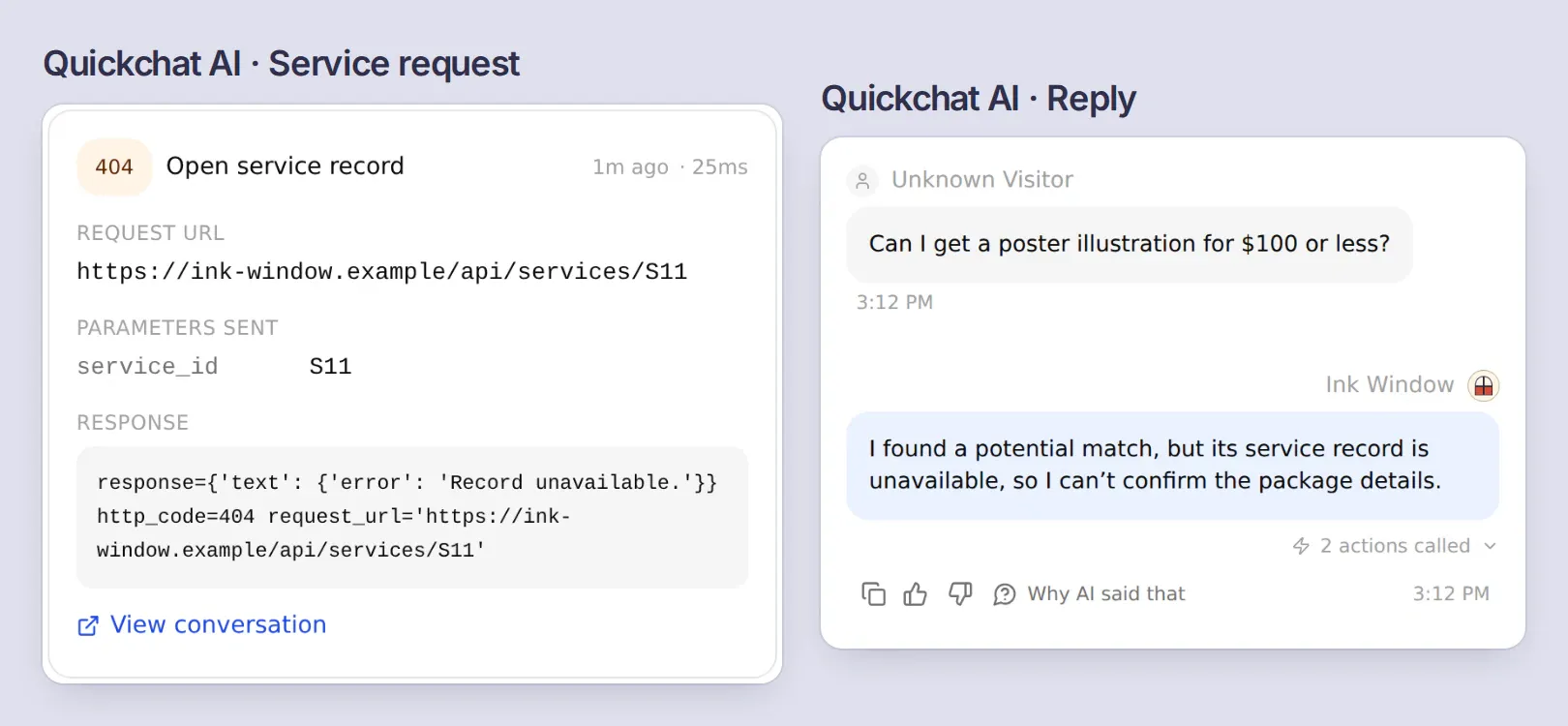
*An empty search and a missing detail record are different results. Open the service Action’s **View logs** to see which request returned 404.*
### Run the same budget checks after an edit
1. Open **Conversations → Testing → Create Dataset**. Name the dataset **Ink Window budget checks**, choose **Paste messages**, and paste the four opening messages below. Testing starts a separate conversation for each one.
Copy the four test messages
```text
I need a poster illustration. My budget is $100.
---
I have $50 for a poster illustration. Any matches?
---
Can I get a repeating pattern for $75?
---
My budget is $100.
```
2. Choose **Create**. Open the dataset, then choose **Run → Start Run**. The first two replies should agree with the $85 and $50 checks above. The third should find the **$65 repeating tile**. The last should ask what the buyer needs before it searches. [Testing walkthrough](https://quickchat.ai/docs/conversations/testing)
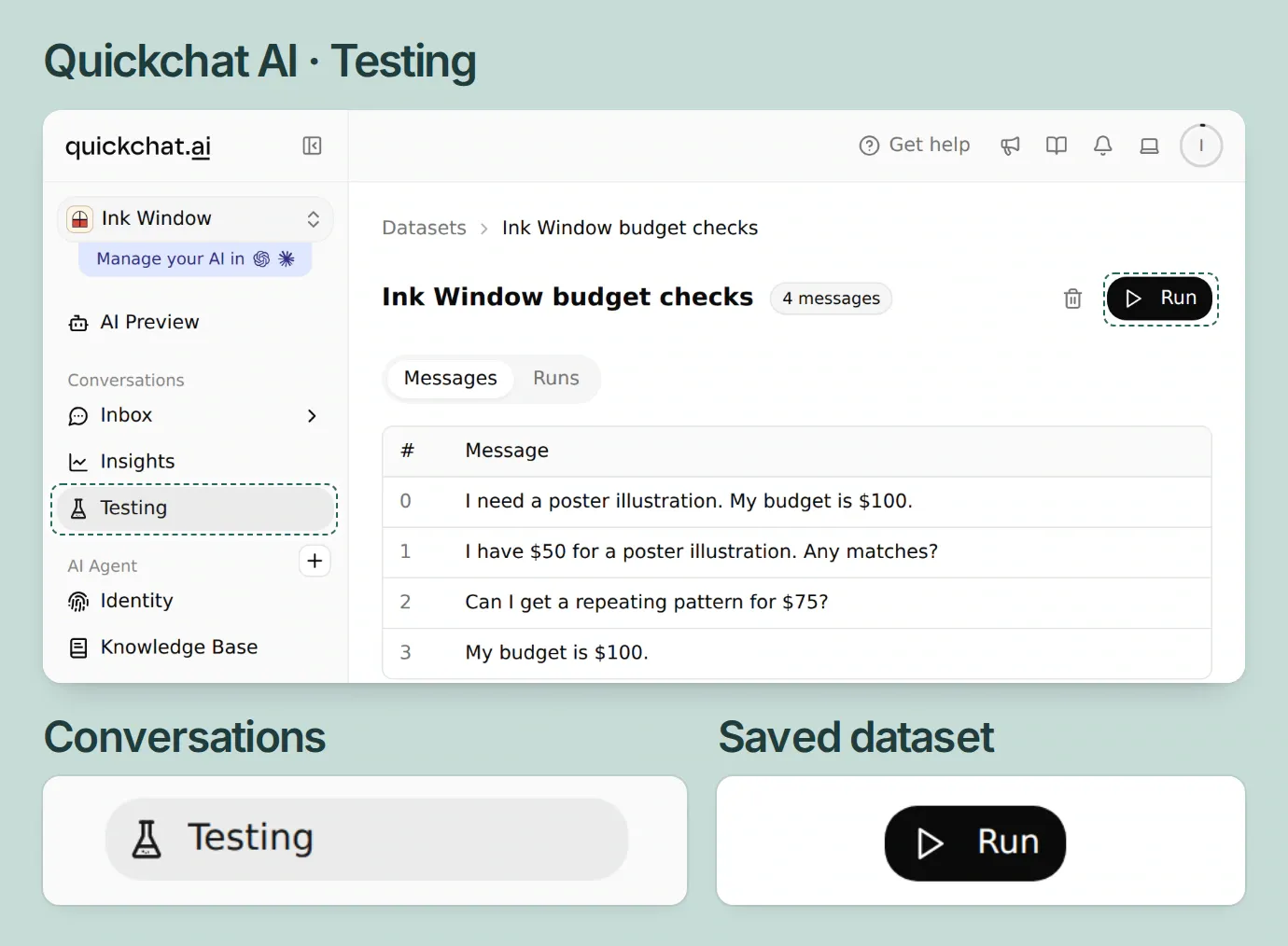
*Keep the dataset after your first run. You can repeat the same four briefs after changing the prompt, an Action or the catalog.*
3. For a multi-turn pattern check, start a fresh **AI Preview** conversation with the $75 question, then ask who draws it. Look for **Pencil Ferry**.
Compare two descriptions of the service lookup
Change only the description of `Open service record` to “Read a service record from the illustration directory.” In a new AI Preview conversation, send the $100 poster brief, then ask “Who draws that one?” Inspect the calls and restore the description from step 3. In one local comparison, the short description yielded two calls for the artist follow-up. The longer one added a fresh search before the same two lookups. Both opened P1. Check the service and provider IDs when you compare runs.
## 5. How do you connect the finder to Instagram and Facebook Messenger?
Connect the **same Quickchat AI Agent** to your Instagram account and Facebook Page. Each channel keeps its own conversation history. If you start on Messenger after testing Instagram, send the $100 brief again before asking “Who draws that one?”
### Send the first brief on Instagram
1. In **External Apps → Instagram**, choose **Connect to Instagram**. Sign in as the intended **Professional** account (Business or Creator). Instagram uses the account signed in to that browser.
2. Leave **Access and manage messages** enabled and confirm. Back in Quickchat AI, check the connected **@username** and that **Enable Instagram** is on. [Instagram connection guide](https://quickchat.ai/docs/channels/instagram)
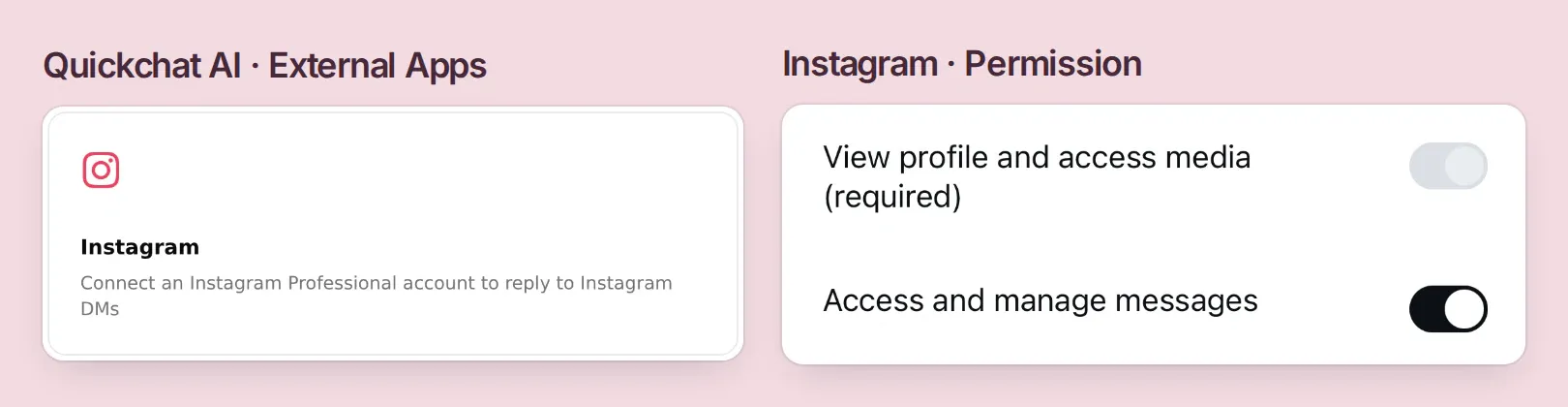
*Leave message access on when Instagram asks. The [Instagram DM setup walkthrough](https://quickchat.ai/post/instagram-ai-chatbot-answer-dms) shows the full consent screen.*
3. On your phone, use a different Instagram account to DM the connected profile with “Can I get a poster illustration for $100 or less?” Open the package link in the reply. Look for **One print-ready illustration**, **$85** and **one proof**, as in the opening figure.
### Open the artist’s page in Messenger
1. In **External Apps → Facebook Messenger**, choose **Connect to Facebook Messenger**. Sign in with a Facebook account that can manage your Page’s messages. Select the intended Page and grant the requested permissions.
2. Back in Quickchat AI, choose **Connect this Page** beside your Page if Facebook returned several. If you see one Page, confirm the button labeled **Connect** followed by its name. Check the selected Page and **Enable Messenger**. Confirming the Page turns on replies. [Messenger connection guide](https://quickchat.ai/docs/channels/facebook-messenger)
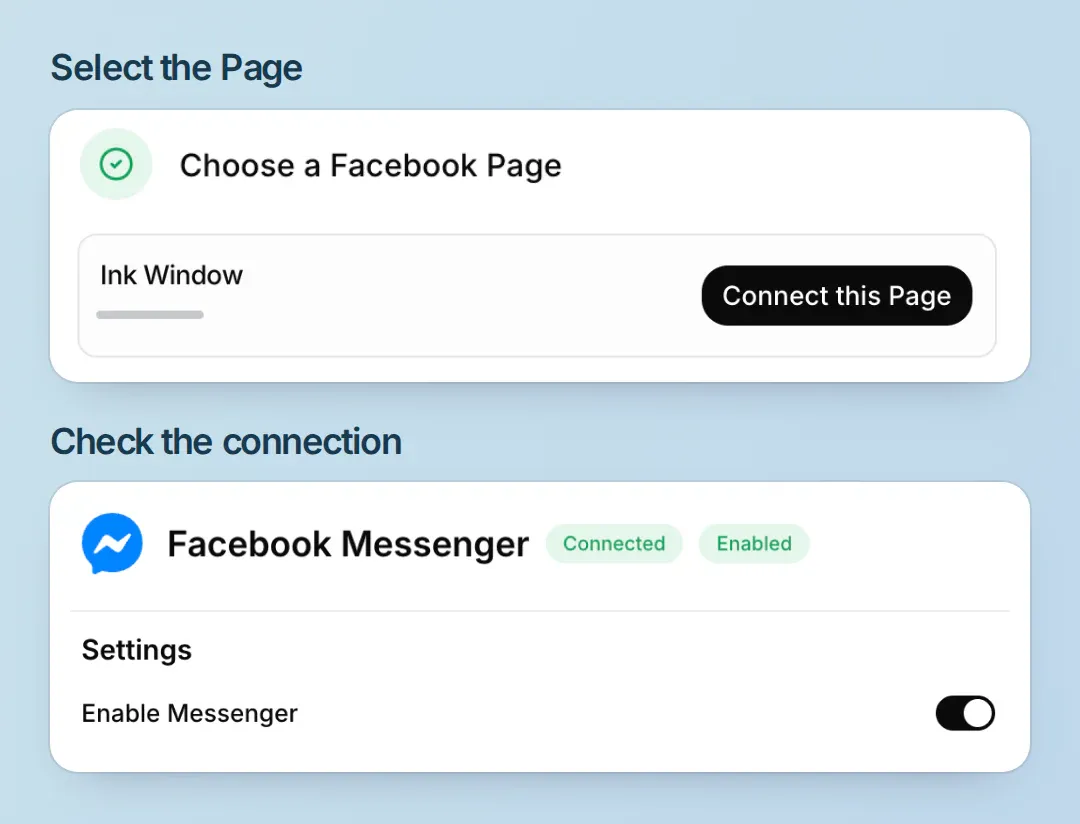Select the Page your buyers will message. After connecting it, look for Connected and Enabled. Step-by-step Facebook Page setup.
3. From a personal Facebook account, message the Page with the $100 brief. After the $85 reply, ask “Who draws that one?” Tap the profile link and find **Published packages** under Paper Parasol’s name. Back in that thread, send the $50 question to check the [lower-budget result](#test-the-budget).
To trace a message from either phone, open **Inbox → All** in Quickchat AI and select the conversation. Under **Details → Conversation**, check **Channel**. In our Instagram conversation, expanding the two calls beneath the $85 reply showed a poster search at `cap=100` followed by the S11 detail lookup. [Quickchat AI Inbox guide](https://quickchat.ai/docs/conversations/inbox)
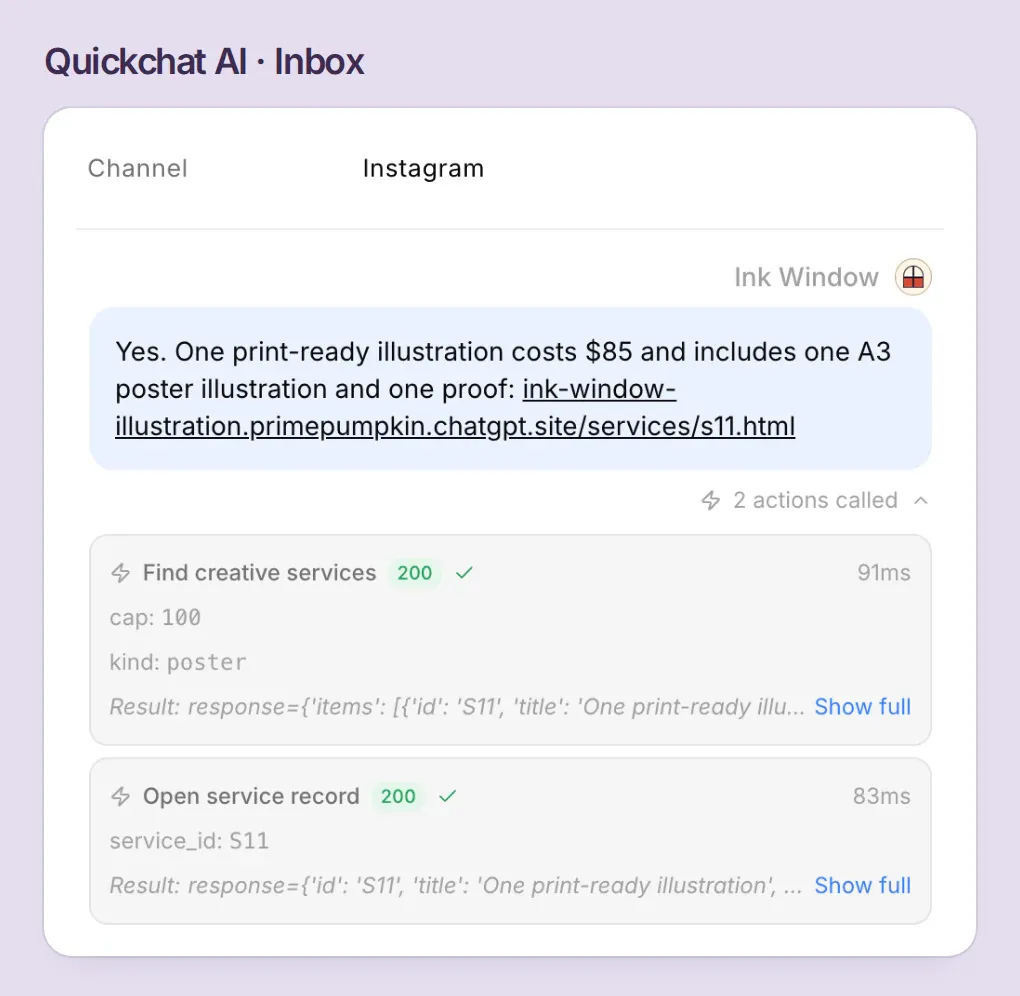
*Match the Instagram reply to its two directory reads. The first found S11 within budget. The second supplied the scope, price and link the buyer opened.*
## Illustrator finder FAQ
### How can an Instagram chatbot recommend services from my directory?
Give the chatbot three read-only API Actions. The first searches published services by category and budget. The second reads the matching package’s price, scope, link and provider ID. The third uses that ID to find the illustrator’s public portfolio. The same Actions work in Facebook Messenger.
### How does the chatbot keep a recommendation within budget?
The directory filters published services by category and maximum price. In Ink Window, an $85 limit includes the $85 poster, while $84 excludes it. If the buyer lowers the budget to $50, the Agent runs the search again and can tell them there are no matching posters.
### What if a buyer sends only a budget in a DM?
Ask what they want before searching. In our test, “My budget is $100” prompted the Agent to ask whether the buyer wanted a poster illustration or a repeating pattern. The directory received no request on that turn.
### Do I need a Facebook Page to answer Instagram DMs?
No. Instagram uses its own sign-in and requires a Professional account (Business or Creator) with message access enabled. To answer Facebook Messenger messages as well, connect a Facebook Page you can manage to the same Quickchat AI Agent.
### What if my Facebook Page is already connected to another AI Agent?
A Facebook Page can receive replies from one Quickchat AI Agent at a time. To move the Page, open Facebook Messenger under External Apps in the Agent that currently answers it and choose Disconnect. Then connect the Page to your new Agent. For a separate test, use a different Page.
### Does the DM book the illustrator or take a payment?
The three Actions in this tutorial only read directory records. Buyers can open the package and the artist’s portfolio. Enquiries, bookings and payments belong on your own service page.